Helping millions of people navigate the world of technology.

7 Fixes for Wi-Fi Login Page Not Showing Up on Mac and Windows

Fix 1: Forget the Network and Reconnect to It

Try forgetting the network so you can reconnect to it. This way, you’re establishing a fresh connection which may trigger the login page. Here’s how to do it.

On Mac

Step 1: Click on the Wi-Fi icon in the menu bar at the top. This will bring up the Wi-Fi options.

Step 2: Select Network Preferences.

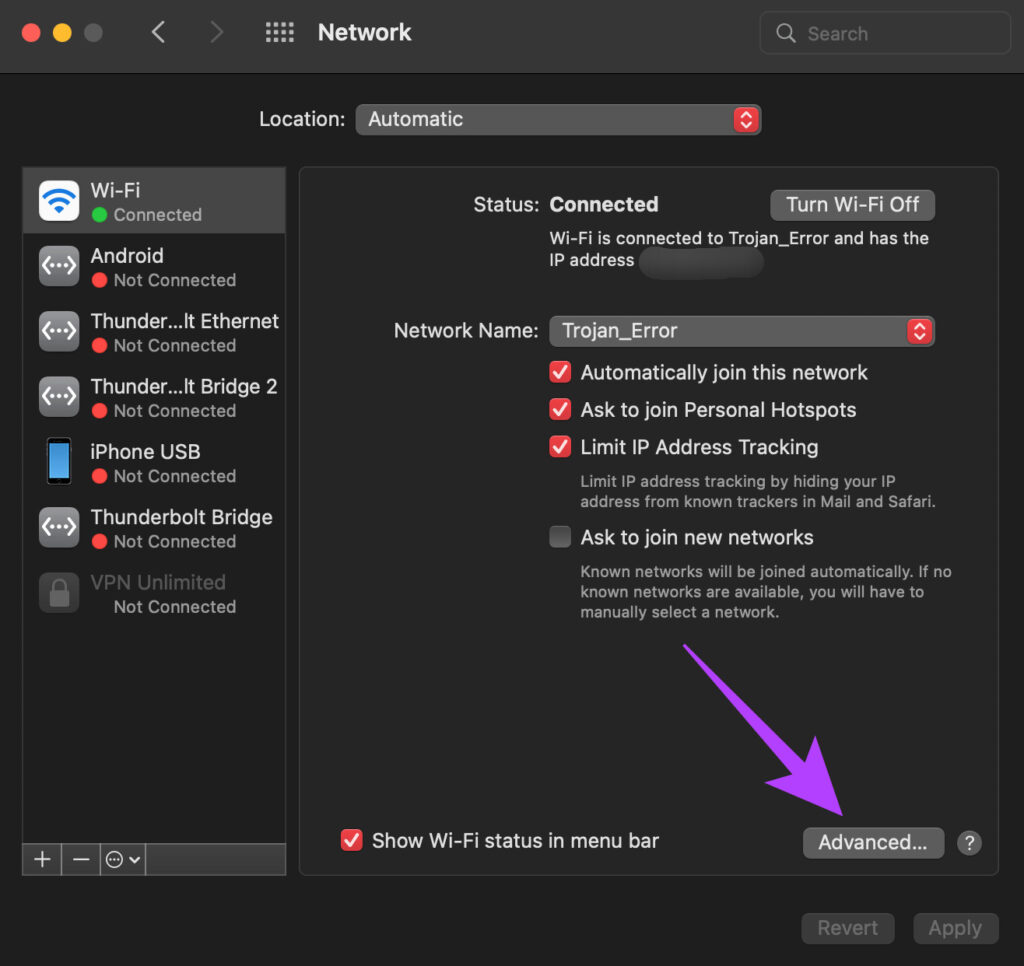
Step 3: Click on the Advanced option. You will now see a new window.

Step 4: Now, select the network you want to forget and click on the ‘‘ (remove) icon below it.

On Windows

Step 1: Click on the Search icon in the taskbar and look for Settings. Click on the app to open it.

Step 2: Navigate to Network & internet.

Step 3: Select the Wi-Fi option. This will bring up detailed settings related to your network.

Step 4: Now, click on Manage known networks.

Step 5: Hit the Forget button next to the Wi-Fi network.

Fix 2: Disable Auto-Join for the Wi-Fi Network

If your computer automatically connects to a Wi-Fi network you’ve already used in the past, chances are that the captive portal login page may not load. So, disable the Auto-Join toggle to ensure you manually connect to the network and trigger the guest Wi-Fi login page.

First, connect to the network on your Mac or PC. Then, perform the following steps.

On Mac

Step 1: Click on the Wi-Fi icon in the menu bar at the top. This will bring up the Wi-Fi options.

Step 2: Select Network Preferences.

Step 3: You will see several options listed under the Wi-Fi network. Uncheck the tickbox next to Automatically join this network.

Step 4: Now, forget the Wi-Fi network and reconnect to it by following the steps mentioned above.

On Windows

Step 1: Click on the Search icon in the taskbar and look for Settings. Click on the app to open it.

Step 2: Navigate to Network & internet.

Step 3: Select the Wi-Fi option. This will bring up detailed settings related to your network.

Step 4: Now, click on the Wi-Fi network you’re connected to.

Step 5: Uncheck the tickbox next to Connect automatically when in range.

Fix 3: Clear DNS Cache

Clearing the DNS cache is a solution that has helped several people solve the Wi-Fi login page not showing up issue, especially on a Mac. If you’re wondering how to force the Wi-Fi login page, this is a good way. Here’s how to do it.

On Mac

Step 1: Open Spotlight search by pressing the Command + Space Bar keys. Enter terminal and press the Enter key.

Step 2: In the terminal window, type sudo killall -HUP mDNSResponder and hit the Enter key.

Step 3: You will now be asked to enter your Mac’s password. Input your password and hit the enter key once again.

Your DNS cache will now be flushed.

On Windows

Step 1: Click on the Search icon in the taskbar and look for cmd. Click on the app to open it.

Step 2: Type ipconfig /flushdns and hit the Enter key.

Fix 4: Remove Other DNS

You may be using a public DNS or Cloudflare’s popular 1.1.1.1 DNS to speed up your internet connection. While it is indeed effective, it can prevent the triggering of the Wi-Fi login page when you connect to a new network. If your hotel Wi-Fi login page is not showing up, here’s how you can remove other DNS from your computer.

On Mac

Step 1: Click on the Wi-Fi icon in the menu bar at the top. This will bring up the Wi-Fi options.

Step 2: Select Network Preferences.

Step 3: Click on the Advanced option. A new window will be displayed.

Step 4: Navigate to the DNS section at the top.

Step 5: Select a DNS server that you’ve added. Click on the ‘‘ (remove) button at the bottom.

Step 6: Now, click on OK to save changes.

On Windows

Step 1: Click on the Search icon in the taskbar and look for Settings. Click on the app to open it.

Step 2: Navigate to Network & internet.

Step 3: Select Properties. Your network properties will be displayed here.

Step 4: Scroll down to the DNS server assignment. Click on the Edit button.

Step 5: Click on the drop-down menu at the top. Select Automatic (DHCP).

Step 6: Save the changes and you’re good to go.

Fix 5: Use the Default Browser

If you’re using a Mac, try launching Safari instead of Chrome or Firefox once you connect to a public network. On Windows, launch Microsoft Edge instead of a different browser. Sometimes, a simple action like this can trigger the login page.

Fix 6: Turn Off VPN

Oftentimes, a VPN may interfere with your computer’s ability to connect to a Wi-Fi network. Since a VPN changes your location, the Wi-Fi network may not show you the login page. If you’re using a VPN on your computer, turn it off before trying to connect to the public Wi-Fi network.

Fix 7: Open the Router’s Default Page

Every router has a default page that can be addressed by entering the IP address of the router in the address bar. Accessing this page will automatically direct you to the captive portal login page where you can enter your details to log in to the Wi-FI network. While this method may not work every time and depends on the make of the router, there’s no harm in giving it a shot.

Open the browser on your computer. In the address bar, type in 192.168.1.1 or 192.168.0.1 and hit the enter key.

This is the default IP address of most routers generally. If the address hasn’t changed, this should lead you to the login page.
Was this helpful?

Thanks for your feedback!

6 Ways to Switch User Accounts in Windows 11

Method 1: Switch User Accounts From the Start Menu

The most popular way to switch user accounts on a Windows computer is via the Start menu. Here are the steps to follow.

Step 1: Click the Start menu icon, click on your profile picture at the bottom left corner, and select the user account you would like to switch to.

Switch User Accounts Using Start Menu on Windows

Step 2: Type the PIN or password for the account and press Enter to sign in.

Method 2: Switch User Accounts Using the Ctrl + Alt + Delete Shortcut

Another way to switch users on Windows 11 is through the Ctrl + Alt + Delete keyboard shortcut. This is useful when the Windows 11 taskbar disappears or stops responding.

Press Ctrl + Alt + Delete on your keyboard and select Switch user from the menu. Once the login screen appears, select the account you want to use, and enter the PIN or password to sign in.

Switch User Accounts on Windows 11

Method 3: Switch User Accounts via the Shut Down Windows Dialog

Using the “Shut Down Windows” dialog is an old-school way of shutting down, restarting, or hibernating a Windows PC. You can also use it to switch user accounts on Windows. Here’s how to do it.

Step 1: Press the Windows keys + D to quickly navigate to your desktop.

Step 2: Press Alt + F4 on your keyboard to open the Shut Down Windows dialog. Use the drop-down menu to select Switch user and click OK.

Switch User Accounts Using Shut Down Windows Dialog Box

Method 4: Switch User Accounts From the Lock Screen

The Windows 11 lock screen provides another way to switch user accounts. To lock your Windows 11 PC, open the Start menu, click on your profile picture at the bottom left corner, and select Lock from the context menu. Alternatively, use the Windows key + L keyboard shortcut to lock your PC quickly.

Lock Windows 11

Once the lock screen appears, select the user account you want to use and sign in with your PIN or password.

Method 5: Switch User Accounts via Task Manager

Task Manager is a handy utility that allows you to force-close apps, monitor system processes, and run new tasks on Windows. It also lets you switch to an account you’ve already signed in.

Step 1: Press Ctrl + Shift + Esc on your keyboard to quickly open the Windows Task Manager.

Step 2: Use the left sidebar to switch to the Users tab. Right-click on the account you want to switch to and select Switch user account.

Switch User Accounts Using Windows Task Manager

Method 6: Switch User Accounts With Command Prompt or Windows PowerShell

Lastly, switch between user accounts on Windows 11 using a command-line tool. You can use the Command Prompt or Windows PowerShell for this. Here are the steps to follow.

Step 1: Click on the search icon on the taskbar, type Command Prompt or Windows PowerShell, and press Enter.

Open Command Prompt on Windows 11

Step 2: In the console, paste the following command and press Enter.

runas /user:AccountName explorer.exe

Replace AccountName in the above command with the actual account name.

Switch User Account Using Command Prompt

Step 3: Enter the password for the user account and press Enter.

Switch User Accounts Using Command Prompt Window 11

When you complete the above steps, Windows 11 will switch to the specified user account.

Was this helpful?

Thanks for your feedback!

How to Send a Voice Message on iPhone (via iMessage)

Method 1. How to Record and Send an Audio Message on iPhone

Note: Since iOS 17, the position or access point of the iMessage App Drawer has changed. Instead of an App Store icon next to the text field, you now get a + icon that lists all default and third-party iMessage apps.

Step 1: Launch the Messages app > open the chat.

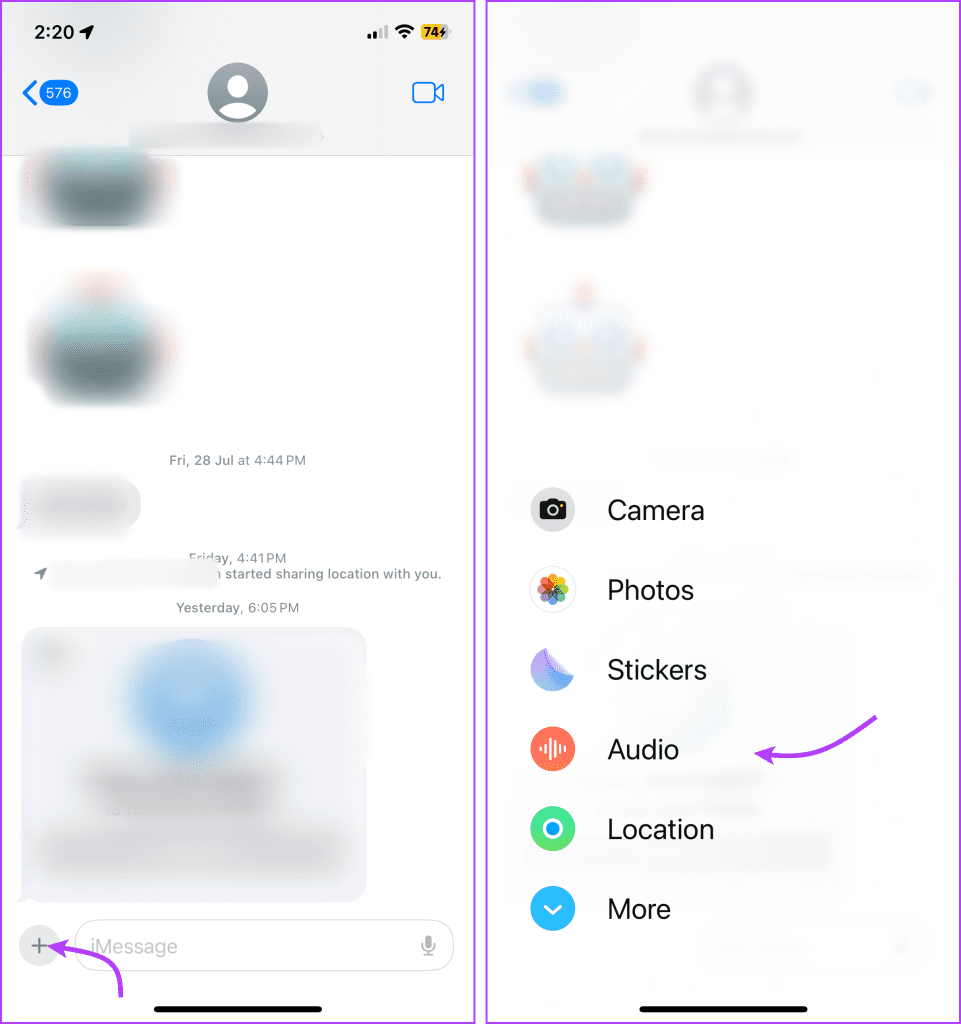
Step 2: Tap the + icon next to the text field.

Step 3: Here, look for Audio (its icon looks like sound waves) and tap it.

Note: You can swipe up or tap the More button to find the Audio icon.

Tap + and select Audio

Step 4: You should start speaking immediately, as the voice message starts recording as soon as you tap the Audio icon.

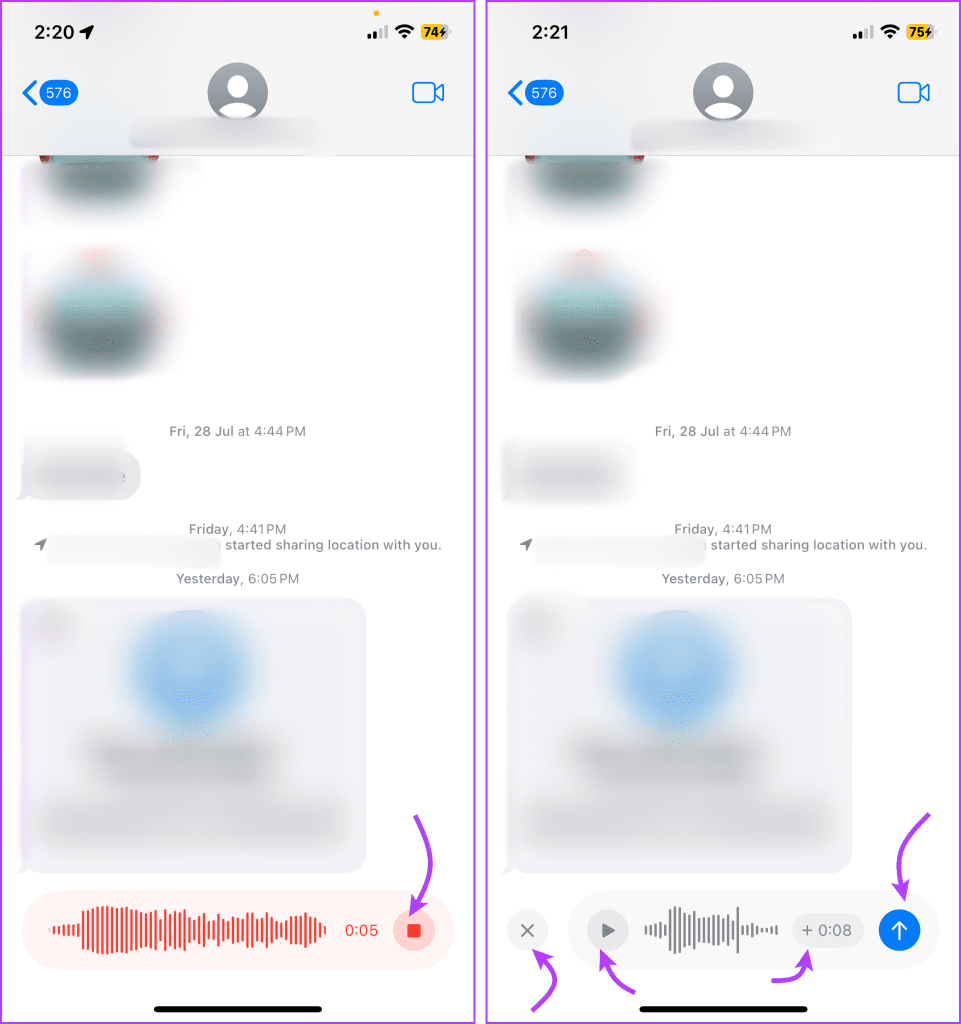
Step 5: Once done, tap the Stop button to finish recording.

Step 6: Now, you can

  • Replay the recording: Tap the Play button.
  • Add more to the recording: Tap the + button.
  • Cancel/delete recording: Tap the X button.
  • Send the recording: Tap the Send (up arrow) button.
Tap Stop and manage your voice recording

Interestingly, iOS 17 remembers your last preference and auto shuffles between the Audio messages and the Dictation icon. So, after you’ve sent a voice note on iMessage to someone, the text field in the chat will show an Audio message icon until you Dictate a text message.

iOS 17 remembers your last preferences

Moreover, you can use the feature mentioned above to send voice messages even more quickly. Press and hold the Audio icon from the typing area and start recording the message. Tap Stop when done, then replay, edit, delete, or send the recording as you please.


Tip: In addition to these changes, iOS 17 incorporates a live transcription of the shared voice notes. You can observe the text under voice notes.
Method 2. Create and Send Voice Notes on iMessage via Voice Memos

If you want to share a previously recorded memo or a saved audio message or for some reason can’t send an audio message, you can instead send Voice Memos. Although the Voice Memo is sent as an attachment and works differently, for instance, it doesn’t offer the iOS 17’s transcribing feature.

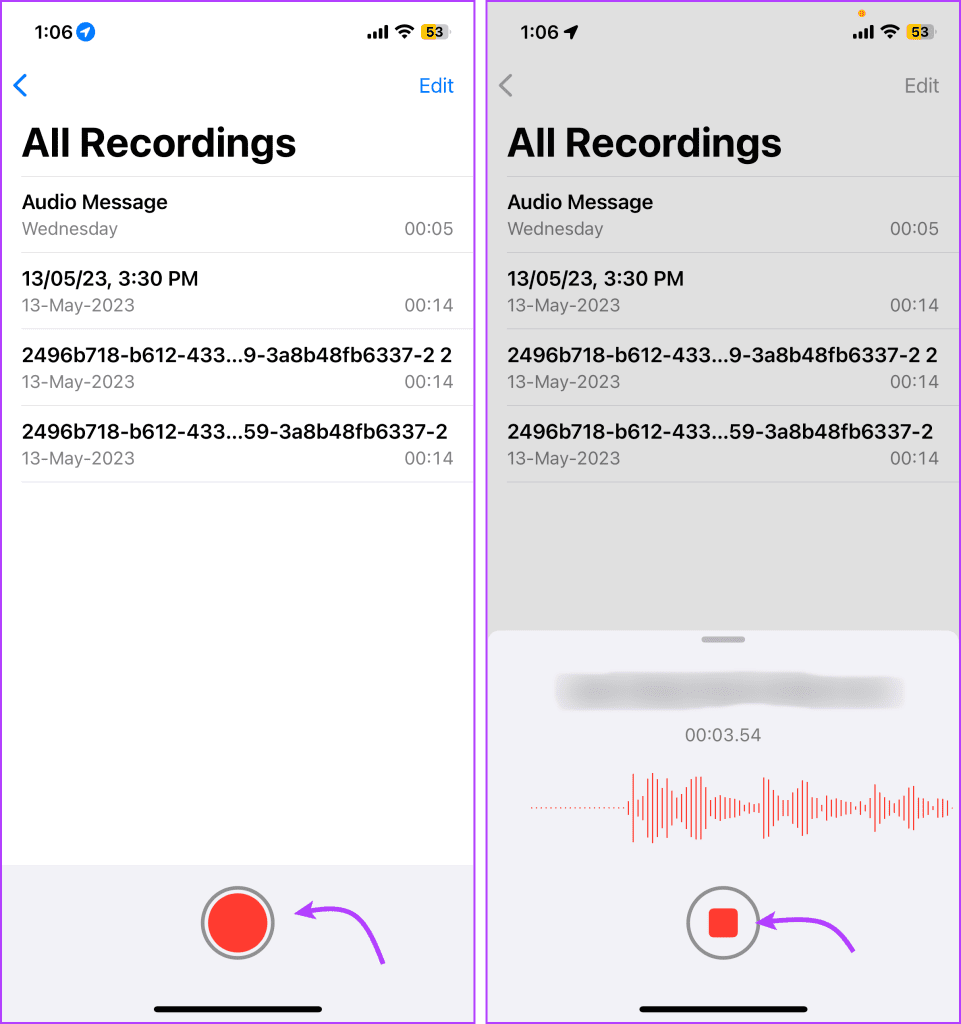
Step 1: Launch the Voice Memo app

Step 2: Tap the recording button to start recording > hit Stop when you’re done recording.

Tap to start recording a voice memo

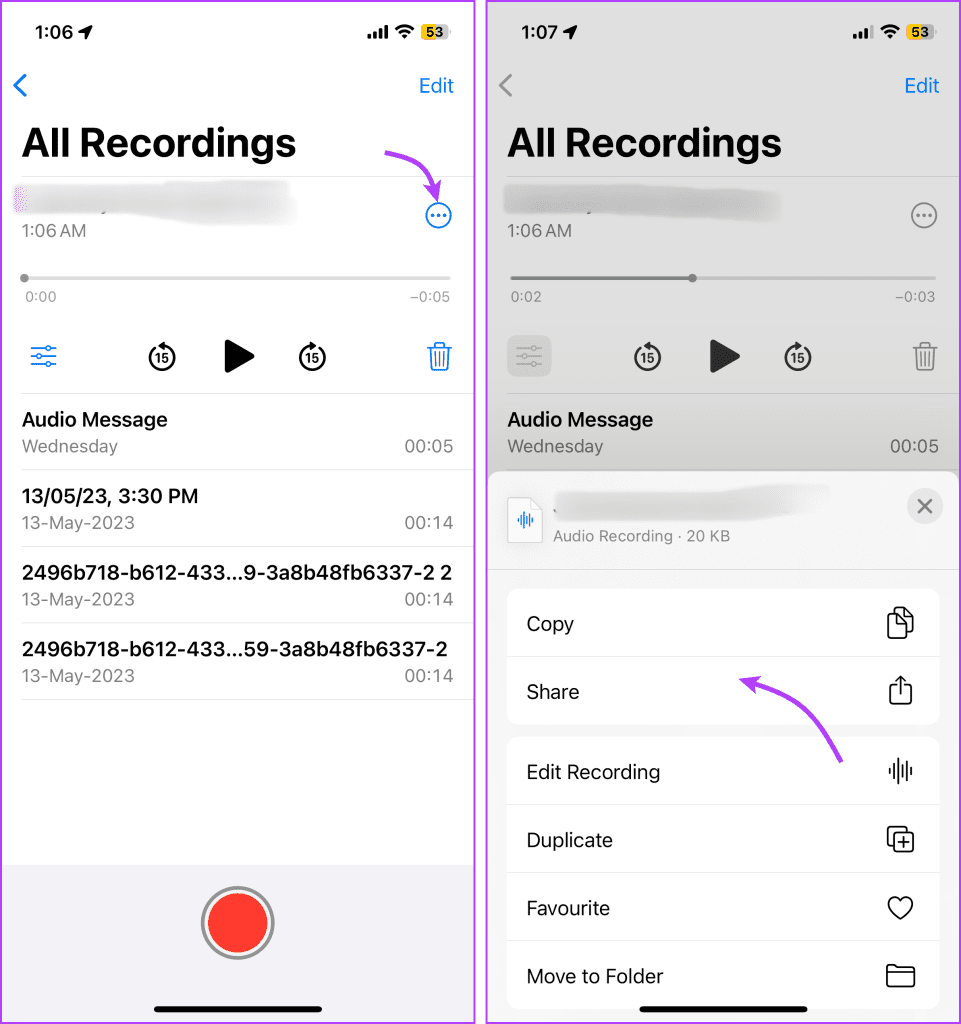
Step 3: The recording is automatically saved. Tap it to replay, edit, and share it.

Step 4: To send the Voice Memo, tap the three-dot icon > select Share.

Tap the three-dot icon next to the voice memo

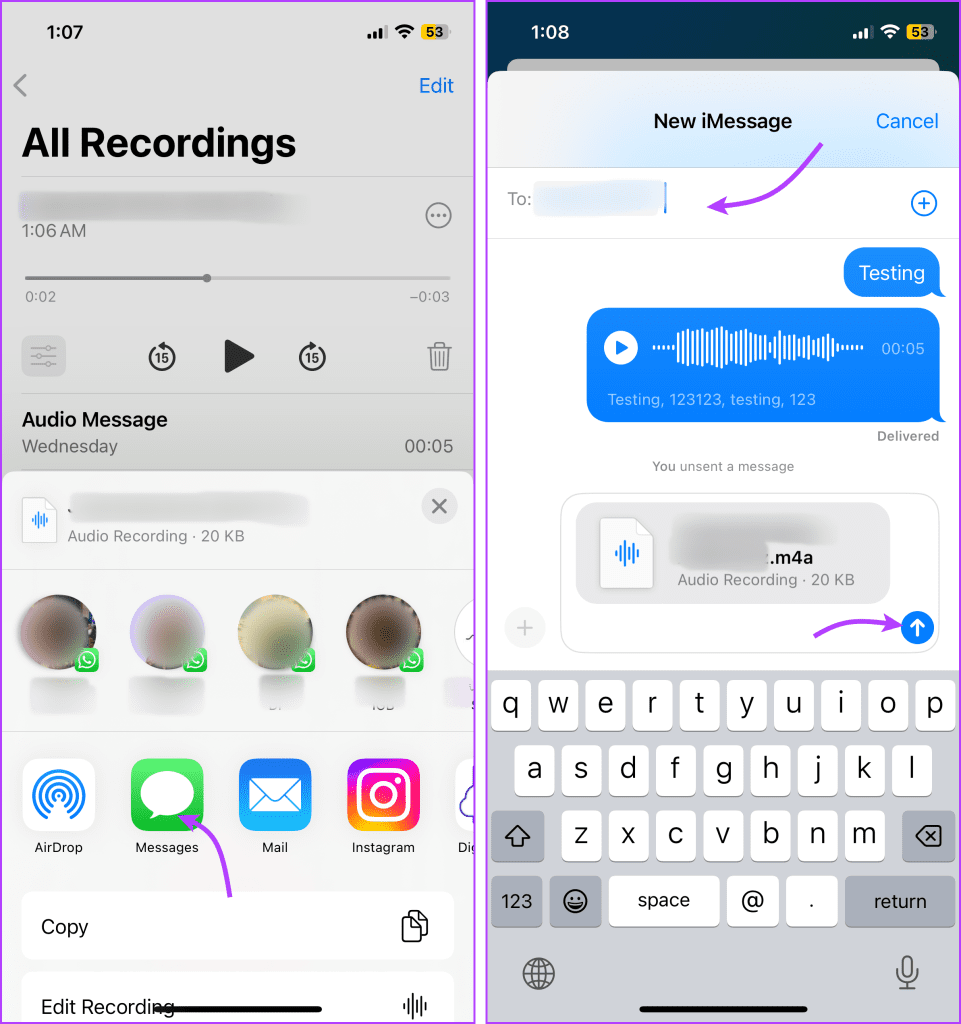
Step 5: Next, select Messages from the option > choose a sender > tap Send.

Send Voice Memo as Voice message

Tips and Tricks for Leaving Voice Messages on iPhone

1. Save Audio Messages From iMessage

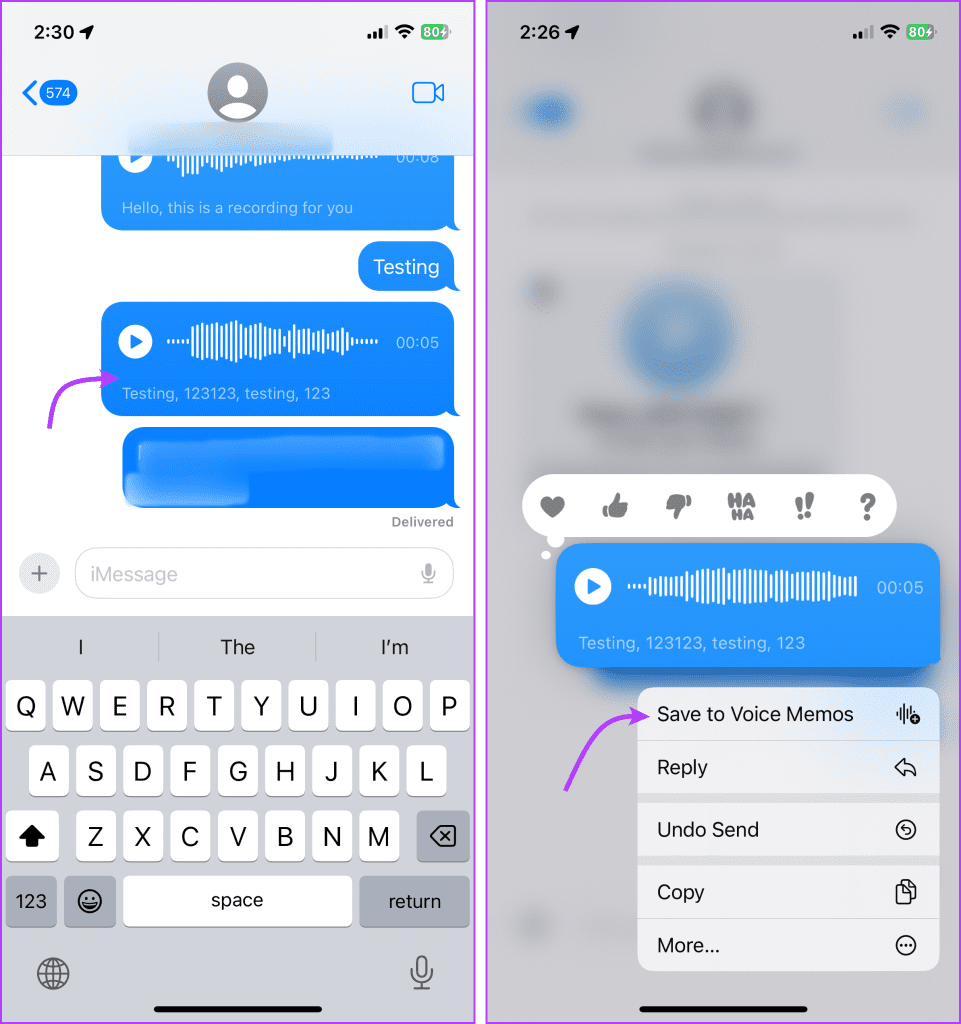
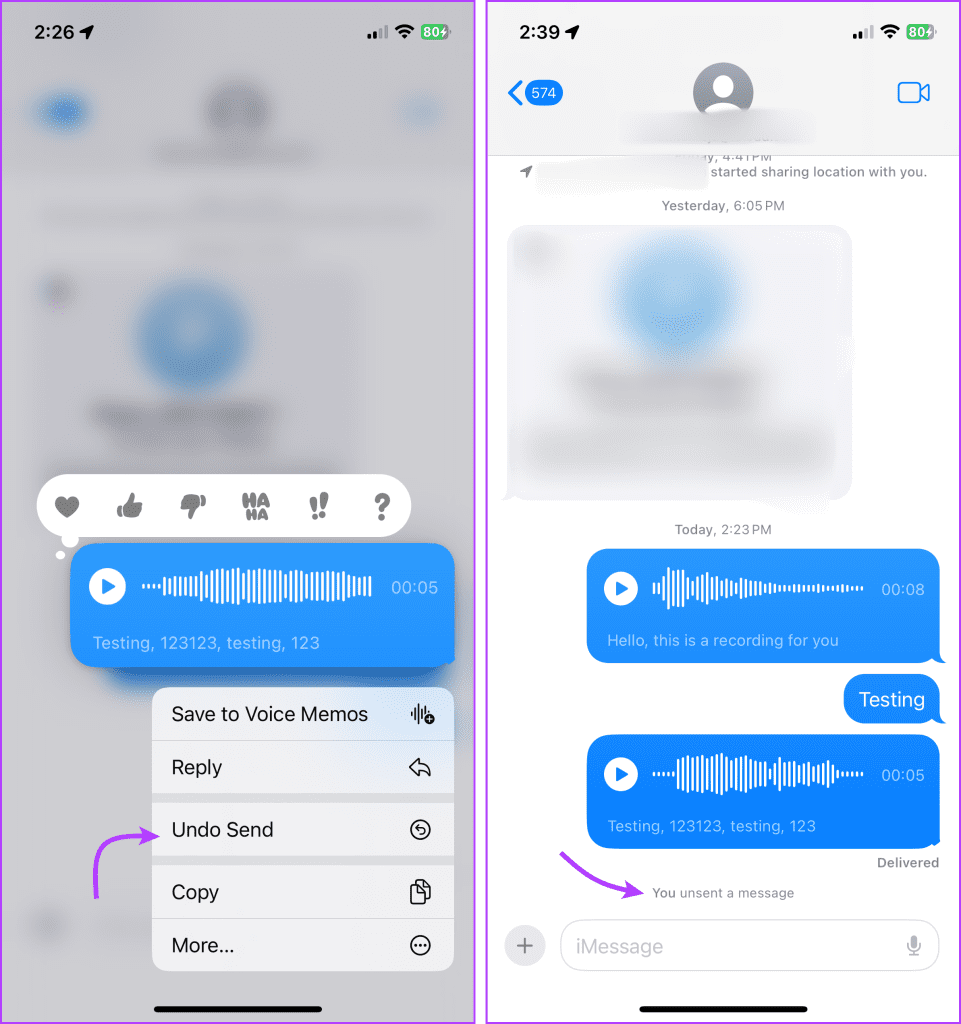
You can save sent or received voice messages from iMessage as Voice Memo. To do so, long-press or tap and hold the voice note and select Save to Voice Memos.

Save Audio Messages From iMessage

The audio message will be instantly saved. You can check it in the Voice Memos app. Although you can’t set a name for the memo while saving it, you can rename it from the app later.

2. Undo Voice Messages on iPhone

The process is similar to un-sending a text message. Simply long-press the voice message to open the contextual menu → select Undo Send.

Undo Voice Messages on iPhone

Notably, the rules are also the same as text messages, i.e., you can unsend a voice message within two minutes of sending it. Moreover, both you and the receiver can see that you’ve unsent a message.

3. Use Gestures to Listen or Reply to Voice Messages

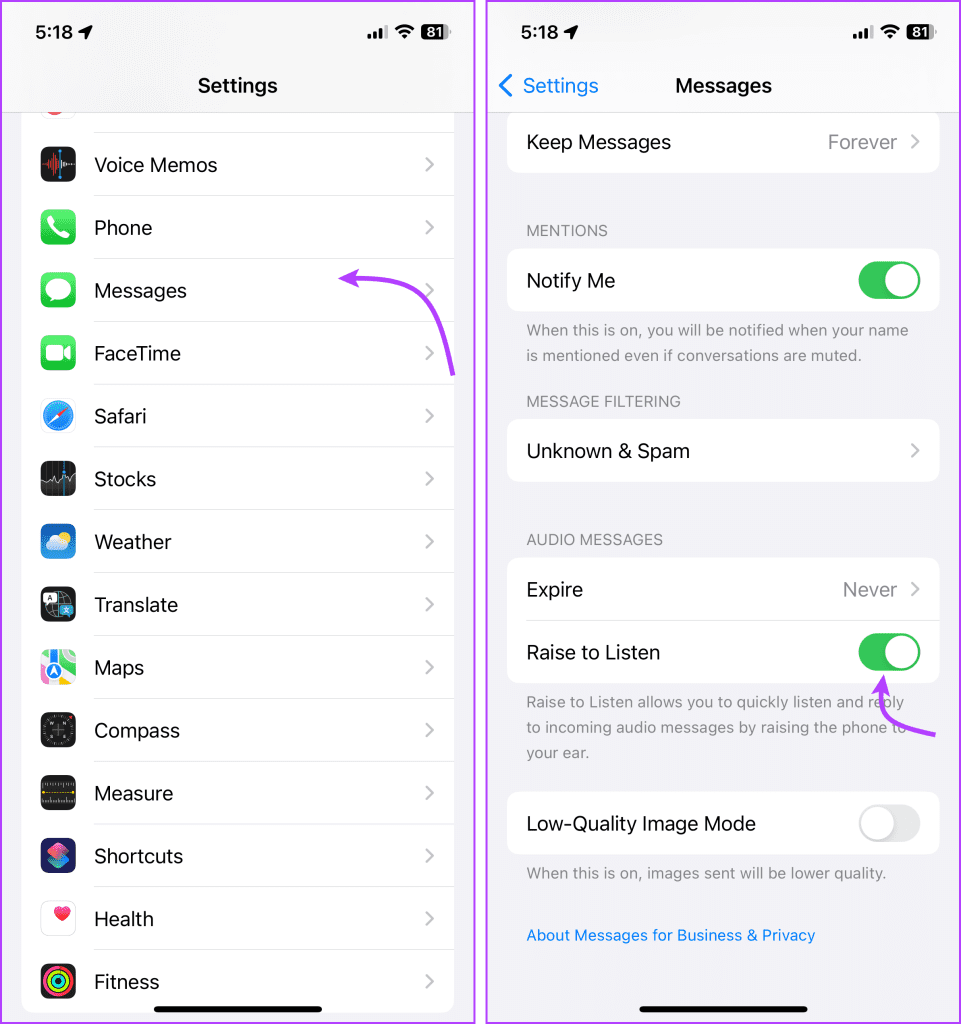
Voice Messages in iMessage support a special Raise to Listen feature, i.e., you can listen or reply to an audio message by raising the iPhone to your ear. So, when you receive a voice message, instead of pressing the play button, raise the phone to your ear.

Additionally, if you want to reply with an audio message, lower the phone and then raise it to your ear again. Record your reply after the tone. Once you’ve done this, lower the phone and tap Send.

Note: If the feature isn’t working on your phone or you want to disable it, go to SettingsMessages → toggle Raise to Listen on or off accordingly.

Use Gestures to Listen or Reply to Voice Messages

4. Change the Expiration Length of Voice Messages on iPhone

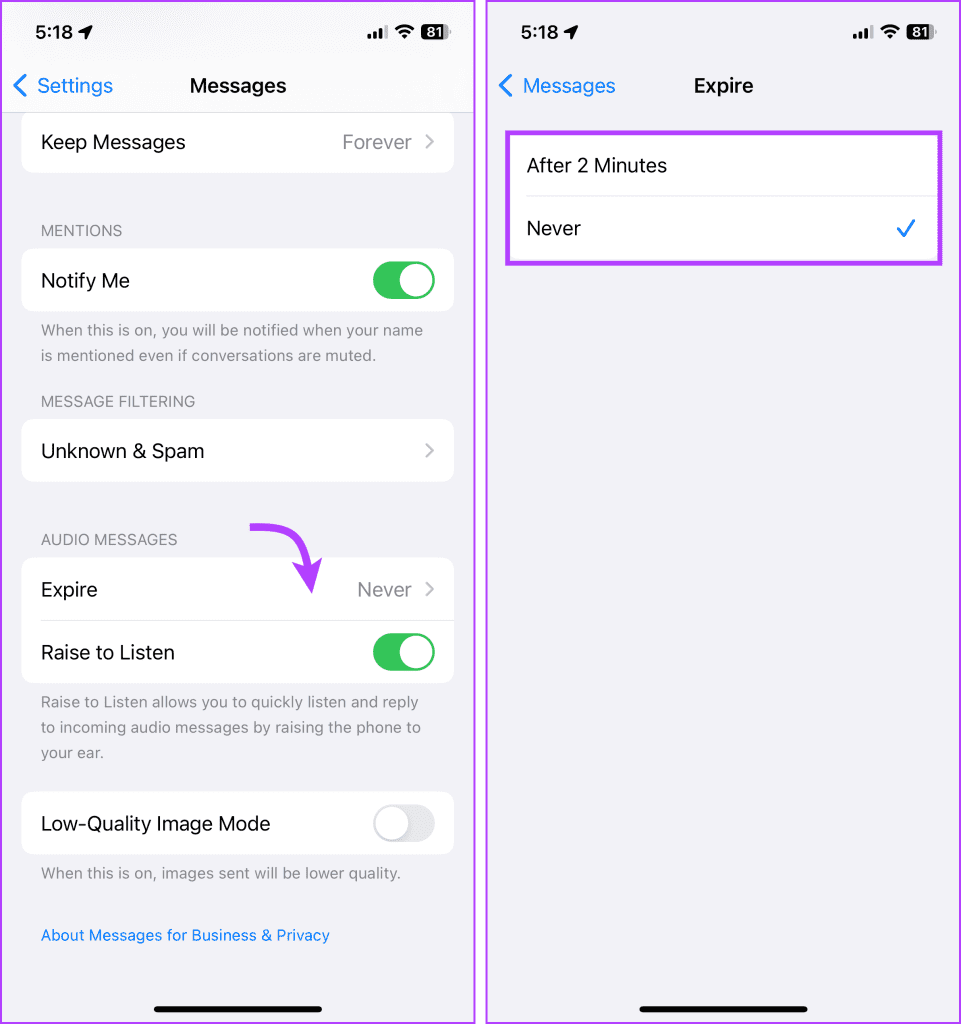
Similar to disappearing messages on WhatsApp, you can also send auto-deleting audio messages in iMessage. However, you can manage the setting while sending the message, you’ll have to enable/disable it from Settings every time.

To do so, go to SettingsMessages → scroll down to the Audio Messages section and tap Expire → select After 2 Minutes or Never.

Change the Expiration Length of Voice Messages on iPhone

5. Send a Voice Message to Multiple Recipients

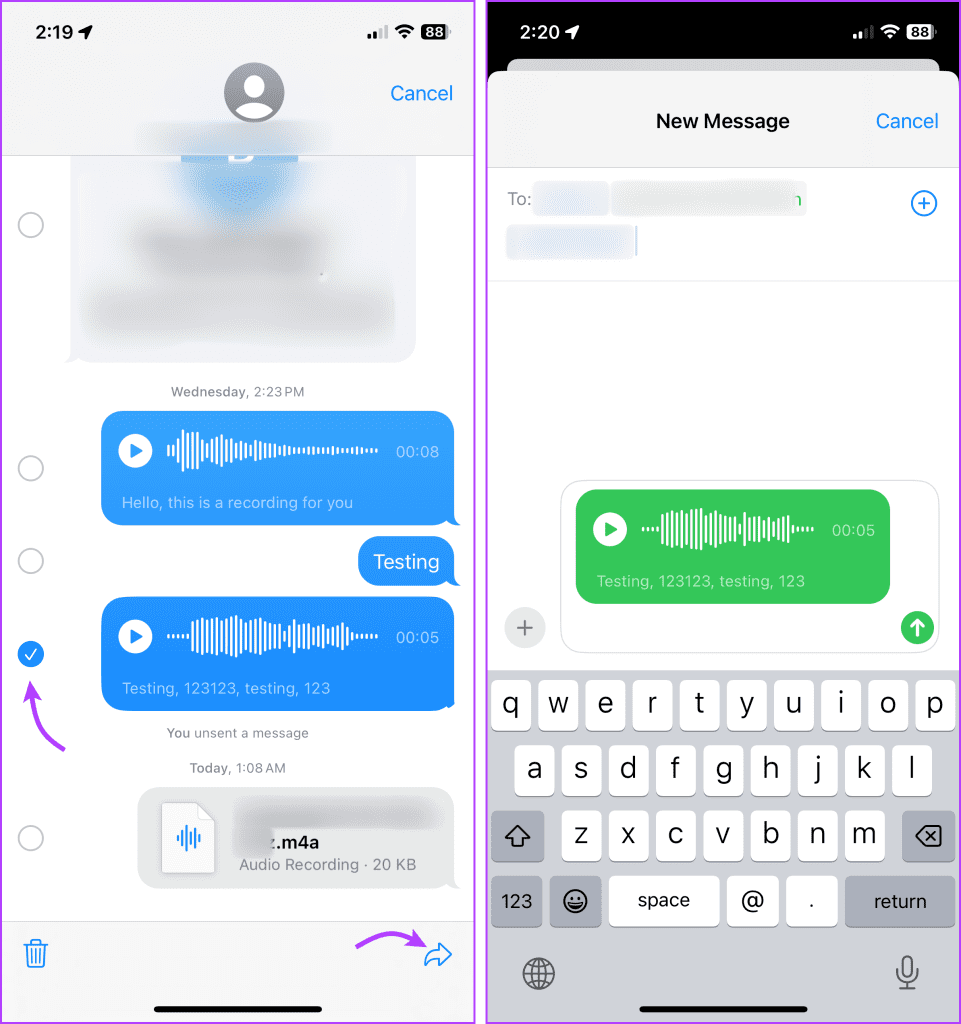
You can share the same voice message with multiple people without creating and sending a group text. First, send a voice message to any of the contacts. Next, press and hold the message and tap More.

Here, select one or more voice messages that you want to share. Tap the Forward button > select multiple recipients > send it.

Send a Voice Message to Multiple Recipients

Additionally, you can also use Voice Memos to send voice messages to multiple recipients

6. How to Send Voice Messages on iPhone to Android

As the fight between the Green and the Blue Bubble continues, we can’t send an iMessage between iPhone and Android. However, you can send an audio message via MMS, WhatsApp, Facebook, Instagram, Telegram, etc.

If you want to share the same voice messages sent via iMessage, save it to Voice Memos. Next, follow the instructions above and send the audio messages from iPhone to Android through a preferred app.

FAQs

1. Can voice messages be sent over cellular data?

Yes, although the speed and stability of the network connection might affect the length and time taken to send the message.

2. How long can a voice message be?

As per Apple, you can record as long a voice message as you want. However, sending and receiving extremely long messages can be problematic and will depend on the network type and speed.

3. Are voice messages secure and private?

Yes, Apple uses end-to-end encryption to protect all media sent through iMessage, including photos, videos, files, and audio messages. 

4. Do iPhone audio messages disappear when someone listens?

It depends on the settings you’ve selected. If you’ve chosen to auto-delete the audio message, it will expire 2 minutes after the receiver has listened to it. However, you can also choose not to auto-delete by selecting Never from the option.

5. How to Fix the “Cannot send audio messages at this time” error?

If you are seeing this error, it’s probably because you are trying to send a voice message to a contact who doesn’t use iMessage. Or, the contact might also have Sleep Focus enabled on their phone.

Was this helpful?

Thanks for your feedback!

6 Best Leather Cases for iPhone 14 Pro Max

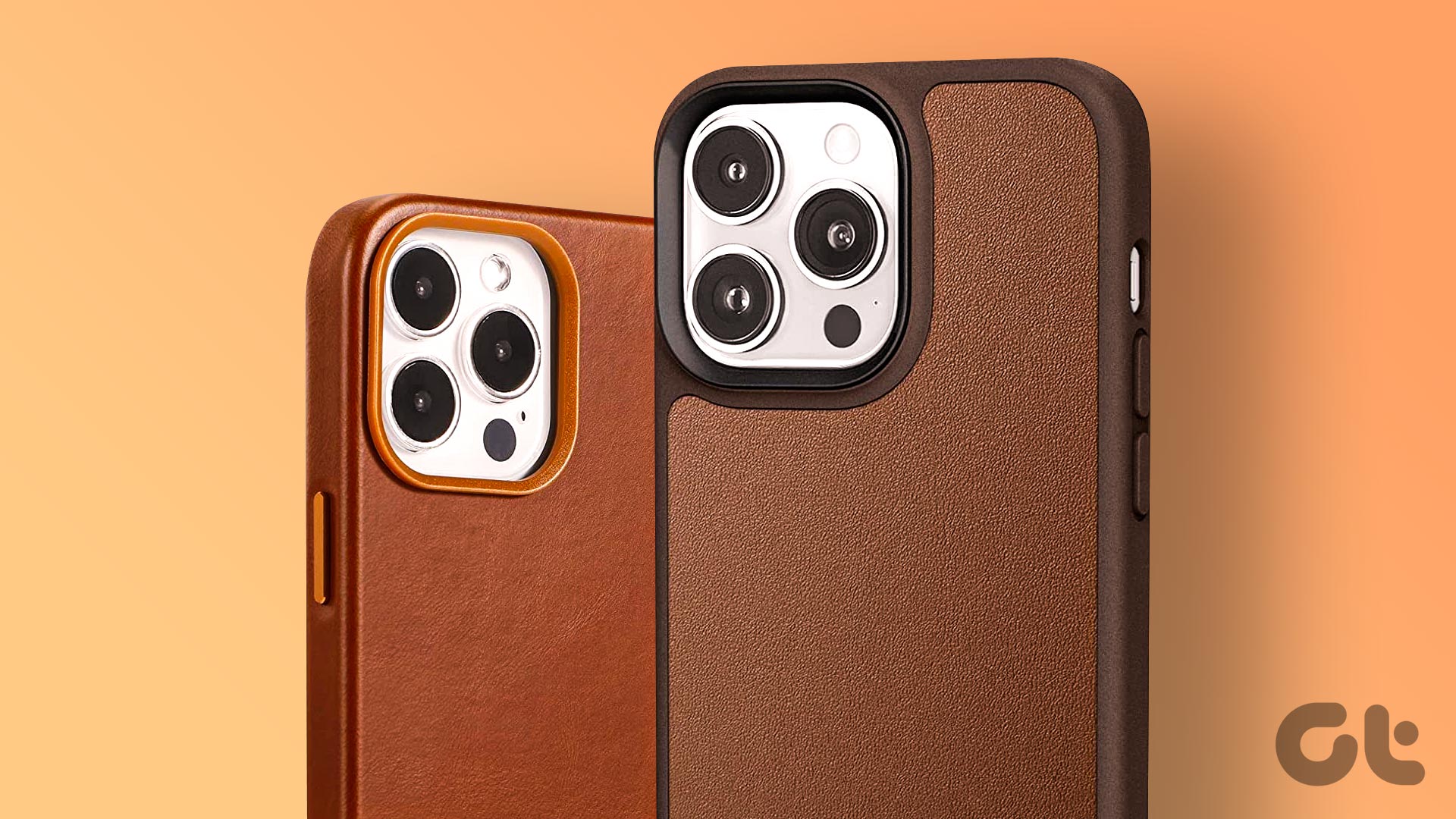
The iPhone 14 Pro Max is a premium smartphone and it’s only fair to protect it with premium cases. While there are several types of cases that you can get for your phone right from clear cases to rugged bumpers, a leather case is what comes to mind first when you think of a premium case.

iPhone 14 Pro Max leather cases

If your thoughts resonate with ours, protecting your iPhone 14 Pro Max with a leather case would seem like a great option. However, there are several kinds of leather cases that you may be confused about. To drive away that confusion, we’ve found the best iPhone 14 Pro Max leather cases that you can buy. From wallet cases to MagSafe ones, we’ve covered them all.

Before we get to the cases, though, here are some other articles you may be interested in:

Let’s get to the cases now.

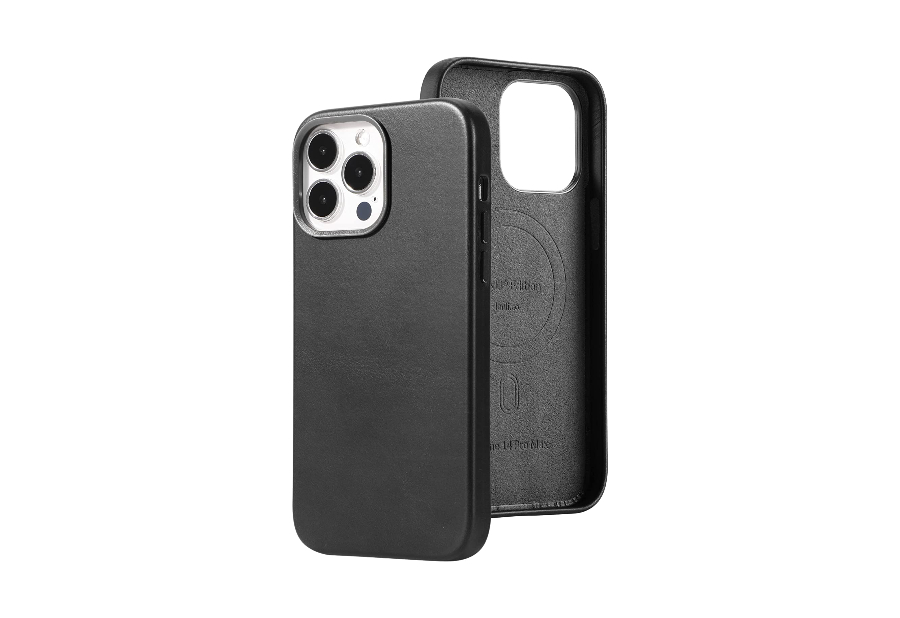
1. LONLI Edition Genuine Leather Case

The LONLI edition case is your run-of-the-mill brown leather case for the iPhone 14 Pro Max but that’s not to say it’s a bad product. In fact, it’s an excellent case that’s made of genuine leather which means it will develop a patina over time. You also get the MagSafe ring for additional functionality.

If you’re looking for a relatively inexpensive real leather case for iPhone 14 Pro Max, this LONLI edition case seems to be the perfect option. The saddle brown colorway looks pleasing to the eyes and the genuine leather adds a classy touch to your iPhone. The case is also compatible with MagSafe accessories which is a bonus.

The buttons are clicky and the magnets, as per the reviews, are quite strong and can hold on tightly to any accessory you attach. There’s also a ring around the camera cutout to protect the lenses. This is pretty much as good as Apple’s official leather case for less than half the price. The only thing missing is the Apple logo!

There are no real complaints either making this an extreme bang for your buck if you’re in the market for a black leather case with MagSafe for your iPhone 14 Pro Max.

2. CYRILL Kajuk Mag

This case is for those who want the looks and feel of leather without actually getting a genuine leather case. The CYRILL Kajuk case has a TPU frame that goes around the body of the phone. The back of the case has a cutout with vegan leather embedded into it.

A leather case isn’t suitable for all occasions or use cases. Since genuine leather develops a patina over time, a lot of users may not prefer the way it looks with extended usage. Hence, products like the CYRILL Kajuk Mag vegan leather case for the iPhone 14 Pro Max exist. It’s like a standard TPU case so it feels familiar.

Since the leather is only present on the back, you won’t get the premium feel while holding the device that you would expect from a real leather case. This case also gets support for MagSafe so you can use additional accessories. The reviews say that the case can feel slightly slippery due to the TPU sides.

Get this case only if you specifically want your iPhone to look like it has a leather case. If you want the actual feel of leather, skip this.

3. Bocasal Wallet Case

This is a pretty handy iPhone 14 Pro Max leather wallet case that has some nifty features. The back has a detachable wallet that attaches via magnets. The wallet can store multiple cards and some cash which can be useful. It’s also made of RFID blocking material for extra safety.

This wallet case from Bocasal is quite different from your typical wallet cases. The wallet portion on the back folds and has a flap to hold it in place when not in use. Since the wallet attaches via magnets, you can remove it whenever you’re not using it. You can then attach regular MagSafe accessories to your iPhone.

While all this is cool, note that this case is made of PU leather and hence, will not feel like genuine leather. It has a silicone structure that is then coated with a layer of PU leather. It looks quite like the real deal though except on the sides. It’s a functional case that lets you leave your wallet behind when you head out; so it gets full points for utility.

However, it’s not a great option for those who want the classy look and feel of a genuine leather case. It’s also quite bulky with the wallet attachment which can put some people off.

4. Belemay Folio Case

Folio cases were highly popular back in the day but with modern phones already being quite bulky, they’re not as common anymore. However, if you still want a folio case for your iPhone 14 Pro Max, here’s a good option from Belemay that’s made of genuine leather.

Here’s another iPhone 14 Pro Max leather wallet case but with a slightly different design. Instead of adding a wallet attachment to the rear, this folio case has slots on the inside portion of the case for a few cards. This way, the front of your iPhone is also protected from scratches when it’s in your pocket. Even when you drop the phone, the front portion can protect your iPhone’s display.

The section where you slot your iPhone is made of TPU but on the exterior, it is completely made with genuine leather so it looks and feels premium. Since it’s a folio case, it can also act as a kickstand when you’re watching content.

However, the one downside as pointed out by the reviews is that the case doesn’t have any sort of magnetic closing mechanism. As a result, it may keep flapping around in your hands.

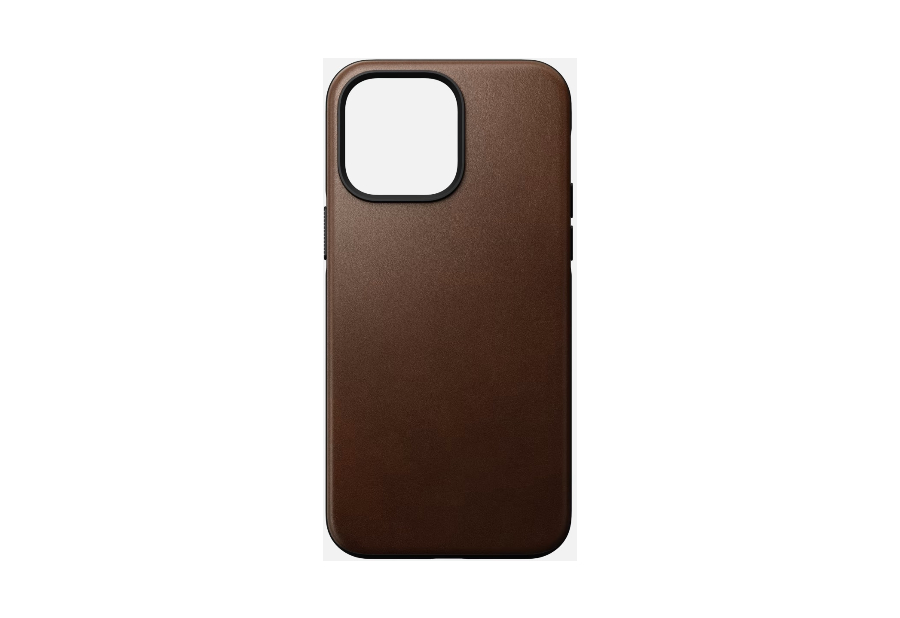
5. Nomad Modern Leather Case

Nomad is known to make some of the best leather cases in the industry and the Modern leather case is the prime example of that. It’s a classy-looking case made of genuine leather and is available in 4 colors. It protects your phone while giving it an extremely premium look.

The Nomad leather case for the iPhone 14 Pro Max is for those of you who want the best protection and in-hand feel. Think of it as a rugged case but with a leather exterior. The case also offers support for MagSafe which is always nice to see. The buttons on the case are ridged so they’re easy to find and press. This is a small addition but makes a big impact in terms of the usability of the phone.

The leather develops a patina over time, improving the look of the case. Nomad’s Modern leather case for the iPhone 14 Pro Max is almost perfect but is also quite pricey. It’s almost the same price as Apple’s official case but we would argue that it’s even better than Apple’s case in terms of protection. If you’re not particularly looking to buy Apple’s case and don’t mind splurging, this is an excellent case to get.

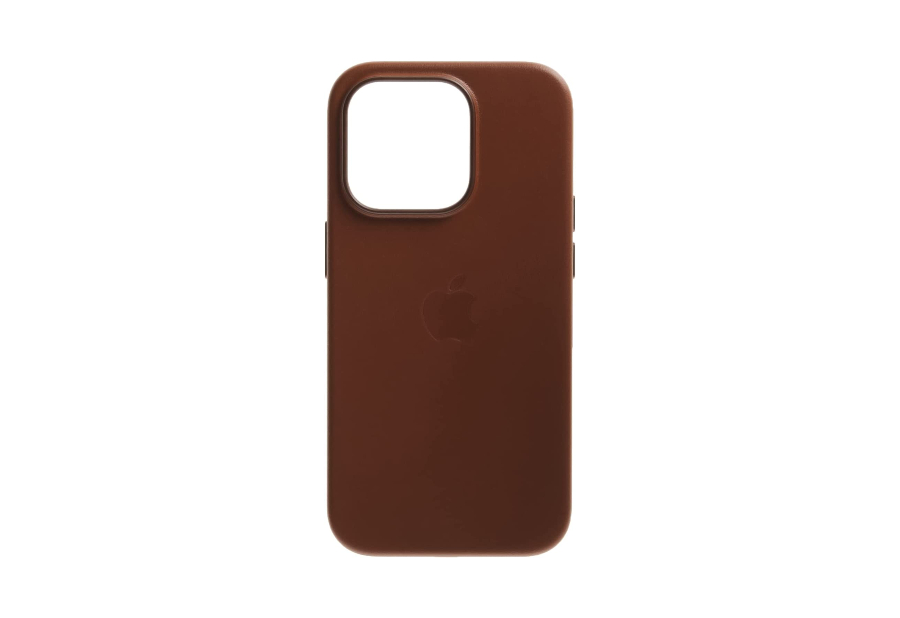
6. Apple Leather Case With MagSafe

It’s finally time for Apple’s official leather case with MagSafe. Needless to say, you’re getting a good-quality product here that’s made of genuine leather and is also available in a few attractive colors. It’s not very protective against drops but it surely makes your iPhone 14 Pro Max look premium and classy.

To be honest, the only reason to get the Apple leather case over the Nomad one or even the LONLI one mentioned at the beginning is the Apple logo on the rear. This case has an embossed Apple logo while other generic leather cases don’t. You also get the MagSafe animation when you put on this case on your iPhone but there’s nothing useful about that.

If you’re a fan of Apple’s first-party accessories, you can pick this case up. Otherwise, we would recommend getting the Nomad Modern leather case instead, since it has better buttons and offers better protection.

Besides, Apple’s official cases are also infamous for chipping off on the edges over time if your usage is rough; so keep that in mind. On the other hand, the strength of the magnets on Apple’s official cases is higher than usual so if you plan on using accessories like MagSafe wallets, this case will play along well.

Protection With a Hint of Class

Your phone case doesn’t always have to be boring and mundane. Get any of these iPhone 14 Pro Max leather cases to protect your phone while making it look and feel more premium than it already is.

Was this helpful?


Thanks for your feedback!

4 Ways to Fix Google Docs Not Printing Correctly

Fix 1: Check the Printer Connection and Select the Right Printer

You must perform some basic hardware checks to ensure everything is hooked up. Check if the cable connecting your computer to the printer is securely plugged in. While you’re at it, restart your printer to resolve any temporary glitches.

If more than one printer is available, ensure you send print requests to the correct printer. Press Ctrl + P to summon the print dialog. Use the drop-down menu next to Destination to select the correct printer device and click on Print.

Google Docs Print Dialog 1

Fix 2: Save the Document as a PDF and Print It

If Google Docs’ printing issue is limited to one odd file, save it as a PDF and print it. To do this, click the File menu at the top left corner and select Download > PDF document (.pdf).

Save Google Docs as PDF 1

Open the downloaded file in a PDF viewer, and you should be able to print it without any issues.

Fix 3: Disable Browser Extensions

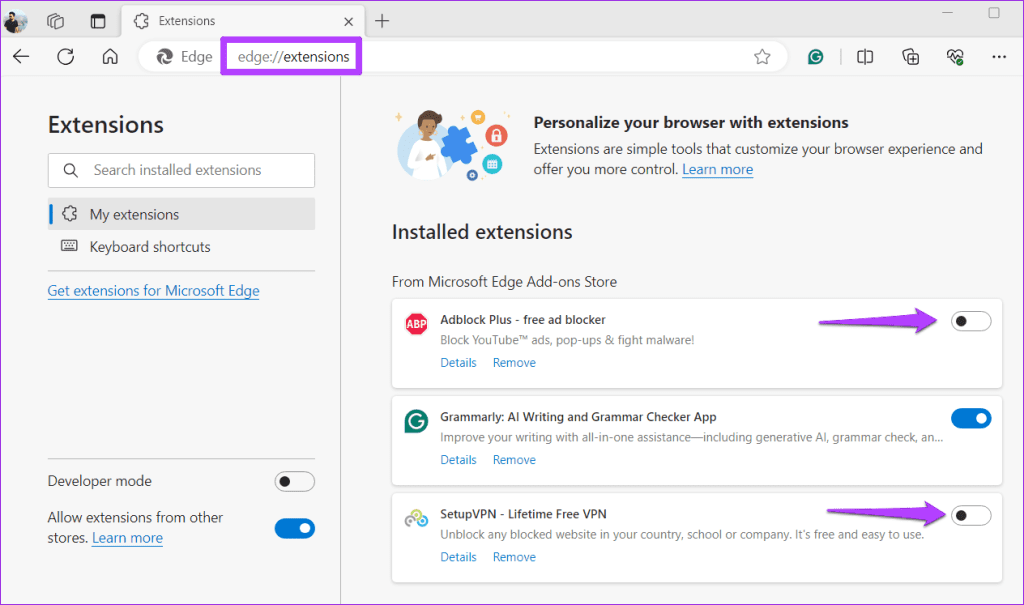
There’s a chance that one of your browser extensions is causing the problem. To verify this possibility, disable all browser extensions and enable them one by one.

In your browser, type chrome://extensions (Chrome) or edge://extensions (Edge) in the address bar and press Enter. Use the toggles to turn off all extensions.

Disable Extensions in Edge

After this, restart your browser and enable all extensions one by one. Print a test page from Google Docs after enabling each extension to identify the one causing the issue.

Fix 4: Clear Browser Cache

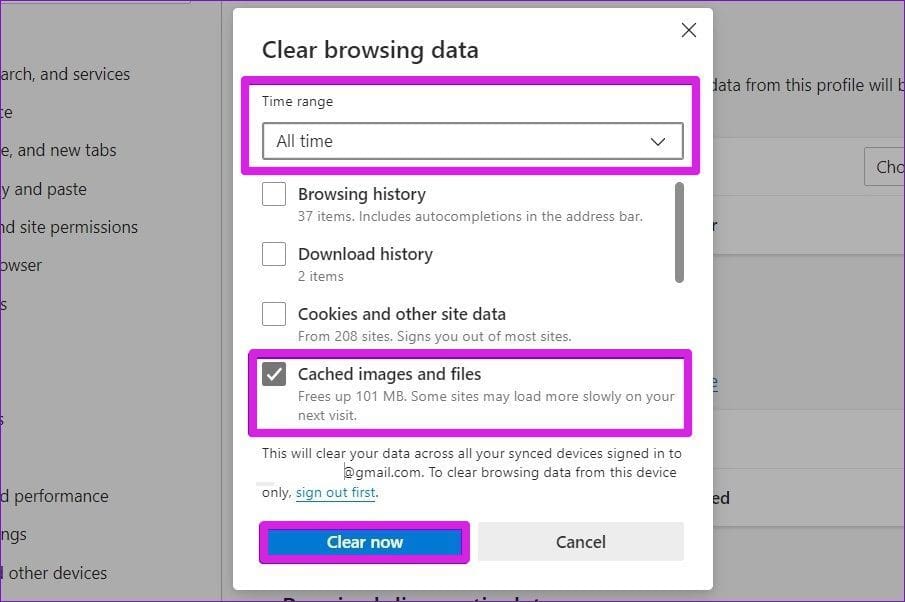
Old browser cache can also affect a browser’s performance and prevent it from communicating with your printer. So, if disabling browser extensions does not help, clearing the existing browser cache should be your next step.

To clear browsing data in Chrome or Edge, press Ctrl + Shift + Delete to open the Clear Browsing Data panel. Use the drop-down menu next to Time Range to select All time and mark the box for Cached images and files.

Then, hit the Clear now button.

Clear cache in Microsoft Edge

Restart your browser and print your Google Docs document again.

Note: If the issue persists, there might be a problem with the browser. Try printing your Google Docs document from another browser. If you can print it, consider updating or reinstalling your previous browser to fix its issues.

Was this helpful?

Thanks for your feedback!

5 Best Ways to Fix iMessage Not Working On iPhone and iPad

Try Basic Fixes

  • Check if iMessage is down: Sometimes, it’s possible that the iMessage servers are down, which is why your iPhone’s iMessage is not working. To check if iMessage is down, head over to Apple’s System Status website and look for the light next to iMessage.
  • Remove and reinsert the SIM card: When you remove and re-insert your SIM card, the iMessage activation process begins from scratch, which can fix any issues.
  • Ensure you have an active plan on your SIM: This is mainly for when iMessage is not working on a new iPhone. When you insert a SIM into your iPhone, Apple sends an automatic SMS from your mobile number to activate iMessage for the first time. Failure to send this SMS will result in iMessage not working.
  • Delete old messages: If you’re able to send iMessages but unable to receive them, it could be that your iPhone has run out of storage, and hence, there’s no space to store new messages. The best way to tackle this issue is to delete older messages to make way for new ones.
  • Install software updates: At times, a particular software version may cause issues with the functioning of iMessage. Updating your device to the latest iOS or iPadOS version can help fix the iMessage not working issue.

Fix 1: Check Send & Receive Addresses

Your iPhone has a certain number of phone numbers and email IDs that it can use to send and receive texts via iMessage. If your current phone number or email ID isn’t one of them, iMessage will not work. Here’s how to check your Send & Receive addresses and update them.

Step 1: Open the Settings app on your iPhone. Scroll down and tap on Messages.

Step 2: Tap on Send & Receive.

Here, you can see the phone numbers and email IDs that you can use for iMessage. If your details aren’t up to date, chances are that your iCloud and iMessage accounts do not match. Follow the guide mentioned in the link and you should have the right settings for iMessage.

Fix 2: Check if the Recipient Is Using iMessage

In order for you to send an iMessage to someone, the other party also needs to be using iMessage. What this means is your text bubbles will appear blue only if the recipient is also using an iPhone, iPad, iPod, Mac, or an Apple product and is registered for iMessage. So, ensure that the person you’re texting is also using iMessage by following this simple method.

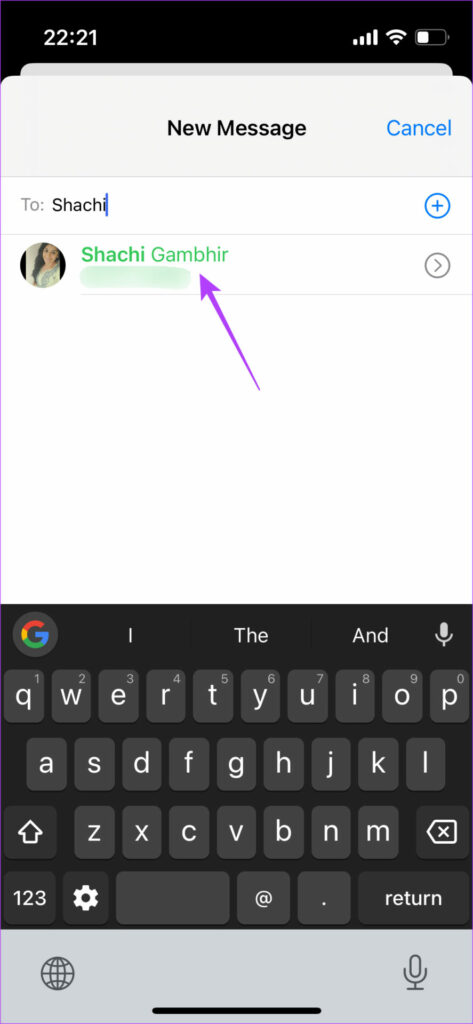
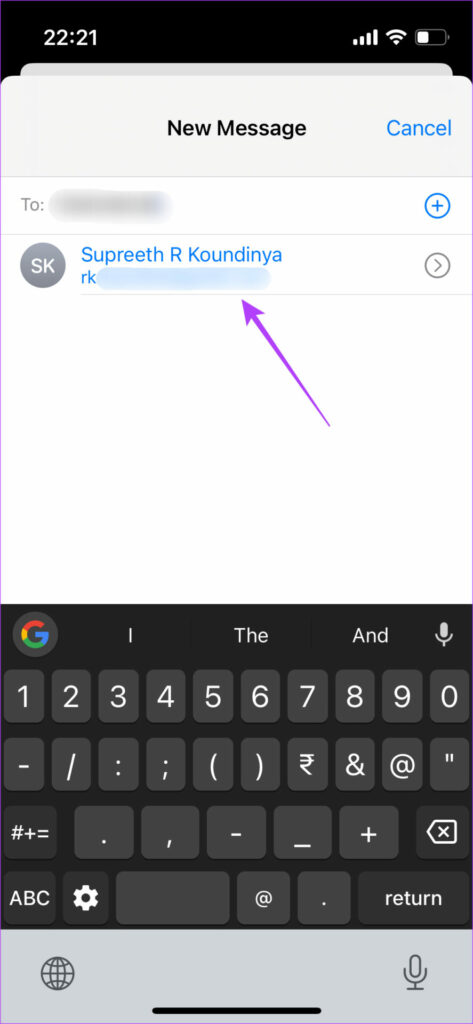
Step 1: Open the Messages app on your iPhone. Tap the compose icon in the top-right corner.

Step 2: Enter the recipient’s phone number or email ID.

If their name appears in blue, it means they’re using iMessage. If it appears in green, they’re not using iMessage, and hence, whatever you send will be delivered in the form of SMS.

Fix 3: Disable the “Send As SMS” Toggle

The iPhone and iPad have a feature that automatically sends a message via SMS if iMessage isn’t available. Sometimes, enabling this toggle can lead to your messages being sent via SMS by default instead of iMessage even if your network connection is slightly erratic. So, it’s best to disable it.

Step 1: Open the Settings app on your iPhone or iPad. Scroll down and tap on Messages.

Step 2: Find the Send as SMS toggle and disable it.

Fix 4: Set the Date and Time to Update Automatically

There have been reports of iMessage not working when the date and time of the iPhone were set incorrectly. So, try setting the date and time as per the iPhone’s automatic setting to prevent iMessage from ceasing to work.

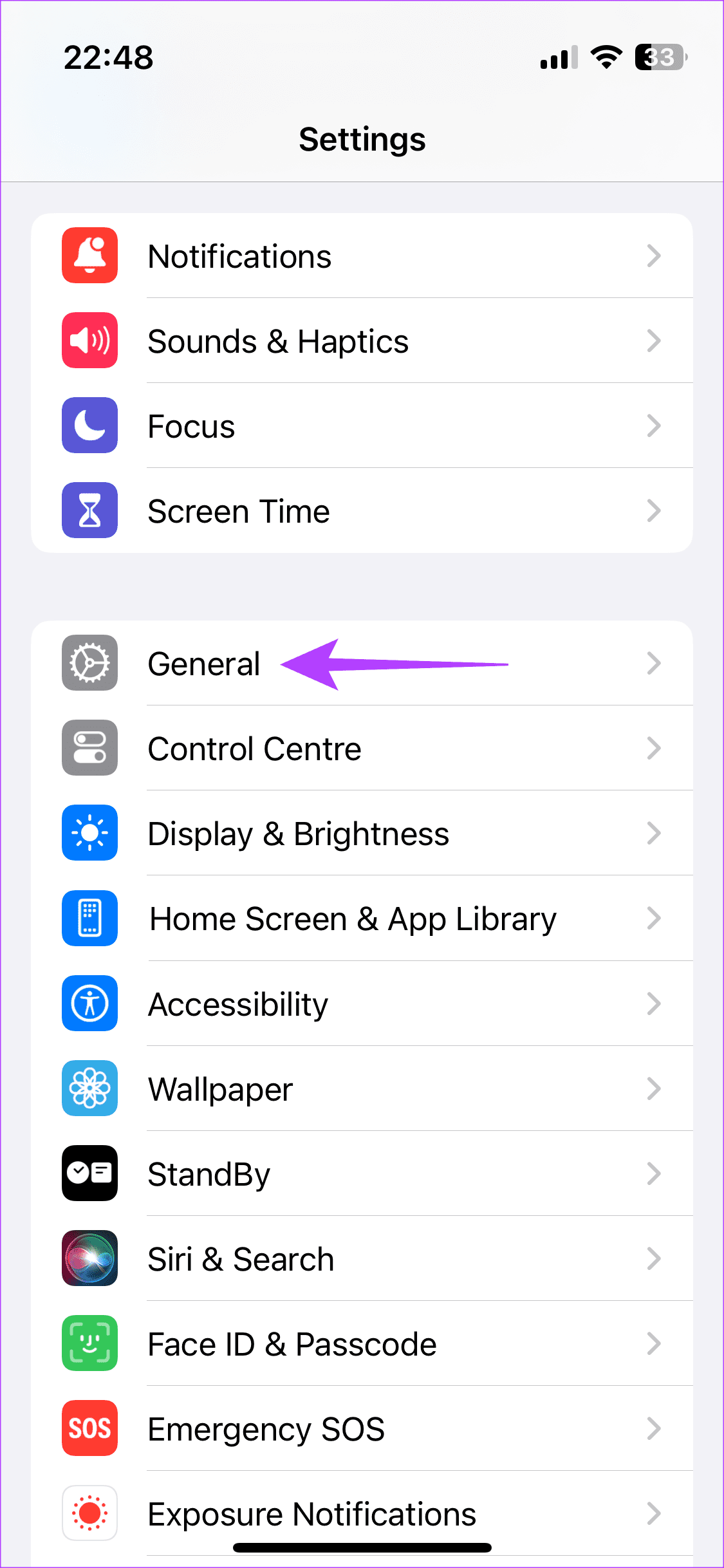
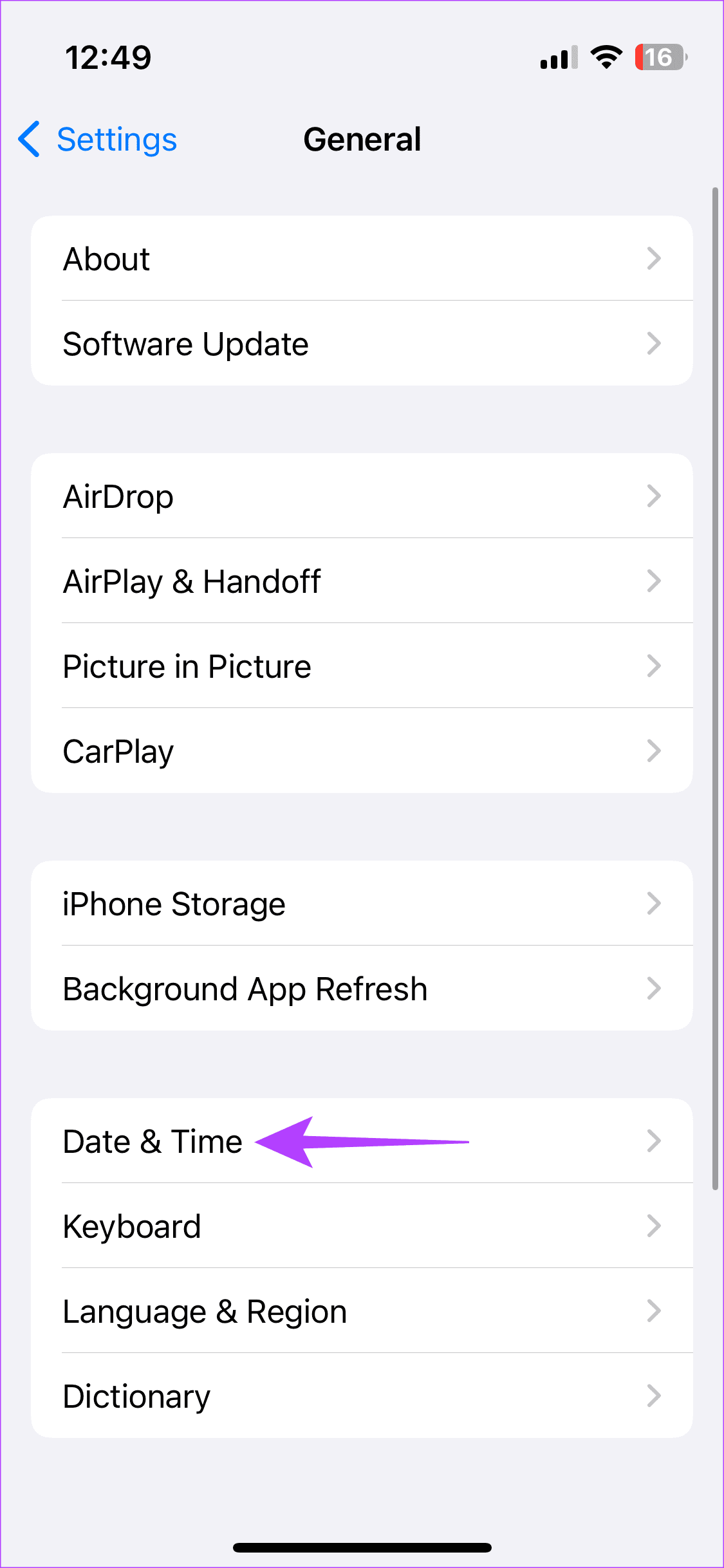
Step 1: Open the Settings app and head to General > Date & Time.

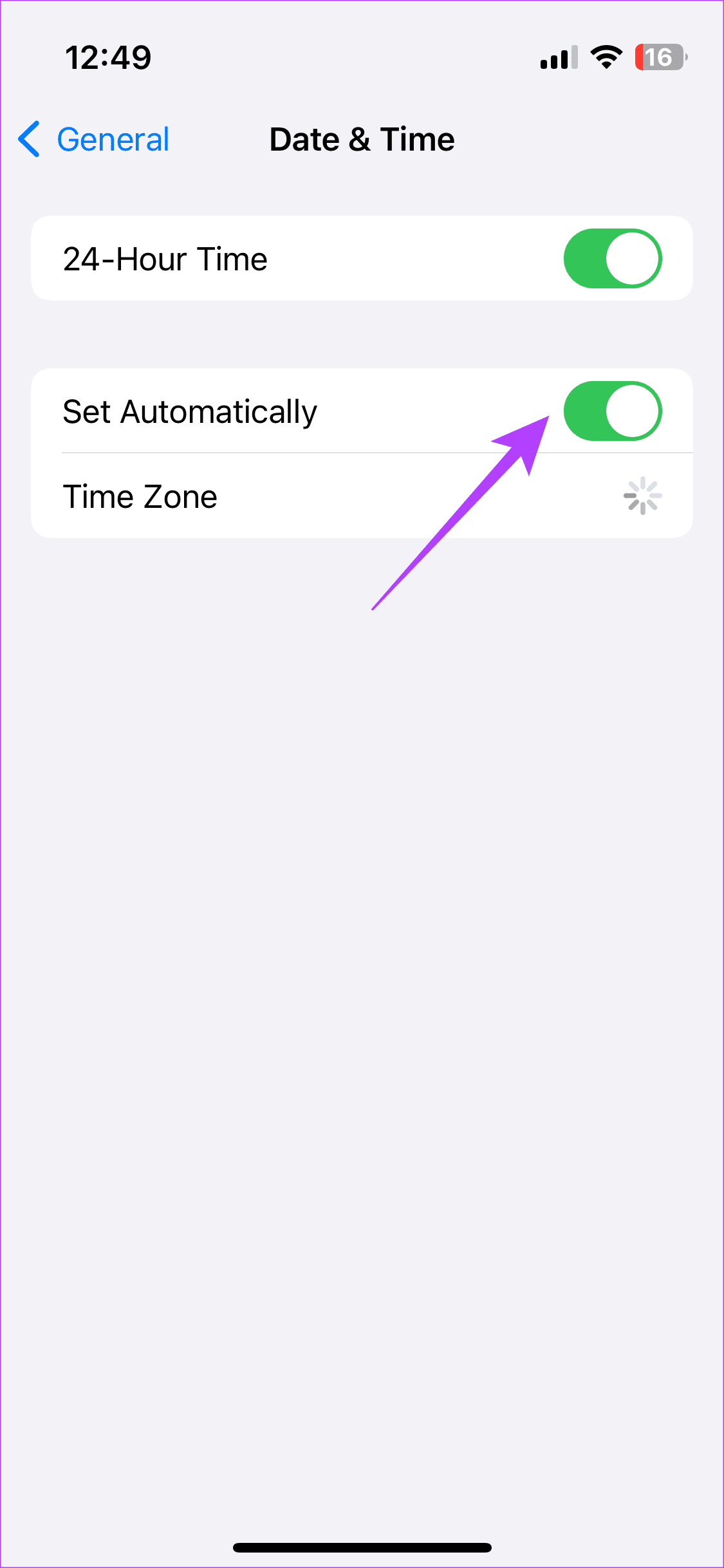
Step 2: Turn on the toggle beside Set Automatically.

Fix 5: Reset Network Settings

If none of the above solutions worked for you, resetting the network settings on your iPhone or iPad could come in handy.

Step 1: Open the Settings app and head to General > Transfer or Reset iPhone.

Step 2: Tap Reset at the bottom and select Reset Network Settings.

Was this helpful?

Thanks for your feedback!

How to Enter BIOS on Windows 10 and 11 PC Without Restarting

What Is BIOS and How Does It Work?

BIOS (Basic Input/Output System) loads and executes the boot loader (usually the hard drive) when the computer is powered on, which loads and executes the operating system. The BIOS sets up the hardware and boots the operating system.

It does this by providing a set of routines that the OS can use to perform basic tasks such as reading and writing to disk, communicating with the keyboard and screen, and so on. However, you must be careful when accessing the BIOS as some options can damage your computer physically.

Is UEFI the Same as BIOS?

UEFI (Unified Extensible Firmware Interface) functions similarly to a BIOS, but it stores all startup and initialization information in a .efi file instead of a firmware file. This is a newer type of BIOS that has several advantages over traditional BIOS, like being faster, more flexible, and easier to update than BIOS.

Note: The BIOS key is not the same for all computer manufacturers. It depends on your computer’s brand. For example, you need to press F2 on newer Dell systems, whereas on HP, F10 and ESC are the BIOS keys. Hence, we recommend checking your instruction manual or the manufacturer’s website. The first splash screen you see when you turn on your computer also contains this information. However, not all computer and laptop models display this information.

How to Access the BIOS on a Windows 11 PC

Step 1: Open Settings or press Win Key + I.

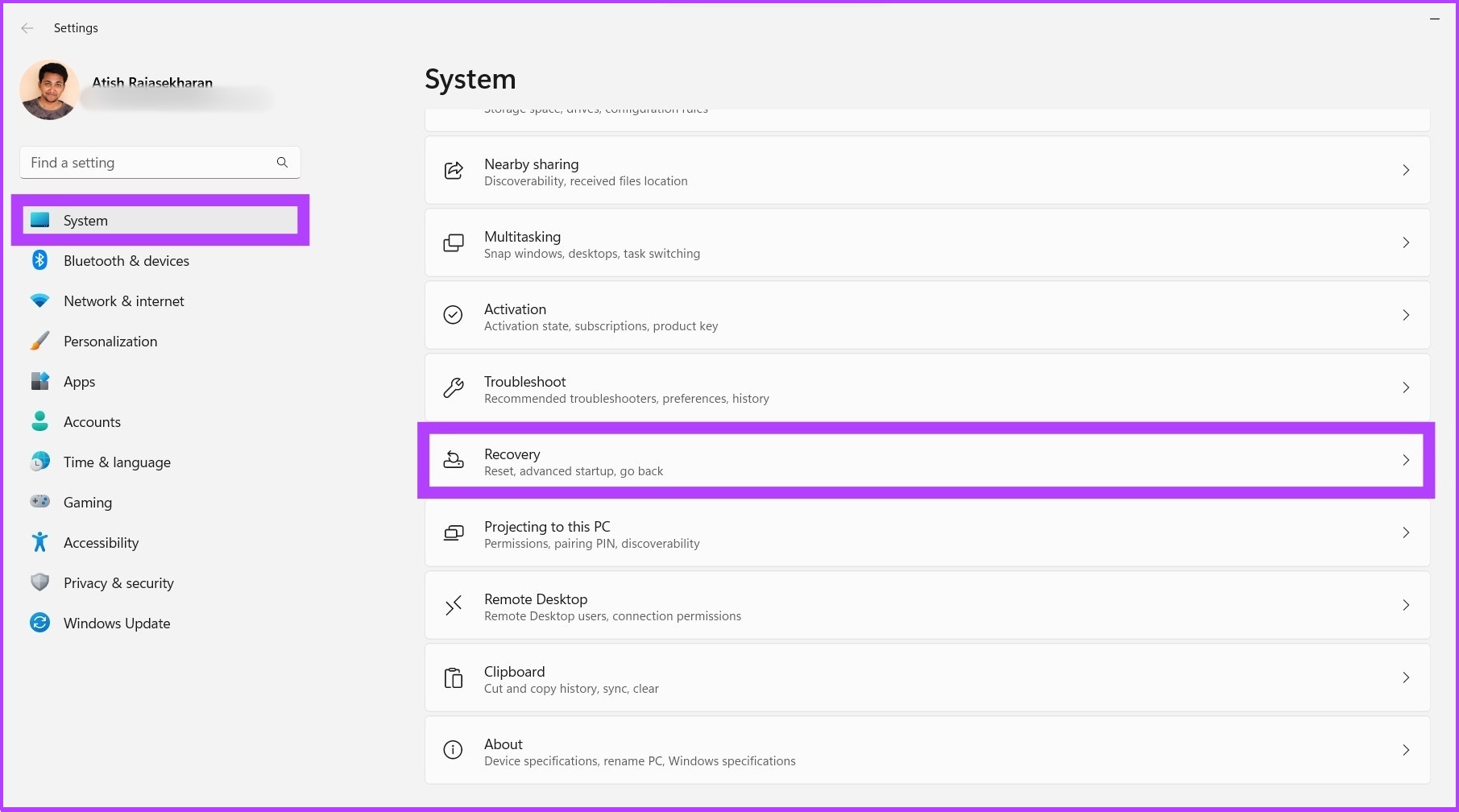
Step 2: Go to System and click on Recovery.

Go to Windows System

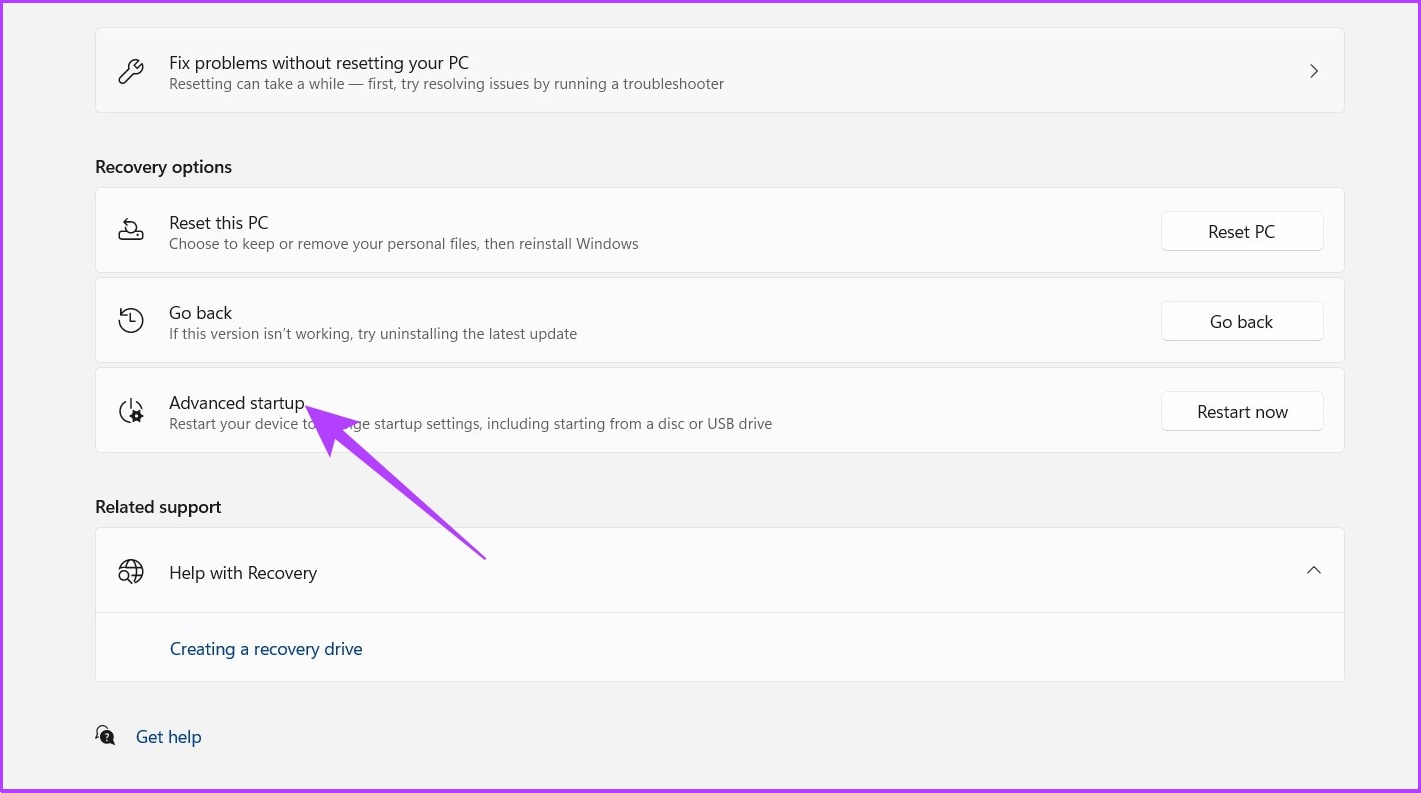
Step 3: Click on Advanced startup.

Note: This step will restart your computer.

Click on Advanced startup

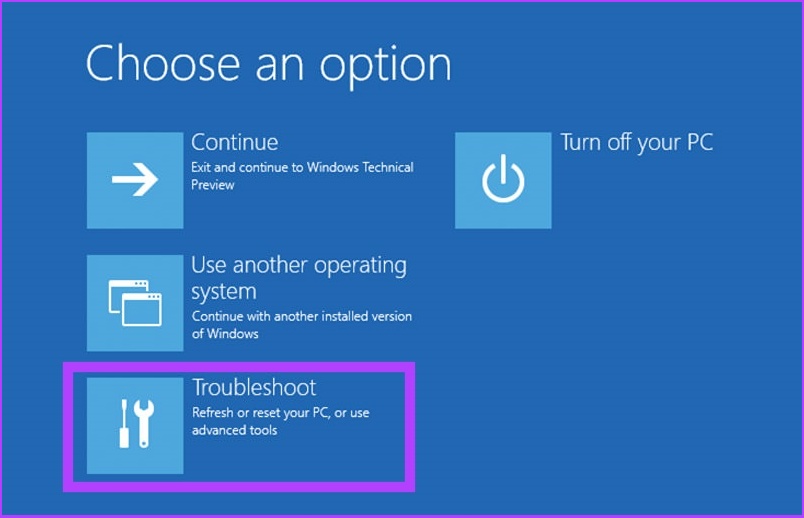
Step 4: Now, go to Troubleshoot and click on Advanced options.

click on Advanced options

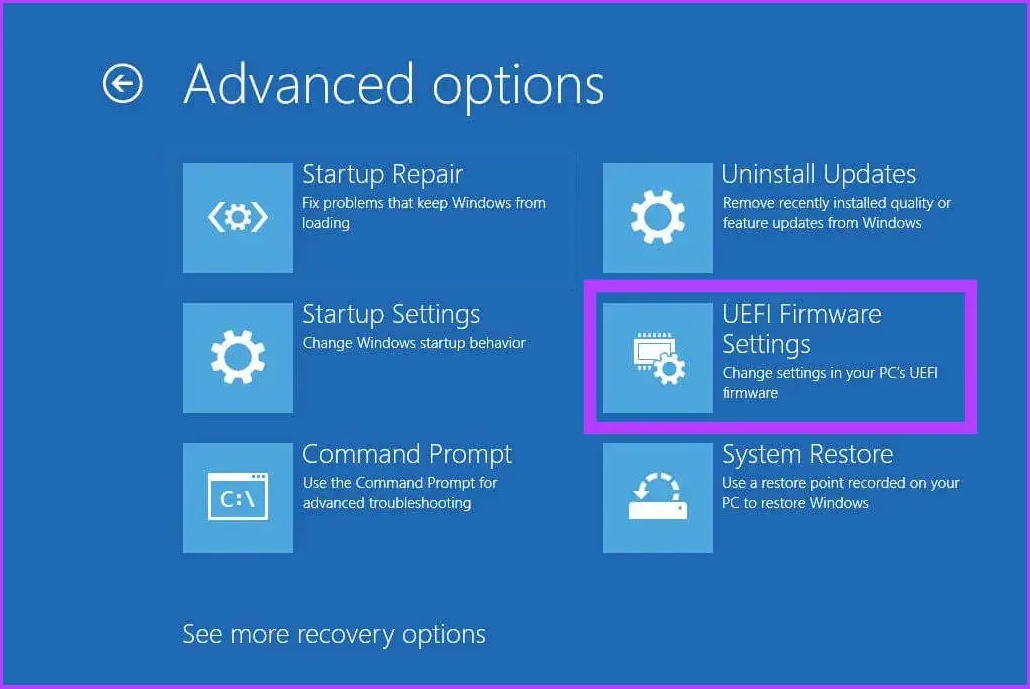
Step 5: Click on UEFI Firmware Settings and click on Restart.

Click on ‘UEFI Firmware Settings'

It will boot Windows 11’s UEFI BIOS since you are not running on a legacy BIOS.

How to Get Into the BIOS on a Windows 10 PC

Step 1: Open Settings or press Win Key + I.

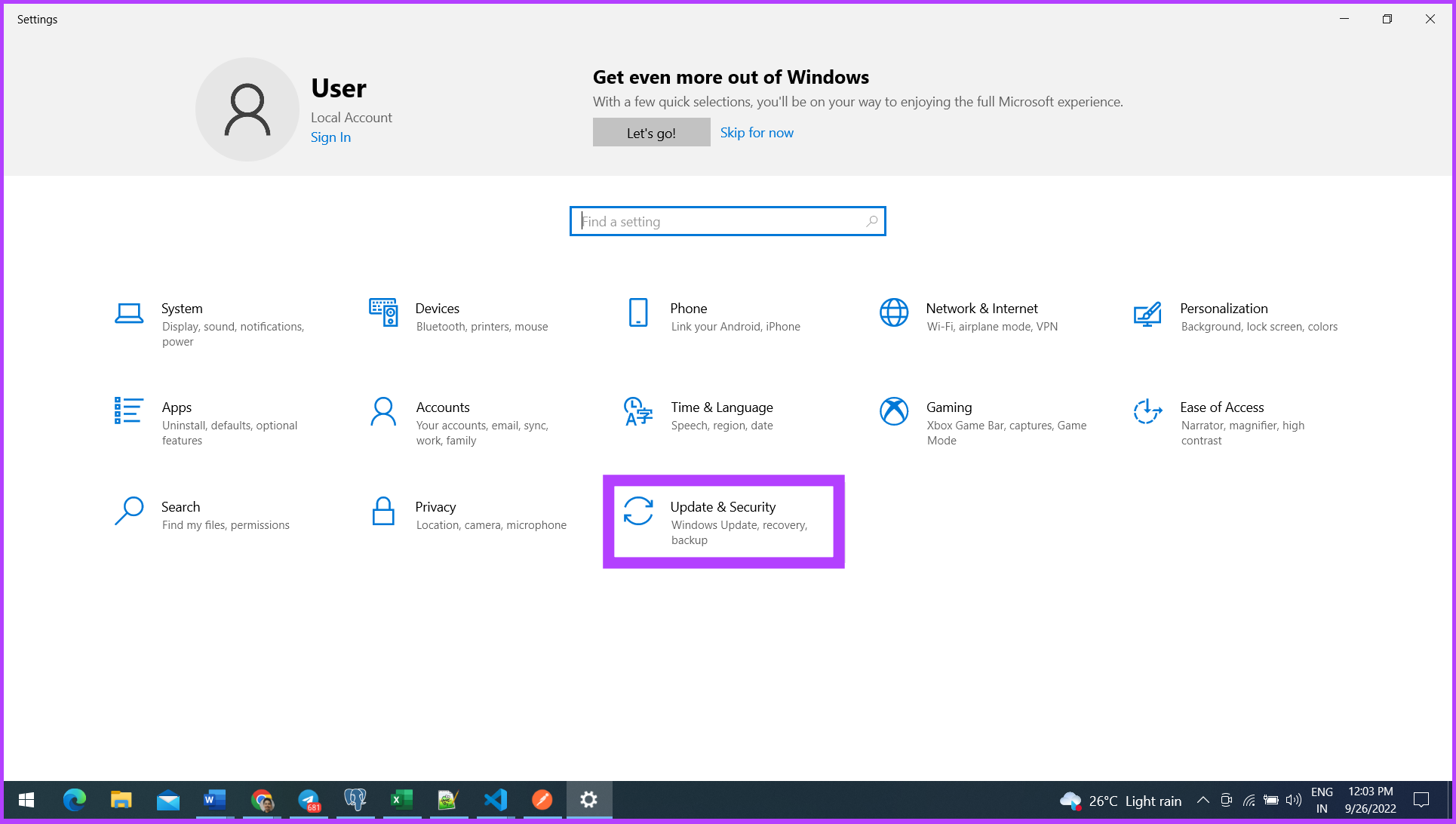
Step 2: Go to Update & Security.

go to Windows Recovery Settings

Step 3: Select Recovery from the sidebar and click Restart now, under Advanced startup.

The following steps are identical to Windows 11. As you choose Advanced startup, you can access boot options.

Click Restart now under Advanced Startup

Step 4: Go to Troubleshoot.

Go to Windows Troubleshoot

Step 5: Now, click on Advanced options.

click on Advanced options

Step 6: Click on UEFI Firmware Settings and click on Restart.

Click on ‘UEFI Firmware Settings'

There you go, your Windows will boot into UEFI BIOS, and you can take it from there.

FAQs Related to BIOS on Windows

1. How do I get into BIOS without an operating system?

The BIOS is accessible every time you restart your computer. The BIOS will be accessible as soon as the PC starts up by pressing either f12, f8, or delete (del) at the same time.

2. What is UEFI boot mode?

UEFI Mode configures the system to boot into an operating system that is compatible with UEFI. Whereas, the Legacy BIOS mode configures the system to boot a traditional operating system with Legacy BIOS compatibility.

4. Can you open BIOS using Command Prompt on Windows?

Yes. In the search box > type CMD and enter > under Command Prompt, type ‘wmic bios get smbiosbiosversion’ and enter. That’s it.

BIOS has been an integral part of Windows since its inception. Before Windows 8, the BIOS was difficult to access because each manufacturer had different keys that needed to be pressed. The way things are done has changed dramatically and has become much more effortless.

Was this helpful?

Thanks for your feedback!

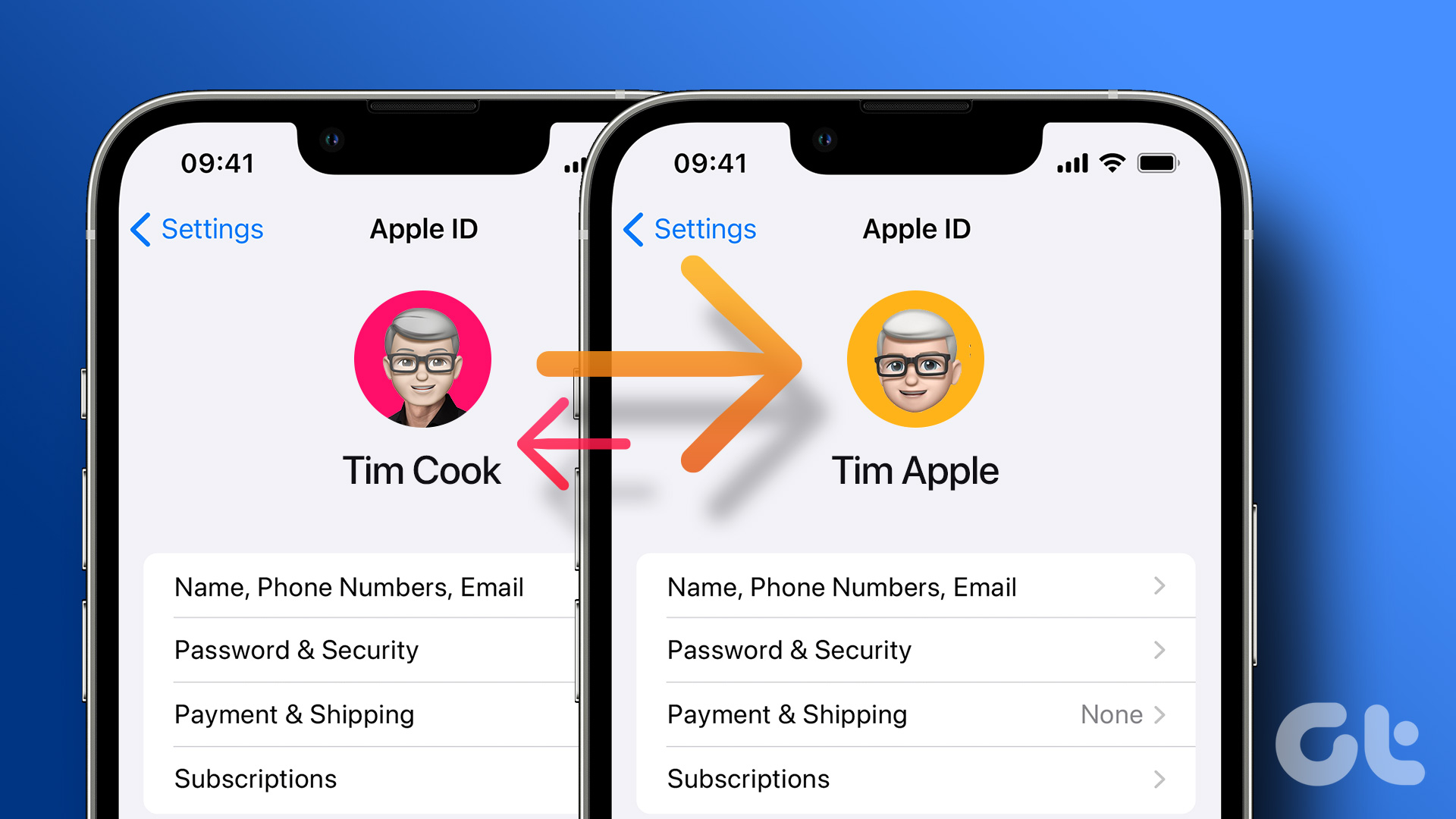
How to Switch Between Multiple Apple IDs on iPhone and iPad

Things to Know Before Switching Apple ID

Firstly, it’s important to note that you cannot use multiple Apple IDs simultaneously on one phone. You can log in to two Apple IDs for emails (we’ll demonstrate that later) but that’s pretty much it. Here are some prerequisites that you need to be aware of before you switch iCloud accounts on an iPhone:

  • You cannot sync your purchases or other iCloud data like notes, voice memos, photos, etc. from both accounts.
  • Items synced to iCloud on your earlier ID will be removed from your iPhone when you switch to a new ID. They will still be accessible when you log in to iCloud with your old ID.
  • You cannot use the same phone number or email ID linked with your old account to create a new Apple account.
  • All the data present locally on your iPhone, including files, apps, contacts, photos, etc., will not be erased.
  • Your subscriptions like Apple Music and Apple TV+ will not carry over to your new account.
  • If you have multiple Apple devices, they won’t be able to communicate with each other unless you log in with the same Apple ID on all of them.

How Do I Find My Apple ID

In case you don’t know what your current Apple ID is, here’s how you can find out.

Step 1: Open the Settings app on your iPhone. Tap on your name at the top.

Step 2: The email ID or phone number displayed right beneath your picture is your current Apple ID.

How to Switch Apple IDs on iPhone and iPad

Now that you’re ready, follow the below steps to switch between multiple Apple IDs on iPad or iPhone.

Disabling Important Features

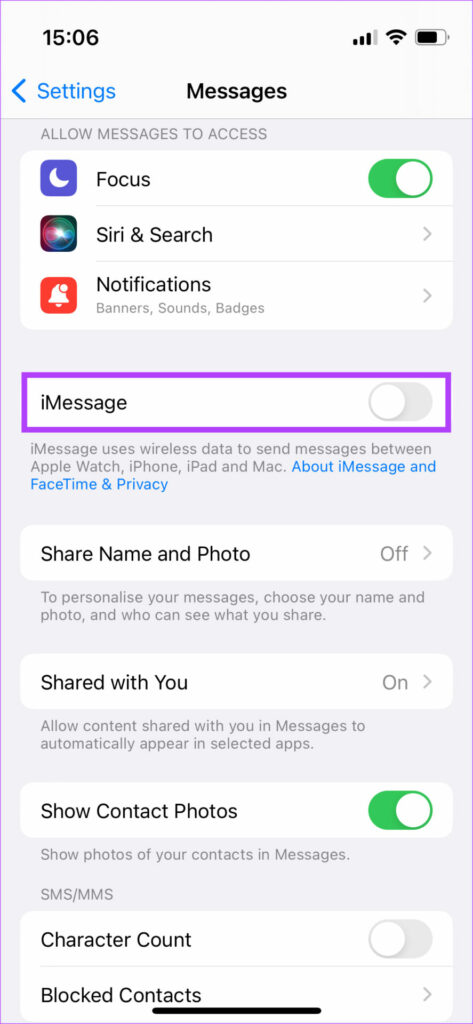
Step 1: Open the Settings app on your iPhone. Scroll down to tap Messages.

Step 2: Turn off the toggle next to iMessage. This is to ensure your iMessages don’t go to your old ID even after signing out.

Step 3: Go to FaceTime and turn off the toggle here as well.

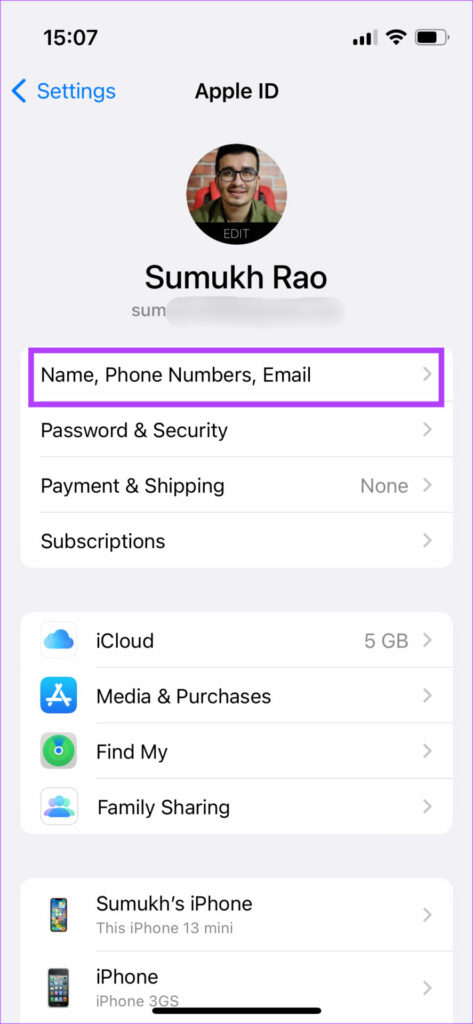
Step 4: Now, tap on your name at the top of the Settings app.

Step 5: Select the Name, Phone Numbers, Email option.

Step 6: Under Contactable At, you will see the list of your email IDs and phone numbers linked to iCloud. If you wish to use any of these with your new Apple ID, tap Edit and delete them from the list.

How to Sign Out of Old Apple ID

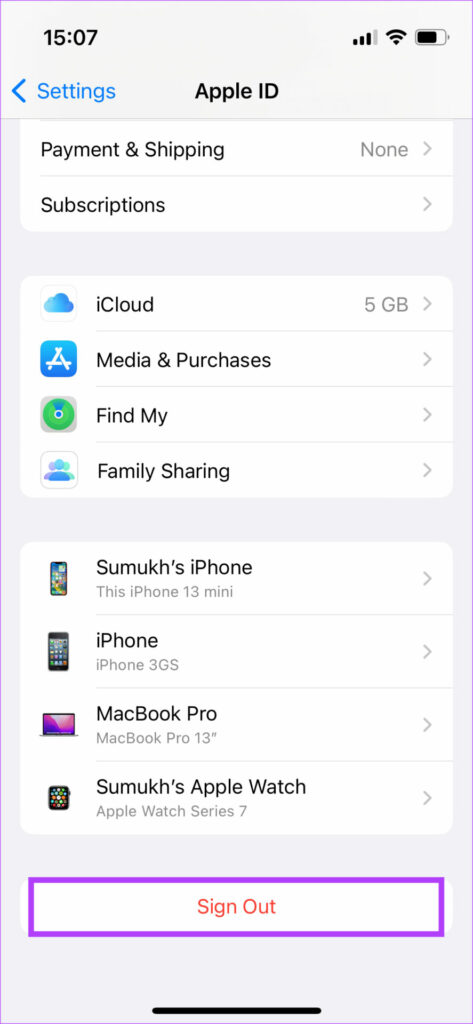
Step 1: Now, you need to sign out of your Apple ID. Go back to the previous screen and scroll down to the bottom. Tap on Sign Out at the bottom.

Step 2: You will be asked if you want to keep a copy of any of your iCloud data on the iPhone. If you wish to sync this data with your new Apple ID, select all the relevant options. If you wish to start afresh on your other ID, don’t select any option here.

Step 3: Tap Sign Out in the top-right corner.

How to Sign In to New Apple ID

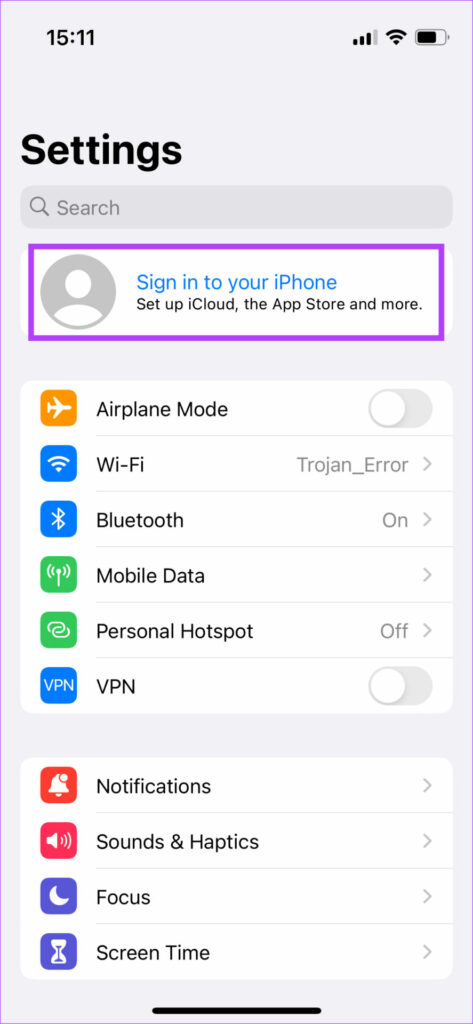
Step 1: Tap on the Sign in to your iPhone option at the top of the Settings app.

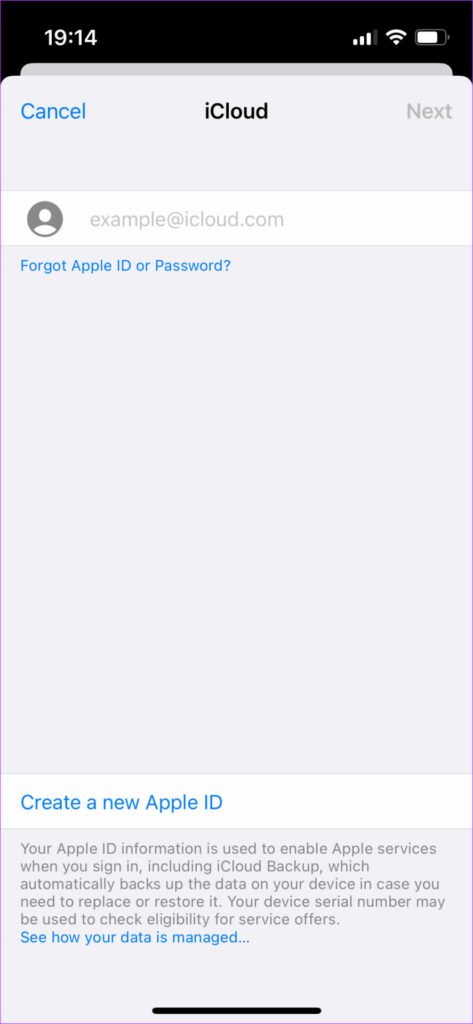
Step 2: Enter the new Apple ID you want to log in to. If you don’t have one, you can create a new Apple ID from this section.

The new Apple ID can be found right below your picture, confirming that you have indeed switched your Apple ID to a new one.

How to Log Back Into Your Old Apple ID

Just follow the instructions above to switch your Apple ID once again. This time, though, input your old Apple ID, and you should be logged back in. Don’t forget to select the right items to keep a copy of, or else you will end up mixing the contents of both iCloud accounts, which you may not want to do.

How to Add Two Apple IDs on iPhone for Mail and Contacts

While you cannot log in to two Apple IDs simultaneously on your iPhone, you can add multiple Apple IDs to sync your mail, contacts, calendar, etc. Here’s how to do it.

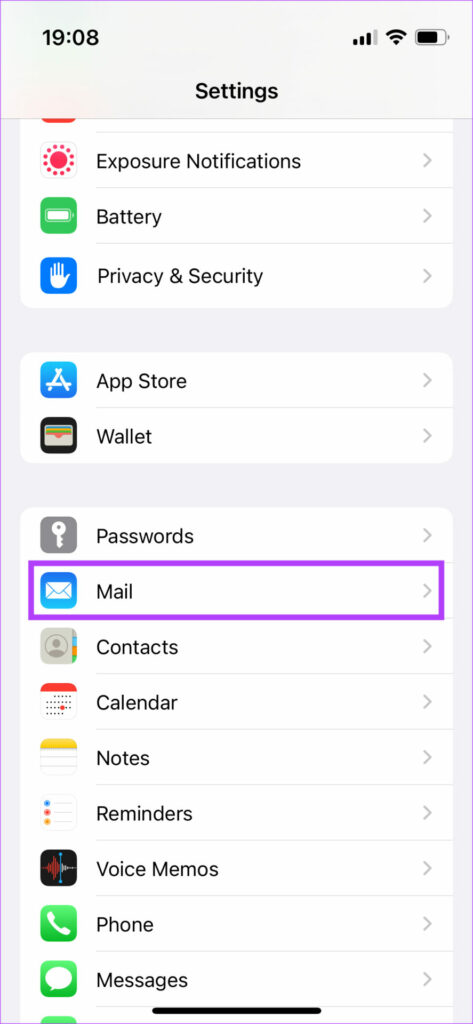
Step 1: Open the Settings app on your iPhone. Scroll down and tap on Mail.

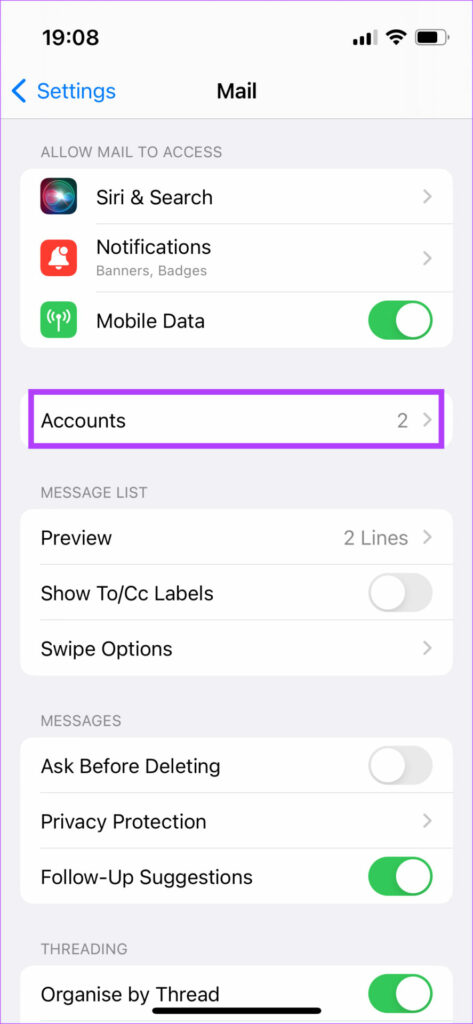
Step 2: Go to Accounts and select Add Account.

Step 3: Select iCloud at the top.

Step 4: Enter the Apple ID you want to add and sync. Enter the password as well.

Note that you can use this account only to sync emails, notes, calendars, and contacts. Your Apple ID will still remain the same as earlier.

Was this helpful?

Thanks for your feedback!

6 Ways to Fix Apple Watch Face Keeps Changing

Basic Fixes

  • Restart Apple Watch: This issue can often be caused by a temporary bug, and a simple restart should fix it.
  • Remove case: Using a case on your Apple Watch could also trigger the swipe gesture, thus changing the watch face in return.
  • Update Apple Watch: Install the latest watchOS update for a bug-free experience.

Fix 1: Turn off Swipe to Switch Watch Faces Setting

You can change watch faces quickly by swiping from the left or right edge of the home screen. Therefore, unintentional swipes can change the watch face.

To turn off this feature, open the Settings app on your Apple Watch and tap on Clock. Turn off the toggle next to Swipe to switch watch faces.

Swipe to Switch Watch Face Off

Fix 2: Remove Extra Watch Faces

You can remove extra watch faces and only keep the one you intend to use. That way, even if you swipe accidentally, nothing will happen to the watch face as no other watch face exists.

Step 1: Touch and hold the current watch face until the watch vibrates or you see the Edit button at the bottom.

Step 2: Then, swipe up on the watch face and press the Remove button. Similarly, remove other watch faces.

Fix 3: Turn on the Water Lock

Another way to stop accidental touches is to enable the Water lock on your Apple Watch. When enabled, your Apple Watch won’t respond to any tap or gesture, thus keeping your watch face intact.

To enable Water Lock from the watch, swipe up or press the power button (watchOS 10 and later) to open the Control Center on your watch. Tap on the Water droplet icon to enable it. Once enabled, you will see a water droplet icon on the watch face.

To turn off the Water Lock, press and hold the Digital Crown until your watch starts beeping. You will get an Ejecting water prompt. Ignore it and press the Digital Crown again to stop the sound.

Fix 4: Turn off Photos or Portrait Watch Face

If you use Photos or Portrait watch face having multiple pictures, a simple tap on the watch face will change the face to a different image.

Step 1: Open the Watch app on your iPhone. Tap on the Photos or Portrait watch face under the My Faces section.

Step 2: Tap on the photos count option under the Photos label.

Step 3: Tap on Select at the top and select the photos you want to remove. Hit the Trash icon.

Note: The photos will not be deleted from your iPhone. They will only be deleted from the watch face.

Note: If you are getting your pictures from an Album or Dynamic photos, you must disable those and switch to the single photo watch face by tapping on Photos.

Fix 5: Turn off Automation

If any automation in the Shortcuts app are changing the Watch face based on time, location, or any other situation, here’s how to disable them.

Step 1: Open the Shortcuts app on your iPhone. Tap on the Automation tab at the bottom. Look for any automation with a watch face. If you see one, tap on it.

Step 2: Check the conditions of the automation. If it says Set watch face under the Do section, turn off the toggle for Enable this automation and hit Done at the top.

If there’s any Focus Mode configured to change the Watch face on your Apple Watch when enabled, here’s how to disable it.

Step 1: Open Settings on your iPhone. Go to Focus and tap on each focus mode.

Step 2: Scroll down to Customize screens. If you see a watch face on the Apple Watch preview, tap on the (-) Remove icon on the watch face.

Similarly, repeat the steps for other Focus profiles. This should mostly fix the changing watch face problem.

Was this helpful?

Thanks for your feedback!

How to Create or Merge Disk Partitions in Windows 11

How to Create Hard Drive Partitions on Windows 11

Windows offers the Disk Management utility to undertake any storage-related tasks on your Windows PC. It’s a solid go-to option to format a storage drive or create a new partition. Here are the steps to create a disk partition using the Disk Management utility on your Windows 11 PC:

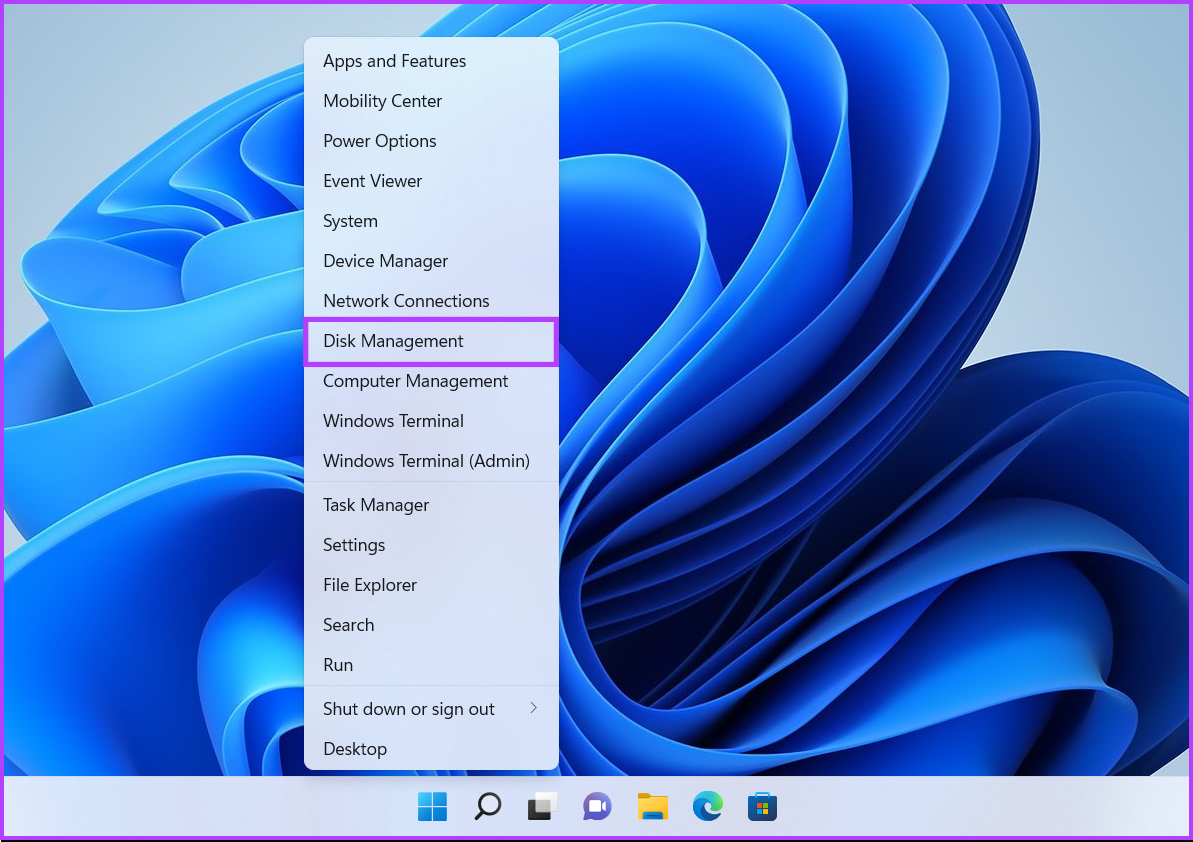
Step 1: Press the Windows + X keys to access the Power User Menu and click on Disk Management.

Open the disk managemnt utility

Step 2: Right-click on the disk to create a partition. Then, click on Shrink volume.

Shrink volume option

Step 3: Type the amount of space to shrink in MB to determine the partition size. Be mindful of the number you enter. Next, click on Shrink.

Choosing shrink size

Step 4: Right-click on the newly created unallocated partition (one with the grey lines) and select New Simple Volume.

Creating a  New Simple Volume

Step 5: When a New Simple Volume Wizard window appears on the screen, click Next.

New Simple Volume Wizard

Step 6: If you plan on creating additional partitions, specify the size you want to create. Then, click on Next.

partition size

Step 7: Click on the Assign the following drive letter drop-down list to select a drive letter for your partition. Then, click on Next.

Assign the following drive letter

Step 8: Select an applicable File system (by default, choose NTFS) and type a name in the box next to Volume label. Then, click on Next.

Format partition options

After that, a File Explorer window will show you the newly created drive partitions. In our case, they were New Volume (D:) and New Volume (E:). Repeat the process to create more partitions.

new,y created drive partitions

How to Merge Hard Drive Partitions on Windows 11

While this is convenient, the partitions sometimes remain unutilized or underutilized. In such cases, you may need to merge your existing hard drive partitions to create a larger space to store more files in a single partition. Here’s how to easily merge hard drive partitions on your Windows 11 PC:

Step 1: Press the Windows + X keys to access the Power User Menu and click on Disk Management.

Open the Disk Management

Step 2: Right-click on the secondary partition (New Volume D: in our case) and select Delete Volume.

Delete Volume option

Step 3: If you have backed up the data in the chosen partition, click Yes. Meanwhile, if you haven’t taken a backup of the files present on the secondary partition, click on No, and repeat steps 1, 2, and 3 after creating a backup.

delete partition confirmation

Step 4: The tool labels the deleted partition Unallocated. After deleting that partition, right-click on the primary partition you want to extend and click on Extend Volume.

Extending disk Volume

Step 5: When the Extend Volume Wizard appears on the screen, click Next.

Extend Volume Wizard

Step 6: If you want to merge the entire partition, click Next directly.

However, if you want to merge only a part of it, enter a specific size in the Select the amount of space in MB text box and click on Next.

Select the amount of space in MB

Step 7: Click on Finish.

Mmerging completed

After you click finish, the Disk Management utility will merge the unallocated partition with the existing partition.

Was this helpful?

Thanks for your feedback!

2 Ways to Fix QR Code Scanner Not Working on Android

Basic Fixes

  • Clean your camera lens: Try cleaning the lens of your phone camera using a cotton bud.
  • Check the lighting of your surroundings: Avoid scanning a QR code in low-light surroundings.
  • Force quit and relaunch Camera: You can try doing this to give the app a fresh start on your Android phone.
  • Update the Camera app and Android version: Older versions of the Camera app and the Android OS can cause issues with QR code scanning.

Fix 1: Check if Google Lens Suggestions Is Enabled

After pointing your Android phone’s camera toward a QR code, you must activate Google Lens to scan the code and reveal the relevant web page link. The Google Lens Suggestions feature in the Camera app takes care of this entire process.

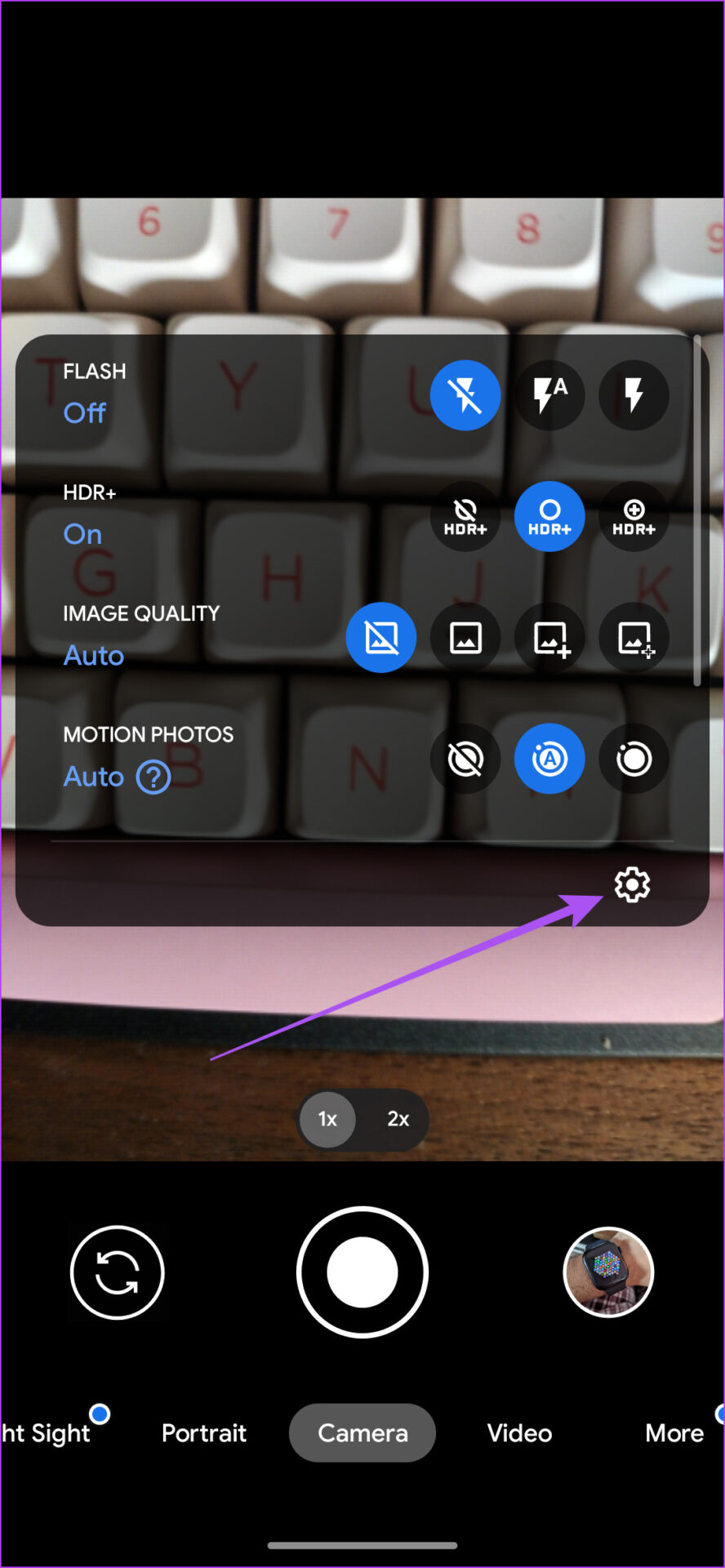
Step 1: Open the Camera app on your Android phone. Tap the downward arrow icon at the top and select Settings.

Step 2: Enable the feature of Google Lens Suggestions, if not enabled.

We have used Google Pixel to show these steps. But you can access this feature on your Android phone by accessing the Settings menu in the Camera app.

Fix 2: Update Google Lens

After enabling the Google Lens Suggestion feature, we recommend checking whether you are using the latest version of the Google Lens app. You can visit the Play Store and install the latest version of Google Lens.

An alternative that we suggest is taking a photo of the QR code and then scanning it.

Was this helpful?

Thanks for your feedback!

Top 10 Ways to Fix Apple CarPlay Not Reading Text Messages

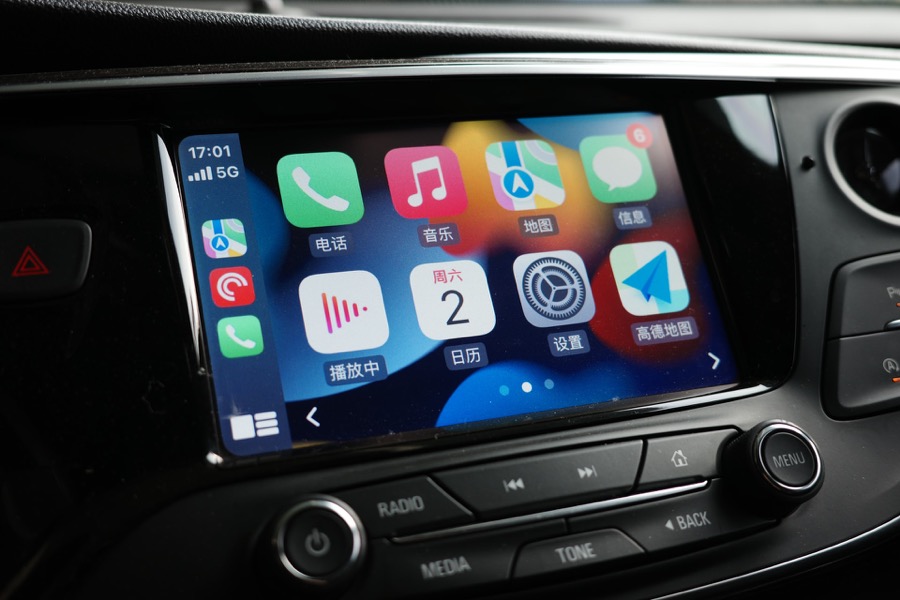
Apple CarPlay is one of the most valuable features when you’re driving. It helps you focus on the road while giving you essential alerts like calls and notifications from loved ones. It reads out your messages aloud so that you don’t have to read through any text while driving. However, at times, CarPlay fails to read some text messages resulting in missed notifications.

Apple CarPlay not reading text messages

While most notifications can wait when you’re driving, some messages from family and friends can be important. It’s quite annoying later on when you realize you have pending messages. Don’t worry, as there are some simple fixes for the problem. If Apple CarPlay is not reading text messages when you receive them, here are some solutions to help.

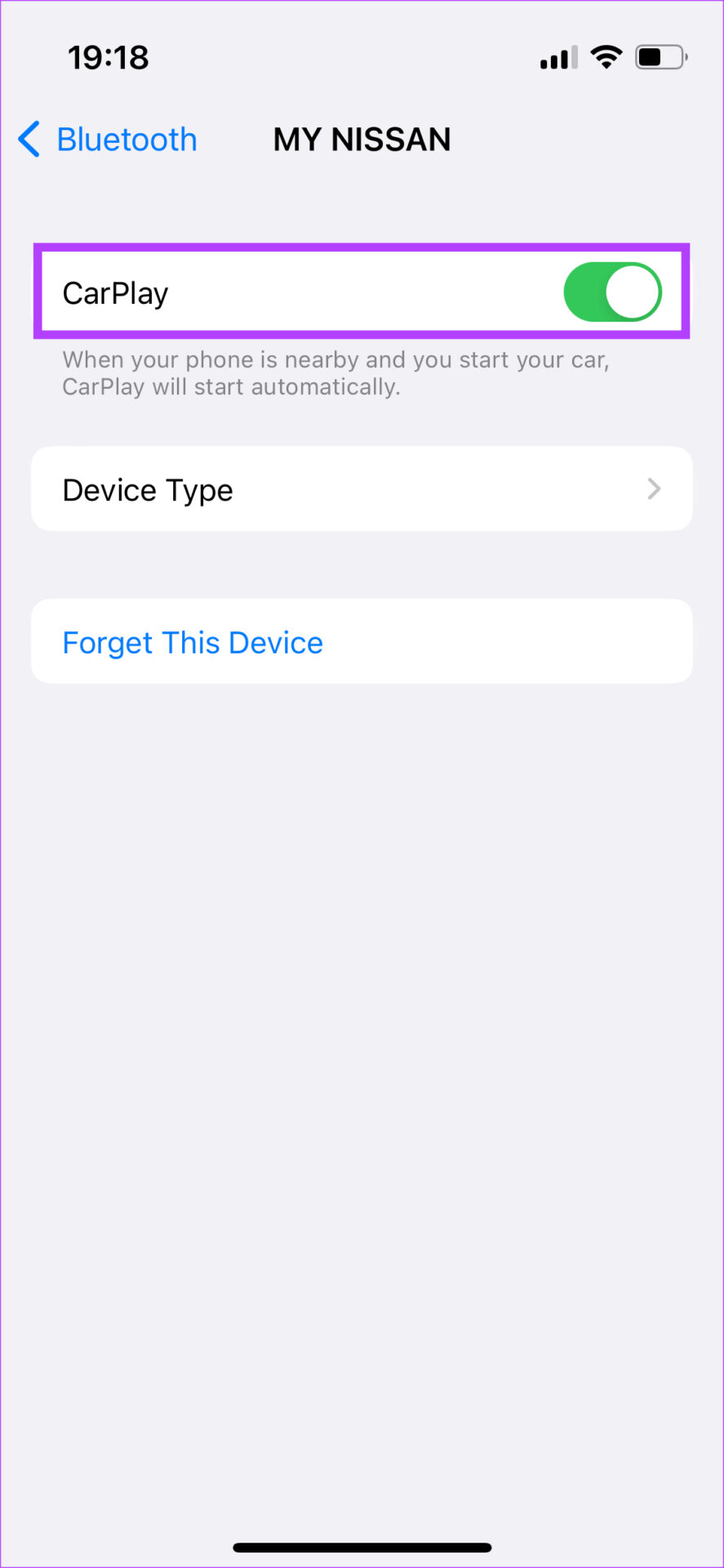
1. Toggle CarPlay Off and On From Bluetooth Settings

When you connect to your car’s head unit, the device is shown in your iPhone’s Bluetooth menu. This is where you have the toggle to enable or disable CarPlay. Turning the toggle off and back on resets the interface which can help with CarPlay not showing text messages. Here’s how to do it.

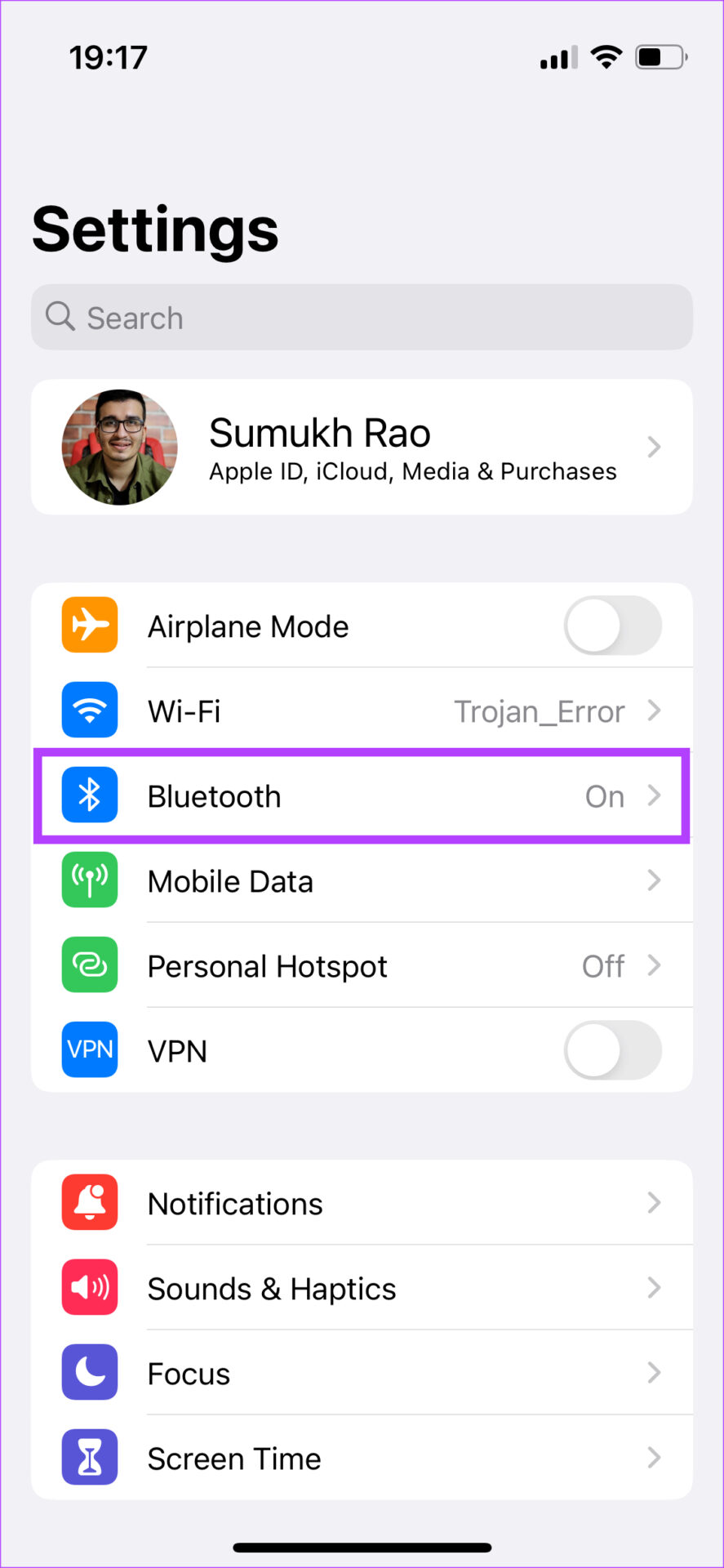
Step 1: Open Settings on your iPhone. Navigate to the Bluetooth section.

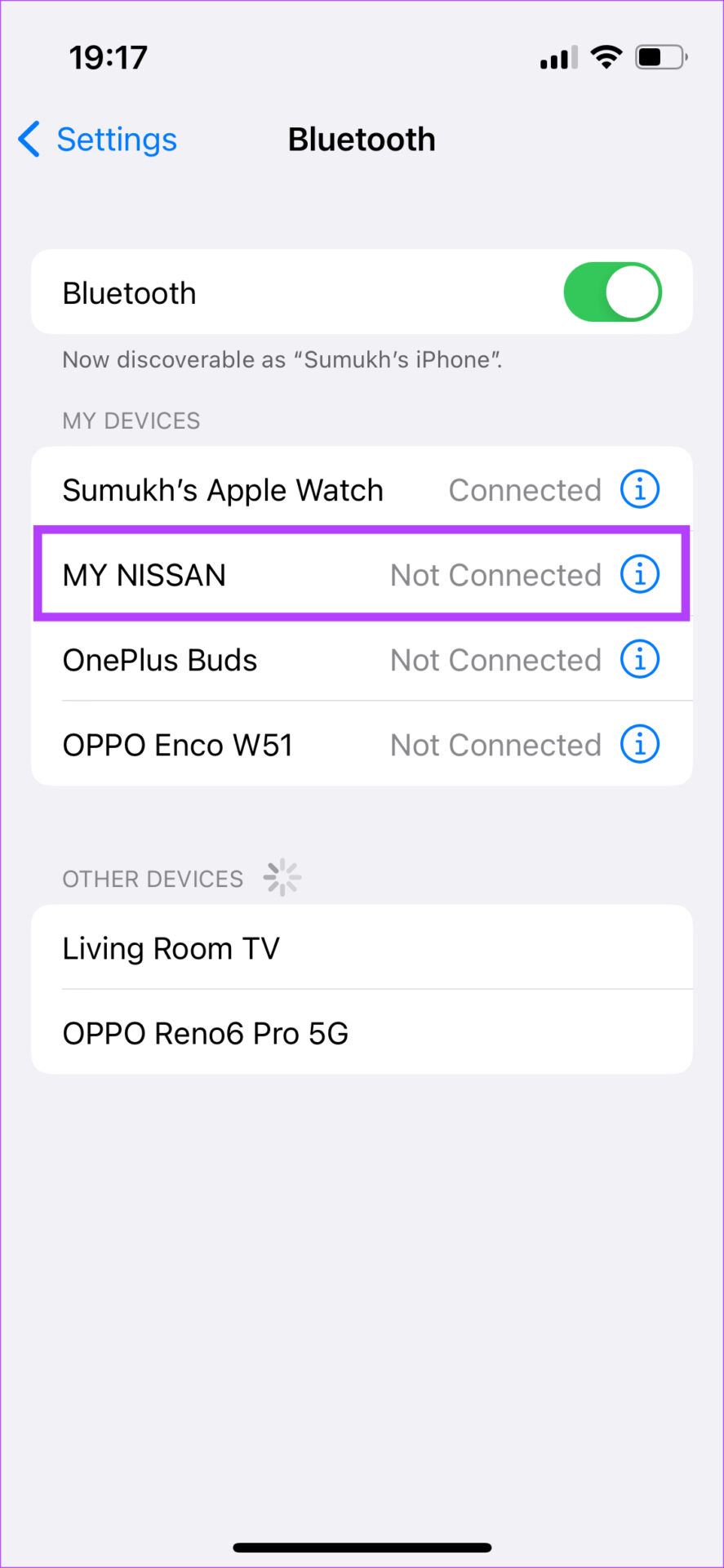
Step 2: Select the small ‘i’ button next to your car’s head unit from the list of devices.

Step 3: Disable the toggle next to CarPlay. Wait for a while and turn it back on.

Reconnect your phone to your car now and check if your messages are being read out.

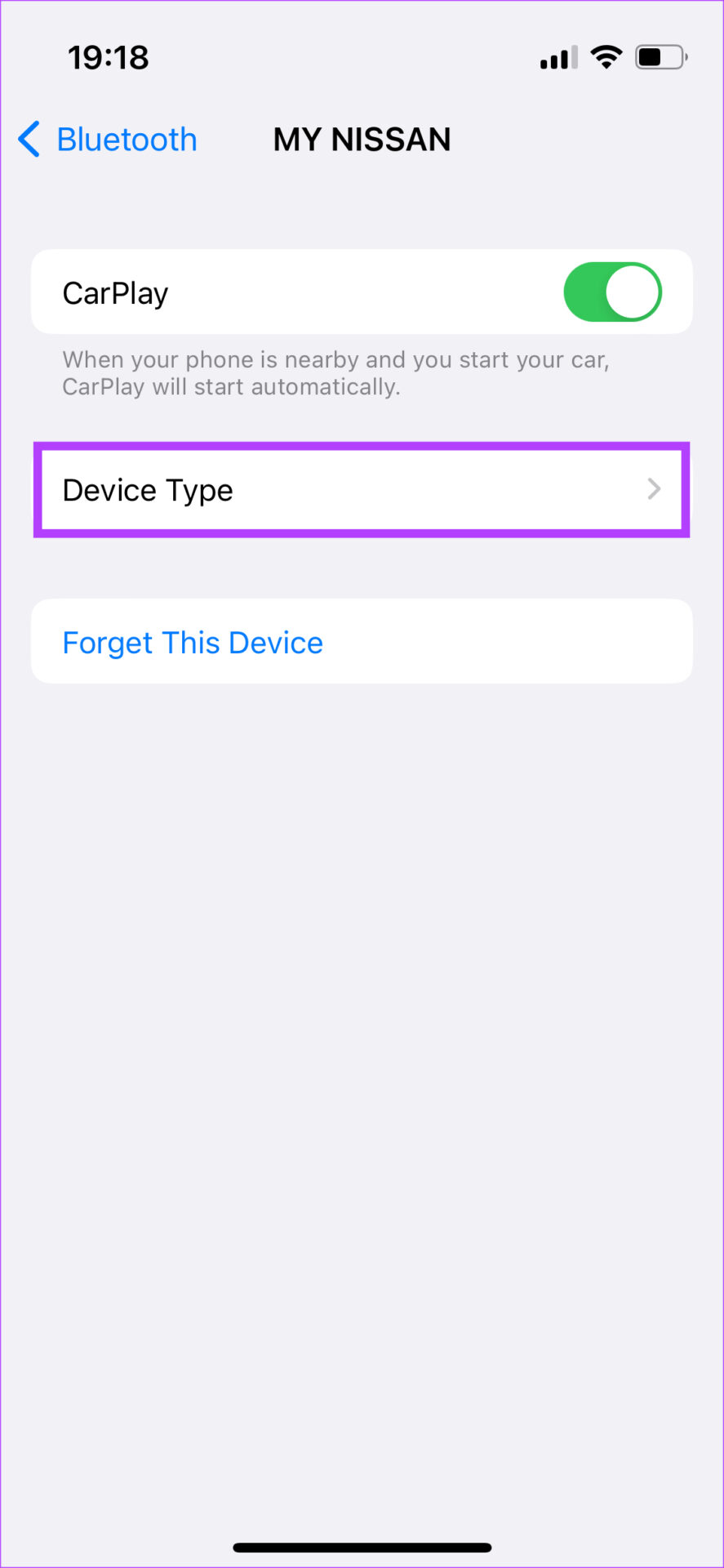
2. Select the Type of Device in Bluetooth Settings

When you pair your iPhone with your car’s stereo system, there’s a specific option in Bluetooth settings to set the device as your car stereo. When you do this, your iPhone will automatically route all your notifications to your car’s head unit via CarPlay. Here’s how to select the device.

Step 1: Open the Settings app on your iPhone. Navigate to the Bluetooth section.

Step 2: Select the small ‘i’ button next to your car’s head unit from the list of devices.

Step 3: Now, tap on Device Type.

Step 4: Select Car Stereo.

This should help you solve the issue where iPhone text messages are not showing up in your car.

3. Connect Your iPhone via USB Instead of a Wireless Connection

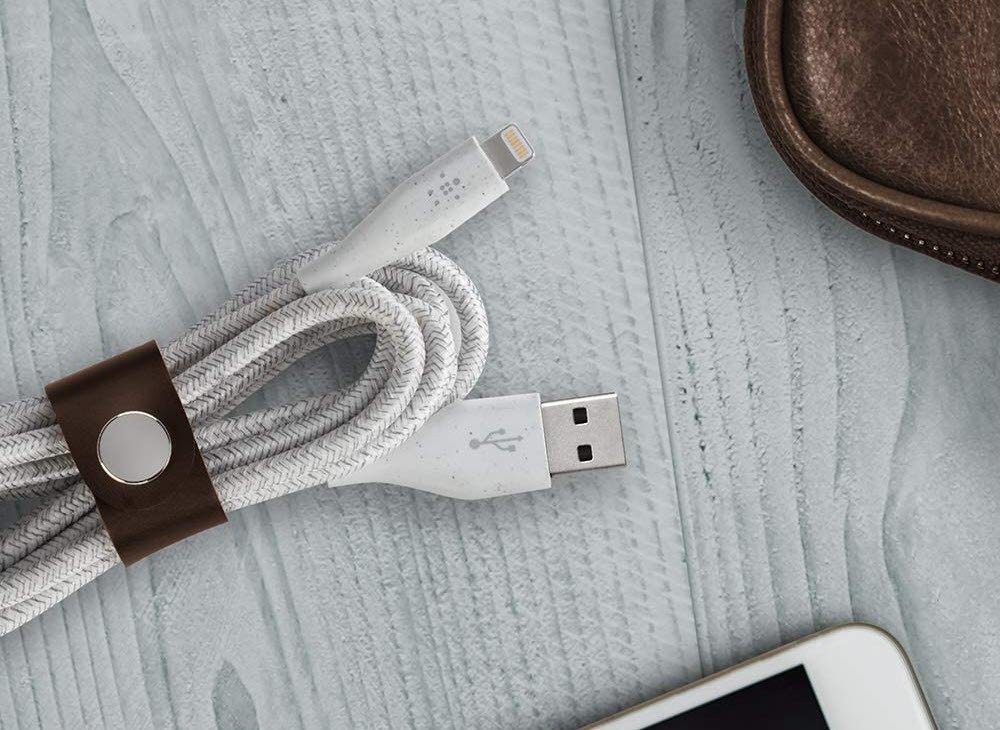
There is a possibility that your iPhone is facing issues with a wireless connection to the car’s head unit. In such a case, CarPlay notifications may not work properly. Instead of connecting your iPhone wirelessly to the car, use a lightning to USB cable for Apple CarPlay.

lightning cable

Try using CarPlay via the wired method and check if CarPlay announces messages once again.

4. Ensure Your Phone Has a Working Network Connection

While being connected to the network isn’t important for Apple CarPlay to work, it’s an absolute necessity for your notifications to come through. If your iPhone itself isn’t receiving messages, those text messages will not show up in your car either.

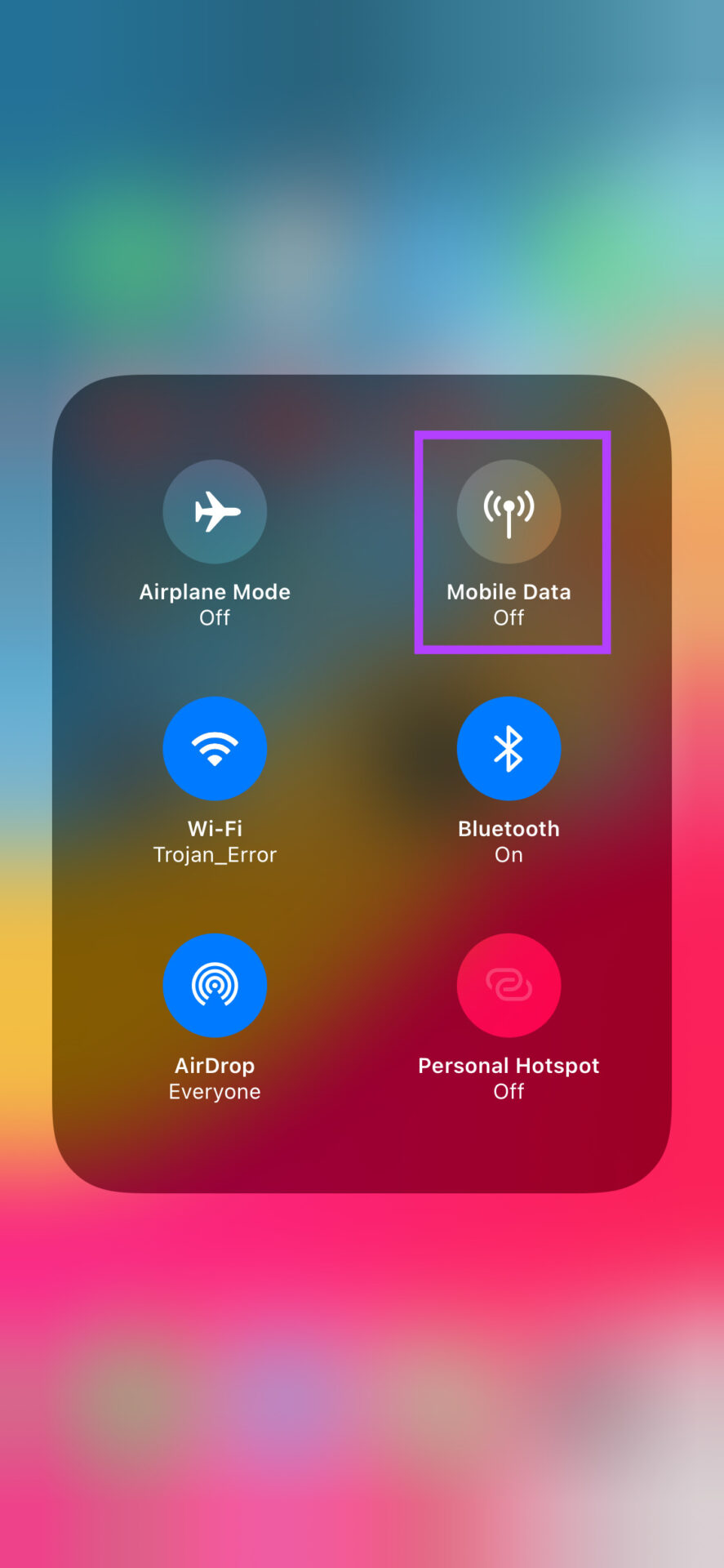
Apart from being connected to the network, it’s also important to have a working mobile data connection if you want Siri to announce your notifications. If you’re receiving notifications but Siri is not reading the text messages out loud, there’s probably an issue with your mobile data connection.

5. Disable Driving Focus

Apple introduced focus modes as a means to avoid distractions when you’re working or sleeping. There’s also a focus mode for when you’re driving called Driving Focus. Enabling Driving Focus disables notifications when using CarPlay so that your complete attention is on the road. So, if you’ve turned on Driving Focus on your iPhone, it’s time to turn it off. Here’s how.

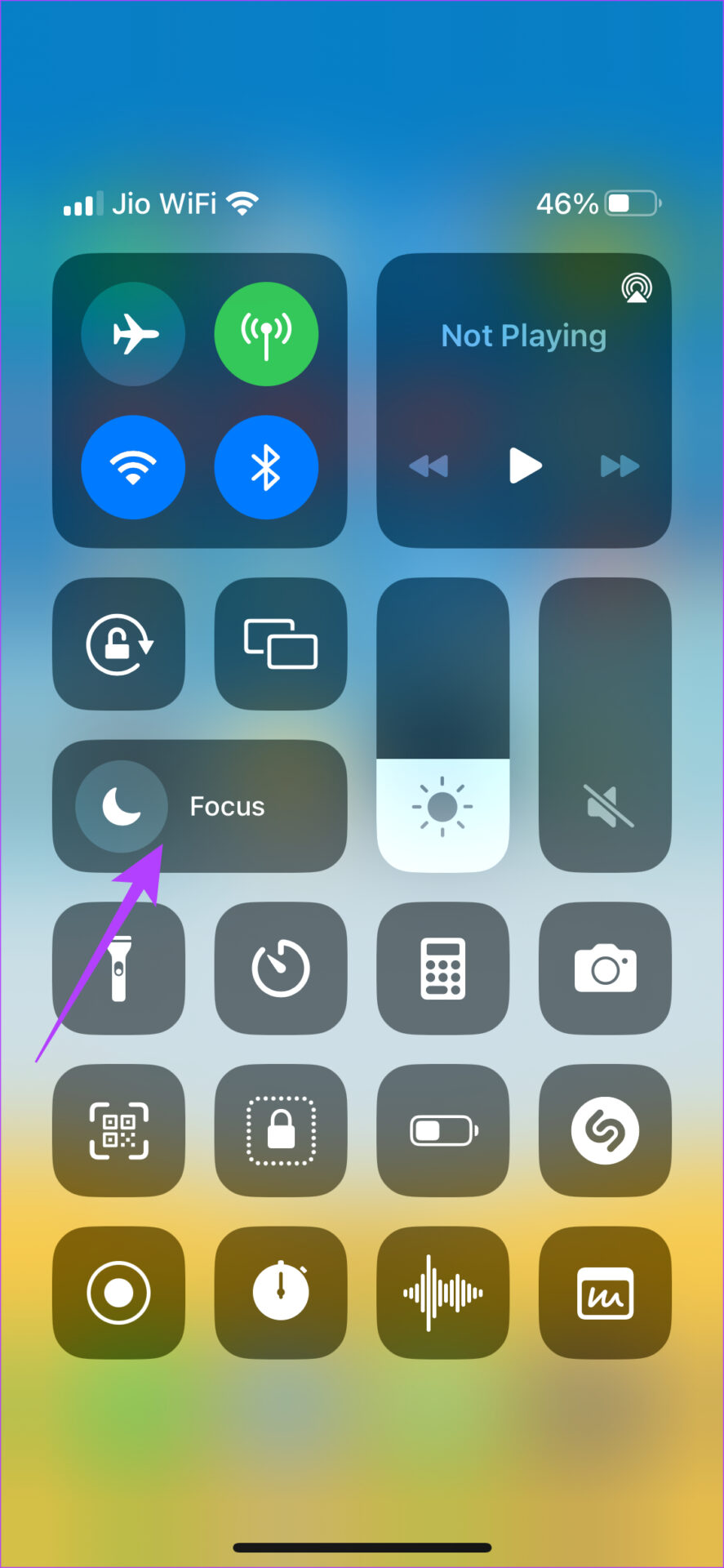
Step 1: Bring down the Control Center on your iPhone by swiping down from the top-right corner.

Step 2: Tap and hold onto the Focus toggle.

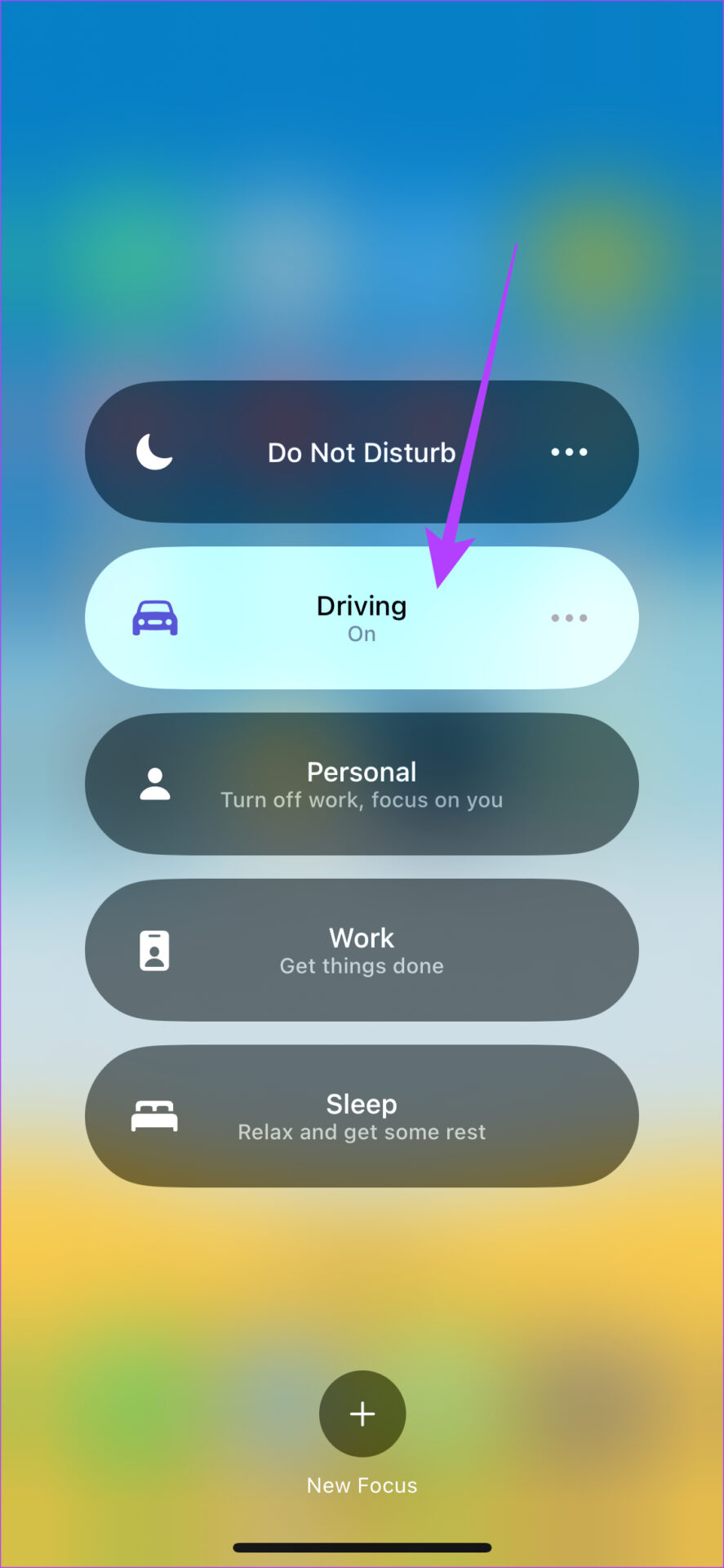
Step 3: If Driving Focus is enabled, tap on it to turn it off.

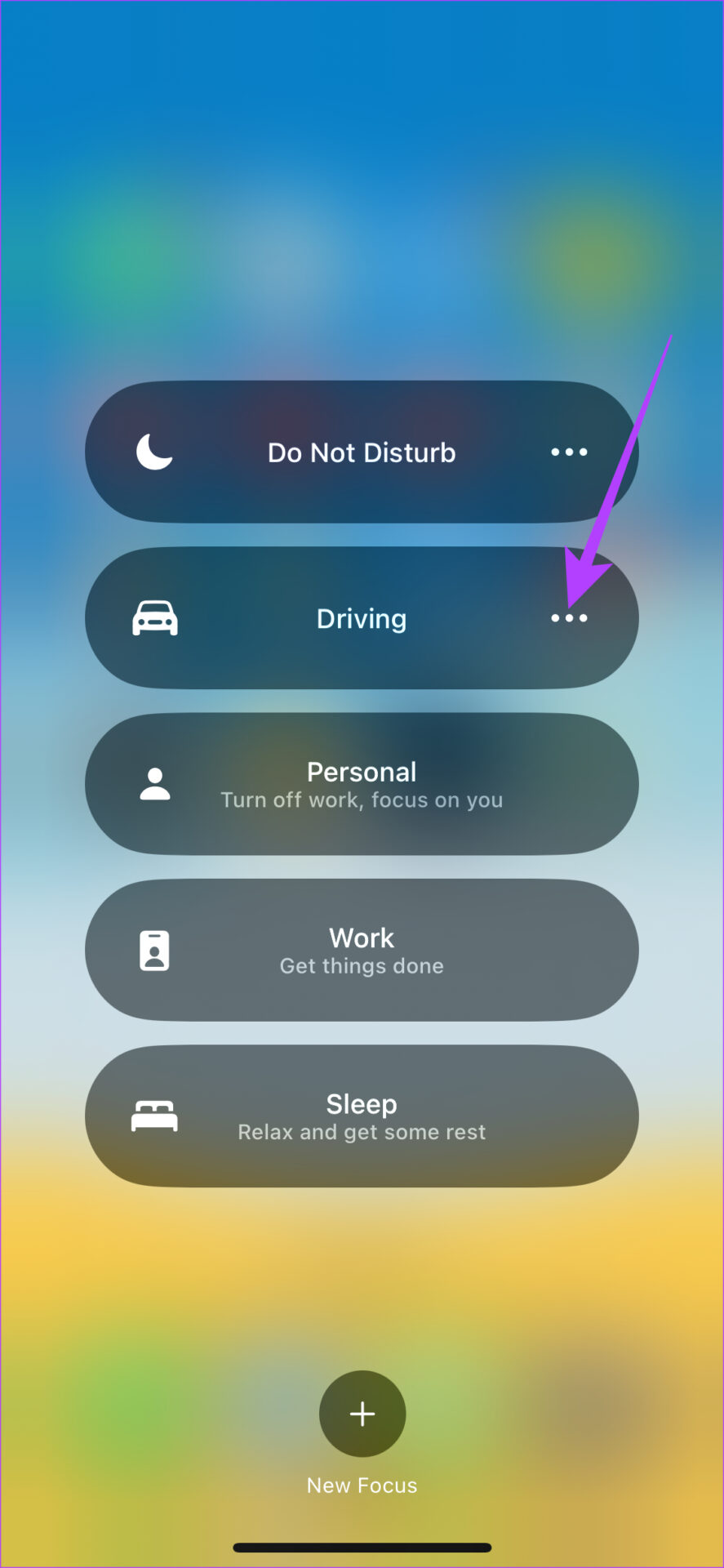
While this is enough to turn off Driving Focus, there’s a hidden setting that turns on Driving Focus automatically when connected to CarPlay. Let’s see how you can disable it to ensure your messages show up and are read out loud by Siri.

Step 4: Tap on the three dots next to Driving Focus to expand it. Now, select Settings.

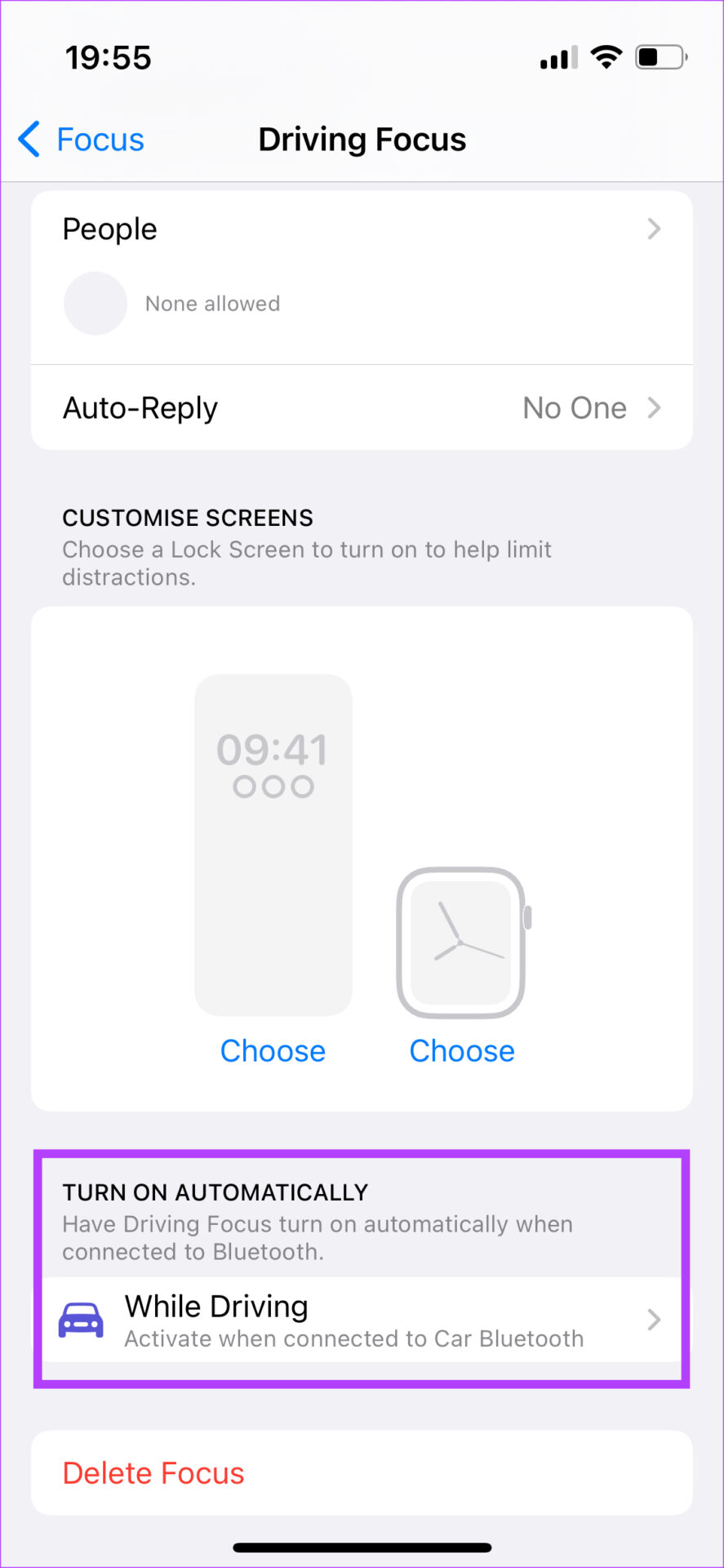
Step 5: Scroll down to the bottom and tap on While Driving under Turn on Automatically.

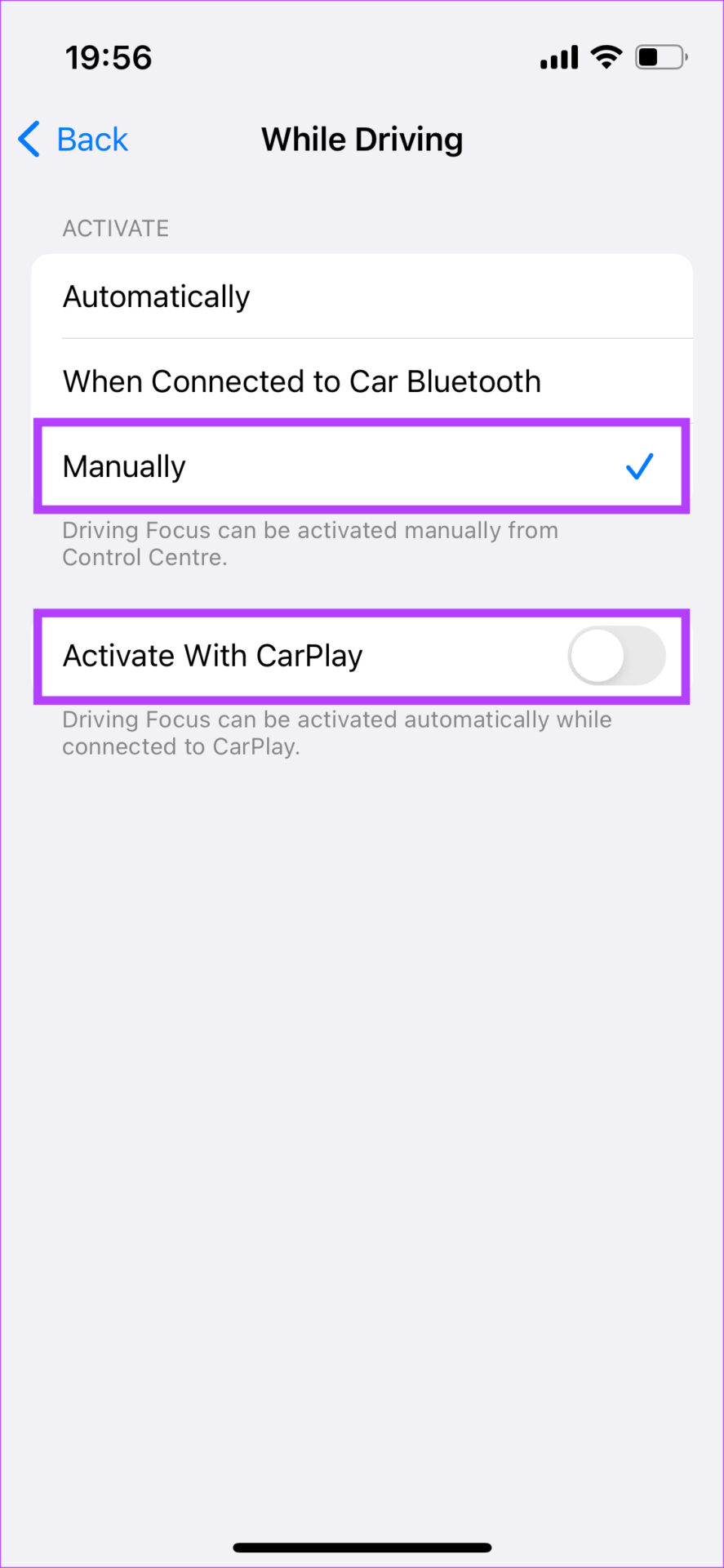
Step 6: Choose Manually under Activate and turn off the toggle for ‘Activate With CarPlay’.

The Driving Focus will not be automatically enabled now and CarPlay will display your text notifications as they arrive.

6. Enable Notifications for the Messages App

Your iPhone has a toggle to enable or disable notifications from certain apps when using CarPlay. So, it’s important to ensure that notifications for the Messages app are enabled so that they can be delivered and read out in your car. Here’s how to enable it.

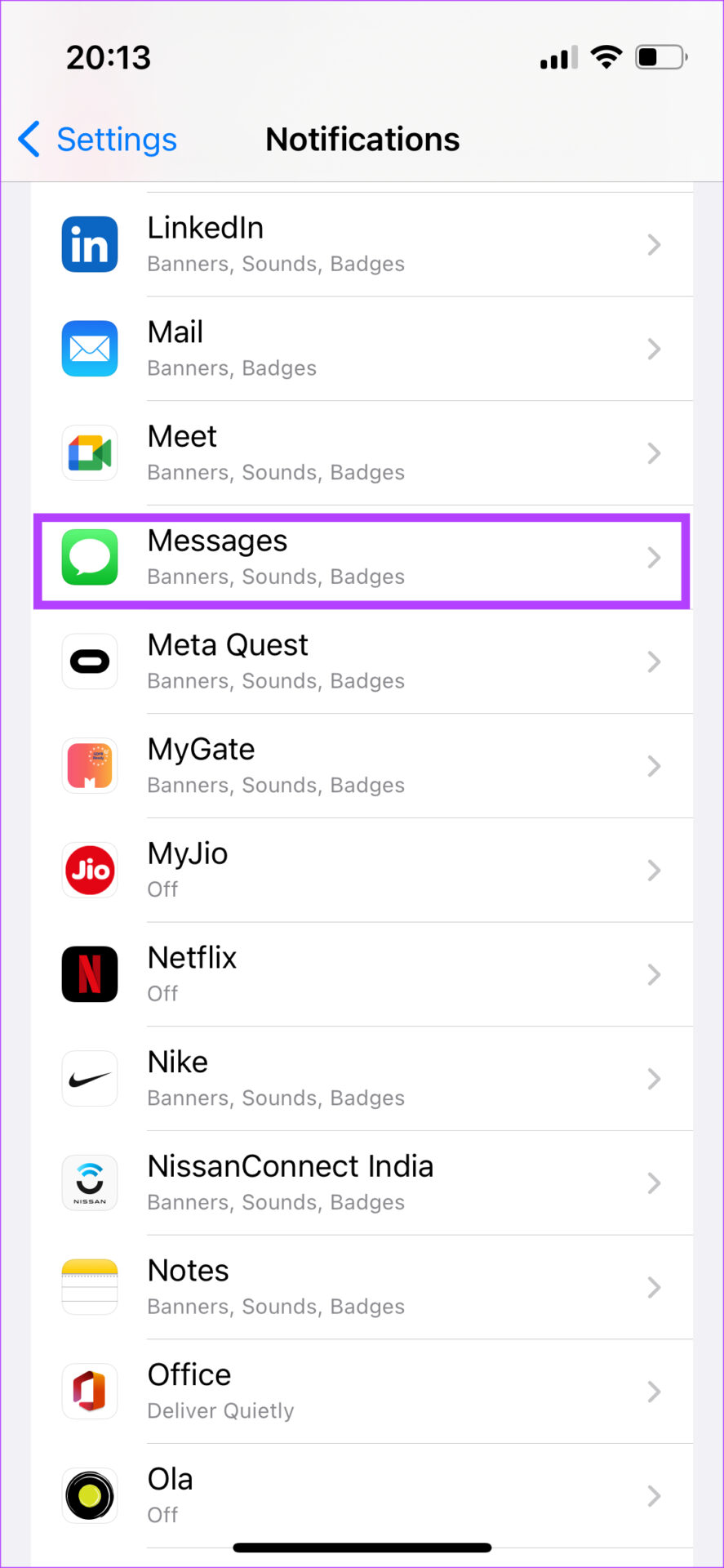
Step 1: Open the Settings app on your iPhone and tap on Notifications.

Step 2: Look for the Messages app in the list and select it.

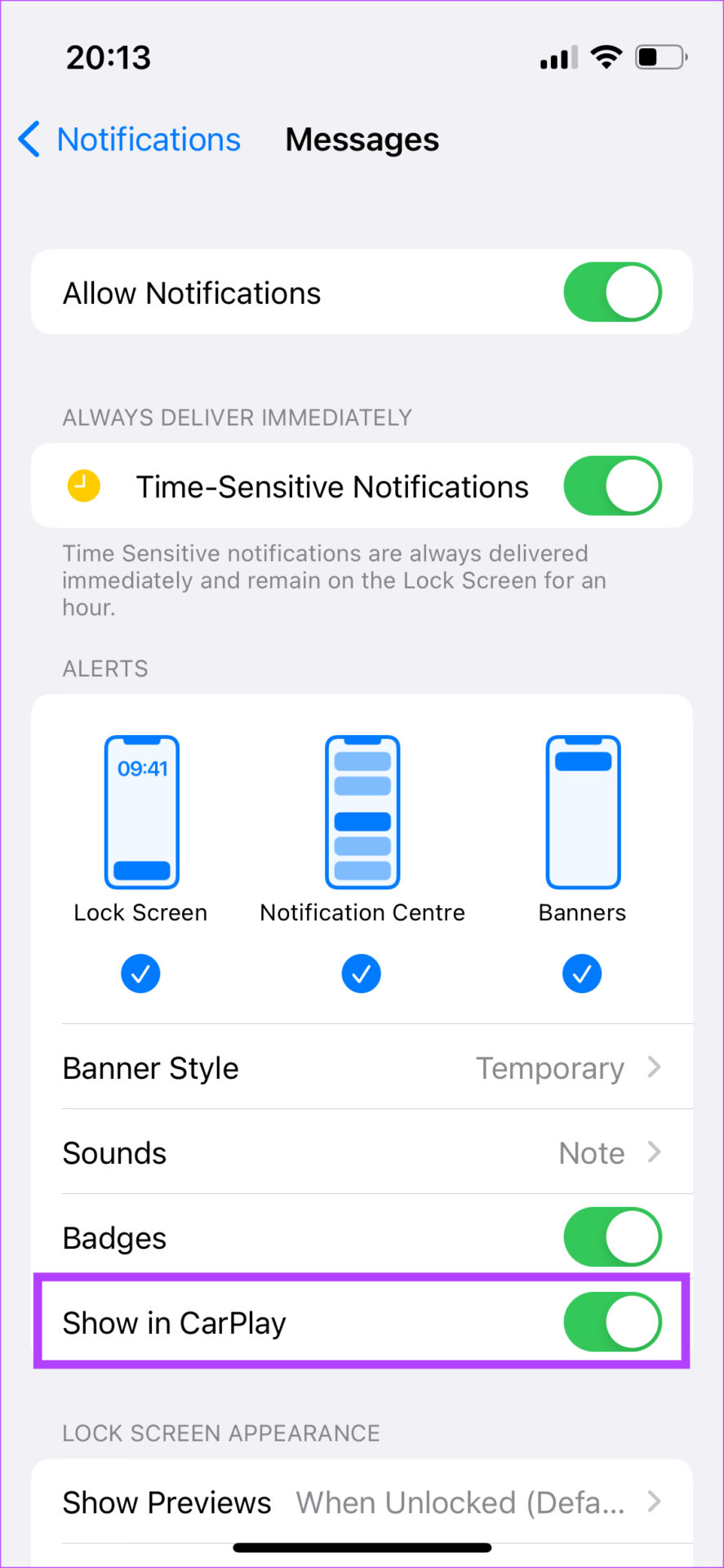
Step 3: Enable the toggle next to ‘Show in CarPlay’.

7. Update Your iPhone to the Latest iOS Version

A particular software version may have caused an issue with Apple CarPlay notifications not working. Updating your iPhone to the latest iOS version can fix such issues.

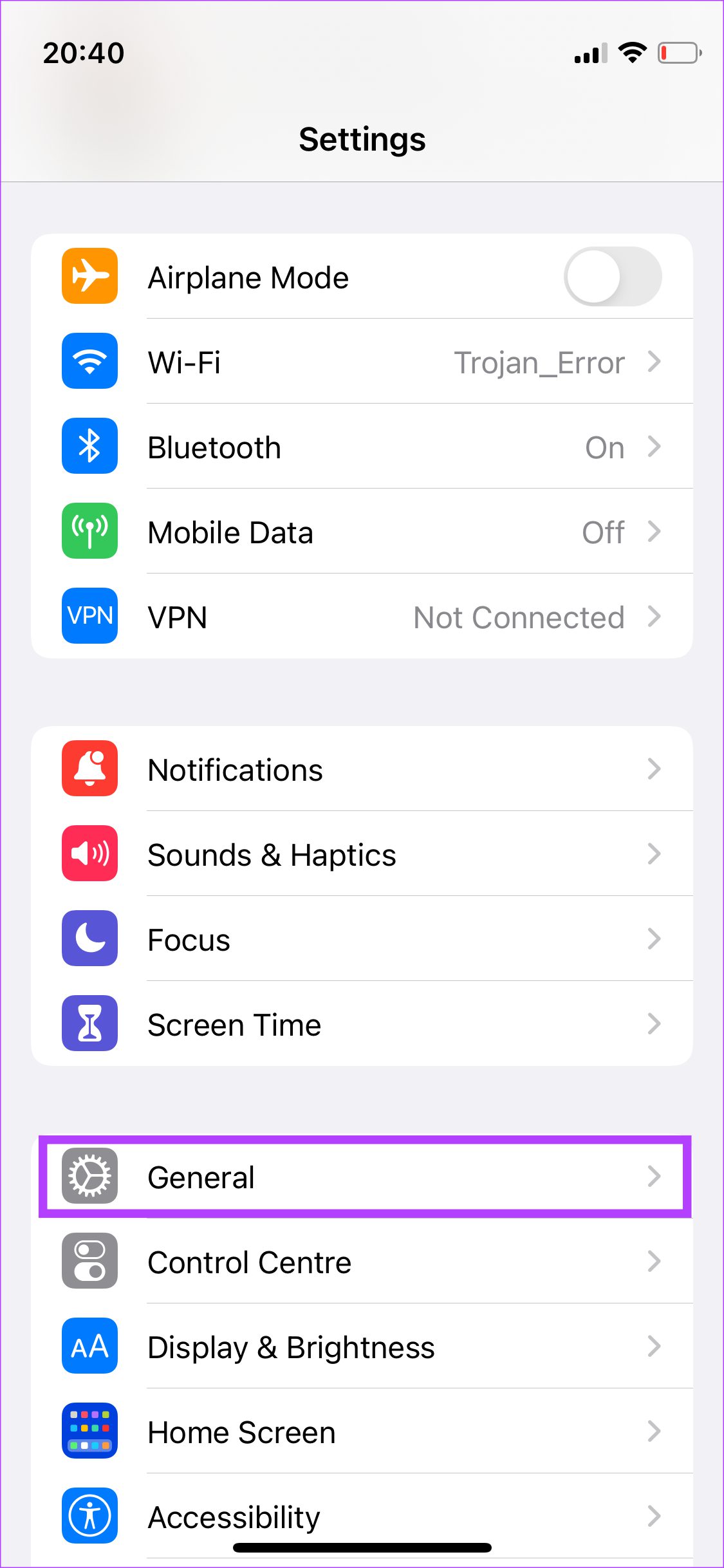
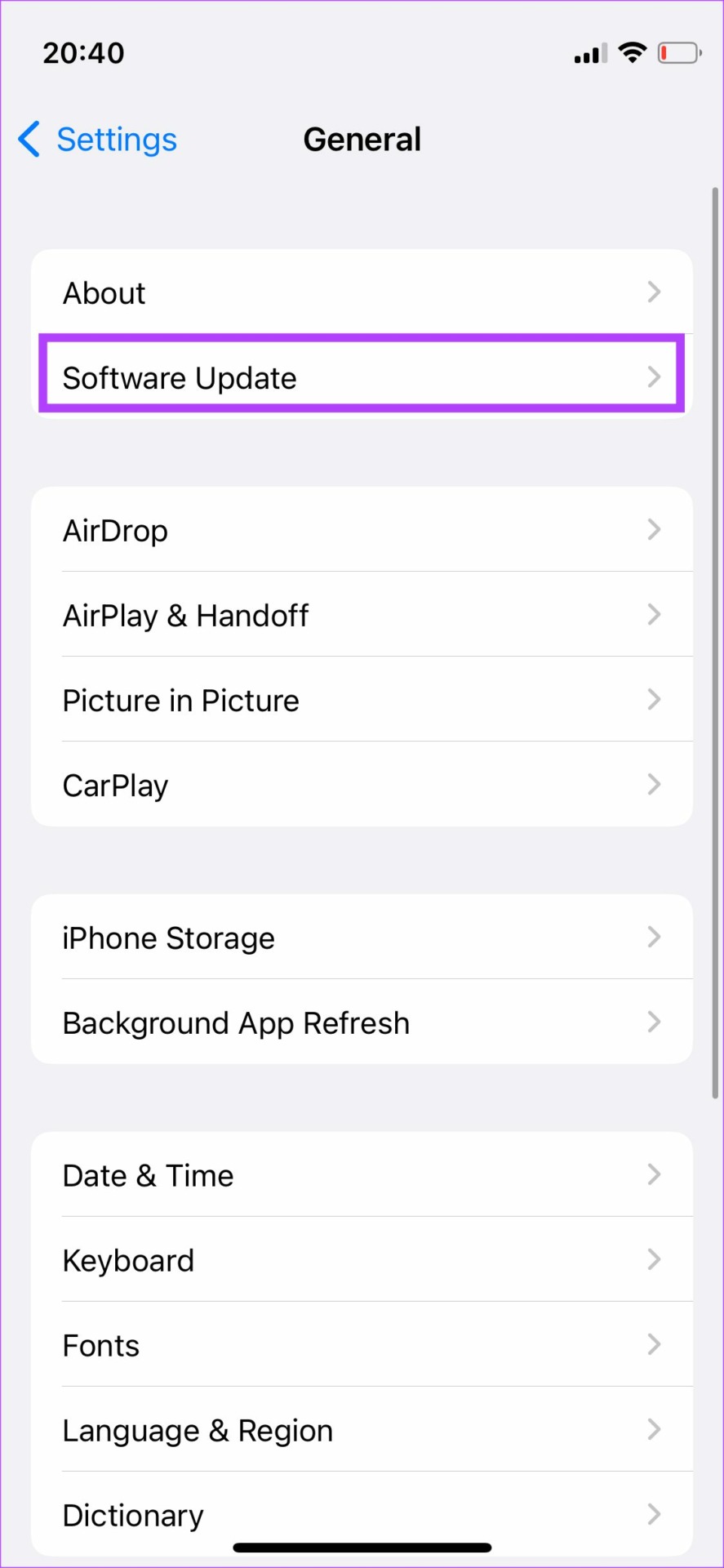
Step 1: Open the Settings app on your iPhone and select General.

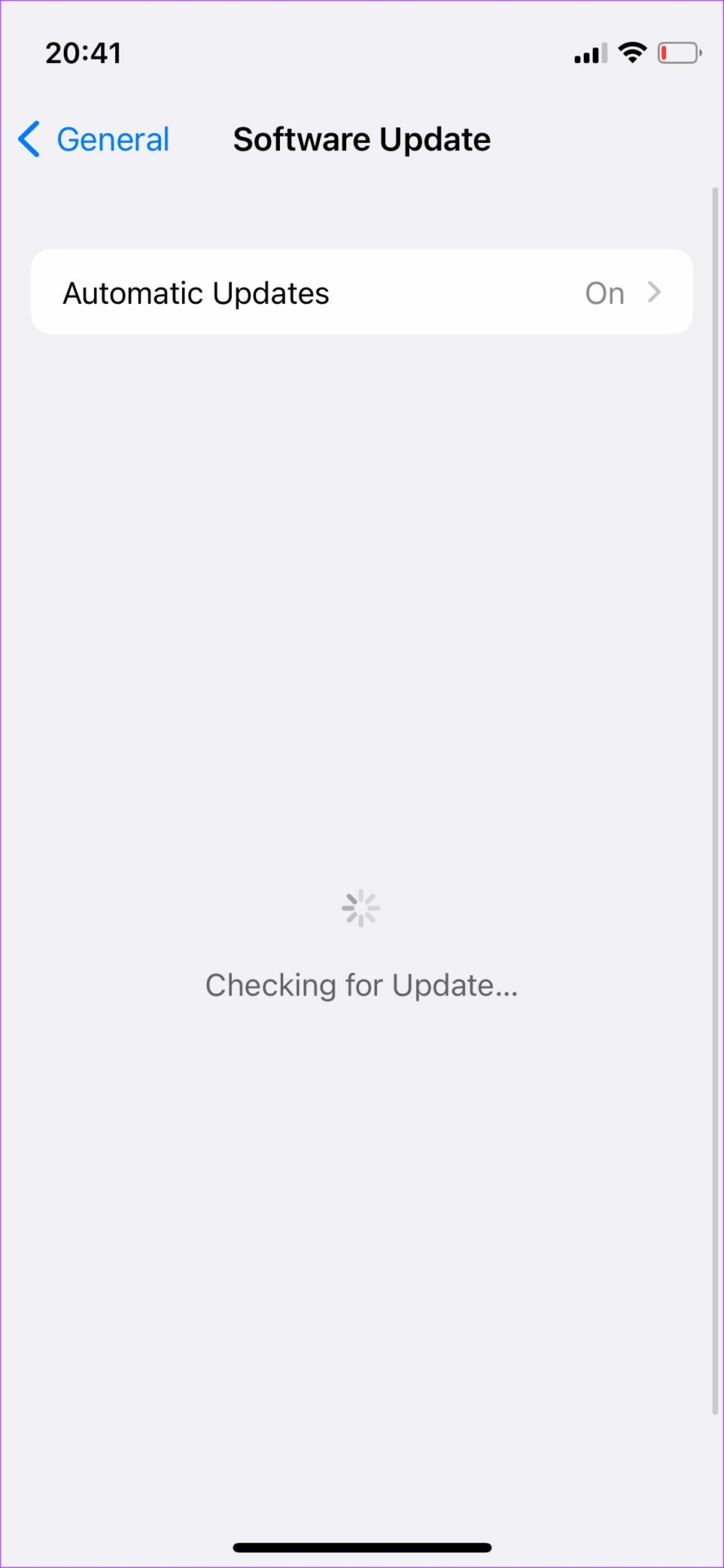
Step 2: Tap on Software Update.

Step 3: If a new update is available, it will be listed there. Select Install and wait for the installation to complete.

8. Enable Announce Notifications From Siri

If you’re receiving message notifications on the screen but your car isn’t reading out the messages, enable the announce notifications feature within Siri settings on your iPhone. Here’s how to do it.

Step 1: Open the Settings app on your iPhone. Navigate to Siri & Search.

Step 2: Select Announce Notifications.

Step 3: Enable the toggle next to Announce Notifications.

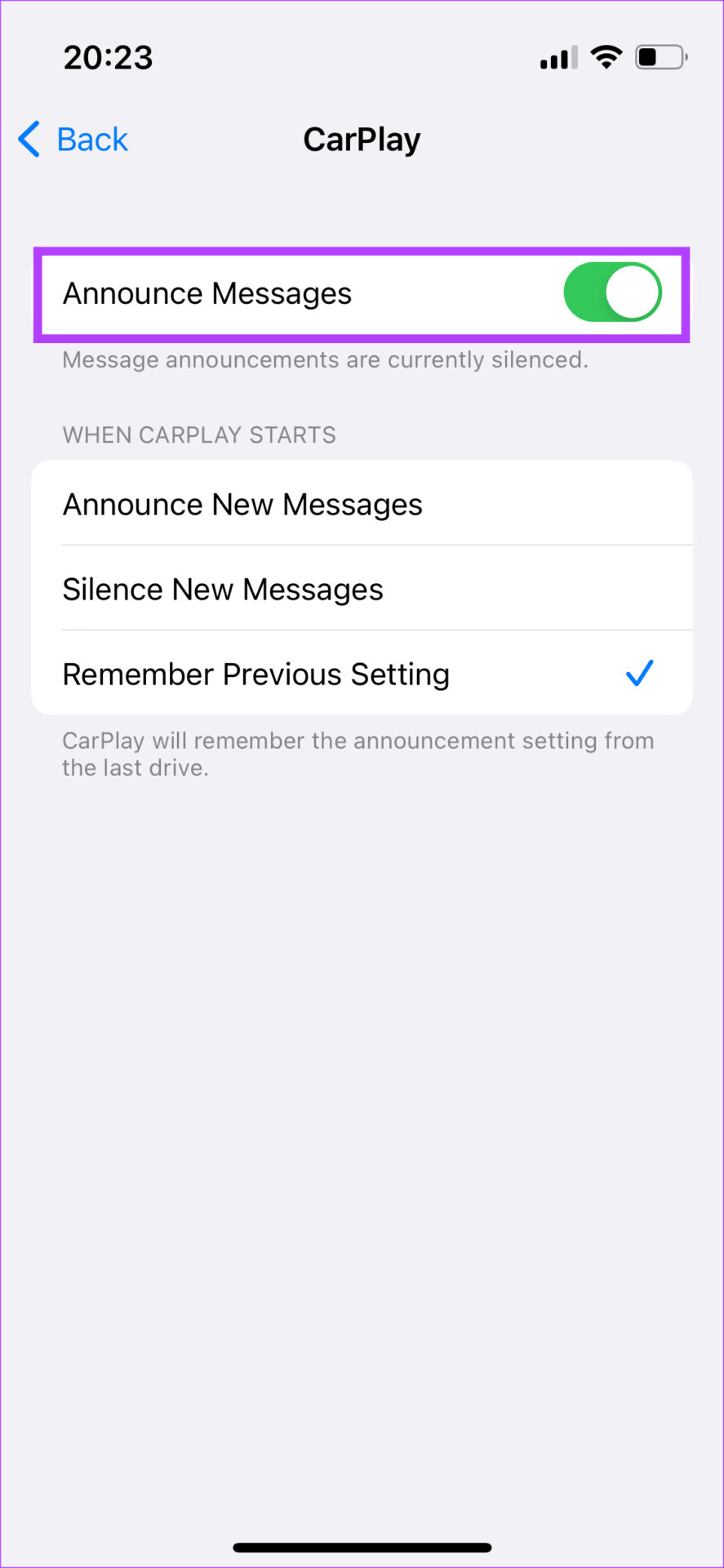
Step 4: Choose the CarPlay option. Turn on the toggle next to Announce Messages.

Your messages will now be announced by Siri in CarPlay.

9. Restart Your Car’s Head Unit

For all you know, the notification issue may not even be with Apple CarPlay or your iPhone. It could be that your car’s stereo system or head unit is malfunctioning. Hence, CarPlay is unable to display or read out messages. A quick fix for this issue is to restart your car’s head unit.

Is Wireless CarPlay Worth It2

Turn off the ignition in your car and wait for the head unit to turn off automatically. After that, restart your car and let the infotainment system turn back on. Try connecting your phone now, and Apple CarPlay should work perfectly and read out all your text messages.

10. Forget the Connected Car and Add It Again

If none of the above solutions helped you fix Apple CarPlay not reading text messages, you can forget the connected car via CarPlay settings on your iPhone. Once you do this, you will have to pair your iPhone again with your car’s head unit. Here’s how it’s done.

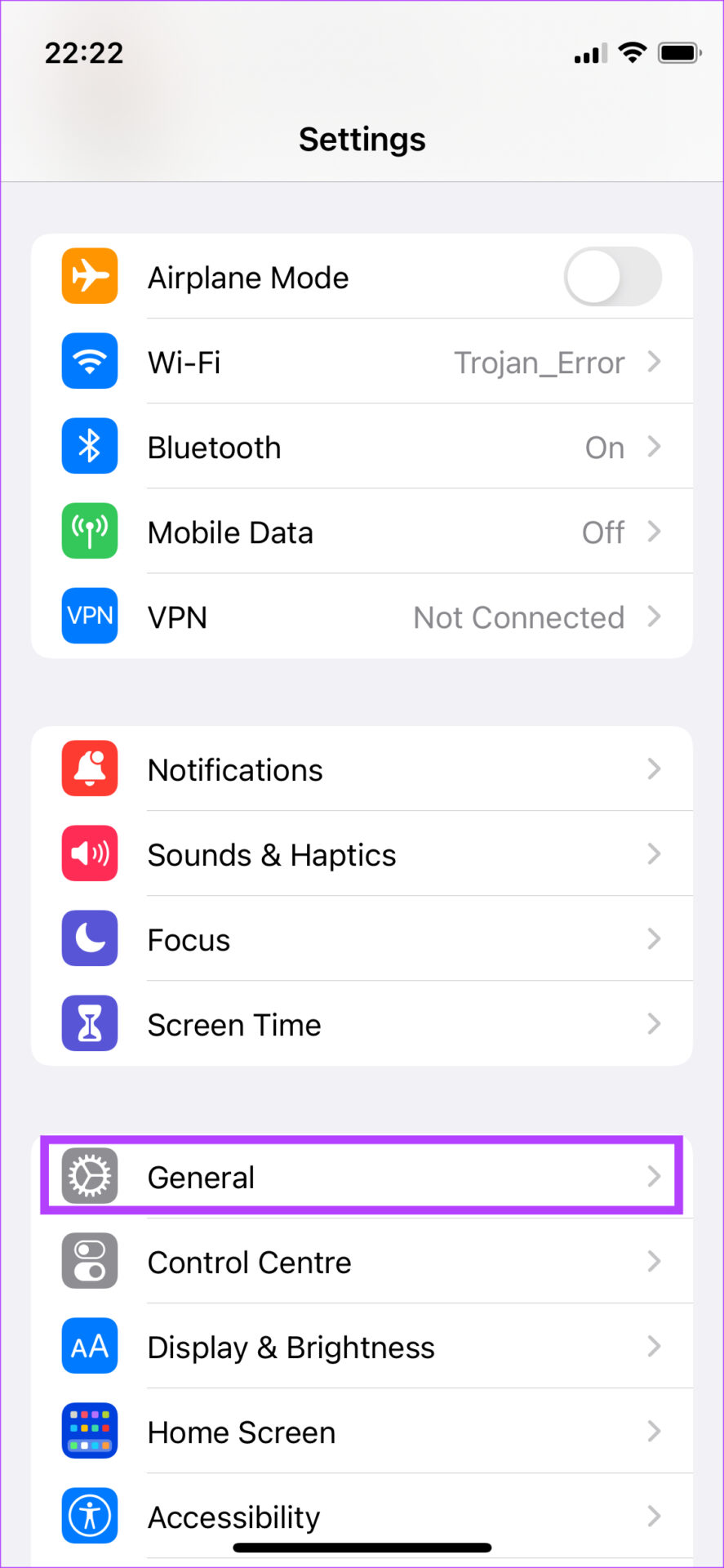
Step 1: Open the Settings app on your iPhone and navigate to the General section.

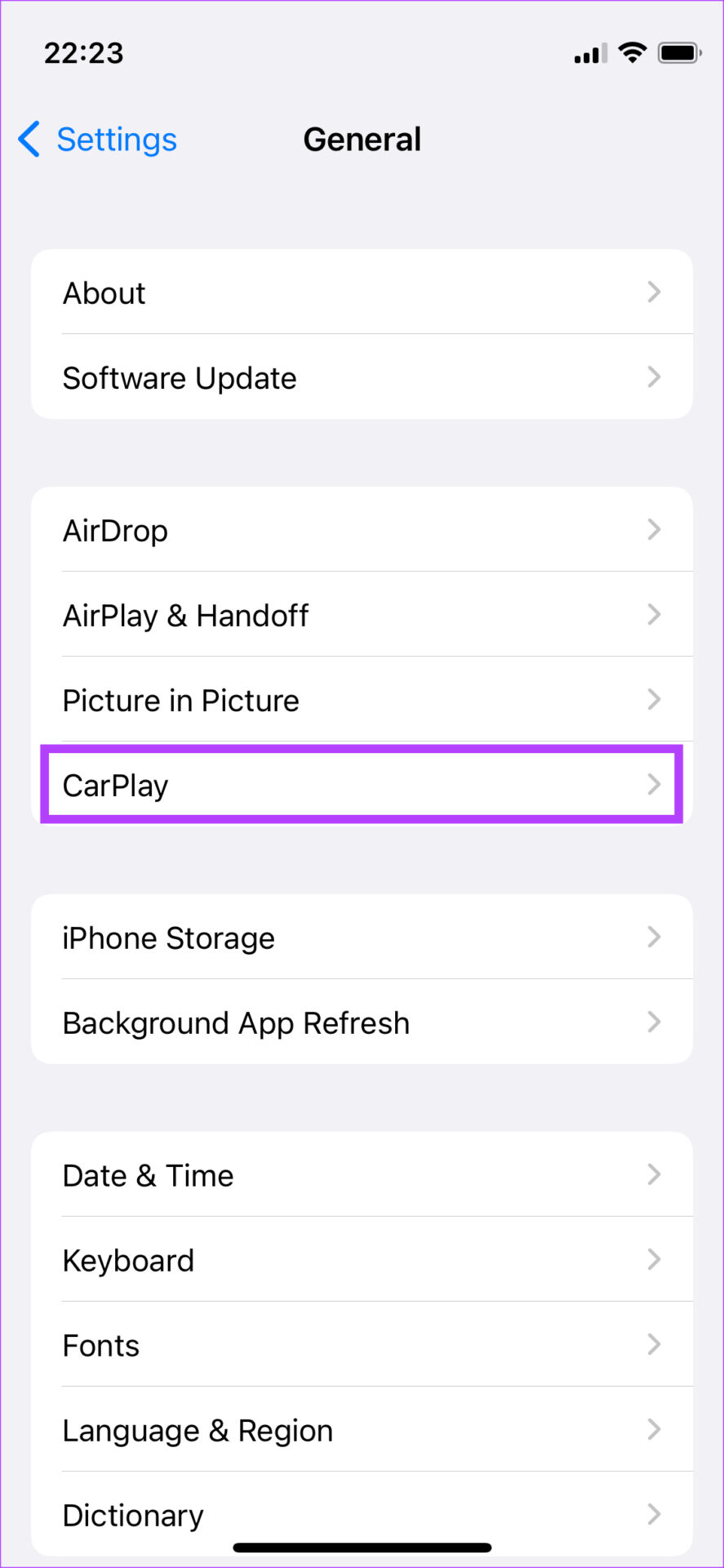
Step 2: Select the CarPlay option.

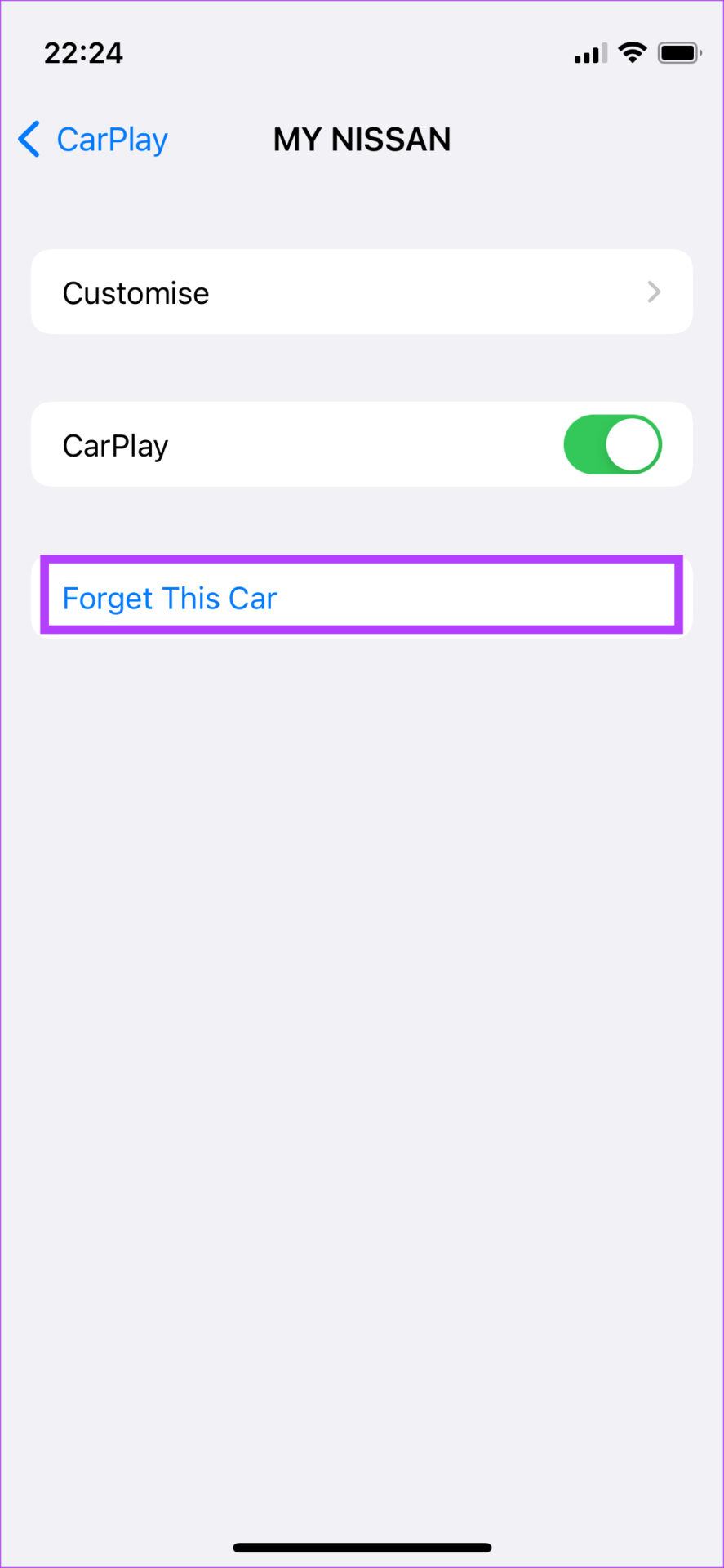
Step 3: Tap on the car to which you’re connected.

Step 4: Select ‘Forget This Car’.

This will disconnect your iPhone from the car’s head unit. Reconnect your iPhone over Bluetooth or use a USB cable to set up CarPlay once again from scratch.

Don’t Miss Important Updates

It’s extremely important to keep your focus entirely on the road when driving. However, you want to get notified of some important messages. In that case, you can use these methods to fix Apple CarPlay not reading text messages when driving. If these methods also don’t help, your last resort is to contact Apple support and allow them to assist you.

Was this helpful?


Thanks for your feedback!

How to Enable or Disable Slow Mode on Discord

What Is Slow Mode in Discord

Discord’s slow mode feature helps limit the number of messages a user can send in a channel. For instance, if you send a message in a channel where slow mode is active, you’ll have to wait until the cooldown period expires before sending another one.

The cooldown period can be as short as five seconds or as long as six hours. If you attempt to send another message during the cooldown period, you will receive a notification and a screen shake.

How to Enable or Disable Slow Mode in Discord on Desktop

Only a server owner, administrator, or moderator can configure slow mode on Discord. You can use the following steps to enable or disable slow mode in Discord on both PC and Mac.

Step 1: Open the Discord app or navigate to the Discord web client in your browser.

Step 2: Head to the channel where you want to enable or disable slow mode. Click the gear-shaped icon next to the channel’s name.

Discord Channel Settings

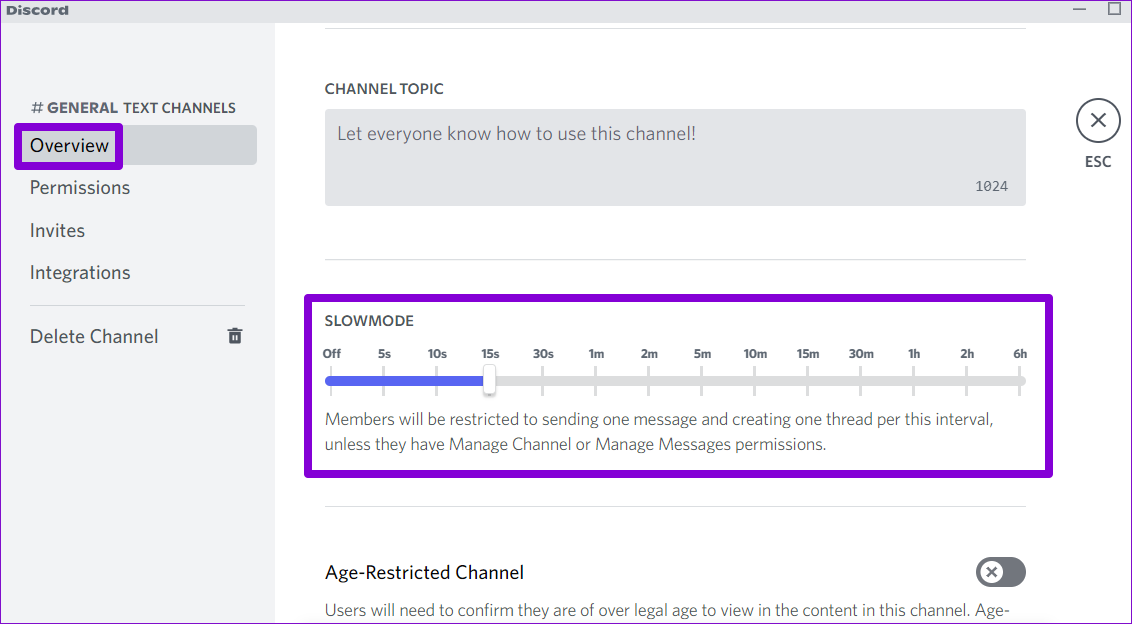
Step 3: In the Overview section, use the slider to set up the duration for the slow mode. You can set it to any time between five seconds and six hours. If you want to disable slow mode, move the slider to the Off position.

Enable Slow Mode on Discord

Step 4: After enabling or disabling slow mode, click the Save Changes button in the bottom right corner.

Save Changes in Discord

After the slow mode is enabled on a channel, you’ll see the “Slowmode is enabled” message at the bottom of the chat screen.

Slowmode Enabled on Discord

If you are exempt from this restriction, you will see a message, “Slowmode is enabled, but you’re immune.” This means you can send messages without worrying about the countdown timer.

How to Enable or Disable Slow Mode in Discord for Mobile

It’s possible to enable or disable the slow mode on a Discord channel from its mobile app. Discord’s interface is nearly identical on both Android and iPhone. So, the following steps will work on both platforms.

Step 1: Open the Discord app on your phone.

Step 2: Navigate to the channel where you want to enable or disable slow mode. Long-press on the channel’s name and select Edit channel.

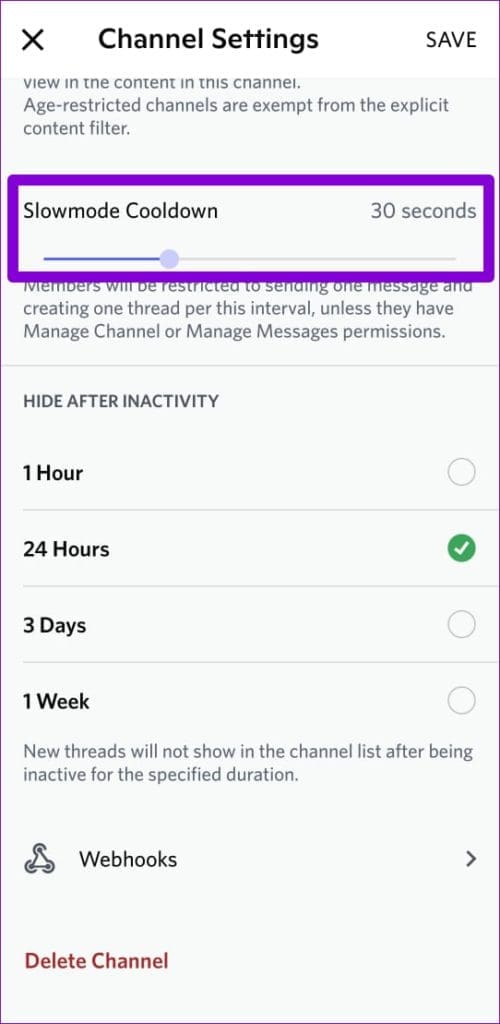
Step 3: On the Channel Settings page, scroll down to the Slowmode Cooldown section. Move the slider to the right to set an interval for slow mode. Alternatively, if you want to disable slow mode for the channel, move the slider to the far left.

Step 4: After enabling or disabling slow mode, tap on Save in the top right corner to save changes.

Head back to your channel, and you’ll see the “Slowmode is enabled” message at the bottom. Unfortunately, you’ll have to repeat these steps for each channel separately, as there’s no option to enable a server-wide slow mode on Discord.

Was this helpful?

Thanks for your feedback!

2 Ways to Get Full Battery Notification on iPhone and iPad

Method 1: Get Battery Full Alert Using iPhone’s Shortcuts App

Here’s how to automate your iPhone to notify you when the battery is charged to 100%.

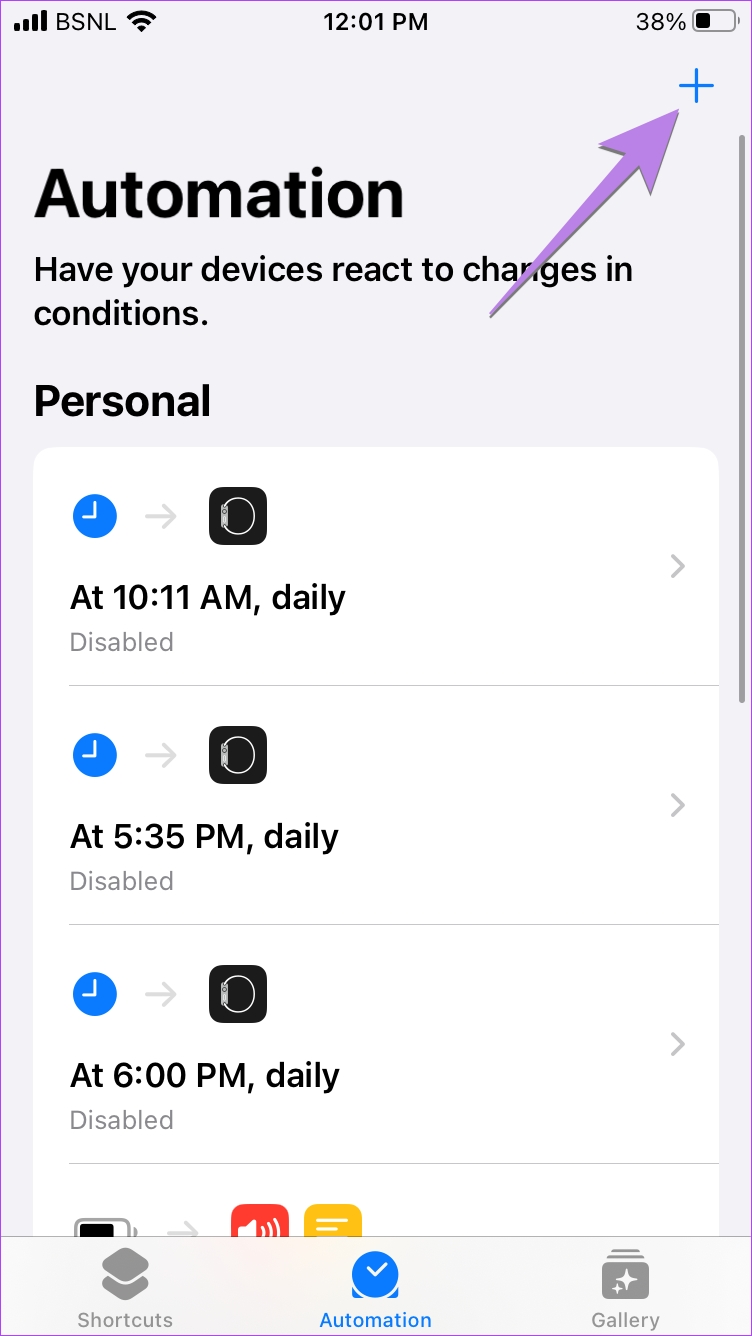
Step 1: Open the Shortcuts app > tap on the Automation tab at the bottom.

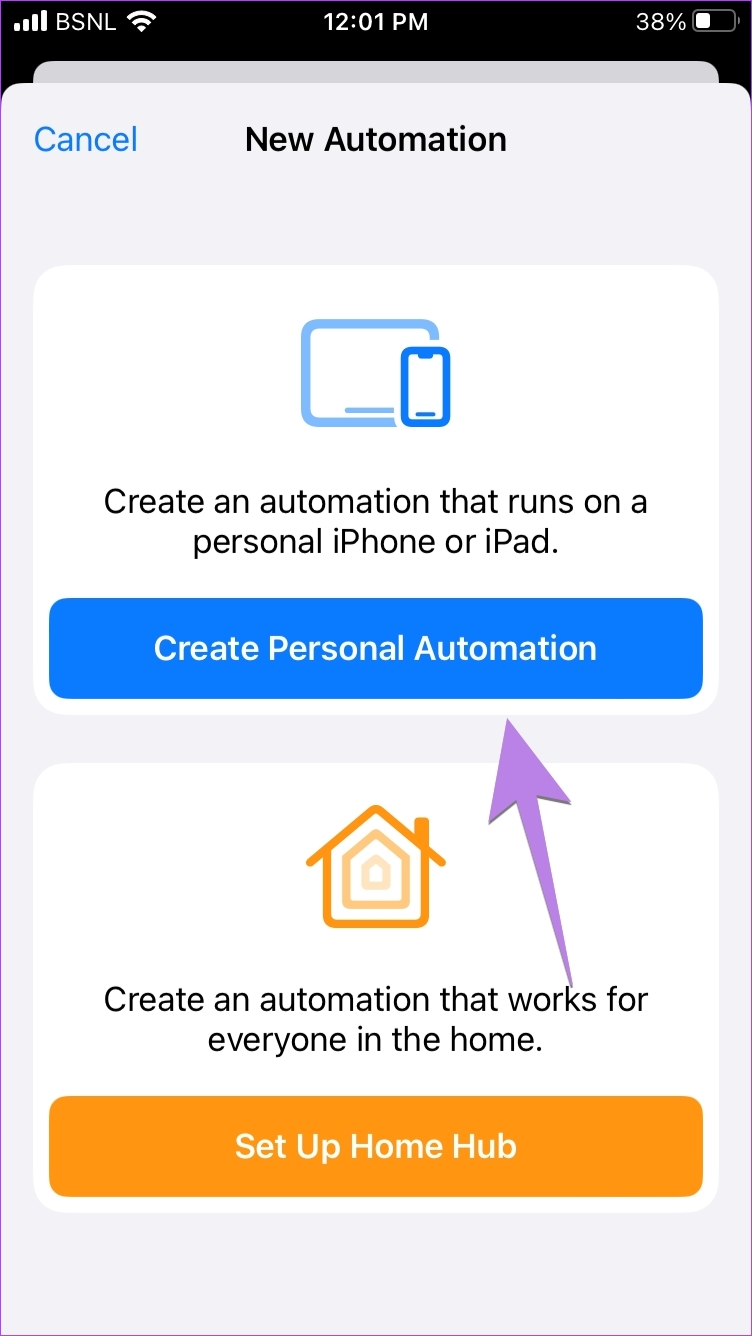
Step 2: Tap on the + icon at the top, followed by Create personal automation.

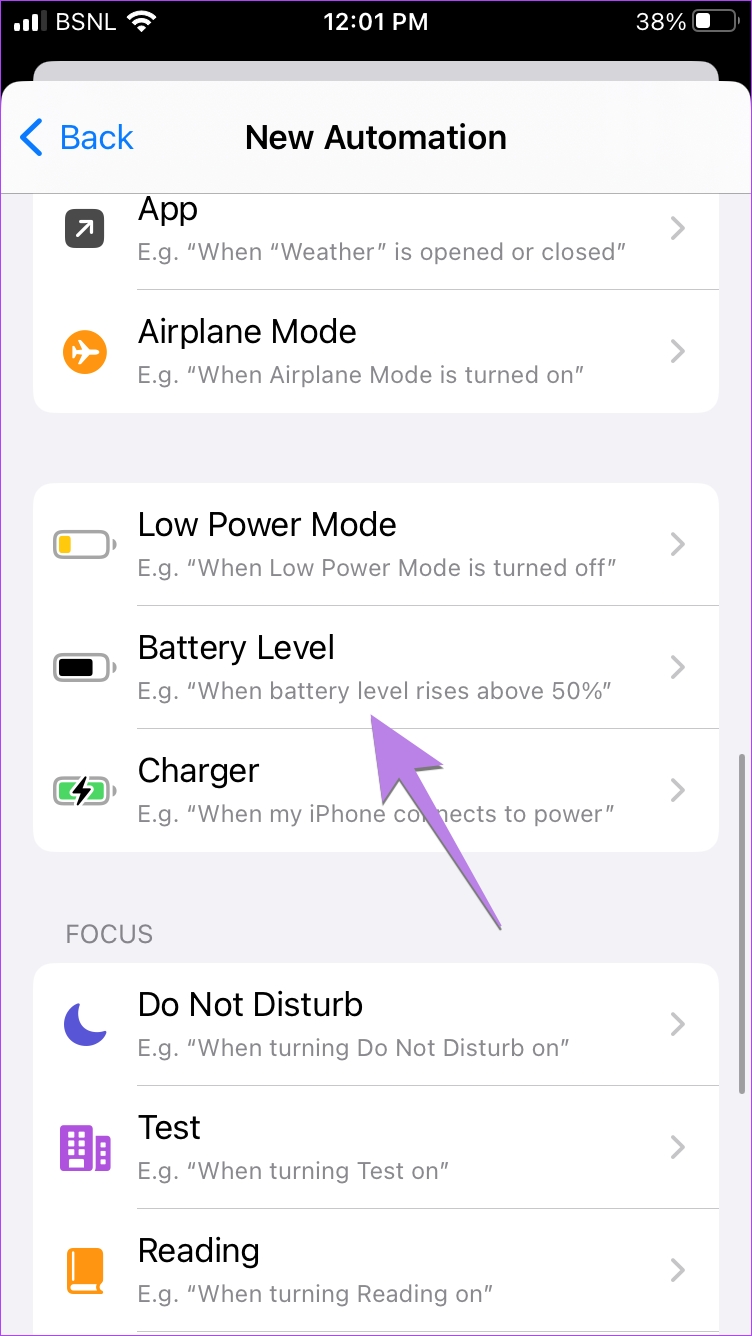
Step 4: Scroll down in the list of automation and tap on Battery level.

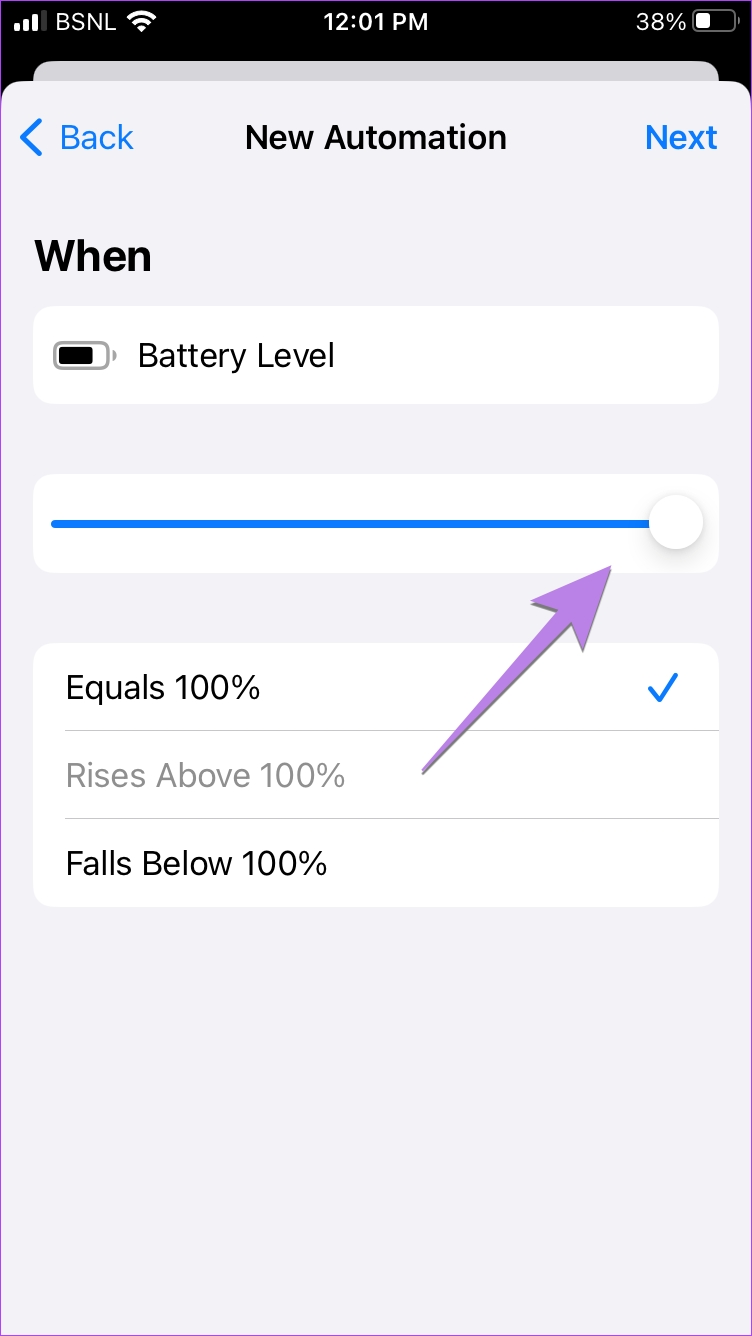
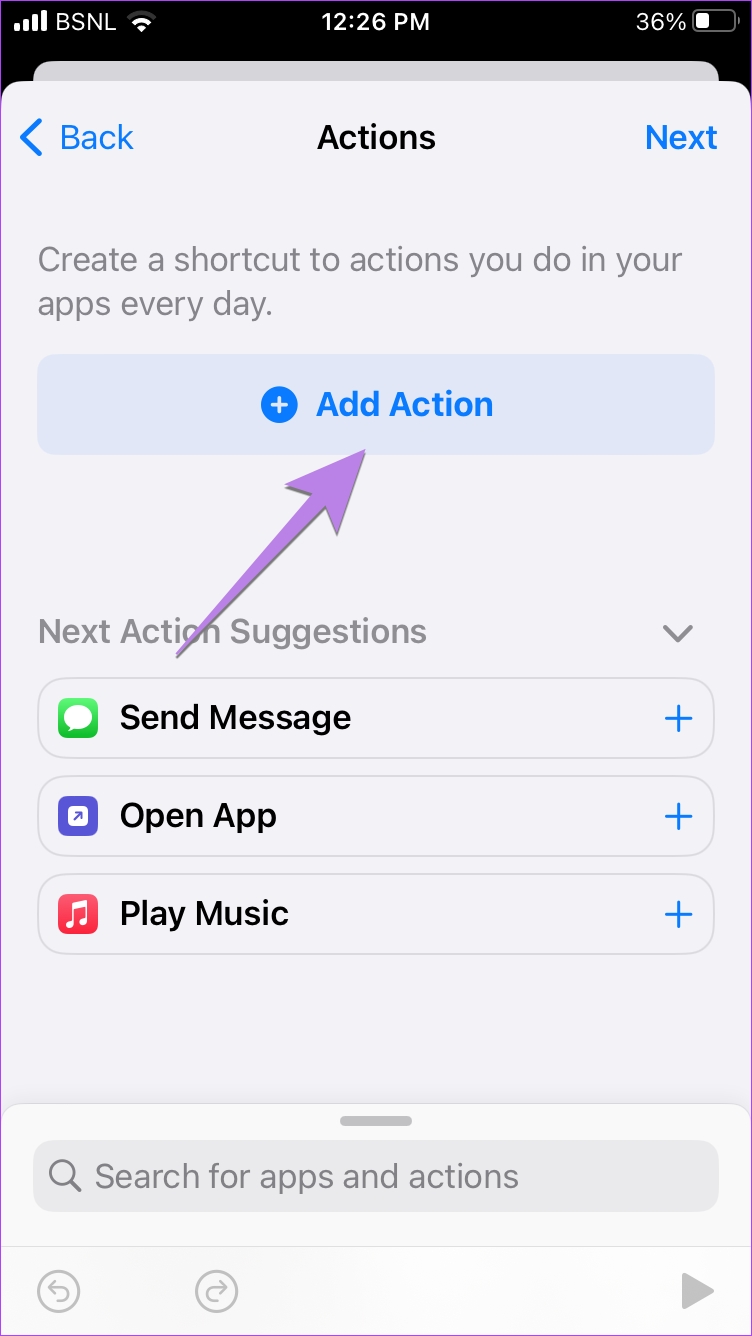
Step 5: Drag the battery level slider to the extreme right. Below the slider, you should see Equals 100% written. Now, tap Next at the top and select Add Action.

You need to specify what your iPhone should do when the battery level reaches 100%. Let’s make your iPhone show a notification when the battery is full and announce this.

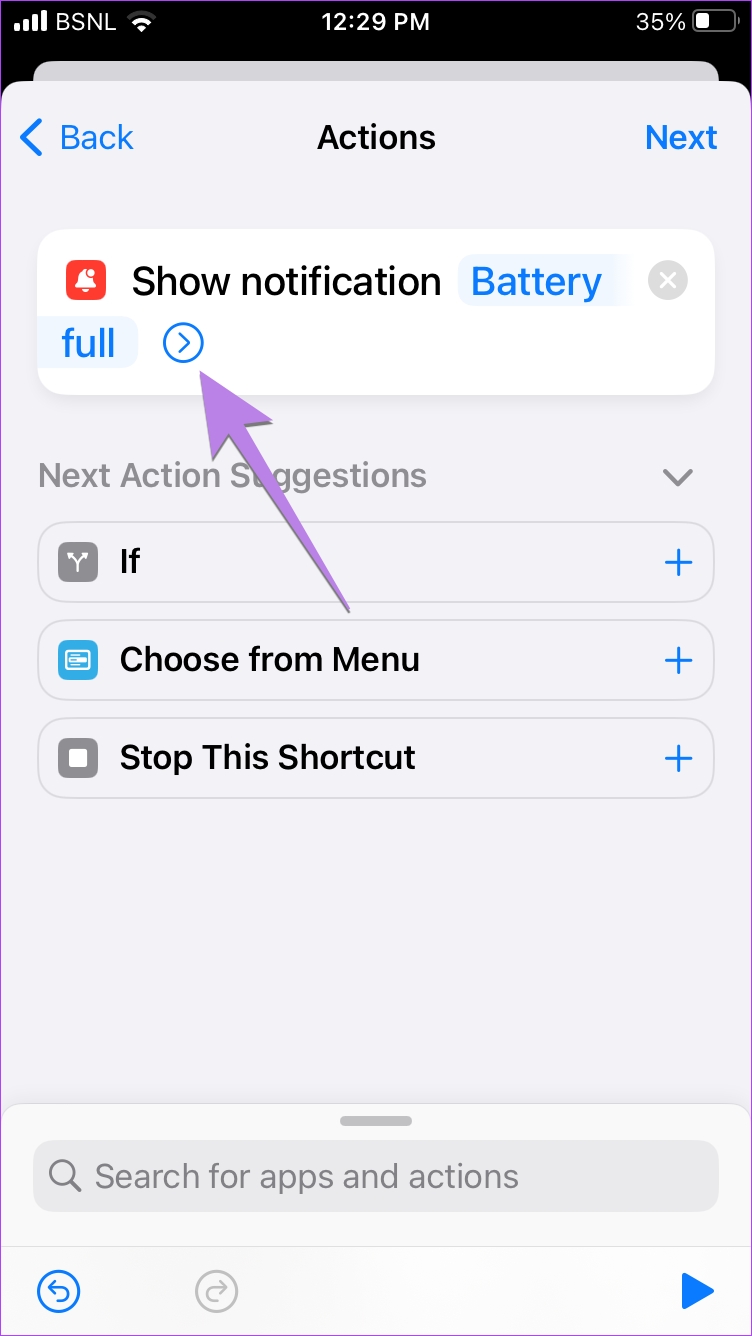
Step 6: Search and tap on Show notification action. Once added, replace the Hello World text with the text that you want the battery full notification to show. Let’s keep it as Battery Full. Tap on Done.

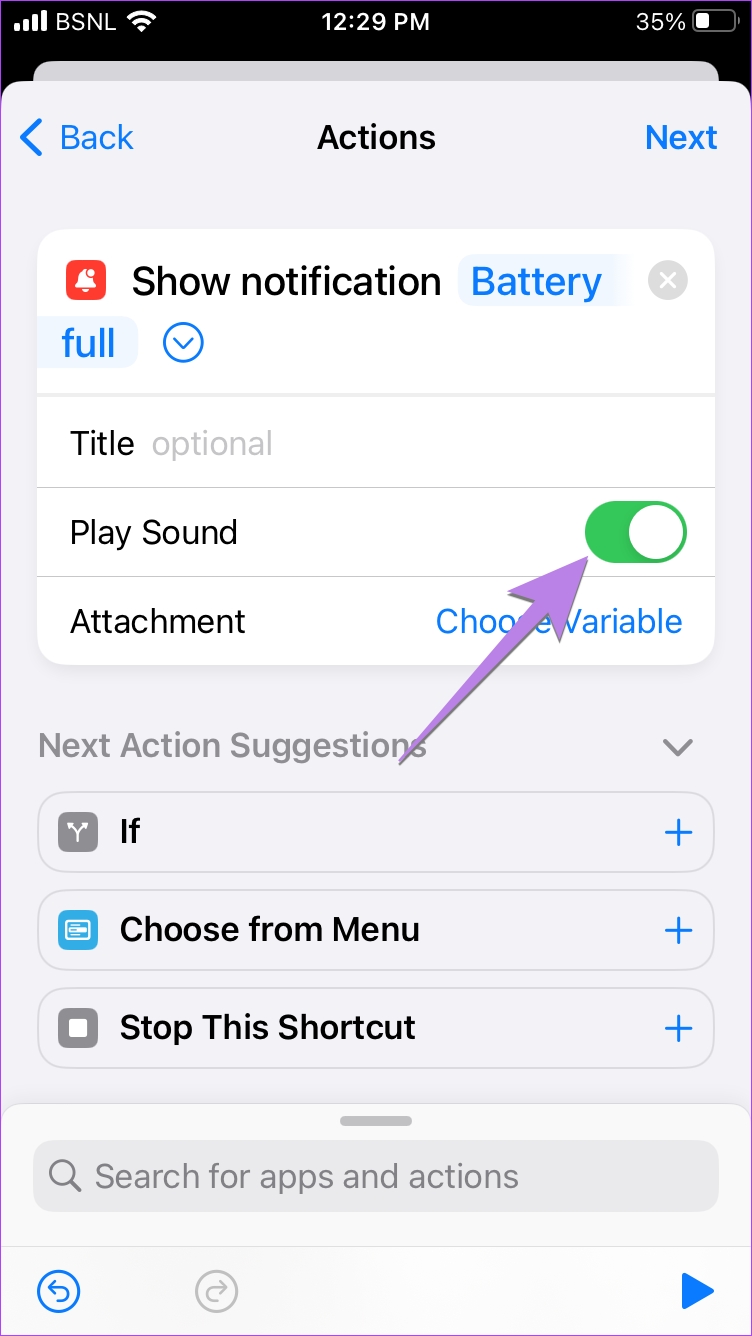
Step 7: Then, tap on the arrow next to the notification text and ensure the Play Sound toggle is enabled. This will play the default notification sound when the battery is full.

I make the iPhone talk and announce that the battery is full by adding another action. To do so:

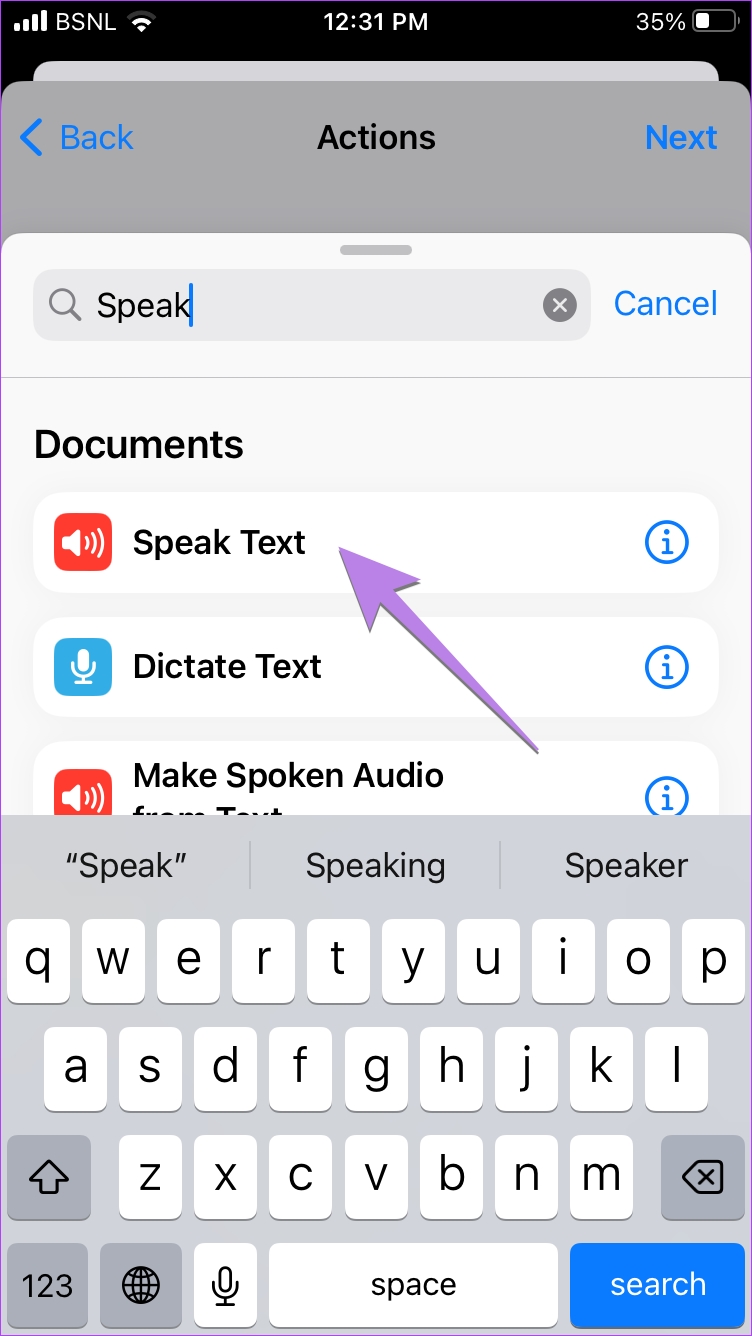
  1. Search for the Speak Text action and tap on it.
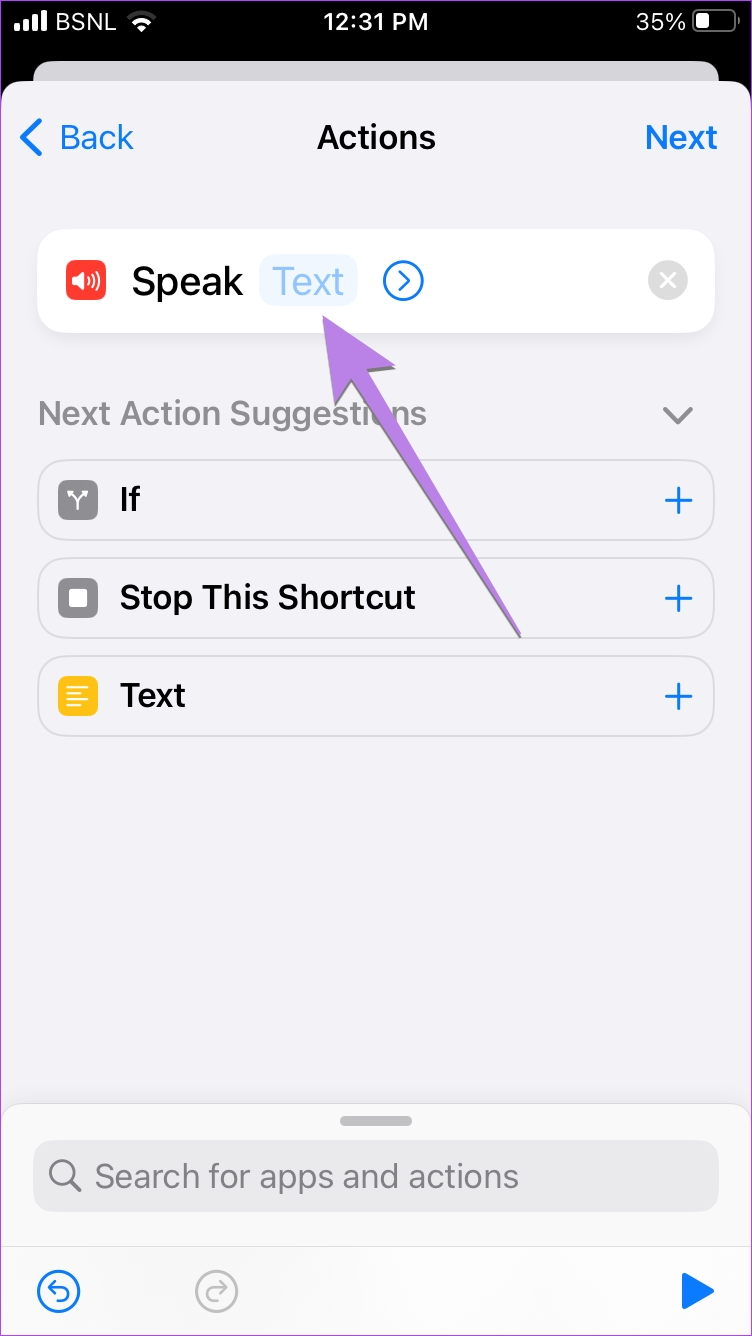
  2. Then, tap on the Text label next to Speak and enter the text you want your iPhone to announce. I have set it as “Battery full”.
  3. Now, tap on Next.

Pro Tip: Tap on the Play button at the top-right corner of each action to preview the action.

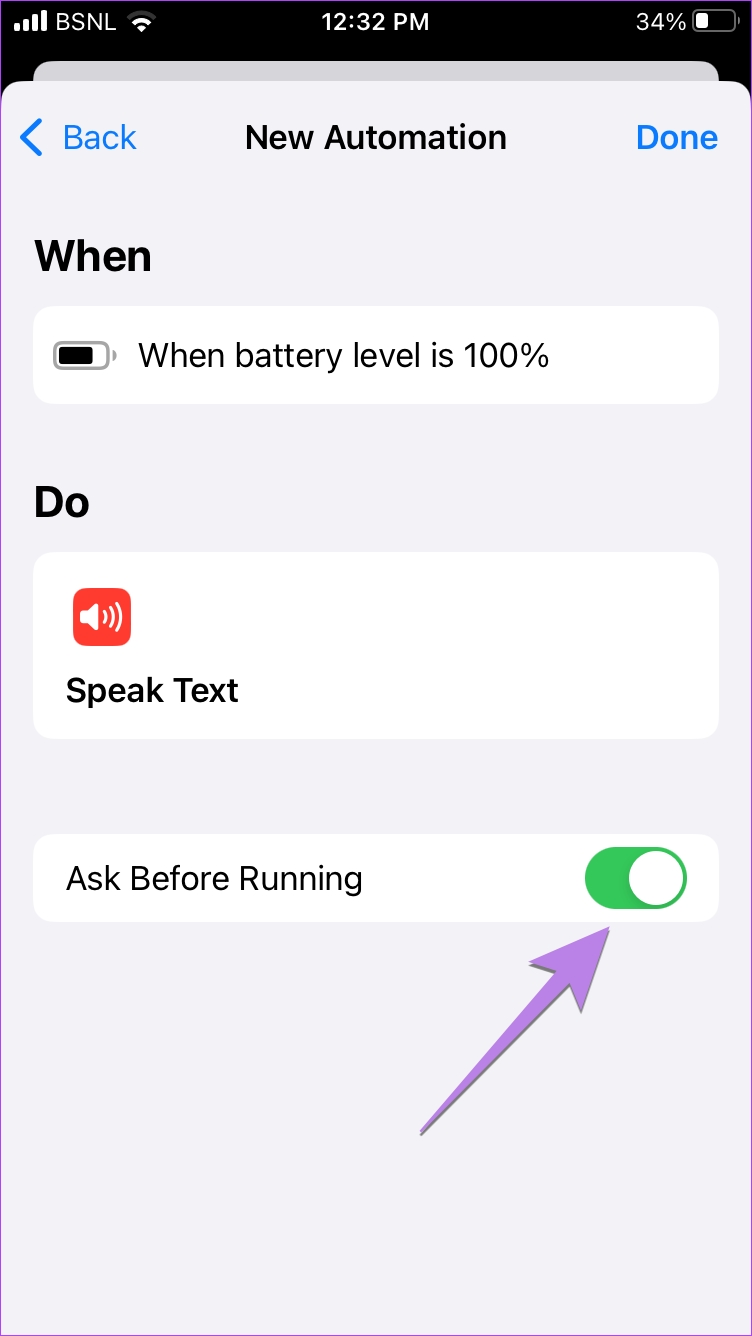
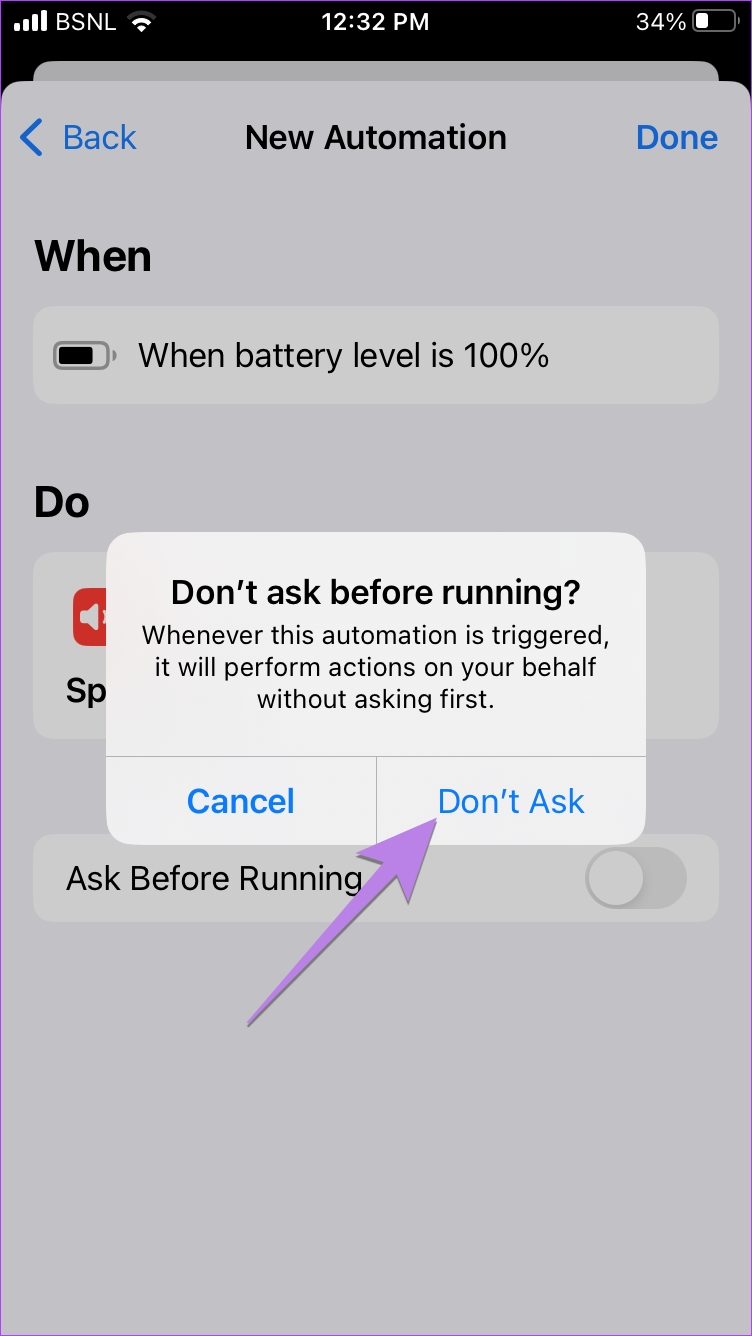
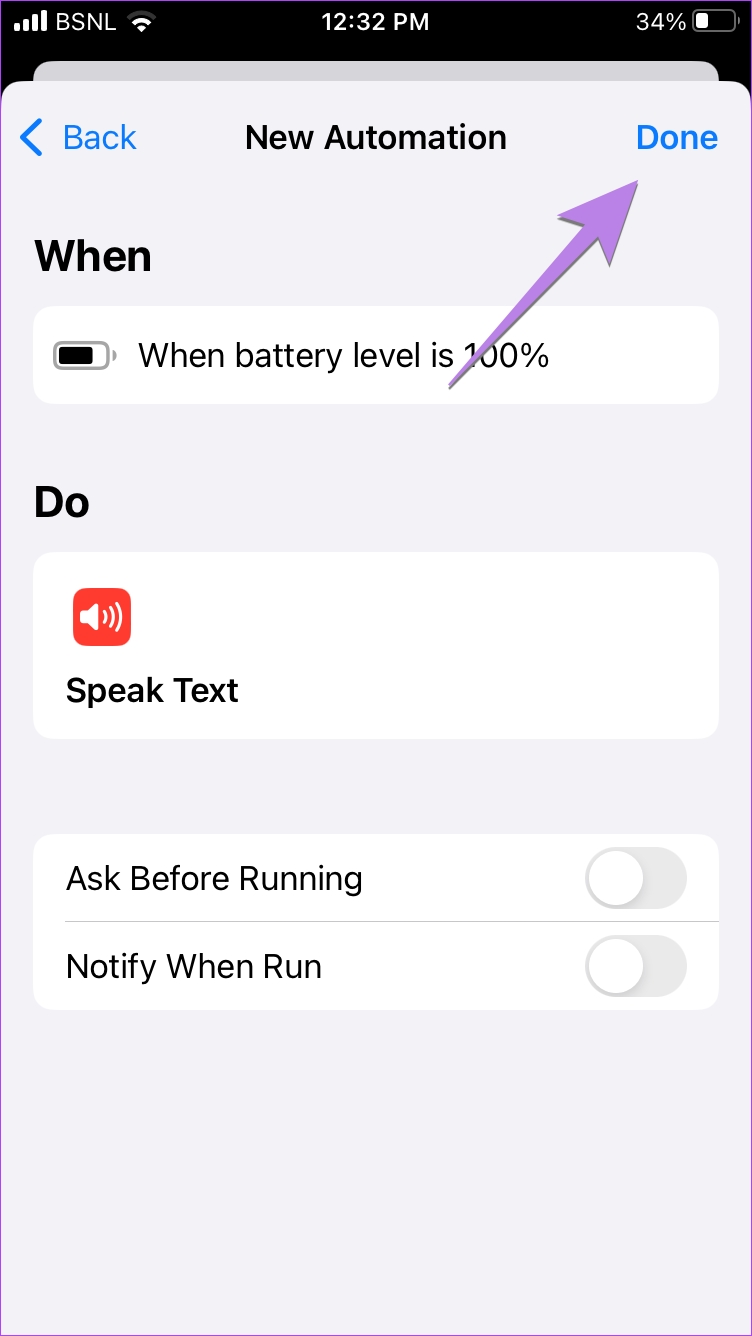
Step 7: You will reach the automation preview screen. Toggle off Ask before running and tap on Don’t Ask to confirm. This allows your iPhone to run the automation without asking for your permission.

Step 8: Tap on Done, and your battery full automation is ready.

Alternatively, you can add an action for the automation to Play Music or Play a Voice note when the battery on your iPhone reaches 100%.

Method 2: Use a Third-Party App to Get Battery Full Notification

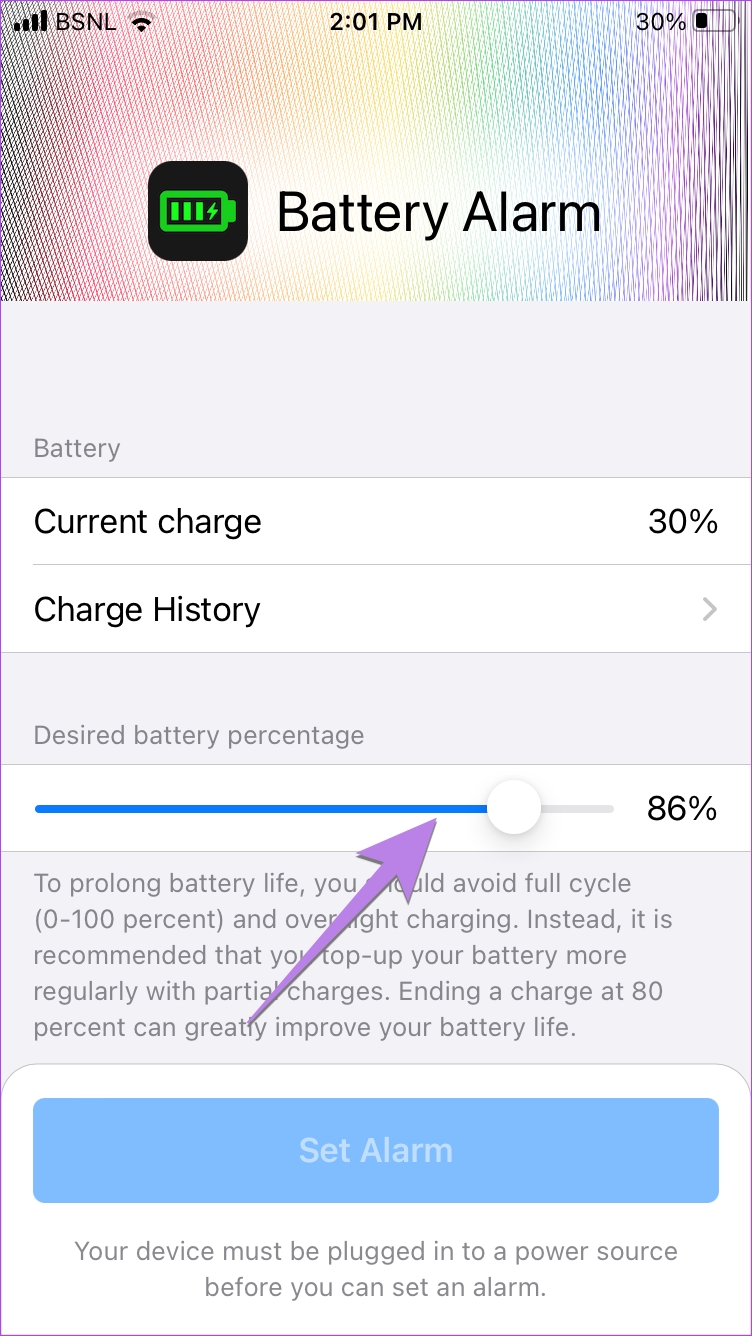
Step 1: Install and open the Battery Charge Alarm app. Drag the slider under the Desired battery percentage to 100%.

Step 2: Now, connect the charger to your iPhone and tap on Set Alarm whenever you want to get a battery-full alarm on your iPhone.

The app will alert you when the battery reaches 100%. To stop the ongoing battery alert, you must cancel the alarm manually or unplug the charger.

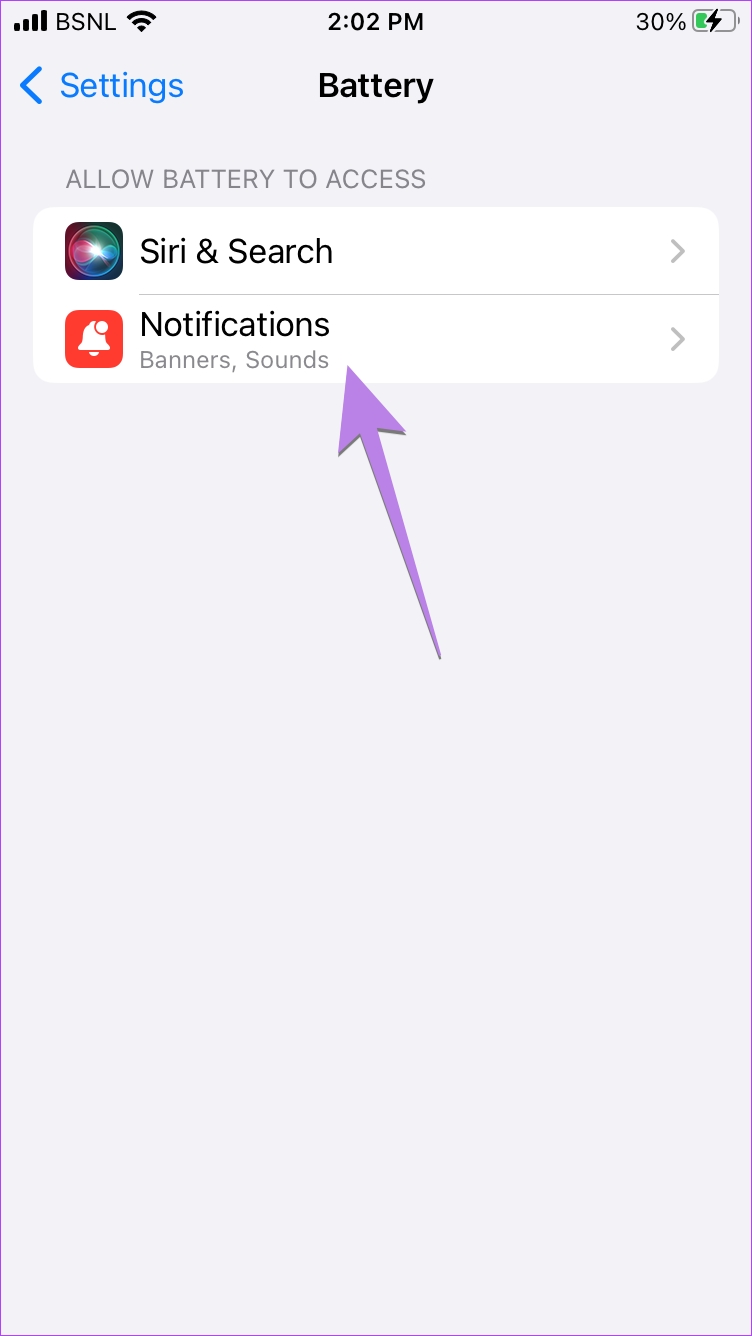
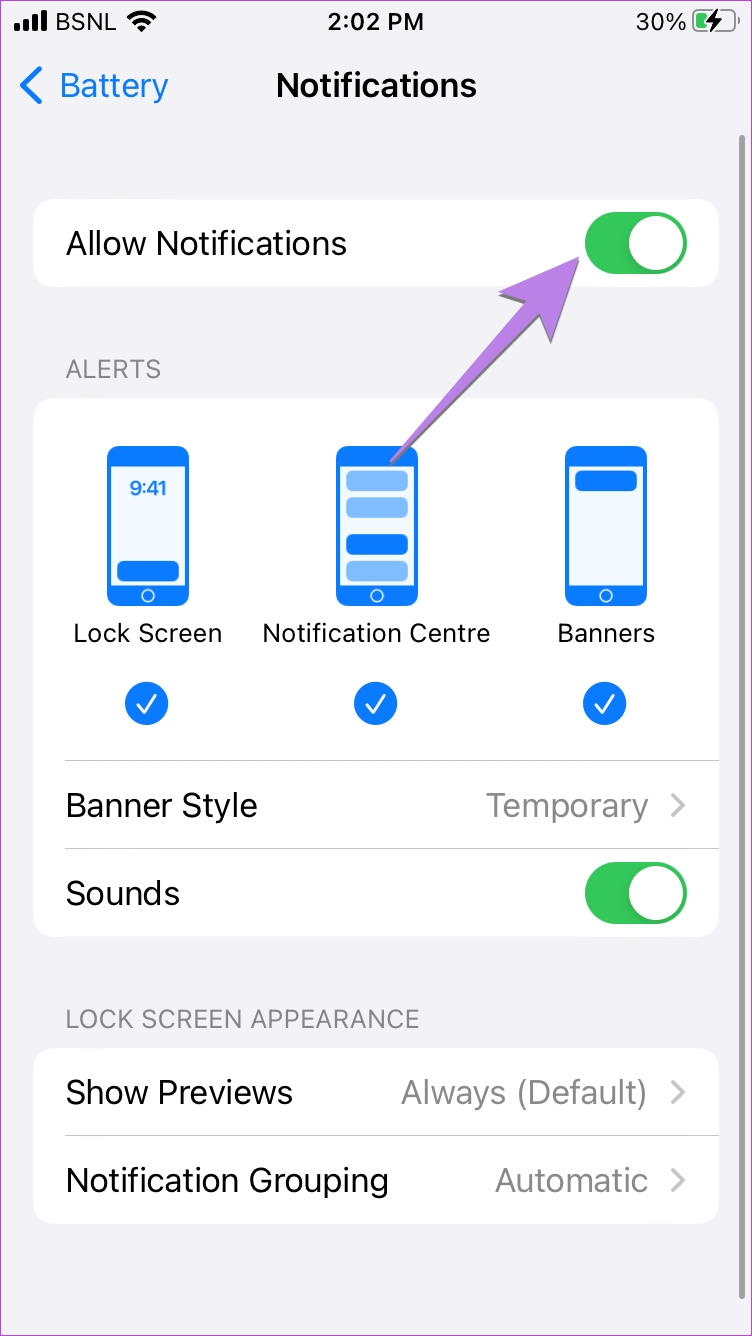
If you don’t get an alarm when the battery reaches 100%, open Settings on your iPhone. Scroll down to the list of third-party apps and tap on Battery > Notifications. Enable the toggle next to Allow notifications.

Also Read: How to fix iPhone battery draining while charging

Was this helpful?

Thanks for your feedback!

4 Ways to Fix No Sound on Reddit Videos in App and Browser

For Windows and Mac

Fix 1: Mute and Unmute Videos

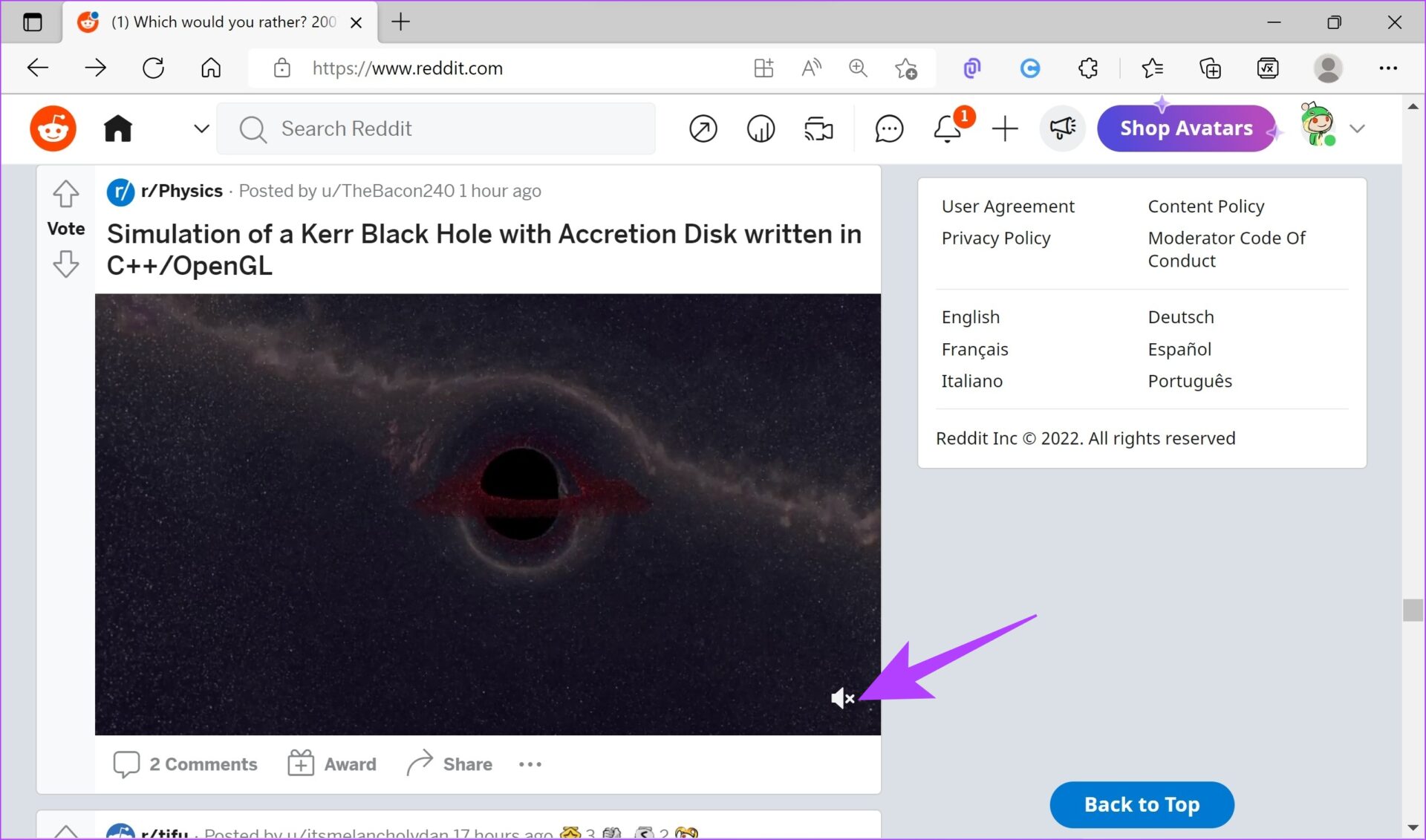
Open a video on Reddit that plays no sound and hover your mouse at the bottom right of the post. On the video control bar, check if the volume is on mute. If you see a cross mark next to the icon, click on it.

The video will unmute and play sound. You can drag the slider to adjust the sound in the video.

Also Read: How to change sound volume level in Windows.

Fix 2: Check Device Volume Settings

On Windows

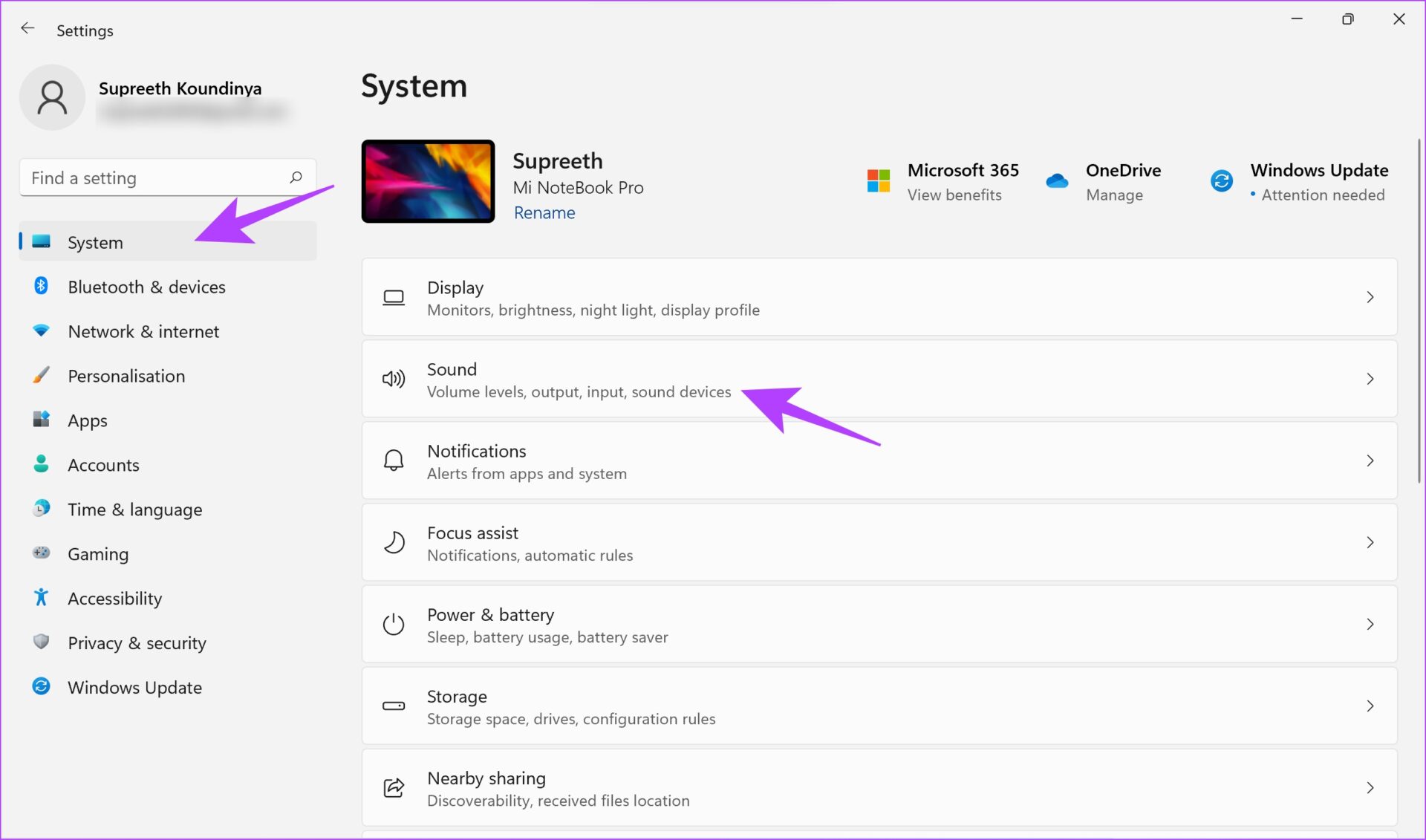
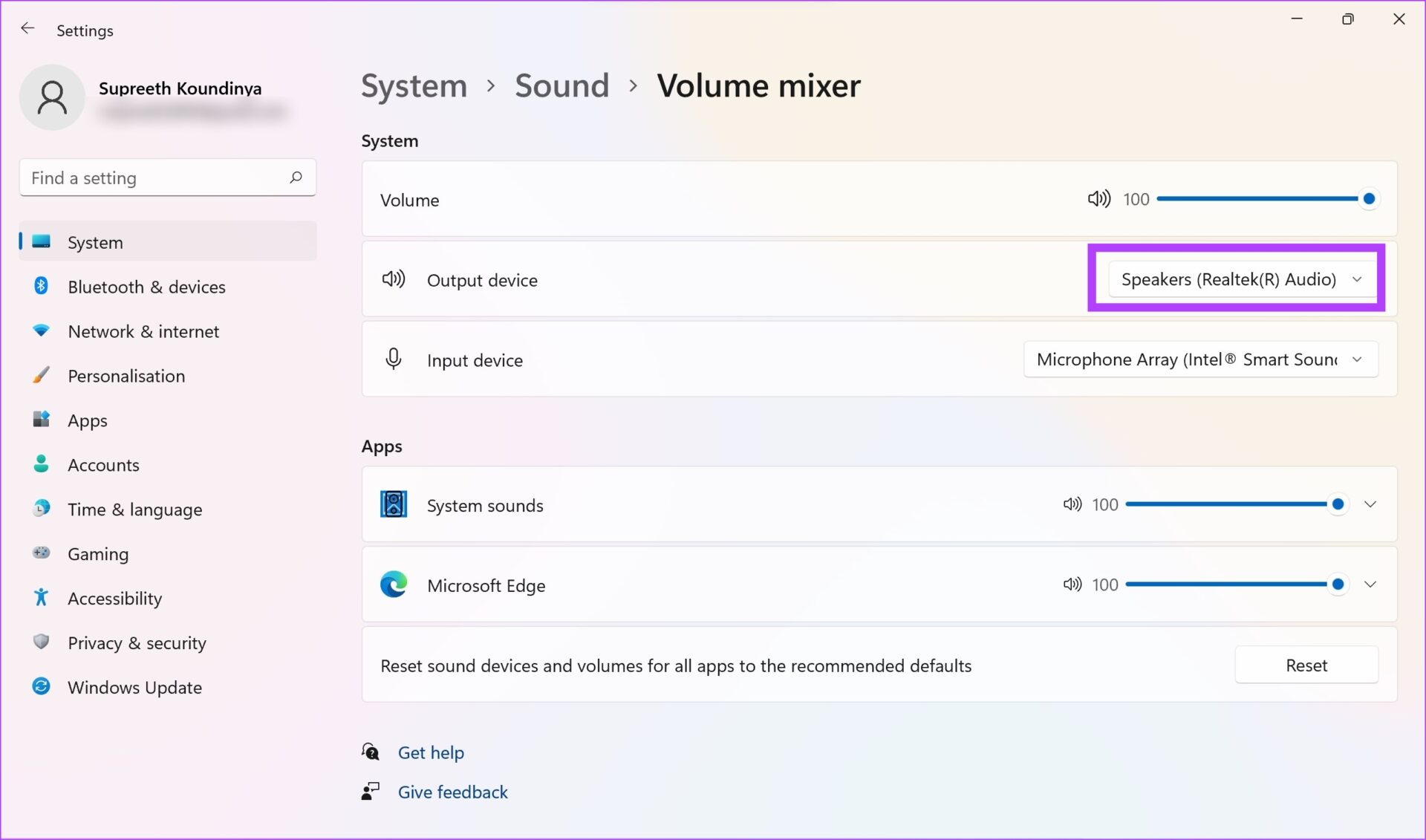
Step 1: Open the Settings app in Windows and select System > Sound.

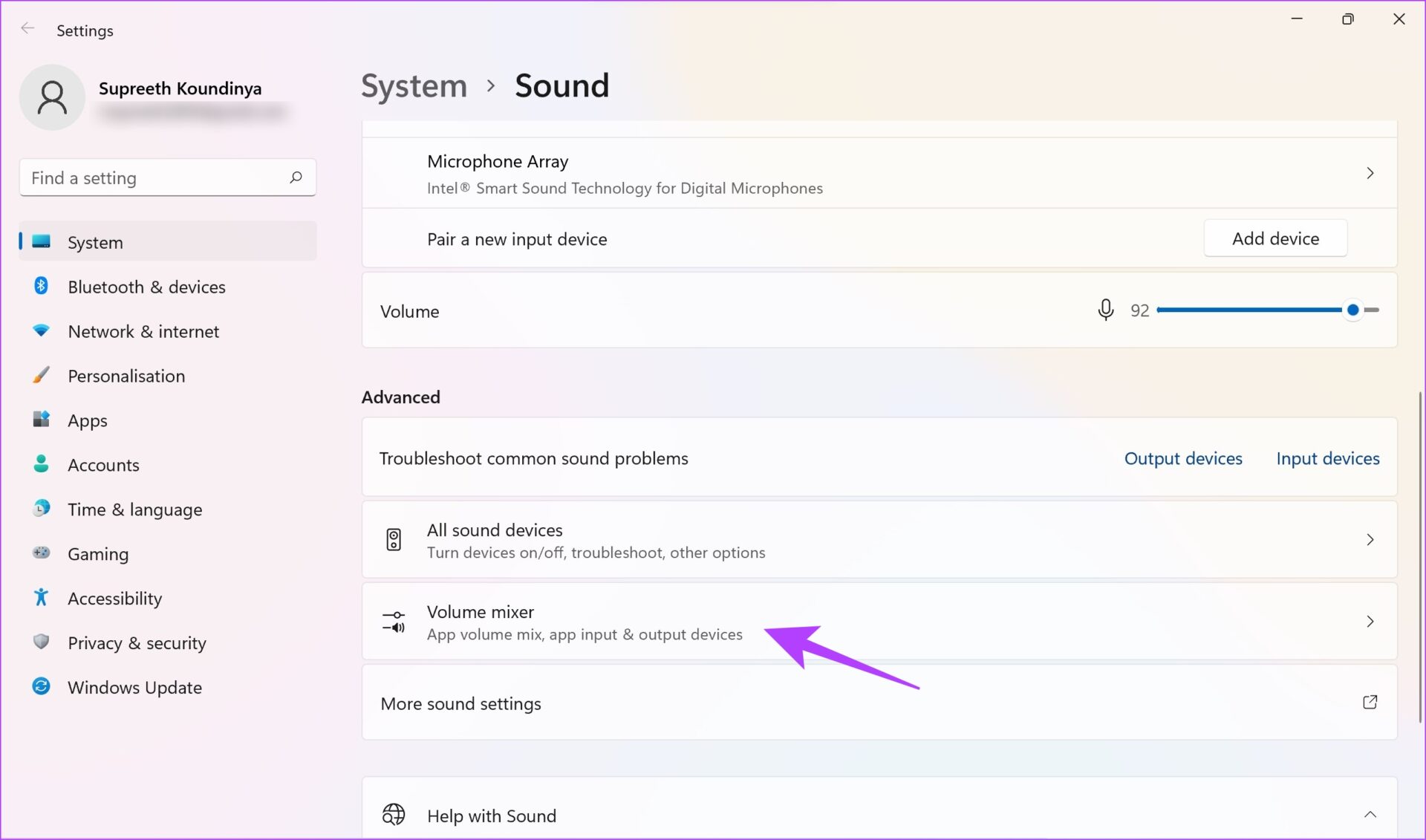
Step 2: Now, click on Volume Mixer.

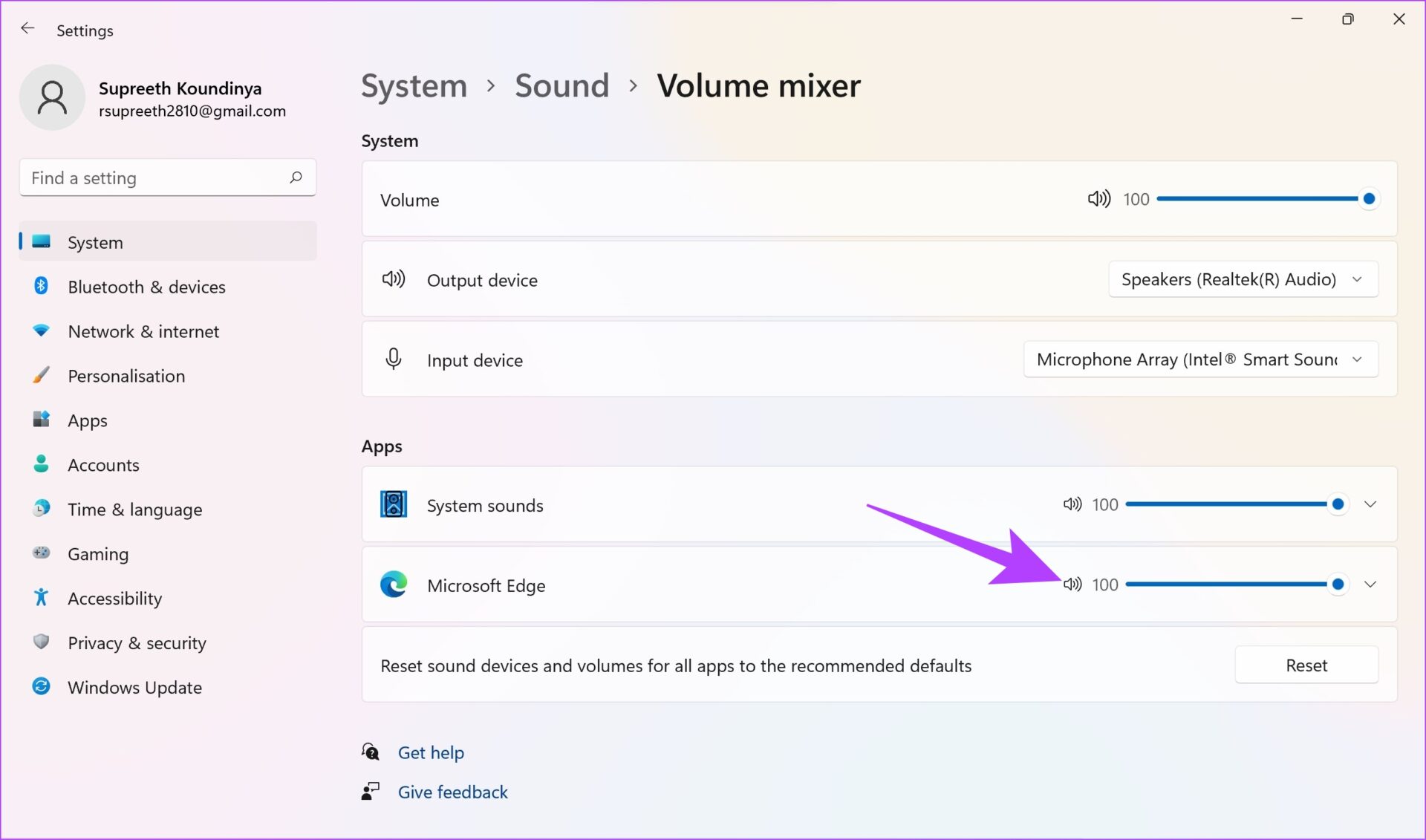
Step 3: Ensure the volume levels are high enough for the web browser that is playing the sound. If not, drag the slider to the right.

Step 4: Lastly, check if the Output device for the audio is the one you are using.

Also Read: How to fix volume level automatically goes up or down in Windows.

On Mac

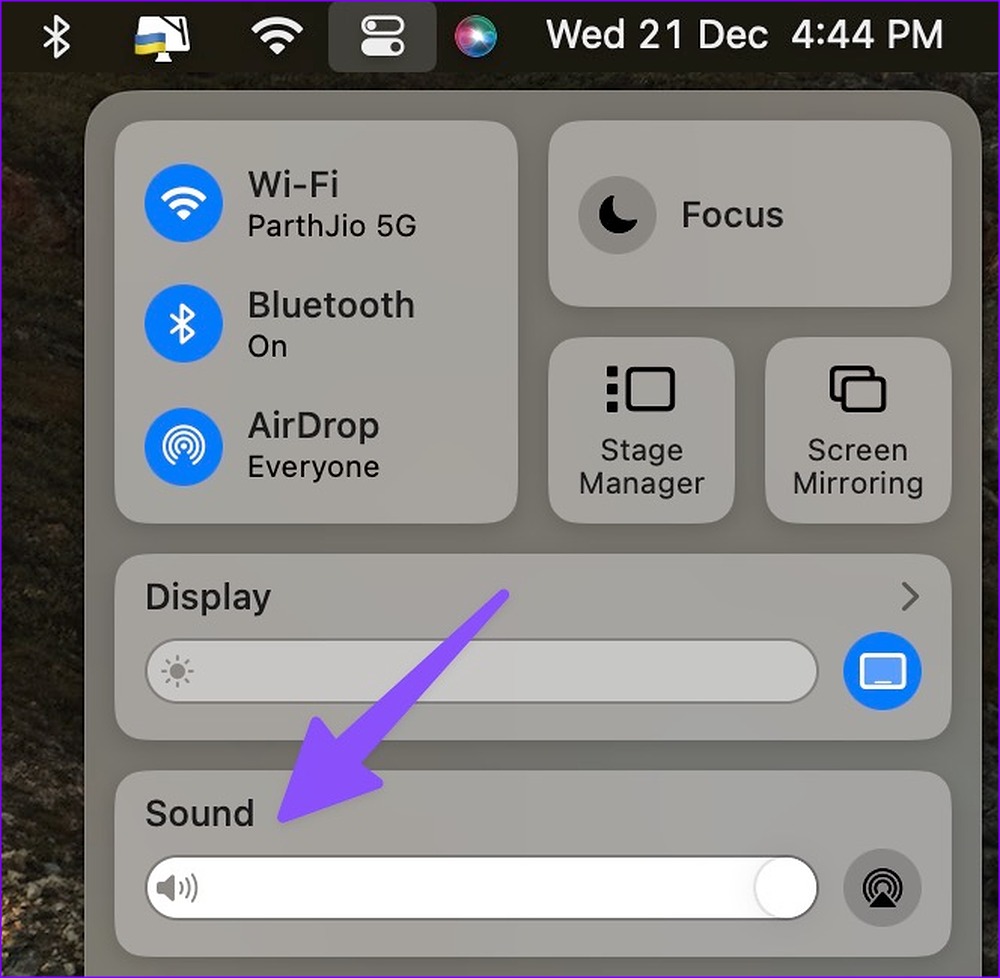
Step 1: Click the Control Center icon in the top-right corner of the menu bar.

Step 2: Use the slider to turn up the volume.

level up sound on Mac

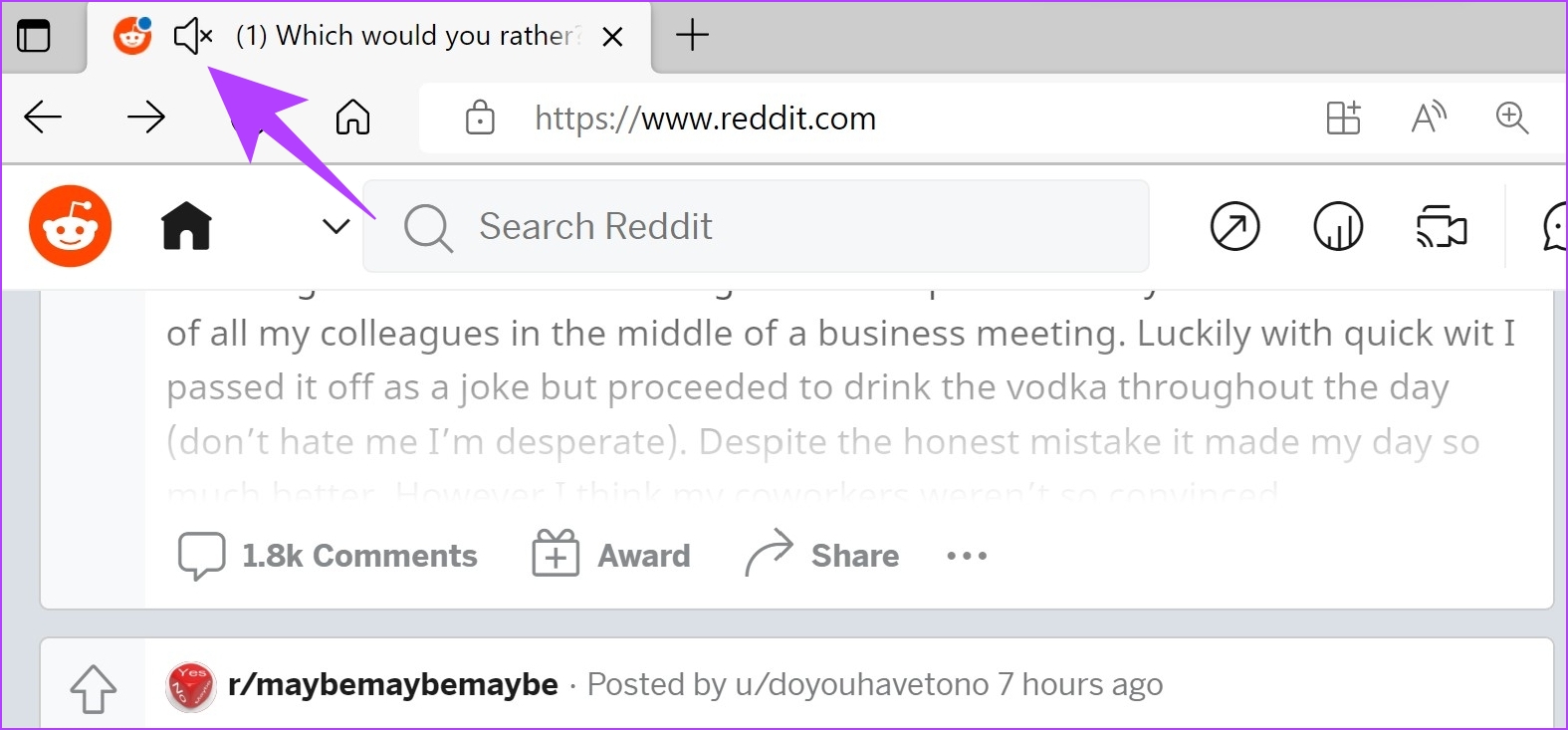
If the above methods do not work, check if the tab on which you are using Reddit is on mute.

Fix 3: Enable Sound for the Reddit Tab

When you are on the page where you hear no sound on Reddit posts, check if the volume is on mute for the tab. Click on the loudspeaker icon to unmute the tab.

Fix 4: Check the Output Device

If you have connected any external audio device — like a pair of headphones or a speaker to your PC or Mac, the audio is likely being routed to the external device.

On Windows

Step 1: Open the Settings app. Click on System > Sound.

Step 2: Ensure that the loudspeaker is the sound output device. Further, ensure the volume levels are good enough to hear the sound.

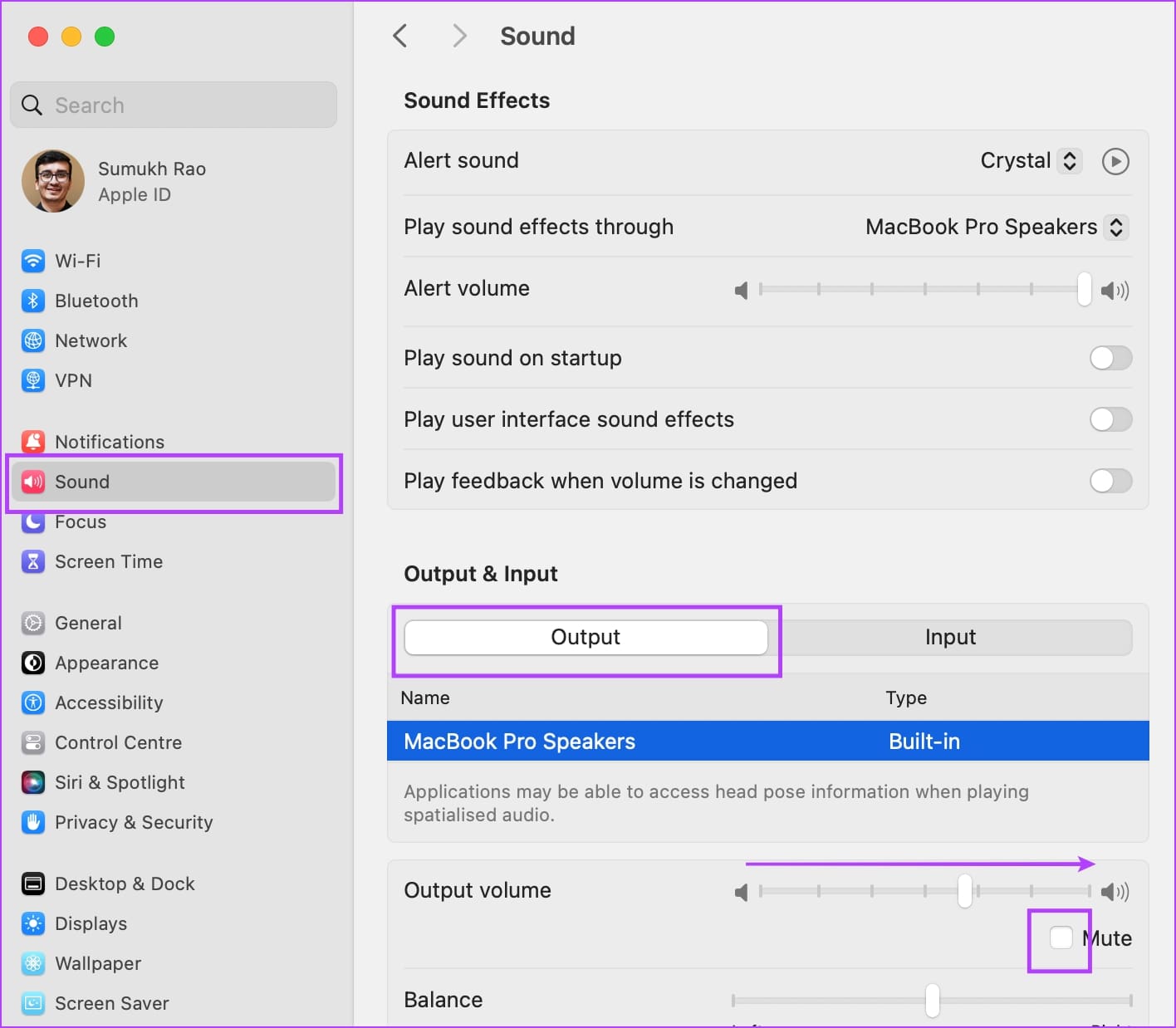
On Mac

Step 1: Launch System Preferences (System Settings) and select Sound. Navigate to the Output tab.

Step 2: Check that the built-in MacBook speaker is selected. Likewise, ensure the Mute box for the built-in speaker is unchecked.

Check Output Mac

How to Get Audio on the Reddit Mobile App

The below methods will work on both iOS and Android versions of the Reddit app.

Fix 1: Mute and Unmute Videos

You will not hear any sound on the Reddit post if it is muted. Tap on the video and check if you see a muted speaker icon. Click on it to unmute the video.

Fix 2: Check Volume Settings

You can always use your volume keys to increase the media volume on your phone.

  • If you use an iPhone, the volume buttons increase the media volume by default.
  • If you are an Android user, open the settings panel for sound and check the media volume.

Fix 3: Disable Quiet Mode on Reddit iOS App

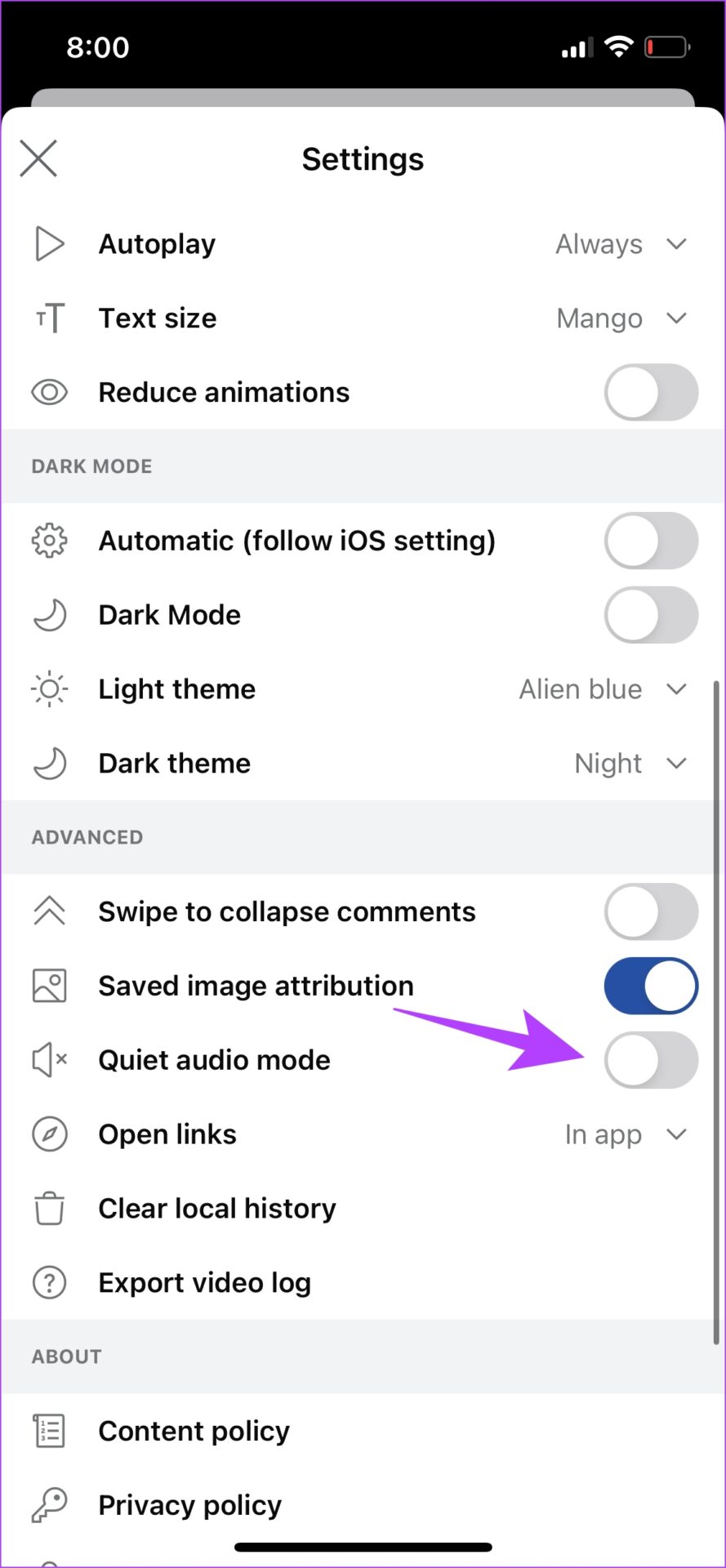
If Quiet Mode is turned on, you will not hear sound while using the Reddit app on your iPhone.

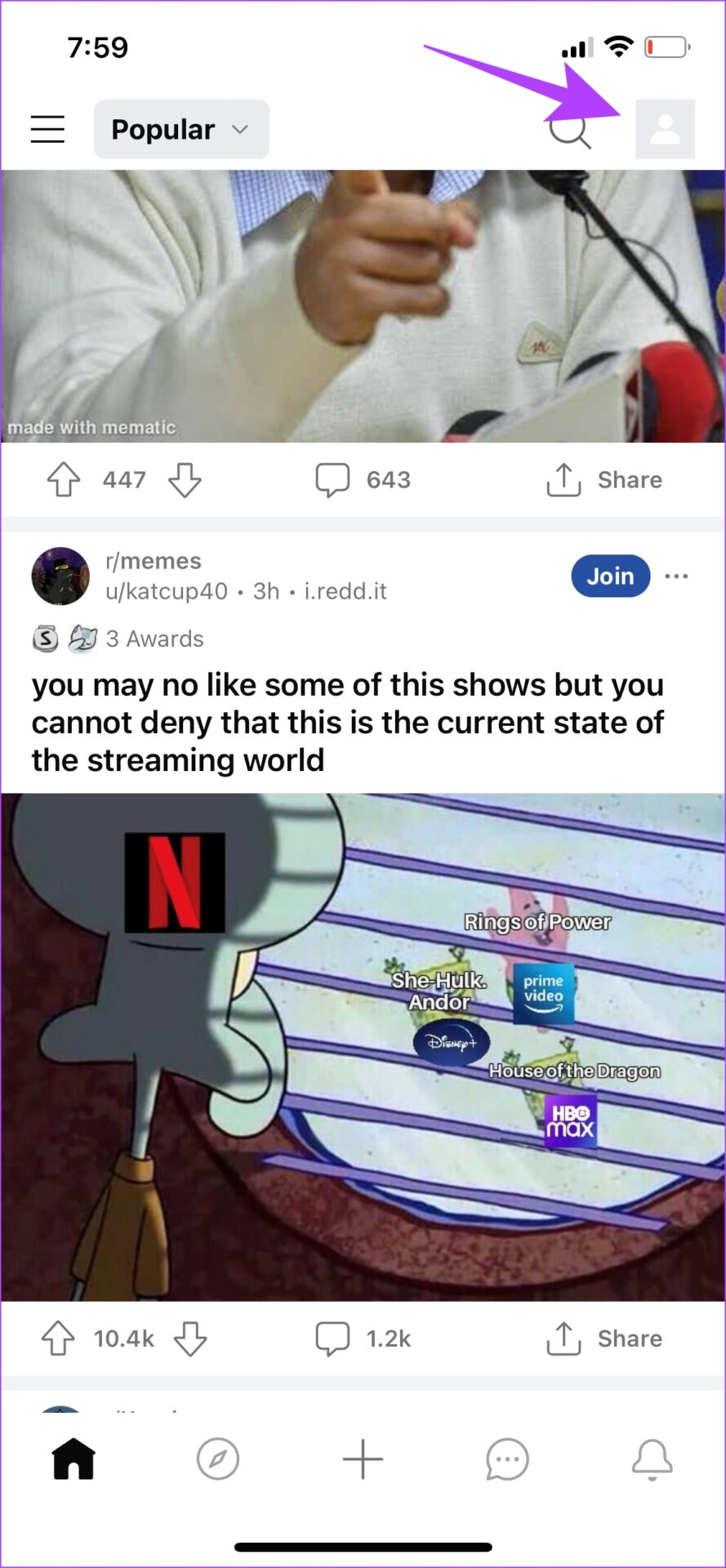
Tap on the user icon at the top right, select Settings at the bottom, and turn off Quiet audio mode.

Was this helpful?

Thanks for your feedback!

Top 5 Ways to Format a USB Drive on Windows 11

Formatting a USB drive might seem easy as you can click the delete button to erase all the files the USB drive might store. However, sometimes you may need to format your USB drive to eliminate malware lurking on it, fix corrupted partitions or select a compatible file system that allows your USB drive to work across Windows and macOS.

There are multiple ways to format a USB drive on your computer. We’ve compiled the top ways to format a USB drive on your Windows 11 PC.

1. Format a USB Drive Using File Explorer

The File Explorer offers a quick and direct way to format USB drives on your Windows 11 PC. However, the File Explorer needs to detect your USB drive first to format it. Follow the steps below to format your USB drive using File Explorer:

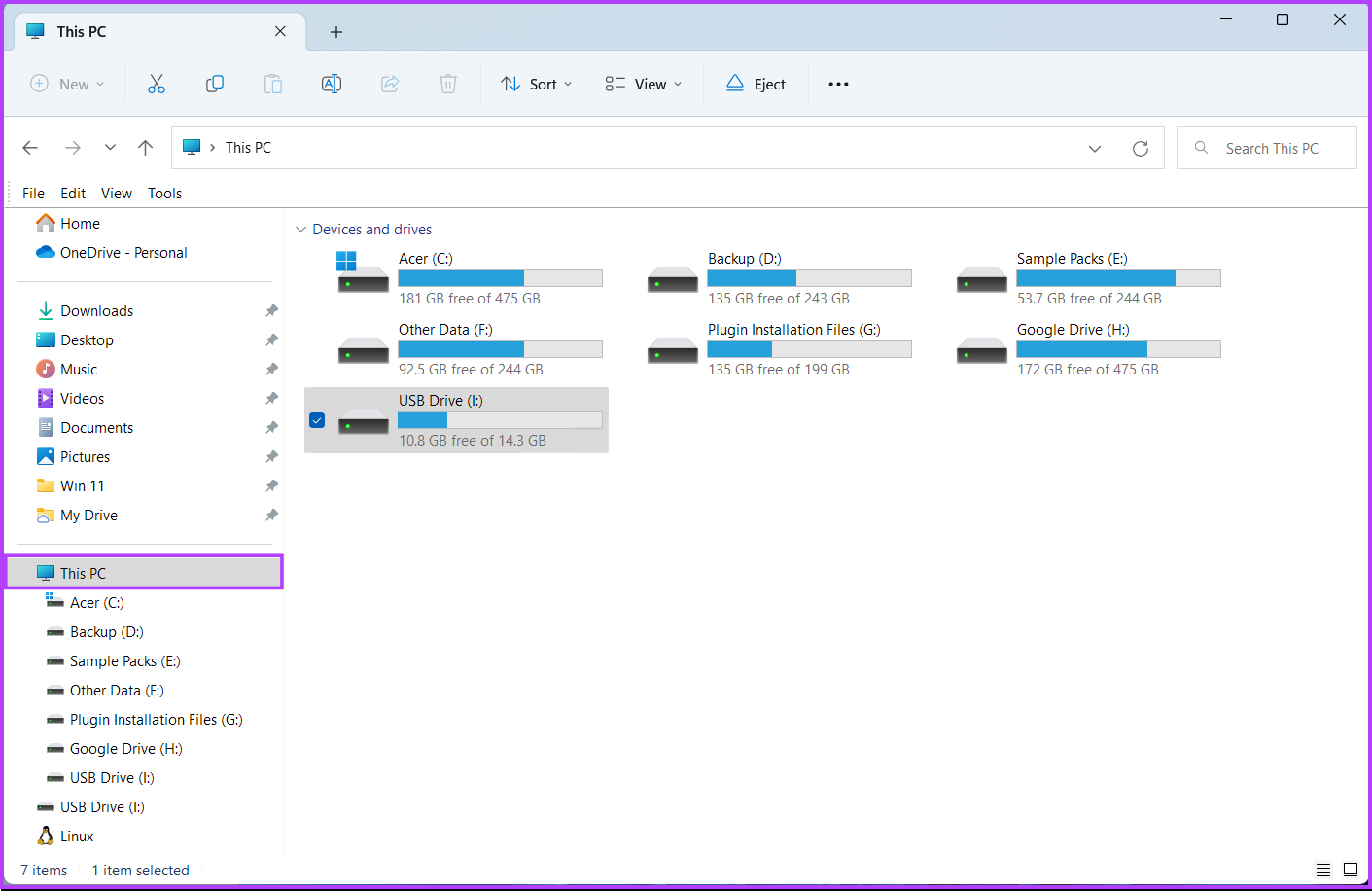
Step 1: Press the Windows + E keys to open File Explorer and click on This PC on the left column.

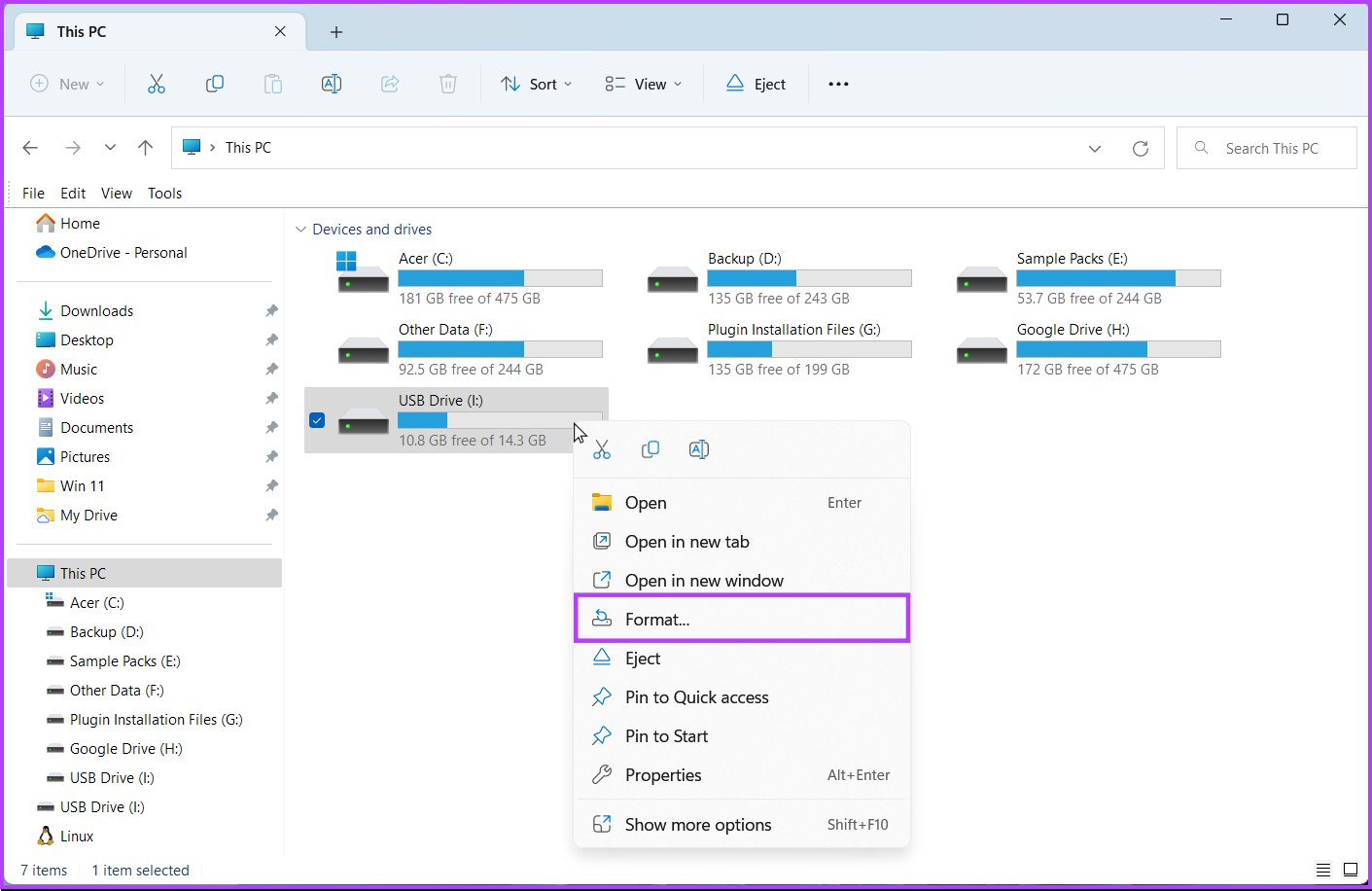
Step 2: From the right pane, right-click on the USB drive you want to format and select Format from the contextual menu that opens.

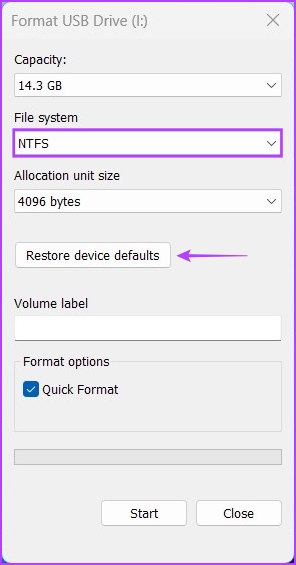
Step 3: Click on the File System drop-down and select one of the file system formats:

  • Choose NTFS to use the USB drive only on Windows.
  • Select exFAT to use the drive on both Windows and macOS.
  • Go for FAT32 to use it between different platforms, but the maximum file size for transfer will be 4GB only.

Meanwhile, if you’re unsure about the file system, click on the ‘Restore device defaults’ button before proceeding to the next step.

.

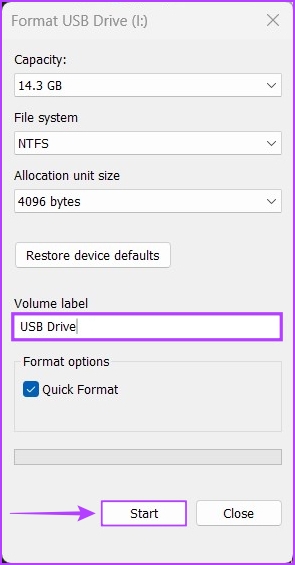
Step 5: Click on the text box below the Volume label and type in a name for the USB drive. Then, click on start.

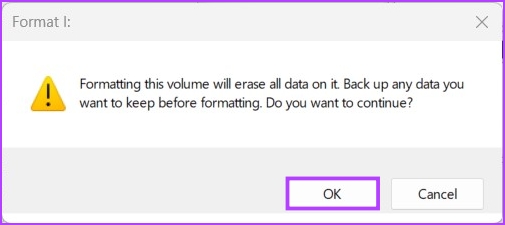
Step 6: Click on OK when a confirmation dialog appears.

2. Format a USB Drive Using the Settings App

Unlike its earlier iterations, the new and improved Settings app found on Windows 11 makes it easy to perform storage-related operations. Whether it’s creating partitions or formatting a drive, the new and redesigned Settings app on Windows 11 can do it all. 

Here’s how you can format a USB drive using the Settings app on your Windows 11 PC:

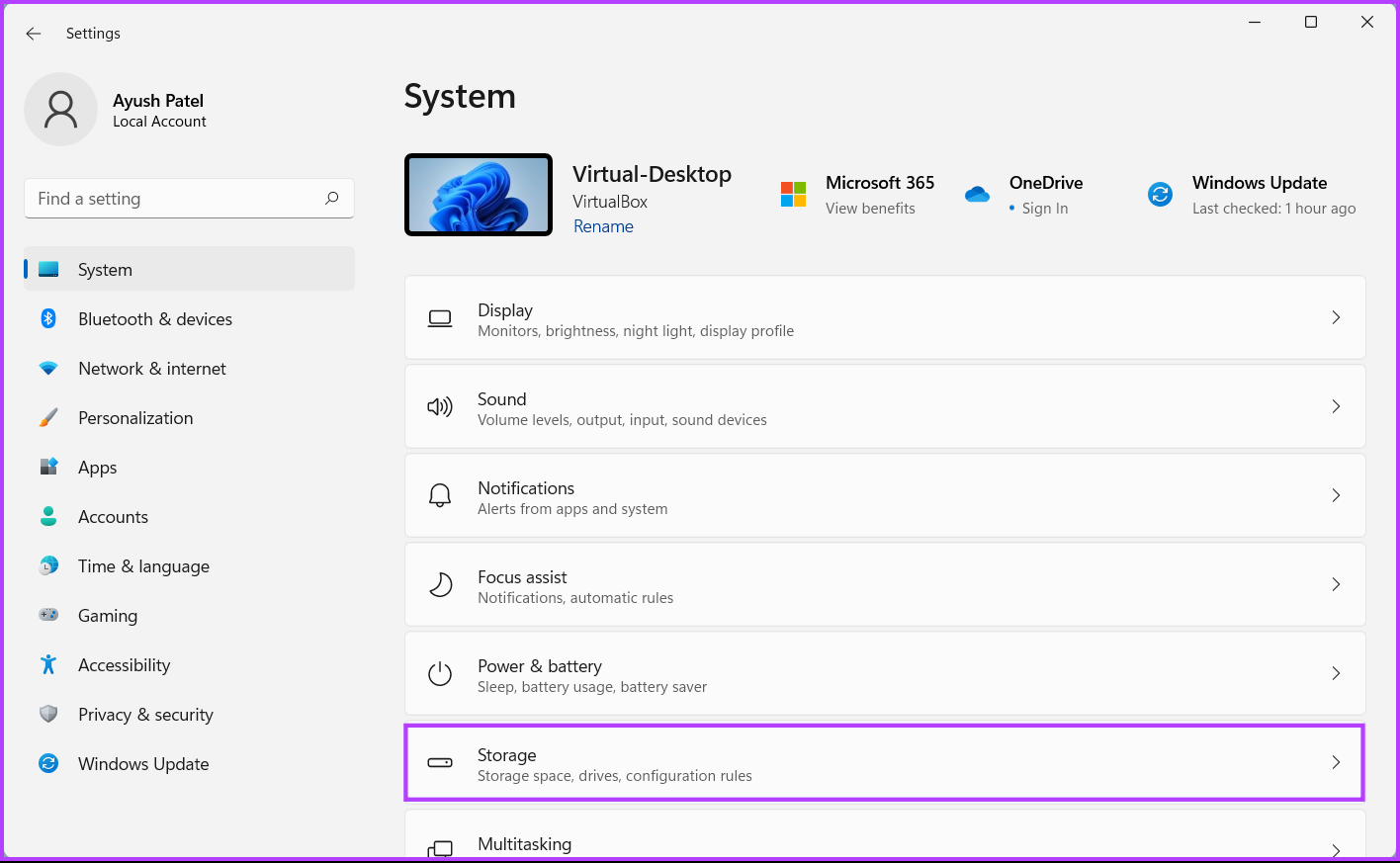
Step 1: Press the Windows + I keys to open the Settings app. Click on System in the left column and click on Storage in the right pane.

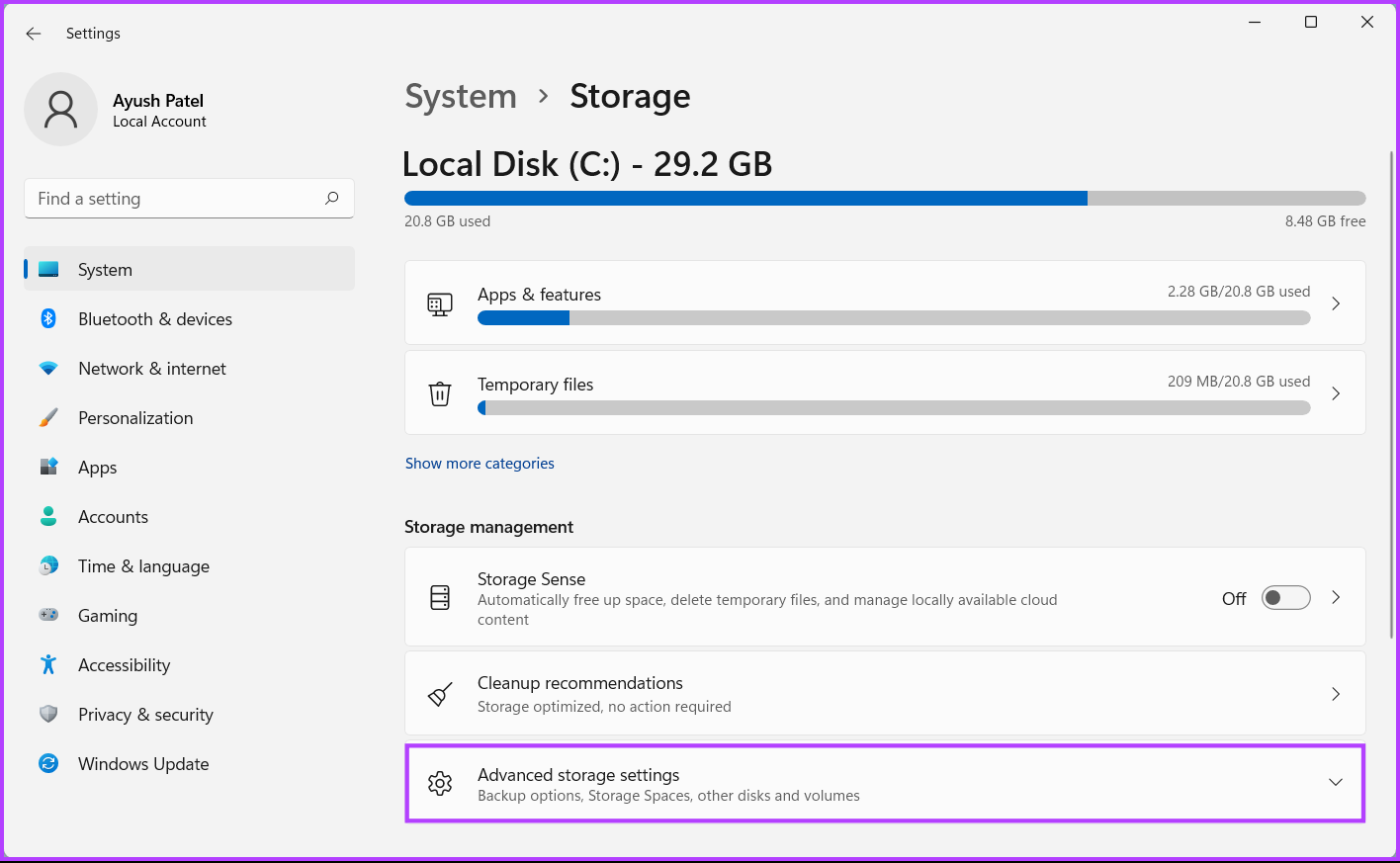
Step 2: From the Storage screen, click on ‘Advanced storage settings.’

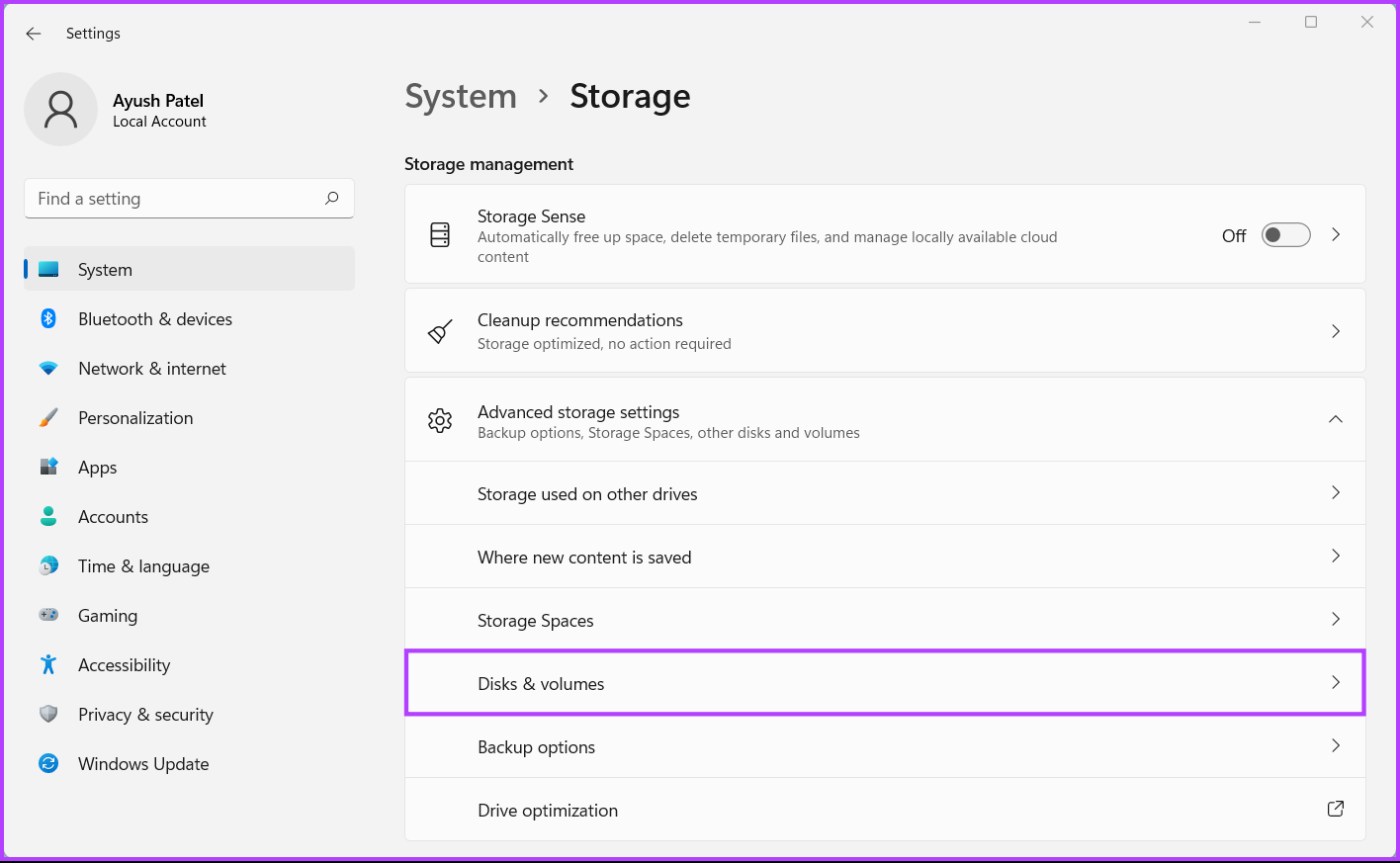
Step 3: From the ‘Advanced storage settings’ drop-down, click on ‘Disks & volumes.’

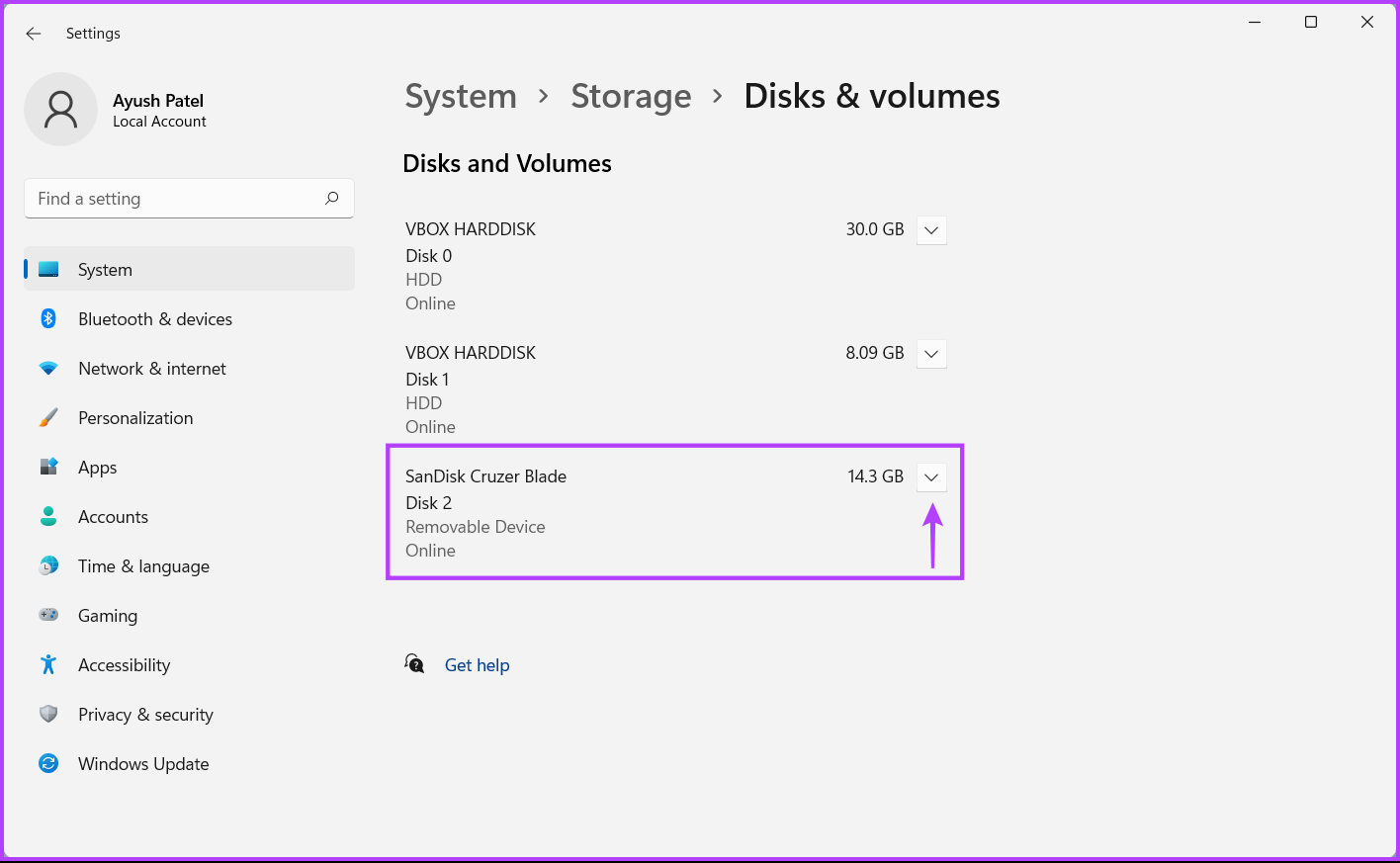
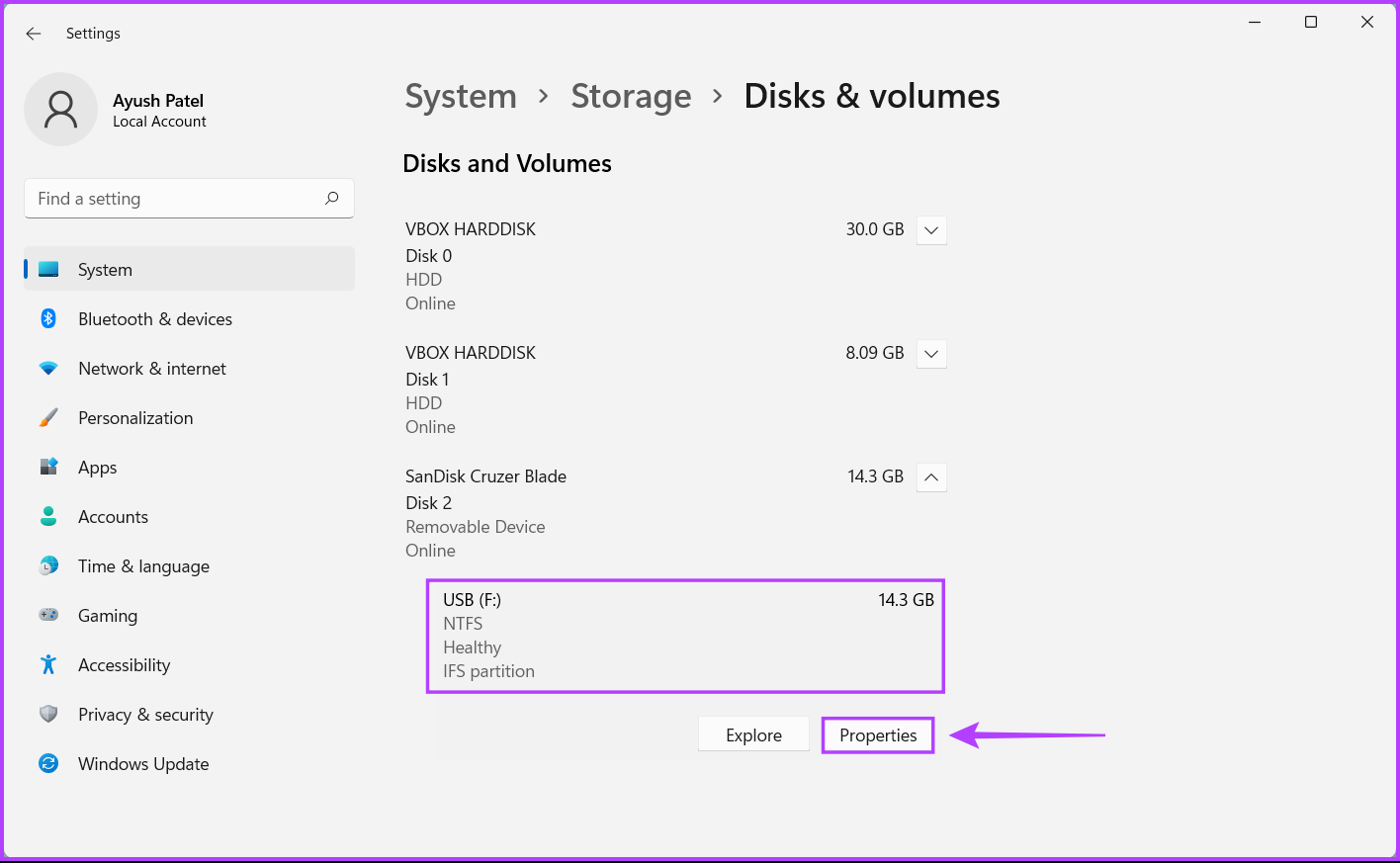
Step 4: Next, click on the drop-down arrow next the USB drive you want to format.

Step 5: Click on the USB drive’s letter, in our case it is USB (F:). Then click on the Properties button that appears right below it.

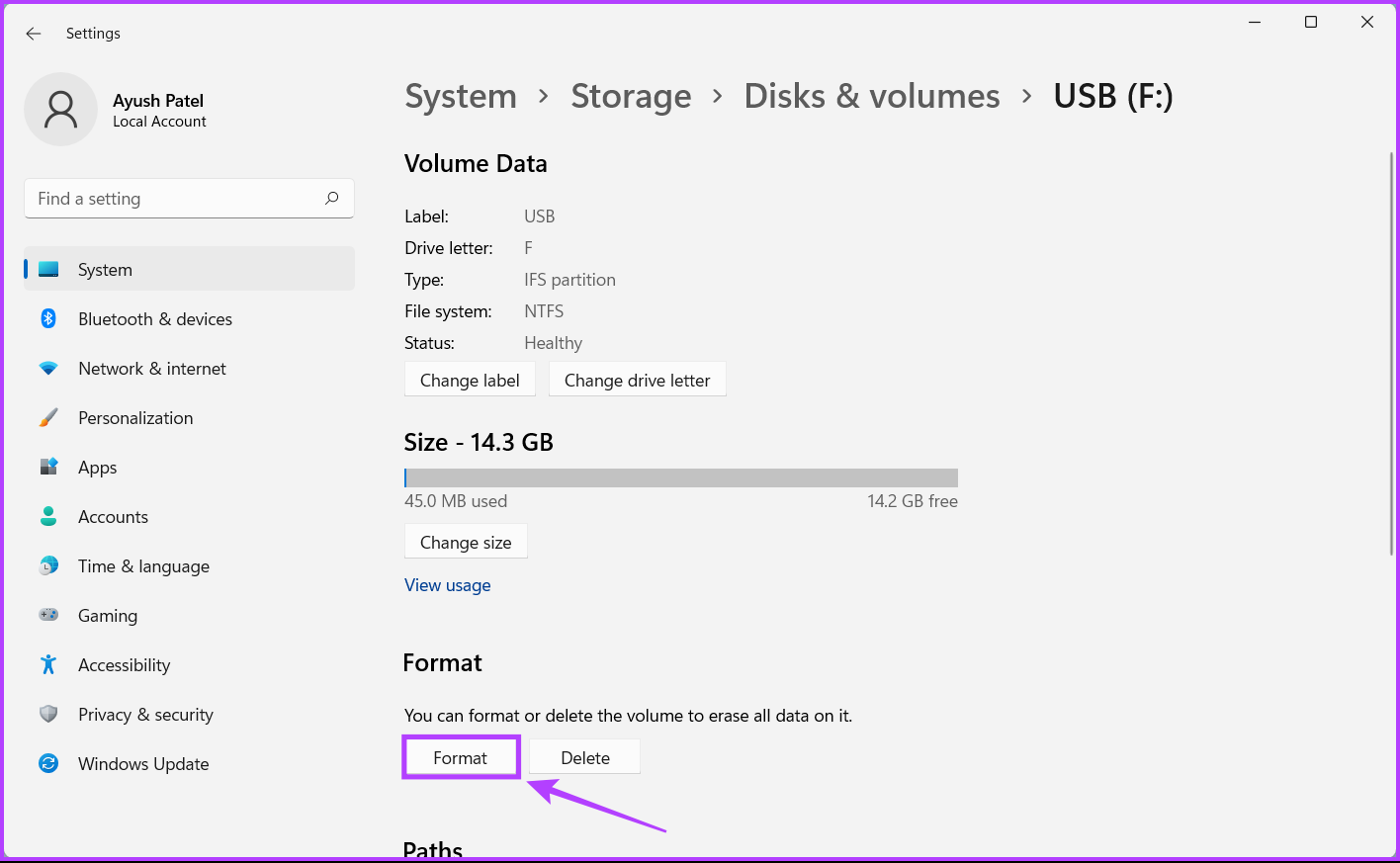
Step 6: Click on the Format button as denoted in the image below.

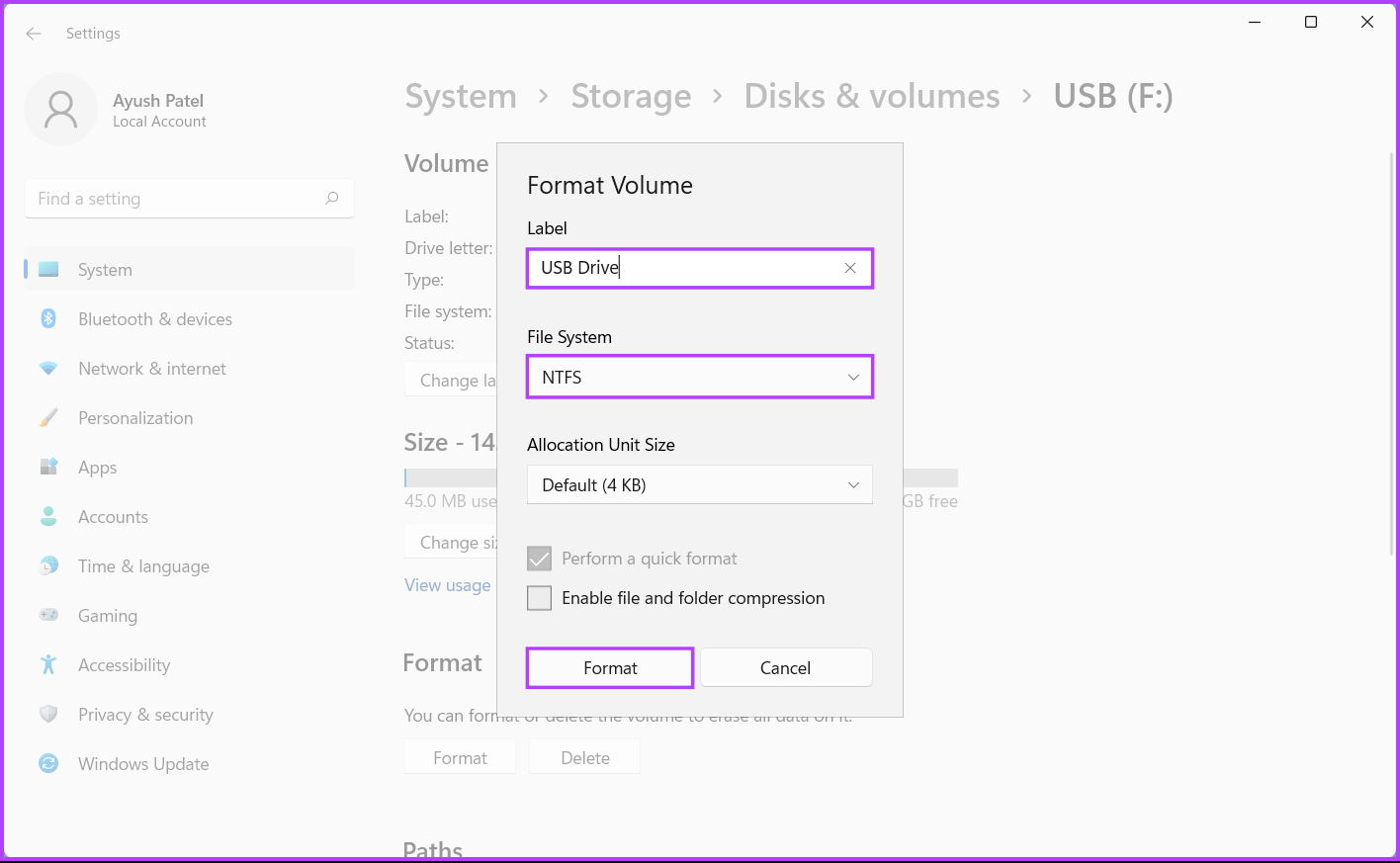
Step 7: When a Format Volume dialog appears, enter a name for your drive and use the File System drop-down to select one. Then, click on Format.

3. Format a USB Drive Using the Disk Management Utility

The Disk Management utility is handy to manage partitions, change drive letters, and perform other storage-related tasks, such as formatting any internal or external drives connected to your Windows 11 PC.

Here’s how you can format a USB drive using the disk management utility on your Windows 11 PC:

Step 1: Press the Windows + X shortcut keys to open the Power User menu and click on Disk Management.

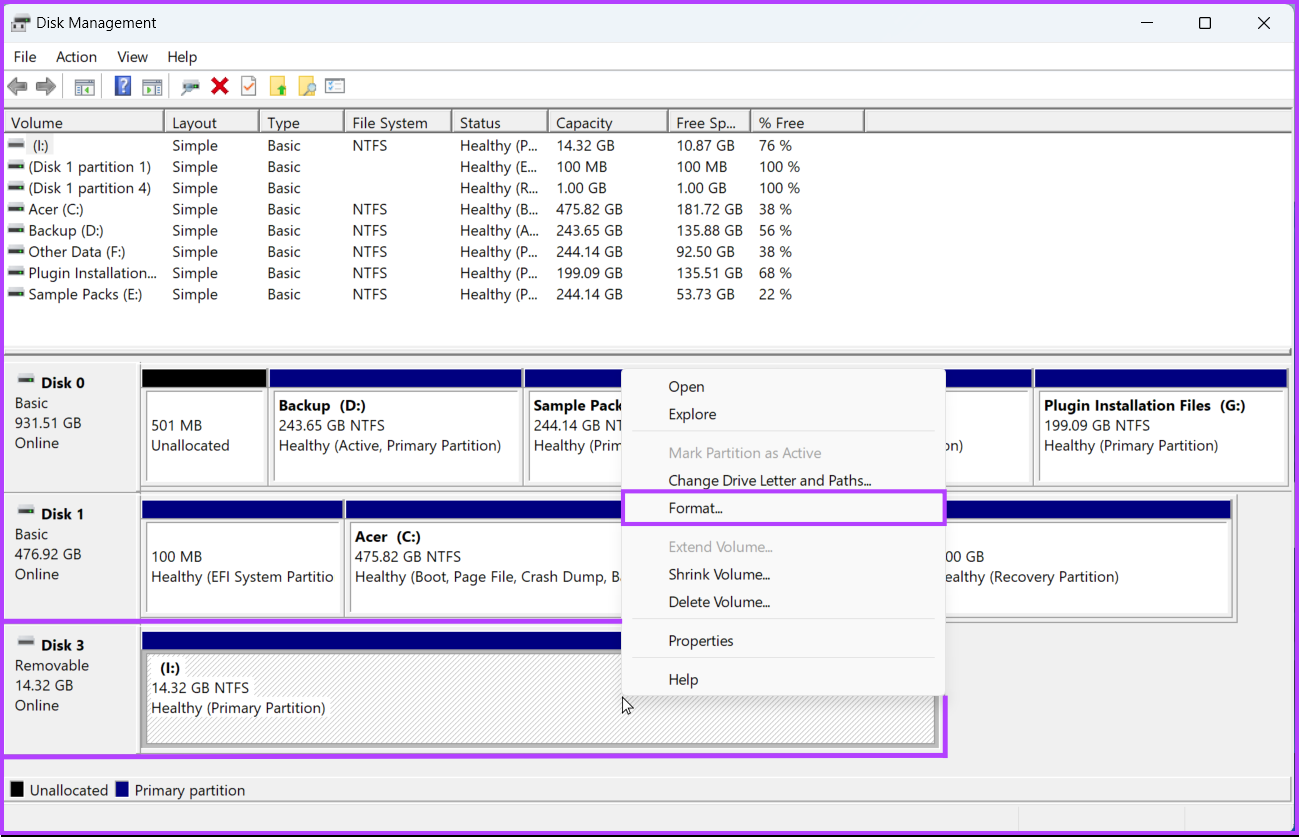
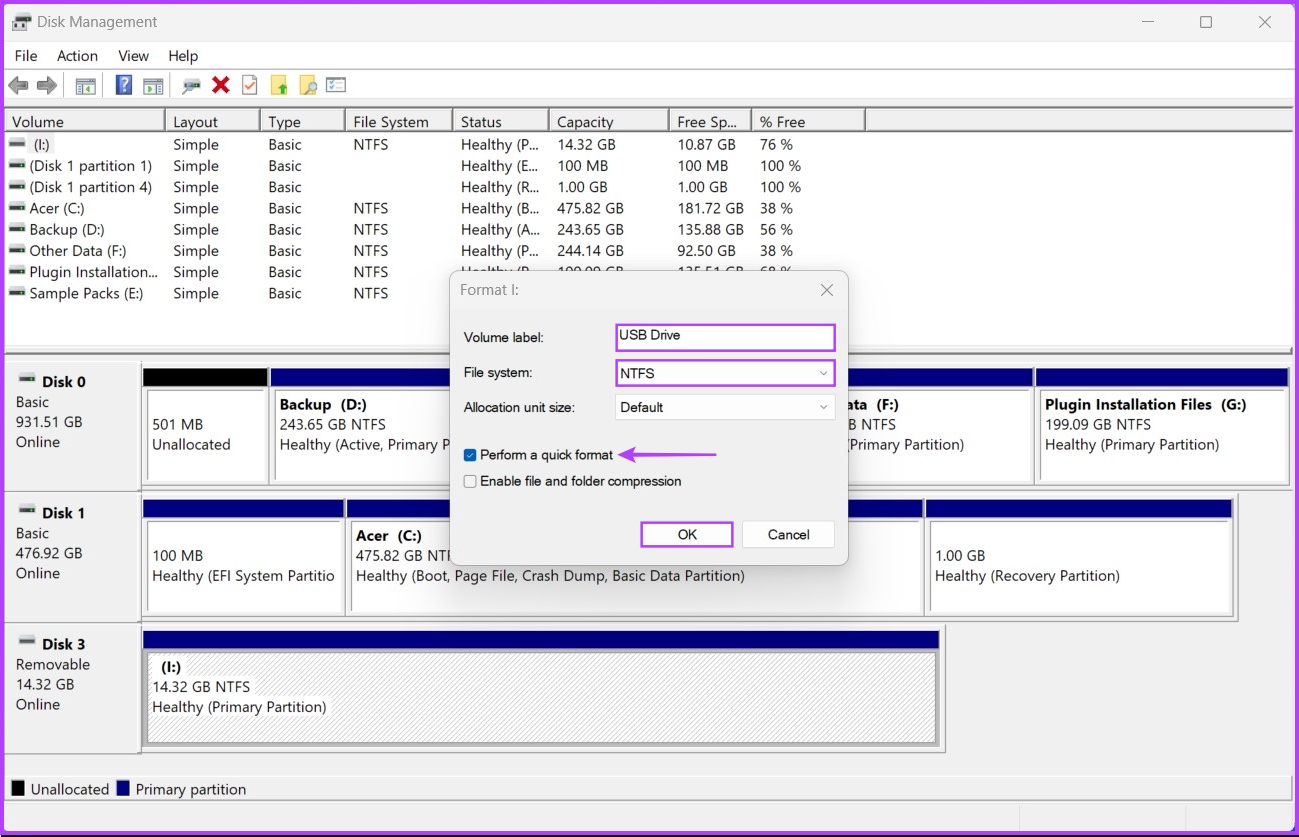
Step 2: Look for the removable USB drive you want to format and right-click on it. In the context menu that appears, click on Format.

Check the capacity and drive letter of the USB drive before formatting to make sure you’ve selected the correct drive.

Step 3: In the Format dialog, click on the Volume label to type in a name for the USB drive, select a File system, and click OK. Alternatively, you may keep the box for ‘Perform a quick format’ checked to let Windows finish the process quickly.

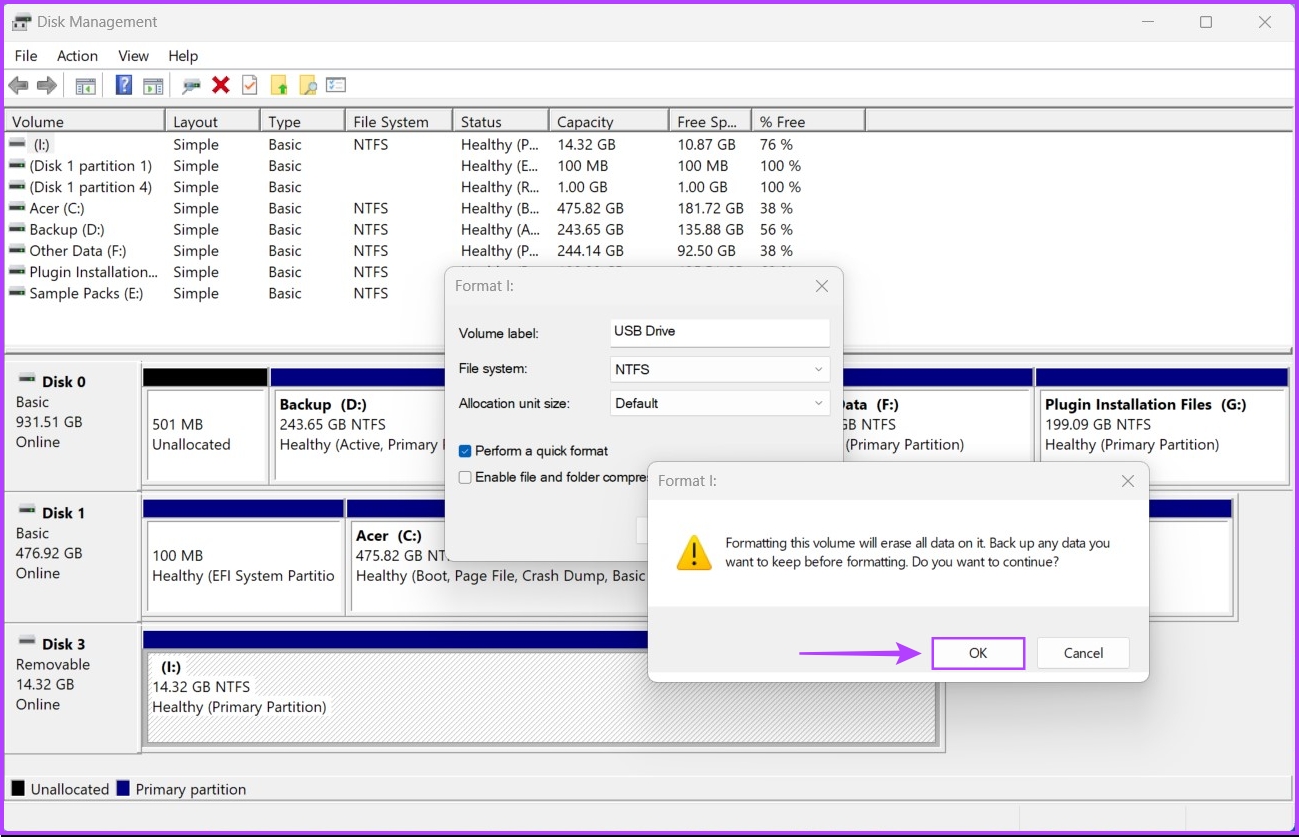
Step 4: Click on OK when a confirmation dialog appears.

After that your computer will format the chosen USB drive.

4. Format a USB Drive Using Command Prompt

Command Prompt is undoubtedly one the most versatile command line interface (CLI) built into Windows. You can use it to process batch files, repair corrupt system files or perform advanced administrative tasks such as fixing activation key-related issues, booting your PC into safe mode, etc. You can also use it to format any internal or external drives connected to your Windows 11 PC. 

Here’s how you can use the Command Prompt to format a USB drive on your Windows 11 PC:

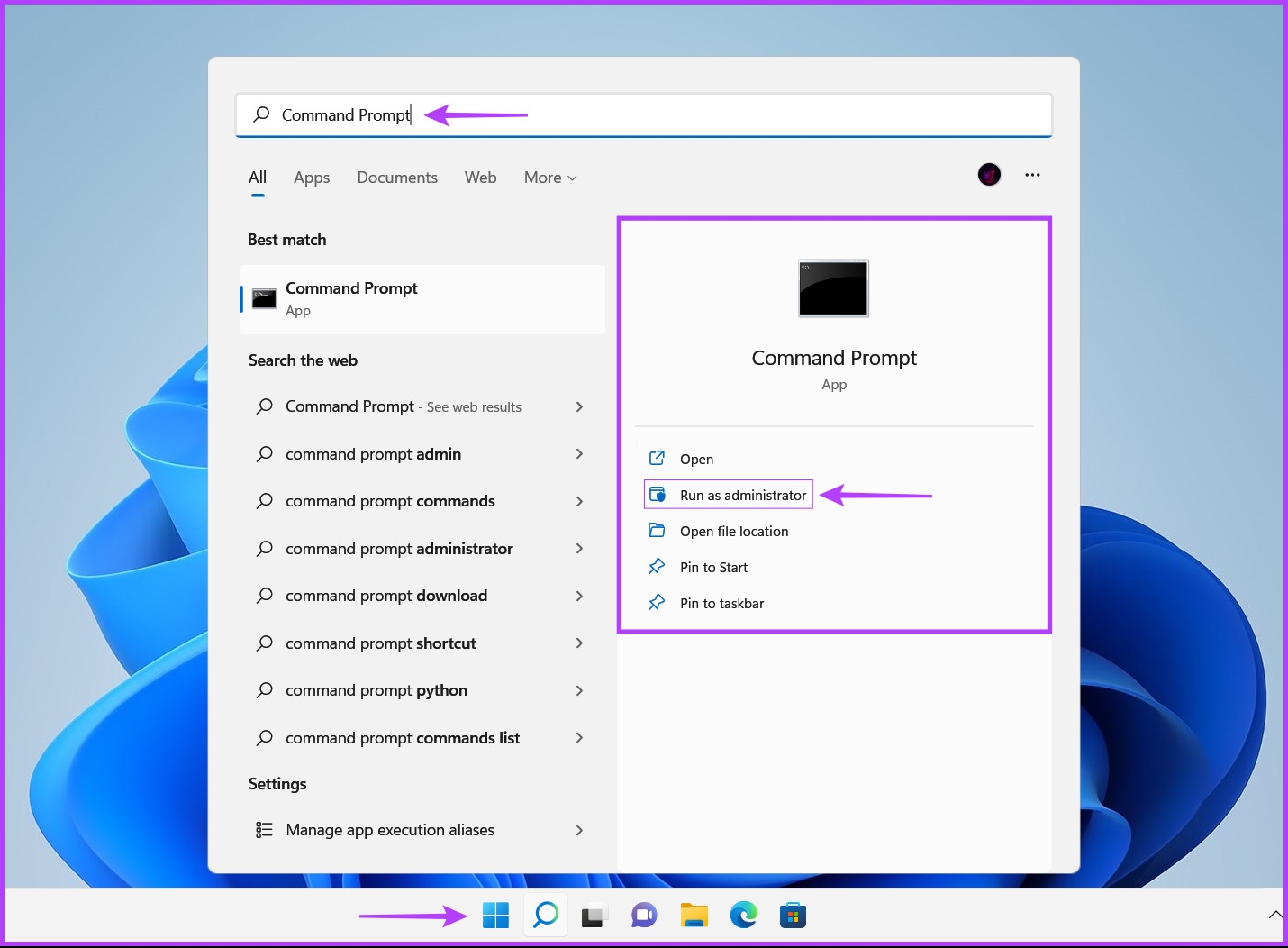
Step 1: Press the Windows + S keys to launch Windows Search and type Command Prompt. From the results for the Command Prompt, click on ‘Run as administrator.’

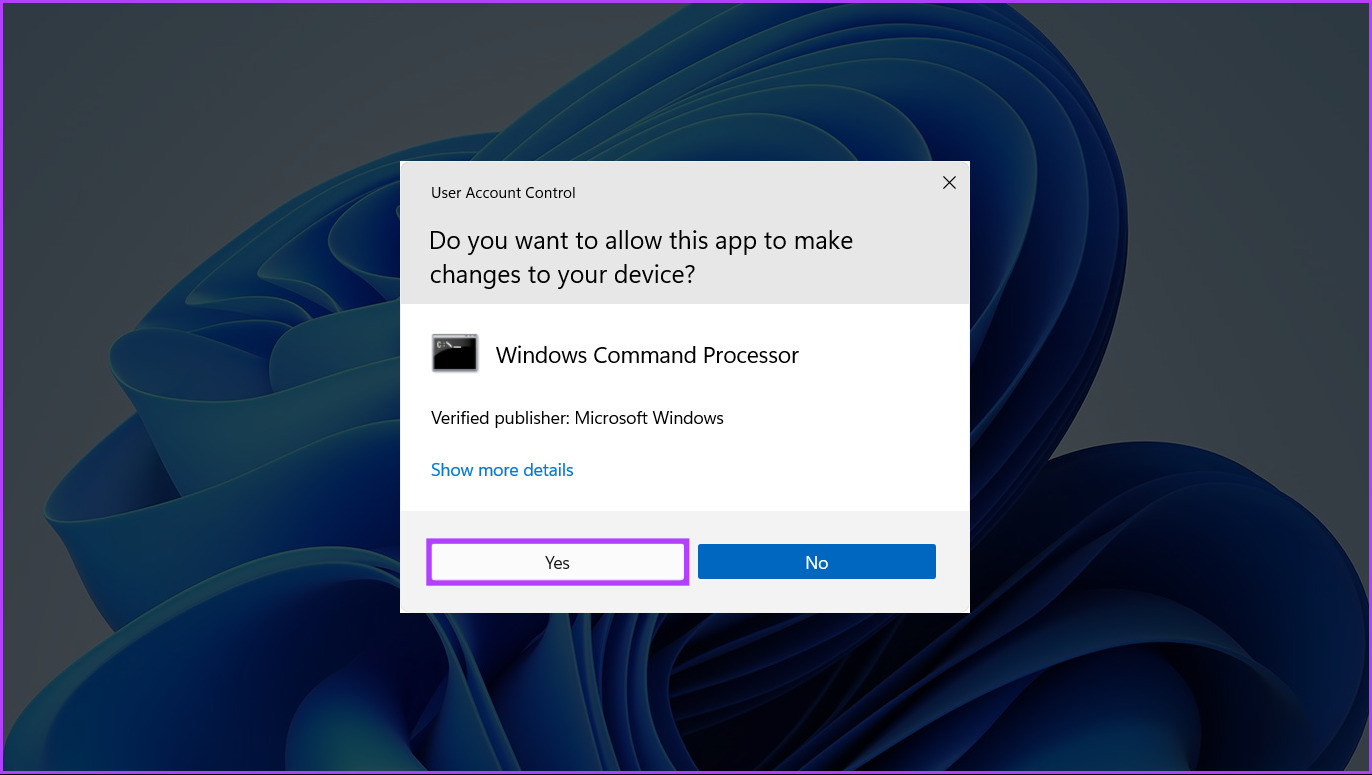
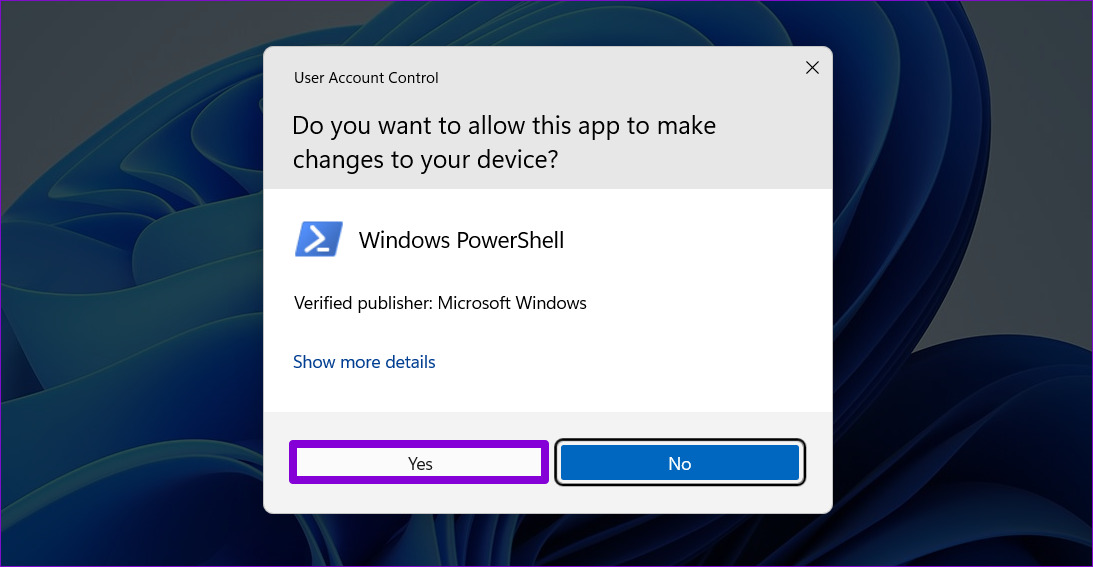
Step 2: When a User Account Control (UAC) prompt appears, click on Yes.

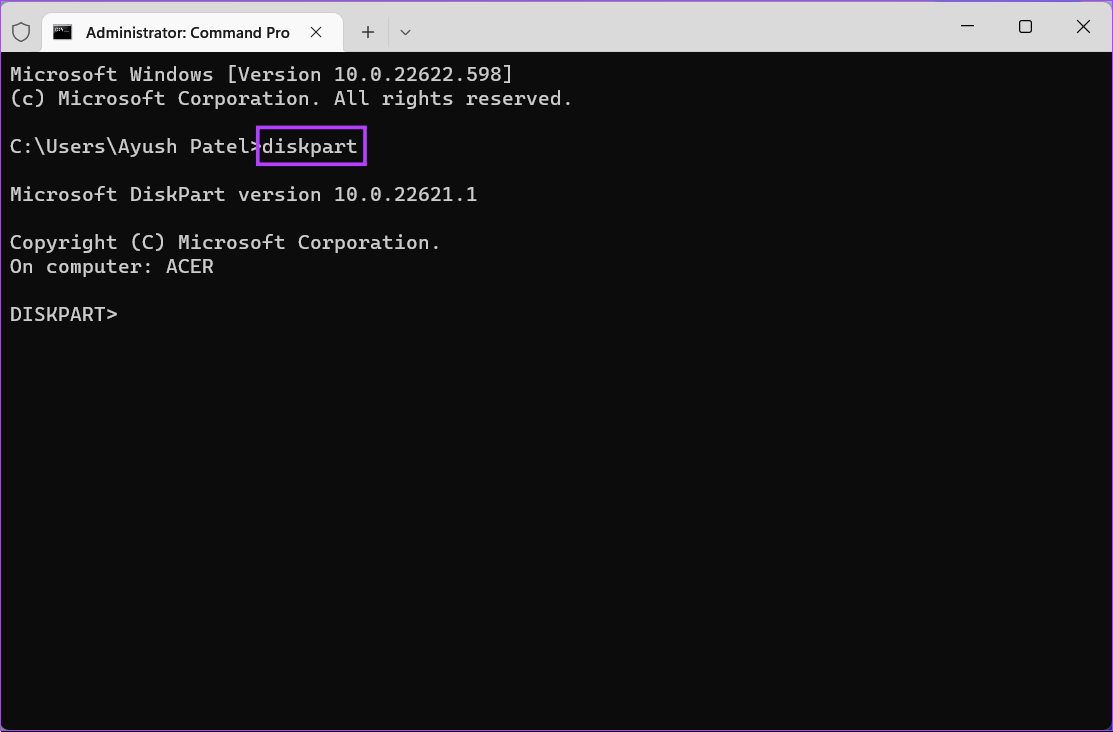
Step 3: Type the following command and press Enter to launch the Diskpart utility:

Diskpart

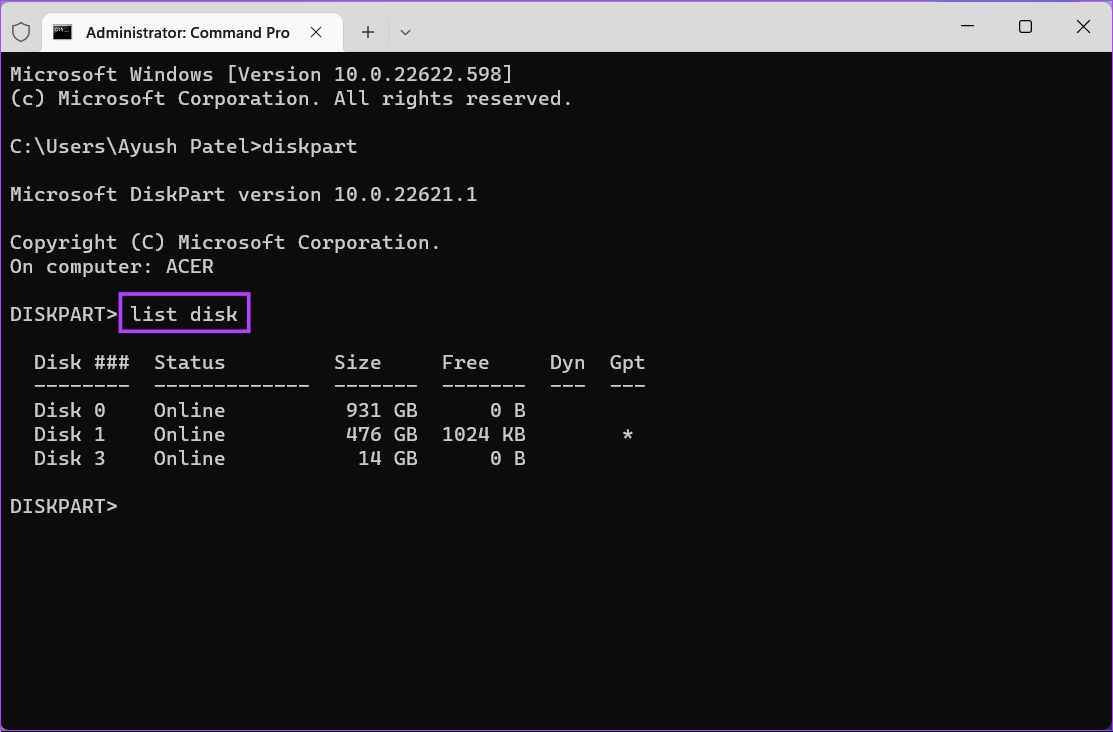
Step 4: Type the following command and press Enter to view a list of the available drives:

list disk

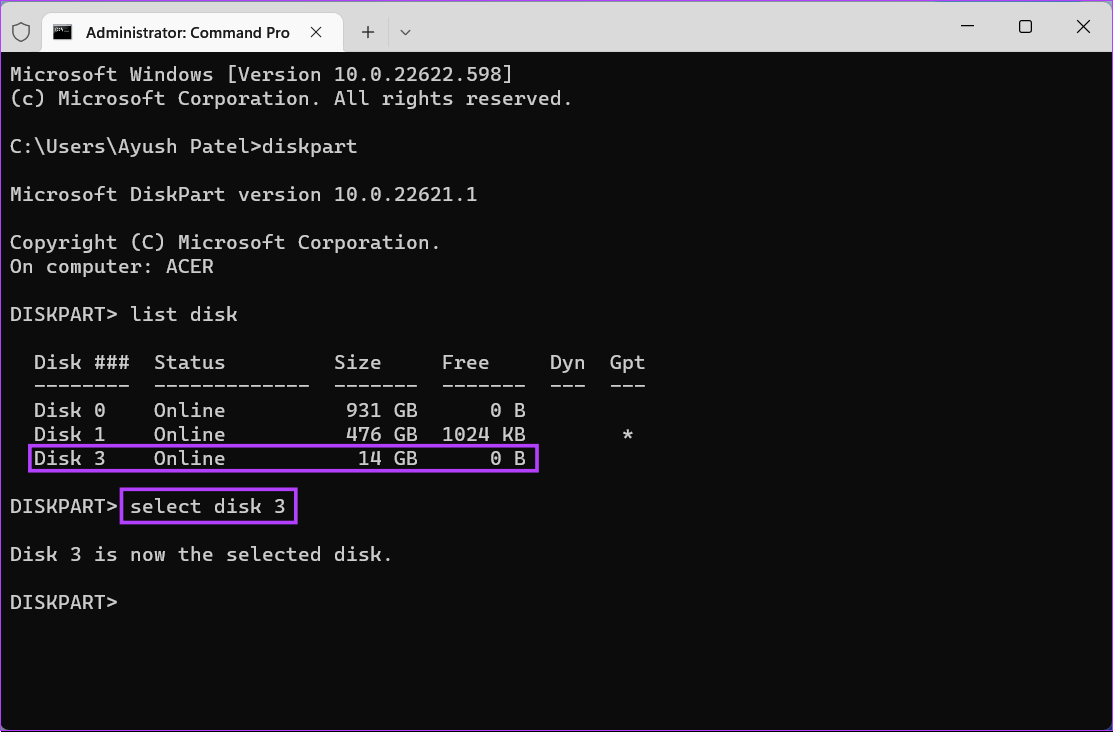
Step 5: Type the following command and press Enter to select the USB drive you want to format:

select disk 3

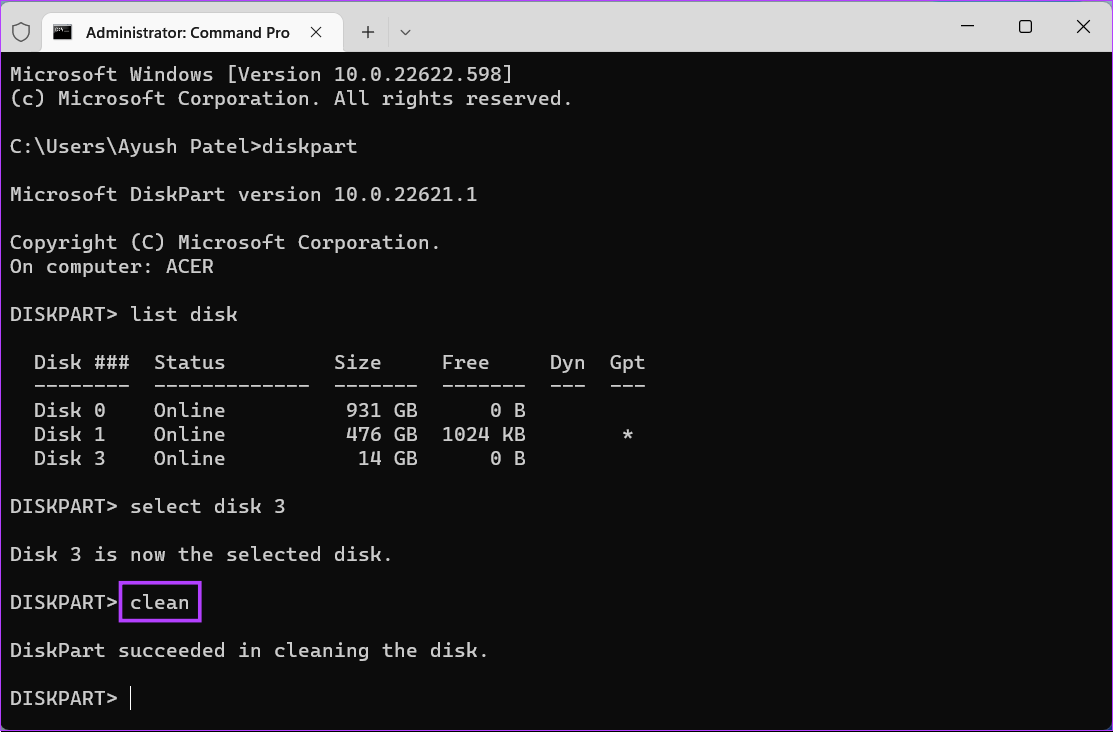
Step 6: Type the following command and press Enter to delete all the storage partitions.

clean

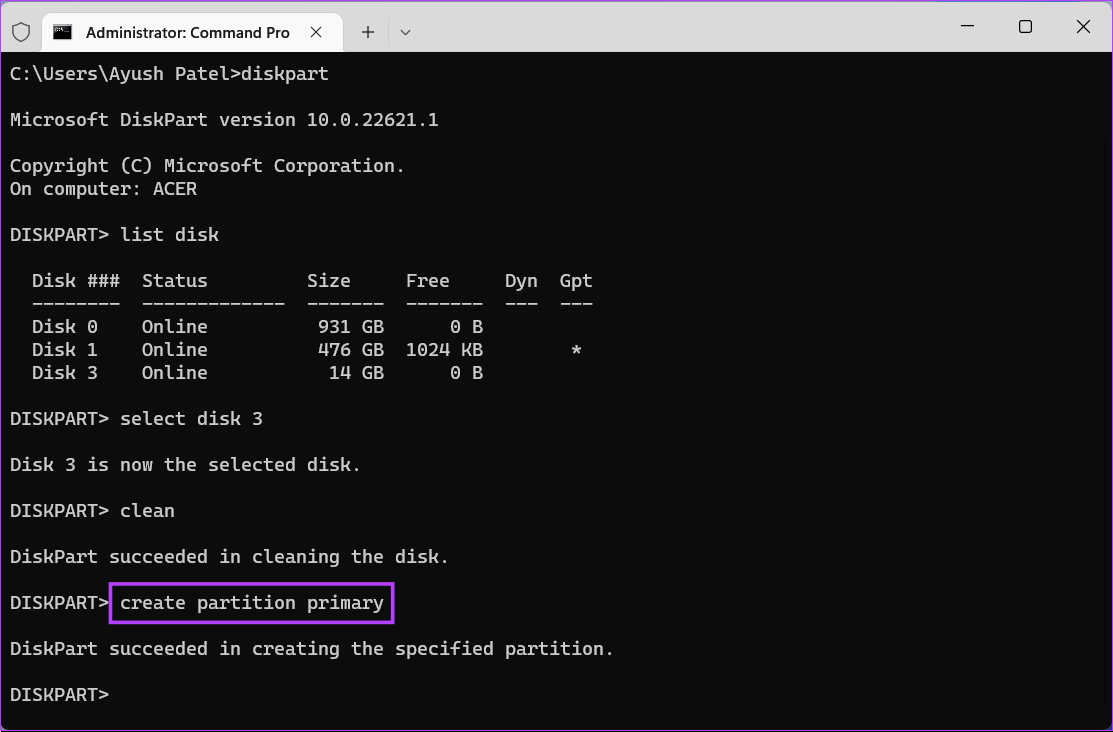
Step 7: Type the following command and press Enter to create a primary partition.

create partition primary

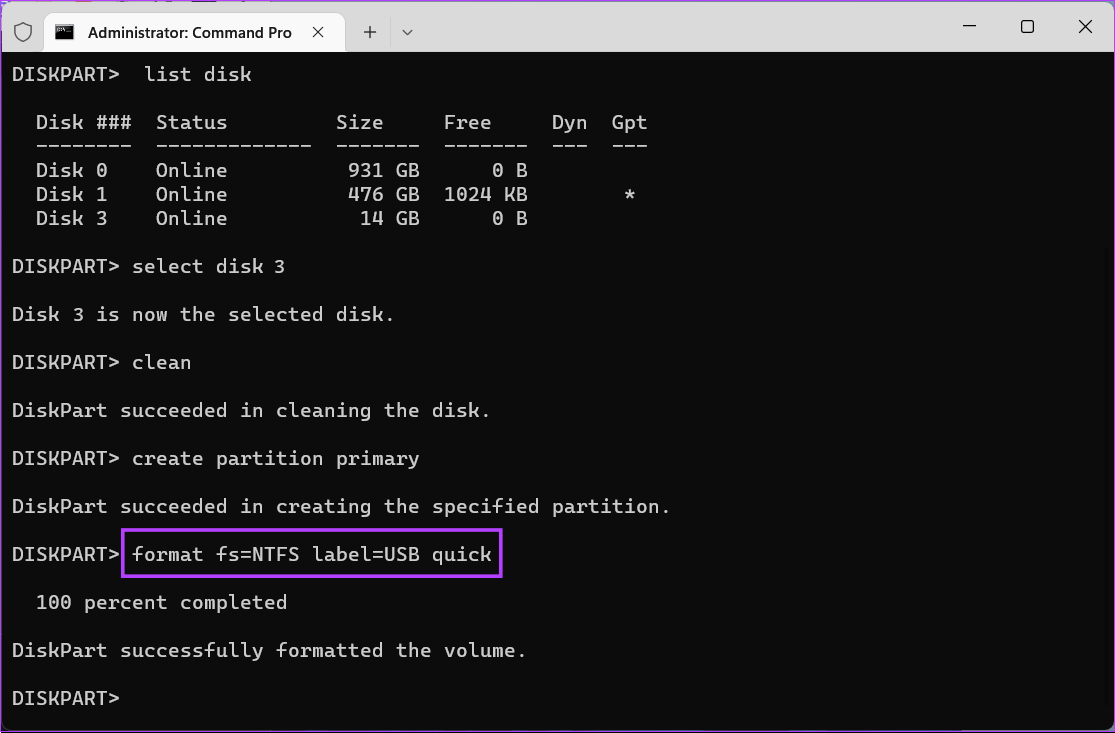
Step 8: Type the following command and press Enter to perform a quick format.

If you want to change the file system for your USB drive, replace ‘NTFS’ with exFAT or FAT32. Meanwhile, if you want to change the drive label, replace ‘USB’ with something else (spaces aren’t supported).

format fs=NTFS label=USB quick

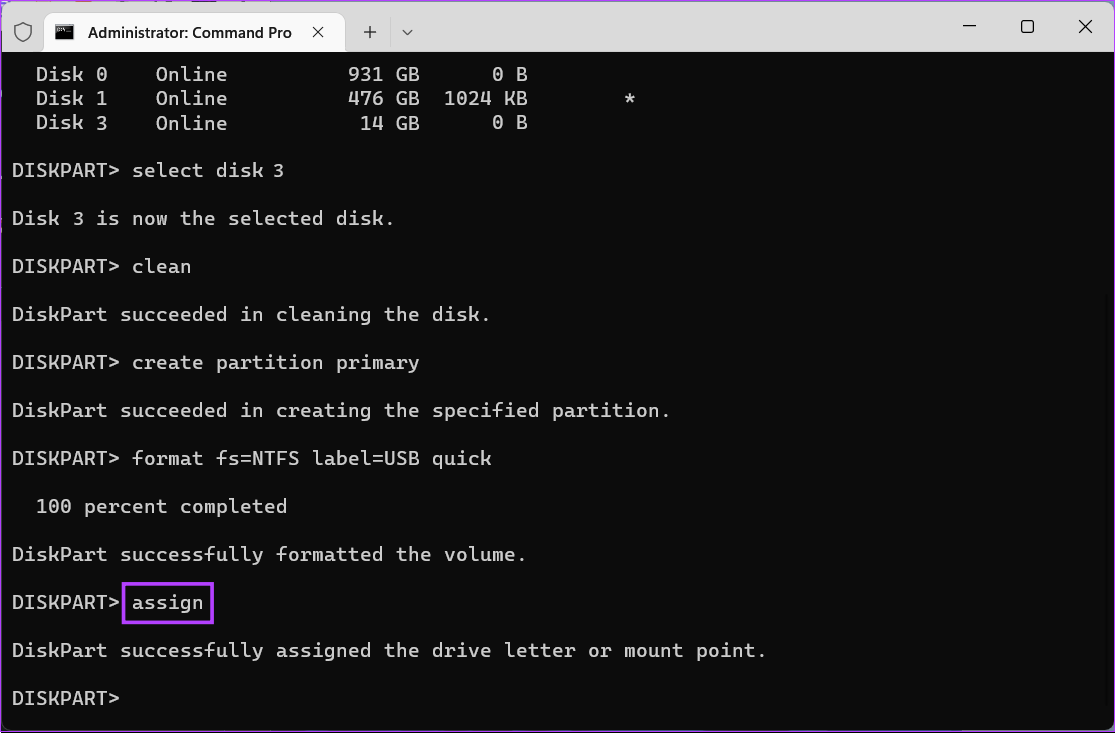
Step 9: Type the following command and press Enter to assign a random drive letter to the formatted USB drive.

assign

5. Format a USB Drive Using Windows PowerShell

Besides the Command Prompt, you can also use Windows PowerShell to execute almost all administrative tasks on your PC. Here’s how you can use Windows PowerShell to format any USB drive connected to your Windows 11 PC:

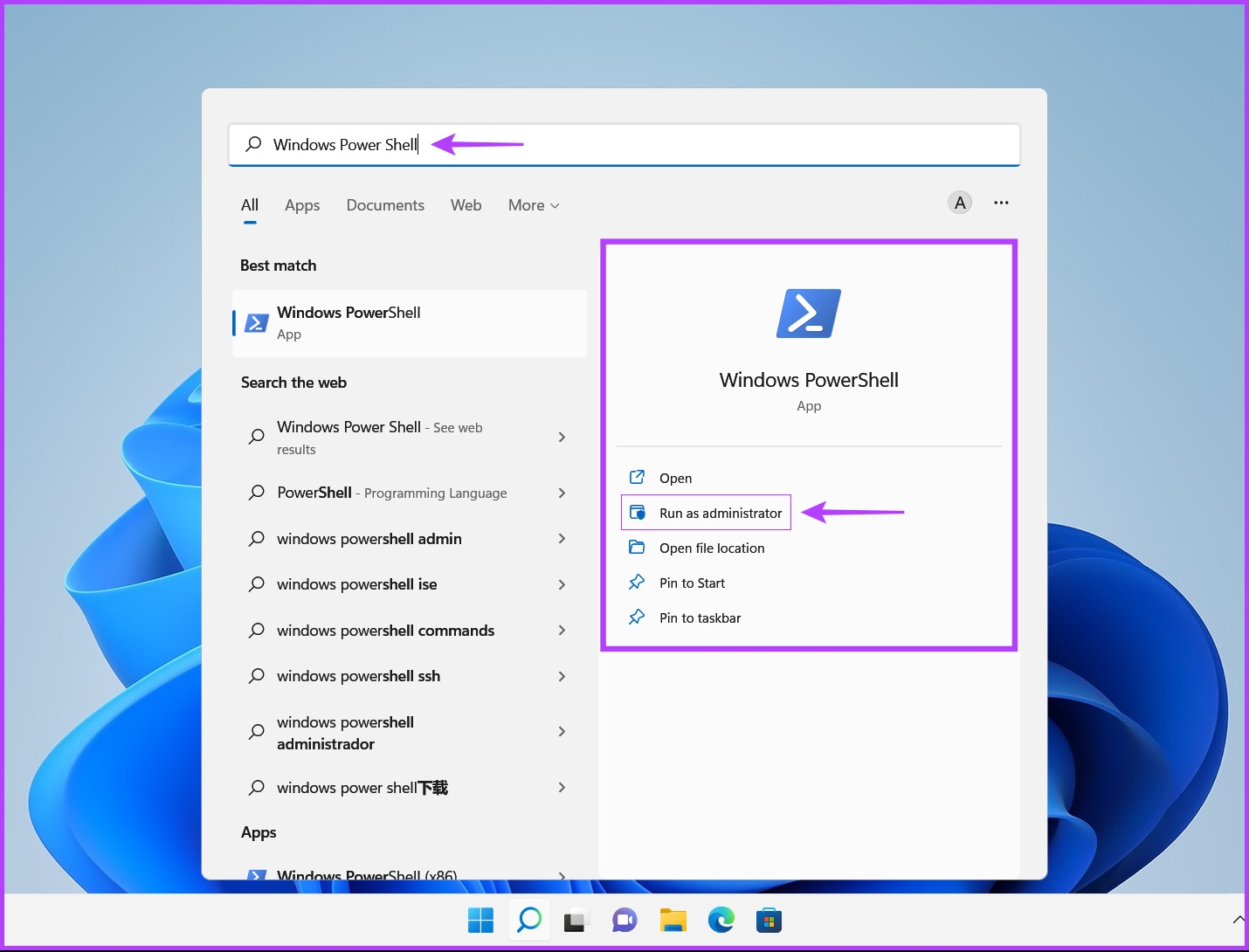
Step 1: Press the Windows + S keys to open Windows Search and type Windows PowerShell. Then, from the results for the Command Prompt, click on ‘Run as administrator.’

Step 2: When a User Account Control (UAC) prompt appears, click on Yes.

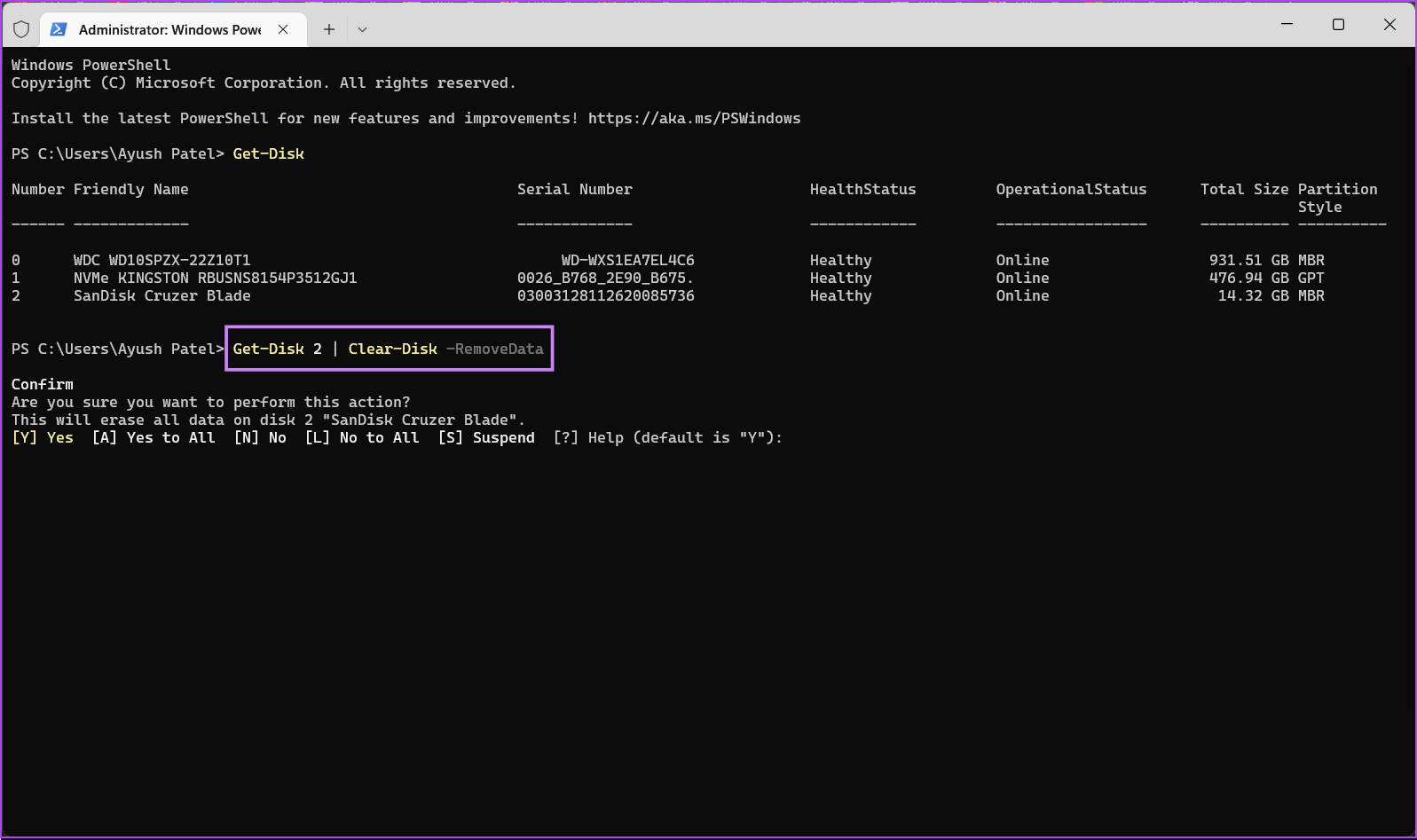
Step 3: Type the following command and press Enter to to view a list of the connected drives.

Get-Disk

Step 4: Type the following command and press Enter to select your USB drive and erase all its data and configuration files. 

Don’t forget to replace ‘3’ with your USB drive’s number. Your USB drive might have a different disk number. 

Get-Disk 2 | Clear-Disk -RemoveData

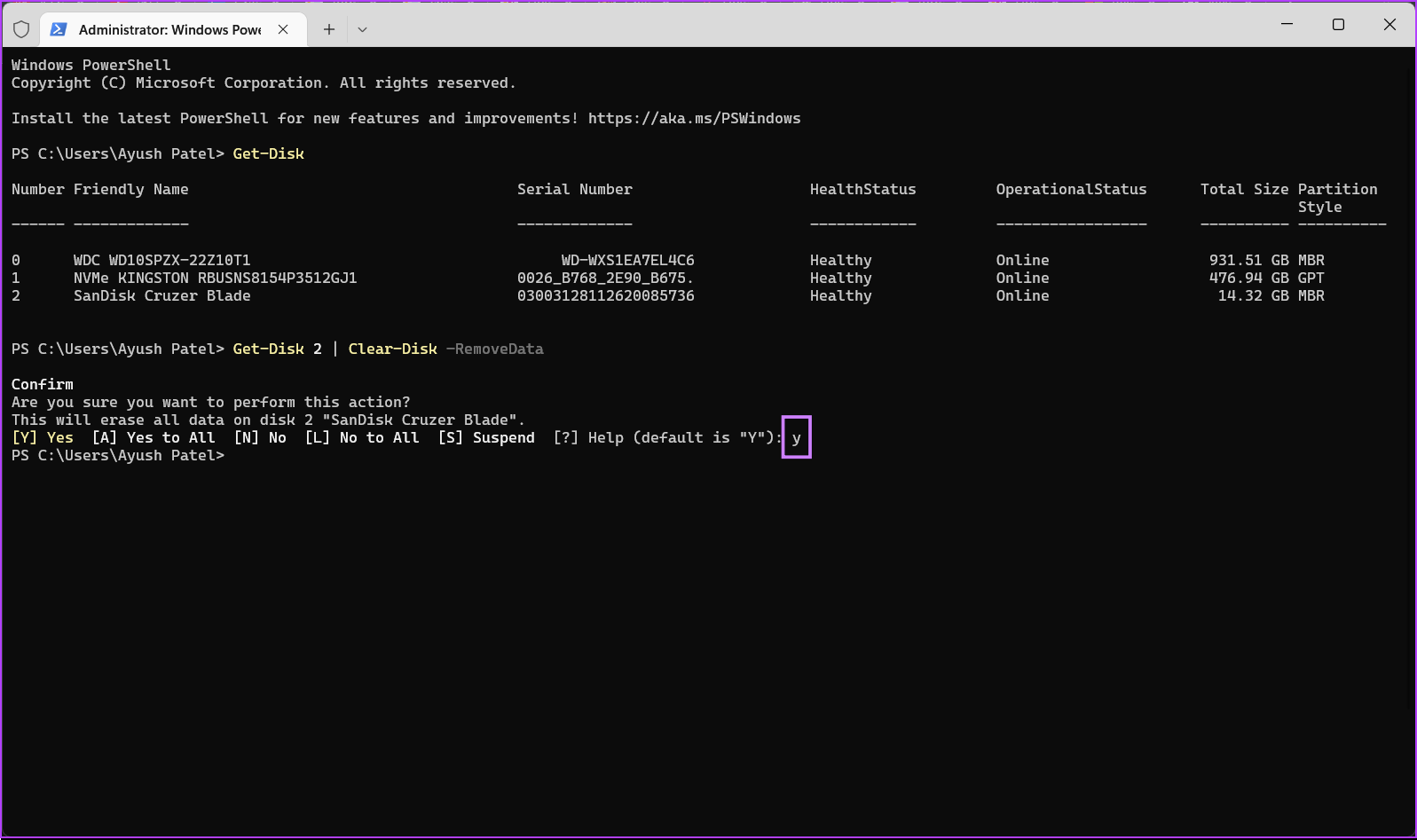
Step 5: Type the following letter and press Enter to confirm your decision to clear all the data and configuration files on your USB drive.

Y

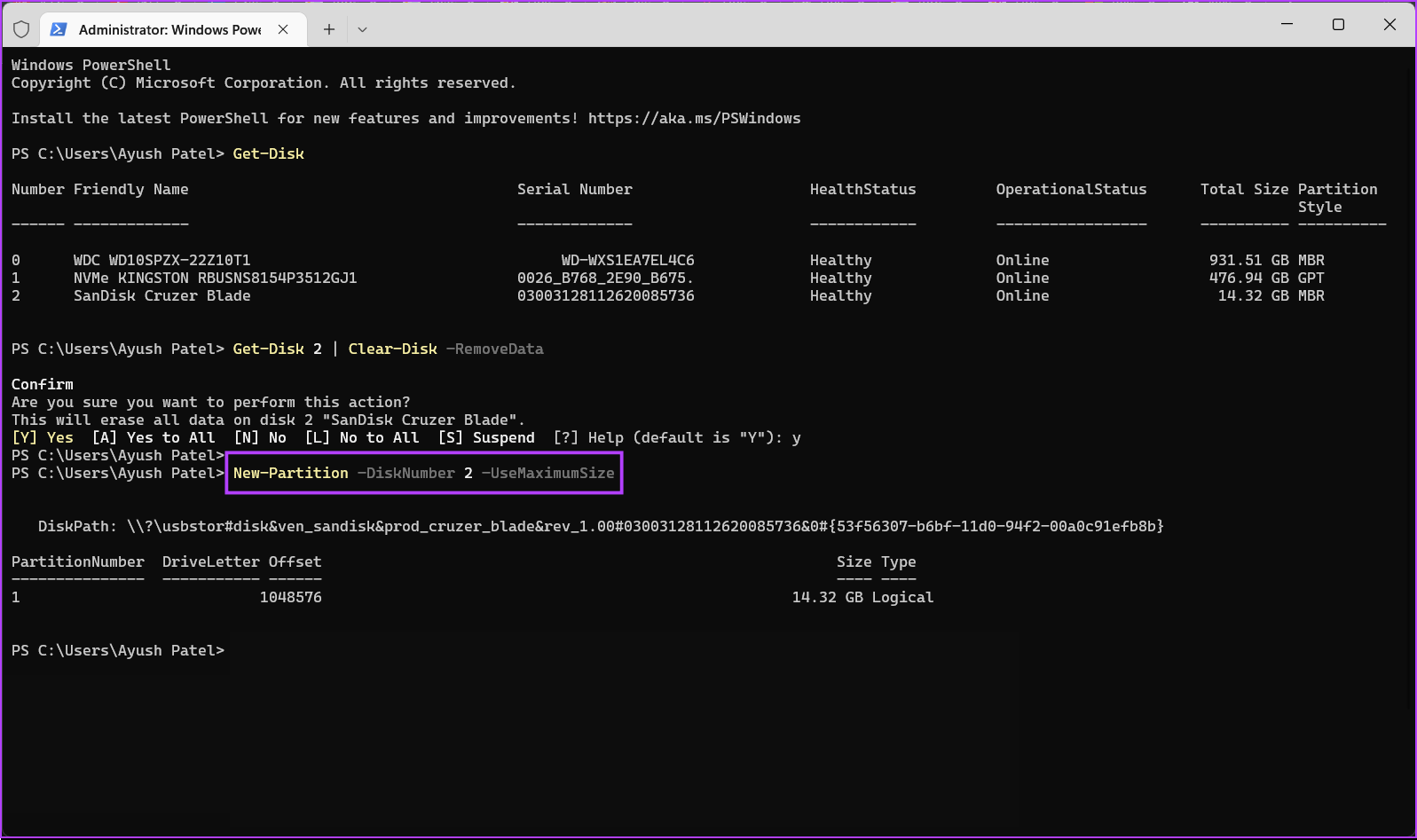
Step 6: Type the following command and press Enter to create a drive partition.

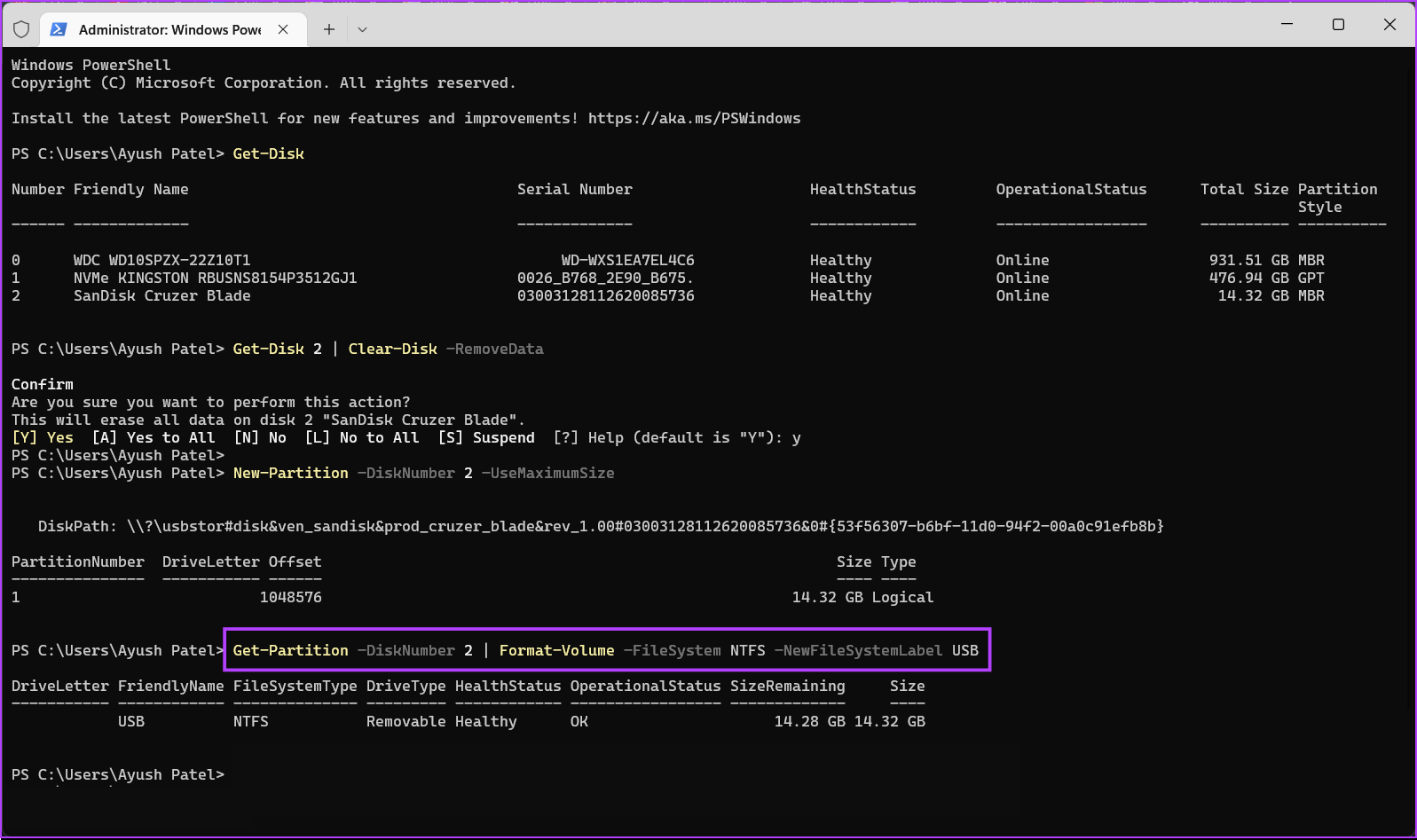
New-Partition -DiskNumber 2 -UseMaximumSize

Step 7: Type the following command and press Enter to commence a quick format, select a file system and assign a drive label.

If you want to change the file system for your USB drive, replace ‘NTFS’ with exFAT or FAT32. Meanwhile, if you want to change the drive label, replace ‘USB’ with something else (spaces aren’t supported).

Get-Partition -DiskNumber 2 | Format-Volume -FileSystem NTFS -NewFileSystemLabel USB

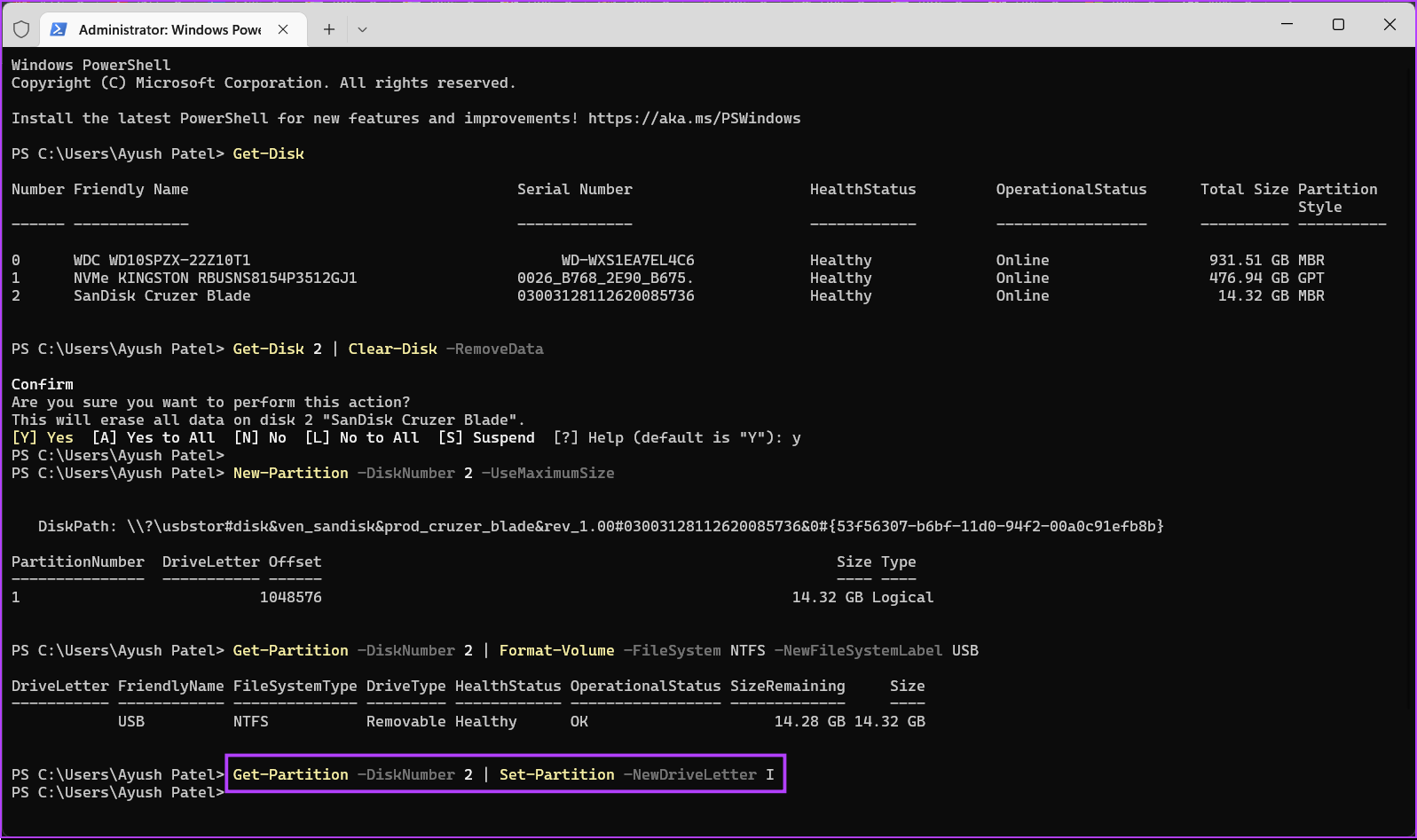
Step 8: Type the following command and press Enter to assign a drive letter.

Get-Partition -DiskNumber 2 | Set-Partition -NewDriveLetter E

Safely Erase Any USB Drive On Windows 11

That’s all. You can safely format a USB drive connected to your Windows 11 PC using any of the above methods. The best thing about these methods is that you don’t need to waste your precious time downloading third-party apps or programs to do so.

Was this helpful?

Thanks for your feedback!

6 Ways to Fix Safari Not Working on iPhone and iPad

Basic Fixes

  • Restart iPhone: Restart the Safari app, and restart your iPhone/iPad to fix any temporary bugs and glitches.
  • Disable VPN: Using a VPN may prevent you from accessing certain websites and content.
  • Check network connection: Ensure there are no problems with the Wi-Fi or the cellular network your device is connected to.
  • Update device: Update your device to the latest version of iOS/iPad OS for a bug free experience.

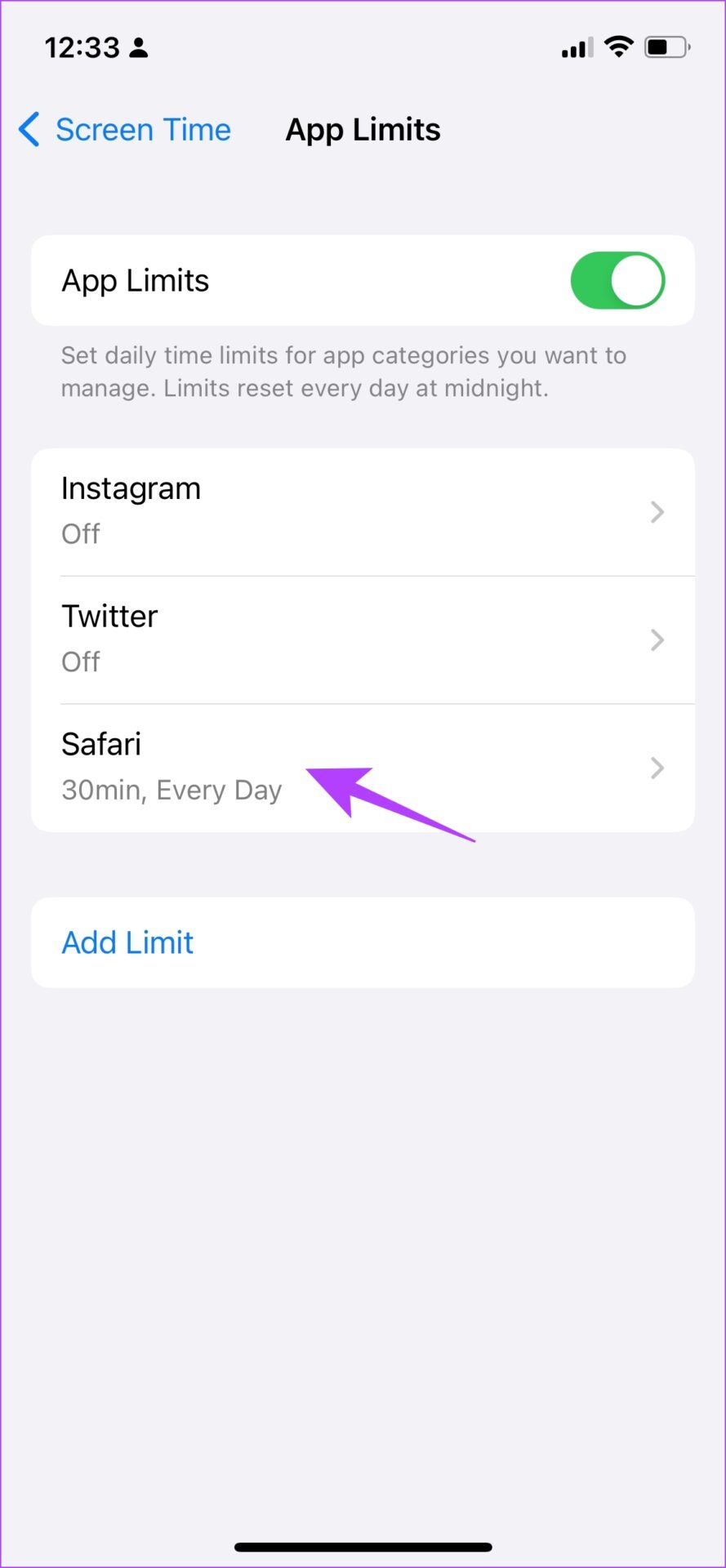
Fix 1: Edit Your Screen Time Settings

If you’ve enabled Screen Time restrictions for Safari, it cannot be used once you exhaust the set limit.

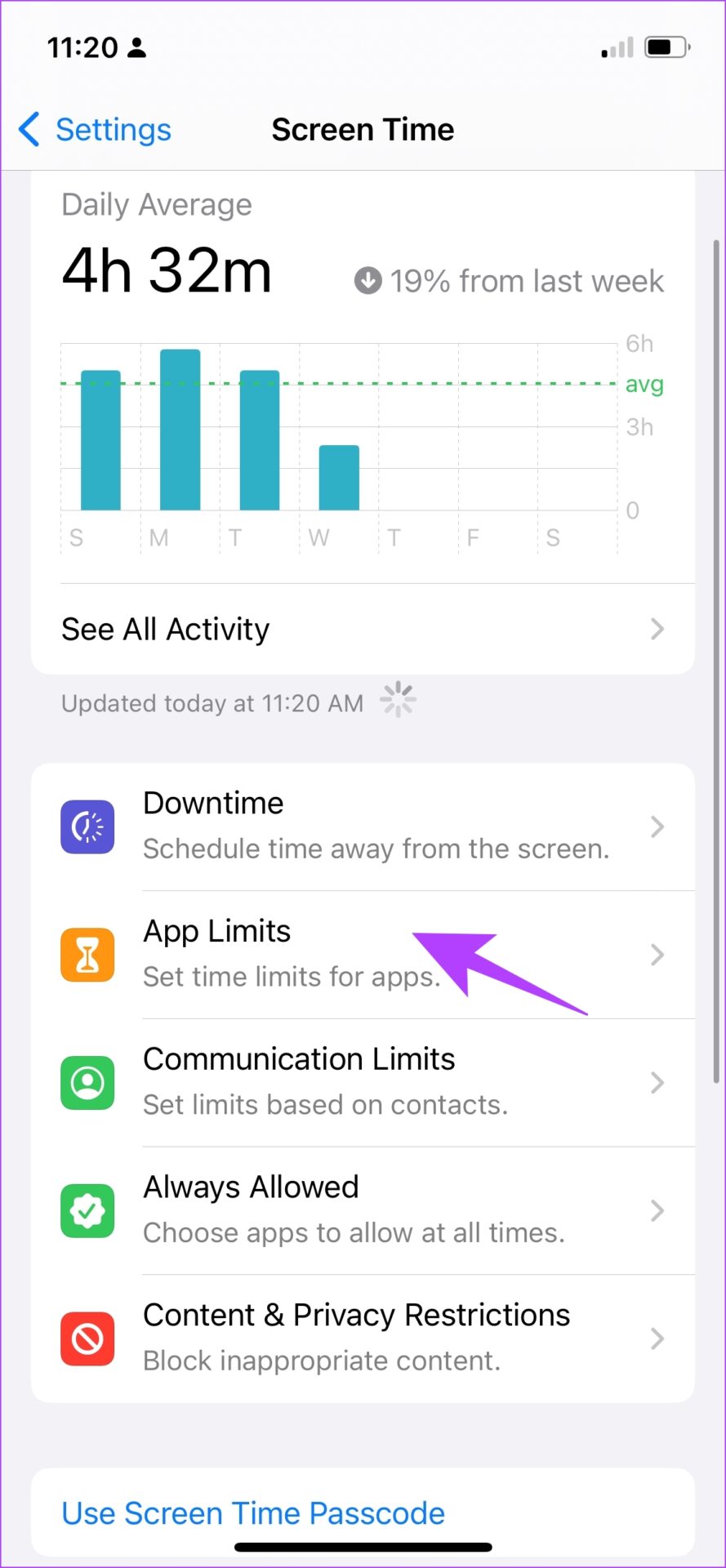
Step 1: Open the Settings app and select Screen Time.

Step 2: You need to select App Limits.

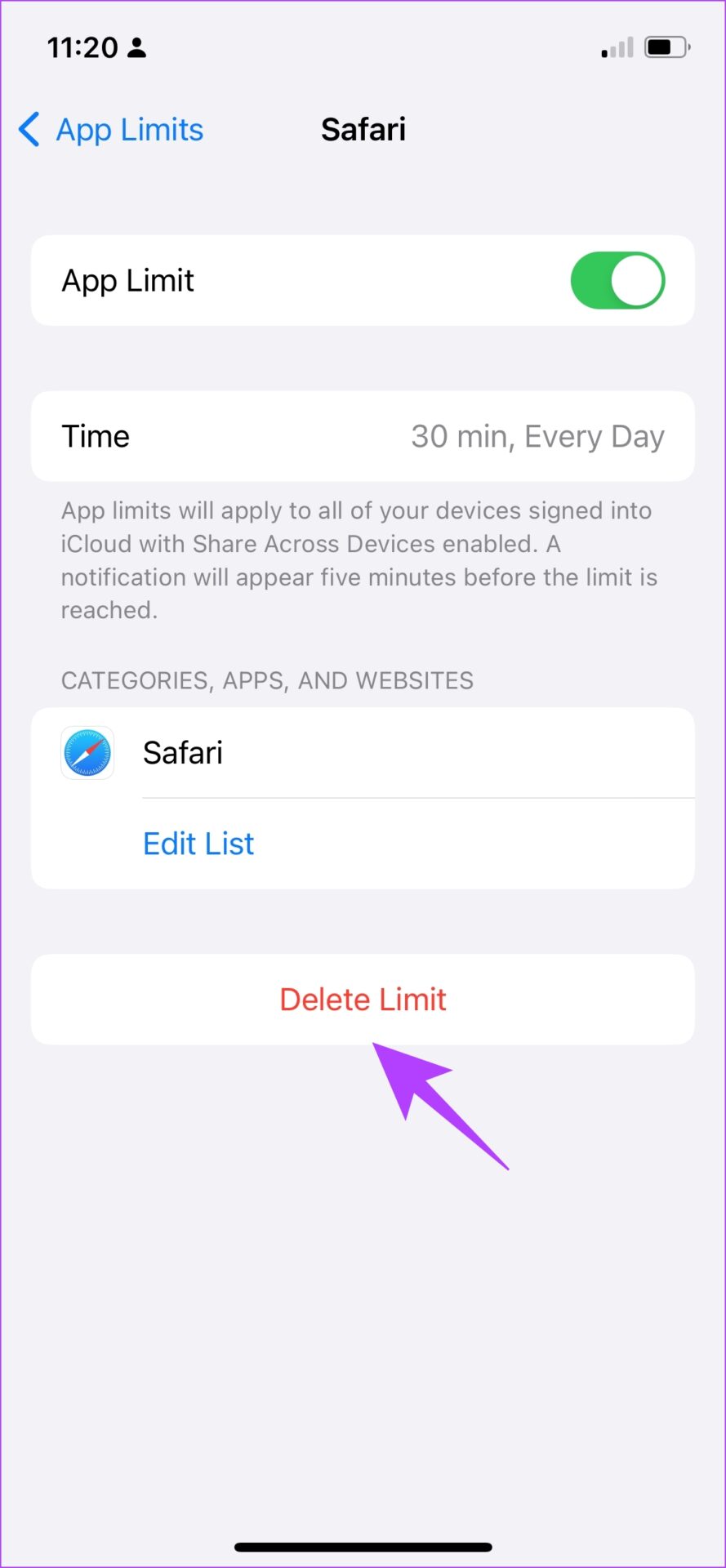
Step 3: Safari will show up in this list if there is a limit for it. Tap on it, and select Delete Limit.

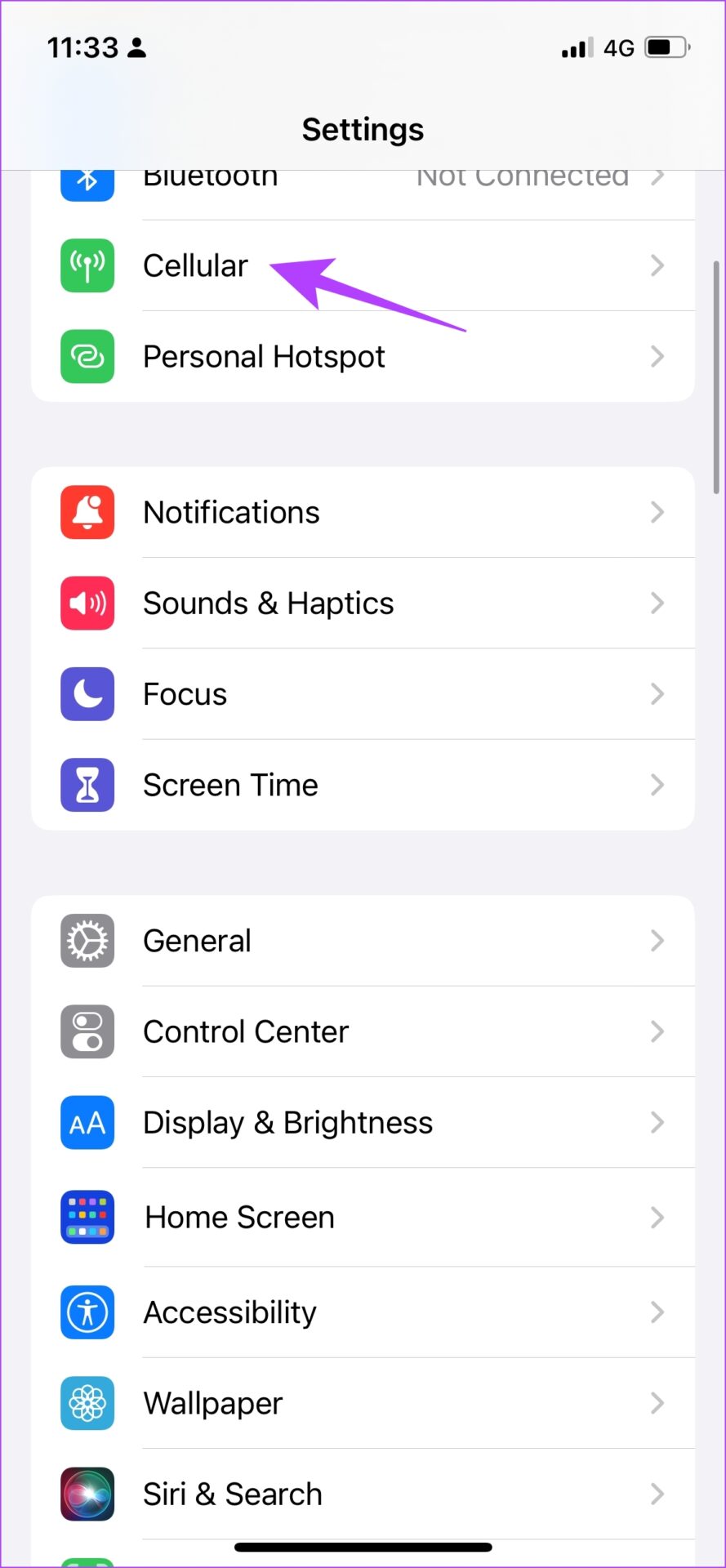
Fix 2: Check Cellular Settings for Safari

If you have turned off cellular data access for Safari, the browser won’t be able to open websites and work as expected.

Step 1: Open the Settings app and select Cellular.

Step 2: Scroll down to find Safari. Turn on the toggle to give Safari access to cellular connectivity.

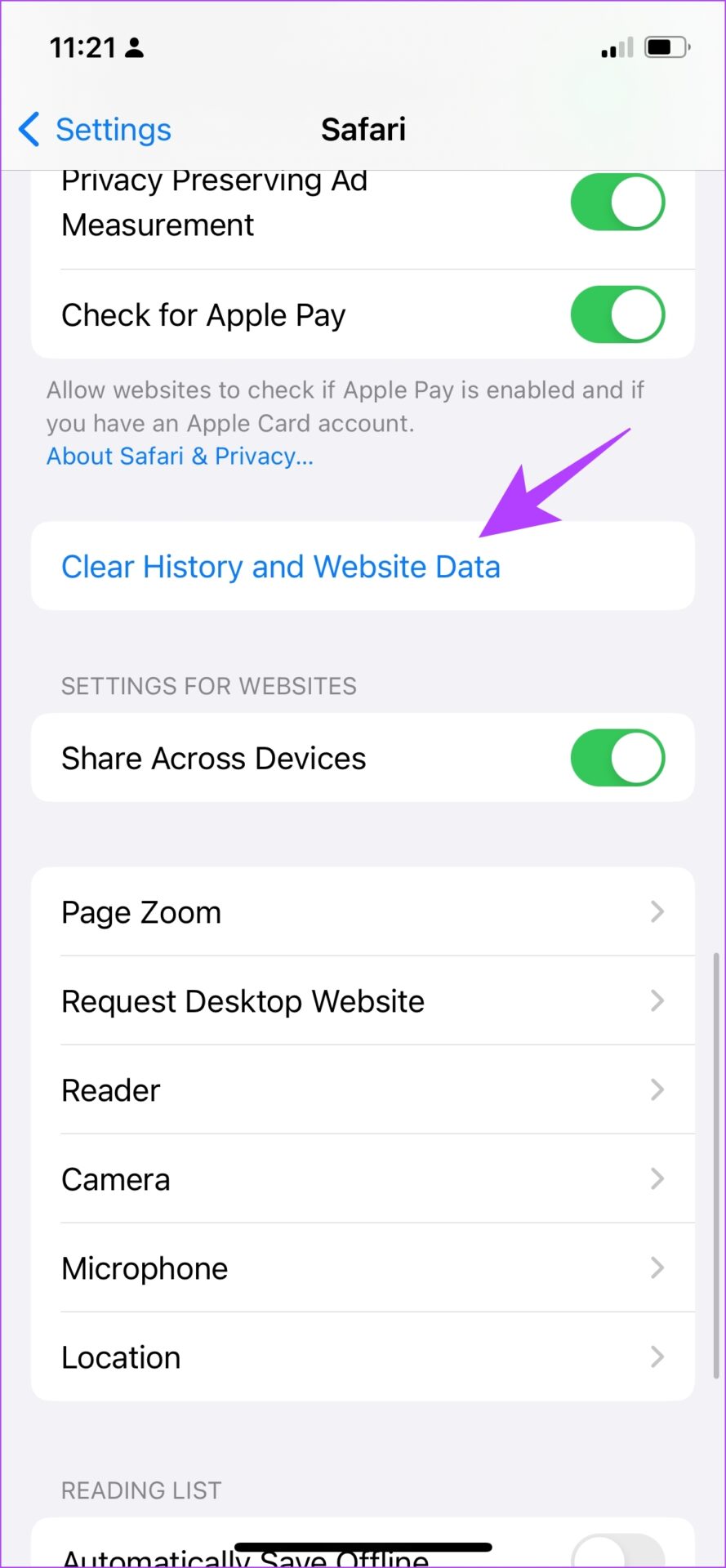
Fix 3: Clear Safari History and Data

If you have been using Safari for a long time, it will accumulate a lot of website data. This can slow down Safari and affect the web browsing performance.

Step 1: Open the Settings app and select Safari.

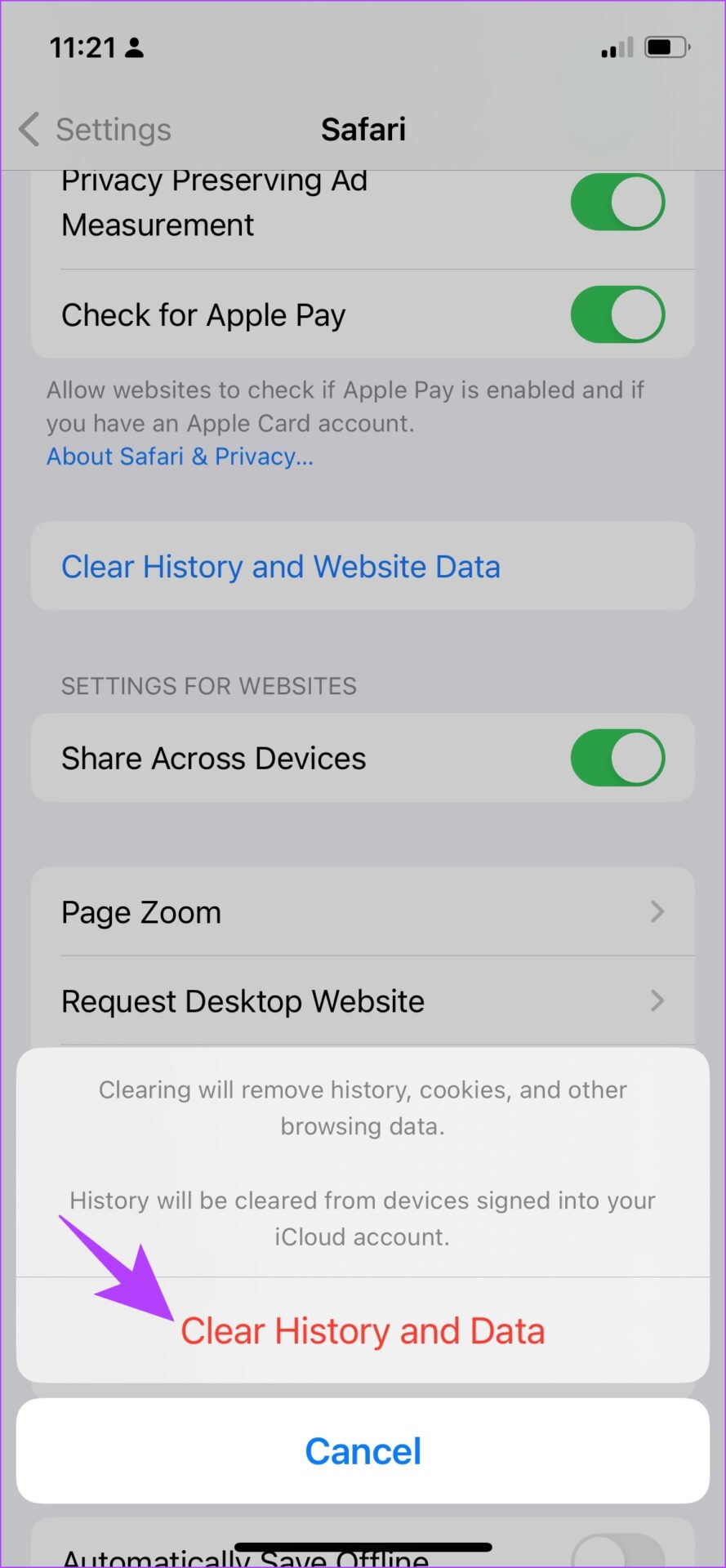
Step 2: Tap on Clear History and Website Data and select Clear History and Data to confirm. This will delete your browsing history, stored cache, cookies, and saved passwords.

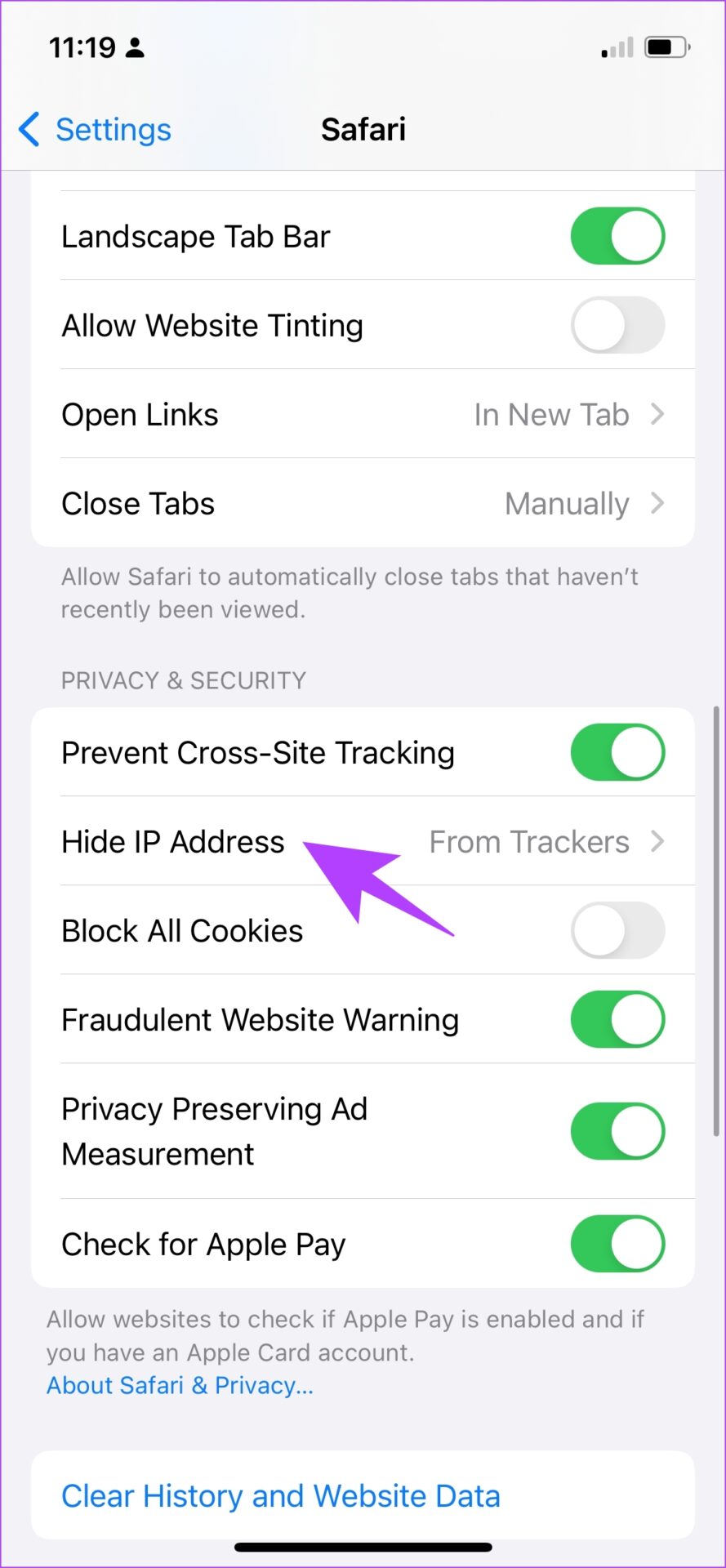
Fix 4: Turn Off Hide IP Address From Trackers

While this ensures that your IP address is not provided to any browser trackers, it might cause issues with Safari on your iPhone/iPad.

Step 1: Open the Settings app and select Safari.

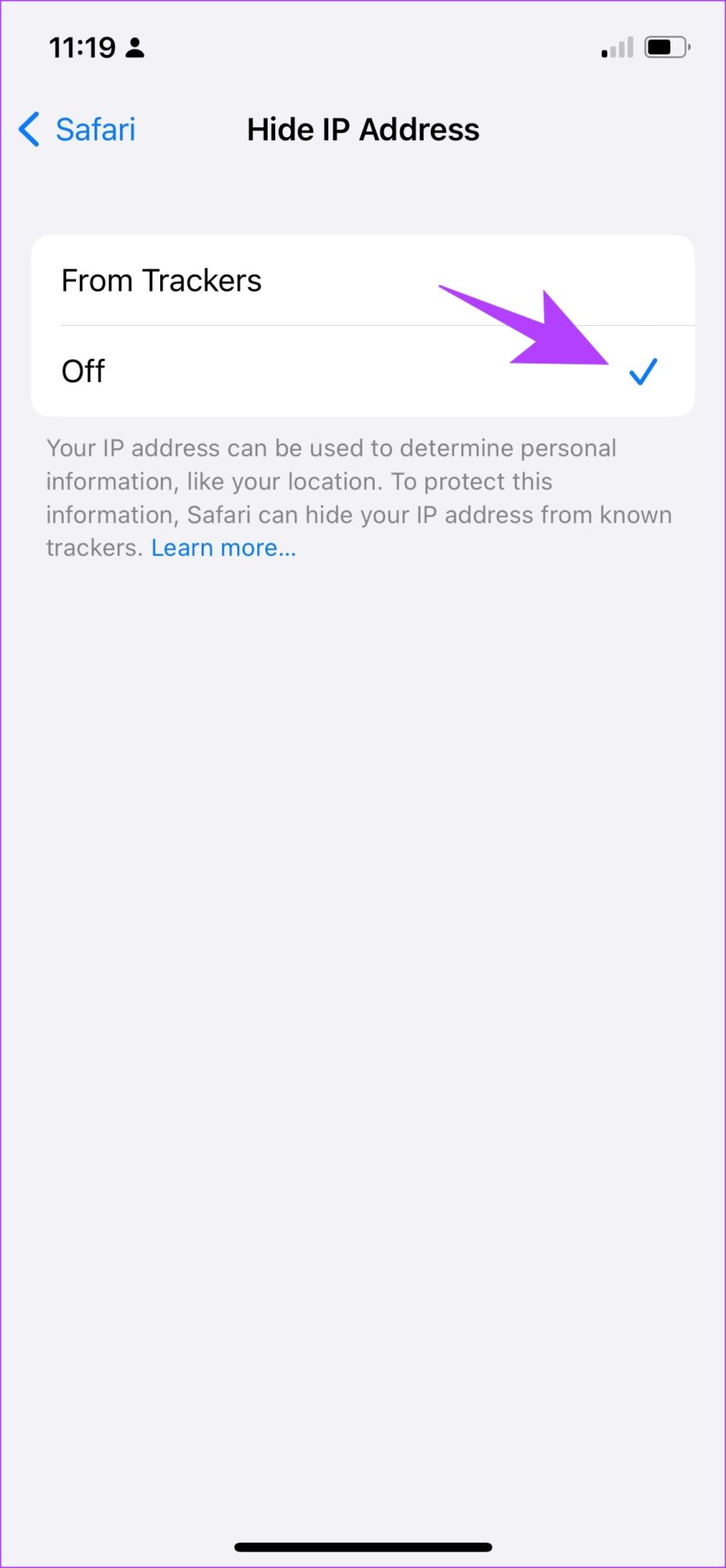
Step 2: Tap on Hide IP Address. Select Off, if not already.

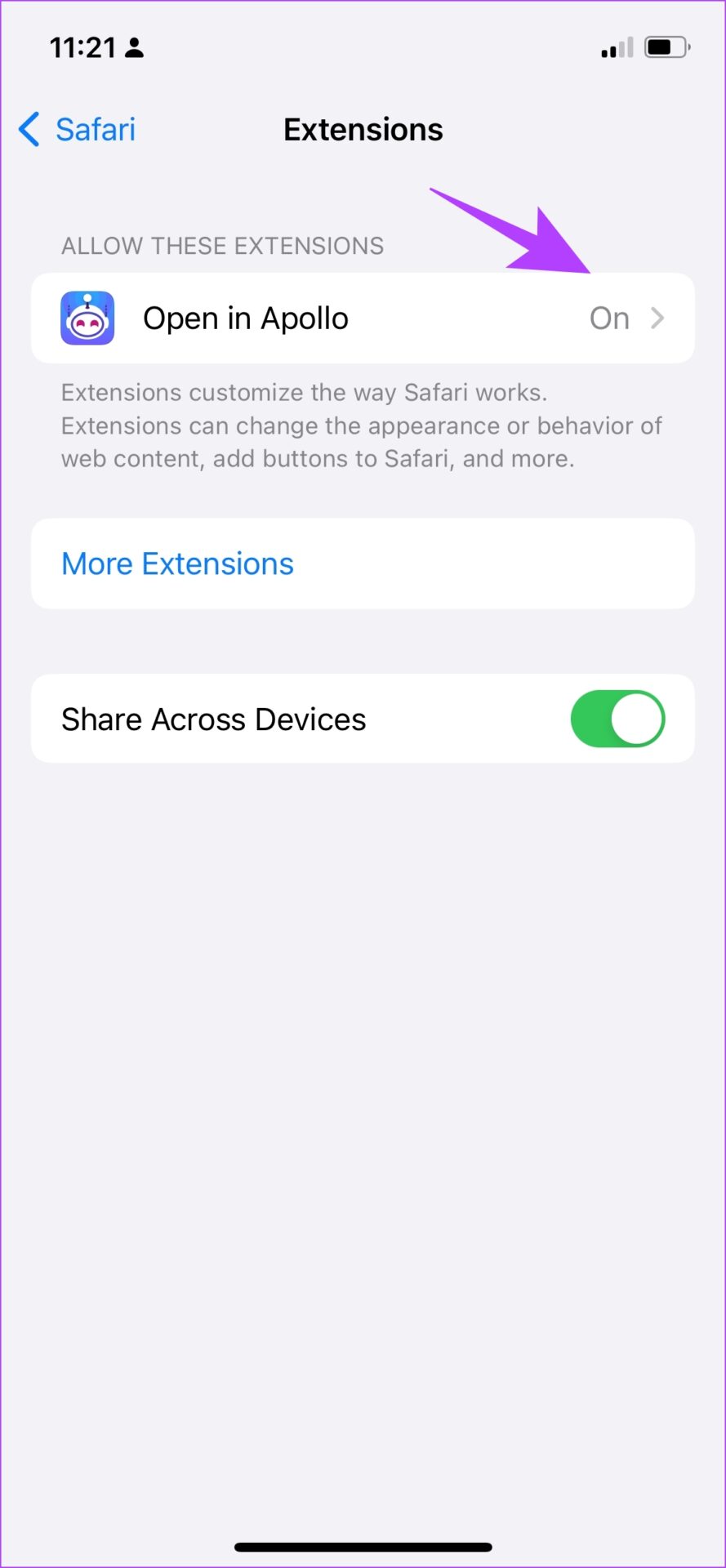
Fix 5: Check Safari Extensions

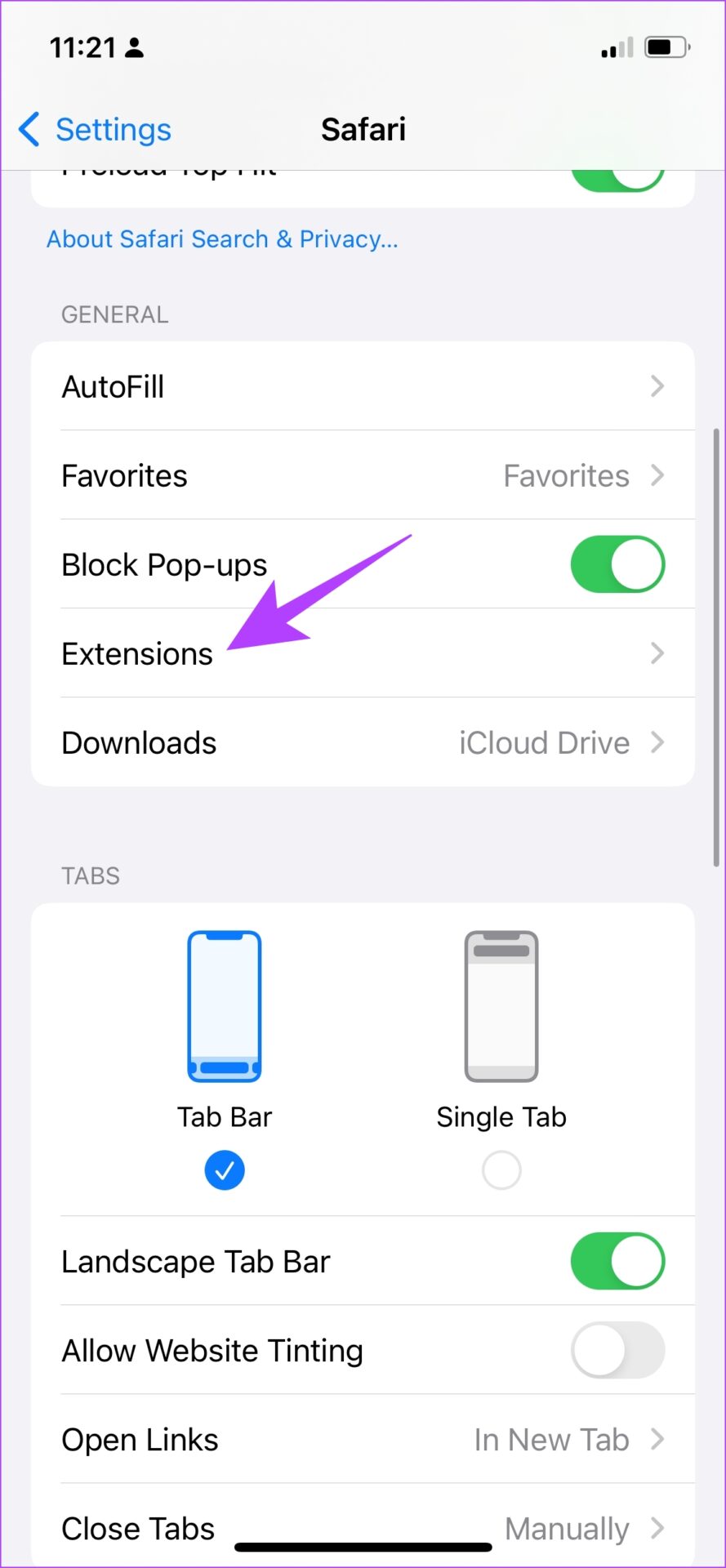
While Safari extensions on iPhone help expand functionality, not all extensions are stable and some might cause issues with your web browsing experience.

Note: The extension we are using to show you the steps is just an example. By no means we are stating that this extension is causing issues.

Step 1: Open the Settings app and select Safari.

Step 2: Now, tap on Extensions. Select the extension, and toggle it off.

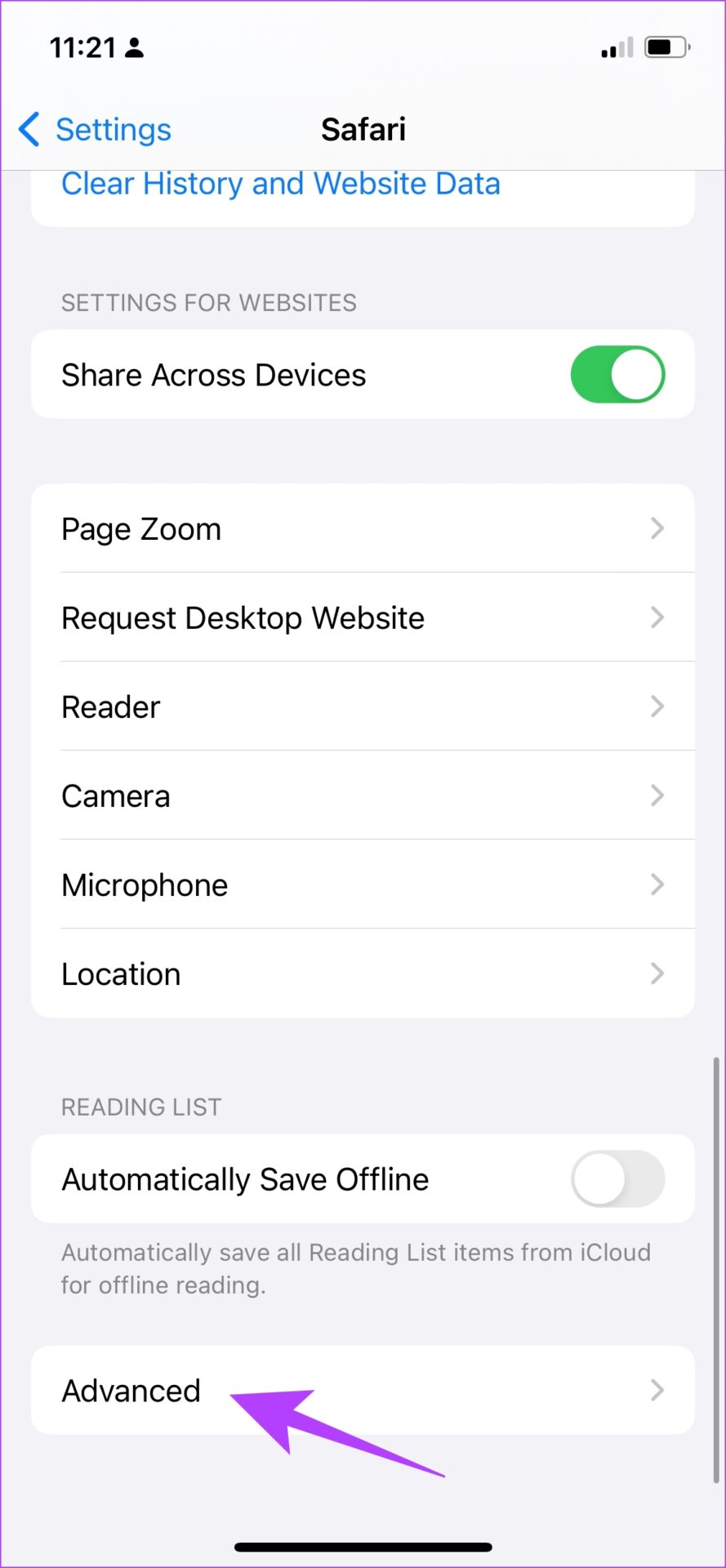
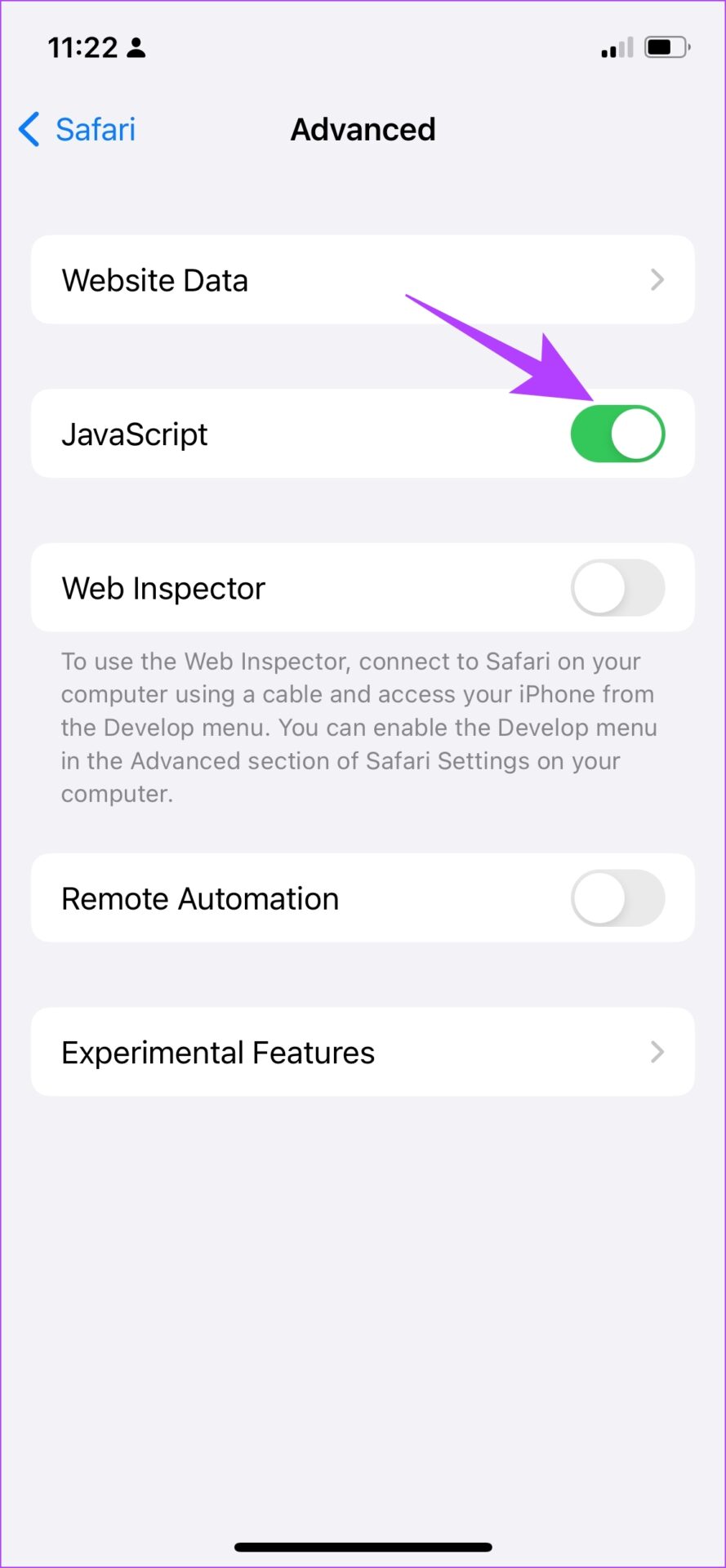
Fix 6: Enable JavaScript

JavaScript is a crucial element in websites that enables interactive content. If you disable it, you won’t see any images, videos, or other media content on a website.

Step 1: Open the Settings app and select Safari.

Step 2: Scroll down and tap on Advanced. Turn on the toggle for JavaScript.

If none of the above methods work, try resetting all the settings on your iPhone/iPad.

Was this helpful?

Thanks for your feedback!

3 Fixes for Microsoft Outlook Not Receiving Emails on Android

Basic Fixes

  • Check other inboxes: If you have multiple email accounts in the Outlook app, you might have opened the wrong one in the app.
  • Check outlook account storage status: Check how much storage is available on your Outlook account to store new emails.
  • Force quit and relaunch Outlook: Long-press the Outlook app icon > App Info > Force stop > Relaunch the app.
  • Update or Reinstall Outlook app: Install the latest version of the app on your Android phone.

Fix 1: Remove and Add the Account Again

Did you recently change the password for your email account? You must reauthenticate with the latest account details in Outlook to start receiving new emails again.

Step 1: Open Outlook > Settings.

Step 2: Select the troubling email account. Tap on Delete account and then confirm your decision.

Step 3: Return to Settings and then select Add mail account.

Step 4: Enter the email address and password to authenticate your account.

Fix 2: Clear Outlook App Cache

A corrupt Outlook cache may lead to the app not receiving emails issue on Android.

Open Outlook App Info > Storage and cache > Clear cache.

Fix 3: Reset Your Email Account

If you face syncing issues, Outlook allows you to reset an account. Go through the steps below.

Step 1: Open Outlook > Settings.

Step 2: Select an email account and then tap Reset account from the following menu.

Step 3: Tap Continue to restart the Outlook app.

Tip: Check out our post if the Outlook app is not syncing emails on your Android phone.

Was this helpful?

Thanks for your feedback!

3 Ways to Fix Microsoft Excel Document Not Saved Error in Windows 11

Try Basic Fixes

  • Try saving the document with a different name: Press F12 on your keyboard to bring up the Save As dialog in Excel. Specify a different name for the document and try to save it.
  • Close background apps and programs: At times, third-party apps and programs running in the background can interfere with Excel and prevent it from saving files. Close any unwanted background apps and programs and save your file again.

Fix 1: Check Folder Permissions

The “Document not saved” error can also occur if you do not have the necessary permissions to access the folder where you’re trying to save the file. To fix this, take ownership of the folder where you’re trying to save the file. Here’s how to do it.

Step 1: Right-click on the folder where you wish to save the files and select Properties.

Open Folder Properties on Windows

Step 2: Under the Security tab, click on Advanced.

Folder Properties

Step 3: Click on Change next to the Owner.

Change Folder Owner

Step 4: Type your username in the text field and click on Check Names. Then, click OK.

Select New Folder Owner

Step 5: Check the box for Replace owner on subcontainers and objects option. Then, hit Apply, followed by OK.

Change Folder Ownership on Windows

Fix 2: Open Excel in Safe Mode and Disable Add-Ins

Using Excel in safe mode can help you verify if one of the add-ins is causing the “Document not saved” error. Press the Windows key + R to open the Run dialog, type excel -safe in the box, and press Enter.

Try saving your file in safe mode. If it works, disable all add-ins and re-enable them one by one to isolate the culprit.

Step 1: Open Excel and click the File menu at the top left corner.

Excel File Menu

Step 2: Click Options at the bottom left corner.

Excel Options Menu

Step 3: In the Excel Options window, navigate to the Add-ins tab. Then, select COM Add-ins in the Manage drop-down menu and click on Go.

Excel Options

Step 4: Uncheck all the add-ins and click OK.

Disable Excel Add-ins

Restart Excel and enable your add-ins one at a time. After you enable each add-in, try saving a test document to identify the one that causes the issue.

Fix 3: Repair Microsoft Excel

If nothing works, use the Microsoft Office repair tool to fix any problems with Excel. Here’s how.

Step 1: Right-click on the Start icon and select Installed apps from the list.

Installed Apps on Windows

Step 2: Scroll down to locate the Microsoft Office product on the list. Click on the three-dot menu icon next to it and select Modify.

Modify Microsoft Office on Windows 11

Step 3: Select Online Repair and hit Repair.

Repair Office Apps

Was this helpful?

Thanks for your feedback!