Helping millions of people navigate the world of technology.

7 Ways to Fix Low Volume on Windows 11

Try Basic Fixes

  • Check the volume mixer: Right-click the speaker icon on the taskbar and select the Open volume mixer option. In the Settings window that opens, check the volume level under the System section and increase it to your liking. Windows 11 allows you to set different volume levels for each app, so be sure to review and adjust the levels for every app you intend to use.
  • Verify the volume levels of your headphones or speakers: If your headphones or speakers have their own volume controls, make sure you check them as well. If you’ve accidentally muted your audio device, it can make it seem like there’s a problem with your PC. You can also switch to a different audio device to rule out any issues with your headphones or speakers.

Fix 1: Run the Audio Troubleshooter

Windows 11’s audio troubleshooter can automatically detect and resolve common sound-related issues on your computer. You can try running this troubleshooter if the speaker or headphone volume remains too low even after you increase it.

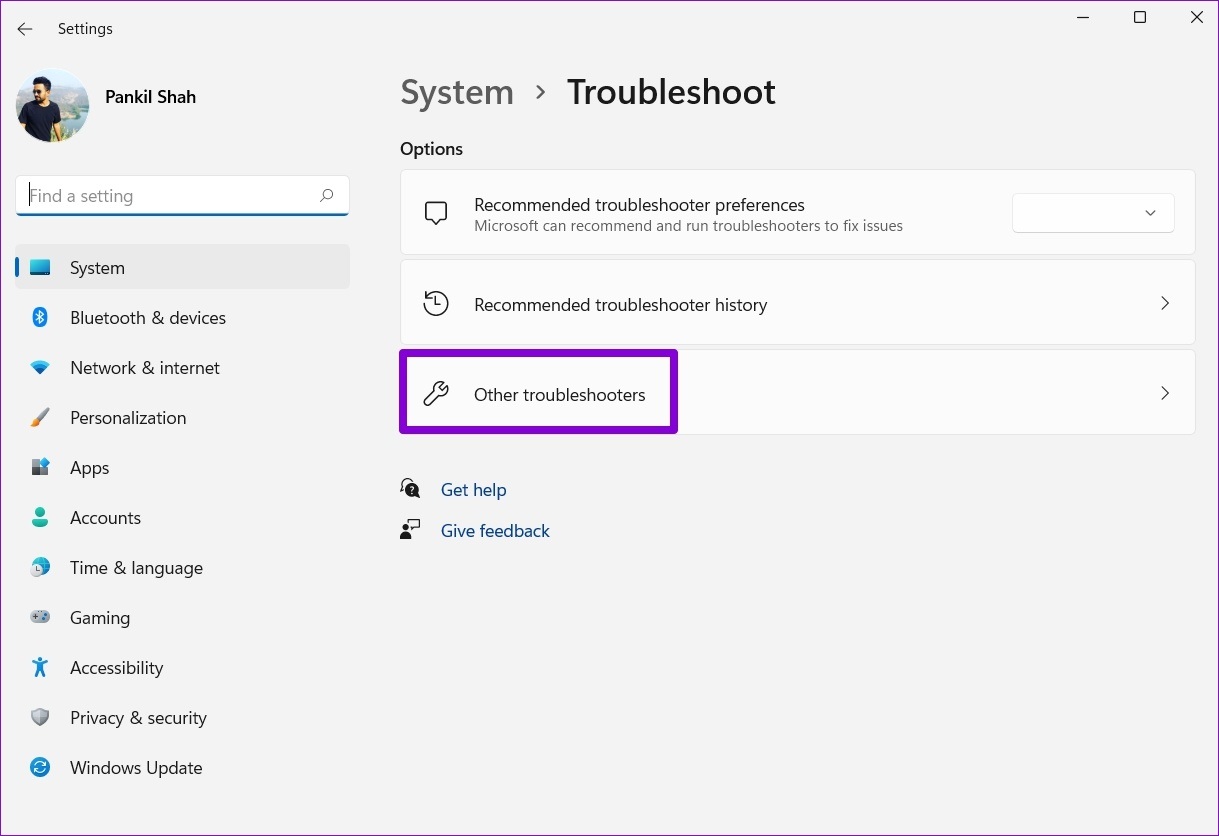
Step 1: Press the Windows key + I to open the Settings app and head to System > Troubleshoot.

Windows Troubleshooter

Step 2: Go to Other troubleshooters.

Other Troubleshooters

Step 3: Click the Run button next to the Playing Audio troubleshooter.

Run Audio Troubleshooter on Windows

Follow the on-screen prompts and allow Windows to resolve any issues.

Fix 2: Enable Loudness Equalization

The Loudness Equalization feature on Windows can help boost your PC’s overall volume output. You can try enabling it if running the troubleshooter does not help.

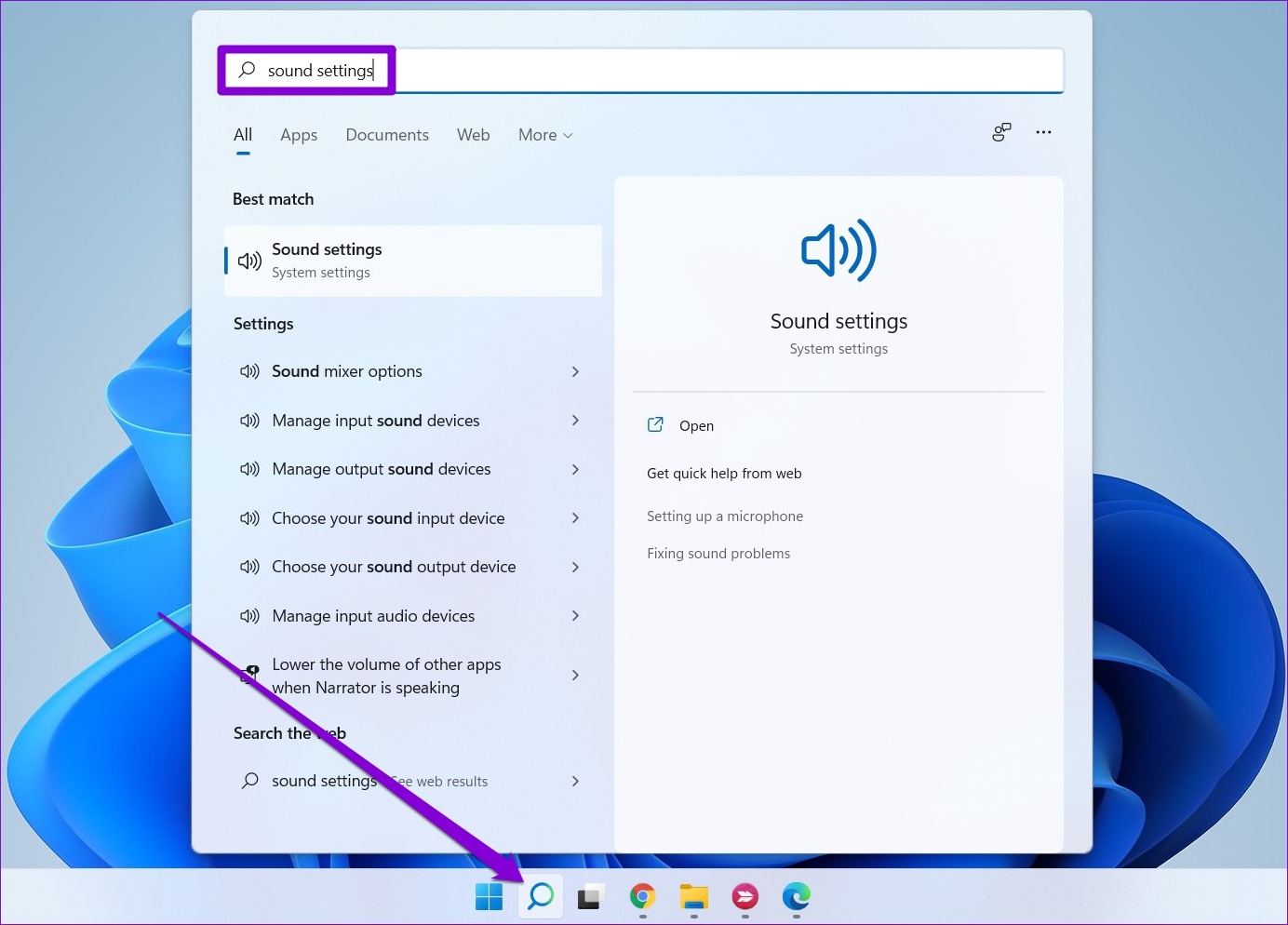
Step 1: Click the search icon on the taskbar, type in sound settings and press Enter.

Open Sound Settings on Windows 11

Step 2: Under Advanced, click on More sound settings.

More Sound Settings

Step 3: Double-click on your audio device to open its properties.

Sound Output Device

Step 4: Switch to the Enhancements tab and tick the Loudness Equalization option. Then, hit Apply followed by OK.

Enable Loudness Equalization on Windows

Fix 3: Disable Sound Enhancements

While Windows 11’s built-in audio enhancements promise to improve the sound output, they may not work well with all audio devices. So, if the sound output appears to be too low, it’s best to disable these enhancements.

Step 1: Press the Windows key + I to open the Settings app and navigate to Sound.

Sound Settings on Windows

Step 2: Select your audio device.

Sound Output Device Properties

Step 3: Use the drop-down menu next to Audio enhancements and select Off.

Disable Audio Enhancements on Windows

Fix 4: Modify Sound Properties

Windows 11 includes a feature that automatically reduces your PC’s volume when it detects communication activity. Since this feature could contribute to the low volume issue on Windows, you should disable it using these steps:

Step 1: Right-click the speaker icon and select Sound settings.

Open Sound Settings

Step 2: Click on More sound settings.

More Sound Settings

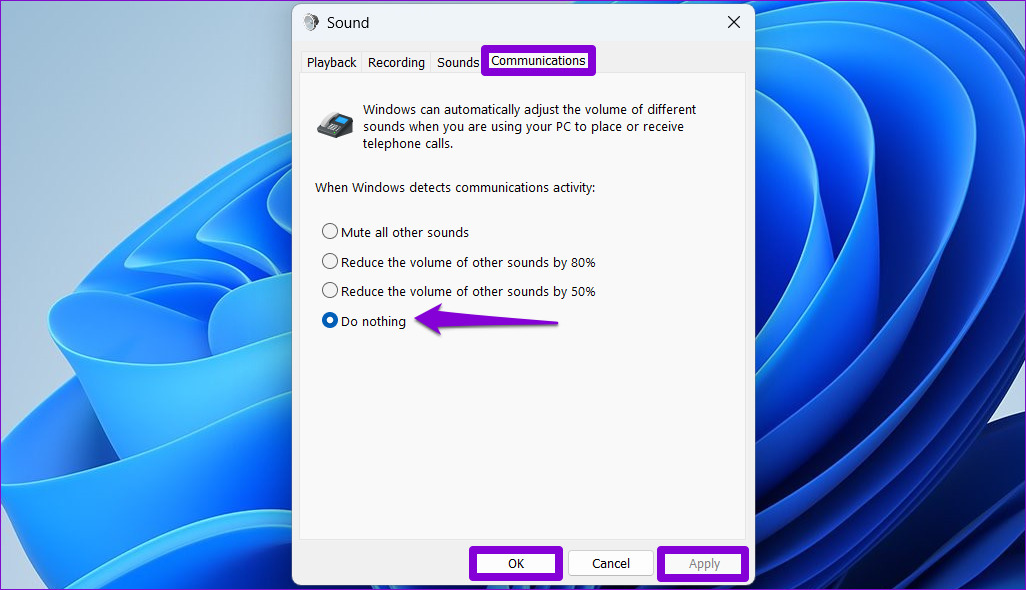
Step 3: Switch to the Communications tab and select the Do nothing option. Then, hit Apply followed by OK.

Sound Settings on Windows

Fix 5: Update or Reinstall the Audio Driver

If the sound output on your Windows 11 laptop or PC is still low, it could be due to incompatible or outdated audio drivers. In such cases, updating the audio drivers should help fix the issue.

Step 1: Right-click on the Start icon and select Device Manager from the list.

Open Device Manager on Windows

Step 2: Double-click on Sound, video and game controllers to expand it. Right-click on your audio device and select Update driver.

Update Sound Drivers on Windows

From there, follow the on-screen prompts to finish updating the driver. If the issue remains, uninstall the audio drivers using Device Manager. Then, restart your PC and Windows will install the missing driver whenever it boots next.

Uninstall Sound Drivers on Windows

Fix 6: Restart Audio Services

On Windows, services are small programs that run in the background every time your PC boots up. If one of the audio-related services is malfunctioning, you could experience low-volume issues. Here’s what you can do to fix that.

Step 1: Press the Windows key + R to open the Run dialog. Type services.msc in the box and press Enter.

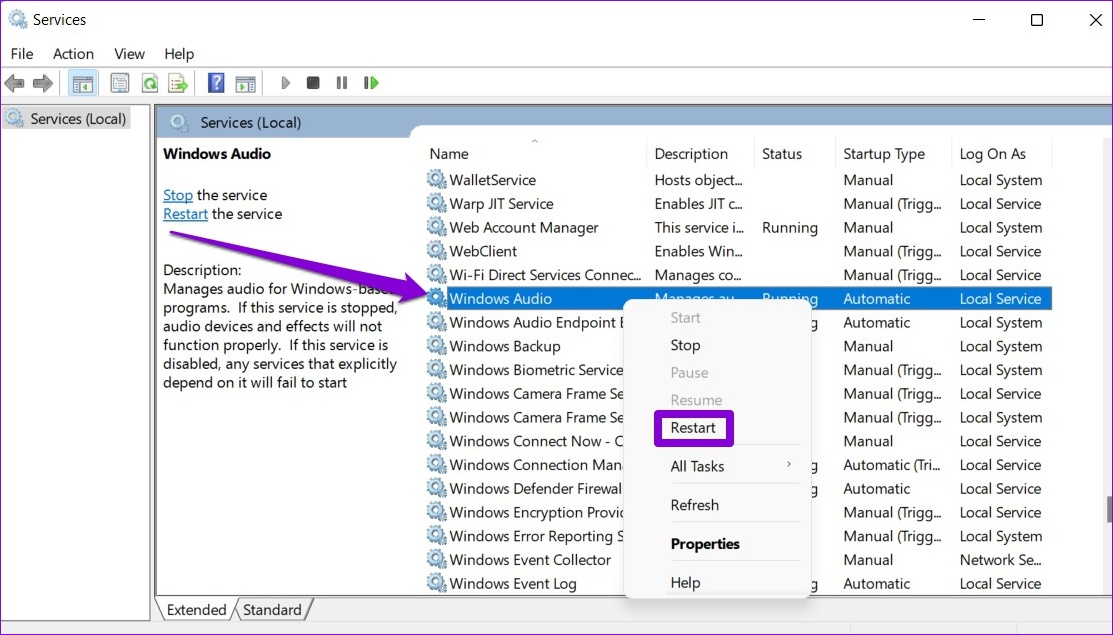
Step 2: In the Services window, scroll down to locate the Windows Audio service. Right-click on Windows Audio and select Restart from the list.

Restart Windows Audio Service

Similarly, restart the “Windows Audio Endpoint Builder” service and see if that solves the problem.

Fix 7: Use a Third-Party App Like Equalizer APO

Several users on a Microsoft Community post reported fixing low-volume issues on Windows 11 by using the Equalizer APO app, which utilizes a high-quality audio processing engine. So, if all else fails, you can use Equalizer APO to fine-tune and boost the volume on your Windows 11 PC.

Equalizer APO

Was this helpful?

Thanks for your feedback!

5 Fixes For “Setup Incomplete Because of a Metered Connection” Error in Windows 11

Fix 1: Enable Driver Downloads Over Metered Connections

The “Setup incomplete because of a metered connection” error typically occurs when you pair a Bluetooth device, and Windows cannot download relevant drivers for it. To avoid this, you must allow Windows to download drivers over a metered connection.

Step 1: Press the Windows key + I to open the Settings app.

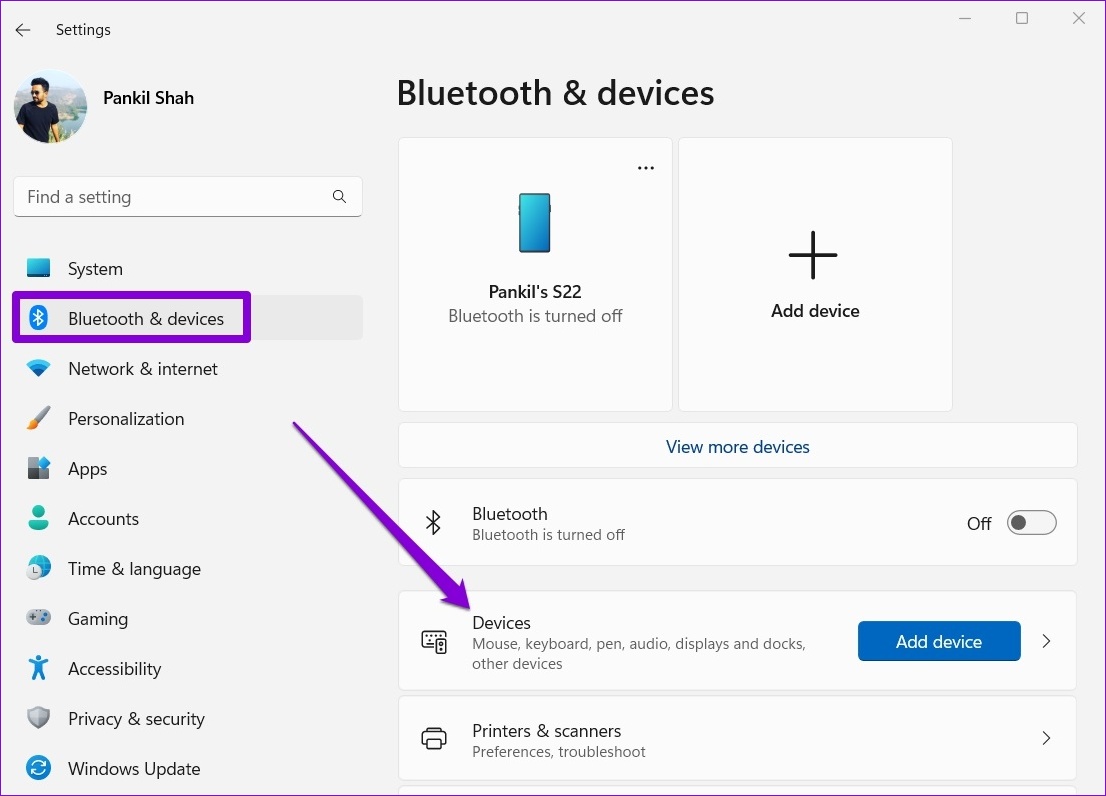
Step 2: Switch to the Bluetooth & devices tab and click on Devices.

Bluetooth and Devices on Windows 11

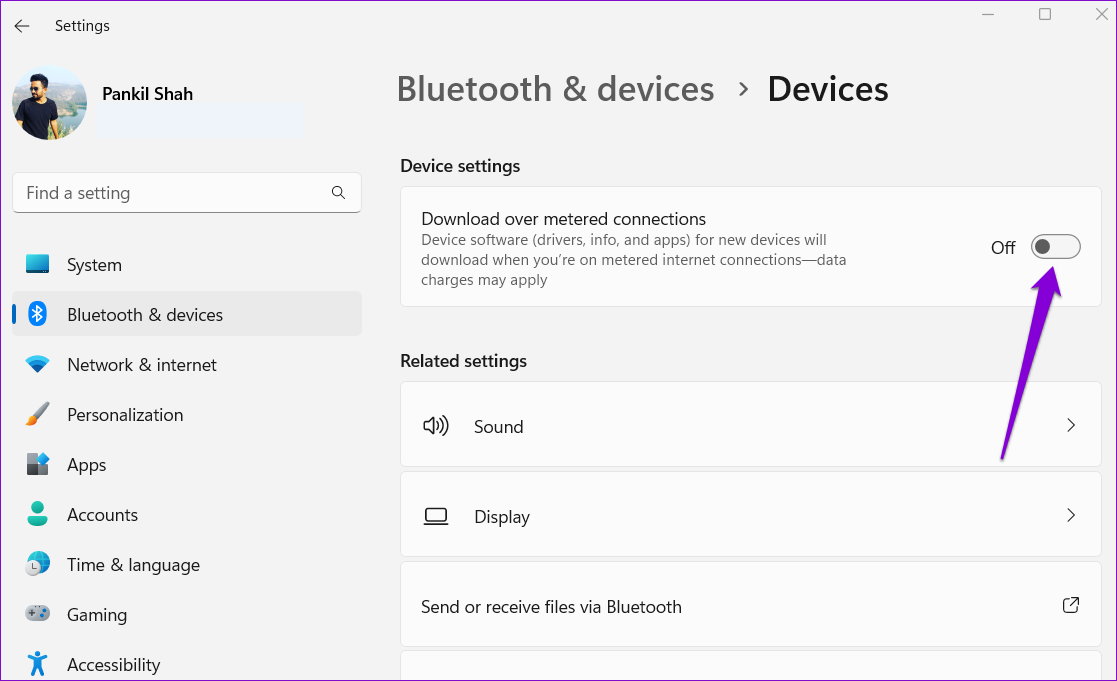
Step 3: Turn on the toggle for Download over metered connections.

Allow Driver Download Over Metered Connection

Try connecting your Bluetooth device to see if it works.

Fix 2: Disable Metered Connection

You can temporarily disable metered connection on Windows if the error persists. Here’s how:

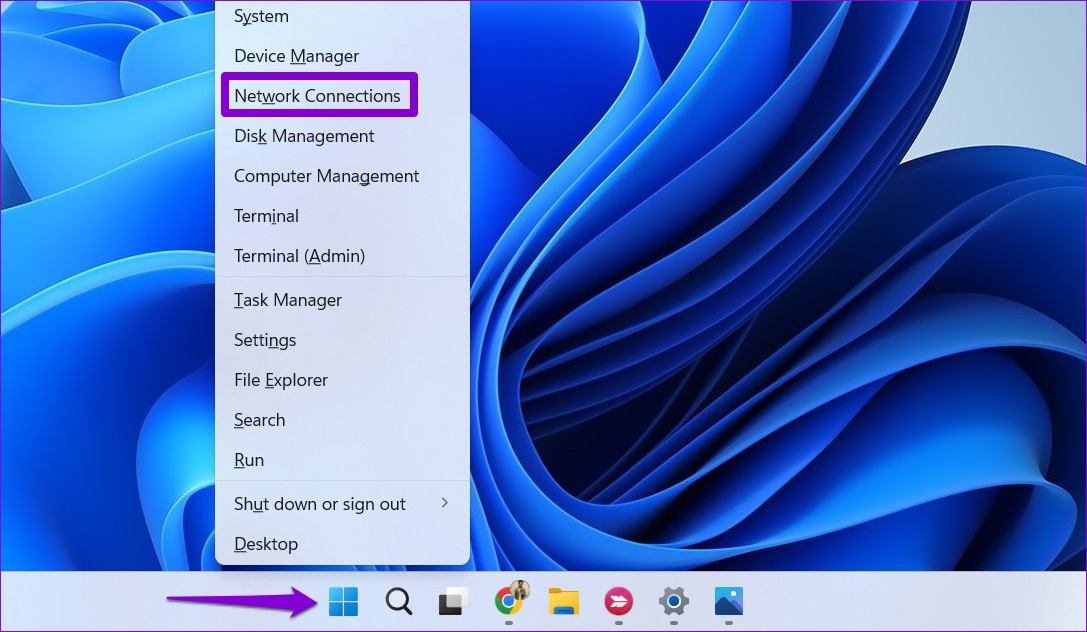
Step 1: Press the Windows key + X to open the Power User menu and select Network Connections from the list.

Open Network Connections

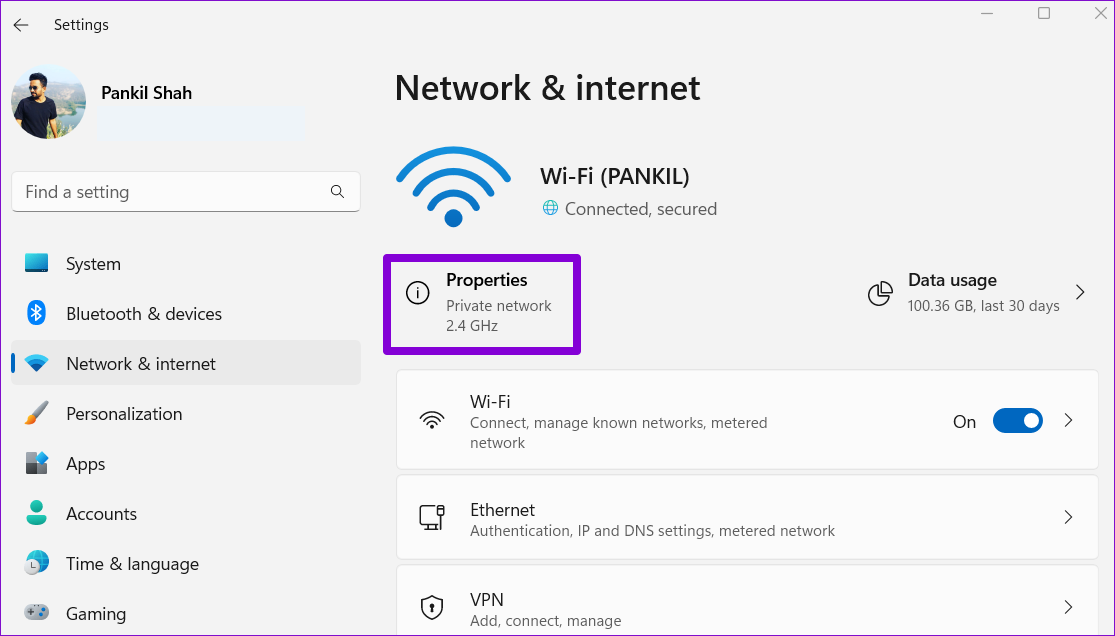
Step 2: Select Properties from the top of the screen to open network properties.

Open Network Properties in Windows

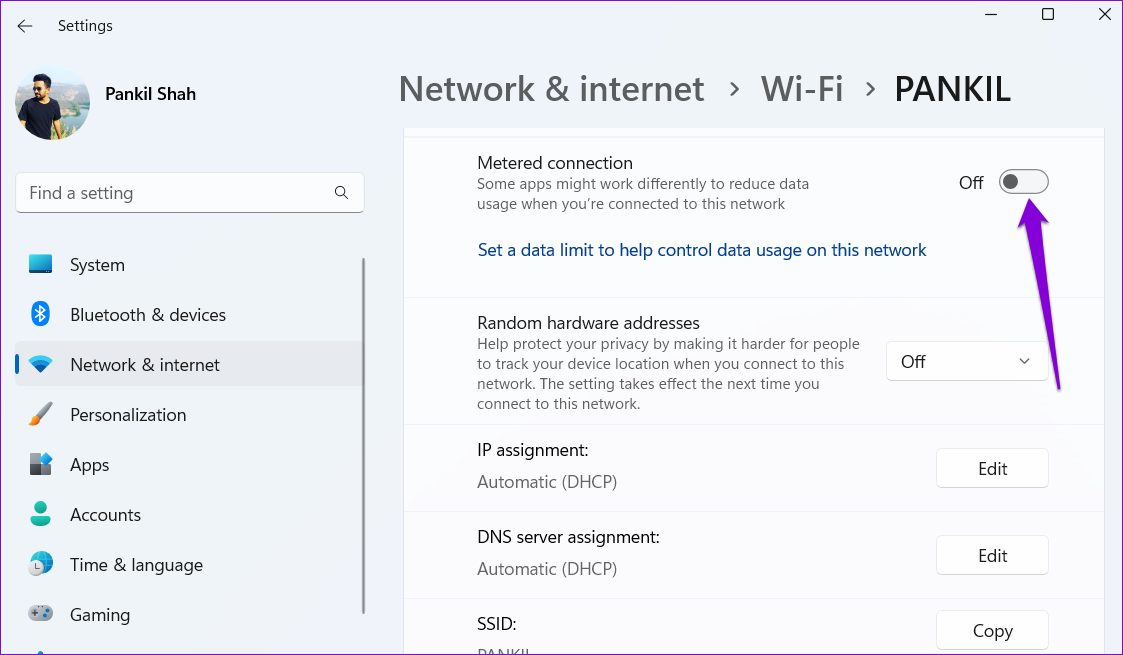
Step 3: Disable the Metered connection option.

Disable Metered Connection in Windows

Fix 3: Remove and Re-Add Your Bluetooth Device

If the “Setup incomplete because of a metered connection” error persists even after you disable metered connection, try unpairing your Bluetooth device and pairing it again.

Step 1: Press the Windows key + I to open the Settings app.

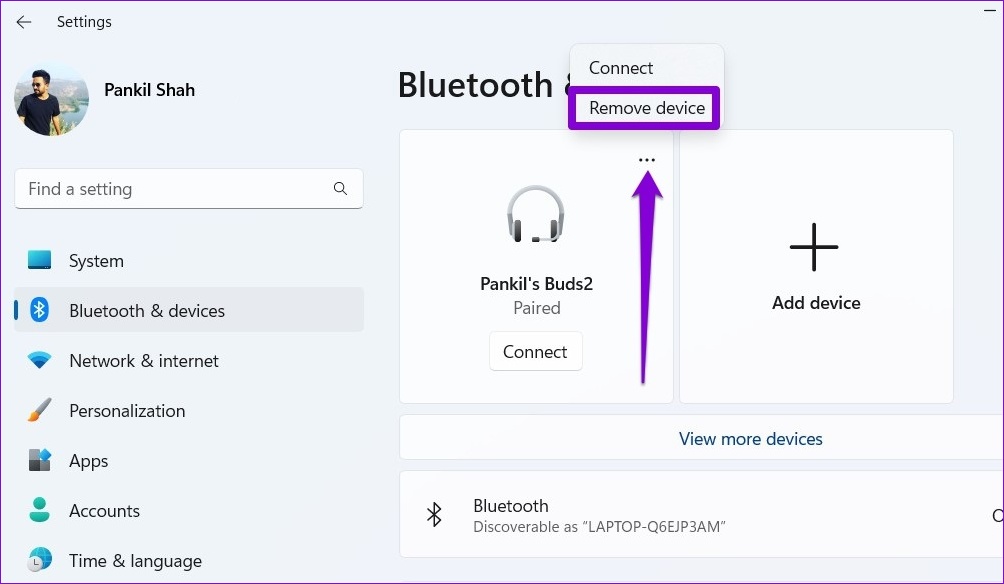
Step 2: Go to the Bluetooth & devices tab. Click the three-dot menu icon next to your Bluetooth device and select Remove device.

Unpair Bluetooth Device on Windows

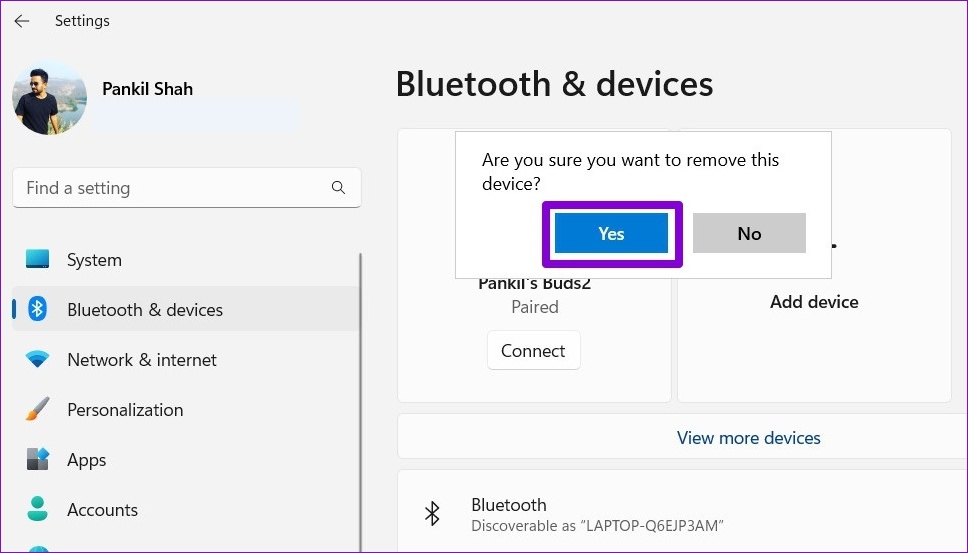
Step 3: Select Yes to confirm.

Confirm Unpair Bluetooth Device in Windows

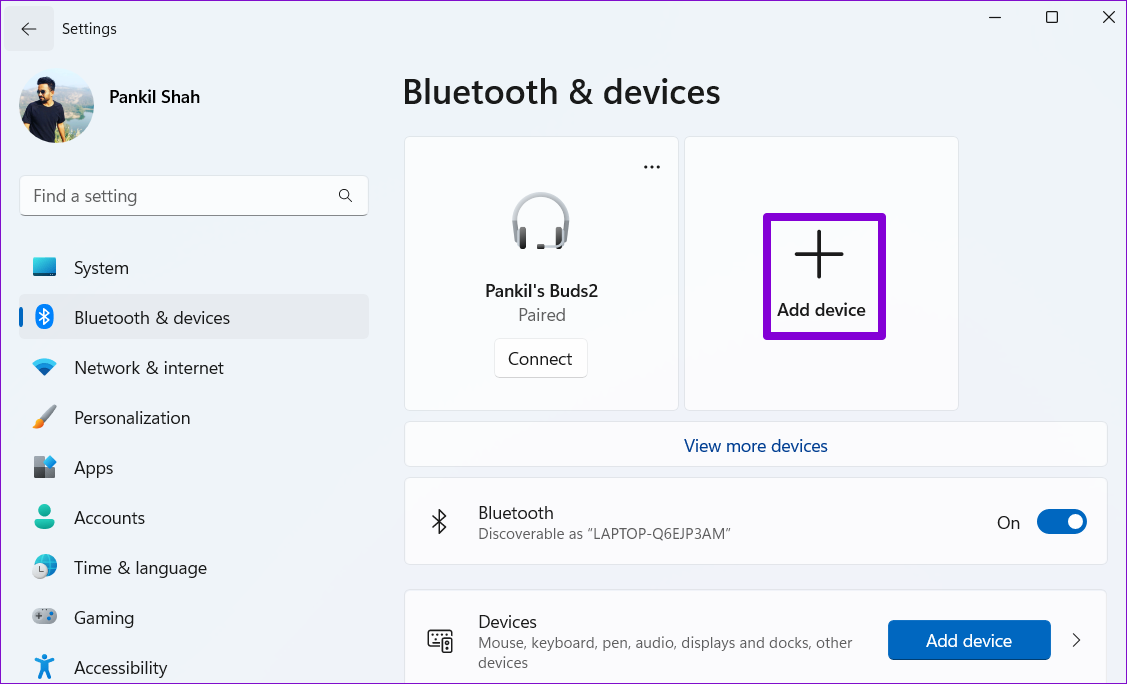
Step 4: Click the Add device button and follow the on-screen prompts to pair your device again.

Pair Bluetooth Device in Windows 11

Fix 4: Run the Windows Troubleshooter

Network connection issues can also trigger the “Setup incomplete because of a metered connection” error on Windows. Thankfully, Windows 11 includes a troubleshooter that can detect and resolve any common network issue on its own. Here’s how to run it.

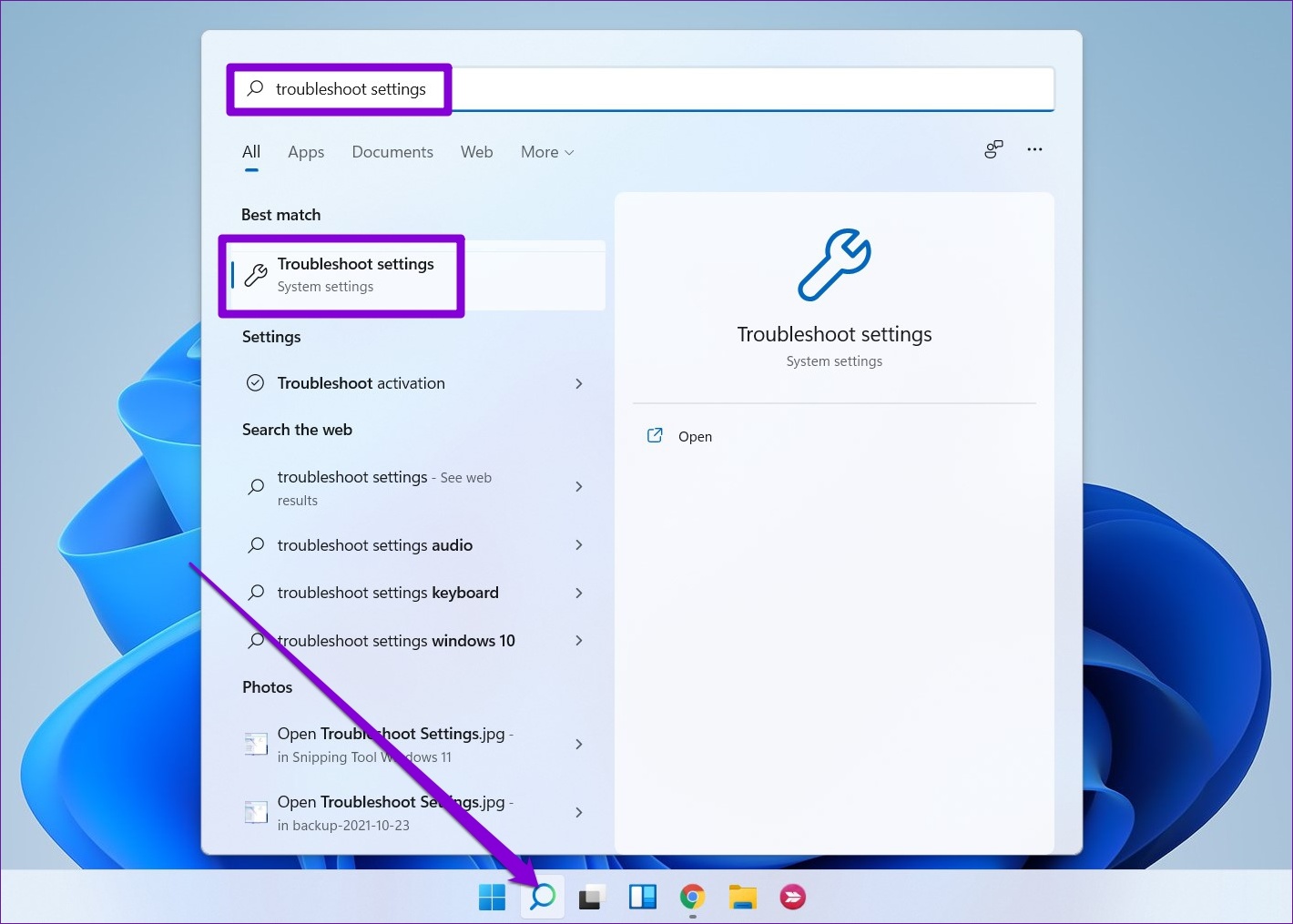
Step 1: Click the search icon on the taskbar, type troubleshoot settings, and press Enter.

Troubleshoot Settings on Windows 11

Step 2: Go to Other troubleshooters.

Other Troubleshooters in Windows 11

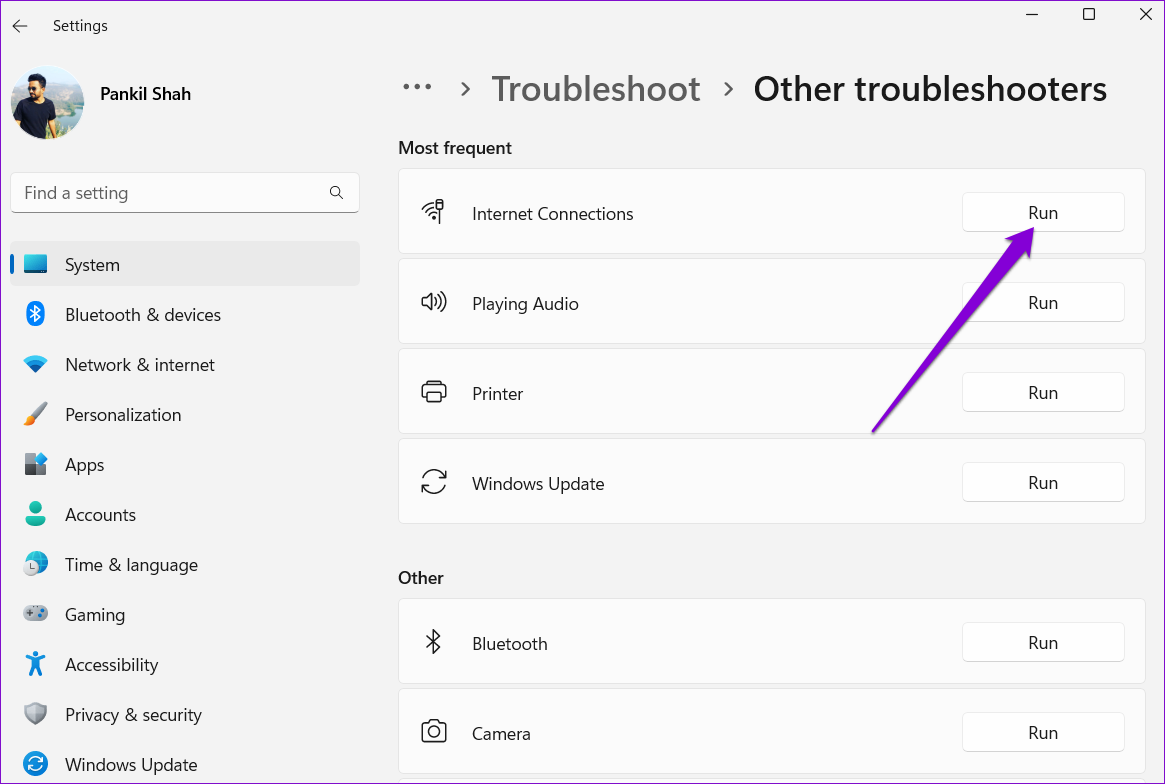
Step 3: Click the Run button next to Internet Connections.

Run Internet Connections Troubleshooter

Allow the troubleshooter to detect and fix any issues with your network. After that, you should be able to pair your device without issues.

Fix 5: Reset Network Settings

There’s a chance that one of Windows 11’s network settings is causing the “Setup incomplete because of a metered connection” error. Rather than going through all your network settings, it’d be easier to reset them and start over.

Note that this process will remove your saved networks and Bluetooth devices and reset all network settings to their default values.

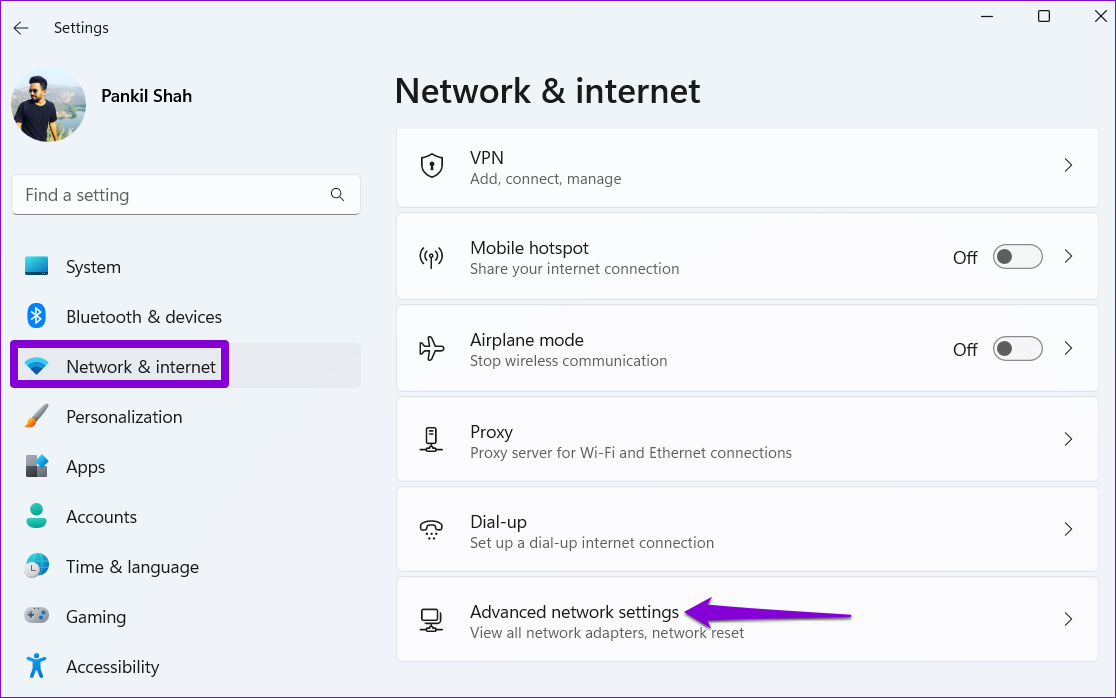
Step 1: Press the Windows key + I to launch the Settings app. In the Network & internet tab, click on Advanced network settings.

Advanced Network Settings in Windows

Step 2: Under More settings, click on Network reset.

Network Reset on Windows 11

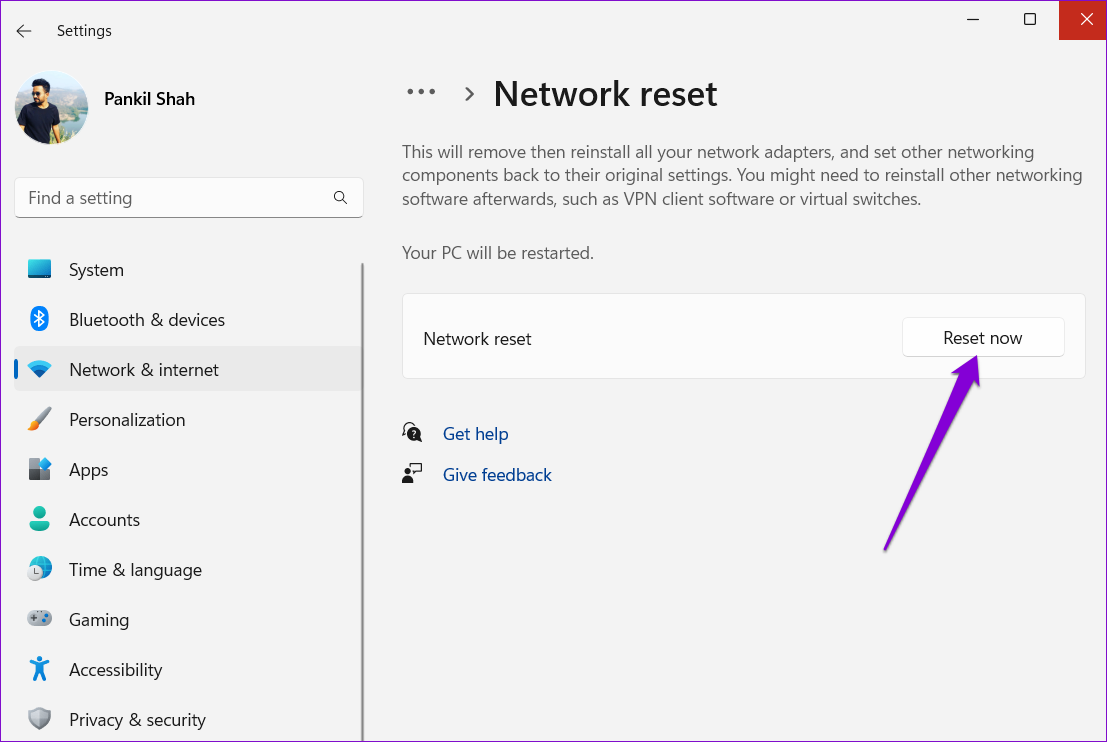
Step 3: Click the Reset now button next to Network reset.

Network Reset on Windows 11

Wait for the process to finish and reboot your PC. Then, see if you can pair your Bluetooth device successfully.

Was this helpful?

Thanks for your feedback!

How to Set Up and Use Google Chrome Remote Desktop on Windows 11

How to Download and Set Up Chrome Remote Desktop

To access your PC remotely, you’ll need to download and set up the Chrome Remote Desktop extension on your PC first.

Here’s how you can go about it.

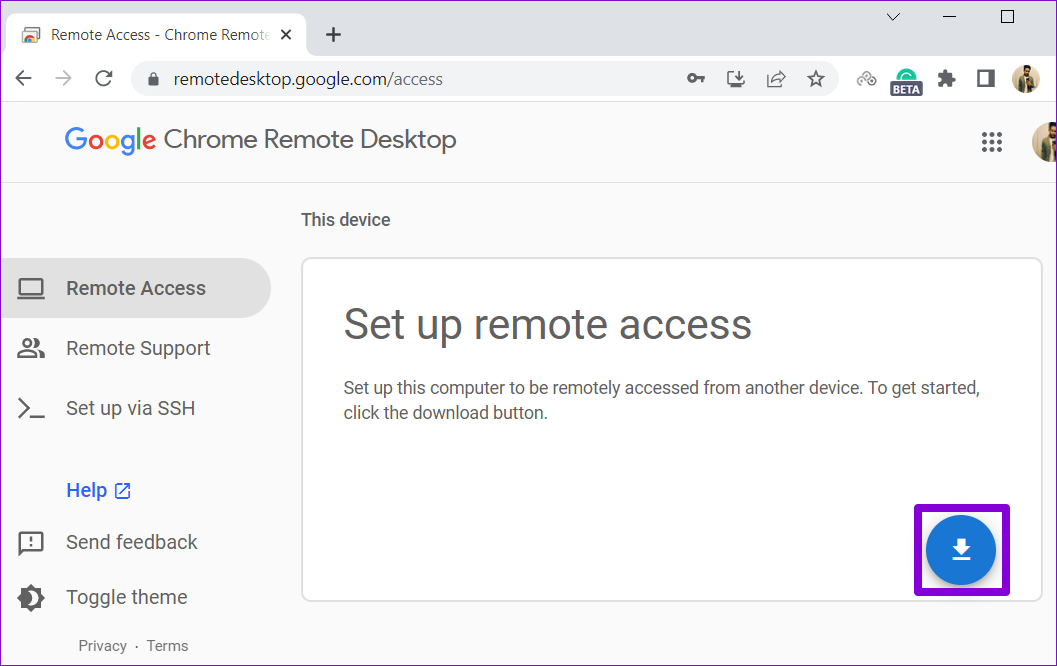
Step 1: Open Google Chrome on your PC and head to the Chrome Remote Desktop page.

Step 2: Click the download button under Set up remote access.

Download Chrome Remote Desktop

Step 3: Click the Add to Chrome button to add the Chrome Remote Desktop extension to your browser.

Add Chrome Remote Desktop to Chrome

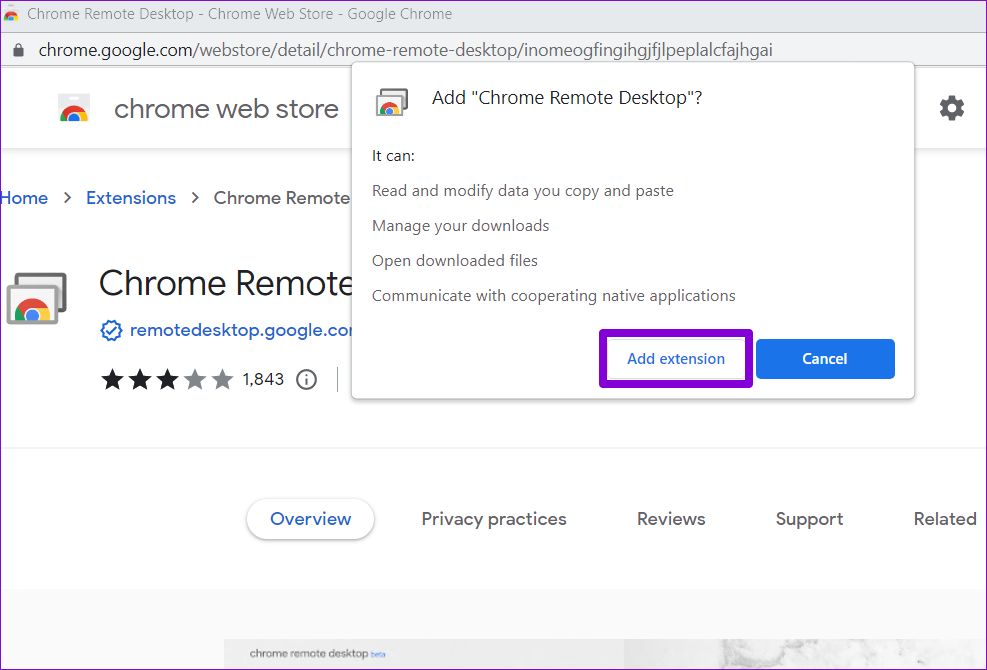
Step 4: Click the Add extension button to continue.

Add Chrome Remote Desktop Extension

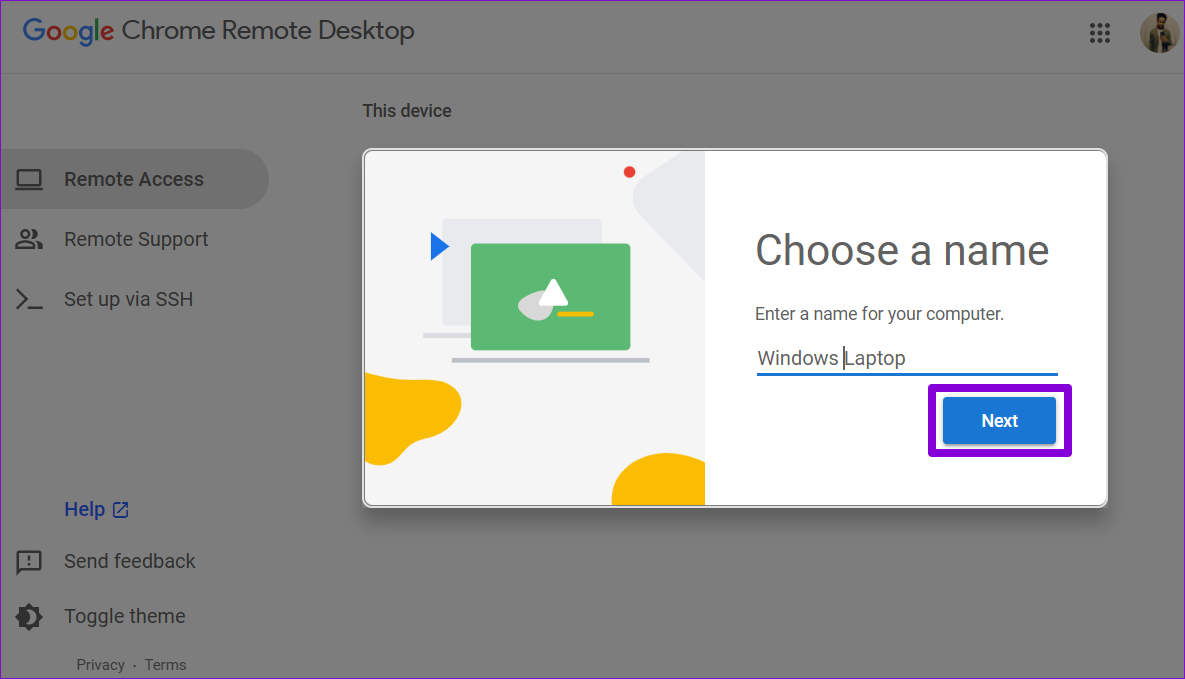
Step 5: Head back to the Chrome Remote Desktop page. Enter a suitable name for your computer and hit the Next button.

Choose a Name for PC

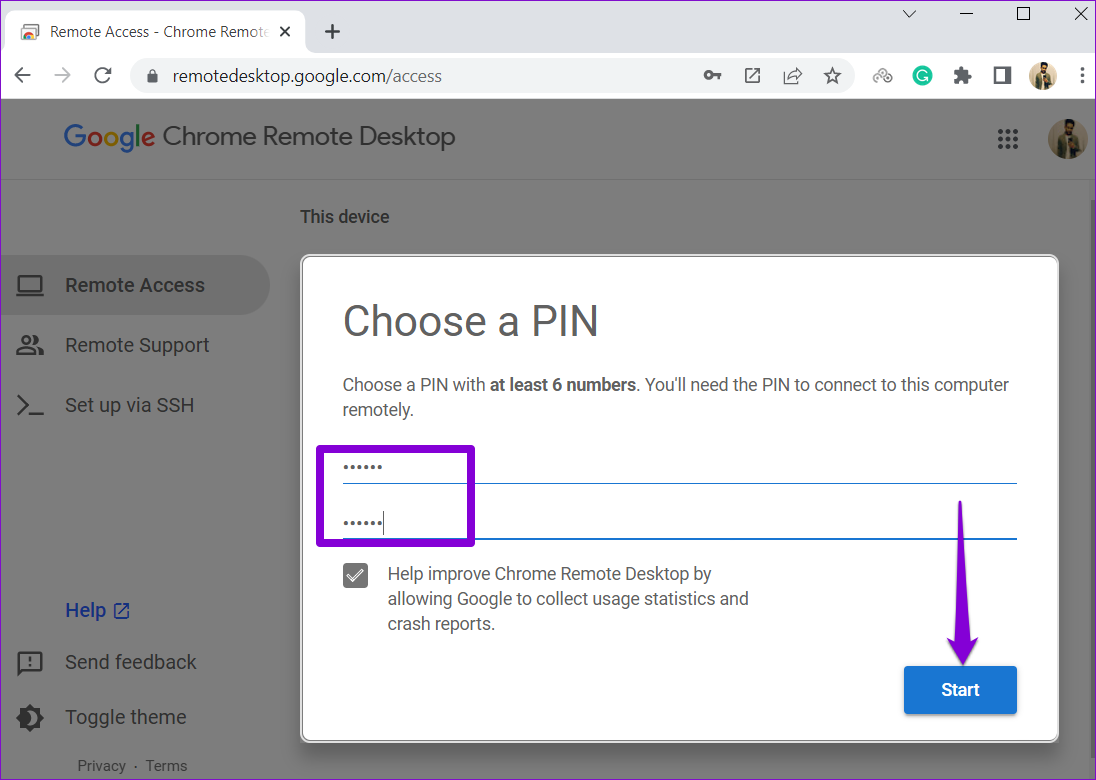
Step 6: Set up a 6-digit security PIN and enter it twice to confirm it. Then, hit Start.

Setup PIN for Remote Desktop

How to Use Chrome Remote Desktop Connect to Your PC Remotely

Once you’ve set up Chrome Remote Desktop on your computer, you can access it easily from any computer. Here’s what you’ll need to do.

Step 1: Open Google Chrome and head to the Chrome Remote Desktop page. Then, sign in with your Google account if you haven’t already.

Step 2: Click Access my computer.

Access My Computer

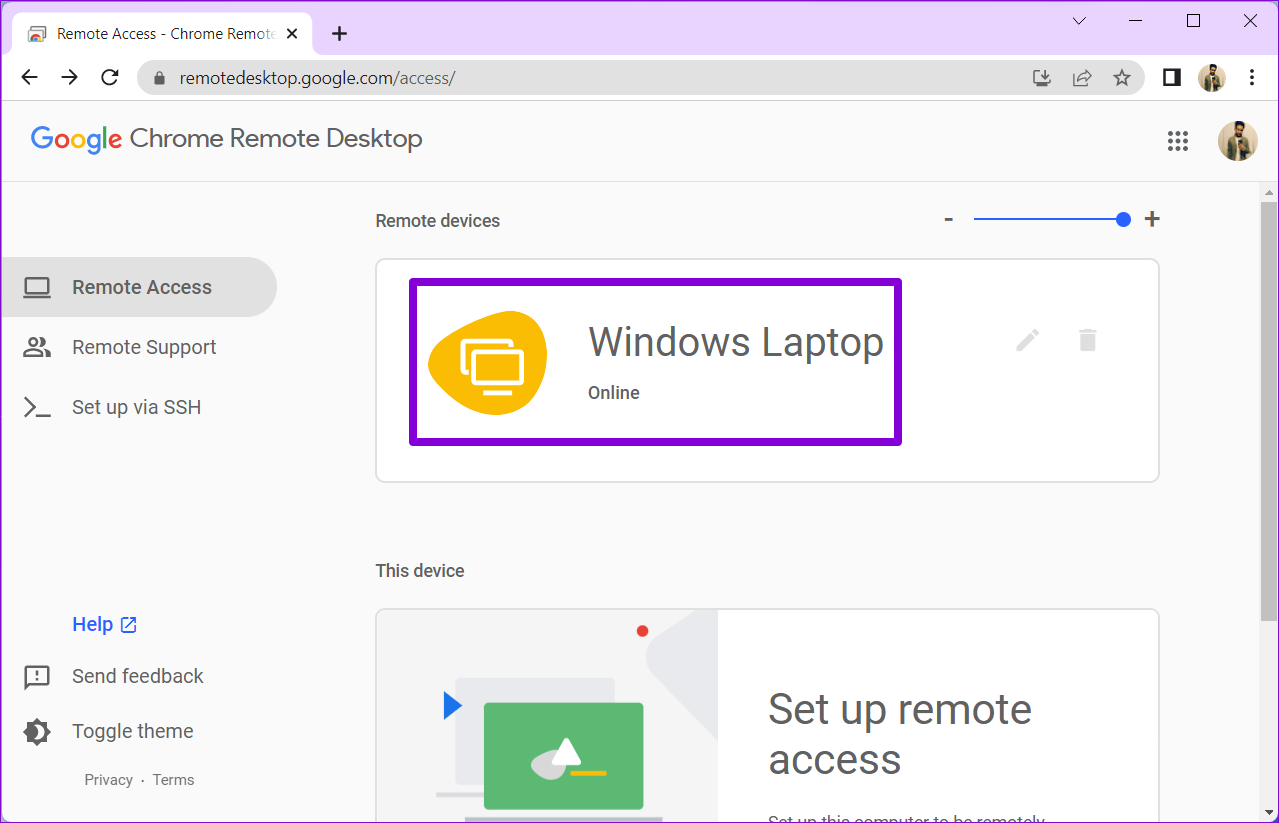
Step 3: Under Remote devices, select the computer you want to access.

Select Your PC

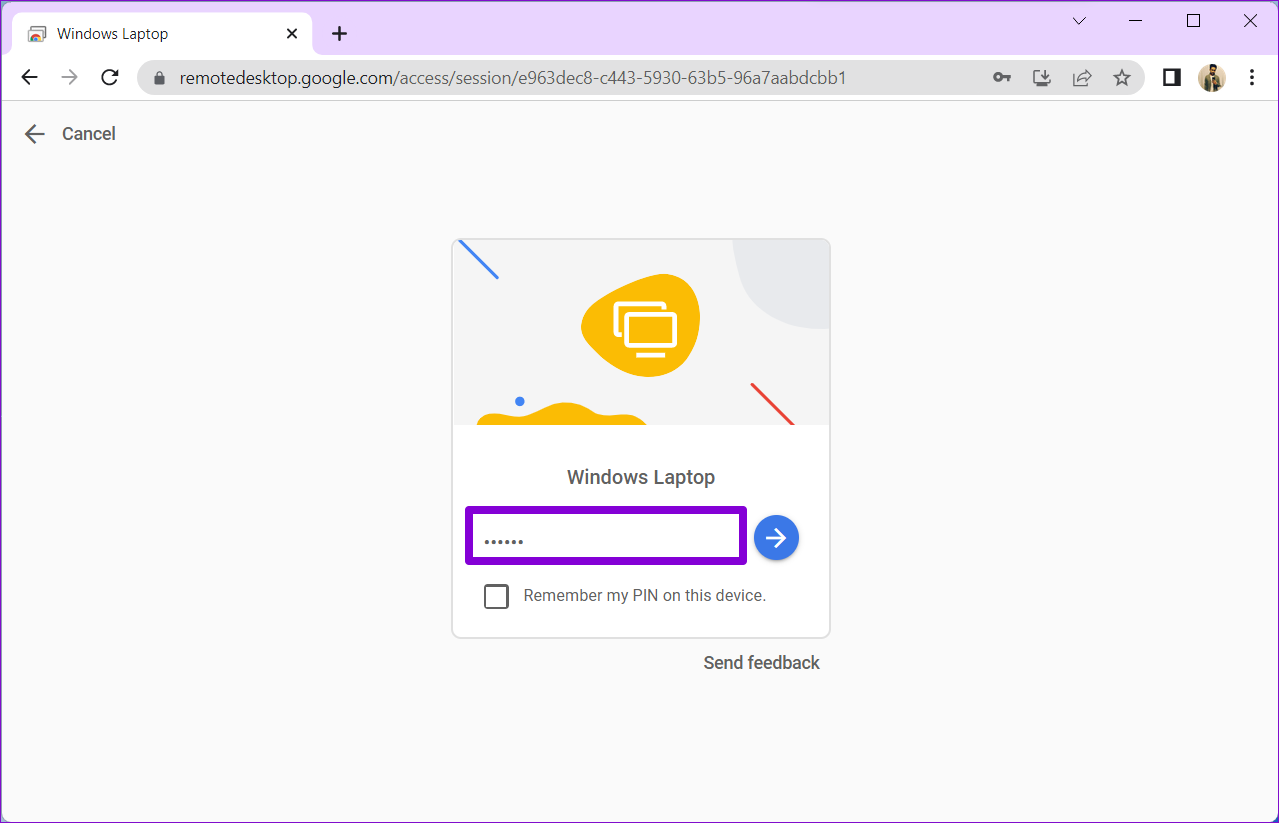
Step 4: Enter the 6-digit PIN to verify your identity.

Enter PIN

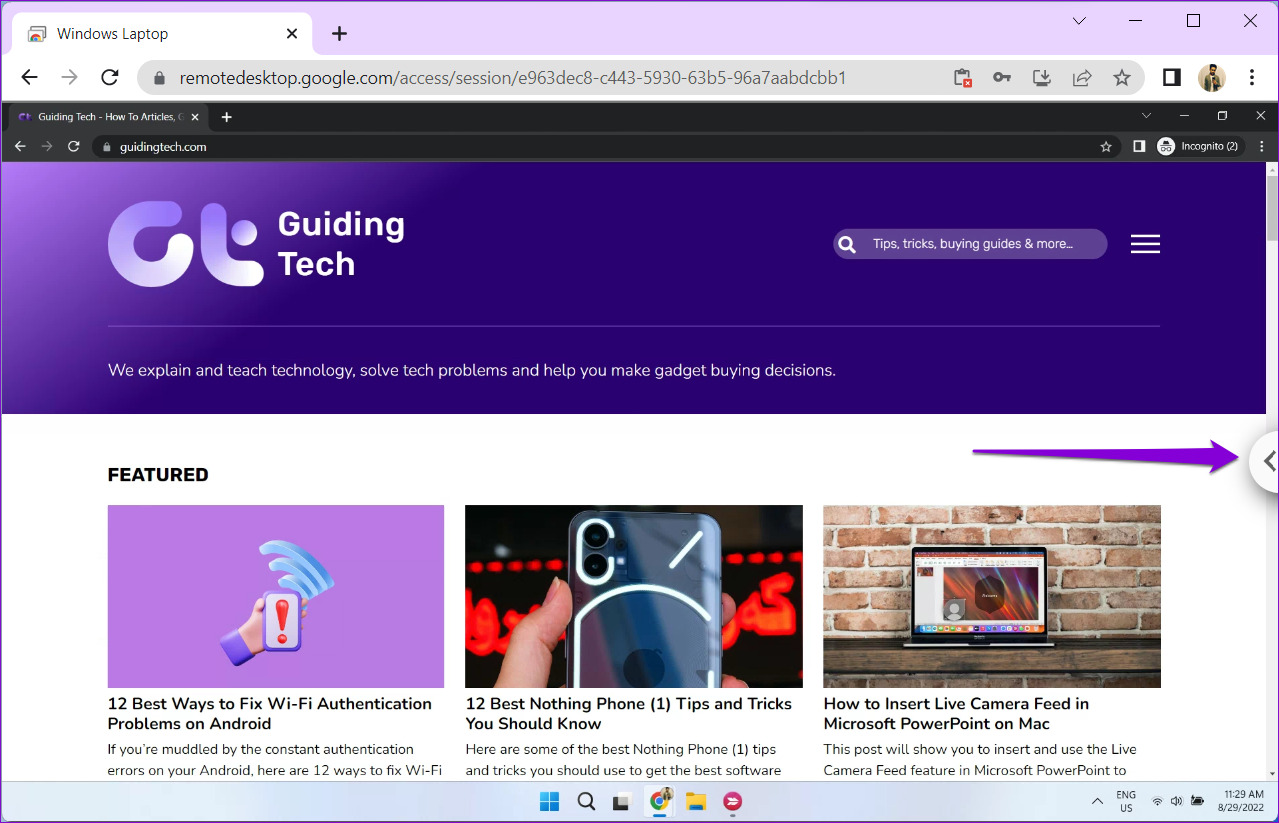
And you’re all set. Once connected, you’ll be able to access and interact with your PC remotely. Note that Chrome Remote Desktop can’t connect to a remote machine if it’s offline or in sleep mode.

How to Use Chrome Remote Desktop Session Options

Chrome Remote Desktop provides a few options you can tweak. To access them, click the small arrow on the right side of the screen.

Access Remote Desktop Session Options

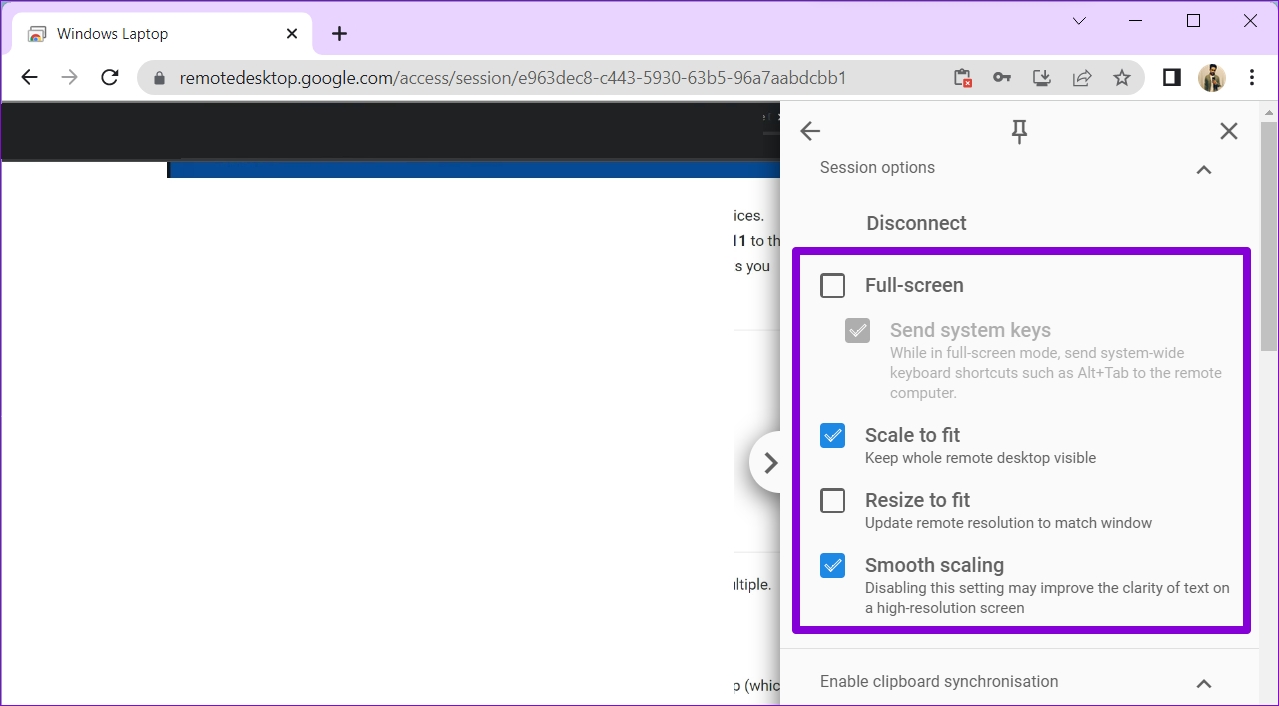
Full-Screen and Scaling Options

You can enable the Full-screen mode, which allows you to interact with your PC via keyboard shortcuts. You can also change the scaling options.

Session Options

Enable Clipboard Sync

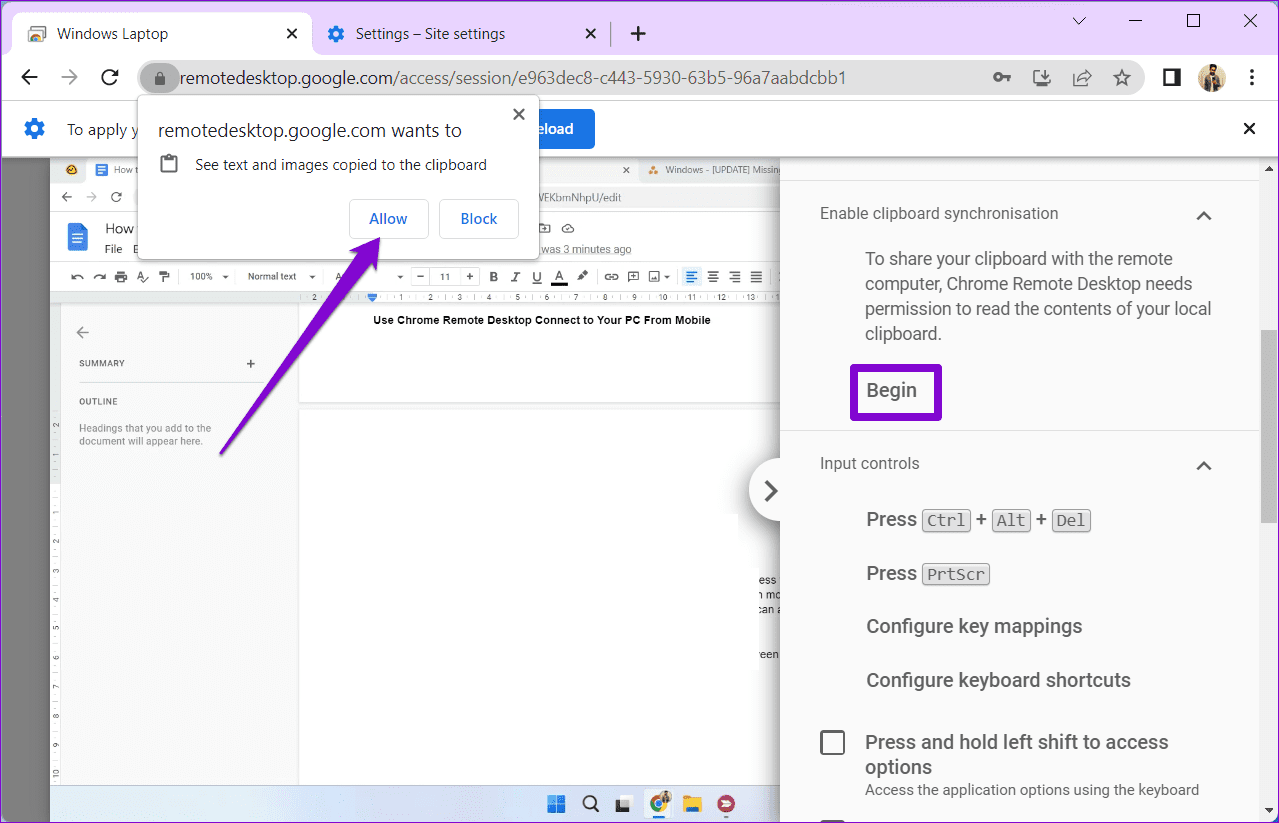
You can enable clipboard synchronization if you want to copy-paste text and images between devices—the remote computer and the one you’re using to access it. To do so, click Begin under Enable Clipboard Synchronization and allow the browser to access your clipboard.

Enable Clipboard Sync

Transfer Files Between Computers

Chrome Remote Desktop also lets you send files to the remote machine. Under the File transfer section, click the Upload file button and select a file you want to send to your computer.

Upload File From Computer

When the upload completes, click the Download file option and save your file on the host computer.

Chrome Remote Desktop File Transfer

Likewise, if you wish to grab a file from the host computer, click the Download file option and select the file you want. Then, the file will be downloaded to the local computer automatically.

End Your Remote Session

Once you’re done using the tool, click the Disconnect button to end the session.

Disconnect Chrome Remote Desktop Session

How to Use Chrome Remote Desktop to Access Someone Else’s PC

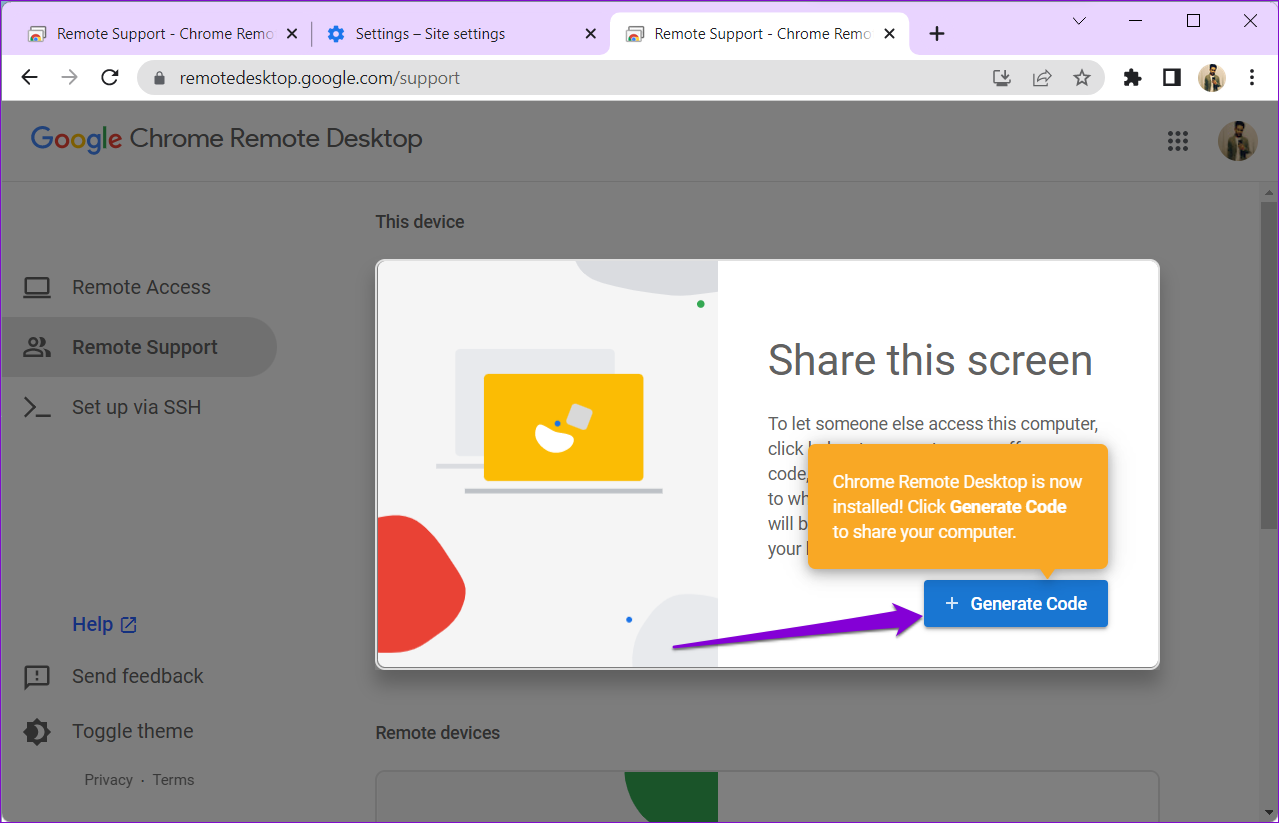
You can also use Chrome Remote Desktop to access someone else’s computer. This can come in handy if you want to assist a family member or colleague. You’ll have to ask the other person to download the Chrome Remote Desktop web app on their PC and click the Generate Code button. The app will create a one-time 12-digit access code.

Generate Code on PC

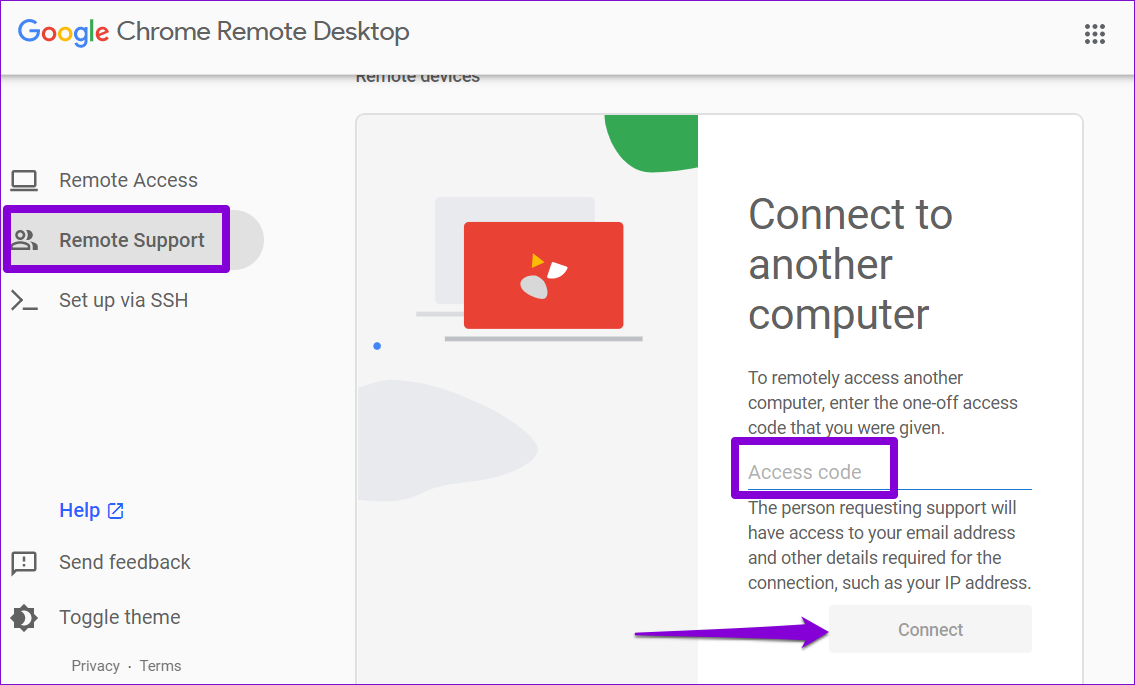
After you have the access code, head over to the Chrome Remote Desktop page on your PC. Go to the Remote Support tab, enter the 12-digit access code, and click Connect.

Connect to Computer Remotely

After it connects, you can access the other person’s computer remotely. You can utilize the session options mentioned earlier to modify your session to your liking.

Was this helpful?

Thanks for your feedback!

How to Remove or Change Phone Number on Discord Account

Remove or Change the Phone Number in Your Discord Account

If you no longer have access to the phone number used while setting up your Discord account, removing or changing it becomes necessary. Thankfully, you can do it from its app or by accessing its web interface.

Note: Ensure you provide a valid phone number to your Discord account. Phone numbers linked to an existing Discord account, VOIP, Burner, and Landline numbers can’t be used.

On Android or iPhone

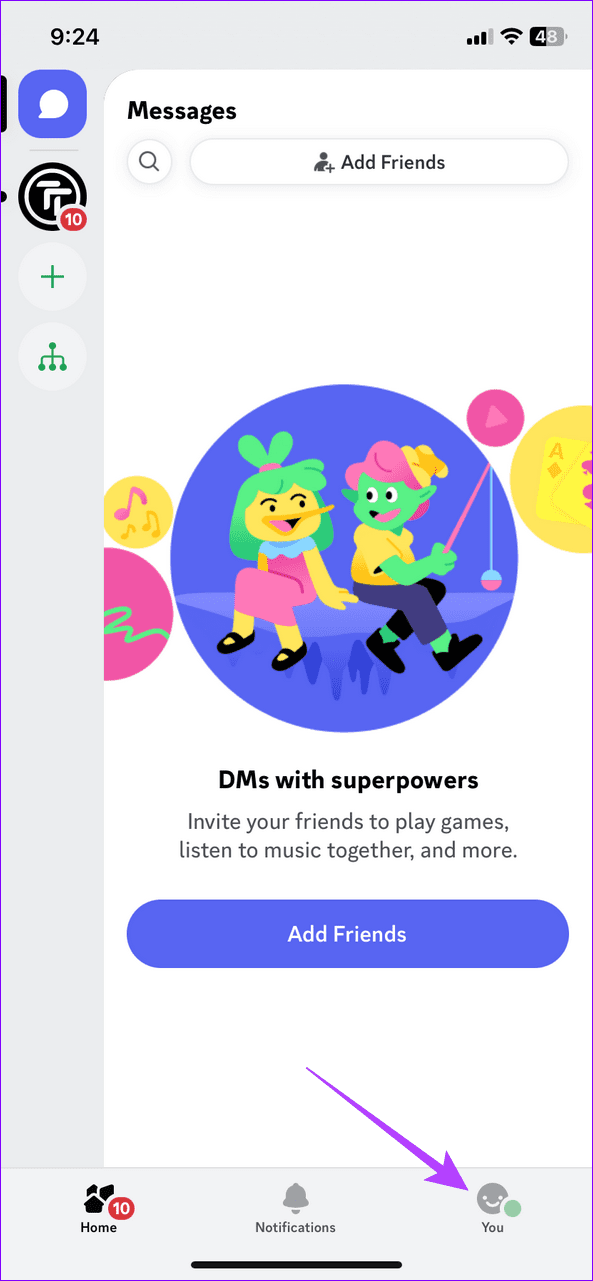
Step 1: Open Discord and double-tap the You tab at the bottom right to open your account settings.

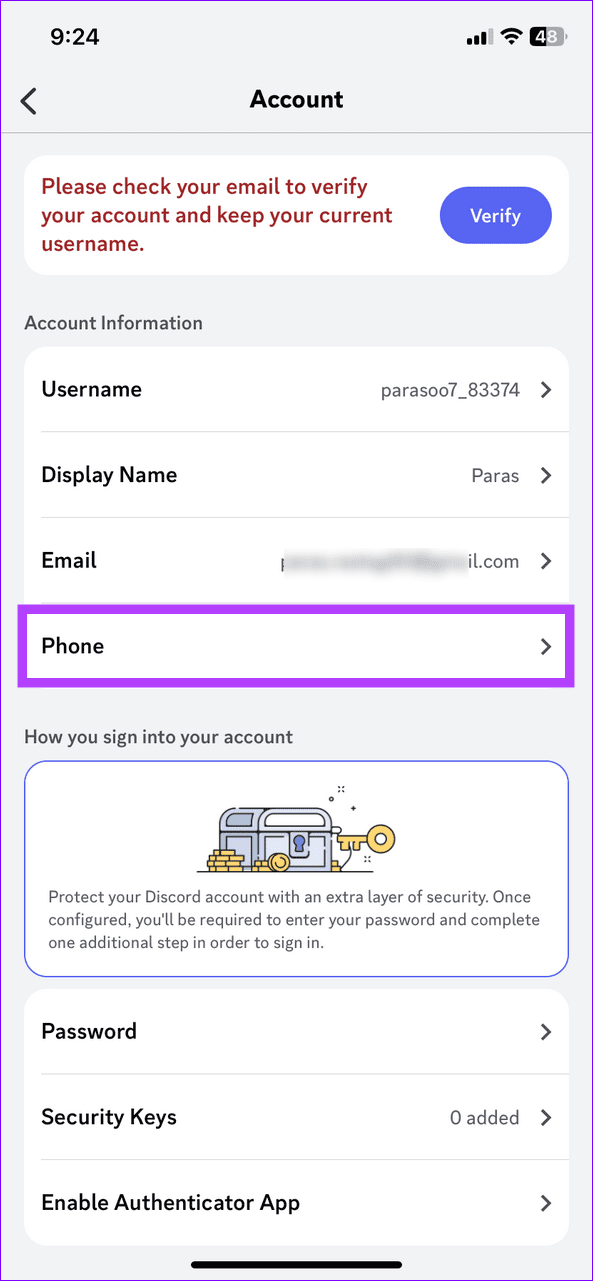
Step 2: Select Account > tap Phone.

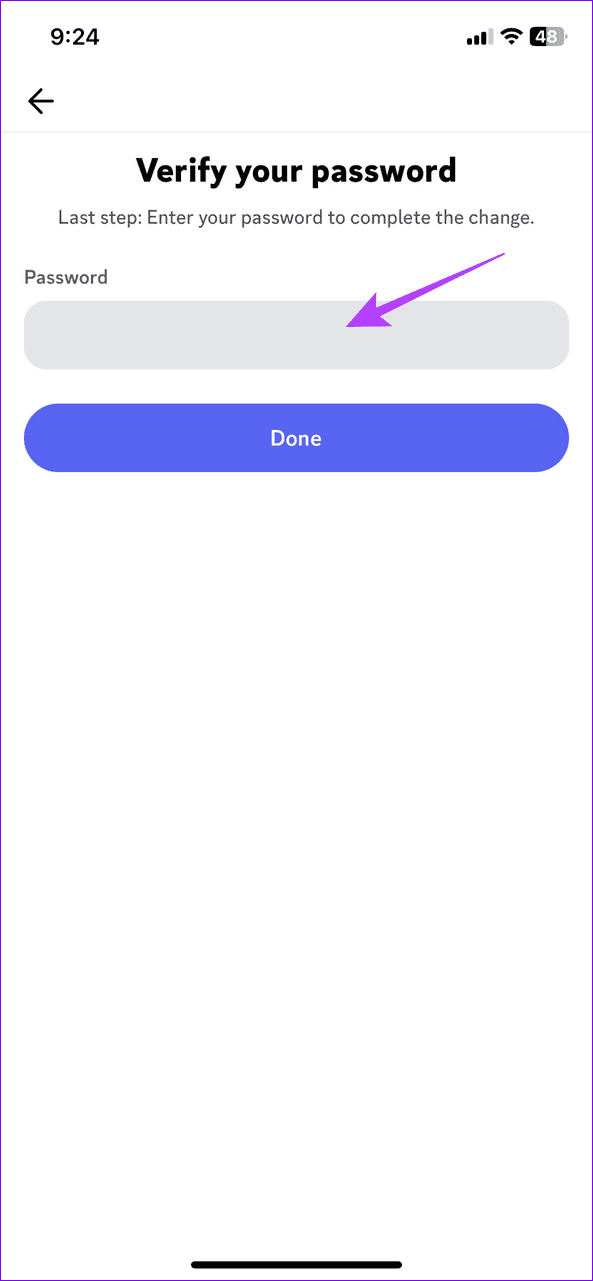
Step 3: Tap Remove Phone Number and type your account passcode to remove it.

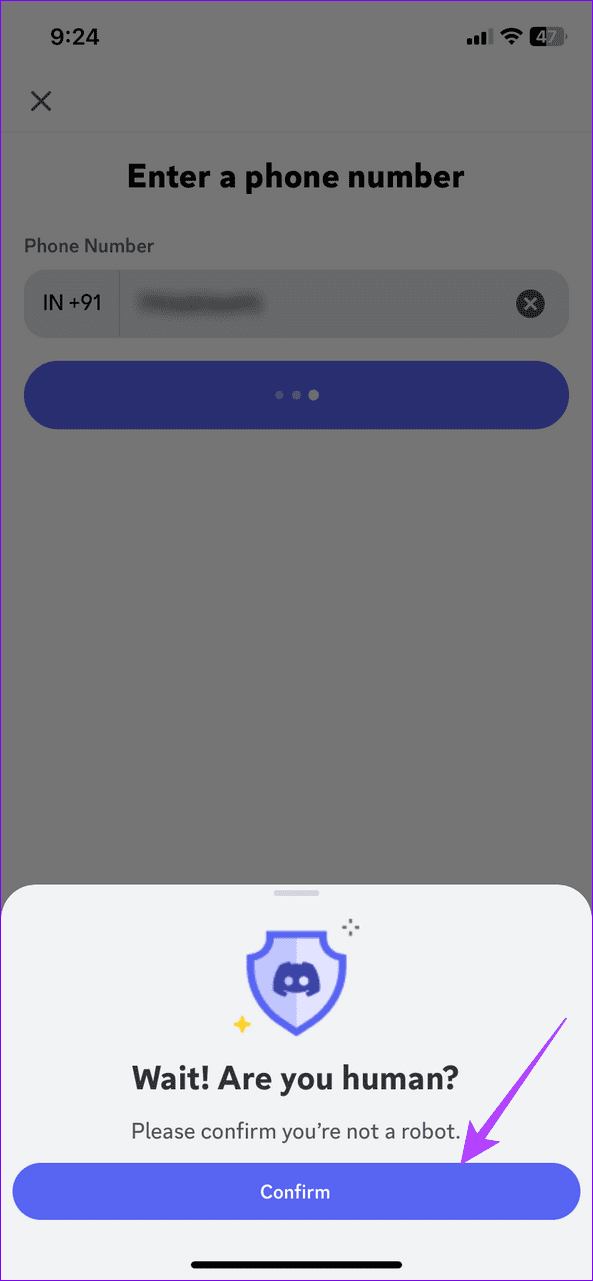
Step 4: To change or add your phone number, select Phone, type your phone number, and tap Next.

Step 5: Tap Confirm and enter the verification code and account password to change/add it.

On Web

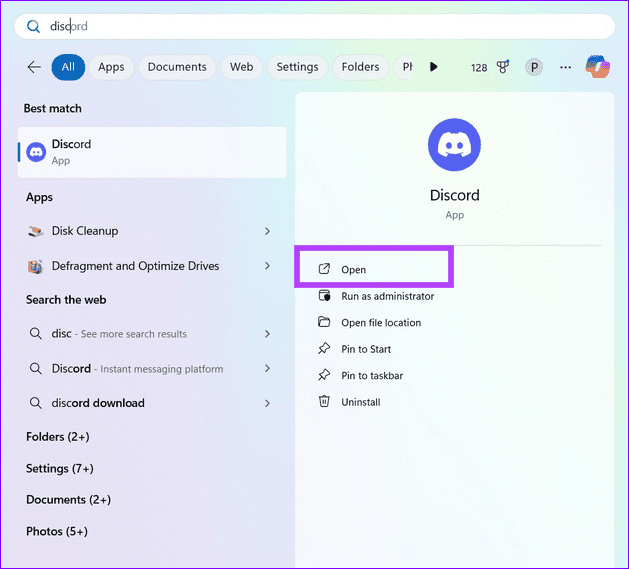
Step 1: Press the Windows key, search Discord, and click to open it.

1 open Discord

Step 2: Click the Gear icon at the bottom left and open User Settings.

2 select User Settings

Step 3: Select My Account from the left sidebar and click Remove next to Phone Number to delete it.

3 click Remove next to Phone Number

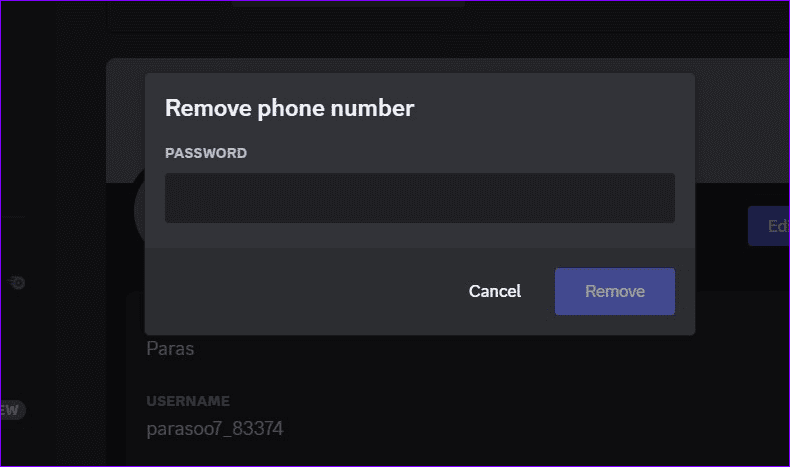
Step 4: Provide your account password when prompted to confirm removing it.

4 type password

Step 5: Next, click Add/Edit next to Phone Number to add a new phone number or change the existing one.

5 add a new number to Discord

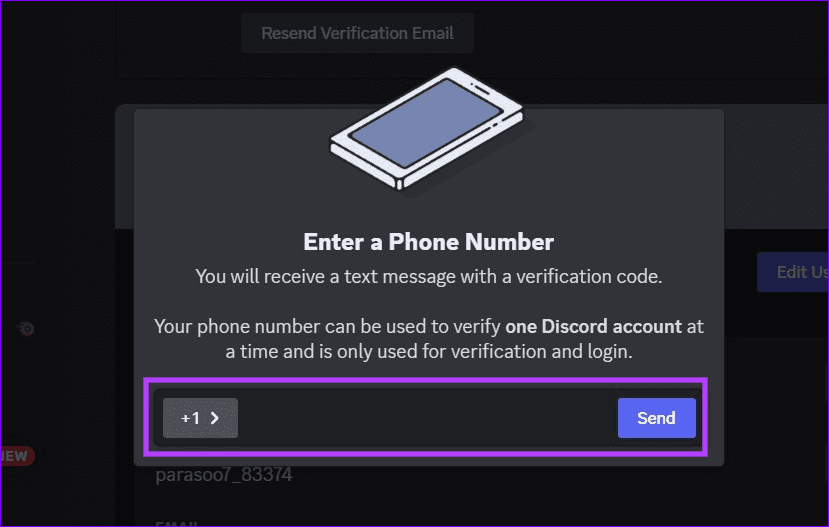
Step 6: Type your desired phone number and click Send.

6 provide a valid phone number

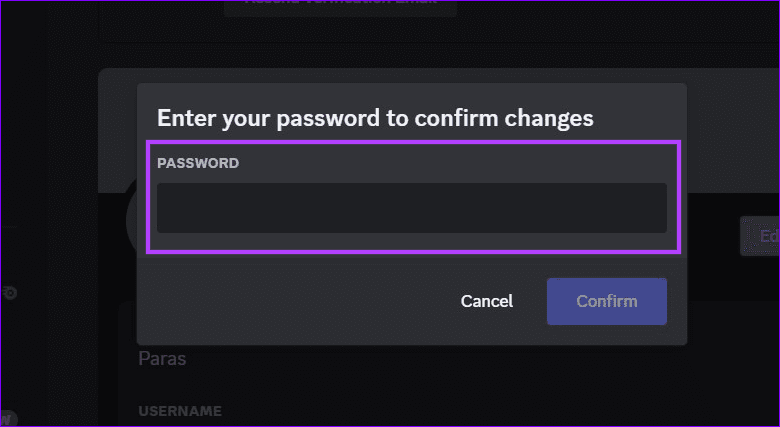
Step 7: Enter the verification code and account password to save changes.

7 validate with a password

Was this helpful?

Thanks for your feedback!

2 Ways to Fix Google Chrome Not Opening on Mac

Preliminary Fixes

  • Make Google Chrome open at startup: Open System Preferences > select Users & Groups > slide to Login Items > select + icon > select Google Chrome > hit the Add button.
  • Update or reinstall Google Chrome: Google frequently releases updates to add new features and bug fixes to Google Chrome. To do so, click on the three-dot icon > click Settings > navigate to About Chrome.

Fix 1: Free RAM and Try Again

macOS comes with a memory swap function to utilize SSD storage as RAM. But even a memory swap might not be sufficient to free up RAM on Mac.

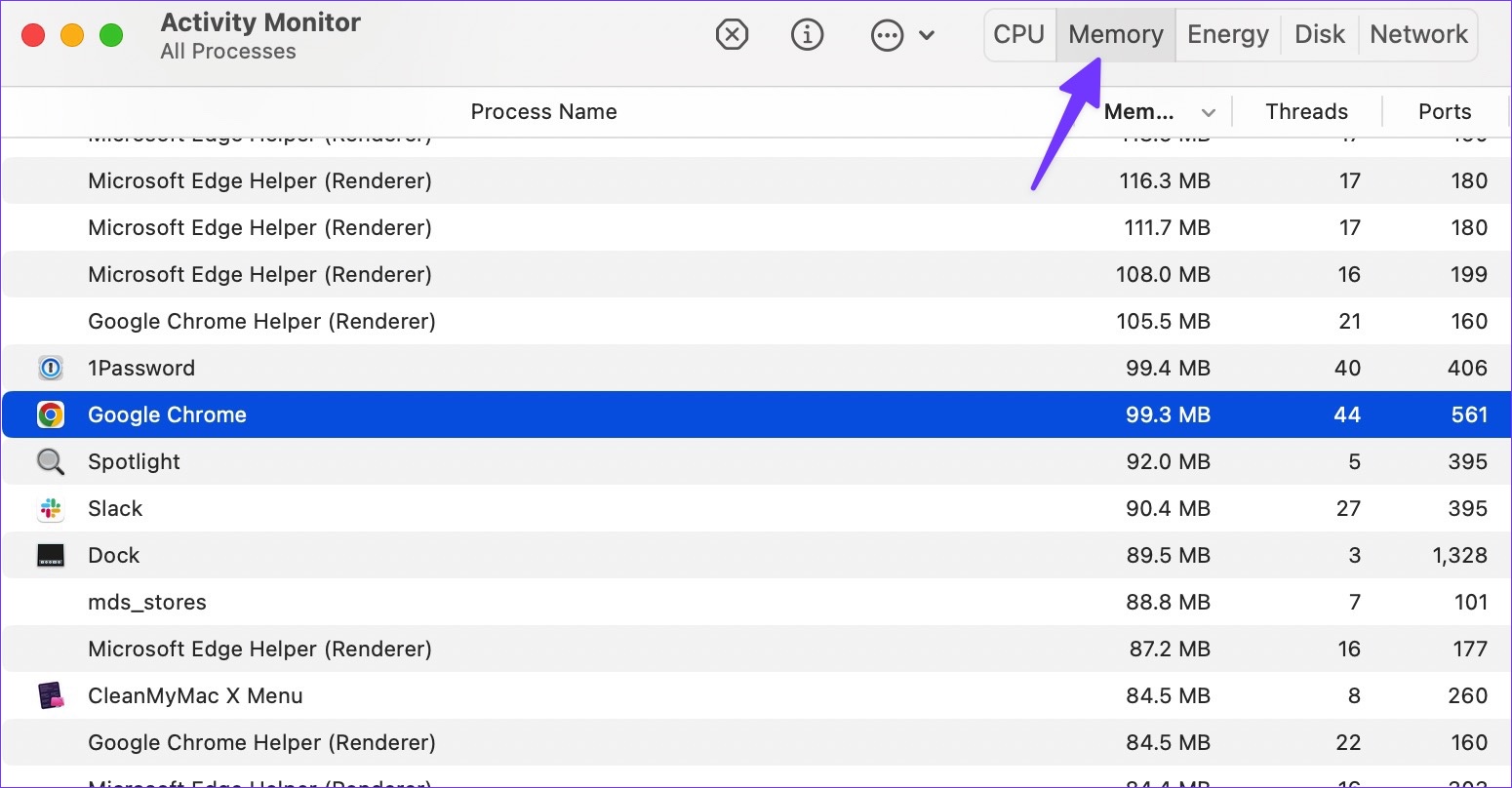
Step 1: Open Activity Monitor using Spotlight Search on your Mac.

Step 2: Click on the Memory tab.

Click on the Memory tab

Step 3: Select apps you no longer need and hit the X mark to free up RAM.

hit the X mark

After you have sufficient RAM on your Mac, open Google Chrome and enjoy an ideal web-browsing experience.

Fix 2: Clear Google Chrome Data

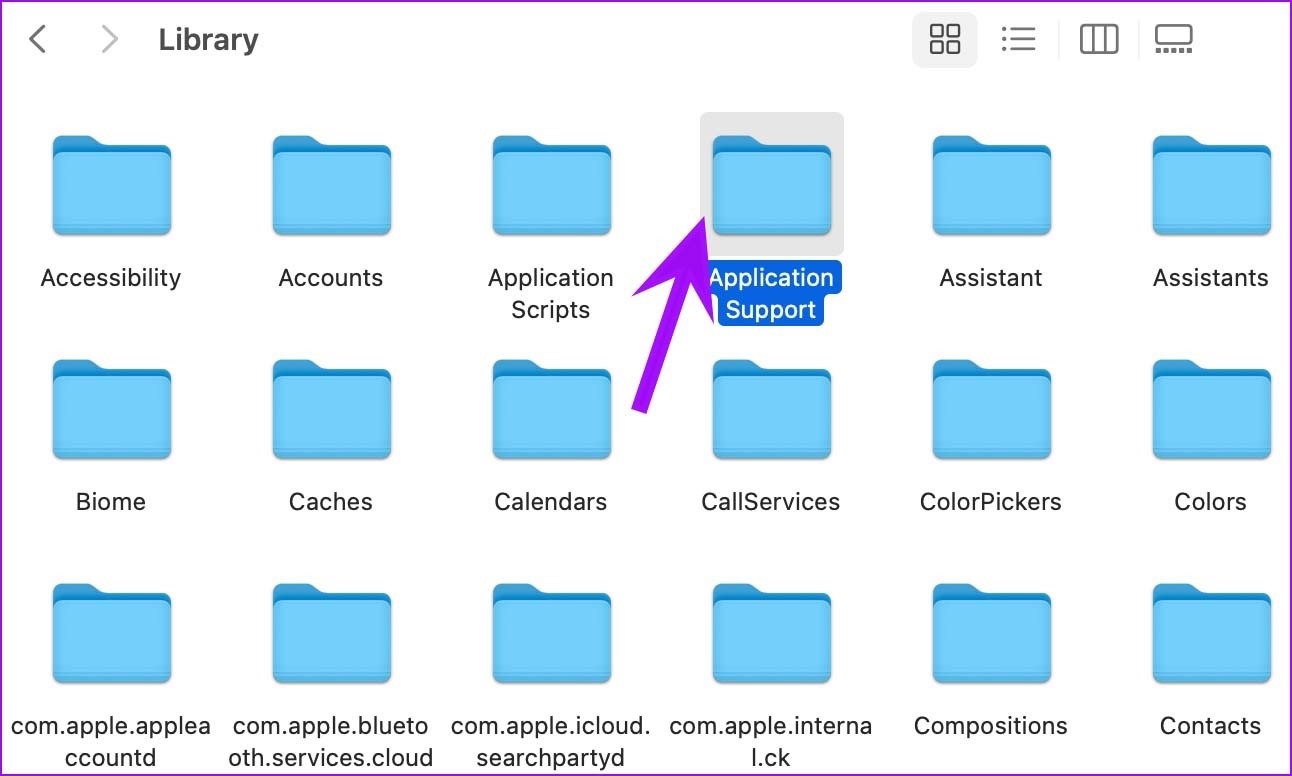
Step 1: Open Finder > select Go in the menu bar.

Step 2: Select Library.

Select Library

Step 3: Double-click on Application Support to open it.

Double-click on Application Support

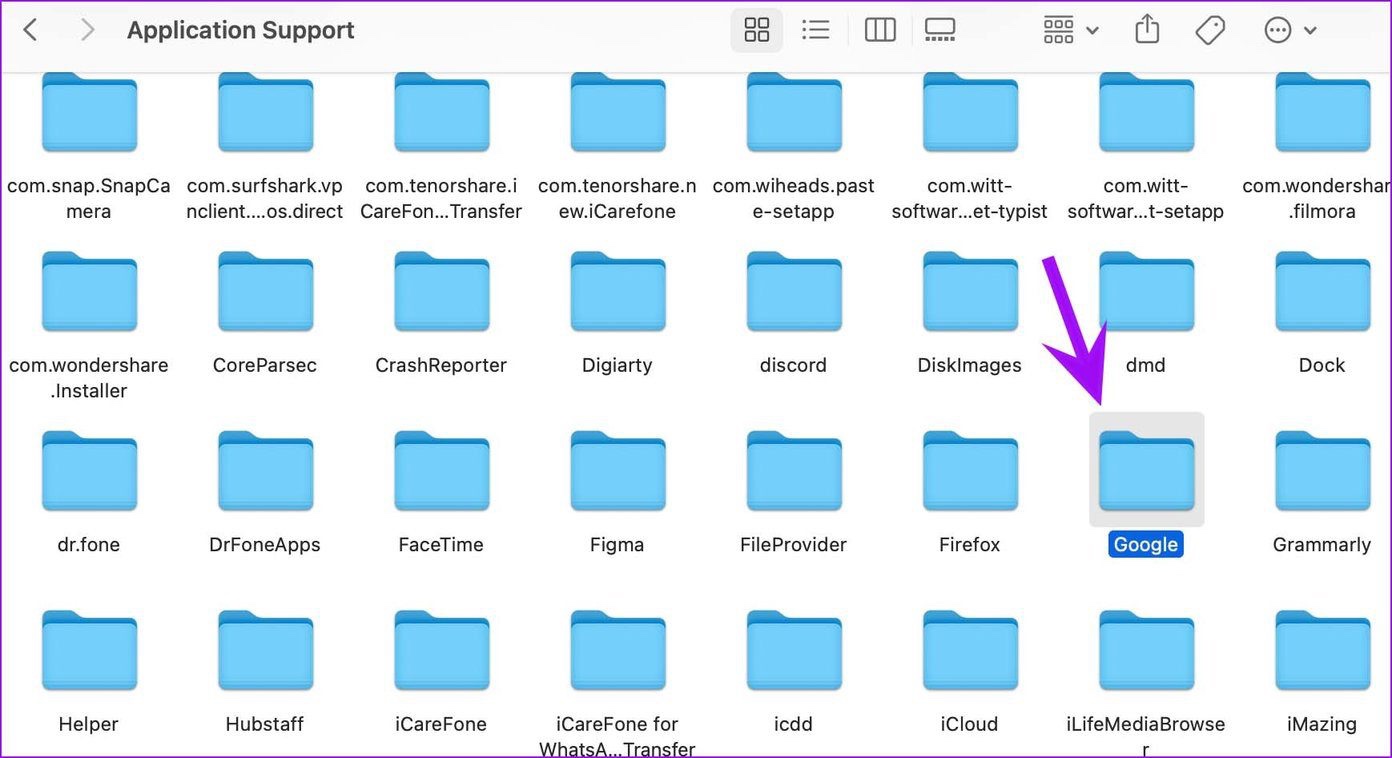
Step 4: Select the Google folder.

Select the Google folder

Step 5: Delete the Chrome folder by right-clicking on it and choosing Move to Trash.

choosing Move to Trash

Step 6: Select the Apple icon in the menu bar > reboot the Mac.

There you go. You should be able to open Google Chrome on Mac without any issues. If Chrome is still not opening on Mac, switch to Microsoft Edge, Opera, or Brave to enjoy your existing extensions (as they are all based on Chromium).

Was this helpful?

Thanks for your feedback!

How to Save a Microsoft Outlook Email as a PDF (Desktop and Mobile)

1. Outlook for Windows

Step 1: Open the Microsoft Outlook app on your Windows computer.

Step 2: Select an email you want to export as a PDF.

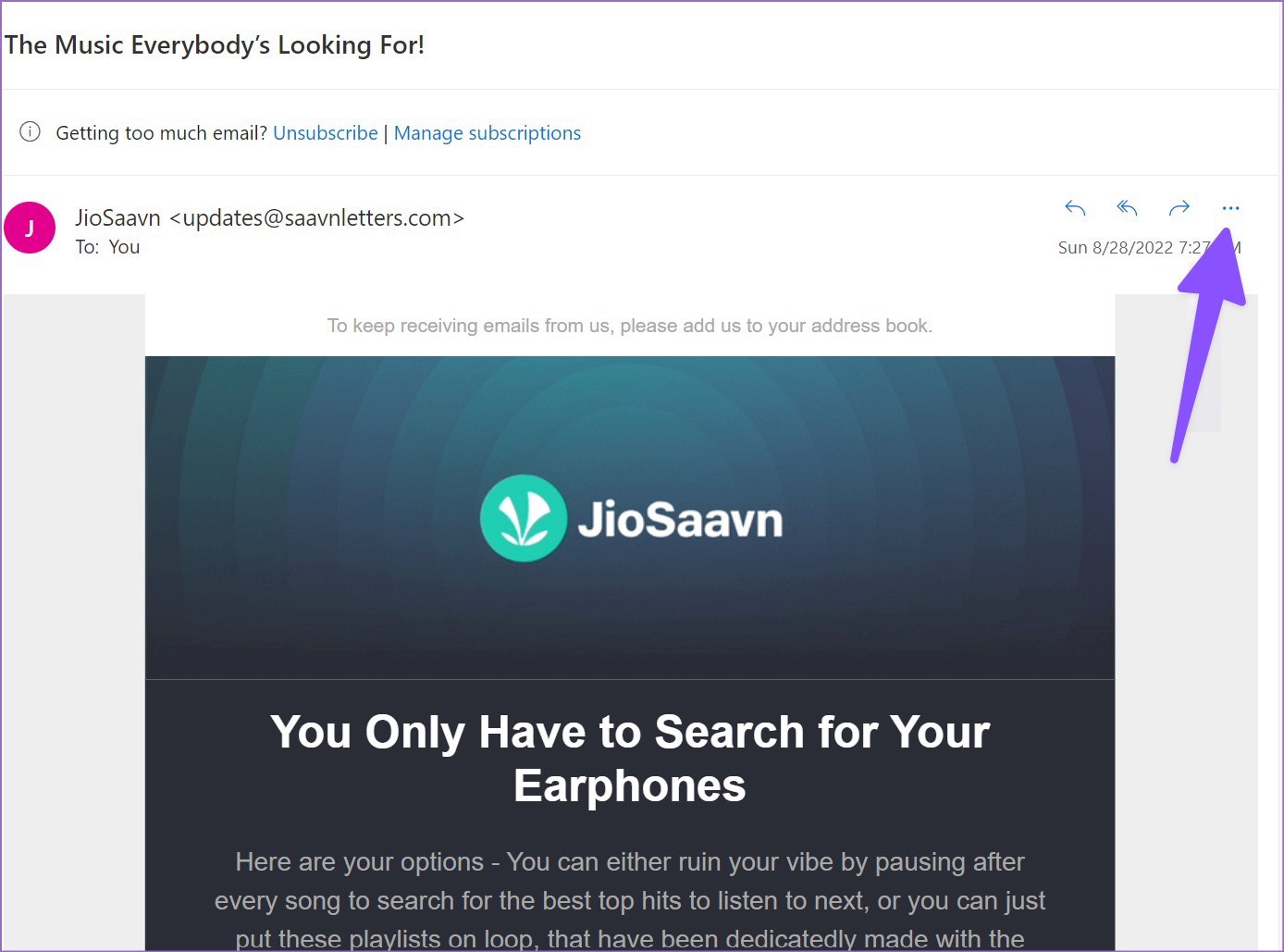
Step 3: Click the more actions menu in the top right corner (it looks like a three-dot menu).

Click the more actions menu

Step 4: Select Print from the context menu.

Select Print

Step 5: It will open the print interface. Click Print in the top left corner.

Click Print in the top left corner

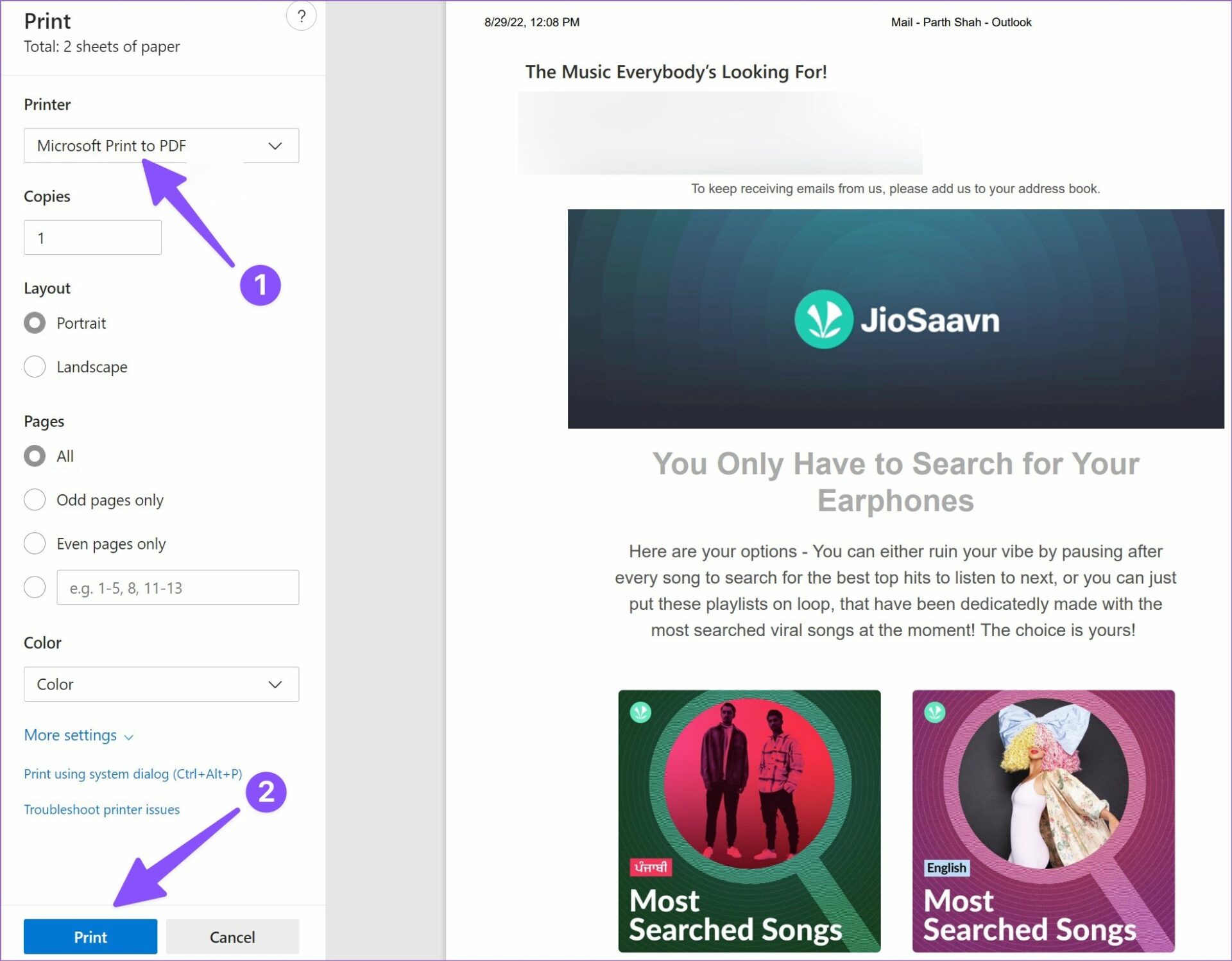
Step 6: Select Microsoft Print to PDF from the printer menu.

Step 7: Make layout changes, select pages to export as PDF, and hit the Print button at the bottom.

select pages to export as PDF

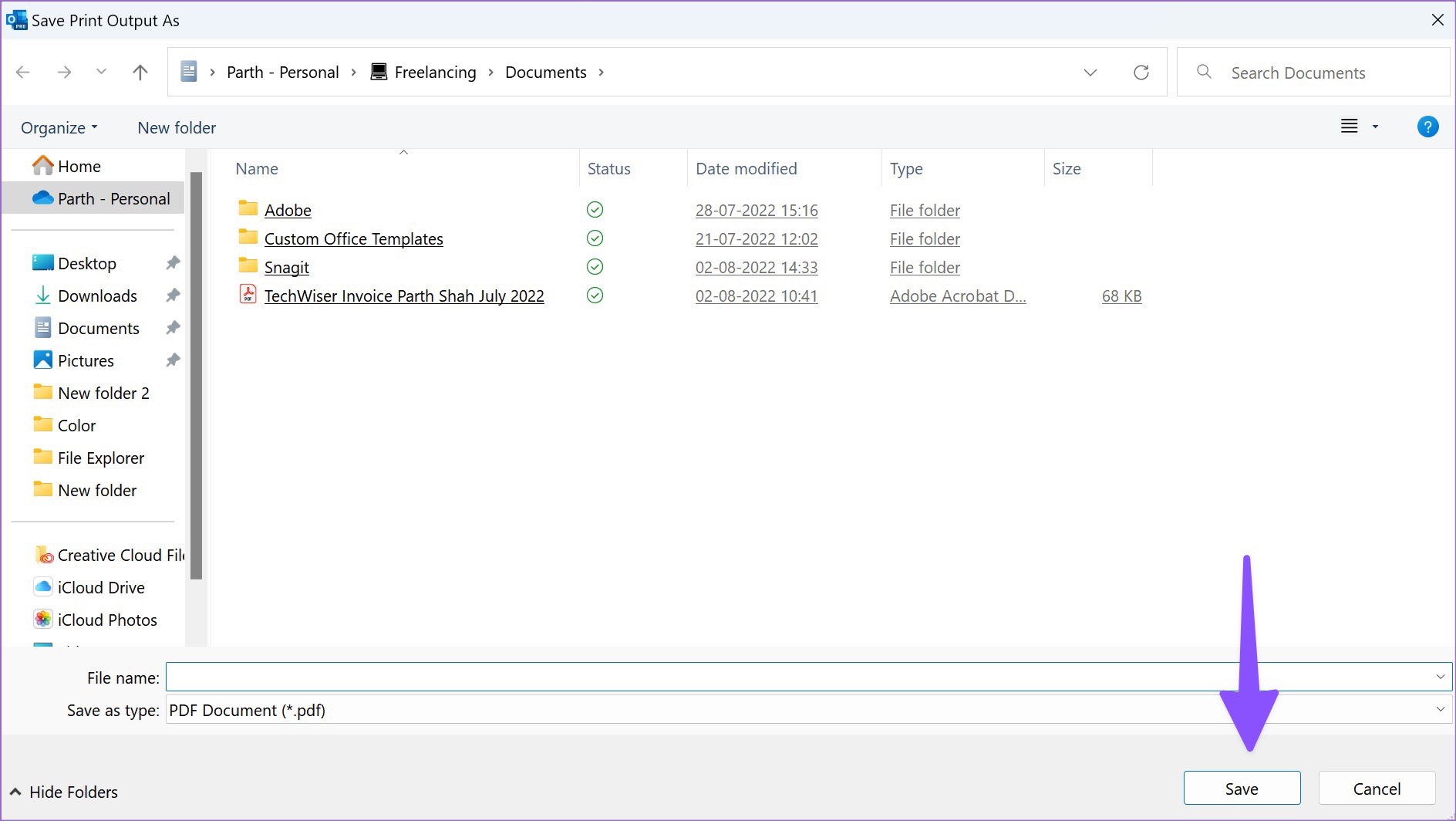
Step 8: Select your preferred location on the computer to export the PDF. Enter a file name and hit the Save button.

hit the Save button

After you convert an Outlook email into a PDF, use the best Windows PDF editors to make changes before sending it to a client or employee. If you want to do the same on Mac, continue reading.

2. Outlook for Mac

Step 1: Open Outlook on Mac.

Step 2: Open an email you want to download.

Open an email you want to download

Step 3: Right-click on an email and select Print from the context menu.

select Print

Step 4: Expand the PDF menu at the bottom and select the Save as PDF option.

select the Save as PDF option

Step 5: Enter the file name and tags if required, and select a download location.

If you are downloading a confidential email, you should password-protect it before hitting the save button.

Step 6: Select Security Options and enable the checkmark beside Require password to open document.

Step 7: Enter the password, verify it, and press OK.

press OK

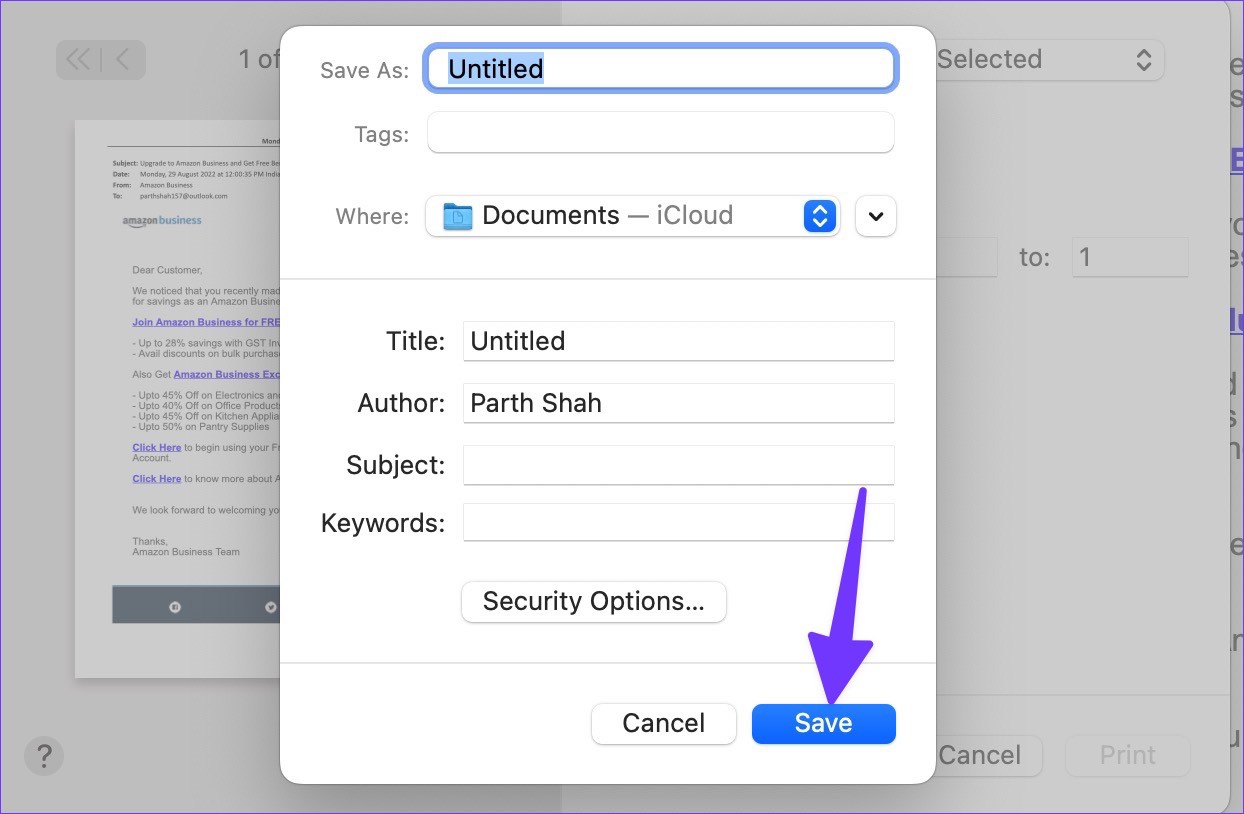
Step 8: Select Save and download the email as a PDF.

Select Save

You can use the Preview app or Adobe Acrobat Reader DC on Mac to make several changes to the PDF file.

3. Outlook on Mobile (Android and iOS)

The steps are the same for both Android and iOS. For demonstration, we are going with the iPhone. However, if you are an Android user, follow along.

Step 1: Launch Outlook on your iPhone or Android.

Step 2: Open an email and tap the three-dot menu at the top.

Step 3: Select Print Conversation.

Note: On Android, tap Print.

Step 4: Outlook will open Print Options. Hit the Share button beside it.

Step 5: You can directly share Outlook email in PDF format with contacts or select Save to Files.

Note: On Android, tap on the three-dot icon and choose Save as PDF.

Step 6: Select a device folder from the following menu and hit the Save button in the top-right corner.

That’s it. Your PDF file is now ready to share on your iPhone or Android.

You can always forward your Outlook emails. However, not everyone prefers to receive information by email. You can export an email as a PDF on Windows, Mac, or iPhone and share it without any issue.

Was this helpful?

Thanks for your feedback!

10 Best Ways to Fix Ghost Touch On iPhone

The iPhone was one of the first devices to introduce multi-touch capabilities to the masses. More than 15 years later, all our smartphones use multitouch displays, albeit with several improvements. While large touchscreen displays have revolutionized the way we use phones, they are accompanied by some issues.

how to fix ghost touch on iPhone

Whether it’s the iPhone screen dimming automatically or the touch screen not working, display issues are common. Another such issue that’s quite infamous is ghost touch on iPhone. If random areas on your iPhone’s screen are registering touches or you’re unable to tap in the right places, you’re probably facing this issue. Fret not, as here’s how to fix ghost touch on iPhone in a few simple ways.

What Is Ghost Touch On iPhone?

The ghost touch issue is exactly what it sounds like. It happens when random areas of your screen register touch or things start moving by themselves on your Home Screen. It almost creates an illusion that someone else is touching your iPhone screen, hence the name ghost touch.

how to fix ghost touch on iPhone

If you’ve experienced an app getting launched by itself on your iPhone without you tapping on it, or if random characters automatically appear in your sentence while you’re typing, it is referred to as ghost touch. Ghost touch hinders the experience of using your iPhone normally so it’s best to fix it as soon as possible.

There are several factors causing ghost touch on iPhone like voltage fluctuation, a capacitive surface coming in contact with the screen, grounding issues, etc. It’s generally due to a hardware malfunction and can rarely be caused by something like a virus. In all, it just feels like your iPhone is acting weird.

Which iPhones Are Affected by It?

Ghost touch issues can plague just about any smartphone with a touchscreen display out there. So, you may face the problem on any iPhone regardless of which model it is. However, some iPhone models are known to have widespread ghost touch issues. The iPhone X, for example, had ghost touch issues which Apple later addressed with a free replacement program.

iPhone X

Several posts on Apple’s forums show that users with the iPhone XR and iPhone 11 have also faced ghost touch problems. The simple inference from this is that the issue is not isolated to a particular model or variant. Regardless of which iPhone you have, you may experience ghost touches that can be solved by following the instructions below.

How to Stop Ghost Touch On iPhone

Here are some simple solutions that you can try at home to get rid of the ghost touch on your iPhone before heading to Apple for a repair or replacement.

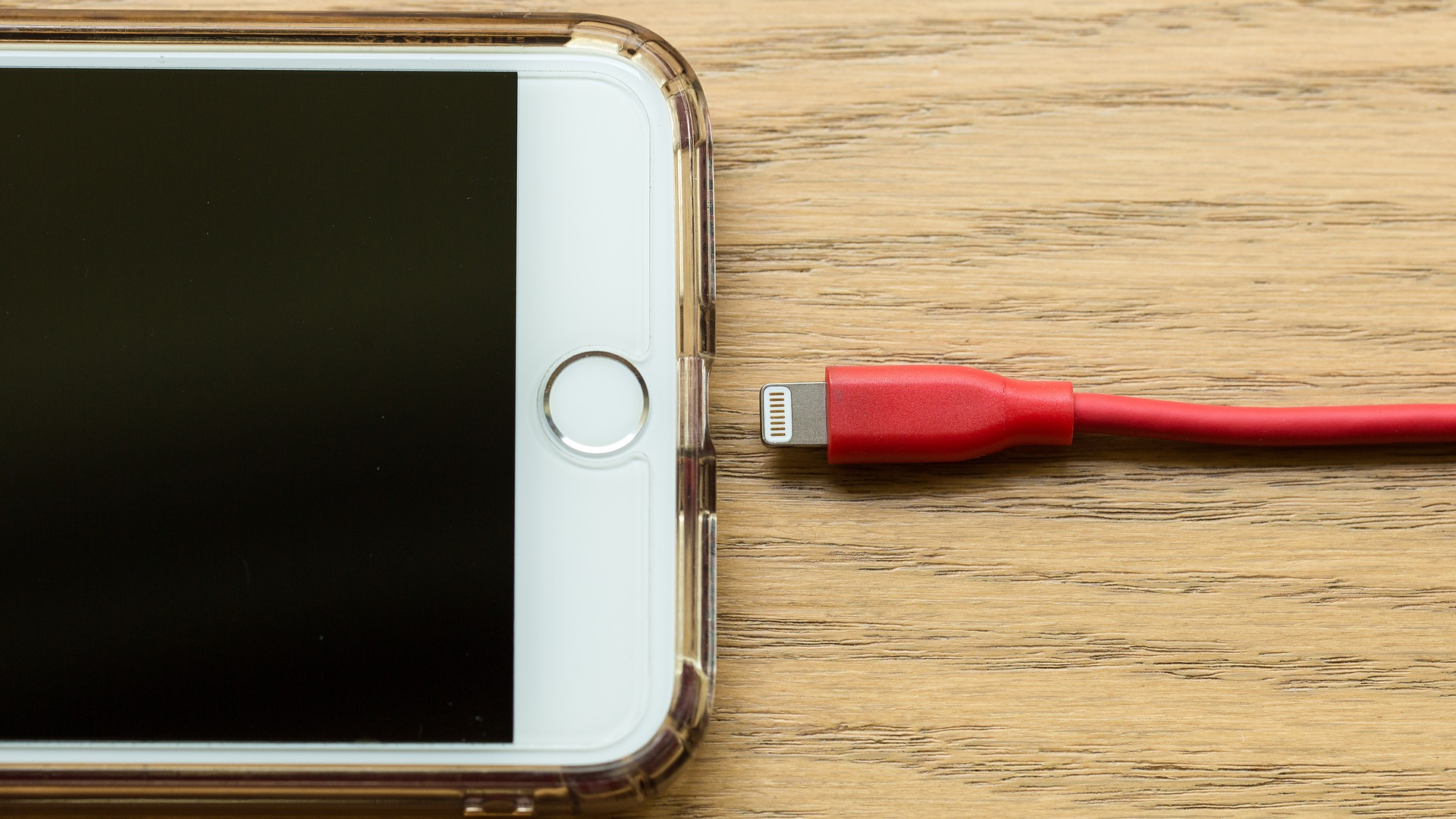
1. Don’t Use the iPhone While Charging

As mentioned earlier, one of the reasons for ghost touch can be voltage fluctuations. If your wall outlet or charging adapter has some sort of voltage fluctuations, it can trigger ghost touches and cause your iPhone screen to glitch.

iPhone charging

So, it’s best to let your iPhone charge when it’s resting and use it once you’ve disconnected it from the charger.

2. Clean the Screen to Get Rid of Dirt

If your iPhone’s screen is dirty or if it has patches of dust on it, there’s a possibility that those dust particles are getting registered as taps on the screen. In that case, you will observe a random part of the screen moving on its own.

iPhone screen dirty

Take a microfiber cloth and some rubbing alcohol and clean your iPhone display thoroughly. Ensure there is no dust, dirt, or debris before you use your iPhone. It’s also important to make sure that your fingers are clean before using your iPhone again.

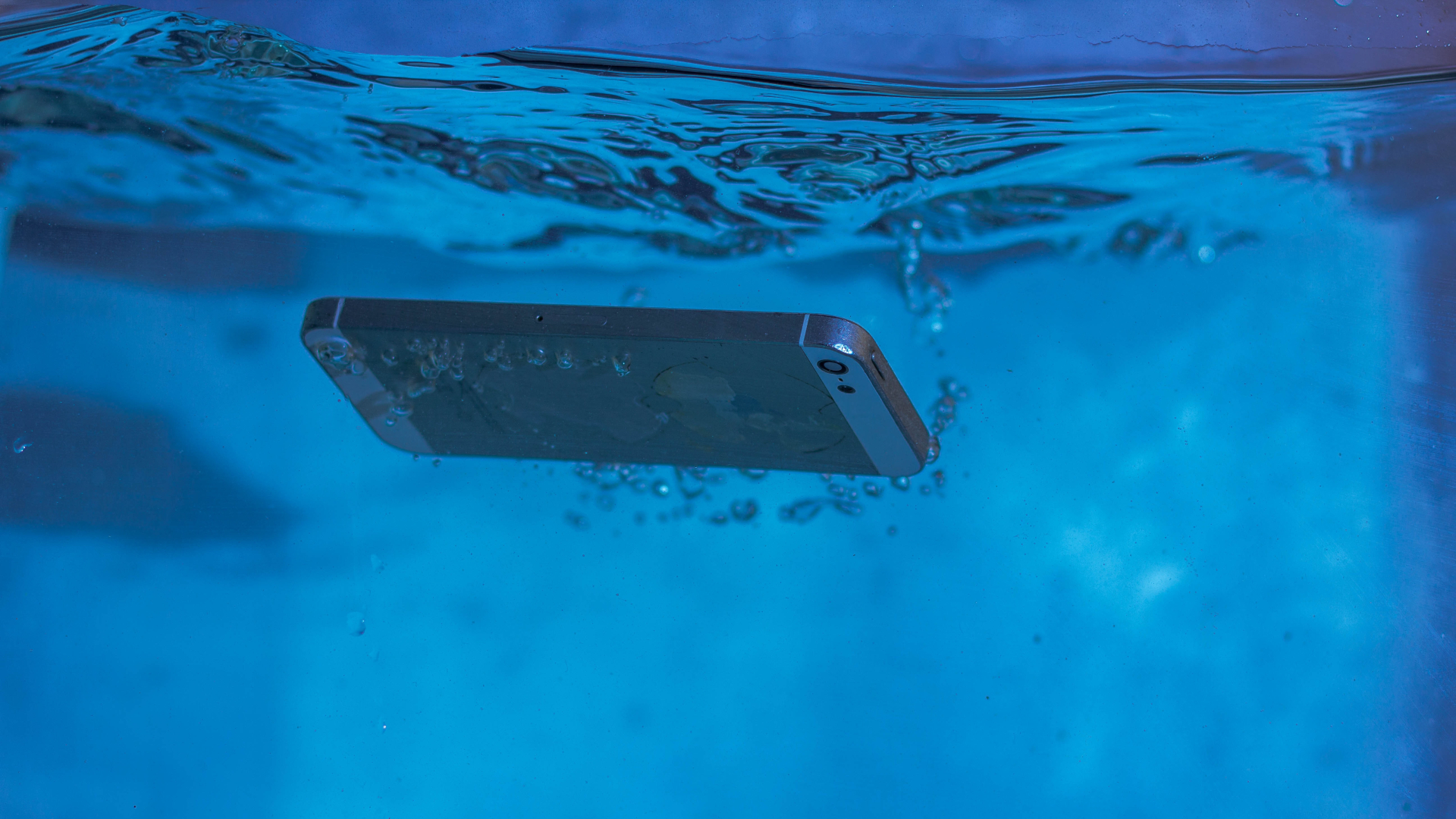
3. Wipe off Any Water on the Phone’s Screen or Body

Since water is conductive, it can mimic a touch input on the screen. Thus, causing ghost touches. This is why it’s not advisable to use your iPhone when you’re out in the rain.

iPhone in water

Wipe off any drops of water from the iPhone’s screen and body and ensure it’s dry. Dry your hands too before attempting to use the iPhone once again.

4. Remove the Screen Protector

A lot of times, a poor-quality screen protector may interfere with the proper functioning of the touchscreen on the iPhone. Remove any screen protector you’re using and check if the ghost touch persists.

5. Disconnect Any External Accessory Connected to the iPhone

After the removal of the headphone jack, the only way to connect your wired pair of headphones to the iPhone is to use a lightning to 3.5mm adapter. If you have connected any external accessory to your iPhone via the lighting port, it could be causing the iPhone display to glitch.

iPhone accessorry

This is because any external accessory draws voltage via the lighting port so there could be some fluctuations if the device isn’t properly connected. Unplug it and check if the ghost touch issue is solved.

6. Remove Any Case You’re Using

There are two reasons why your phone case should be causing the ghost touch on your iPhone. The first one is that some portions of the case on the front might be touching the display causing it to misbehave. The second reason is that there can be some grounding issues with the phone that you cannot identify with a case on.

iPhone thick case

For example, the iPhone 12 mini initially had some sort of grounding issue due to which it had ghost touch problems. Until Apple rolled out an update to fix it, the solution was to use the phone without a case since touching the metallic portions of the phone would ground it, thus, eliminating the issue. So, try removing the case from your iPhone to see if it helps.

7. Force Restart the iPhone

For all you know, it could be a software issue that’s causing ghost touches on your iPhone. Try force restarting your iPhone to see if it fixes the problem.

For iPhone 6s or lower:

Press and hold the Home button and the Power button at the same time. Release them when you see the Apple logo on the screen.

For iPhone 7:

Press and hold the Volume down key and the Power button. Release them when you see the Apple logo on the screen.

For iPhone 8 and higher:

Press and release the Volume up key, press and release the Volume down key, and then press and hold the Side/Power button till you see the Apple logo on the screen.

8. Update Your iPhone to the Latest Version of iOS

If there’s a problem with the software, does the iPhone ghost touch go away on its own? Well, no. The iOS version on your iPhone could have some bugs, leading to phantom touch issues. Update your iPhone to the latest version of iOS to fix any potential bugs. Here’s how to do it.

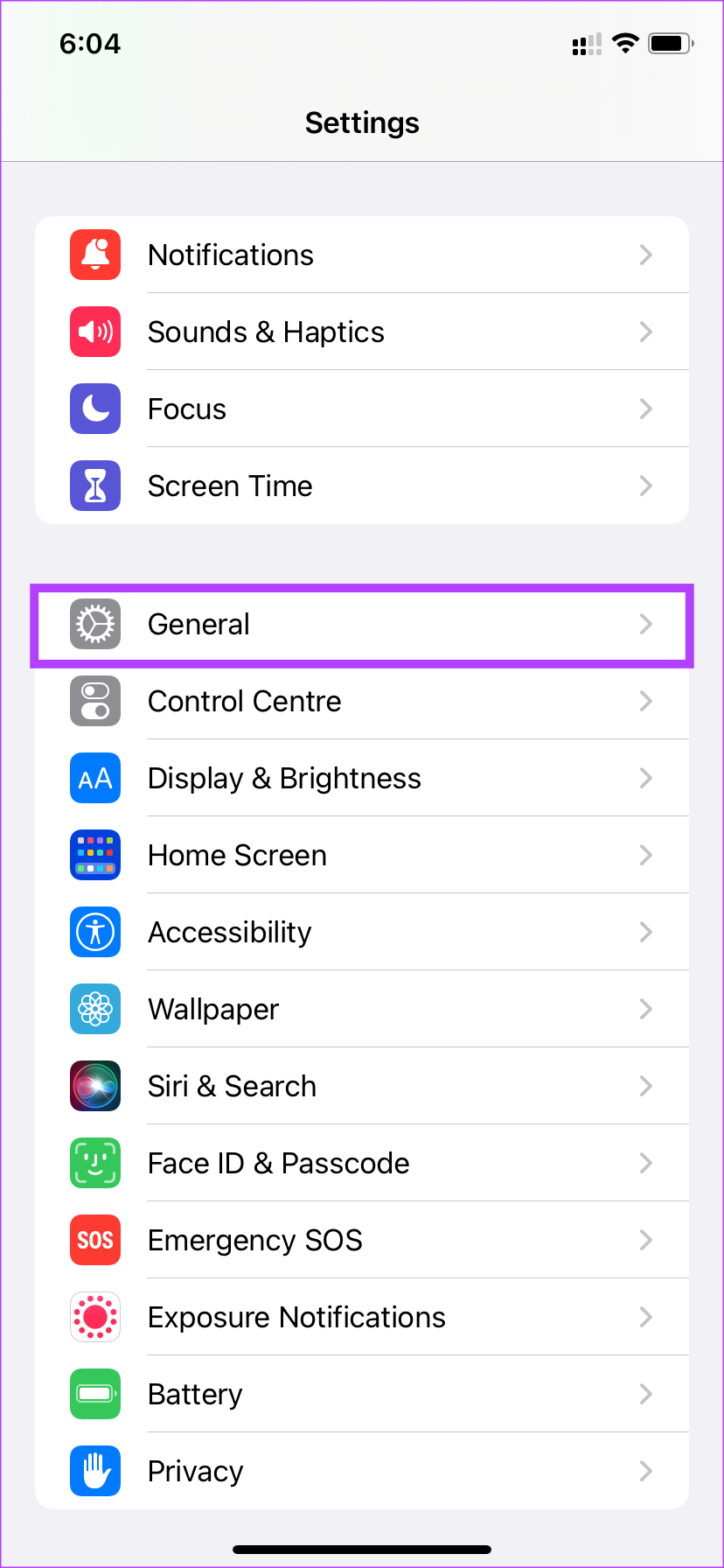
Step 1: Open the Settings app on your iPhone and select General.

General settings

Step 2: Tap on Software Update.

Software update

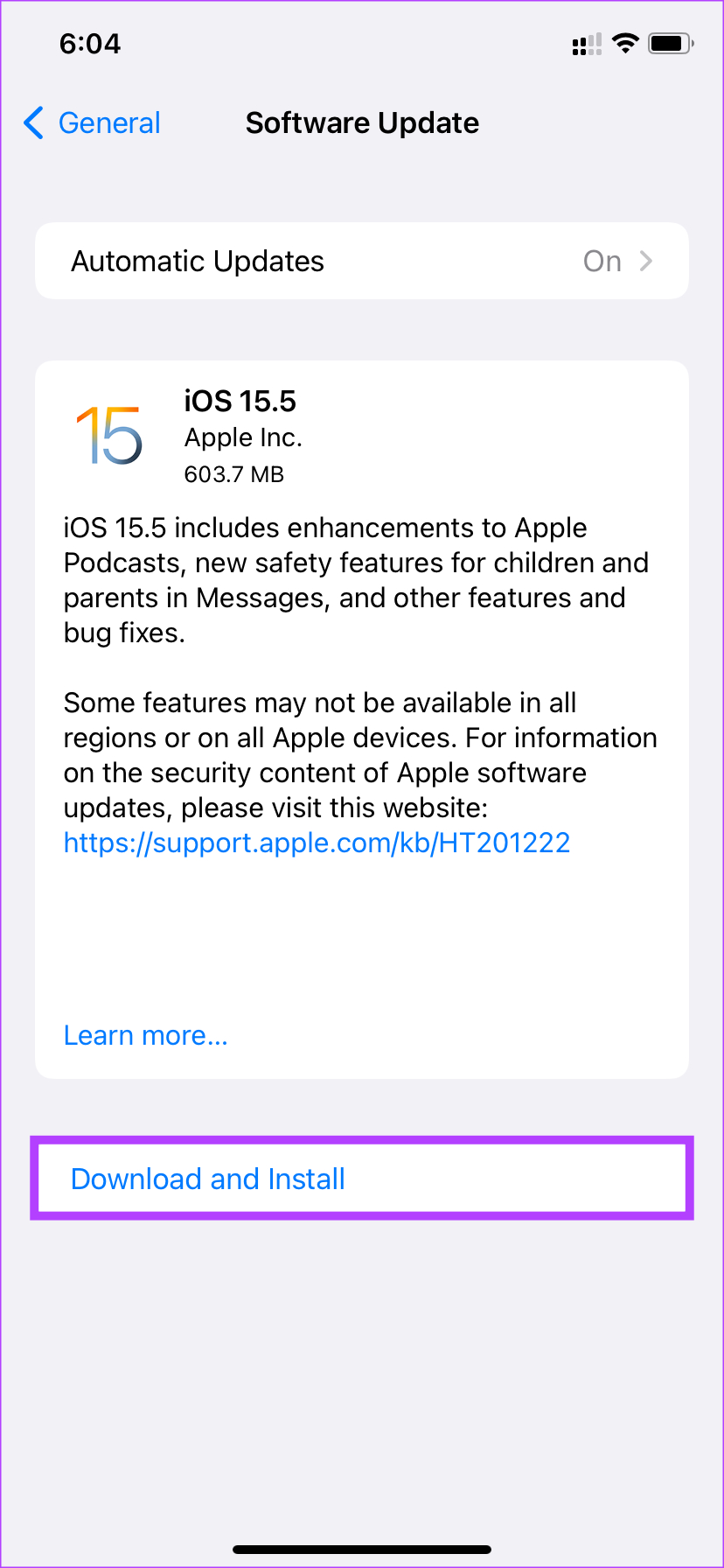
Step 3: If a new update is available for your iPhone, it’ll appear on that screen. Tap ‘Download and Install’ and wait for the installation to complete.

Install update

9. Replace the Cracked Display

A shattered display is one of the primary causes of ghost touch on iPhones. So, does replacing the iPhone screen fix ghost touch? Absolutely! If you dropped your iPhone and cracked its display, it’s best to go to a certified technician to fix it.

cracked iPhone

Take your phone to Apple where you can get it repaired or replaced.

10. Factory Reset the iPhone

This is the final solution if nothing else works. If your iPhone continues to face ghost touch issues even after following all the above steps, it’s time to reset it to factory settings and set it up from scratch to see if that fixes the problem. Note that this step will wipe all your data, so it’s best to take a backup of your iPhone before proceeding further. Here’s how to do it.

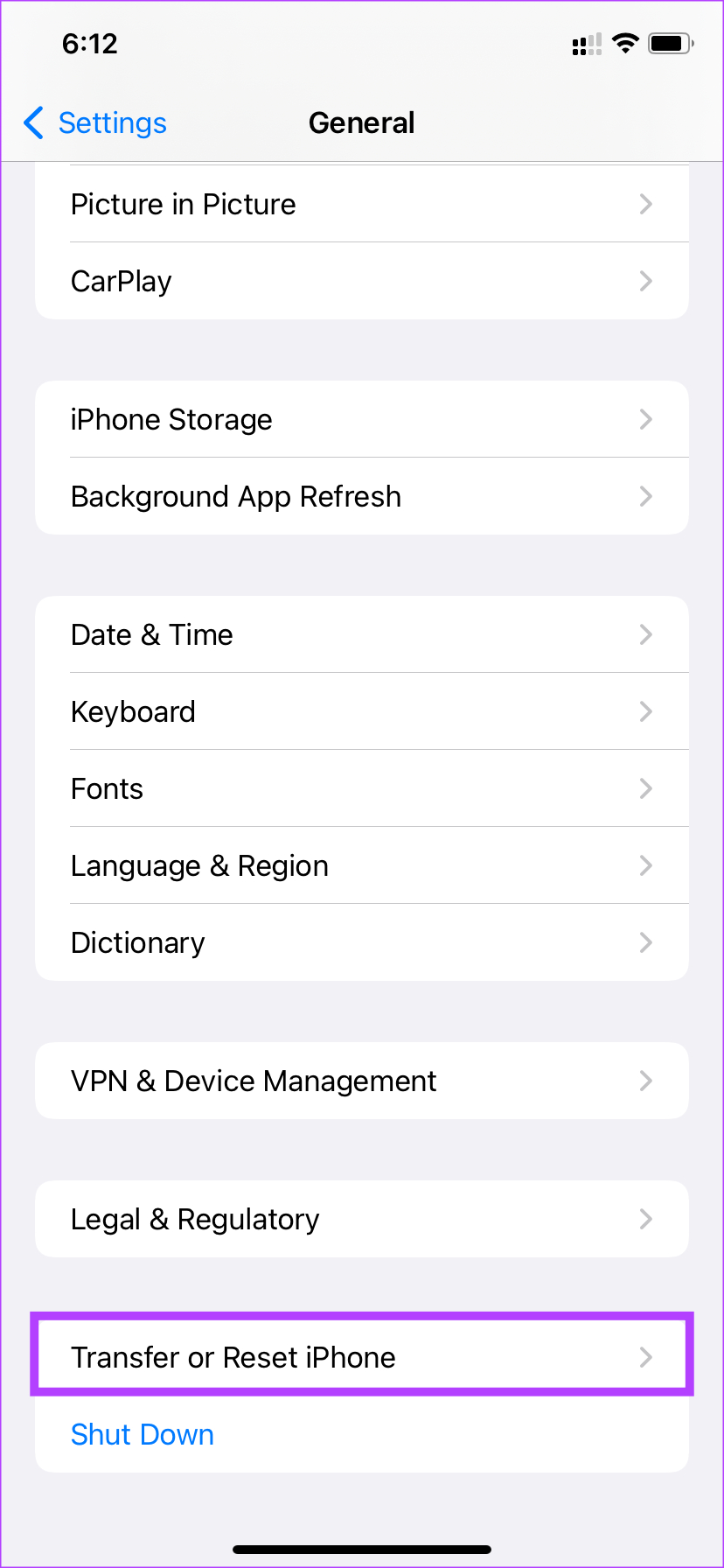
Step 1: Open the Settings app on your iPhone and tap on General.

General settings

Step 2: Scroll to the bottom and select ‘Transfer or Reset iPhone.’

Transfer or reset iPhone

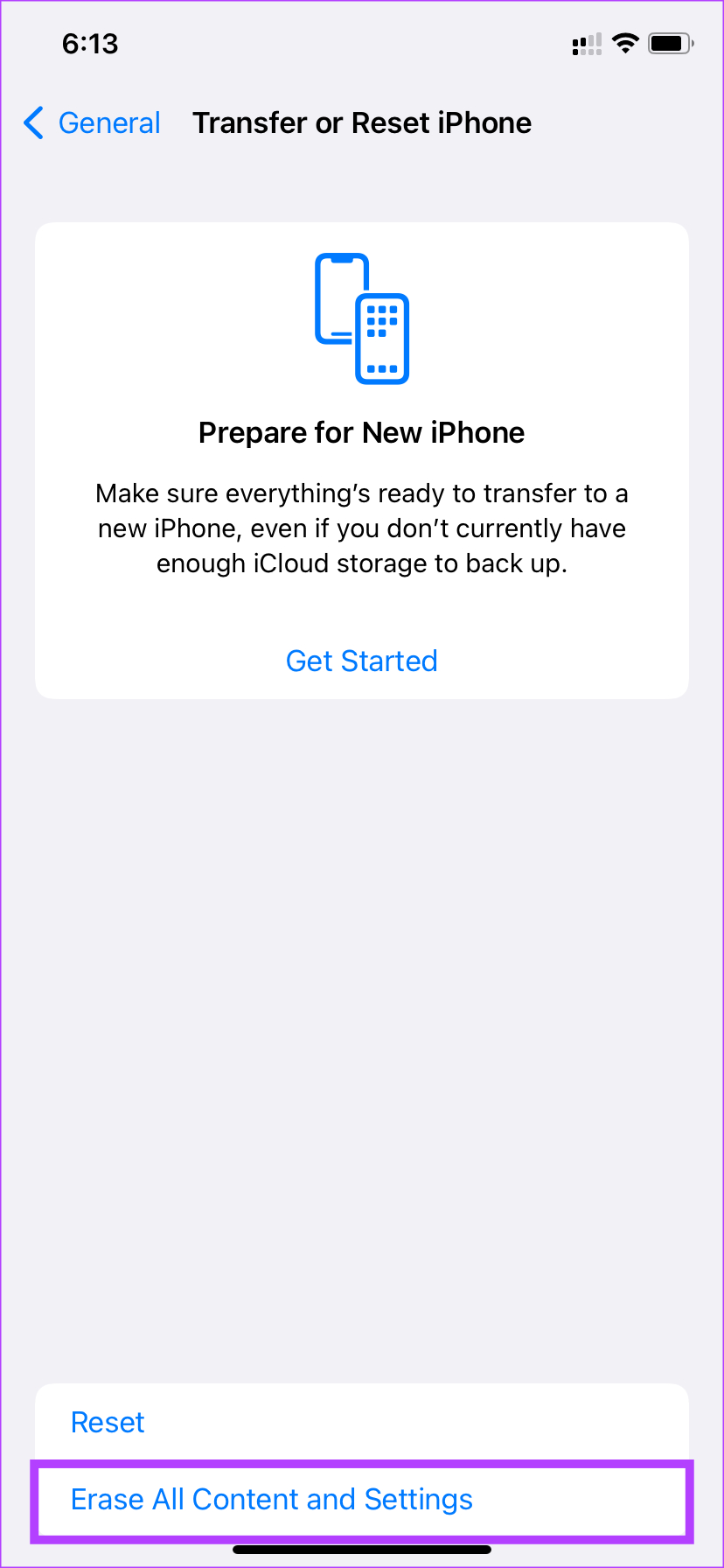
Step 3: Tap on ‘Erase All Content and Settings.’

factory reset

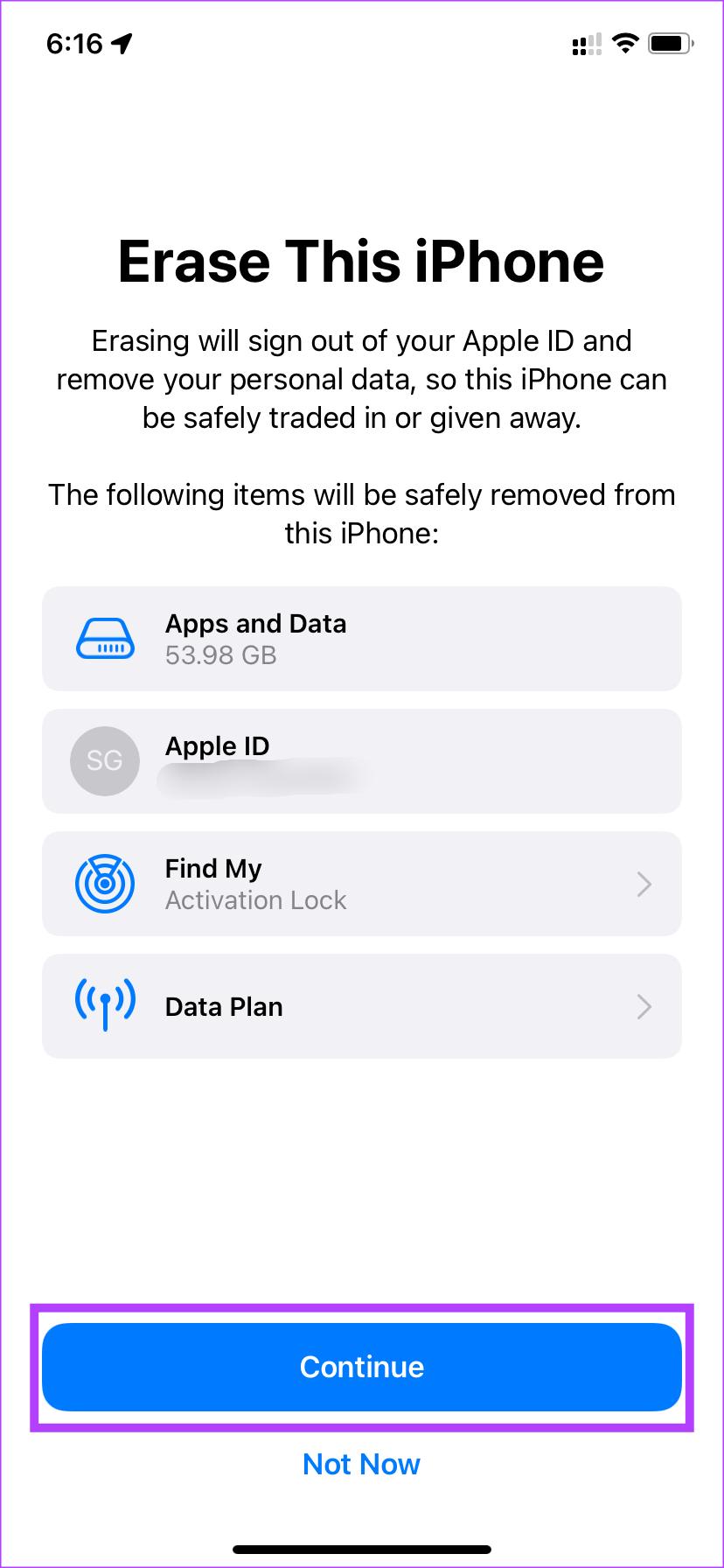
Step 4: Then, tap on Continue.

erase iPhone

Step 5: Enter your passcode followed by the password to your Apple ID and your iPhone. This will reset your device.

enter passcode

Drive the Ghost Away

It can be annoying to use an iPhone with ghost touch issues. Frequent typos, random app launches, and the contents of the screen are all over the place. Just follow all the instructions carefully and you should be able to fix the ghost touch issue and have an enjoyable experience while using your iPhone.

Was this helpful?


Thanks for your feedback!

5 Ways to Fix DisplayPort Not Working on Windows

Basic Fixes:

  • Replug both the DP and the monitor cables.
  • Check the cable condition, replace it if damaged, or try another wire.
  • Clean DisplayPort port.
  • Check if HDMI is working to rule out GPU issues.
  • Try using a different HDMI to DisplayPort converter if you are using one.
  • Switch between the 1. 2, and 1.4 versions of DisplayPort.

Fix 1: Manually Detect Other Display

Windows comes with an option to detect another display manually. If DisplayPort is still not working, use the steps below to detect the connected display manually.

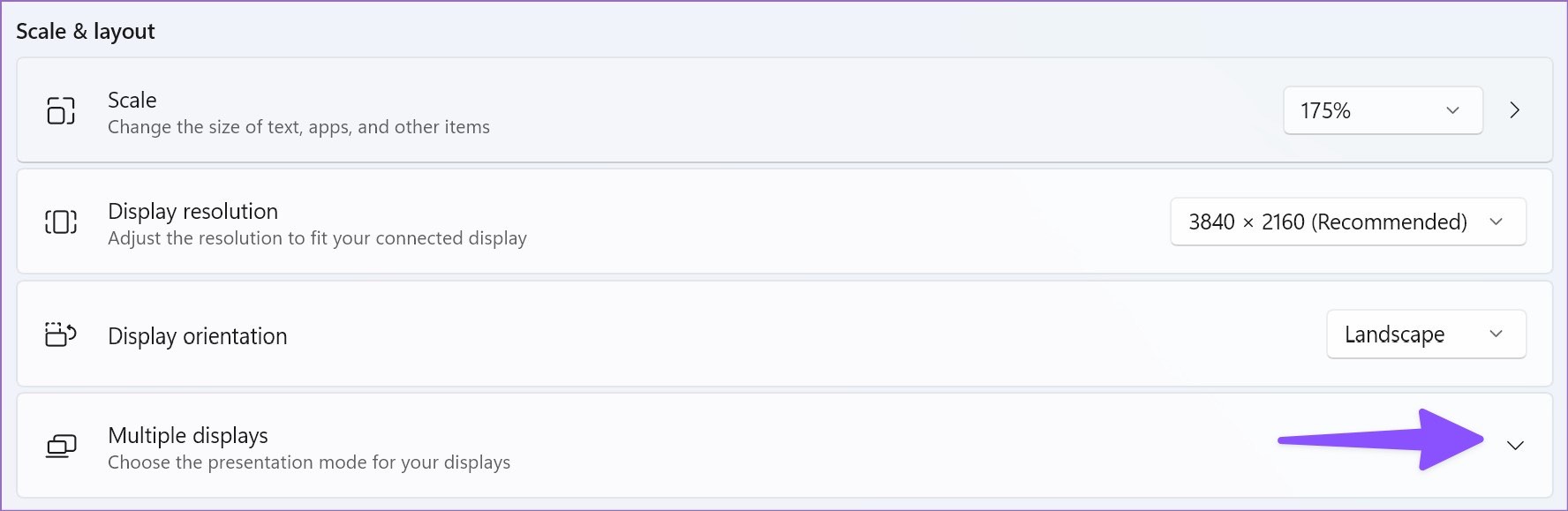
Step 1: Open Windows Settings using Win + I and go to System > Display.

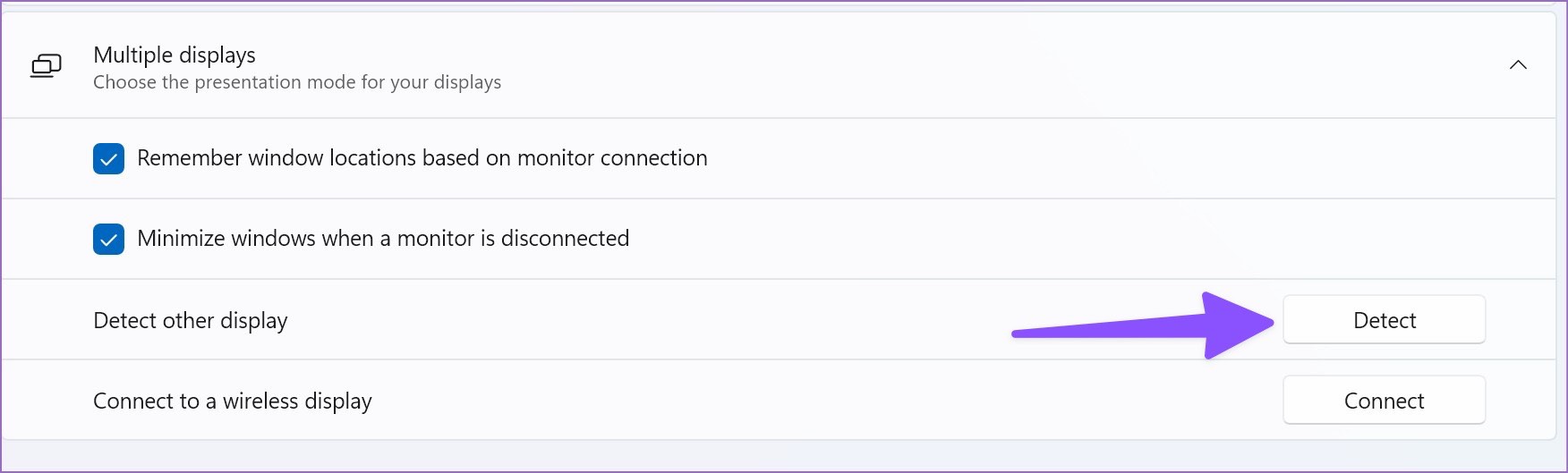
Step 2: Expand Multiple displays.

Step 3: Click Detect to see if the laptop detects the display.

Fix 2: Check Monitor Setup With NVIDIA Control Panel

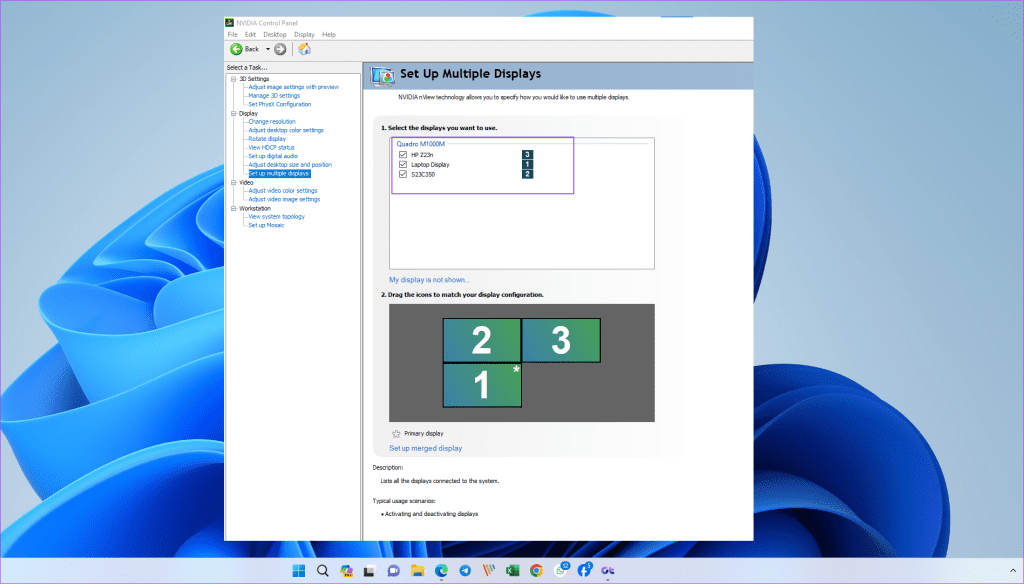
Step 1: Open the NVIDIA control panel > go to Display category > select Set up Multiple Displays.

Step 2: Check the box for the inactive display you wish to activate as a secondary display and click apply.

Nvidia Control Panel Multiple Display Setup

If your display is not shown, click “My display is not shown…” to force detection, and you should see Windows on your display.

Fix 3: Change Display Projection Settings Windows

If you use multiple monitors, the display projection settings are sometimes misconfigured, and you might not see anything on the display.

Step 1: Press the Windows key + P on your keyboard to open the Project menu.

Step 2: Use the Up and Down arrow keys to cycle through the display options. These might include Extend, Duplicate, Second Screen Only, etc.

Step 3: The screen may flicker as you change, but you can stop once you see the image on both screens.

Note: If Win + P doesn’t work, launch it directly from the run prompt using the DisplaySwitch.exe.

Fix 4: Update Monitor Firmware

Monitor makers often release firmware updates to fix bugs. To install the newest build, head to the monitor settings and find the software update option. You can also check the OEM website to see if they have any firmware updates.

Fix 5: Completely Uninstall Display Driver

This trick worked like a charm when we faced DisplayPort issues with our laptop. First, uninstall the graphics drivers and reboot the laptop. Then, download an earlier driver version from the OEM website and install it again.

If you have AMD graphics installed, visit AMD drivers and support on the web and install compatible drivers. For those with NVIDIA graphics drivers, read our posts to download and install NVIDIA drivers without GeForce Experience.

FAQS

Is HDMI a Great Alternative to Display Port? 

HDMI is a neat alternative to DisplayPort. Check our dedicated post to learn the differences between HDMI 2.1 and DisplayPort 1.4. You can also use an HDMI cable to connect your laptop to a monitor and work on a big display.

Does Switching the End of the Display Port Cable Help?

While uncommon, some users have reported that flipping the two ends of the cable worked for them. Some users reported this using the regular cable, while others used a convertor.

Was this helpful?

Thanks for your feedback!

4 Ways to Remove Duplicate Photos on Android

Method 1: Using Files by Google App

The Files by Google app consistently scans your device storage to identify duplicate media and categorizes it for cleaning. Here’s how to use it to remove duplicate photos:

Step 1: Install Files by Google, launch the app, and provide necessary file access permissions.

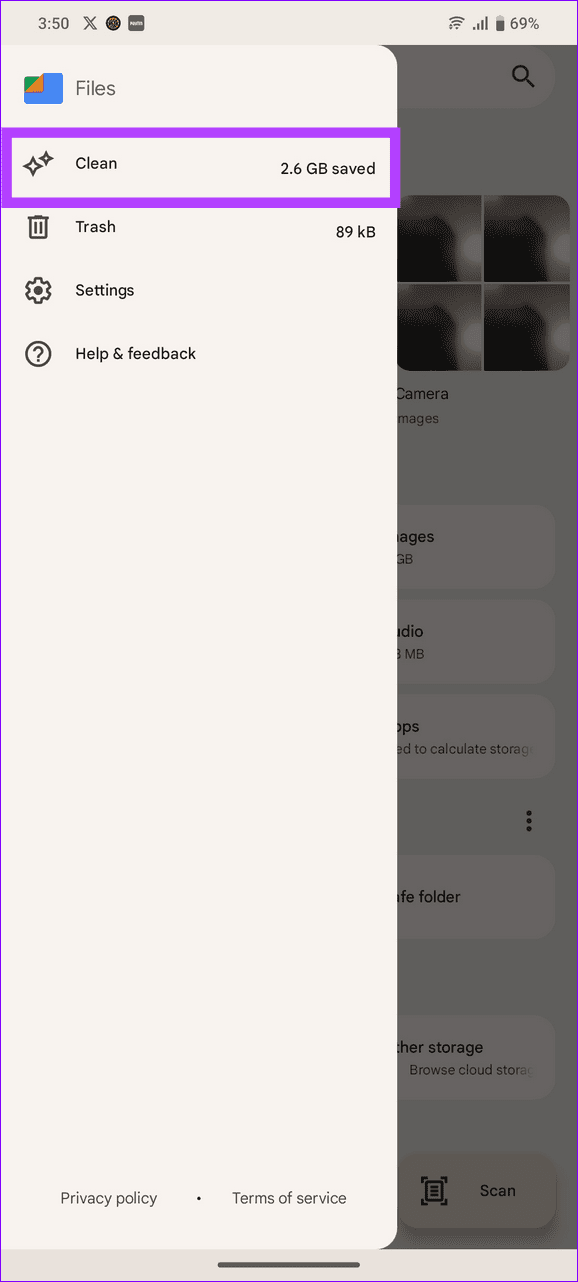
Step 2: Tap the hamburger menu at the top left corner, select Clean, and tap Select Files under Delete Duplicates.

Step 3: Select all duplicate photos and tap Move files to Trash.

OneUI offers its native Gallery app on Samsung phones to organize photos and manage duplicates through suggestions. Here’s how you can utilize it to remove identical snaps:

Note: The Gallery app might take a while to detect new duplicate photos for removal.

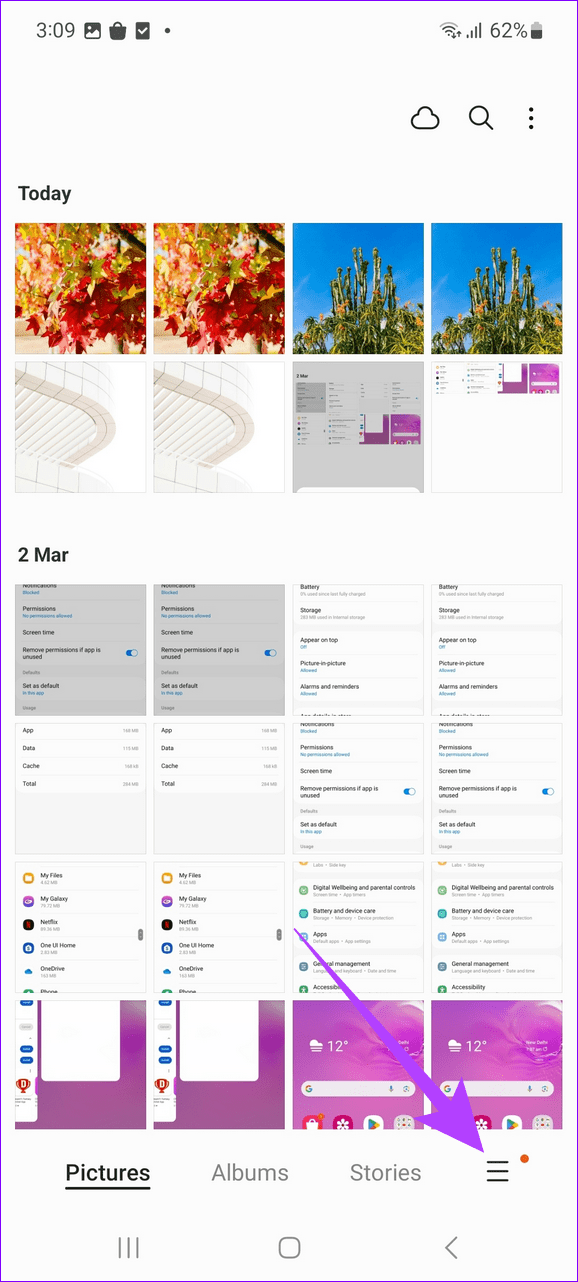
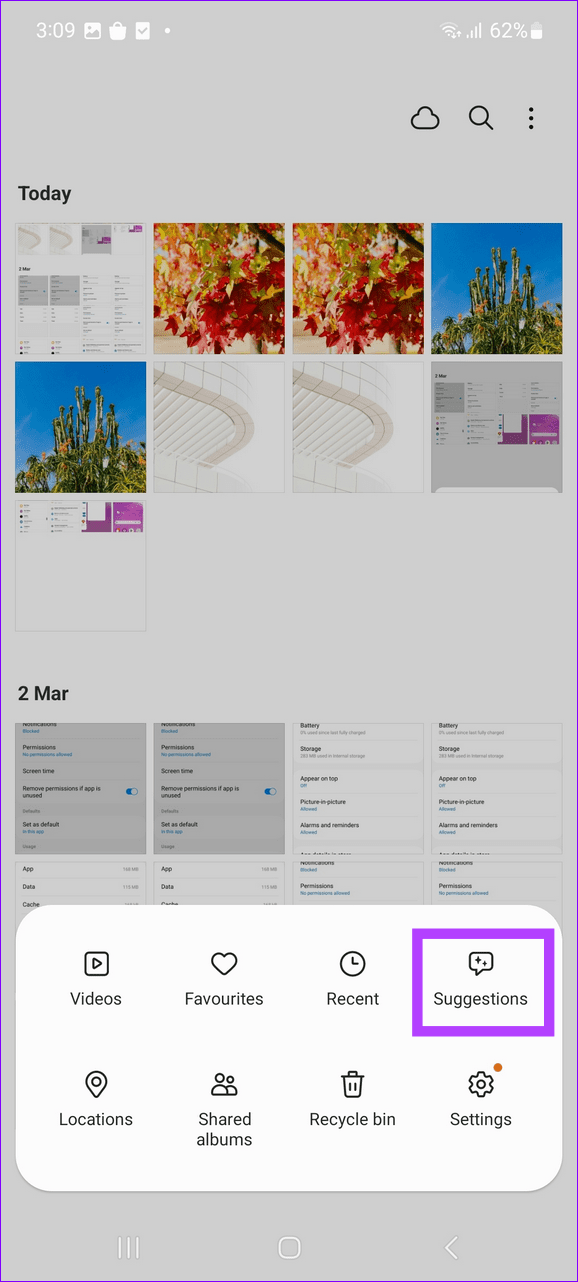
Step 1: Launch Samsung Gallery, tap the Hamburger menu in the bottom right, and press Suggestions.

Step 2: Tap Delete duplicate pictures and press Delete duplicates.

Method 3: Using the Samsung My Files App

Samsung’s My Files app operates much like Files by Google, allowing you to analyze your storage and remove duplicate photos.

Tip: If you’ve unknowingly removed the app to free up storage, install Samsung My Files from the Google Play Store on Samsung devices.

Step 1: Open My Files, run Analyze storage, and scroll down to open the Duplicate files section.

Step 2: Select all duplicate photos and press Delete.

Method 4: Using Google Photos

With the latest update, Google Photos automatically groups identical pictures in a single frame to manage duplicates.

Select the duplicate photo you wish to remove and press Delete to remove the current copy. Alternatively, pick the All photos option to remove multiple duplicate photos at once.

Was this helpful?

Thanks for your feedback!

Why Does Spotify Take Up So Much Storage – 3 Methods to Fix It

Why Does Spotify Use So Much Storage

Ever wondered how Spotify enables you to listen to music offline? Well, this happens due to a mechanism called caching. Now, to ensure you have a great listening experience without delays in songs, Spotify stores a part of the played song on your local storage.

Now, when you replay it, it can easily play without lag. This process takes place for all songs and podcasts.

Thus, the accumulation of hefty storage space on your device. The good part is that this cache data is temporary and even capped to a size limit depending on your storage.

Besides, the music you newly listened to will replace the old songs regularly. For most devices, the cache is usually at 2-3GB after using the app regularly for a fortnight.

Method 1: Clear Spotify Cache

On iPhone and Android

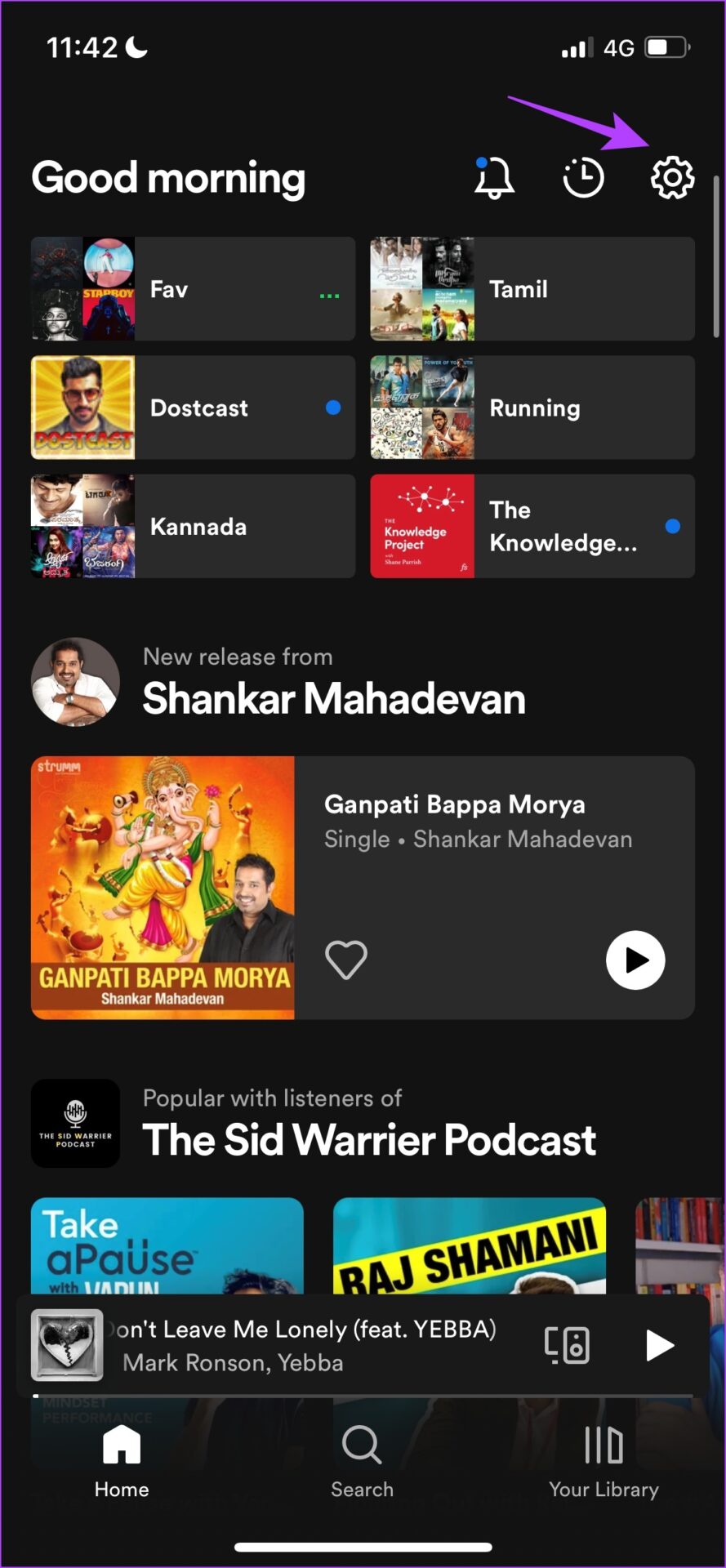
Step 1: Tap on the Settings icon in the Spotify app. Select Storage.

Step 2: Tap on Clear cache and select Clear cache again to confirm.

On Mac

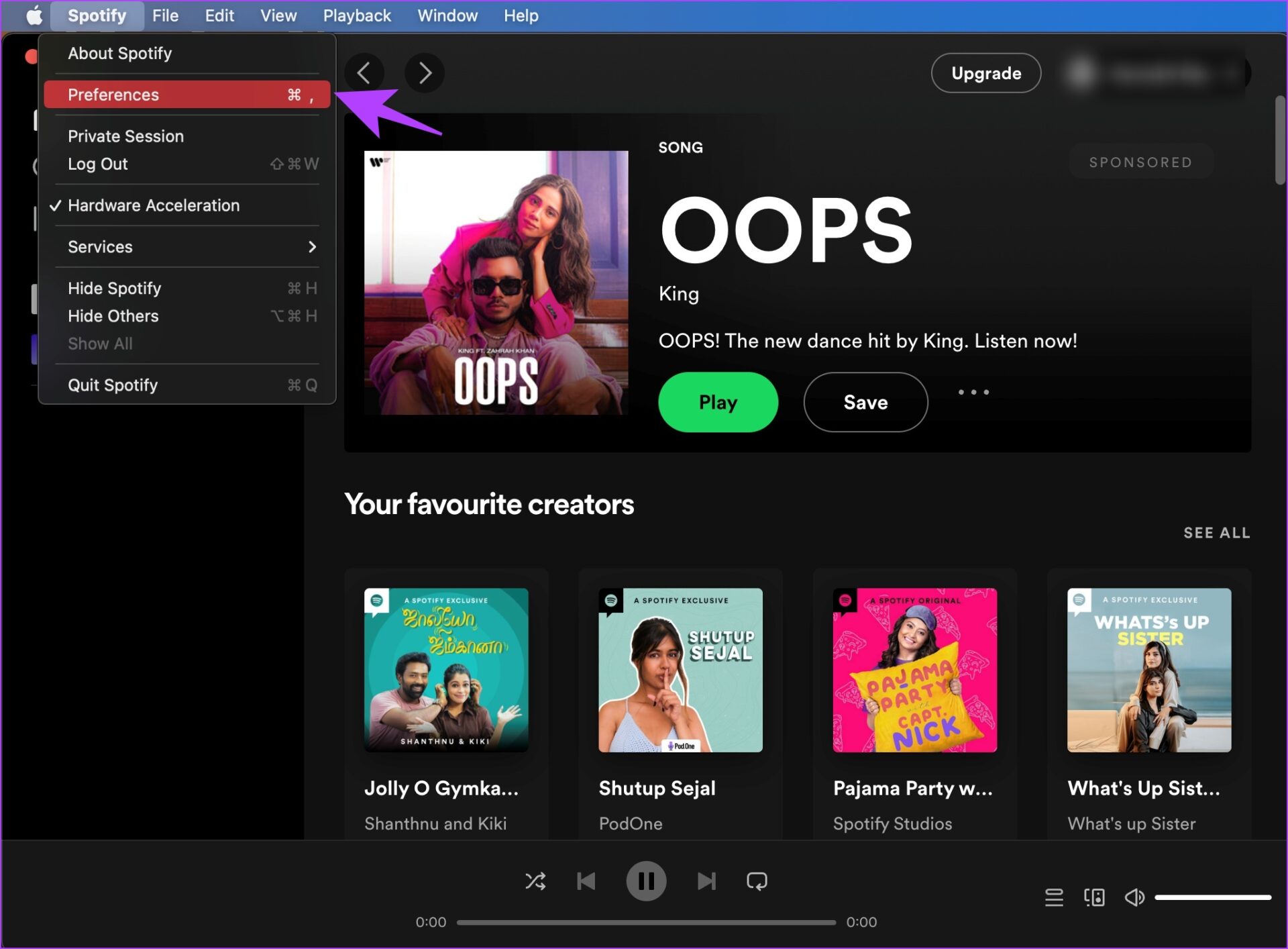
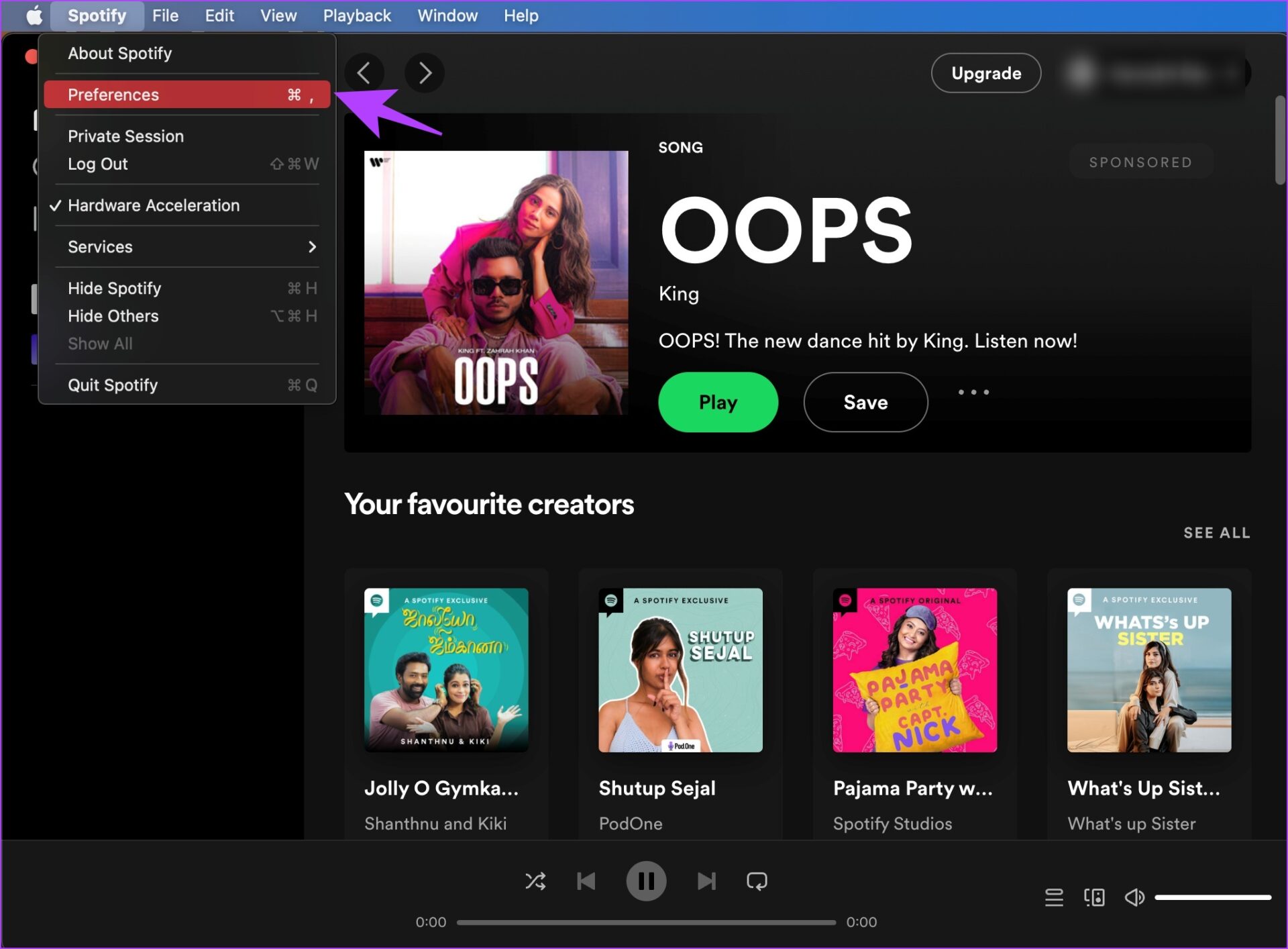
Step 1: Open the Spotify app. Click on the Spotify option in the toolbar, and select Preferences.

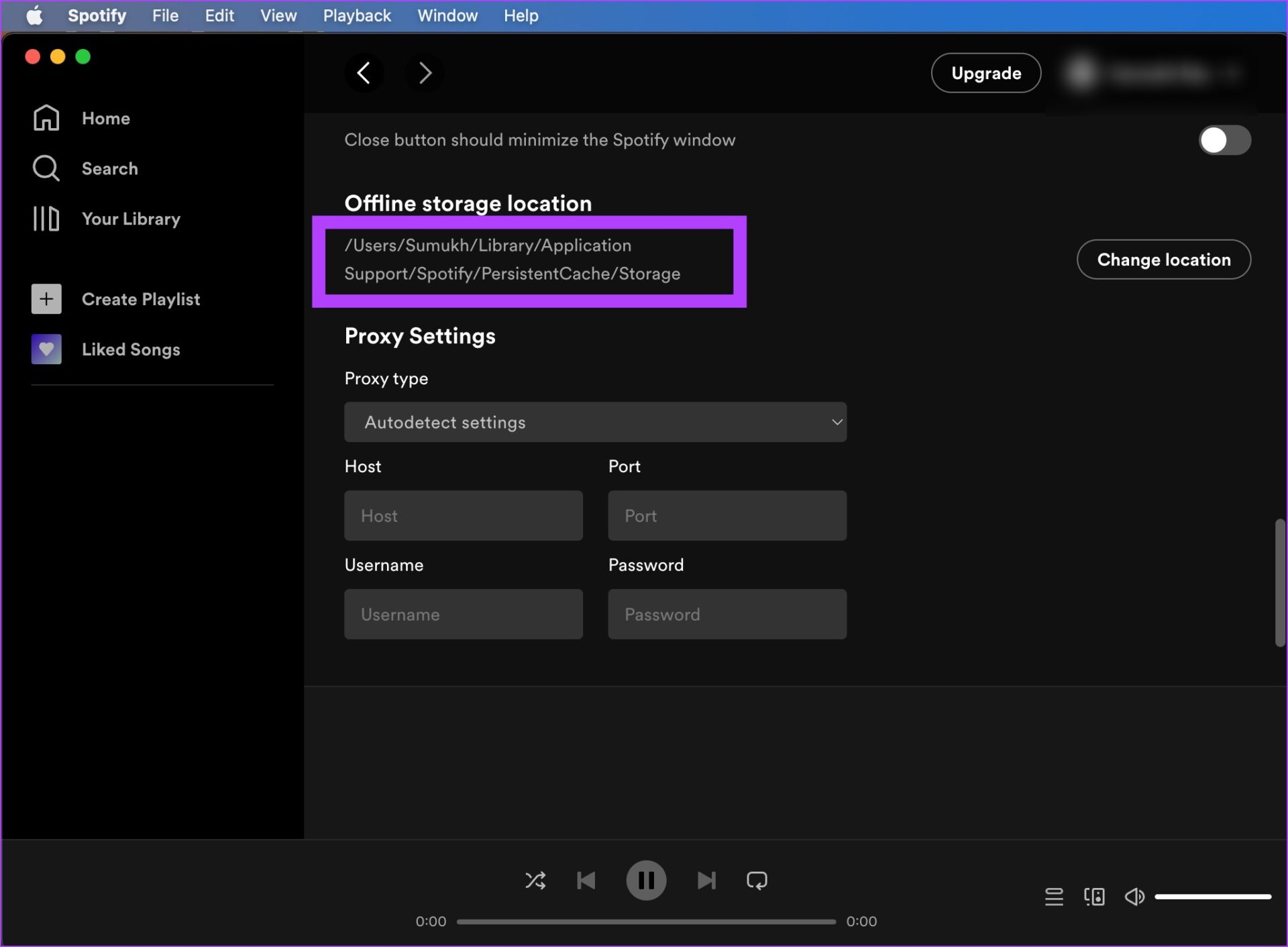
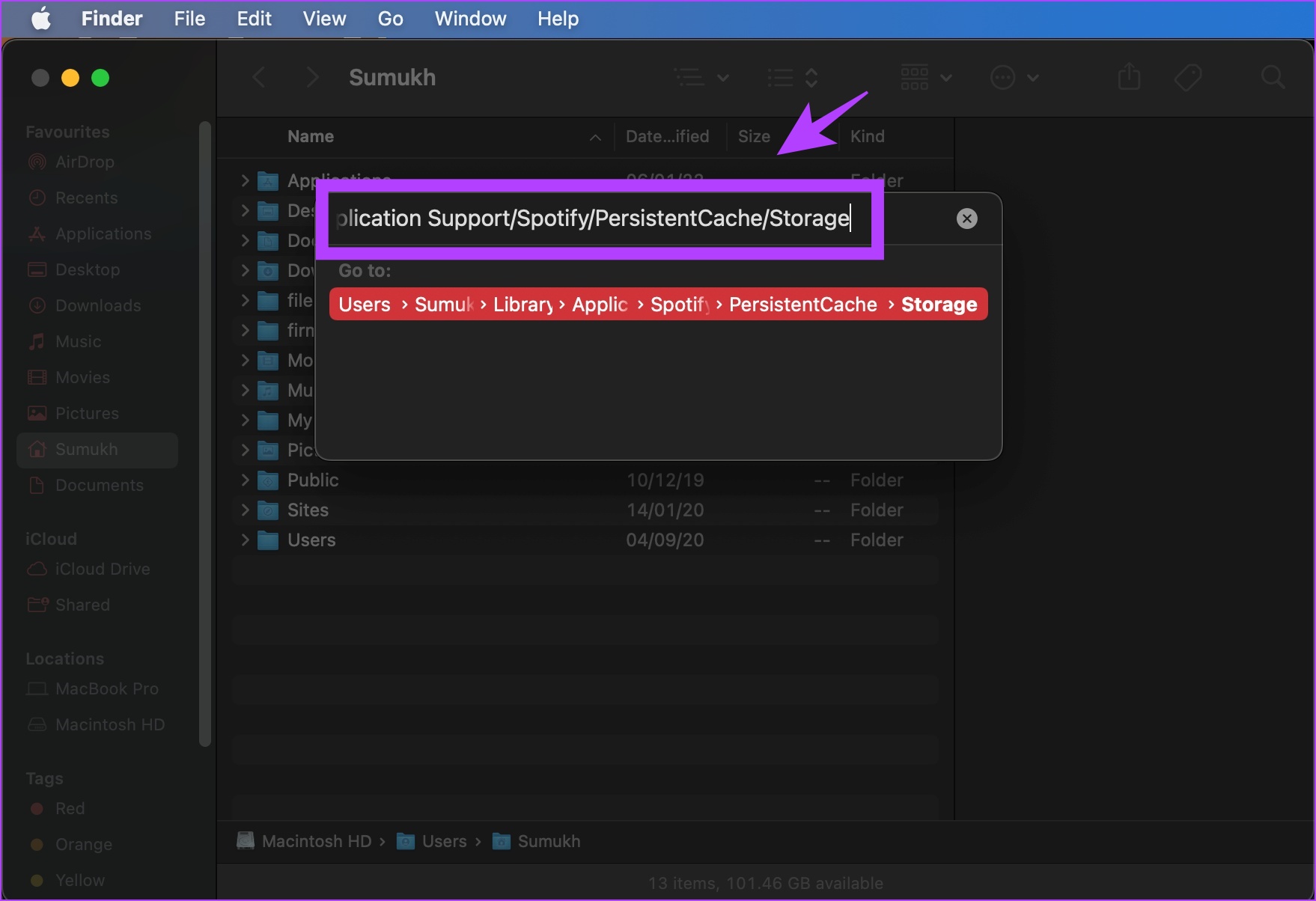
Step 2: Select and copy the path where offline storage is located.

Step 3: On the main toolbar of your Mac, click on Go. Then, select Go to Folder.

Step 4: Now, paste the path and go to the location. Select all the files, and use the Move to Bin option.

On Windows

Similar to Mac, cache files of Spotify need to be located and then deleted on Windows. These files and folders are hidden by default.

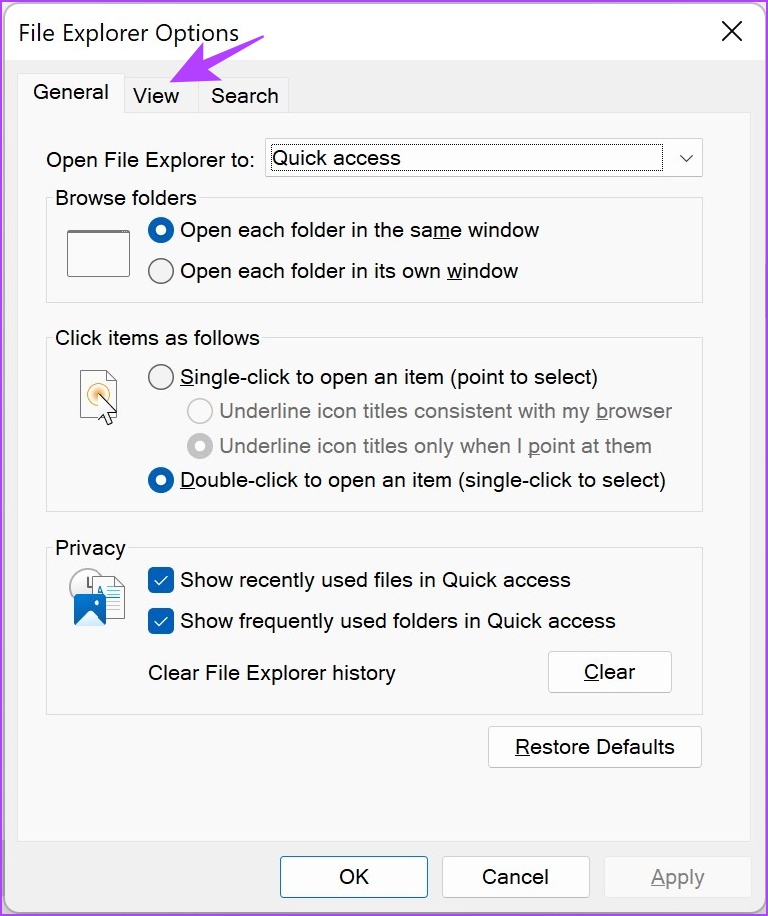
Step 1: In the Start menu, open the File Explorer Options app.

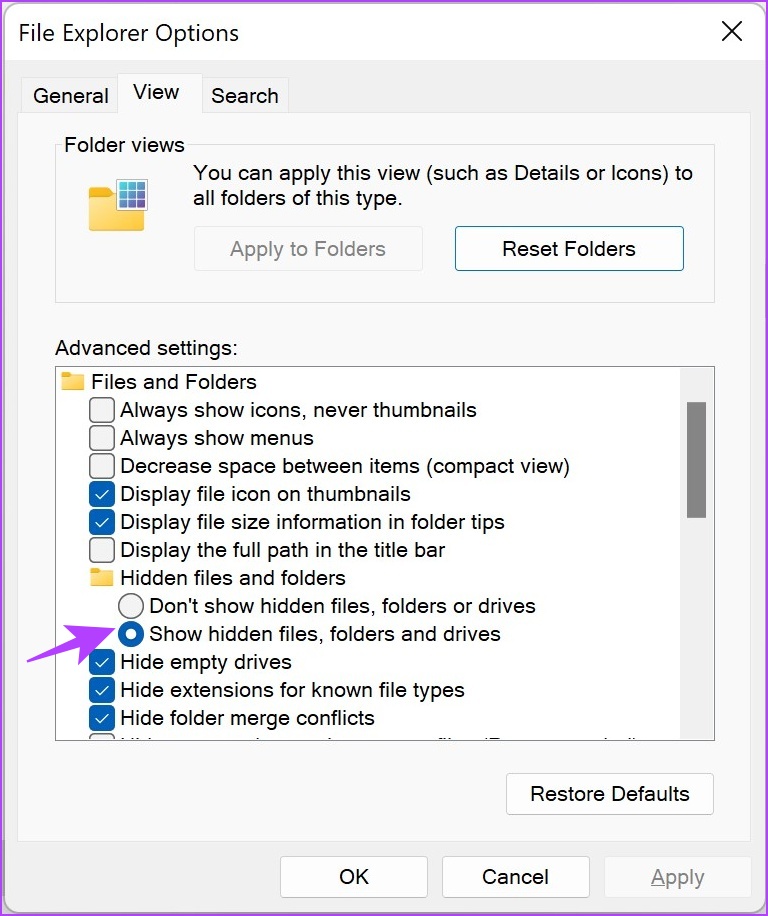
Step 2: Once opened, click on View. Check the box next to Show hidden files, folders, and drives. Click on OK to apply the settings.

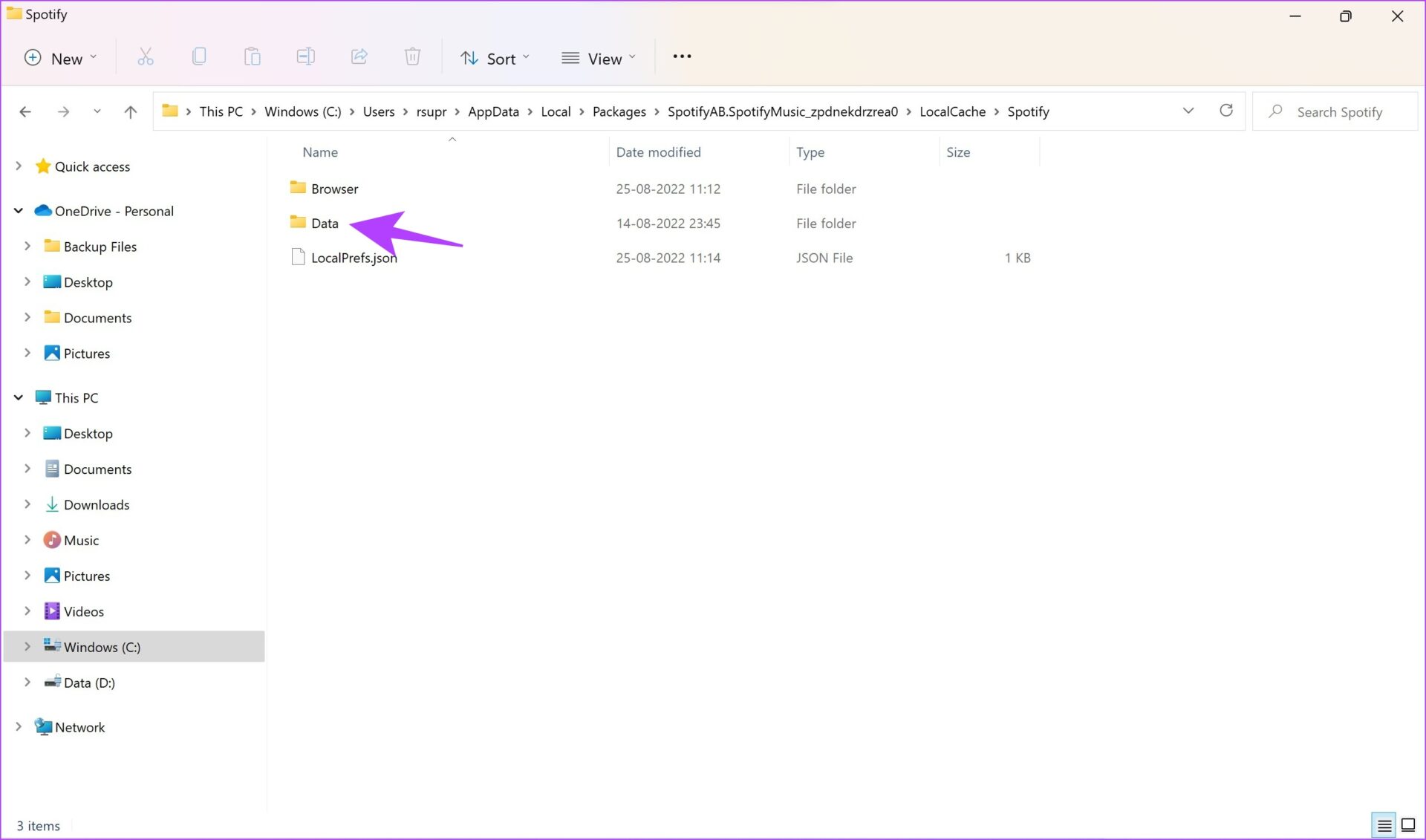
Step 3: Now, navigate to the following destination in File Explorer.

C:\Users\[Username]\AppData\Local\Packages

Step 4: Select a folder containing the keyword Spotify.

Step 5: Next, go to LocalCache -> Spotify -> Data. Select all folders inside and click on Delete.

Also Read: How to clear cache on Spotify.

Method 2: Clear Spotify Downloads

If you are a Spotify premium user, you have an option to download music offline. It is another reason why Spotify takes up so much device storage.

On iPhone and Android

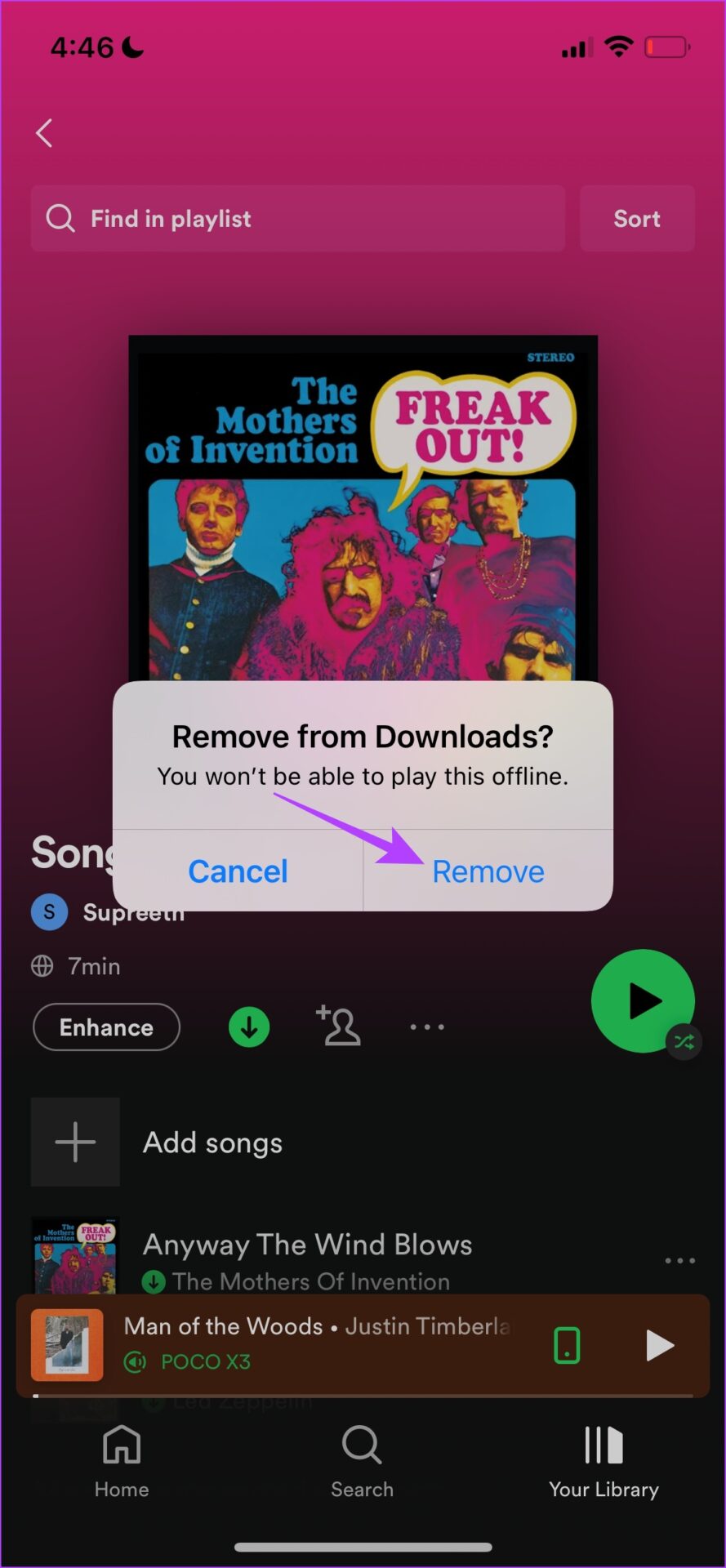
Step 1: Open the playlist with the download option enabled and tap on the download icon.

Step 2: Click on Remove.

This option will help you remove downloads from individual playlists. But, if you want to delete all downloads at once, here’s how you can do it.

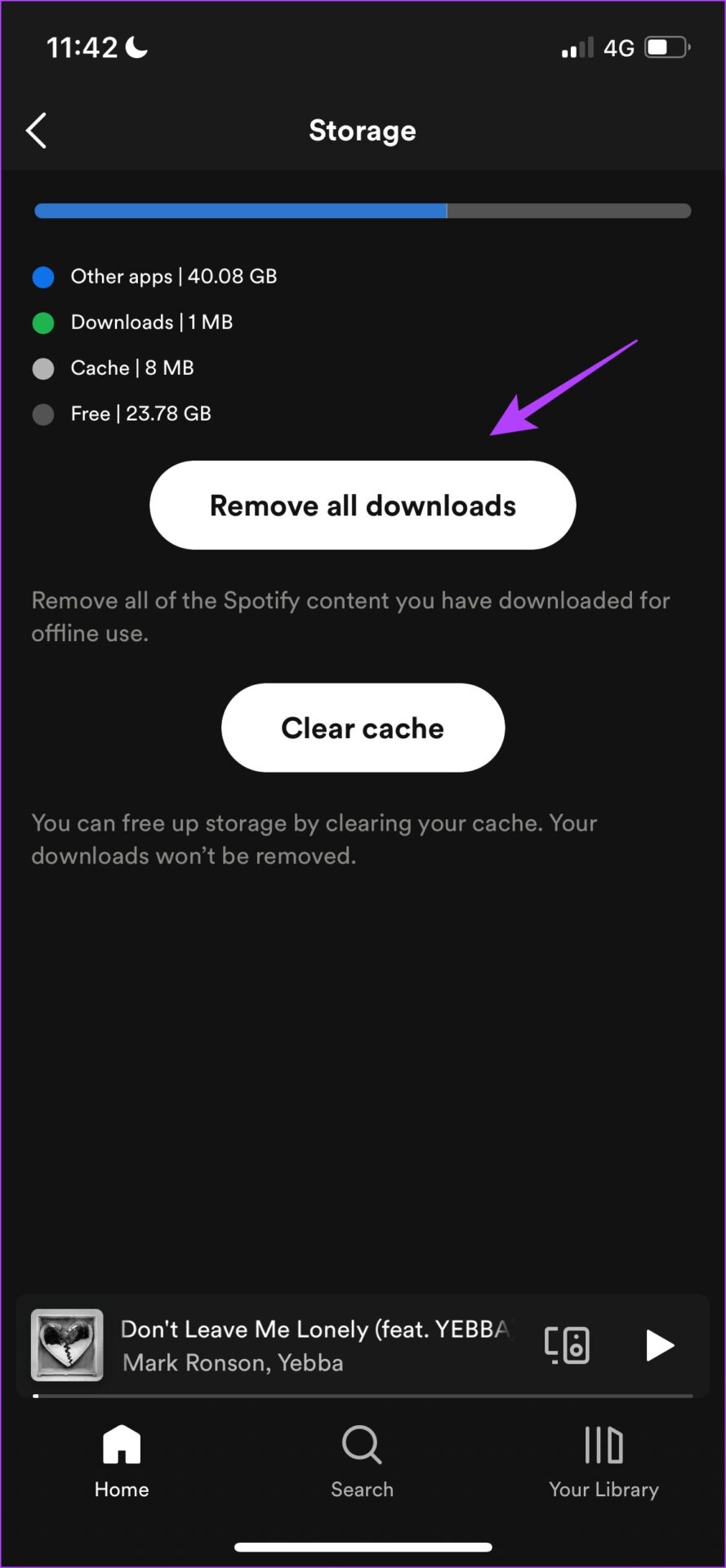
Step 1: Click on Settings in the Spotify app and go to Storage.

Step 2: Tap on Remove all downloads and select Remove to confirm.

On Windows and Mac

All you need to do is to open the playlist which has the download option enabled. Click on the download icon, and all of your downloads will be automatically removed from the playlist.

Method 3: Change Download Settings

However, downloading and listening to music offline might be essential to many. So, a middle ground to save space and ensure you have music offline is by reducing the download quality.

On iPhone and Android

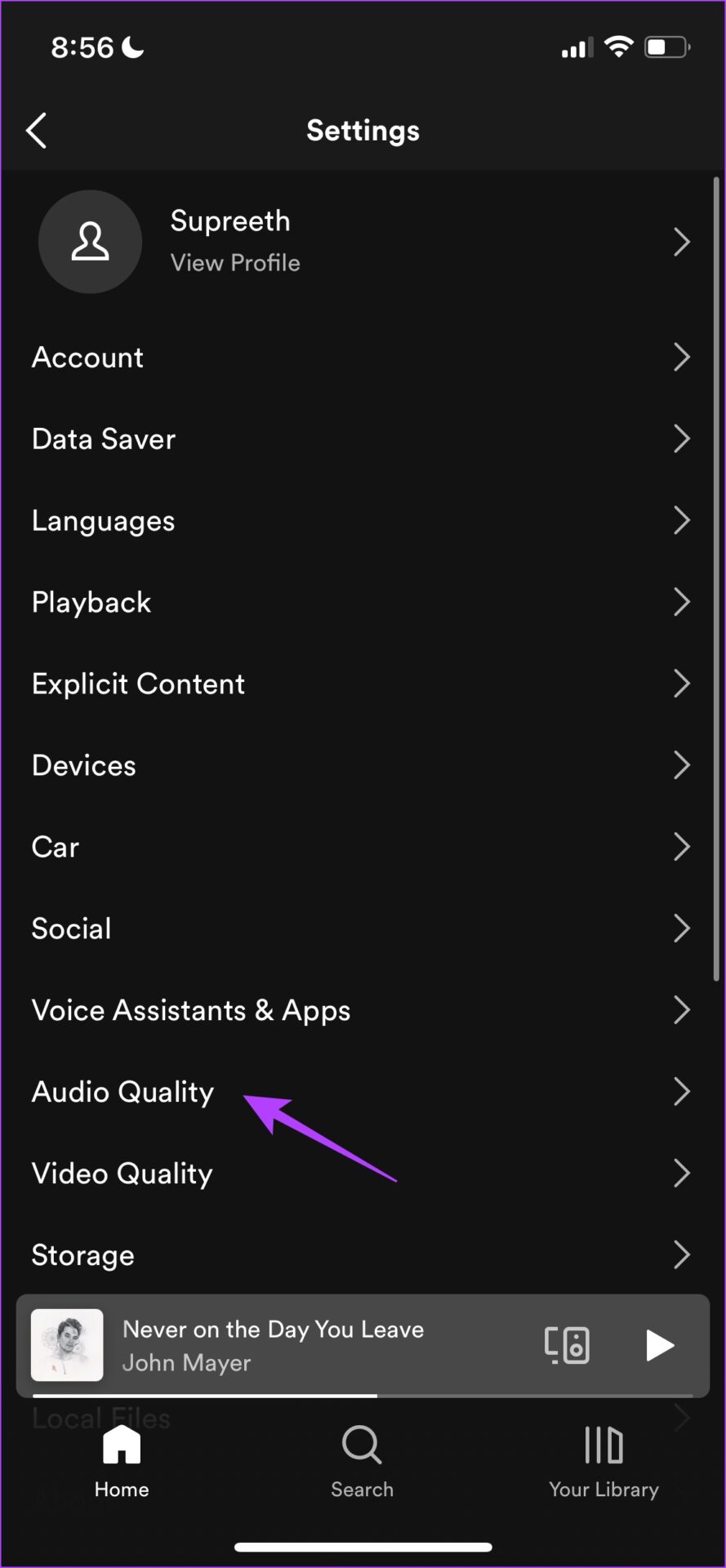
Step 1: Tap on Settings in the Spotify app and tap on Audio Quality.

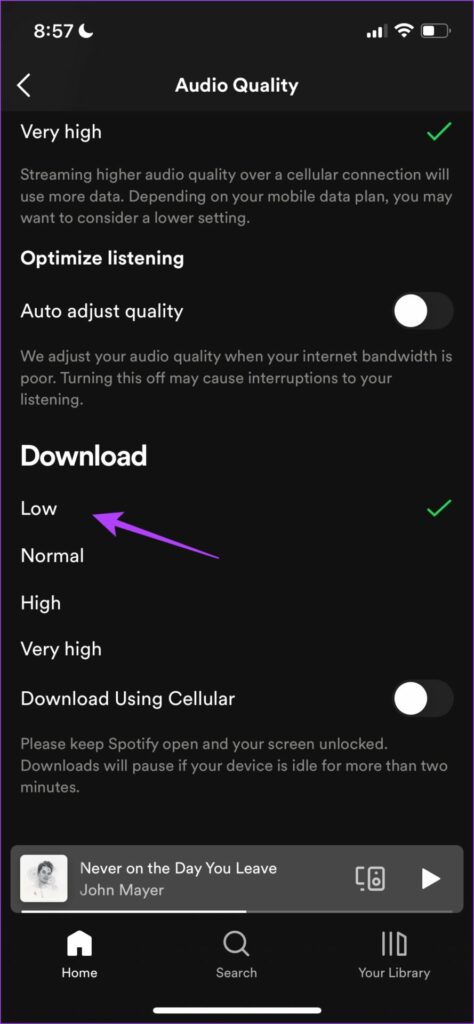
Step 2: Now, select your preferred quality under Download.

On Windows and Mac

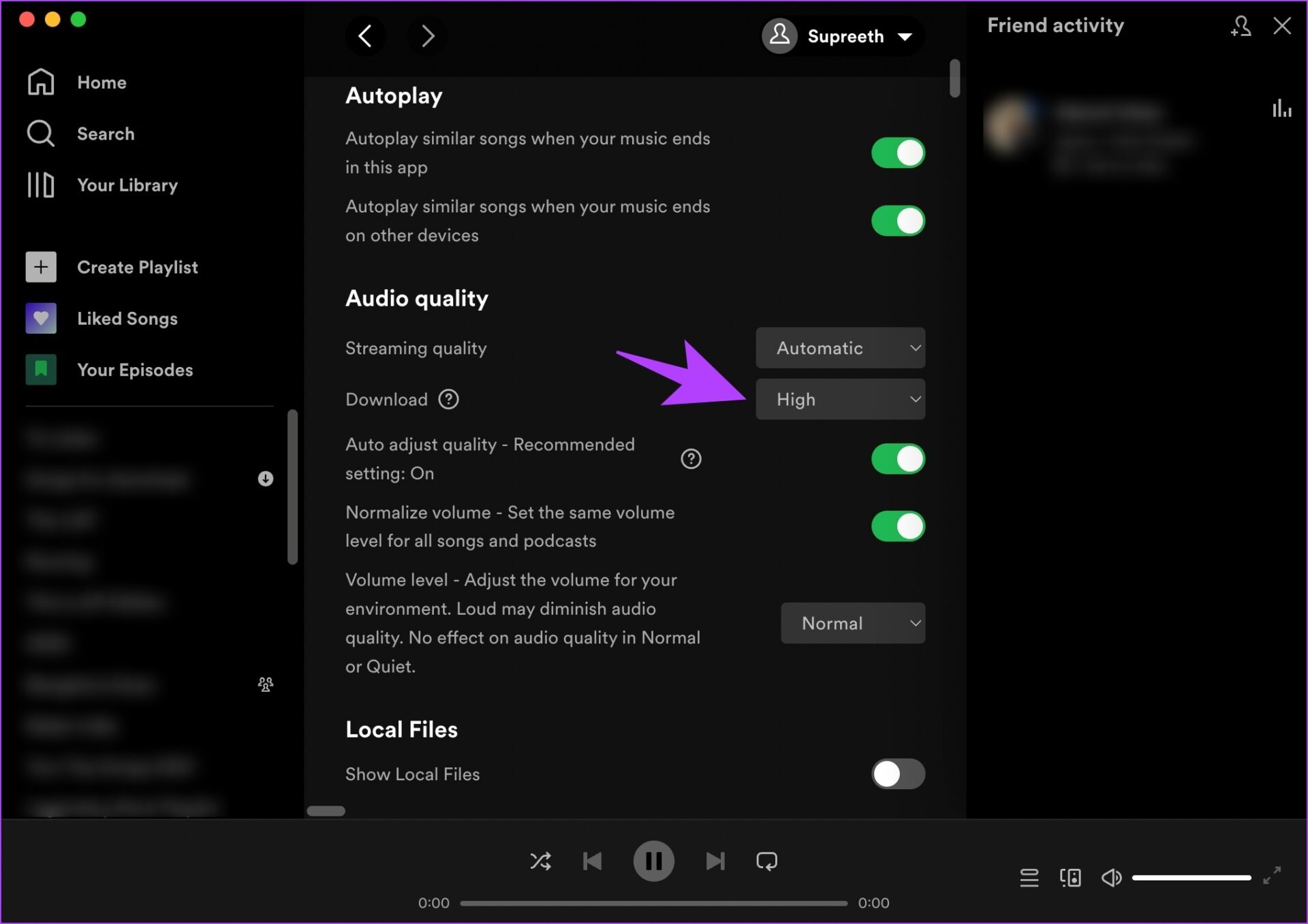
Step 1: Click on Spotify in the toolbar after opening the Spotify app and go to Preferences.

On Windows, click on your username in the Spotify app and select Settings.

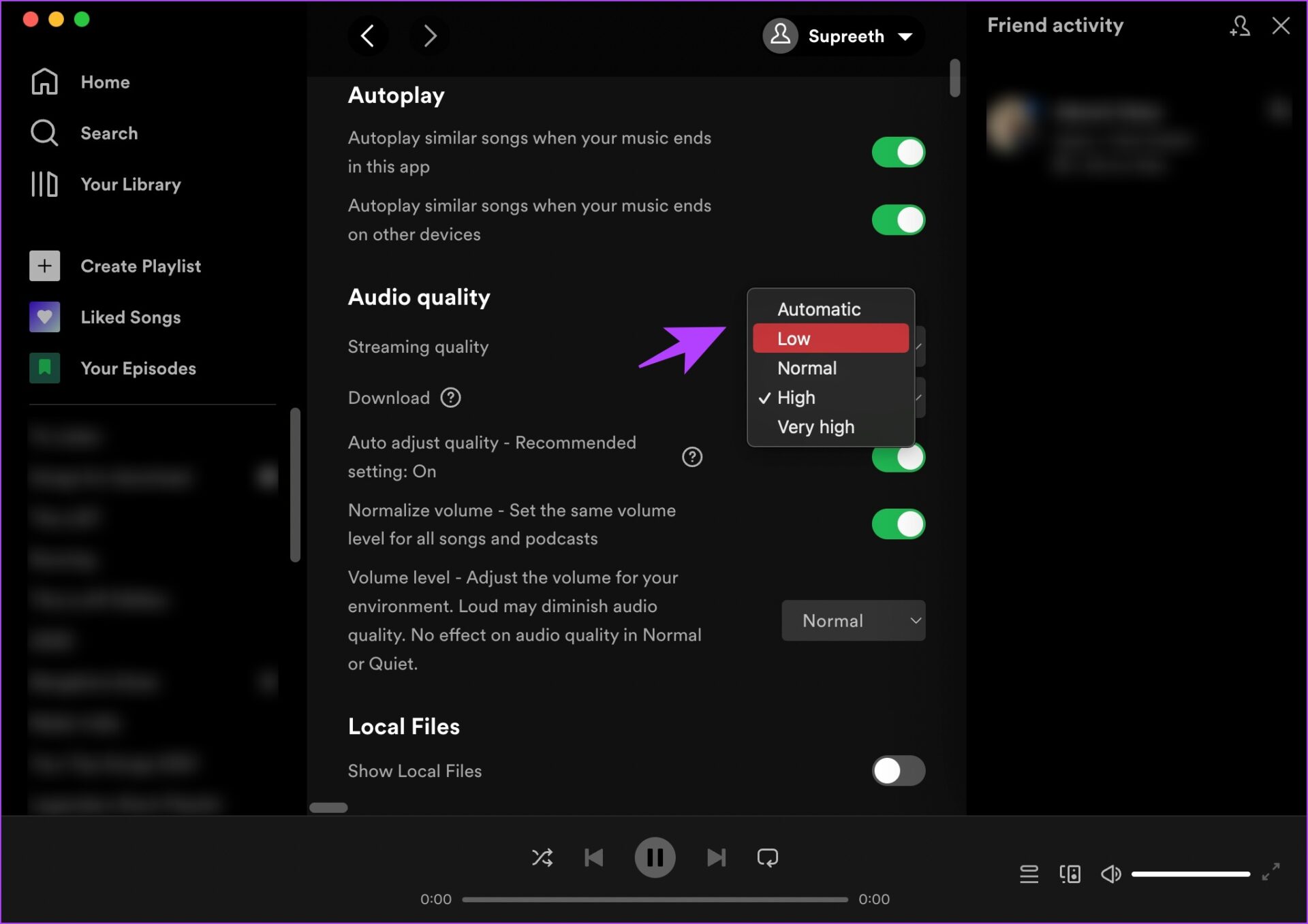
Step 2: Click on the dropdown menu next to Download.

Step 3: Select your download quality.

Was this helpful?

Thanks for your feedback!

How to View and Reset Netflix Watch History

How to Delete Watch History on Netflix

On Mobile and Desktop

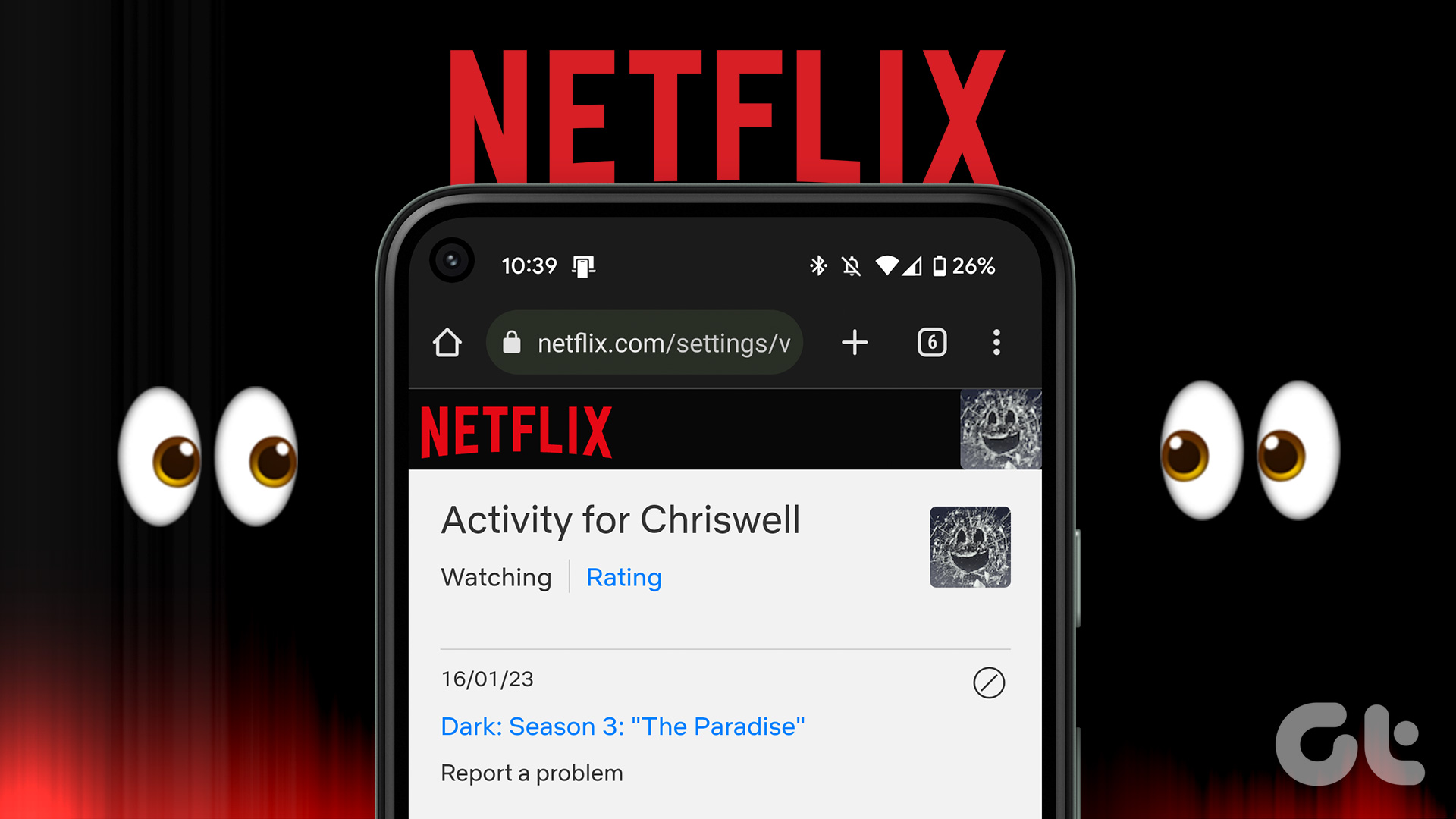
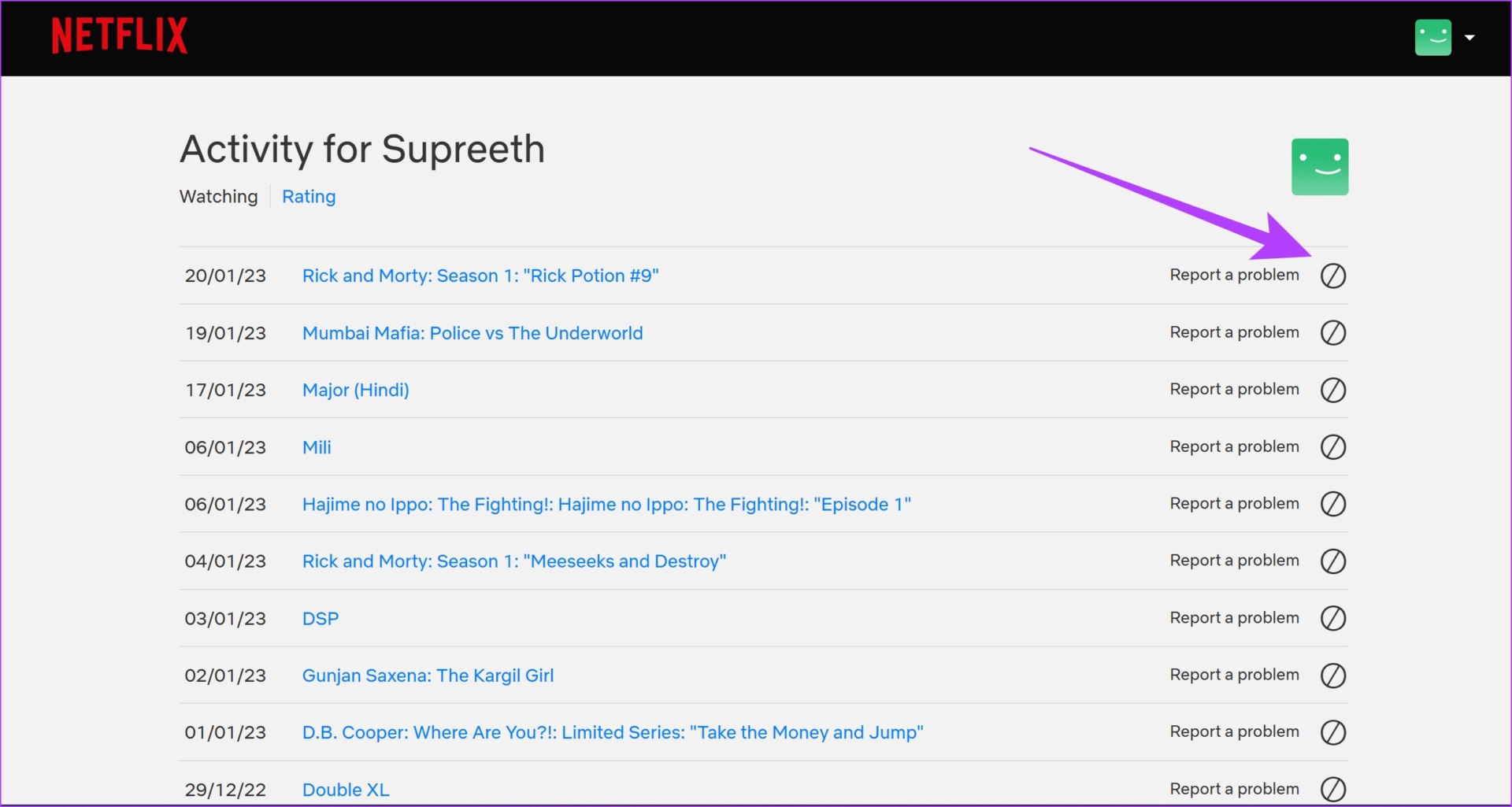
Step 1: Open the Accounts page on Netflix. Select the profile for which you want to check the viewing history.

Step 2: Tap on Viewing Activity.

Step 3: Tap on the hide button next to the title you want to delete from your Netflix watch history.

You will now get a confirmation message that the item has been hidden.

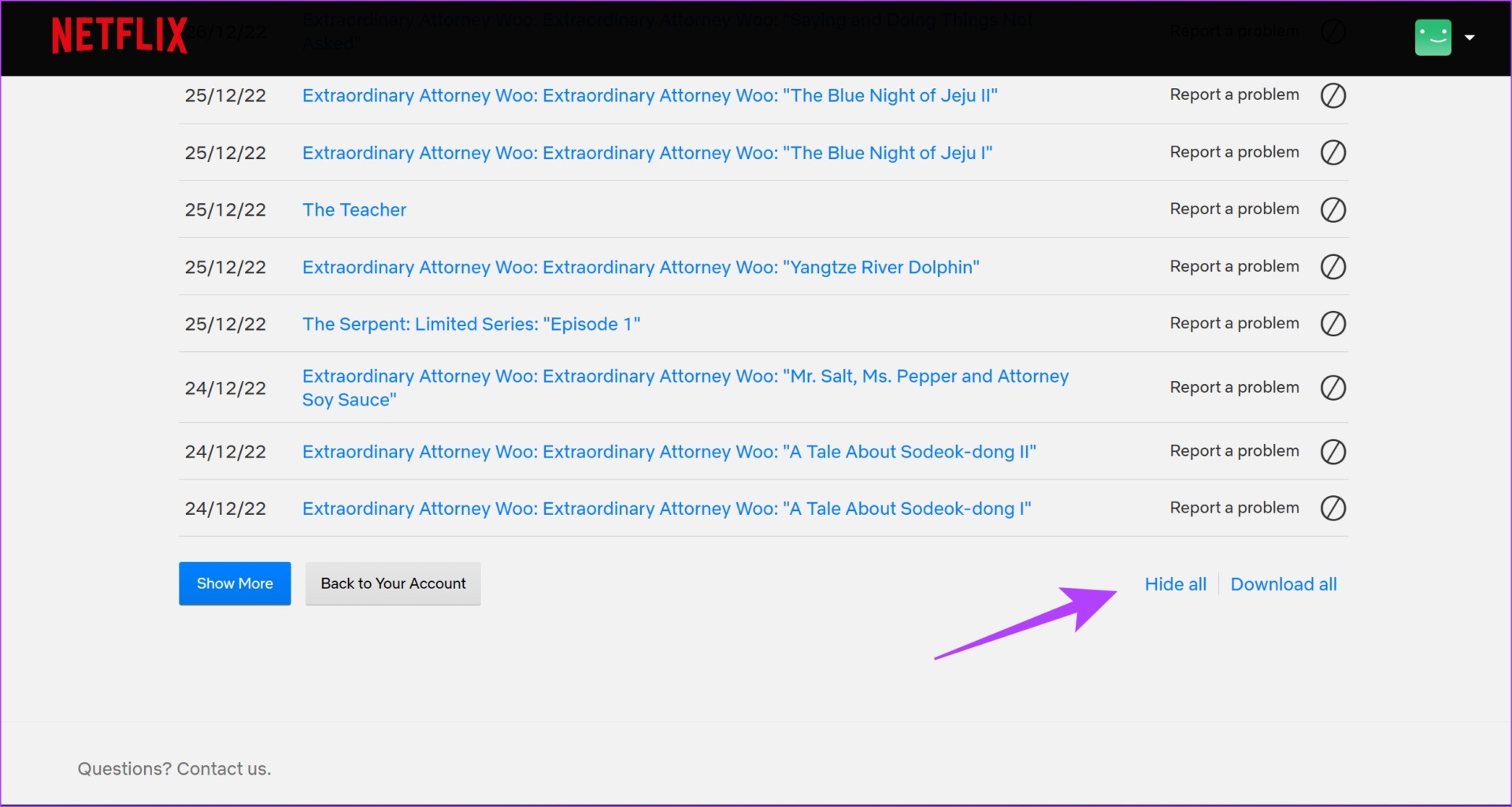
You can also scroll down and use the Hide All button to delete your entire viewing history.

Tip: You can click on the Download All option to save a record of your viewing history as a CSV file.

On Smart TV

While you cannot reset the watch progress for a Netflix show or a movie on your smart TV, you can remove shows from continue watching. Simply open the title, go down the list of options, and select Remove from Continue Watching.

Remove from Continue Watching 1

Also Read: How to fix Continue Watching not showing on Netflix

Frequently Asked Questions

1. Will the downloaded file of Netflix viewing activity also display the hidden viewing activity?

No. Once you delete an item on the Netflix Viewing activity, it will not appear in the downloaded list.

2. There are shows in my Netflix watch history that I didn’t watch. What’s happening?

This usually occurs if someone who is supposed to use a different profile uses your profile to watch titles on Netflix.

3. Can you check when the content was watched on Netflix Viewing activity?

Yes, but you can only see the date of the watch and not the exact time.

4. Is there an incognito mode on Netflix?

No, there is no option to view Netflix without your history getting recorded.

Also Read: How to find and modify ‘My List’ on Netflix

Was this helpful?

Thanks for your feedback!

What Is MAC Randomization and How to Use It on Your Devices

What Is MAC Randomization and How Does It Work

A MAC (Media Access Control) address is a unique 12-digit identifier assigned to internet-capable devices, which helps identify devices on a network. When you connect to a Wi-Fi network, your device’s MAC address is visible, which can expose its identity and location.

Enabling MAC randomization assigns a temporary MAC address to your device, reducing the privacy risk by hiding the original one. This ensures the safety and privacy of your devices on public or shared Wi-Fi networks.

How to Enable MAC Randomization on Windows 11

You may occasionally need to connect your Windows 11 laptop to public Wi-Fi networks. Before doing so, it’s essential to enable MAC randomization for added privacy.

Step 1: Press the Windows key + I to open the Settings app and head to Network & internet > Wi-Fi.

WiFi settings on Windows 11

Step 2: Turn on the toggle for the Random hardware addresses option.

Random Hardware Addresses on Windows

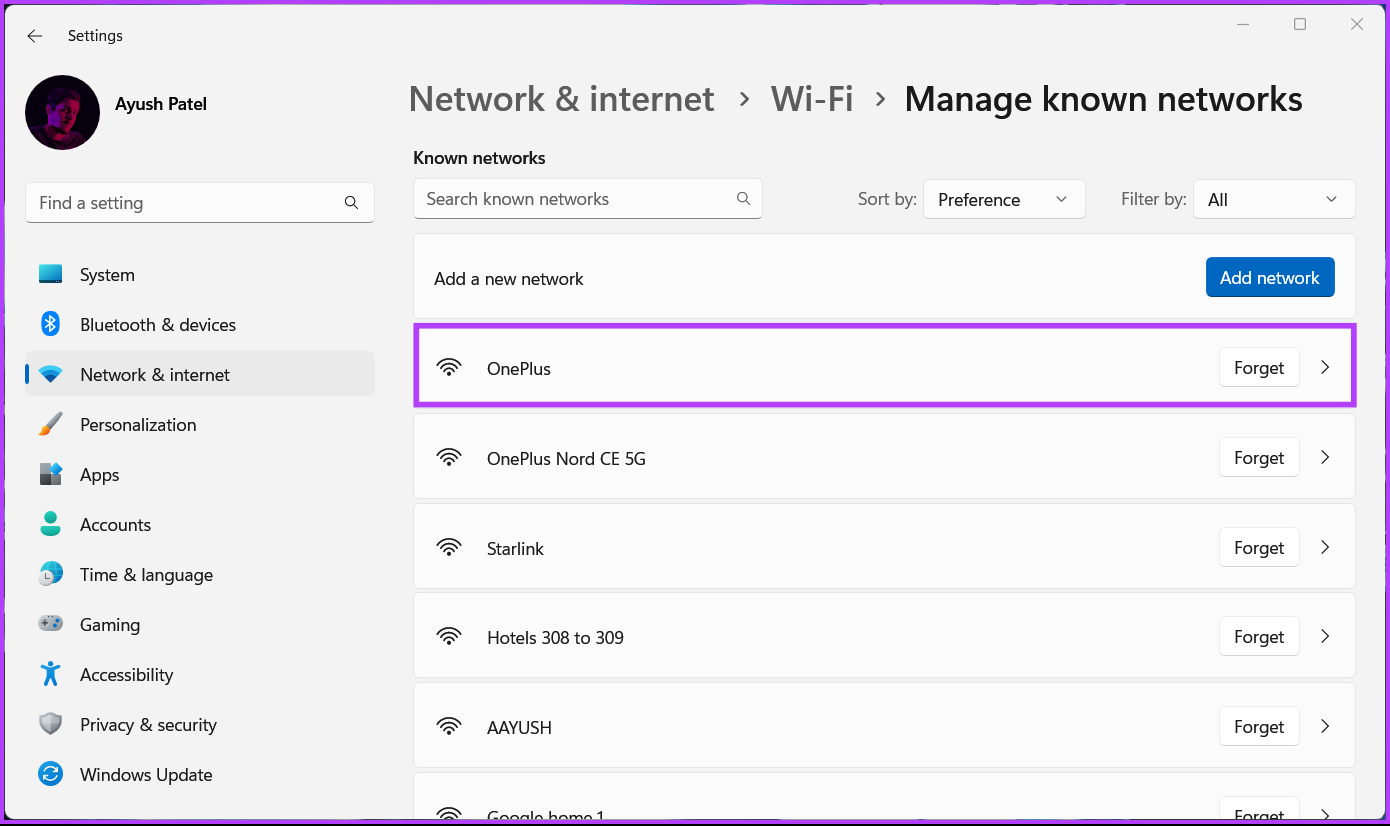
Step 3: In the Wi-Fi section, click the Manage known networks option.

Manage Known Networks on Windows

Step 4: Click on the Wi-Fi network you want to configure.

Select Network on Windows

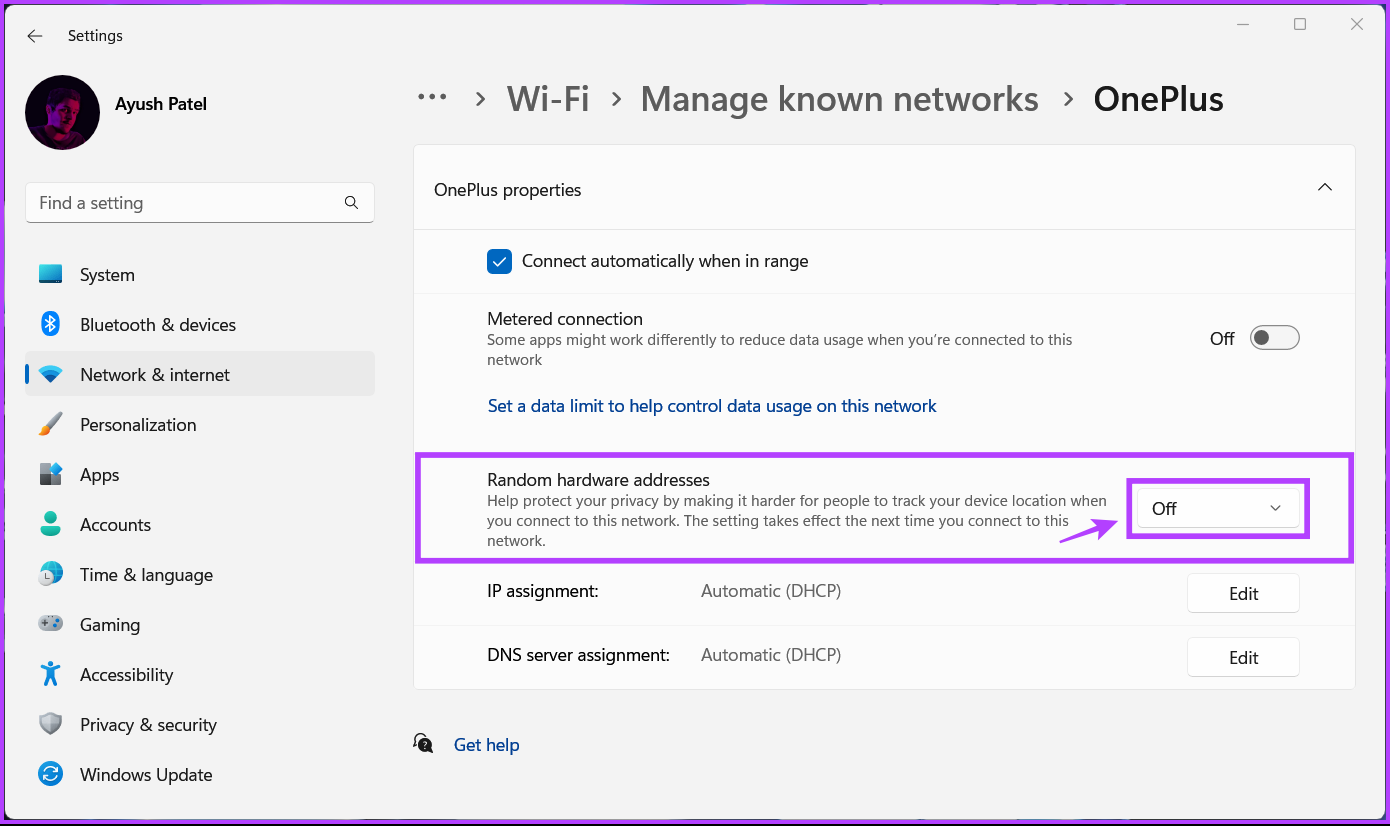
Step 5: Click the drop-down next to Random hardware addresses and select On or Change daily.

Turn on MAC Randomization

How to Enable MAC Randomization on Android

Most phones updated to Android 10 or later have MAC randomization enabled by default. However, it’s wise to verify, as different manufacturers may implement varying configurations across devices.

Here’s how you can enable MAC randomization on your Android phone or tablet:

Step 1: Open the Settings app and head to Wi-Fi.

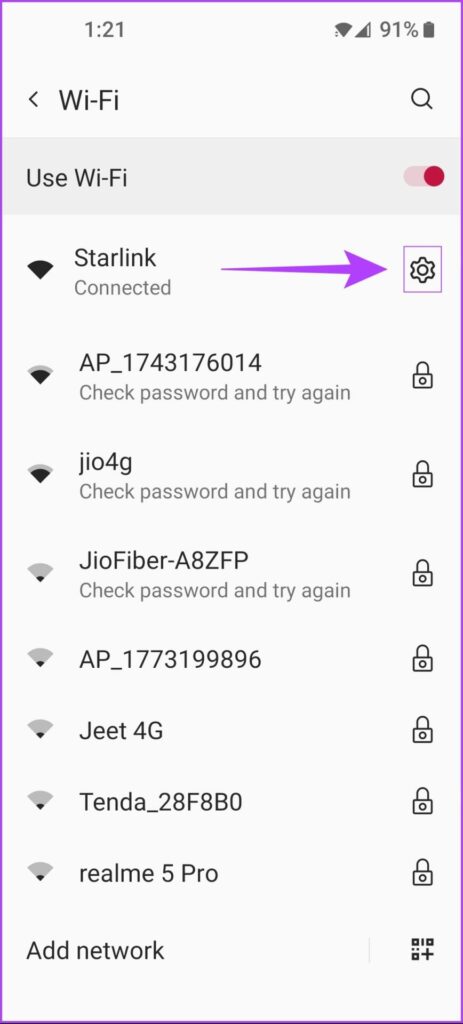
Step 2: Look for the Wi-Fi network connected to your Android and tap the gear icon next to it.

Step 3: Under Network details, go to Advanced > Privacy. Then, select Use randomized MAC (default).

How to Enable MAC Randomization on iOS and iPadOS

Apple requires users to enable MAC randomization manually for each wireless network, as it doesn’t allow it for all networks by default. The steps are similar for both iPhone and iPad.

Step 1: Head to the Settings app on your iPhone or iPad and tap on Wi-Fi.

Step 2: Tap the info icon next to your network and enable the Private Wi-Fi Address toggle.

Can You Enable MAC Randomization on Mac?

Unfortunately, Apple doesn’t support MAC randomization directly on Macs. To achieve this, you’ll need to install Homebrew, a free open-source package manager, and use a tool called Spoof-mac. The process is more complex and requires technical steps.

Was this helpful?

Thanks for your feedback!

3 Ways to Fix Sticky Notes App Not Working on Windows 11

Try Basic Fixes

  • Update the Sticky Notes app: Using an outdated app version can cause problems. Head to the Microsoft Store and check for any pending updates for the Sticky Notes app.
  • Install Windows updates: Sticky Notes can also malfunction if you are running an old version of Windows. To avoid this, you must install any pending Windows updates right away.

Fix 1: Disable the Insights Feature in Sticky Notes

Insights for Sticky Notes is a useful feature that allows Cortana to read the information you enter into notes and suggest actions based on it. However, this feature can occasionally interfere with the app’s functionality and prevent it from loading your notes. Hence, it’s best to disable it if the Sticky Notes app is not functioning properly.

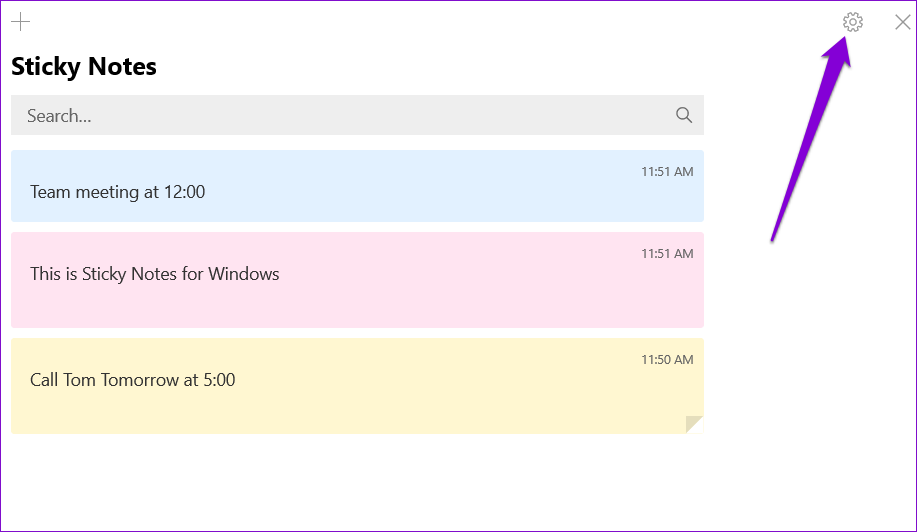
Step 1: Open the Sticky Notes app on your PC and click the gear-shaped icon in the top right corner.

Sticky Notes App Settings

Step 2: Under General, toggle off the Enable insights option.

Disable Insights Feature in Sticky Notes App

Fix 2: Repair or Reset the App

Windows provides several methods for repairing broken apps. However, the quickest way to repair the Sticky Notes app is through the Settings app. Here’s how you can go about it.

Step 1: Press the Windows key + I to launch the Settings app and head to Apps > Installed apps.

Installed Apps on Windows

Step 2: Scroll down to the Sticky Notes app on the list. Click the three-dot menu icon next to it and select Advanced options from the resulting menu.

Sticky Notes App Advanced Options

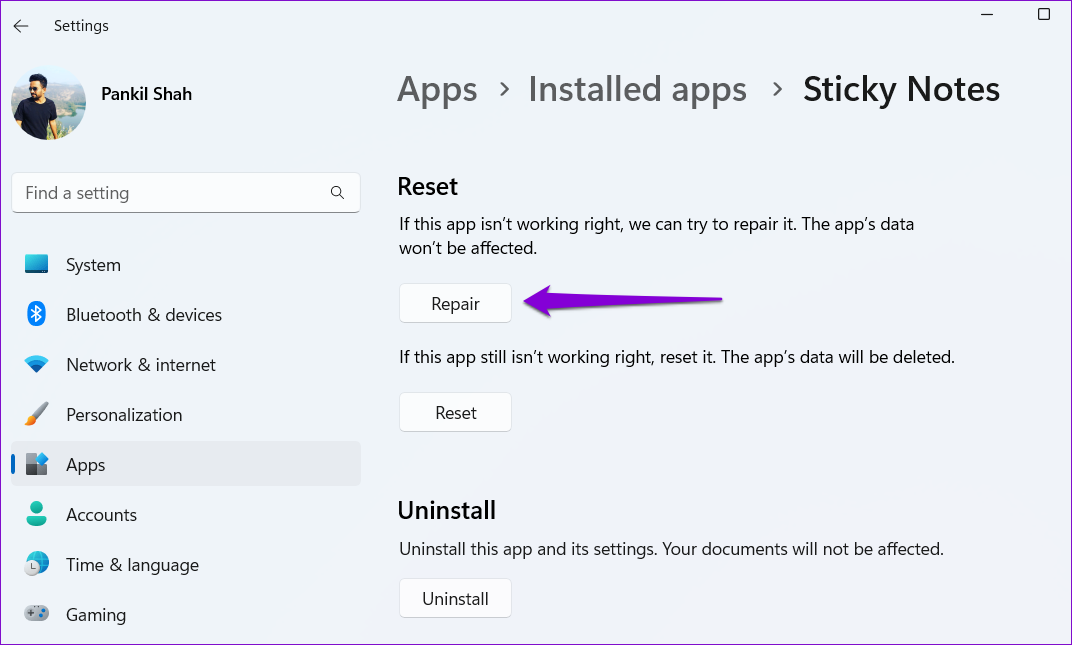
Step 3: Under the Reset section, click the Repair button.

Repair Sticky Notes App on Windows 11

If repairing the app does not help, you can try resetting it. Note that this process will delete all the app data and reset all the app settings. So, back up all your important notes or sync them to the cloud so that you can access your notes from other devices.

Fix 3: Re-Register Sticky Notes

If the Sticky Notes is not opening or is missing entirely, you can try re-registering the app on your PC. Thankfully, it’s not as intimidating as it sounds. Here’s how to do it.

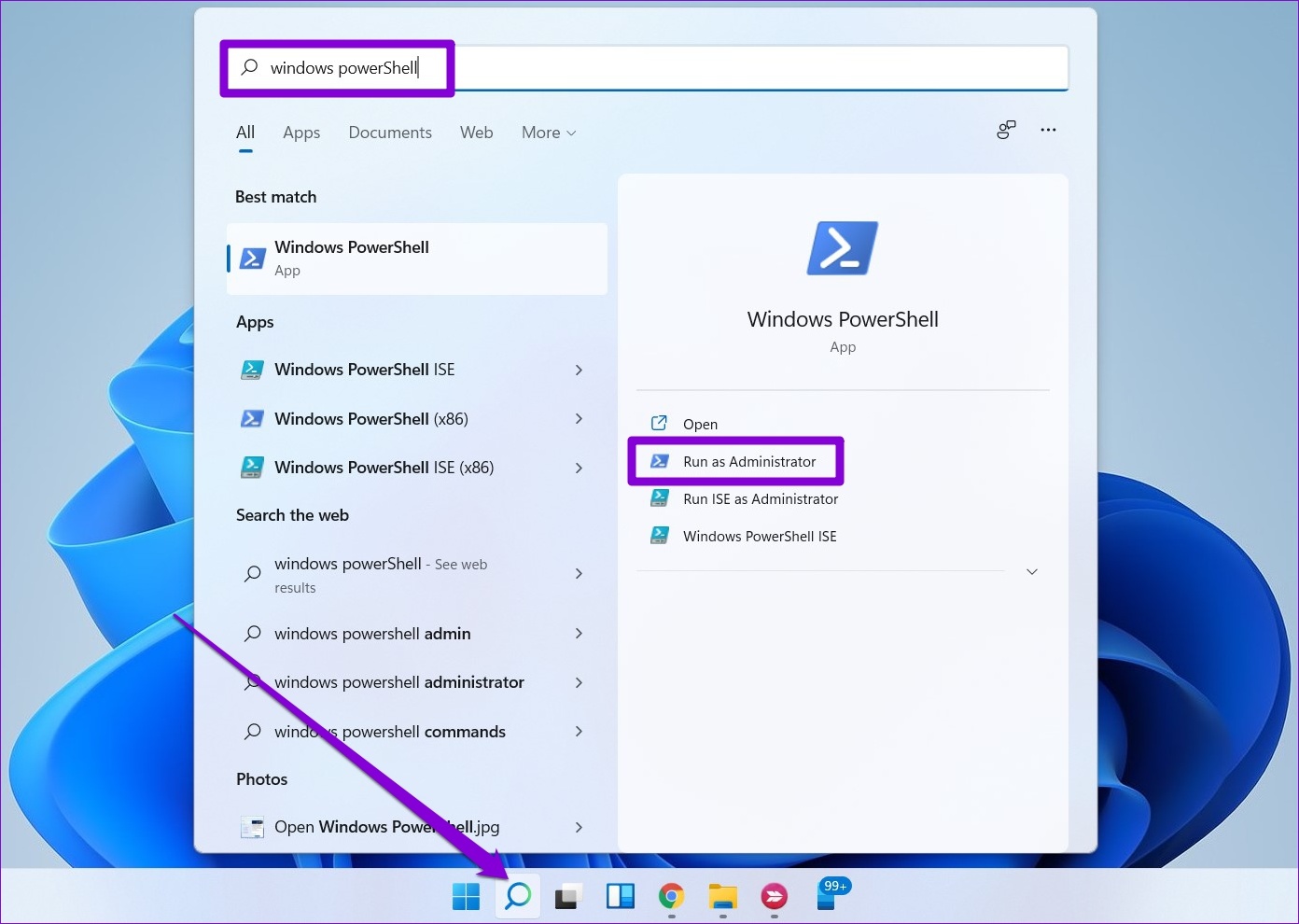
Step 1: Click the search icon on the taskbar, type in windows powershell, and select Run as Administrator.

Open Windows PowerShell

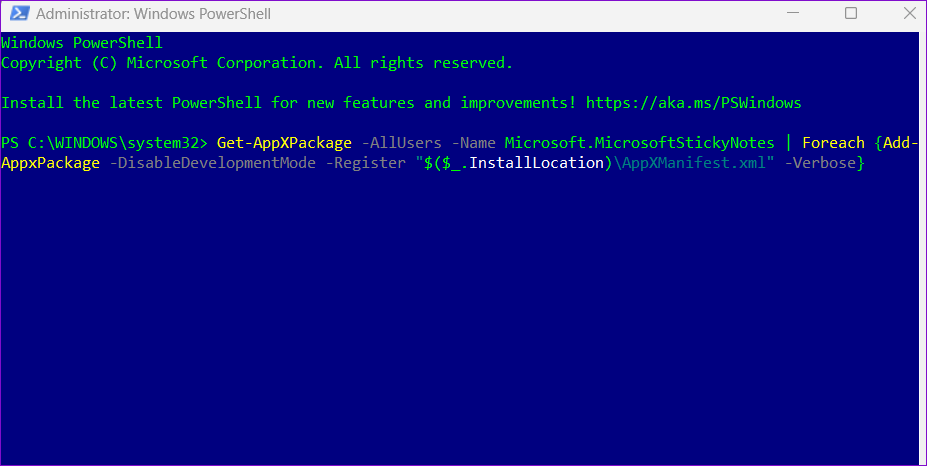
Step 2: In the PowerShell window, copy and paste the following command and press Enter:

Get-AppXPackage -AllUsers -Name Microsoft.MicrosoftStickyNotes | Foreach {Add-AppxPackage -DisableDevelopmentMode -Register "$($_.InstallLocation)\AppXManifest.xml" -Verbose}
Re-Register Sticky Notes App

Was this helpful?

Thanks for your feedback!

12 Best Ways to Fix Wi-Fi Authentication Problems on Android

If you are an Android user, you might have occasionally encountered an authentication error when connecting to Wi-Fi. This means that even after entering the right password and having connected to the Wi-Fi network previously, you are unable to connect to it now even after trying to reconnect. If this sounds a bit too familiar, this guide can help you get out of this problem on your device.

Fix Authentication Error

There are multiple reasons that could be causing this issue, leaving you confused. But not anymore. In this guide, we will help you understand what might be causing it and 12 ways to fix Wi-Fi authentication problems on Android. Let’s get into it.

Reasons for the Wi-Fi Authentication Error

There’s no clear path on what could be the issue’s root cause, but there are multiple ways that may lead to it. We are listing some common ones below.

  • Poor network connectivity.
  • Incorrect password. 
  • Incorrect IP address.
  • Too many devices are connected, and the router has reached its connection threshold. 
  • A glitch on your phone’s or network’s hardware.
  • The Wi-Fi (network) settings might have gotten corrupted.
  • Lastly, there could be a mismatch in frequency bands. 

Note: We used OnePlus 7T running Android 11, Huawei Nova 3i running Android 8, and Nokia’s router to build this guide, but you can follow the same steps on your Android devices and routers. However, some steps and screenshots might look different.

How to Fix Wi-Fi Authentication Problems on Your Android Device

Now that you know the reasons that might be causing the issue, let’s get to fixing it with the below 12 ways.

1. Turn on Airplane mode

It is one of the easiest and sometimes the most efficient solutions. Toggling on the Airplane mode causes the hardware to shut off its wireless components, which cuts off your connections and reboots them. There are two methods involved in this step. Let me explain. 

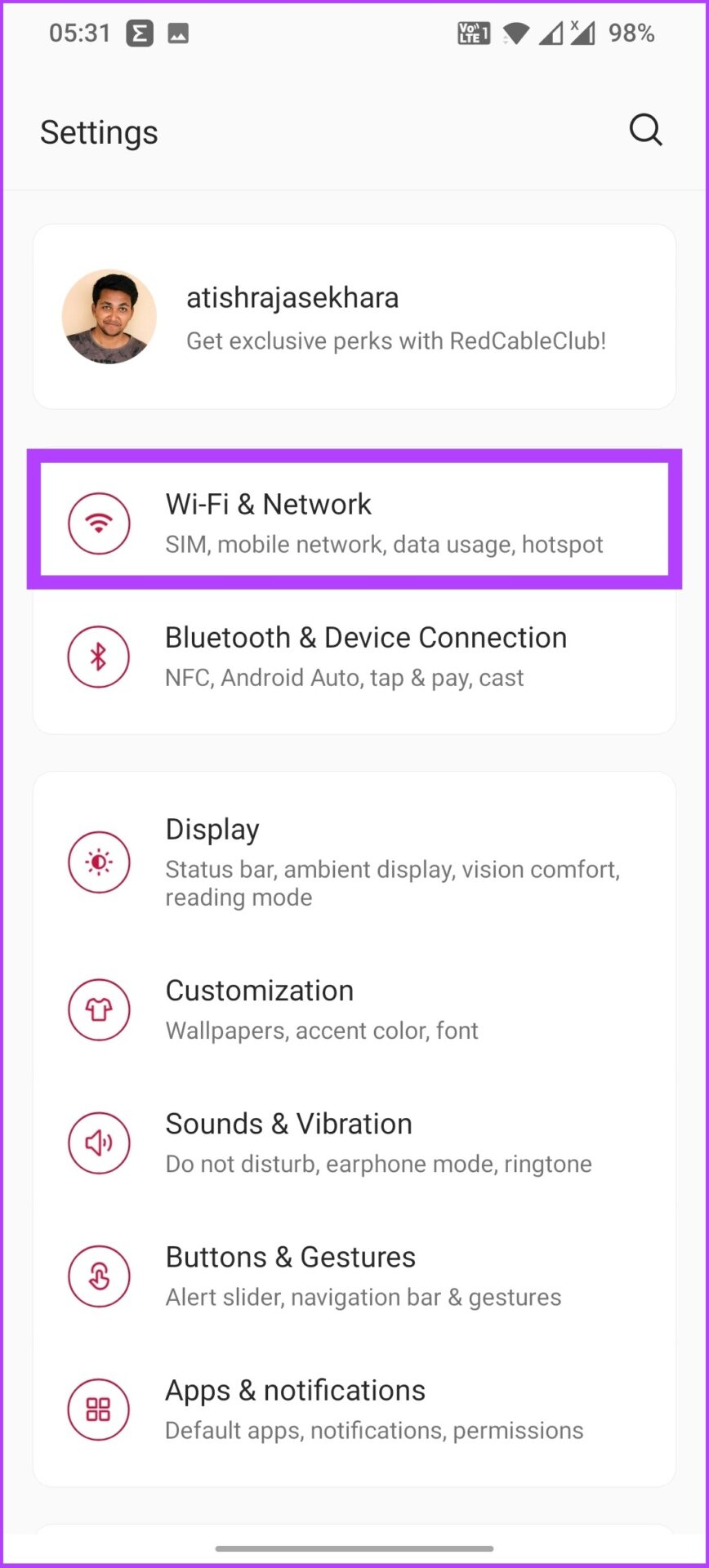
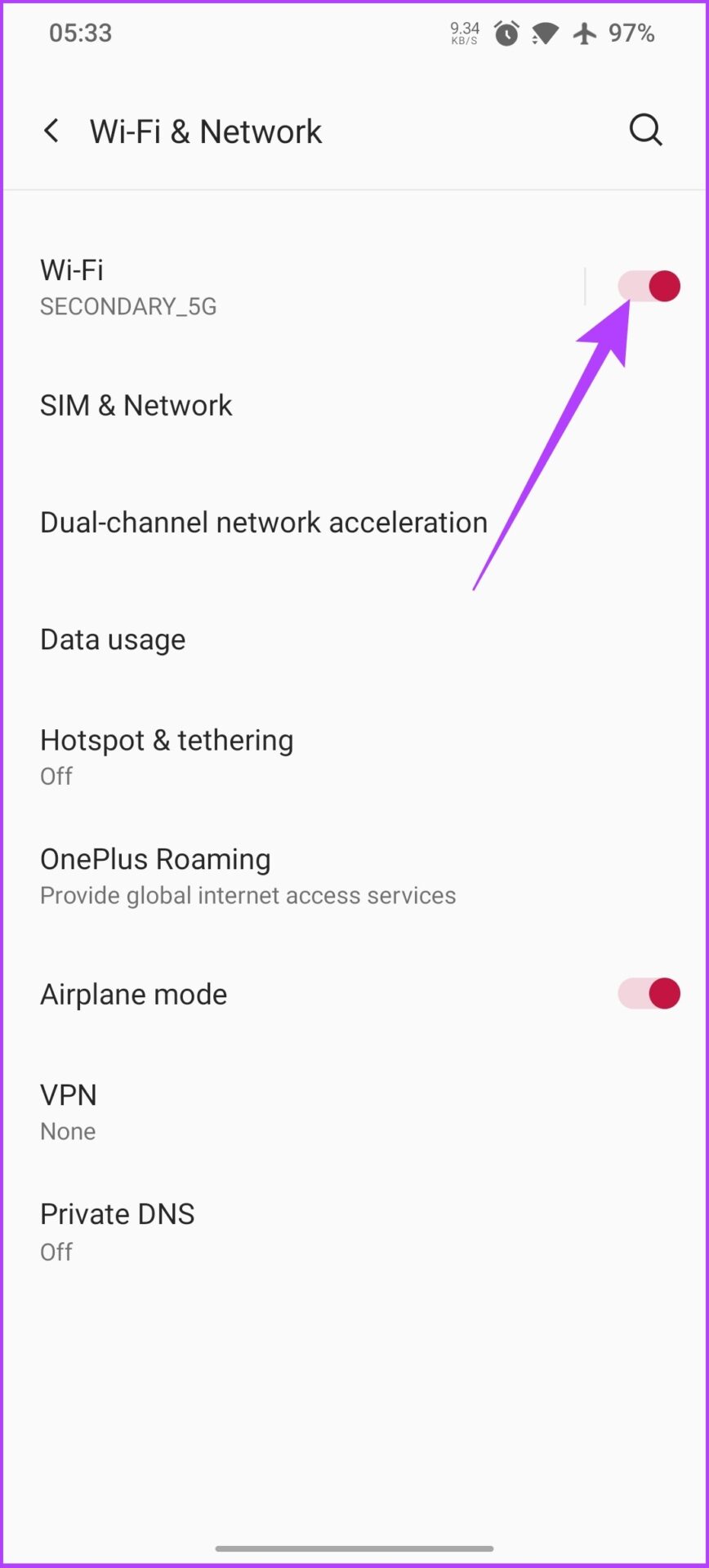
Step 1: Open your phone Settings and tap on Wi-Fi & Network.


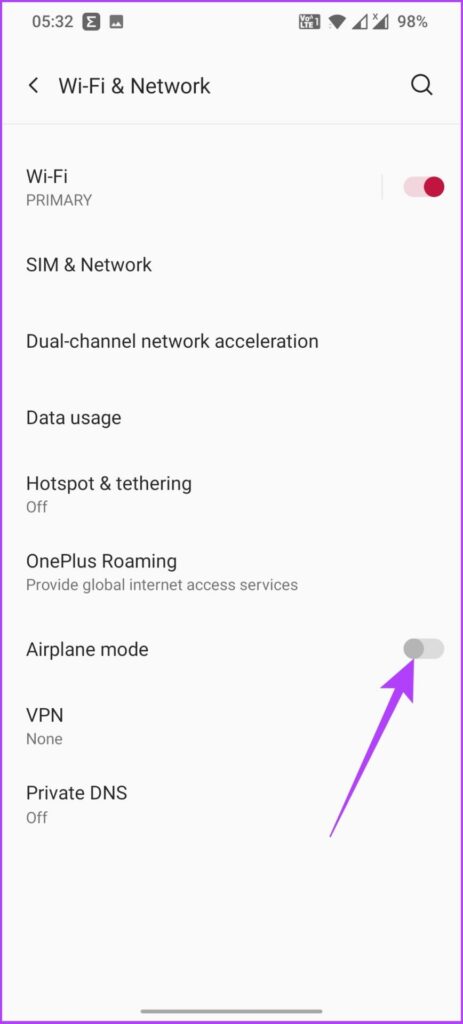
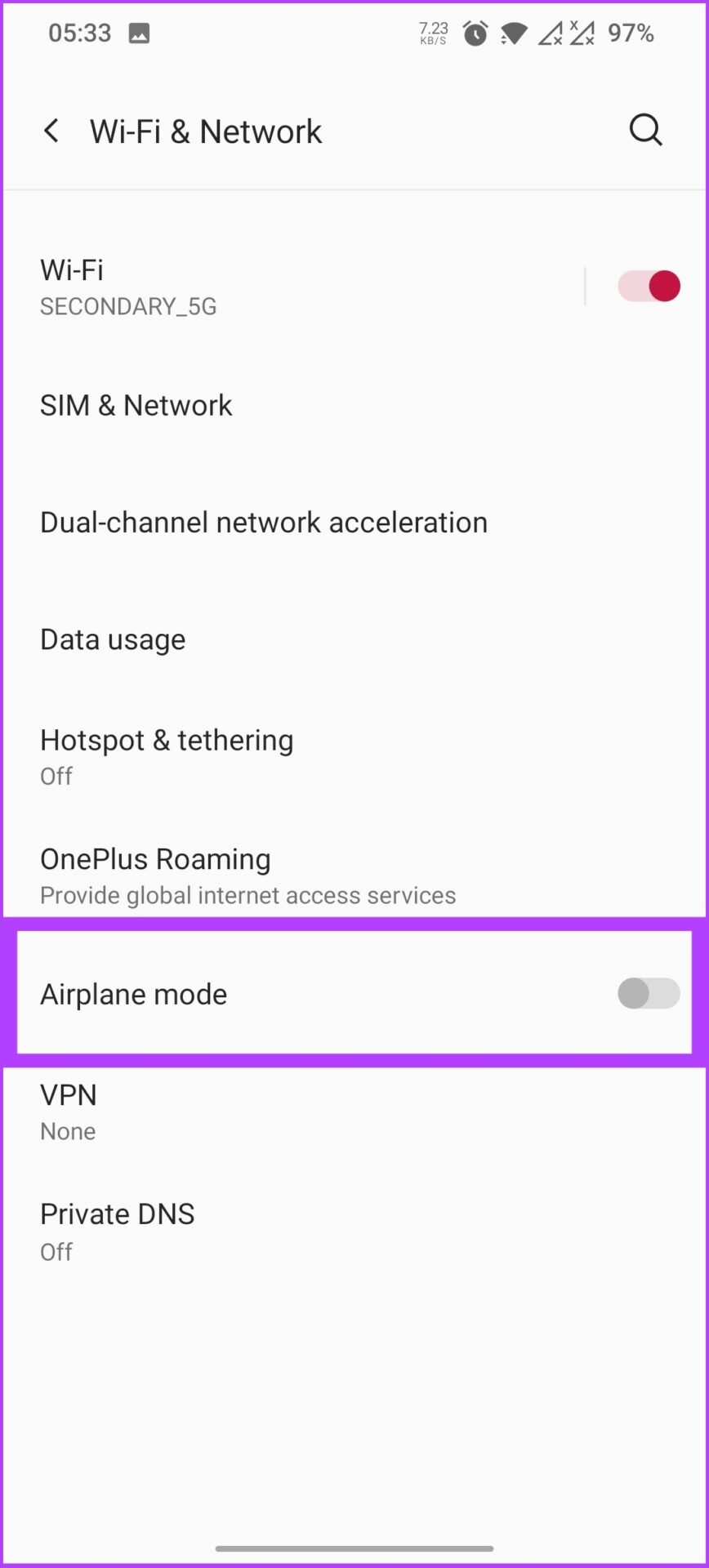
Step 2: Toggle on Airplane mode. Wait a few seconds and toggle off Airplane mode.

Now, your phone’s network hardware has been rebooted. So, try connecting it to the Wi-Fi again; you should be able to get in. Just in case you’re facing the same issue, follow the below steps.

Step 1: Open your phone Settings and tap on Wi-Fi & Network.

Turn on Airplane mode- Fix Authentication Error (2)

Step 2: Toggle on Airplane mode.

Turn on Airplane mode- Fix Authentication Error (6)

It will turn off your mobile network and also your Wi-Fi. 

Step 4: Now, turn on Wi-Fi and try connecting to your network

Turn on Airplane mode- Fix Authentication Error (7)

If you can connect to your Wi-Fi without any Authentication error, follow Step 5. If you’re still unable to connect to your Wi-Fi, try resetting the Wi-Fi connection covered in the next section.

Step 5: After establishing the Wi-Fi connection, toggle off Airplane mode.

Turn on Airplane mode- Fix Authentication Error (8)

This enables the phone to connect to a mobile network without interrupting the Wi-Fi connection. 

2. Reset Wi-Fi Connection

Sometimes, the Wi-Fi settings get corrupted. The easiest way to resolve the connectivity problem is to remove the network or Wi-Fi from your phone’s saved networks. Make sure you have the password of the Wi-Fi you’re removing from the network before following the below steps.

Step 1: Open the phone Settings and select Wi-fi & Network,

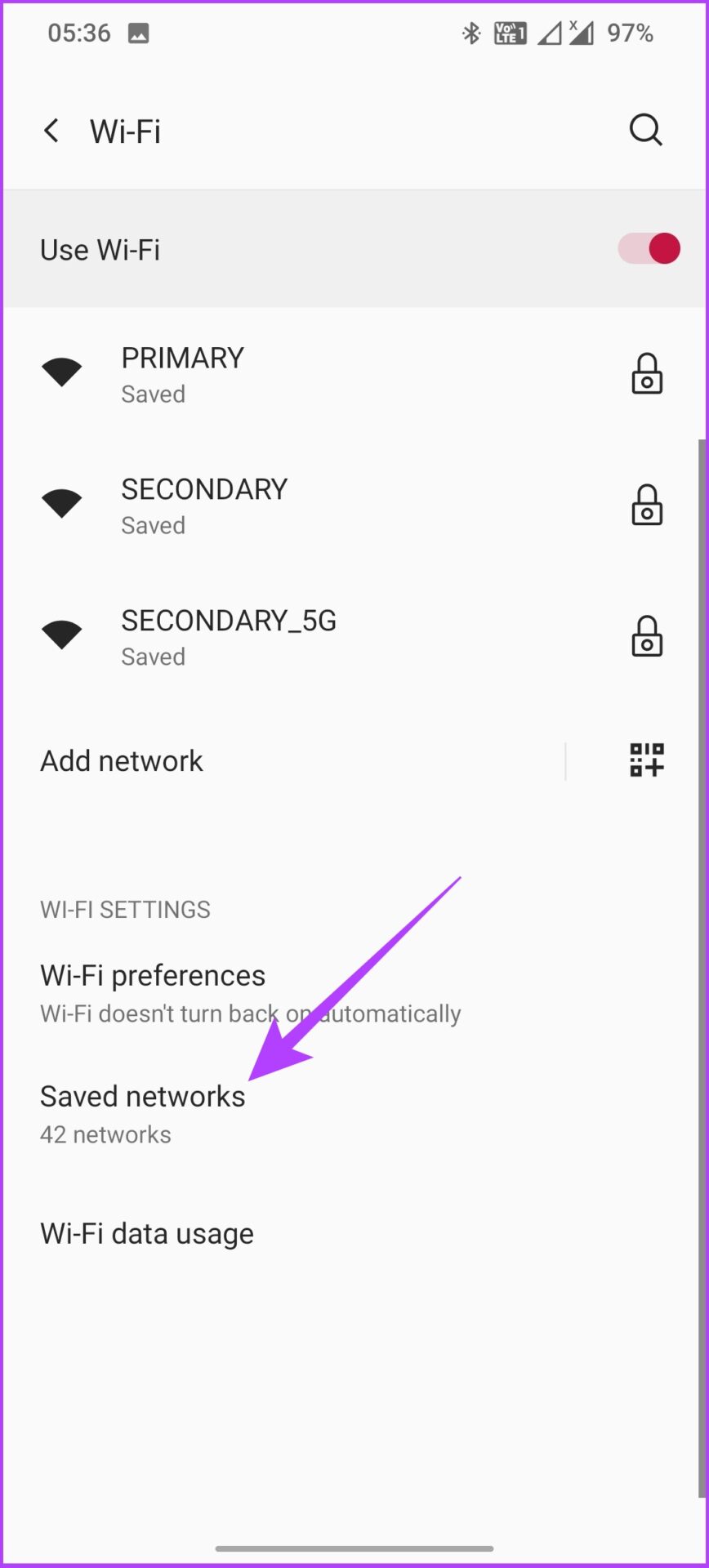
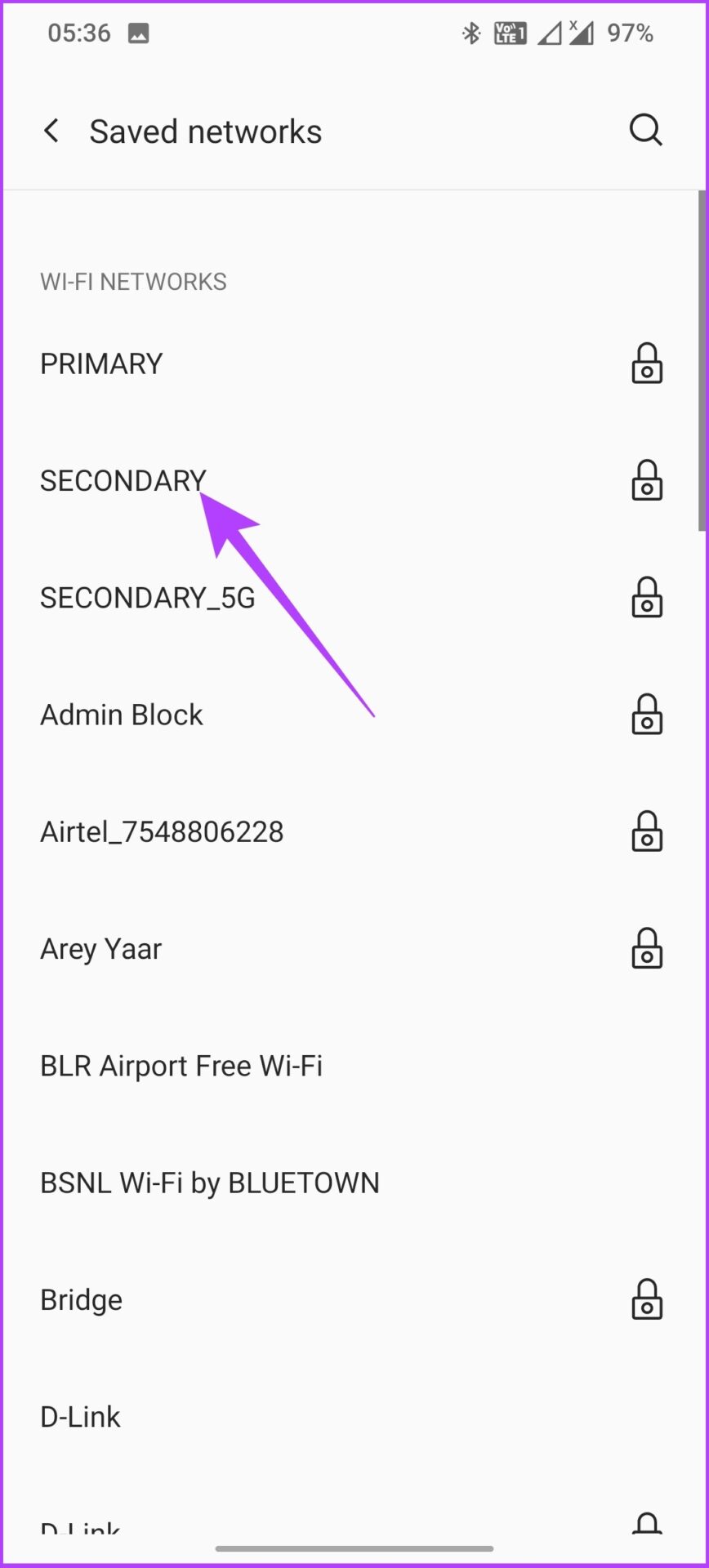
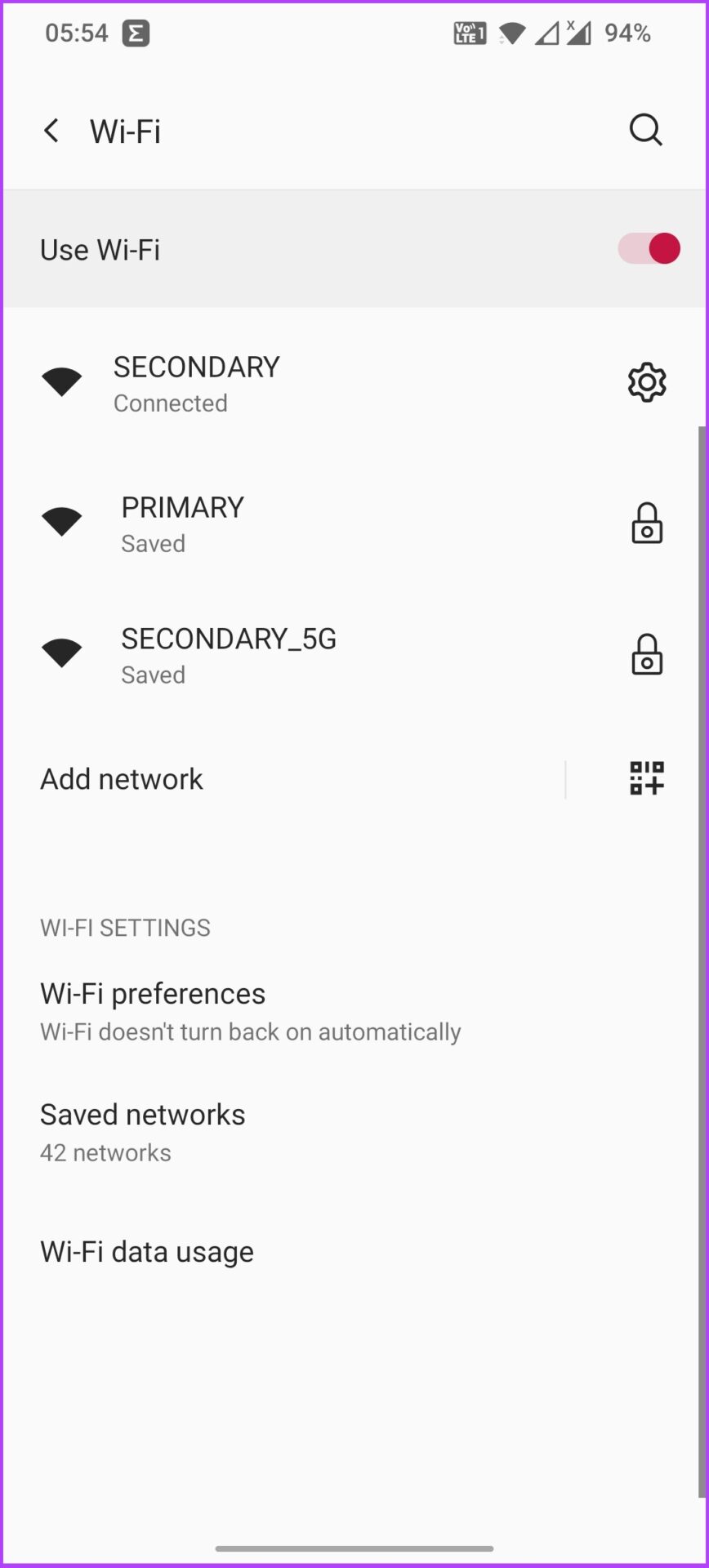
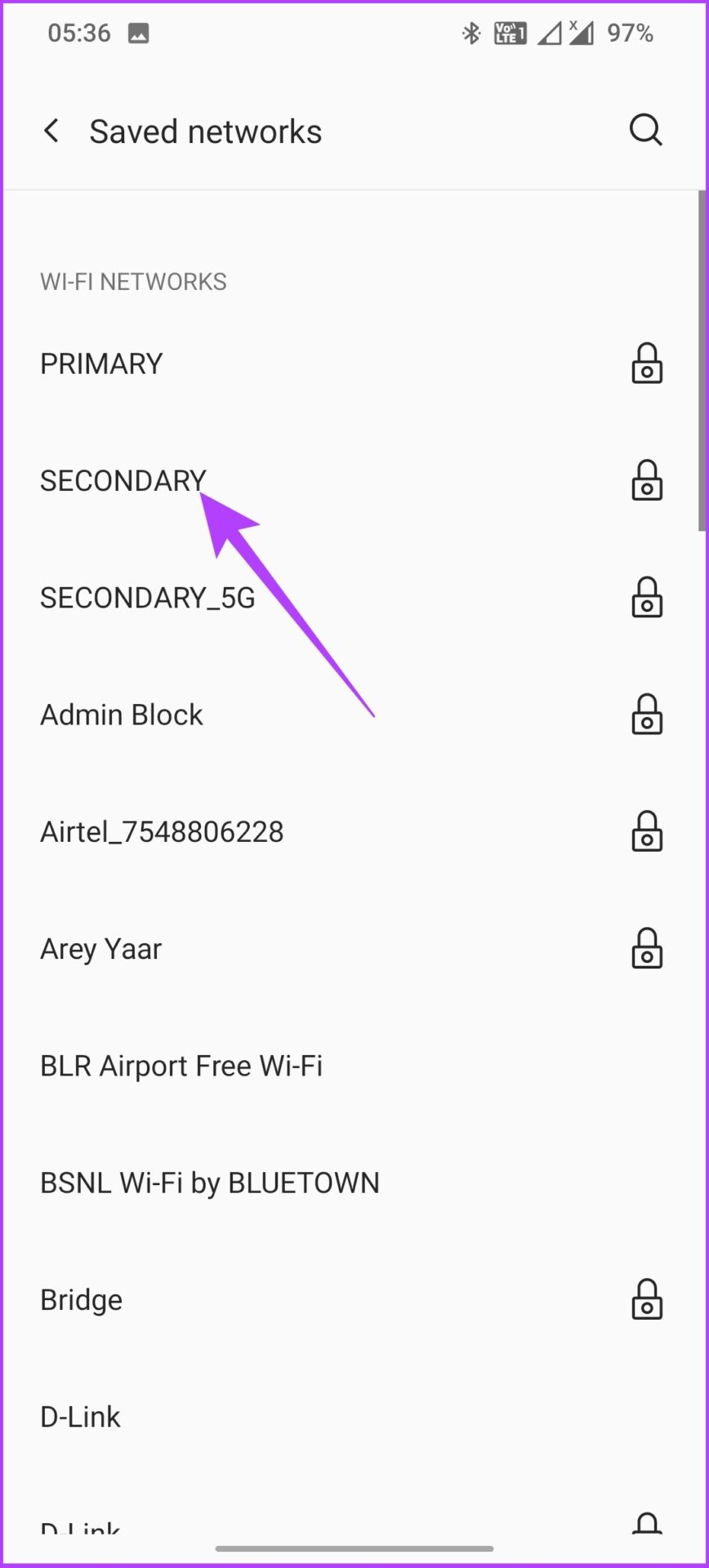
Step 2: Tap on Wi-Fi and go to Saved networks.

Step 3: Select the Wi-Fi you want to reconnect with and tap Forget.

That’s it! The Wi-Fi network will be removed from your phone. Now, you have to reconnect it again to revive the network flow onto your Android device. If the problem persists, don’t worry. There are more fixes to help you. Read on.

3. Restart Your Phone

It is a no-brainer method. We all know that restarting the device is the most efficient method if things get stuck. This is especially true for any consumer tech products and services. 

Step 1: Close all your running apps.

Restart your Device - Fix Authentication Error (1)

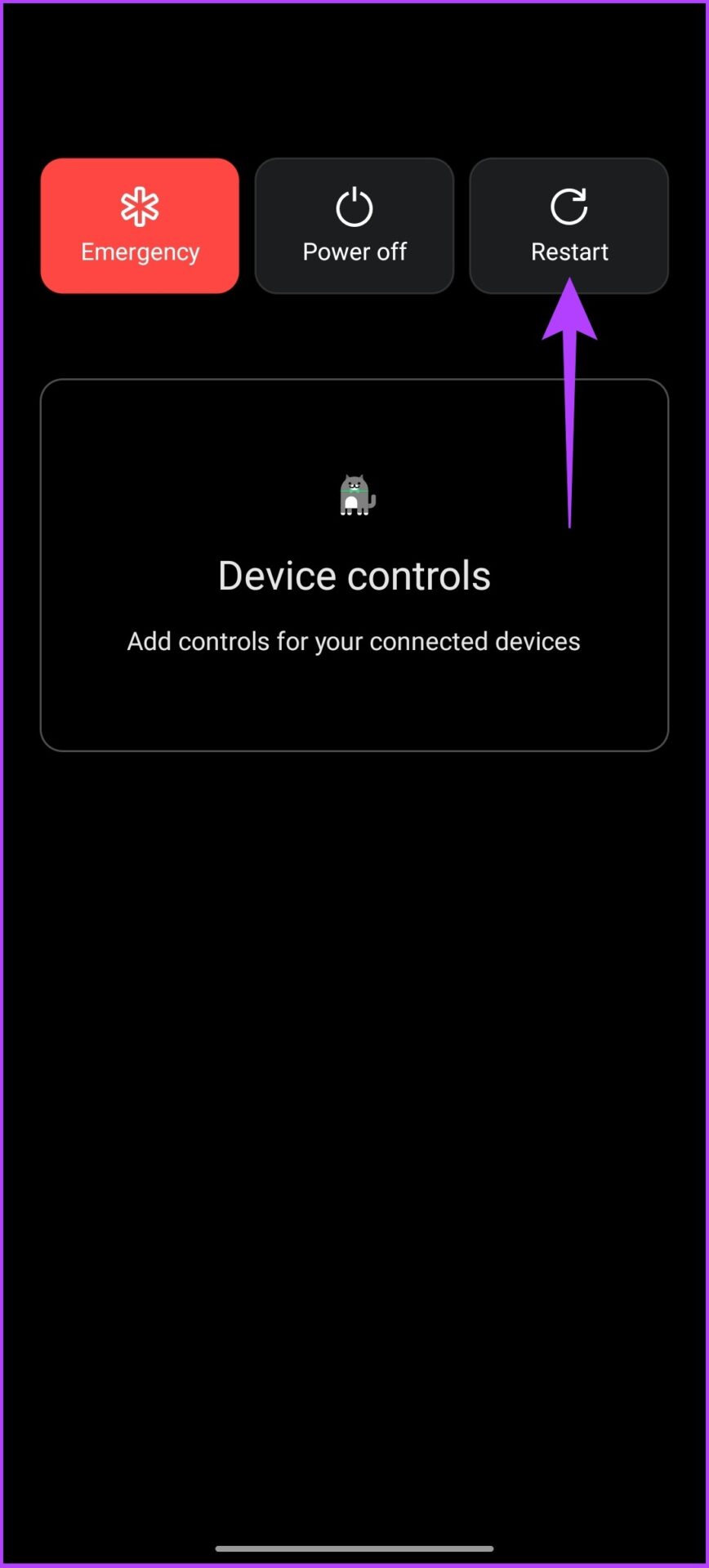
Step 2: Long-press the power button and tap on Restart.

Restart your Device - Fix Authentication Error (2)

If the restart didn’t resolve the issue, then keep reading. The below-mentioned fixes should help.

4. Reboot the Router

Much like the earlier step in which we restarted the phone, in this step, we will be restarting the Wi-Fi router. It is again a straightforward process that clears out any snags in the router’s settings. 

All you need to do is turn off the Wi-Fi router and wait for a few minutes before turning it back on. You might need to give it some time for it to function. Once it is set, try connecting your phone to check if the network is established. 

5. Check for Duplicate Wireless Network Names

One of the most common errors users make is forgetting the password or entering the wrong password, leading to a Wi-Fi authentication error on the phone. So, make sure you are entering the correct password.

If you have multiple access points/Wi-Fi routers with the same name, you will inevitably face this authentication error on your phone one or the other day. To overcome this, avoid keeping the same SSID for all the routers. Differentiate them with a name or number or even based on their frequencies like ex: drawing room, bedroom, or home 1, home 2. On the other hand, you can also keep one password for all the Wi-Fi routers.

6. Check the Maximum Supported Devices

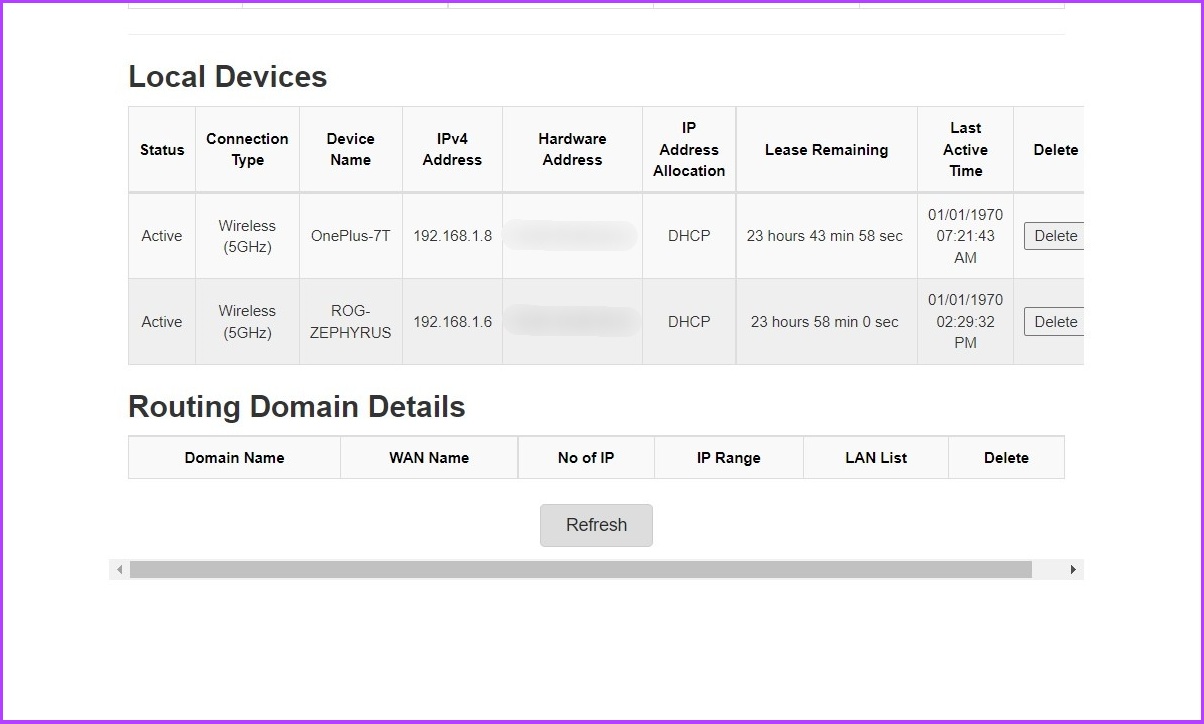
It is improbable that your router will reach the maximum supported device limit, especially if it is a private network. But, at times, when there are a lot of guests, it is expected that the internet will slow down. The router’s threshold will break, which could be why it shows an authentication error on the phone. Here’s how to check how many users are connected to your router.

Finding the Router’s IP Address

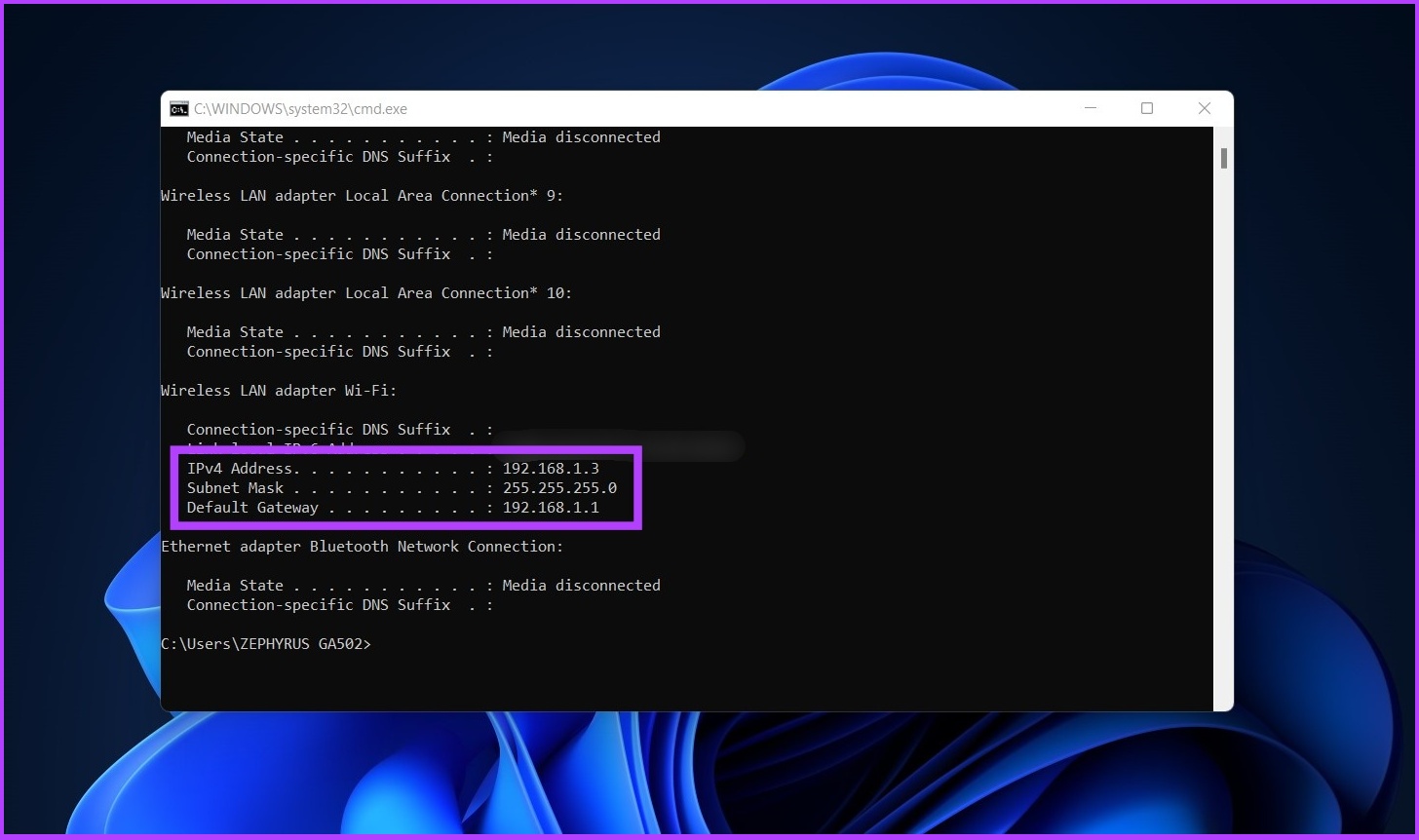
Most routers have a default IP address of 192.168.0.1 or 192.168.1.1. Let’s begin by finding the router’s IP address if these didn’t work.

Step 1: Press Ctrl + R to open the Run command. 

Check the Maximum Supported Devices - Fix Authentication Error (1)

Step 2: Type CMD to open the command prompt.

Check the Maximum Supported Devices - Fix Authentication Error (2)

Step 3: Now, type ‘ipconfig’ and press enter.

Check the Maximum Supported Devices - Fix Authentication Error (3)

Step 4: You will find your router’s default IP address. Copy and save it somewhere.

Check the Maximum Supported Devices - Fix Authentication Error (4)

Now, let’s check how many users are connected.  

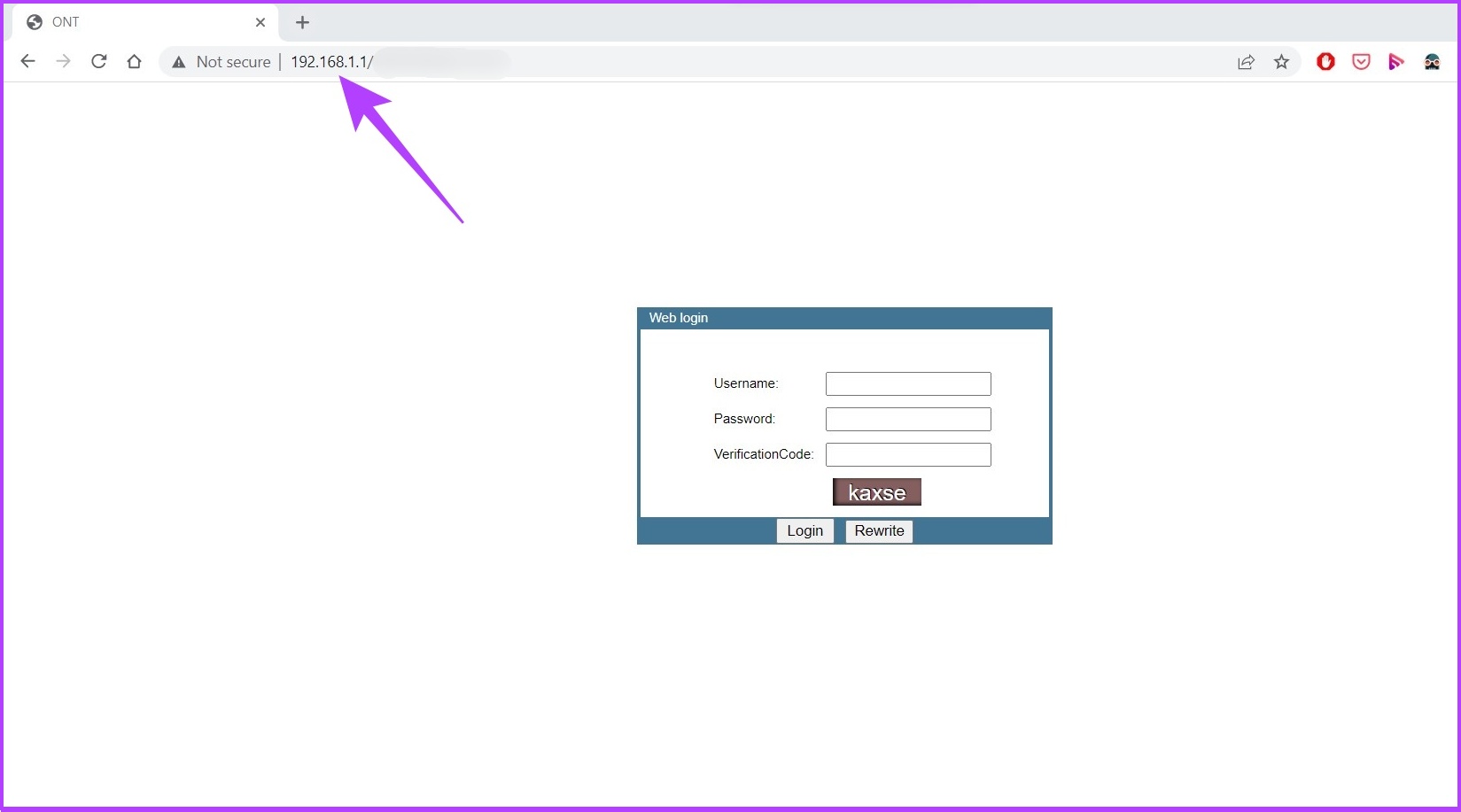
Step 1: Enter the default IP address on any browser and log in using the router’s credentials.

Check the Maximum Supported Devices - Fix Authentication Error (5)

Step 2: Go to Wireless to check the number of users connected to the wireless network.

Check the Maximum Supported Devices - Fix Authentication Error (6)

If you don’t know the credentials, check your router’s back. It is often in the admin/admin or admin/password format. However, if you have changed that previously, enter the new credentials.

7. Reset the Phone’s Network Settings

If none of the above steps fixed the issue, this one likely will. This step will reset the phone’s network settings and start from scratch. Let’s begin.

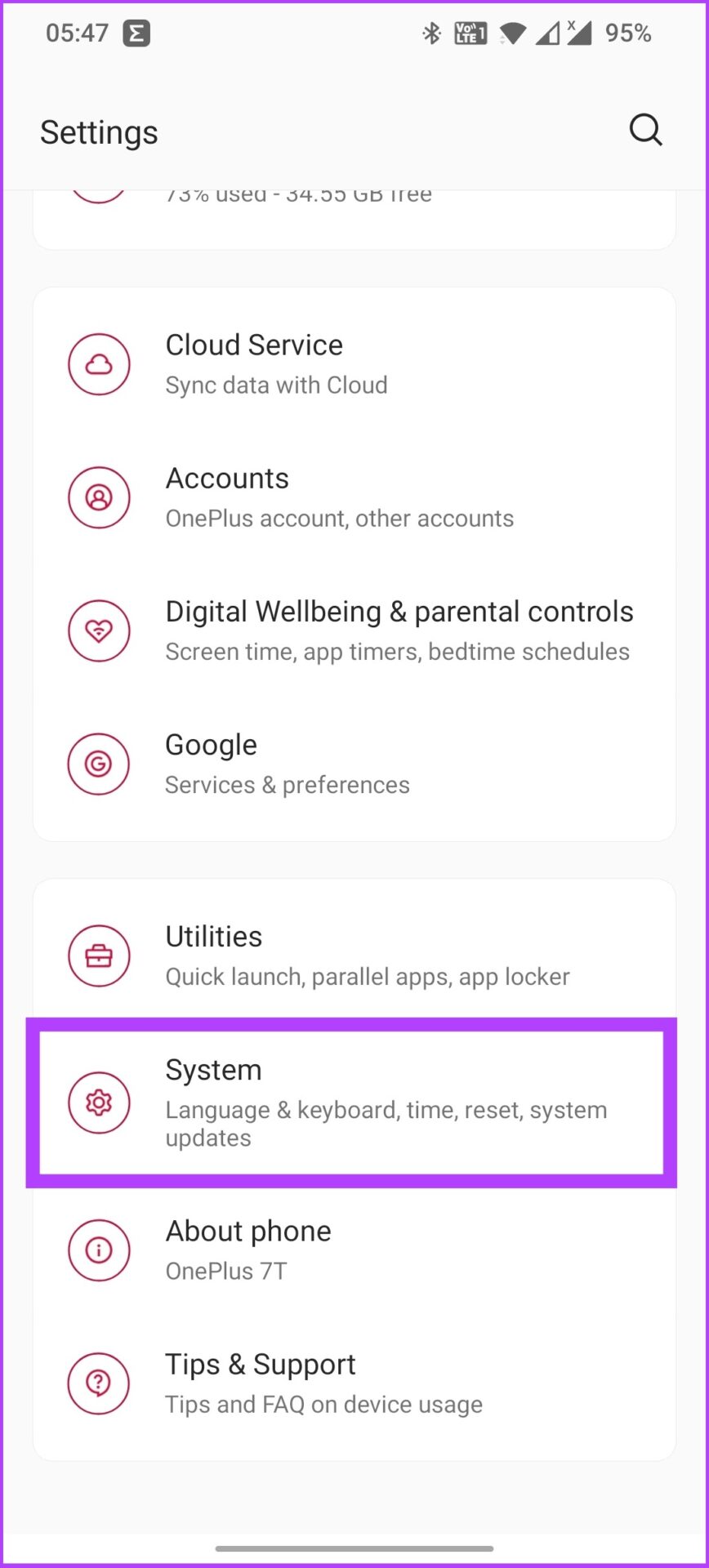
Step 1: Open the phone’s Settings and go to System.

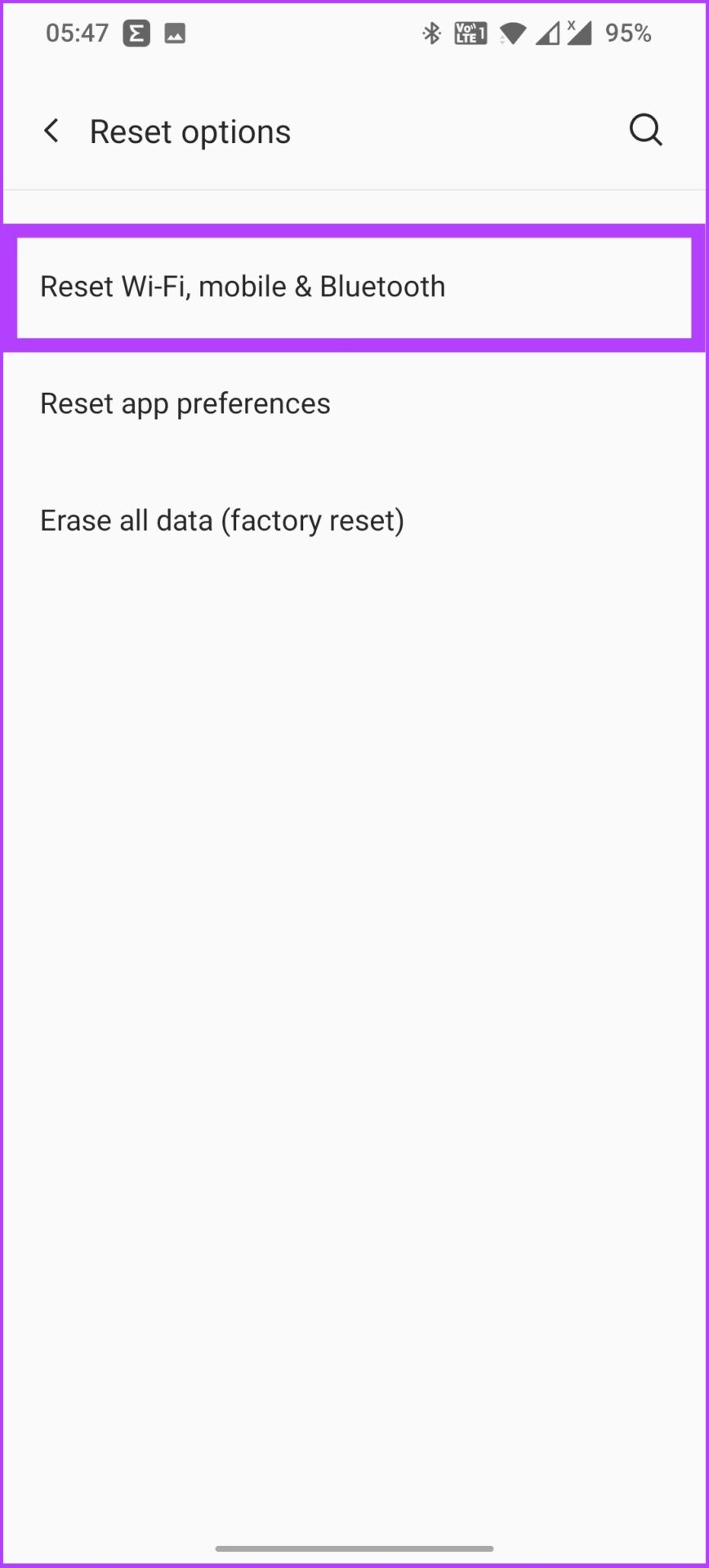
Step 2: Open Reset options and tap on ‘Reset Wi-Fi, mobile & Bluetooth.’

Step 3: Tap Reset Settings and confirm it.

Reset the phone's network Settings - Fix Authentication Error (4)

All the Wi-Fi settings will be reset, including mobile data and Bluetooth settings.

8. Use the WPS Push Button

Also known as Wi-Fi Protected Setup, this is an advanced feature that lets anyone with the router access it, which bypasses the credentials (username and password) part. Follow along. 

Step 1: Go to the phone’s settings and tap on ‘Wi-Fi & Network.’

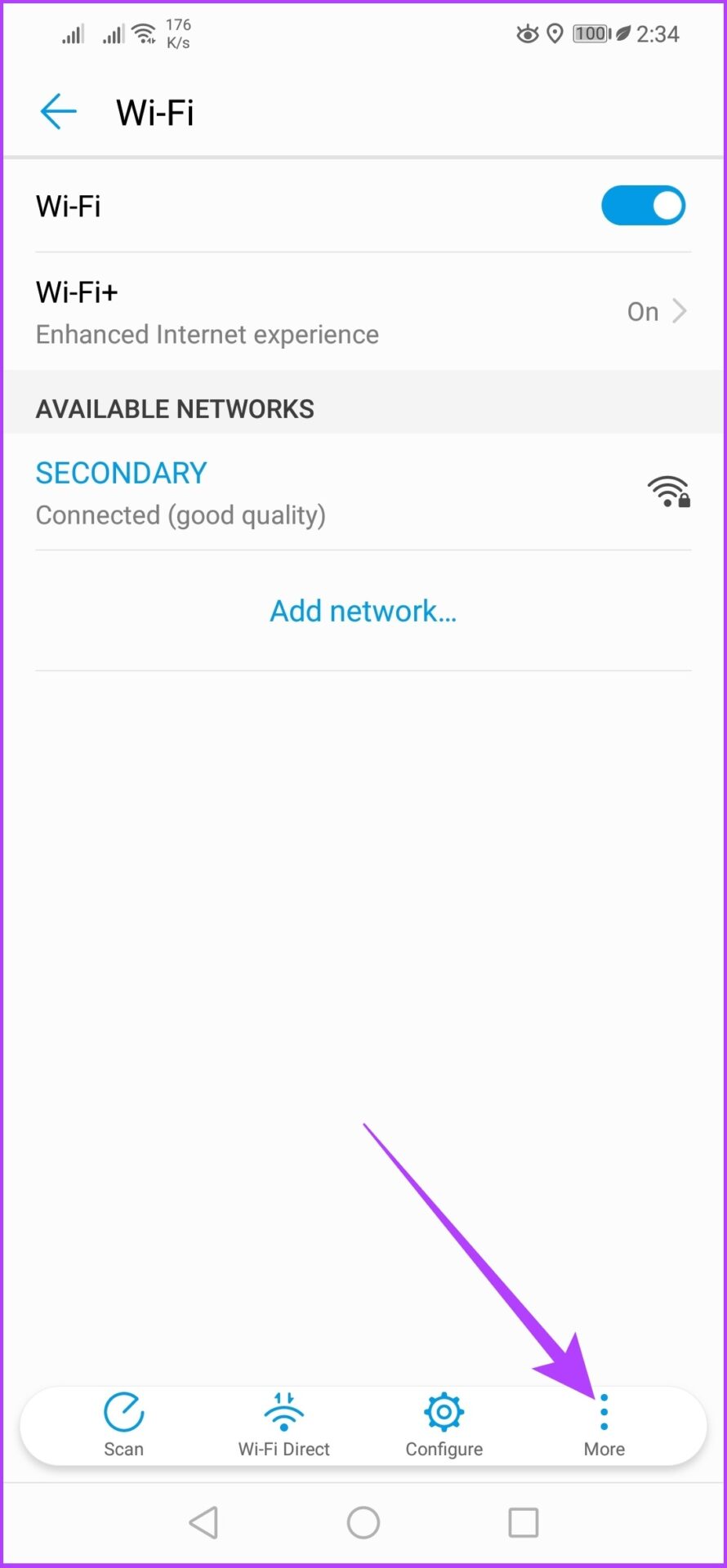
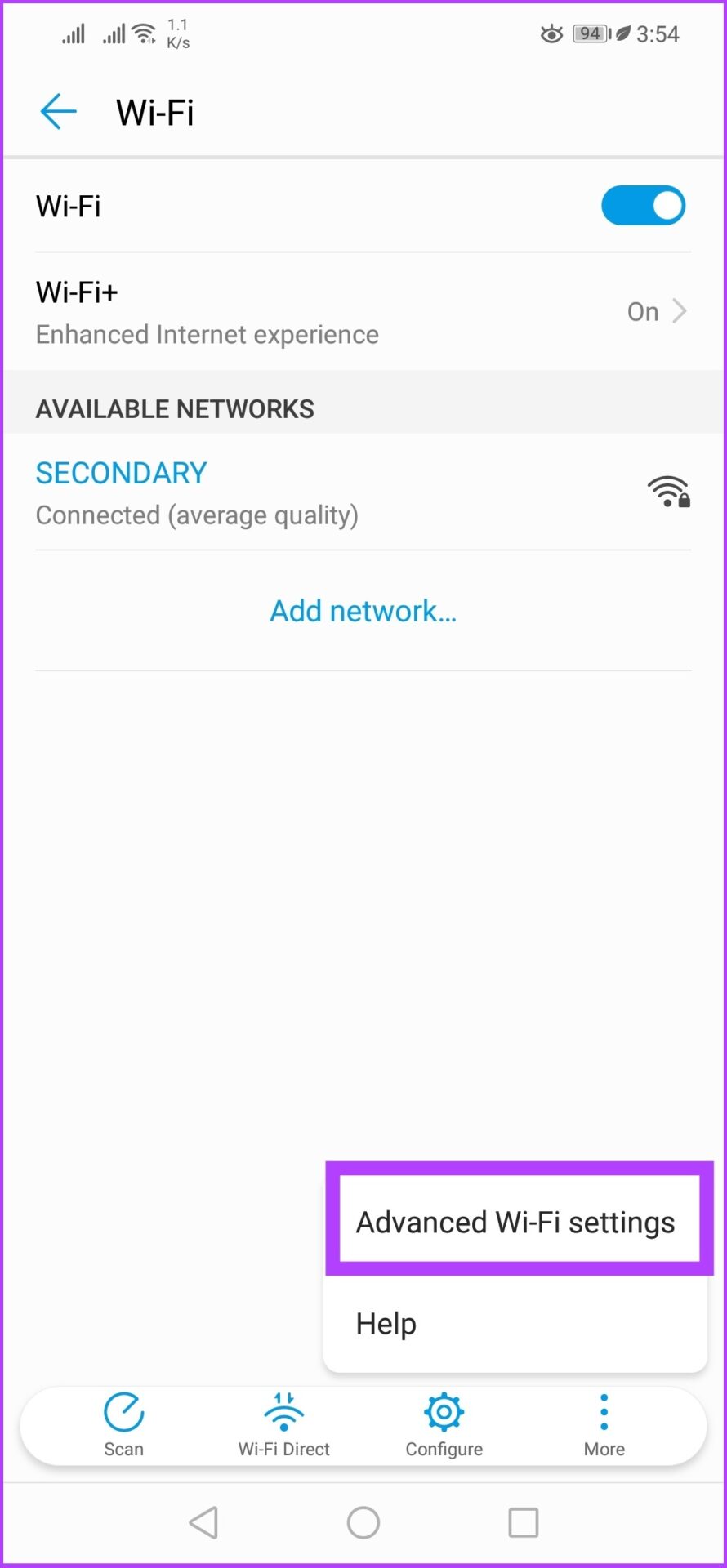
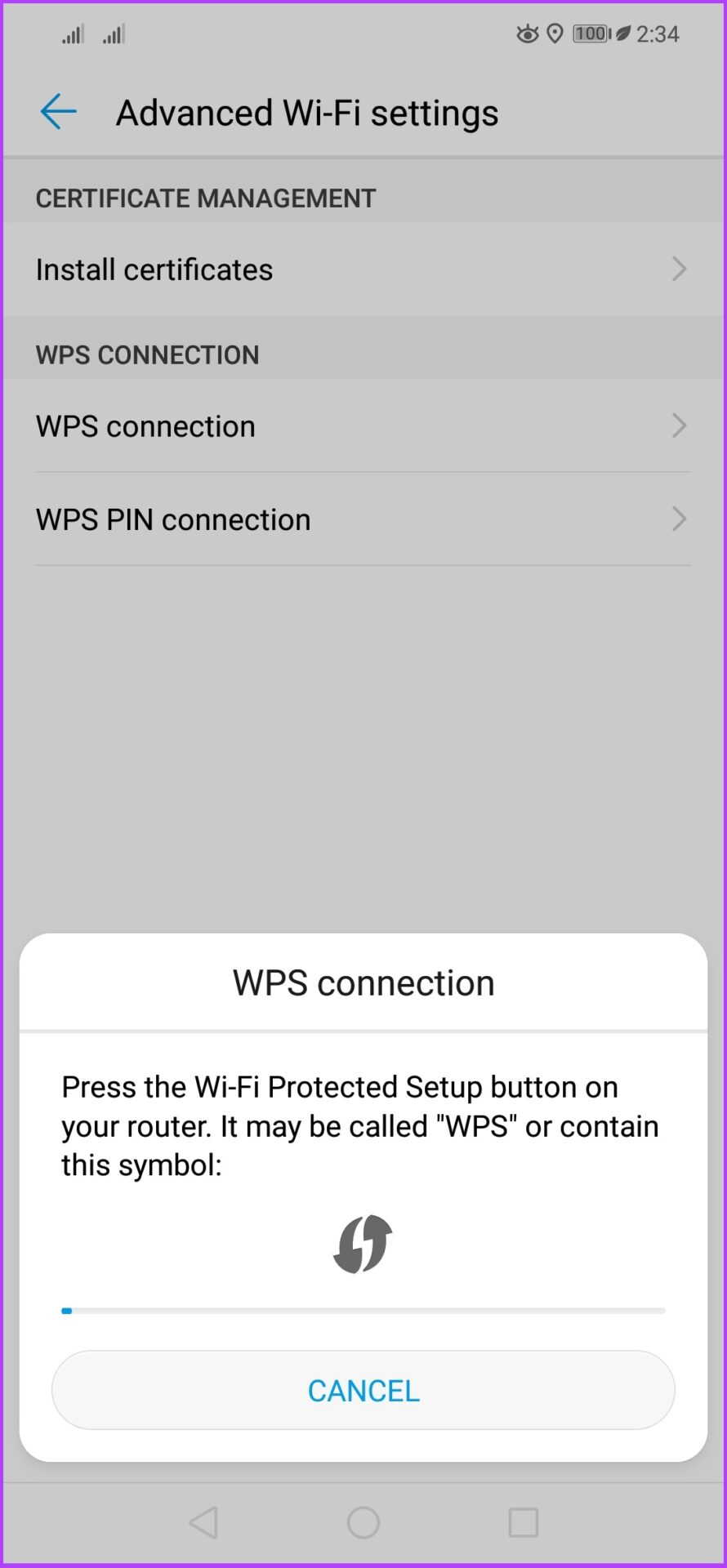
Step 2: Tap on Wi-Fi, select More, and choose ‘Advanced Wi-Fi settings.’

Step 3: Now, select the WPS connection.

 I’m using Huawei Nova 3i for this method as the WPS Push button wasn’t there in OnePlus 7T.

You will have a prompt instructing you to press the WPS button on your router. Once the process is complete, this should resolve the authentication issue on your Android.

9. Change Security Protocol

It is another handy option that you will generally miss out on. You might have encountered a scenario where you entered the correct password, but the network wouldn’t allow you in. What to do? Follow these steps.

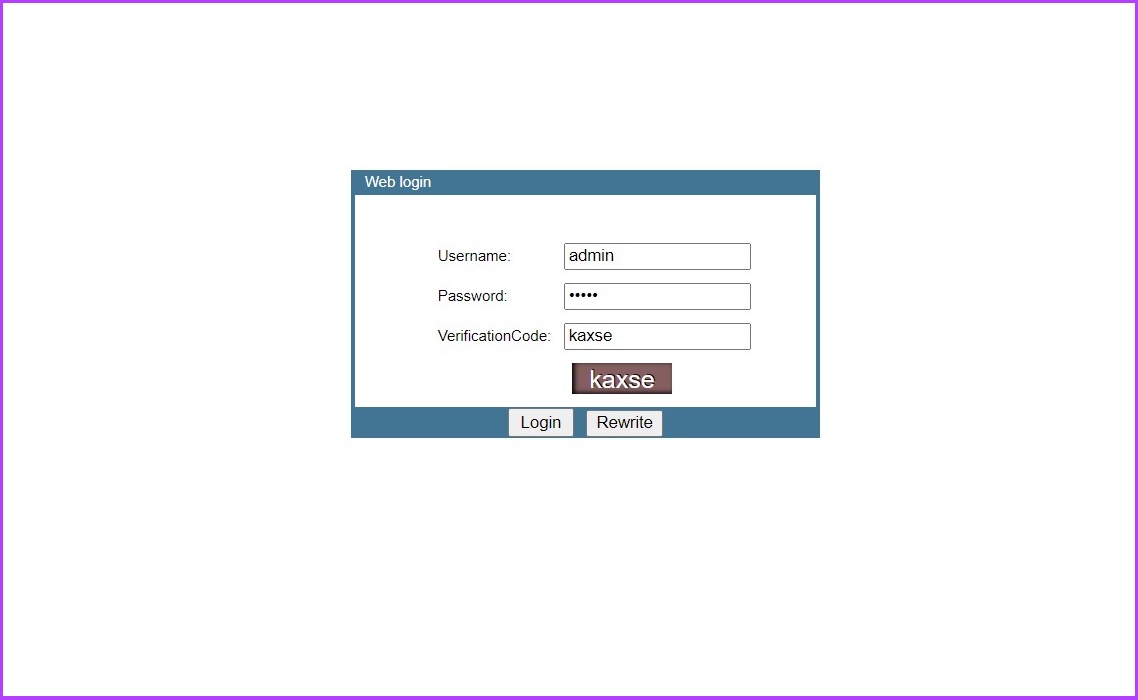
Step 1: Log in to the router.

Router Login- Fix Authentication Error

Step 2: Go to the Network or Security Protocol and change the settings from WPA to WPA2.

WPA-WPA2- Fix Authentication Error

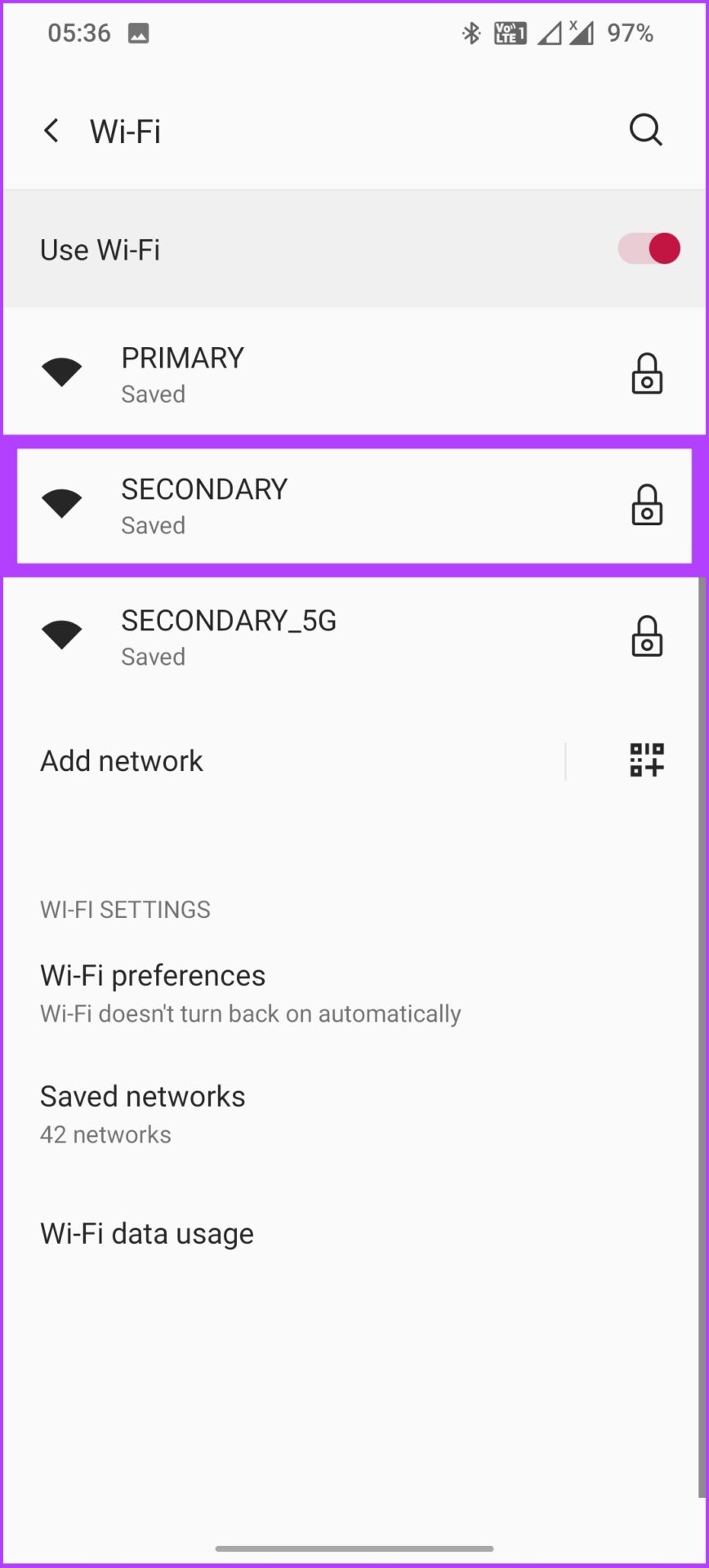
Step 3: Now, on your Android device, open the Wi-Fi settings.

Reset Wi-Fi Connection - Fix Authentication Error (1)

Step 4: Tap on the Wi-Fi name and select Forget.

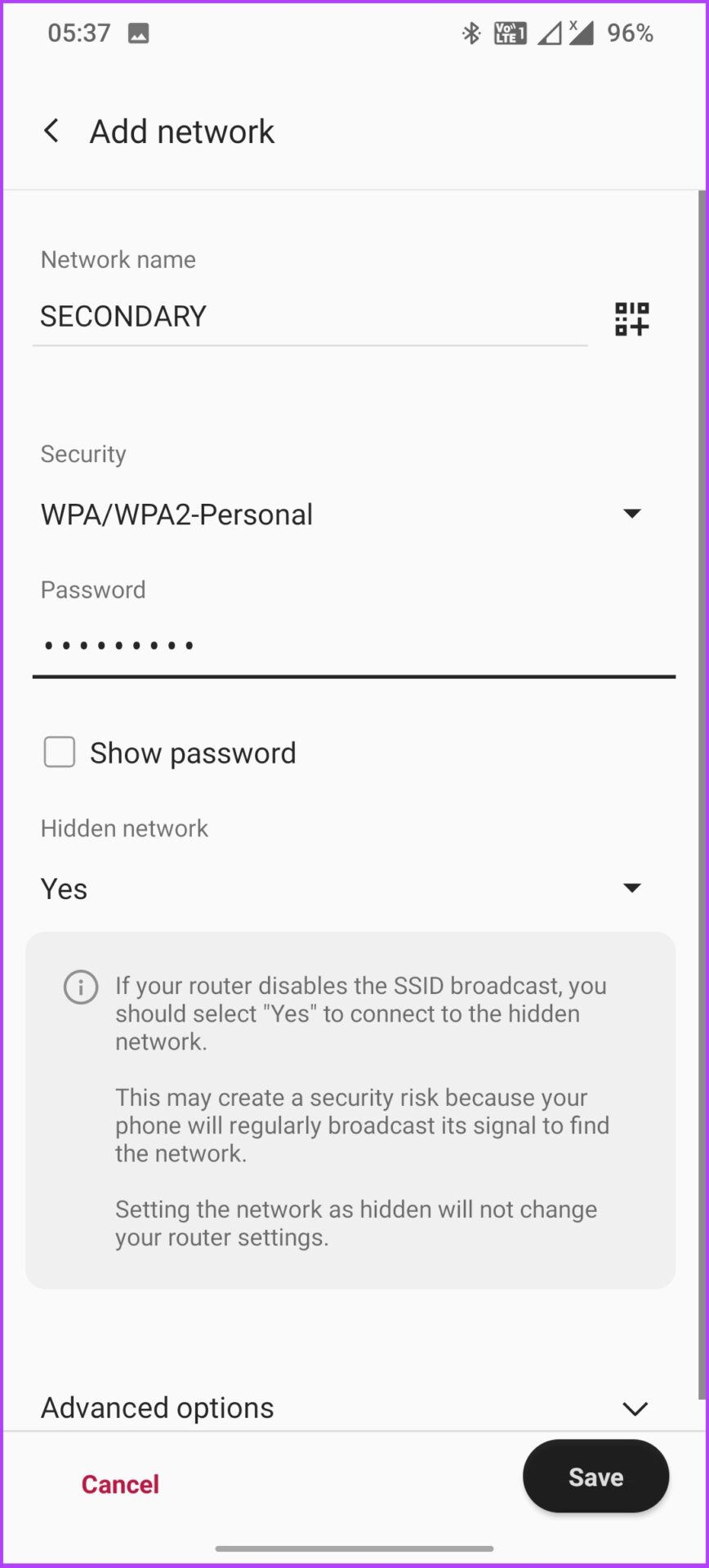
Step 5: Now, connect to the network again.

You should be able to get in.

10. Reset the Network Hardware

This is the last resort; reset the router. Mind you, all the customizations you made to the router since its setup will be deleted, and you might have to set it up again. Here’s how to do it. 

Almost all the routers have a manual button at the back to reset the router. All you need to do is press the button long enough until the lights go off and turn back on. That’s when the router will reset, and you will have to set it up again to use it. 

11. Changing the IP Address From DHCP to Static

Most of the routers on the market use the DHCP protocol to allocate Internet Protocol (IP) addresses and other configuration information like subnet mask and default gateway. However, sometimes DHCP assigns the same IP address to multiple devices, giving rise to IP conflicts and disrupting the network.

This issue can be fixed by assigning a static IP address to your device, which in this case, is your Android device. Once your device gets a predetermined IP address, DHCP gets out of the picture. Let’s get to the steps.

Step 1: Go to the phone Settings and select Wi-Fi & Network.

Step 2: Go to Wi-Fi and select the Wi-Fi network. Now, tap the pencil icon at the top right.

Step 3: Tap Advanced, go to IP settings and select Static.

Step 4: Enter the IP address that is not already in use and tap Save.

Changing the IP Address from DHCP to Static (4)

Leave the rest of the details as is, or you can enter 8.8.8.8 in DNS 1 and 8.8.4.4 in DNS 2 fields if you want to use Google’s DNS. 

12. Update the Device Software

This is not a typical case, but there are times when software updates on your Android device could stall the wireless connection. So, if you haven’t updated your Android device for a while now, that could also be the reason for the authentication error on your Android device. Here’s how to check for updates.

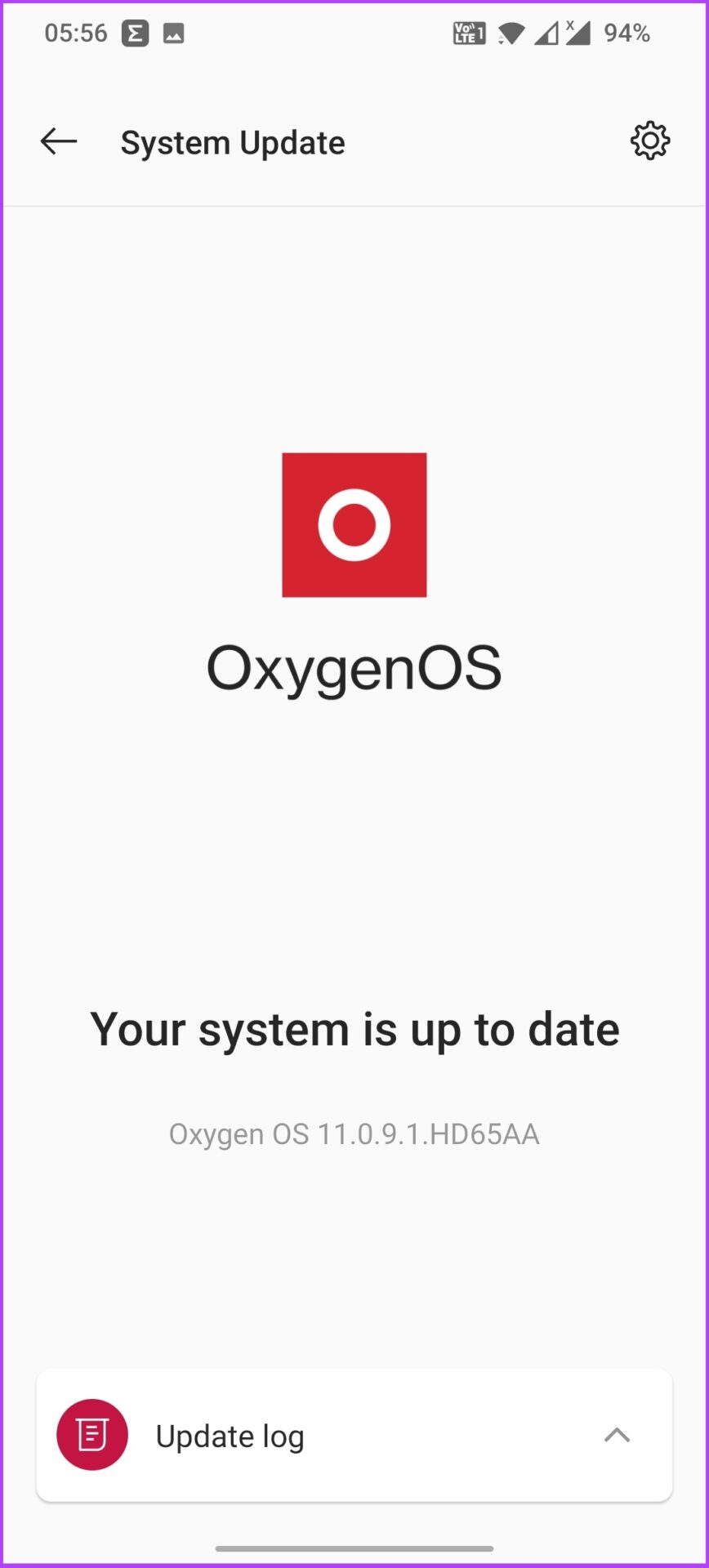
Step 1: Go to the phone’s Settings and select System.

Step 2: Now, go to System updates and check for pending updates.


The software updates bring in patches and bug fixes, crucial for your Android device’s security. If you see any pending updates, update them and sort this issue once and for all. 

Hassle-Free Internet Connection for Your Android

There could be multiple reasons why you’re facing Wi-Fi authentication errors. We have covered most of it. If you think we have missed out on something, let us know in the comments below. I hope this guide helped you fix Wi-Fi authentication problems on your Android. If it did, share and let us know which method worked for you in the comments section below. 

Was this helpful?


Thanks for your feedback!
12 Best Nothing Phone (1) Tips and Tricks You Should Know

1. Enable Music Visualization

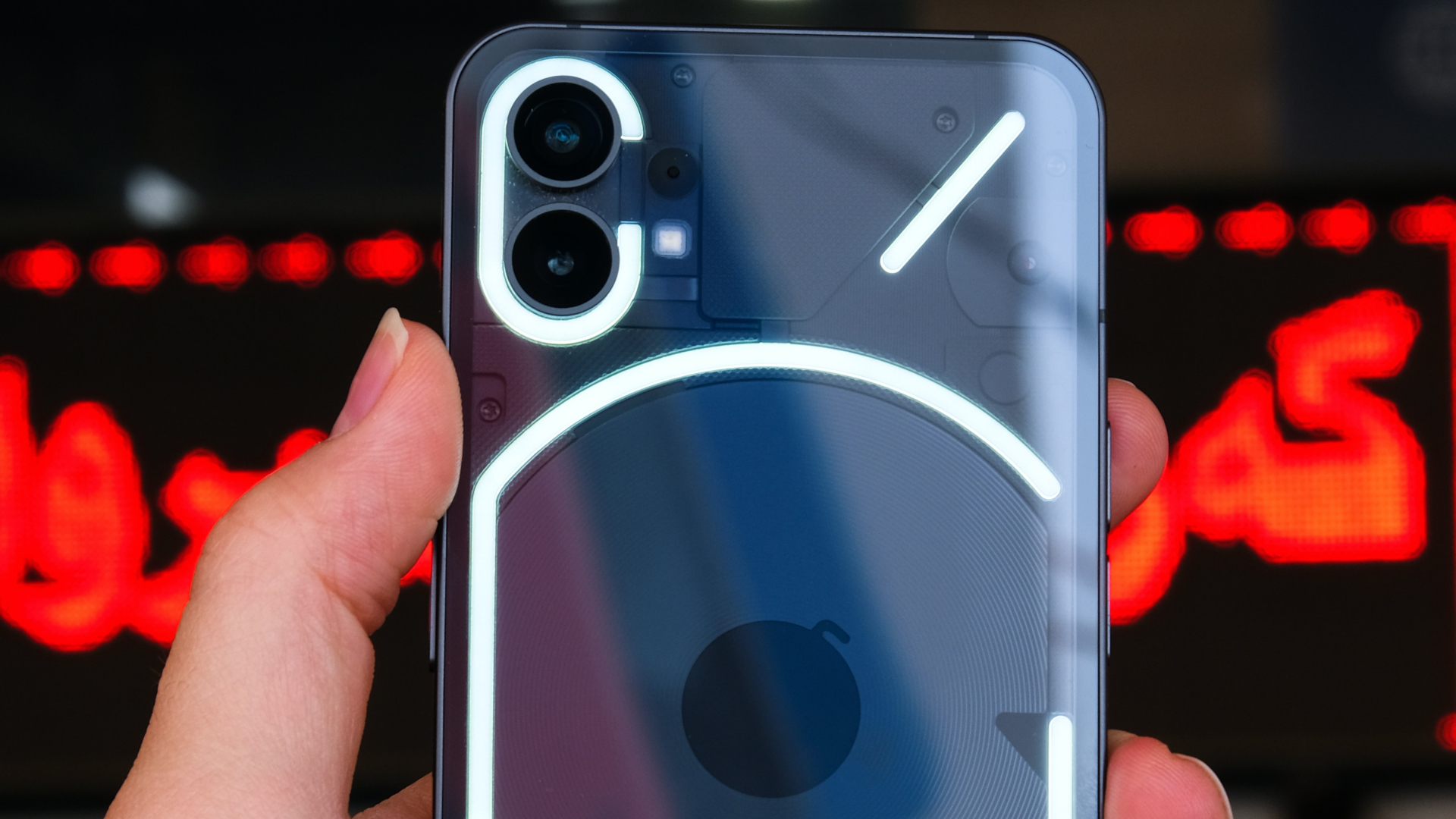
There are several features of the Glyph lights on the Nothing Phone (1) that are available right out of the box. However, there is one easter egg that enables a hidden feature – Music Visualization. When enabled, the Glyph lights will sync to the music you’re playing on the phone to give a cool effect. Here’s how to enable the secret feature.

Step 1: Open the Phone app on your Nothing Phone (1). In the dialer, enter any random number and select Create new contact at the top.

Step 2: When prompted, enter the First name of the contact, and enter Abra. Leave the rest of the fields blank and tap on Save.

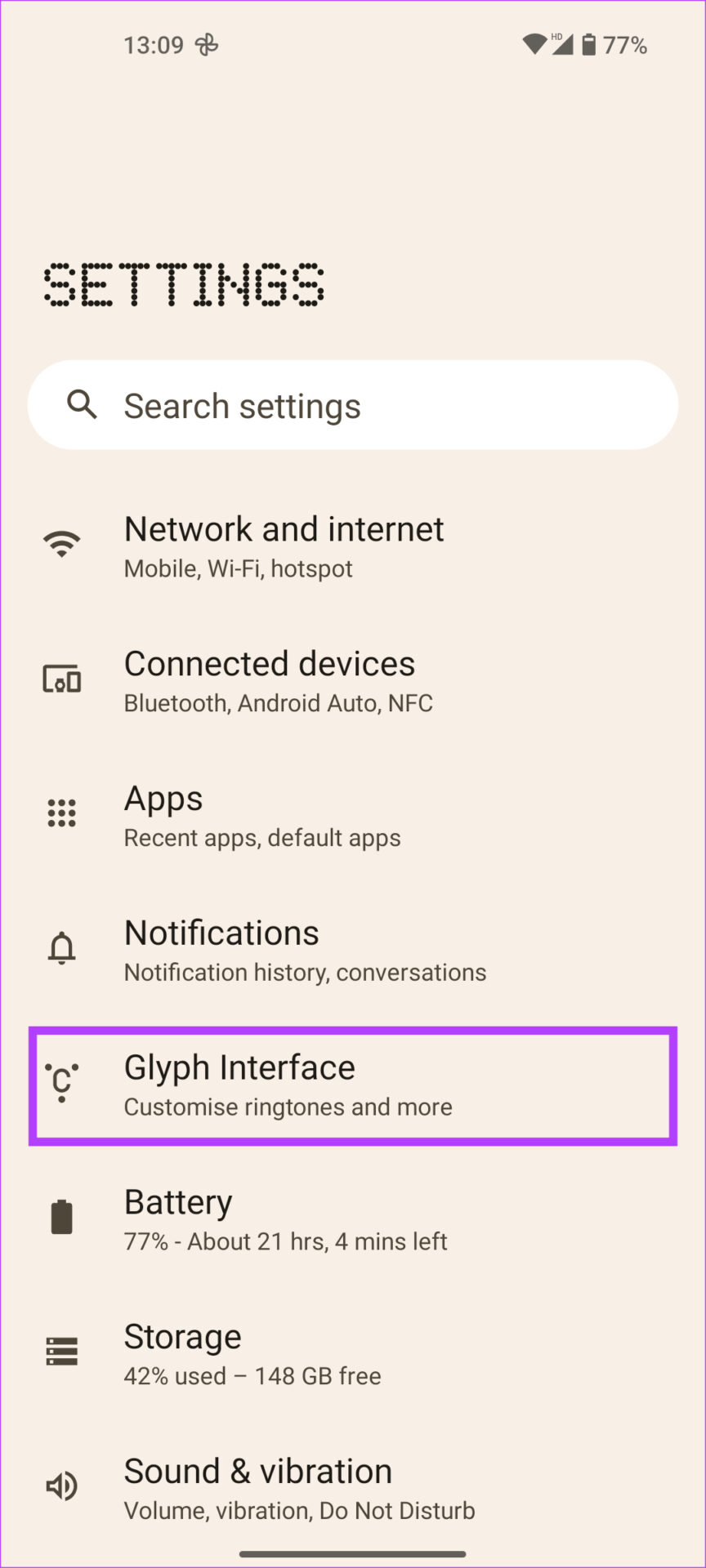
Step 3: Now, open the Settings app and select Glyph Interface.

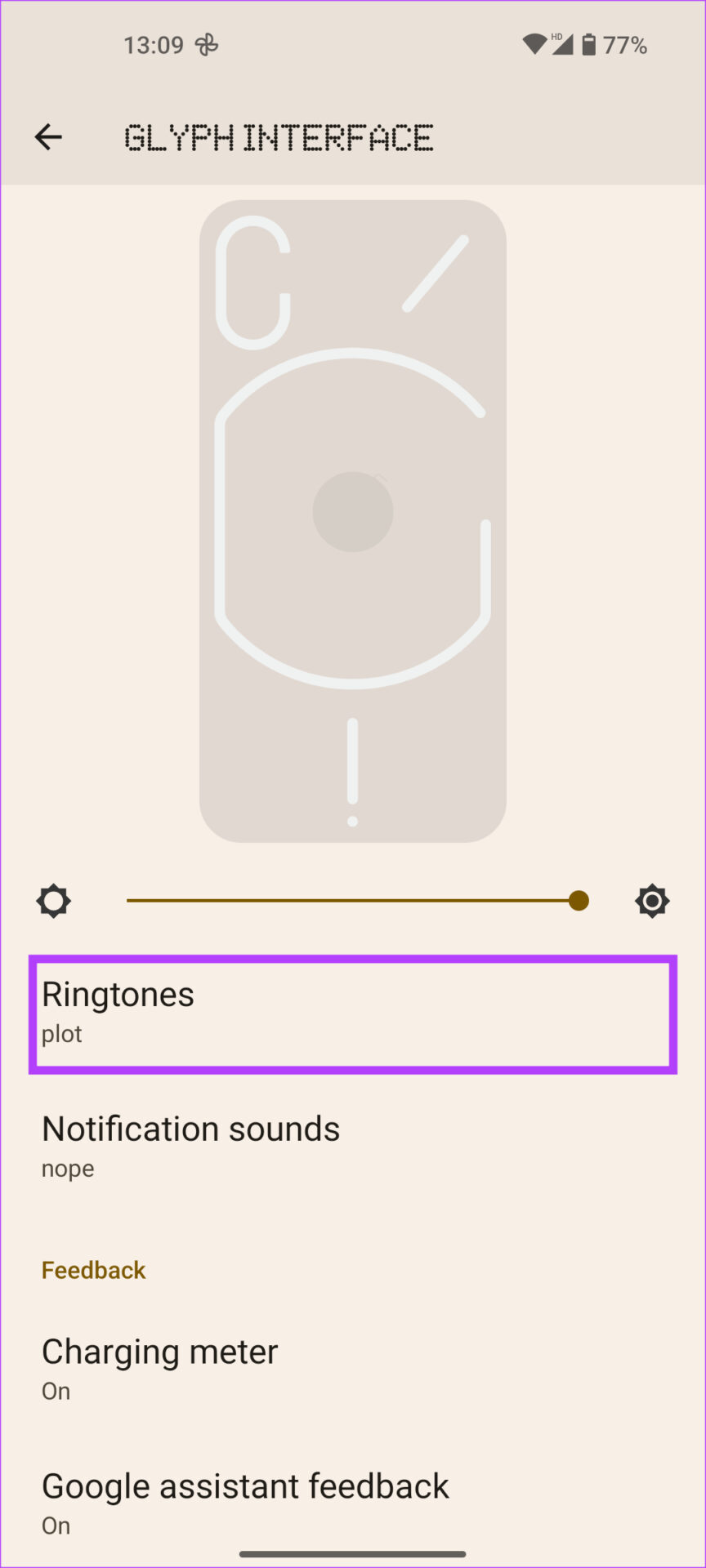
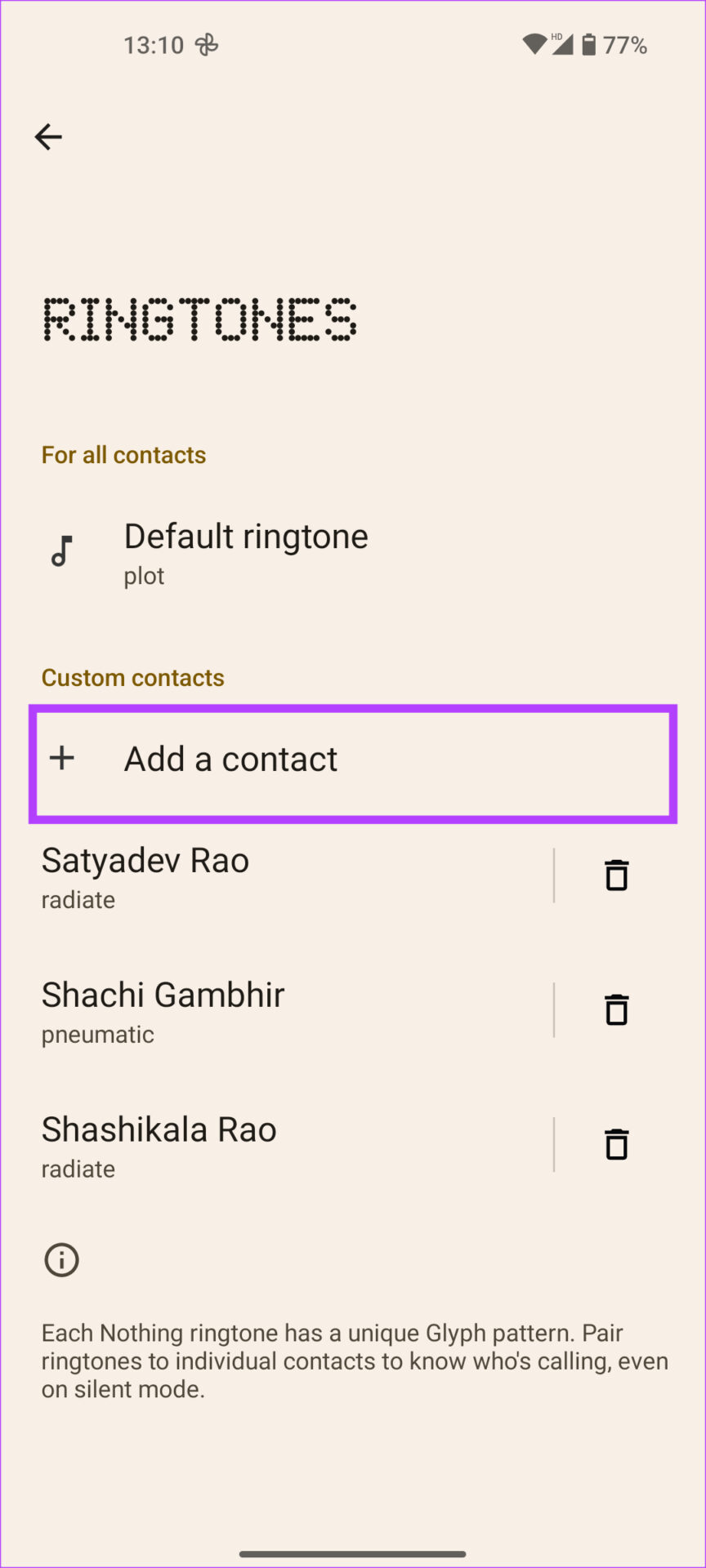
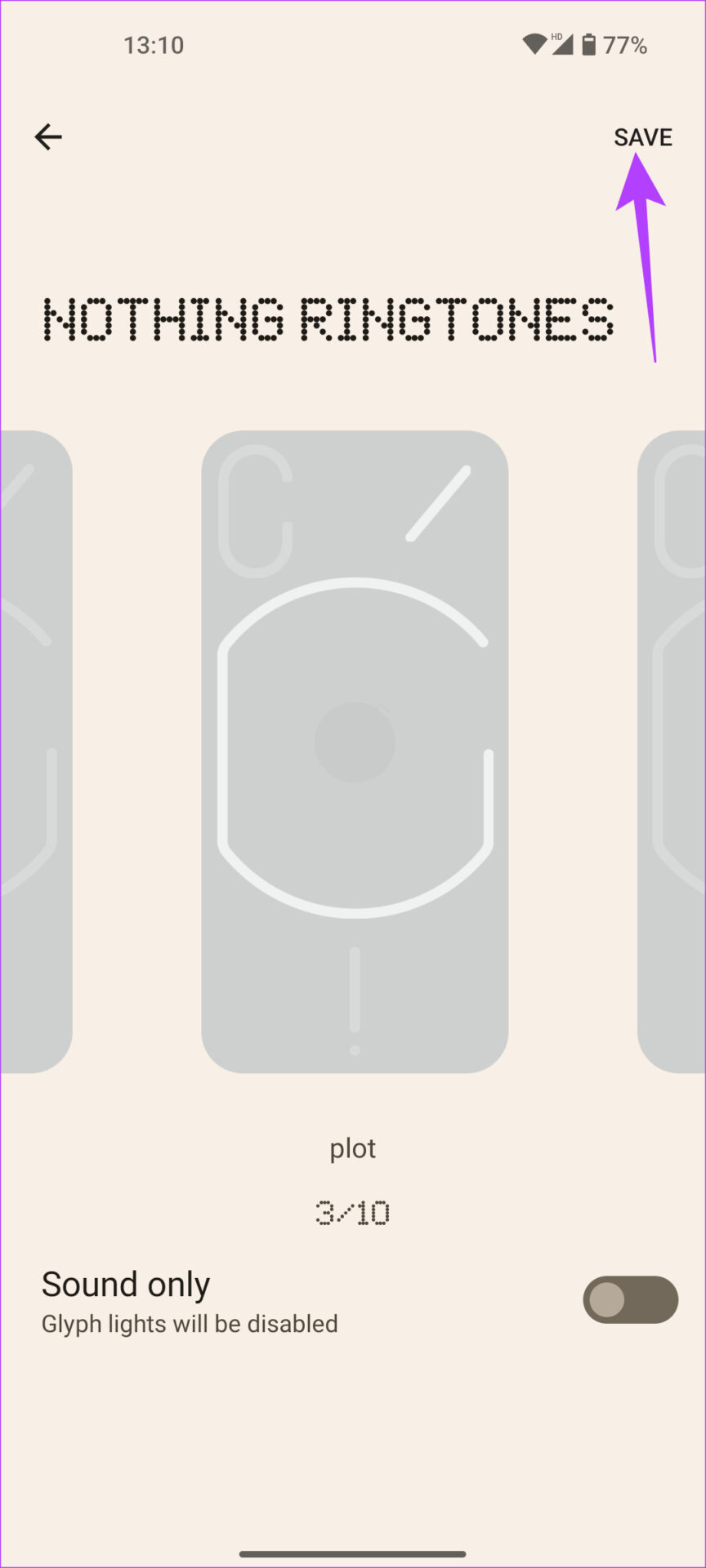
Step 4: Tap on Ringtones and select Add a contact under Custom contacts.

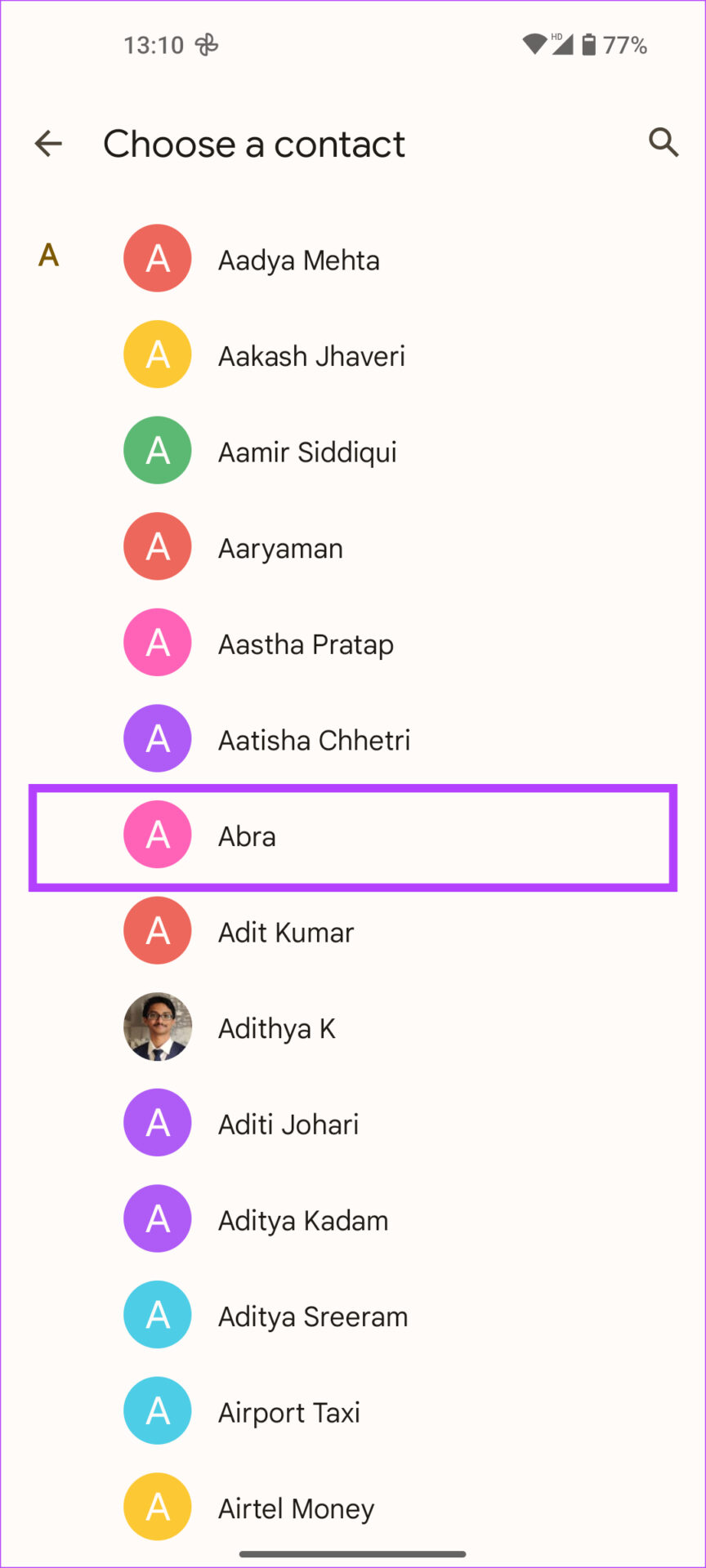
Step 5: When asked to choose a contact, select Abra. Tap on Nothing ringtones. Pick a ringtone and tap on Save to set the ringtone.

That will unlock the Music Visualization option on your Nothing Phone (1). Next, enable it.

Step 6: Head back into the Glyph Interface settings and tap on Music visualization. Toggle on the feature.

2. Use Glyph Lights in the Camera App

Here’s a practical use case of Glyph lights on Nothing Phone (1). If you click photos in the dark, use the Glyph lights to brighten the scene. They are softer and more diffused than the camera flash, making them a better alternative. They’re also useful when clicking macro shots since they require more light.

Step 1: Open the Camera app on the Nothing Phone (1). Switch to the mode you want to use and tap on the flash icon at the top-left corner.

Step 2: Tap it multiple times till you arrive at the Glyph lighting mode.

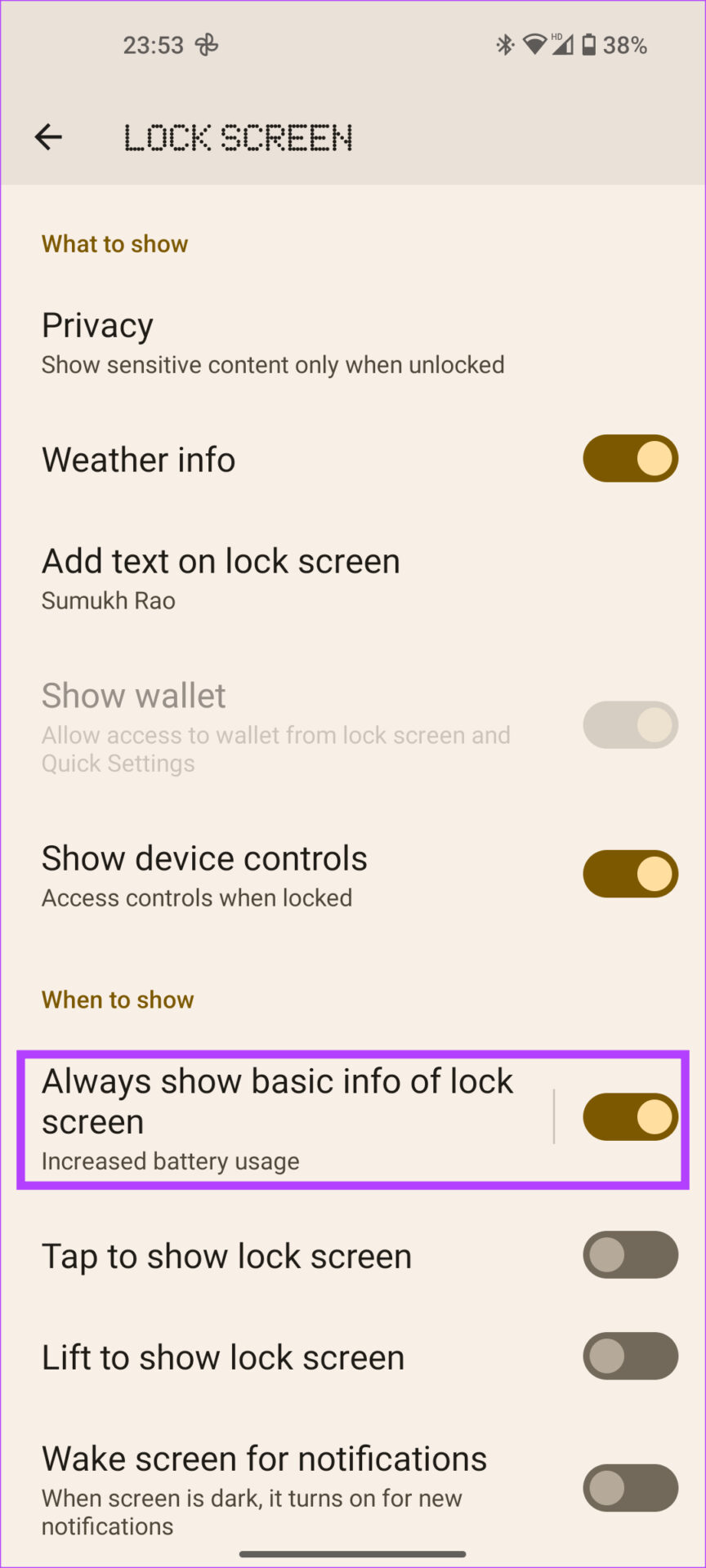
3. Always On Display

If you haven’t used Always On display before, it’s a feature that keeps your phone’s screen, no points for guessing, always on. You can frequently check the time, date, pending notifications, etc.

Step 1: Open the Settings app on your phone and navigate to Display.

Step 2: Tap on Lock screen and toggle on Always show basic info of lock screen.

4. Show the Fingerprint Scanner Icon

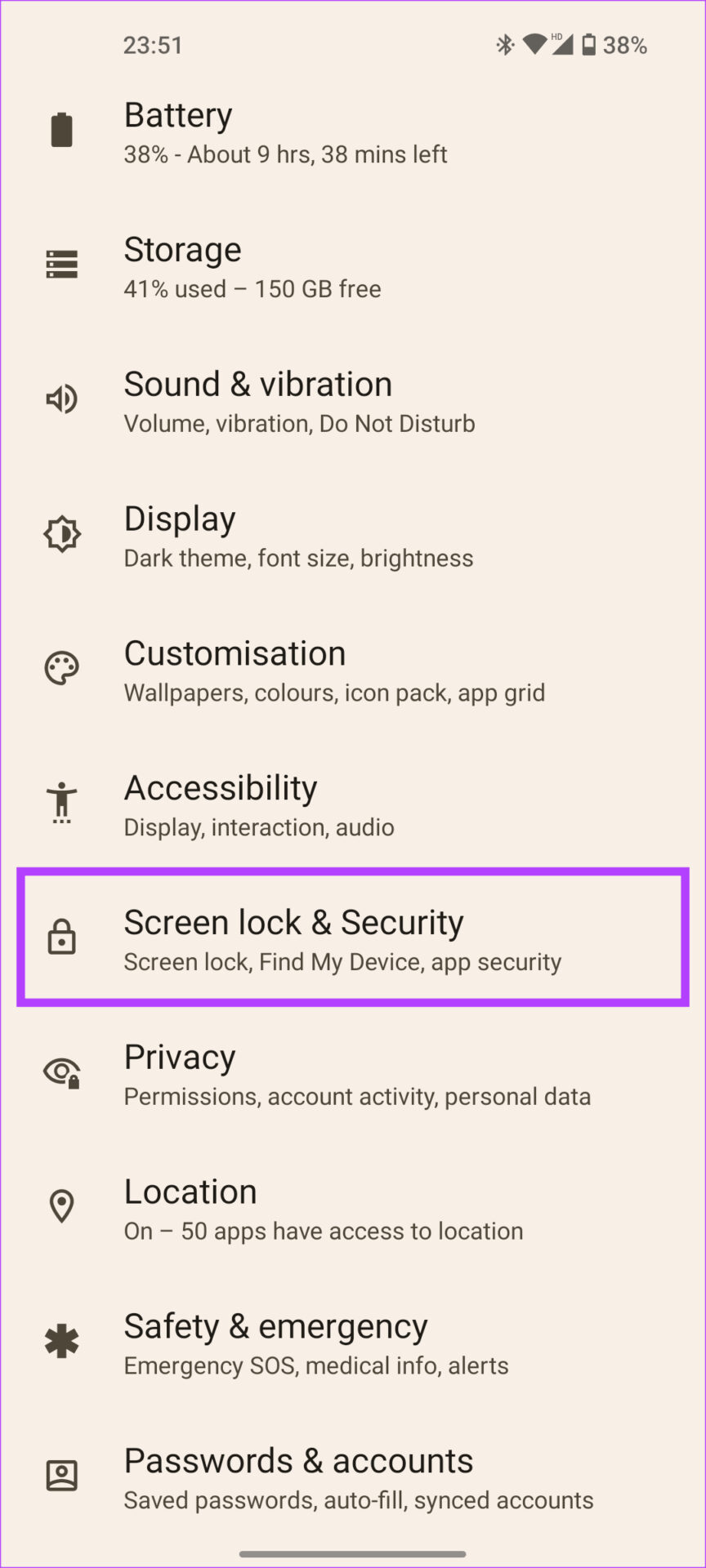
The Nothing Phone (1) has an in-display fingerprint scanner to unlock the device. When the screen is turned off, it can be difficult to locate the fingerprint scanner. So, Nothing has given the option to show the fingerprint icon every time we move the phone slightly. This makes it easy to find the scanner and unlock the phone. Here’s how to enable it.

Step 1: Open the Settings app on your phone and navigate to Screen lock & Security.

Step 2: Tap on Fingerprint and enter your PIN to access the menu.

Step 3: Enable the toggle for Show fingerprint icon.

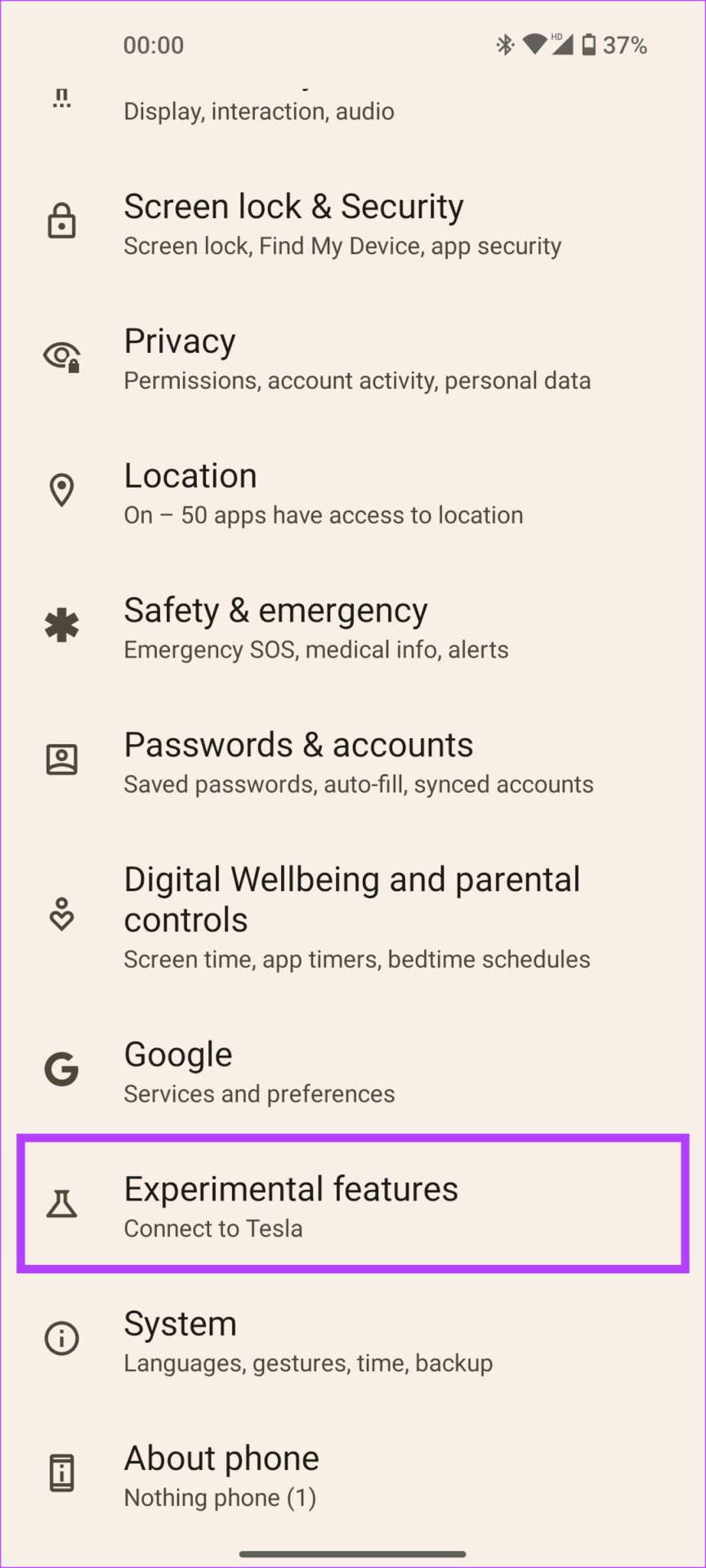
Nothing has worked with Tesla to integrate a feature into the Nothing Phone (1) that natively allows you to control your car from the phone. If you have a Tesla, here’s how to set this up.

Step 1: Open the Settings app and go to Experimental features. Select Connect to Tesla.

Step 2: Tap on Connect once again and log in with your Tesla account.

6. Customize the Home Screen and UI

Android 12 introduced the Material You design language, with colors across the UI matching the wallpaper in use. The Nothing Phone (1) allows you to change the UI colors and use custom icon packs in the launcher.

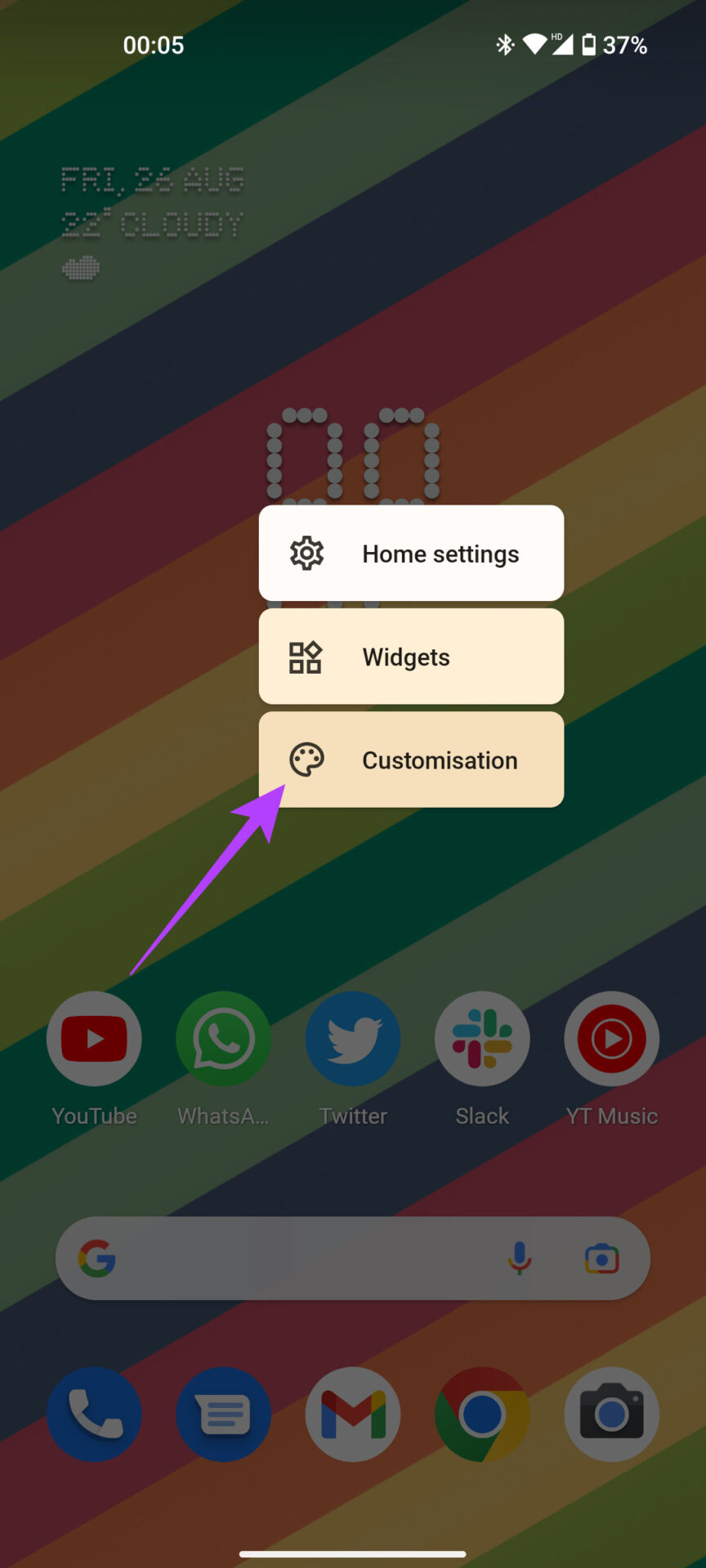
Step 1: Long-press on any empty space on your home screen and select Customization. Tap on Wallpaper & style.

Step 3: You can see a color palette at the bottom. Choose the one you like the most, and it will be set across the UI.

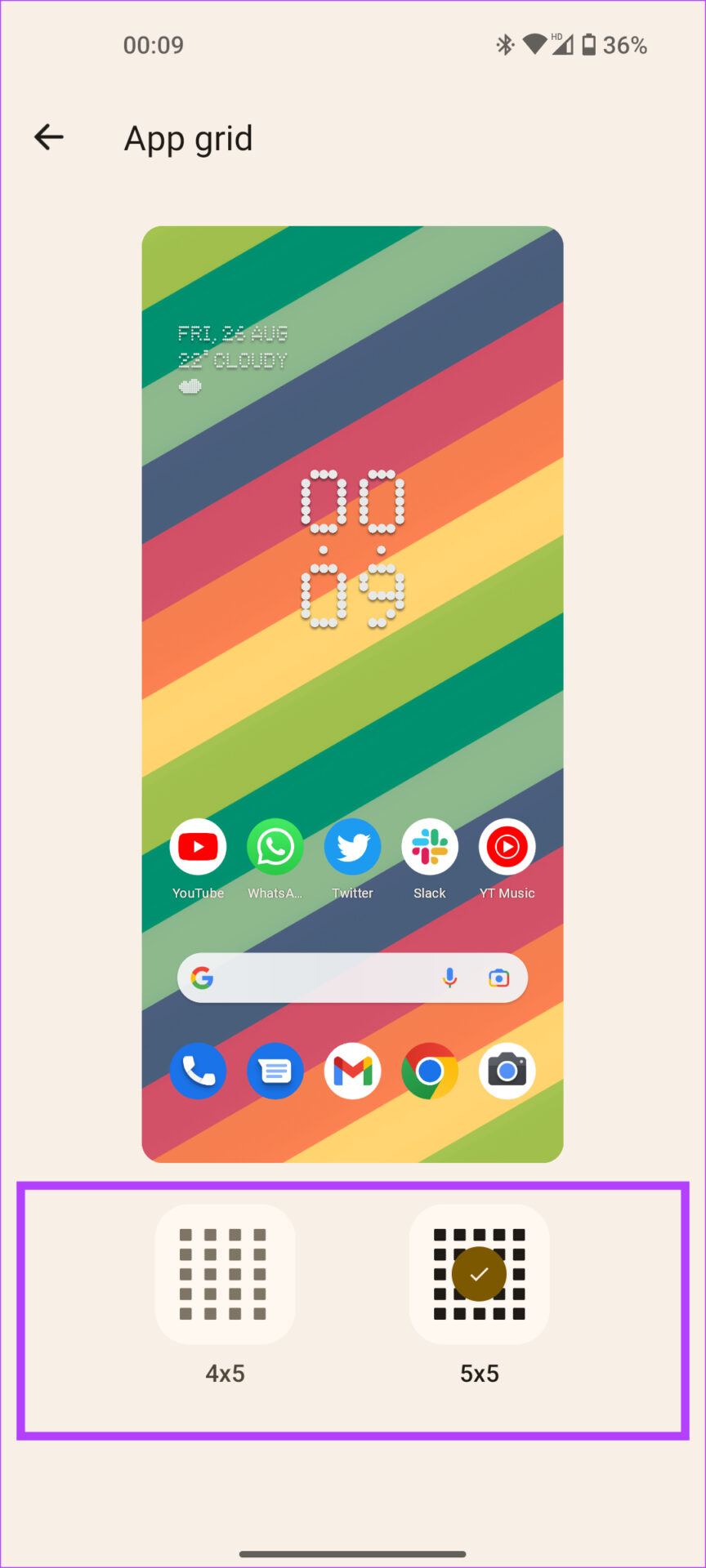
Step 4: Scroll down and tap on App grid. You can choose the number of apps you want to see on the Home Screen.

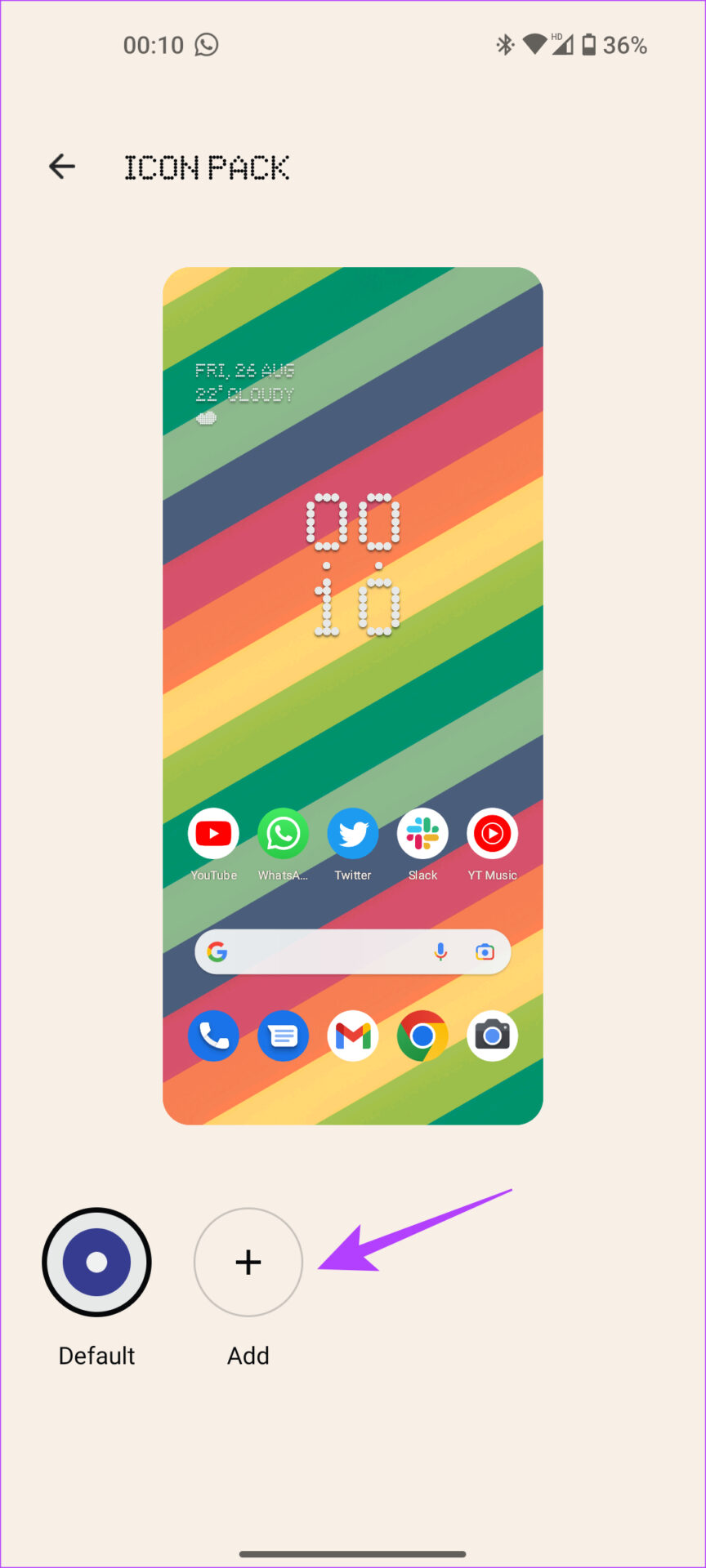
Step 5: If you wish to change how your icons look, select the Icon Pack option.

Now, you can select an icon pack that you’ve already installed or tap on the Add button to see the list of icon packs on the Play Store.

7. Use Game Mode While Gaming

Smartphone gaming is more popular than ever. If you spend long hours on COD mobile or enjoy the visuals on Genshin Impact on your Nothing Phone (1), do it with the Game Mode enabled. This will help keep distractions at bay while gaming.

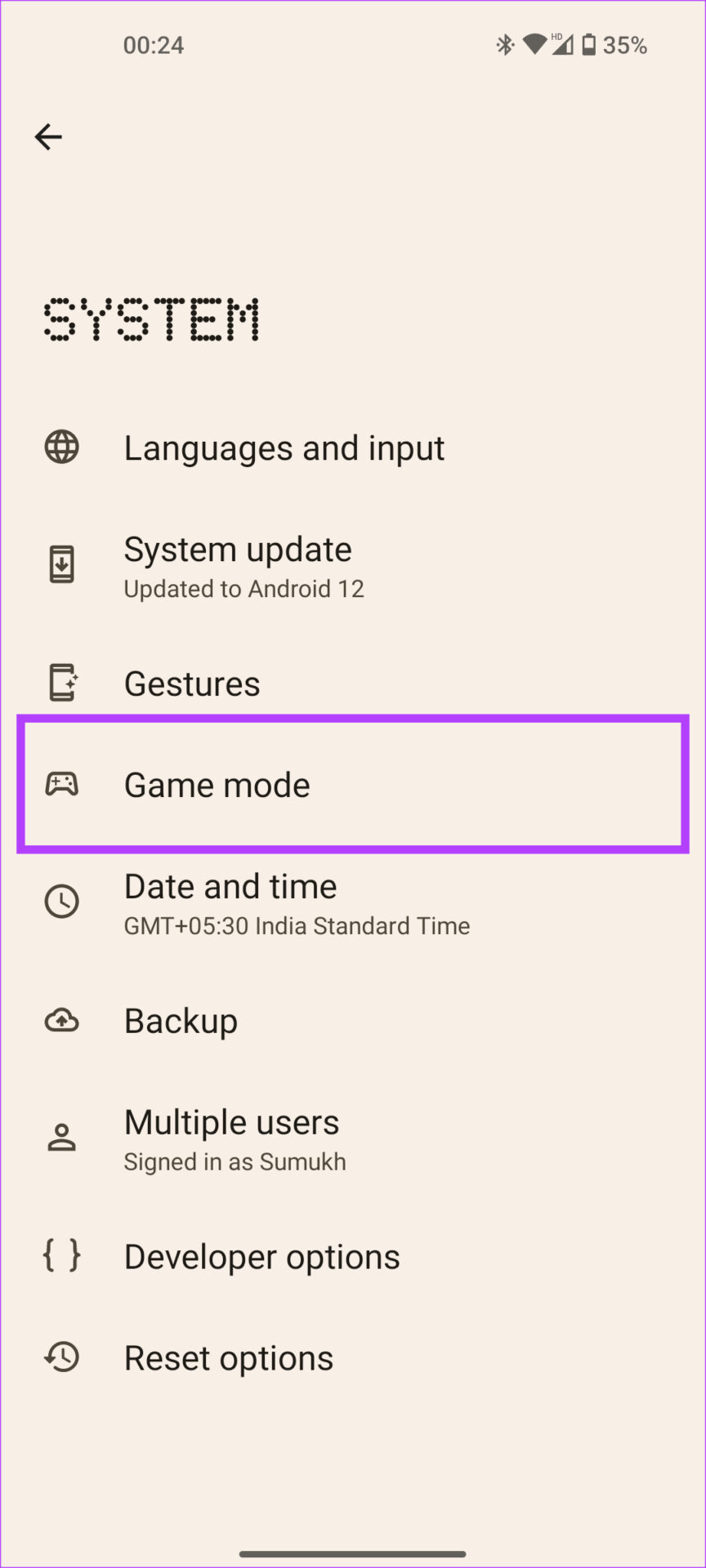
Step 1: Open Settings on your phone and go to System. Select Game mode.

Step 2: Navigate to Apps. Choose the Add apps option and select all the games you want to enable Game mode by tapping on the + icon.

Also, enable the Mistouch prevention toggle while at it to avoid activating swipe gestures when gaming.

8. Enable Screen Attention

Screen attention is a Nothing Phone (1) feature that keeps the screen on until you’re looking at it. This is handy if you don’t want your phone’s display to turn off while reading an article like this. Here’s how to enable it.

Open the Settings app and go to Display. Tap on Screen timeout and toggle on Screen attention.

9. Charge Other Phones Wirelessly With Battery Sharing

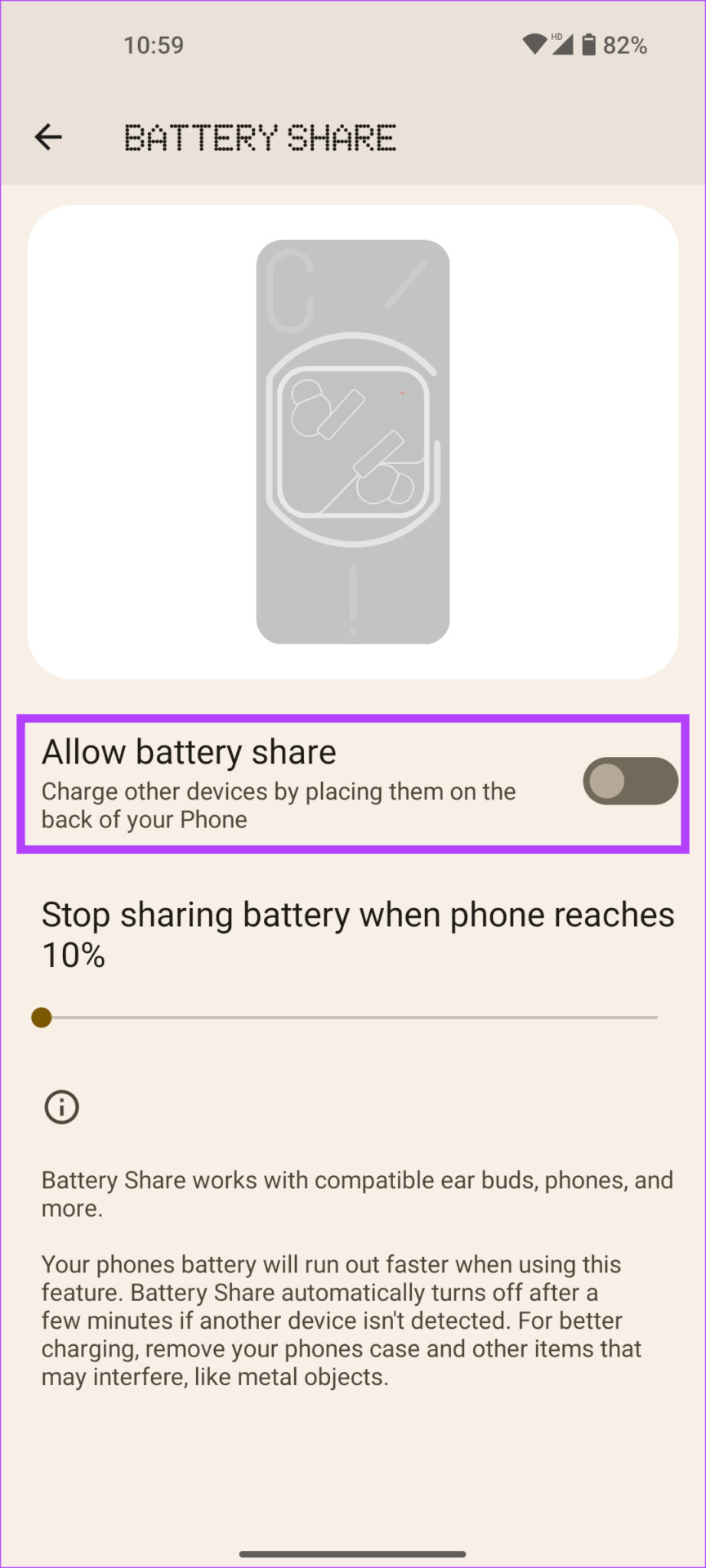
The Nothing Phone (1) is one of the few devices at its price point to offer wireless charging. However, besides wireless charging, the device also supports reverse wireless charging, or, as Nothing likes to call it, Battery Share. Once enabled, place the phone you want to charge on the back of the Nothing Phone (1), and it will begin to get juiced up!

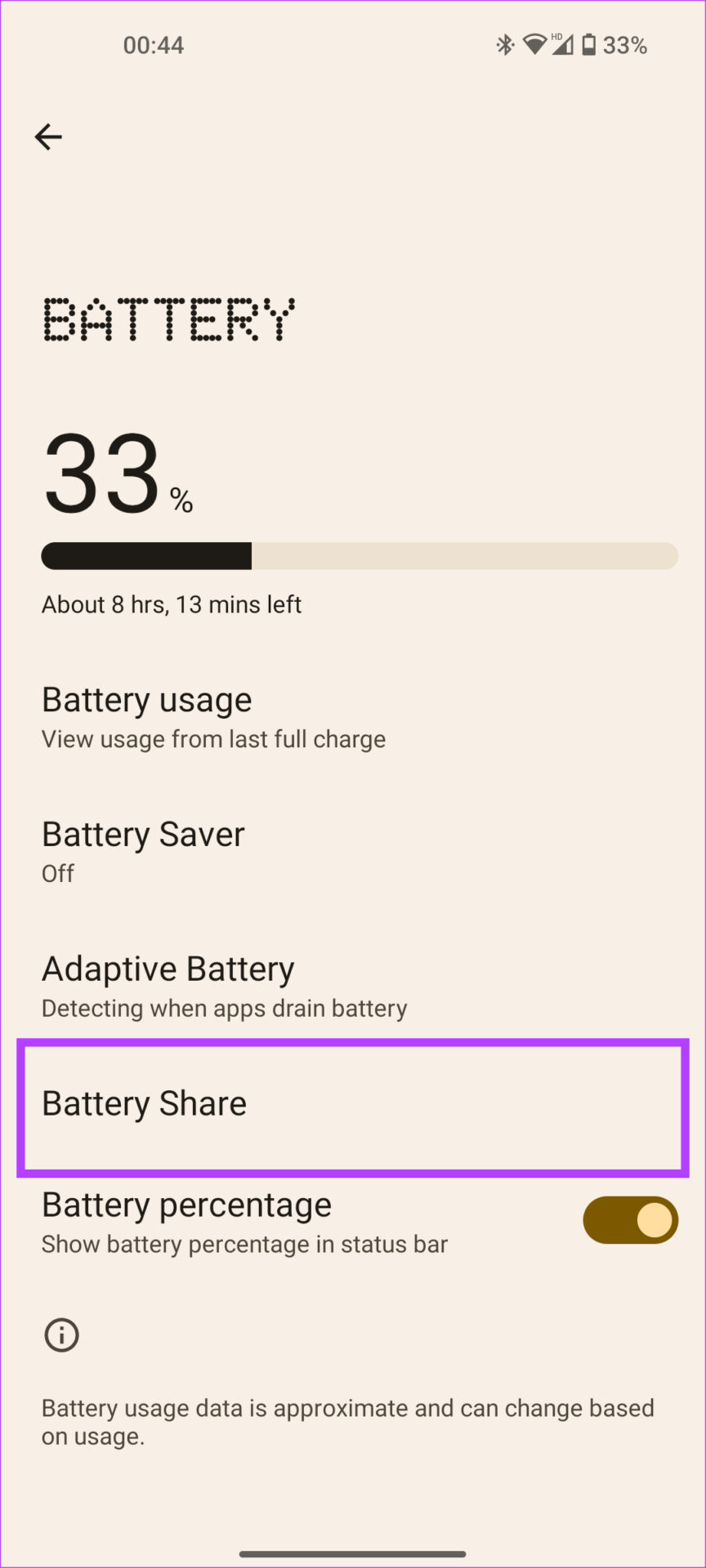
Open Settings on your phone and navigate to Battery. Tap on Battery Share and toggle on Allow battery share.

10. Lockdown Mode

Ever wonder how anyone can unlock your phone using your fingerprint while asleep? Lockdown mode prevents exactly that. When enabled, unlock the phone using your PIN, and only then can you use your fingerprint to unlock the phone next time. Here’s how to access Lockdown mode.

Press the power button + volume up button simultaneously on your Nothing Phone (1). This will bring up the power menu. Tap on Lockdown.

11. Quickly Open the Camera With a Gesture

No matter what you’re doing on your phone, you can open the camera in a jiffy using a gesture on your Nothing Phone (1). Enable it by following the below steps.

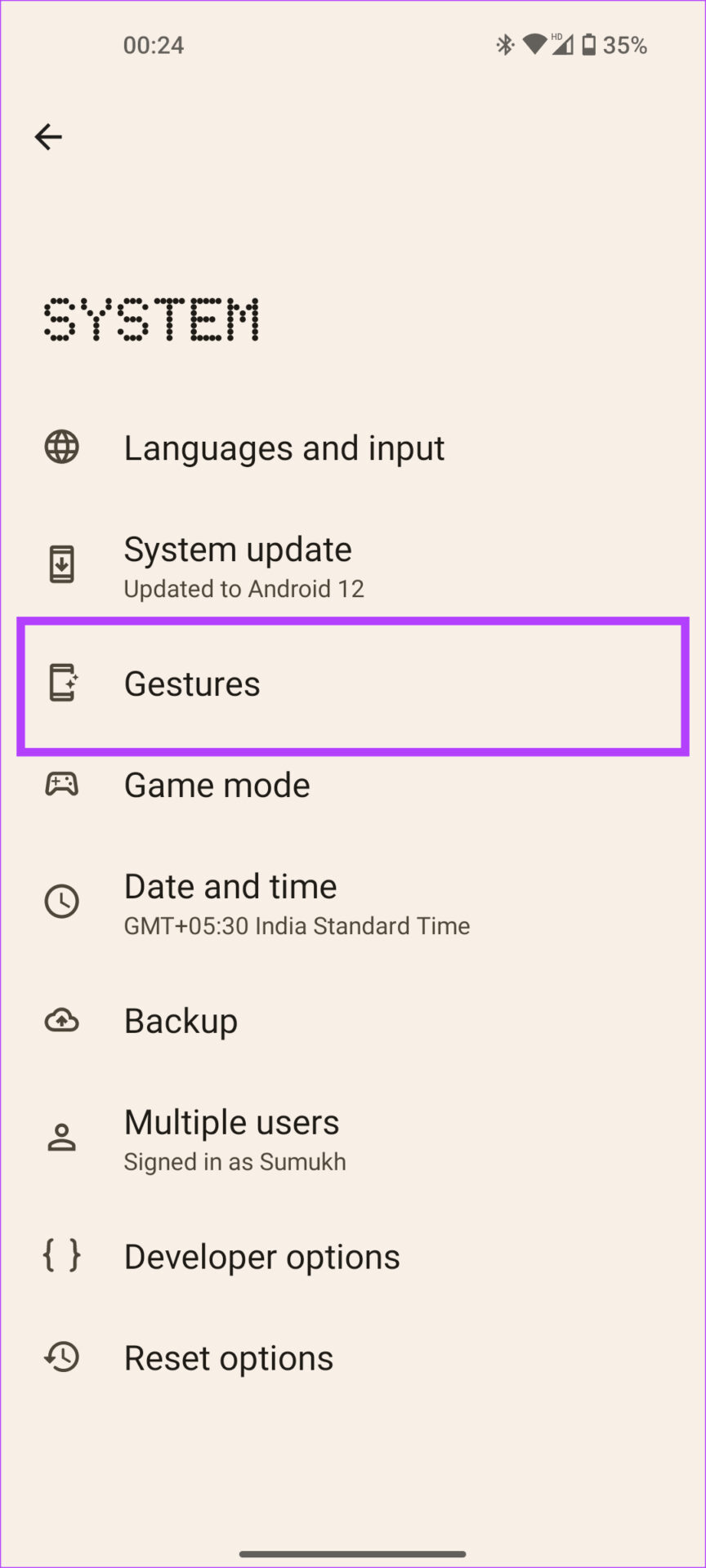
Open the Settings app on your phone and go to System. Select the Gestures option and tap on Quickly open camera to enable it.

12. Automatically Record Calls From Specific Numbers

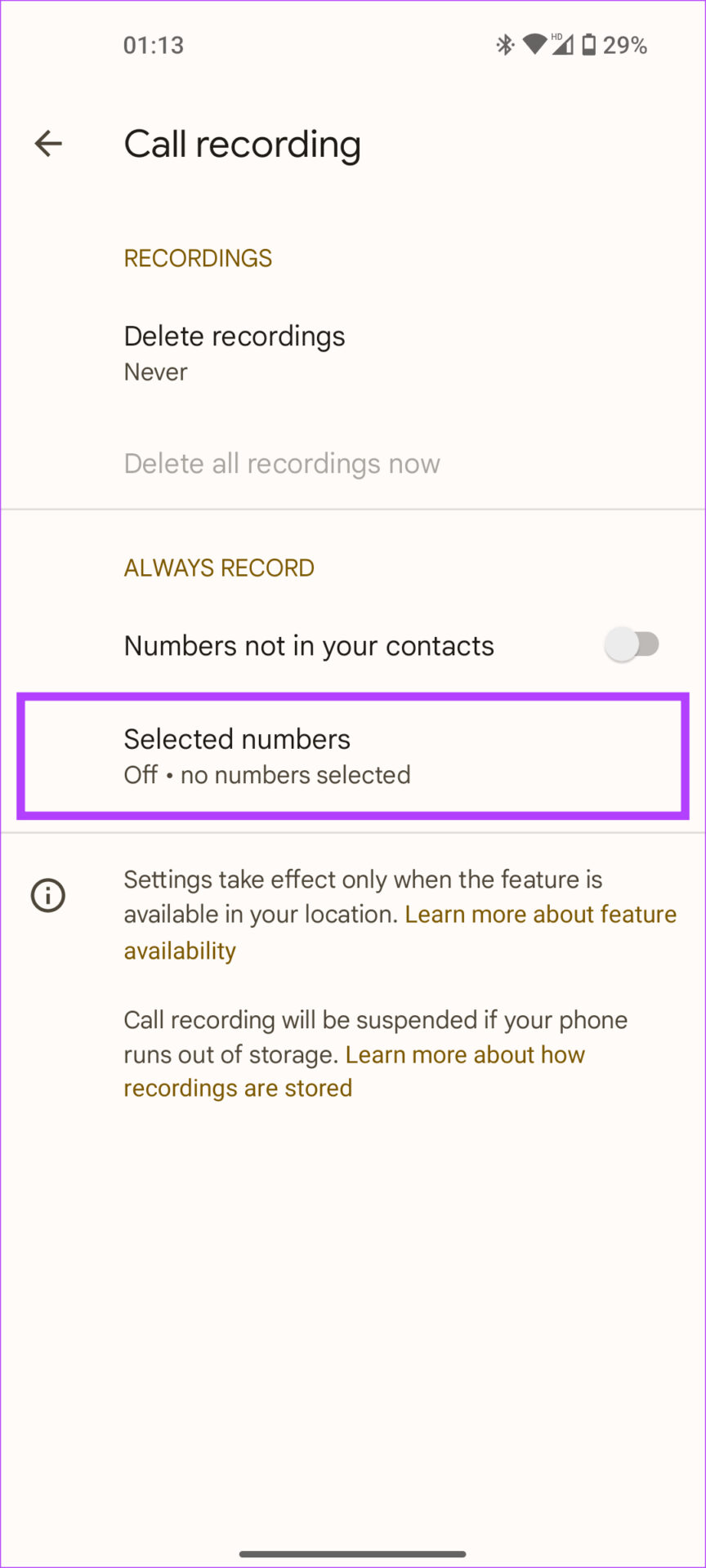
Many users use Call recording regularly. While you can record calls via the Phone app on the Nothing Phone (1), you also get the option to automatically record calls from specific numbers. Here’s how to set it up.

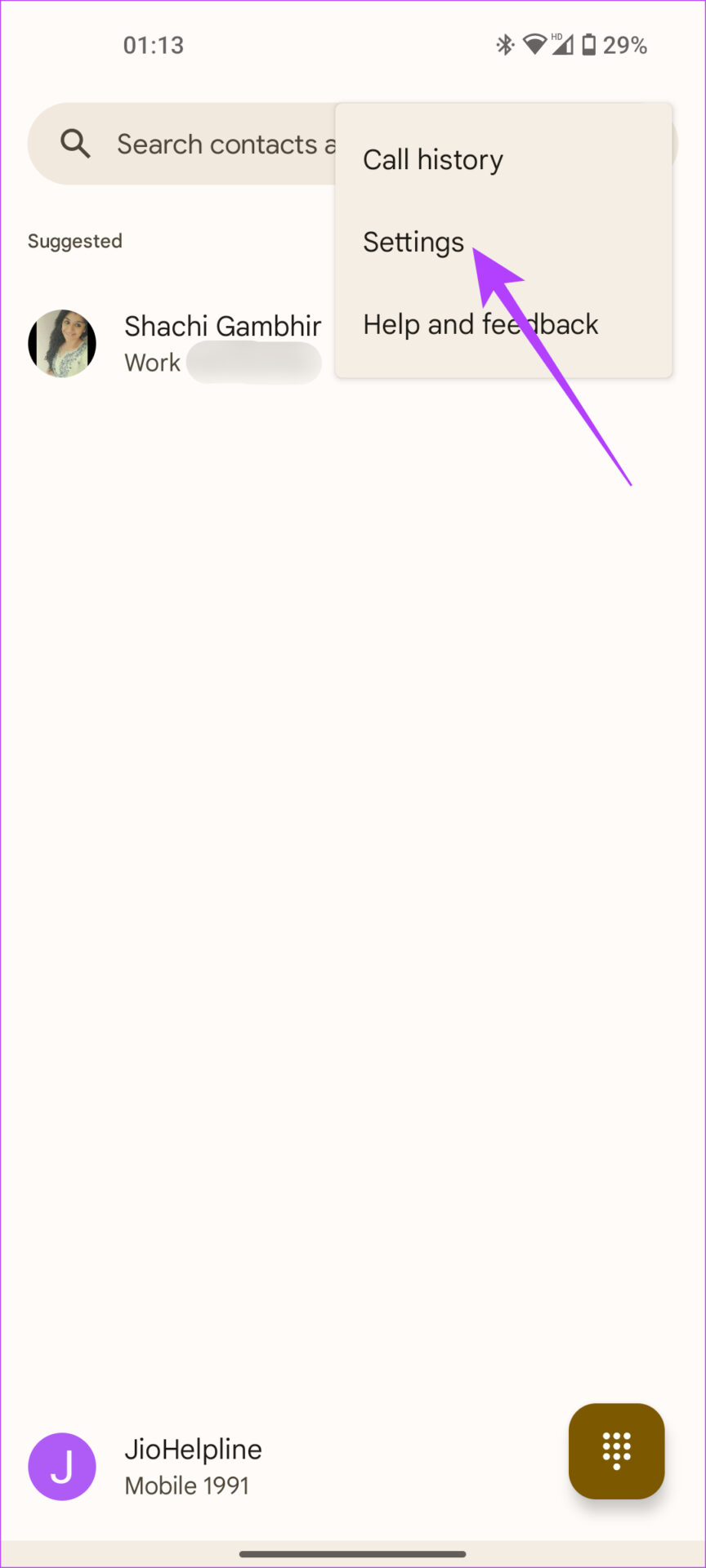
Step 1: Tap on the three-dot menu at the top-right corner of the Phone app and select Settings.

Step 2: Under General, choose Call recording.

Step 3: Here, you will find the Always Record section. To record calls from all unknown numbers, toggle on Numbers not in your contacts.

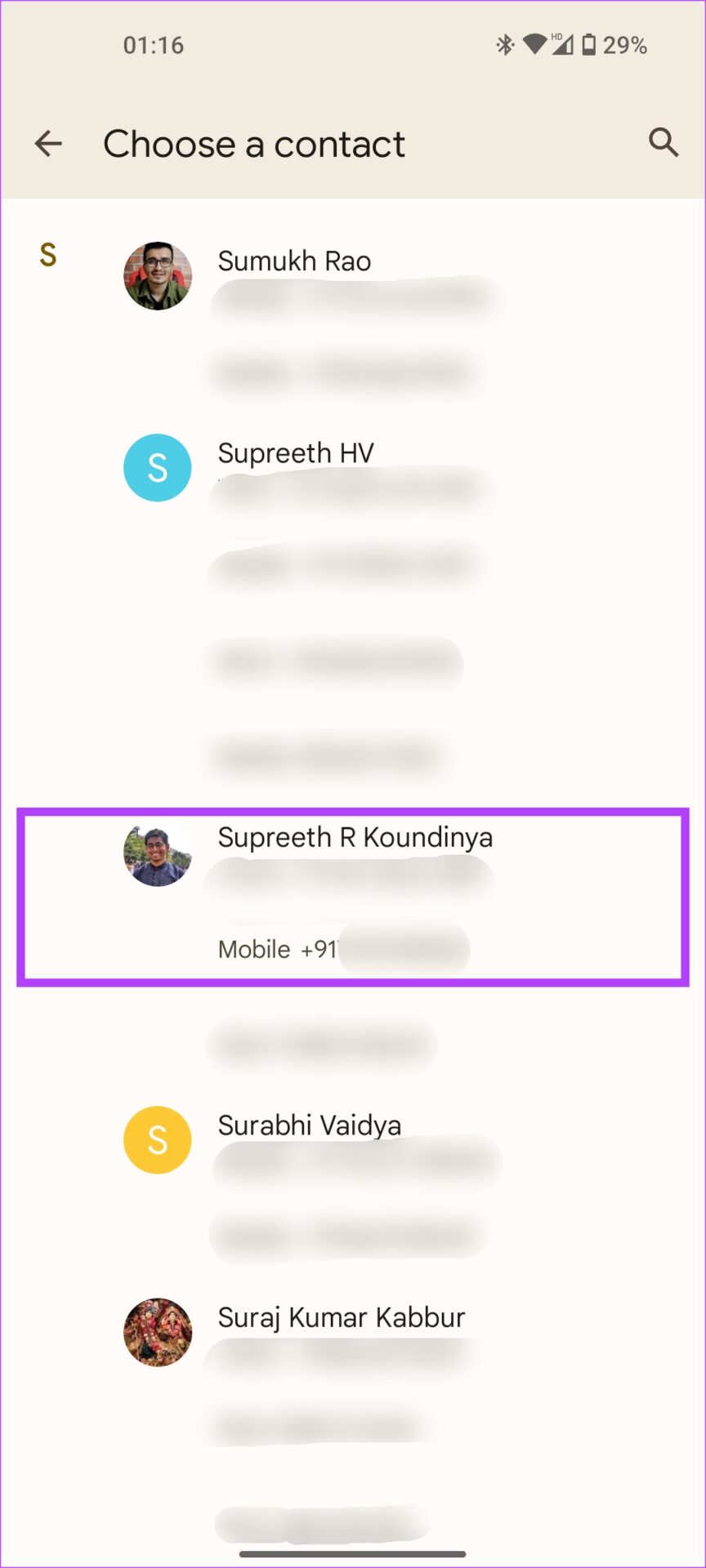
Step 4: To automatically record calls from specific contacts, choose and pick a contact. Ensure the Always record selected numbers toggle is enabled.

Was this helpful?

Thanks for your feedback!

3 Ways to Fix Photos and Videos Not Loading on Facebook Messenger

Try Basic Fixes

  • Update the Messenger app: Using an outdated version of the Facebook app on your Android or iPhone can trigger the “This media is no longer available” error in the Messenger app. Hence, it’s a good idea to update the Facebook app from the Play Store (Android) or App Store (iPhone). While you are at it, you should also update the Messenger app.
  • Check if Messenger is down: Another reason why you may have trouble loading media or messages is if the Facebook Messenger servers are down. You can visit a website like Downdetector to check if others are experiencing similar issues.

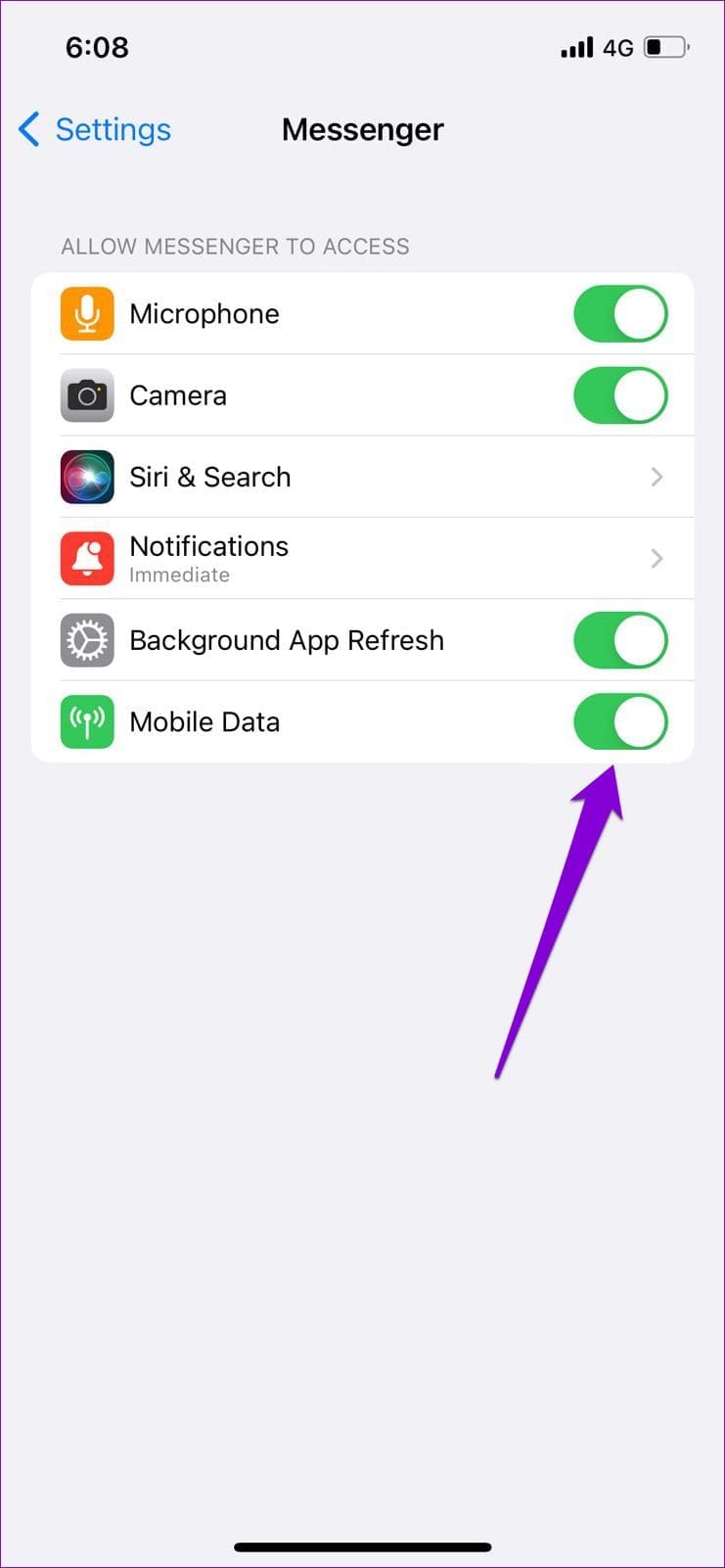
Fix 1: Allow Facebook Messenger to Use Mobile Data (iPhone)

On iOS, you can manage mobile data permissions for each app separately. If you’ve inadvertently disabled mobile data access for the Messenger app, it won’t load photos and videos when you’re not connected to Wi-Fi. Here’s how you can change that.

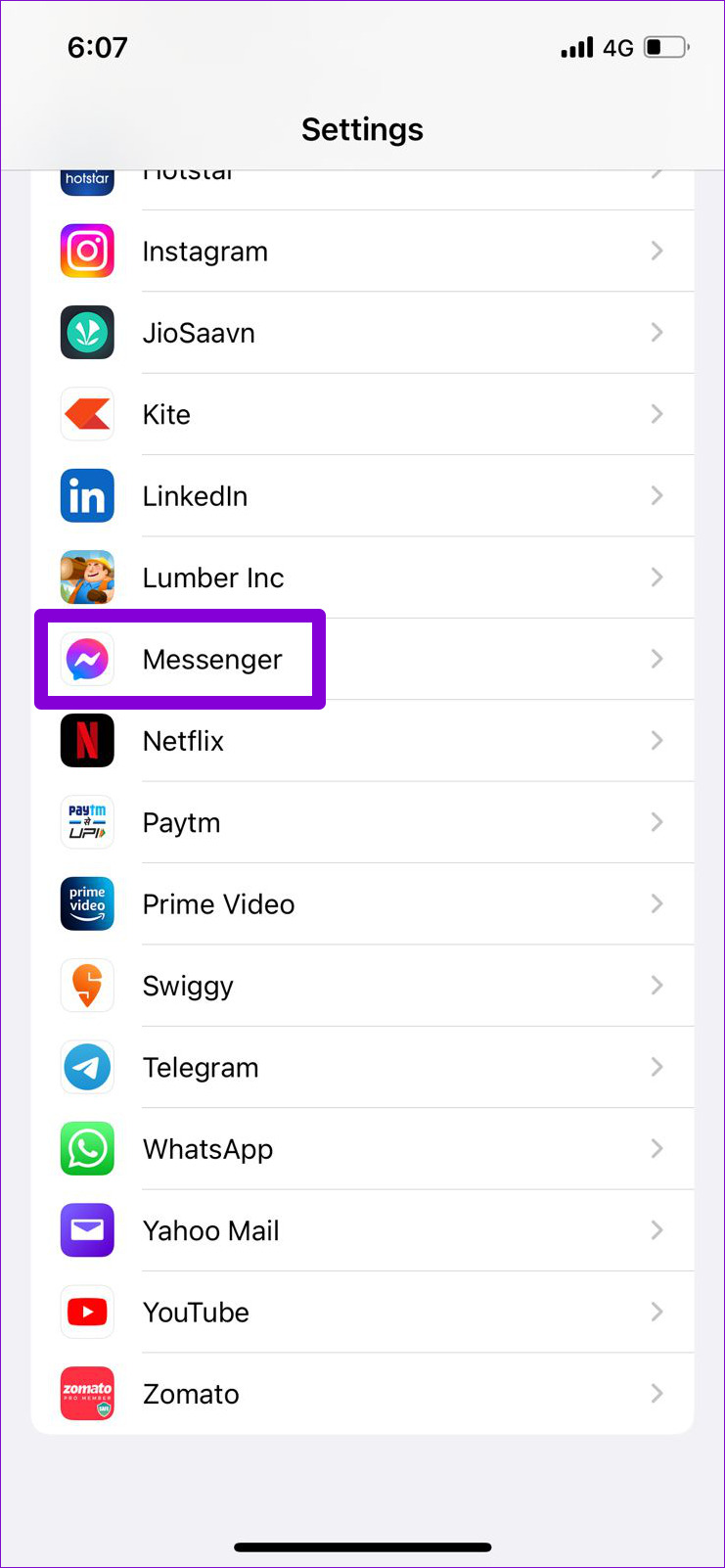
Step 1: Open the Settings app on your iPhone.

Step 2: Scroll down to tap on Messenger and turn on the toggle on the switch next to Mobile Data.

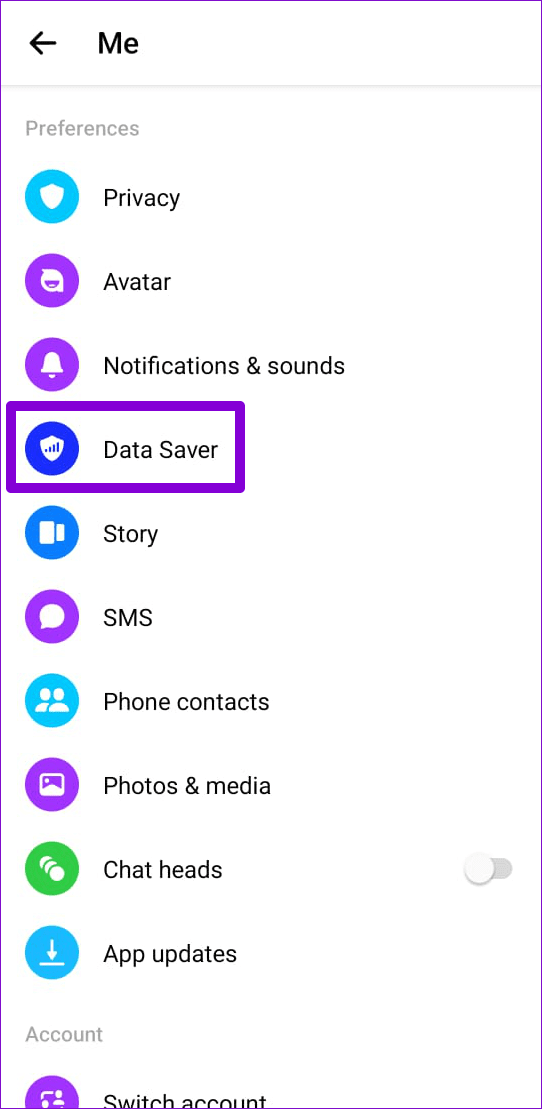
Fix 2: Disable Messenger Data Saver Mode (Android)

Messenger for Android includes the Data Saver feature, which is useful if you have a limited data plan. However, this feature occasionally prevents the app from downloading photos and videos. You can try disabling it to see if it helps.

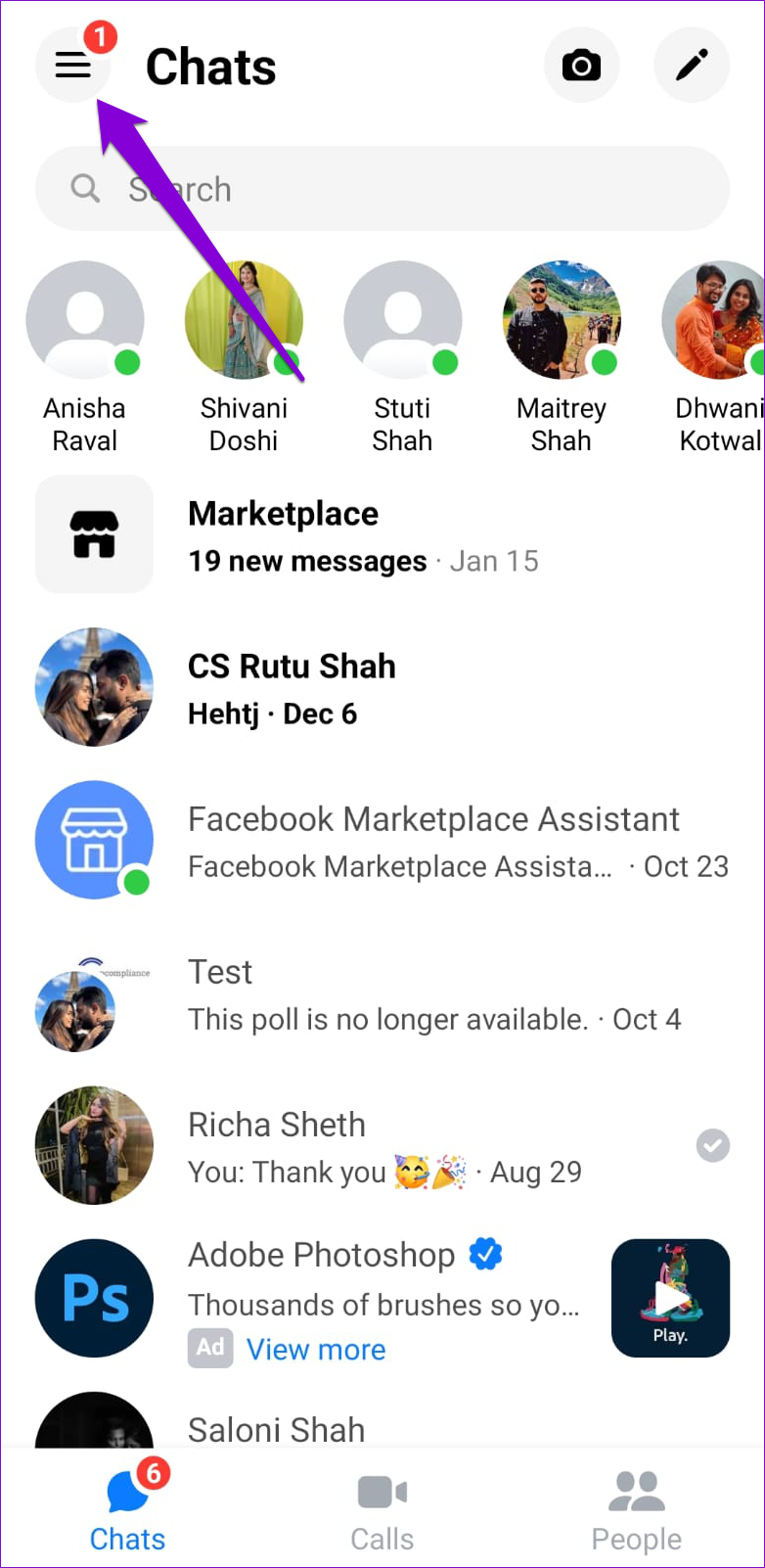
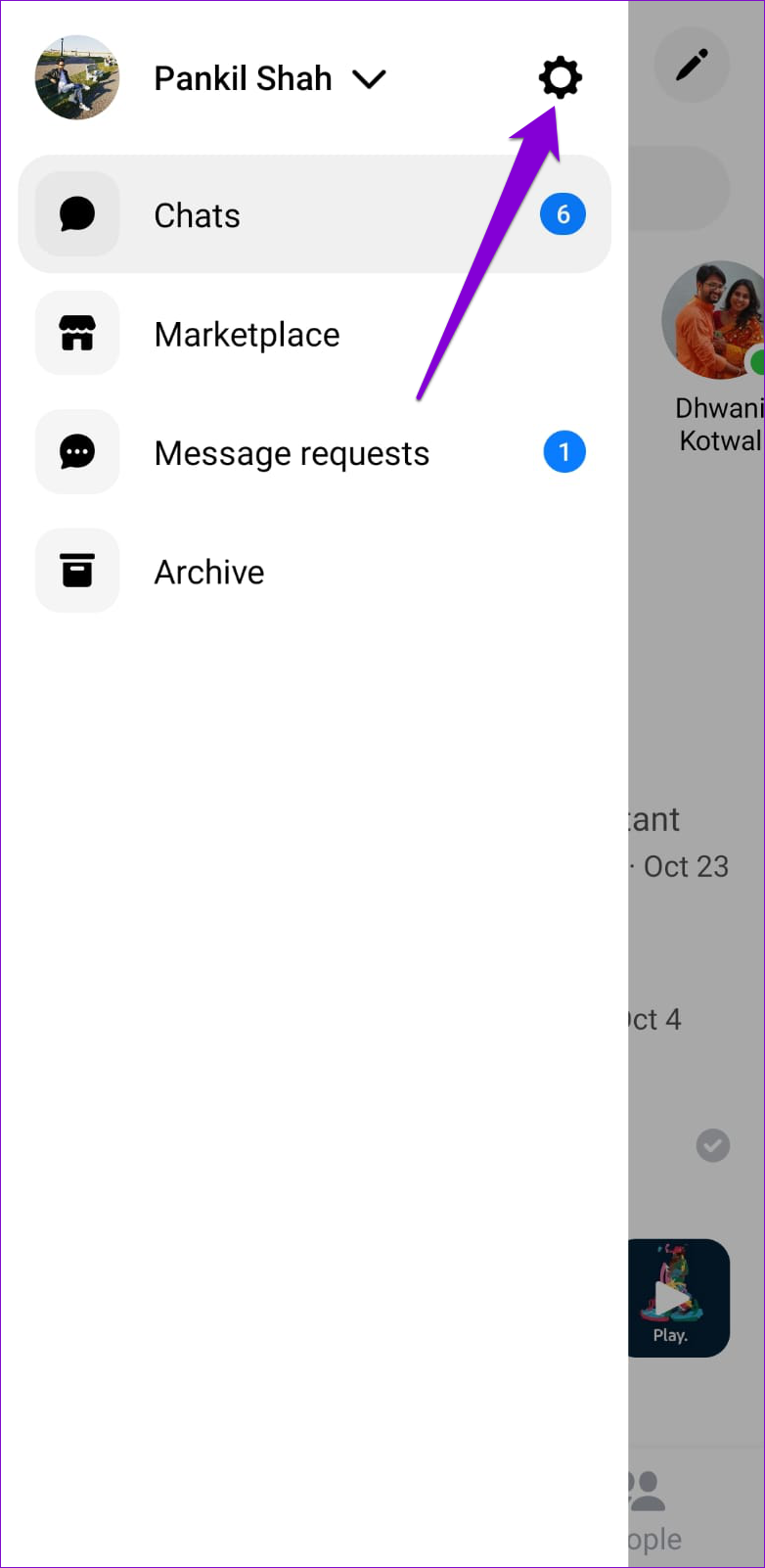
Step 1: Open up Messenger on your phone. Tap on your profile picture in the top left corner and then tap the gear icon.

Step 2: Under Preferences, tap on Data Saver and disable it from the following menu.

Fix 3: Uninstall and Reinstall the Messenger App

If nothing else works, you can consider reinstalling the Messenger app on your Android or iPhone. Several users on an Apple Community post reported fixing the photos and videos not loading issue in Messenger with this trick. You can also give it a try.

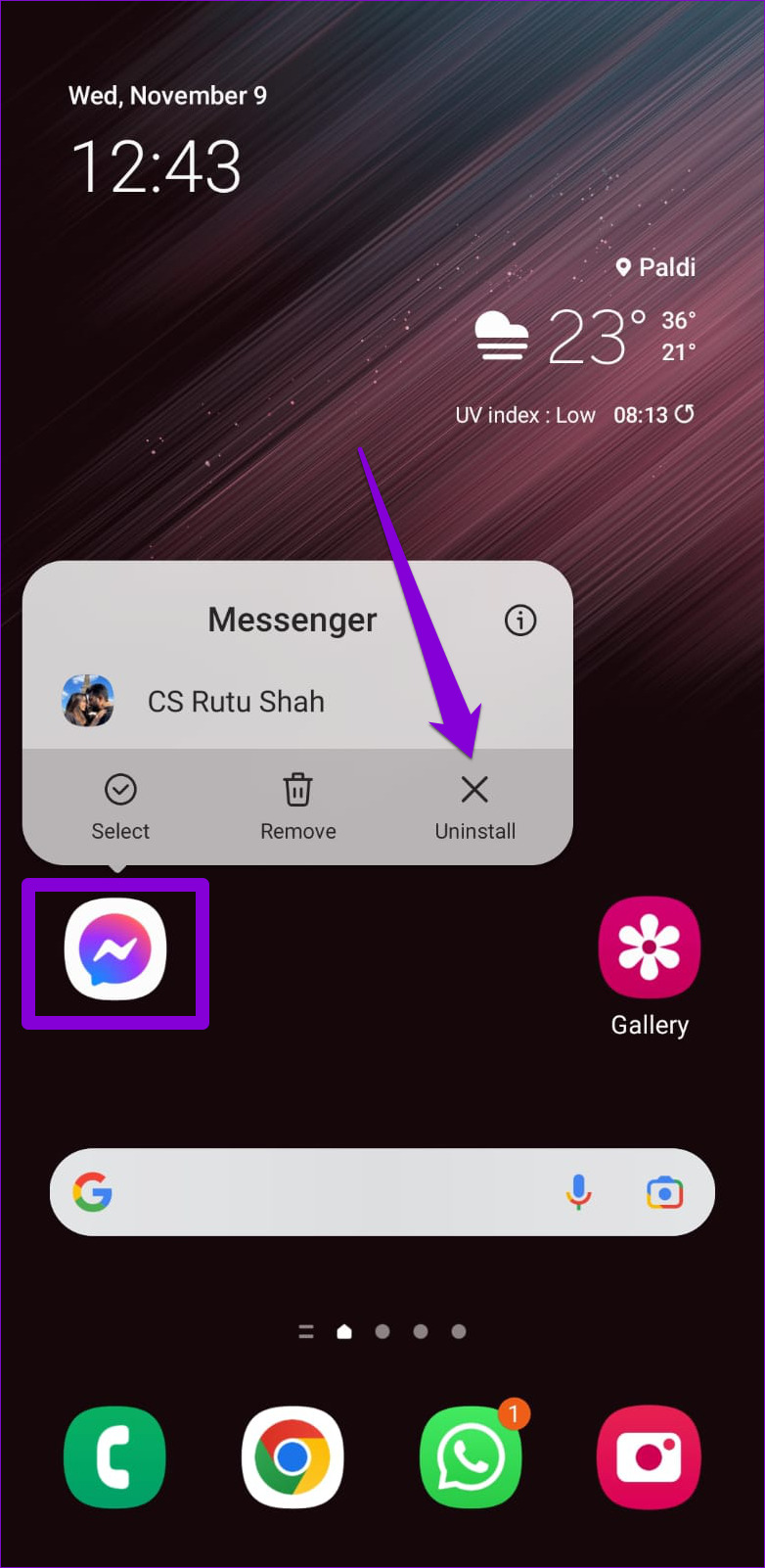
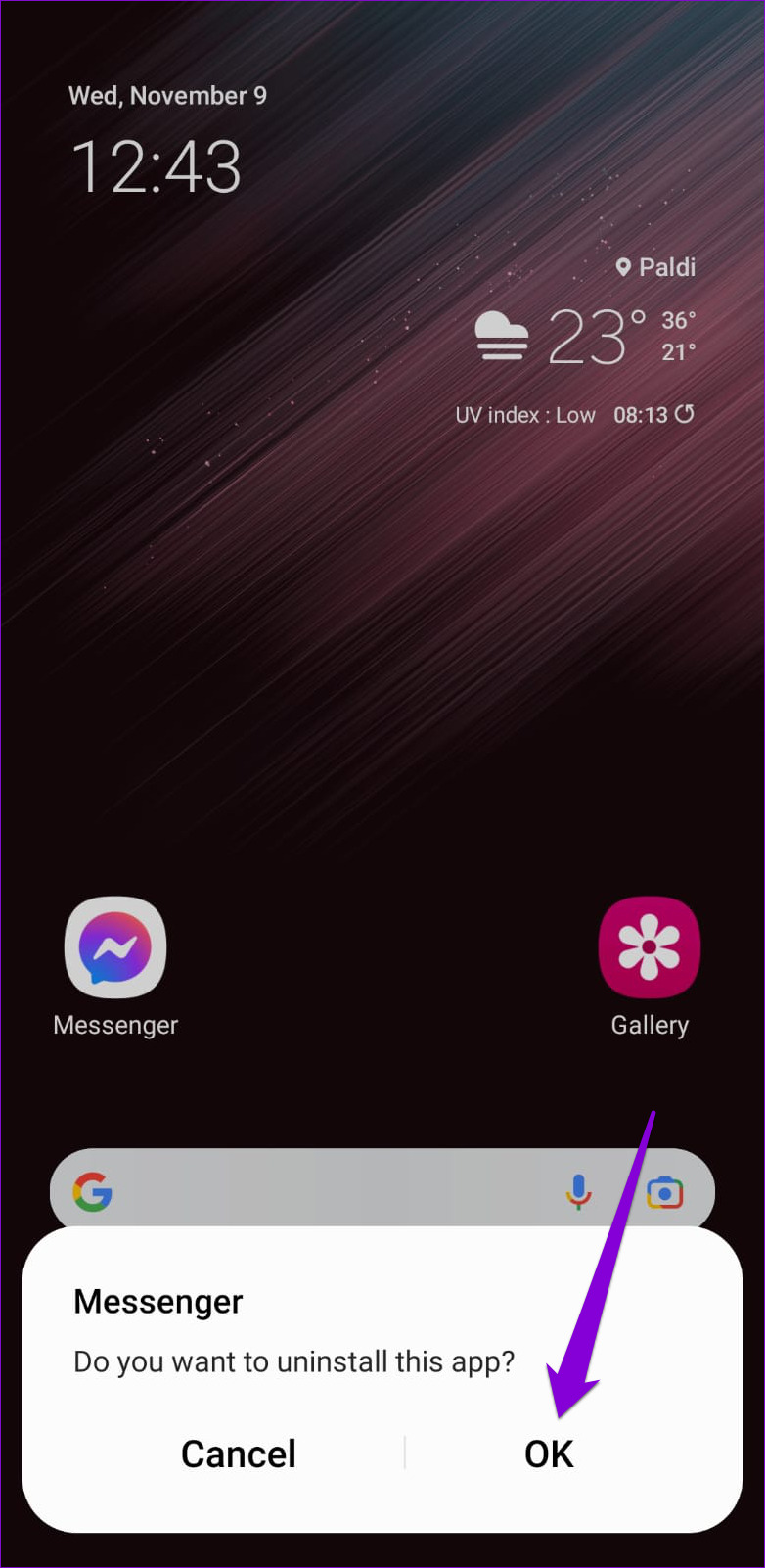
To delete Messenger from your Android, long-press on its app icon and select Uninstall. Then, tap OK to confirm.

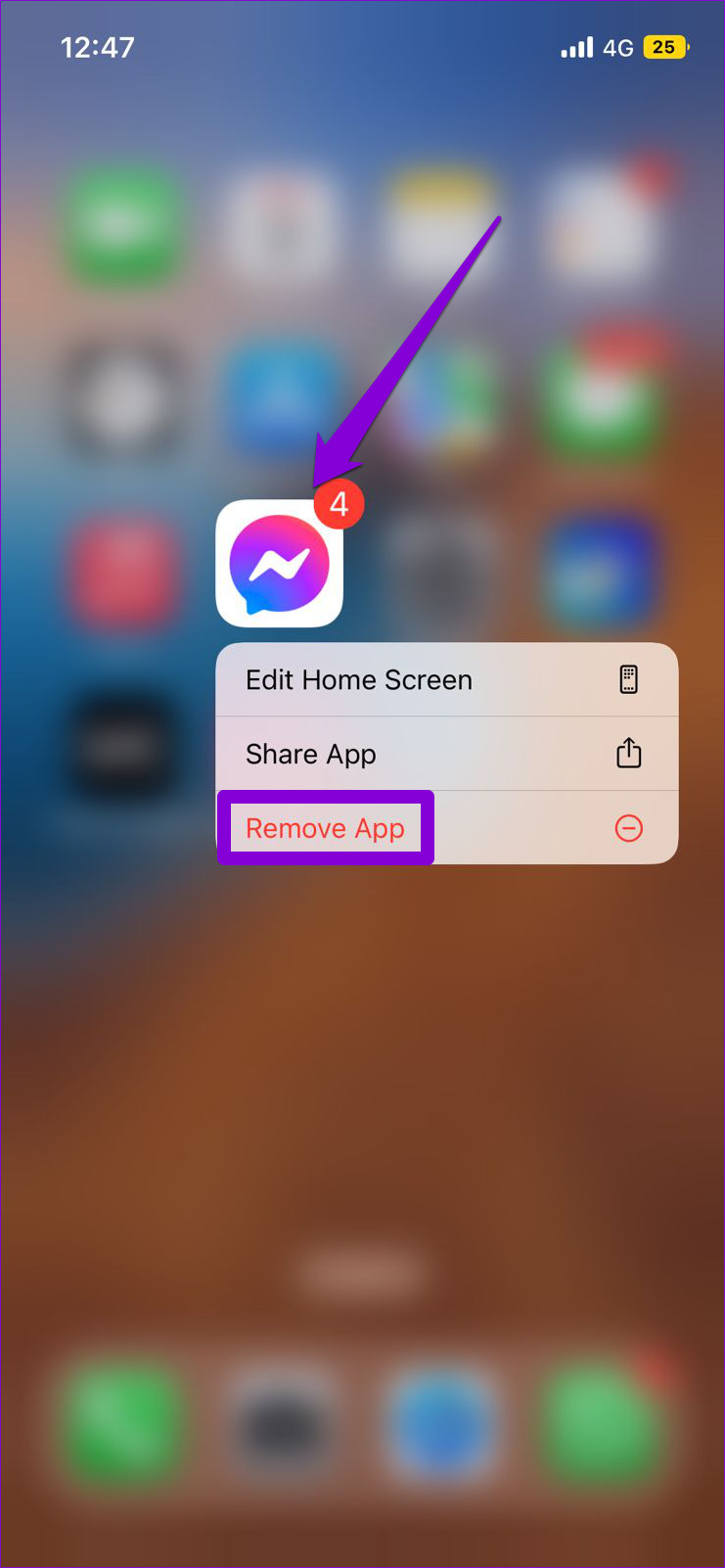
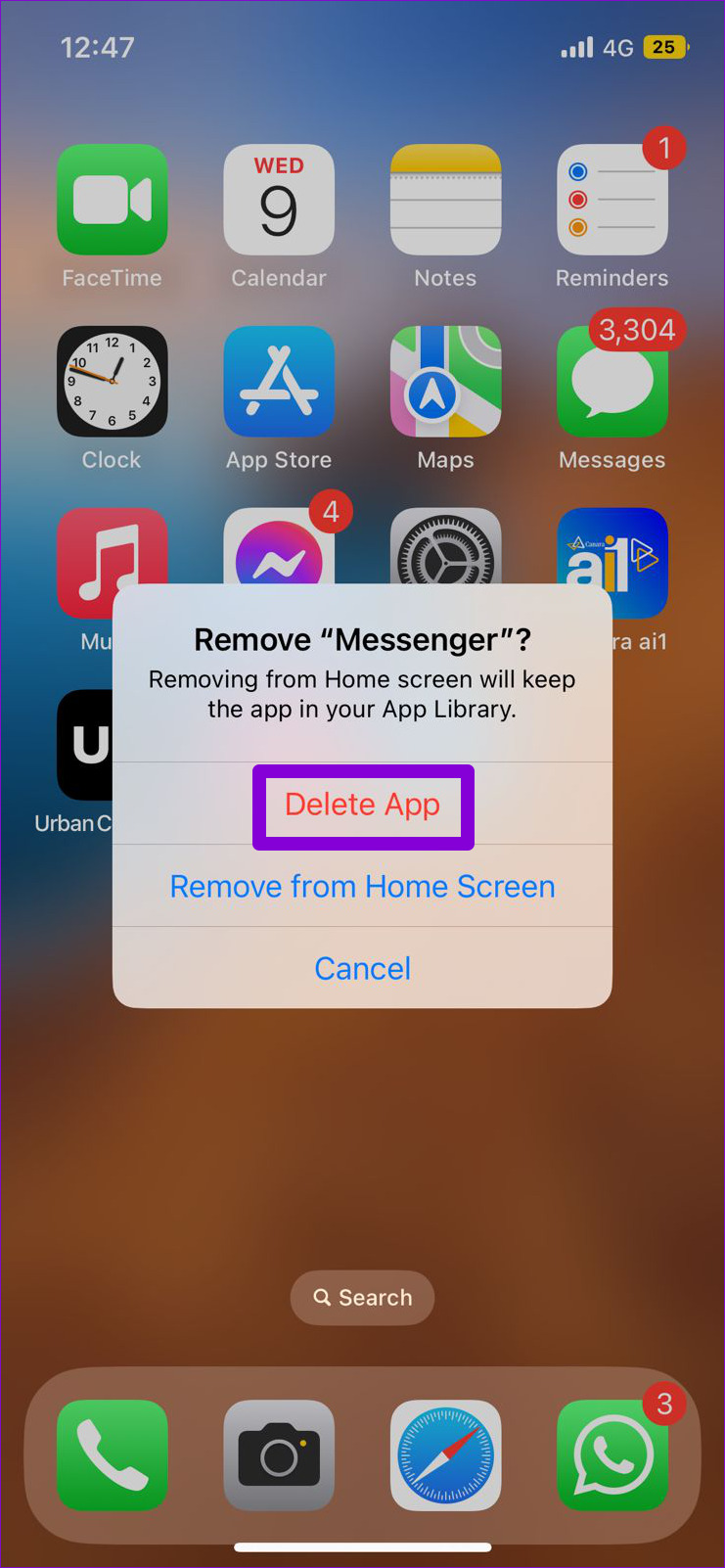
If you’re using Messenger on your iPhone, press and hold its app icon and select Remove App from the resulting menu. Select Delete App when prompted.

Once removed, head over to the Play Store or App Store to download the Messenger app. After that, you should not encounter any issues.

Was this helpful?

Thanks for your feedback!

How to Cancel Telegram Premium Subscription on Any Device

Let’s look at how to cancel Telegram Premium subscription on Android, iPhone, Mac, and Windows. 

Method 1: Cancel Telegram Subscription On Android

Step 1: Open the Google Play Store on your Android phone and tap on your Profile icon at the top-right corner.

Step 2: Then, select Payments and Subscriptions from the list of options.

Step 3: Tap on Subscriptions and select Telegram from your Active Subscriptions list.

Step 4: Tap on Cancel subscription at the bottom to proceed.

Step 5: Select a reason for cancellation and tap on Continue. Now, tap on Cancel subscription at the bottom to confirm.

You will receive a confirmation that your Telegram Premium subscription has been canceled. Didn’t get the notification? Read our guide to fix Telegram notifications not working on Android.

Method 2: Cancel Telegram Subscription on iPhone Using App Store

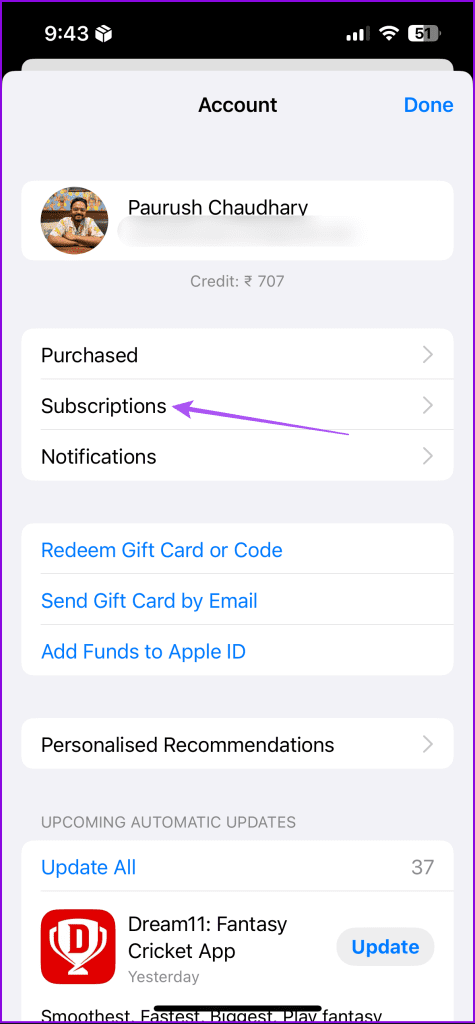
Step 1: Open the App Store on your iPhone and tap the profile icon at the top-right corner.

Step 2: Select Subscriptions and tap on Telegram Messenger from the list.

Step 3: Tap on Cancel Subscription and then tap Confirm again to confirm your choice.

Method 3: Using Telegram on iPhone

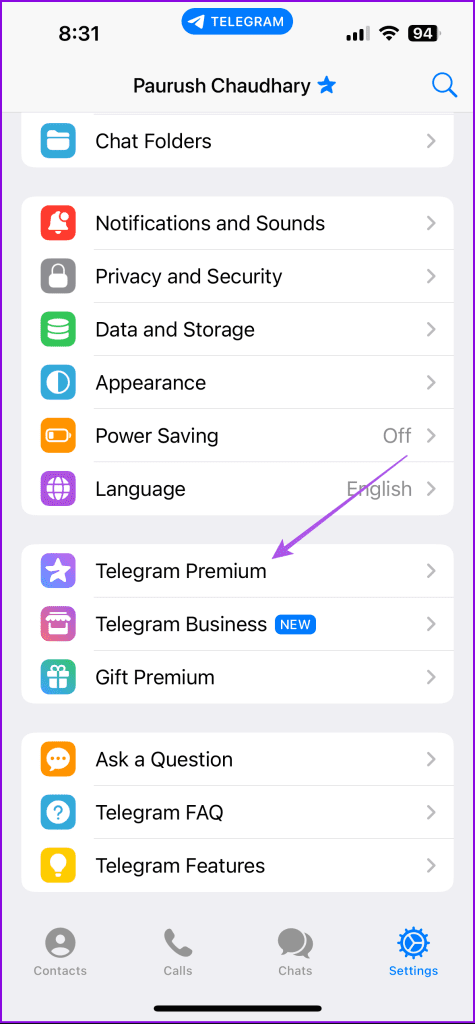
Step 1: Open the Telegram app and tap the Settings icon at the bottom-right corner.

Step 2: Scroll down and tap on Telegram Premium. Then scroll to the bottom and tap on App Store.

Step 3: Here, tap on Telegram Messenger from the list. Then, tap on Cancel Subscription. Lastly, tap Confirm.

Method 4: On Mac

Step 1: Open Telegram on your Mac and click the Settings icon at the bottom.

Step 2: Scroll down in the Settings menu and tap on Telegram Premium.

Step 3: In the Telegram Premium popup message, click on App Store.

Step 4: Click on Open to open iTunes on your Mac.

Step 5: Once the Subscriptions tab loads in iTunes on your Mac, click on Edit next to Telegram Messenger.

Step 6: Click on Cancel Subscription and then click on Confirm to continue with the cancellation.

Tip: You can also check our guide to fix Telegram not working on Mac.

Method 4: On Windows

Note that you must install iTunes on your Windows PC to cancel the Telegram Premium subscription.

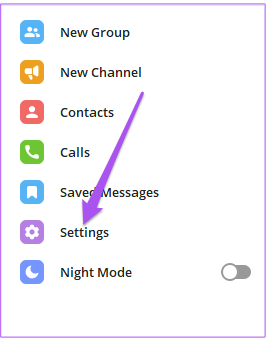
Step 1: Launch Telegram on your Windows PC. Then, tap the Hamburger icon at the top-left corner.

Step 2: Now, click on Settings from the list of options.

Step 2: Scroll down and click on Telegram Premium.

A popup message of Telegram Premium will appear on the right side.

Step 3: Click the App Store link in the pop-up message.

This will open iTunes on your PC. You may need to enter your Apple account password to authenticate.

Step 4: After the Subscriptions page loads on your screen, click on Edit next to Telegram Messenger.

Step 5: Click on Cancel Subscription and select Confirm to continue with the cancellation.

You also can check our guide on how to subscribe to Telegram Premium if you want to start using it again.

Was this helpful?

Thanks for your feedback!

How to Set Up and Manage Conference Calls on iPhone

How to Make Conference Calls on iPhone

Starting a conference call on iPhone is pretty straightforward and you can attend the call on Bluetooth earphones as well. Here’s a step-by-step procedure:

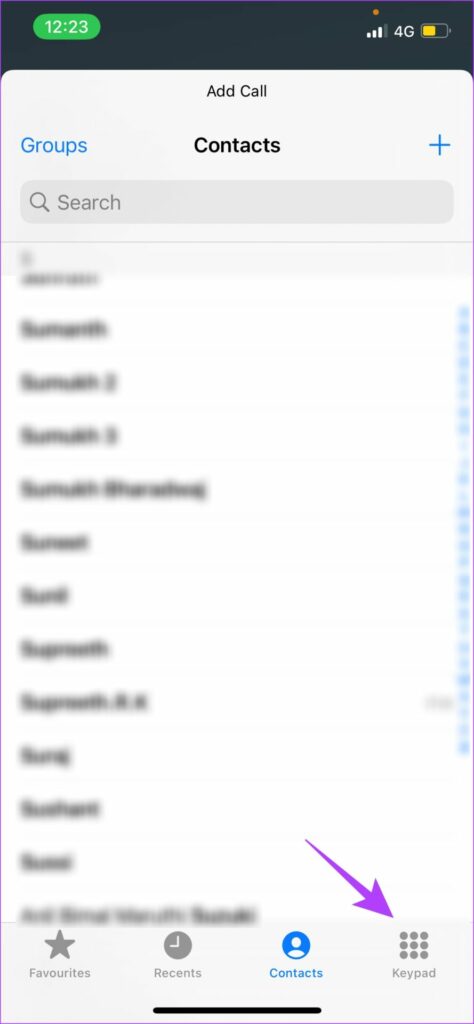
Step 1: Tap on add call and select the contact you want to add to the group call.

If you do not have their contact saved and want to dial their number, use the keypad option at the bottom.

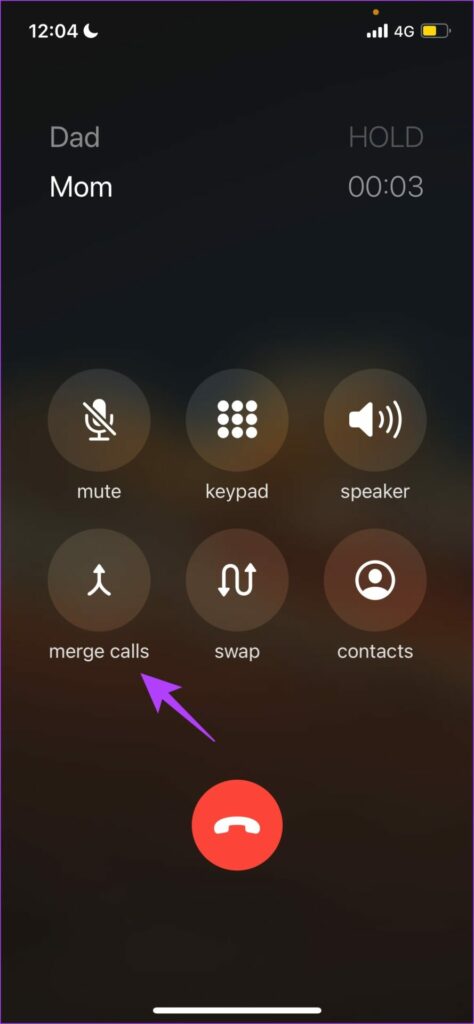
Step 2: Once the second person is added, the first person will automatically go on hold. To create a conference call, tap on merge calls.

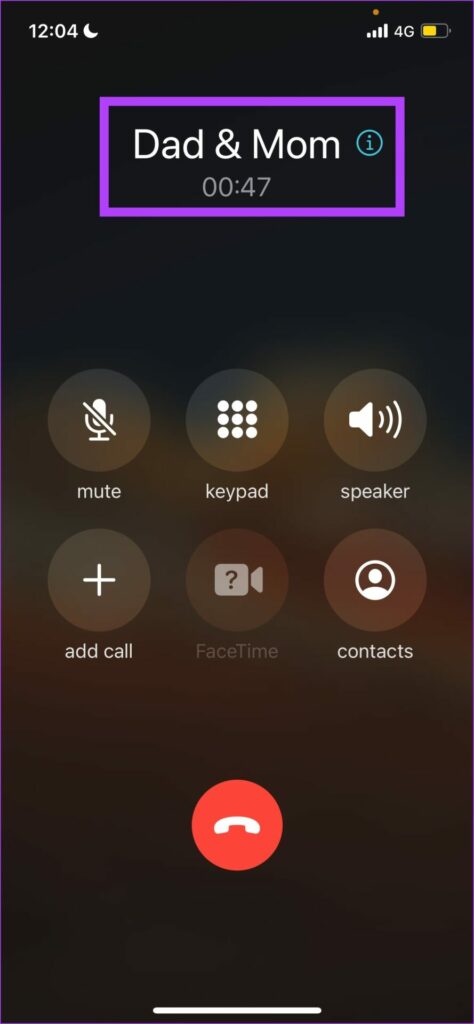
Once you complete the above steps, you will be able to create a three-way call on your iPhone. The call name will be displayed in the format ‘Person1 & Person2’. If you want to start a 4-way call, simply repeat the above procedure.

Note: Only the host of the conference call can see all the participants.

Now, if there is a conversation going on among the other people in the conference call and you do not want to disturb them. Or, if you probably want to take a break without having to exit the ongoing call, use the mute option.

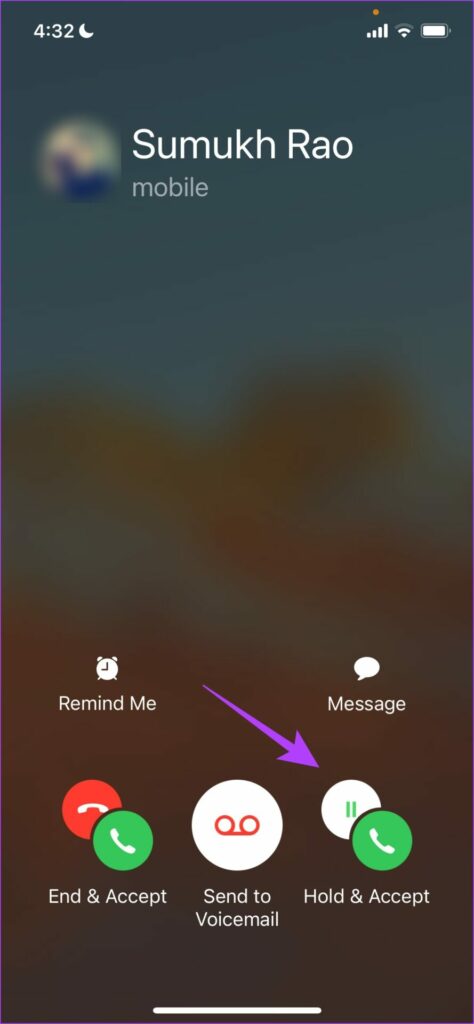
Add an Incoming Caller to a Group Phone Call on iPhone

Step 1: Once you receive the incoming call, you will find three different options to answer it. Click on Hold & Accept.

The existing conference call will be put on hold to accommodate the new incoming call.

Step 2: Now, click on merge calls.

How to Talk Privately on an iPhone Conference Call

Here’s how you can use the private option to talk to a selected few people on the call without the rest of them listening to you.

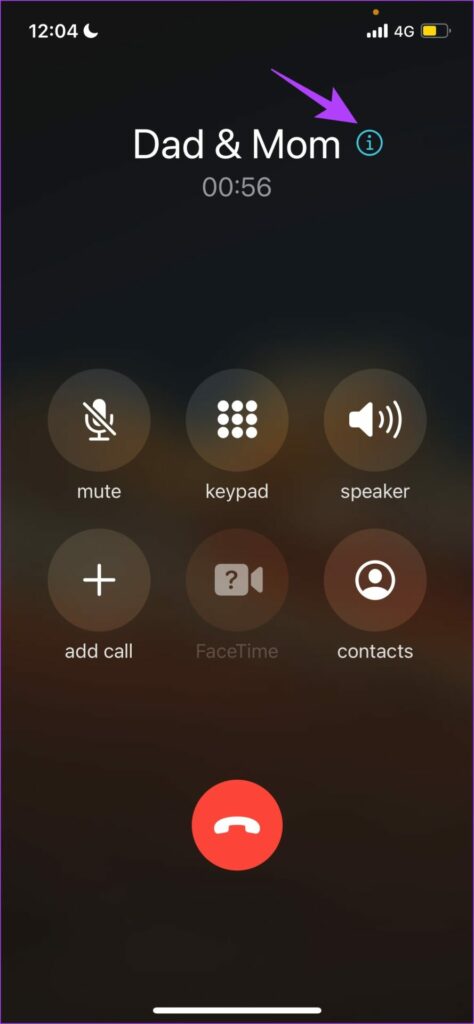
Step 1: On the conference call screen, tap on the i icon.

Step 2: You will now get a list of people on the call. Select private under the name of the person you intend to talk to privately.

Note: The availability of the private feature depends upon the carrier network you use. Unfortunately, it will be greyed out and not accessible if your carrier does not support it. (like in our case)

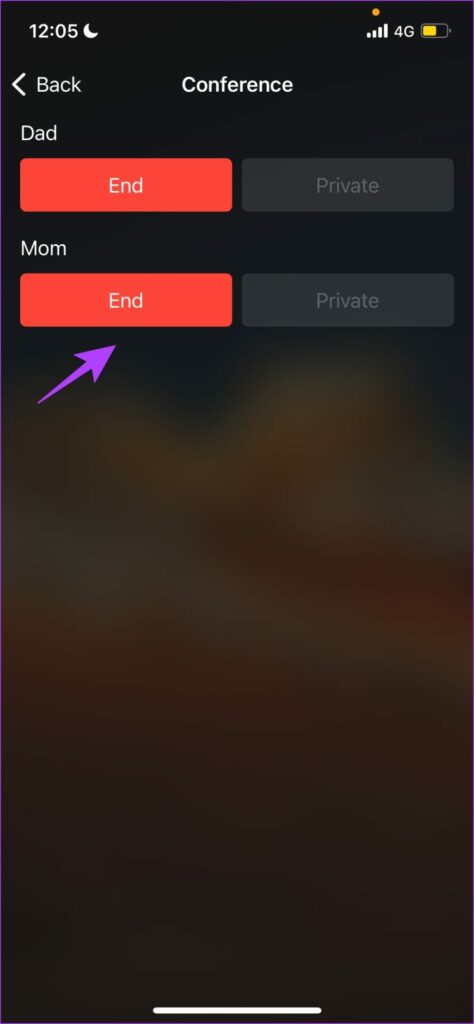
Using this option, you can talk to selected people while ensuring everyone else remains on the call. However, if you want to talk to a selected few, and do not mind removing others from the conference call, you can use the End button.

How to Remove a Person From an iPhone Group Call

Here’s how you can use the end button to remove a person from the conference call.

Step 1: Tap on the ‘i’ icon on the group call screen.

Step 2: Hit End under the name of the person you intend to remove.

Also Read: How to fix SIM not supported error on iPhone

Was this helpful?

Thanks for your feedback!
Top 3 Ways to Fix Microsoft Teams Not Syncing on Desktop and Mobile

Preliminary Fixes

  • Check Internet Connection: A stable internet connection is essential for Microsoft Teams to function correctly. If your device has a weak or unstable connection, it could lead to syncing issues.
  • Force Restart App: Sometimes, the simplest solution is to force quit the app and restart it. This can resolve any temporary glitches that might be causing the syncing issue.
  • Check Microsoft Teams Server Status: If Microsoft Teams’ servers are down, it may not sync properly, regardless of your internet connection or app settings. Go to the official Microsoft 365 Service Status page or visit Downdetector to see if other users report similar issues.
  • Contact Admin: If Microsoft Teams is still not syncing on desktop and mobile, you need to contact your company IT admin. The IT admin might have removed you from Teams channels.

Fix 1: Clear Teams Cache

Step 1: Press the Windows + R keys to open a Run dialog box, type %appdata%, and press Enter.

type %appdata%

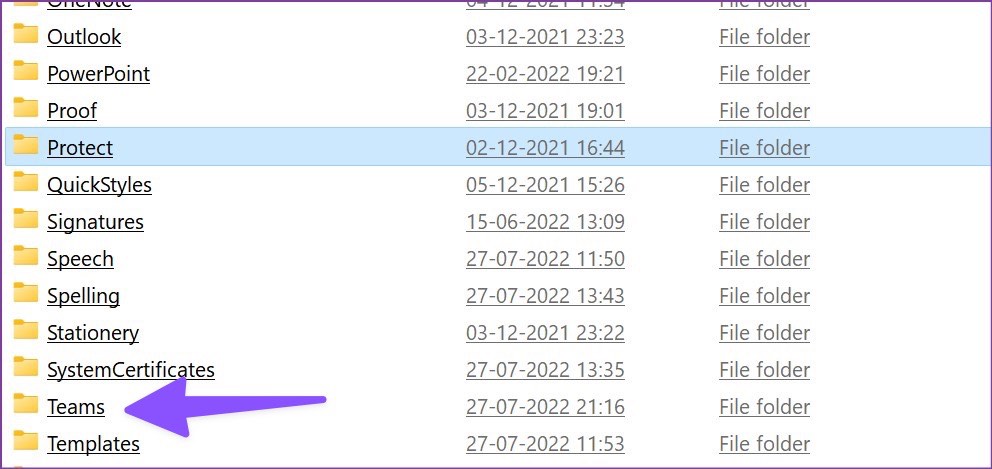
Step 2: Double-click on the Microsoft folder and find Teams from the following subfolders.

Double-click on the Microsoft folder

Step 3: Select all folders and delete them.

delete them

Next, clear the Recycle Bin, too. Follow the steps below to fix syncing issues on the Teams Android app.

Step 1: Long-press the Team app and choose App info menu.

Step 2: Select the Storage & cache menu and choose Clear cache.

Fix 2: Log Out and Log In to Your Microsoft Teams Account

Step 1: Open the Microsoft Teams app on the desktop.

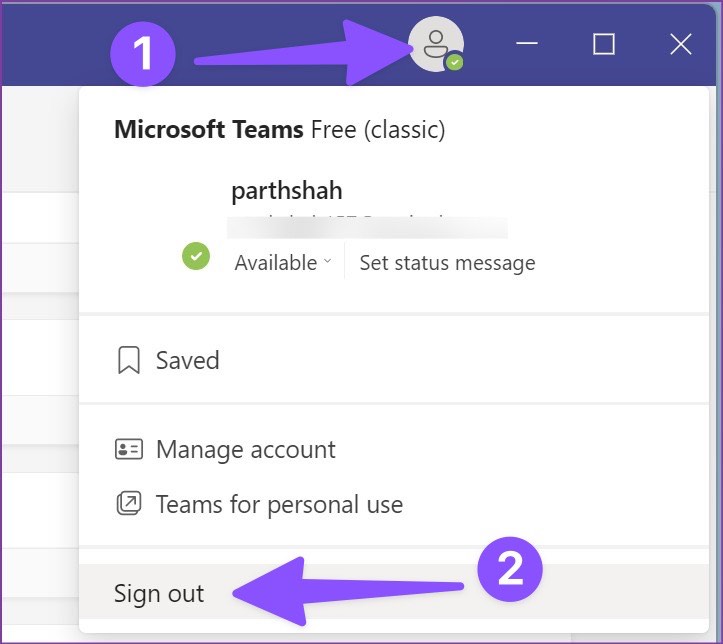
Step 2: Select the profile picture in the top menu bar. Select Sign out.

Select Sign out

Teams’ mobile users can go through the steps below.

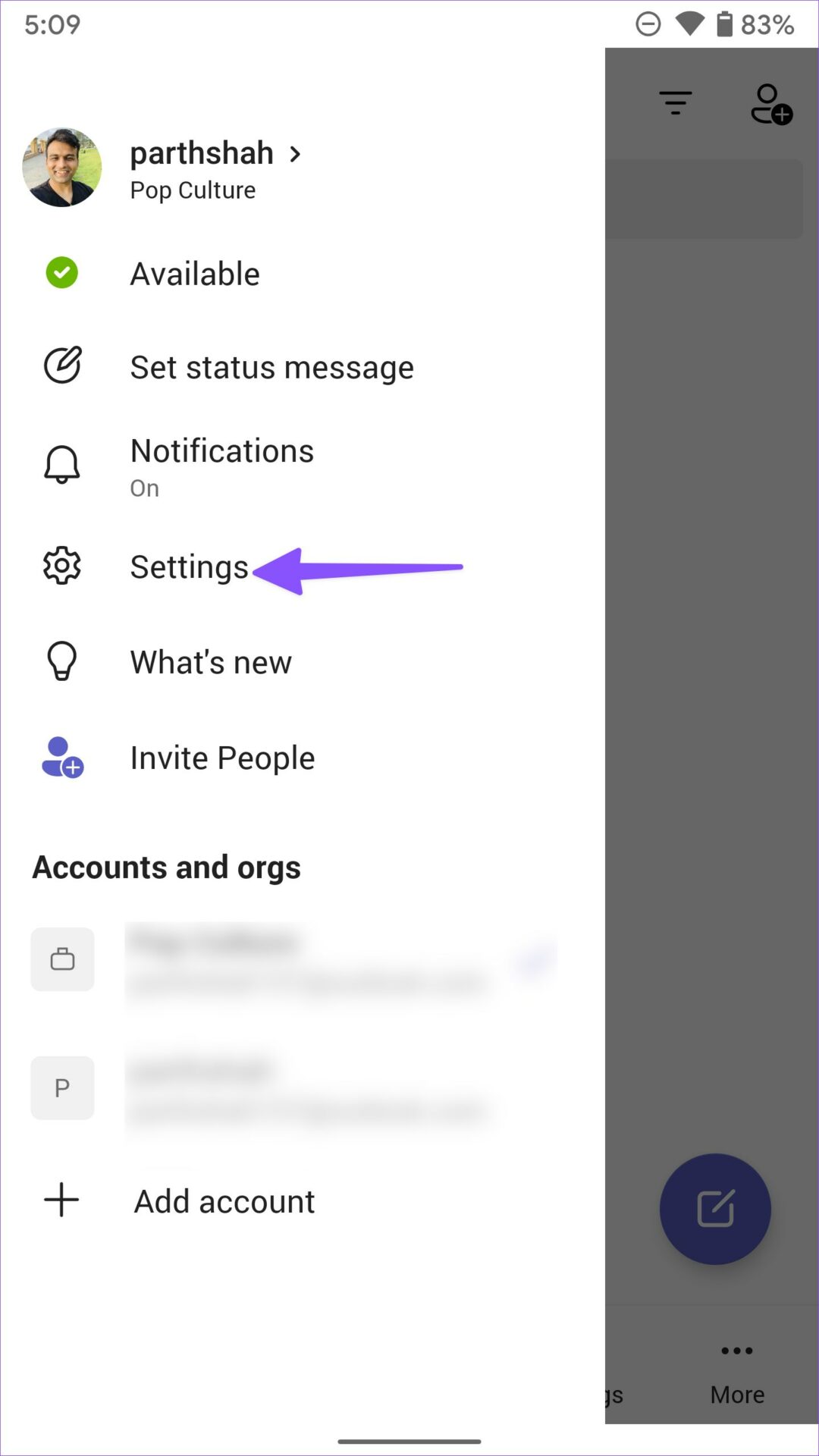
Step 1: Open the Teams app and select your profile picture in the top-left corner.

Step 2: Select Settings and tap Sign out.

Fix 3: Update the Microsoft Teams App

You can update Teams to the latest version and fix glitches like sync not working. Mobile users can install the latest Teams update from the Play Store or App Store.

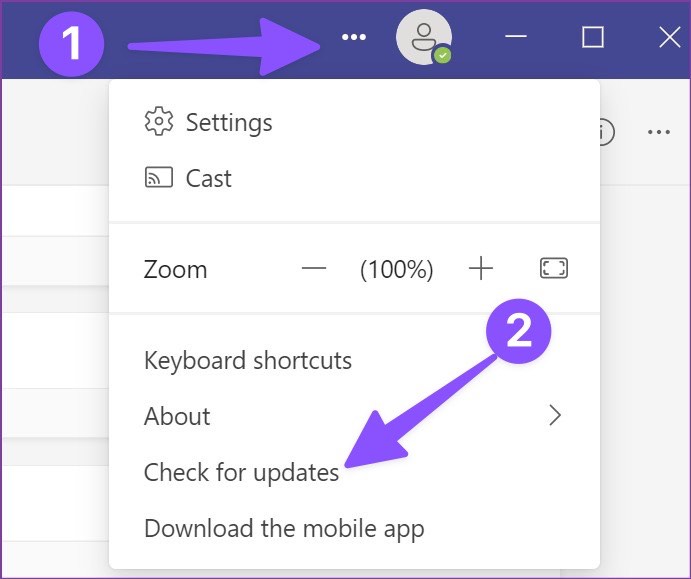
On the desktop, launch Teams, click the three vertical dots menu in the top-right corner, and select check for updates to install the pending update.

Before you miss an important company update or message, use the tricks above and get your messages on time.

Was this helpful?

Thanks for your feedback!

How to Enable and Use Hibernate Mode on Windows 11

What Is Hibernate Mode on Windows 11

Hibernation is a power-conserving state in which Windows takes a snapshot of your system and saves that content to your hard drive before turning off the system. When you turn your computer back on, it reads the memory state from storage and restores all your open programs and data exactly as you left them.

How to Enable Hibernate Mode on Windows 11

To use Windows 11’s hibernate mode, you must enable it on your computer. Here’s how to do it.

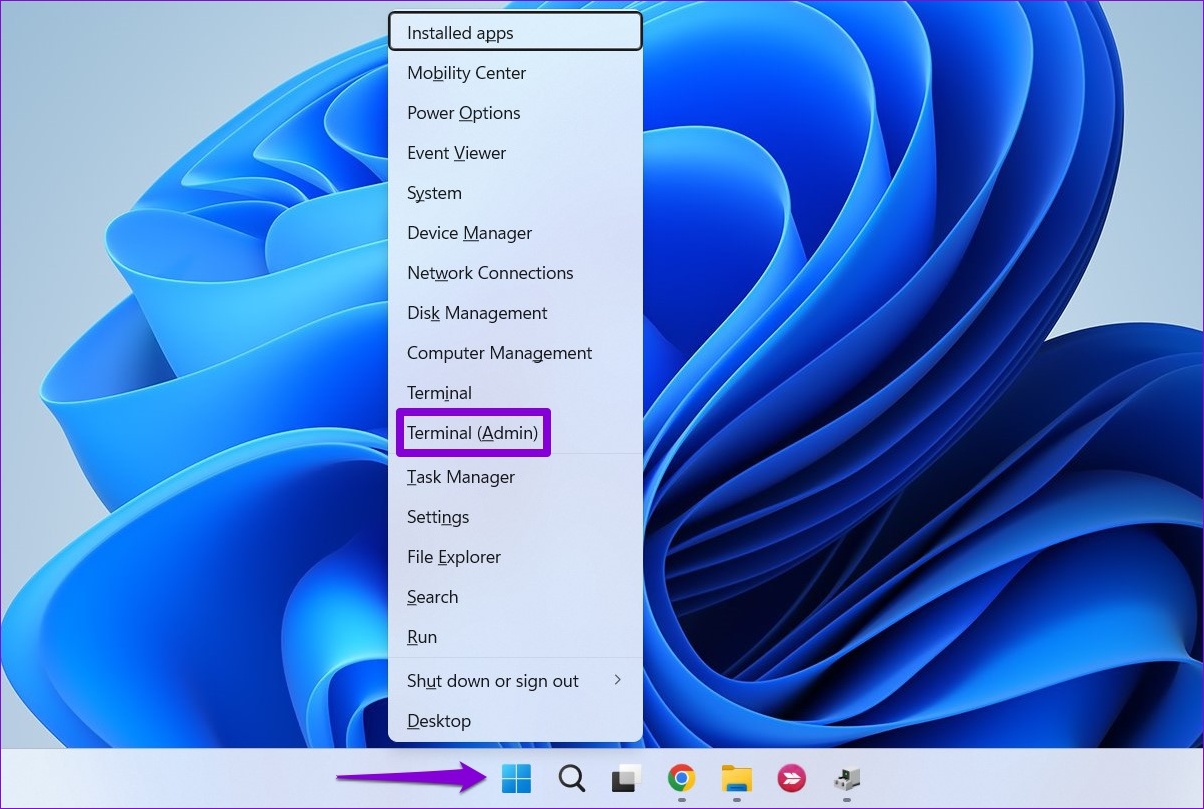
Step 1: Right-click on the Start icon and select Terminal (Admin) from the list.

Open Terminal (Admin) on Windows

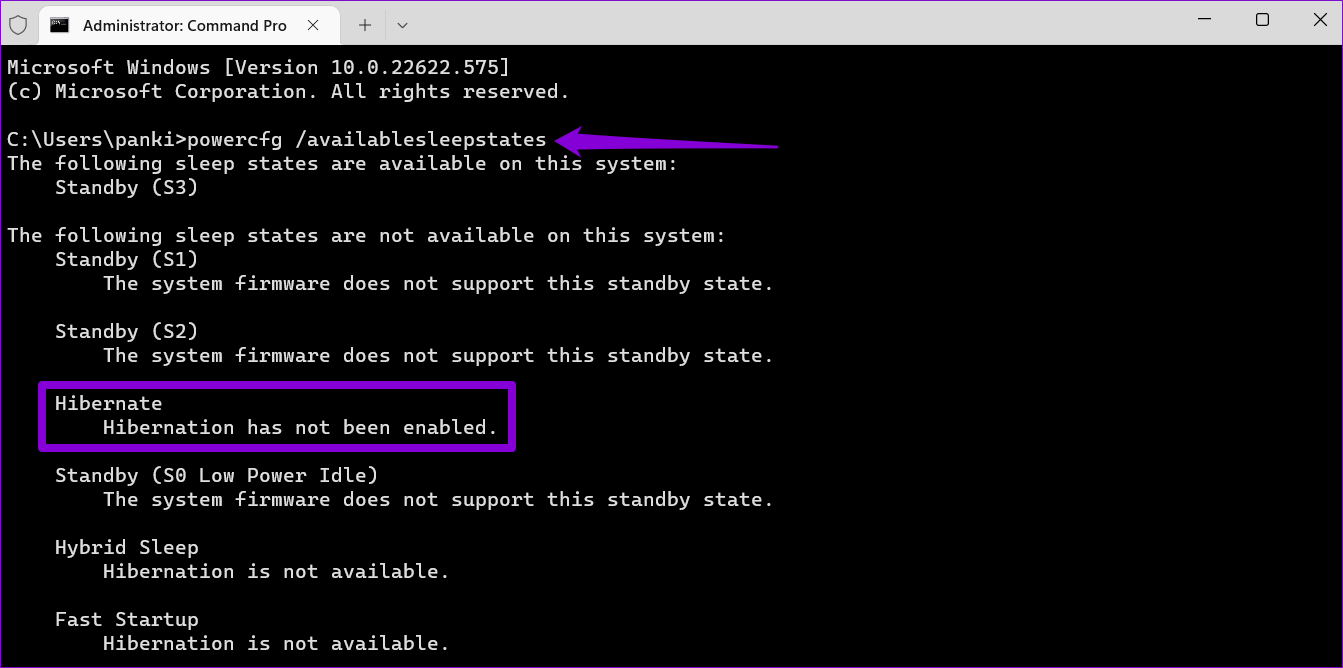
Step 2: Type the following command in the Command Prompt window and press Enter:

powercfg /availablesleepstates
Check Hibernate Status on Windows 11

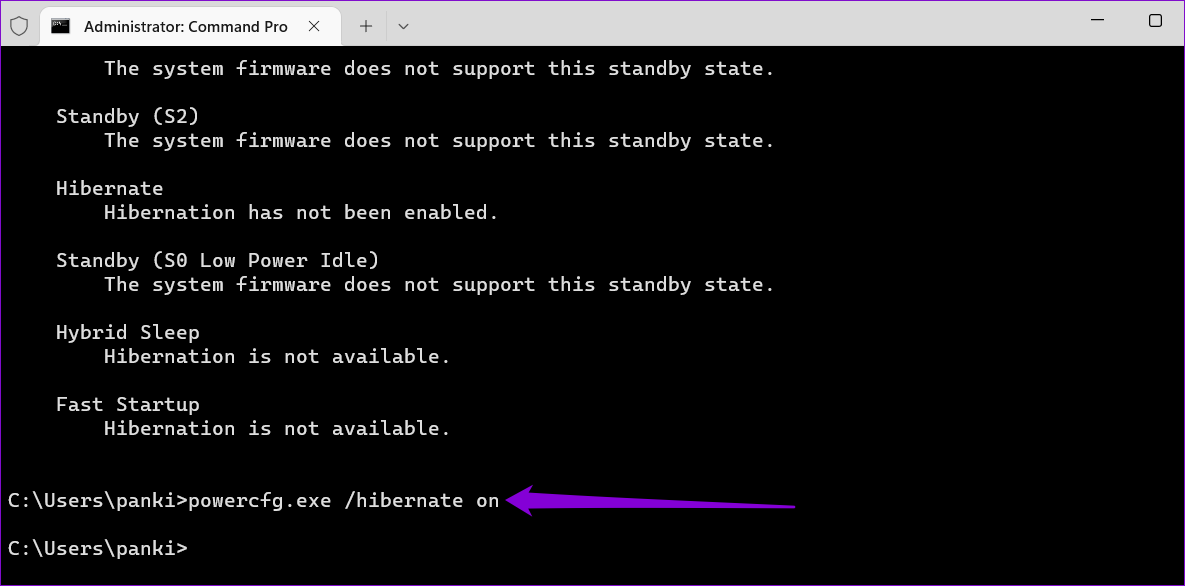
Step 3: Check if the hibernation feature is enabled on your PC. If not, run the following command to enable it.

powercfg.exe /hibernate on
Enable Hibernate Mode on Windows 11

How to Add Hibernate Option to the Power Menu

By default, Windows 11’s power menu does not show the Hibernate option even after enabling it. To add the Hibernate option to the power menu, follow the steps below.

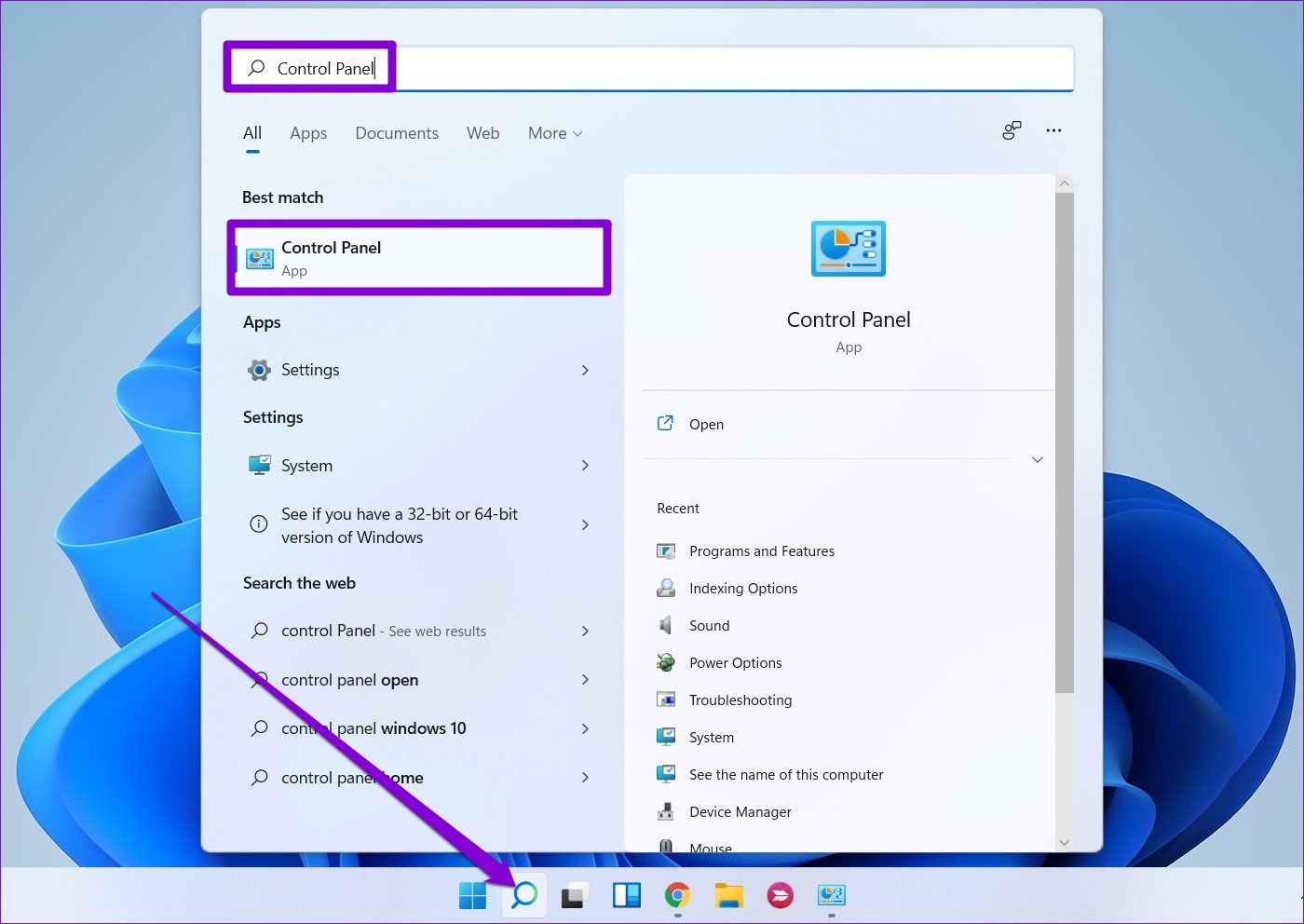
Step 1: Click the search icon on the taskbar, type control panel, and press Enter.

Open Control Panel

Step 2: Use the drop-down menu at the top-right corner to change the view type to Large icons and select Power Options.

Power Options on Windows

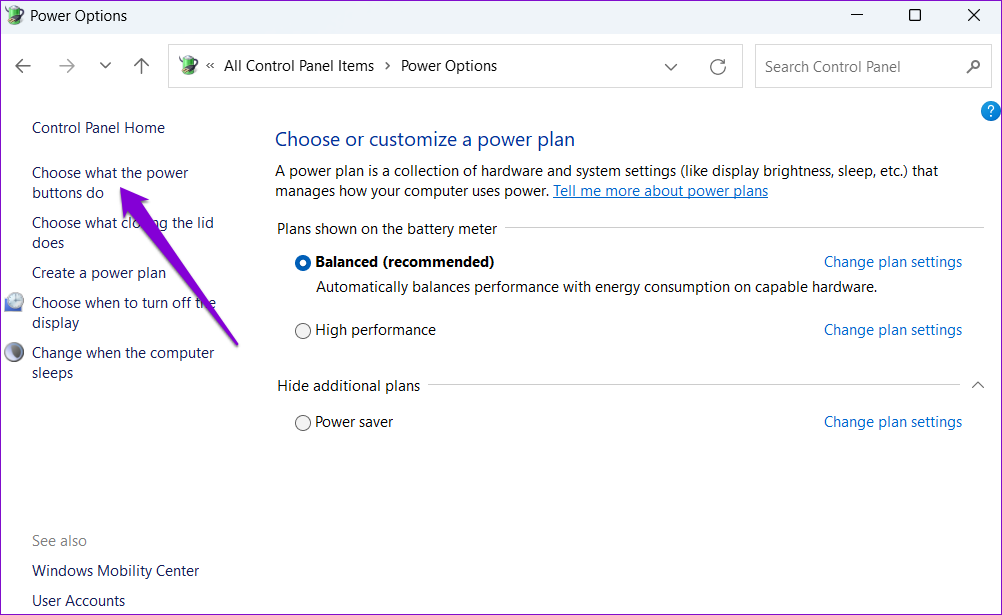
Step 3: Click on Choose what the power buttons do in the left pane.

Choose What Power Buttons Do

Step 4: Click on Change settings that are currently unavailable.

Change Unavailable Settings

Step 5: Check the box for Hibernate and click Save changes.

Add Hibernate Option to Power Menu on Windows 11

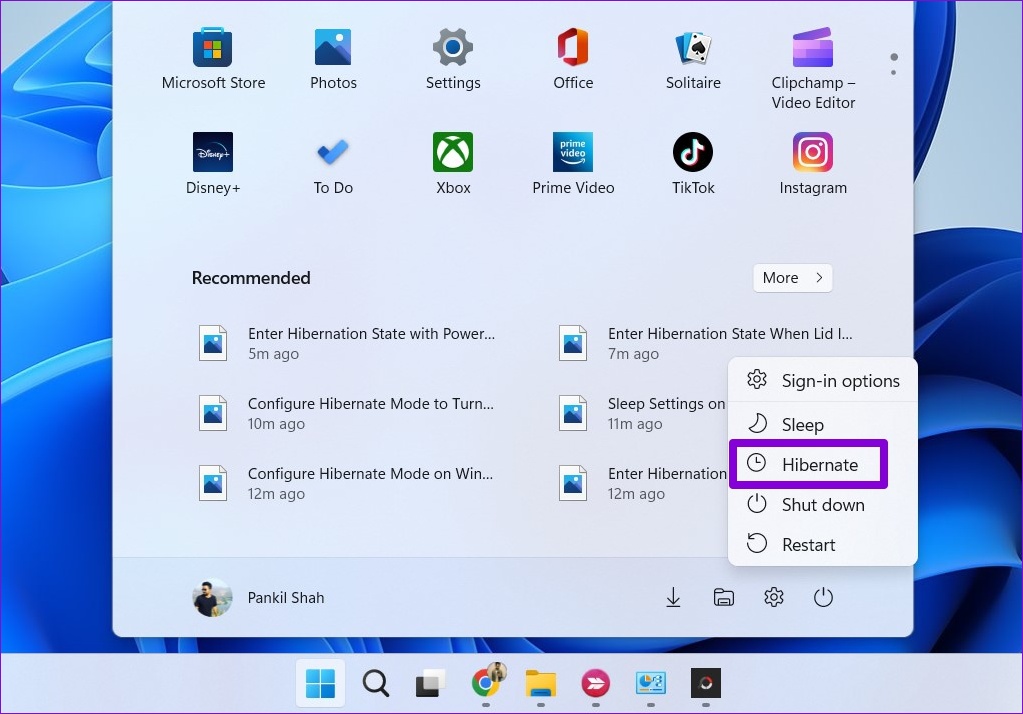
Once you complete the above steps, you should see the Hibernate option in the Windows 11 power menu.

Hibernate Option in Power Menu

How to Customize and Use Hibernate Mode on Windows 11

If you intend to use hibernate mode frequently, configure Windows to enter the hibernation state when you press the power button or close the laptop lid. Here’s how to do it.

Step 1: Open the Control Panel on your PC and go to Power Options.

Step 2: Click on Choose what the power buttons do.

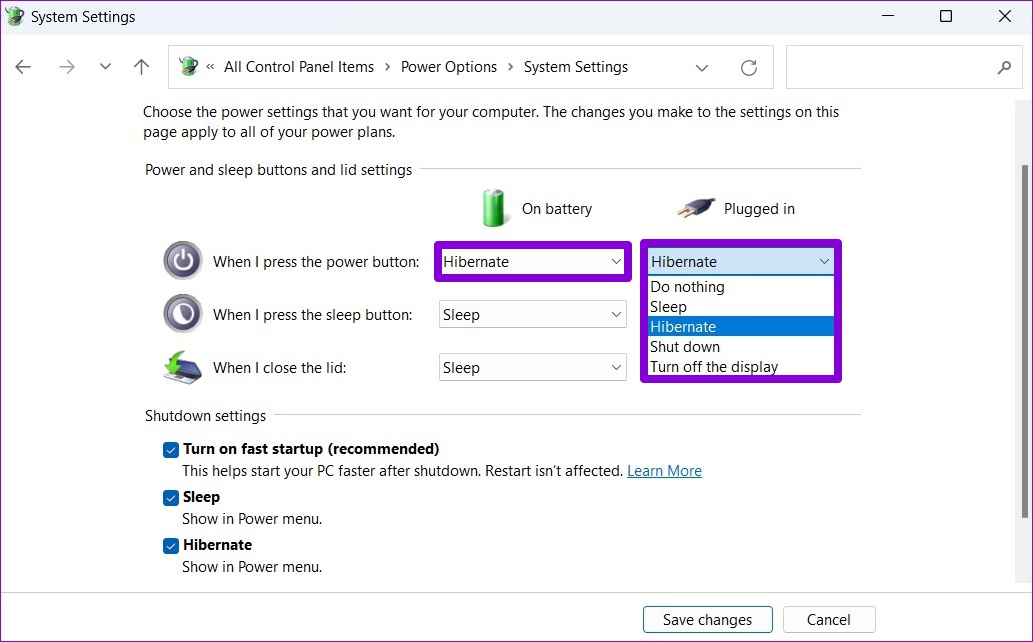
Step 3: Use the drop-down menus next to When I press the power button to select Hibernate.

Enter Hibernation State with Power Button

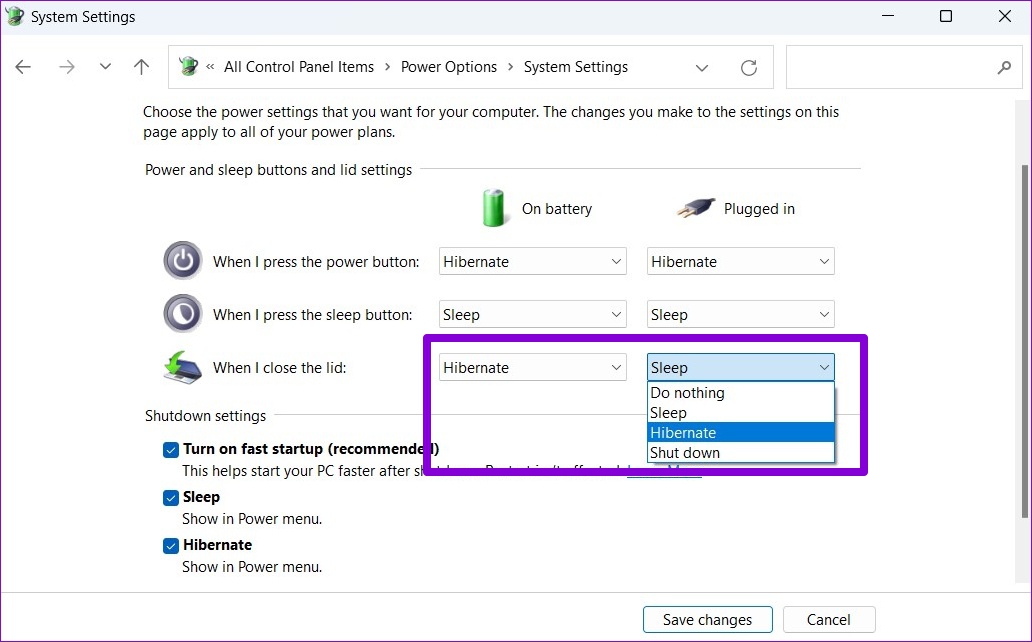
Step 4: For Windows laptops, use the drop-down menus next to When I close the lid to select the Hibernate option.

Step 5: Click on Save changes.

Enter Hibernation State When Lid Is Closed

And you’re all set. Windows will enter the hibernation state when you press the power button or close the lid. Conveniently, you can also configure your PC to hibernate automatically after a period of inactivity. Here’s how.

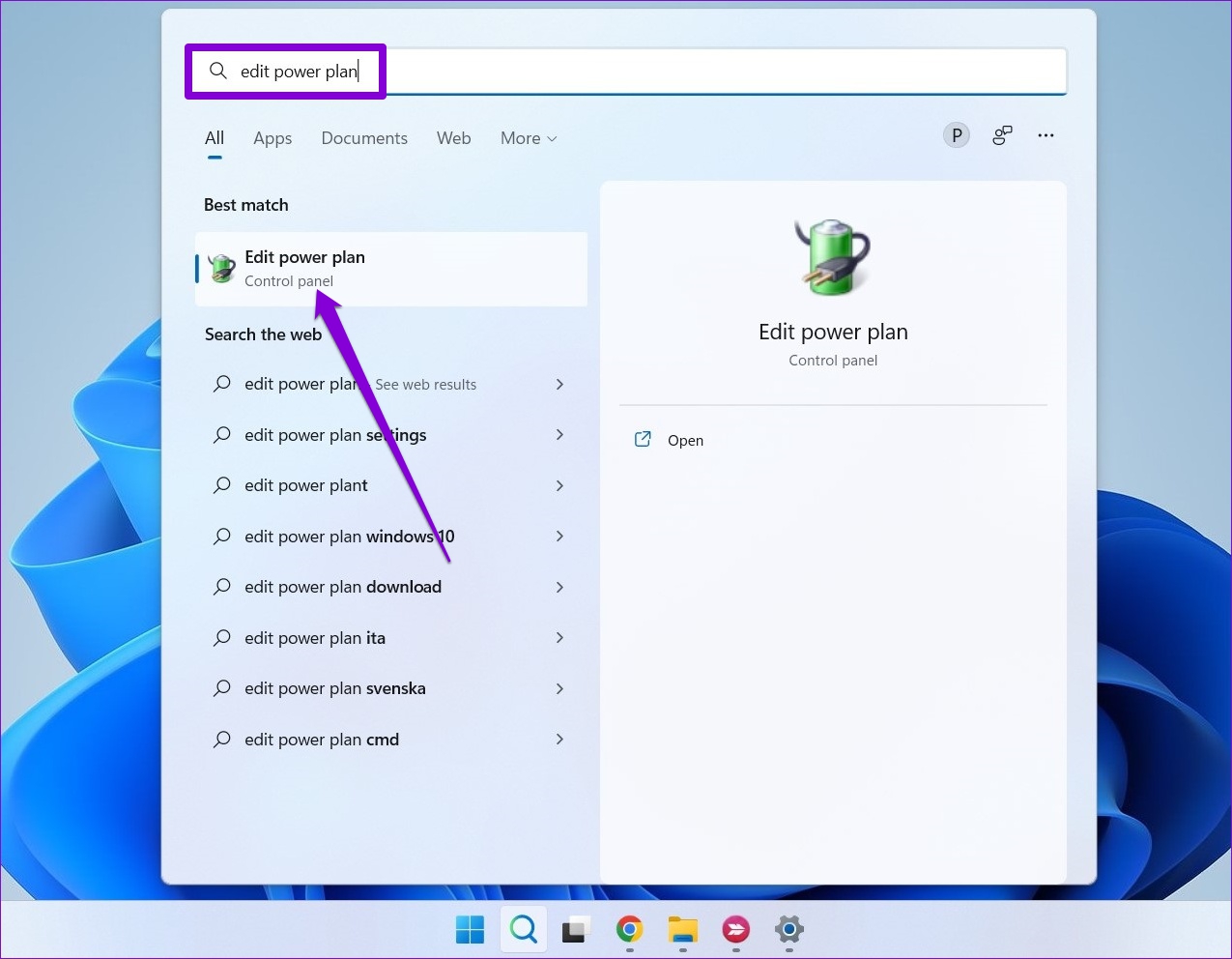
Step 1: Press the Windows key + S to open the search menu. Type edit power plan in the box and select the first result that appears.

Edit Power Plan on Windows

Step 2: Click on Change advanced power settings.

Change Advanced Power Settings on Windwos

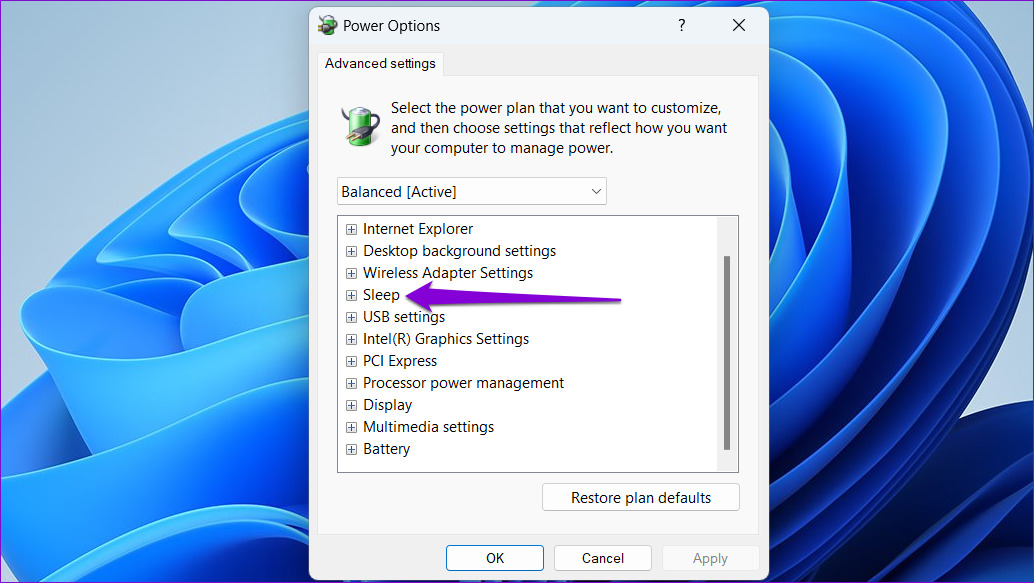
Step 3: In the Power Options window, double-click on Sleep to expand it.

Sleep Settings on Windows 11

Step 4: Expand Hibernate after and use the drop-down menus next to On battery and Plugged in to specify the number of minutes of inactivity, after which your PC should enter hibernation mode. Then, hit Apply, followed by OK.

Configure Hibernate Mode to Turn On Automatically on Windows 11

Was this helpful?

Thanks for your feedback!