Helping millions of people navigate the world of technology.

How to See Sensitive Content on X (Twitter)

While Twitter is quite an evolved social media app, it isn’t fully free from inappropriate and NFSW content. Therefore, Twitter labels such tweets as Sensitive Content and hides it from the user. However, some tweets are wrongly flagged, and if you want to access them or don’t mind seeing such content in general, here’s how to see sensitive content on Twitter.
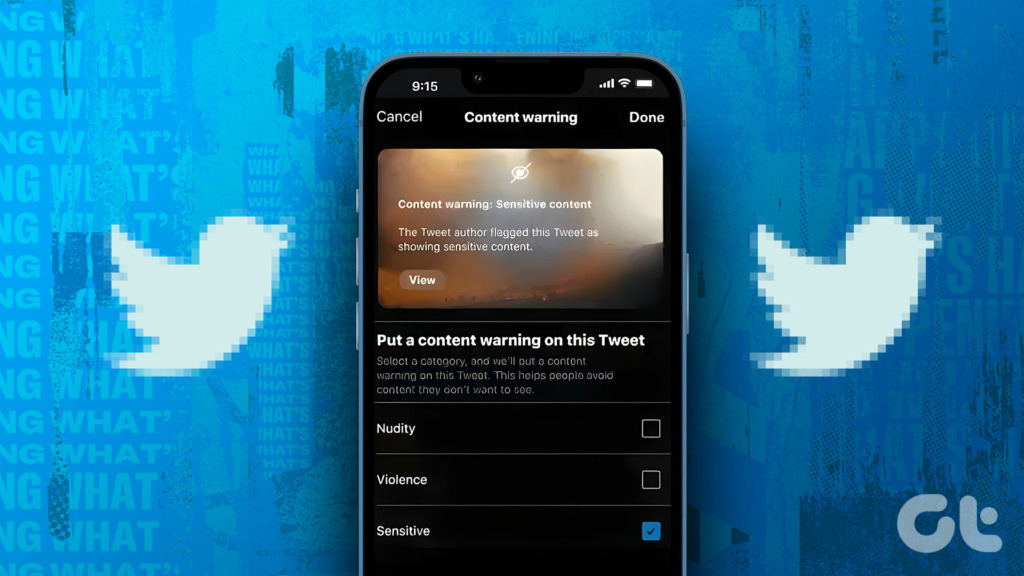
Twitter provides an option to either disable or enable sensitive content on Twitter. In this article, we’ll help you use this toggle, on both the web version and the mobile app. But before that, let us first understand what sensitive content means.

What Is Sensitive Content on Twitter

Whenever a user uploads an image within a Tweet, they are allowed to provide information regarding the nature of the Tweet. So when a user decides to Tweet about something that requires a heads up for viewers, like sensitive or unpleasant content, they can appropriately mark their media settings.
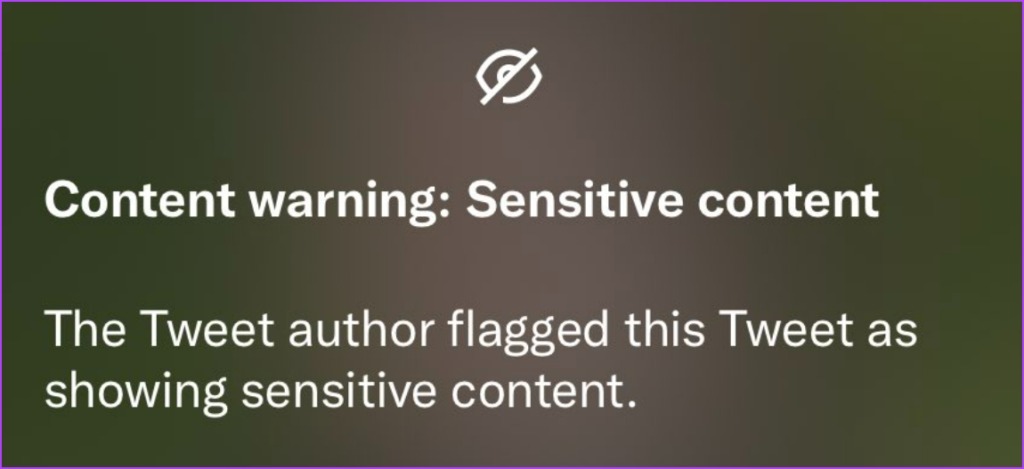
And once they do it, Twitter takes note of it and flags it as sensitive content. Therefore, when a user sees such a tweet, they will see an indication saying ‘The following media includes potentially sensitive content’. Now, you will only be able to see the image or video on Twitter upon clicking ‘Show’.

However, as mentioned earlier, some tweets may be wrongly marked as sensitive, hence, you can consider disabling this flag. Here’s how you can go about it.

Note: Unfortunately, these controls are not available on the iPhone app yet. However, you can use Twitter on Safari to change sensitive content settings and the same will reflect in your iPhone app too..

How to View Sensitive Content on Twitter

Here are the steps to enable the toggle to view sensitive content on Twitter. Let’s take a look at how to do it on the web version of Twitter.

Allow Sensitive Content on Twitter Web

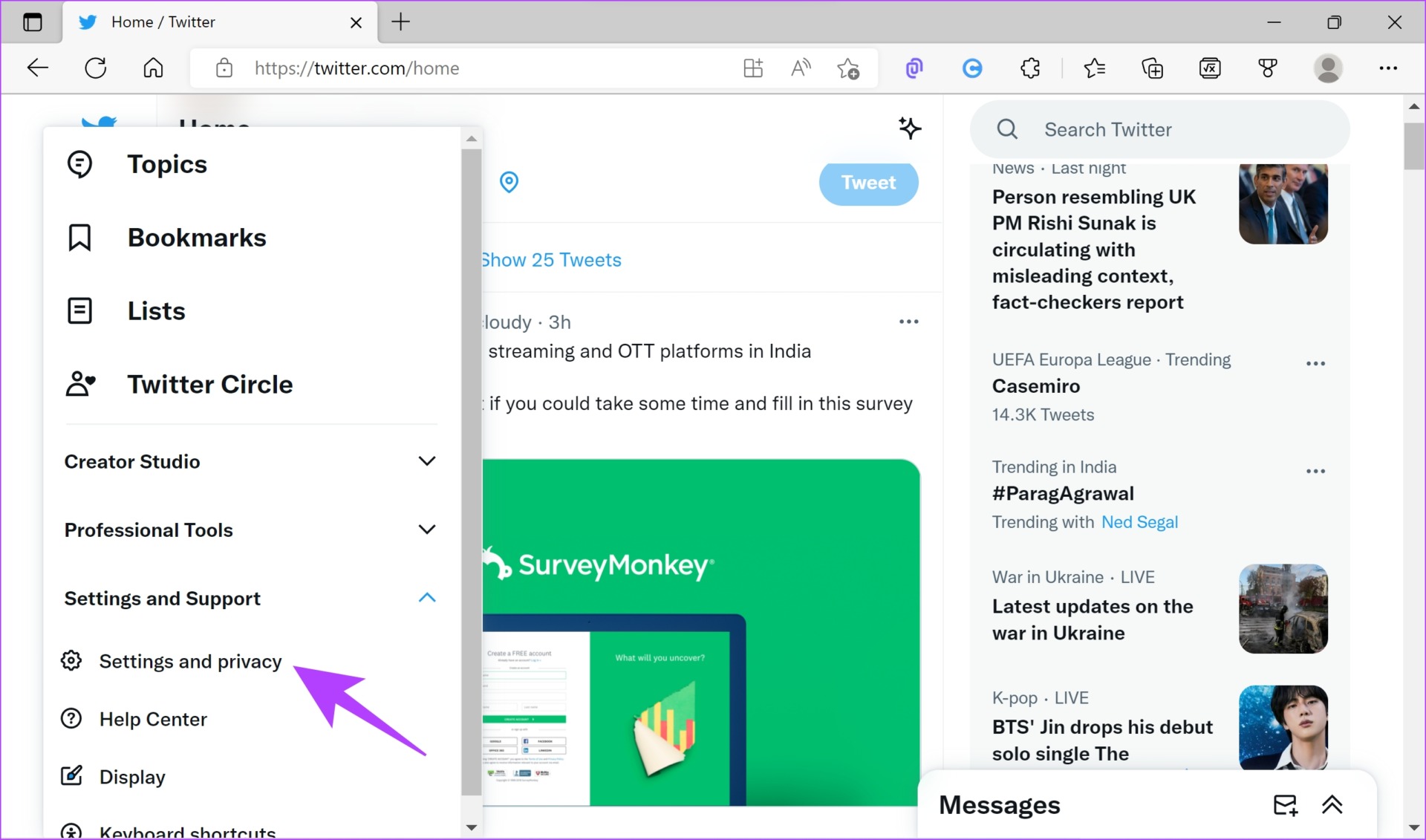
Step 1: Click on the three dots icon on the main screen of Twitter.
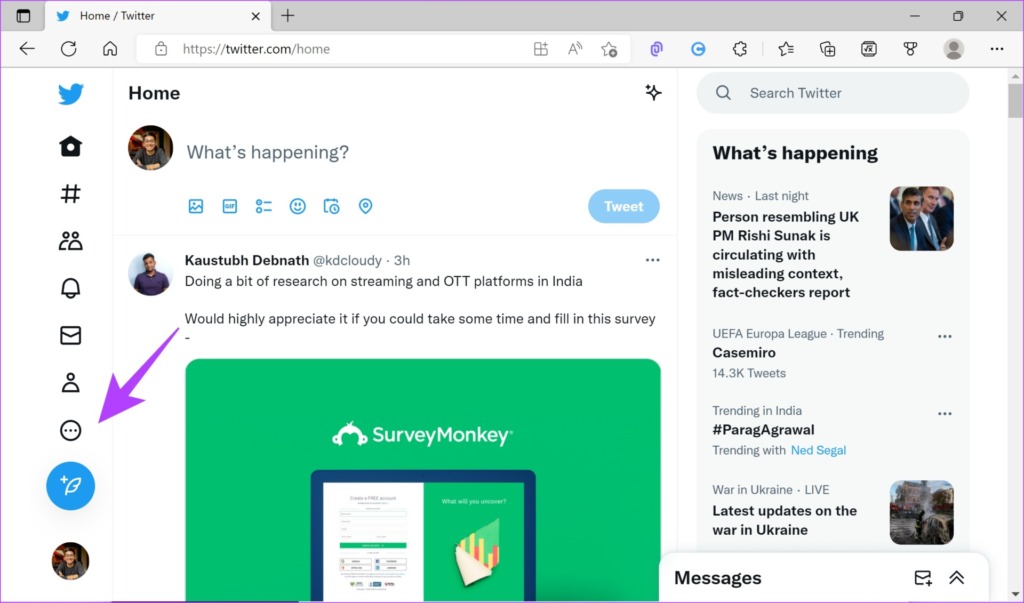
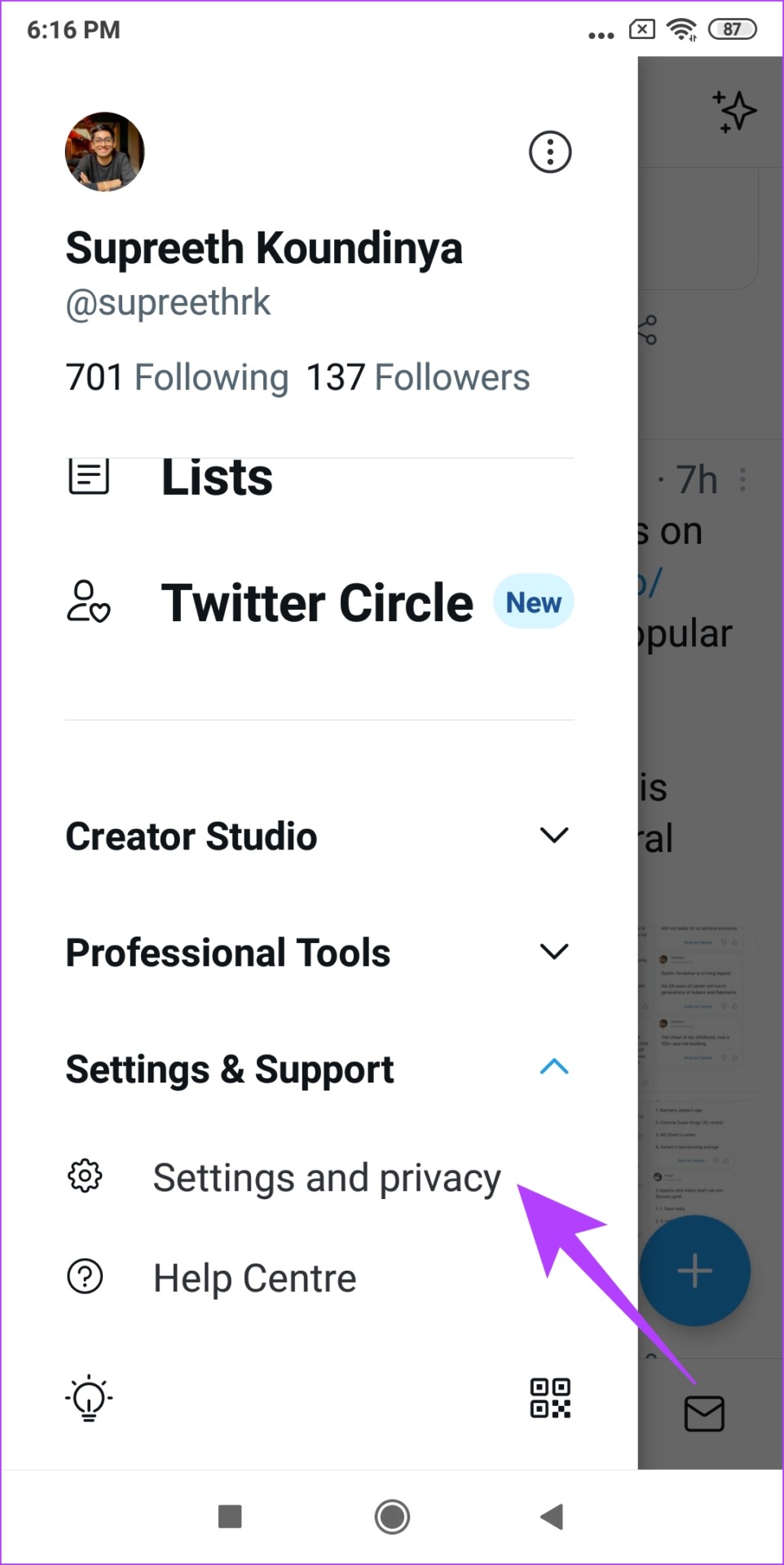
Step 2: Click on ‘Settings and Privacy’ under ‘Settings and Support’
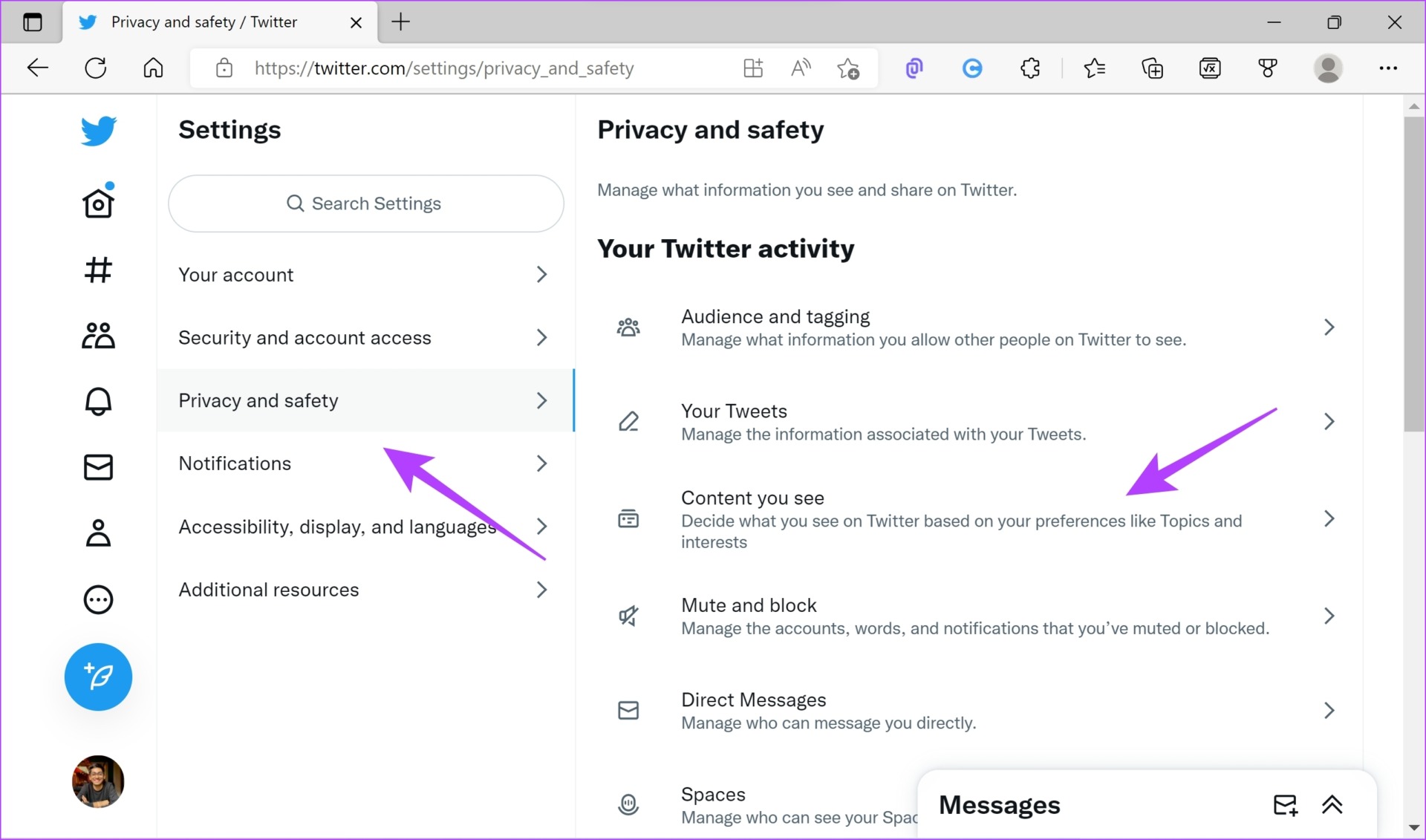
Step 3: Click on ‘Privacy and Security’.

Step 4: Select ‘Content you See’.
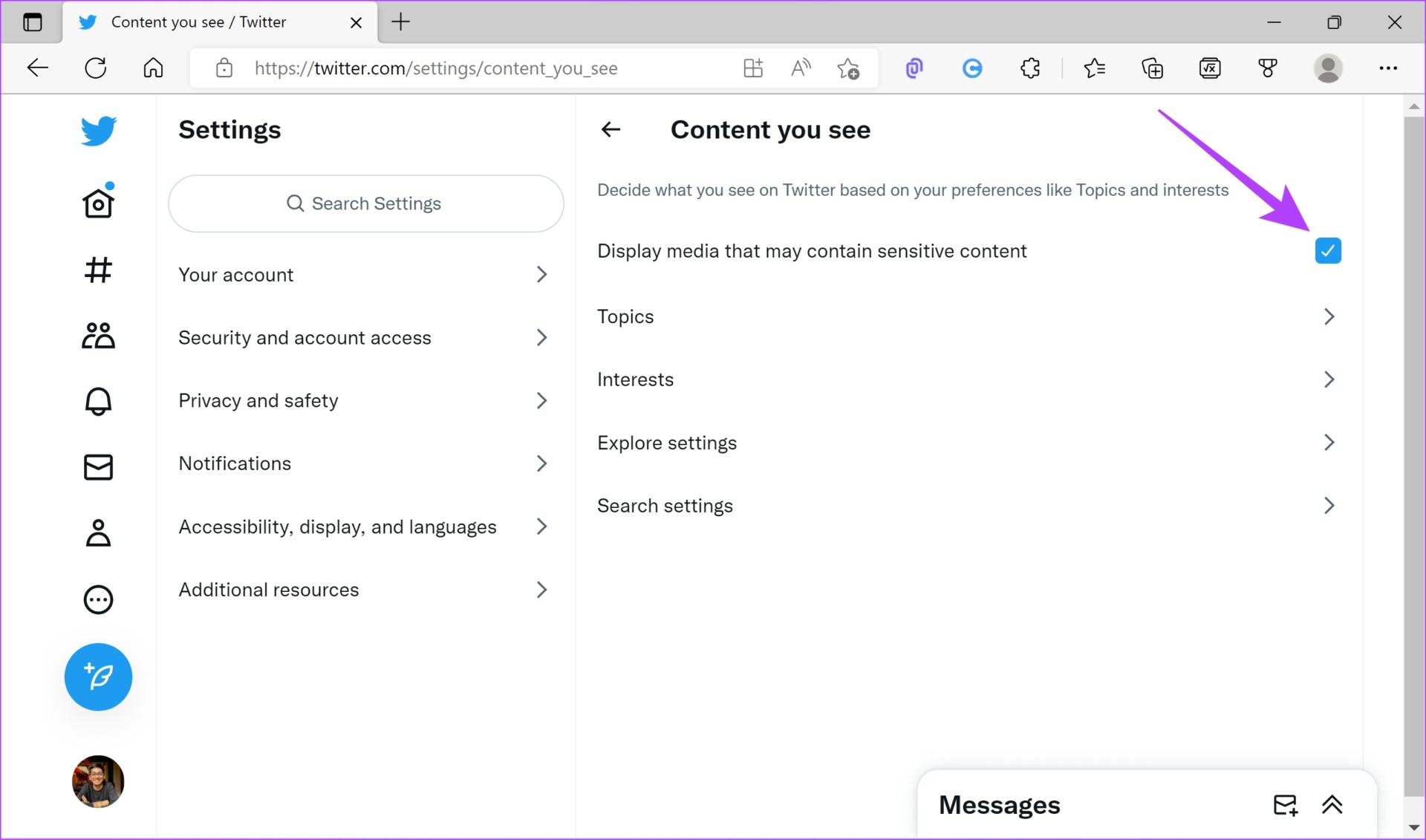
Step 5: Now, uncheck the box next to ‘Display media that may contain sensitive content’.
Next, let us take a look at enabling this option on the Twitter mobile app. Note that this option is unfortunately not available for the iPhone app.

Turn on Sensitive Content on Twitter on Android

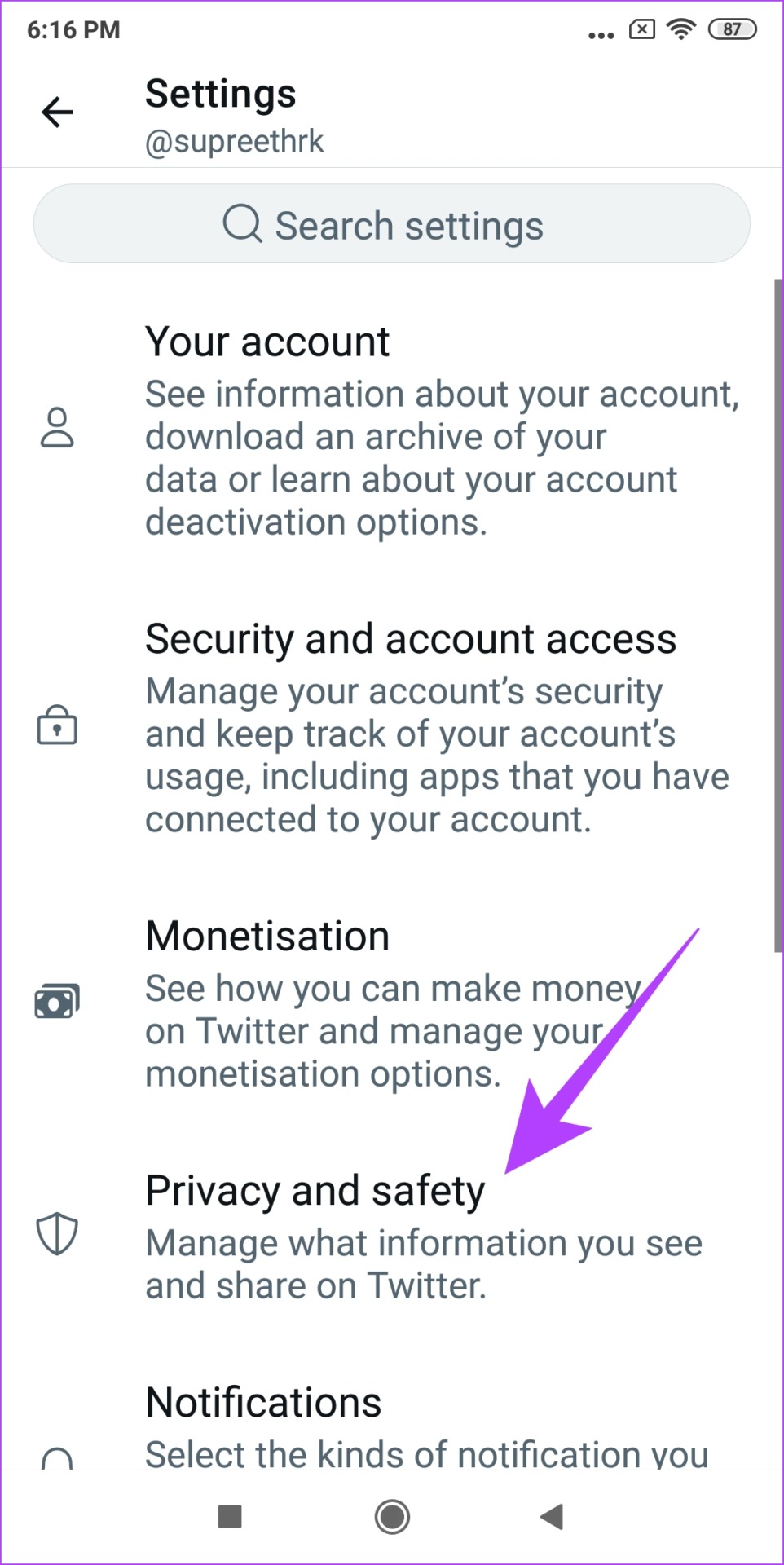
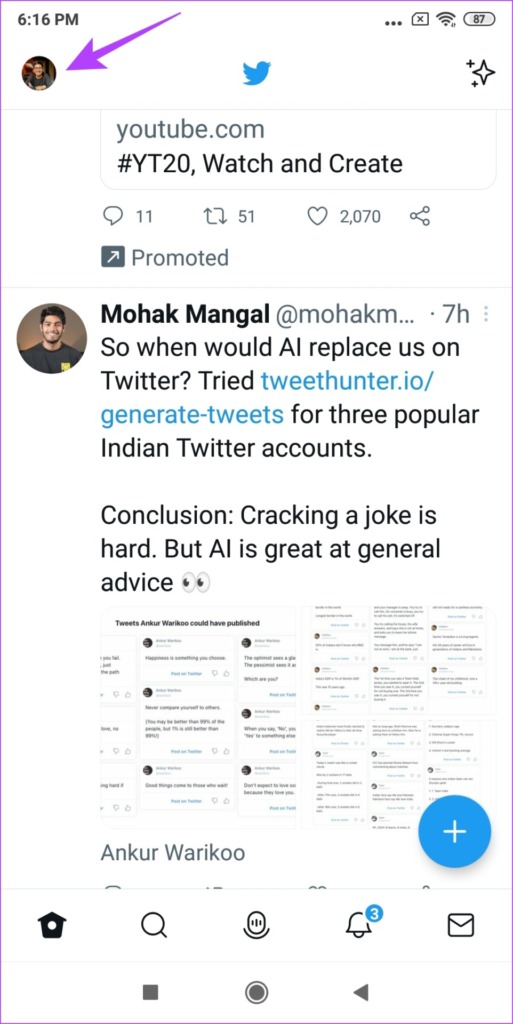
Step 1: Tap on your profile picture and select ‘Settings and Privacy’.
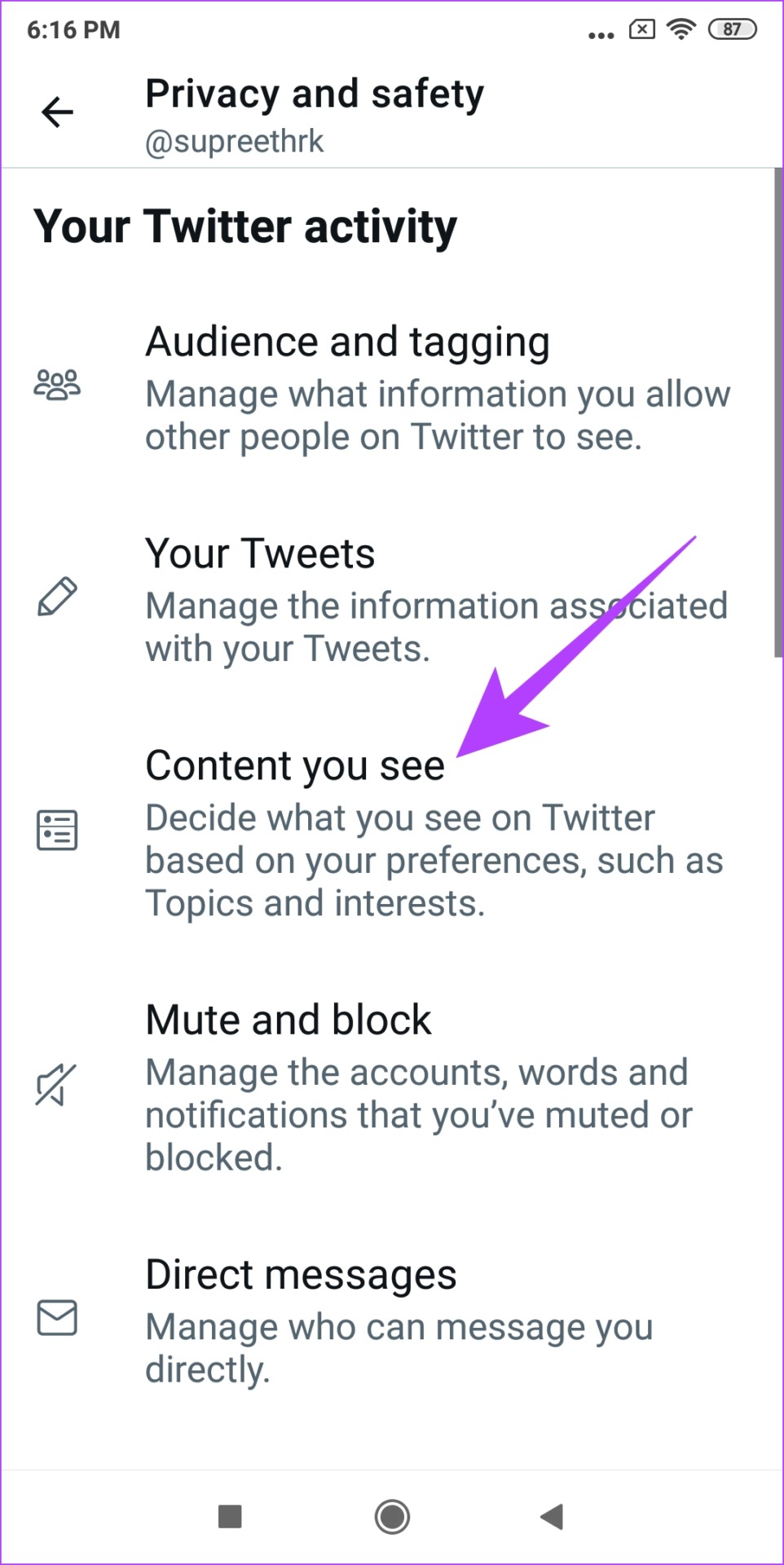
Step 2: Now, tap on ‘Privacy and Security’ and select ‘Content you See’.

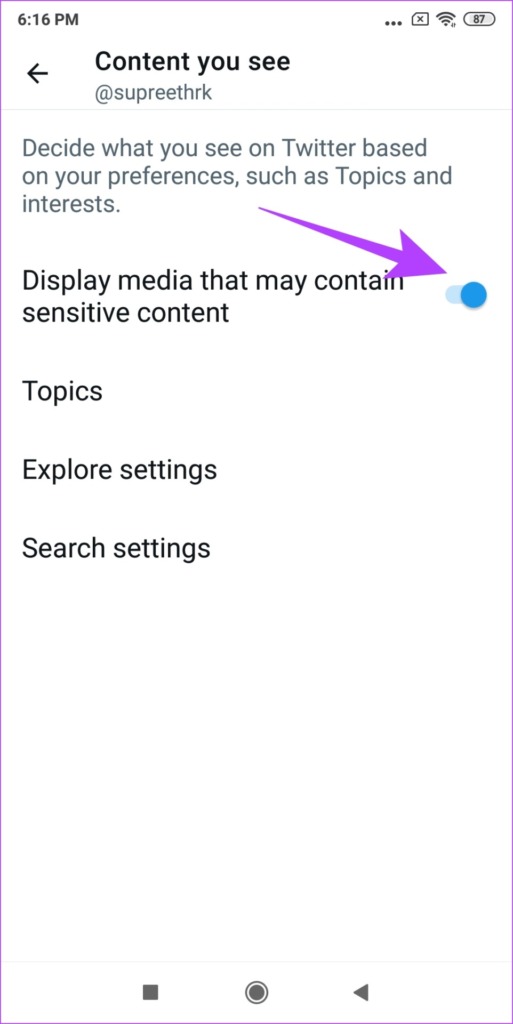
Step 3: Ensure you turn on the toggle for ‘Display media that may contain sensitive content’.

This is how you can see tweets with sensitive content on your feed. However, if you also want to enable sensitive tweets when within the Twitter search, read the next section of this article.

How to Allow Sensitive Content in Twitter Searches

Here’s how you can see sensitive content in Twitter searches, and we have provided methods for both the web version and the app. However, this option is available for the Android app only, and not for the iPhone.

Change Sensitive Content Setting for Twitter Searches on Web

Step 1: Click on the three dots icon on the main screen of Twitter.

Step 2: Click on ‘Settings and Privacy’ under ‘Settings and Support’

Step 3: Go to ‘Privacy and Safety’ and select ‘Content you See’.

Step 4: Now, select Search settings.

Step 5: Ensure to deselect the box next to ‘Hide sensitive content’.

Now, let us take a look at the procedure for the Twitter app on Android.

Enable Sensitive Content in Twitter Searches Using the Android App

Step 1: Tap on your profile picture and select ‘Settings and Privacy’.

Step 2: Now, tap on ‘Privacy and Security’.

Step 3: Select ‘Content you See’.

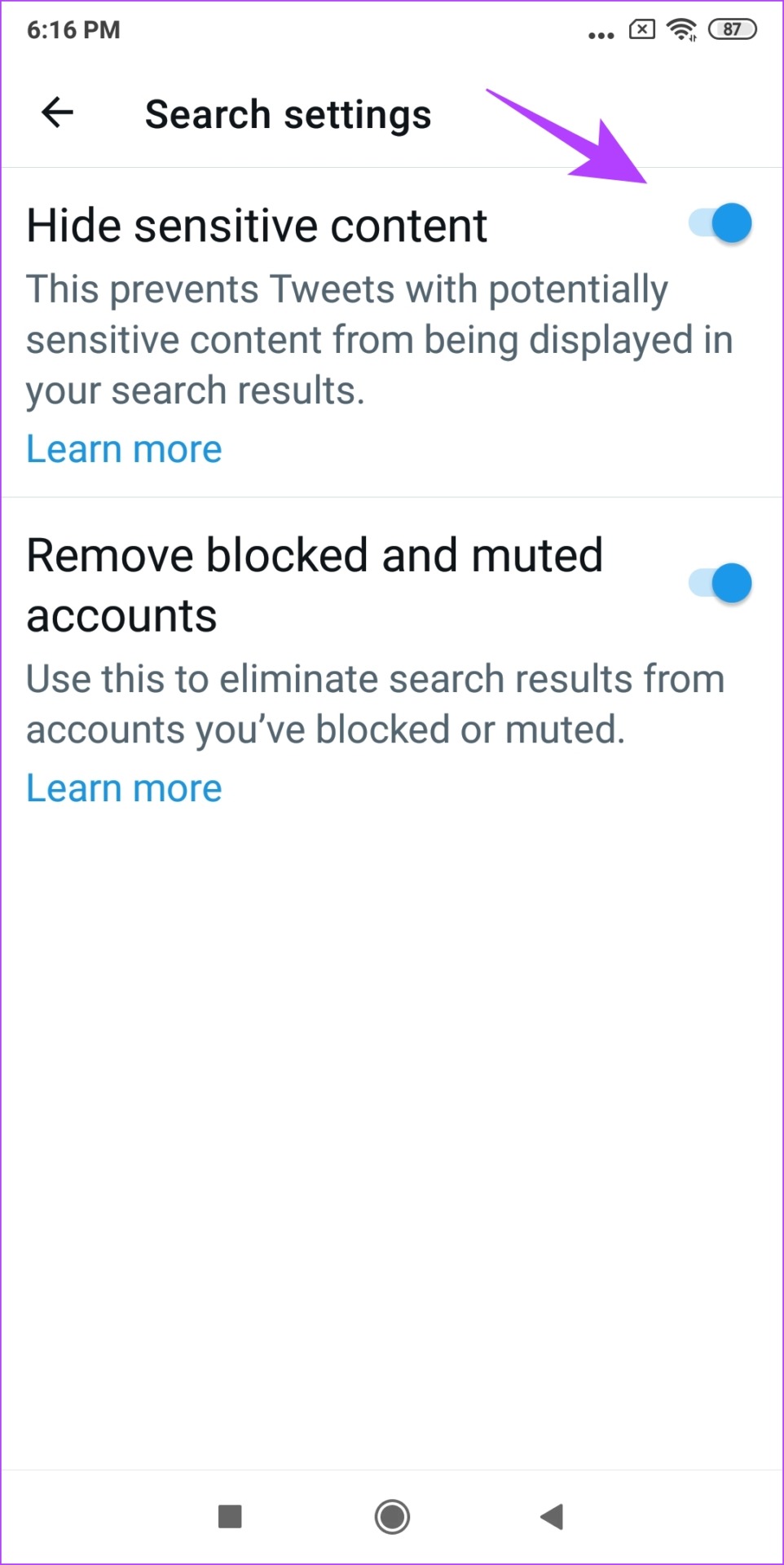
Step 4: Tap on Search settings.

Step 5: Turn off the toggle for ‘Hide Sensitive Content’.

That’s it! You will be able to see sensitive content via search on Twitter. Next, let us take a look at how to mark your tweets as sensitive.

How to Change Twitter Sensitive Content Settings for Your Tweets

When you are adding sensitive media to your Tweets, you must let Twitter know about its nature. So, if you want to mark media within your Tweets as sensitive content, here’s how you can do it.

Turn On Sensitive Content Settings for Your Tweets on Web

Step 1: Click on the three dots icon on the main screen of Twitter.
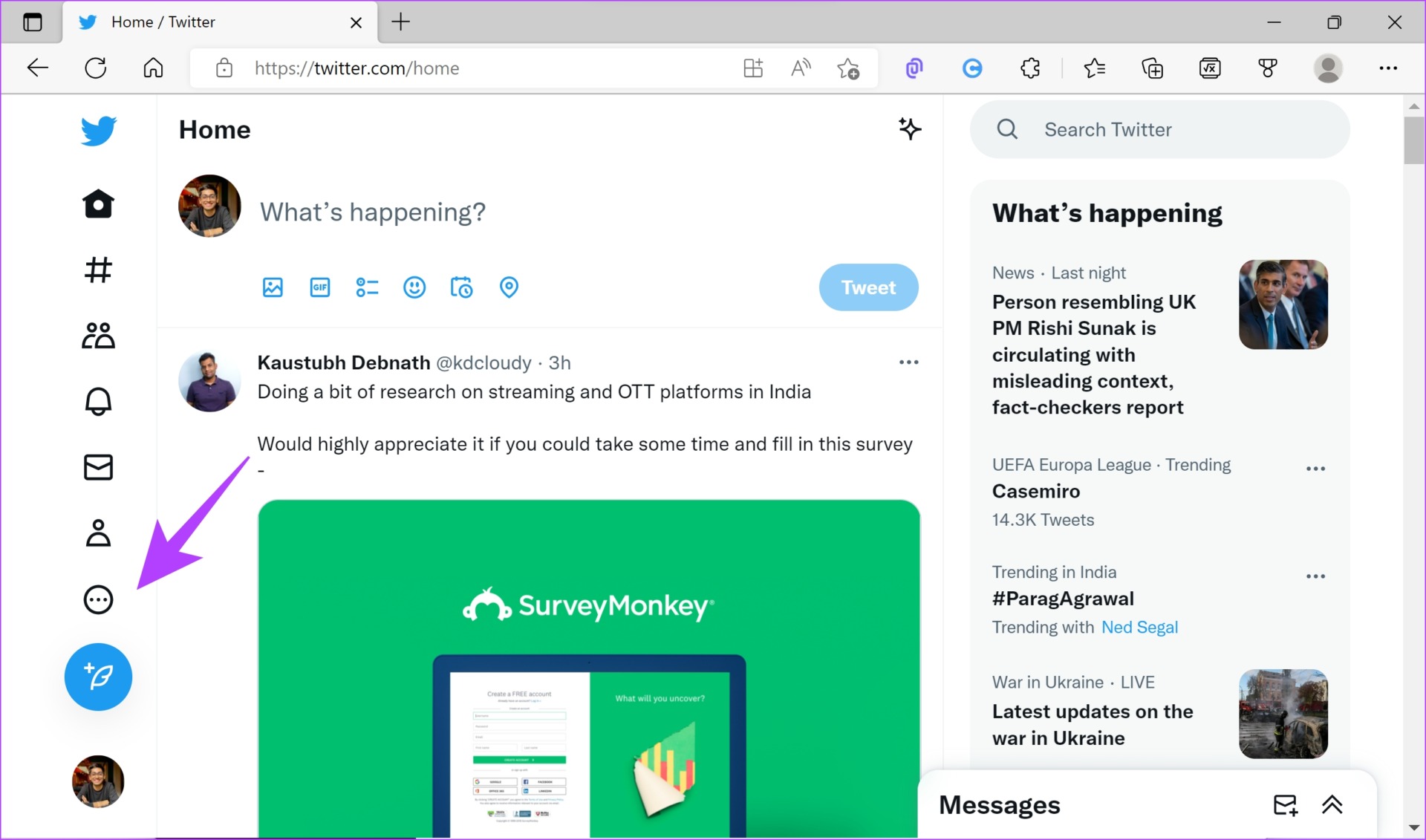
Step 2: Click on ‘Settings and Privacy’ under ‘Settings and Support’

Step 3: Click on ‘Privacy and Safety’. Select Your Tweets.
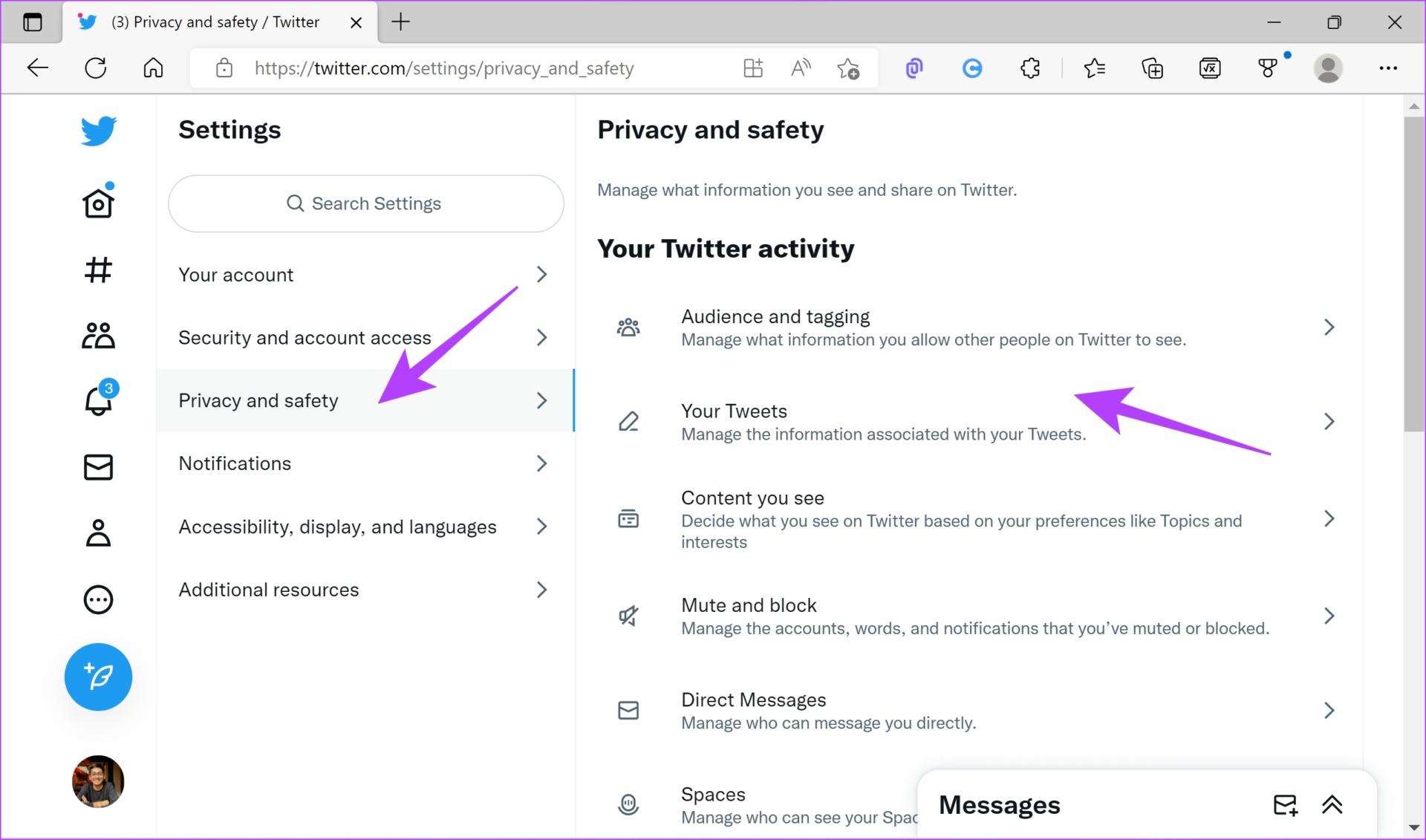
Step 4: Select the option to ‘Mark media you Tweet as having material that may be sensitive’.

Now, let us take a look at the steps for the mobile app. This option, however, is available for both Android and iPhone apps.

Change Twitter Sensitive Content Settings for Your Tweets on the Mobile App

Step 1: Tap on your profile picture and select ‘Settings and Privacy’.
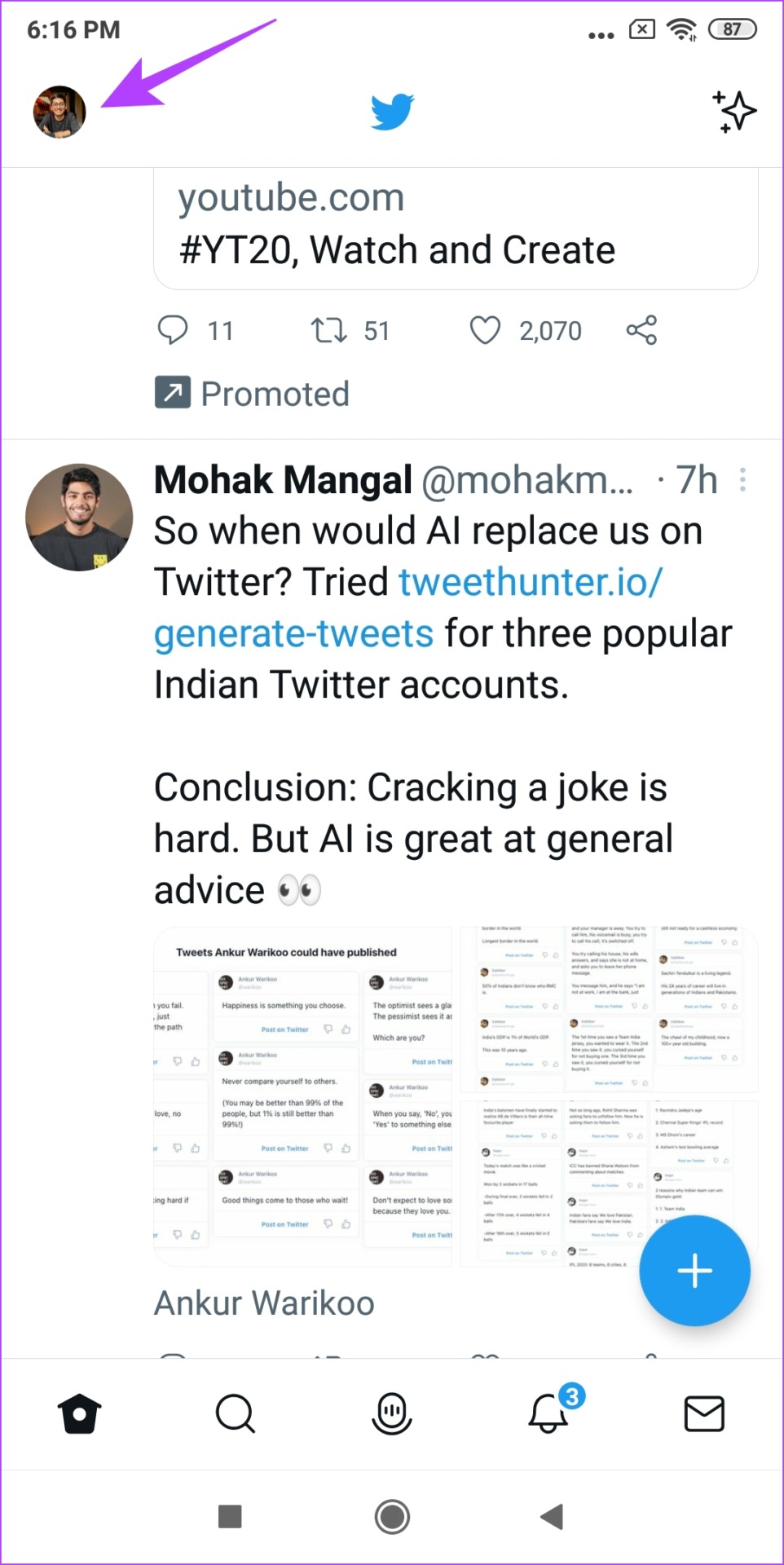
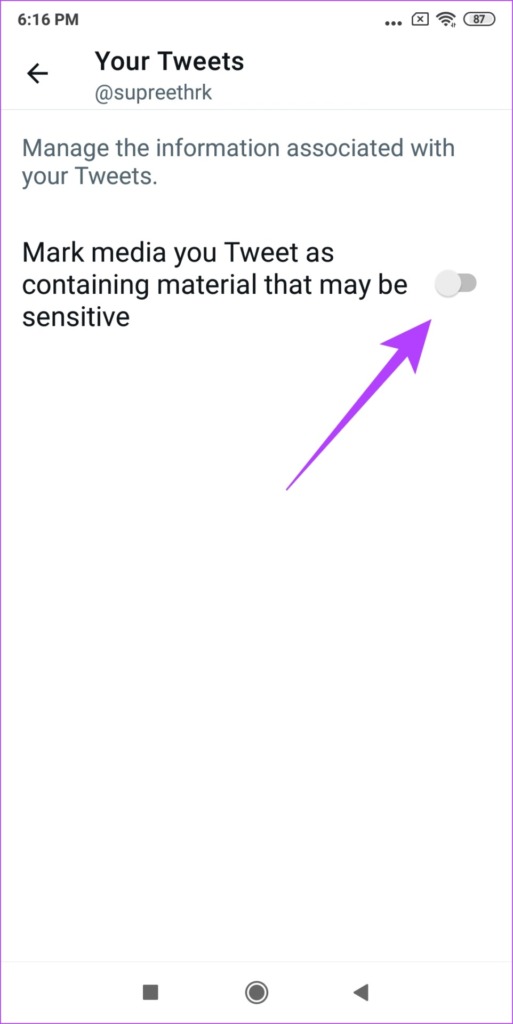
Step 2: Now, tap on ‘Privacy and Security’ and select Your Tweets.
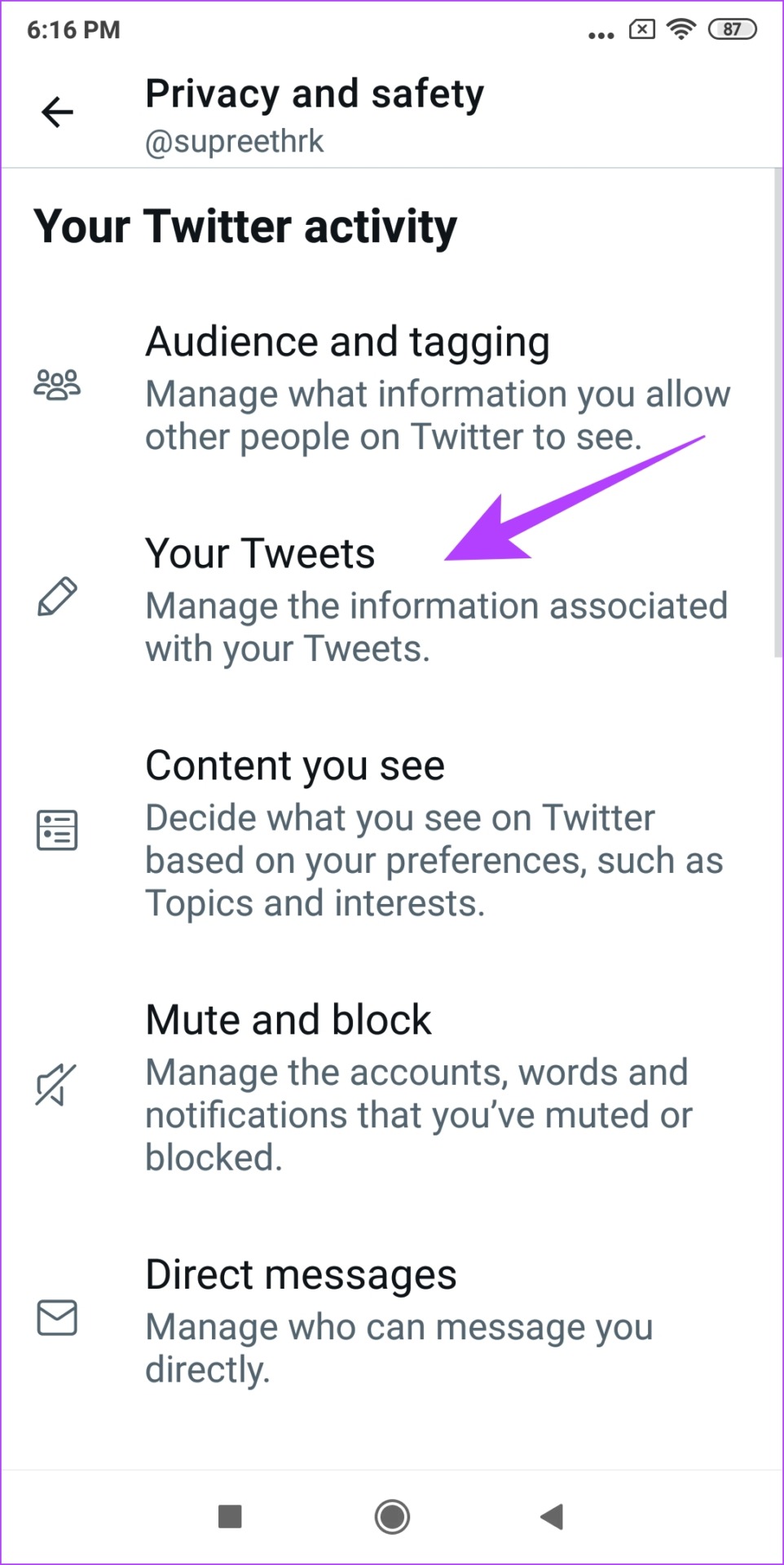
Step 4: Now, turn on the toggle to ‘Mark media you Tweet as having material that may be sensitive’ to display it as sensitive content on Twitter.
This is all you need to know about sensitive content on Twitter. However, if you have any more questions, you can take a look at the FAQ section below.

FAQs on Twitter Sensitive Content

1. Is sensitive content safe?

Yes, sensitive content is safe on Twitter. However, it is the content and the information inside the media that might be unpleasant or disturbing.

2. Do I need to enter my birth date on Twitter?

Yes, you need to enter your date of birth while signing up on Twitter, so that content is effectively moderated.

See Sensitive Content on Twitter

This is how to see sensitive content on Twitter and manage the controls. However, we hope Twitter releases these features on the iPhone app as well. Perhaps this is a good little suggestion from our end to Elon Musk now? We can only wait and watch.
Was this helpful?

Thanks for your feedback!

4 Ways to Fix Corrupt Files on Windows 11

Basic Fixes:

  • Check for Windows updates: A simple software update can fix almost all issues on your Windows computer.
  • Reset your PC: A simple Reset can fix many issues. To do so, head to the Recovery Menu in the Settings app and select Reset this PC.

Method 1: Use SFC and DISM Commands

You can quickly run an SFC (System File Checker) scan followed by a DISM (Deployment Image Servicing and Management) scan to find and fix the corrupt files on your system. Here are the steps for the same:

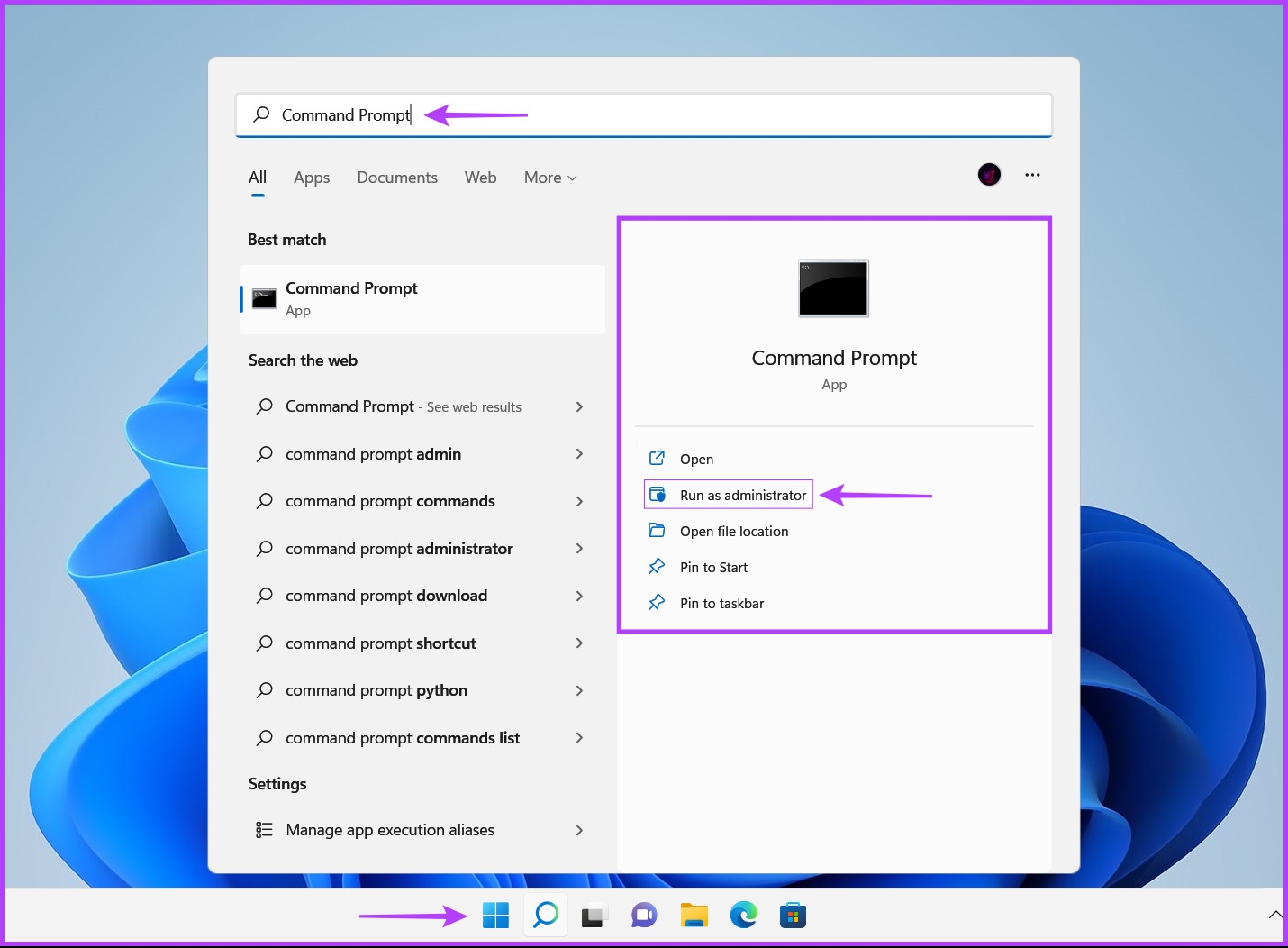
Step 1: Press the Windows + S keys and type Command Prompt. Then, click on Run as administrator. Type SFC/scannow command into the Terminal window and press Enter.

After the SFC (System File Checker) scan completes, you’ll see a message indicating whether or not any problems need fixing. If the SFC scan found no issues, you would get a message saying, ‘Windows Resource Protection did not find any integrity violations.’

Step 2: Run a DISM (Deployment Image Servicing and Management) scan once you have completed the SFC scan.

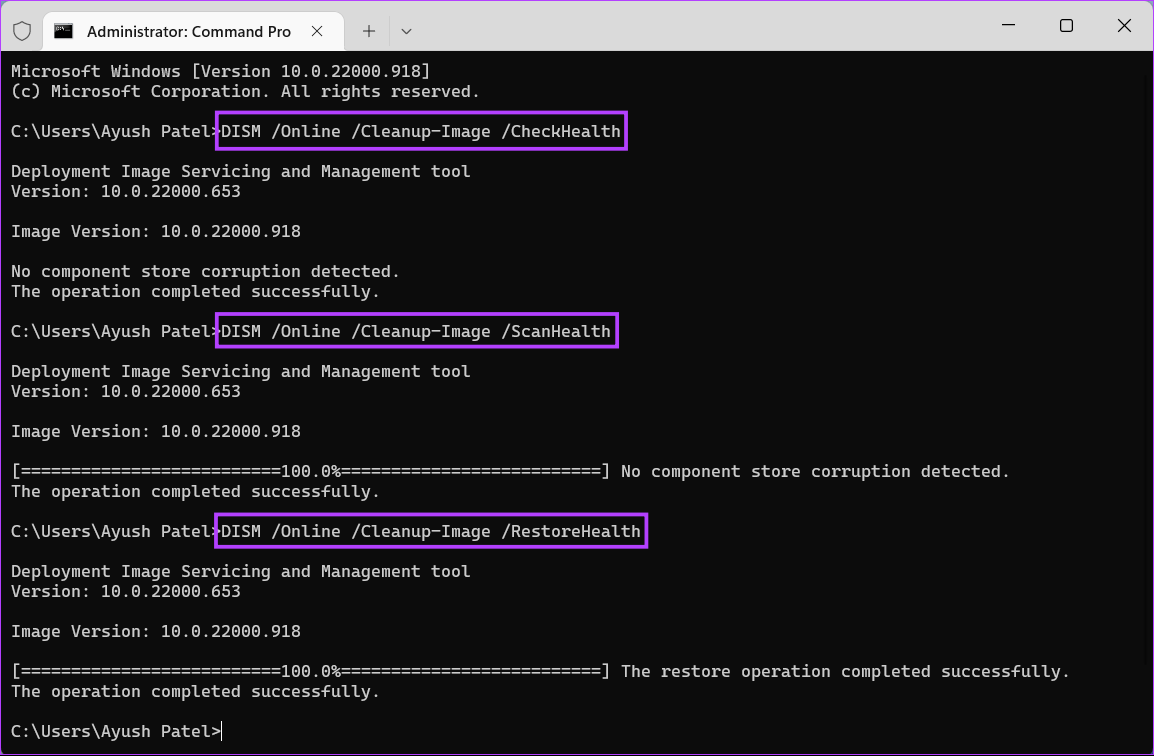
To perform a DISM scan on your PC, execute all the commands listed below one command at a time by copying and pasting them into Command Prompt and pressing the Enter key.

DISM /Online /Cleanup-Image /CheckHealth
DISM /Online /Cleanup-Image /ScanHealth
DISM /Online /Cleanup-Image /RestoreHealth

This DISM scan might take some time. After completing both scans, restart your PC to see if it helps restore your corrupted data.

Method 2: Run Startup Repair

Startup repair is a troubleshooting tool built into Windows that helps fix issues when your PC doesn’t start. Here’s how to commence Startup Repair using Advance Startup Options on your Windows 11 PC to fix corrupt files.

Step 1: Press and hold the Shift key on your keyboard. Keep holding the Shift key. Then, head to the Power menu in Start and click on Restart. Select Troubleshoot once your PC restarts.

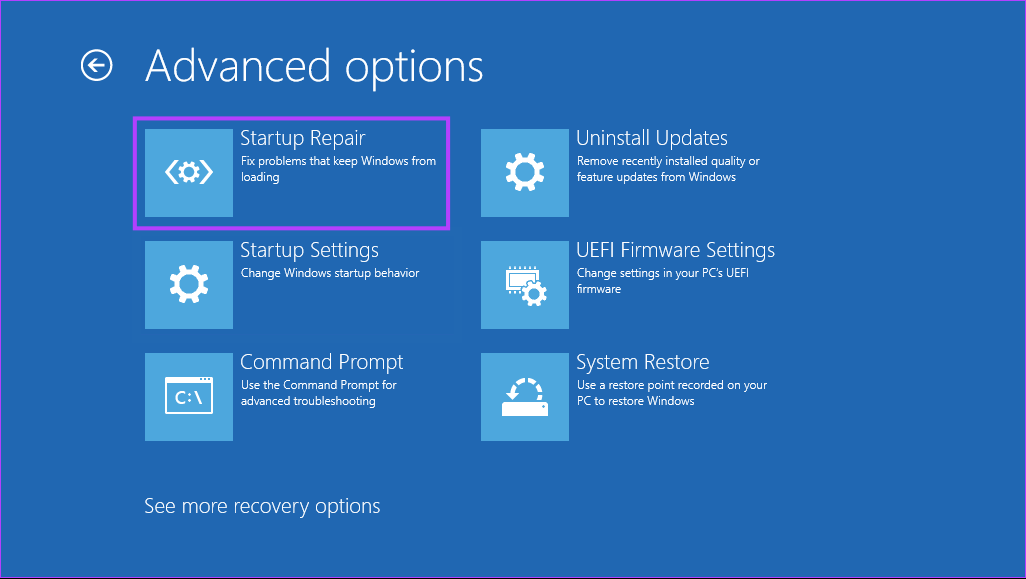
Step 2: Click on Advanced options. Then, click on Startup Repair. Once done, wait for Startup Repair to scan and repair issues on your PC.

Method 3: Use the Windows Memory Diagnostic Tool

To help you troubleshoot RAM-related issues, Microsoft Windows offers a handy tool called the Windows Memory Diagnostic Tool. Here’s how to use it on your system:

Step 1: Press the Windows + R keys together to access the Run utility. When a Run dialog appears, type mdsched.exe and click on OK. You should see a Windows Memory Diagnostic Tool window pop up on your screen with two options:

  • Choose Restart now and check for problems (Recommended) to reboot your PC and troubleshoot memory-related issues immediately.
  • Choose Check for problems the next time I start my computer to schedule the Windows Memory Diagnostic Tool to run the next time your PC starts.

Once your PC restarts, the Windows Memory Diagnostic Tool will automatically start scanning your system for memory-related issues in Standard mode. Running a two-pass scan in Standard mode should be enough to discover any memory error in most cases.

Note: You must press the Tab key on your keyboard to cycle through the different scan options, F10 to Apply the new changes, or Esc to go back and cancel the changes.

Method 4: Run the System Maintenance Troubleshooter

You can run the System Maintenance Troubleshooter to find and fix problems with your computer that might be causing data corruption, as detailed in the steps below:

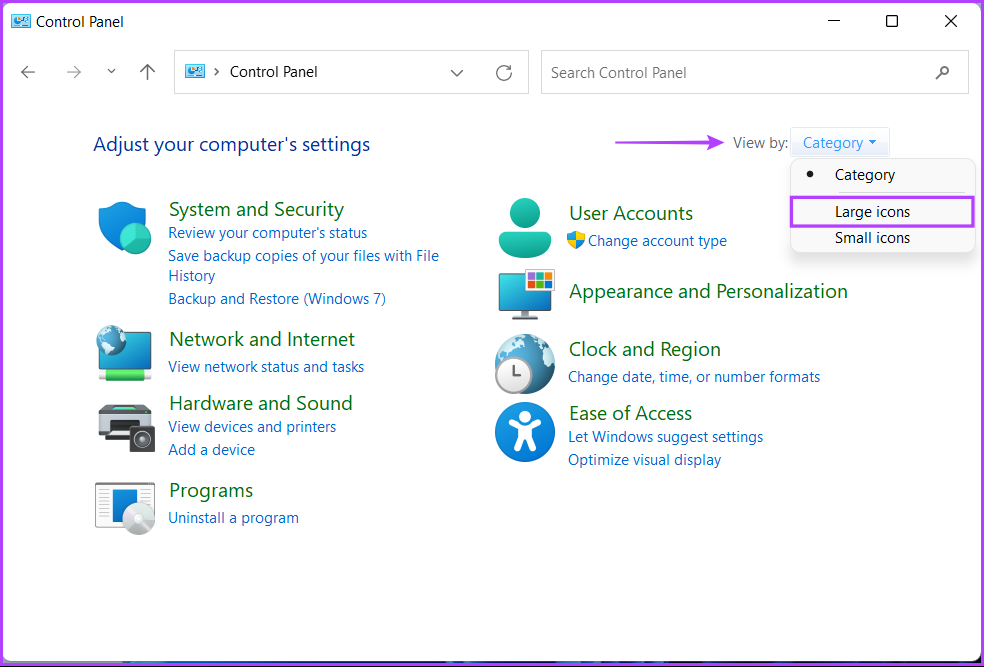
Step 1: Press the Windows + S keys to open Windows Search and type Control Panel. From the results, click on Open. On the Control Panel window, click on the Category drop-down and select Large Icons.

Step 2: Scroll to the bottom and click on Troubleshooting. On the troubleshooting page, click on View all on the left sidebar. Step 2: Scroll to the bottom and click on Troubleshooting. On the troubleshooting page, click on View all on the left sidebar.

Step 3: Click on Next to start the System Maintenance Troubleshooter. Alternatively, you can run this troubleshooter as an administrator by selecting Advanced > tapping on the Run as Administrator check box.

Was this helpful?

Thanks for your feedback!

3 Fixes for iMessage Voice Messages Playing in Low Volume

Basic Fixes

  • Check iPhone volume levels: You may have reduced the volume levels previously to avoid disturbing others while using your iPhone to consume media.
  • Force quit and relaunch: This will give the app a fresh start on your iPhone.
  • Update the Messages app by updating iOS: Installing the latest version will ensure the app is free from bugs or glitches.

Fix 1: Use the Speaker Icon for Voice Messages

Try enabling the speaker while listening to a voice message on iMessage. By default, you must lift your iPhone and bring it close to your ear to listen to a voice message. Here’s how to enable the speaker and see if the problem is solved.

Step 1: Open Messages on your iPhone.

Step 2: Tap on the chat, which includes the voice message.

Step 3: Tap the Play icon in the voice message > tap the Speaker icon on the right.

Fix 2: Disable Raise to Listen for Voice Messages

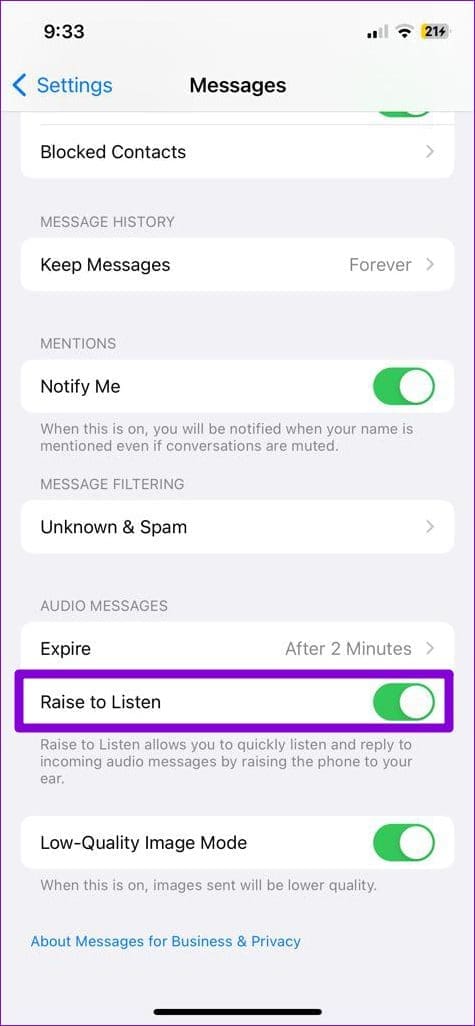
By default, you can listen to voice messages on iMessage by raising your iPhone and bringing it close to your ear. If you still get low volume levels while listening to voice messages on iMessage, try disabling the Raise to Listen feature. Here’s how to do it.

Step 1: Open the Settings app on your iPhone.

Step 2: Scroll down and tap on Messages. Scroll down and disable the toggle for Raise To Listen.

Fix 3: Disable and Enable iMessage Again

We recommend disabling and enabling the iMessage service again on your iPhone as the next solution. This step will reload all your messages, including the voice messages. Here’s how to do it.

Step 1: Open Settings on your iPhone.

Step 2: Scroll down and tap on Messages.

Step 3: Turn off the toggle for iMessage.

Step 4: Wait for a few minutes and enable the toggle for iMessage.

Tip: You can learn about Contact Key Verification in iMessage.

Was this helpful?

Thanks for your feedback!

How to Clear WhatsApp Cache on iPhone and Android

Clearing WhatsApp Cache on Android

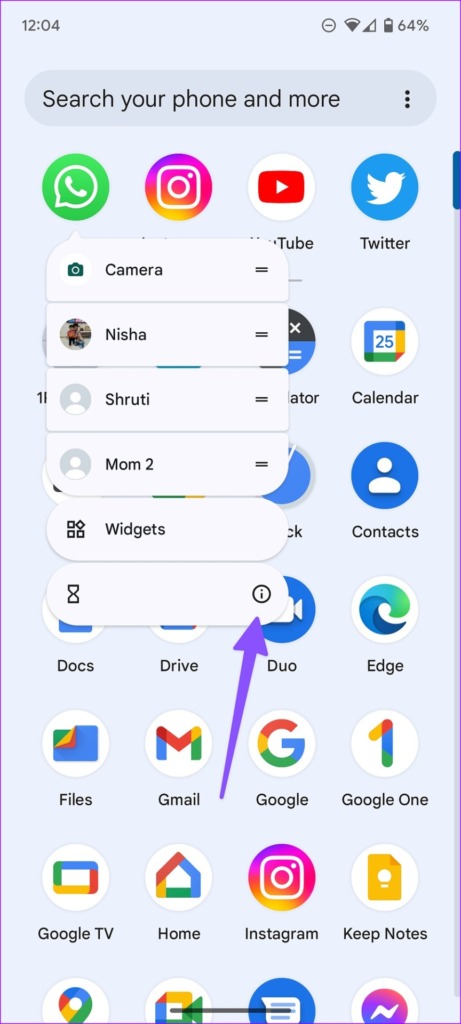
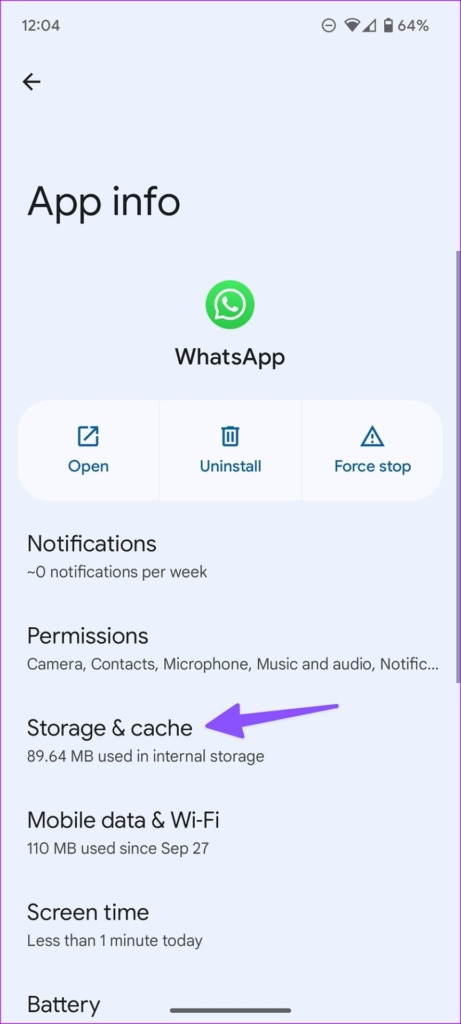
Step 1: Long press the WhatsApp icon and select the ‘i’ (App info) symbol.

Step 2: Tap on Storage and cache > Clear cache.

Clearing WhatsApp Cache on iPhone

On an iPhone, there’s no option to delete the WhatsApp cache directly. Instead, you can offload or delete the app. So what’s the difference between offloading and deleting an app?

Offloading an app removes the app itself but keeps its chat history and media files. However, if you delete the app, it will remove both the app and its data.

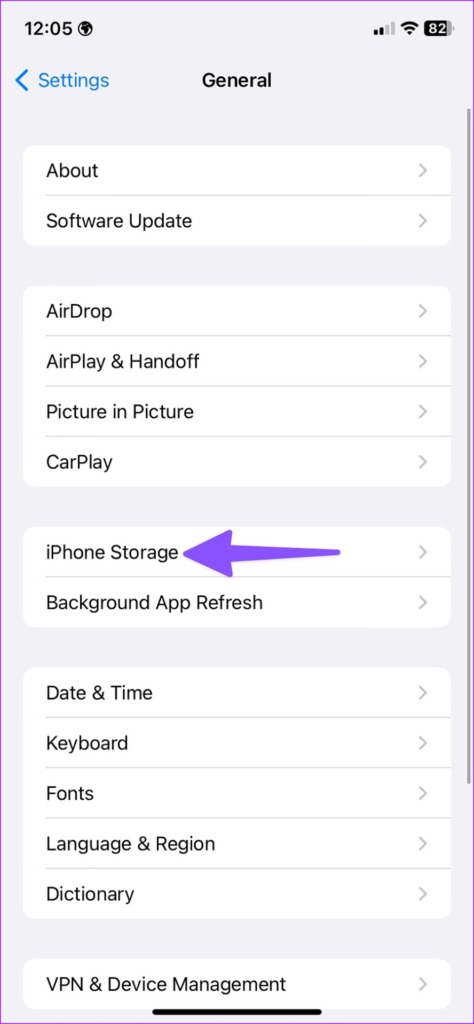
Step 1: Head to Settings > General > iPhone Storage > WhatsApp.

Step 2: Choose Offload App or Delete App.

After deleting or offloading the app, you can reinstall WhatsApp from the App Store. Before deleting the app, back up your WhatsApp data on iCloud or on your desktop (via iTunes).

What Happens When You Clear WhatsApp Cache

When you clear your WhatsApp cache, the system doesn’t delete your personal chat data. It only removes temporary files stored on your phone’s RAM and storage. Your existing data, such as messages, photos, videos, group chat, call history, and voice clips, remain intact on Android.

After clearing the WhatsApp cache, you will notice a higher startup time since the app is loading everything from scratch.

Is It Safe to Remove the WhatsApp Cache?

Yes, it is completely safe to do it. Clearing the cache only removes temporary files and does not affect your chat history or media files.

How Often Should I Remove My WhatsApp Cache?

There is no set frequency for removing the WhatsApp cache. You can do this whenever you notice your app is running slowly or is taking up too much space.

Was this helpful?

Thanks for your feedback!

5 Ways to Fix Grammarly Extension Not Working on Chrome

Basic Fixes

  • Check internet connection: Grammarly will only work with an internet connection. Ensure your device is connected to a stable network.
  • Don’t use incognito mode: Extensions will not work if you use incognito mode on Chrome.
  • Reload website: Try reloading the website to refresh the extension and erase the bug.
  • Clear Chrome cache: Clear Chrome cache and junk files to get rid of bugs causing the issue.

Fix 1: Double Click to Activate Extension

If you don’t see suggestions from Grammarly, double-click at the start or end of your text. This will prompt Grammarly to open and suggest corrections to the content. You can also click on the Grammarly correction count icon at the bottom right corner.

Grammarly Correction Count

Also Read: How to use Grammarly in Microsoft Word for Windows and Mac

Fix 2: Reload the Extension

Restarting the extension will reload it and may fix the issue with Grammarly.

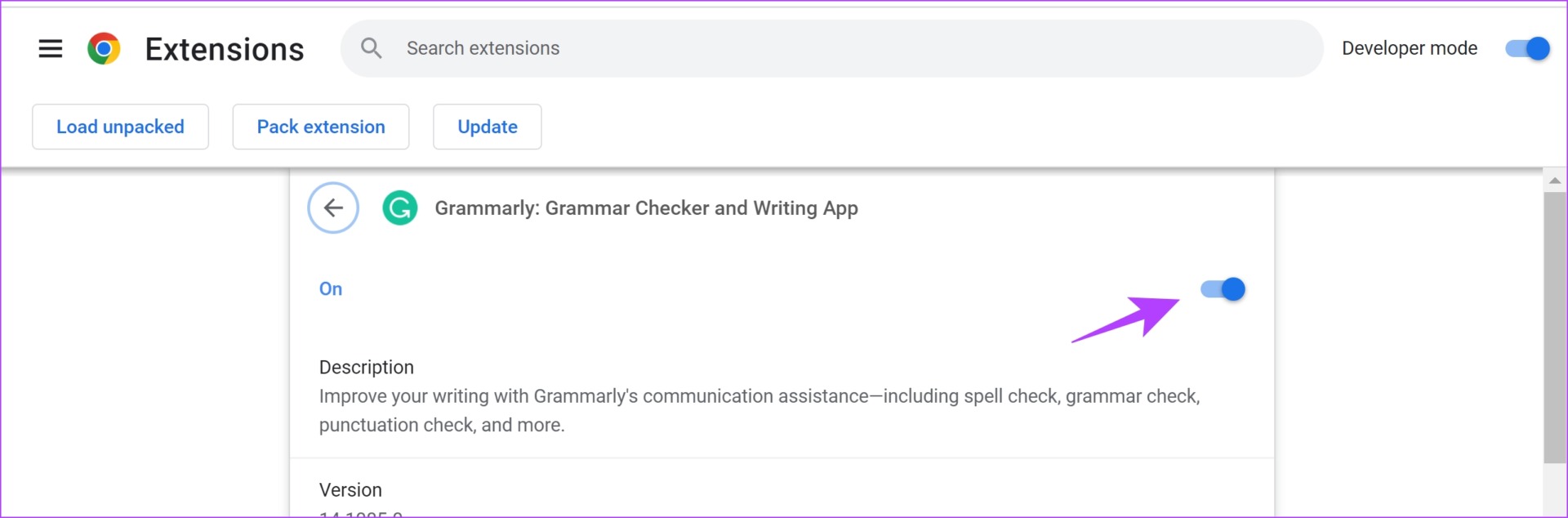
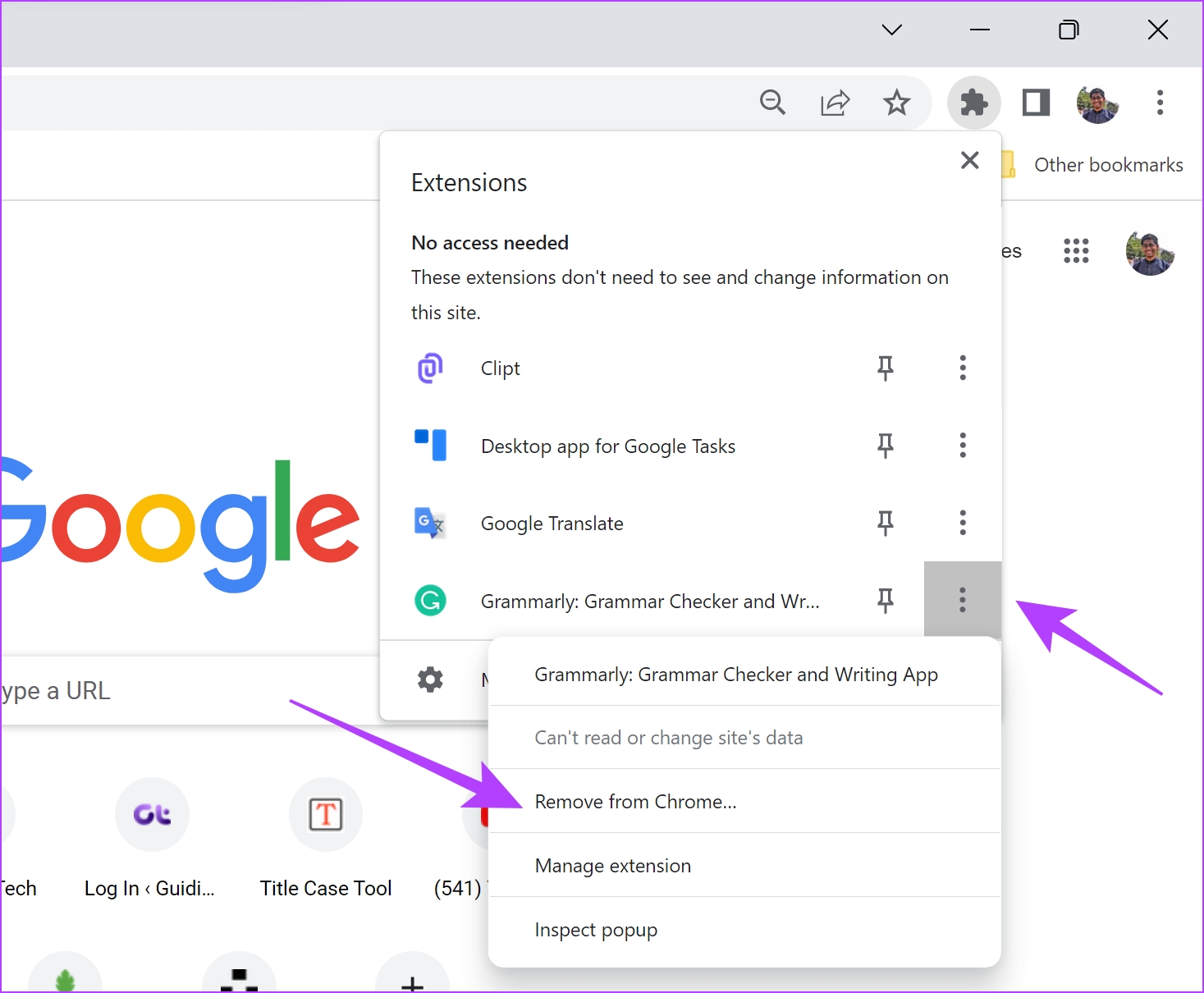
Step 1: Click on the extensions icon on the Chrome toolbar. Click on the three-dot icon next to Grammarly and select Manage Extension.

Step 2: Turn off the toggle for the Grammarly extension and turn it on again.

Alternatively, you can also open the Grammarly extension, turn it off, and turn on the toggle for it.

Fix 3: Re-Install Extension

Re-installing the extension will eliminate bugs and corrupted files, which may help fix the issue.

Click on the extensions icon on the toolbar > click on the three-dot icon for the Grammarly extension > select Remove from Chrome.

Once removed, install the extension from the Chrome Webstore.

Fix 4: Check Your Grammarly Subscription

If your Grammarly extension is not fully broken and only a few features don’t seem to work, check if there’s an issue with your premium subscription.

Step 1: Click on the extensions icon on the Chrome toolbar. Open the Grammarly extension. Now, scroll down and select My Grammarly.

Step 2: Click on Account > Subscription. Check your current plan and see whether your premium subscription is still active.

Check Grammarly Subscription

Also Read: How to fix Grammarly not working in Google Docs.

Fix 5: Sign Out and Sign In to Grammarly

If your Grammarly account is having trouble, signing out and signing in will help.

Step 1: Open the Grammarly extension and click on My Grammarly.

Step 2: Click on Sign Out in the sidebar and sign in with your credentials again.

Grammarly Sign Out

If nothing works, use the Grammarly extension on other web browsers. If not, visit Grammarly and paste your content for suggestions and corrections.

Also Read: Best Grammarly alternatives for PC and mobile

Was this helpful?

Thanks for your feedback!

Why Are My AirPods Crackling, Rattling, or Producing Static Noise: 11 Ways to Fix This

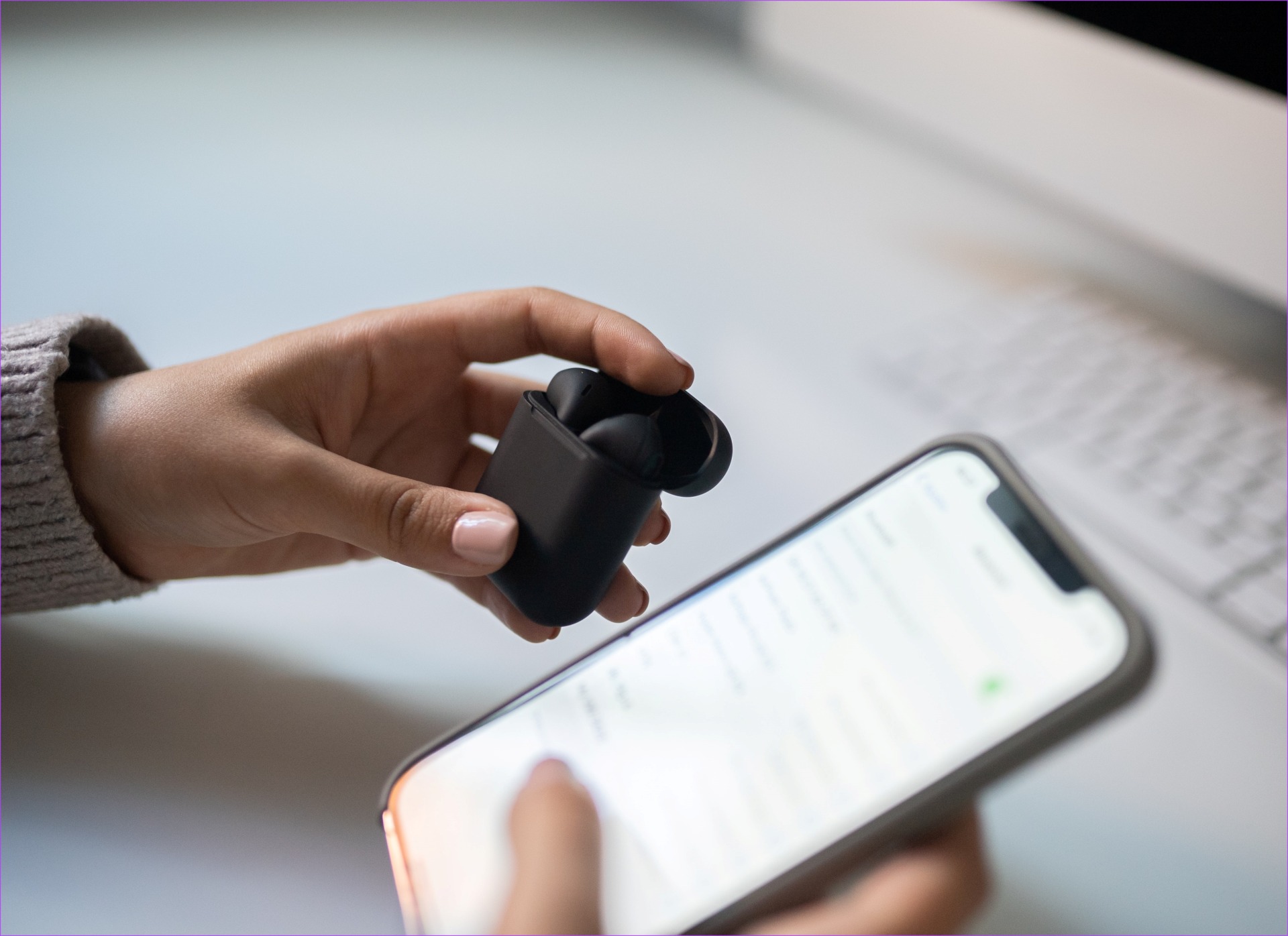
If you use an iPhone or a Mac, and you’re looking to buy a pair of wireless earbuds, your first option is generally the AirPods. This is mainly because they integrate well with the Apple Ecosystem and you get a seamless experience. However, you can experience some problems with them from time to time like the infamous AirPods Pro crackling sound issue.

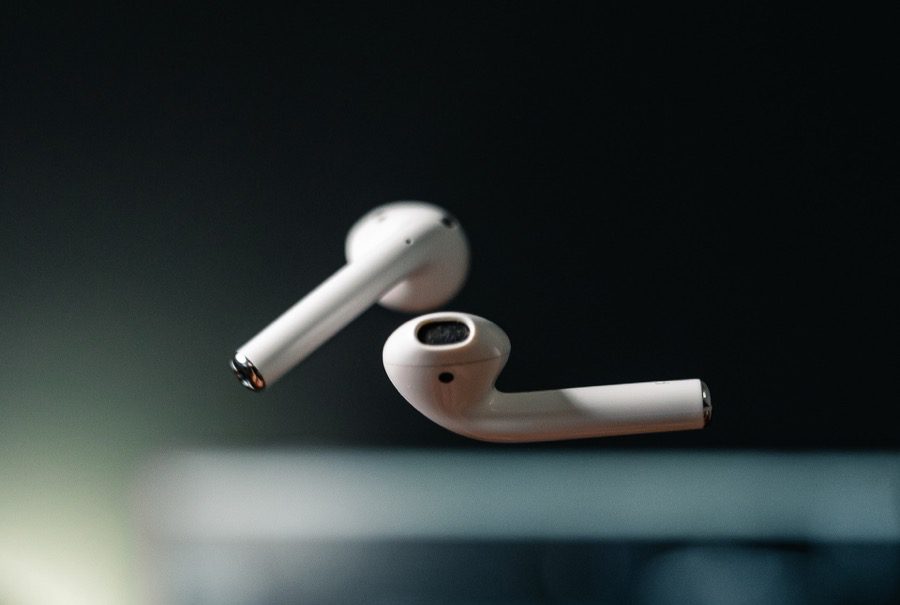
AirPods crackling sound fix

While the problem mostly plagues the AirPods Pro, you might be facing crackling issues on any generation of AirPods. If you hear some sort of rattling sounds or static when listening to music on your AirPods, don’t worry. We’ll run through some quick fixes. Here’s what you need to do if your AirPods, specifically the AirPods Pro sound glitchy.

1. Ensure You’re Within the Bluetooth Range

The AirPods pair and work with your iPhone via Bluetooth. So, it’s important to always stay in the Bluetooth range when using the AirPods. What this means is that you need to be close to your iPhone. If you walk away from the Bluetooth range, after a certain point, the audio may start to fall apart and you can hear some crackling sounds.

Bluetooth Earphones

If you’re wondering why are my AirPods making static noise, it could happen if you’re moving away from your iPhone and there are a lot of walls or other obstacles in between.

To avoid this, it’s best to stay as close to your iPhone as possible when using the AirPods. This will ensure you’re always within the Bluetooth range and hence, don’t experience any static noise.

2. Charge Your AirPods Completely

AirPods are wireless earbuds that run on batteries. If your AirPods Pro run out of charge, you will not be able to use them, or they may not perform in an intended manner. This includes crackling audio or music breaking in between since there’s less power.

AirPods Pro charging

So, try charging your AirPods by putting them inside the case and connecting it to a lightning cable. Wait for a few hours and then try using the AirPods. You can take a look at our guide on how to fix AirPods not charging if your earbuds are not accepting a charge.

3. Try Using a Different Music Track or App

It’s possible that the song you’re playing or the app you’re using to play audio has a glitch. This may cause the distorted audio on your AirPods Pro. Try playing a different audio track, or switch to a different app. If you’re using Apple Music, try playing a video on YouTube to see if the issue persists.

4. Re-Pair The AirPods

A lot of times, simple steps like unpairing the AirPods and pairing them back to your iPhone or Mac can solve such issues. Try it out to see if your AirPods Pro sound output gets better. Here’s how to do it.

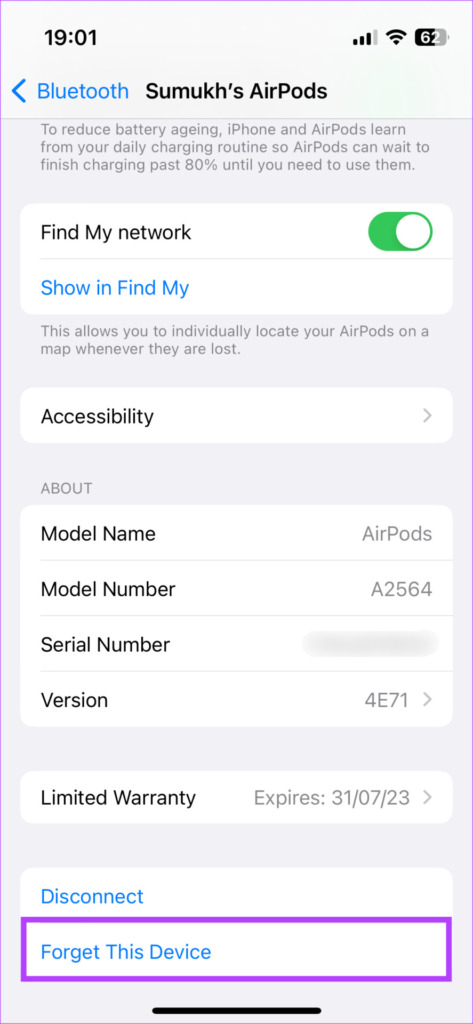
Step 1: Open the Settings app on your iPhone. Select the Bluetooth option.

Step 2: Tap on the ‘i’ button next to your AirPods.

Step 3: This will bring up your AirPods settings. Select ‘Forget This Device’.

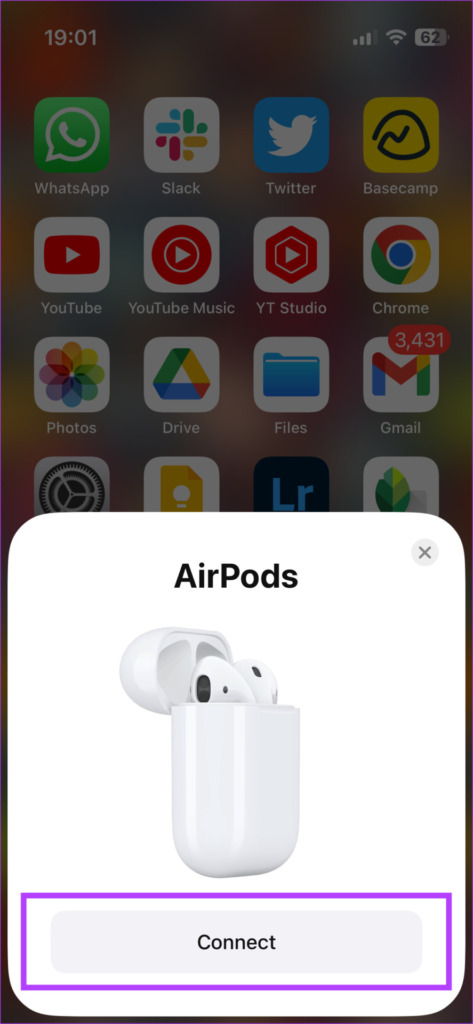
Confirm the selection and your AirPods will be unpaired from your iPhone. Close the AirPods case, bring it closer to your iPhone, and open the case again. You will see a pop-up on your screen to pair the AirPods.

Follow the instructions and your AirPods should be connected again.

5. Clean the Ear Tips of the AirPods

If you’ve been using your pair of AirPods for a long time, dirt might have accumulated on the ear tips and the speaker grille. This is especially true if you have the AirPods Pro with silicone ear tips. That can block the sound output or make it sound distorted.

Clean the ear tips on your AirPods by rubbing a soft microfiber cloth using Isopropyl alcohol. You can also use some Q-tips to remove any grime that may have settled there. Try using the earbuds to see if cleaning helps clear up the sounds.

6. Update Your AirPods to the Latest Firmware

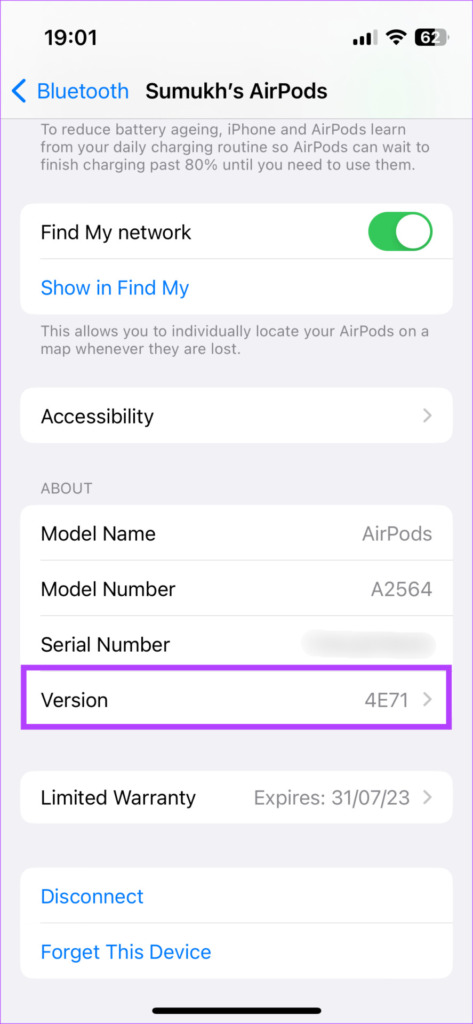
Just like your iPhone, the AirPods run on firmware developed by Apple. The firmware on the AirPods is responsible for all the features and proper functioning of the earbuds. There is a possibility that the firmware on your AirPods is buggy, causing the AirPods Pro static noise issue. If you hear some clicking noise in your AirPods or a fuzzy sound, try updating your firmware to see if it goes away.

If there is a newer version of firmware available for your AirPods, all you have to do is put your AirPods inside the case while they’re connected to your phone. Now, connect a lightning cable to your AirPods to start charging them, and the firmware update should take place in the background.

7. Factory Reset the AirPods

If none of the above solutions worked, you could try factory resetting your AirPods to see if it makes a difference. Here’s how to do it.

Step 1: Put your AirPods into the case. This will start charging it.

Step 2: Open the lid of the AirPods case.

Charge AirPods in case

Step 3: Press and hold the button at the back of the AirPods case for 15 seconds. The LED on the front of the AirPods case will start blinking white. Release the button when this happens.

Step 4: Close the AirPods case and open it again. You will get a prompt on your iPhone to connect your AirPods to it.

Pair it and you should now have a fresh start.

8. Check the Stereo Balance

Your AirPods are supposed to output stereo sound of equal magnitude on both sides by default. But, this can be altered via the audio balance setting on your iPhone. Even if you haven’t changed it manually, there could be a bug or a third-party app on your iPhone that could have changed the audio balance. This can result in AirPods static noise in one ear.

Here’s how you can change it back to normal, so you experience clean sound from both sides on your AirPods.

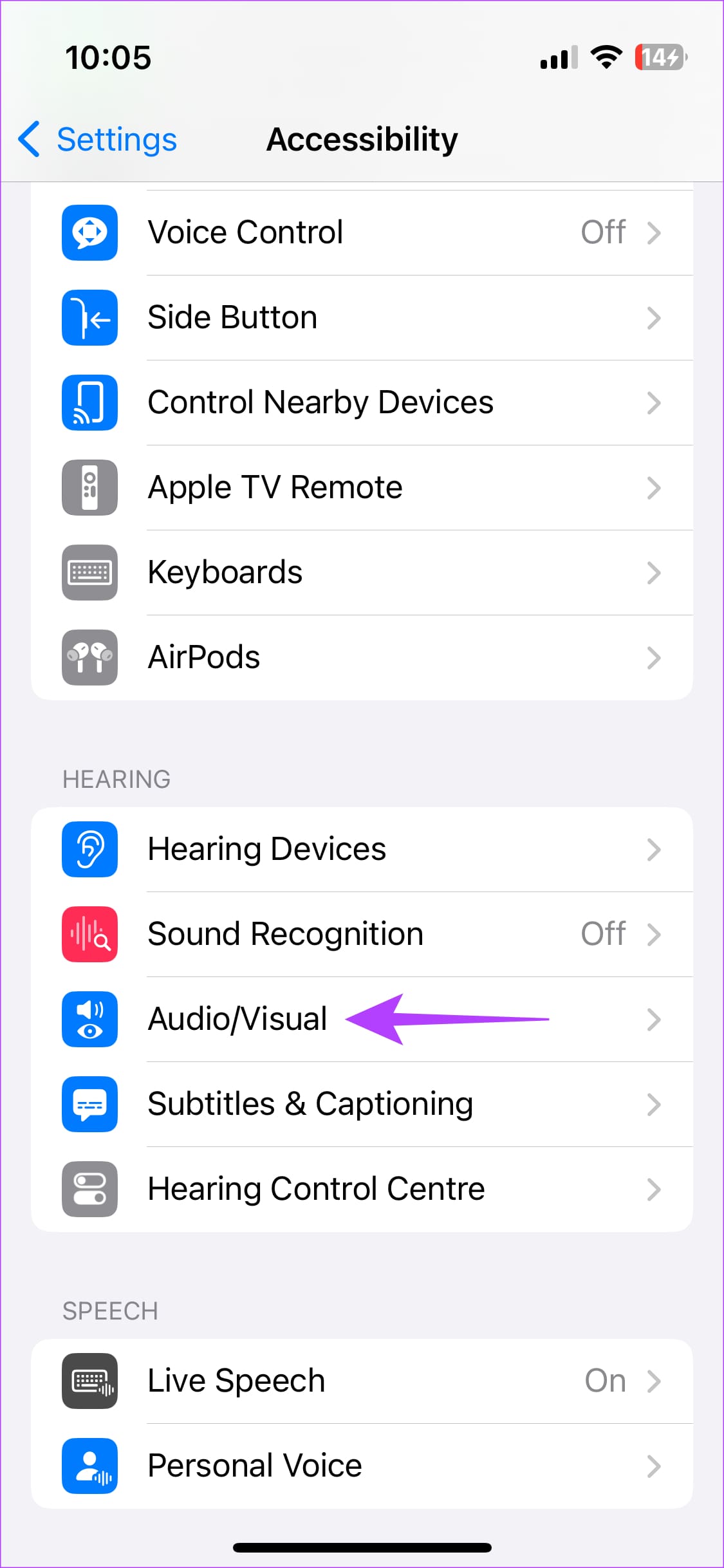
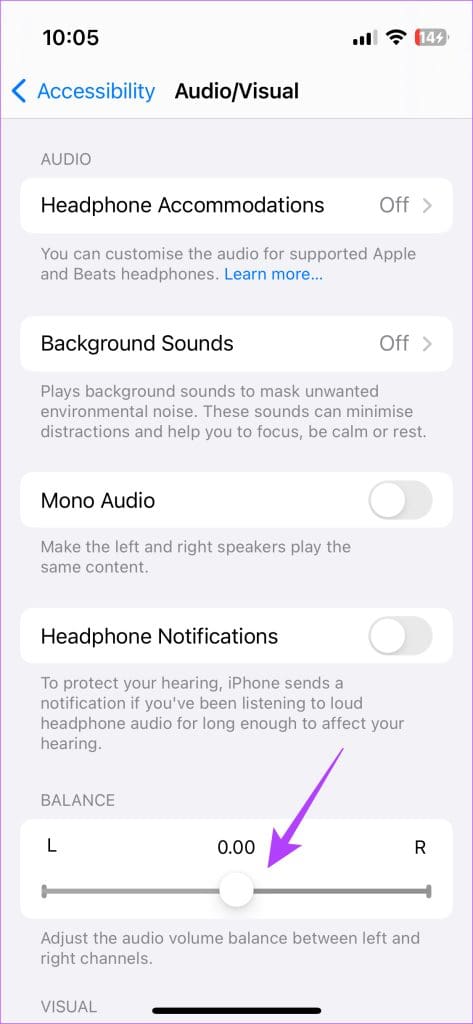
Step 1: Open the Settings app on your iPhone. Navigate to the Accessibility tab and select Audio/Visual.

Step 2: Set the slider to the center for equal output from both earbuds. If it’s to the left or the right, you will hear sound only from one side.

Airpods crackling new 3

9. Try Pairing Your AirPods With a Different Device

Sometimes, the crackling noise or popping sounds can be attributed to the device your AirPods are connected to. So if you’re using your AirPods with your iPhone, try connecting them to your Mac and see if you face the same issue. Similarly, if you’re facing the static noise issue with your Mac, connect your AirPods to your iPhone.

10. Connect Your AirPods to an Apple Device

We’ve personally experienced that connecting the AirPods to an Android or Windows device results in issues like popping or crackling sounds.

How to Connect Two AirPods to a Single iPhone, iPad or MacBook

So ideally, it’s best to connect your AirPods to an Apple device like an iPhone or a Mac.

11. Check if Your AirPods Are Eligible for Apple’s Replacement Program

All the fixes mentioned above can work if there’s an issue with the firmware on your AirPods. However, if there’s a hardware defect, it cannot be resolved using simple methods like these. In case there is a widespread hardware issue with a certain AirPods model, Apple will acknowledge it with a replacement program.

Head over to Apple’s Replacement Program page and check if your AirPods are eligible for a replacement. If they are, take them to a nearby Apple Store, and you should be able to get a new pair free of cost. Apple had initiated an AirPods Pro crackling sound recall so if you face any AirPods Pro rattling sound, you should ideally get it replaces.

FAQs for AirPods Crackling Issue

1. Why are my AirPods producing static noise?

There could be an issue with the firmware on your AirPods causing constant static noise. Or, it could be that there is a hardware defect creating this buzzing sound in your ears.

2. Can I get my AirPods replaced if they’re crackling?

If your AirPods are under warranty, or if they’re part of Apple’s service program, you can get them replaced free of cost.

3. Is it normal to hear static on AirPods?

No. If you hear any sort of irregular sound or defects on your AirPods, it’s time to fix it by following the above solutions or getting them replaced.

Keep the Static Noise Away

It’s surely not a pleasant experience if you can hear crackling sounds on your AirPods Pro. Follow these steps and you should be able to fix the AirPods Pro crackling sound. In case the problem persists, you can always take it to Apple if it’s under warranty or eligible for a replacement.

Was this helpful?

Thanks for your feedback!

3 Fixes for Voice Memos Not Recording Audio on iPhone

Basic Fixes

  • Check Microphone permissions for the Voice Memos app: Open Settings > Voice Memos > enable Microphone access.
  • Check internal storage: Your iPhone should have enough internal storage to store longer-duration voice memos.
  • Update iOS version: This will update the Voice Memos app on your iPhone.

Fix 1: Disable iCloud Backup for Voice Memos (if It Is Full)

If you are using iCloud to store voice memos but that’s running out of storage, disable the backup.

Open Settings > profile name > iCloud > Show All > disable Voice Memos backup.

Fix 2: Enable Background App Refresh

You must enable the Background App Refresh for the Voice Memos app on your iPhone. So, check whether Background App Refresh is enabled. Here’s how to do it.

Step 1: Open Settings on your iPhone and select Voice Memos.

Step 2: Check if Background App Refresh is enabled. If not, toggle it on.

Fix 3: Reset All Settings

Next, you can reset all settings on your iPhone to see if the Voice Memos app starts working. This method will restore all the default settings for your iPhone, so you don’t have to worry about data loss.

Open Settings > General > Transfer or Reset iPhone > Reset > Reset All Settings.

Was this helpful?

Thanks for your feedback!

Top 9 Ways to Fix Failed to Obtain IP Address Error on Android

Is your Android phone showing the ‘Failed to obtain IP address’ error while connecting to a Wi-Fi network? That happens when your phone fails to acquire an IP address from the router. It’s puzzling when the Wi-Fi networks fine with your computer but not your phone.

You can’t access then internet when your phone fails to obtain an IP address. Naturally, you’ll be reading this post on your laptop or a backup phone. We’ve listed out all the potential solutions for fixing the ‘Failed to obtain IP address’ error on Android. So, let’s check them out.

Note: For this post, we’ve used a Samsung phone with One UI running on it. The menu options and names might appear different on your Android phone.

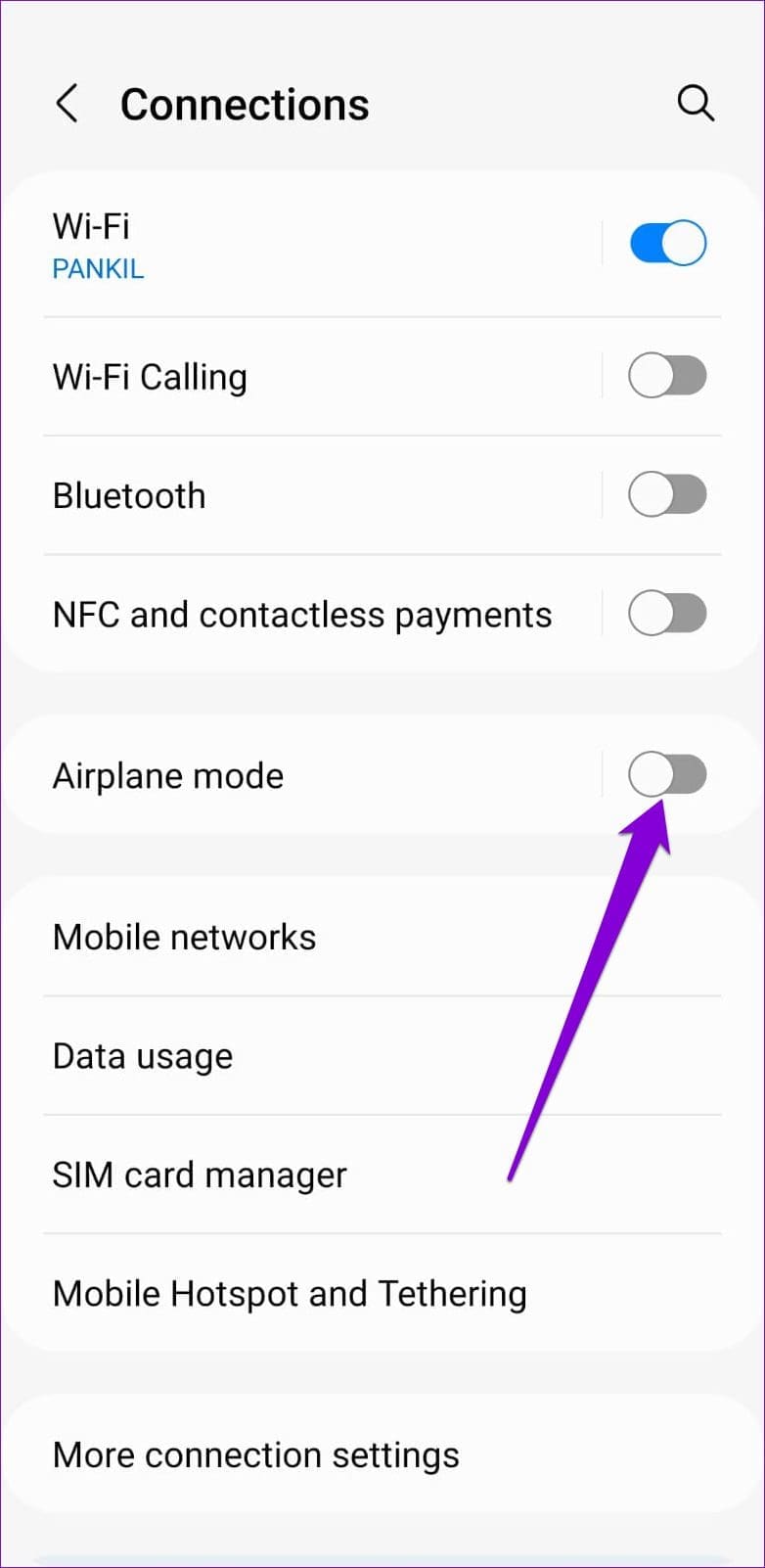
1. Toggle Airplane Mode

Toggling the Airplane mode is a basic way to refresh all the network connections on your Android. It helps fix any minor network-related issues leading to the ‘Failed to obtain IP address’ error.

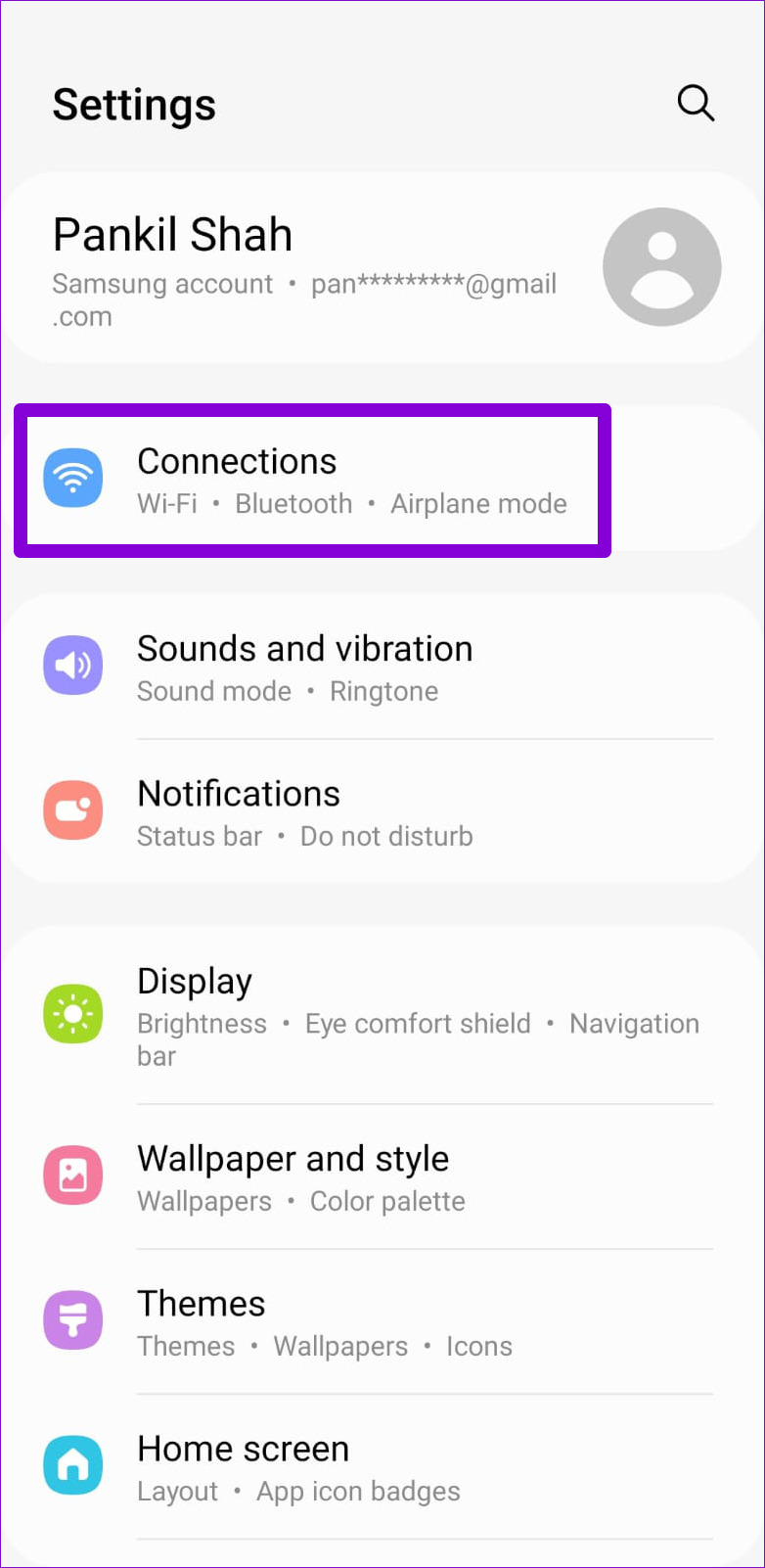
To enable Airplane mode on your phone, open the Settings app and navigate to Connections. Turn on the Airplane mode and then turn it back off after a few seconds. Then, check if your phone can connect to the network.

2. Forget the Wi-Fi Network

Next, you can try removing the Wi-Fi network from your phone and adding it again. This should help re-establish your phone’s connection to the network and resolve any issues caused by misconfigured settings.

Step 1: Open the Settings app, tap on Connections and select Wi-Fi from the following screen.

Step 2: Tap the gear icon next to your Wi-Fi network.

Step 3: Tap on Forget to remove the network from your phone.

Reconnect your phone to the network and see if the ‘Failed to obtain IP address’ error appears.

3. Use a Static IP Address on Your Phone

By default, your router uses DHCP (or Dynamic Host Configuration Protocol) to assign a unique IP address to each device that connects to the network. However, if your Android phone is having trouble obtaining an IP address, you may have to assign one manually.

Step 1: In the Settings app, navigate to Connections, and then tap on Wi-Fi.

Step 2: Tap the gear icon next to your Wi-Fi network.

Step 3: Tap on IP settings and select Static.

Step 4: Enter 192.168.1.X in the IP address field. Replace X with any number between 1 to 255.

Step 5: Tap on Save in the bottom-right corner.

4. Restart Your Router

If you still get the ‘Failed to obtain IP address’ error, there may be a problem with your router. You can give it a proper hard restart to check if that helps to fix the problem.

Unplug the router from the power source and wait for at least 30 seconds before plugging it back in. After your router reboots, try connecting your phone to the network again.

5. Turn Off MAC Filter

Enabling MAC address filtering on your router allows you to control which devices can connect to your network. If you haven’t whitelisted your phone’s mac address on the router (or have accidentally added it to the blacklist), it can’t connect to the network. You can check your router’s settings and disable Mac filtering to avoid this issue. Refer to your router’s user guide for instructions to disable MAC filtering.

6. Change Your Router’s Network Encryption

At times, security policy on the network might not match with that on your phone. Change your router’s network encryption type to WPA2-PSK from AES or TKIP. Since WPA2-PSK is more widely compatible, changing your router’s encryption mode, it might help resolve the issue.

7. Reset Your Router

If the problem persists even after correcting the router configurations, you may have to reset the router. Most routers have a Reset button that’s located on the back or side of the device. Before you proceed, make sure you note down the necessary details like IP addresses, login details, ISP details, DNS addresses, and other settings. Then, press and hold the Reset button until your router reboots.

8. Clear Google Play Services Cache

Outdated or corrupt Google Play Services cache data can also affect your phone’s performance and lead to various errors. Thankfully, it’s quite easy to clear Google Play Services cache. Here’s how to do it.

Step 1: Open the Settings app and navigate to Apps.

Step 2: Locate and tap on Google Play services on the list.

Step 3: Tap on Storage and tap the Clear cache option in the bottom right corner.

Restart your phone and try to connect to your network again.

9. Reset Network Settings

If none of the above solutions work, there may be a problem with your phone’s current network settings. You can reset all the network settings and start over. That means, you’ll have to configure Wi-Fi settings again. Your phone will automatically fetch the cellular network details. Here’s how you can reset Network settings on Android.

Step 1: Open the Settings app and go to General Management.

Step 2: Tap on Reset and select ‘Reset network settings’ from the following menu.

Step 3: Tap the Reset settings button to confirm.

After resetting the network settings, give some time to your phone to fetch and set cellular network details. Next, set up Wi-Fi on your phone and check if you still see the error.

Connected Again

It’s frustrating when your Android phone can’t connect to the internet due to the ‘Failed to obtain IP address’ error. We hope that the solutions listed above have helped you resolve any issues with your phone or router and you can access the internet on your phone.

Was this helpful?


Thanks for your feedback!

5 Best Smart Motion Sensors for Amazon Alexa

If you’re looking to build a smart home, you will need several key elements like smart lights, sensors, and a hub to power them all. It’s also important to choose which voice assistant you will use primarily so as to get products that are compatible with it. If you’re going with Amazon Echo, you might want to check out some Alexa-compatible smart motion sensors.

Alexa Smart motion sensor

You can use motion sensors for multiple purposes like toggling a light bulb or just notifying you about the movement in a certain area. Regardless of the use case, here are some of the best smart motion sensors for Amazon Alexa that you can buy. We’ve listed several types of motion sensors so pick the one that’s right for you.

Before we get to the products, though, here are some other articles that may interest you –

With that out of the way, here are the best motion sensors that work with Alexa.

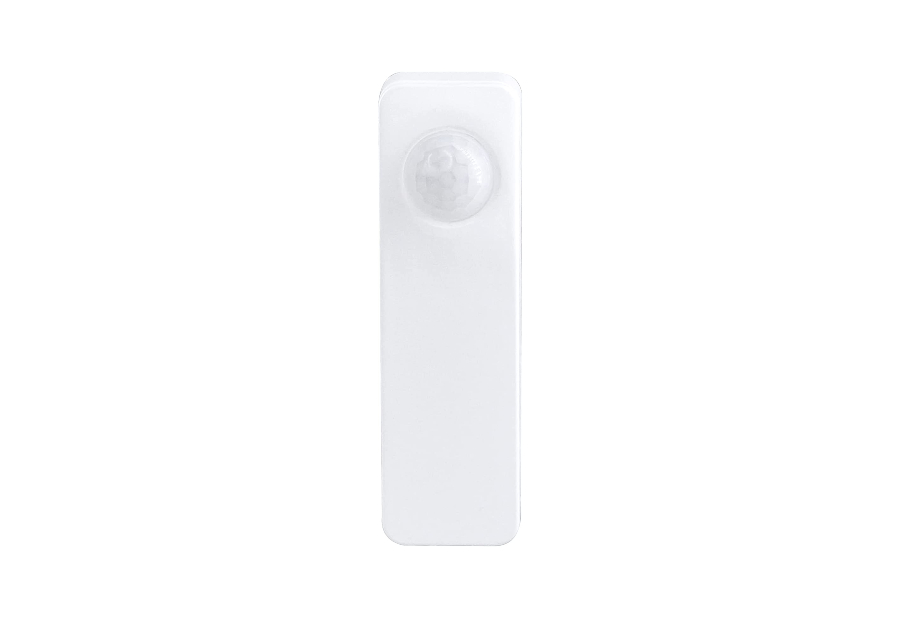
1. THIRDREALITY Zigbee Motion Sensor

Here’s one of the most affordable Alexa motion sensors that you can buy. The THIRDREALITY motion sensor uses the Zigbee protocol for connection which is quite popular. It’s small in size too so you can place it in a way that it’s not too evident. It’s capable of detecting motion up to 30ft away.

Zigbee is one of the most popular protocols when it comes to smart home devices, so it’s good to see that this Alexa-compatible motion sensor uses it. You can pair it with any Echo device that has a Zigbee hub like the Echo 4th gen, Echo Plus, or an Echo Show. Once paired, you can use the motion sensor to control lights, create routines, or just notify when your pet or child crosses it.

It’s useful in darker areas where you want lights to turn on as soon as you enter. The motion detector uses 2 AAA batteries that as per the brand’s claims, last for up to 2 years. The only downside to this smart motion sensor for Alexa is that it’s not independent and needs a Zigbee hub that everyone may not have. Purchasing the hub would add to the cost so unless you have an Echo device with Zigbee, you’d have to shell out more money.

2. TREATLIFE Motion Sensor

Here’s another motion sensor that operates on the Zigbee protocol. The TREATLIFE motion sensor has a slightly different design, though, and is much bigger than the one mentioned previously. This is because it has 360-degree coverage and is meant to be mounted on the ceiling. Once set up, you can program scenarios using the app to trigger based on movement.

Unlike the previous motion sensor that attaches to a wall, this one goes onto the ceiling and monitors the entire surrounding up to 20ft away for any movement. This is mainly helpful if you want to be notified of intruders or if you want to detect kids or pets entering a certain area in your house. It doesn’t use external batteries and instead, relies on a built-in battery that you need to charge once every 2 years.

While this motion sensor for smart lights is great, it requires you to purchase a hub from the same brand in order for it to work. If you’re planning to purchase more smart home products from this same brand, getting the hub makes sense. Another con as per the reviews is that you cannot use the Alexa app to set routines. So, you will have to resort to the brand’s custom app which isn’t very intuitive.

3. Ring Alarm Motion Detector

Ring is a company that’s owned by Amazon so you’re essentially getting a first-party smart motion sensor for Alexa in this case. This is the 2nd generation of the Ring motion detector which is now smaller and can ignore pets so you don’t get a false trigger. It’s easy to install since it only has an adhesive strip at the back and no screws.

Firstly, let’s just get it out of the way that you need a Ring Alarm Base Station for this motion sensor to work which you can purchase if you’re planning to invest further into the Ring ecosystem. The hub is also a Wi-Fi 6 router which is a bonus. Ring’s products are generally reliable so if you’re planning to set up a smart home, you can consider getting this hub along with other sensors or products from the brand.

The sensor itself uses 2 AA batteries and sticks to any surface using adhesive. This is the first con as per the reviews. You can use the adhesive only once so you cannot remove the device and stick it elsewhere. Another issue reported by users is that, though Ring claims it can ignore pets, this isn’t the case if you have a big dog. Keep this in mind if you don’t want your motion detector to trigger every time your pet passes it.

YoLink claims that this is the world’s longest range motion detector. It has a range of up to 1/4 mile which is incredible if you want to detect an intruder or just want to turn on your room’s lights from far away. Apart from this, a big advantage of this motion sensor is that it comes with a hub in the pack so you don’t have to purchase one separately.

The YoLink motion sensor is pretty small so you can mount it on your wall or the ceiling. Unlike most other motion detection sensors or any smart home devices for that matter, this one comes with a hub in the box which is also helpful if you plan on purchasing more products from the brand for your smart home needs.

The sensor uses AAA batteries which are claimed to last up to 2 years. Most reviews from users are also great with an emphasis on how sensitive it is, so even a slight movement triggers an alert. This is also a great option for those looking for an outdoor motion sensor that works with Alexa to use either in your patio or garage.

5. Kasa Smart Wi-Fi Motion Sensor Switch

All the previously mentioned products were motion sensors that could trigger a certain action or routine when motion was detected. Hence, they could perform multiple different functions. However, this one from Kasa is strictly a motion sensor switch. What this means is that you can only toggle the switch on or off when motion is detected, so it’s meant for a specific use case.

You need to tether the Kasa smart switch to the neutral wiring in your house, so you will need an electrician to install it for you. Once installed, the switch can be set to toggle on or off when it detects motion. You can link it to any type of bulb via the Kasa app. This makes it ideal for a bedroom or a living room where you want the light to turn on when you enter and turn off after a certain duration when you exit.

It also has a smart daylight detection mode that prevents the lights from being turned on during the daytime even if motion is detected. While the sensitivity is good, the only downsides are that you cannot use it as a motion sensor to send alerts to your phone, and you will need help setting it up as it requires some wiring, unlike all the other products that are just plug-and-play. It’s still a good product for a specific scenario, though.
FAQs for Alexa-Compatible Smart Motion Sensors

1. Can Alexa turn on lights from a motion sensor?
Yes, you can use motion sensors to turn on lights via Alexa.

2. How do I get Alexa to announce motion detection?

You can set up a routine where every time motion is detected, Alexa will notify you via an announcement. This can be done via the Alexa app on your phone.

3. Do motion sensors work in the dark?

Absolutely. Motion sensors work on the basis of detecting body heat so even if it’s dark, your motion sensor will work without any issues.

4. How many motion sensors do I need?

That totally depends on what you’re going to use them for. If you want to regulate your lights and make them smart throughout your house, you’re going to need as many motion sensors as the number of rooms.

Make Your Home Smarter

Motion detectors can be useful for various purposes right from turning on lights to notifying you of an intruder. You can even set routines like turning on the AC or the TV when you enter the living room. You can perform all of these functions by getting an Alexa smart home sensor that will make your home smarter and more efficient.

Was this helpful?

Thanks for your feedback!

What Are MIDI Files and How to Play Them in Windows 11

What Are MIDI Files?

Music producers typically use MIDI (Musical Instrument Digital Interface) files to record sound from electronic synthesizers. These files capture information about which musical notes/keys are played at a specific time.

It also includes details like how long or loud each note will be so that any software that supports MIDI playback can reproduce the sound sequence.

Although the data recorded in a MIDI file might seem rudimentary, MIDI offers much more flexibility compared to your regular MP3 or WAV audio files due to two reasons:

  • Lower file size: Compared to other audio files, MIDI files don’t contain the actual sound; they only contain the data required to reproduce it as a sequence of notes. Hence, the storage space needed to store a typical MIDI file is minuscule (in Kbs).
  • Editable even after recording: Unlike MP3 and WAV files, you can edit MIDI files on a per-note basis. Furthermore, the same MIDI file can be opened with different virtual instruments to reproduce the sound of any musical instrument, as MIDI only stores the data required to produce a sequence of notes but not the actual sound.

How to Open MIDI Files on Windows 11

The best method to play MIDI files is using the VLC Media Player. However, you can’t play MIDI files using VLC Media Player right out of the box. Once you download and install VLC Media Player on your PC, you must download a SoundFont file from FluidSynth codec to play the MIDI files.

Step 1: Launch VLC.

Step 2: Click on Tools > Preferences to install the codec into VLC.

VLC preferences

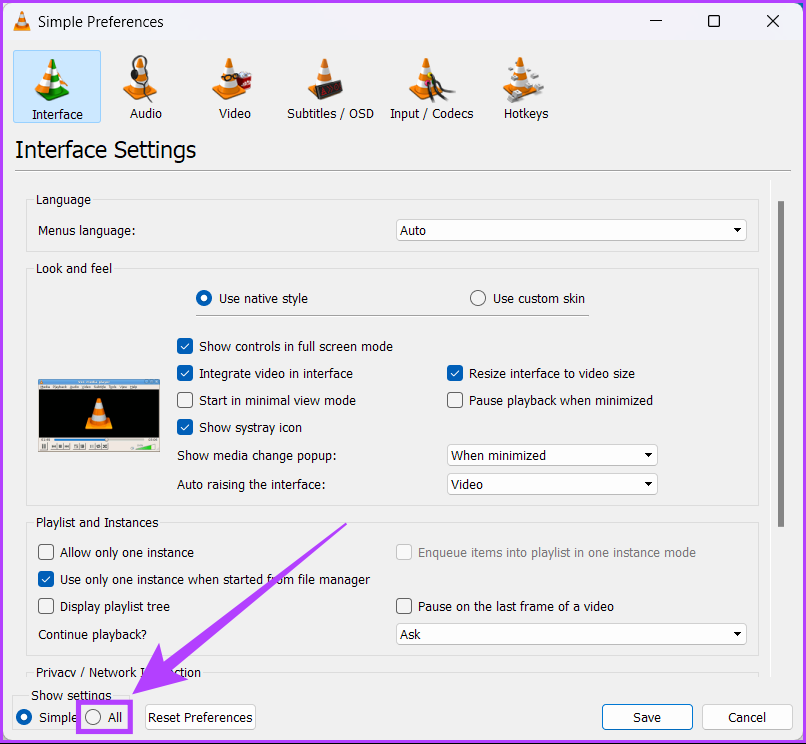
Step 3: When a Simple Preferences dialog appears on the screen > click on All at the bottom left corner.

Simple Preferences All option on VLC

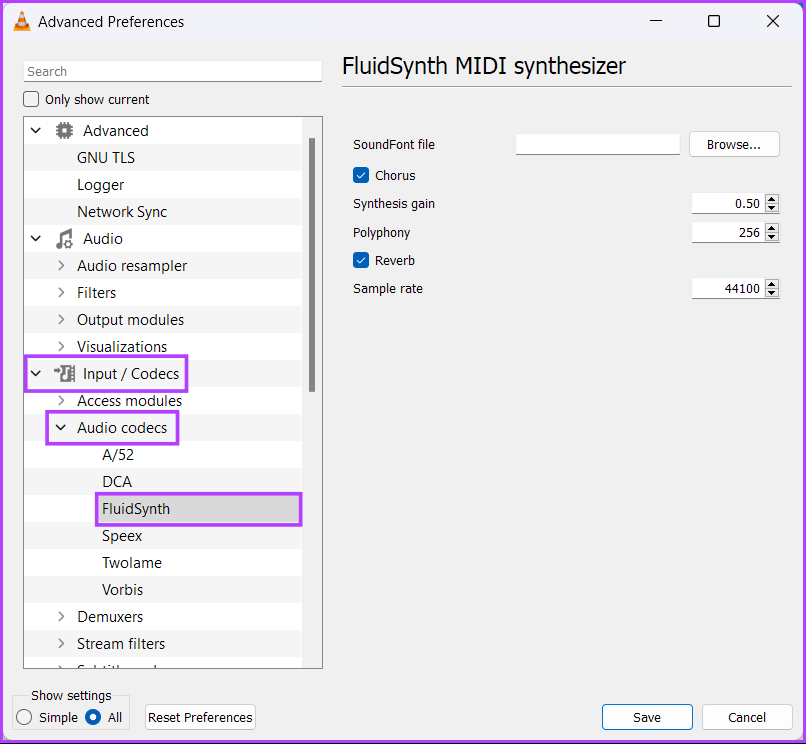
Step 4: Expand the Audio codecs drop-down from the Input/Codecs section and select FluidSynth.
FluidSynth codec option

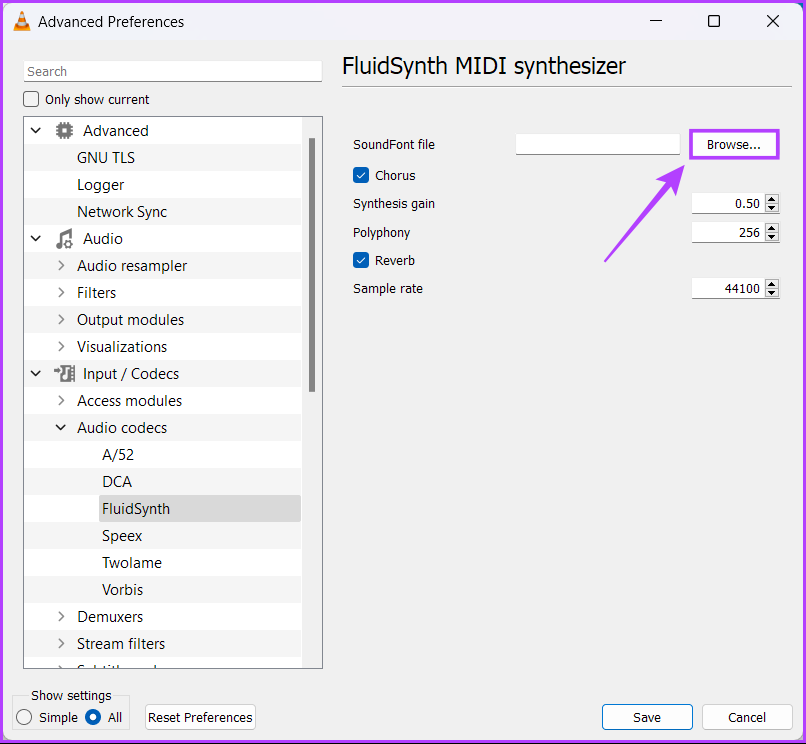
Step 5: On the right panel, click on Browse.
Browsing for new files

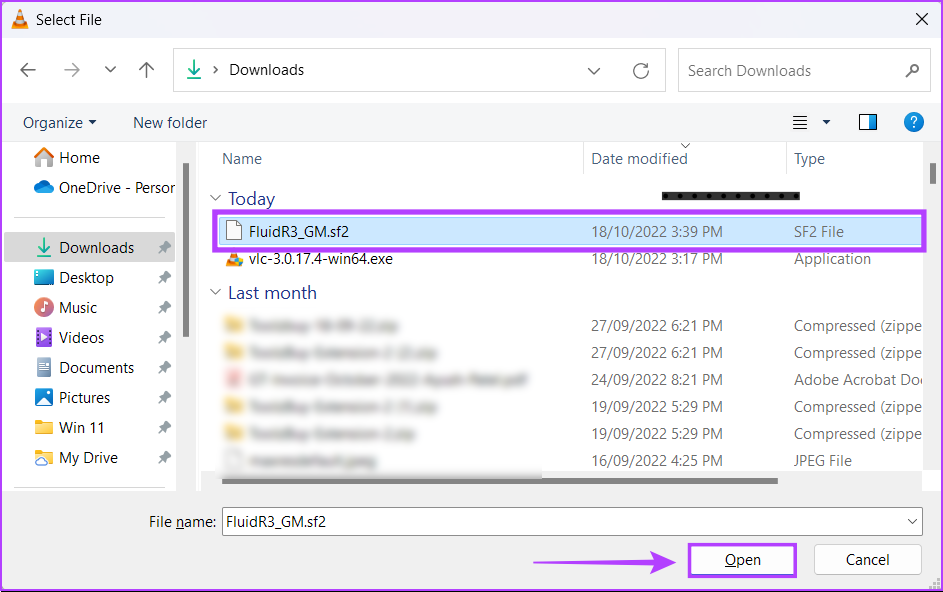
Step 6: Locate the SF2 (SoundFont) file you downloaded on your computer and click on it, followed by Open.

opening SoundFont

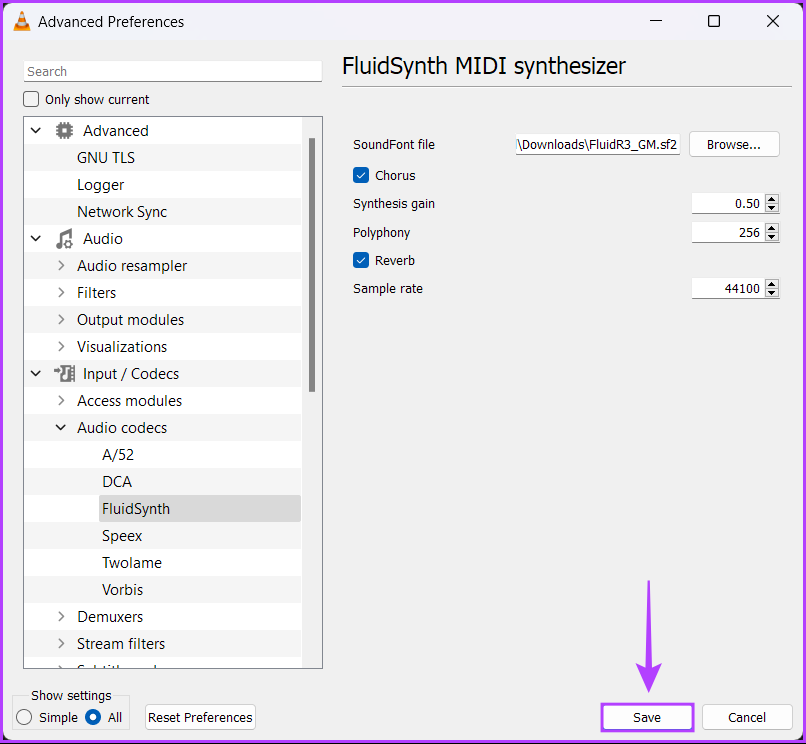
Step 7: Click Save to confirm the changes.

Saving the new changes

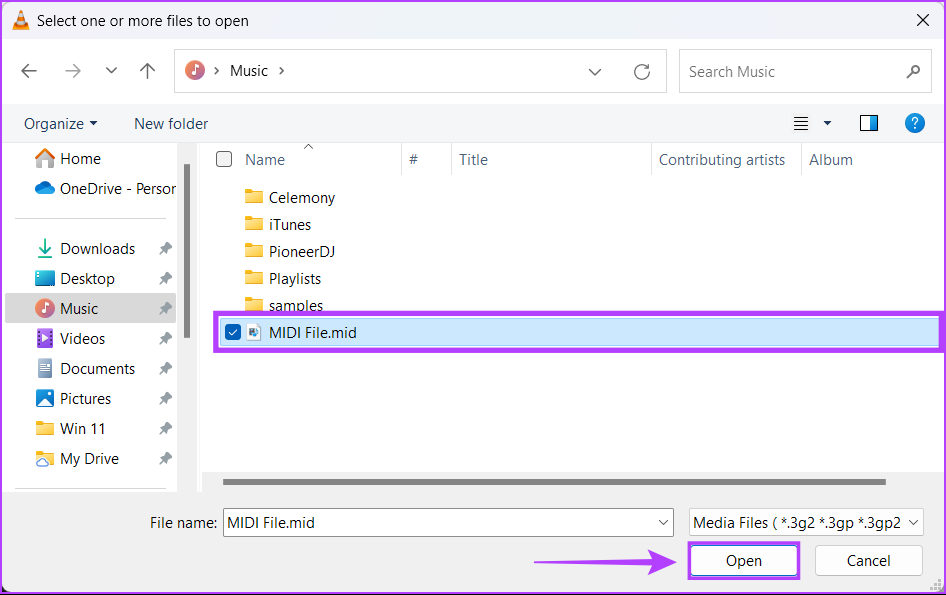
Step 8: Now, press the Ctrl + O keys simultaneously inside the VLC Media Player and select the MIDI file(s) you want to play. Then, click on Open.

Selecting IDI files for VLC

Was this helpful?

Thanks for your feedback!

6 Ways to Fix Slow USB File Transfer in Windows 11

Fix 1: Change USB Drive Policy to Better Performance

By default, Windows 11 employs the Quick Removal policy for all USB devices. Changing the USB policy for your device to Better Performance can improve data transfer speeds on Windows 11. Here’s how to do the same.

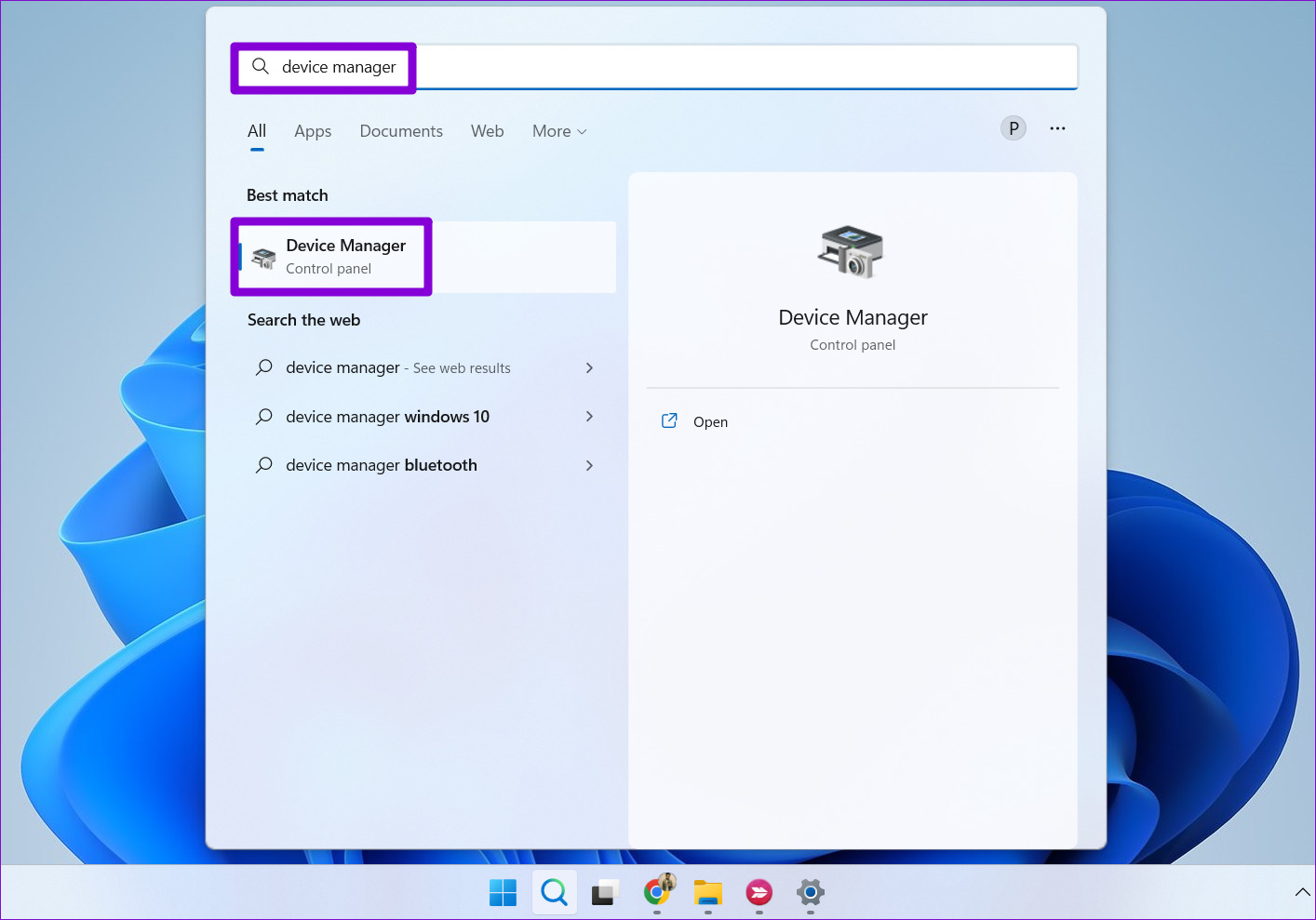
Step 1: Click the search icon on the taskbar, type device manager, and press Enter.

Open Device Manager on Windows

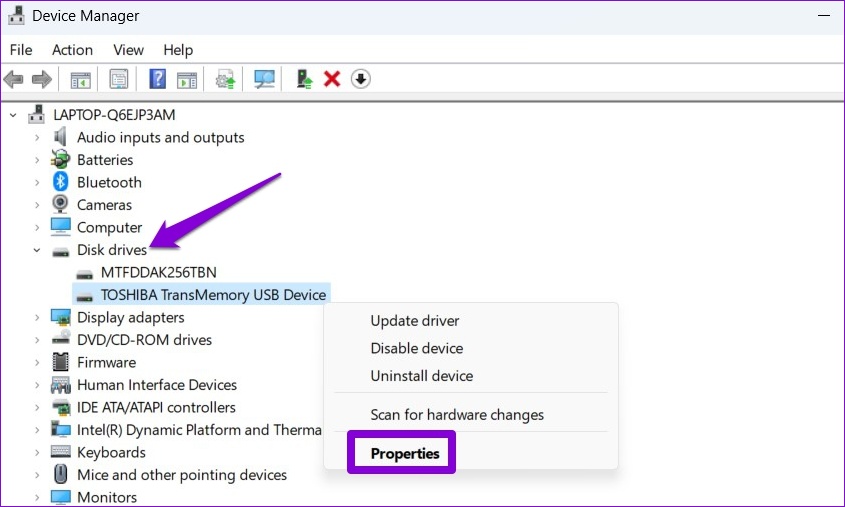
Step 2: Expand Disk drives, right-click on your USB drive, and select Properties.

Open USB Drive Properties

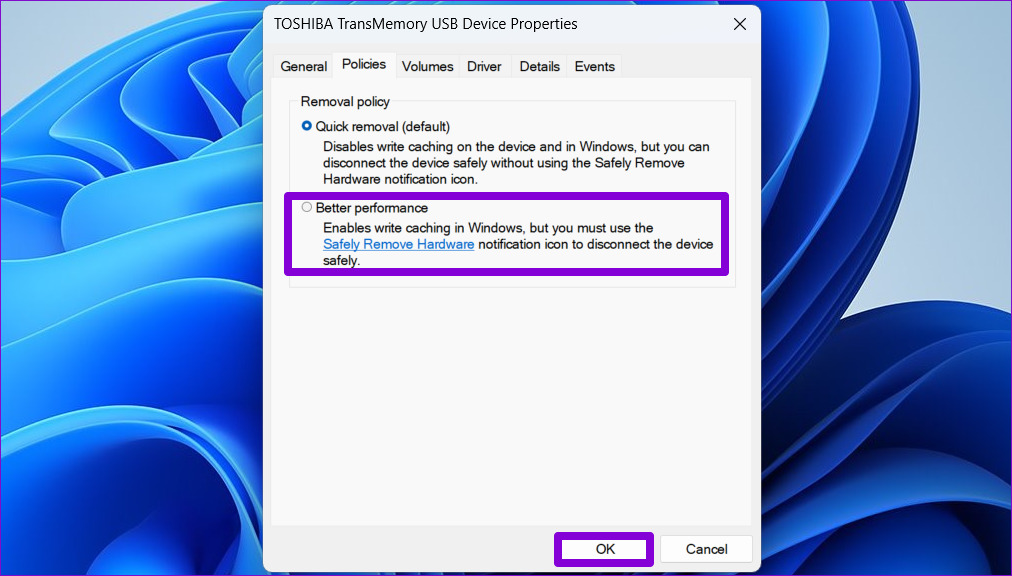
Step 3: In the Device Properties window, navigate to the Policies tab and select Better performance. Then, hit OK.

Change Hardware Removal Policy

Fix 2: Check the USB Device for Errors

Problems with your USB device can cause slow file transfer speeds on Windows. You can scan your storage device for file system errors or bad sectors to see if that helps.

Step 1: Press the Windows key + E to open File Explorer.

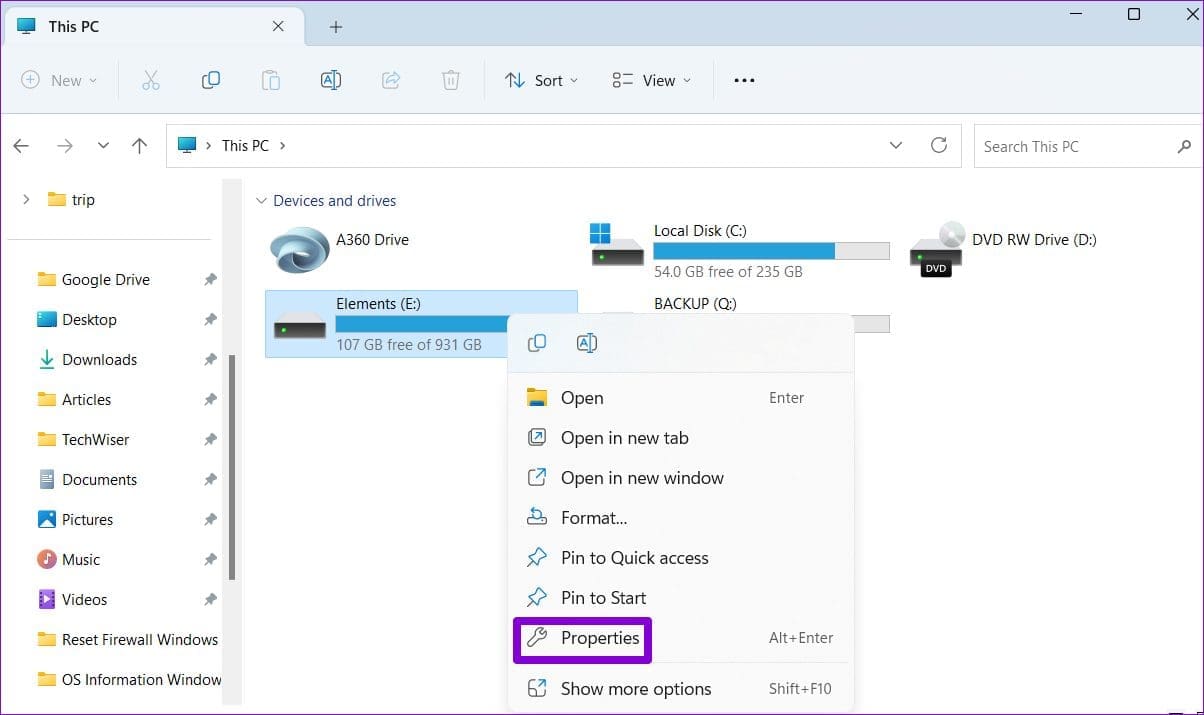
Step 2: Navigate to This PC, right-click on your drive, and select Properties.

USB Drive Properties

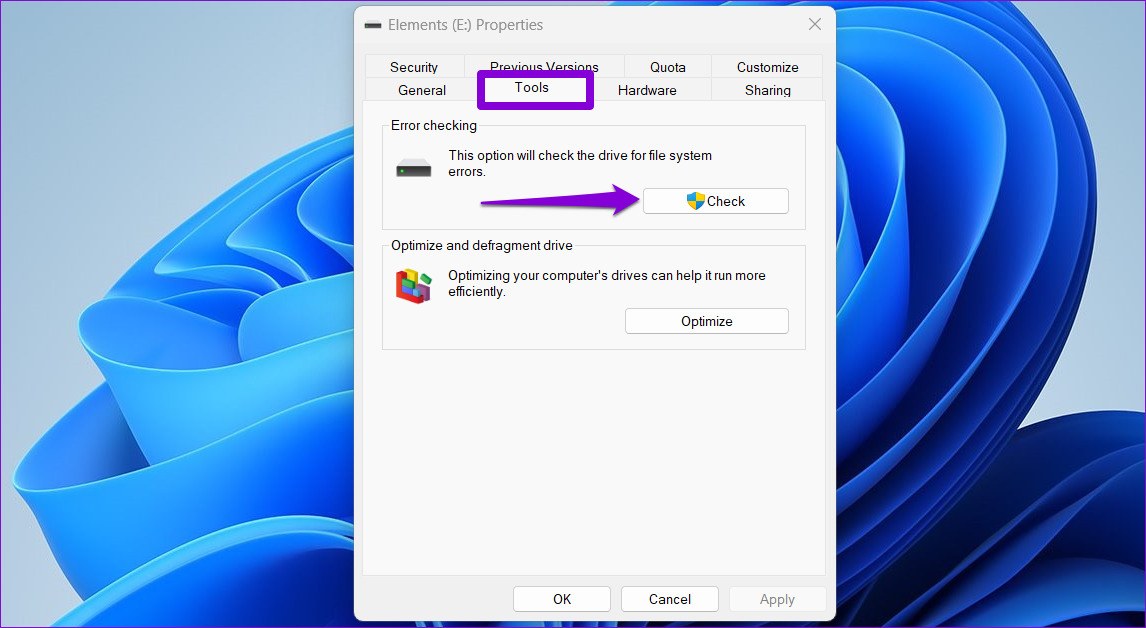
Step 3: Under the Tools tab, click the Check button next to Error checking.

Check Drive for Errors

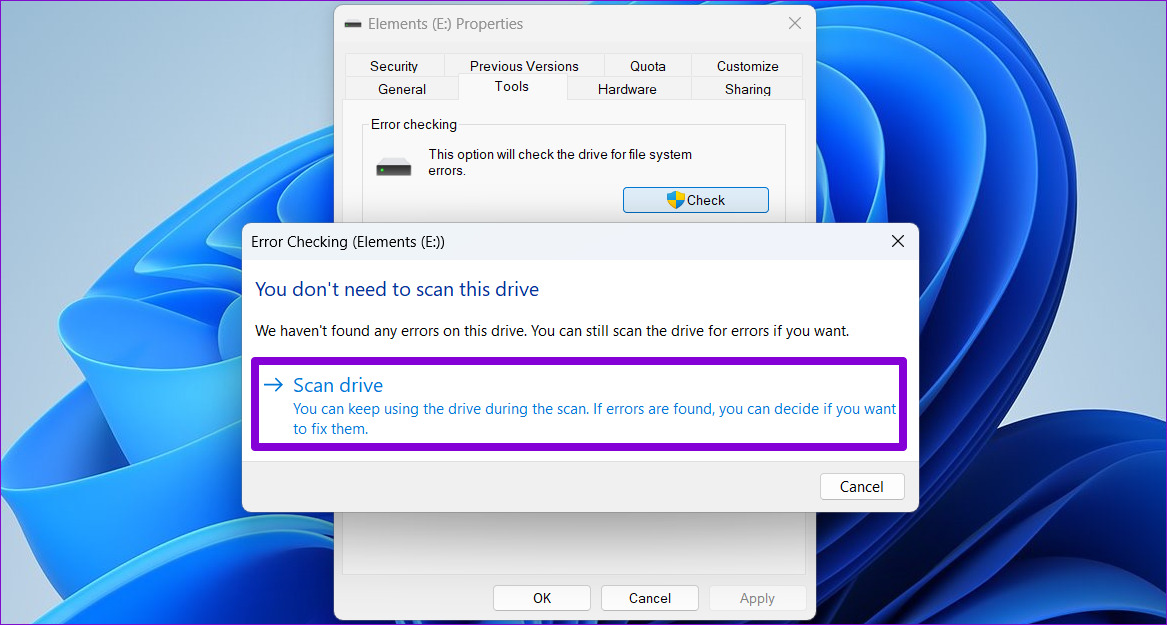
Step 4: Select Scan drive.

Scan Drive for Errors

If Windows finds any issues with your drive, follow the on-screen prompts to resolve them.

Fix 3: Change File System for USB Device to NTFS

Another thing to look at is the file system your USB drive uses. If it uses the FAT32 file system, you must wait longer while transferring large files to and from your drive. In that case, you can change the file system for your drive from FAT32 to NTFS to get better transfer speeds.

Since this process necessitates formatting the drive, ensure you back up all your drive content before proceeding.

Step 1: Press the Windows key + E to launch File Explorer and navigate to This PC using the left pane.

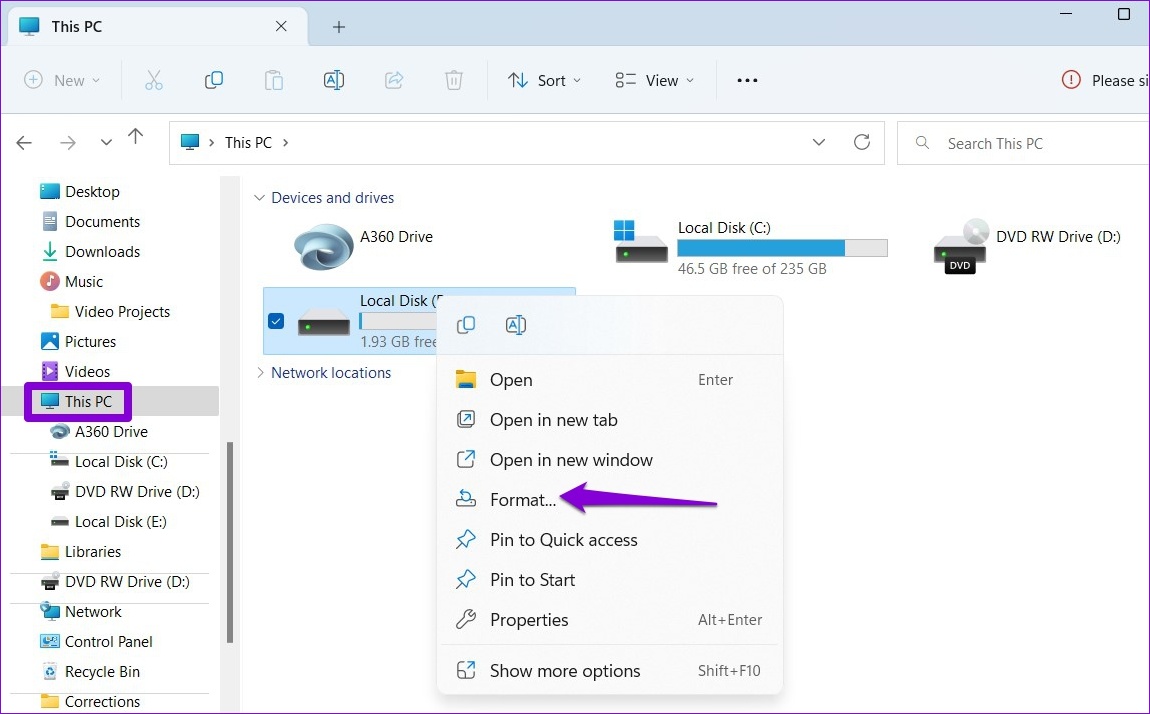
Step 2: In the right pane, right-click on your USB device and select Format.

Format Drive Using File Explorer

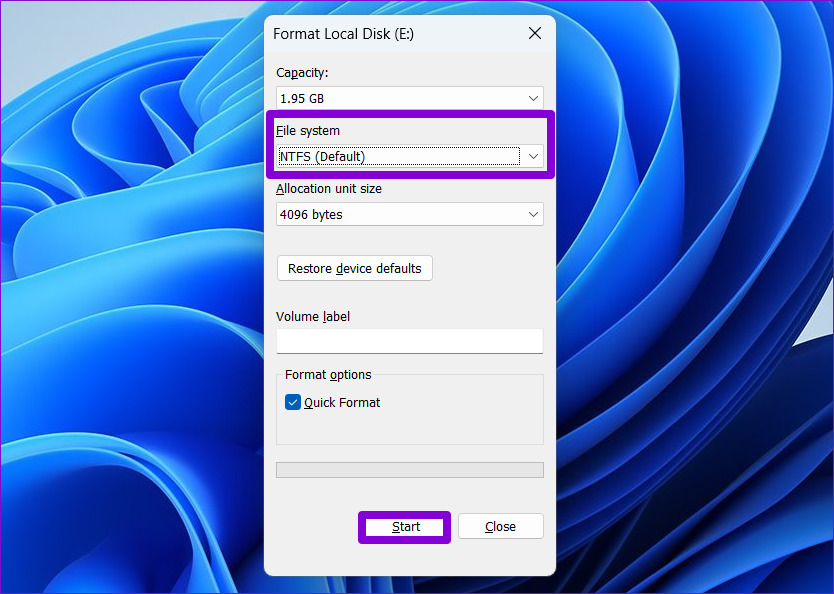
Step 3: Select NTFS under File system and click Start.

Format Drive to NTFS

You should notice an improvement in file transfer speeds after formatting your USB drive to the NTFS file system.

Fix 4: Restart Optimize Drives Service

Optimize Drives is a Windows service that helps the system run more efficiently by optimizing files on storage drives. If this service is not running, you could experience slow USB file transfer speeds in Windows 11. Here’s what you can do to fix it.

Step 1: Press the Windows key + R to launch the Run command, type services.msc, and press Enter.

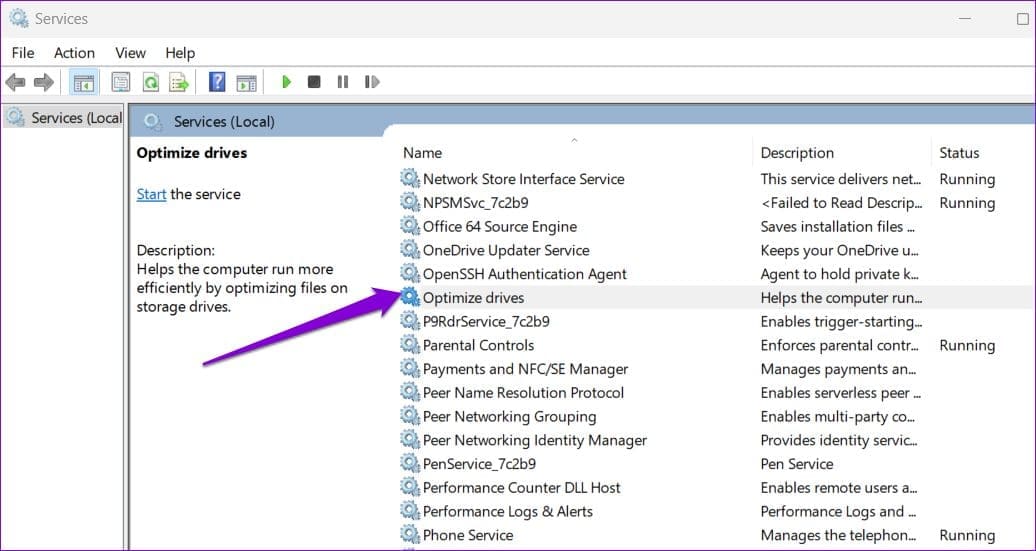
Step 2: In the Services window, locate and double-click on the Optimize drives service to open its properties.

Optimize Drives Service

Step 3: Change the Startup type to Automatic and click Apply, followed by OK.

Configure Optimize Drives Service

Fix 5: Disable Drive Indexing

Drive Indexing is a useful feature that lets you quickly search for files on your external drive. However, this feature can also slow down other operations. To avoid that, disable the drive indexing feature for your USB drive by following the steps below.

Step 1: Press the Windows key + E to launch File Explorer, right-click on your drive, and select Properties.

USB Drive Properties

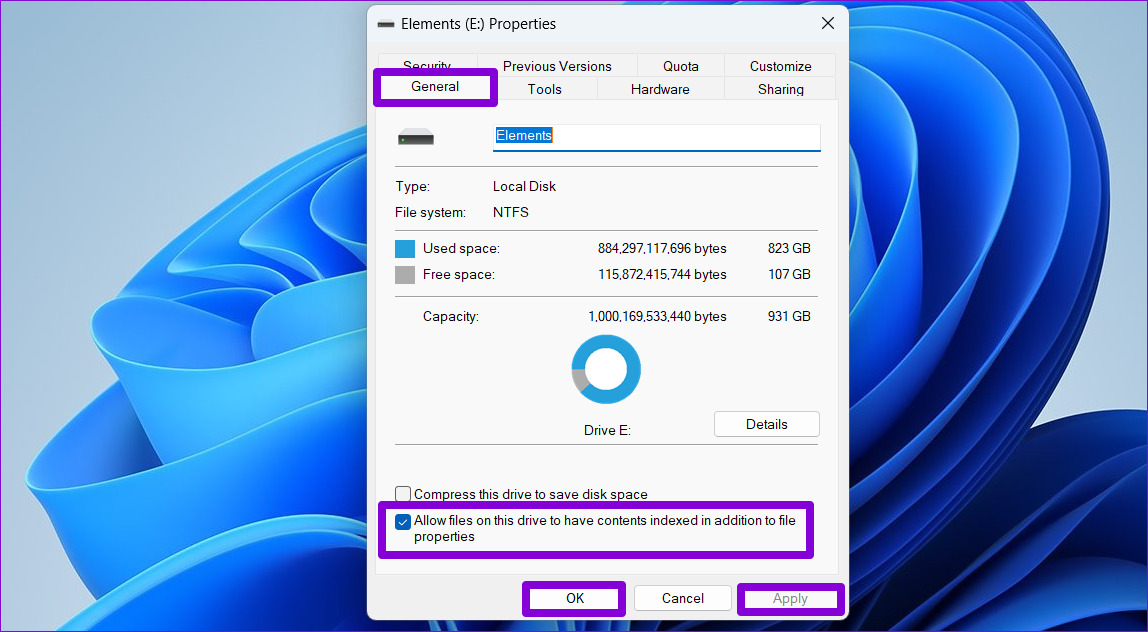
Step 2: Under the General tab, uncheck the Allow files on this drive to have contents indexed in addition to file properties box. Then, hit Apply, followed by OK.

Disable Drive Indexing

Fix 6: Update USB Drivers

Outdated or faulty USB drivers can also slow down USB file transfers in Windows. In that case, updating the USB device drivers should help fix the issue.

Step 1: Open Device Manager using the search menu and double-click on Universal Serial Bus controllers to expand it.

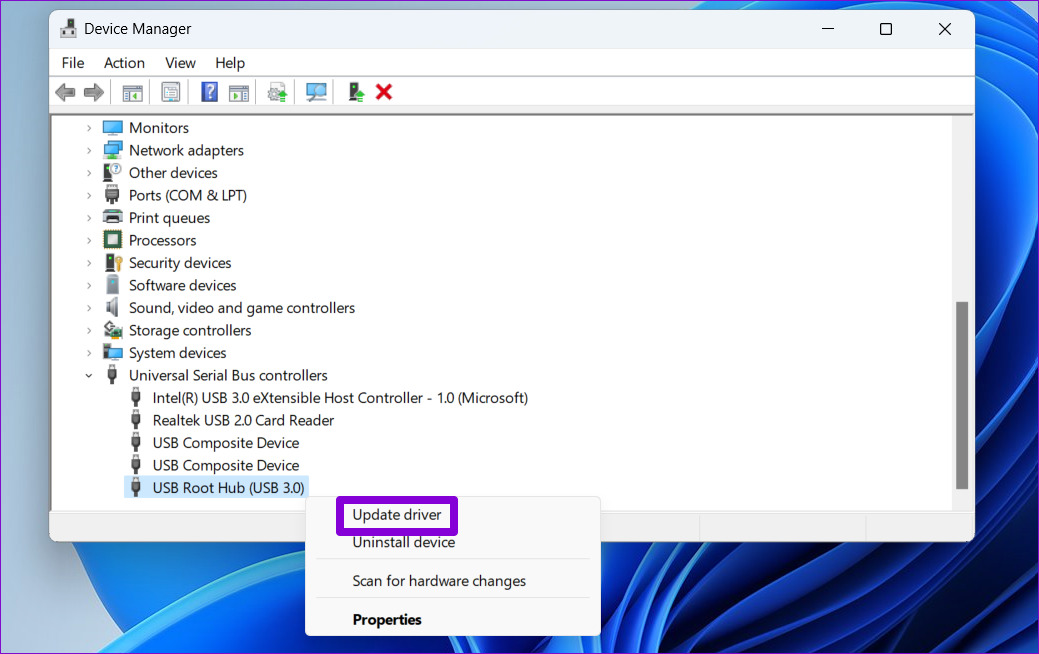
Step 2: Right-click on the first USB Root Hub > select Update driver from the list.

Update USB Driver

Then, follow the on-screen instructions to finish the process. If your PC has multiple USB ports, update each of them using the steps outlined above.

Was this helpful?

Thanks for your feedback!

4 Fixes When Microsoft Teams Notifications Are Not Working in Google Chrome

Basic Fixes:

  • Ensure Team status is not set to DND: If you set your status to Do Not Disturb, you will not get notifications by default. So, click on your profile icon at the top right, click Do Not Disturb, and change it to Available.
  • Ensure Teams channels are not muted: If a channel has been muted, right-click it > click Channel notifications > select All activity.
  • Turn off Focus (Mac): Focus will cut all notifications on your Mac computer. To turn it off, open Control Center > disable Focus.

Fix 1: Enable Notifications on the Team Service

The first call should be to ensure that notifications have not been disabled on Team web. Follow the steps below to enable Teams notifications for your account in Google Chrome.

Step 1: From Teams web, select the three-dot menu at the top.

Step 2: Select Settings.

Teams settings option

Step 3: Click Notifications from the left sidebar.

Notifications option in Team

Step 4: Enable the Show message preview toggle.

Show message preview

Fix 2: Enable Google Chrome Notifications

You may have notifications turned off on Windows and Mac. To receive push notifications from web apps, Windows and Mac users must turn on Google Chrome alerts.

On Windows

Step 1: Press the Windows + I keys to open the Settings app on your Windows computer.

Step 2: Select System from the left sidebar and click Notifications from the right pane.

Windows notification settings

Step 3: Enable the toggle for Google Chrome from the following menu.

Google Chrome notifications

On Mac

Step 1: Click the Apple logo at the top-left corner and open the System Preferences/System Settings menu.

System Preferences in Mac

Step 2: Select Notifications & Focus.

Mmac Notifications & Focus

Step 3: Select Google Chrome from the left sidebar. From the right pane, enable the Allow Notifications toggle.

Google Chrome Allow notifications on ac

Fix 3: Enable Teams Web Notifications

After you enable Chrome notifications on Windows and Mac, repeat the same for Teams web and receive real-time alerts.

Step 1: Visit Microsoft Teams in Google Chrome and log in with your account details.

Step 2: Teams will ask you to turn on desktop notifications. Select Turn on.

Turn on option

Step 3: Hit Allow at the top.

Allow notifications in Teams

Fix 4: Add Teams URL in the Allowed List in Chrome Settings

Chrome has an allowed list where you may add URLs to ensure they can send notifications to your computer. Add the Teams website to this list to resolve the problem.

Step 1: Launch your Chrome browser.

Step 2: Type the path below into your address bar and hit Enter.

chrome://settings/content/notifications

Step 3: Click Add under Allow to send notifications.

Add under allow to send notifications

Step 4: Include the URL below and hit the Add button.

https://teams.live.com/
Add the URL

Was this helpful?

Thanks for your feedback!

5 Fixes for ‘This Connection Is Not Private’ in Safari on iPhone and iPad

What Is ‘Your Connection Is Not Private’ in Safari

  • The message is displayed when your browser is unable to authenticate a secure connection between the website and your device. This implies that your browser is unable to check whether a website is secure.
  • To safeguard your privacy and the security of your data, your web browser examines the security certificate of the website. Your personal information may be exposed to cyber-attacks if a certificate is weak and outdated.

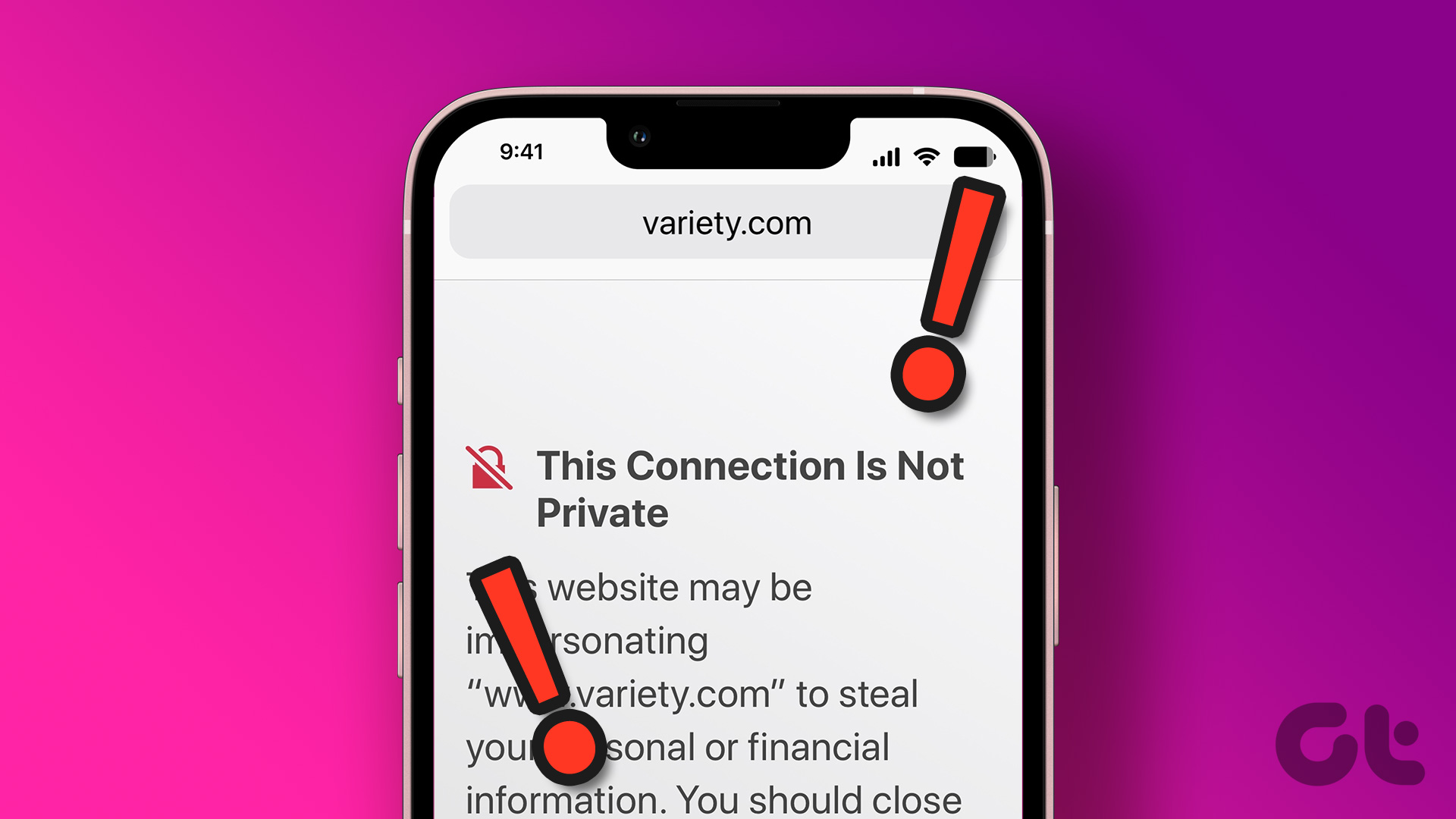
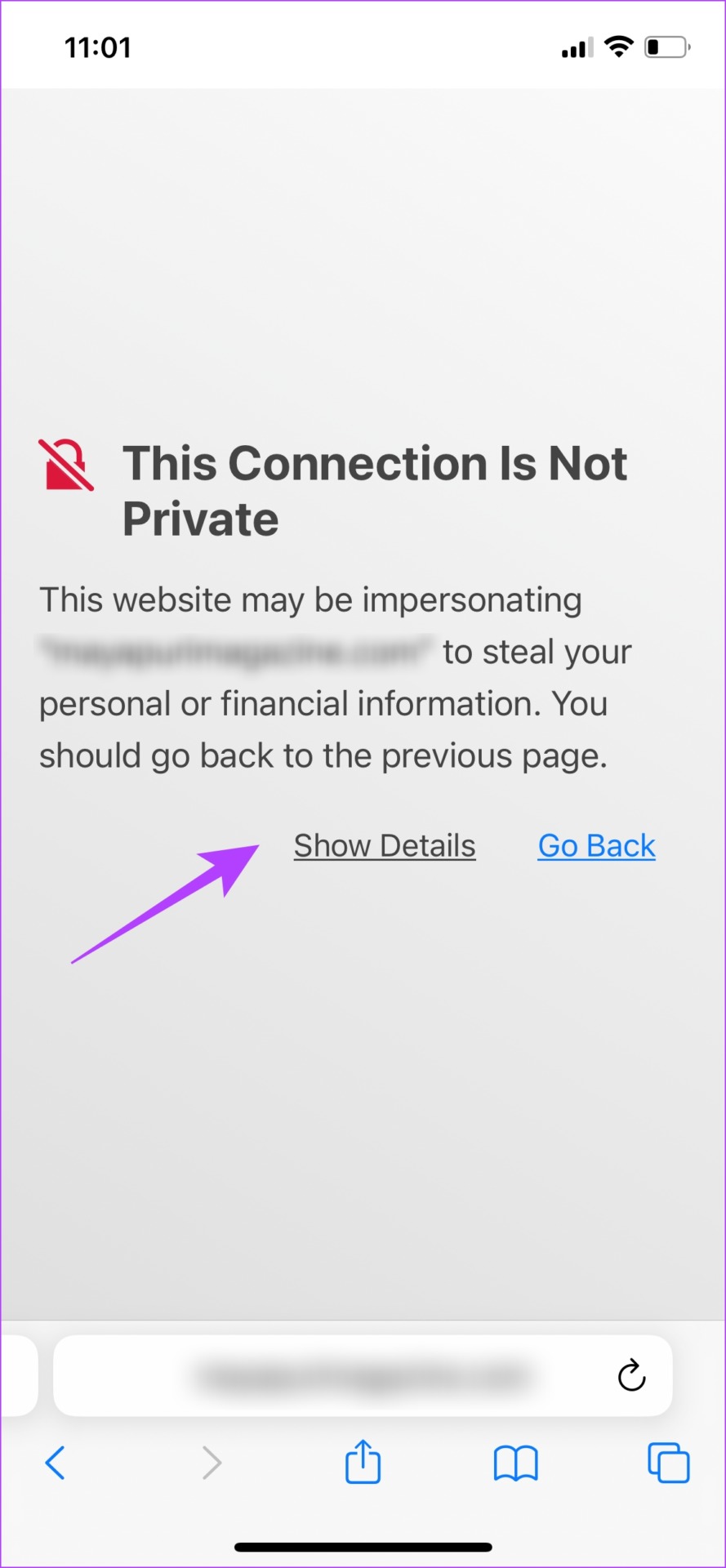
Overall, it means that your connection isn’t secure, and the error shouldn’t be disregarded. You might see an error message like this, in Safari.

Fix 1: Clear Safari Data

Cache and junk files on Safari can cause issues with opening websites that end up showing the error message. Doing this will delete your browsing history.

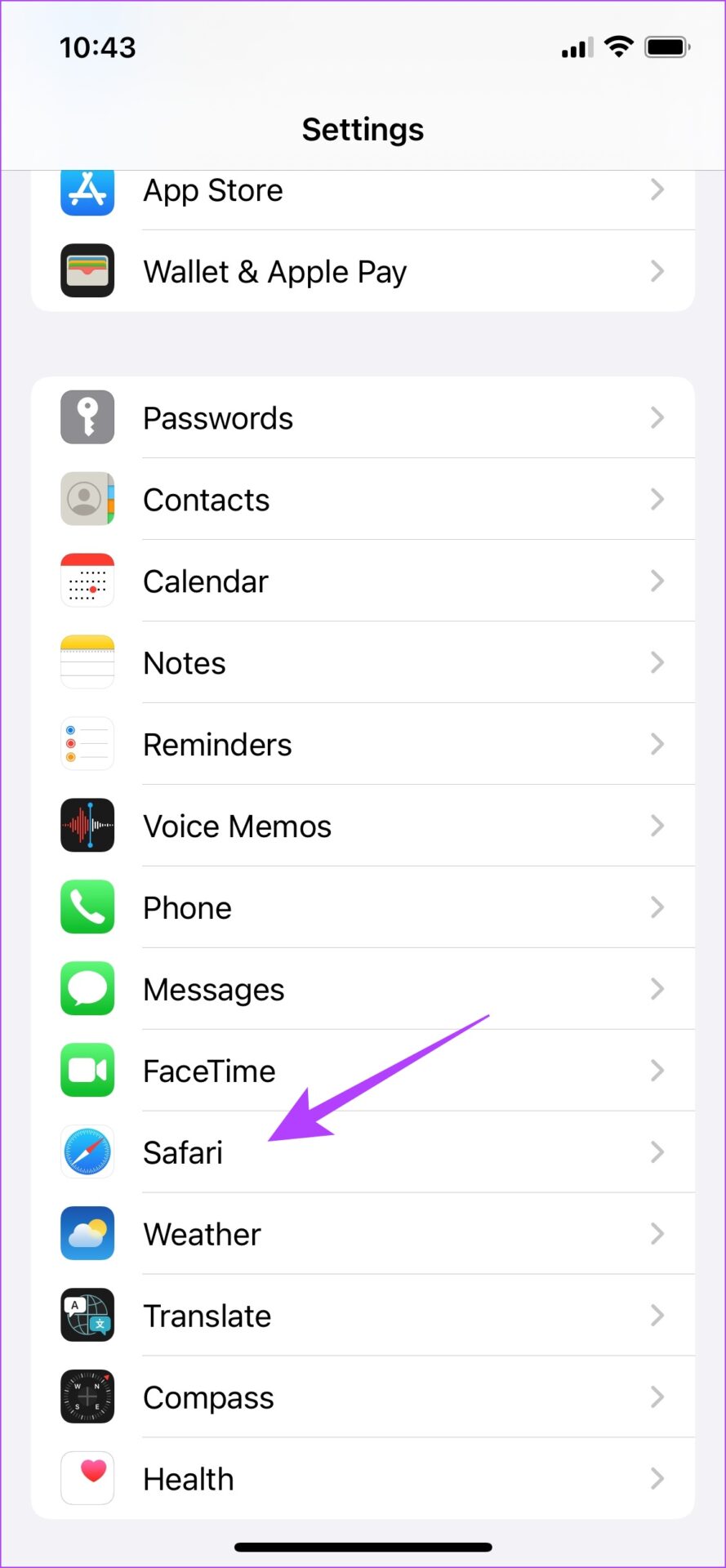
Step 1: Open the Settings app and tap on Safari.

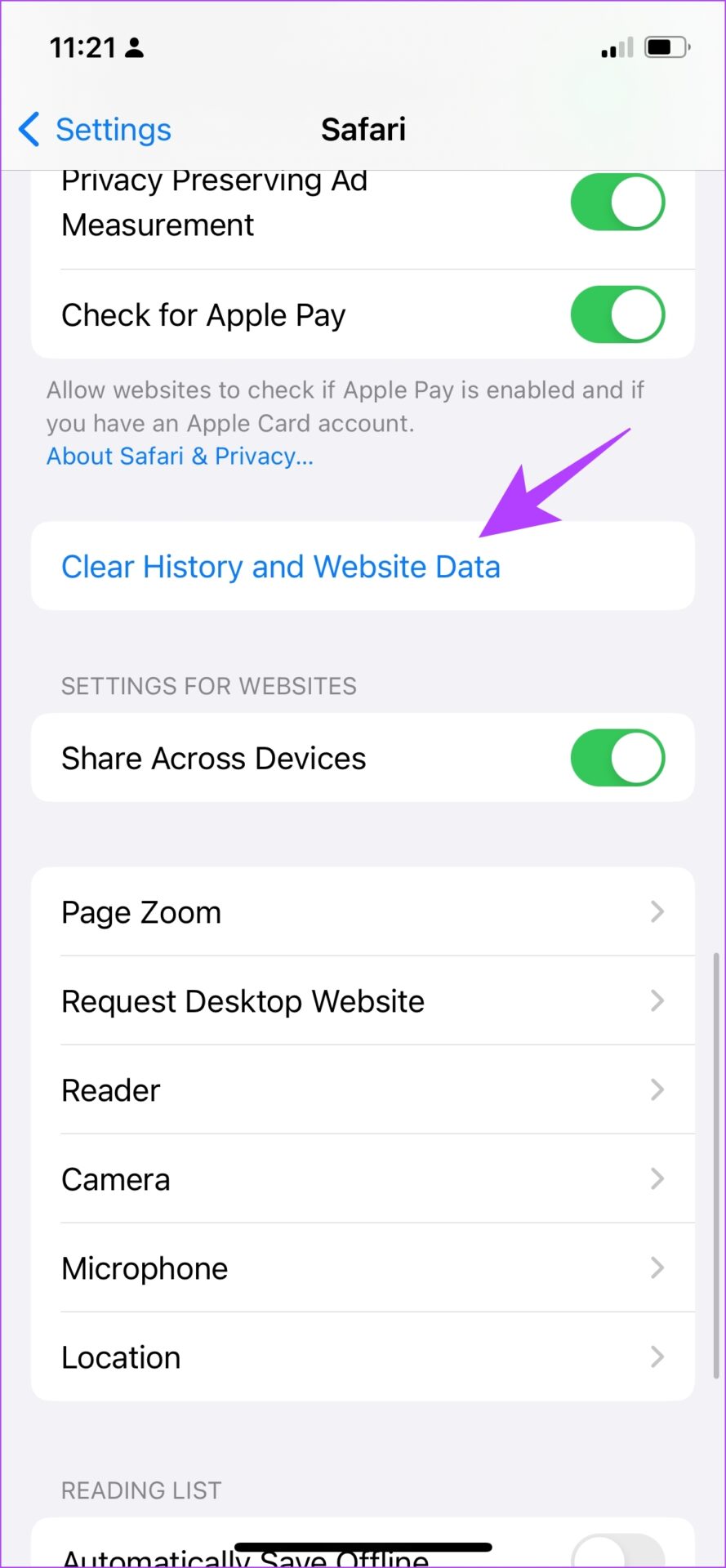
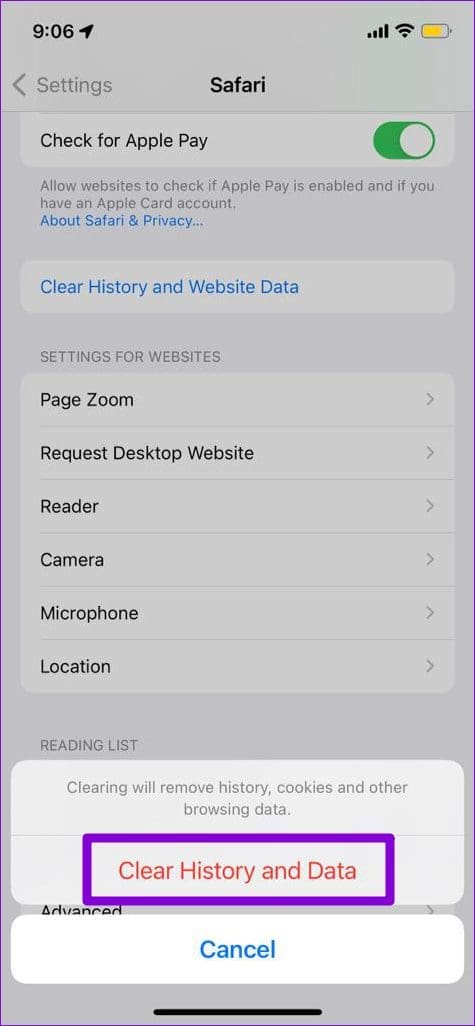
Step 2: Tap on Clear History and Website Data. Select Clear History and Data.

Fix 2: Use Private Mode

When you view a webpage in private mode, your data won’t be saved locally, and you will not be signed into any account. Thus, you can try to dismiss the error by accessing the website in private mode.

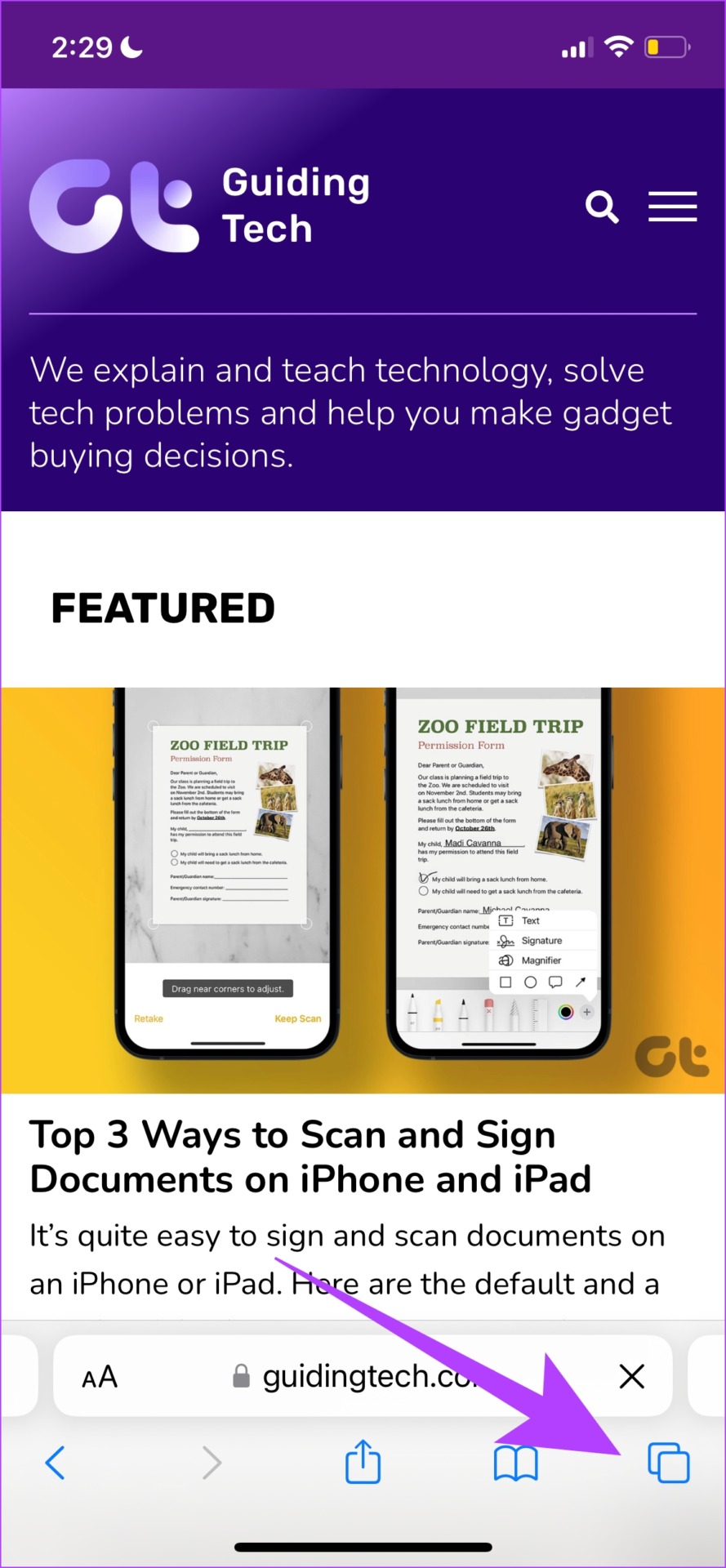
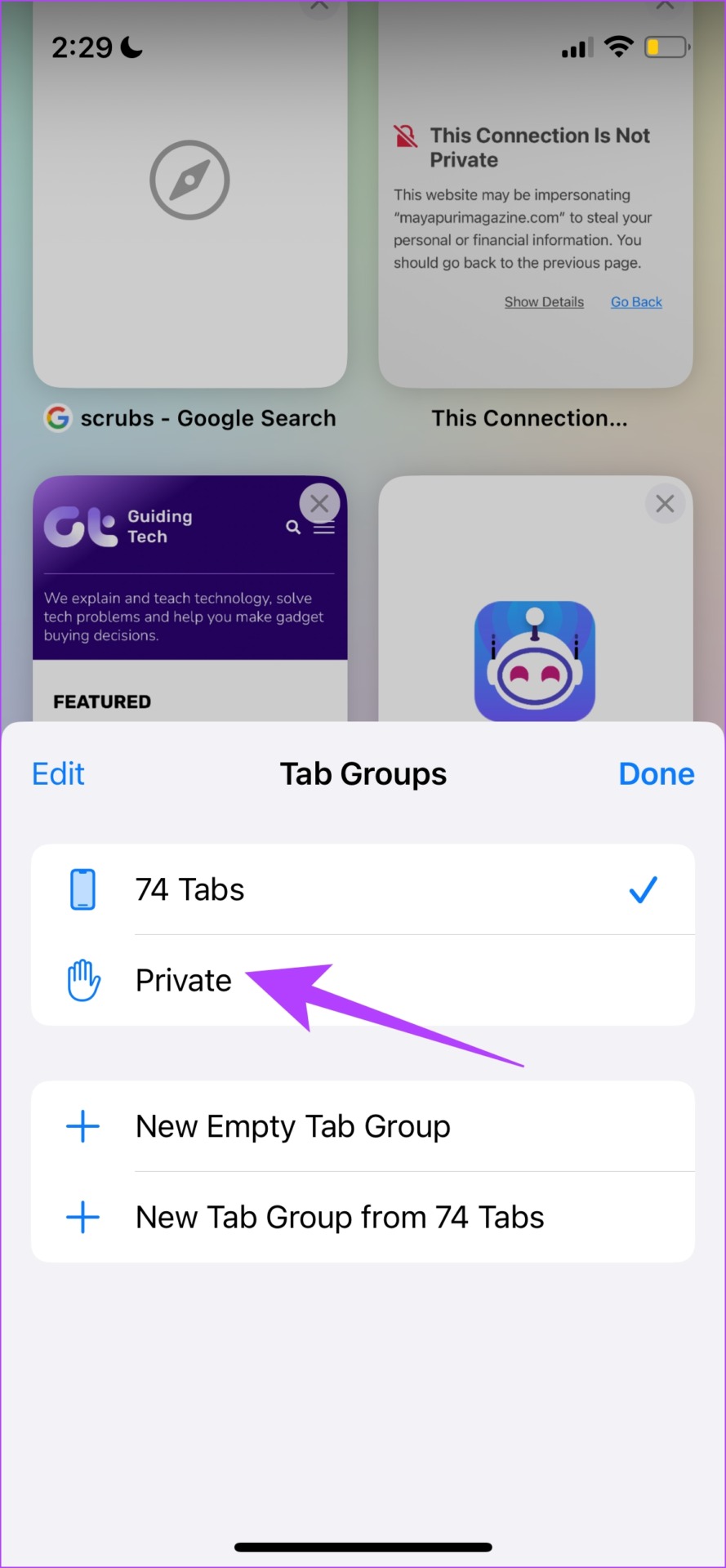
Step 1: Tap on the tabs icon and select the tab groups icon.

Step 2: Now, select Private. Tap on the plus icon. This will open a private tab. You can then view the website.

Also Read: How to refresh webpages in Safari

Fix 3: Check Date and Time

Incorrect date and time can cause issues with verifying the web browser’s integrity on your device.

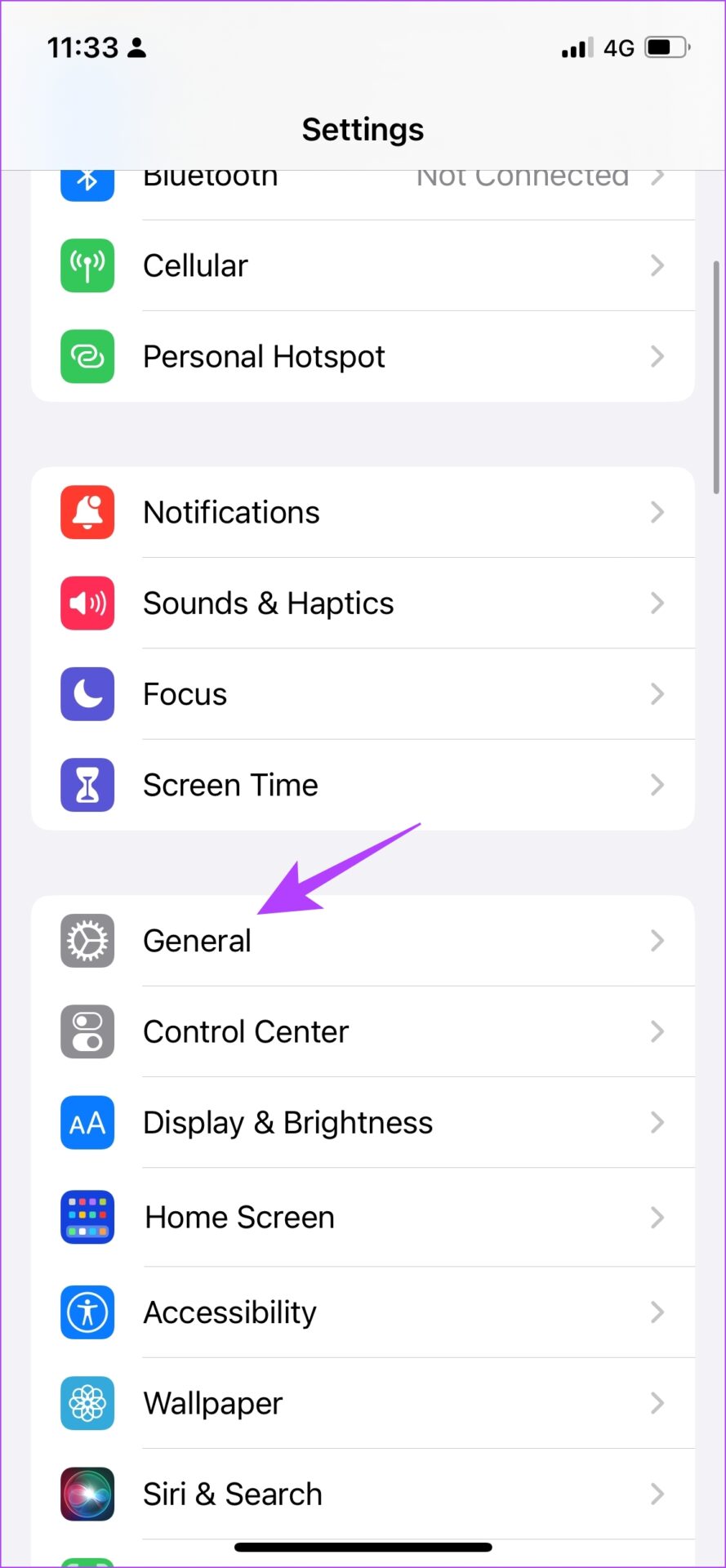
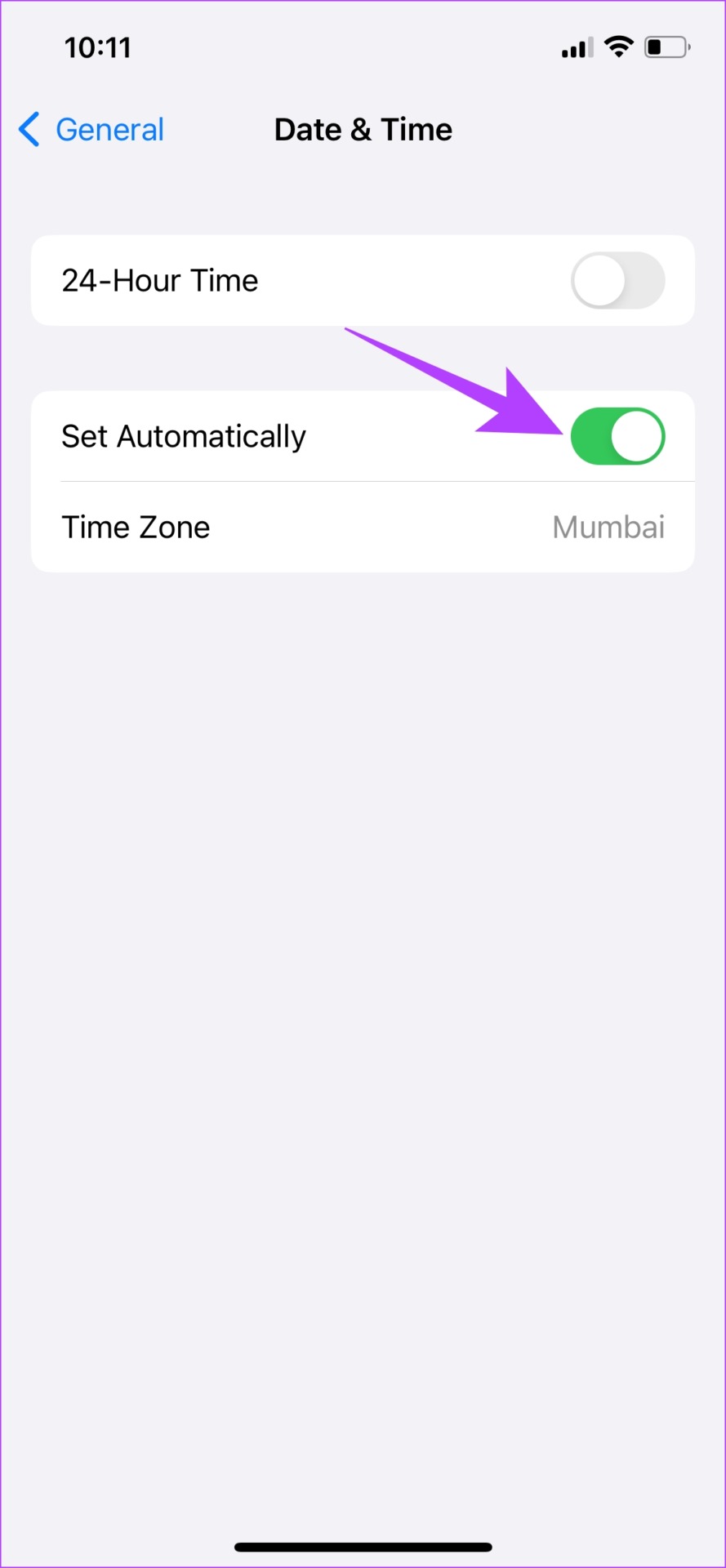
Step 1: Open the Settings app and select General.

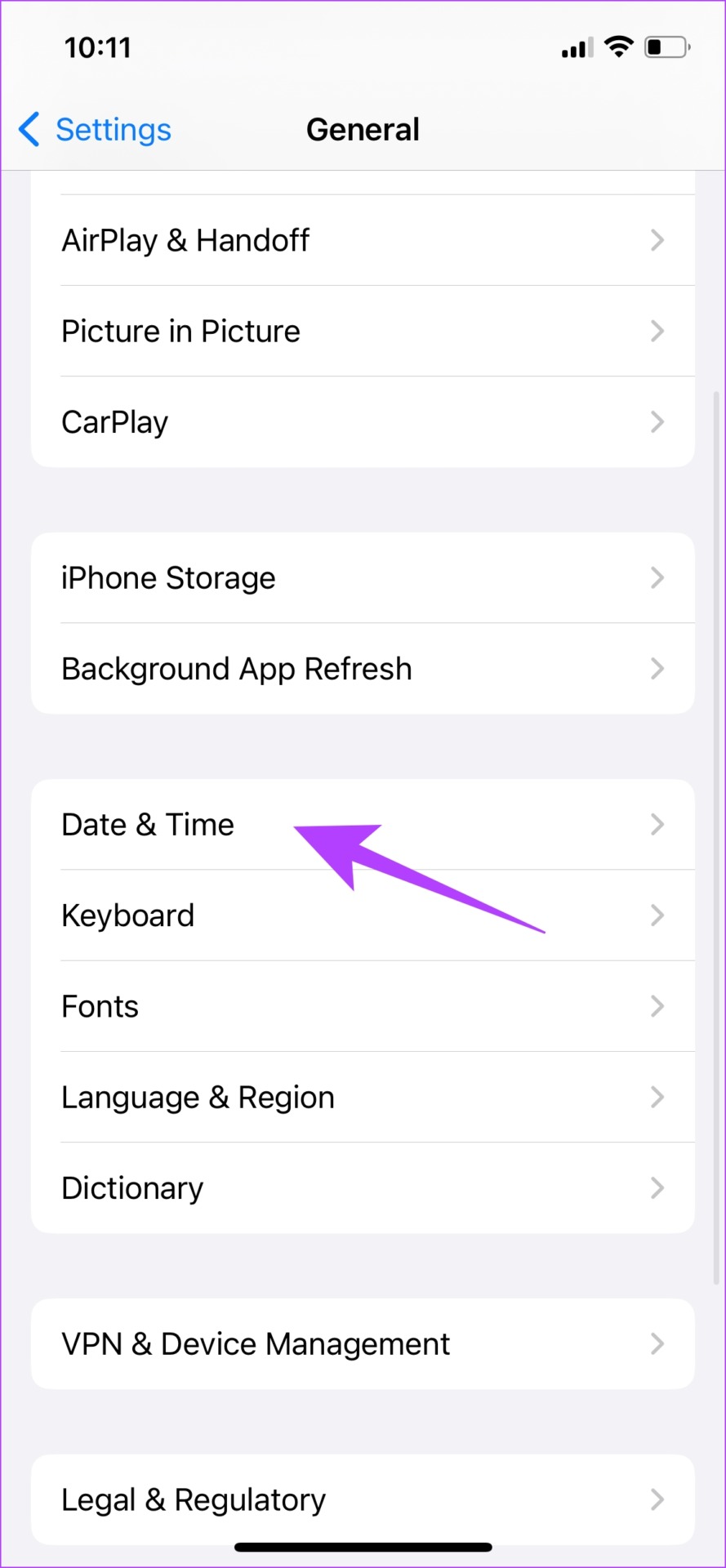
Step 2: Now, select Date & Time. Turn on the toggle for Set Automatically.

Fix 4: View HTTPS Only

Websites today predominantly use the latest protocol called HTTPS. However, a few sites also tend to use an outdated HTTP protocol. This is less secure and not as encrypted as the HTTPS protocol. Therefore, ensure you are always viewing a website running on HTTPS.

Fix 5: Get Past ‘Your Connection Is Not Private’ in Safari

If none of the above methods work, and you want to access the website at any cost, you can simply bypass the error warning. However, we recommend against this as this can cause some potential harm to your online safety.

If you could contact the web developer and confirm the reasons for this error message, it would be a better option.

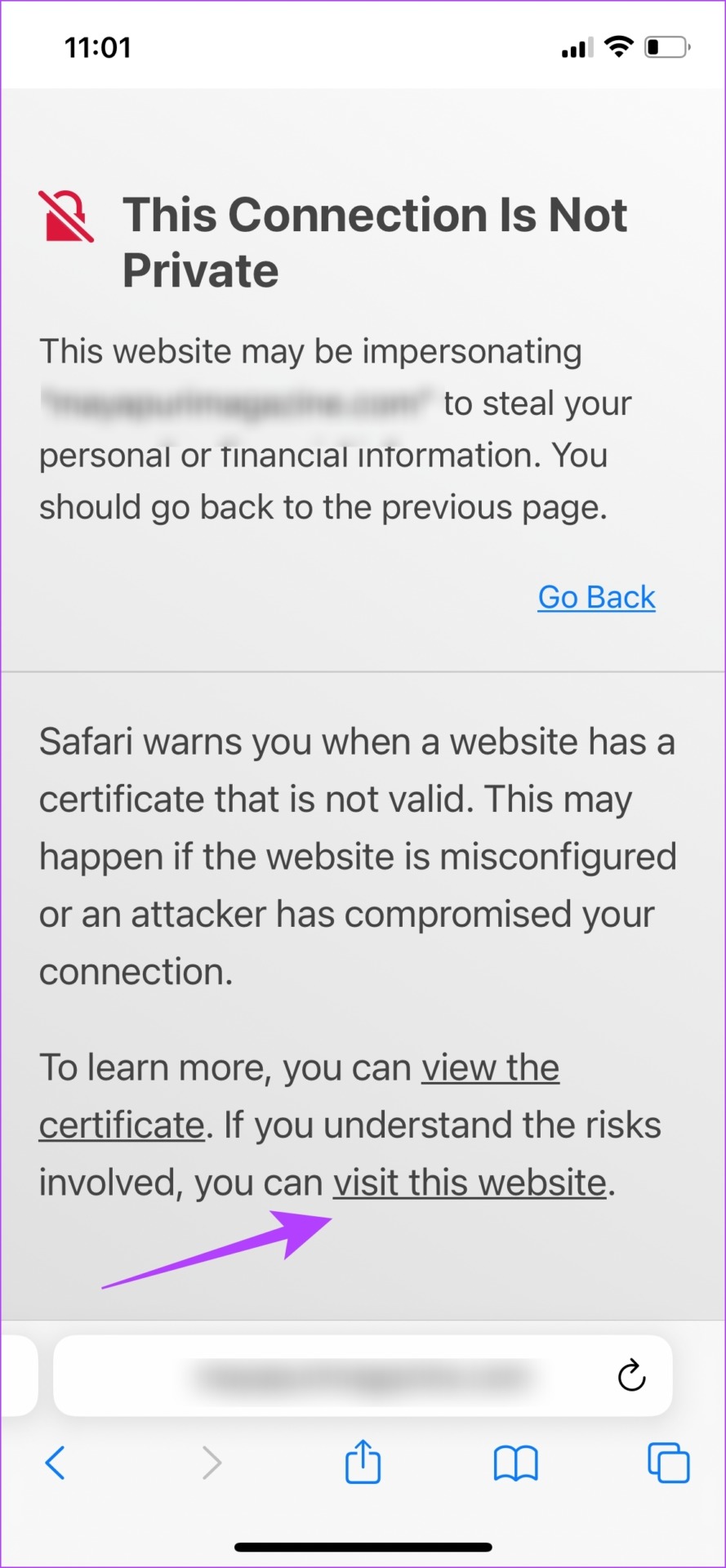
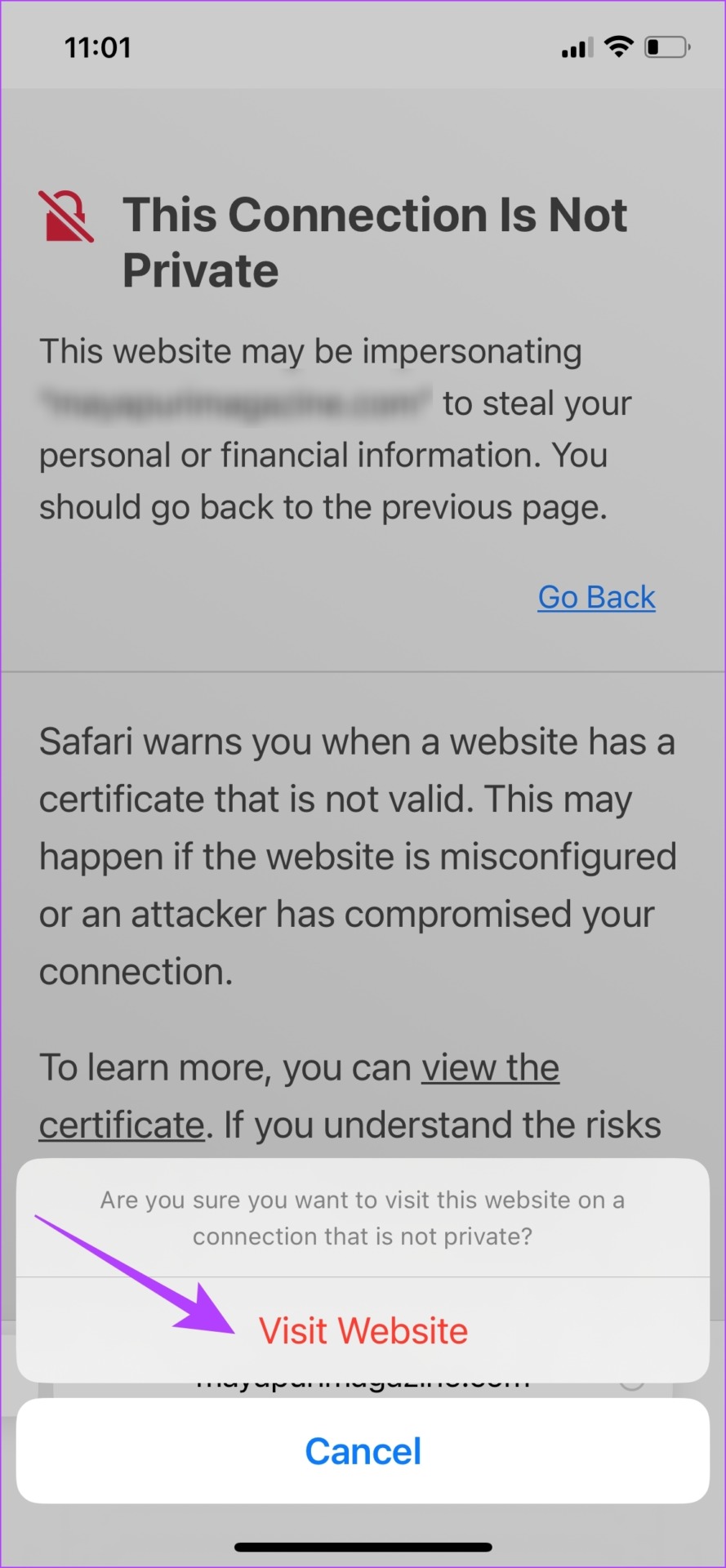
Select Show Details in the error message. Tap on visit this website, and tap on Visit Website to open it.

If none of the above methods work, you can try resetting all the network settings on your iPhone.

Was this helpful?

Thanks for your feedback!

3 Ways to Fix Notification Sound Not Working on Android

Basic Ways:

  • Adjust notification volume: Use the volume buttons or go to the Settings menu to check the current notification volume. Press the volume up button on the side or use the slider in the sound settings menu to increase the ringtone & notification volume to the highest.
  • Turn off DND or Vibrate mode: When enabled, DND will effectively silence all your notification alerts. The same can happen if your phone is set to vibrate. So, disable DND and ensure the ringer is turned on to prevent this.
  • Turn off Bluetooth: If Bluetooth is enabled and your device connects to an external sound device, all notification alerts will pop up on connected devices. So, disable Bluetooth on your Android phone.

Fix 1: Check Notification Sound Settings for Apps

Do you face notification sound issues with a specific app on Android? It’s time to check the sound settings for that particular app and ensure all the relevant settings are enabled. Follow the steps below.

Step 1: Long-press on the app and tap the i button to open the App info menu. Select Notifications.

Step 2: Ensure all the toggles are enabled. Then, tap the bell icon beside a notification type > select Default.

Tip: You can also open Sound from the same menu and set a custom tone for specific apps.

Also Read: How to fix notification badges not showing on Android

Fix 2: Check Your Smartwatch Settings

Google’s renewed interest in smartwatches brought a fresh take to Android Wear. Most smartwatches come with an option to mute phone notifications when connected. You should open the relevant watch app on your Android phone and disable any such options. Then, check again.

Fix 3: Reset All Settings

A wrong setting tweak can also lead to issues with notification sound on Android. In this case, you can reset all settings on your Android phone and see if this fixes the issue. Here’s how to do it.

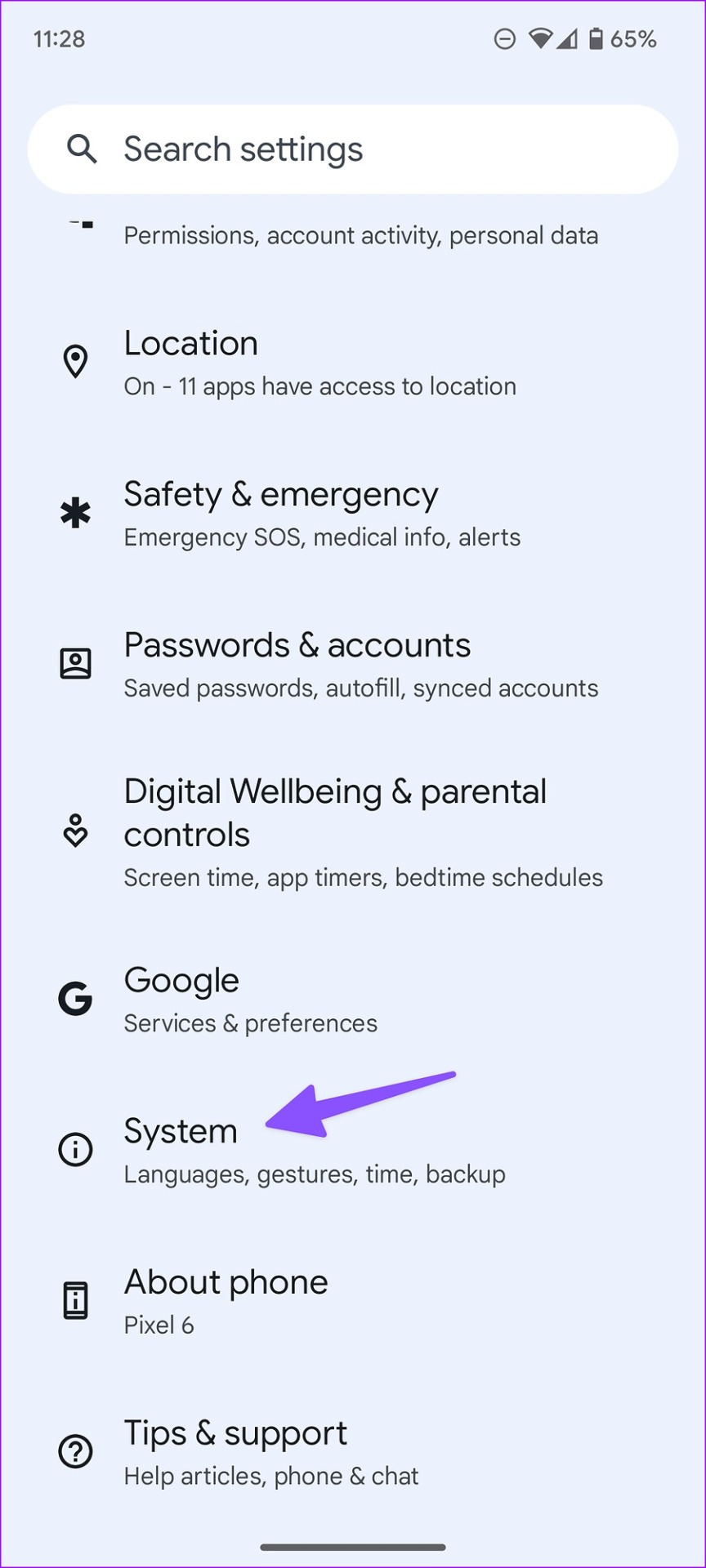
Step 1: Open Settings > tap on System > select Reset options.

Step 2: Here, tap Reset app preferences and confirm the same.

Wait for the reset process to finish. Then, wait a while and check if notification sounds are working as expected on your Android phone.

Was this helpful?

Thanks for your feedback!

2 Ways to Reset Local Group Policy Settings on Windows 11

Method 1: Reset Local Group Policy Settings Using the Group Policy Editor

To reset local group policy settings on Windows 11, set all policies to ‘Not Configured’ individually using the Group Policy Editor.

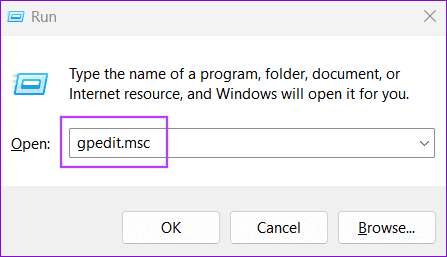
Step 1: Open the Run dialog using the Windows + R shortcut. Type gpedit.msc, and press Enter.

1 Open Group Policy on Windows 5

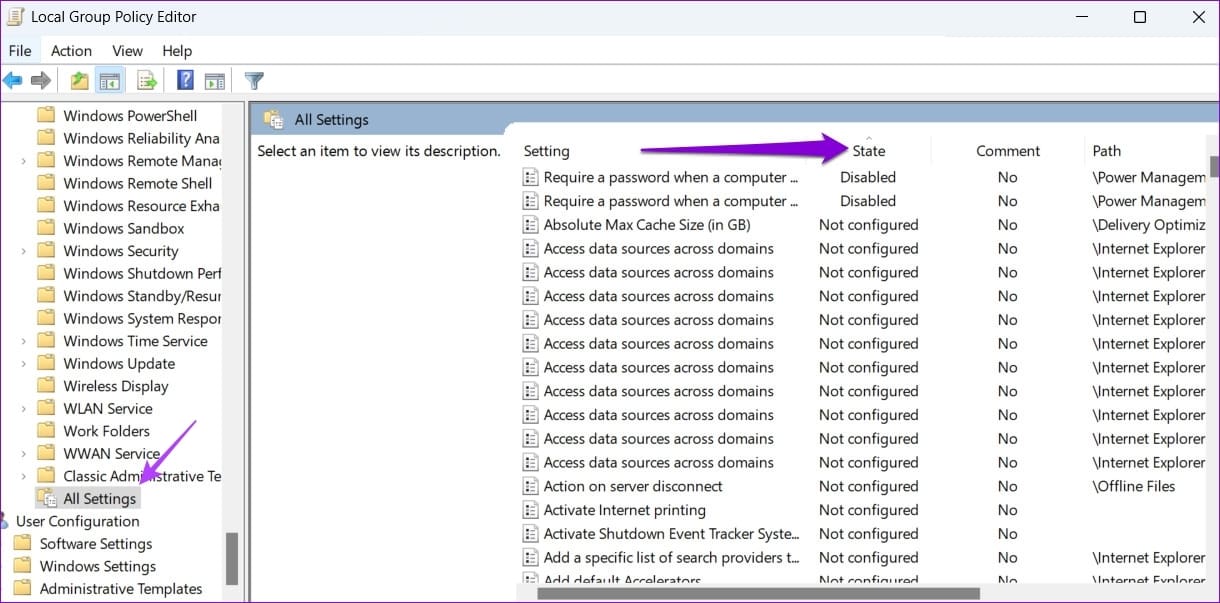
Step 2: Navigate to Computer Configuration > Administrative Templates > All Settings in the left sidebar, and double-click any policy whose state is Enabled or Disabled.

3 Sort Policies in Local Group Policy Editor

Step 3: Set the policy to Not Configured and click Apply, followed by OK to save changes. Repeat the step for every policy you wish to reset.

5 Reset Group Policy

Step 4: Next, navigate to User Configuration > Administrative Templates > All Settings in the left sidebar, and reset all policies whose state is Enabled or Disabled using the above steps. Restart your PC to apply changes.

7 Sort User Policies in Local Group Policy Editor

Method 2: Using Command Prompt

Resetting individual policies in the Group Policy Editor can be time-consuming. You can reset all of them at once via Command Prompt.

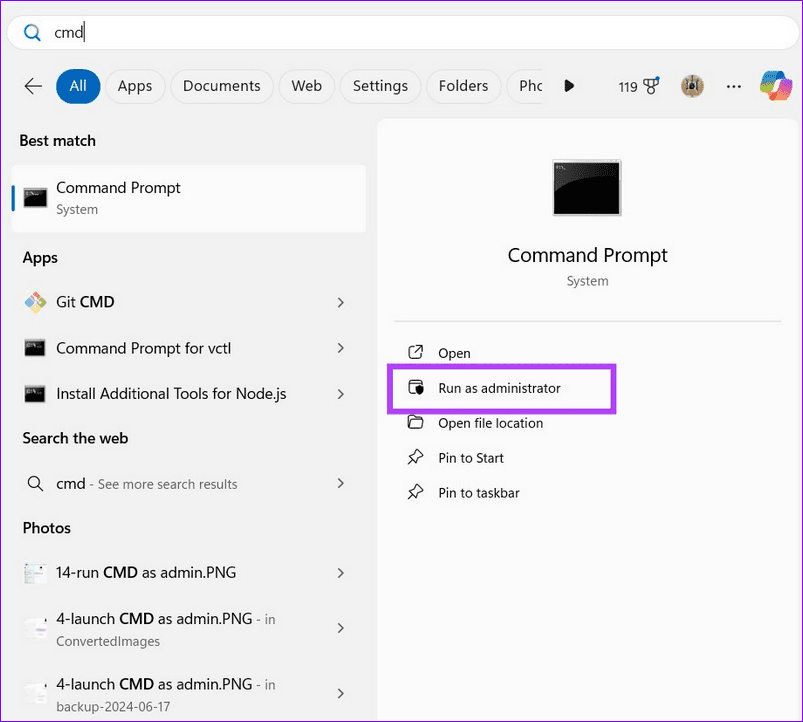
Step 1: Press the Windows key, search CMD, and click Run as administrator.

launch cmd as admin

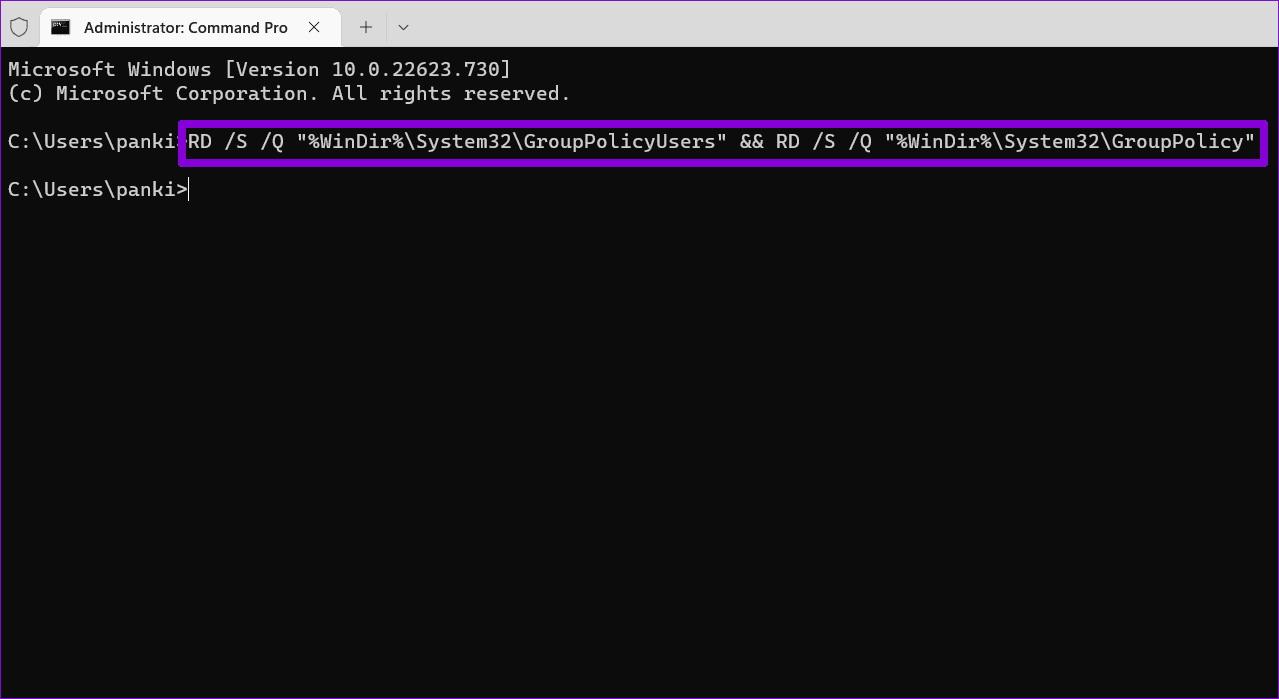
Step 2: Approve the UAC prompt, copy-paste the below command, and press Enter. This will delete the Group Policy settings folders, effectively resetting all policies on Windows 11.

RD /S /Q "%WinDir%\System32\GroupPolicyUsers" && RD /S /Q "%WinDir%\System32\GroupPolicy"
8 Reset Group Policy via Command Prompt

Step 3: Finally, execute the below command in the console to update changes to the Local Group policies.

gpupdate.exe /force
9 Update Group Policy Settings

Was this helpful?

Thanks for your feedback!

5 Ways to Fix Can’t Create a New Folder on Windows 11

Basic Fixes

  • Run a Windows security scan: Malicious files may prevent you from creating a new folder. Head to Windows Security > Virus & threat protection, and run a Full scan.
  • Perform a clean boot: Third-party software may prevent creating a new folder on Windows 11. Perform a clean boot and retry creating a new folder.
  • Update Windows 11: Press the Windows + I shortcut to open Settings, select Windows Update from the left sidebar, and install available updates.

Fix 1: Use Task Manager to Restart the File Explorer App

You may fail to create a new folder on Windows 11 if there are issues with the File Explorer app. Restarting it from the Task Manager app should fix it.

Step 1: Press the Windows + X shortcut to open the Power User Menu and select Task Manager.

1 open Task manager

Step 2: Select the Processes tab from the left sidebar > right-click Windows Explorer > select Restart.

2 restart File Explorer

Fix 2: Create New Folders With Command Prompt

If restarting the File Explorer app doesn’t solve the issue, you can use the Command Prompt app to create a folder manually.

Step 1: Press the Windows key, search Command Prompt, and select Run as administrator.

3 Run CMD as admin

Step 2: Open the root directory using cd / , type mkdir followed by your desired folder name, and press Enter.

For instance, ‘mkdir testing’ will create a folder named ‘testing’ in the root directory.

4 create new folder via CMD

Step 3: Once you’ve created the folder using CMD, navigate to it using the File Explorer app.

Fix 3: Tweak the Windows Registry

Another nifty way to fix the folder creation issue on Windows 11 is to tweak the Windows Registry files. Before you begin, take a registry backup using File > Export in the Registry Editor app.

Step 1: Press the Windows key > search Registry Editor > click on Run as administrator.

5 Open Registry Editor

Step 2: Approve the UAC prompt > copy-paste the following address in the navigation bar > hit Enter.

Computer\HKEY_CLASSES_ROOT\Directory\Background\shellex\ContextMenuHandlers

Step 3: Right-click the blank space on the right and select New > Key.

6 create a New key

Step 4: Type New as the key title > double-click (Default) > paste the following Value data > click OK.

{D969A300-E7FF-11d0-A93B-00A0C90F2719}
7 edit registry values

Step 5: Close the Registry Editor > restart File Explorer (check the Fix 1 above), and retry creating a new folder.

Fix 4: Restore File Explorer to Default Settings

A wrong tweak in File Explorer settings might prevent you from creating a new folder. Restore the File Explorer app to its default settings and retry creating a new folder.

Step 1: Open the File Explorer app (press the Windows + E shortcut) > click on the three-dot menu at the top > select Options.

8 open File Explorer options

Step 2: Select Restore Defaults > click Apply to save changes.

9 reset File Explorer

Fix 5: Run the File and Folder Troubleshooter

Lastly, if nothing works, launch the File and Folder troubleshooter on Windows 11 to restore normal functioning.

Step 1: Download the File and Folder Troubleshooter from the Microsoft website.

10 download file and folder troubleshooter

Step 2: Open the downloaded troubleshooter > click Next > follow the on-screen instructions to resolve the ‘can’t create a new folder’ error.

11 run the file and folder troubleshooter

Was this helpful?

Thanks for your feedback!

How to Change Typing Language in WhatsApp on Android and iPhone

On iPhone

Method 1: On Apple Keyboard

Follow these steps to type in another language in WhatsApp on iPhone using the Apple keyboard:

Step 1: Open a WhatsApp chat so that the Apple keyboard shows up.

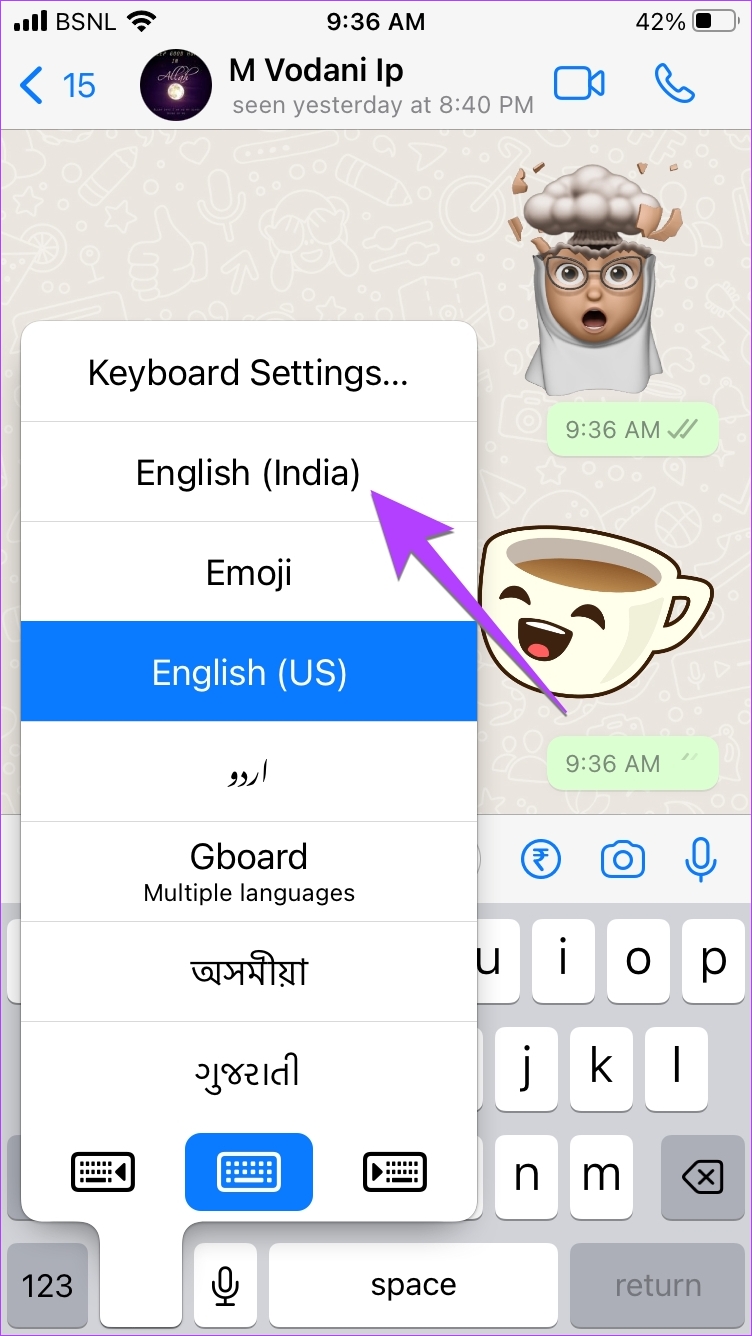
Step 2: Touch and hold the Globe icon at the bottom-left corner. Select Keyboard Settings from the menu.

Step 3: Tap on Keyboards > Add New Keyboard.

Step 4: Select the desired language to add to the Apple Keyboard.

For instance, if you want to type in Hindi, select Hindi. Then, select the keyboard style (if it shows up) and hit the Done button at the top.

Step 5: The newly added language will show up in the list of languages.

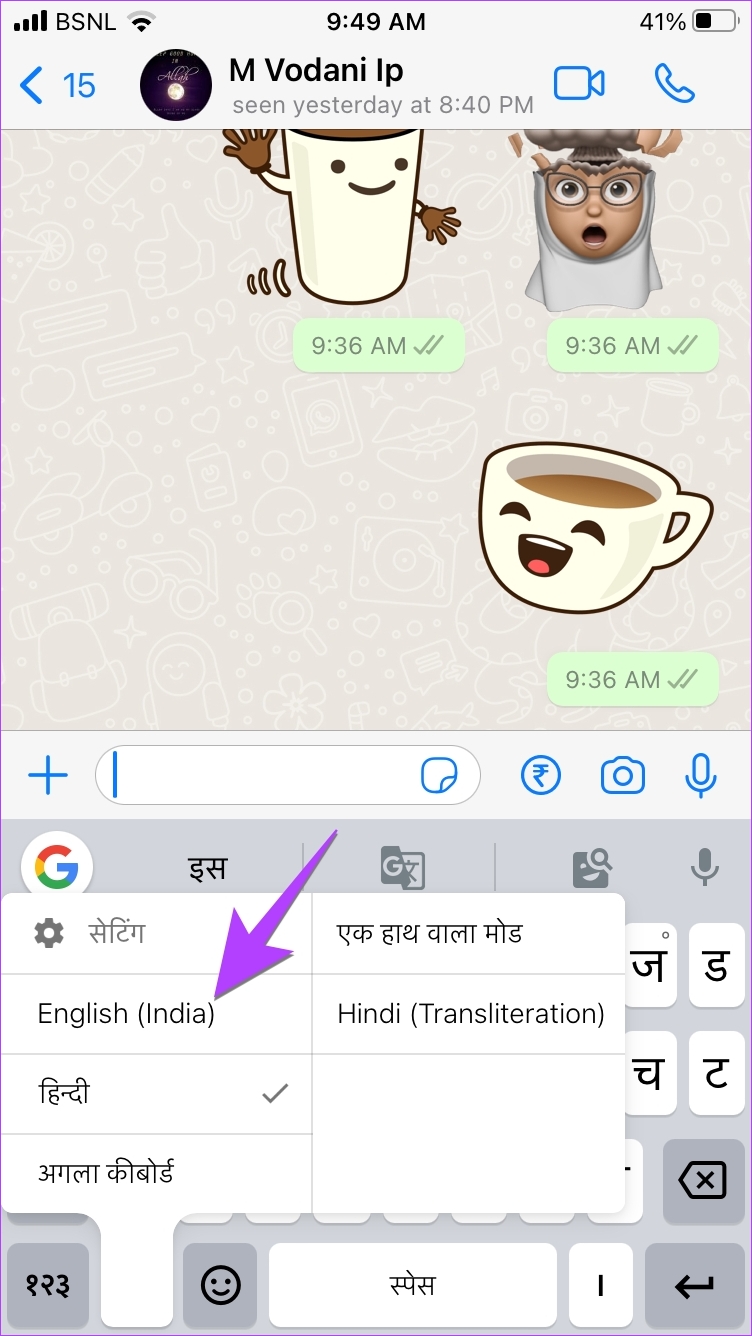
Now, open WhatsApp chat again. Touch and hold the Globe icon. Choose the language with which you want to type in WhatsApp. The keyboard characters will switch to the new typing language.

Tip: Check out the best iPhone keyboards with a number row on top

Method 2: On Google Keyboard (Gboard)

If you’re using the Google Keyboard on your iPhone, here’s how you can add a new language.

Step 1: Open the Gboard app on your iPhone from the list of installed apps.

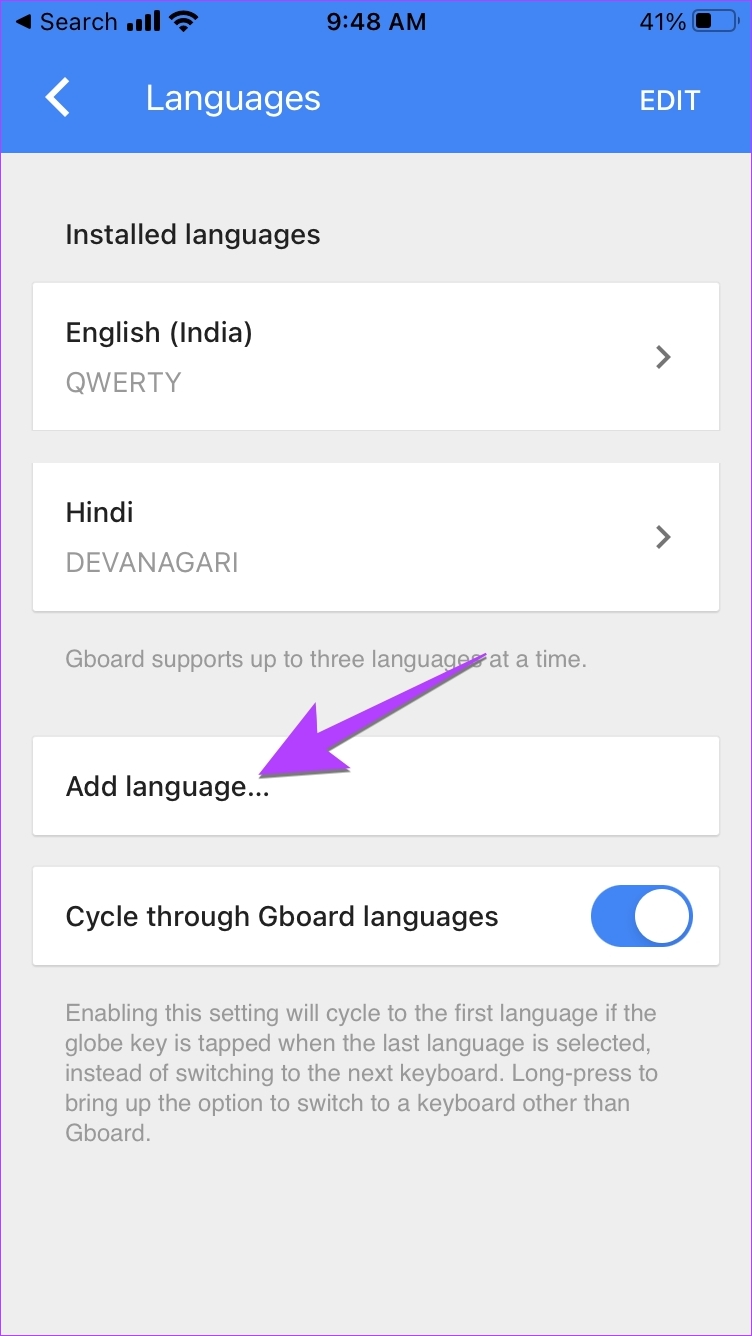
Step 2: Tap on Languages followed by Add language.

Note: If you don’t see the Add language option, tap on Edit at the top and delete one language. That’s because Gboard on iPhone only supports three languages.

Step 3: Select the typing language to install. Wait for the language to be installed.

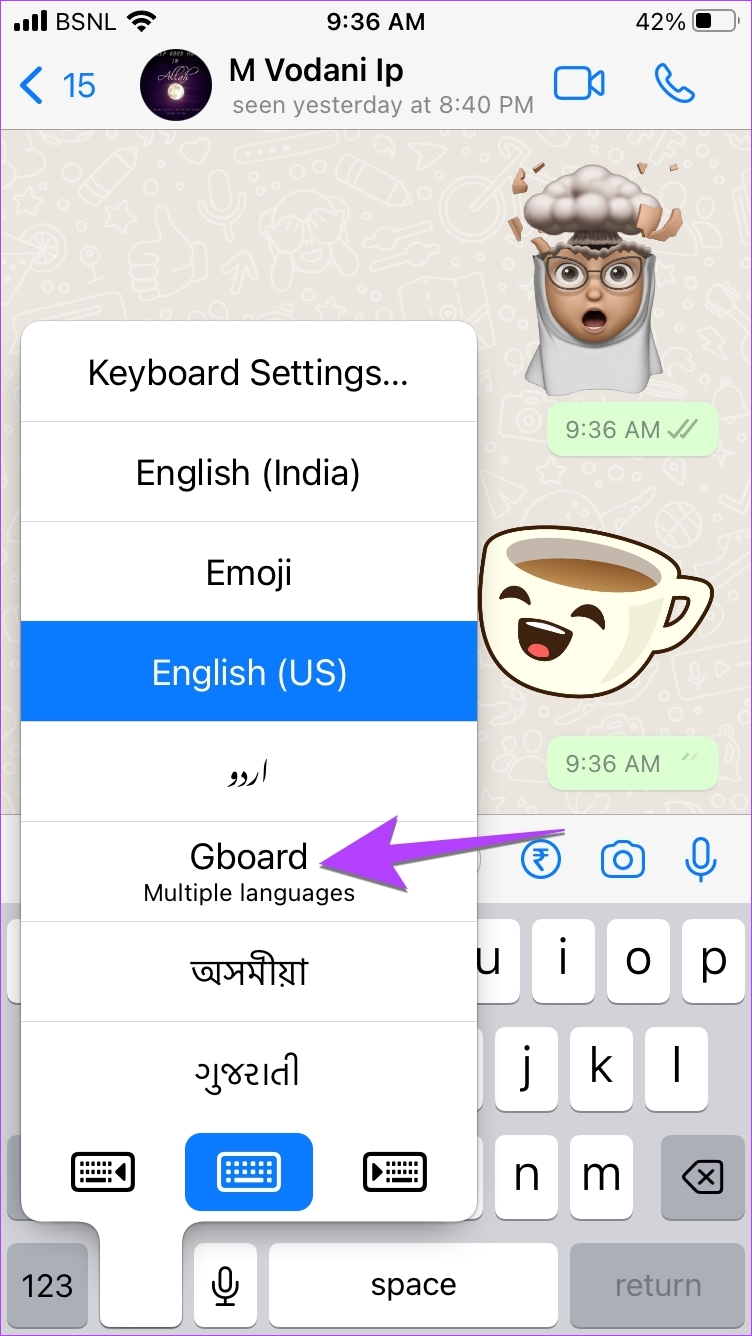
Step 4: Now, to switch to the new typing language in WhatsApp, open any WhatsApp chat so that the keyboard shows up. Then, press and hold the Globe icon at the bottom. Select Gboard.

Step 5: Again, press and hold the Globe icon and select the typing language to switch to it.

Also Read: How to fix Gboard not working on iPhone

On Android

Method 1: On Google Keyboard

Step 1: Open the Gboard keyboard in WhatsApp on your phone.   

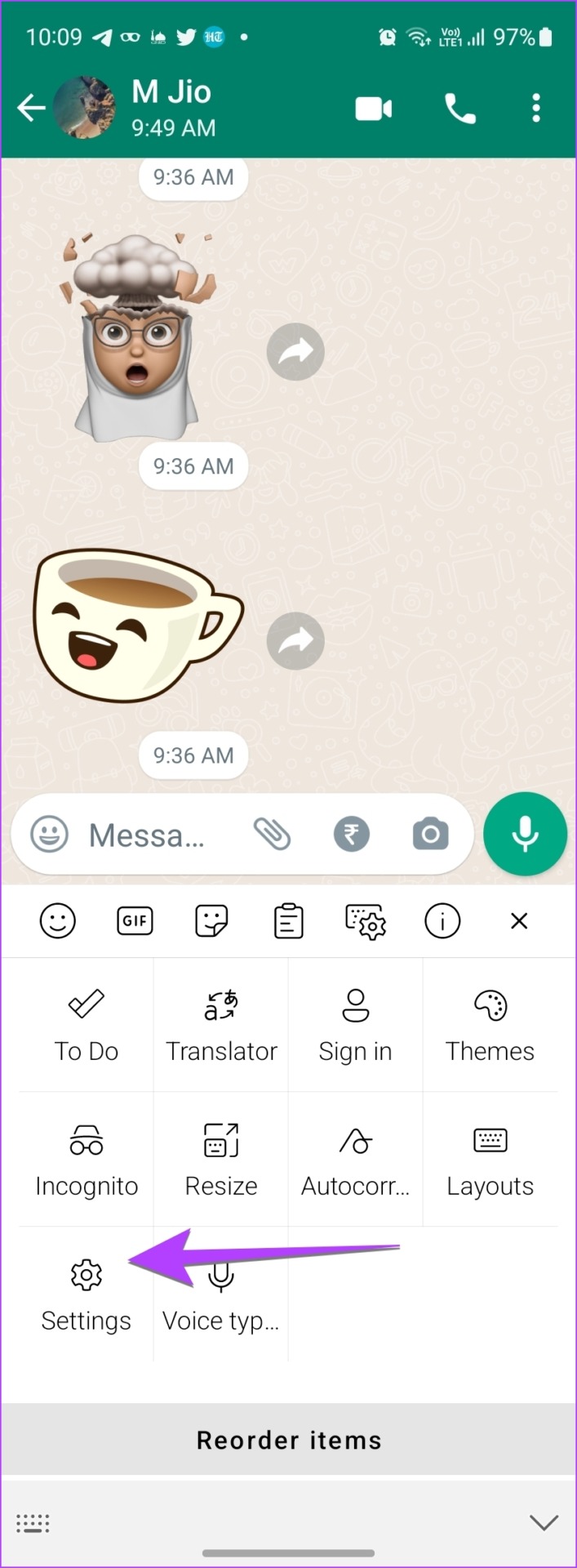
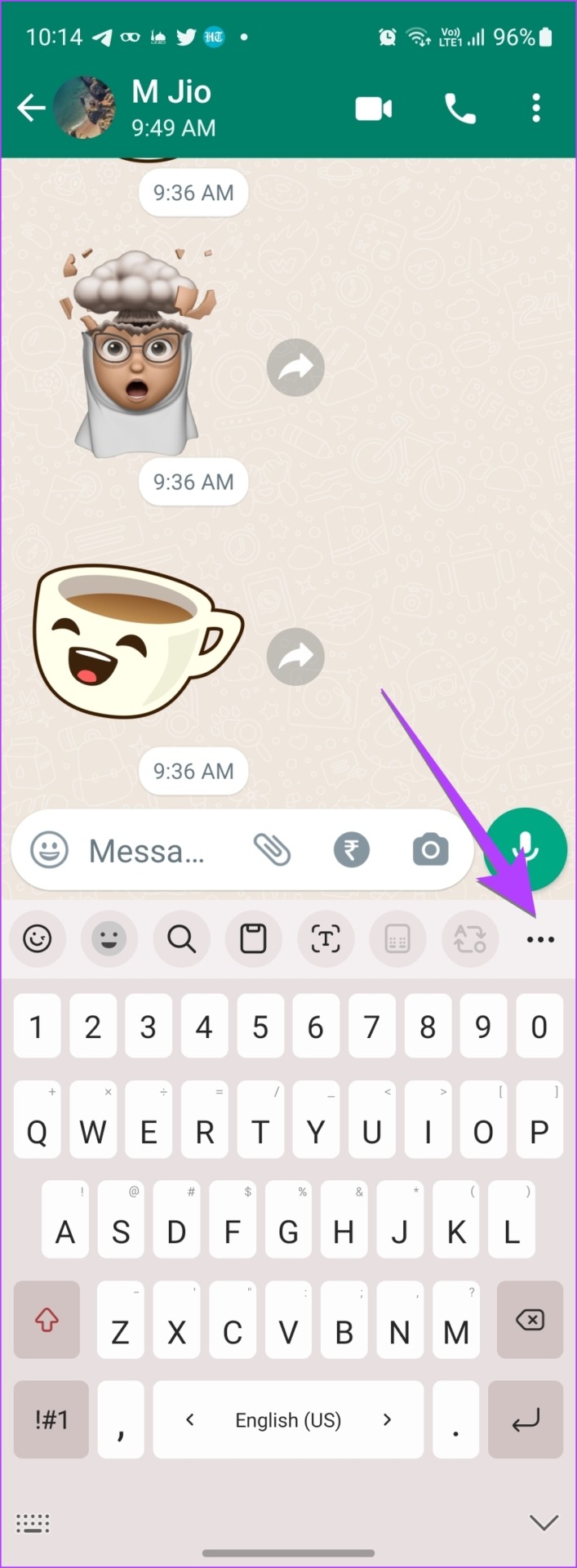
Step 2: Tap on the three-dot icon at the top of the keyboard and press the Settings button.

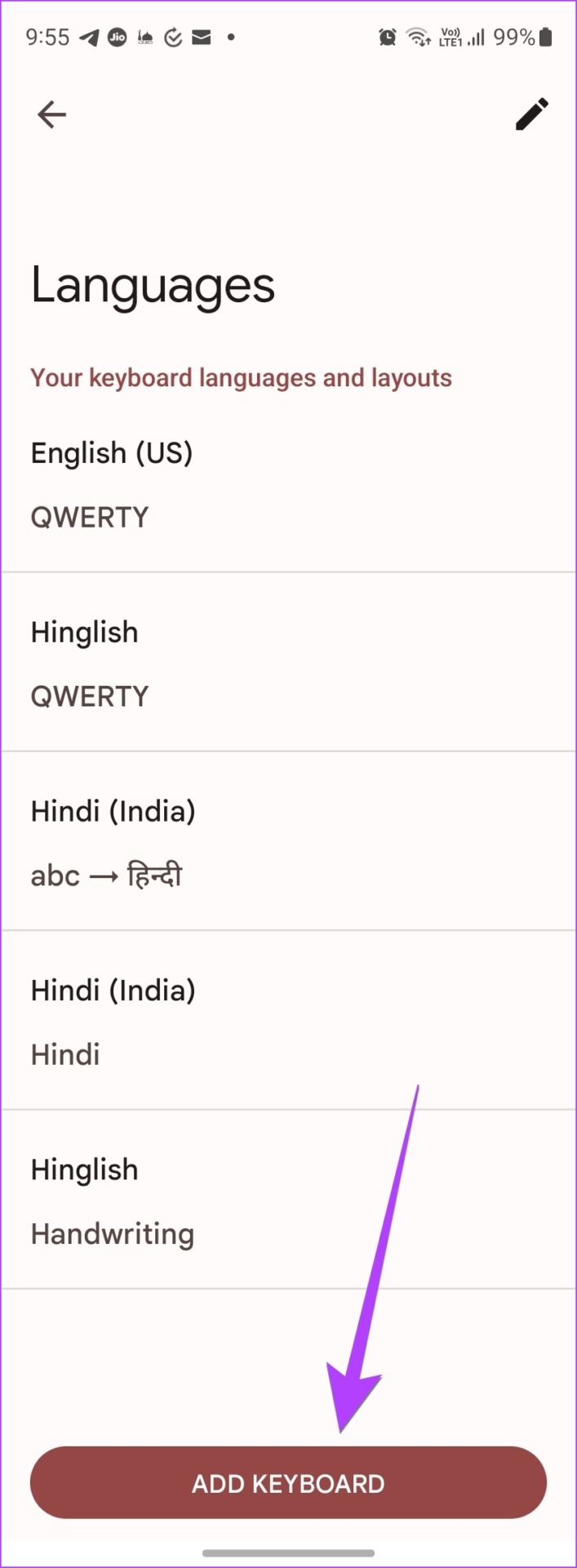
Step 3: Tap on Languages followed by Add keyboard.

Step 4: Select the language with which you want to type in WhatsApp. If the keyboard customization screen shows up, select the keyboard style and hit the Done button.

Tip: If you always want to type in WhatsApp using the newly added language, you can make it the default language. For that, tap on the Pencil icon at the top of the Languages screen. Drag the language that you want to make as default using the three-bar icon to the top. The top-most language is taken as the default typing language by Gboard.

Step 5: Now, to switch between the typing languages while typing in WhatsApp, open any chat in the WhatsApp app.

The Gboard keyboard will show up. Touch and hold the Gboard’s spacebar to bring the language selection screen. Tap on the language with which you want to type in WhatsApp.

Once you have selected the new typing language, simply start typing with it and it will show up in the WhatsApp chat.

Method 2: On SwiftKey

Step 1: Open any chat in WhatsApp to launch the SwiftKey app.

Step 2: Tap on the three-dot icon at the top of the keyboard and select Settings.

Step 3: Go to Languages.

Step 4: Scroll down to the All Languages section and tap on the language that you want to type in WhatsApp. Select the keyboard layout for the new typing language and hit the Add button at the top.

Step 5: With the new typing language enabled, open any WhatsApp chat again. Then, swipe right or left on the spacebar to switch to the language with which you are interested in typing in WhatsApp.

Method 3: On Samsung Keyboard

Step 1: Launch any WhatsApp chat to open the Samsung keyboard.

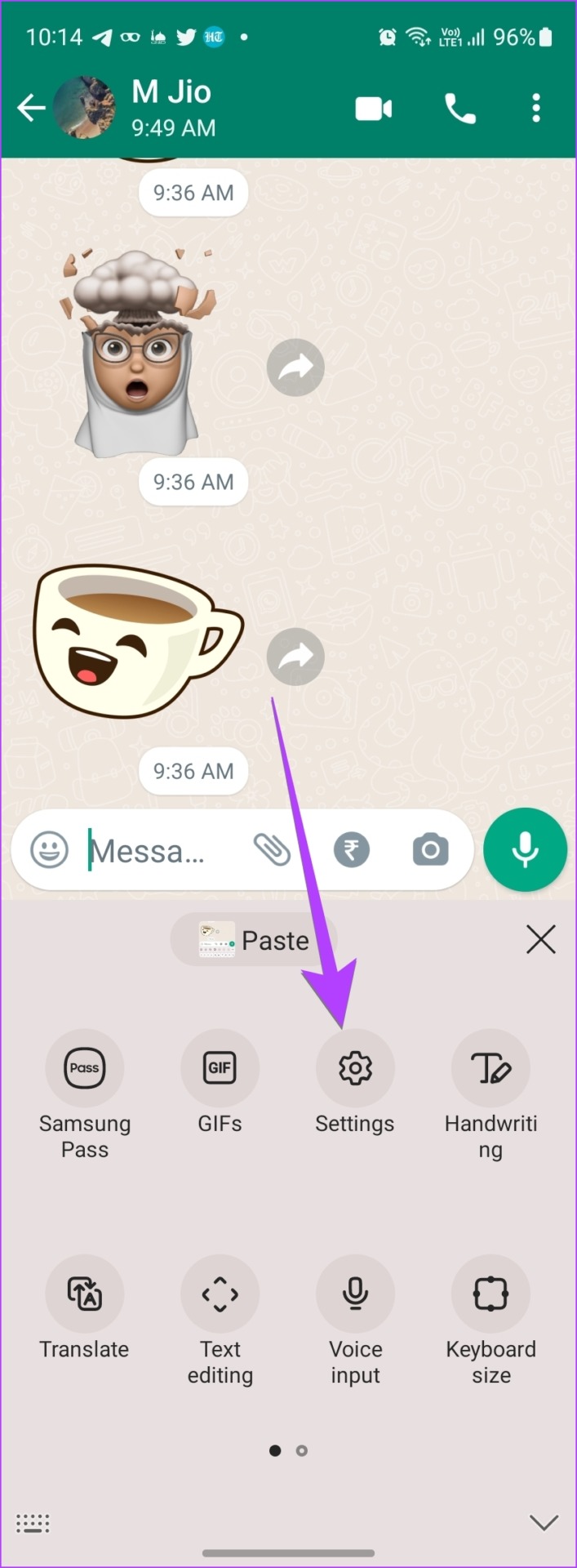
Step 2: Tap on the three-dot icon at the top-right corner of the Samsung keyboard and select Settings from the menu.

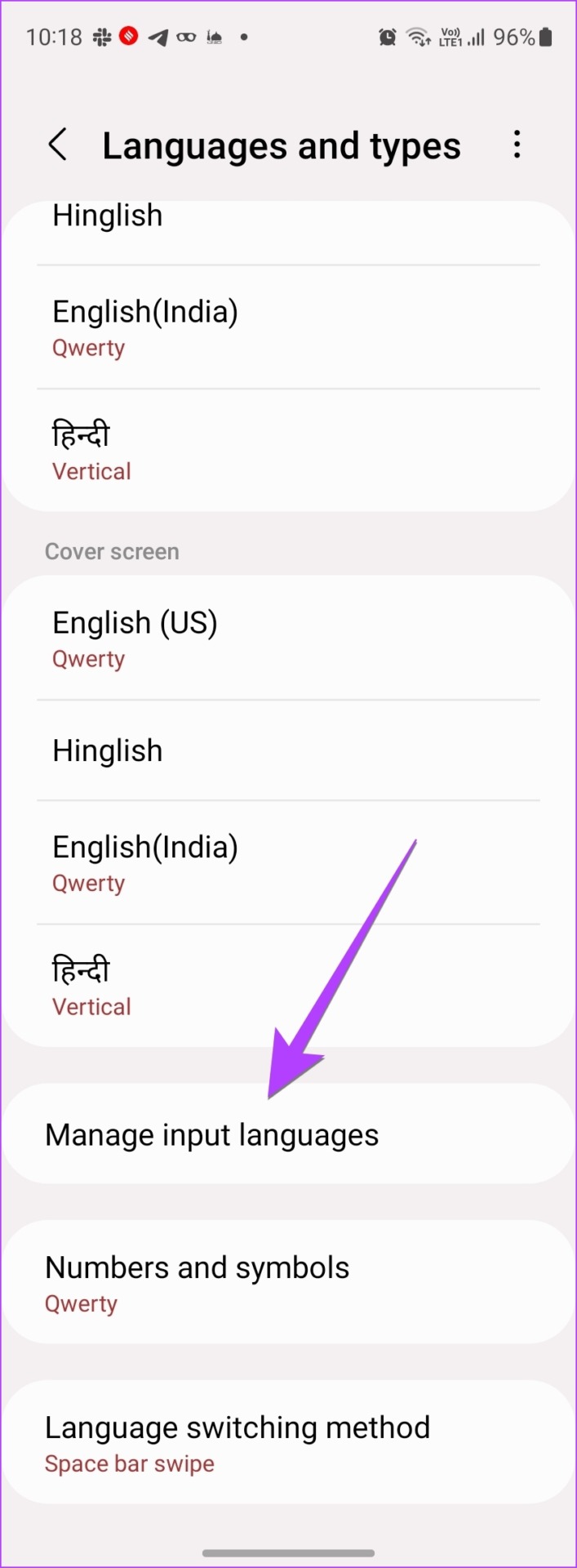
Step 3: Tap on Languages and Types followed by Manage input languages.

Step 4: Enable the toggle next to the language with which you want to type in WhatsApp.

If you don’t find the desired language, scroll down to the Available Languages section and tap on the Download icon next to the language. Then, enable it.

Step 5: Once the desired typing language has been enabled, open any chat in WhatsApp and swipe left or right on the keyboard’s spacebar to switch to the desired typing language in WhatsApp.

Also Read: 4 Ways to change keyboard on Android

Was this helpful?

Thanks for your feedback!

How to Report Someone on Snapchat and What Happens Next

How to Report Someone on Snapchat

The Snapchat app offers an identical interface on the iPhone and Android. We took screenshots using the Snapchat app for iPhone. You can follow the same steps if you have an Android.

Step 1: Open Snapchat on your iPhone or Android.

Step 2: Hit the search bar at the top and search for an account you want to report.

Step 3: Select an account to open the info menu.

Step 4: Tap the three-dot menu at the top right corner.

Step 5: If the person isn’t on your friends’ list, you will see Block and Report options. If you have added the account to your friends’ list, tap Manage Friendship from the same menu.

Step 6: Select Report. You have two reasons for reporting someone on Snapchat.

  • They are posting inappropriate content
  • They send you spammy or suspicious Snaps

Step 7: Select a relevant option. For this article, we’ve selected the Inappropriate content option as an example.

Step 8: Select a reason from the subsequent menu and provide more information about why you’re reporting the account.

Step 9: Hit Submit to send your report to Snapchat.

Note that you can’t attach a picture with your report. As such, be specific about the account behavior to get it banned on the platform.

Was this helpful?

Thanks for your feedback!

4 Fixes if Windows 11 Wallpaper Keeps Going Black

Basic Fixes

  • Manually change your wallpaper: You can manually change your wallpaper instead of choosing it to change automatically.
  • Set wallpaper using the context menu: In the folder that contains your image, right-click on the image and choose Set as desktop background.
  • Restart Windows Explorer: Restarting Windows Explorer on your PC effectively troubleshoots glitches, performance issues, and bugs in the user interface.
  • Update Windows 11 version: Installing an updated version of Windows 11 will help remove bugs and glitches.

Fix 1: Change Ease of Access Settings

Ease of Access includes different accessibility settings for your Windows computer, such as enabling the On-Screen Keyboard, Magnifier, and rich contrast.

Step 1: Open the Control Panel and click on Ease of Access on the right side.

Step 2: Click on Ease of Access Center > Make the Computer Easier to See.

Step 3: Scroll down and look for Make Things on the Screen Easier to See.

Step 4: Ensure that Remove Background Images (When Available) is unchecked.

Fix 2: Rename Corrupt Transcoded Wallpaper File

Whenever you select an image for the desktop background, Windows will convert that image file’s format to JPG regardless of its original file format. This is called a Transcoded Wallpaper File. If your Windows 11 wallpaper keeps going black automatically, the Transcoded Wallpaper file might be corrupted.

Step 1: Click on the Windows Search icon on the Taskbar, type the following file location in the Search Bar, and press Enter.

%USERPROFILE%\AppData\Roaming\Microsoft\Windows\Themes\

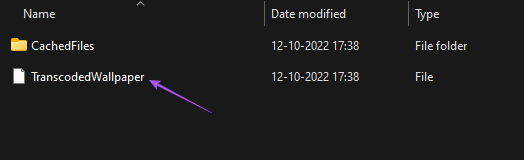
Step 2: Select the TranscodedWallpaper file and press F2 to rename it.

Step 3: Rename the file to TranscodedWallpaper.old.

Close the window and try changing the wallpaper.

Fix 3: Update the Display Drivers

An outdated version of the Display Drivers on your Windows 11 PC may be causing the wallpaper on the desktop to go black automatically. Here’s how to check and update the Display Drivers.

Step 1: Open Device Manager and click on Display Adapters.

Step 2: Right-click on your video card name and select Update Driver from the list of options.

Step 3: When a dialog box opens, click on Search Automatically for Drivers to let Windows automatically search and install the best version of Display driver for your computer.

After the driver installation is complete, try changing your wallpaper.

Fix 4: Disable Remember My Preferences in Account Settings

Step 1: Open Settings and click on Accounts,. Then, click on Accounts again.

Step 2: Click on Windows Backup and disable the option of Remember my preferences.

remember my preferences windows backup

Now, try changing your desktop background again.

Was this helpful?

Thanks for your feedback!

5 Ways to Reset Firewall Settings on Windows 11

Method 1: Reset Firewall Settings Using Windows Security

Windows Security is the built-in antivirus program protecting your system from malware, viruses, and threats. You can use it to reset the firewall settings on Windows 11.

Step 1: Press the Windows key, search Windows Security, and click to open it.

1 open Windows security

Step 2: Select Firewall & network protection from the left sidebar and click on Restore firewalls to default.

2 Reset Firewall Using Windows Security

Step 3: Approve the UAC prompt > click Restore defaults > select Yes when prompted to reset it.

3 Confirm Reset Firewall

Method 2: Use the Control Panel to Reset Firewall Settings

If you can’t open Windows Security, use the Control Panel app to reset the firewall settings on Windows 11.

Step 1: Press the Windows + R shortcut to open the Run dialog, type control, and press Enter.

4 Open Control Panel 3

Step 2: Switch View by to Large icons and select Windows Defender Firewall.

5 Windows Defender Firewall 1

Step 3: Click Restore defaults from the left sidebar and approve the UAC prompt.

6 Reset Firewall Using Control Panel

Step 4: Select Restore defaults and click on Yes when prompted to reset the firewall settings.

7 Confirm Reset Firewall

Method 3: Configure Advanced Security to Reset Windows Firewall

Besides the Control Panel, you can use the Windows Defender Firewall with Advanced Security utility app to set up inbound/outbound security rules or reset the firewall on Windows 11.

Step 1: Open the Run dialog (press the Windows + R shortcut), type wf.msc, and press Enter.

8 Open Advanced Security Windows

Step 2: Right-click Windows Defender Firewall with Advanced Security on Local Computer from the left sidebar and select Restore Default Policy.

9 Reset Firewall Using Advanced Security

Step 3: Click Yes when prompted to reset all firewall settings.

10 Confirm Reset Firewall Using Advanced Security

Method 4: Reset Windows 11 Firewall Settings With Command Prompt

Command Prompt is another nifty alternative to quickly reset the Windows 11 firewall settings by executing a single command.

Step 1: Press the Windows key > search Command Prompt > click on Run as administrator.

11 open CMD

Step 2: Approve the UAC prompt, copy-paste the below command, and press Enter to reset the firewall settings.

netsh advfirewall reset
12 run CMD command

Method 5: Use Windows PowerShell to Reset Firewall Settings

If you prefer using Windows PowerShell instead of Command Prompt, follow these easy steps to reset the firewall settings on your Windows 11 PC.

Step 1: Press the Windows key > search Windows PowerShell > select Run as administrator.

13 open PowerShell

Step 2: Approve the UAC prompt > copy-paste the below command > press Enter to reset all firewall settings.

(New-Object -ComObject HNetCfg.FwPolicy2).RestoreLocalFirewallDefaults()
14 run powershell command

Was this helpful?

Thanks for your feedback!