Try Basic Fixes
- Update the Discord app: You may be getting the “This interaction failed” error due to an outdated or buggy Discord app. Try updating the Discord app on your computer to see if that helps.
- Check if Discord is down: It is not unusual for services like Discord to experience server outages from time to time. Hence, it’s a good idea to check Discord’s server status before trying other things.
- Turn off the proxy server or VPN: Using a proxy server or VPN can sometimes cause problems with your connection to Discord servers. To fix this, try turning off any proxy server or VPN connection on your PC.
Fix 1: Check if the Bot Is Offline
A bot may not respond to your commands on Discord if it is offline. If you only receive the “This interaction failed” error in Discord while interacting with a specific bot, check if it is offline.
Open the Discord app and head to the server where you are facing the error. Click the Show Members List icon at the top and check if your bot shows up under the Offline section. If the bot is offline, try interacting with it after a while.

Fix 2: Check Bot Permissions and Command Settings
You need to review the bot’s permissions and settings for the server. Note that you can only do this if you are an administrator or the server owner.
Step 1: Open the Discord app and head to your server.
Step 2: Right-click on the bot and select Manage Integration.

Step 3: In the following screen, ensure you haven’t denied any permission or set exceptions for commands. Then, click the Save Changes button and try interacting with the bot again.

Fix 3: Turn Off Hardware Acceleration
Discord’s hardware acceleration feature allows it to use your PC’s GPU to run more smoothly. However, this feature can sometimes cause problems with Discord’s functionality. Try turning this feature off temporarily to see if that fixes the error.
Step 1: Open the Discord app and click the gear-shaped icon at the bottom-left corner.

Step 2: In the Voice & Video tab, turn off the toggle next to Hardware Acceleration.

Fix 4: Clear Discord App Cache
Old or inaccessible cache data can disrupt Discord app processes and trigger errors like ‘This interaction failed’ on your Windows PC. You can try clearing the existing Discord cache data on your PC to see if that helps.
Step 1: Press the Windows + R keyboard shortcut to open the Run dialog box. Type %appdata%/discord in the box and press Enter.
Step 2: In the File Explorer window that opens, select the Cache, Code Cache, and GPUCache folders. Then, click the trash icon at the top to delete them.

Was this helpful?
Last updated on 16 May, 2024
Read Next
 5 Fixes for “User Profile Service Failed the Sign-In” Error in Windows 11
Fix 1: Configure the User Profile Service If the User Profile Service on your PC is not set to run automatically, you could encounter the "User Profile Service failed the
5 Fixes for “User Profile Service Failed the Sign-In” Error in Windows 11
Fix 1: Configure the User Profile Service If the User Profile Service on your PC is not set to run automatically, you could encounter the "User Profile Service failed the
 6 Fixes for “The Operation Failed” Error in Microsoft Outlook for Windows
Fix 1: Open Outlook in Safe Mode Running Office apps like Outlook in safe mode can help you determine if one of the add-ins is responsible for the issue.
6 Fixes for “The Operation Failed” Error in Microsoft Outlook for Windows
Fix 1: Open Outlook in Safe Mode Running Office apps like Outlook in safe mode can help you determine if one of the add-ins is responsible for the issue.
 3 Ways to Fix Discord Messages Failed to Load Error
Basic Fixes Force Restart Discord: You can force quit Discord on your PC or Mac using Task Manager or Activity Monitor.
3 Ways to Fix Discord Messages Failed to Load Error
Basic Fixes Force Restart Discord: You can force quit Discord on your PC or Mac using Task Manager or Activity Monitor.
 4 Fixes for “Failed to Load Module” Error on Twitch
Try Basic Fixes Ensure Twitch servers are working: Before trying anything, it's a good idea to ensure that the Twitch servers are working.
4 Fixes for “Failed to Load Module” Error on Twitch
Try Basic Fixes Ensure Twitch servers are working: Before trying anything, it's a good idea to ensure that the Twitch servers are working.
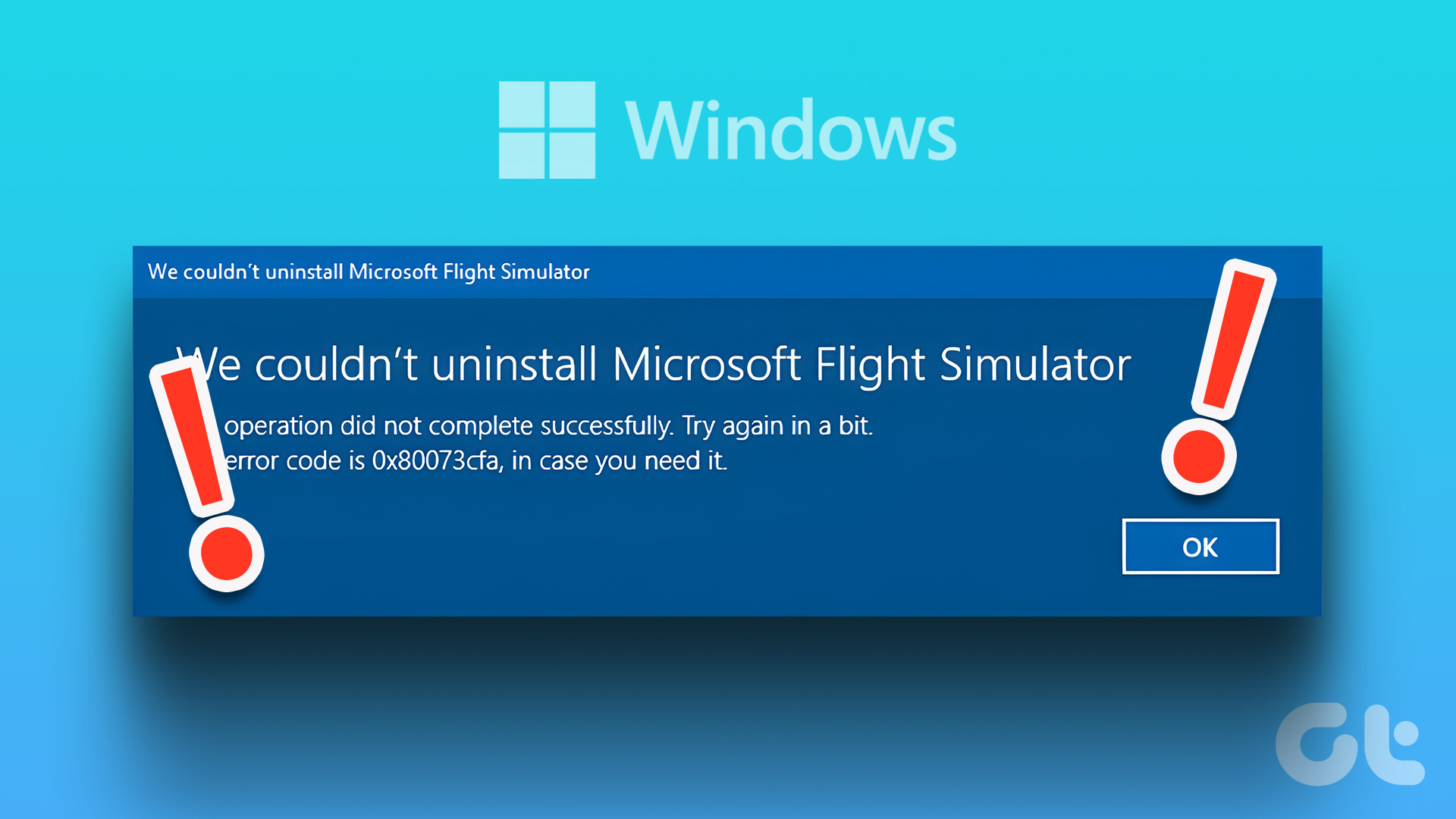 4 Ways to Fix “App Removal Failed” Error 0x80073CFA in Windows 11
Fix 1: Reset the Problematic App If the 0x80073CFA error only occurs while uninstalling a specific app, try resetting it first.
4 Ways to Fix “App Removal Failed” Error 0x80073CFA in Windows 11
Fix 1: Reset the Problematic App If the 0x80073CFA error only occurs while uninstalling a specific app, try resetting it first.
 Top 5 Ways to Fix the nvlddmkm.sys Failed Error in Windows
Preliminary Fixes Plug the GPU Into Another PCIe Slot: The nvlddmkm.sys failed error is often related to GPU issues.
Top 5 Ways to Fix the nvlddmkm.sys Failed Error in Windows
Preliminary Fixes Plug the GPU Into Another PCIe Slot: The nvlddmkm.sys failed error is often related to GPU issues.
 6 Ways to Fix Failed to Load Web Page Error in Steam for Windows
Fix 1: Terminate Steam Processes and Reopen the App The "Failed to load web page" error in Steam can occur if one of the app processes is experiencing issues.
6 Ways to Fix Failed to Load Web Page Error in Steam for Windows
Fix 1: Terminate Steam Processes and Reopen the App The "Failed to load web page" error in Steam can occur if one of the app processes is experiencing issues.
 Top 10 Ways to Fix ‘Display Driver Failed to Start’ Error in Windows 10 and 11
Display drivers facilitate communication between the Windows operating system (or any OS) with your GPU.
Top 10 Ways to Fix ‘Display Driver Failed to Start’ Error in Windows 10 and 11
Display drivers facilitate communication between the Windows operating system (or any OS) with your GPU.
The article above may contain affiliate links which help support Guiding Tech. The content remains unbiased and authentic and will never affect our editorial integrity.