Basic Fixes
- Check internet speed: Check if you have good internet speeds at your connected network. Switch to a 5GHz frequency band if you have a dual-band router.
- Disable data saver: Open Settings > Network and internet > Data Usage > Remove any limits that you have added to Wi-Fi or Ethernet.
- Check your Apple account: Open iTunes > Account > Check if it is the same Apple account that you are using on your Apple devices.
- Force quit and relaunch iTunes: Open Task Manager > Select iTunes > End Task.
- Update iTunes app: Install the latest version of the iTunes app from Microsoft Store.
Fix 1: Enable Library Syncing
Another attribute you need to ascertain is whether the library syncing is enabled. That’ll ensure to keep the same library of songs across your iPhone, iPad, Mac, and Windows computer. Follow the steps to check the same based on your Apple device.
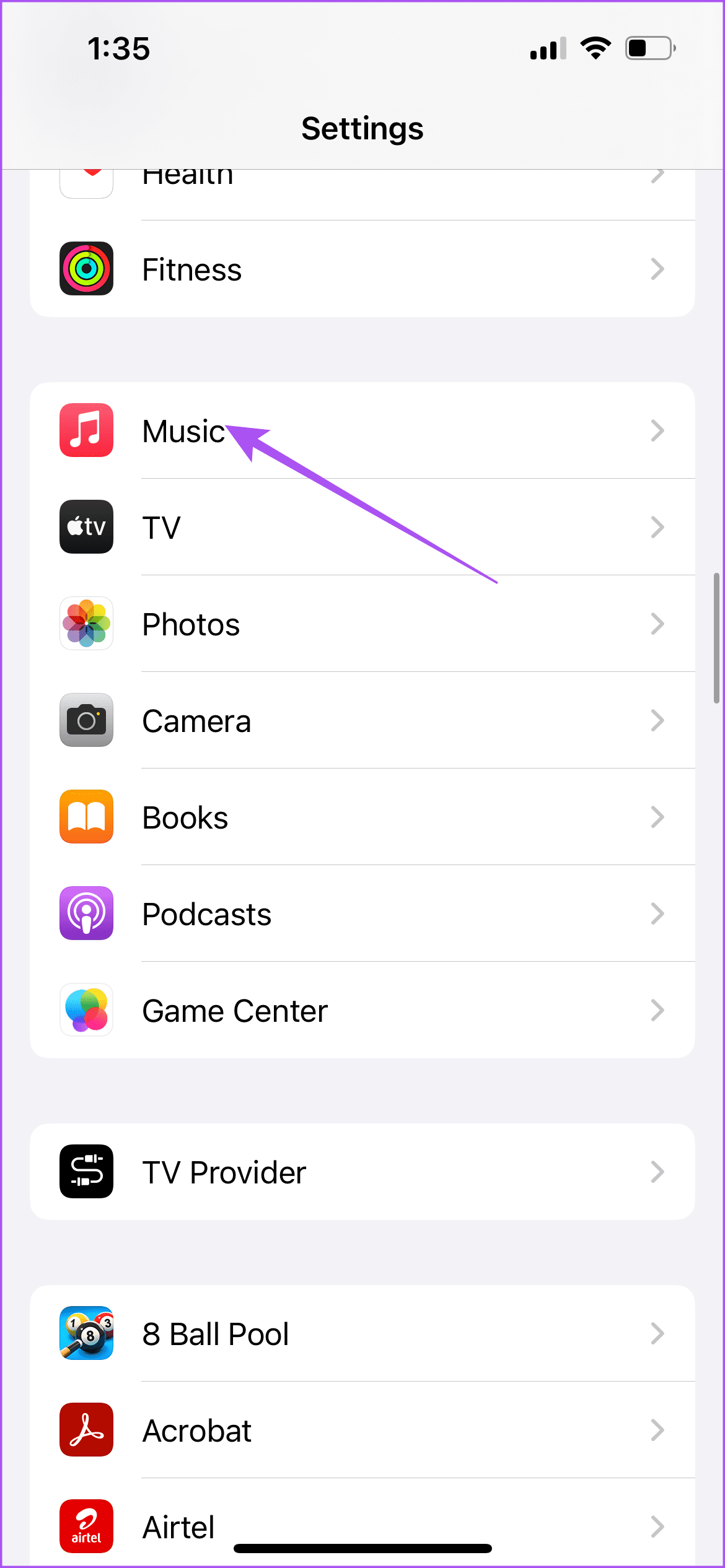
On iPhone and iPad
Open Settings > Music > Enable Sync Library.

On Mac
Open Music > Settings > General > Enable Sync Library.

After that, open iTunes on your Windows 11 PC to check if it syncs your Music library.
Fix 2: Enable iTunes Syncing Over Wi-Fi
After you connect your Windows PC to a faster Wi-Fi network, check whether iTunes can sync your library over Wi-Fi. Here’s how to check that.
Step 1: Connect your iPhone with your Windows 11 computer.
Step 2: Open iTunes on your PC. After you open iTunes, tap on Trust This Computer on your iPhone screen. Then, keep the screen awake.
Step 3: Click the device icon at the top-left side in iTunes on your Windows PC.

Step 4: Select Summary from the left menu.
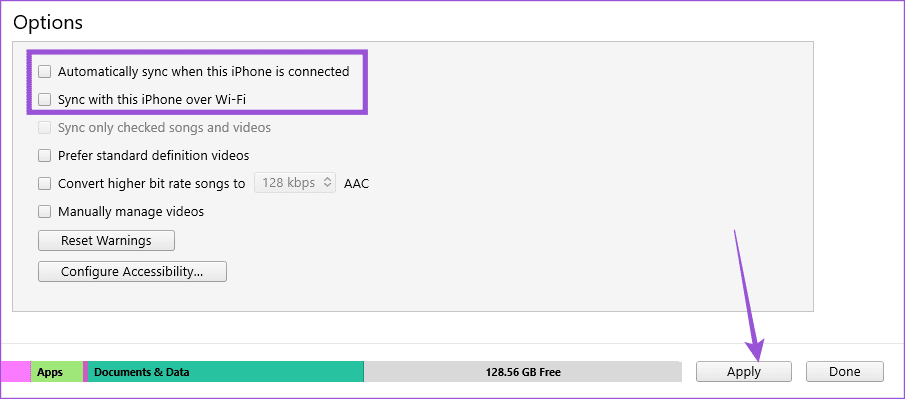
Step 5: Under Options, select Sync With This iPhone Over Wi-Fi and Automatically sync when this iPhone is connected. Then, click on Apply at the bottom-right corner.
Tip: Check out our post if your Windows 11 PC is not connecting to Wi-Fi automatically.
Fix 3: Authorize Your Windows 11 PC Again
After you have signed in to iTunes on Windows 11, your computer can access your music library. You can try to reauthorize your computer again with your Apple account. This is just like logging in again to iTunes to sync your library properly.
Step 1: Open iTunes > Account.

Step 2: Select Authorizations > Deauthorize Your Computer.

Step 3: Enter your Apple account password and then click on Deauthorize to confirm.

Step 4: Select Authorizations again and then click on Authorize Your Computer.

Tip: There’s also a dedicated app for Apple TV for Windows users. But it does have its own set of issues. We have covered one of them in our post by suggesting solutions for low quality playback in Apple TV on Windows 11.
Was this helpful?
Last updated on 21 August, 2024
Read Next
 Top 11 Fixes for iTunes Not Working on Windows 10
I don’t like iTunes.
Top 11 Fixes for iTunes Not Working on Windows 10
I don’t like iTunes.
 How to Quickly Transfer Videos or Music to iPhone Using VLC, Without iTunes
When it comes to transferring videos and music files to an iPhone, one can't help but say that the options are pretty limited.
How to Quickly Transfer Videos or Music to iPhone Using VLC, Without iTunes
When it comes to transferring videos and music files to an iPhone, one can't help but say that the options are pretty limited.
 Transfer Music From PC to iPhone (With or Without iTunes)
How to Transfer Music From iTunes to iPhone While Mac has moved on to Finder, iTunes is still the bridge between iPhone and PC.
Transfer Music From PC to iPhone (With or Without iTunes)
How to Transfer Music From iTunes to iPhone While Mac has moved on to Finder, iTunes is still the bridge between iPhone and PC.
 Fix: Apple Music Playlists Not Syncing Between Mac and iPhone
Basic Fixes Use the same Apple account: Once you do that, all your devices will have all your Apple Music data synced.
Fix: Apple Music Playlists Not Syncing Between Mac and iPhone
Basic Fixes Use the same Apple account: Once you do that, all your devices will have all your Apple Music data synced.
 5 Best Ways to Update iTunes on Windows 10
On Windows 10, iTunes is that one program that never seems to change with the times.
5 Best Ways to Update iTunes on Windows 10
On Windows 10, iTunes is that one program that never seems to change with the times.
 4 Fixes for Android Auto Not Playing Music From Spotify or YouTube Music
Fix 1: Change the Default Music Streaming Service Say you have a Spotify subscription.
4 Fixes for Android Auto Not Playing Music From Spotify or YouTube Music
Fix 1: Change the Default Music Streaming Service Say you have a Spotify subscription.
 3 Fixes for Voice Memos Not Syncing Between iPhone and Mac
Basic Fixes Use the same Apple account: Apple devices will sync only when they are using the same Apple account.
3 Fixes for Voice Memos Not Syncing Between iPhone and Mac
Basic Fixes Use the same Apple account: Apple devices will sync only when they are using the same Apple account.
 4 Fixes for Spotify Not Syncing Between Mobile and Desktop
Basic Fixes Use the same account on multiple devices: Sometimes you don't realize, but you must have the same account on all your devices.
4 Fixes for Spotify Not Syncing Between Mobile and Desktop
Basic Fixes Use the same account on multiple devices: Sometimes you don't realize, but you must have the same account on all your devices.
The article above may contain affiliate links which help support Guiding Tech. The content remains unbiased and authentic and will never affect our editorial integrity.