Basic Editing Shortcuts
| Shortcut | Function |
|---|---|
| Ctrl + C | Use it to copy both 2D and 3D elements on your image |
| Ctrl + X | Delete or move an element using this shortcut |
| Ctrl + V | Paste the copied item to duplicate an item. Alternatively, if you have an image or text in your Windows clipboard from a different app, you can paste it into your picture. |
| Ctrl + A | Select all 3D elements on your canvas using this command. |
| Ctrl + Z | Undo an action |
| Ctrl + Y | Redo an action |
Pro Tip: Check out keyboard shortcuts that work with MS Paint.
Text Formatting Shortcuts
| Shortcut | Function |
|---|---|
| Ctrl + B | Bold text |
| Ctrl + U | Add underline to your text |
| Ctrl + I | Italicize your text |
File Shortcuts
| Shortcut | Function |
|---|---|
| Ctrl + N | Create a new picture |
| Ctrl + O | Open an existing picture from your computer |
| Ctrl + P | Print 2D image |
| Ctrl + S | Save image |
| Ctrl + Shift + S | Open the Save as dialog box to save the image in a different format |
Zoom Shortcuts
| Shortcut | Function |
|---|---|
| Ctrl + PgUp | Zoom in |
| Ctrl + PgDn | Zoom down |
| Ctrl + 0 | Reset zoom view |
Other Shortcuts
| Shortcut | Function |
|---|---|
| I | Activate eyedropper tool |
| M | Minimize or maximize the side menu |
| Ctrl + Shift + X | Activate the crop tool and start cropping |
| Ctrl + 3 | Switch between 2D and 3D view |
| Ctrl + Shift + E | Show or hide the 3D perspective. |
| Ctrl + G | Group items |
| Ctrl + Shift + G | Ungroup items |
| Ctrl + Minus (-) | Decrease brush size |
| Ctrl + Plus (+) | Increase brush size |
| Ctrl + Shift + C | Take a screenshot |
| Ctrl + E | Open canvas properties. |
Note that the canvas helps when dealing with transparent or PNG pages. You can make your image transparent in Paint 3D by enabling the Transparent Canvas option under Canvas properties.
Was this helpful?
Thanks for your feedback!
Last updated on 12 August, 2024
Read Next
 The Complete List of Microsoft Paint Keyboard Shortcuts
File Management Shortcuts ShortcutFunctionCtrl + NCreate a new imageCtrl + OOpen a fileCtrl + WResize and Skew an imageCtrl + PPrintAlt + F4CloseF12Save as - It prompts for a new
The Complete List of Microsoft Paint Keyboard Shortcuts
File Management Shortcuts ShortcutFunctionCtrl + NCreate a new imageCtrl + OOpen a fileCtrl + WResize and Skew an imageCtrl + PPrintAlt + F4CloseF12Save as - It prompts for a new
 How to Add a Logo to a Picture in Paint and Paint 3D
Stealing images is quite a negative trend these days.
How to Add a Logo to a Picture in Paint and Paint 3D
Stealing images is quite a negative trend these days.
 How to Put Transparent Image Over Another in Paint and Paint 3D
There is a learning curve involved if you want to perform any simple task on powerful photo-editing tools such as Photoshop, GIMP, etc.
How to Put Transparent Image Over Another in Paint and Paint 3D
There is a learning curve involved if you want to perform any simple task on powerful photo-editing tools such as Photoshop, GIMP, etc.
 9 Best Microsoft Whiteboard Keyboard Shortcuts to Boost Productivity
Whiteboards are super useful to brainstorm with your team, collect ideas, or draw a plan.
9 Best Microsoft Whiteboard Keyboard Shortcuts to Boost Productivity
Whiteboards are super useful to brainstorm with your team, collect ideas, or draw a plan.
 Top 11 Microsoft Teams Keyboard Shortcuts to Use It Like a Pro
Work from home is the new norm these days.
Top 11 Microsoft Teams Keyboard Shortcuts to Use It Like a Pro
Work from home is the new norm these days.
 5 Fixes for Keyboard Shortcuts Not Working in Microsoft Excel for Windows
Fix 1: Use the On-Screen Keyboard First, you must perform a few keyboard shortcuts using the On-Screen Keyboard (OSK) on Windows.
5 Fixes for Keyboard Shortcuts Not Working in Microsoft Excel for Windows
Fix 1: Use the On-Screen Keyboard First, you must perform a few keyboard shortcuts using the On-Screen Keyboard (OSK) on Windows.
 How to Add Borders to an Image Using Microsoft Paint
Method 1: Add Borders Using Shapes for Borders This method involves using the shapes within Microsoft Paint to draw borders around the image.
How to Add Borders to an Image Using Microsoft Paint
Method 1: Add Borders Using Shapes for Borders This method involves using the shapes within Microsoft Paint to draw borders around the image.
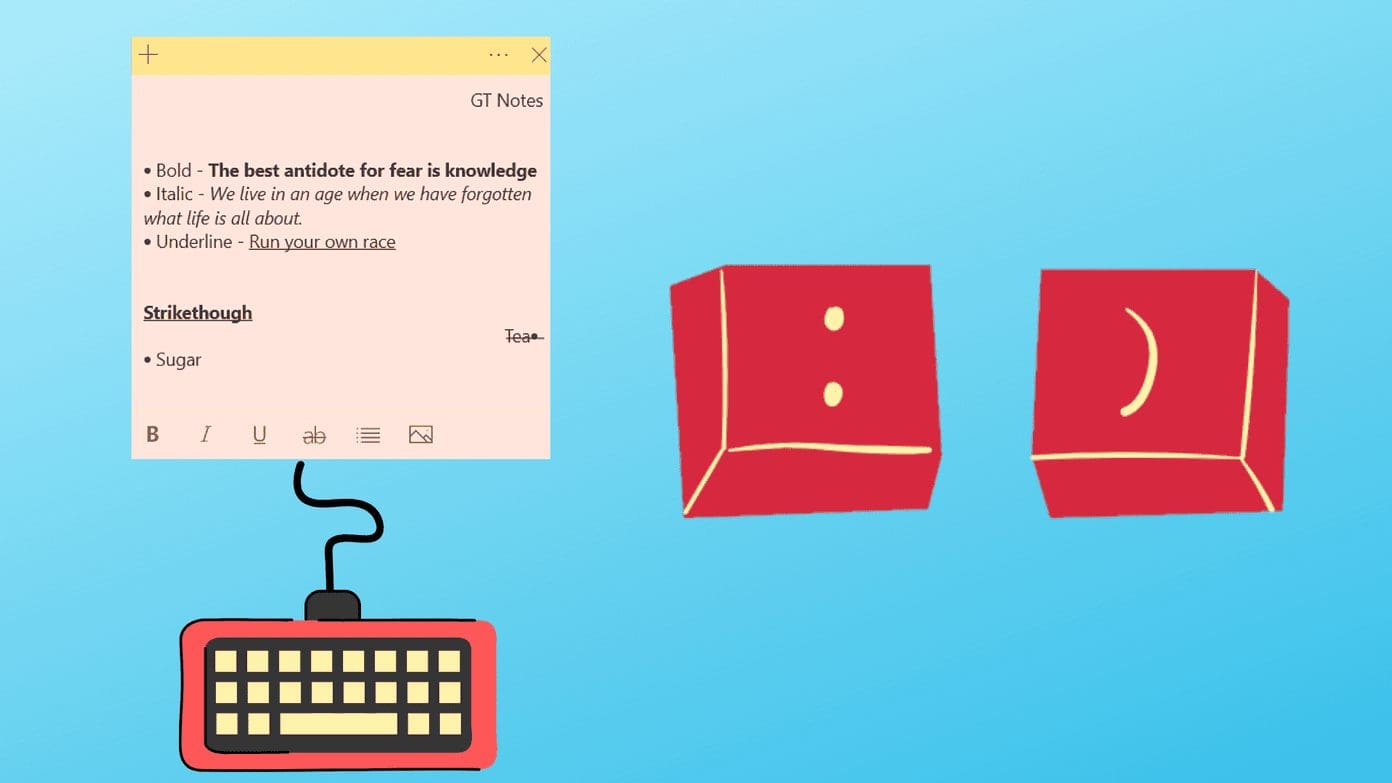 9 Best Sticky Notes Keyboard Shortcuts on Windows 10
Our beloved Sticky Notes on Windows has grown in a beautiful app over the years.
9 Best Sticky Notes Keyboard Shortcuts on Windows 10
Our beloved Sticky Notes on Windows has grown in a beautiful app over the years.
The article above may contain affiliate links which help support Guiding Tech. The content remains unbiased and authentic and will never affect our editorial integrity.