Step 1: Open the Discord app on your desktop or the web using your preferred browser.
Step 2: Navigate to the chat or server where you want to post a spoiler message.
Step 3: Type your message in the text box below and double-click to select it, or use your mouse to highlight it.
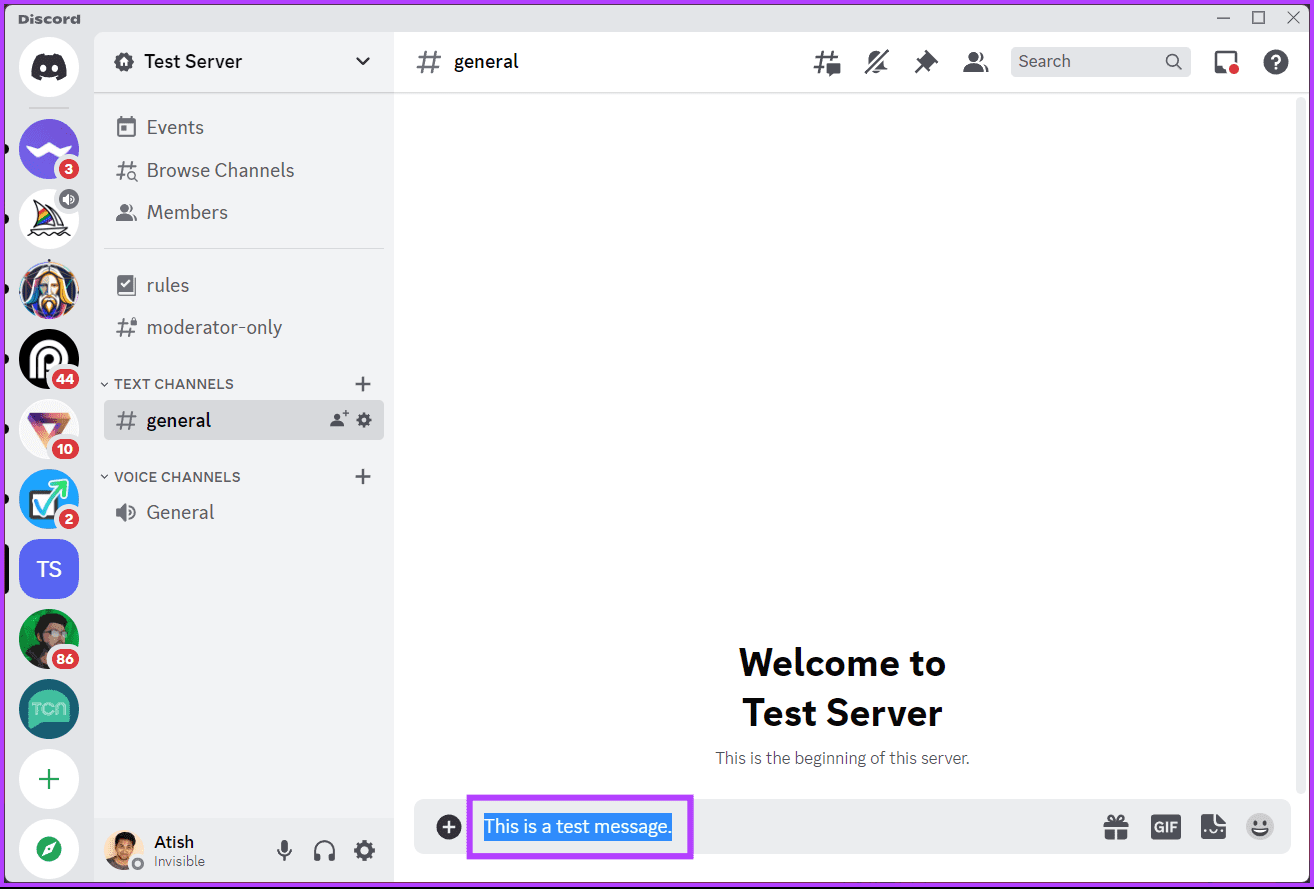
You will see a toolbar with basic formatting tools and an eye icon.
Step 4: Click on the eye icon to mark the message as a spoiler, and hit Enter (or Return) on your keyboard to send the message with a spoiler tag.

Once you send the message, users can view it. However, the spoiler text will be greyed out until the user clicks on it to reveal the content.
Also Read: How to record Discord calls on PC and mobile
How to Use Spoiler Tags for Discord Texts on Mobile
Step 1: Launch the Discord app. Now, navigate to the chat or server where you want to post spoiler text.
Step 2: Tap on the textbox at the bottom, type the below command, and tap the Space button.
/spoiler
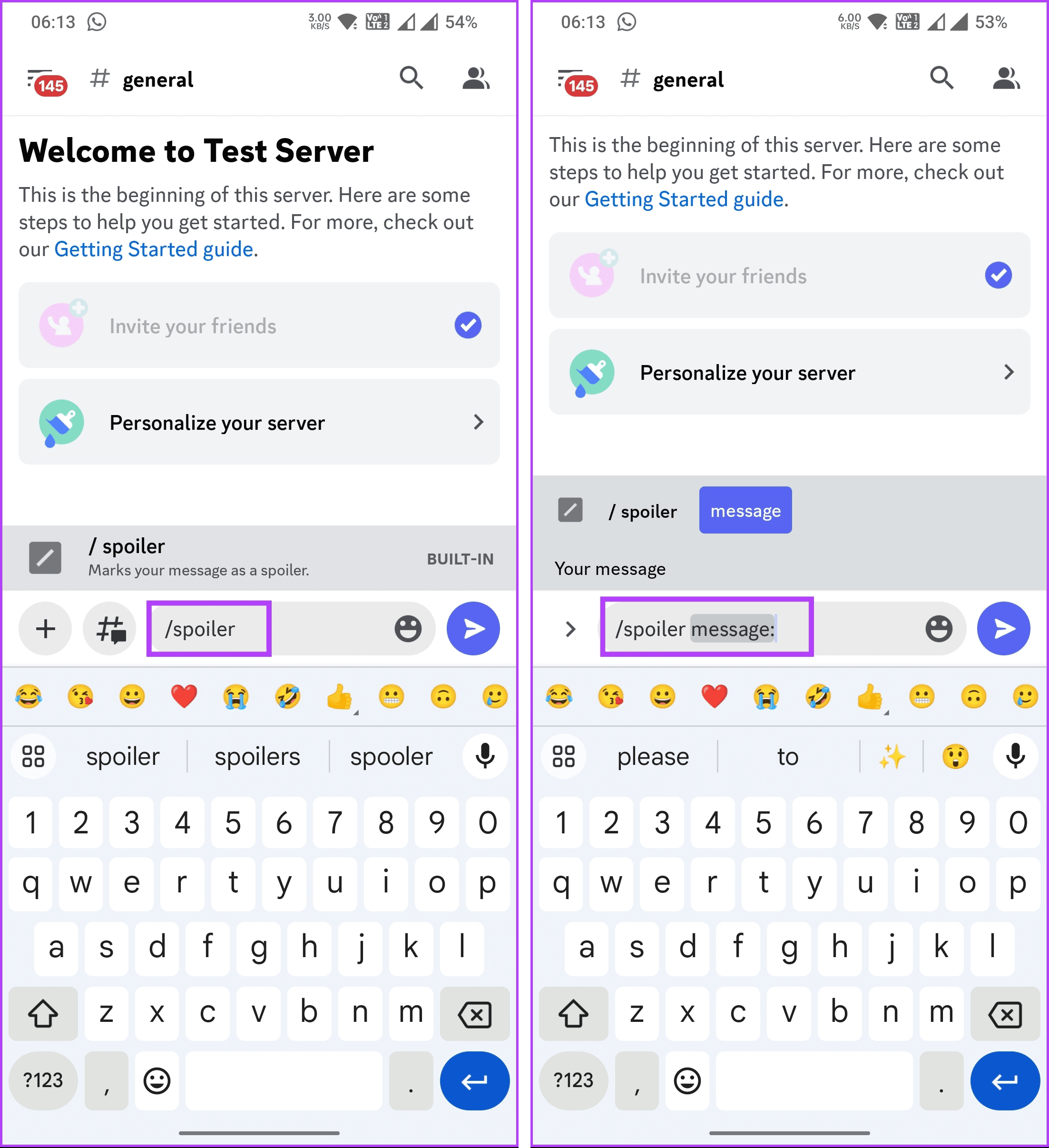
Step 3: Now, type the message you want to hide under the spoiler tag and tap on the Send button.
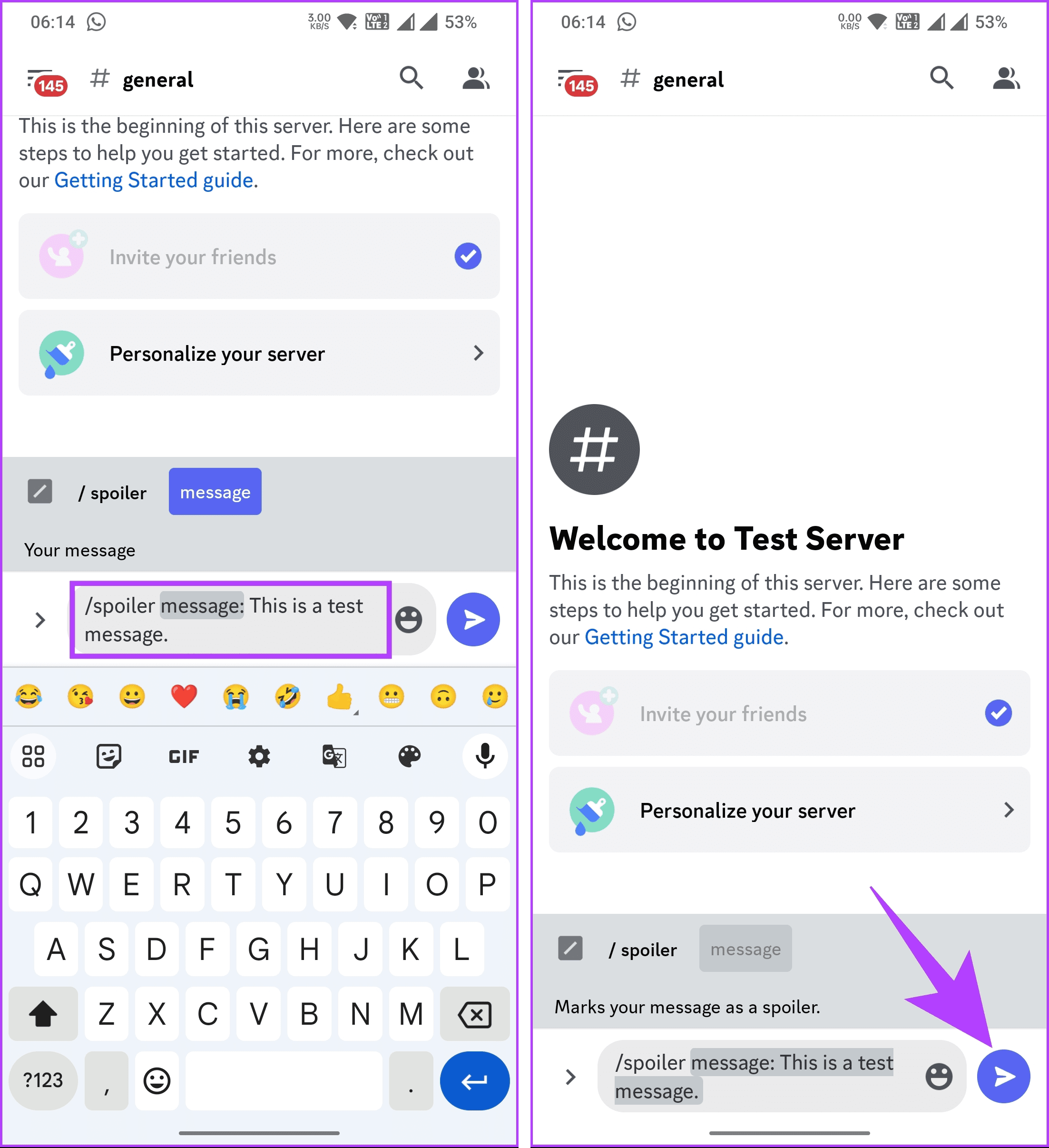
There you go. Much like on the desktop, the spoiler text will be greyed out, and when the user taps on it, the content will be revealed to them.
Also Read: How to react to messages on Discord
How to Mark Image as Spoiler on Discord
Technically, marking an image as a spoiler is similar to marking a text as a spoiler. There is, however, a slight difference between adding an image and marking it as a spoiler. Let’s begin with the desktop steps.
Note: You can add multiple images with spoiler tags and send them at once.
On Desktop or Web
Step 1: Open the Discord app on your desktop or the web using your preferred browser.
Step 2: Navigate to the chat, group, or server where you want to post a spoiler image.
Step 3: Click on the + (plus) icon and select Upload a file option.
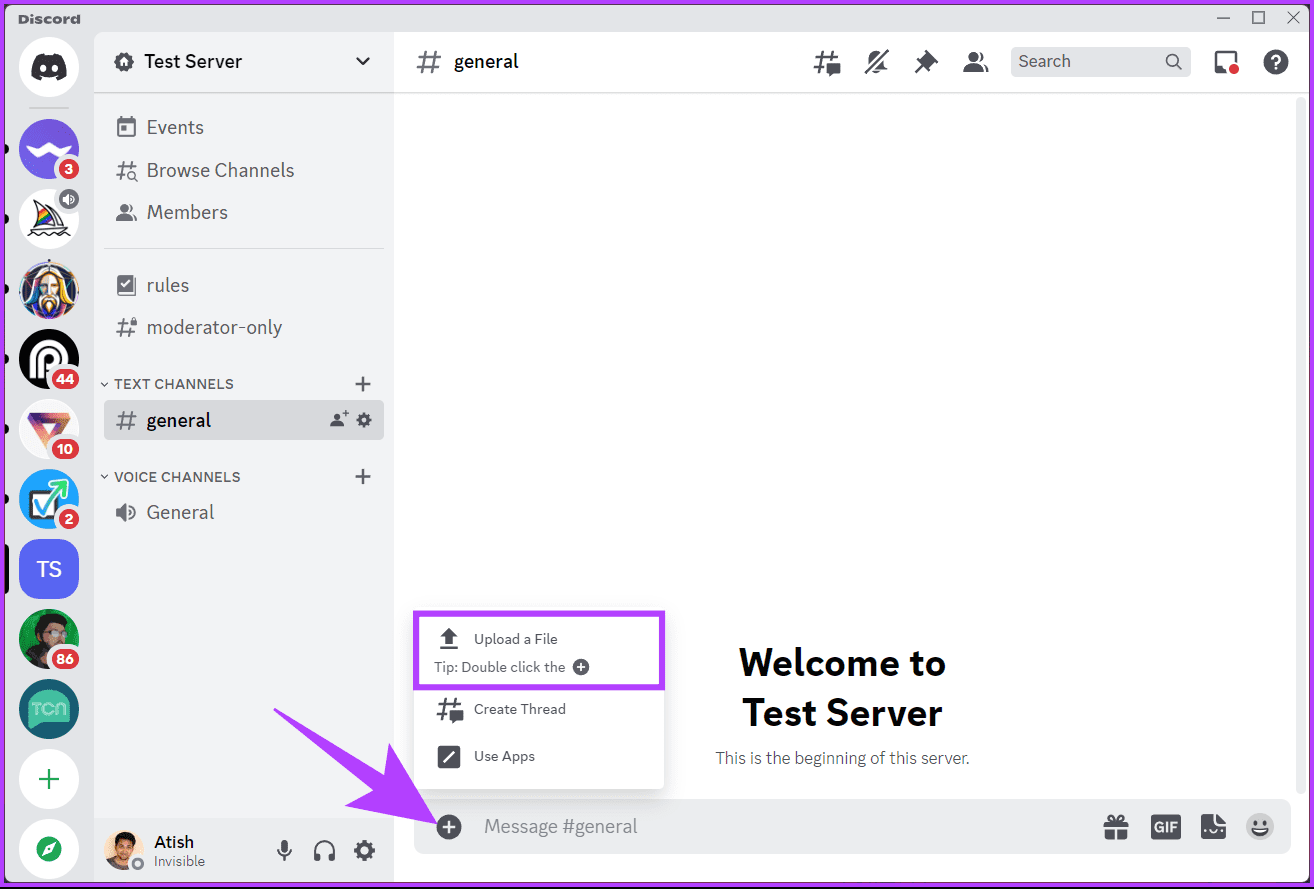
Step 4: Choose the image file you want to add as a spoiler from the file explorer.

Step 5: Once uploaded, Discord will show you the option to Mark as spoiler (an eye icon) in the image preview. Click on it to hide your image behind a spoiler tag.
Note: You can choose to add a caption to the image.
Step 6: Finally, send the image by hitting your keyboard’s Enter (or Return) key.
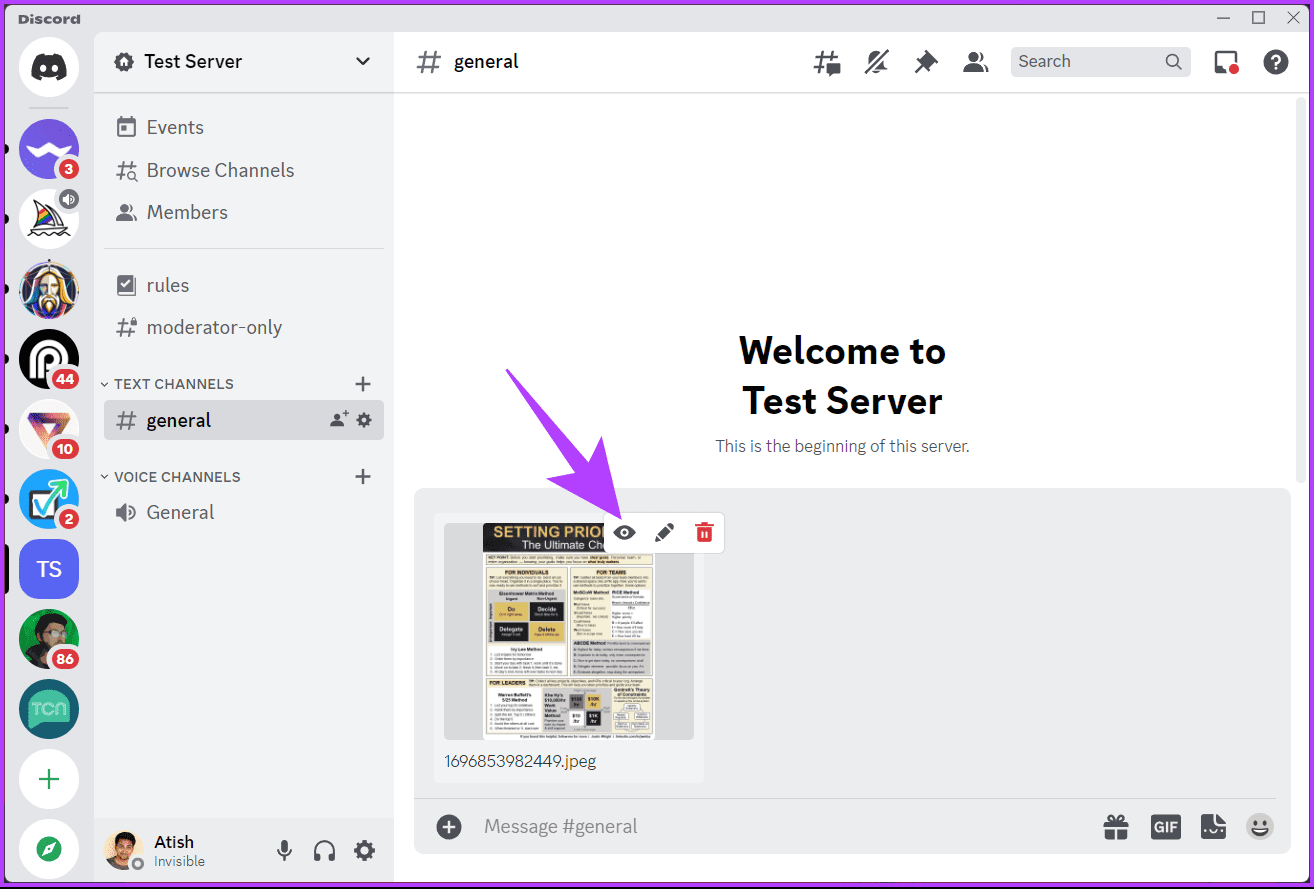
There you go. The image marked as spoiler is blurred and has a spoiler tag, much like text messages. The users can click on the image to unblur and view it.
Also Read: How to play Discord games
On Mobile
Step 1: Launch the Discord app and navigate to the chat or server where you want to post spoiler text.
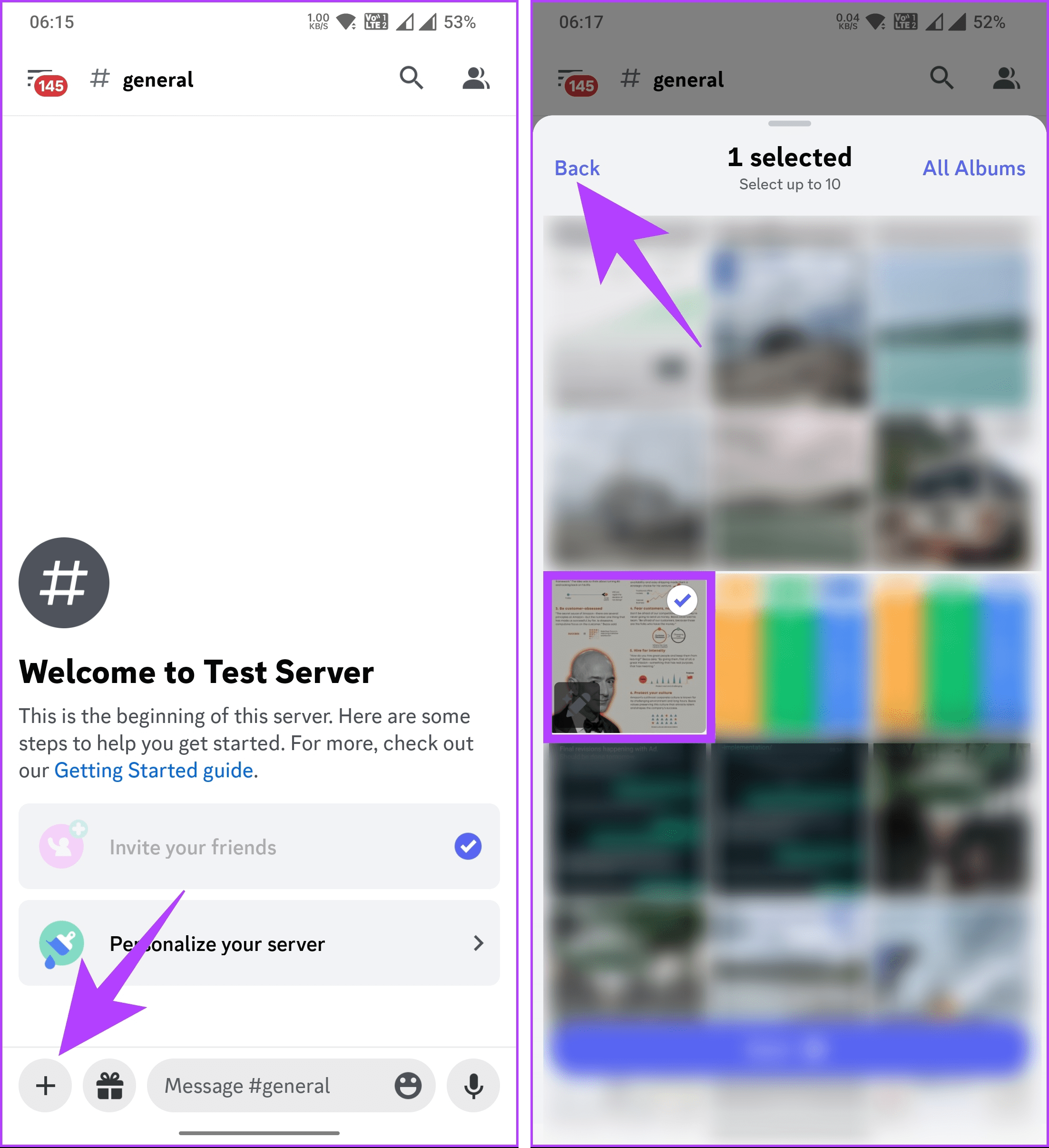
Step 2: Tap the + (plus) icon in the textbox, choose the image you want to share as a spoiler, and tap Back.
Step 3: Once the image is uploaded, tap on it. From the bottom sheet, choose Mark as spoiler.
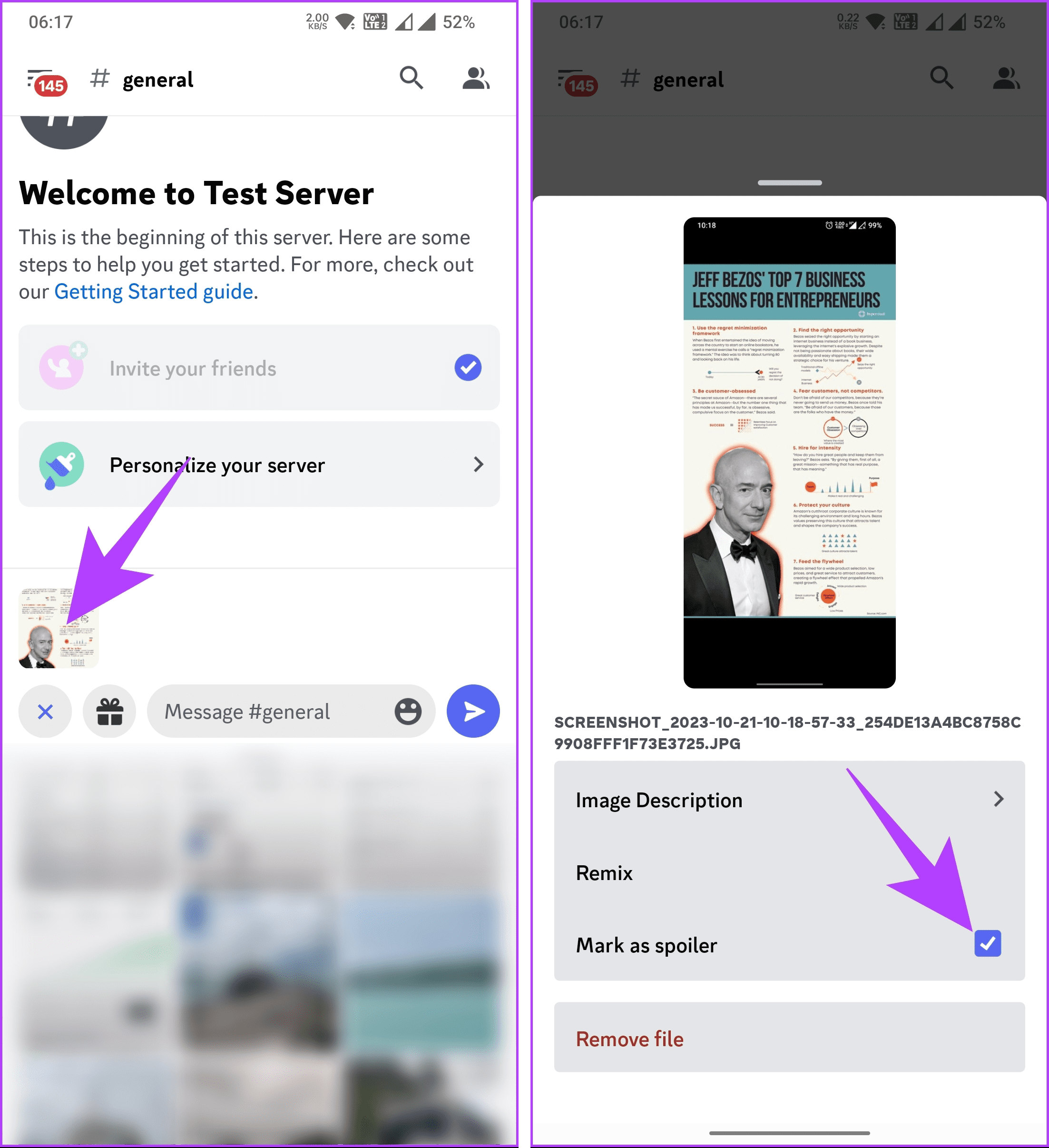
Step 4: Finally, tap the Send button to share with the users.
Note: You can choose to add a caption to the image.
There you have it. The image will be blurred and marked as a spoiler. To reveal it, the recipient must tap on it. If you don’t want to tap every time to reveal spoiler content, enable always show spoiler content on Discord.
Also Read: How to put emojis in Discord channel names
How to Always Show Spoiler Content on Discord
Before we begin with the method, it is essential to note that this method is limited to the Discord desktop app and web. You don’t have a similar option on the Discord mobile app.
Step 1: Open the Discord app on your desktop or the web using your preferred browser.
Step 2: Click the Settings (gear icon) button in the bottom left corner.
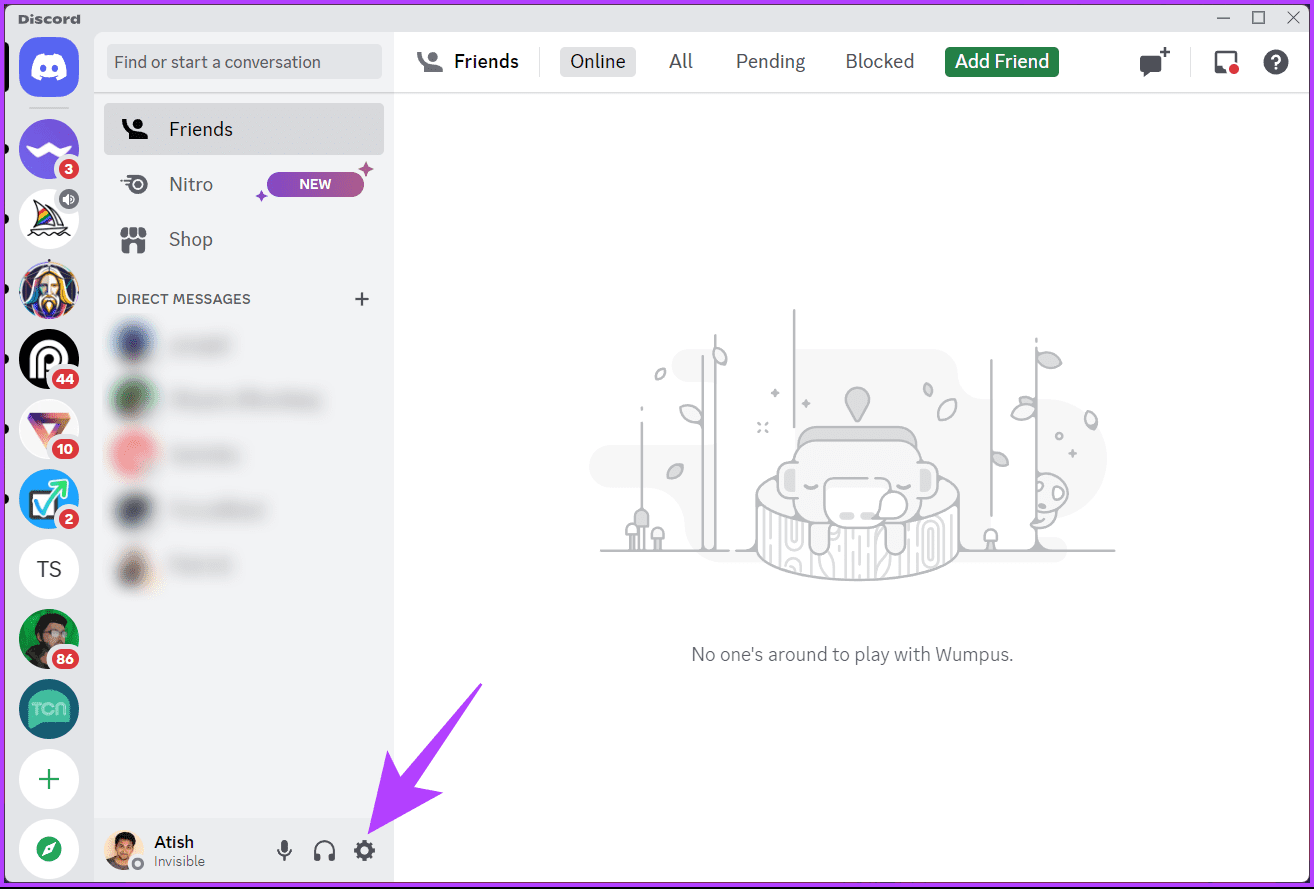
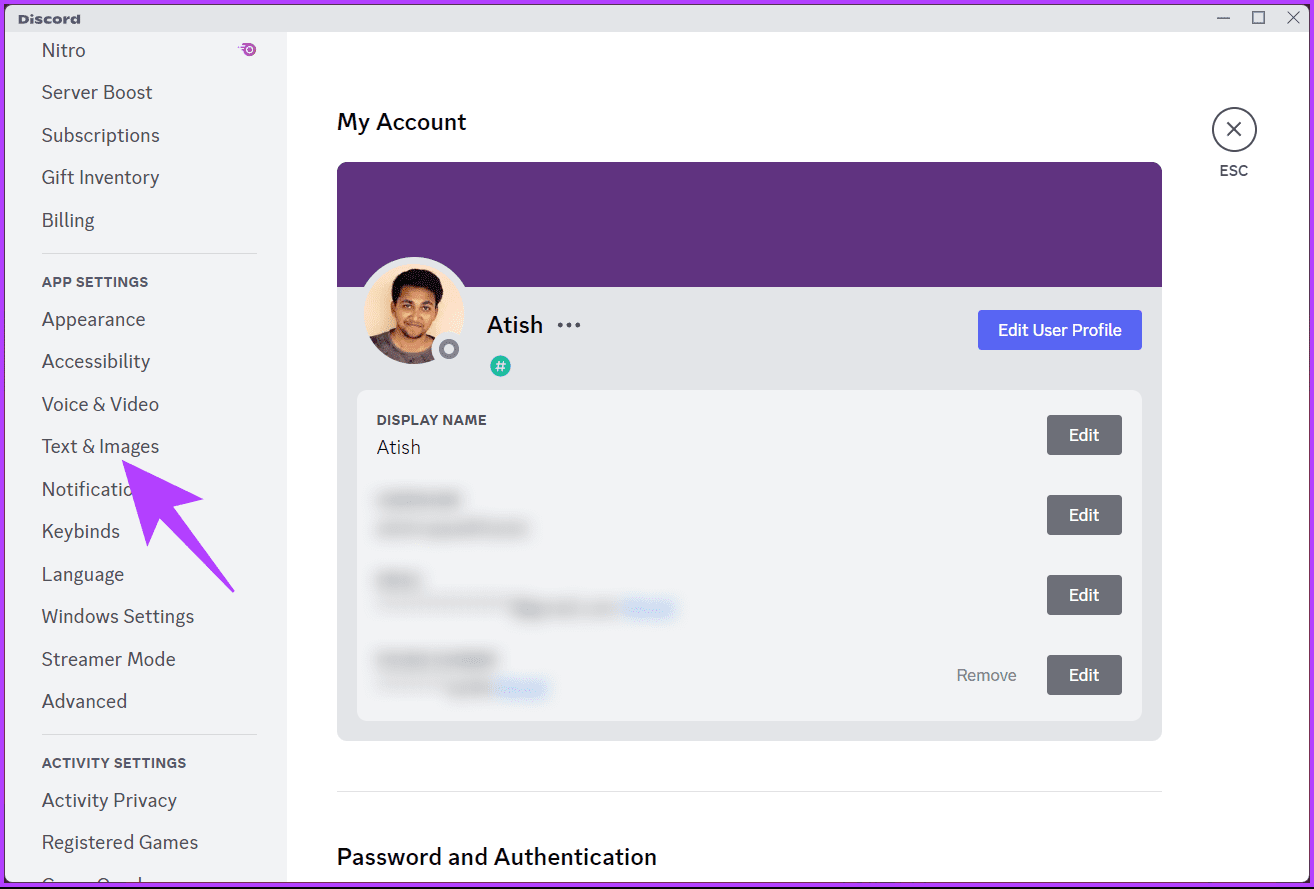
Step 3: Under Settings, scroll down to the Text & images section in the side pane and click on it.
Step 4: In the right pane, scroll down to the Show Spoiler Content section and choose Always.
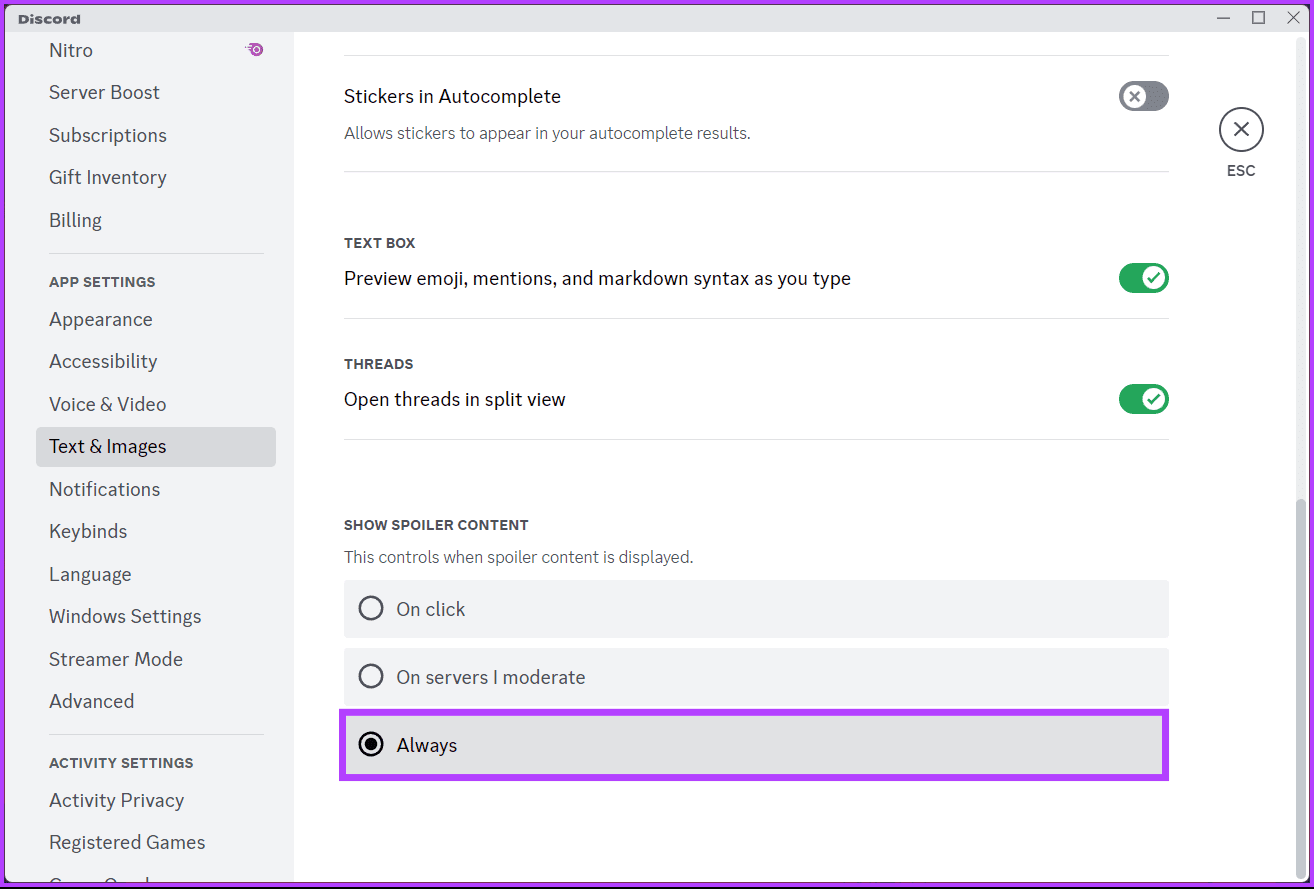
That’s about it. From now on, you’ll see spoiler messages without clicking on them every time. Refer to the FAQ section below if you have any questions.
FAQs on Using Spoiler Tags in Discord
Yes, you can use spoiler tags in both Discord messages and messages sent by bots. The functionality is the same.
Yes, spoiler content works on both the desktop and mobile versions of Discord. Users can click to reveal the content as long as the app or platform is up-to-date.
There isn’t a specific character limit for spoiler text, but remember that extremely long spoiler text might not work well in practice. Use it for concealing specific content, not for hiding all messages or conversations.
Whether you want to safeguard against spoilers or hide sensitive content, knowing how to do spoilers (text or image) on Discord enhances the overall community experience.
Was this helpful?
Last updated on 26 July, 2024
Read Next
 How to Use Reddit Spoiler Tags on Desktop and Mobile Apps
If you're a Reddit user, you've probably discussed your favorite movies or shows extensively with other users on the platform.
How to Use Reddit Spoiler Tags on Desktop and Mobile Apps
If you're a Reddit user, you've probably discussed your favorite movies or shows extensively with other users on the platform.
 How to Play Discord Games Using Discord Activities
What Are Discord Games?
How to Play Discord Games Using Discord Activities
What Are Discord Games?
 4 Ways to Use Google Lens to Copy Text From an Image
Tip: You can also use the below methods to copy hand-written notes without typing.
4 Ways to Use Google Lens to Copy Text From an Image
Tip: You can also use the below methods to copy hand-written notes without typing.
 How to Change Color of PNG Image and Text in GIMP
Many times, we have a single color image such as an icon or a logo whose color needs to be changed.
How to Change Color of PNG Image and Text in GIMP
Many times, we have a single color image such as an icon or a logo whose color needs to be changed.
 6 Ways to Extract and Copy Text From Image in Samsung
Copying text from messages or any other Android app is easy.
6 Ways to Extract and Copy Text From Image in Samsung
Copying text from messages or any other Android app is easy.
 What Happens When You Block Someone on Discord?
How to Block Someone on Discord From the Desktop Discord for Windows and Mac uses the same user interface.
What Happens When You Block Someone on Discord?
How to Block Someone on Discord From the Desktop Discord for Windows and Mac uses the same user interface.
 What Happens When You Remove a Friend on Discord
What Happens When You Unfriend Someone on Discord Before we show you how to unfriend someone on Discord, you should learn the implications of your actions and take steps accordingly.
What Happens When You Remove a Friend on Discord
What Happens When You Unfriend Someone on Discord Before we show you how to unfriend someone on Discord, you should learn the implications of your actions and take steps accordingly.
 How to Enable or Disable NSFW Channels on Discord
Discord provides the option to change the status of your Discord channel.
How to Enable or Disable NSFW Channels on Discord
Discord provides the option to change the status of your Discord channel.
The article above may contain affiliate links which help support Guiding Tech. The content remains unbiased and authentic and will never affect our editorial integrity.