Basic Fixes
- Check if Instagram is down: Check if Instagram is facing downtime. If yes, wait for the platform to be restored.
- Restart device and Instagram: Restart your device, and the Instagram app to fix temporary bugs and glitches.
- Check notifications: Ensure you’ve enabled notifications for Instagram on the Settings app on your iPhone.
- Update Instagram: Update Instagram to the latest version on iOS devices for a bug-free experience.
- Check network: Ensure you have an active cellular data/Wi-Fi plan with a stable network signal on your device.
Fix 1: Check Cellular Data Access
If you’ve disabled cellular data access for Instagram, the app won’t work on mobile data.
Go to Settings, scroll down, select Instagram from the list, and enable Mobile Data.


Fix 2: Disable Low Data Mode
Data saver settings on your iPhone may restrict Instagram from loading data, or uploading content in the highest quality.
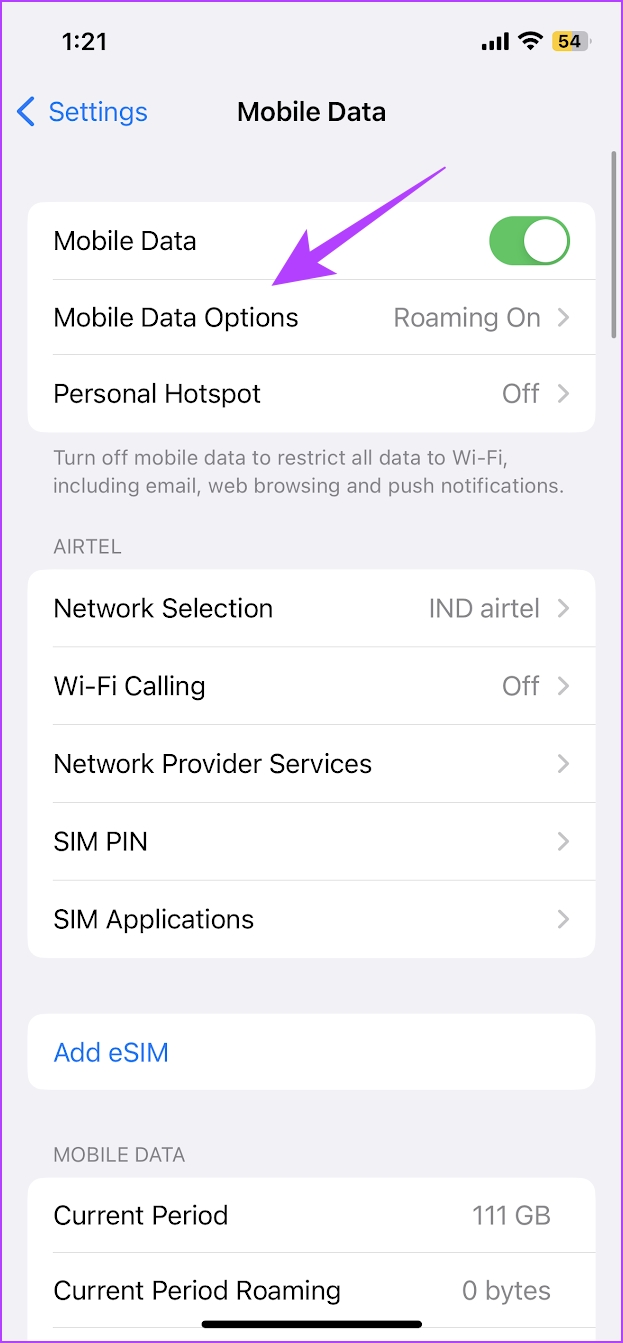
Step 1: Open Settings > tap on Cellular Data/Mobile data.
Step 2: Tap on Mobile Data Options (or Cellular Data Options).
Step 3: Tap on Data Mode. Ensure you haven’t selected Low Data Mode. Select Allow More Data on 5G or Standard.
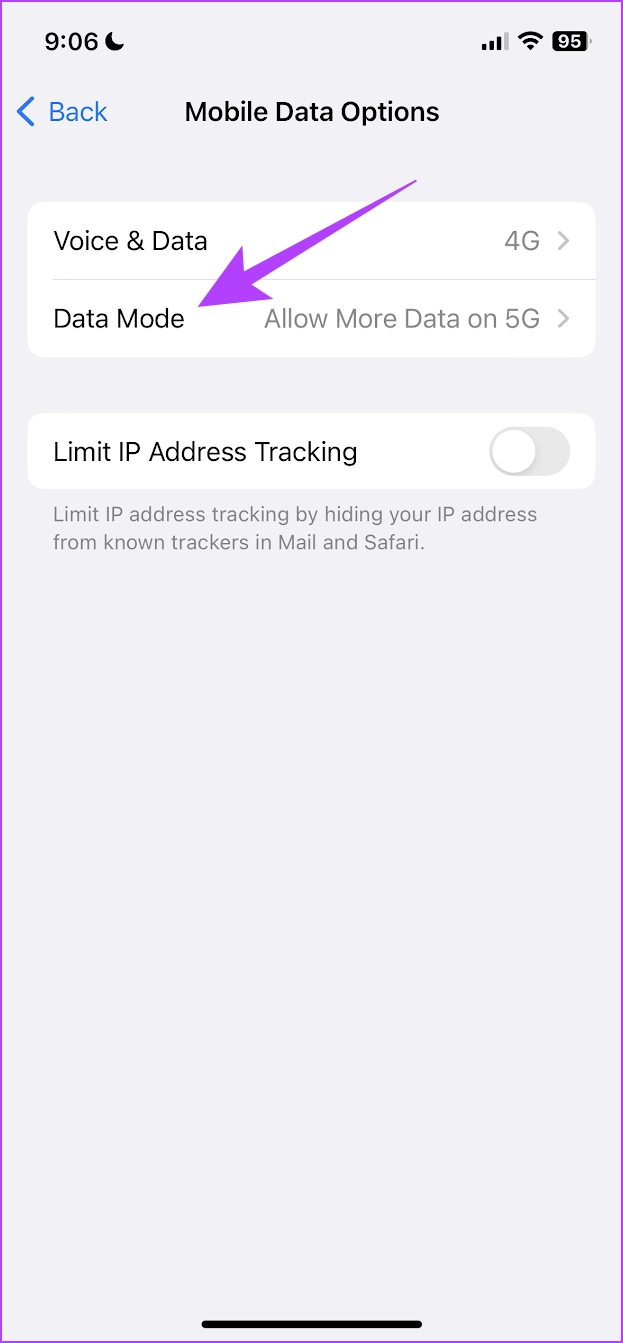

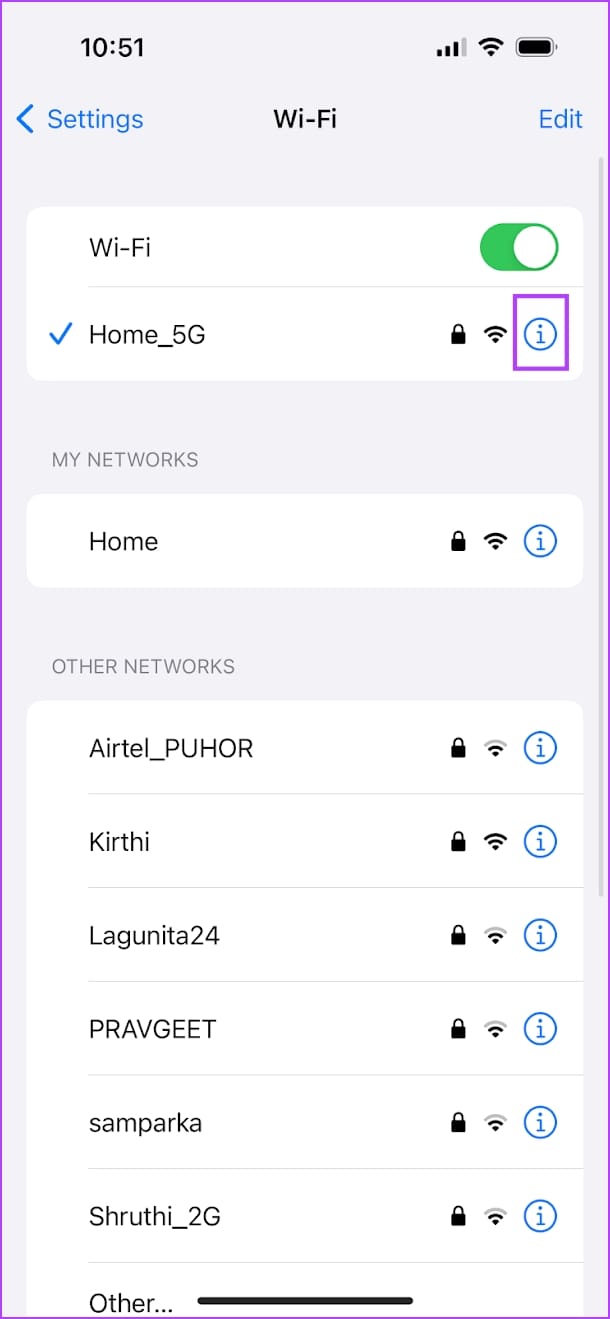
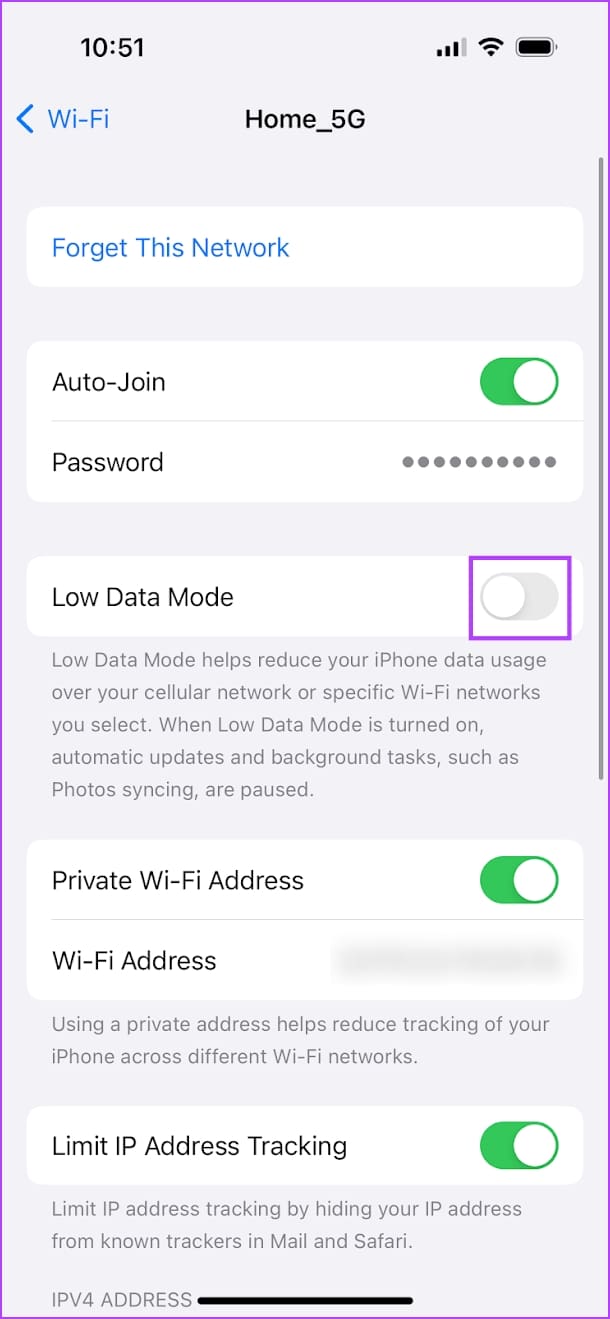
Additionally, ensure you’ve not enabled Low Data Mode for Wi-Fi networks as well. Open the Settings app > tap on Wi-Fi > tap on the info icon next to the connected network > turn off the toggle for Low Data Mode.
Fix 3: Turn Off Data Saver Settings on Instagram
Instagram app also has a few data saver settings that can prevent the app from showing, or uploading content in the highest quality.
Step 1: Open the Profile tab, and tap on the menu button at the top right corner.
Step 2: Select Media quality and turn off Use less mobile data. Additionally, enable Upload at highest quality.


Fix 4: Enable Background App Refresh
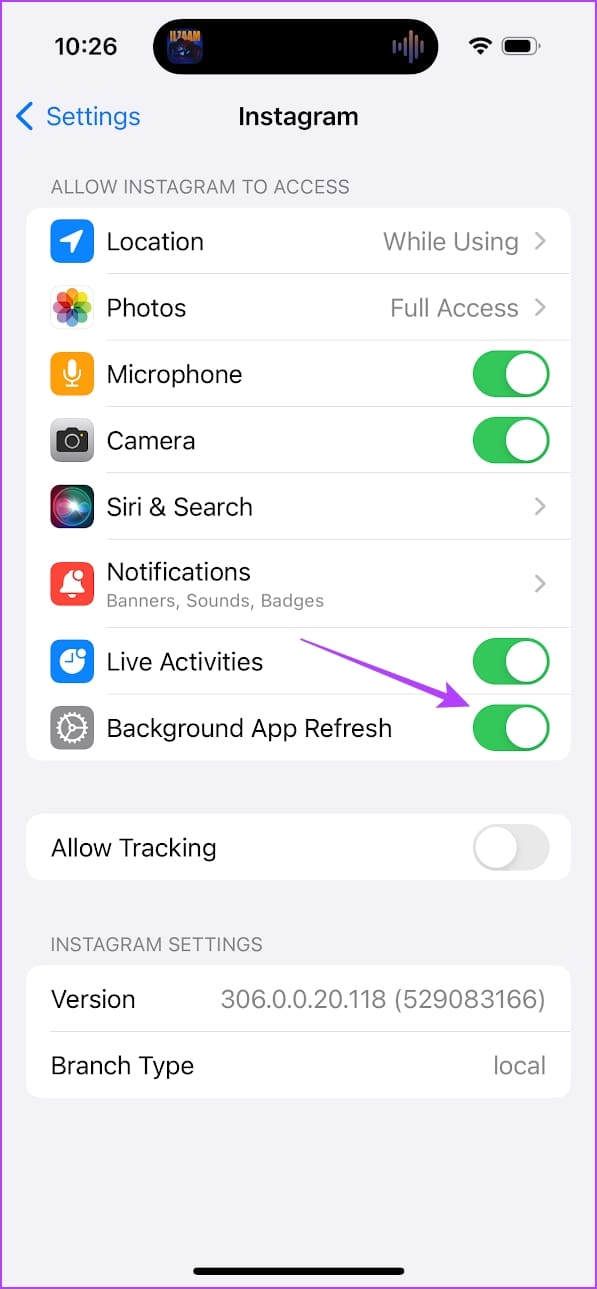
Background app refresh helps Instagram work without issues even after you exit the app. This may be helpful for several background activities, such as uploading stories, videos or posts.
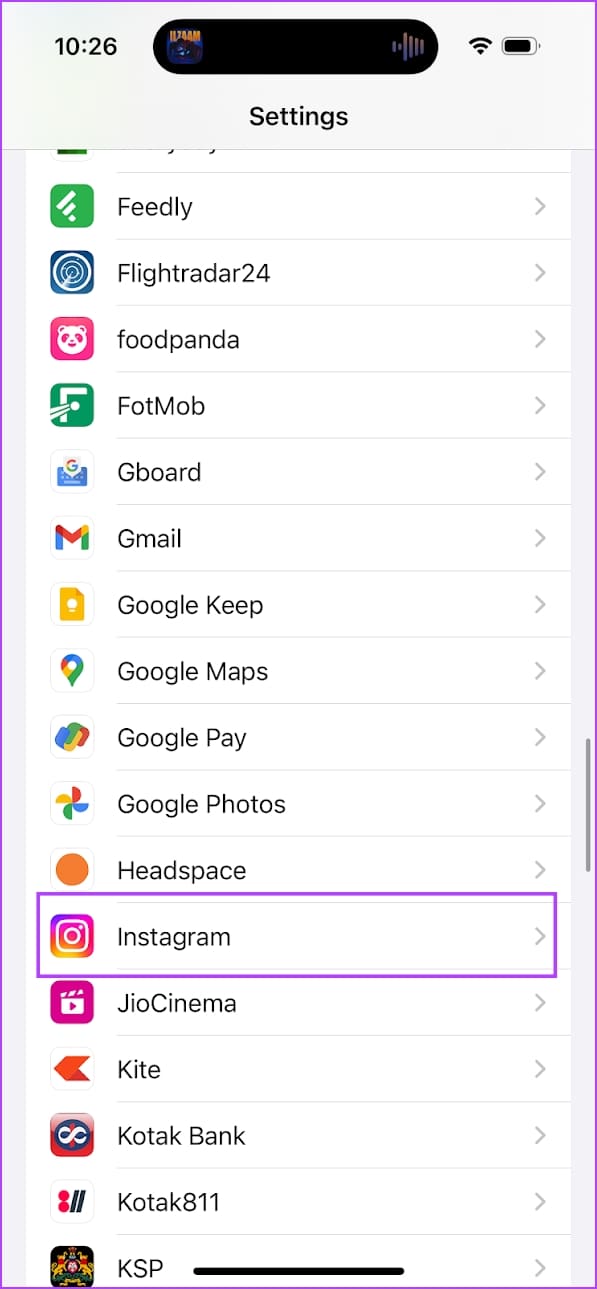
Open Settings > Instagram and enable Background App Refresh.
Fix 5: Enable Permissions
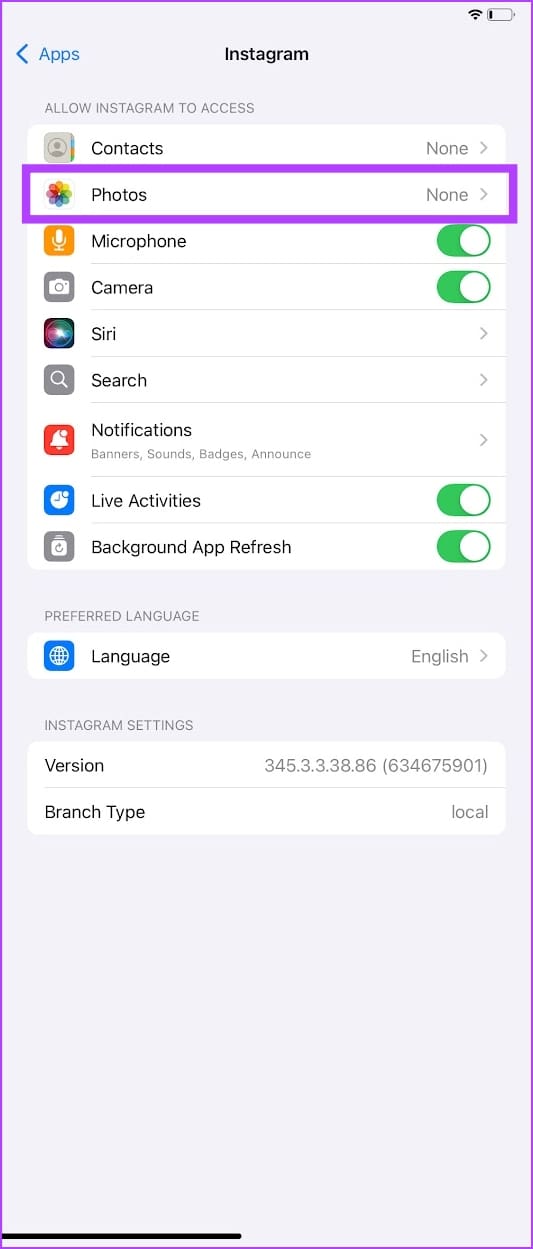
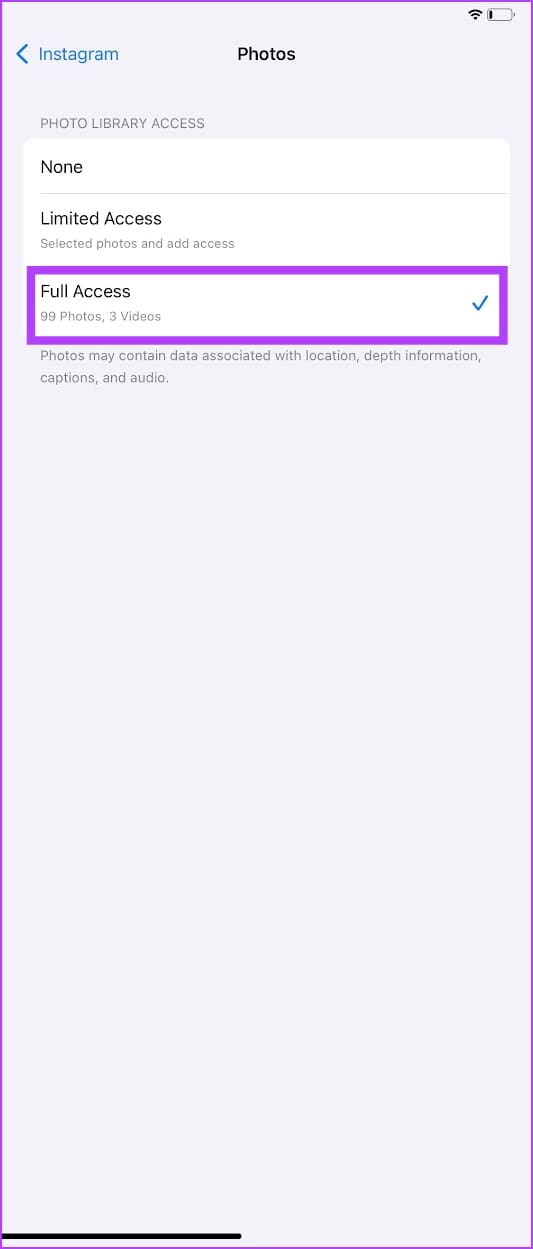
Can’t access your Photos from the Instagram app? Ensure you’ve provided permissions for Instagram to access your device storage.
Step 1: Open Settings, scroll down and select Instagram from the list of apps.
Step 2: Select Photos and allow Full Access.
Fix 6: Clear Cache
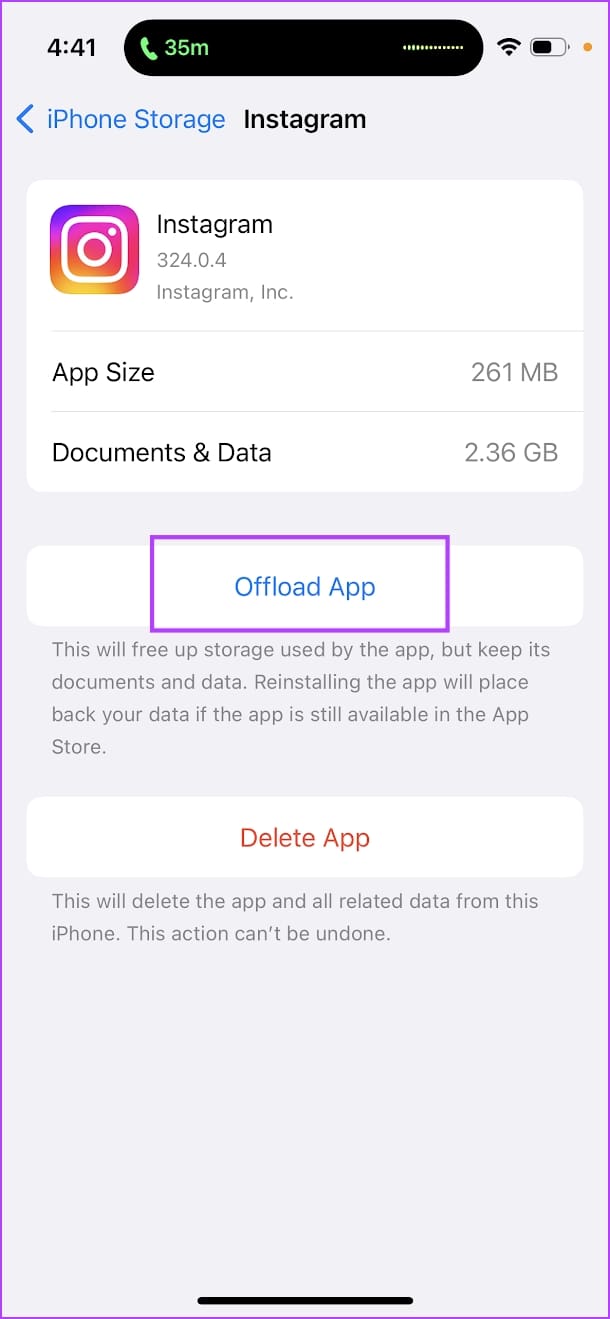
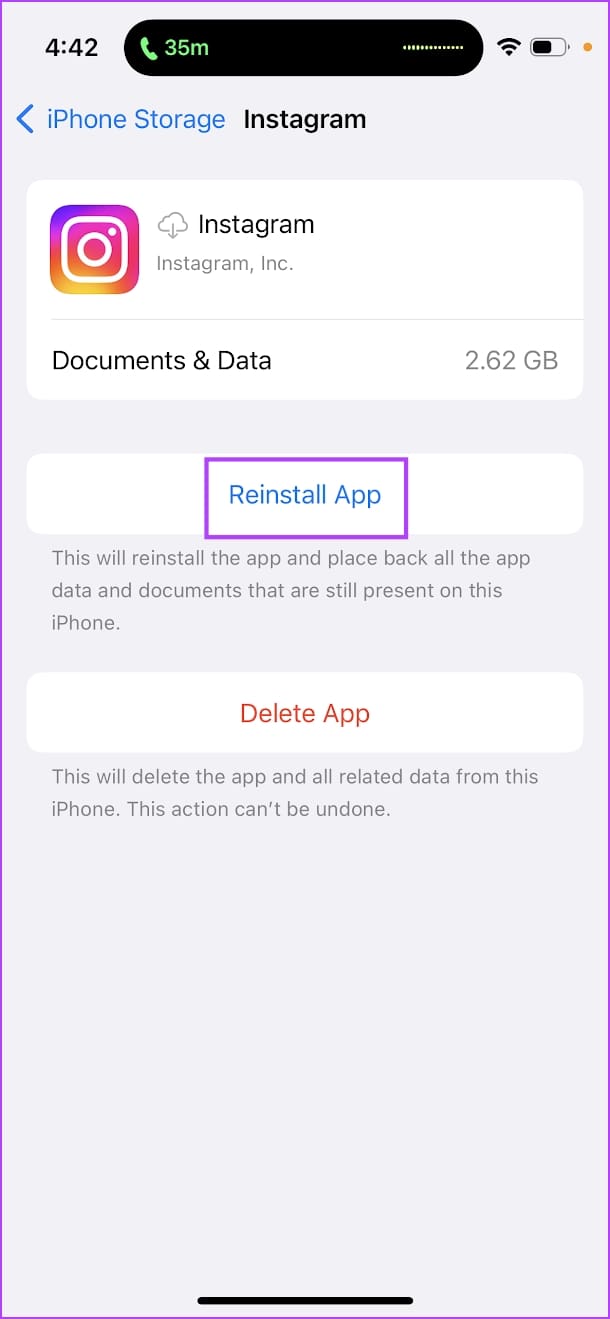
Offloading Instagram and re-installing it on your iPhone clears the cache on Instagram, and deletes any unwanted data from the app. Don’t worry – you won’t lose any of your important app data.
Step 1: Open the Settings app. Go to General -> iPhone Storage.
Step 2: Scroll down and select Instagram from the list. Select Offload App. Wait for the offloading to complete, then tap on the Reinstall App option.
If the above methods do not resolve the problem, contact Instagram’s support team for further assistance.
Was this helpful?
Last updated on 27 August, 2024
Read Next
 5 Ways to Fix Instagram Links Not Working on Android and iPhone
https://youtu.be/GiuTlMN5gsg Try Basic Fixes Turn Off VPN: At times, using a VPN connection may prevent Instagram links from opening since it routes your traffic through various servers.
5 Ways to Fix Instagram Links Not Working on Android and iPhone
https://youtu.be/GiuTlMN5gsg Try Basic Fixes Turn Off VPN: At times, using a VPN connection may prevent Instagram links from opening since it routes your traffic through various servers.
 4 Ways to Fix Instagram Location Not Working on iPhone and Android
Basic Fixes Disable airplane mode: Disable airplane mode on your phone to capture your GPS location so that apps can use it.
4 Ways to Fix Instagram Location Not Working on iPhone and Android
Basic Fixes Disable airplane mode: Disable airplane mode on your phone to capture your GPS location so that apps can use it.
 Top 3 Ways to Fix Instagram Add Yours Sticker Not Working
Preliminary Fixes Log out and Log in Again: Sometimes, simply logging out and back into your Instagram account can resolve minor glitches and refresh your app's connection to Instagram's servers.
Top 3 Ways to Fix Instagram Add Yours Sticker Not Working
Preliminary Fixes Log out and Log in Again: Sometimes, simply logging out and back into your Instagram account can resolve minor glitches and refresh your app's connection to Instagram's servers.
 3 Ways to Fix Instagram Story Sound Not Working
Basic Troubleshooting Turn off silent mode or increase the volume - Instagram's sounds are automatically muted on silent mode.
3 Ways to Fix Instagram Story Sound Not Working
Basic Troubleshooting Turn off silent mode or increase the volume - Instagram's sounds are automatically muted on silent mode.
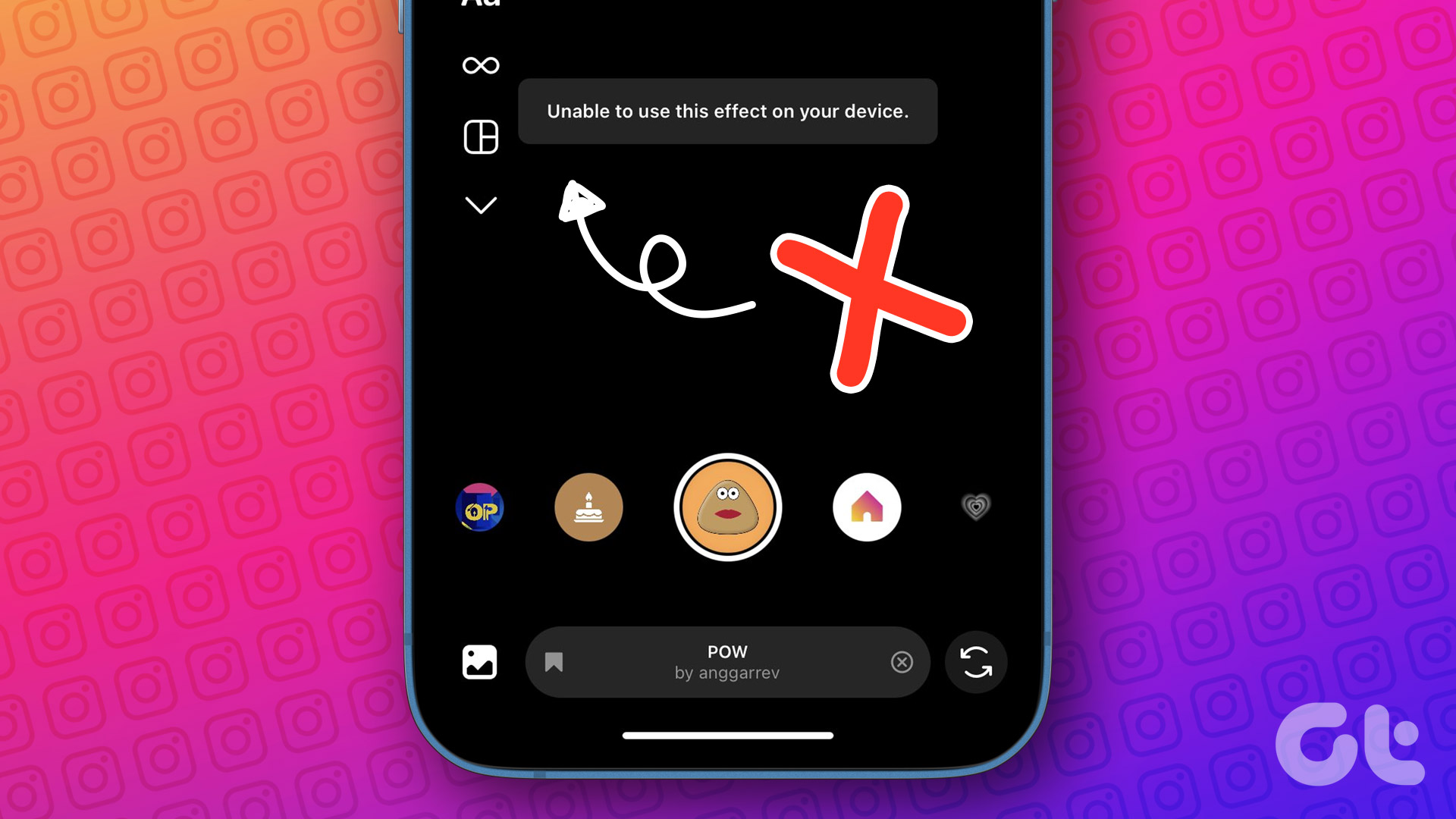 3 Ways to Fix Instagram Filters and Effects Not Working
Try These Basic Fixes Use a VPN connection: If your region's privacy laws prohibit using filters, Instagram may display the "This effect is not available in your location" error.
3 Ways to Fix Instagram Filters and Effects Not Working
Try These Basic Fixes Use a VPN connection: If your region's privacy laws prohibit using filters, Instagram may display the "This effect is not available in your location" error.
 5 Ways to Fix Instagram Calls Not Ringing or Working
Try Basic Fixes Check your internet connection: A weak or unstable internet connection can cause Instagram to malfunction.
5 Ways to Fix Instagram Calls Not Ringing or Working
Try Basic Fixes Check your internet connection: A weak or unstable internet connection can cause Instagram to malfunction.
 5 Ways to Fix Instagram Not Working on Mobile Data
Basic Fixes Check if Instagram is down: Check if Instagram is facing downtime.
5 Ways to Fix Instagram Not Working on Mobile Data
Basic Fixes Check if Instagram is down: Check if Instagram is facing downtime.
 3 Ways to Fix GIFs Not Working on Instagram
Basic Fixes: Check for Instagram app updates: Glitches from the previous app updates can prevent certain app functions from working properly.
3 Ways to Fix GIFs Not Working on Instagram
Basic Fixes: Check for Instagram app updates: Glitches from the previous app updates can prevent certain app functions from working properly.
The article above may contain affiliate links which help support Guiding Tech. The content remains unbiased and authentic and will never affect our editorial integrity.