Basic Fixes
- Check Amazon Prime subscription status: You can visit your Amazon account on a desktop browser to check your subscription status.
- Update or reinstall Prime Video: The latest version of the app will mostly avoid such errors.
- Update tvOS: Install the latest software version to get rid of bugs on your Apple TV.
Fix 1: Force Quit and Relaunch Amazon Prime Video
At times, the Prime Video app can act up on its own. Whether it’s a stuck background process or an update, the app may not function normally. You can completely close Prime Video on Apple TV and reopen it.
Step 1: Double-press the TV button on your Apple TV remote.
Step 2: Swipe up on the Prime Video app.
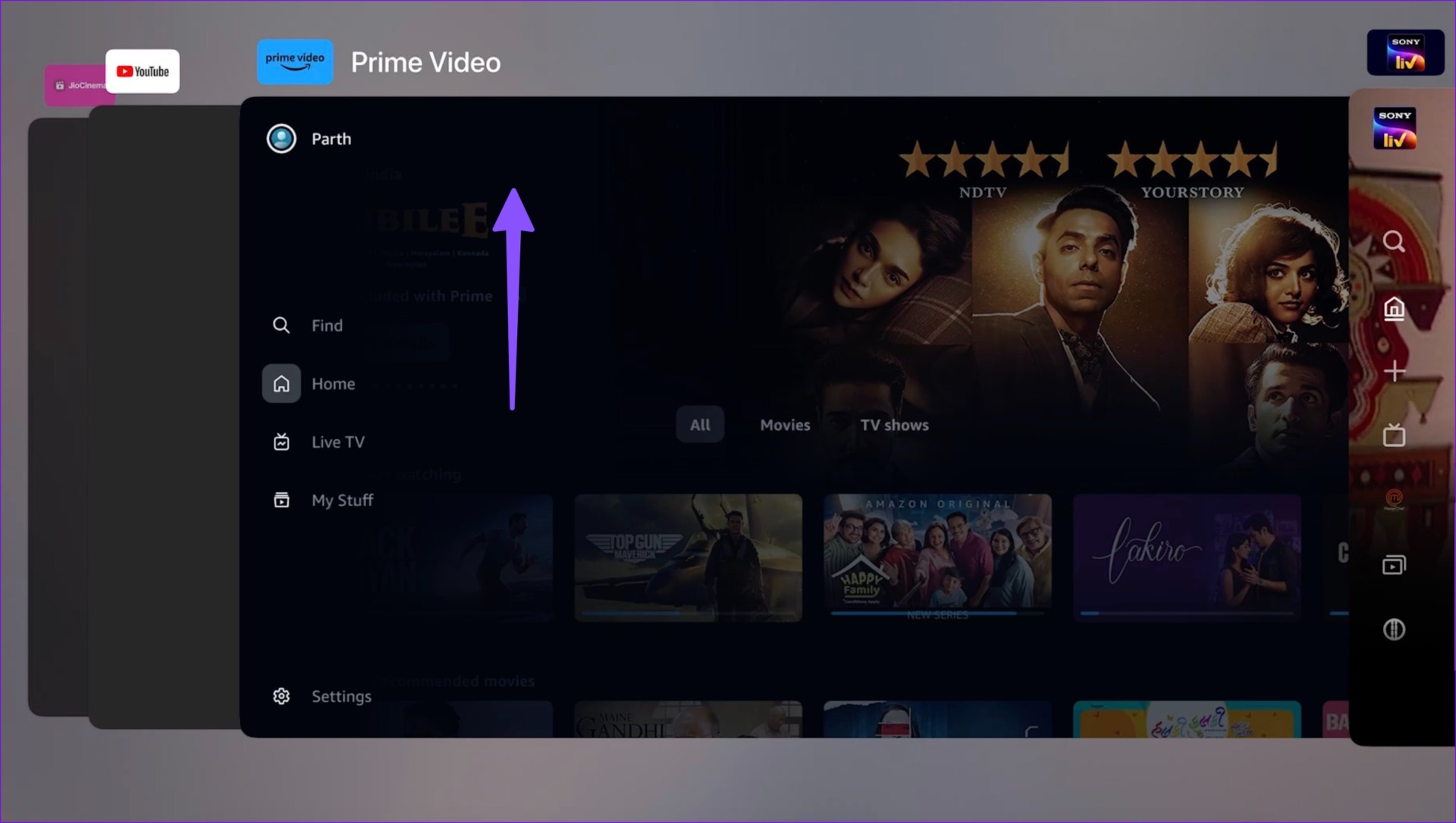
Step 3: Open the Prime Video app from the Apple TV home screen.
Tip: Read our dedicated post if Apple TV remote isn’t working.
Fix 2: Disable Dolby Atmos and Dolby Vision
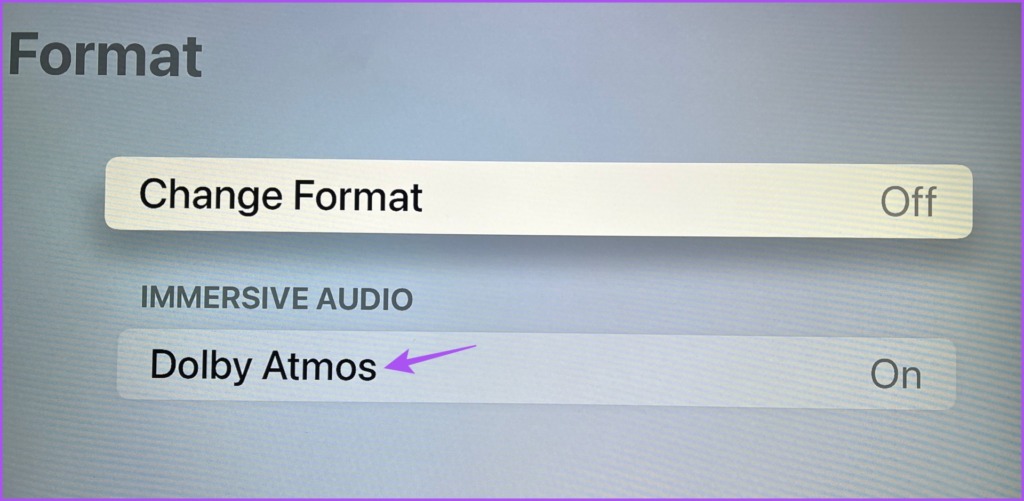
You don’t have to necessary enable Dolby Atmos and Dolby Vision all the time on your Apple TV. Instead, just keep the Video Format to 4K SDR 60Hz (choose 50Hz if you’re in the Europe region) for the best possible experience. The same goes for Dolby Atmos. Here’s how to do it.
Step 1: Open Settings > Video and Audio > Match Content > Enable Match Dynamic Range and Match Frame Rate.
Step 2: Go back to Audio > Audio Format > Dolby Atmos > Choose Auto.
Fix 3: Change DNS Settings on Your Apple TV
You can try changing the DNS preferences on your Apple TV model. Switching to a different DNS can improve your internet speeds.
Step 1: Open Settings > Network.
Step 2: Choose your connected network name.
Step 3: Select Configure DNS and then follow the on-screen steps.

We suggest using 8.8.8.8 as your DNS server for the Apple TV.
Fix 4: Enable Background App Refresh
If background app refresh is off on your Apple TV, apps like Prime Video that aren’t in use can not check for updates and new content. You need to enable background app refresh on Apple TV.
Step 1: Open the Settings app on your Apple TV.
Step 2: Select General.
Step 3: Scroll to Background App Refresh.

Step 4: Enable it from the following menu.
Fix 5: Reset Apple TV
You can reset all settings on your Apple TV. This will restore all preferences to their default state.
Open Settings > System > Reset and then follow the on-screen instructions.

Was this helpful?
Last updated on 08 July, 2024
Read Next
 5 Ways to Fix Video Unavailable in Amazon Prime Video
Basic Fixes Check network connection: Playing Prime without any problems requires an optimum internet speed.
5 Ways to Fix Video Unavailable in Amazon Prime Video
Basic Fixes Check network connection: Playing Prime without any problems requires an optimum internet speed.
 3 Ways to Fix Amazon Prime Video App Not Working on Mac
Basic Fixes Check internet connection: The speed of the internet connection should be optimal to watch content of the highest quality on Prime Video.
3 Ways to Fix Amazon Prime Video App Not Working on Mac
Basic Fixes Check internet connection: The speed of the internet connection should be optimal to watch content of the highest quality on Prime Video.
 3 Ways to Fix Amazon Prime Video Not Working on iPhone and iPad
Basic Fixes: Check your internet connection: The app may not load properly if you access Prime Video on a sketchy internet connection.
3 Ways to Fix Amazon Prime Video Not Working on iPhone and iPad
Basic Fixes: Check your internet connection: The app may not load properly if you access Prime Video on a sketchy internet connection.
 4 Ways to Fix Amazon Prime Video Not Downloading Movies on iPhone
Basic Fixes Restart Prime Video: If there's any bug preventing you from downloading content, restarting your iPhone and the Prime Video app will help.
4 Ways to Fix Amazon Prime Video Not Downloading Movies on iPhone
Basic Fixes Restart Prime Video: If there's any bug preventing you from downloading content, restarting your iPhone and the Prime Video app will help.
 5 Ways to Fix Amazon Prime Video Doesn’t Play in HD on Browser
Basic Fixes Check network connection: Playing Prime Video in high definition or the best resolution requires an optimum internet speed.
5 Ways to Fix Amazon Prime Video Doesn’t Play in HD on Browser
Basic Fixes Check network connection: Playing Prime Video in high definition or the best resolution requires an optimum internet speed.
 5 Ways to Fix the Black Screen Issue in Amazon Prime Video on Windows
Try Basic Fixes Temporarily disable your VPN connection: Although VPNs are great for maintaining privacy, they can often cause problems with streaming services such as Prime Video, especially if you
5 Ways to Fix the Black Screen Issue in Amazon Prime Video on Windows
Try Basic Fixes Temporarily disable your VPN connection: Although VPNs are great for maintaining privacy, they can often cause problems with streaming services such as Prime Video, especially if you
 4 Fixes for Amazon Prime Video App Not Working on Windows 11
Basic Fixes: Check device limit: You can use Prime Video to stream content on up to three devices using your account.
4 Fixes for Amazon Prime Video App Not Working on Windows 11
Basic Fixes: Check device limit: You can use Prime Video to stream content on up to three devices using your account.
 Amazon Prime Video – How to Fix Error Code 5004 or 5005
What Does Amazon Prime Video Error 5004 or 5005 Mean?
Amazon Prime Video – How to Fix Error Code 5004 or 5005
What Does Amazon Prime Video Error 5004 or 5005 Mean?
The article above may contain affiliate links which help support Guiding Tech. The content remains unbiased and authentic and will never affect our editorial integrity.