If you’re getting the “Something Went Wrong [1001]” Error in Microsoft when you try to sign into apps, you’re in the right place to find a fix. The issue typically rears its frustrating head when you try to add a new email account or sign in to Microsoft Office 365 or other Microsoft applications such as Outlook, Teams, Edge, or OneDrive.
The problem could be related to the Microsoft ecosystem on your machine, a specific Microsoft app, or something more general. Here are seven fixes to isolate and resolve the issue.
Fix 1: Check Internet Connectivity
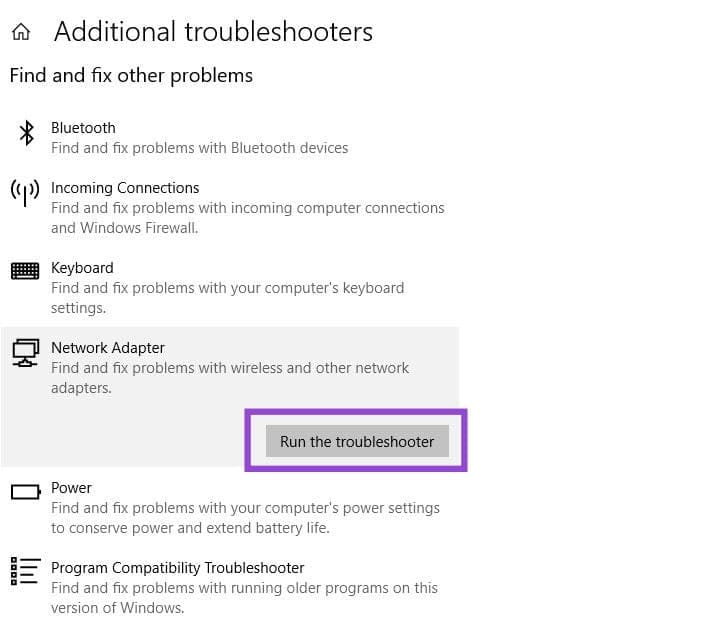
A poor or missing internet connection may be preventing you from signing in to Microsoft apps, causing the “Something Went Wrong [101]” error. Check that other apps are connecting properly. If they are, the issue is elsewhere. If they’re not, check all your connections and/or run the Network Troubleshooter as follows:
Step 1. Go to Settings > System > Troubleshoot > Additional troubleshooters > Network Adapter.
Step 2. Run the troubleshooter.
Fix 2: Restart the System
If your internet connection is fine and the issue still persists, try restarting your system to resolve any temporary glitches.
Fix 3: Run a Virus and Malware Check
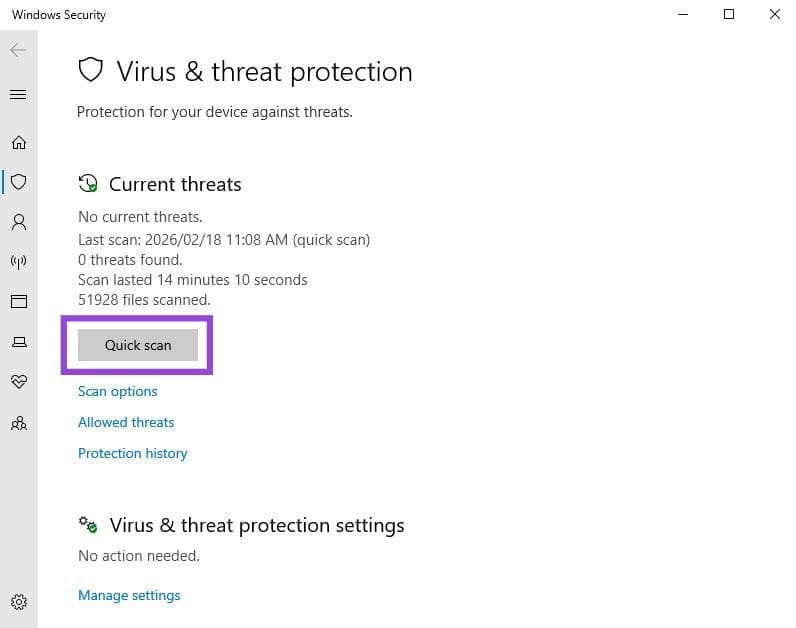
If a restart hasn’t resolved the issue, and especially if you’ve noticed other oddities about your system’s behavior, the issue may be caused by a virus or other form of malware. Run a quick scan to check as follows:
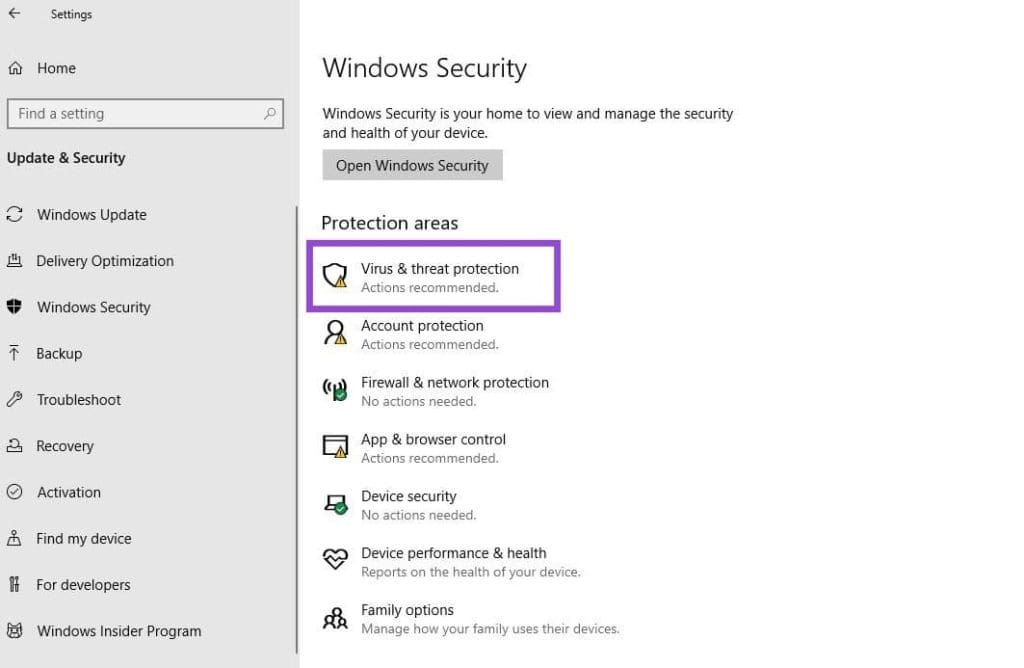
Step 1. In Settings, navigate to Update & Security, then click the Open Windows Security button.
Step 2. Click the Virus & Threat Protection option.
Step 3. Click the Quick scan button to start the scan.
Fix 4: Run System File Checks
If the issue still persists, check the integrity of your computer’s system files.
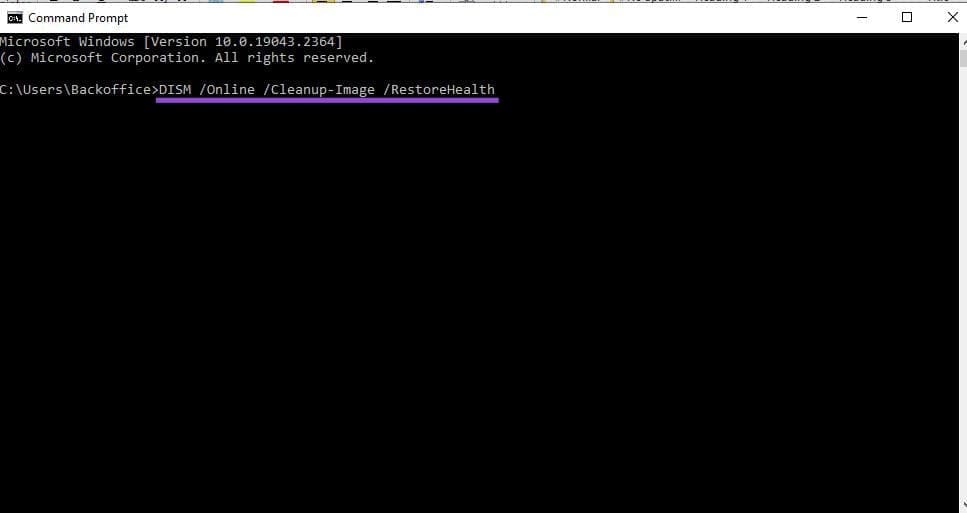
Step 1. Type “cmd” into the Windows search box and select “Run as Administrator.”
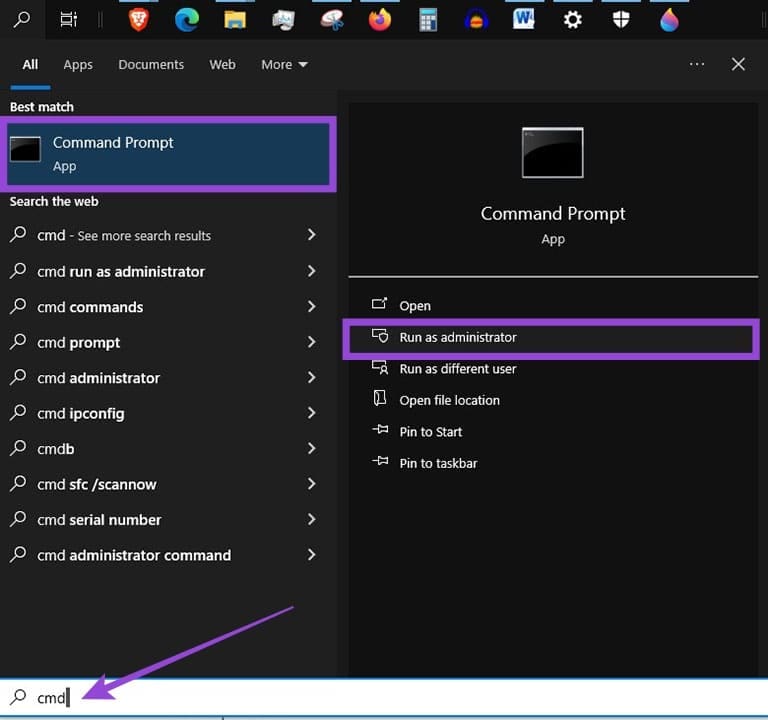
Step 2. The Command Prompt window will open.
Step 3. Copy the command “sfc /scannow’, right click to paste it into Command Prompt, and then press Enter to run it.

Step 4. Repeat step 3 with the following command: DISM /Online /Cleanup-Image /RestoreHealth.
Fix 5: Repair the Web Account Manager (WAM) Plugin using PowerShell
If you’re still getting the “Something Went Wrong [1001]” error in Microsoft apps after those general fixes, the issue is something Microsoft-related.
Particularly if you’re trying to sign into a Microsoft365 app, the issue may well be authentication failure due to missing Microsoft package information. Reinstalling the missing packages via PowerShell should resolve the issue.
Step 1. Right-click the Windows icon and select Windows PowerShell (Admin).
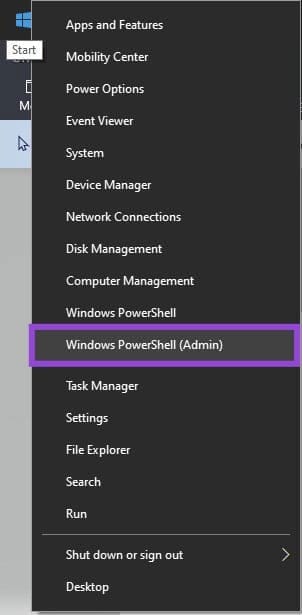
Step 2. If you’re presented with a User Account Control (UAC) window, click Yes to allow the app to open.
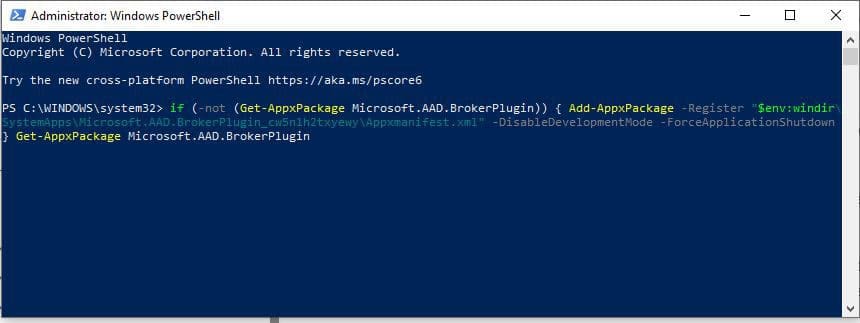
Step 3. In the PowerShell console that opens, right-click at the prompt and paste the following commands:
- If your issue is with a work account:
if (-not (Get-AppxPackage Microsoft.AAD.BrokerPlugin)) { Add-AppxPackage -Register “$env:windir\SystemApps\Microsoft.AAD.BrokerPlugin_cw5n1h2txyewy\Appxmanifest.xml” -DisableDevelopmentMode -ForceApplicationShutdown } Get-AppxPackage Microsoft.AAD.BrokerPlugin
- If your issue is with a personal account:
if (-not (Get-AppxPackage Microsoft.Windows.CloudExperienceHost)) { Add-AppxPackage -Register “$env:windir\SystemApps\Microsoft.Windows.CloudExperienceHost_cw5n1h2txyewy\Appxmanifest.xml” -DisableDevelopmentMode -ForceApplicationShutdown } Get-AppxPackage Microsoft.Windows.CloudExperienceHost
Step 4. Press Enter to run the command.
Step 5. Close PowerShell and try signing in to the problematic app again.
Fix 6: Clear Temporary and Cached Data
If the issue persists after the packages have been installed, try clearing cached data that may be preventing successful sign-in. The process is slightly different depending on the culprit app.
Step 1. Press the Windows key + “R” on your keyboard to open the “Run” command.
Step 2. Type “%temp%” and press Enter.
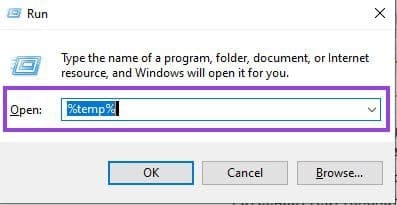
Step 3. Delete all the files in the File Explorer folder that opens.

Step 4. If your issue is with Teams:
- Type %appdata% in the Windows search box and press Enter.
- Navigate to the Microsoft folder, and then the Teams folder.
- Delete all folders of cached files inside the Teams folder.
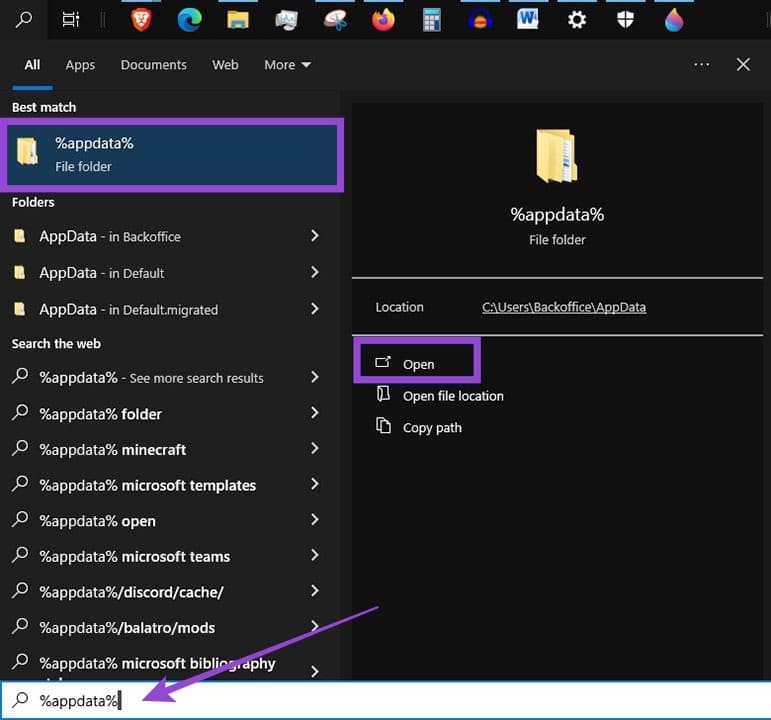
If your issue is with Outlook:
- Type %localappdata% in the Windows search box and press Enter.
- Navigate to the Microsoft folder, and then the Outlook folder.
- Delete the contents of the folder RoamCache.
If your issue is with OneDrive:
- Type %localappdata% in the Windows search box and press Enter.
- Navigate to the Microsoft folder, and then the OneDrive folder.
- Delete the folders of cached files.
Fix 7: Repair or Reinstall Microsoft apps
If you’re still receiving the error in specific Microsoft apps, try repairing or reinstalling each one individually.
For issues with Microsoft365:
- Go to Settings > Apps > Apps & features.
- Locate Microsoft 365 and select it.
- Click Modify and choose Quick Repair or Online Repair.
- If needed, uninstall and reinstall the app.
To reset OneDrive:
- Type “run” into the Windows search box and select the Run app.
- Enter the following command into the Run window and click OK.
Was this helpful?
Last updated on 28 February, 2026
Read Next
 6 Fixes for Windows Hello Something Went Wrong Error
Fix 1: Enable Camera Access If you have previously disabled camera access, Windows Hello may have trouble using your camera and display the "Sorry, something went wrong.
6 Fixes for Windows Hello Something Went Wrong Error
Fix 1: Enable Camera Access If you have previously disabled camera access, Windows Hello may have trouble using your camera and display the "Sorry, something went wrong.
 5 Ways to Fix “Something Went Wrong” Error in Microsoft Teams for Windows
Try Basic Fixes Check if Teams is down: It's not uncommon for Microsoft Teams servers to go down at times.
5 Ways to Fix “Something Went Wrong” Error in Microsoft Teams for Windows
Try Basic Fixes Check if Teams is down: It's not uncommon for Microsoft Teams servers to go down at times.
 3 Fixes for “Something Went Wrong” Error in Gmail
Try Basic Fixes Switch to a different network connection: If your network connection is faulty, you may encounter the "Something went wrong" error in Gmail.
3 Fixes for “Something Went Wrong” Error in Gmail
Try Basic Fixes Switch to a different network connection: If your network connection is faulty, you may encounter the "Something went wrong" error in Gmail.
 Top 9 Fixes For ‘There Is Something Wrong With the Proxy Server’ Error in Chrome
Proxy servers are useful when you need to hide your internet traffic from your ISP or connect to blocked websites.
Top 9 Fixes For ‘There Is Something Wrong With the Proxy Server’ Error in Chrome
Proxy servers are useful when you need to hide your internet traffic from your ISP or connect to blocked websites.
 2 Fixes for Something Went Wrong Error on TikTok
Try Basic Fixes Check if TikTok is down: Servers-side glitches can also cause the TikTok app to repeatedly show the "Something went wrong" error on your Android or iPhone.
2 Fixes for Something Went Wrong Error on TikTok
Try Basic Fixes Check if TikTok is down: Servers-side glitches can also cause the TikTok app to repeatedly show the "Something went wrong" error on your Android or iPhone.
 3 Fixes for Keyboard Typing Wrong Characters in Windows 11
Basic Fixes: Check for faults and replace the bad keyboard: Ensure the keyboard is not faulty.
3 Fixes for Keyboard Typing Wrong Characters in Windows 11
Basic Fixes: Check for faults and replace the bad keyboard: Ensure the keyboard is not faulty.
 4 Ways to Fix Instagram Something Went Wrong Error
Basic Fixes Check your network connection: Ensure your device has a good internet connection.
4 Ways to Fix Instagram Something Went Wrong Error
Basic Fixes Check your network connection: Ensure your device has a good internet connection.
 6 Ways to Fix ‘Something Went Wrong’ Error in Play Store
Basic Fixes Restart Play Store: Long tap on the Play Store app, select App Info, and tap on Force Stop.
6 Ways to Fix ‘Something Went Wrong’ Error in Play Store
Basic Fixes Restart Play Store: Long tap on the Play Store app, select App Info, and tap on Force Stop.
The article above may contain affiliate links which help support Guiding Tech. The content remains unbiased and authentic and will never affect our editorial integrity.