Helping millions of people navigate the world of technology.

Top 8 Ways to Fix Mouse Cursor Lagging on Mac

A Mac is generally known for its friendly UI and smooth performance. However, they may be instances where you may face certain issues while using a Mac. Whether it’s unresponsive apps or your mouse cursor stuck, it’s not a pleasant experience.
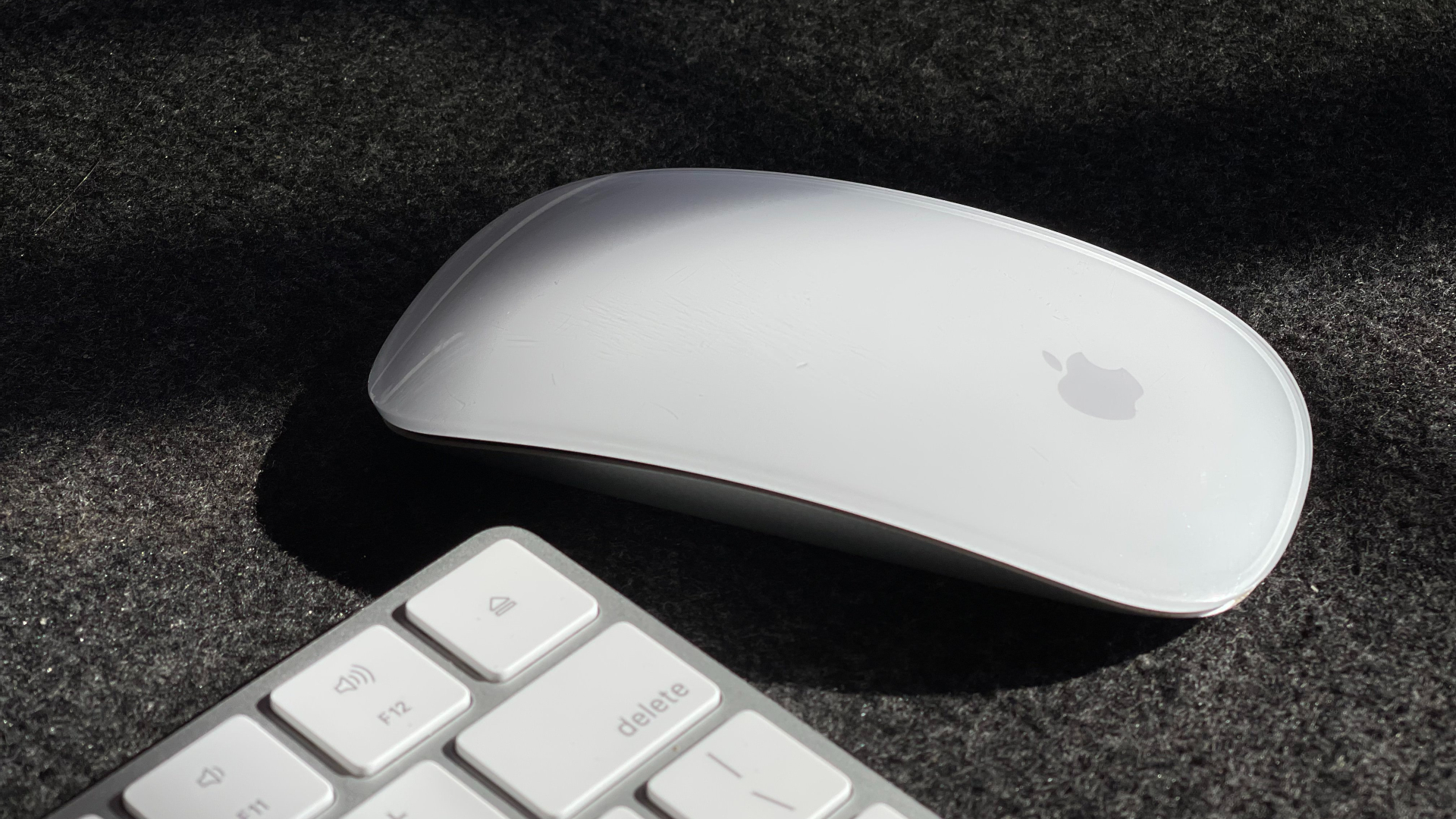
mouse cursor lagging on Mac

Speaking of the mouse cursor, you may also encounter at times that the mouse cursor is lagging or jumping around on the screen. This experience is also far from ideal since you cannot get the cursor to a precise location. This can hamper your workflow. If this is something you have been facing on your Mac, here are some of the best ways to fix the mouse cursor lagging on your Mac.

1. Toggle Bluetooth Off and On

Since the issue of mouse cursor lagging occurs majorly with a wireless mouse, it could be that the mouse cannot establish a solid connection with your Mac. One way to fix this is to disable the Bluetooth toggle and enable it again.

This will reset the Bluetooth connections on your Mac. Here’s how to do it.

Step 1: Click on the Bluetooth icon in the menu bar right at the top of the screen.
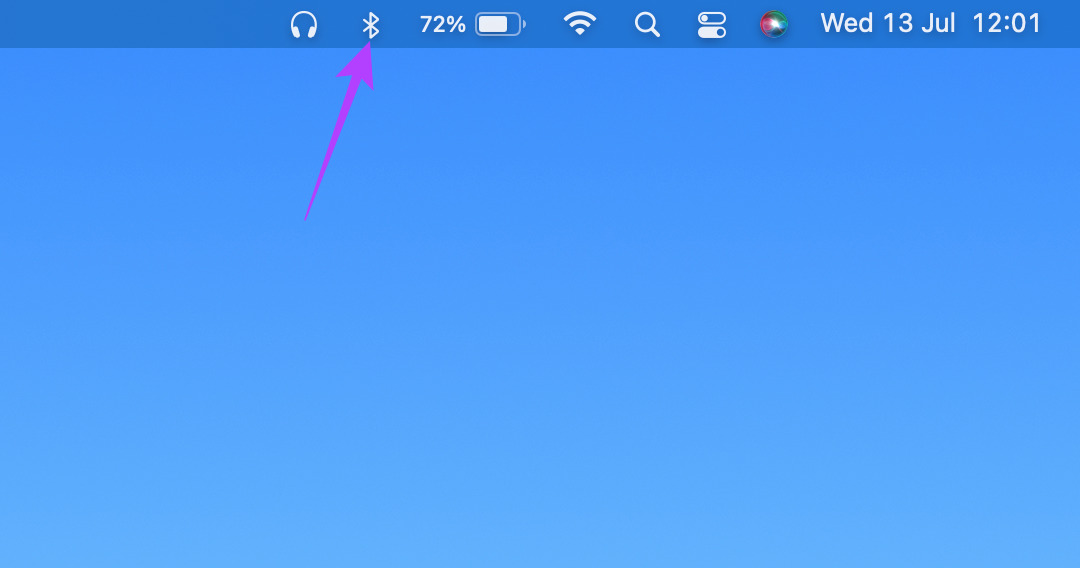
Bluetooth menu

Step 2: Use the toggle to disable Bluetooth.

Bluetooth toggle

Step 3: Click on the toggle once again to turn on Bluetooth. Wait for your Mac to connect to the mouse.

2. Try to Fix Any Issues With Bluetooth

Some Mac computers, especially Apple’s in-house M1 chip are known to suffer from Bluetooth issues. This in turn causes the mouse cursor to lag on your Mac since the Bluetooth connection is intermittent.

Try to fix the Bluetooth connection issues on your Mac and check if the connectivity improves and your mouse cursor stops lagging.

3. Update to the Latest Version of macOS

While select Mac models may have issues, some macOS versions can also cause similar problems. A software issue is far more common but it is also much easier to fix with an update.

So, update your Mac to the latest version of macOS to iron out any software bugs. Here’s how to do it.

Step 1: Click on the Apple logo on the top-left section of your screen.
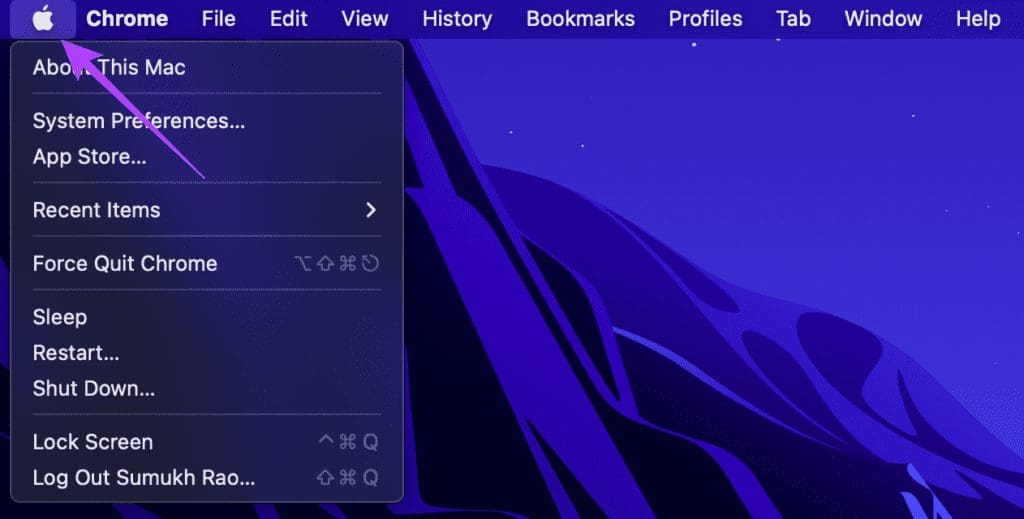
Click on apple logo

Step 2: Select the About This Mac option.

about this Mac

Step 3: You will now see a pop-up window with the details about your Mac. Click on Software Update.
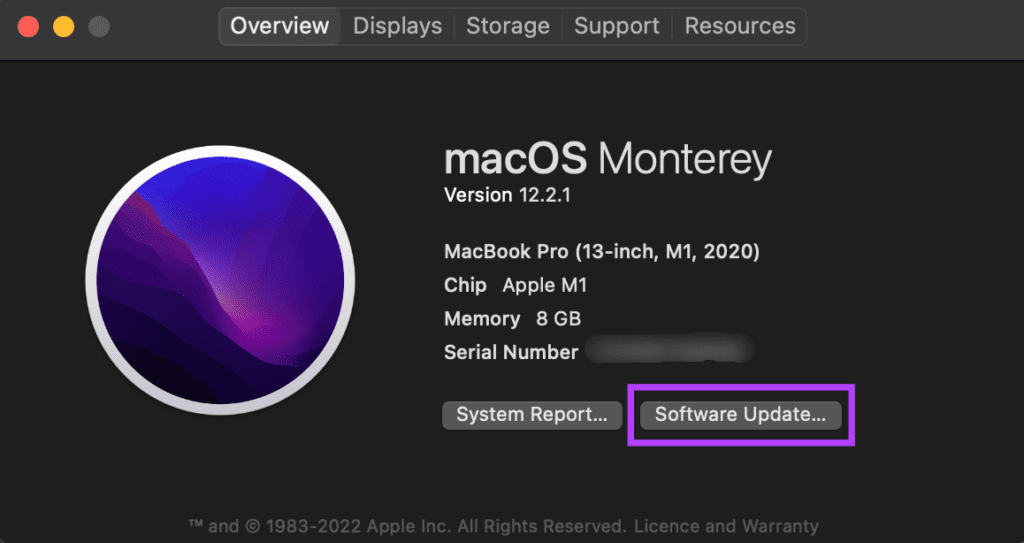
Mac details

Step 4: Wait for your Mac to scan for the latest update. If an update is available, it will be displayed.

Step 5: Click on Update Now and wait for the process to complete.
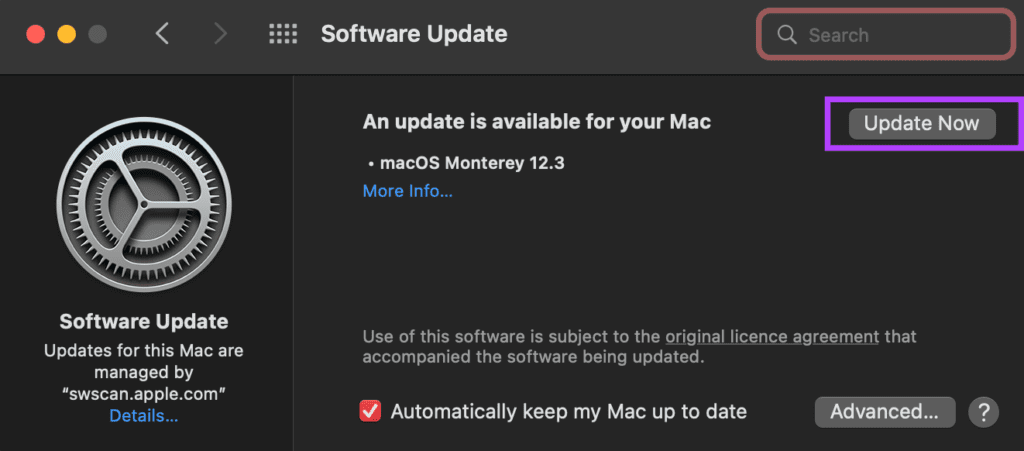
Update macos to fix preview

After installing updates and restarting your Mac, try using your mouse.

4. Unpair and Pair the Mouse Once Again

At times, simply pairing the devices again can solve issues with Bluetooth. Unpair your mouse from the Mac and then pair it back to see if it makes any difference. Here’s how you can unpair and then pair a Bluetooth device with your Mac.

Step 1: Click on the Bluetooth icon in the menu bar right at the top of the screen.

Bluetooth menu

Step 2: Select the Bluetooth Preferences options at the bottom.

Bluetooth preferences

Step 3: You will now see a window with all your connected devices. However your device over the device you want to delete and click on the ‘X’ icon that appears next to it.
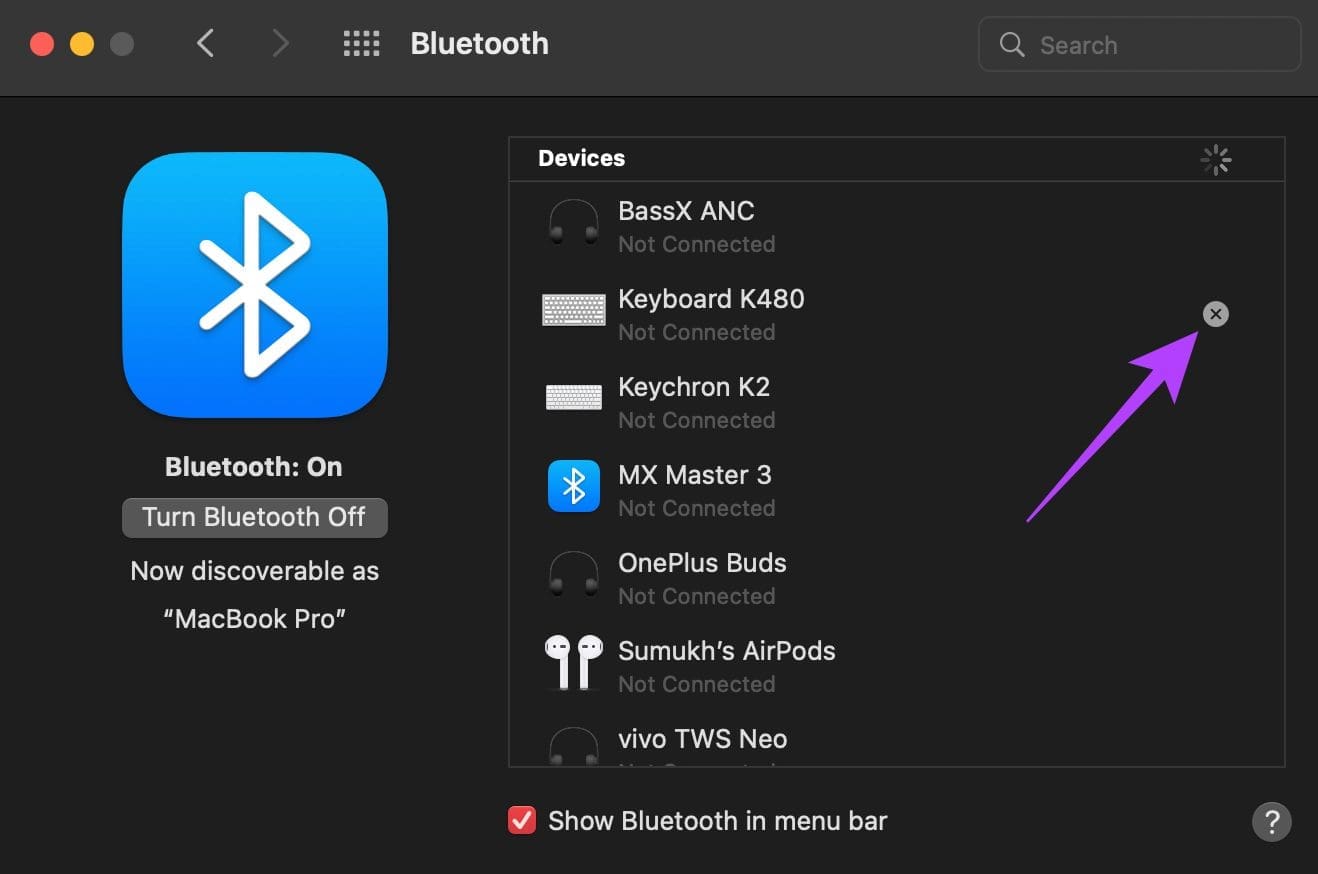
Delete device

Step 4: Click on Remove to confirm the unpairing of the device.
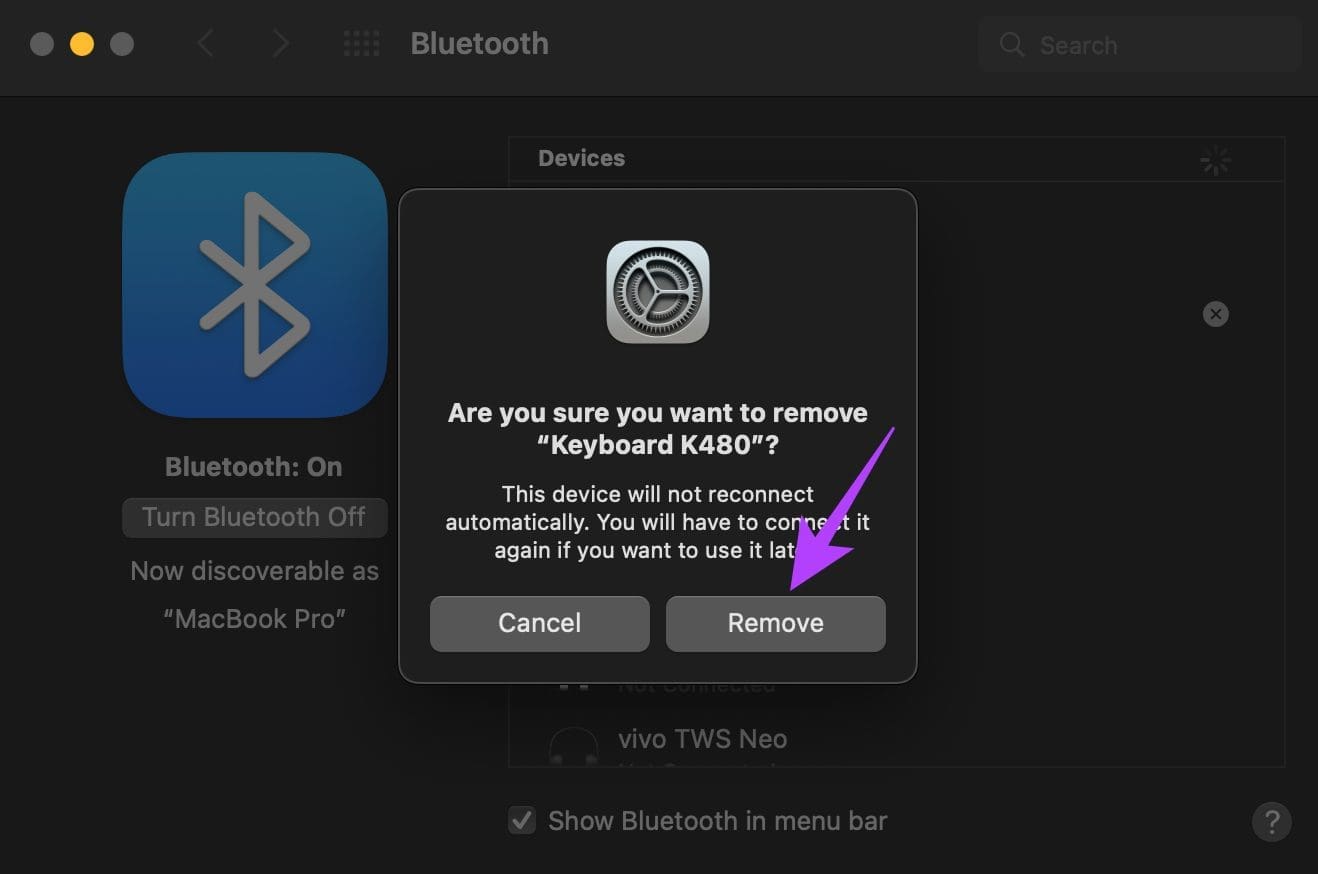
Remove BT device

Step 5: Then, put your mouse back into pairing mode.

Step 6: Scroll down to the bottom of the same Bluetooth preferences window you opened earlier. This is where you’ll see the list of available devices. Click on the Connect button next to the device you wish to pair.
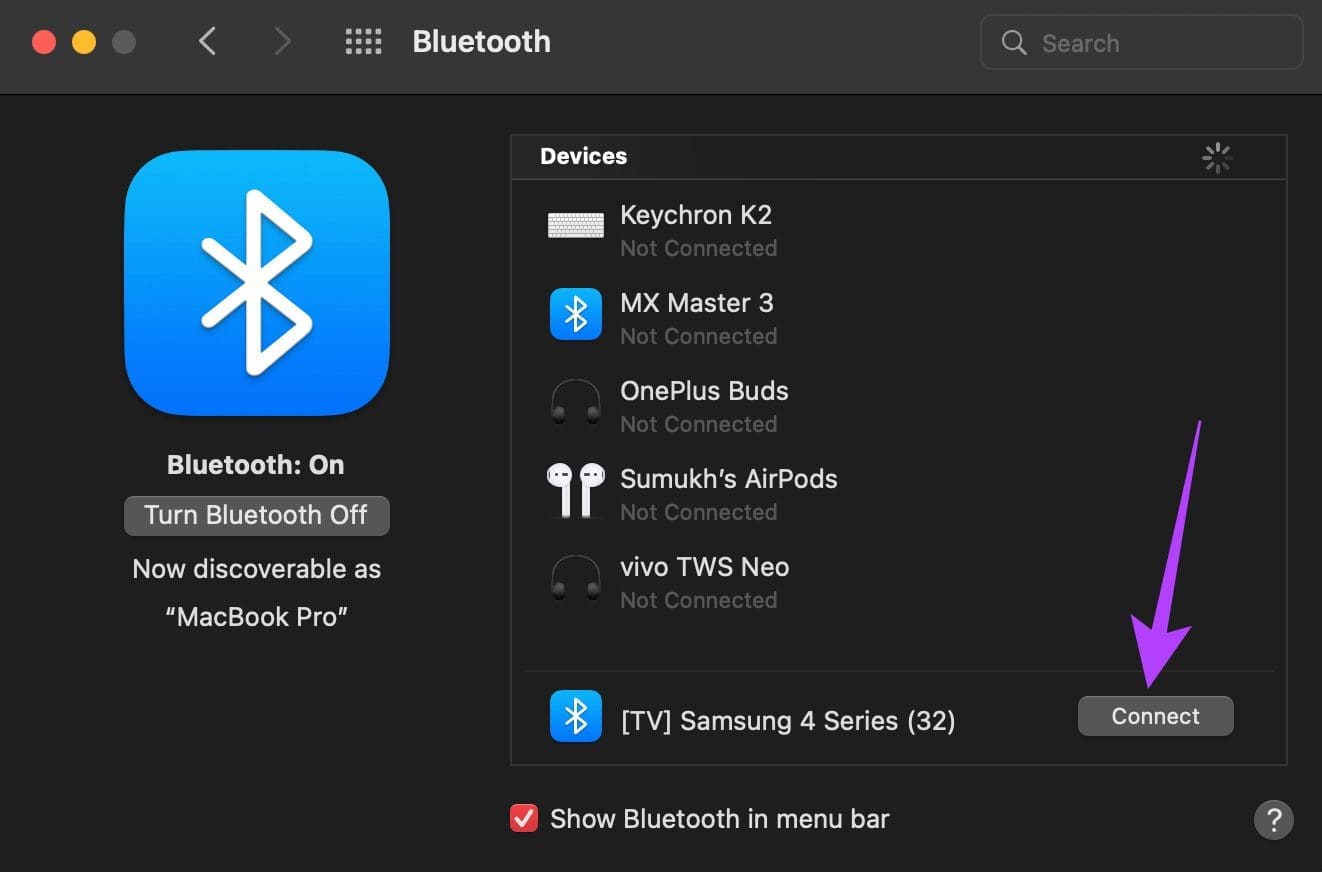
Pair device
Your Mac will pair with the mouse again.

5. Use a Companion App to Update the Mouse Firmware

Many premium wireless mice come with a companion app or software that you can install on your Mac to customize the features. Such companion apps even can update the firmware on the mouse. As mentioned earlier, software bugs are common so if there is an issue with the firmware on your mouse, you can always update it to the latest version to check if that fixes the bug.

Logitech app

Head over to the website of your mouse’s manufacturer and check if a companion app is available. If your mouse is made by popular manufacturers like Logitech, Asus, or Razer, you will find it.

6. Ensure the Mouse Has Adequate Charge

Every wireless mouse runs on battery power. A replaceable alkaline battery or a rechargeable lithium battery, your wireless mouse will not work if it’s low on juice. If your mouse takes in AA or AAA batteries, try replacing the existing cells with new ones to see if it fixes the issue.

If you have a mouse with a built-in battery and a charging port, plug it into the charger and wait for it to charge completely. Then, try using the mouse, and you should hopefully not notice any lags.

7. Close Resources Hogging Apps

While most of the above solutions cater to the mouse, there’s a good chance that your mouse cursor lagging has nothing to do with an issue on your mouse but some app or program on your Mac. If the CPU or RAM on your Mac is stressed or apps consume a high amount of resources, you may experience lags and stutters.

background apps

As a result, the mouse cursor may also lag and jump around on the screen. Try closing apps running in the background that you may not be using. You can also try closing resource-heavy programs or apps like video editors and games to check if it fixes the issue.

8. Use a USB Dongle Instead of Bluetooth

Some wireless mice have multiple ways of connecting to a device. If the mouse you have can connect both via Bluetooth and via a wireless USB receiver that plugs into the Mac, try using the latter since it’s considered to be more stable. This is also a good workaround if you’re facing Bluetooth issues on your Mac.

If you are facing cursor lag issues with the USB dongle itself, we suggest inserting the dongle into a port on your Mac that’s closest to the mouse. If there is an interference between the dongle and the mouse, the connection won’t be seamless, and the cursor may lag.

Use Your Mouse Smoothly

The mouse is used for almost every single activity on your Mac. So, a cursor that lags or gets stuck can hamper your workflow. These solutions should help you fix the issue and make your cursor smooth again.
Was this helpful?

Thanks for your feedback!

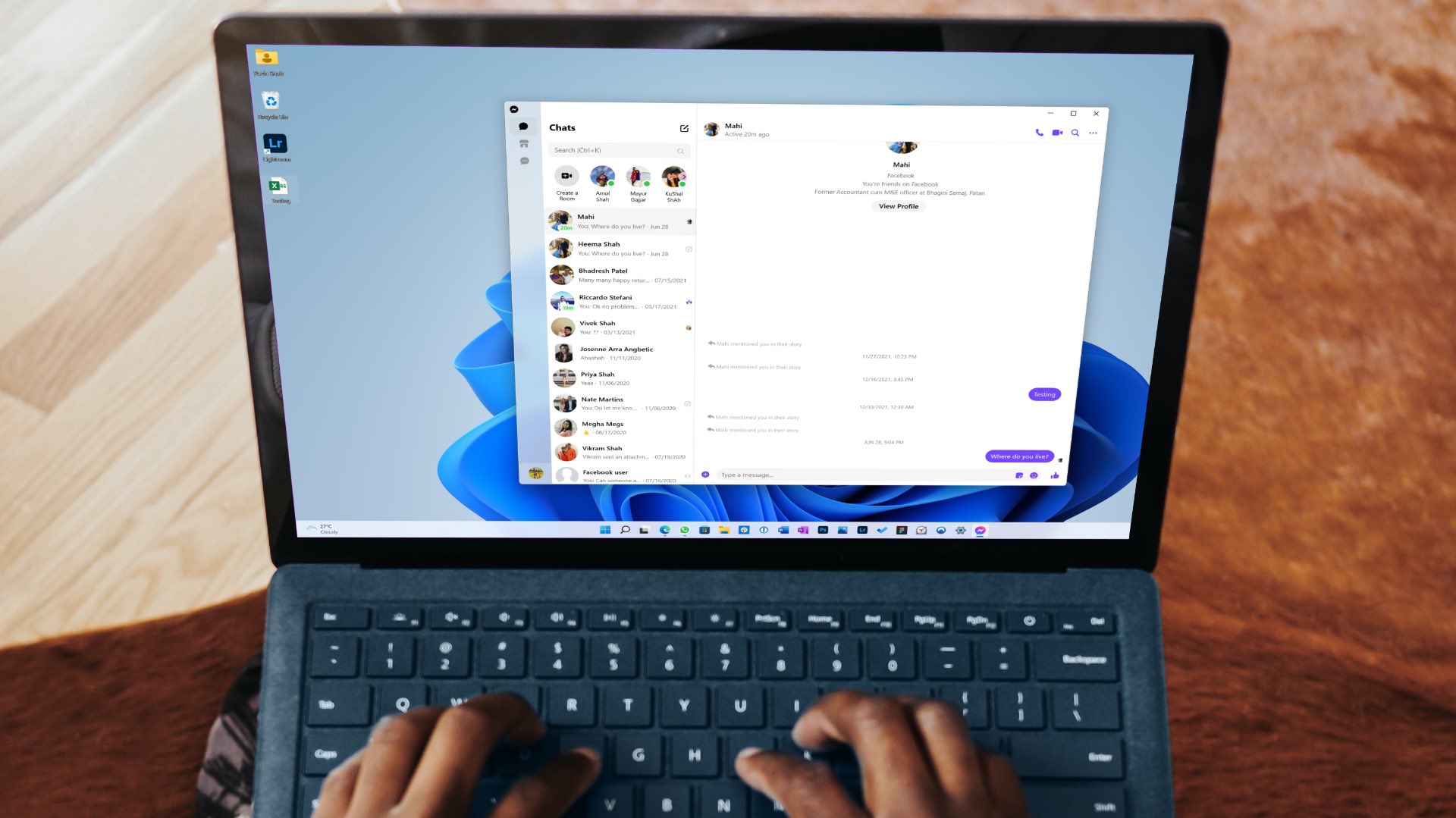
4 Ways to Fix Facebook Messenger Not Working on the Desktop

Basic Fixes

  • Run Messenger app as an Admin: Search for the Messenger app on your PC and select Run as Administrator.
  • Try another browser: The Windows ecosystem has many chromium browsers to choose from. You can ditch Google Chrome and go with Microsoft Edge, Firefox, Brave, or Opera to use Messenger.
  • Update or reinstall Messenger app: Install the latest version of the app on your PC to get rid of bugs or glitches that may be causing the issue.
  • Check Facebook messenger status: Visit DownDetector and then check if Messenger is working in your region.

Fix 1: Enable Camera and Microphone Permissions for Messenger

Disabling camera and microphone permissions will leave you with broken voice or video calls over Messenger. Here’s how you can enable relevant permission for Messenger on Windows 11.

Step 1: Open Settings > Privacy and Security.

Step 2: Select Camera under the app permissions menu and then enable access.

Step 3: Go back to open Microphone and then enable access.

Fix 2: Enable Messenger Notifications

If you face issues with getting Messenger notifications on the desktop, you need to enable the required permissions for Messenger web and Windows app.

Messenger Web

Step 1: Visit Messenger on the web.

Step 2: Select the lock icon in the address bar and open the permissions menu.

Step 3: Allow notifications from the permissions menu.

Messenger Windows 11 App

Step 1: Open Windows 11 Settings menu and then select System from the left sidebar.

Step 2: Select Notifications.

Step 3: Enable notifications for Messenger from the following menu.

Fix 3: Clear Browser Cache

If you notice frequent Messenger issues on the web, you can clear the browser cache and try again. Messenger collects cache to remember your login information. When the browser saves a corrupt cache, you may face problems with Messenger. We will use Google Chrome as an example here.
Open the browser > Settings > Privacy and Security > Clear browsing data > Clear data.

Visit Messenger on the web and then sign in with your Facebook account details.

Fix 4: Repair or Reset the Messenger App

This solution will remove all preferences and login data from the Messenger app. You will need to sign in again to your account to check if the problem is solved.

Open Settings > Apps > Apps and Features > Three dots next to Messenger > Advanced options > Repair > Reset.

Tip: If someone blocks you on Facebook, you can’t contact the person. Which trick helped you fix Messenger issues on the desktop? Share your findings with us in the comments section below.

Was this helpful?

Thanks for your feedback!

3 Ways to Fix Delayed Telegram Message Notifications on iPhone

Try These Things First

  • Disable Low Data Mode: The first thing to do is turn off Low Data Mode on your iPhone. This is because it can prevent apps from syncing in the background, which can lead to delayed Telegram notifications.
  • Disable Low Power Mode: Similar to Low Data Mode, Low Power Mode also restricts background activity and data use to conserve battery life. Therefore, you must turn it off if you’re experiencing delays with Telegram notifications.
  • Update or reinstall Telegram: The problem can also occur due to a bug in the Telegram version you’re using. In this case, consider updating the Telegram app. If updating the app wasn’t helpful, consider reinstalling the app.

Fix 1: Reset Notifications Settings in Telegram

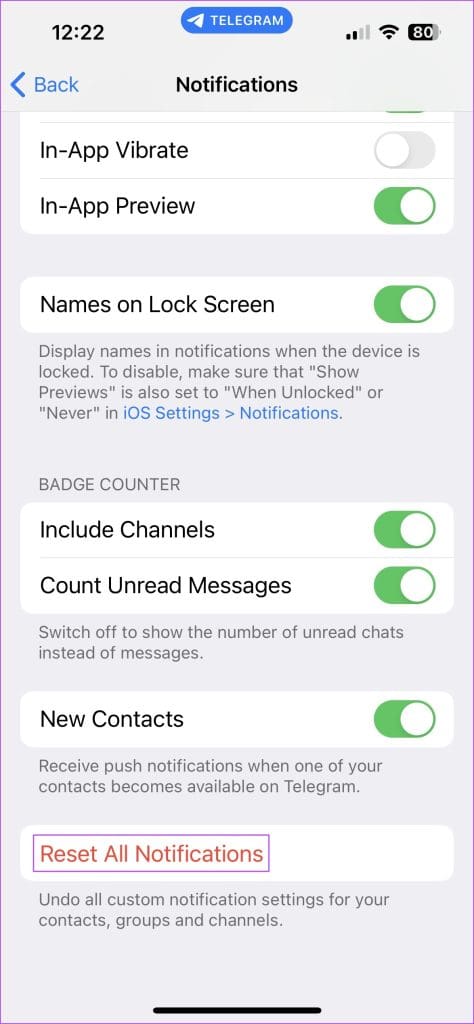
The Telegram app on iOS lets you reset your notifications preferences via the in-app Settings. That’ll change all your preferences about notifications of messages from individuals, groups, and channels to default. Here’s how to do it.

Step 1: Open the Telegram app on your iPhone and tap on Settings at the bottom.

Step 2: Select the Notifications and Sounds option.

Step 3: Tap Reset All Notifications.

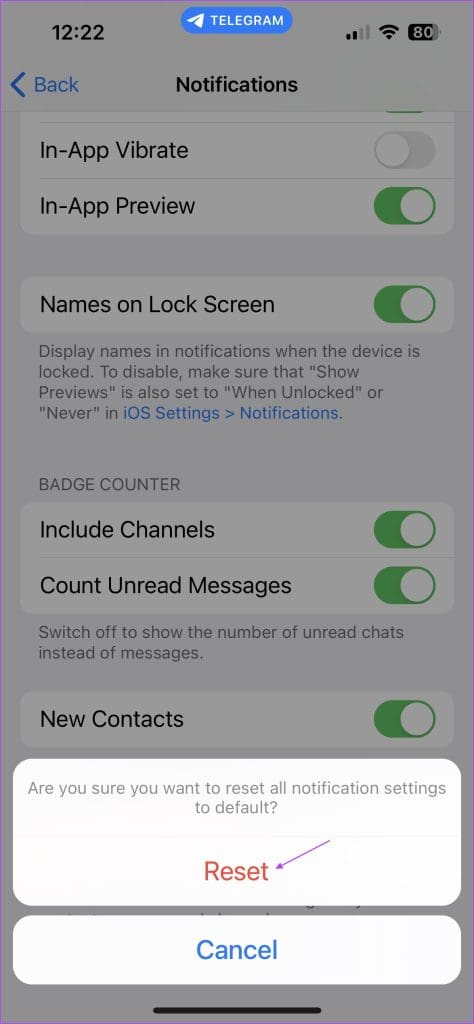
Step 4: Select the Reset option once again when prompted.

Fix 2: Enable Background Refresh for Telegram

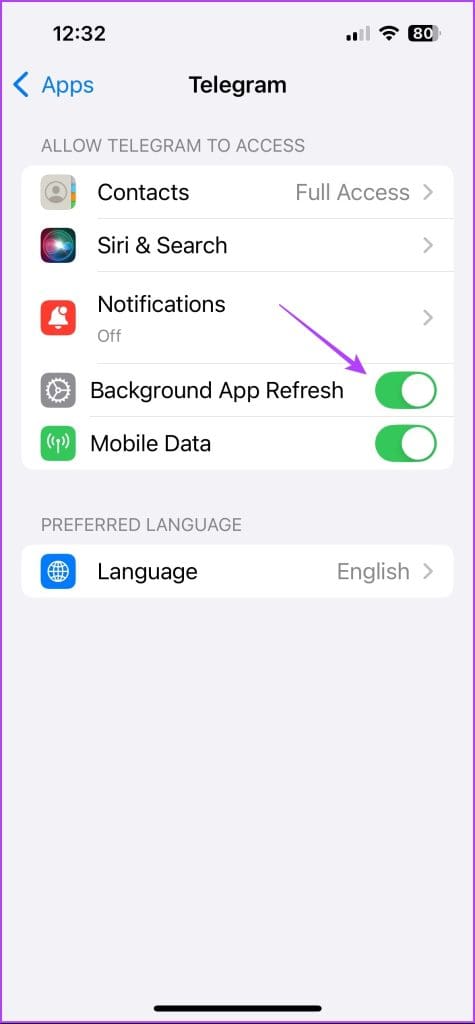
iOS gives you an option to allow apps to refresh in the background. This helps apps push instant notifications even when you’re not actively using them, which is paramount for a messaging app like Telegram. Here’s how to enable background app refresh for Telegram on your iPhone.

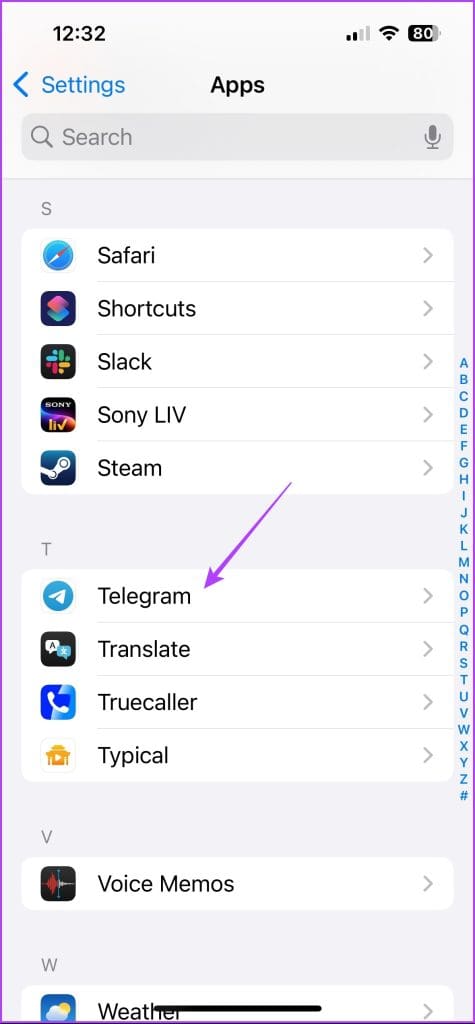
Step 1: Open the Settings app on your iPhone and choose Telegram.

Step 2: Enable the toggle for Background App Refresh.

Fix 3: Reset Network Settings

The problem can also occur due to the misconfigured network settings of your iPhone. In this case, you can reset the network settings to fix the problem. Here’s how:

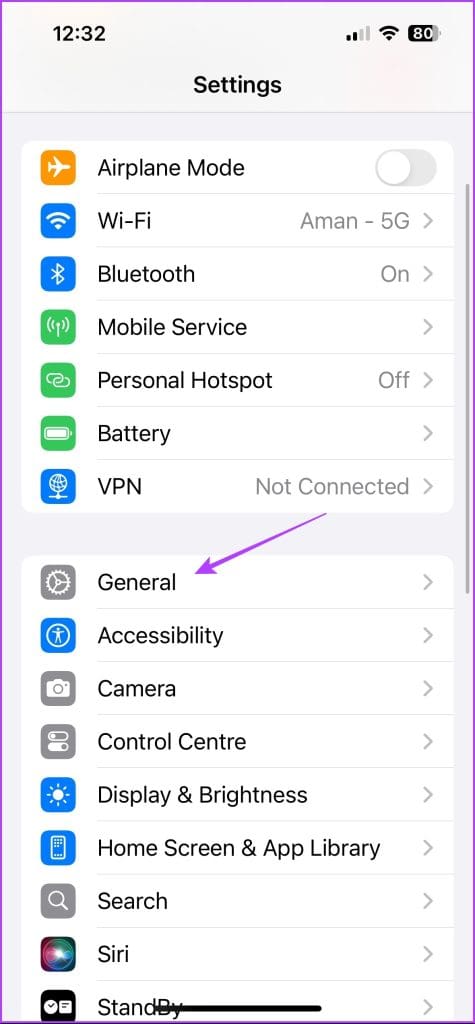
Step 1: Open the Settings app and choose General.

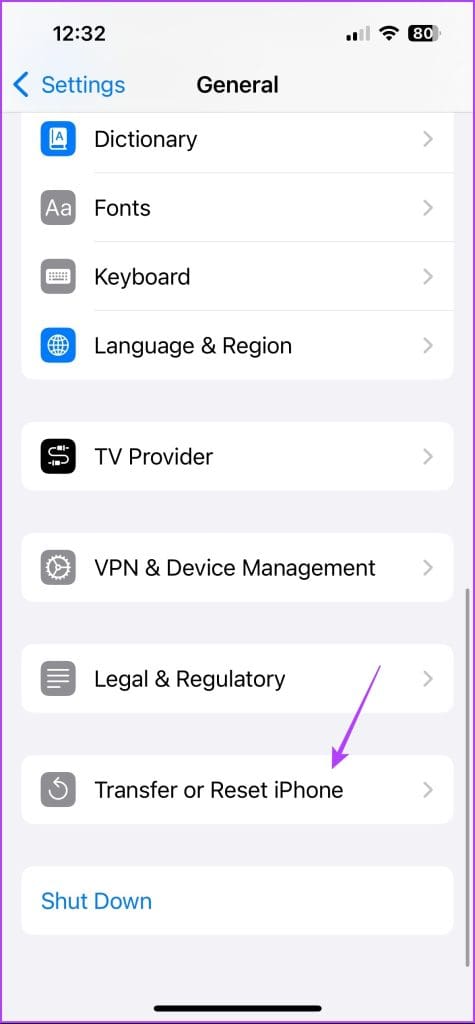
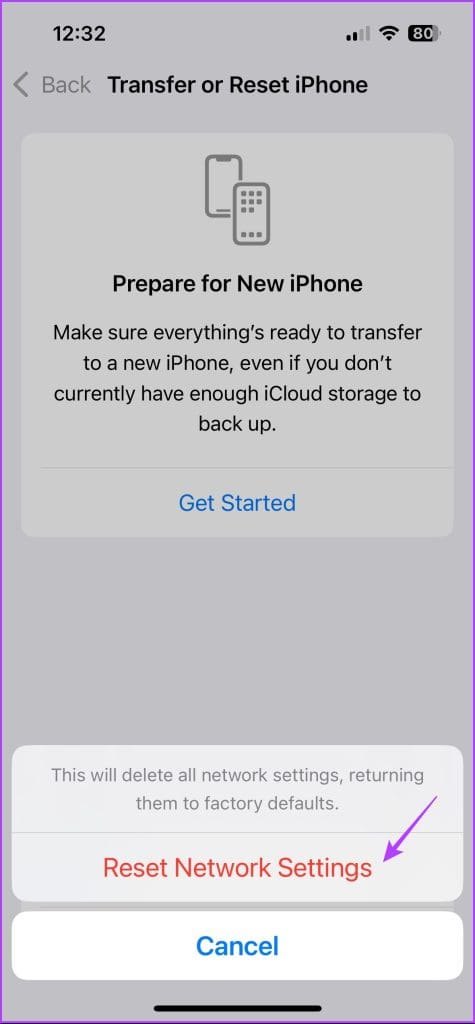
Step 2: Select Transfer or Reset iPhone.

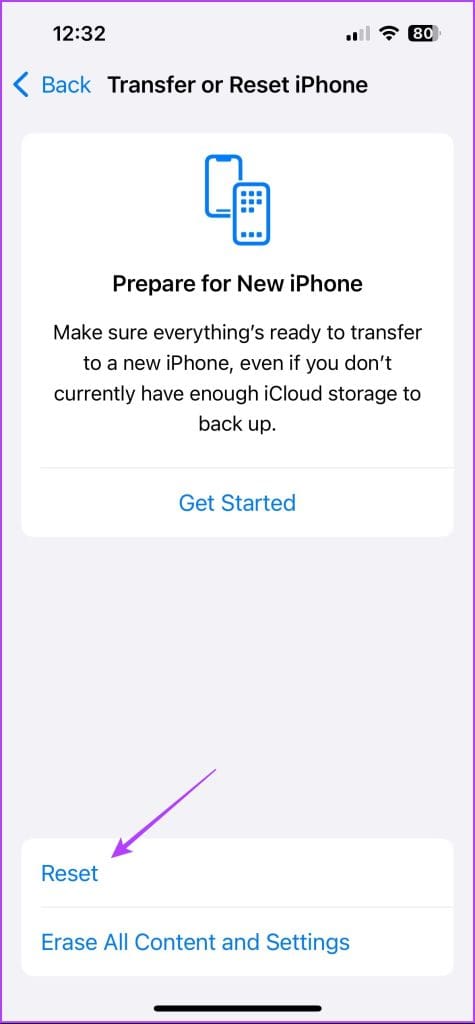
Step 3: Choose Reset > Reset Network Settings.

Step 4: Enter your device passcode and select Reset Network Settings again.
After that, connect to the network; you should no longer face the problem.

Also Read: How to fix delayed WhatsApp notifications on iPhone

Was this helpful?

Thanks for your feedback!

6 Best Camera Lens Protectors for iPhone 13 Pro

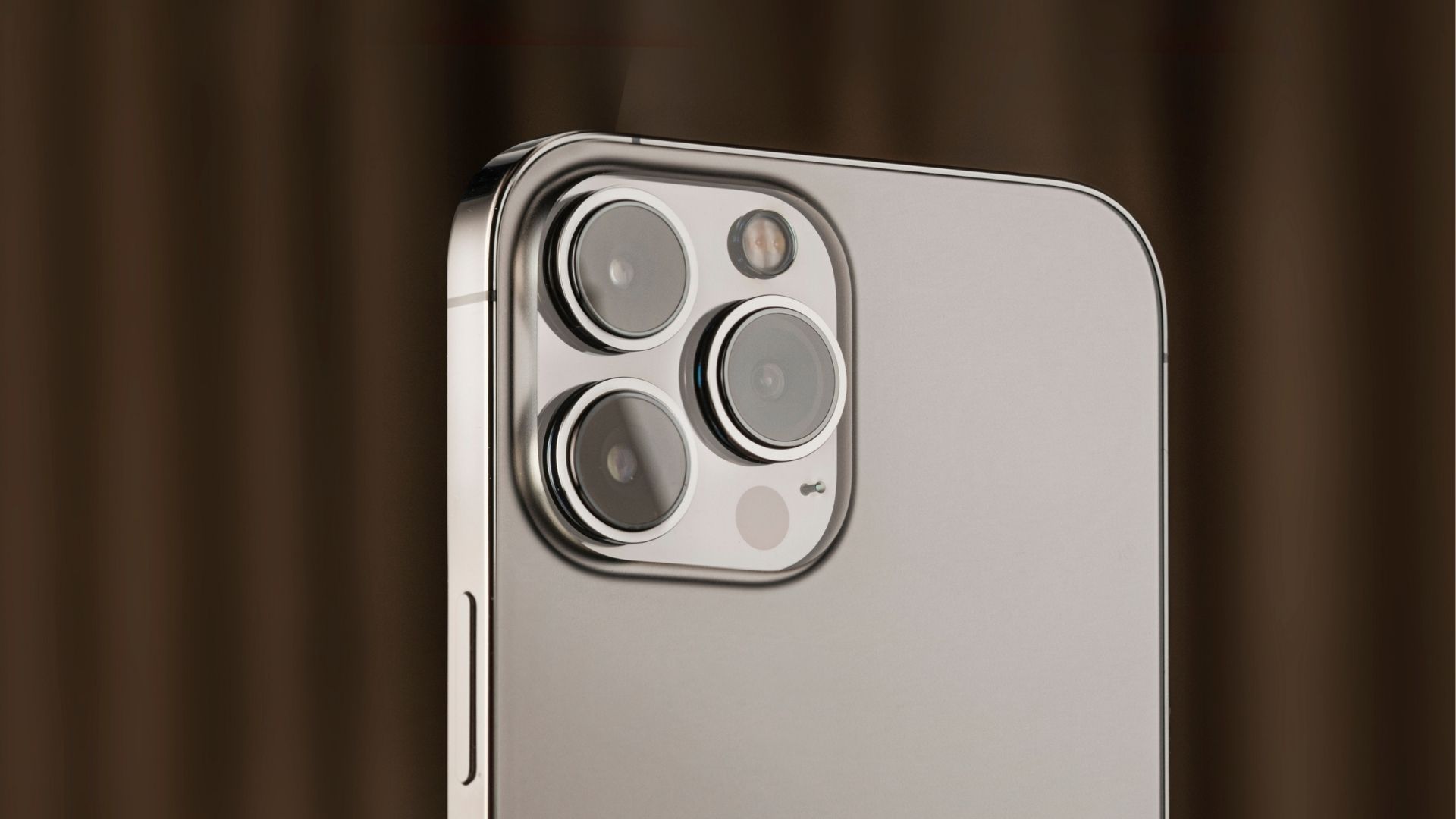
Apple iPhone’s camera is one of the most significant factors differentiating it from Android flagships. Though camera lenses on the iPhone 13 Pros have a strong glass for protection, an accidental fall can shatter it. Surprisingly, Apple doesn’t sell a camera lens protector. You can find multiple camera lens protector options for iPhone 13 Pro on Amazon.

Although iPhone 13 Pro and 13 Pro Max carry different display and battery sizes, both the variants come with the same camera module on the back. Whether you have iPhone 13 Pro or a bigger variant, you can get any pack from the list below and protect an expensive camera system. We have cherry-picked the six best options for you.

1. Ferilinso Camera Lens Protector

Ferilinso is one of the cheapest options from the bunch. Your purchase comes with three camera lens packs – enough to protect the iPhone 13 Pro camera lens for a couple of years.

Don’t dismiss Ferilinso as a cheap, low-quality camera lens protector on Amazon. Despite a low price tag, you get 9H hardness and an HD tempered glass with a case-friendly design. The installation is seamless without any bubbles. The lens protector won’t leave any residue when you remove or replace it. Ferilinso camera lens protector comes in one color only (black ring). If you want more color options, check other options on this list below.

2. WSKEN Camera Lens Protector

iPhone 13 Pro series comes in several color options. WSKEN offers a camera lens protector in many colors to match your phone’s exterior look. You can get one in green, blue, gold, grey, and silver.

WSKEN offers an anti-scratch HD tempered glass camera screen protector. The remarkable quality offers a 3D texture for a transparent look at the back. The camera lens protector is easy to apply and doesn’t leave bubbles. WSKEN bundles a handy installation tool and a dust cleaner with the purchase. Whether you plan on throwing your iPhone 13 Pro in a bag or pocket with keys and coins, WSKEN ensures the highest protection from scratches.

3. Goton Bling Camera Lens Protector

While this one is not our favorite from the bunch, Goton Bling offers a unique dazzling look to your iPhone 13 Pro camera lens. The company has integrated diamonds around the lens rings and all over the glossy protector for a uniform look.

Goton Bling’s iPhone 13 Pro camera lens protector has seven color options. It can be the perfect gift for your loved one who prefers diamond style on the iPhone back. Unlike other camera lens protectors on the list, Goton doesn’t mention hardness level. So, don’t count on it to protect your iPhone camera lens from accidental scratches. Some diamonds might fall off from the lens protector and the leave a messy look. It doesn’t come with any installation tool. So you’ll need to be careful while applying the camera lens protector.

4. Tensea Camera Lens Protector

Goton’s all-diamond look might be too flashy for some. Tensea offers 3D texture and a precise spiral pattern to deliver fascinating reflections on the back.

Tensea offers a balanced look without being too flashy. There are over eleven color options to choose from. The ring is made of aluminum and delivers 9H hardness and a transparent look. A clear look ensures original image or video recording quality. The package includes three rings of camera cover. We would love to see more camera rights for the asking price. If you don’t like the crystal-style ring, you can also opt for a colorful one.

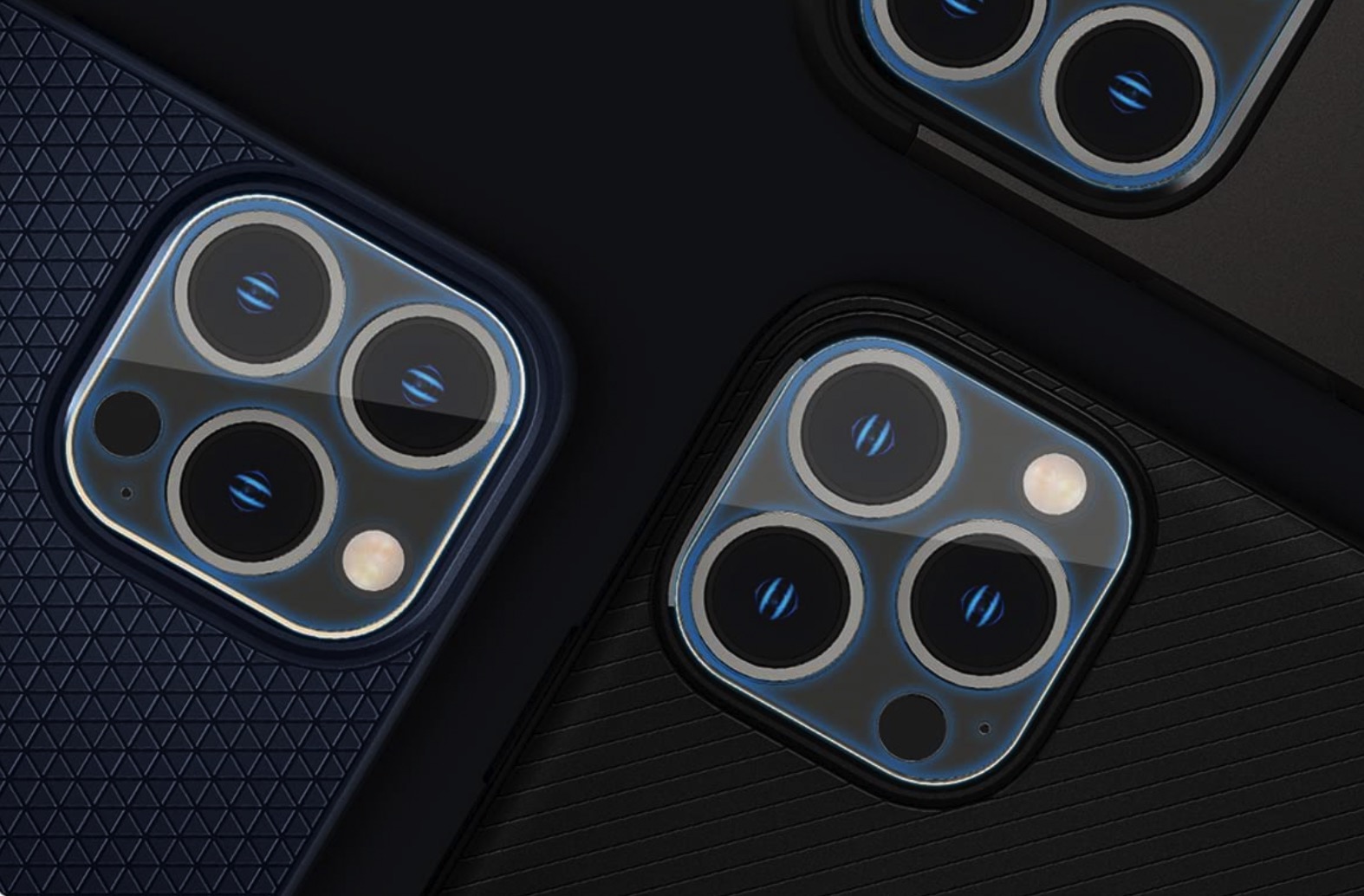
5. Spigen Camera Lens

Spigen is one of the reputed third-party accessory makers. The company’s camera lens protector might look simple on paper, but it carries all the required features to protect your iPhone 13 Pro’s camera lens.

The Spigen lens neatly fits your iPhone 13 Pro camera module. Spigen ensures no hindrance to the LiDAR sensor for consistent photo quality. Some cheap camera lenses leave blemishes or flash reflections; thankfully, that’s not the case with the Spigen camera cover. If you want extra protection from hard falls, you can invest in one of the Spigen cases for the iPhone 13 Pro.

6. QHOHQ Lens Pack

Unlike other camera lens protectors on the list, QHOHQ offers a dedicated installation video guide on the company website to ensure flawless fit and finish. The camera lens packs an anti-reflection technology for original quality photos and videos.

QHOHQ is easy to install and doesn’t leave bubbles or fingerprints. Apart from 9H hardness and 2.5D rounded corners, the camera lens protector comes with an oleophobic layer (generally found on smartphone displays) to give protection against water, oil, dust, and scratches. There are several styles and color options to select. Check them before you hit the buy button.

Protect an Expensive iPhone Camera System

Clean the camera lens protectors on your iPhone regularly to ensure original photos and video quality. If you want more convenience with protection, get an iPhone 13 Pro case with a kickstand.

Was this helpful?


Thanks for your feedback!

4 Ways to Fix Facebook Messenger Voice Messages Not Working

Try Basic Fixes

  • Check the volume level on phone: If the volume level on your phone is too low, you may have trouble hearing your Messenger voice messages. Press the volume up button on the side of your phone to increase the volume level. Additionally, ensure that your phone is not connected to a Bluetooth audio device.
  • Free up storage space: The Messenger app might struggle to download or play voice messages if your Android or iPhone is running low on storage space. It’s a good idea to check your phone’s storage status to see if it’s full. You can free up storage space by clearing unused apps or transferring some of your data to the cloud.
  • Check Messenger’s server status: Services like Facebook Messenger can also experience server outages at times. When this happens, Messenger may not play your voice messages or allow you to send them. You can visit a website like Downdetector to see if others are facing similar issues.

Fix 1: Check App Permissions

A common reason for Messenger to fail to record or send voice messages is if the app lacks the necessary permission to access your phone’s microphone. Here’s how you can fix that.

Android

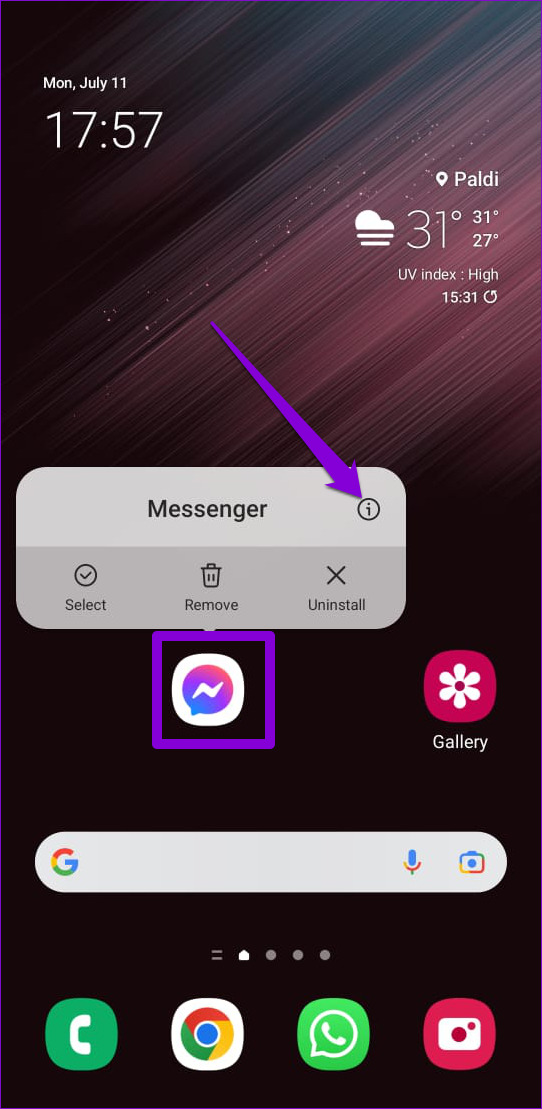
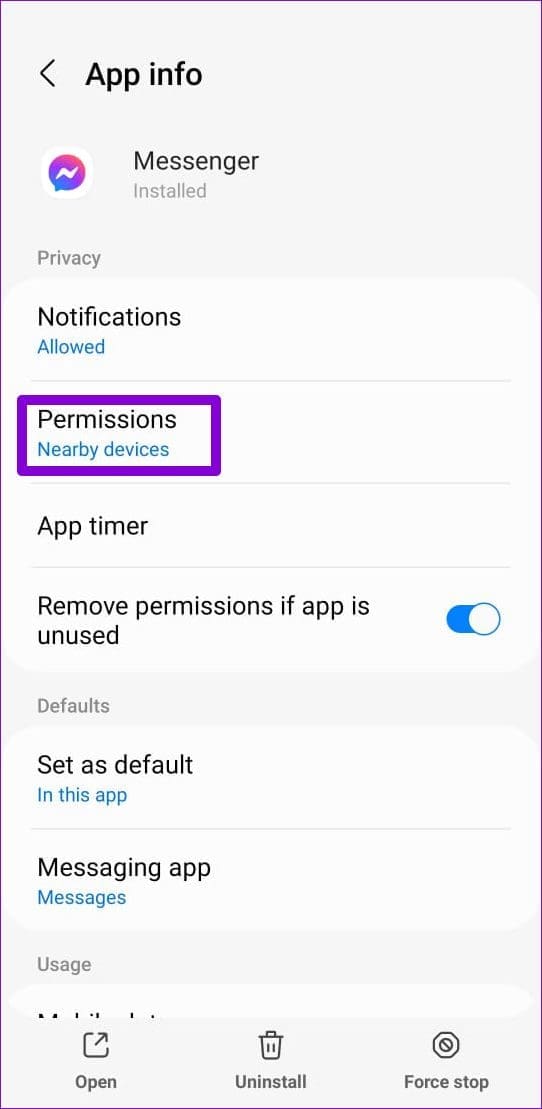
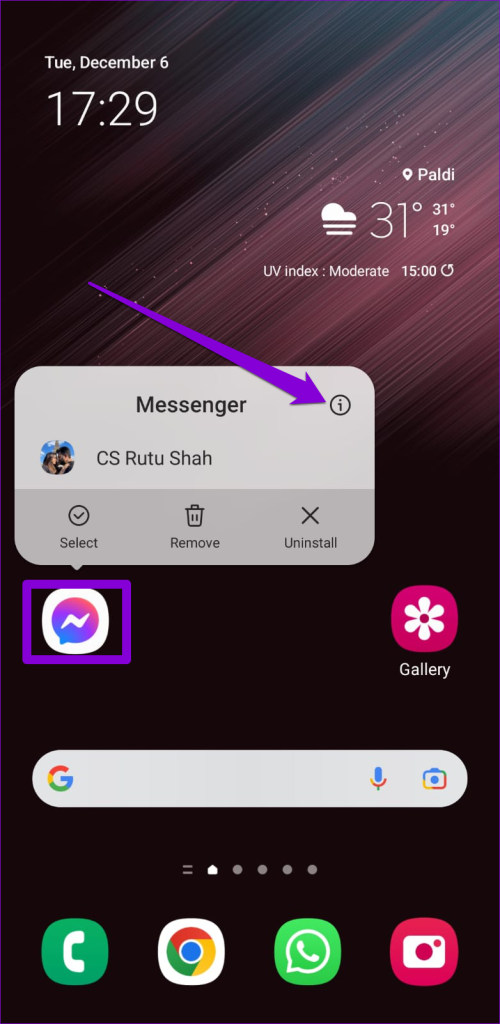
Step 1: Long-press on the Messenger app icon and tap the info icon from the menu that appears. Then, tap Permissions.

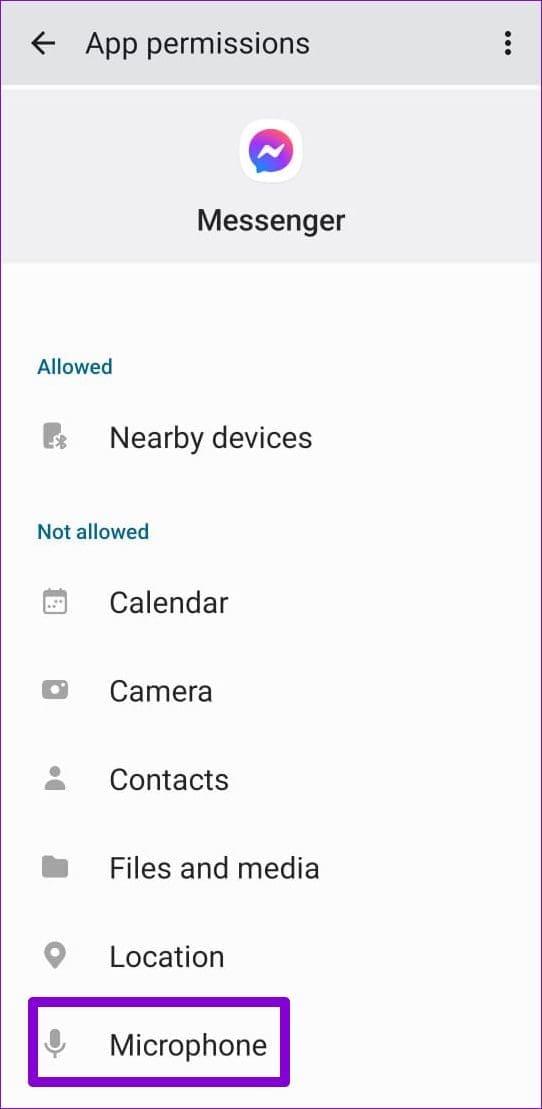
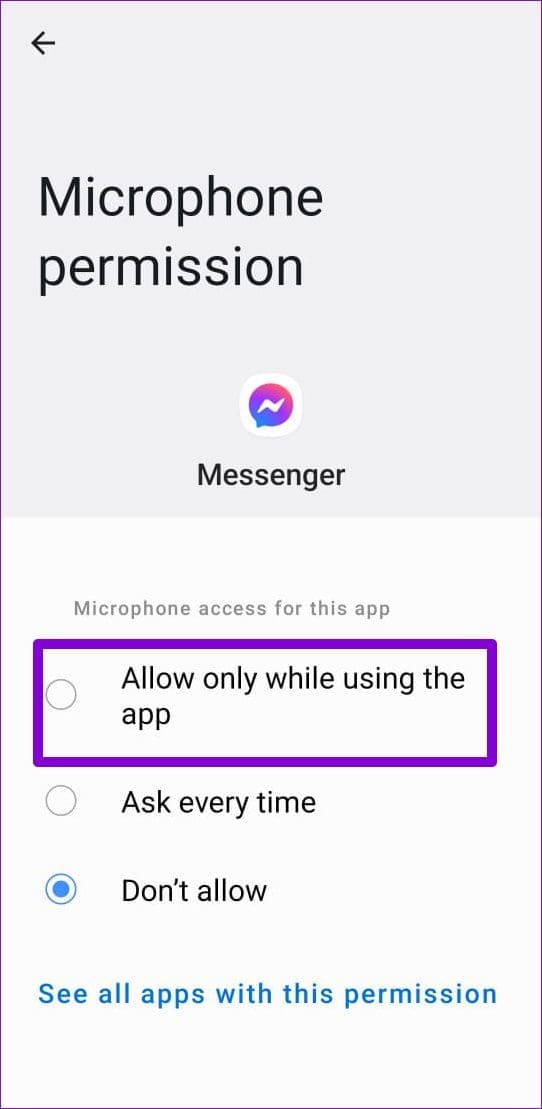
Step 3: Tap on Microphone and select Allow only while using the app.

iPhone

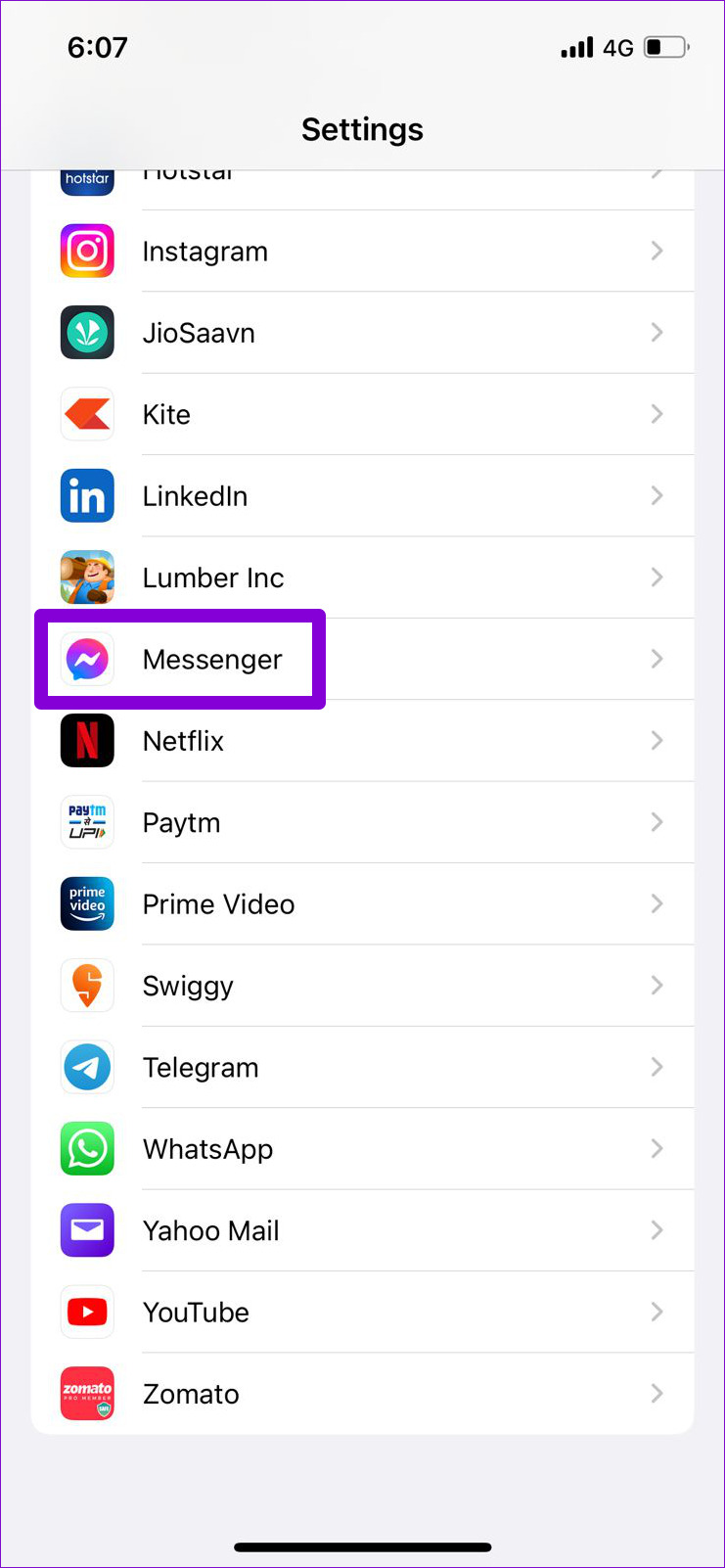
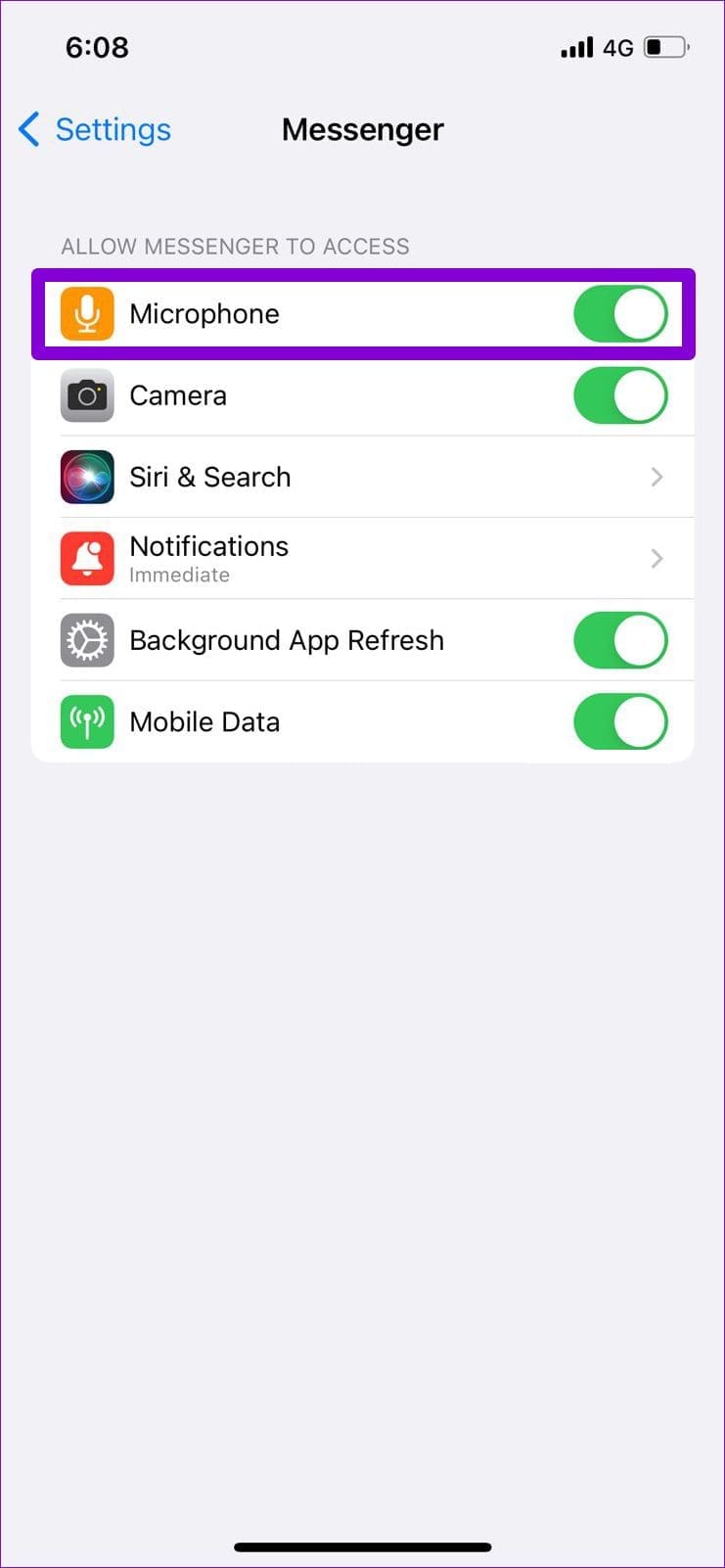
Step 1: Launch the Settings app on your iPhone and scroll down to tap on Messenger.

Step 2: Turn on the toggle next to Microphone.

Fix 2: Enable Microphone Access From the Privacy Menu (Android)

If your phone runs Android 12, you can control the camera and microphone permissions for all apps from the Privacy menu. If you’ve accidentally disabled microphone access on your phone, Facebook Messenger won’t record your voice messages. Here’s how you can change that.

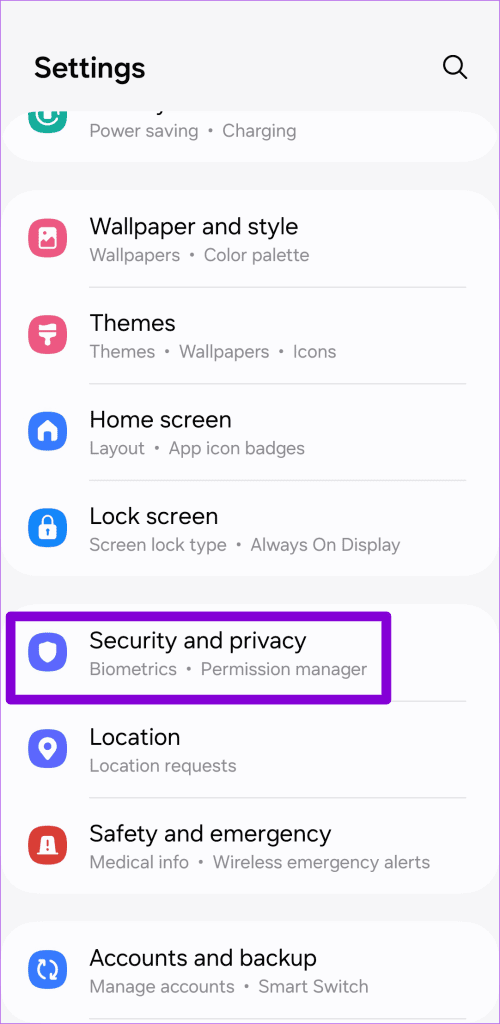
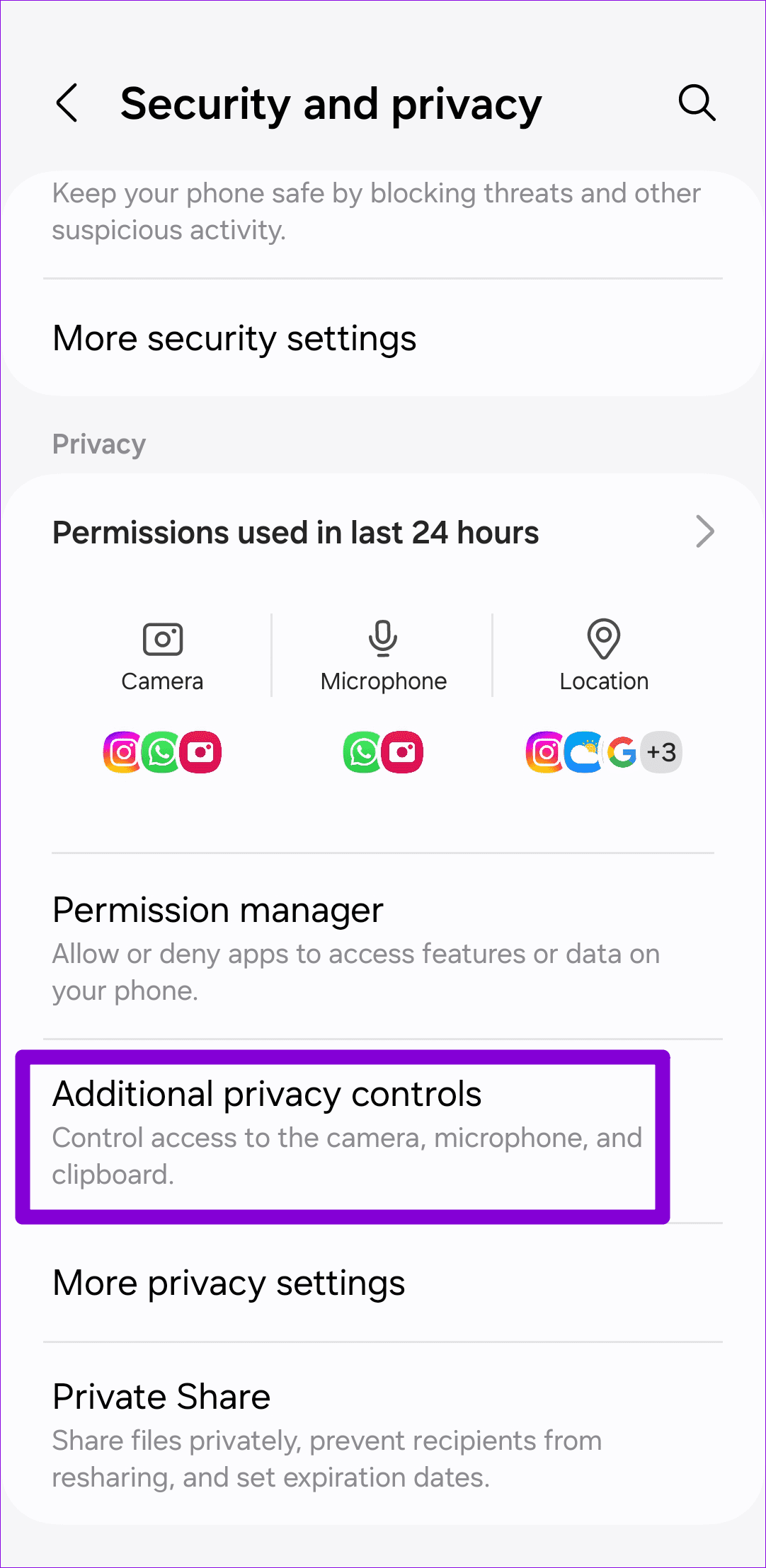
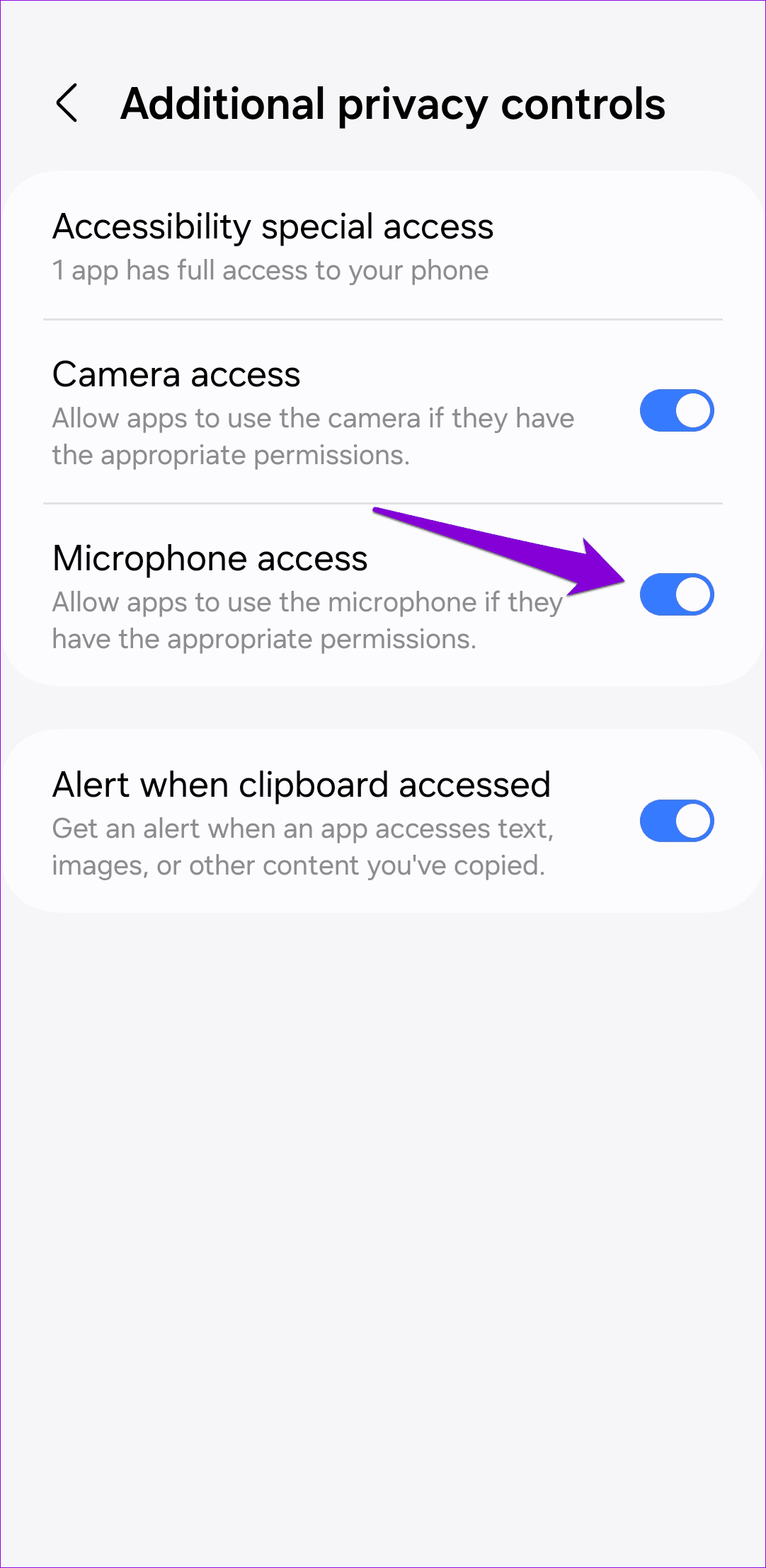
Step 1: Open the Settings app on your phone and navigate to Security and privacy.

Step 2: Tap on More privacy controls and enable the toggle next to Microphone access.

Fix 3: Clear App Cache (Android)

Like most apps, Messenger also collects cache data on your phone to improve app performance. However, if that data becomes corrupt or inaccessible, certain features, such as voice messages, may not work correctly. To fix this, you can clear Messenger’s cache data by following the steps below.

Step 1: Long-press on the Facebook Messenger app icon and tap the info icon from the menu that pops open.

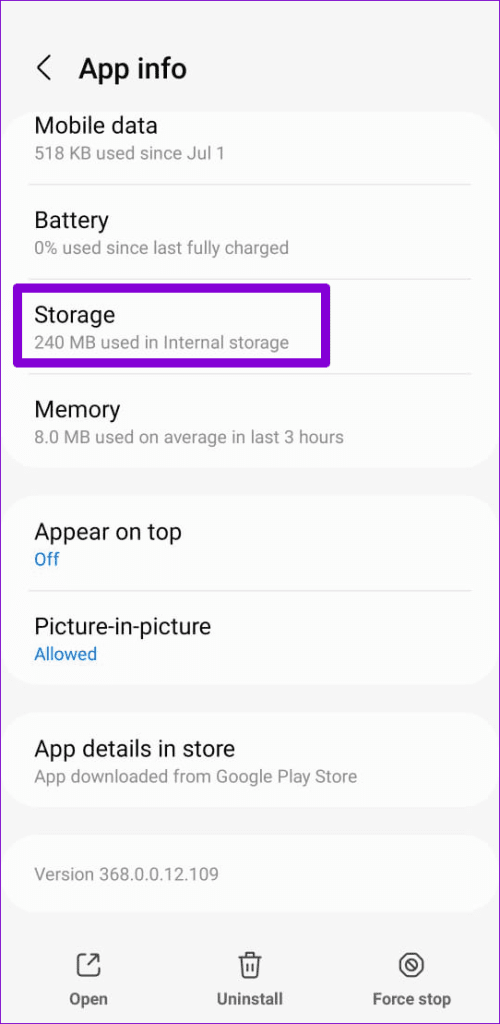
Step 2: Go to Storage and tap the Clear cache option at the bottom right corner.

Fix 4: Update or Reinstall the App

App updates usually bring all kinds of new features and bug fixes to an app. If the voice message not working issue is caused by a buggy Messenger build, updating the app from the Play Store (Android) or App Store (iPhone) should help.

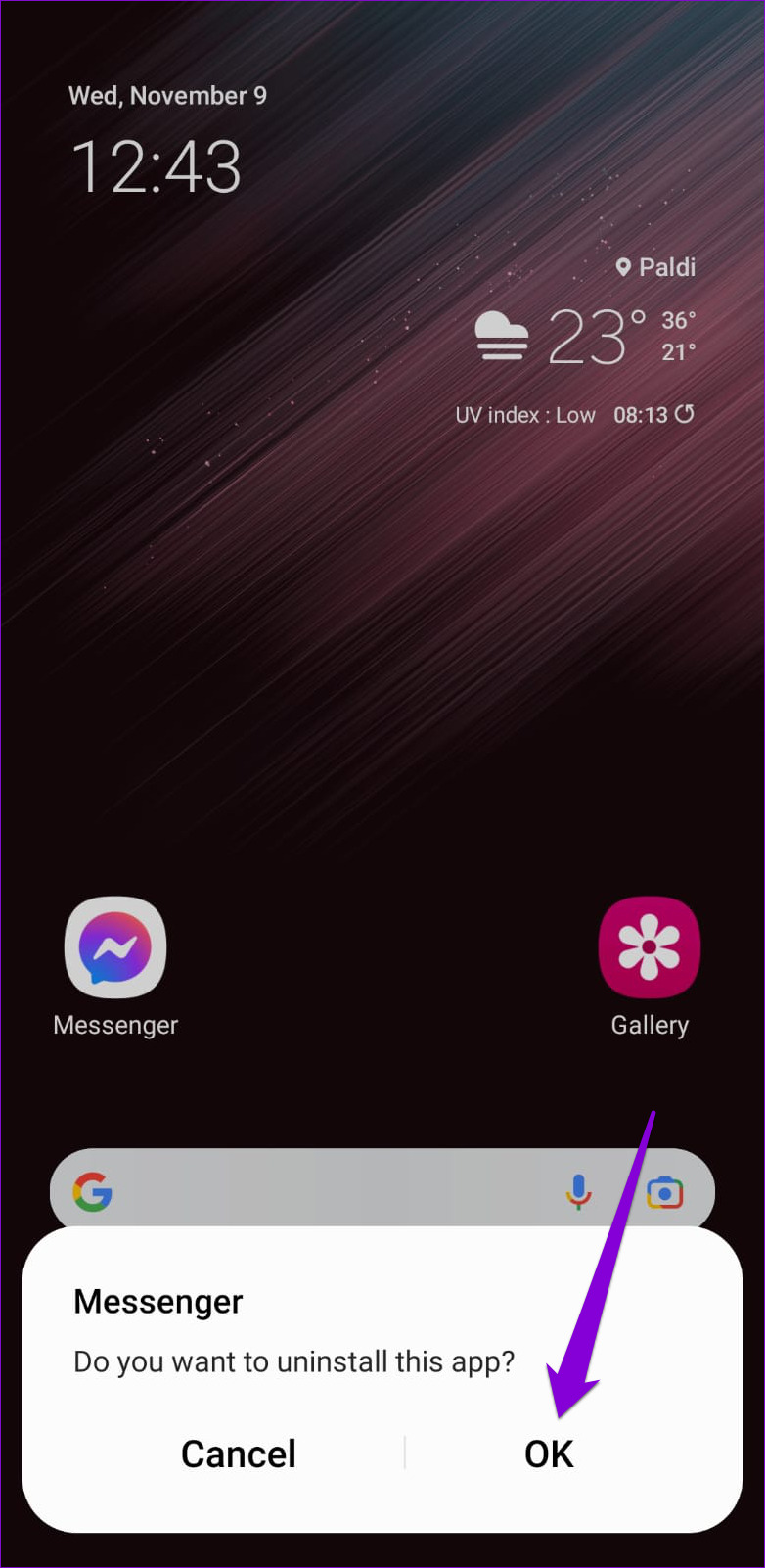
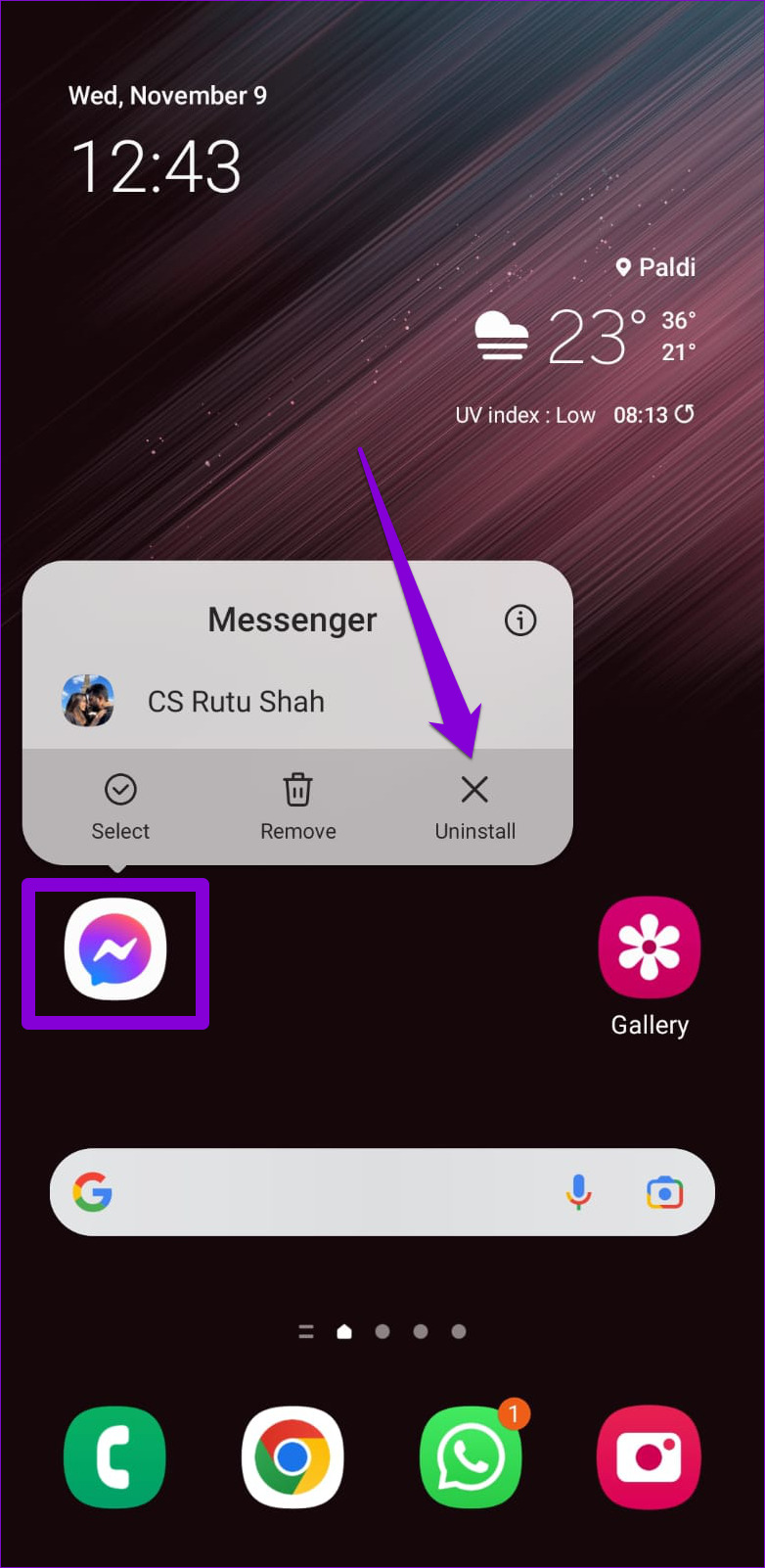
If you still can’t send or receive voice messages on Messenger, you can try uninstalling and reinstalling the app. If you have an Android, long-press the Messenger app icon and tap Uninstall. Then, hit OK.

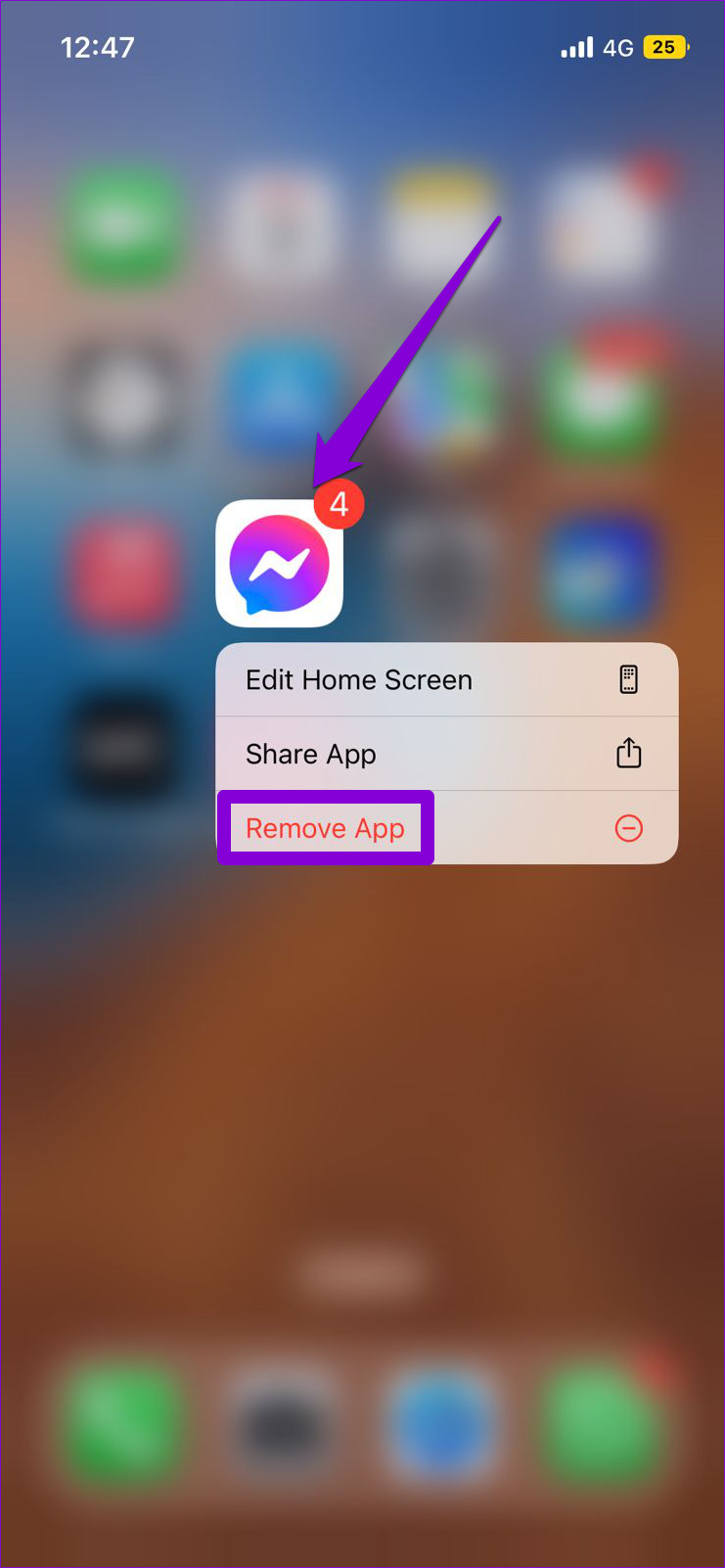
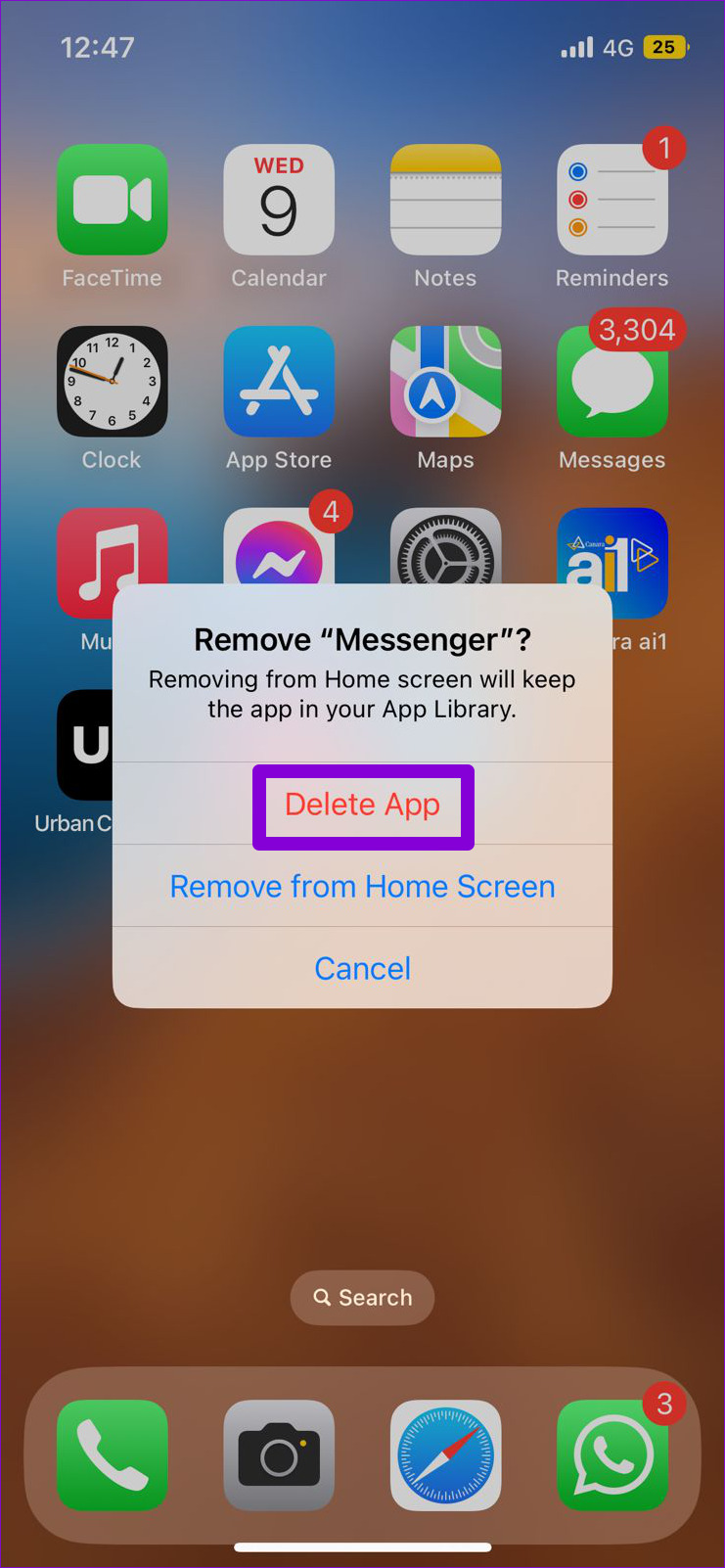
On an iPhone, long press the Messenger app icon and select Remove App. Select Delete App to confirm.

Once removed, download and install the Messenger app and try to send or play voice messages again.
Was this helpful?

Thanks for your feedback!

How to Stop Texts From Unknown Numbers on Your Phone

How to Block Messages From Unknown Numbers on iPhone

Apple allows you to block spam texts sent from unknown numbers. Or, if required, you can also block senders directly from the Messages app. Once done, either these messages will be sorted separately or blocked altogether. For more details, here’s a step-by-step look.

Method 1: Block Spam Text Messages From Unknown Numbers

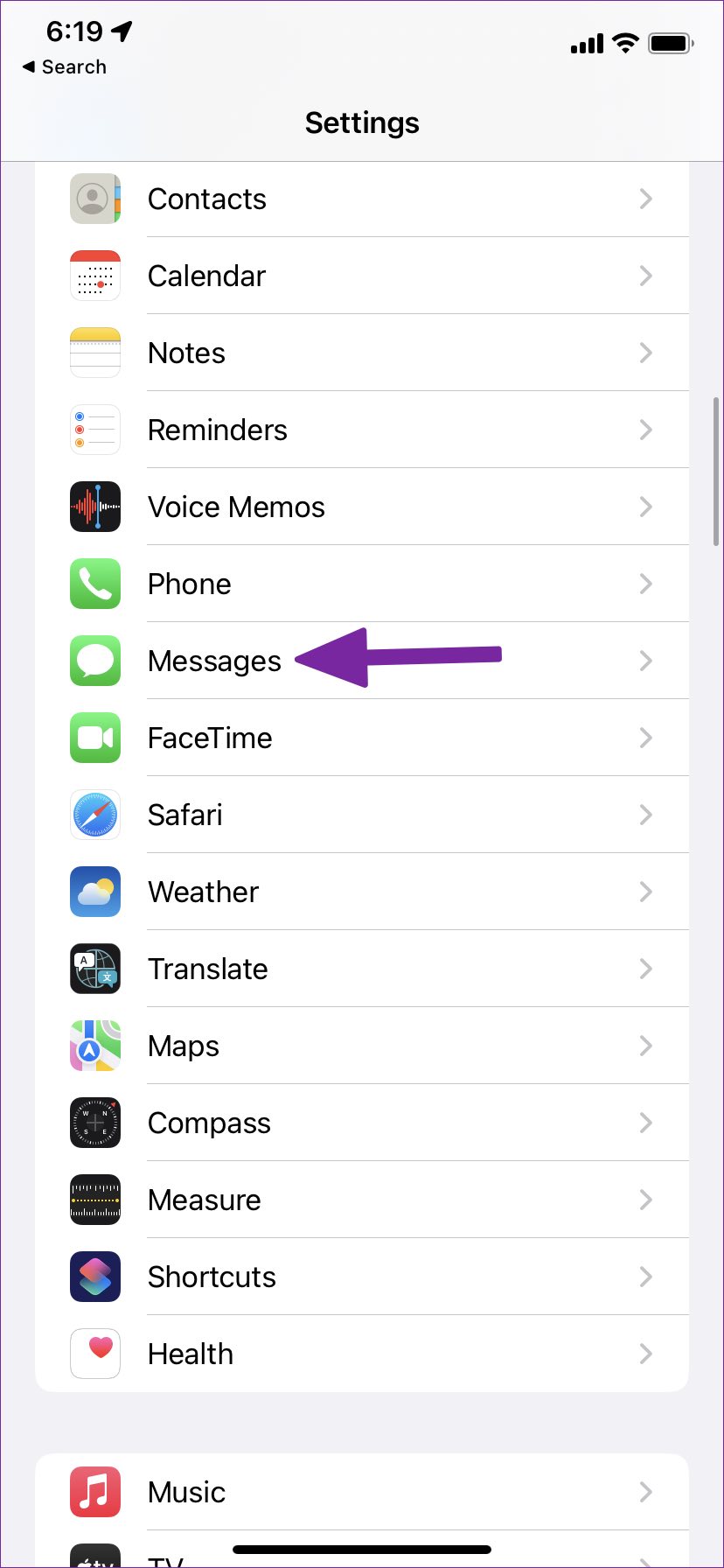
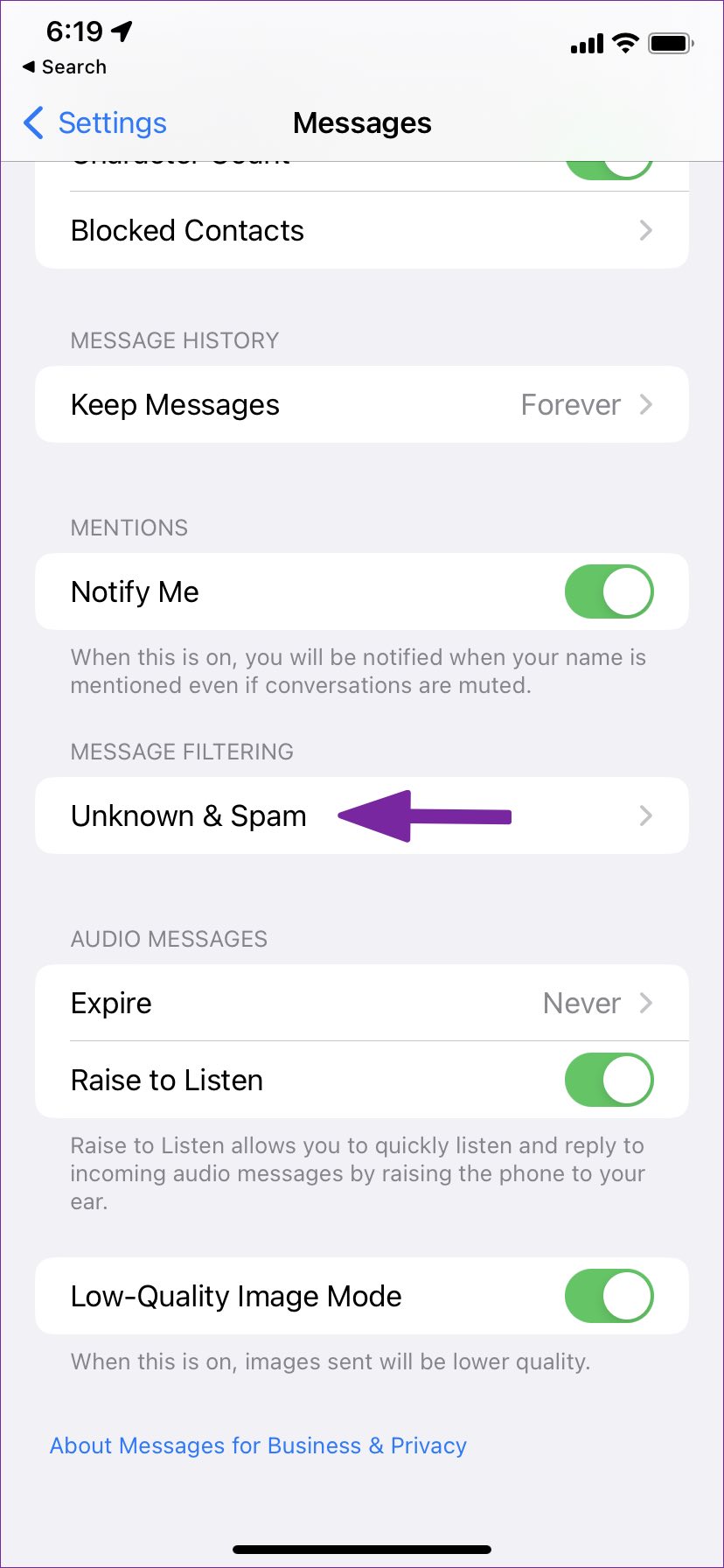
Step 1: Open Settings and tap on Messages. Here, tap on Unknown & Spam.

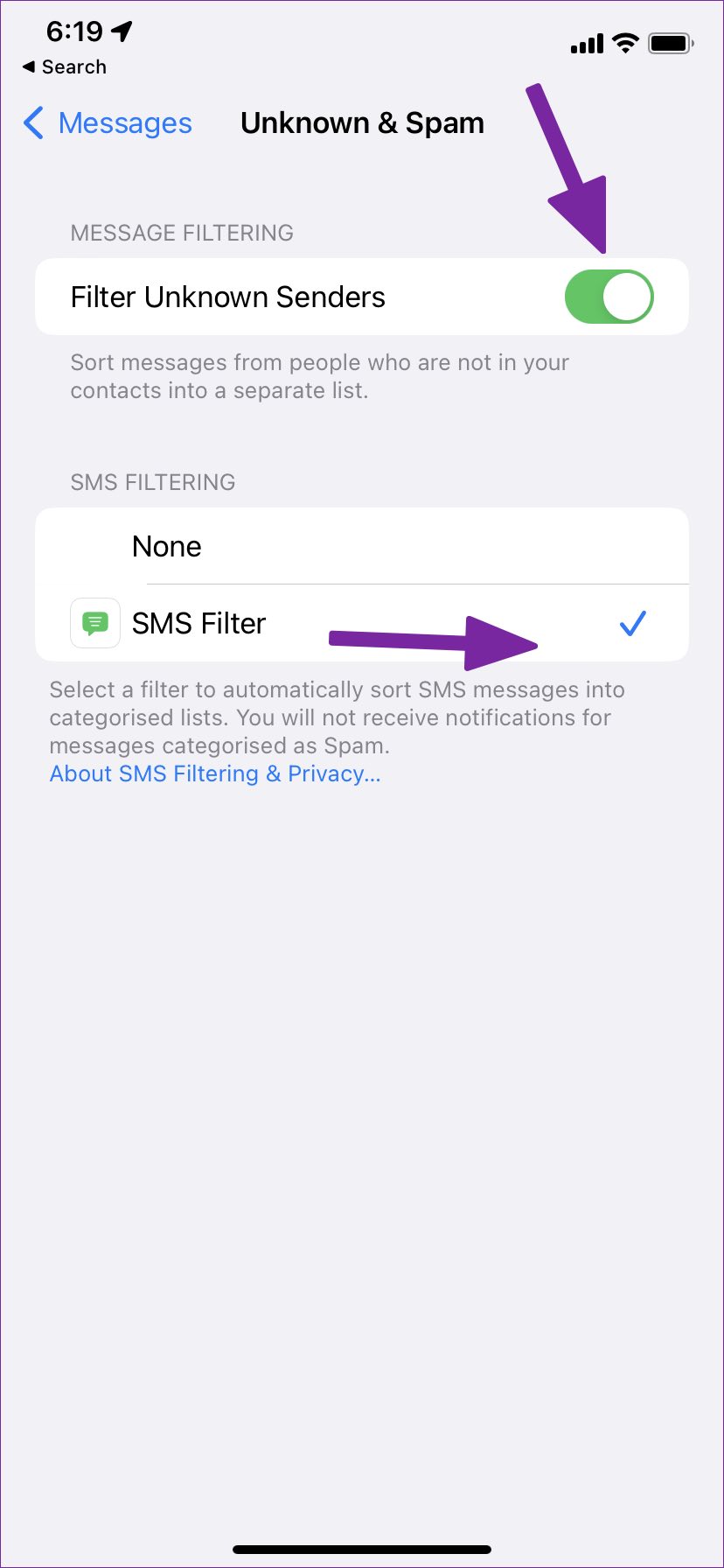
Step 2: Turn on the toggle for Filter Unknown Senders. Additionally, check the option for SMS Filter.

Method 2: Block Spam Numbers From the Messages App

Note: Doing this will block phone calls and FaceTime calls along with the texts from the selected user.

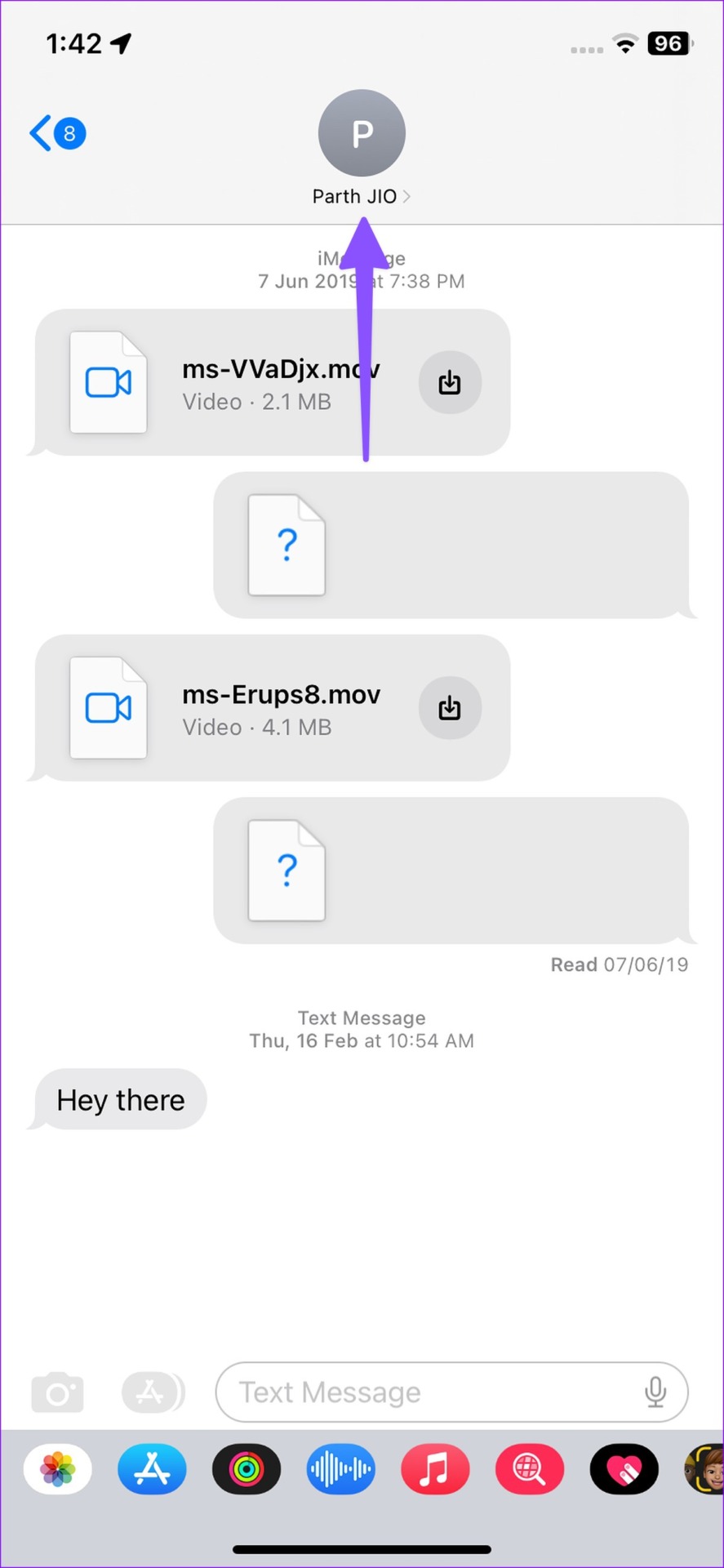
Step 1: Open the Messages app and tap on the relevant conversation. Then, tap on the contact name. Here, tap on info.

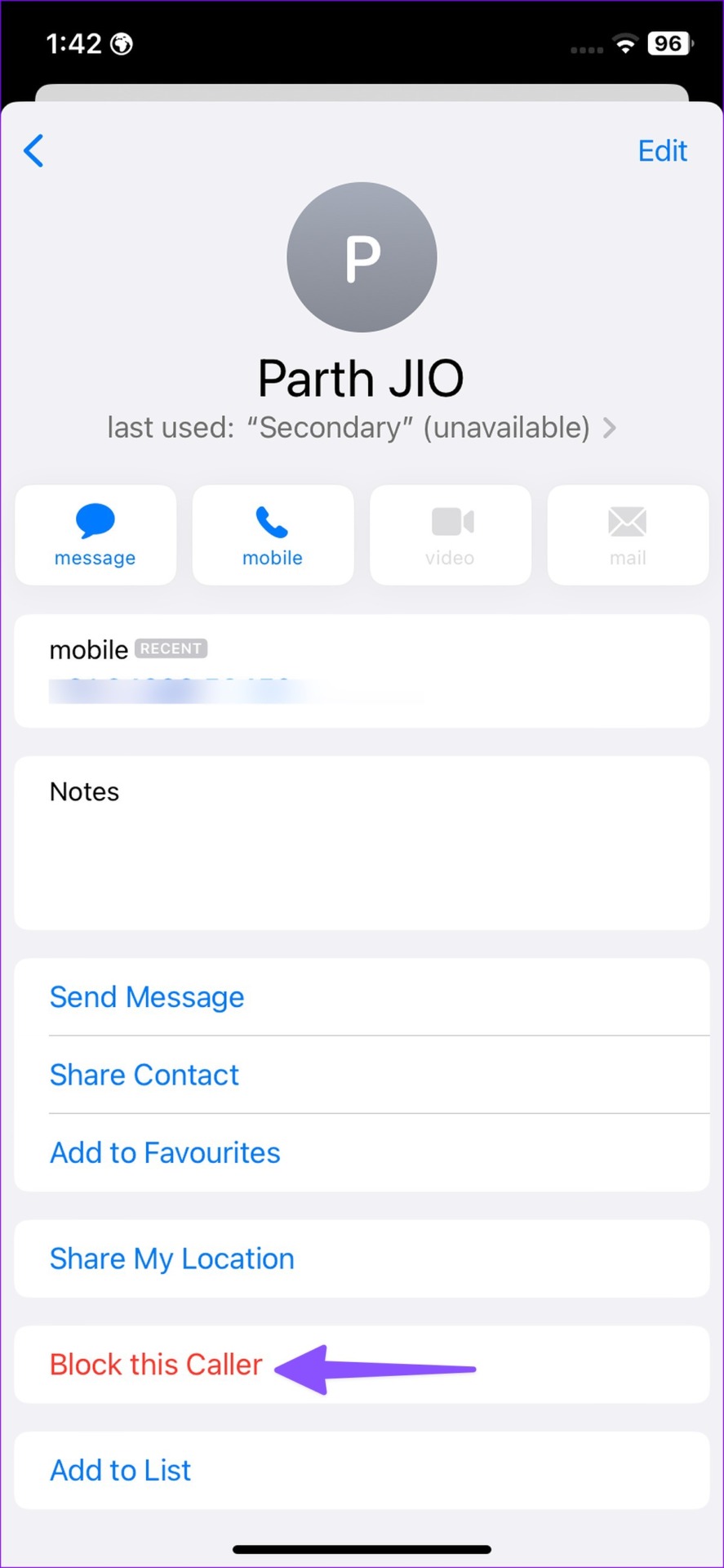
Step 2: Scroll down and tap on Block this Caller. When prompted, tap on Block Contact.

How to Block Unknown Texts on Android

The default Messages app on Android has built-in spam protection to save you from endless unnecessary text messages. Here’s how you can enable it to block unknown spam messages in the Google Messages and Samsung Messages app.

Method 1: Block SMS From Unknown Numbers on Android

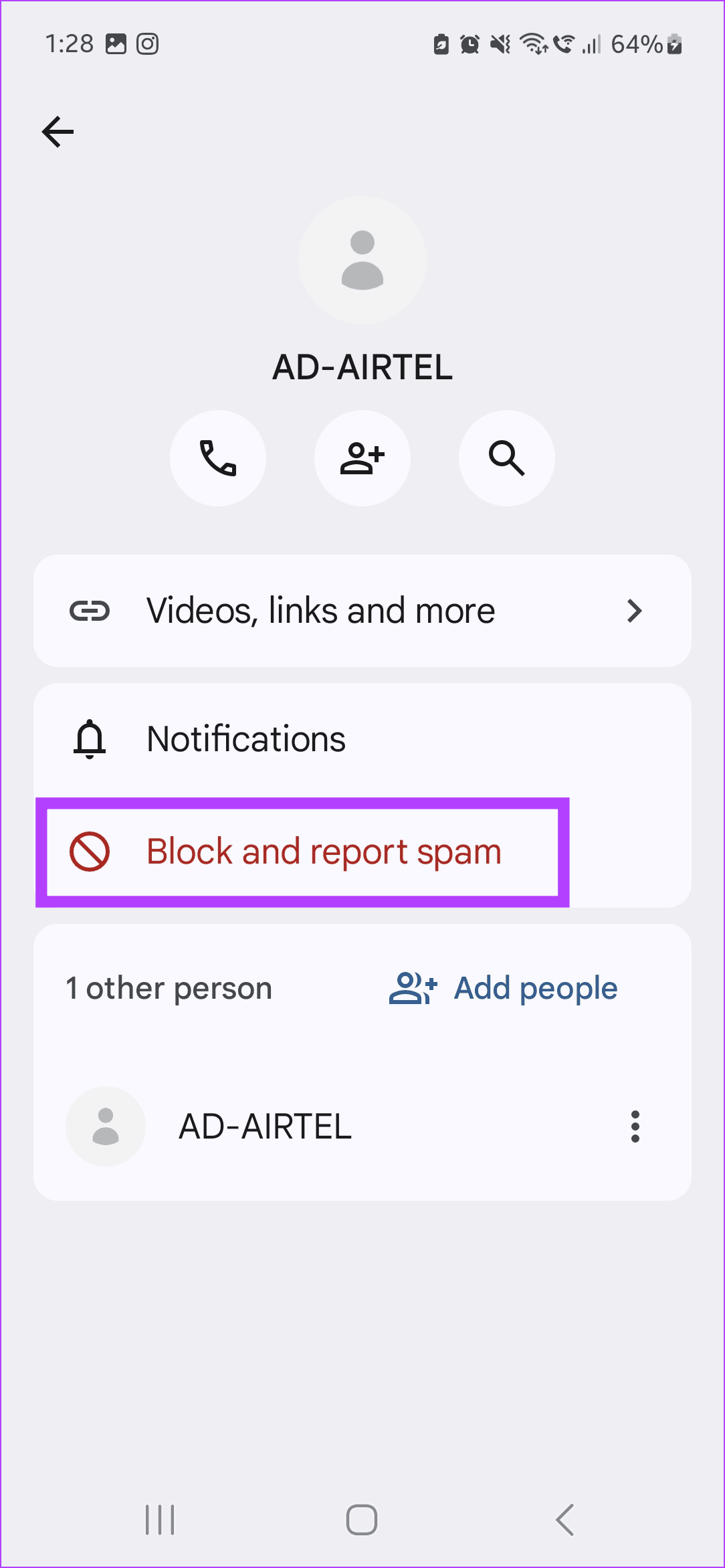
Step 1: Open the Messages app and tap on the relevant conversation. Here, tap on the three-dot icon in the top right corner and tap on Details.

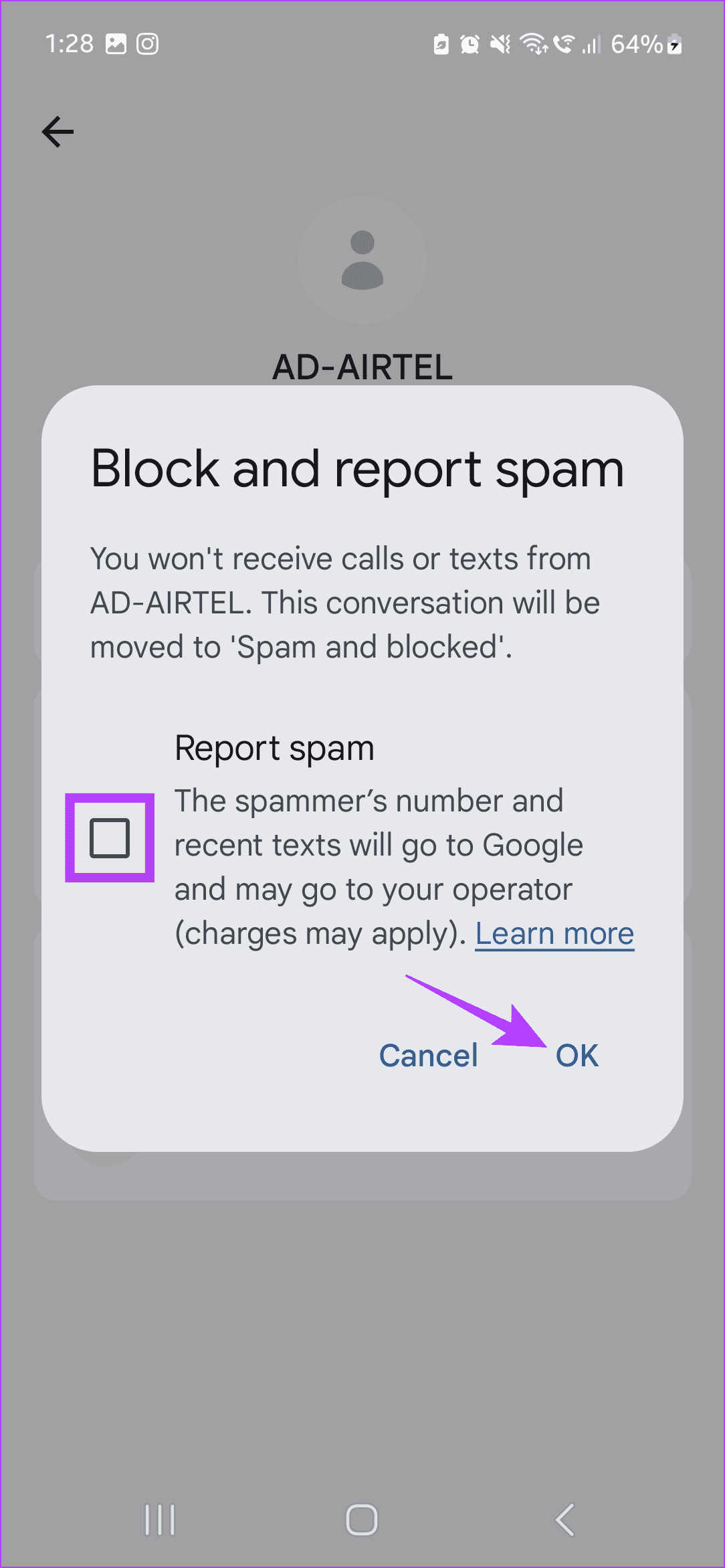
Step 2: Then, tap on Block and report spam. When prompted, select the Report spam option and tap on OK.

Method 2: Block Unknown Texts on Samsung Galaxy Phones

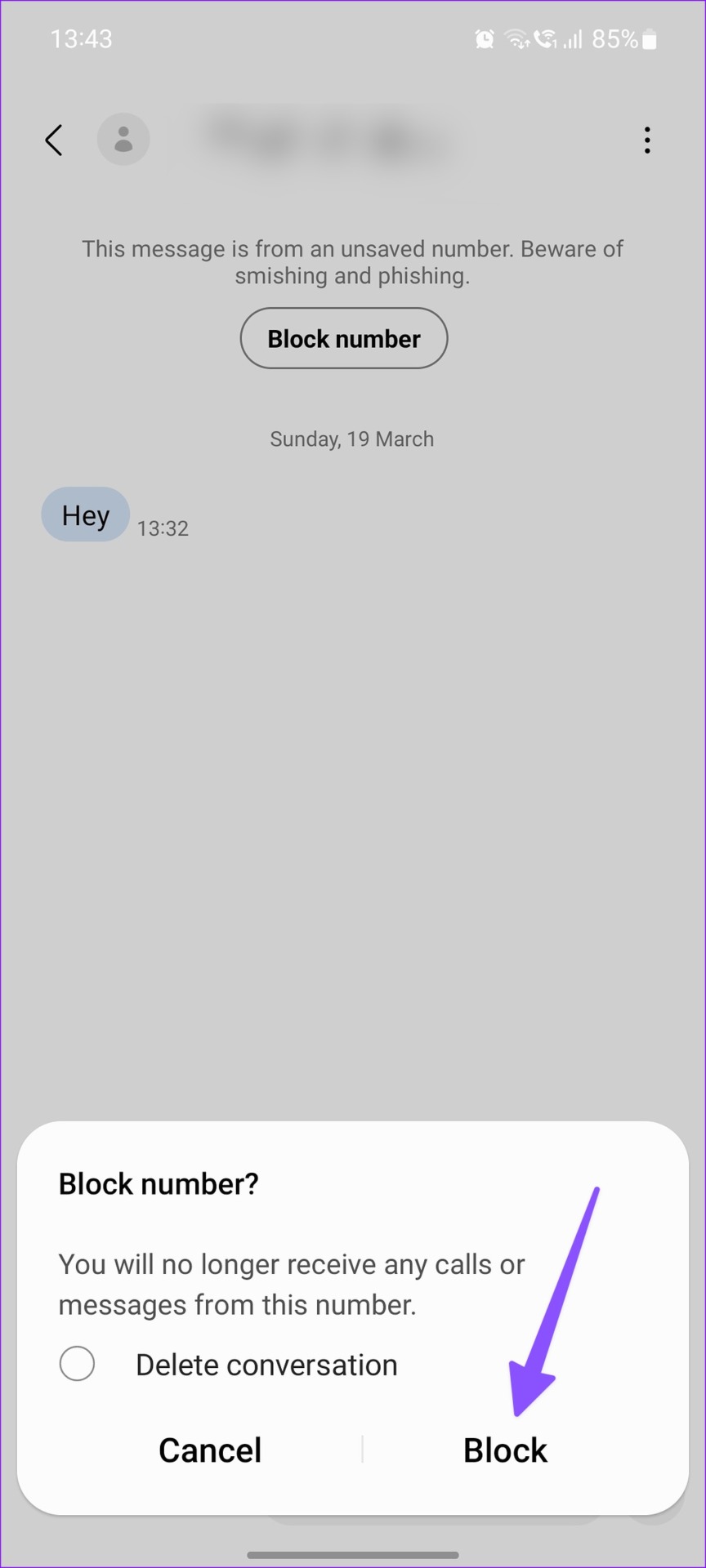
Step 1: Open the Samsung Messages app and tap on the relevant conversation. Here, tap on Block number.

Step 2: When prompted, check the Delete conversation option and tap on Block.

Method 3: Enable Spam Protection in the Messages App

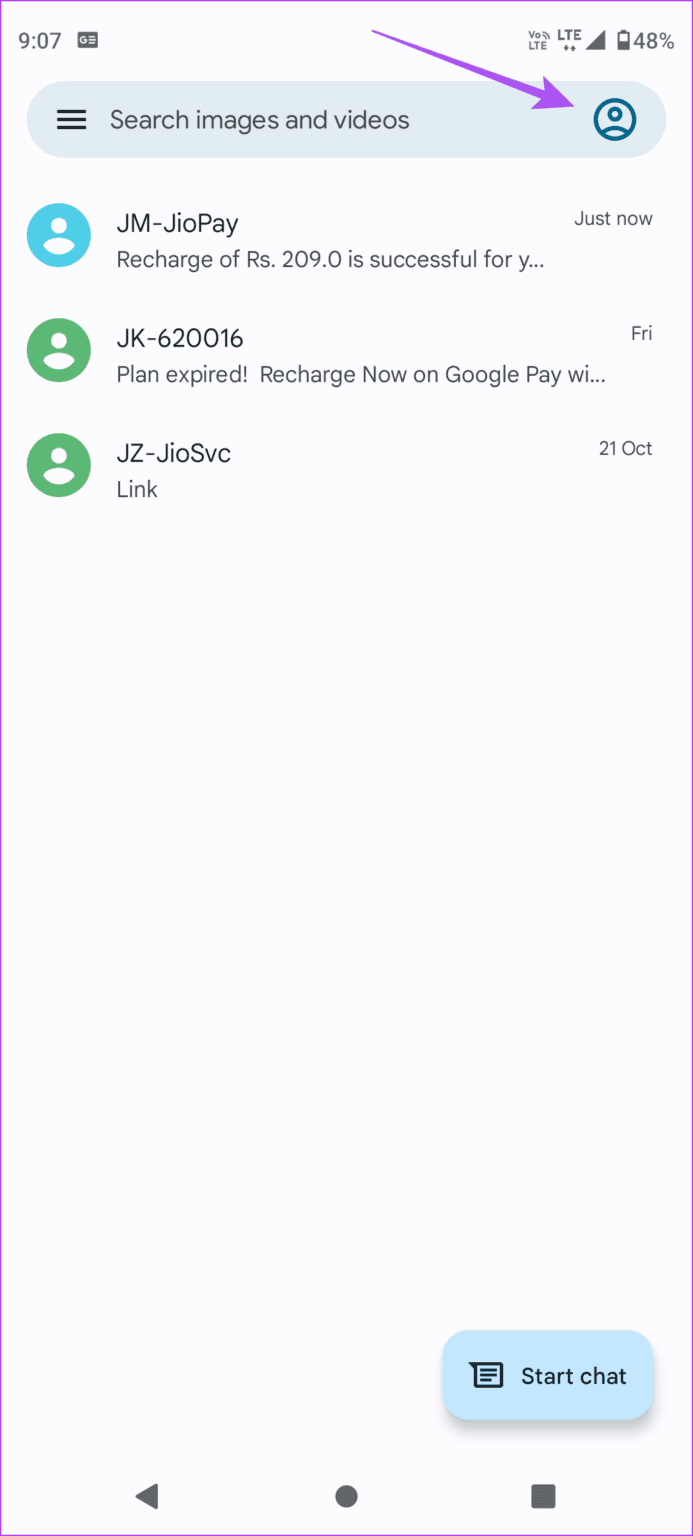
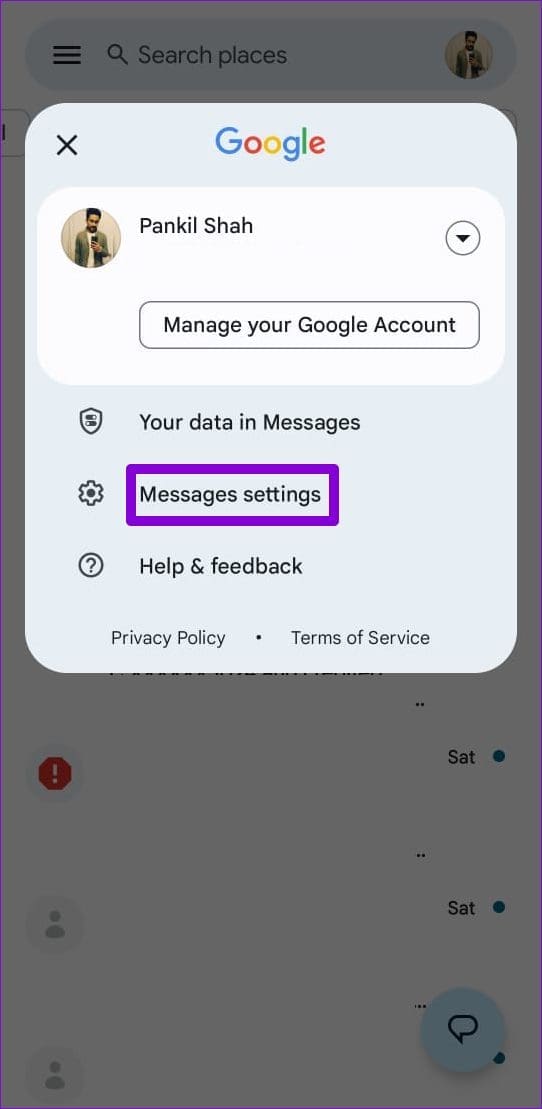
Step 1: Open the Messages app and tap on your profile icon in the top-right corner. Tap on Messages settings.

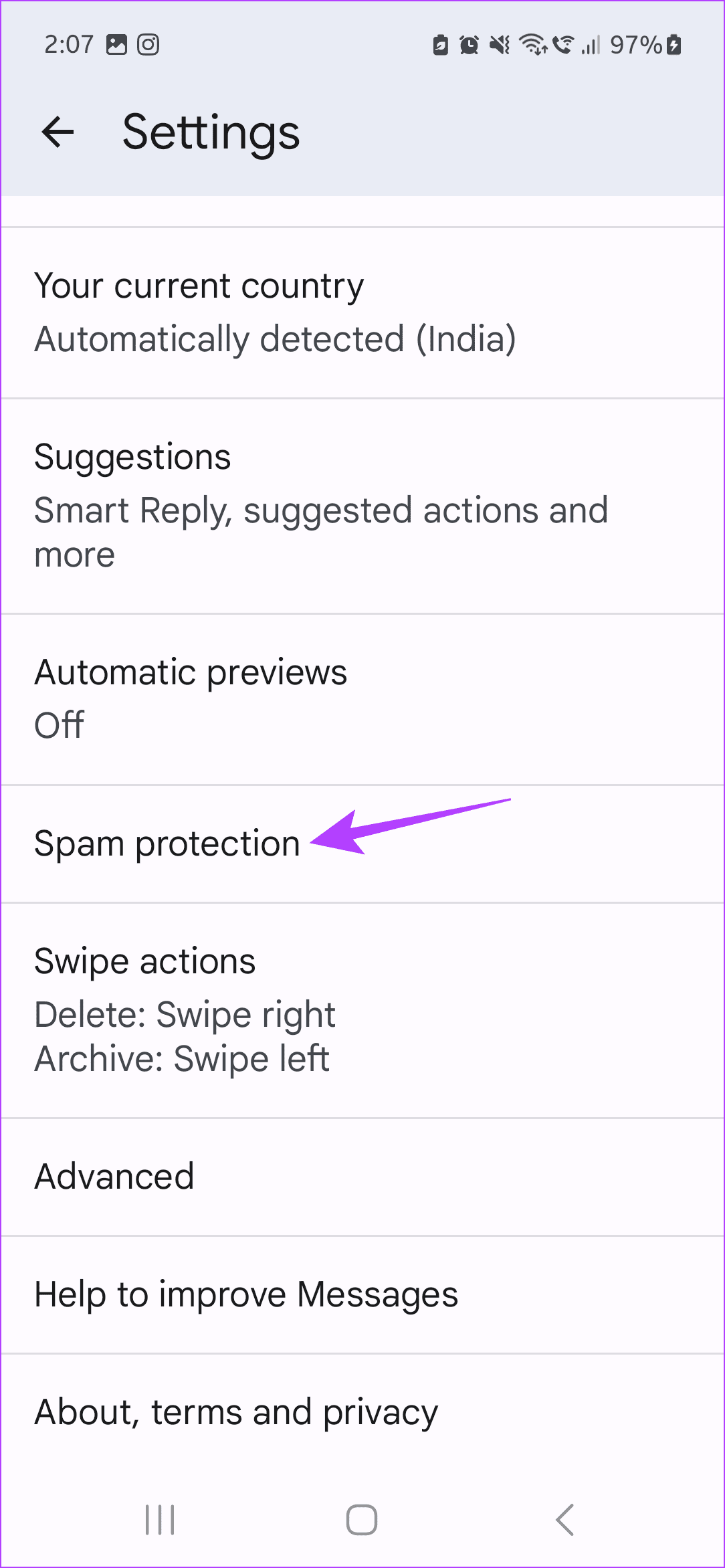
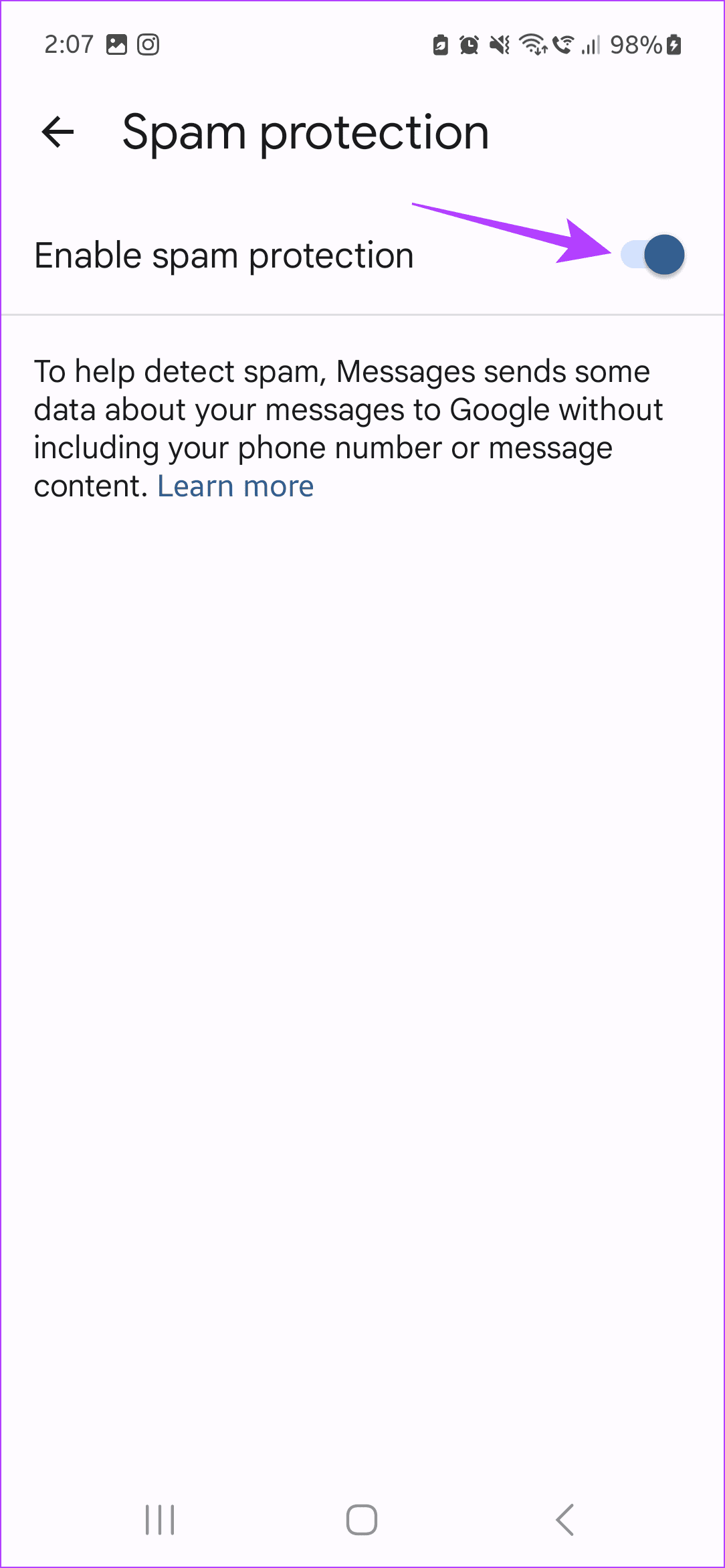
Step 2: Scroll down and tap on Spam protection. Turn on the Enable spam protection toggle.

This will automatically filter and sort the spam messages in the Messages app on your Android phone.

Was this helpful?

Thanks for your feedback!

4 Ways to Fix Profile Error in Microsoft Edge

Fix 1: Delete the Web Data File

Such errors in Microsoft Edge can also occur if the “Web Data” file stored on your PC becomes corrupted. You can try getting rid of the “Web Data” file to see if that helps.

Step 1: Press the Windows key + R to open the Run dialog. Type %LocalAppData% in the Open field and press Enter.

Step 2: In the File Explorer window, navigate to the following folder.

Local\Microsoft\Edge\User Data\Default
File Explorer

Step 3: Select the Web Data file and click on the trash icon at the top to delete it.

Delete Edge Web Data

Fix 2: Disable Browser Extensions

At times, third-party extensions running on Edge can interfere with the browser and prevent Edge from loading your profile correctly. To overrule this, disable all browser extensions and use Edge again.
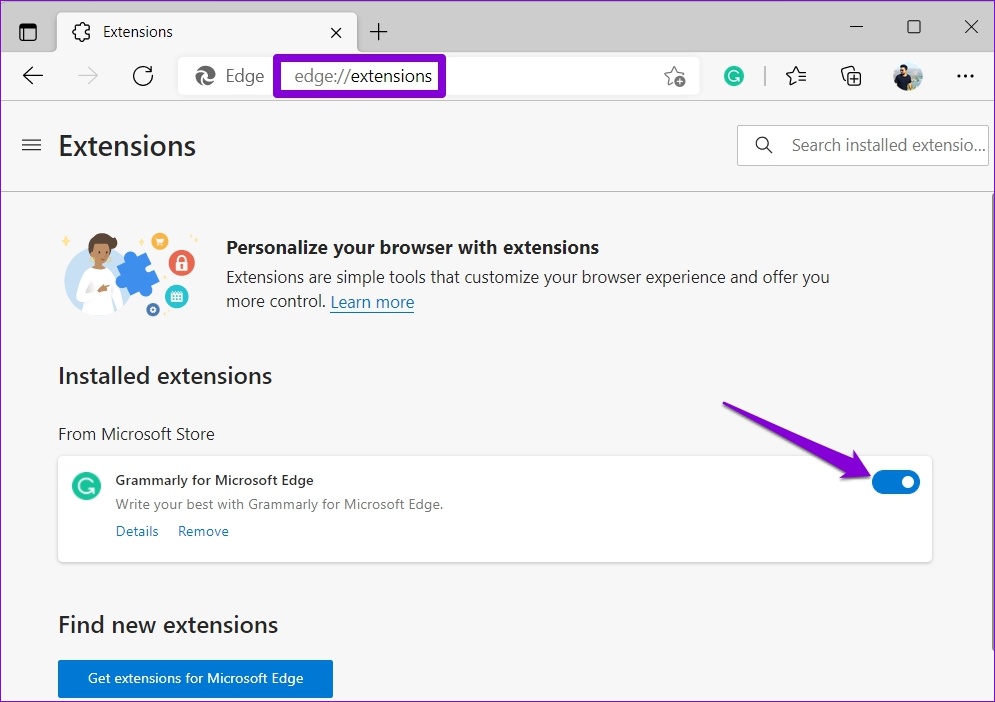
In Microsoft Edge, type edge://extensions/ in the address bar at the top and press Enter. Then, use the switches to disable all the extensions.

Disable Extensions in Edge

Restart Microsoft Edge to see if the profile error message appears again. Later, you may enable the extensions one by one to identify the ones breaking the experience.
Fix 3: Create New User Profile

If Microsoft Edge continues to display the Profile error message, there may be a problem with your user profile. You can create a new user profile and start over. Here’s how.

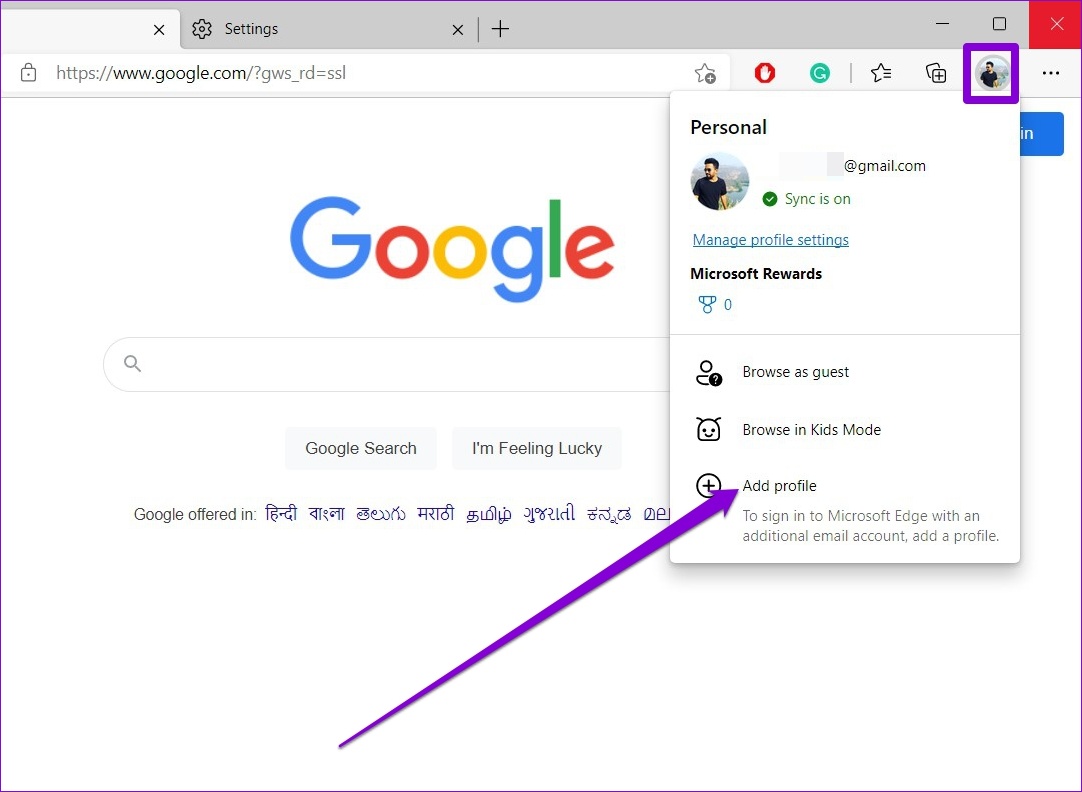
Step 1: Open Microsoft Edge, click on your profile icon at the top right, and select Add profile.

Add Profile in Edge

Step 2: Click on Add.

Add a Profile in Edge

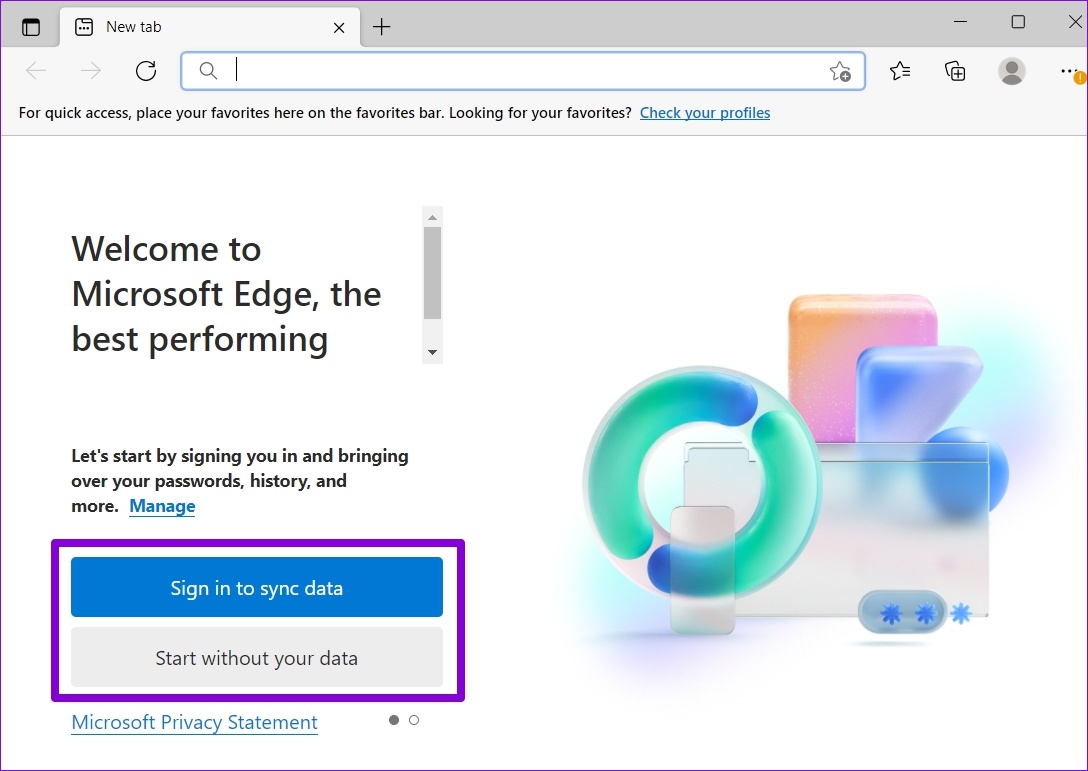
Step 3: You can choose to sync your data straightaway or start without it.

New Profile in Edge

Step 4: Click Confirm and start browsing.

Use Edge with New Profile

Use Edge with your new profile and see if the Profile error message appears.

Fix 4: Repair Microsoft Edge

Over time, the mix of several profiles and extensions may mangle Microsoft Edge’s performance. You can repair Microsoft Edge from the Settings app on Windows. Here’s how.

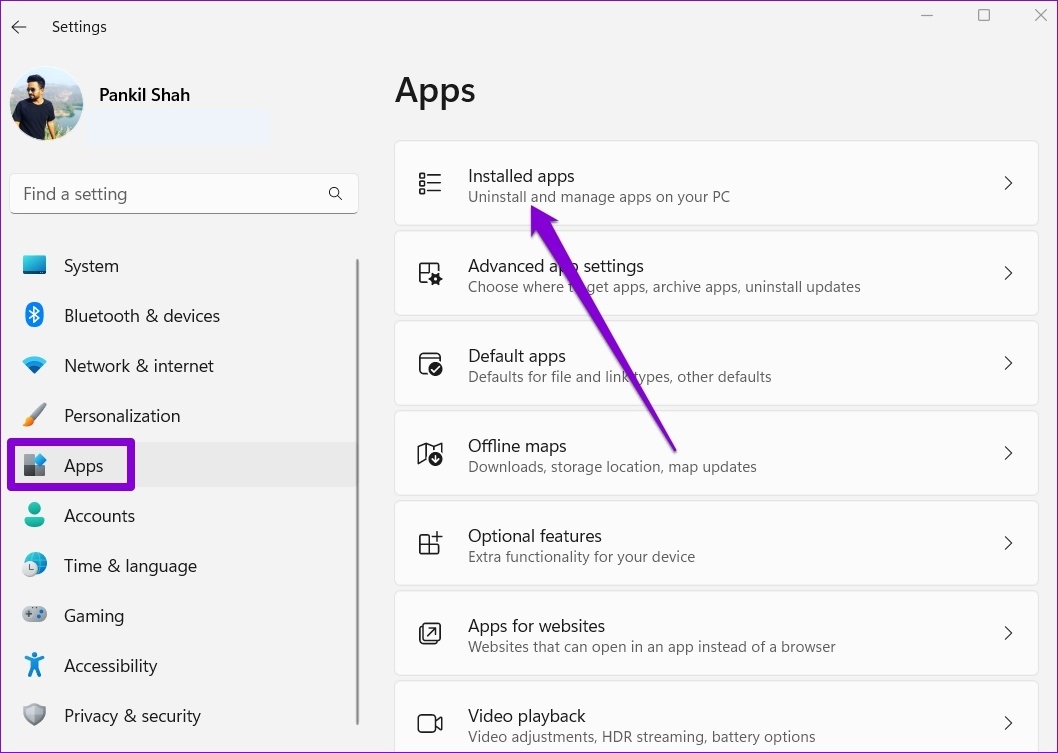
Step 1: Press the Windows key + I to open the Settings app and navigate to Apps > Installed apps.

Installed Apps on Windows

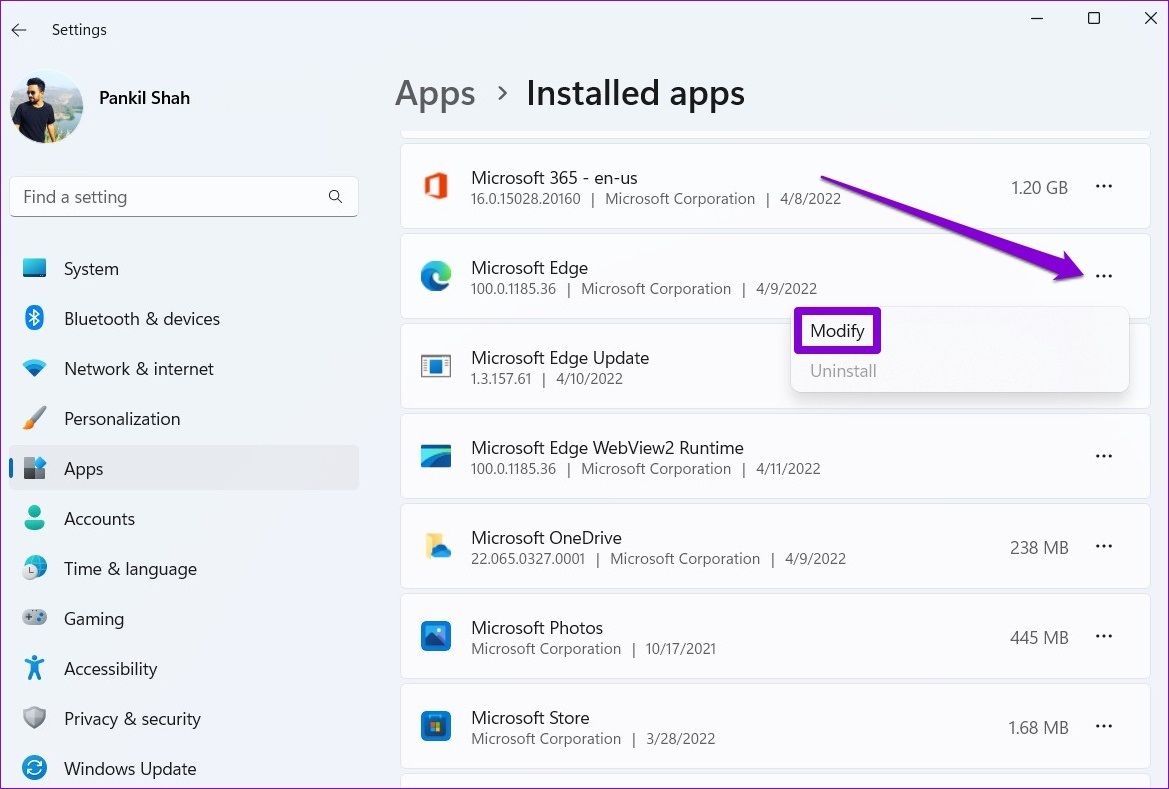
Step 3: Scroll down or use the search bar at the top to locate Microsoft Edge. Click the three-dot menu icon next to it and select Modify.

Modify Edge

Step 4: Click on Repair to allow Windows to reinstall Microsoft Edge without affecting your browser data. Since the repairing process requires Windows to download the browser again, you’ll need an active internet connection for this to work.

Repair Edge

Was this helpful?

Thanks for your feedback!

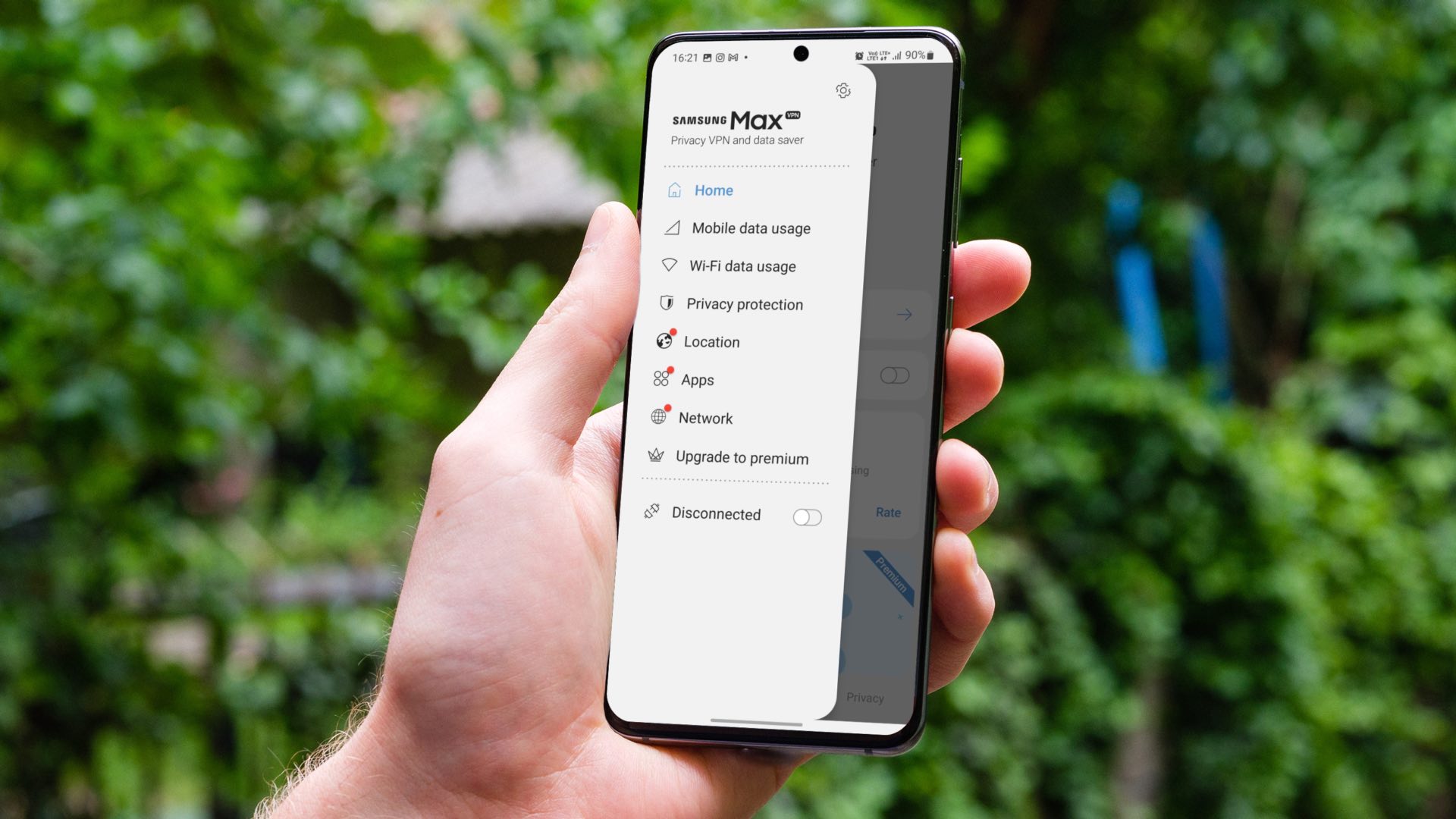
How to Disable Samsung Max on Lock Screen

Basic Fixes:

  • Upgrade the Samsung Max plan: If you use the Samsung Max basic plan, you will see ads when using the app services. If you frequently use the app, upgrade your Samsung Max plan to an ad-free one.
  • Disable the Samsung Max app: If you no longer require the Samsung Max app, disable it from the Settings menu. This way, the app will still be installed but not run on your Samsung Galaxy device unless enabled.

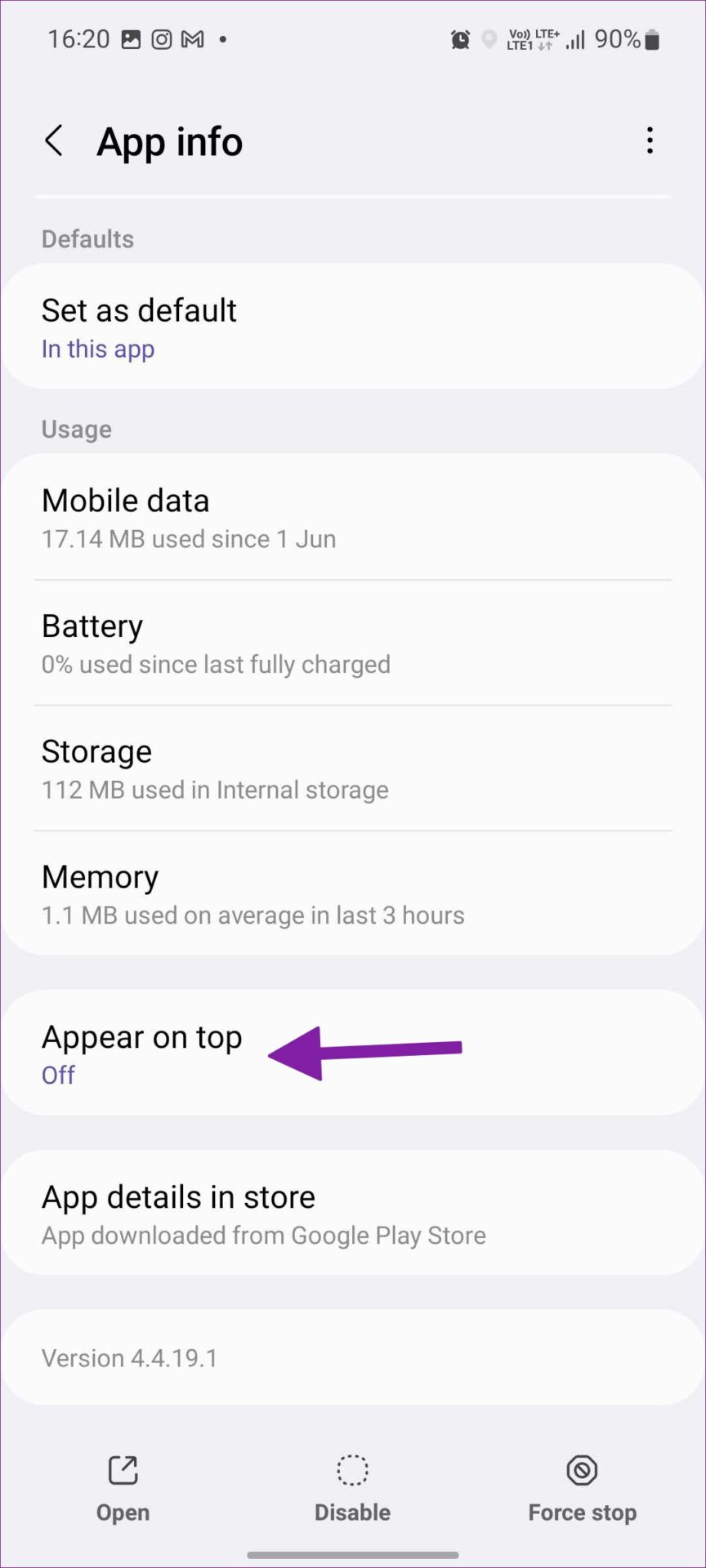
Fix 1: Disable Appear on Top Permission for Samsung Max

If the Samsung Max app has permission to show content on top of other apps, it might end up disrupting your experience by displaying content/ads on top of other apps. In this case, you can ensure the relevant permission is turned off. Here’s how.

Step 1: Long-press the Samsung Max app and tap on the i button.

Step 2: Here, tap on Appear on top. Ensure the Allow permission toggle is turned off.
Fix 2: Turn off Samsung Max Notifications

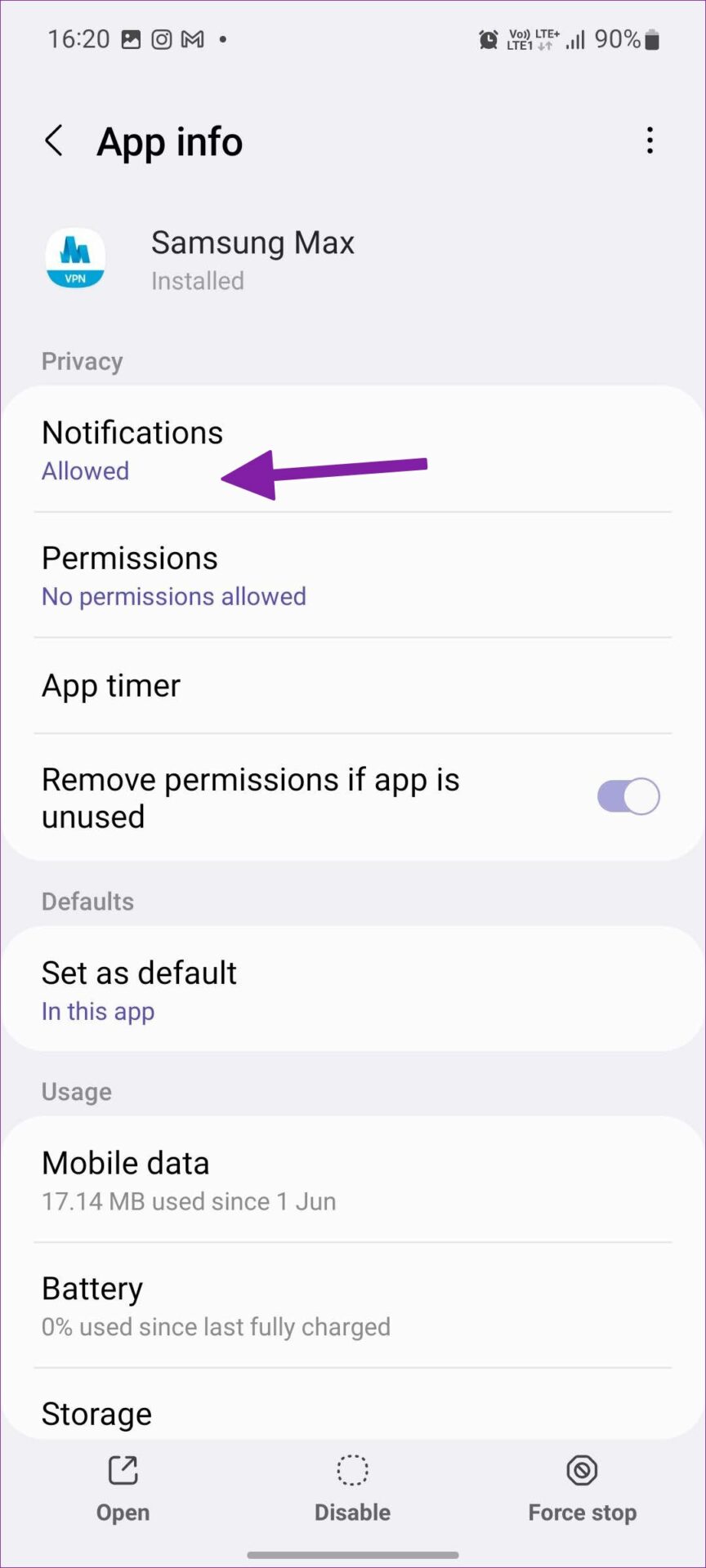
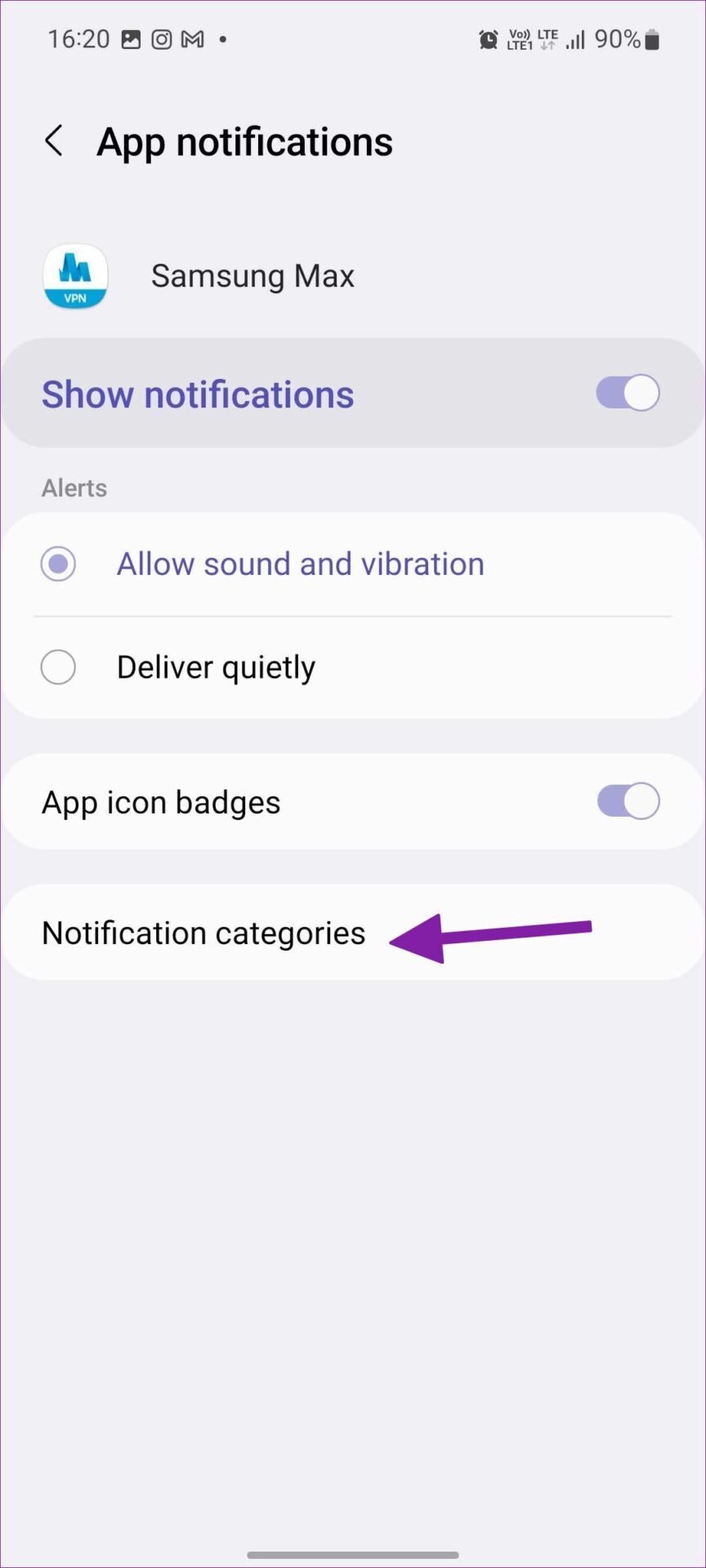
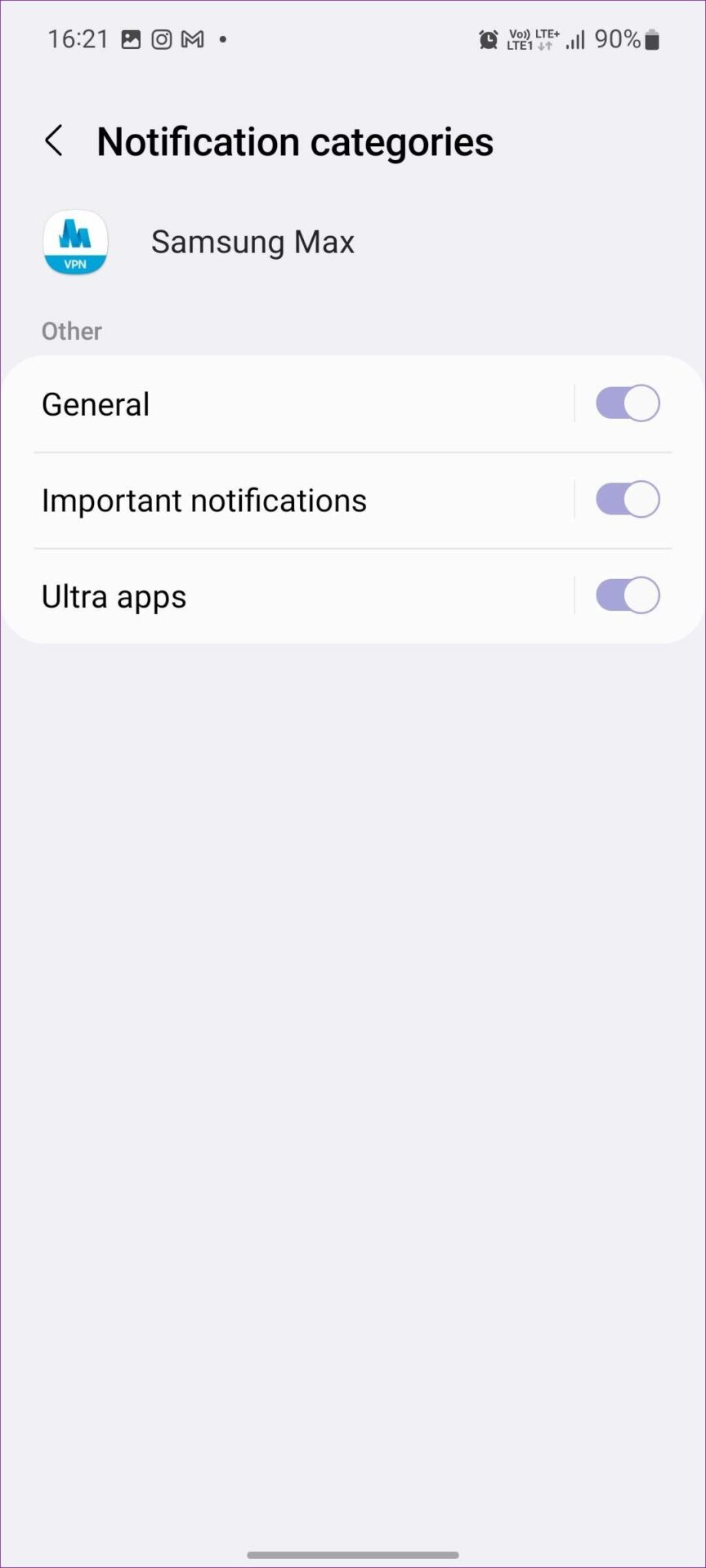
Although you have stopped Samsung Max lock screen ads, you may continue to see them in the notification center. To prevent this, turn off the relevant Samsung Max notifications categories on your Samsung Galaxy phone. Here’s how to do it.

Step 1: Long-press the Samsung Max app and tap on the i button to open the app Settings. Then, tap on Notifications.

Step 2: Here, tap on Notification categories. Turn off the toggle for the relevant notification categories.

Also Read: How to get rid of notifications on Samsung Galaxy phones

Fix 3: Turn off All Lock Screen Ads on Samsung Galaxy Phones

You can turn off ads and other partner content on Samsung Galaxy phone’s lock screen using settings. This will ensure you don’t see ads from other Samsung services either. Follow the steps below.

Step 1: Open Settings > tap on Wallpaper and style > Change wallpapers.

Step 2: Scroll down and tap on Wallpaper services. From the options, select None.

This should stop Samsung from showing any ads or related content on your Samsung Galaxy device’s lock screen.

Was this helpful?

Thanks for your feedback!

Why Can’t I See “Last Seen” or “Online” on WhatsApp

Basic Fixes

  • Check Network Connectivity: If you use WhatsApp without an internet connection, the app can’t fetch the Last Seen or Online status of a user. Further, ensure there isn’t any problem with your internet.
  • Restart WhatsApp: If there’s a glitch, closing and restarting the app will help.
  • Check if WhatsApp is down: If WhatsApp is facing downtime, not all services of the app may work. Check on DownDetector if the servers are facing an outage.
  • Update WhatsApp: Install the latest version of WhatsApp for a bug-free experience. Check for an update on the Play Store or App Store.

Fix 1: Enable Your Last Seen and Online Status

When you disable Last Seen on your WhatsApp account, you can’t check it for other contacts. Make sure you have enabled it.

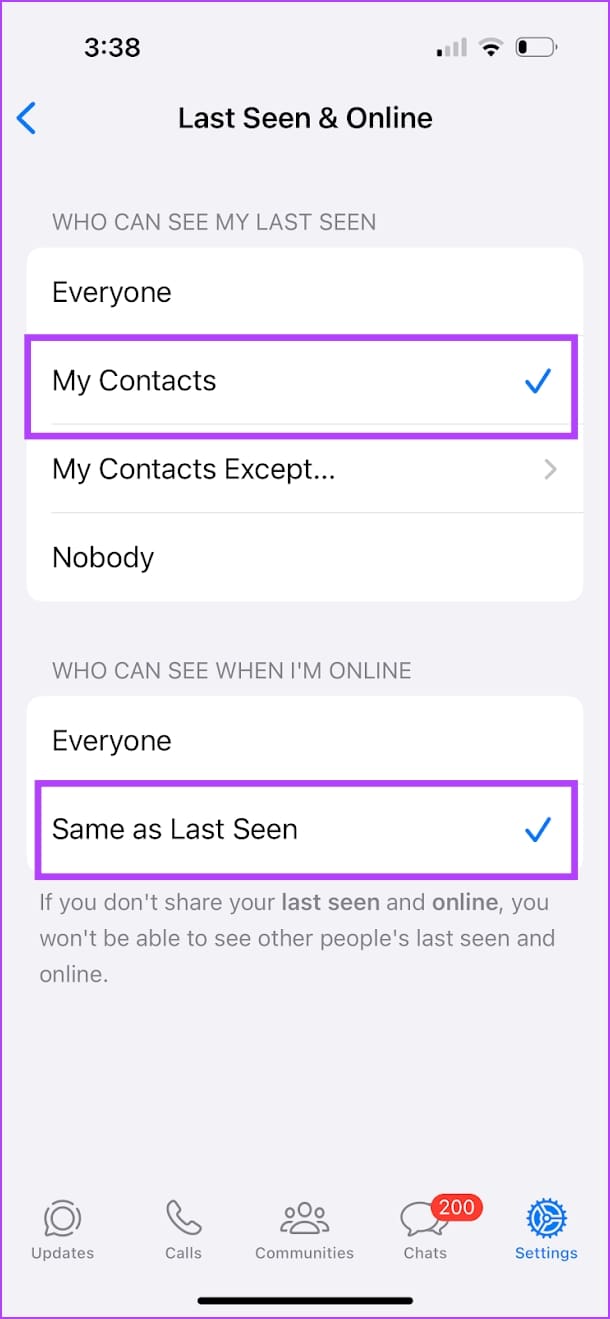
Step 1: Go to Settings and open the Privacy menu in WhatsApp. Go to the Last Seen and Online menu.

Step 2: Select My Contacts for Last Seen status and enable Same as Last Seen for Online status. This ensures all your contacts can view your last seen and online status, meaning you can view theirs, too.

Also Read: How to hide Last Seen and Online status on WhatsApp

Fix 2: Check if You’ve Been Blocked

If a user has blocked you on WhatsApp, you can’t check their Last Seen and online status. Here are a few ways to check if you’ve been blocked by someone on WhatsApp.

  • You can’t see the person’s profile picture.
  • You can’t see WhatsApp contacts’ about status.
  • Your text messages, media files, and voice clips won’t reach them (you won’t see double checkmarks for them).
  • You can’t add the person to any WhatsApp group.
  • You cannot call them (voice or video) on WhatsApp.

Fix 3: Check if the User Has Saved Your Number

Most WhatsApp users only share their Last Seen status with contacts. If the person didn’t save your cellular number on their phone, you probably won’t see their Last Seen status. You can ask the recipient to add your mobile number to their contacts list.

Also Read: How to fix WhatsApp contacts not showing

Was this helpful?

Thanks for your feedback!

How to Use Google Calendar on Windows 11

The Calendar app on the Windows 11 supports most third-party calendar services. If you’ve been using Google Calendar, you can sync and access all the birthdays, reminders, appointments, and other important events directly on your Windows 11 PC.

Since Google Calendar doesn’t have an official app for Windows, using the Windows Calendar app is your best option. In this guide, we will walk you through the steps involved in syncing and using your Google Calendar with the Calendar app on Windows 11. So, let’s get right to it.

How to Sync Google Calendar With the Windows 11 Calendar App

Instead of refering to two calendars, you get the entries of Google Calendar in the Calendar app on Windows 11. Here’s how to add and sync your Google Calendar with the Calendar app on Windows.

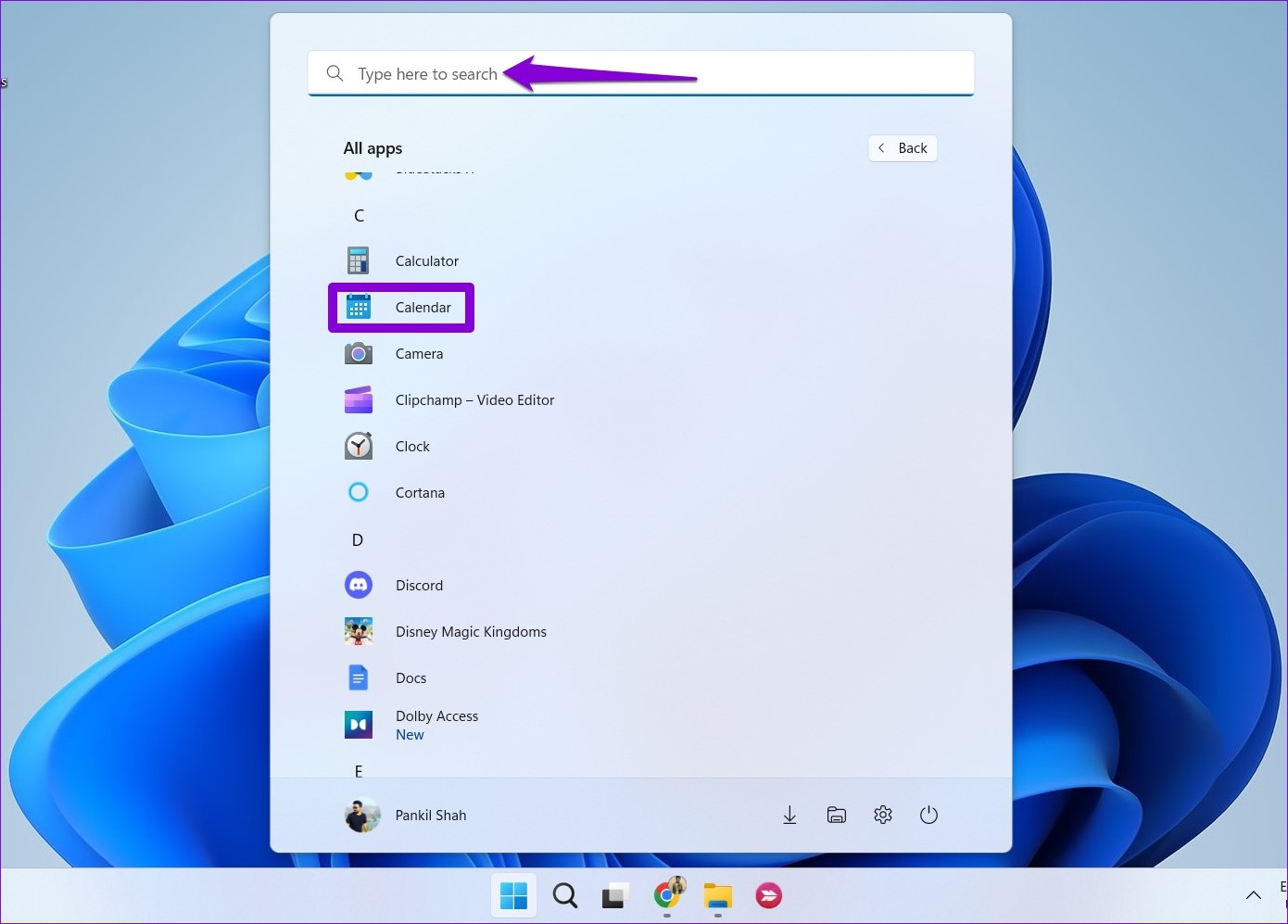
Step 1: Open the Start menu and click on the All apps button at the top.

Step 2: Scroll down or use the search bar to locate and open the Calendar app.

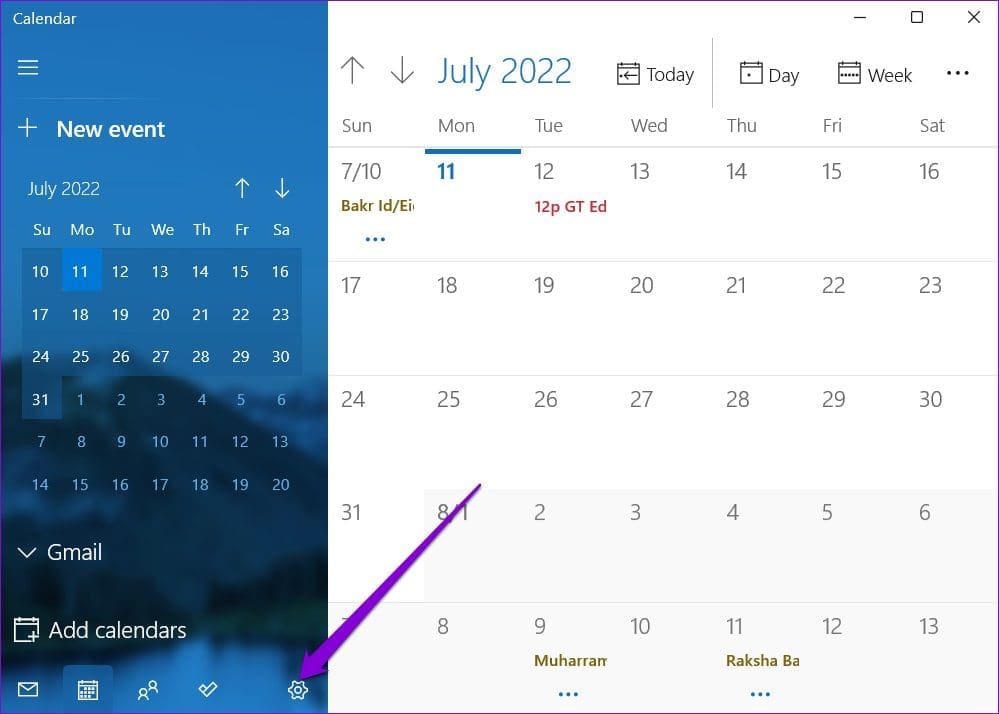
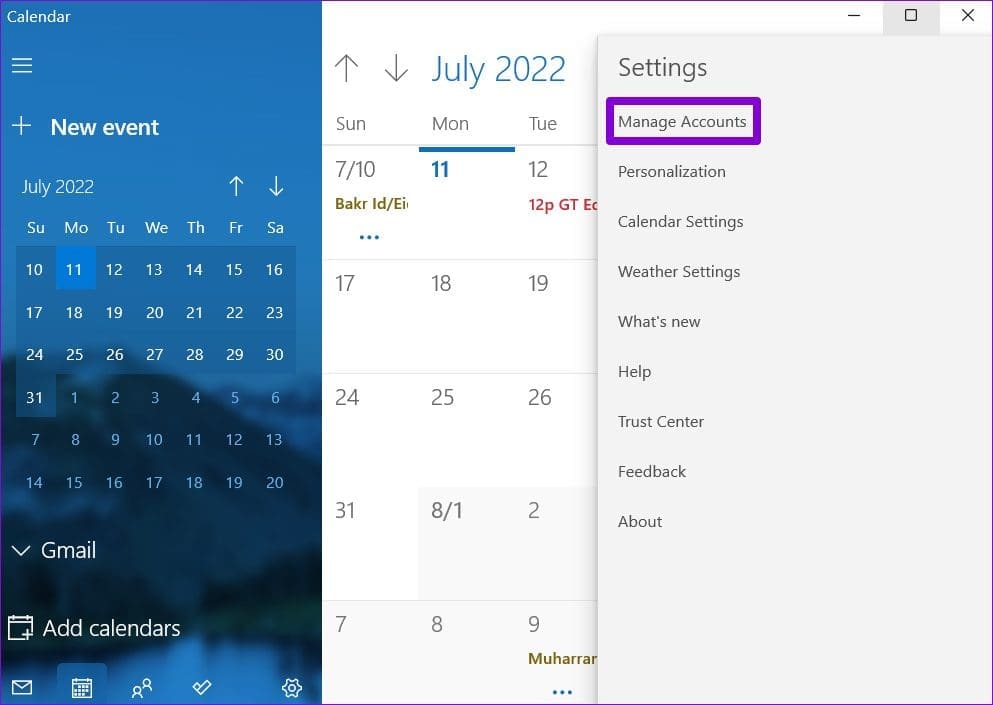
Step 3: Click on the gear-shaped icon in the bottom left corner.

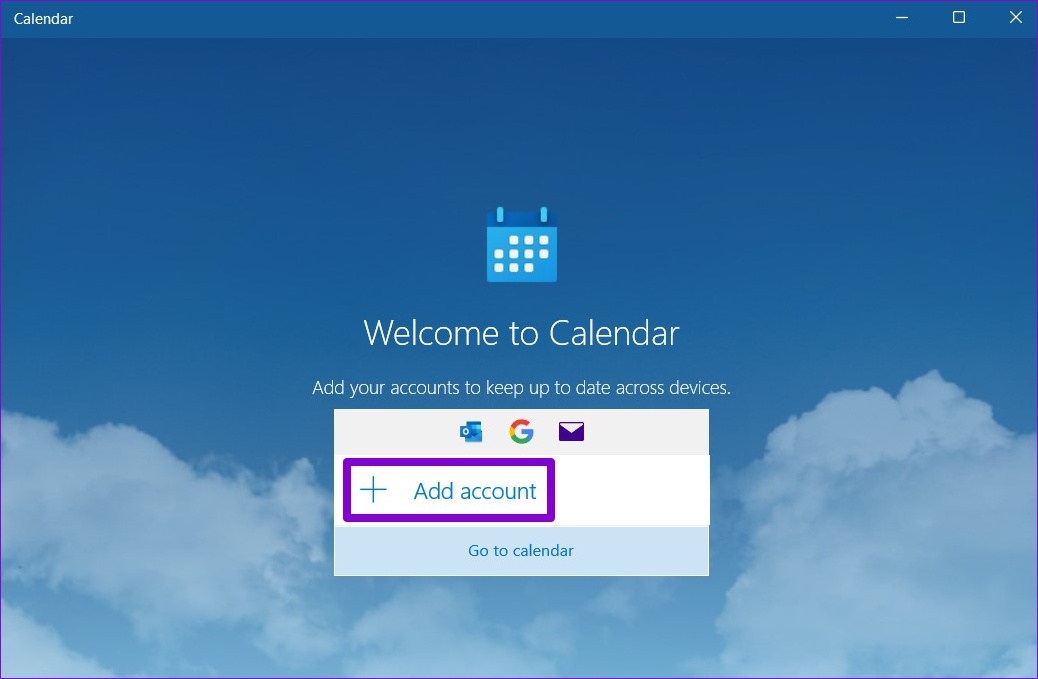
If you’re using the Calendar app for the first time, you’ll see the following screen. In that case, click on Add account and move to Step 6.

Step 4: Click on Manage Accounts on your right.

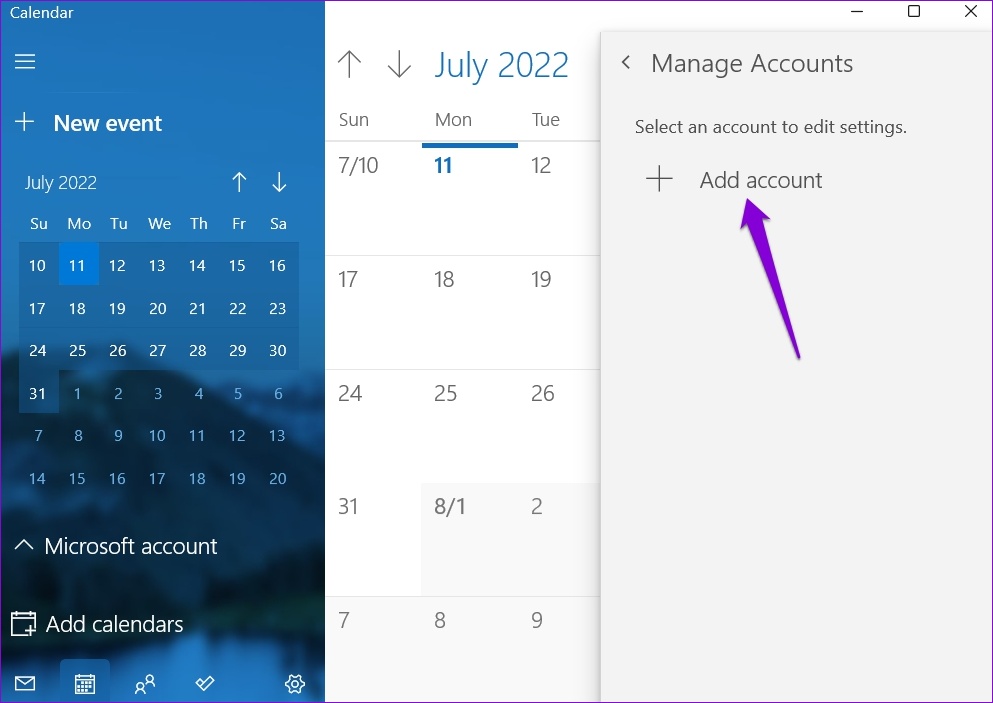
Step 5: Click on Add account.

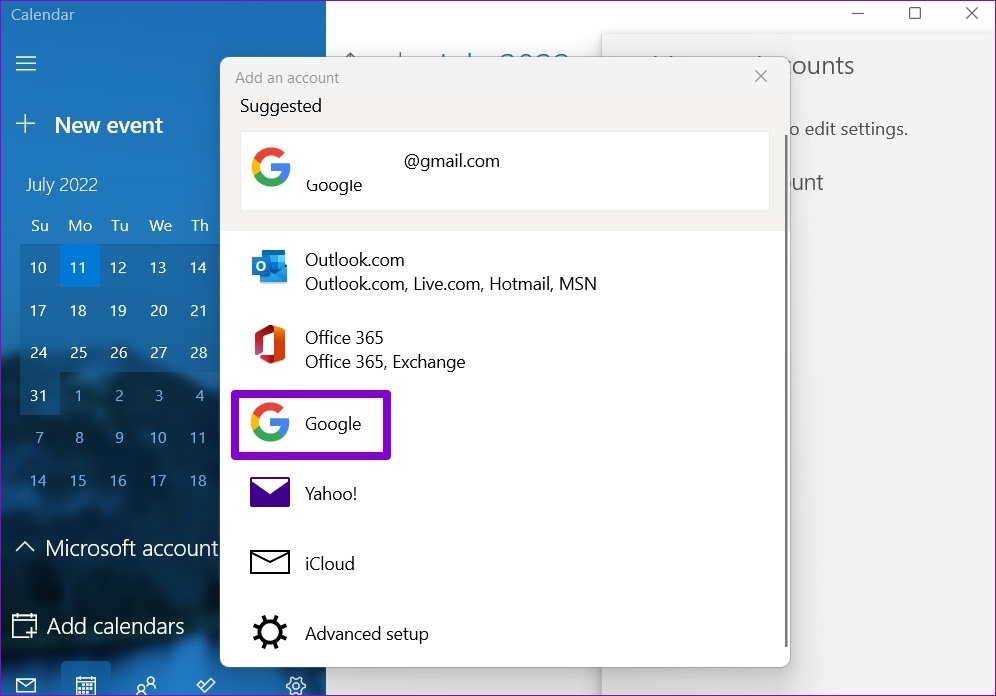
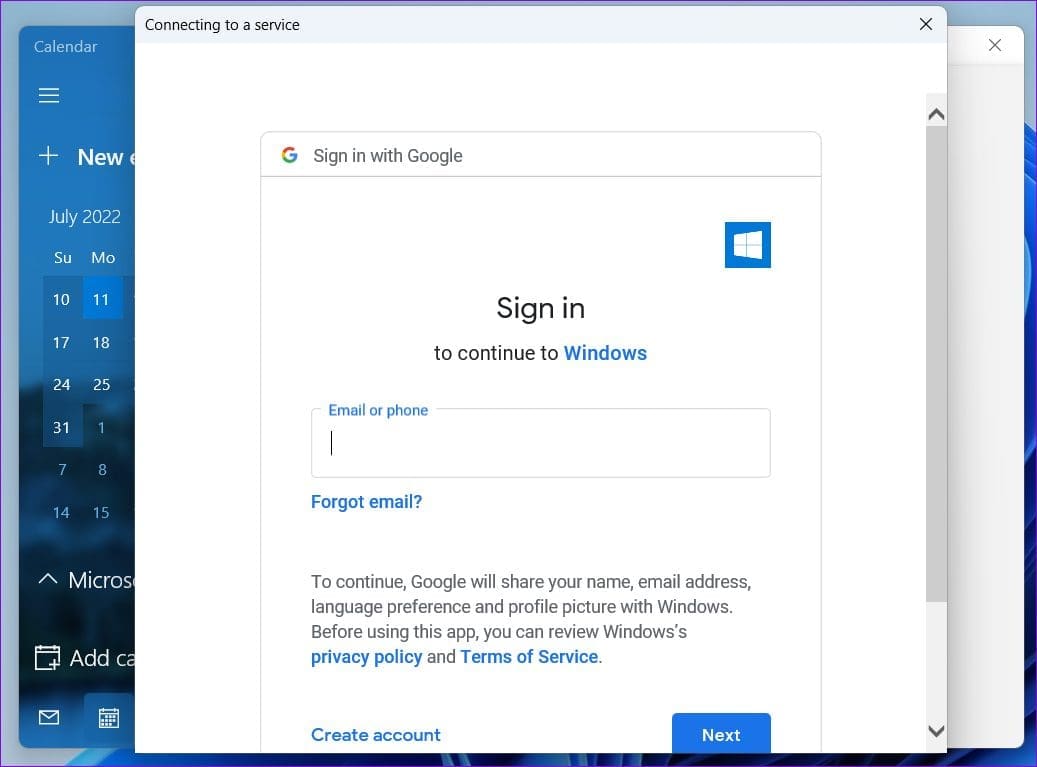
Step 6: In the ‘Add an account’ window, select Google from the list. This will open a sign-in window.

Step 7: Enter your account details and sign in to your Google account. If you’ve enabled two-step verification, you’ll have to approve sign-in from your device or enter a security code to verify your identity.

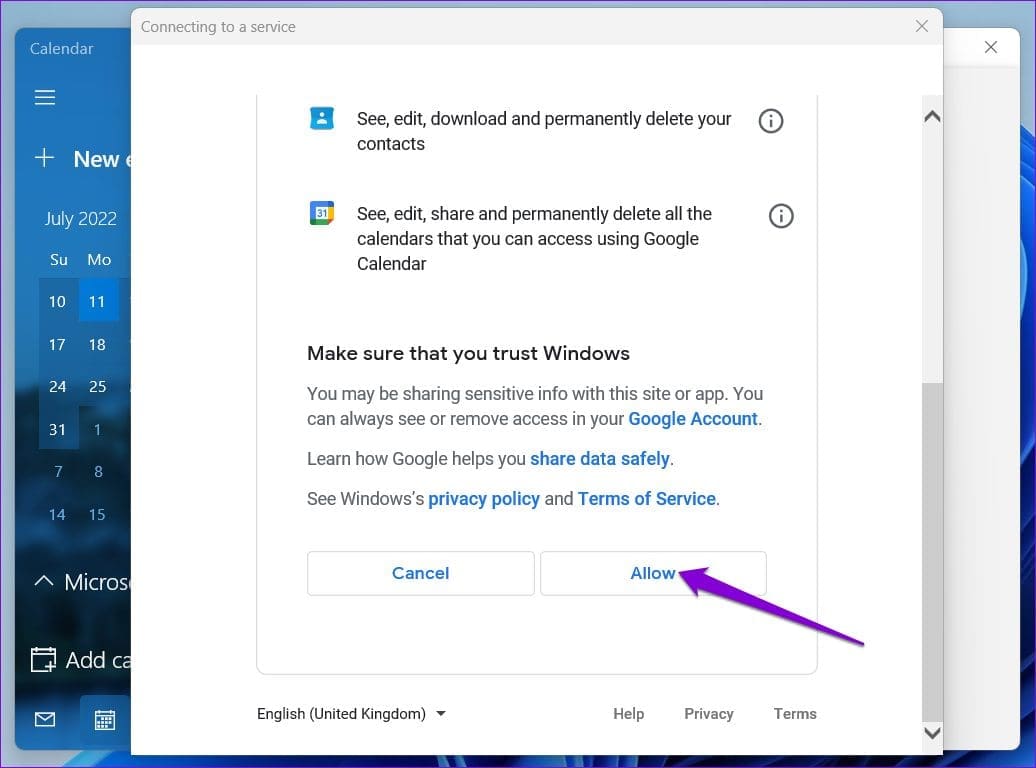
Step 8: Click on Allow to grant the necessary permissions to the Calendar app.

Step 9: Enter your name in the box and click on Sign in.

Give your computer a few minutes and Windows will sync the Google Calendar data automatically with the Calendar app.

How to Configure Your Google Calendar

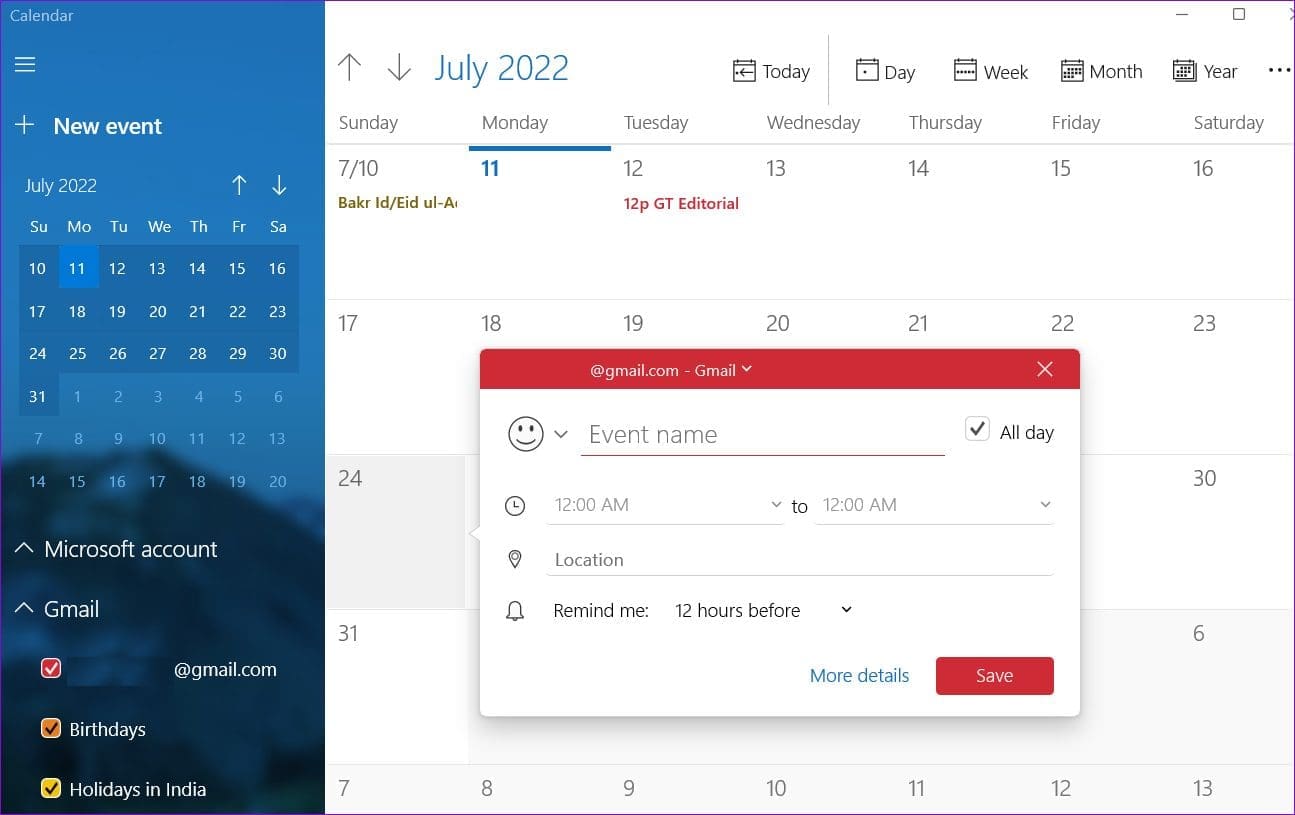
Once you’ve set up your Google Calendar, the Calendar app will display all of your important dates, events, birthdays, and more. You can also create new events from the app.

Additionally, there are a few calendar settings you can explore. To do so, click the gear icon in the bottom left corner and select Calendar Settings from the menu that appears.

You can use the drop-down menu to change the first day of the week. If it’s your work calendar, you can specify your work days and working hours so that the Calendar app doesn’t bother you with notifications on your off days.

How to Manage Google Account Sync Settings

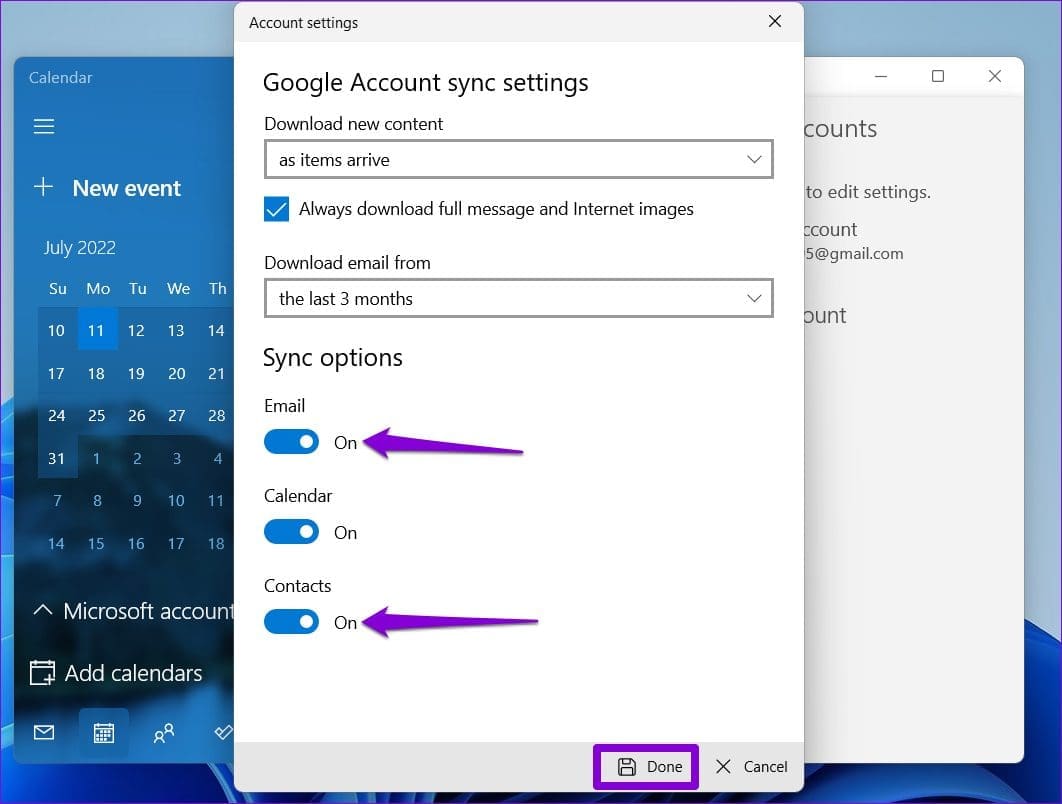
When you add your Google account to the Calendar app, Windows automatically enables sync for emails and contacts. However, if you don’t want that, you can always modify the sync settings for your Google account by following the steps below.

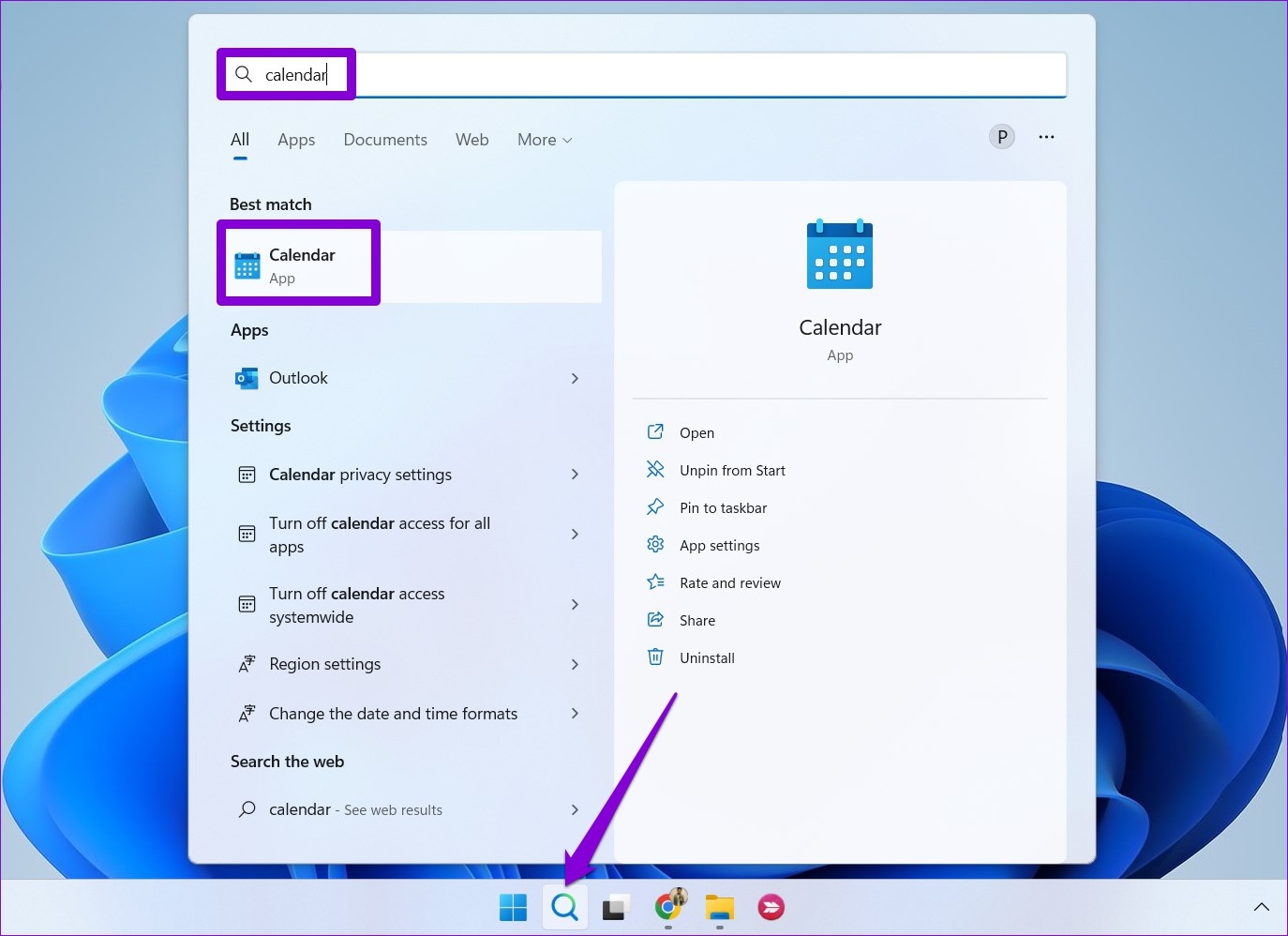
Step 1: Click on the search icon on the Taskbar, type in calendar, and select the result that appears under Best match.

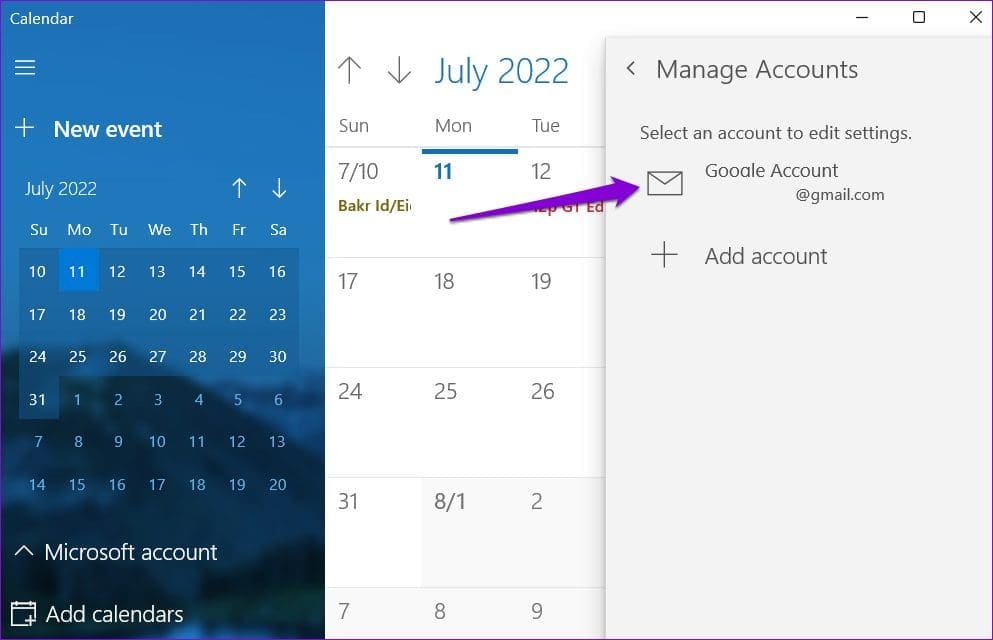
Step 2: Click the gear-shaped icon in the bottom-left corner to open the Settings menu. Then, click on Manage Accounts.

Step 3: Click on your Google account to open its settings.

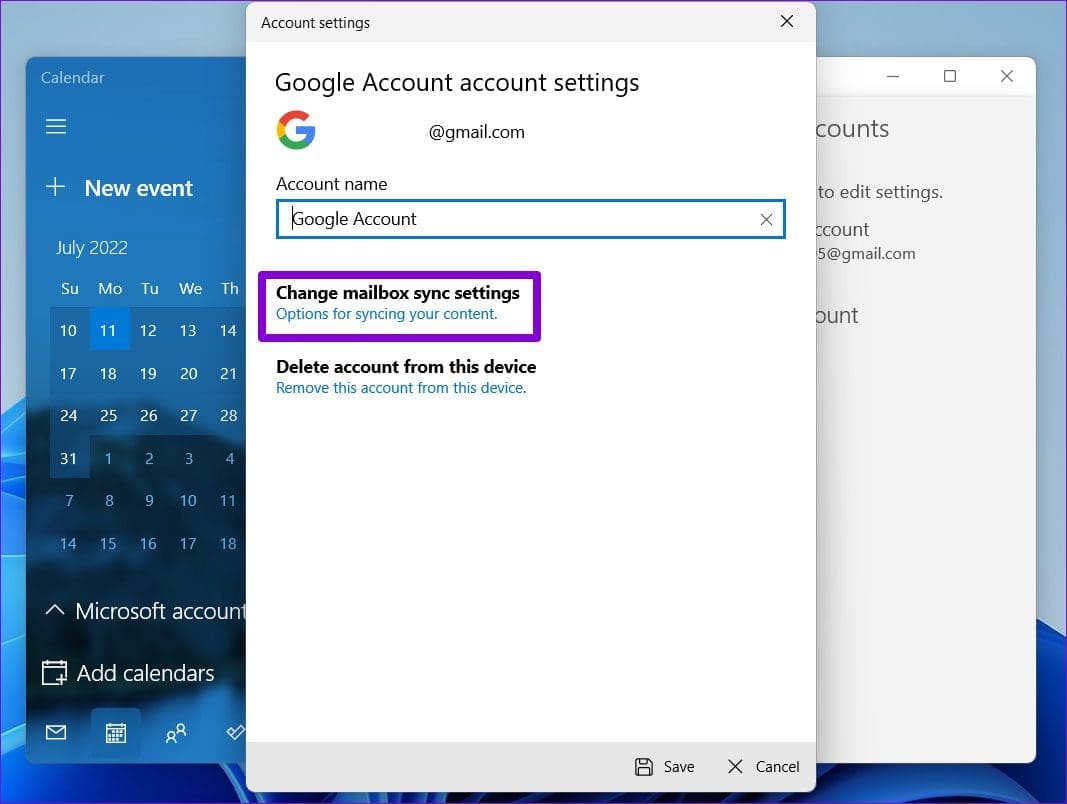
Step 4: Select ‘Change mailbox sync settings.’

Step 5: Under Sync options, turn off the toggles for Email and Contacts. Then, click on Done button at the bottom to save changes.

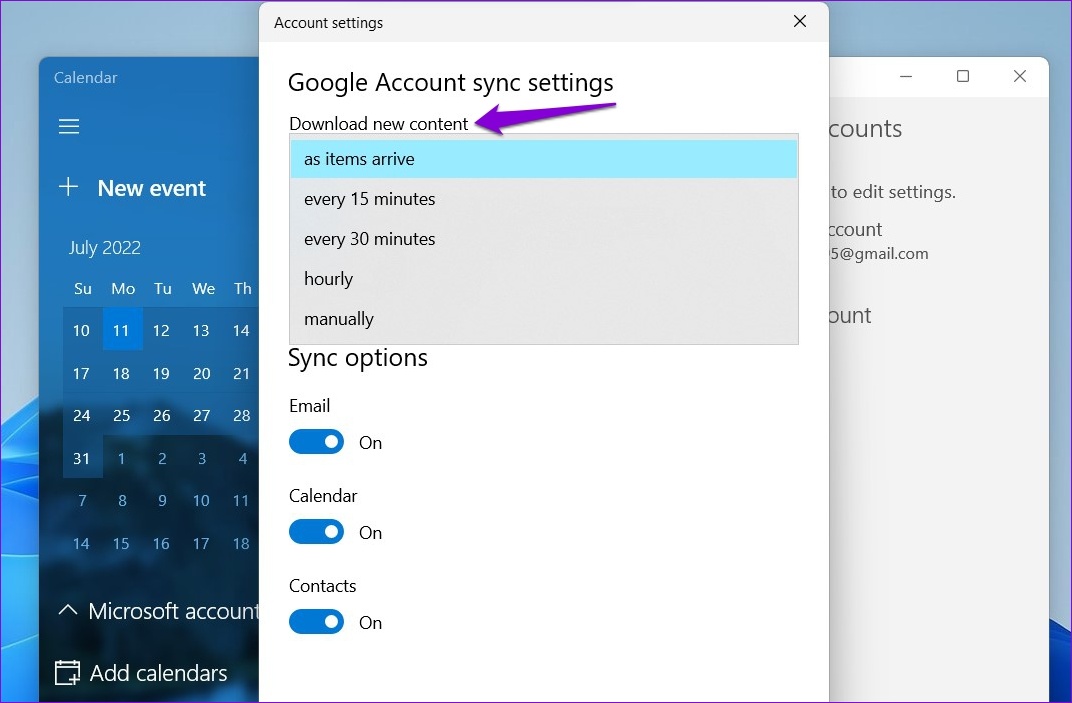
You can define how often the app can ping its host account (Google Services in this case) for updates using the drop-down menu under Download new content.

How to Remove Your Google Calendar From the Calendar App on Windows 11

If you no longer wish to use the Calendar app on Windows, you can always remove your Google Calendar from the app. Here’s what you’ll need to do.

Step 1: Press the Windows key + S to open the search menu. Type calendar and press Enter.

Step 2: Click on the gear icon in the bottom left corner and select Manage Accounts from the menu on your right.

Step 3: Select the Google account you wish to remove.

Step 4: Select ‘Delete account from this device’ option.

Step 5: Click on Delete to confirm.

And that’s about it. Your Google account will be removed from the Calendar app on Windows.

The Only Calendar App You Need

Whether a college student or a working professional, keeping track of your the important appointements, deadlines, and meetings is vital. Syncing your Google Calendar with the Calendar app on a Windows 11 computer gives you an easy access.

Aside from the official Calendar app, you can sync your Google Calendar with the Outlook app or use it in a web browser. Or, you could always use a third-party calendar app on Windows to access your Google Calendar.

Was this helpful?


Thanks for your feedback!

3 Ways to Limit Battery Charge on a MacBook

Method 1: Use Optimized Battery Charging

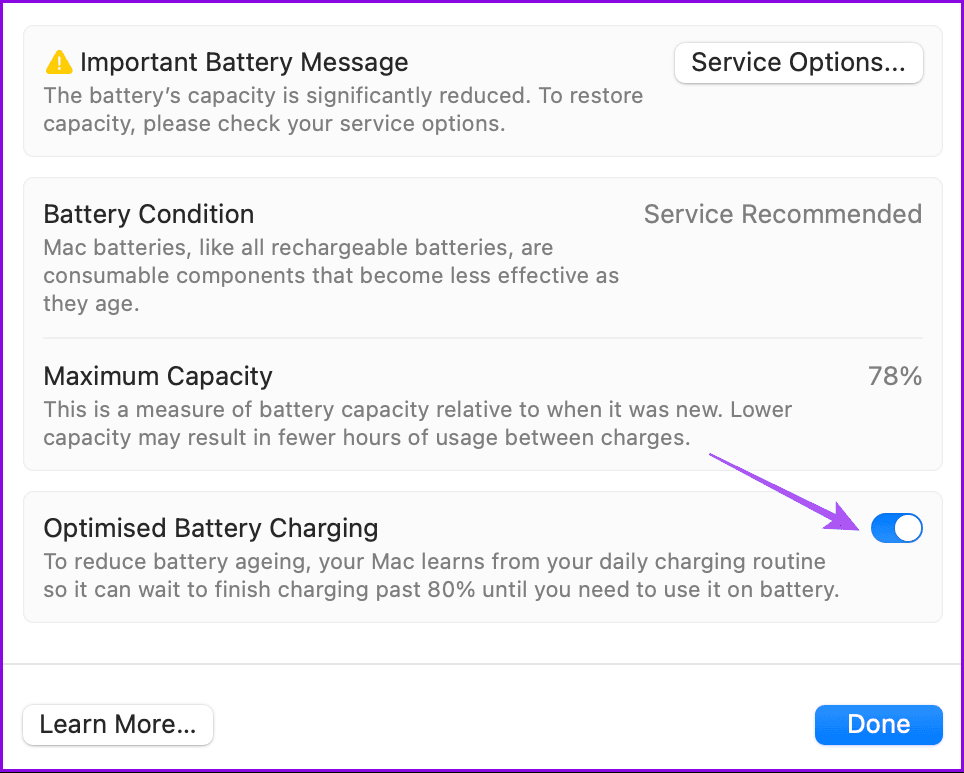
Most MacBook Air and MacBook Pro models come with 1000 charging cycles. Every time your MacBook charges 100%, macOS counts it as one cycle. Once your MacBook reaches 1000 cycles, you will notice a shorter battery life. Apple introduced an optimized battery charging function on Mac to reduce battery cycles. Here’s how you can use it.

Open Settings > Battery > Battery Health > enable Optimized Battery Charging.

enable optimized battery charging on mac

Your Mac learns from your daily charging routine and can wait to finish charging past 80 percent. This practice is helpful for those who keep their MacBook connected to an external monitor all the time. Optimized battery charging will activate and limit the charge to 80 percent, reducing the battery cell’s wear and tear.

Method 2: Use Aldente App

Apple’s optimized battery charging function is limiting in many ways. For example, you can’t restrict battery charge to 60% or 70%. Also, optimized battery charging takes time to learn your usage and kicks in after two or three weeks. Here’s where Aldente comes in to offer several features and improve your MacBook’s battery health.

Aldente is one of the best battery charge limiter apps for MacBooks. It prevents your MacBook from charging above a certain percentage to decrease battery wear and increase its longevity. Follow the steps below to check Aldente in action.

Step 1: Download and install Aldente.

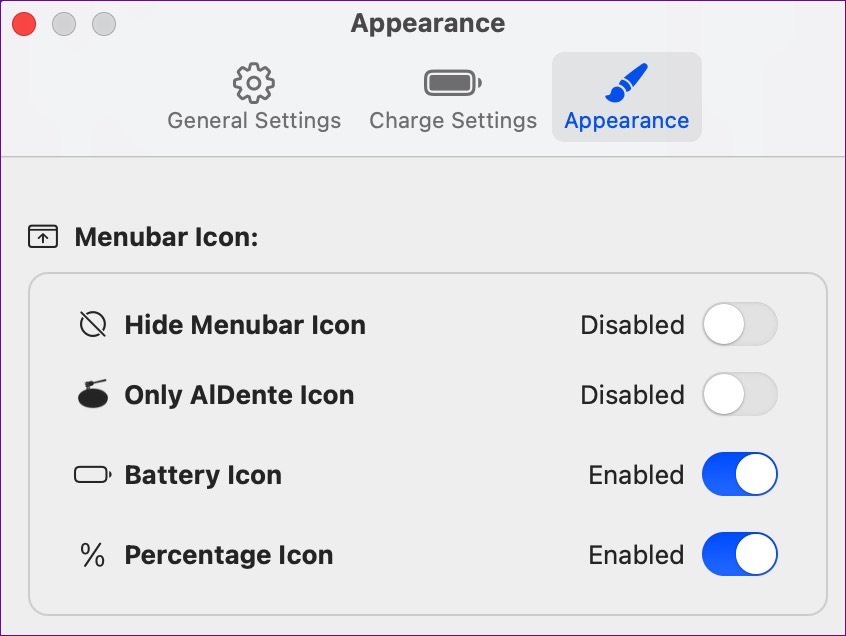
Step 2: Go to the Appearance menu > enable relevant menu bar icons.

appearance aldente app Mac

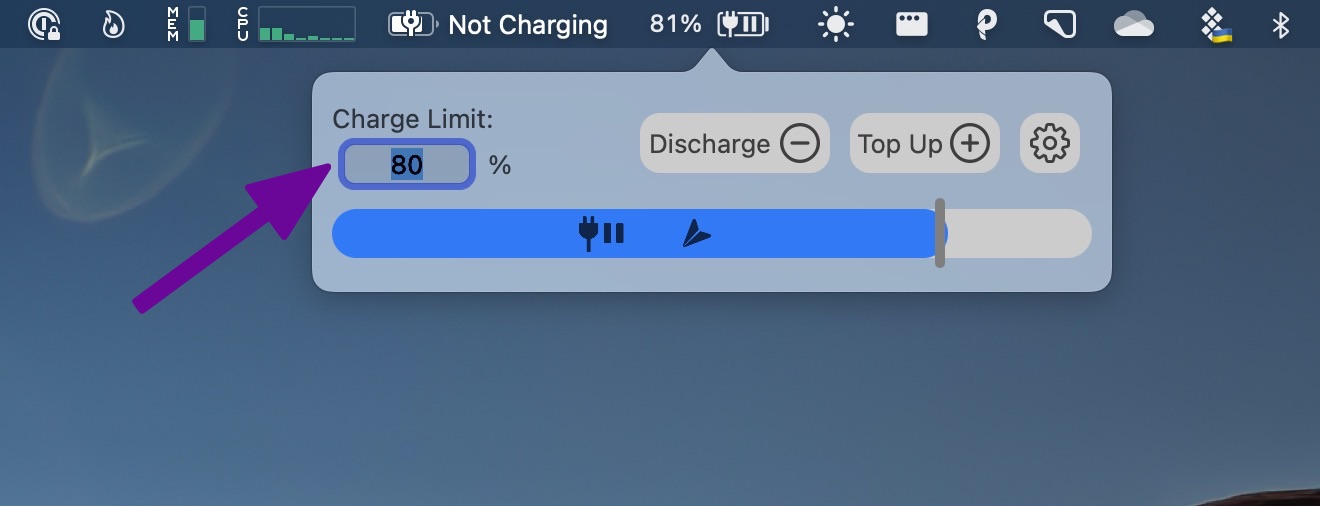
Step 3: Select the Aldente icon in the menu bar > specify the charge limit on your MacBook.

set charge limit MacBook aldente app

Aldente has many other functions apart from limiting the battery charge on a MacBook. Let’s quickly examine them.

Heat protection: Charging your MacBook at a high temperature can be hazardous. Aldente detects if your MacBook hits high temperature and disables charging to keep it safe.

Calibration mode: You shouldn’t keep your MacBook battery limited to 70% – 80% all the time. This can disturb the battery calibration. Aldente’s calibration mode will charge the MacBook battery to 100% monthly.

charge settings aldente app Mac

Aldente also displays hardware battery percentage, has live status icons in the menu bar, allows charging to stop in sleep mode, and supports dark themes.

Price: Free, Aldente Pro: $14 per year or $29 as a one-time purchase.

Method 3: Use BatteryStatusShow App

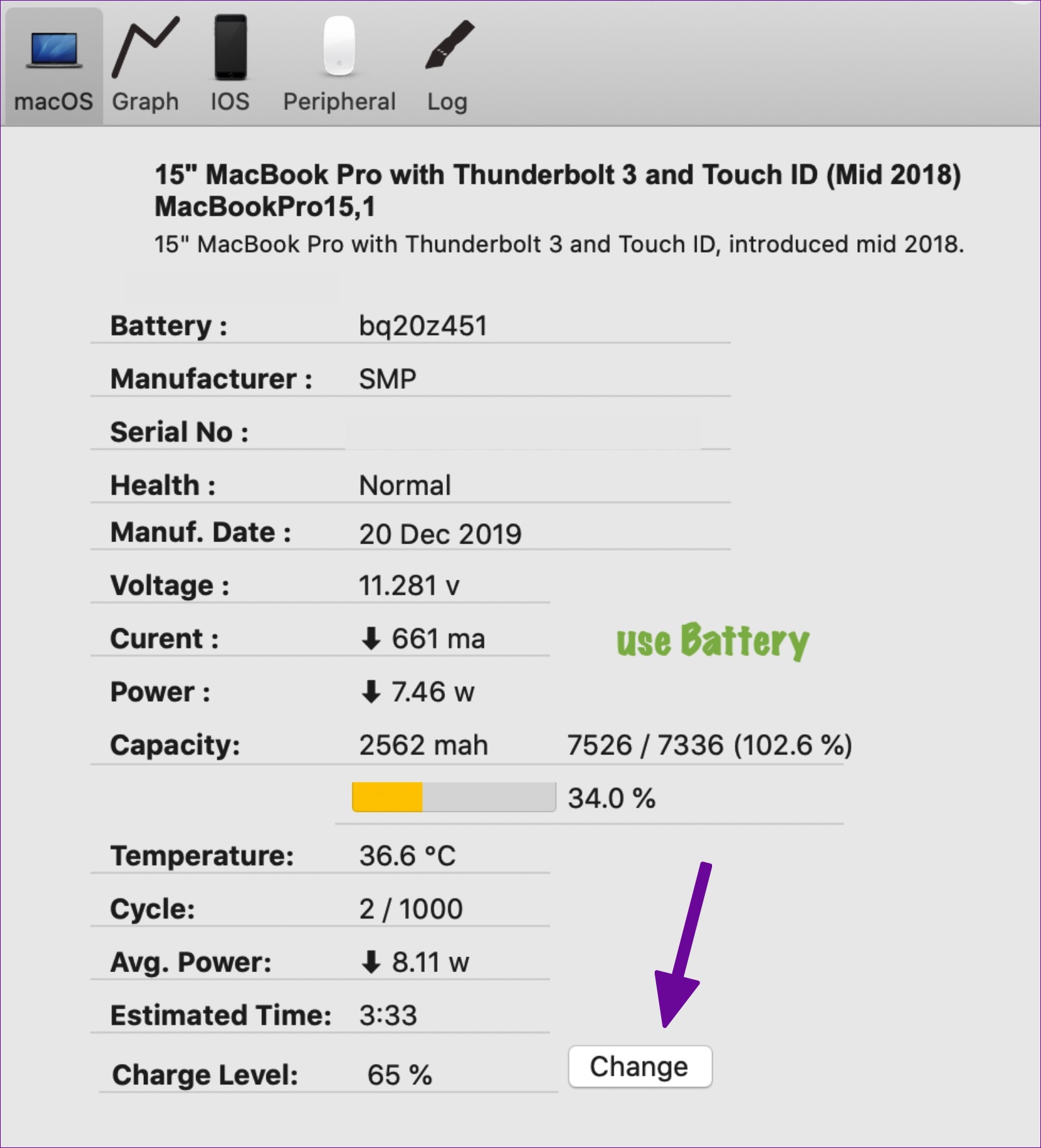
BatteryStatusShow is an open-source Mac app that limits battery charge on a MacBook. It allows you to check battery temperature, cycle, and battery life based on your workflow and battery health and restrict the charge level.

Step 1: Download and install BatteryStatusShow and open it on your MacBook. BatteryStatusShow will appear in the Mac menu bar.

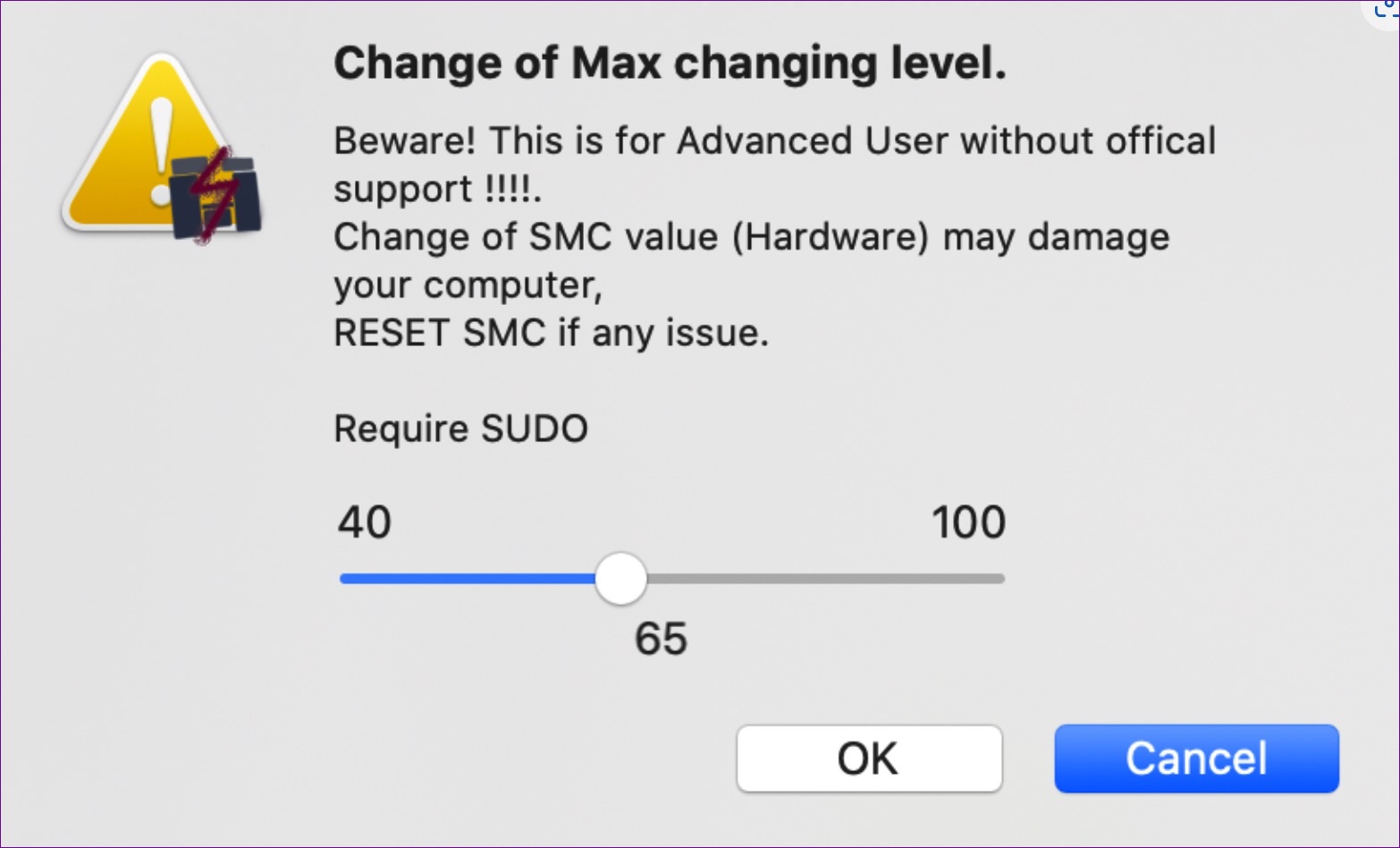
Step 2: Select the Change button beside the charge level and set the battery charge limit.

Step 3: Hit the Ok button to confirm.

Tip: Learn more about what is the Cycle Count (battery) on Mac and how to check it

Was this helpful?

Thanks for your feedback!

4 Ways to Fix Location Services Grayed Out on Windows 11

Fix 1: Configure Geolocation Service

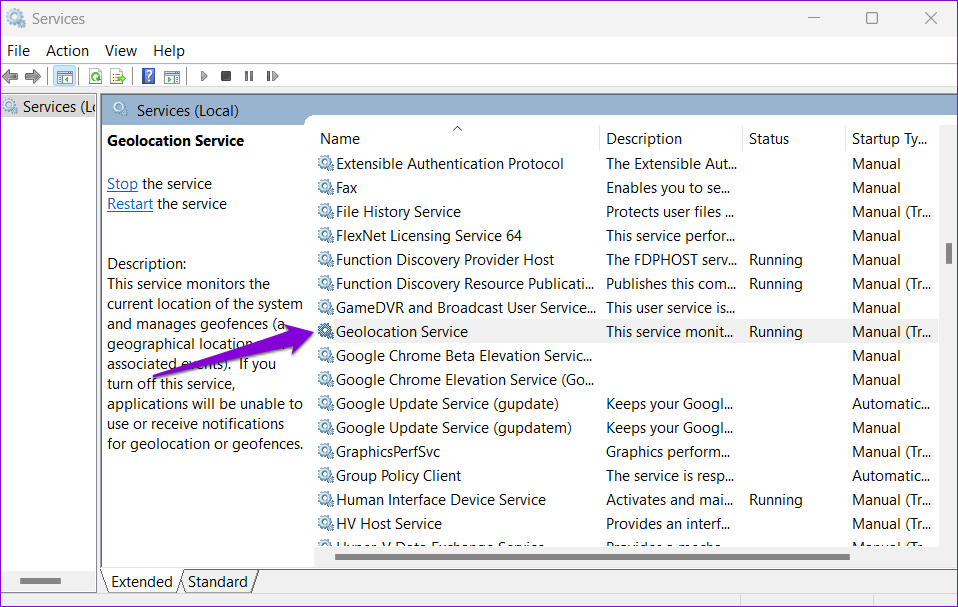
Geolocation Service is a small program that needs to run in the background for the location services to work. Ideally, the service should start every time your system boots. However, if that isn’t happening, location services may appear grayed out on Windows. Here’s what you can do to fix it.

Step 1: Press the Windows key + R to open the Run dialog, type services.msc, and press Enter.

Step 2: Locate and double-click on Geolocation Service on the list.

Geolocation Service on Windows

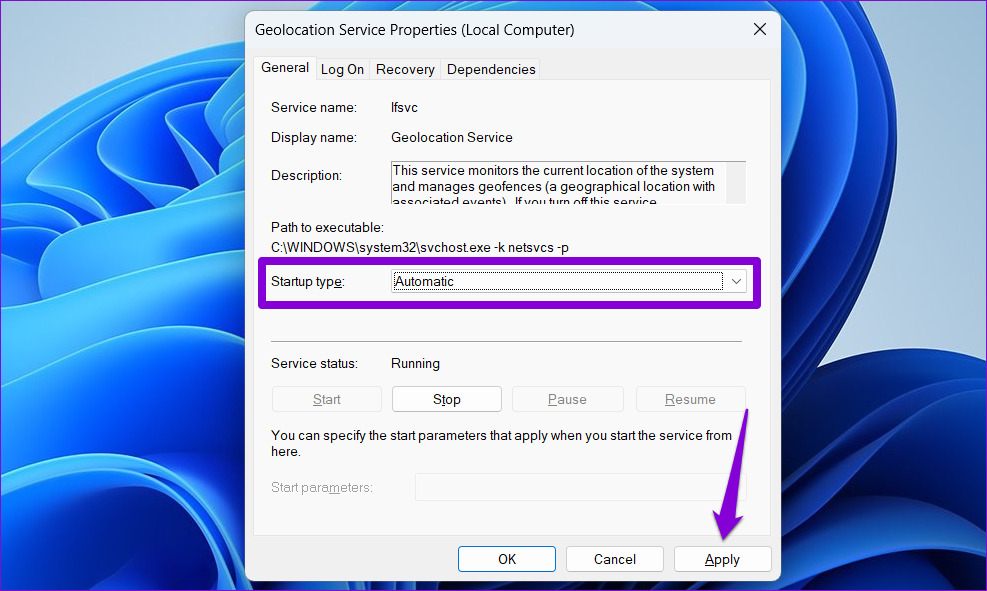
Step 3: Change the Startup type to Automatic and hit Apply.

Configure Geolocation Service on Windows

If the service is not running, click on the Start button. After that, see if you can access location services.

Start Geolocation Service on Windows

Fix 2: Tweak Registry Files

You can fix the problem by modifying some registry files if the location services continue to appear grayed out. Here’s how:

Step 1: Press the Windows key + S to open the search menu. Type registry editor in the box and select the first result that appears.

Open Registry Editor on Windows 11

Step 2: In the Registry Editor window, paste the following path in the address bar at the top and press Enter.

HKEY_LOCAL_MACHINE\SYSTEM\CurrentControlSet\Services\lfsvc\TriggerInfo
Registry Editor

Step 3: Right-click on the key named 3, and select Delete.

Delete Registry Key

Restart your PC for changes to take effect and see if the issue is still there.

Fix 3: Use Local Group Policy Editor

Like using the Registry Editor, you can also make changes to your PC via the Local Group Policy Editor on Windows. For that, you must be running the Pro, Enterprise, or Education editions of the Windows operating system. If you’re using the Home edition of Windows 11, this method won’t work for you.

Step 1: Press the Windows key + R to open the Run dialog box. Type gpedit.msc in the Open field and press Enter.

Step 2: In the Local Group Policy Editor window, use the left pane to navigate to the following folder.

Administrative Templates\Windows Components\Location and Sensors

Step 3: On your right, you’ll see three policies: Turn off location scripting, Turn off location, and Turn off sensors.

Location and Sensor Policy

Step 4: Double-click “Turn off location scripting,” select Disabled, and hit Apply.

Modify Location Policy

Step 5: Disable the Turn off location and Turn off sensors policies as well.

Step 6: Click on the Windows Location Provider folder.

Windows Location Provider

Step 7: Double click on Turn off Windows Location Provider.

Turn Off Windows Location Provider

Step 8: Select the Disabled option and click Apply.

Disable Turn Off Windows Location Provider Policy

Restart your PC and you should be able to access location services as before.

Fix 4: Try Clean Boot

At times, third-party apps and services running on your PC can also prevent you from accessing certain Windows features. To verify this, you can boot your PC in a clean boot state.

Step 1: Press the Windows key + R to open the Run dialog, type msconfig.msc, and press Enter.

Step 2: Under the Services tab, mark the box that reads Hide all Microsoft services box and click the Disable all button.

Disable Third-Party Services on Windows

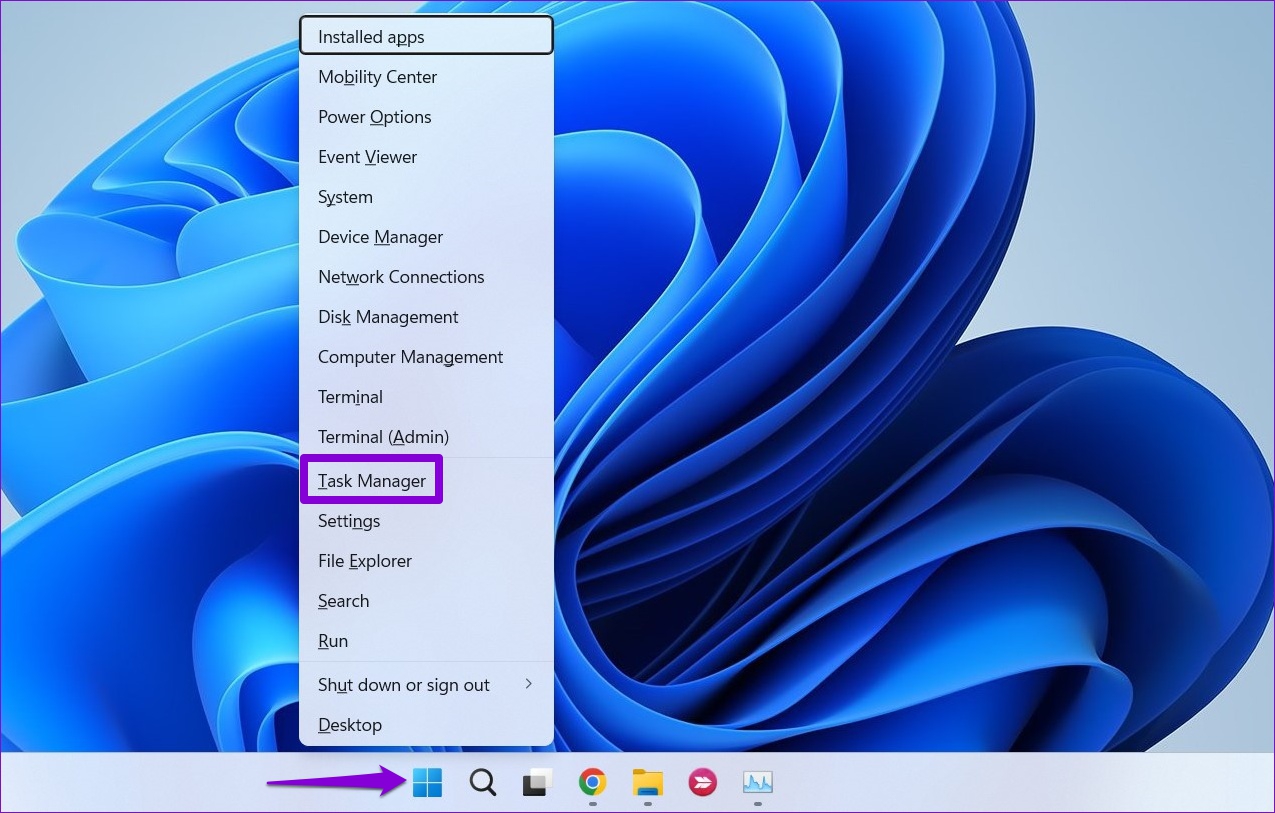
Step 3: Switch to the Startup tab and click on Open Task Manager.

Open Task Manager on Windows

Step 4: In the Startup tab, disable all the third-party apps one by one.

Disable Third-Party Startup Apps on Windows 11

Restart your PC after this to enter the clean boot state and see if you can access the location services. If this helps, you’ll need to look through any recently installed apps and programs and remove them.

To boot in normal mode again, follow the steps above to enable all Startup apps and services, and then reboot your PC.

Was this helpful?

Thanks for your feedback!

How to Change the Startup and Home Page on Google Chrome

How to Change the Startup Page on Google Chrome

The Google logo and a search bar are the first things you’ll see when you open the Chrome browser. You can change it to something else, such as your Facebook page, email inbox, or any frequently visited website. Here’s how to change the startup page on Google Chrome for desktop:

Step 1: Launch the Chrome browser.

Step 2: Click on the vertical ellipsis at the top-right corner and click Settings.

Open Chrome settings 7

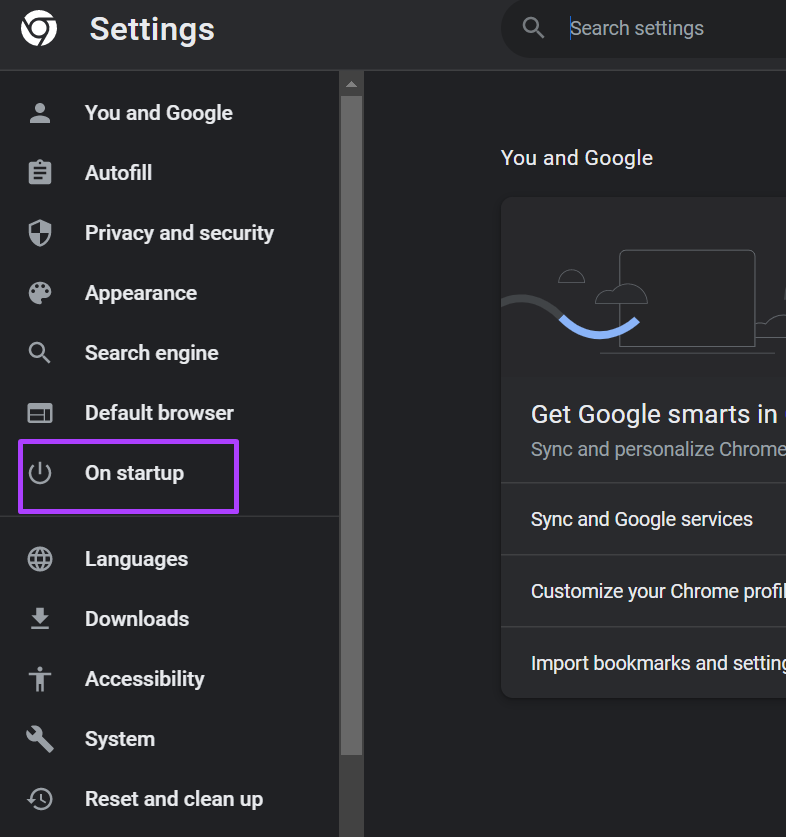
Step 3: On the left of the Settings page, click On Start-up to launch a list of options.

On startup option

Step 4: Choose any of the three options for your Chrome startup preference.

On startup options

Step 5: When you click Open a specific page or set of pages, you can Add a new page or Use current pages.

Add or us current page

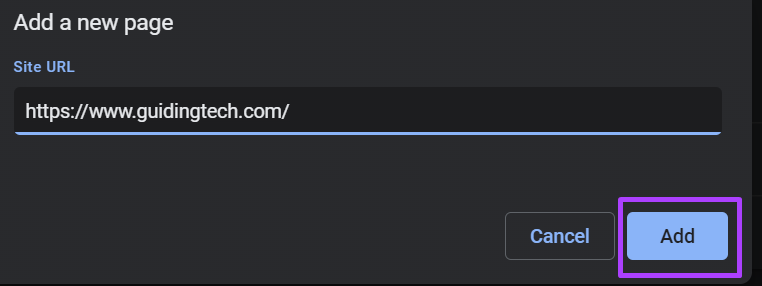
Step 6: When you click on Add a new page, a dialog box should request the URL of the page you want to add.

Add new page

Step 7: Click Add to save your changes.

save page changes

Google Chrome doesn’t offer an option to change the startup page on its mobile app version. Usually, the Google Chrome app continues from the existing pages upon launch. However, you can always change the home page using an Android phone or tablet. Check the next section to find out how.

How to Change the Home Page on Google Chrome

You can set up a Home page on your Google Chrome. This page is linked to a Home button next to the refresh button near the address bar. Once you click the Home button, it should take you to a New tab screen by default. However, changing the setup means the button redirects you to your preferred screen.

On Desktop

Step 1: Launch Chrome.

Step 2: Click on the vertical ellipsis at the top-right corner and click Settings.

Open Chrome settings 7

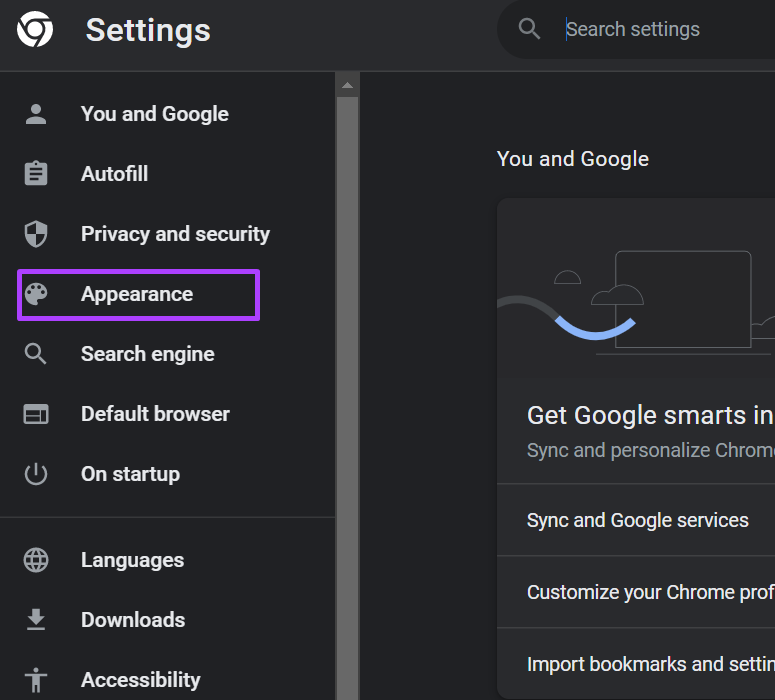
Step 3: On the left, click Appearance to launch a list of options.

Appearance option

Step 4: Enable the toggle for Show home button.

Show home button

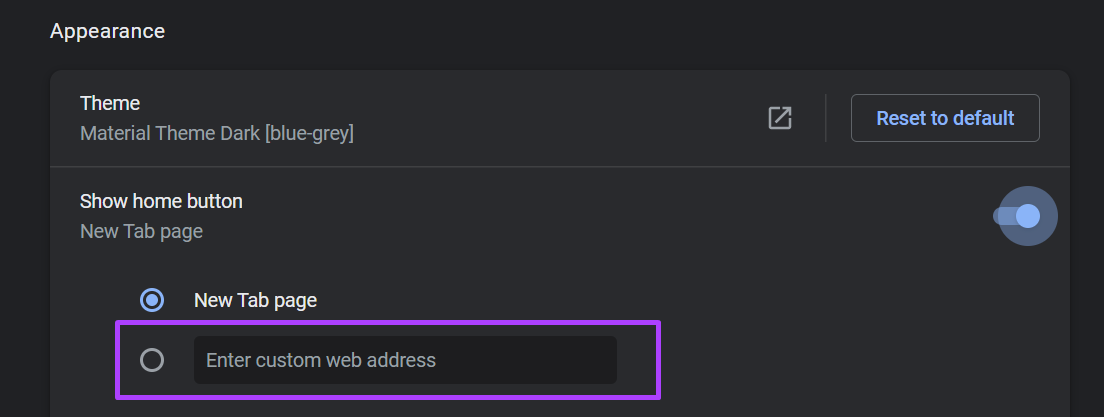
Step 5: Under the Show home button option, provide the website address you want to open.

website address

Google Chrome saves your choice automatically. Go back to any of the tabs on your browser, and you will find the Home button. Click this button, and Chrome will redirect you to your preferred website.

On Android

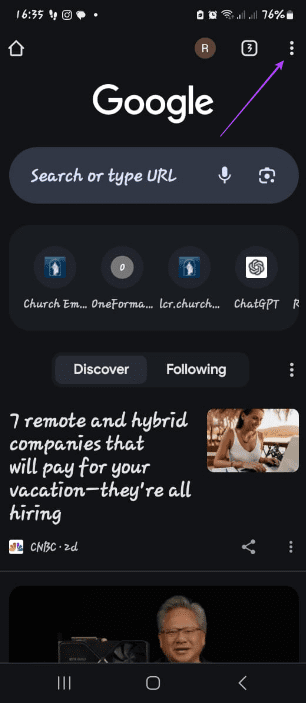
Step 1: Launch Chrome from your device’s home screen.

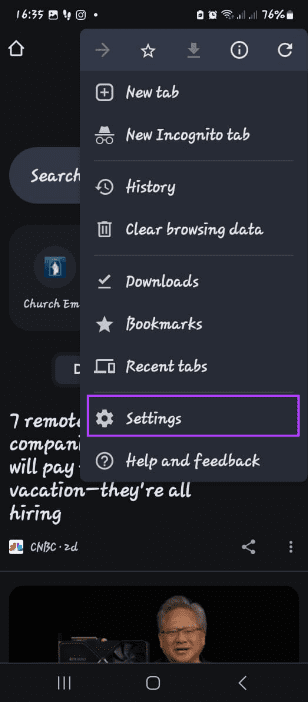
Step 2: Tap on the horizontal ellipsis at the top of the page, scroll down, and tap Settings.

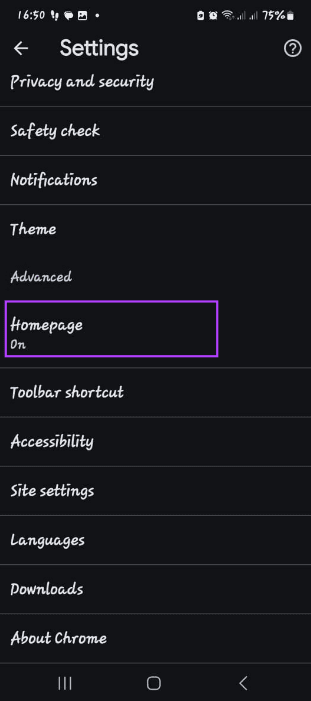
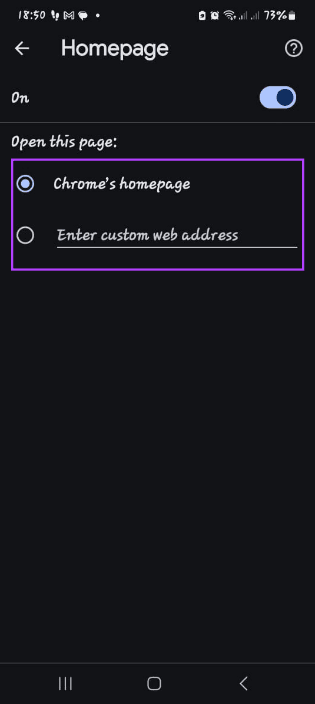
Step 3: Under the Advanced menu, tap Homepage and add the URL of your preferred homepage, or choose Chrome’s homepage.

Note: You cannot change the home page for iPhone and iPad in Chrome.

Was this helpful?

Thanks for your feedback!

6 Best Rechargeable Under-Cabinet Lights

Under-cabinet lights provide warm light and deliver it directly where it’s needed most. Plus, they’re renter-friendly. If you are looking for the best rechargeable under-cabinet lights, you’ve come to the right place.

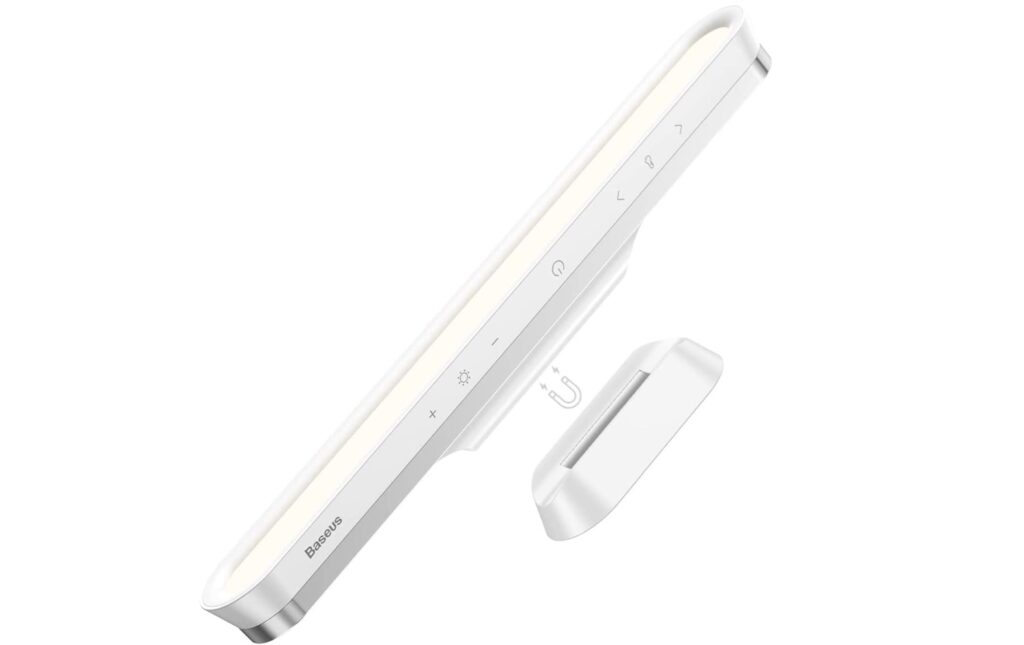
Baseus Wireless Under Cabinet Light

Baseus Wireless Under Cabinet Light

The Baseus Wireless cabinet lights offer plenty of features. They’re easy to set up and emit a bright light. At the same time, the color temperature, brightness, and angle are adjustable. More importantly, they feature a touch panel, and you can tweak the brightness or switch them on or off via a simple touch. Finally, the 3M adhesive makes it easy to mount them.

It comes with a built-in 1800mAh battery, which lasts a long time. If you switch it on at the beginning of the day, you must recharge the batteries by evening. The light recharges via USB-C, and the recharging time is fast and quick. That said, it doesn’t come with motion sensors, and you will need to switch them manually on/off.

What We Like

  • Easy to recharge
  • Bright
  • USB-C charging
  • Long battery life

What We Don’t Like

  • No motion sensor

Ezvalo LED Light

Ezvalo LED Light

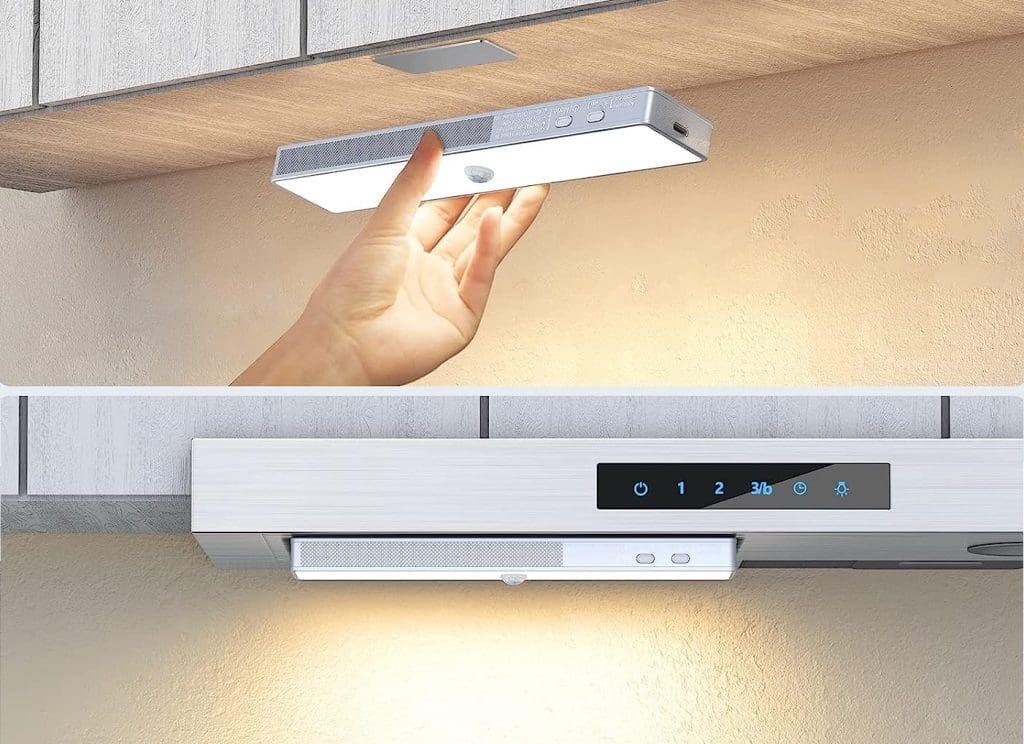
The lights from Ezvalo address the limitations of the above-mentioned lights and bundle motion and day/night sensors. They are slim and compact, and the magnetic base makes them easy to mount on cabinets and cupboards. Interestingly, the built-in 1500mAh battery can last up to two months in Auto mode.

It’s worth noting that the battery unit is detachable, which makes charging convenient. Additionally, the addition of the motion sensors makes them energy efficient, while the day/night sensor ensures that the light comes on only when it is dark. The build quality is not bad either and the motion detector works well.

What We Like

  • Detachable battery unit
  • Bright
  • Aggressive pricing
  • Motion detector works well

What We Don’t Like

  • Limited brightness settings

Hiboitec LED Cabinet Light

Best Rechargeable Under-Cabinet Lights HIBOITEC Store

The Hiboitec rechargeable motion sensor light is bright and has a long range of 100ft. However, the feature that takes the cake is the motion sensor’s sensitivity — it’s quick to trigger. In Auto mode, the light stays on for 20 seconds. When needed, you can keep the lights switched on. More importantly, it’s affordable, and you get two sets of lights.

But at the end of the day, the Hiboitec LED cabinet light is not perfect. The battery tends to run out faster. On the upside, at around 2 hours, the recharge time is slightly shorter. Further, it’s slim and sleek and can be installed on any surface using the metal mount. The company ships a 24-inch long USB cable to recharge these lights.

What We Like

  • Bright
  • Easy to use

What We Don’t Like

  • Lacks in the durability department

Asoko Under Cabinet Lights

The Asoko rechargeable under-cabinet light combines the best features of the above lights. First, it features three colors and is dimmable. Second, it features motion sensors and lights up quickly when triggered. Lastly, it features USB-C recharging and is relatively faster when recharging.

The Asoko light’s performance is okay for the price. It is bright, and the magnetic base makes it highly versatile. For example, you can fix it inside closets, under the sink, or in closed cabinets. Additionally, the battery life is solid. And yes, you get three lights by paying just a few extra bucks.

What We Like

  • USB-C charging
  • Three colors

What We Don’t Like

  • Not durable

Goodea LED Under Cabinet Lights

Goodea LED Under Cabinet Lights

The Goodea rechargeable puck lights are a set of six easy-to-use motion-sensitive lights. The small form factor makes them highly versatile. The brightness is adequate. When triggered, the lights stay on for 20 seconds before turning off. These are versatile lights, and apart from lighting up your cabinets, you can use them to light your closet, stairs, and dark corners.

The low cost per price means the company has cut some corners. For one, the battery life could be better. Secondly, the company ships only one USB cable, which adds to the cost. If you want to recharge all of them together, you will have to invest in separate cables. Plus, it will be a time-consuming affair. That said, they are fuss-free and easy to install, and the remote makes it convenient to control the lights.

What We Like

  • Affordable
  • Small form factor
  • Equipped with motion sensor

What We Don’t Like

  • Short battery life

Akay&Tina LED Light

LED Closet Light

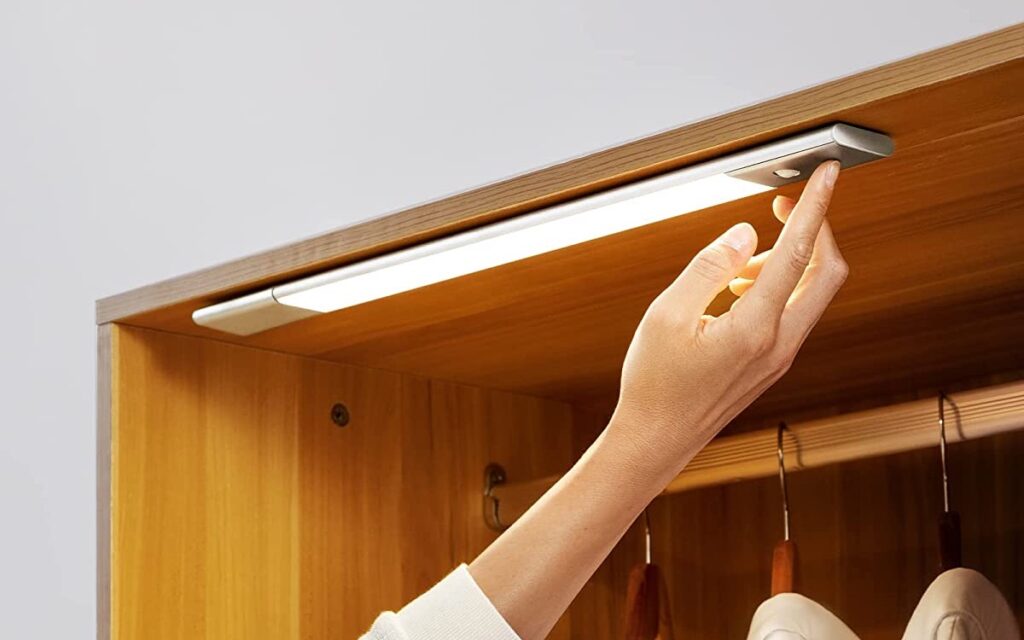
The Akay&Tina LED Light addresses most of the above shortcomings. For one, the lights are super bright. Secondly, the USB-C port means faster recharge time. Lastly, it has all the bells and whistles, such as a motion sensor and the option to pick between warm and white light.

It’s a flat light and can be easily attached to the underside of cabinets. The motion sensor is at the bottom. Once triggered, it stays on for approximately 25 seconds. Plus, it comes with the helpful Daylight Off switch.

What We Like

  • Bright
  • USB-C power
  • Easy-to-use
  • Dual colors

What We Don’t Like

  • N/A

Was this helpful?

Thanks for your feedback!

How to Color Code Emails in Outlook By Sender

How to Color Code Emails in Outlook by Sender

We will show you how to color code your emails in Outlook. The steps apply to Outlook 365, Outlook 2021, 2019, and 2017 users. Please note that you can access this feature only from the Desktop app or Outlook webpage. You cannot assign color codes to your emails using the iOS or Android app.

Step 1: Open the Outlook app on your Windows system.

Step 2: Once your emails are loaded, click the View option and choose Current View.

Step 3: Select View Settings from the list of options.

Step 4: In the Advanced View Settings window, click on Conditional Formatting.

Step 5: In the Conditional Formatting window, click on Add on the right side. Name your new Conditional Formatting rule that will apply for color coding emails.

Step 6: Once you give a name, click on Font. You can now select a Font Style, Color, and Size. This will apply to all emails appearing with the chosen color code. You can also preview it.

Step 7: After selecting your preferences, click Ok.

Assign Color to Email Address

Step 1: In the Conditional Formatting window, select your color code rule > click on Condition.

Step 2: Type the email address you want to appear with your chosen color code. To enter multiple email addresses, use a semicolon.

Note: If you want to enter a domain name, add @ before it.

Step 3: Click Ok to save your preferences. Then, click Ok in the Conditional Formatting window as well.

Step 4: Lastly, click Ok in the Advanced View Settings window.

You will now notice that your selected email address appears in your selected color code.

Tip: Learn how to schedule an Out of Office email in Outlook.

How to Remove Color Code From Outlook Emails

If you want to remove the color code from your emails in Outlook, return to the Conditional Formating window. Follow these steps.

Step 1: Open the Outlook app on your Windows computer.

Step 2: Click on View > Current View > View Settings.

Step 3: In the Advanced View Settings window, click on Conditional Formatting.

Step 4: Select the created rule for color coding emails and click on Delete.

Step 5: Click Ok to save changes.

You will now notice all your previously selected color coding will disappear from your emails.

Remove Color Code From Specific Email Address

Step 1: After selecting your color code rule, click on Condition.

Step 2: Remove the email address from the tab and click Ok.

Step 3: Click Ok in the Conditional Formatting window to save changes.

Tip: Refer to our guide on how to block an email address in Outlook to keep your inbox free from promotional messages or spam.

Was this helpful?

Thanks for your feedback!

4 Ways to Fix Outlook App Not Working on Mac

Basic Fixes

  • Restart Outlook: Force quit and relaunch the Outlook app on your Mac to give it a fresh start.
  • Update or reinstall Outlook: Installing the latest version of the app can surely fix this issue.

Fix 1: Create a New Outlook Profile

Your current Outlook profile may be corrupt. The Outlook Mail profile saves all the settings and configurations related to your account. You can create a new Outlook profile by using Outlook Profile Manager and check if your original Profile is corrupted or not.

Step 1: Open Finder and click on Applications from the left menu.

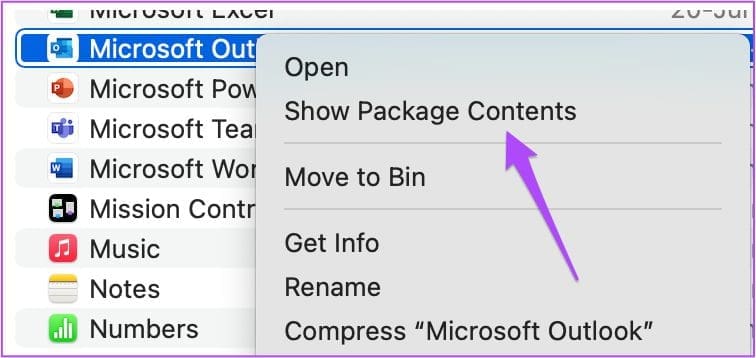
Step 2: Look for Microsoft Outlook, right-click on it to reveal options, and select Show Package Contents.

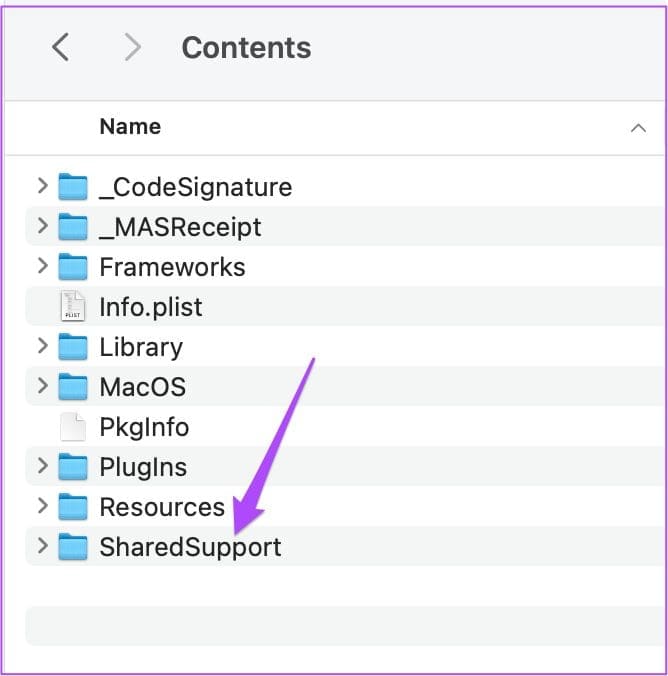
Step 3: Double-click on Contents > Shared Support.

Step 4: In the Shared Support window, double-click on Outlook Profile Manager.

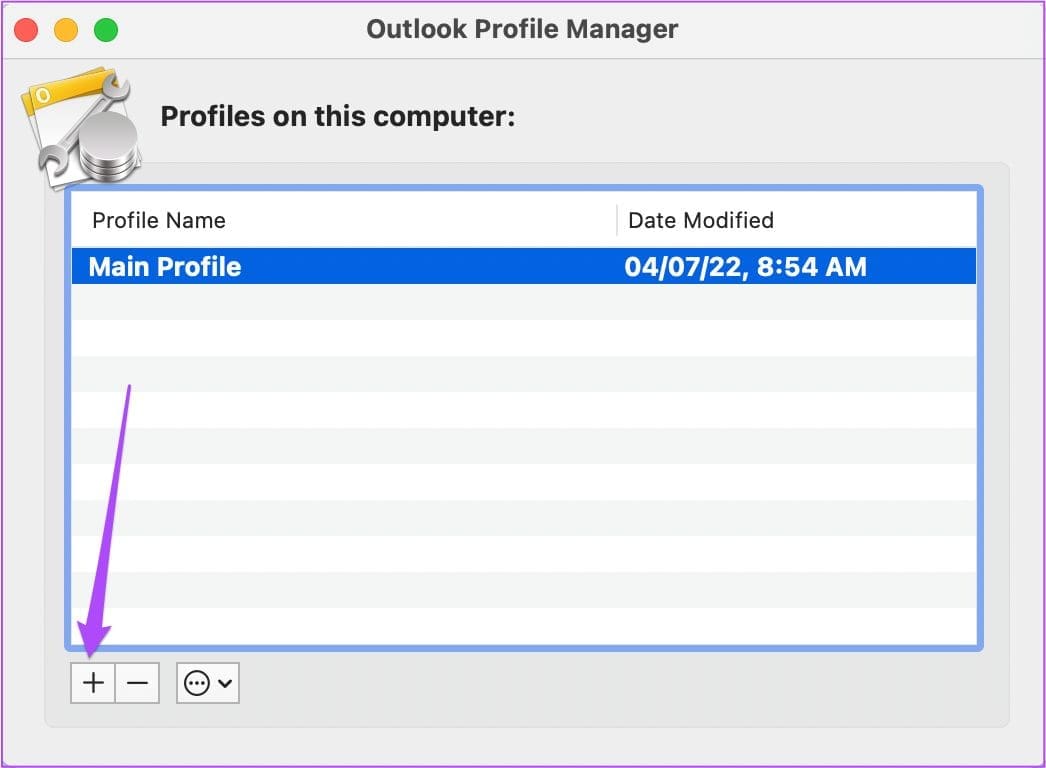
Step 5: After the Outlook Profile Manager opens, click the Plus icon at the bottom to add a new profile.

Step 6: Assign a name to the profile and press Return.

Step 7: Select the newly created profile > click on the three dots at the bottom.

Step 8: Select Set As Default.

If the Outlook app starts working properly, it means that your original profile got corrupted.

However, you must repair the Outlook app so that it doesn’t disrupt your workflow. Follow these steps to repair the same.

Step 1: In the Outlook Profile Manager window, select the newly created profile.

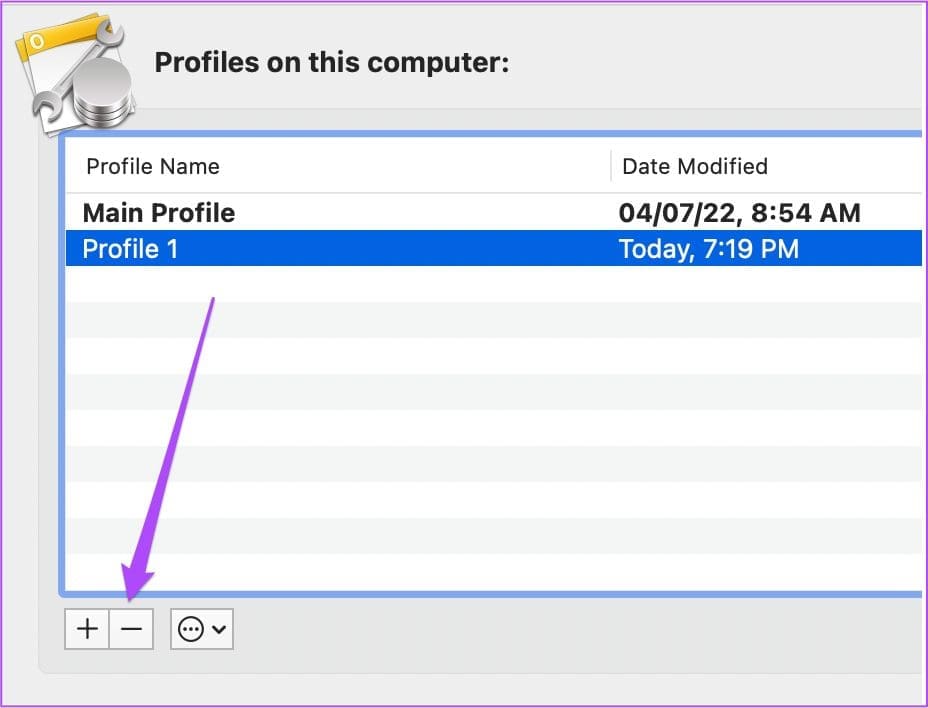
Step 2: Click the minus icon at the bottom to delete it.

Step 3: Click on Delete to confirm your choice.

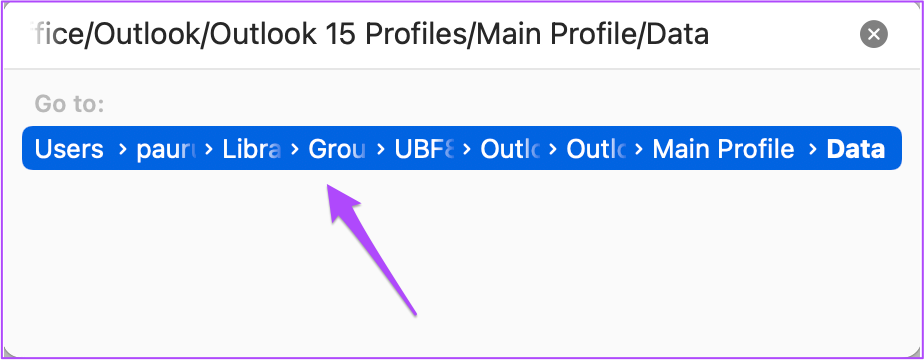
Step 4: Close the Outlook Profile Manager and open Finder. Select Go from the top Menu Bar and select Go to Folder.

Step 5: Type the following path in the search box and click the first result:

 ~/Library/Group Containers/UBF8T346G9.Office/Outlook/Outlook 15 Profiles/Main Profile/Data

Step 6: From the Data window, select and drag Outlook.sqlite file to the Desktop.

Step 7: Open the Outlook app and click on Repair when you see the notification.

Fix 2: Run First Aid in Disk Utility

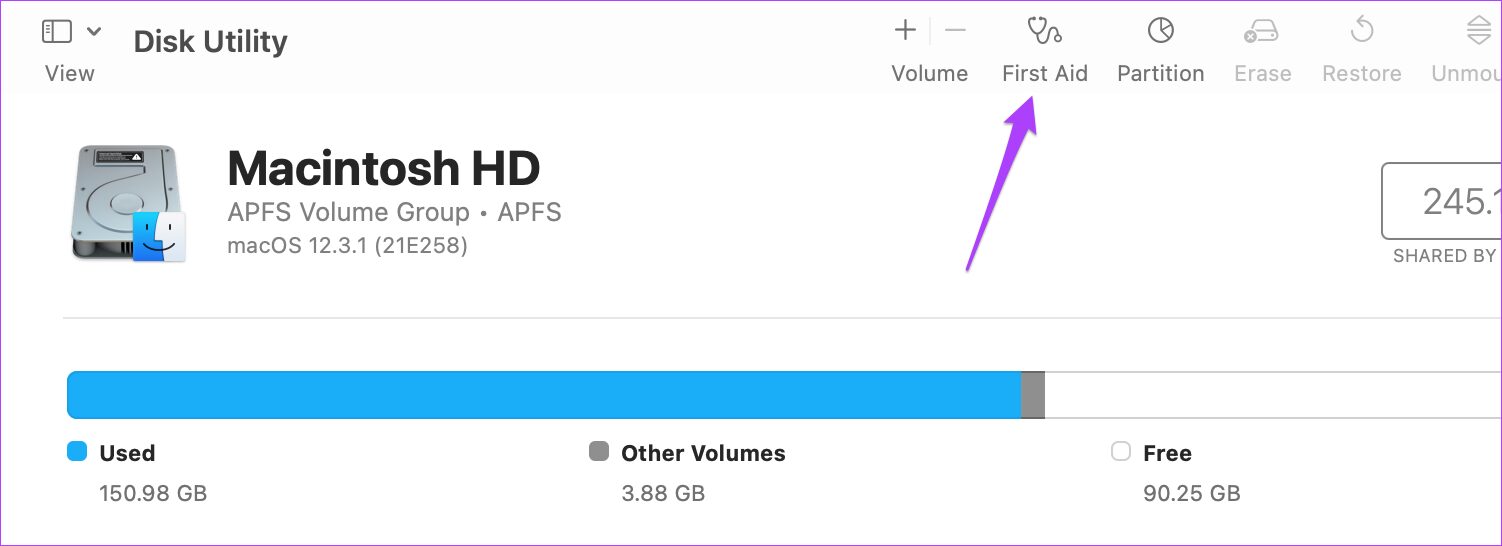
The Disk Utility app on your Mac allows you to examine both the internal and external storage devices connected to your Mac. It also allows you to format the storage drive and create partitions. If the Outlook app does not work on Mac, we suggest using the First Aid feature to check and repair possible storage errors. Follow these steps.

Step 1: Open Disk Utility on your Mac and click on First Aid.

Step 2: Click on Run to start First Aid.

Step 3: Click on Continue to confirm your choice.

Step 4: Once Disk Utility repairs your disk, close the window and try launching the Outlook app.

Fix 3: Disable Preview for Encrypted Email

Outlook offers an Encryption feature to protect any confidential information you share in your email message. This feature is useful when you don’t trust the recipient’s email provider to be secure. If the Outlook app is still not working on your Mac, you should try disabling the Preview feature for Encrypted email, which might be freezing the app. Follow these steps.

Step 1: Force Quit the Outlook app by following the steps mentioned above.

Step 2: Open Terminal on your Mac.

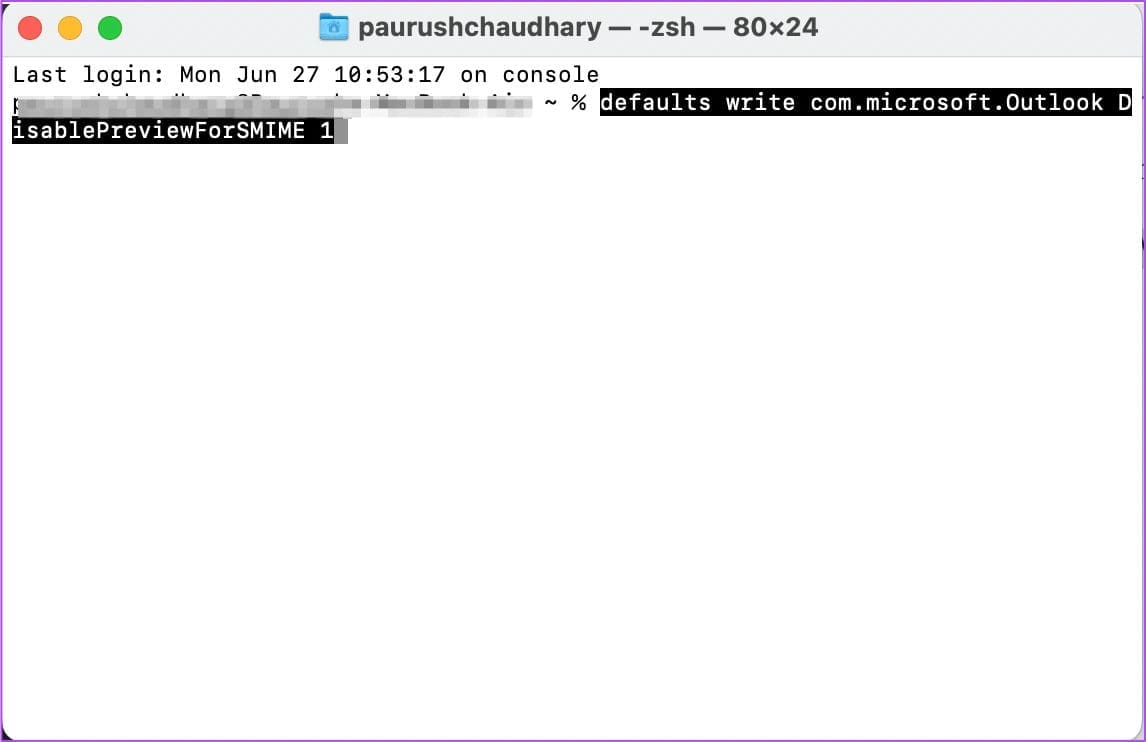
Step 3: In the Terminal app, type the following command and press Return.

defaults write com.microsoft.Outlook DisablePreviewForSMIME 1

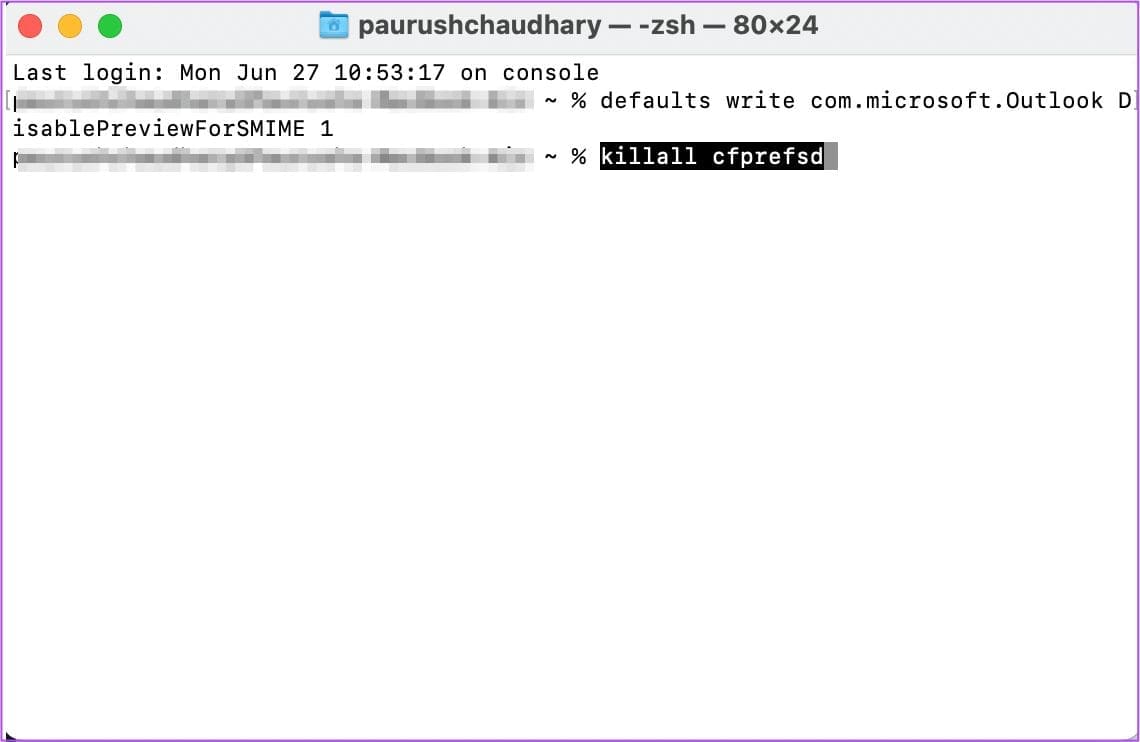
Step 4: After this, enter the following command and press Return.

killall cfprefsd

Step 5: Close the Terminal app and restart your Mac.

Tip: If you wish to improve your email productivity, check our list of best Outlook keyboard shortcuts.

Fix 4: Disable Add-ins

Outlook add-ins are integrations built by third parties into Outlook using our web-based platform. However, sometimes, these add-ins can prevent the app from working properly on your Mac. So, we suggest removing a few add-ins that you don’t require a lot.

Open Outlook > click on Tools > select Get Add-ins > follow the on-screen instructions to remove your add-ins.

get add ins outlook mac

Was this helpful?

Thanks for your feedback!

5 Ways to Fix WhatsApp Calls Not Working on Windows 11

Basic Fixes:

  • Check your internet connection: If your current internet connection is not working properly, it can cause WhatsApp calls to fail on your desktop. So, either connect to a 5GHz frequency or move close to your router and try again.
  • Check WhatsApp server status: If WhatsApp servers face an outage, none of the app’s functionality will work on the desktop. To check, visit Downdetector on any web browser and search for WhatsApp to confirm the issue.
  • Turn off Bluetooth: If your device accidentally connects to a Bluetooth device mid-call, the WhatsApp call audio might be rerouted or disappear entirely. To ensure this does not happen, turn off Bluetooth on your Windows device.
  • Make sure you aren’t blocked: If the recipient has blocked you on WhatsApp, your calls will show the connecting status and won’t ring. So, check and ensure you haven’t been blocked by the other person on WhatsApp.
  • Update or reinstall WhatsApp desktop app: App bugs can also cause WhatsApp calls to not go through. When this happens, check and ensure the WhatsApp desktop app is up-to-date. Or, you can uninstall and reinstall WhatsApp on your laptop. Then, try making a call to check.

Fix 1: Check Microphone and Camera Permissions for WhatsApp

If your camera is showing as blank or if the other person can’t hear you on WhatsApp calls, you have most probably disabled camera and microphone permission for WhatsApp on Windows 11. In this case, follow the below steps to enable it.

Step 1: Use the Windows + I key to open Settings and click on Privacy & security. Click on Camera.

Open Camera permissions 1

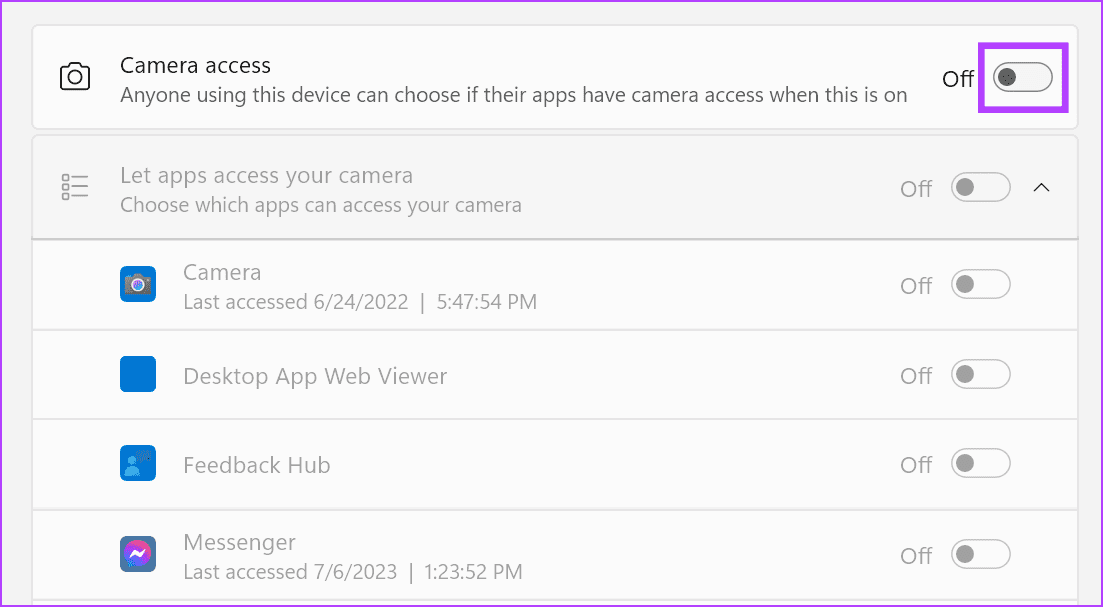
Step 2: Turn on the Camera access toggle.

Turn toggle on 18

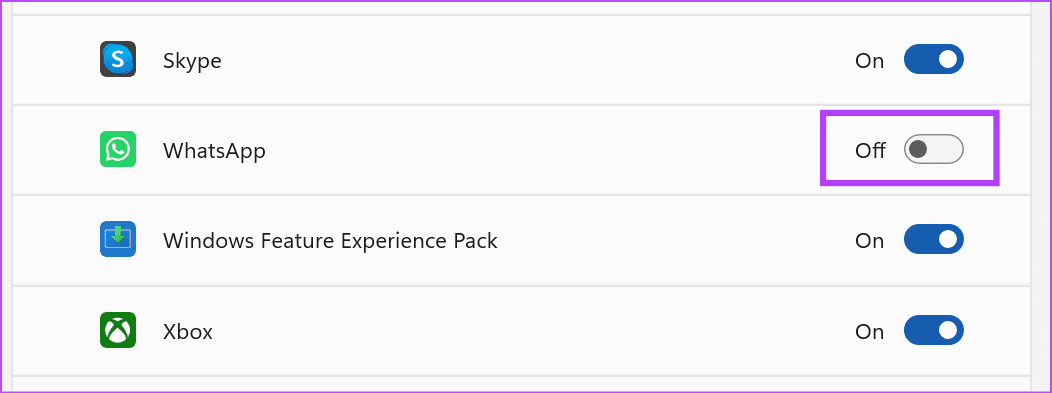
Step 3: Scroll down and turn on the toggle for WhatsApp. Then, go back to the Privacy & security page.

enable camera whatsapp

Step 4: Here, click on Microphone.

click on microphone

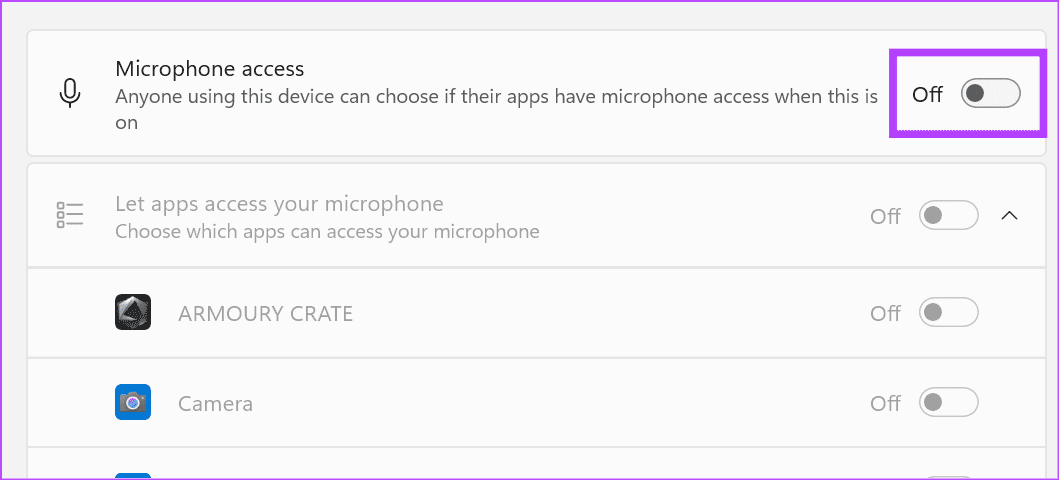
Step 5: Turn on the Microphone access toggle.

turn on the toggle 2

Step 6: Scroll down and ensure the toggle for WhatsApp is enabled.

enable mic whatsapp

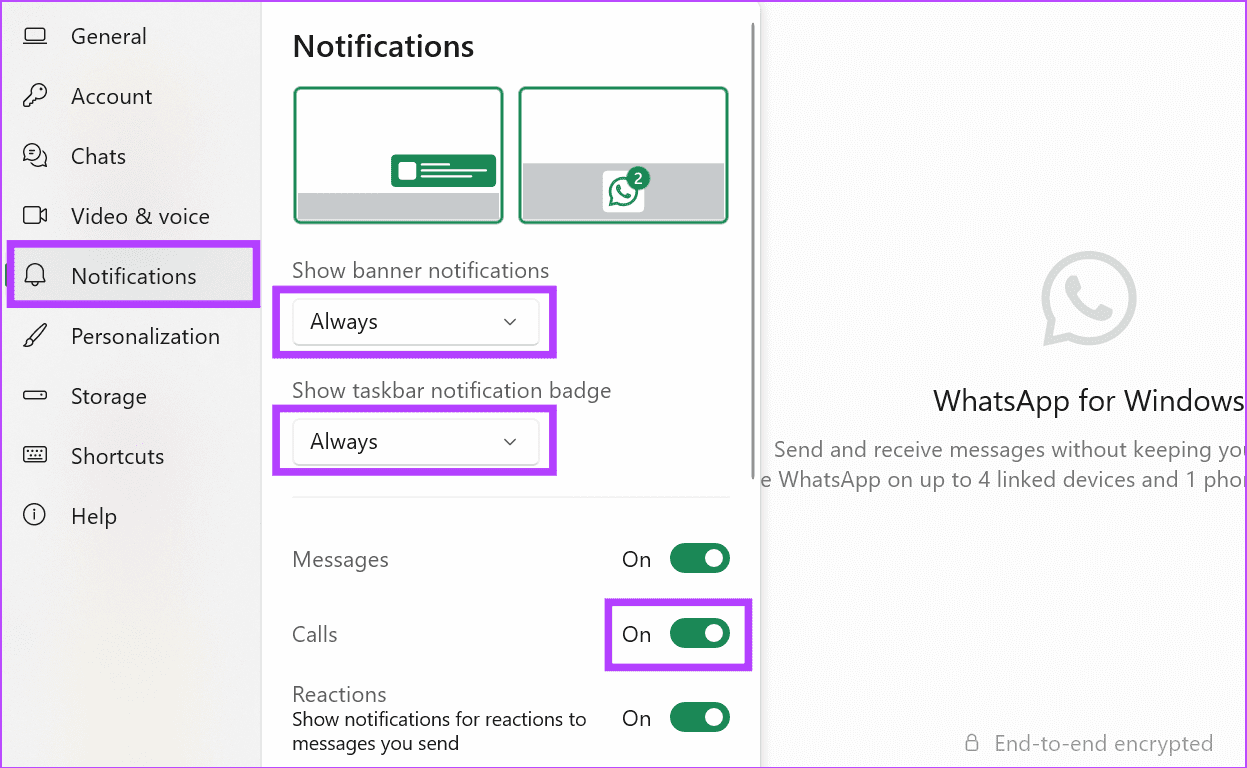
Fix 2: Enable Desktop Call Notifications

If you have muted incoming WhatsApp call notifications on your desktop, incoming WhatsApp calls might fail or not appear at all. This might cause you to miss out on important calls. To ensure this does not happen, enable WhatsApp call notifications using the below steps.

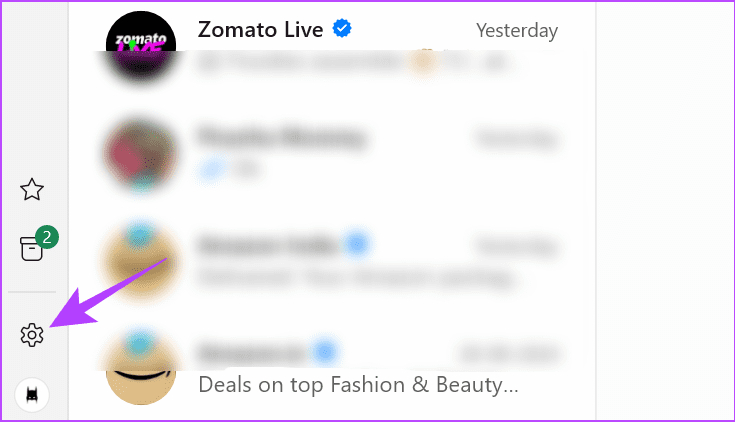
Step 1: Open the WhatsApp desktop app and click the cogwheel icon.

open whatsapp settings 2

Step 2: Click on Notifications and turn on the toggle for Calls. Ensure WhatsApp notifications are enabled.

enable whatsapp notification

Fix 3: Select Relevant Microphone and Camera for WhatsApp Calls

An external microphone or webcam might not work properly for your WhatsApp calls if the correct device is not selected. To prevent this from happening, open WhatsApp settings and select the correct input/output devices. Here’s what you need to do.

Step 1: Open the WhatsApp desktop app and click the cogwheel icon.

open whatsapp settings 2

Step 2: Click on Voice & video. Use the Video and Microphone drop-downs to select the relevant device.

select mic and camera

Also Read: How to fix WhatsApp desktop keeps logging me out on Windows

Fix 4: Allow WhatsApp to Run in Background

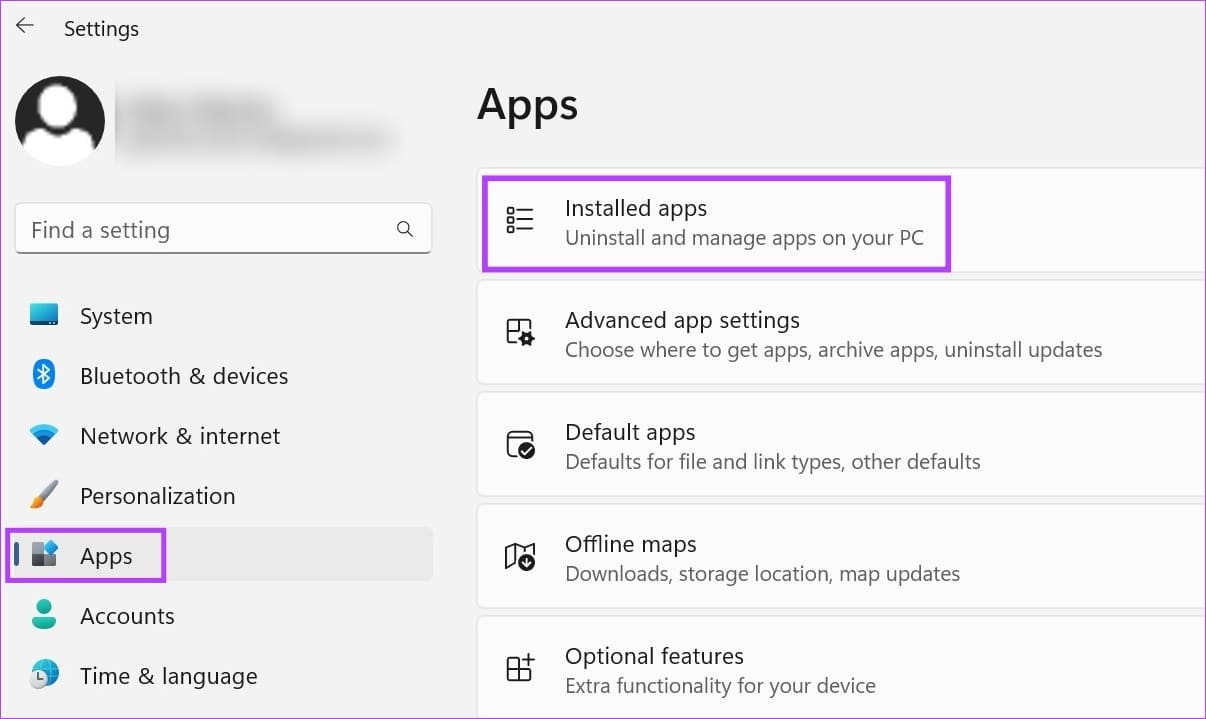
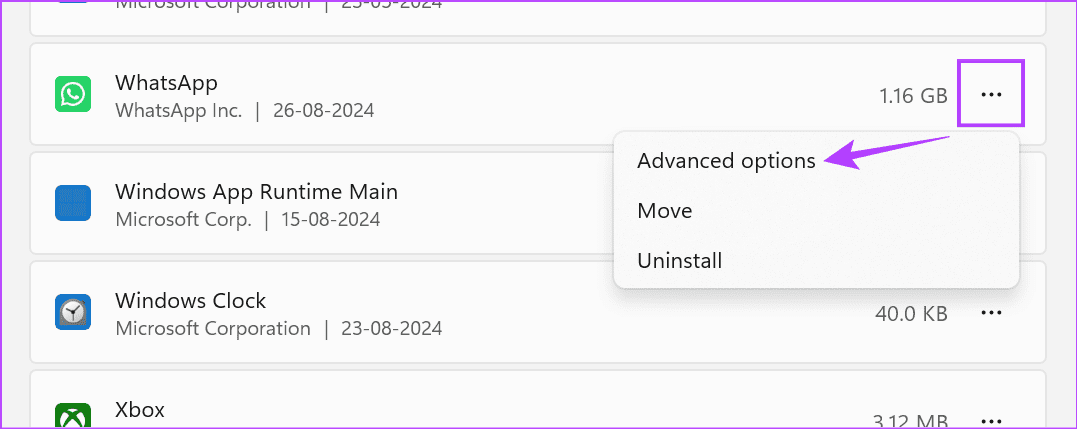
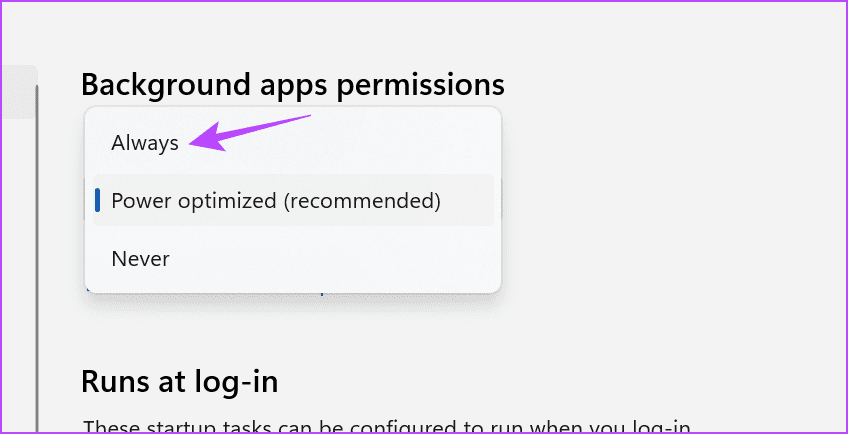
If WhatsApp doesn’t have permission to run in the background on your Windows device, WhatsApp calls might not ring if the desktop app is not open. To fix this, allow WhatsApp to always run in the background using the below steps.

Step 1: Open Settings and click on Apps. Click on Installed apps.

open installed apps 1

Step 2: Go to WhatsApp and click the three-dot icon. Click on Advanced options.

open advanced settings 1

Step 3: Click the Background apps permissions drop-down and select Always.

allow background permission

Fix 5: Reset or Repair WhatsApp Desktop App

If your Windows apps are not working properly, you can use the settings menu to repair them. This can help fix any temporary issues. If that doesn’t work, reset the app. This will get rid of all the data for the WhatsApp desktop app without deleting the app. Here’s how to do it.

Step 1: Open Settings and click on Apps. Click on Installed apps.

open installed apps 1

Step 2: Go to WhatsApp and click the three-dot icon. Click on Advanced options.

open advanced settings 1

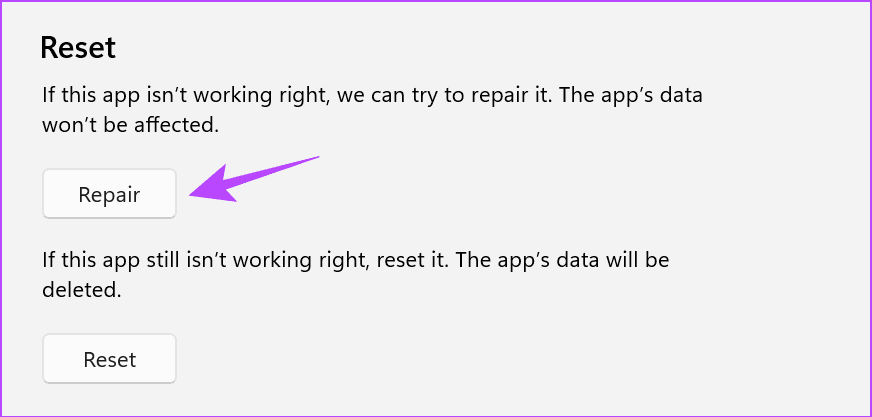
Step 3: Click on Repair. Wait for a tick to appear. Then, try taking a WhatsApp call to check.

repair whatsapp

Step 4: If it still doesn’t work, click on Reset. Confirm when prompted.

reset whatsapp

Once done, restart the WhatsApp desktop app and finish the setup. Then, ask someone to call you to check if WhatsApp calls are now working.

Was this helpful?

Thanks for your feedback!

2 Ways to Fix iPhone Hotspot Not Showing Up on Android

Basic Fixes

  • Toggle airplane mode: Toggling Airplane Mode essentially resets the radios on your phone. Whether it’s an issue with mobile data not working or hotspot disconnecting, this is a quick fix.
  • Enable the Bluetooth toggle only when prompted: Turn off Bluetooth on your iPhone and turn it on only when your iPhone asks you to after enabling the hotspot.
  • Refresh the list of available networks: Pull down on the page listing all available Wi-Fi networks to refresh it and search for new devices.

Fix 1: Enable the Maximize Compatibility Toggle

Enabling the personal hotspot feature on the iPhone brings up another toggle in the same menu. As the name suggests, this toggle enables maximum compatibility for other devices to connect to your iPhone’s hotspot.

Step 1: Open the Settings app on your iPhone and navigate to the Personal Hotspot section.

Step 2: Enable the toggle next to Allow Others to Join. Once the hotspot is enabled, turn on the toggle next to Maximize Compatibility.

Fix 2: Use Bluetooth Tethering

You may not be aware that you can share the internet connection from an iPhone via Bluetooth. So, if the Wi-Fi hotspot does not show up on Android, you can always use Bluetooth tethering. Here’s what you have to do.

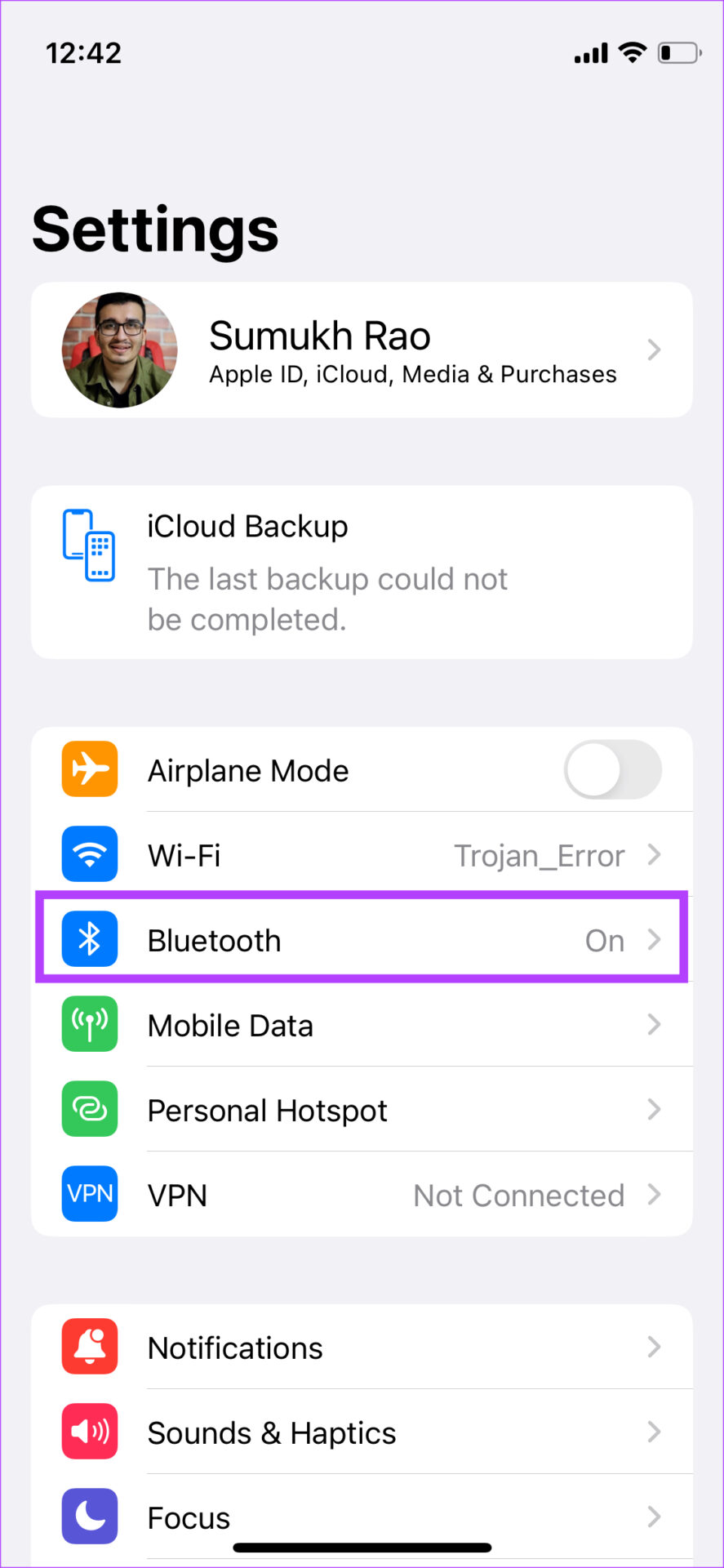
Step 1: Open the Settings app on the iPhone and navigate to the Bluetooth section. Enable Bluetooth and let the iPhone look for nearby devices.
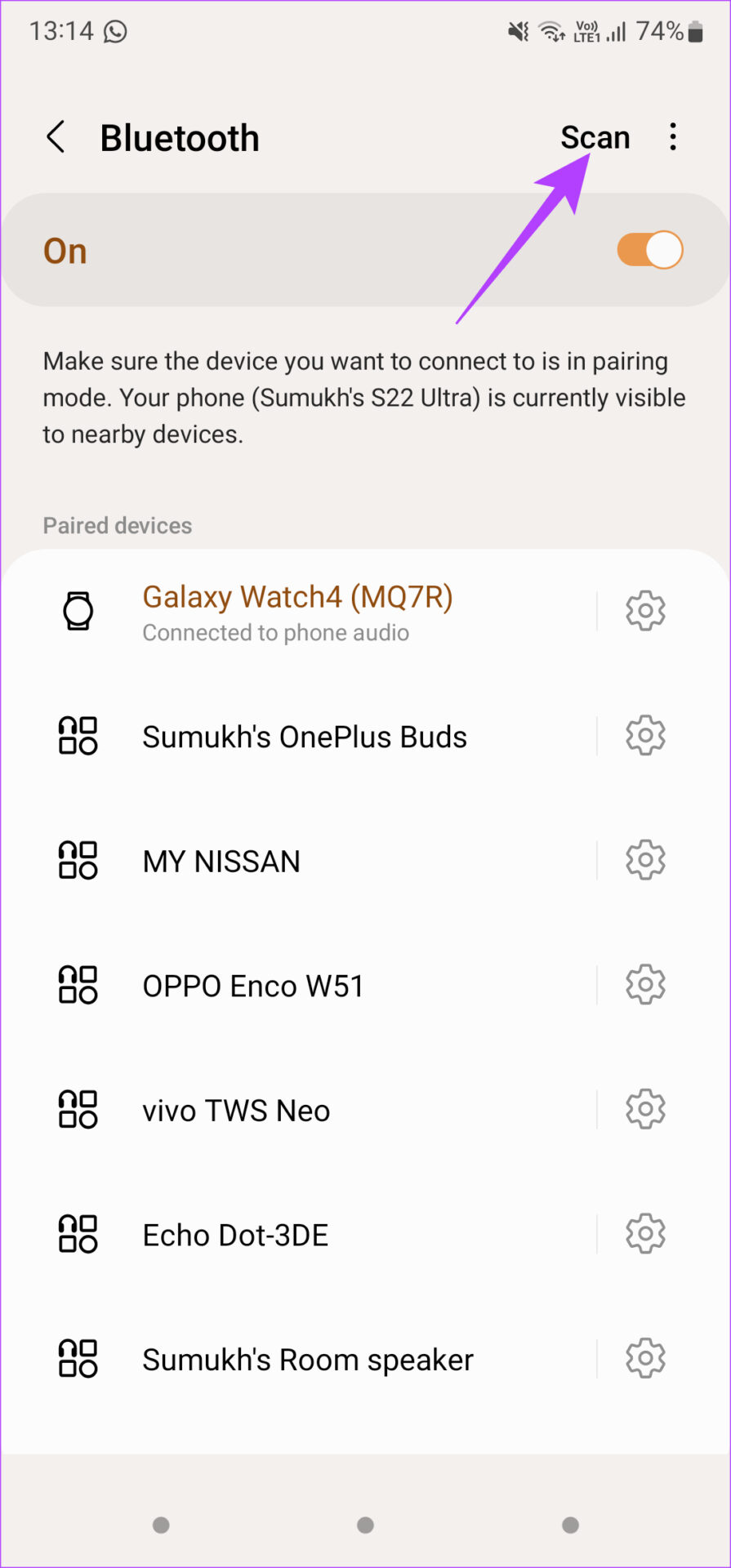
Step 2: On the Android phone, go to the Settings app and then to the Bluetooth section. Enable the toggle and hit the Scan button.

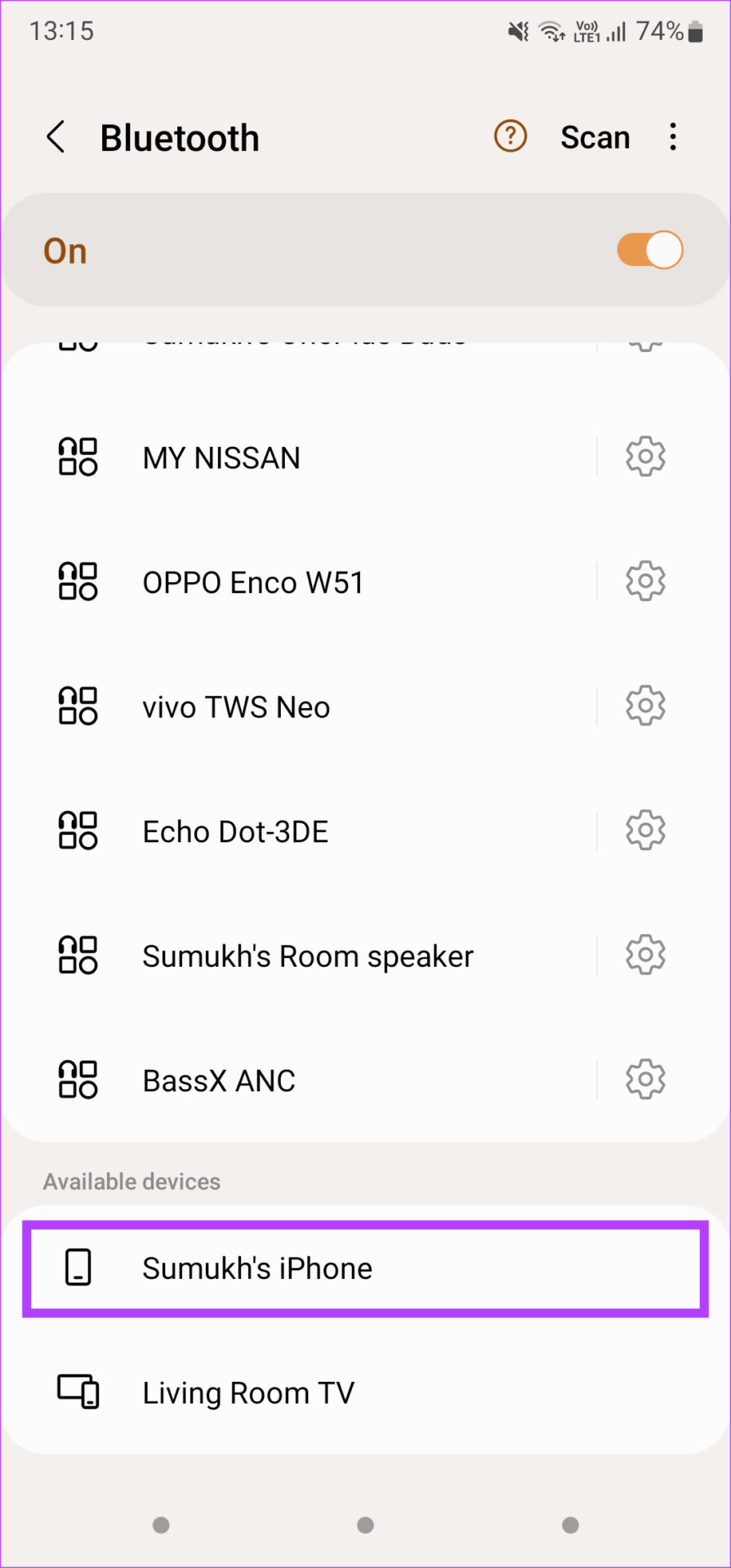
Step 3: Wait for the iPhone to appear as a Bluetooth device on your Android phone. Once it does, tap on it to pair. Select Pair on the iPhone too when prompted.

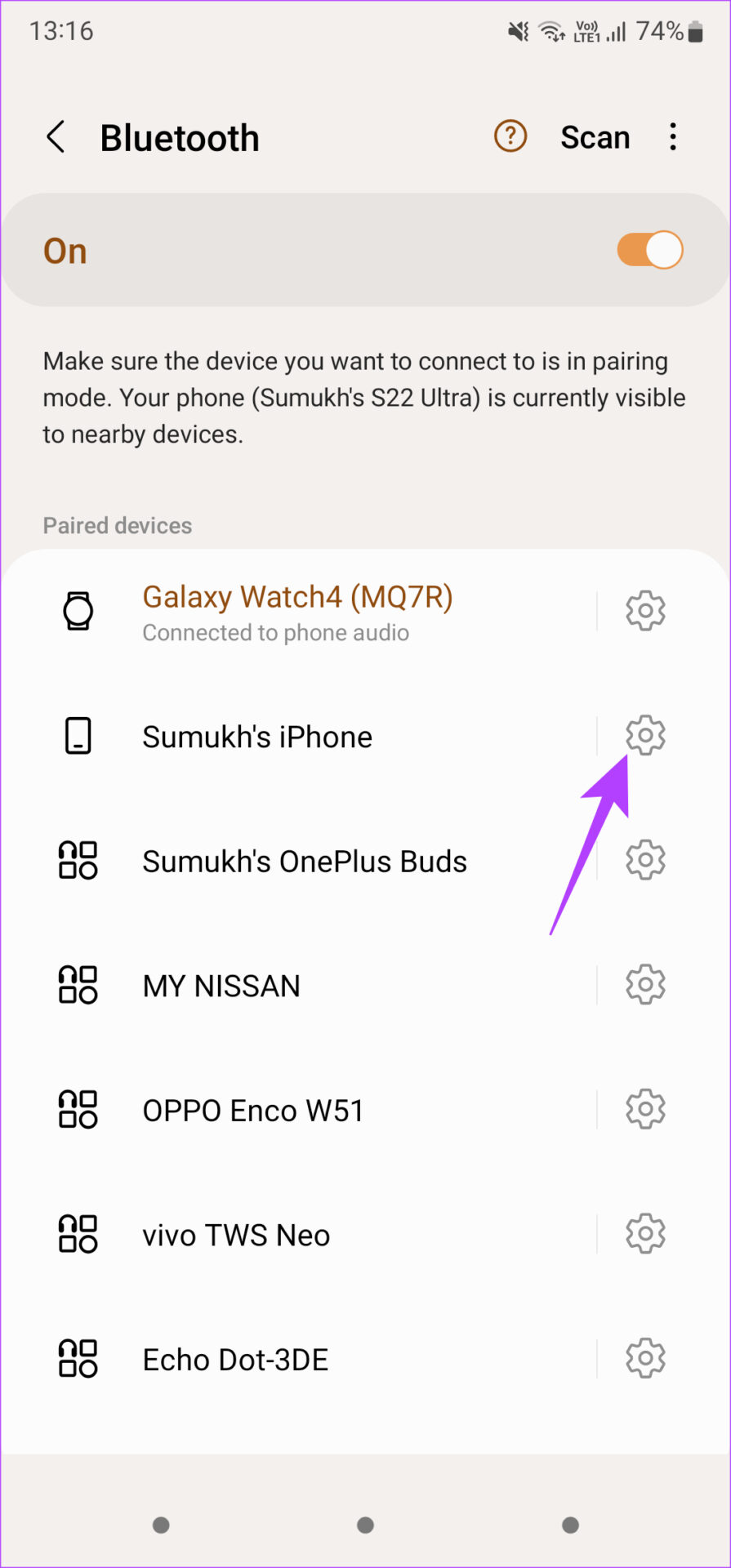
Step 4: Tap on the Settings icon next to the paired iPhone in the Bluetooth menu. Enable the toggle next to Internet access.

Was this helpful?

Thanks for your feedback!

How to Enable or Disable Autofill in Google Chrome for PC and Mobile

Are you tired of entering your personal information every time you fill out a form or make an online purchase? Google Chrome’s autofill feature can save you time and effort. It can automatically fill in details like passwords, addresses, phone numbers, and even credit card information.

If you’re interested in knowing how to use Chrome’s autofill feature on your device, this post will show you the steps involved in enabling and disabling autofill in Google Chrome for both PC and mobile. So, without further ado, let’s get right to it.

How to Enable or Disable Autofill in Google Chrome (On PC)

Whether you’re looking to set up the autofill feature for the first time or want to disable it for good, accessing Chrome’s autofill settings is pretty straightforward. You can use the following steps on Windows and Mac.

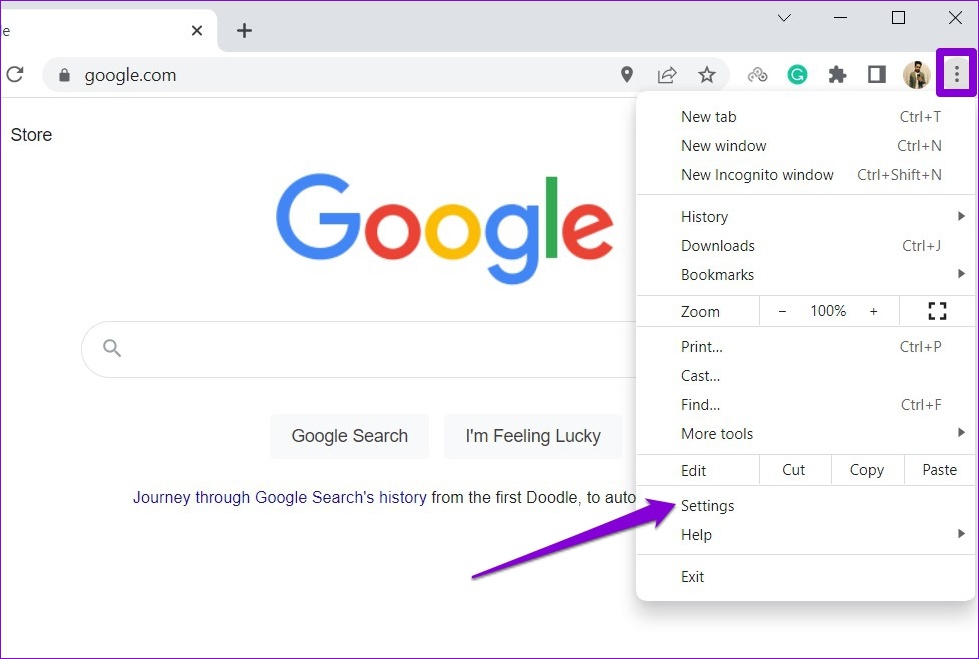
Step 1: Open Google Chrome on your PC. Click on the three-dot menu icon in the top right corner and select Settings from the list.

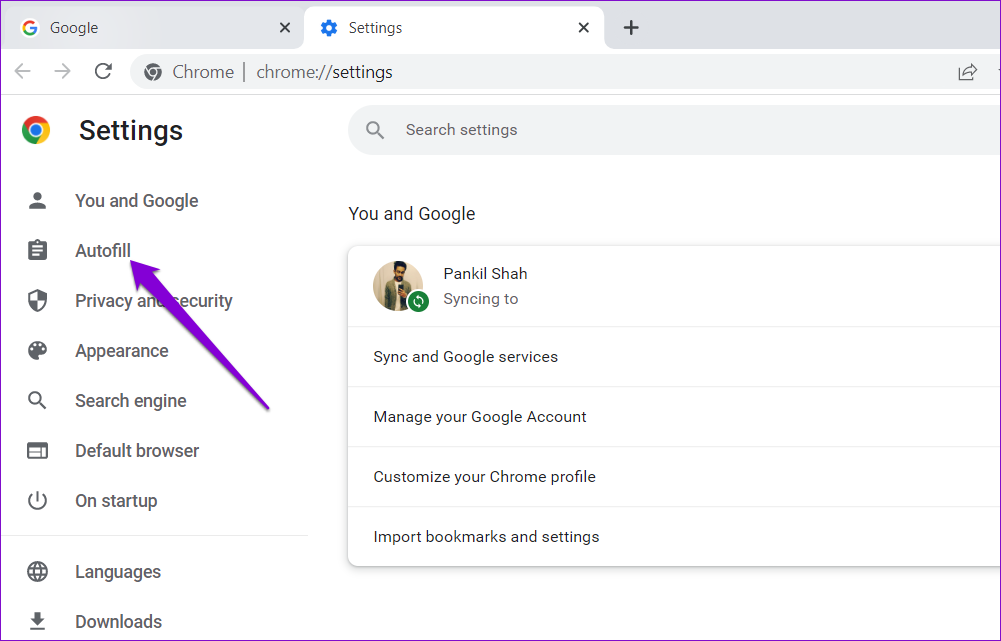
Step 2: Click on Autofill from the left sidebar.

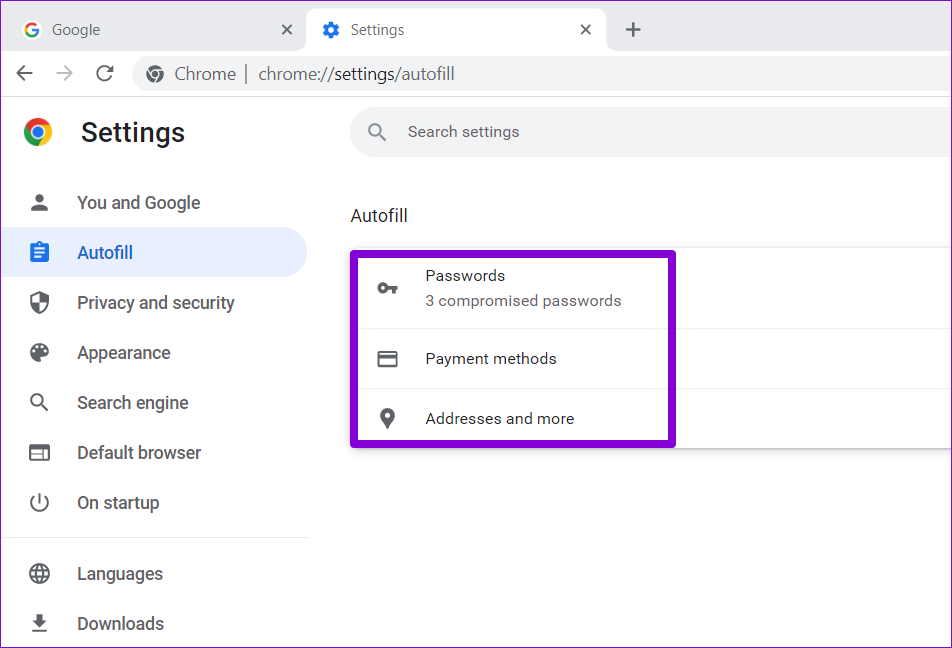
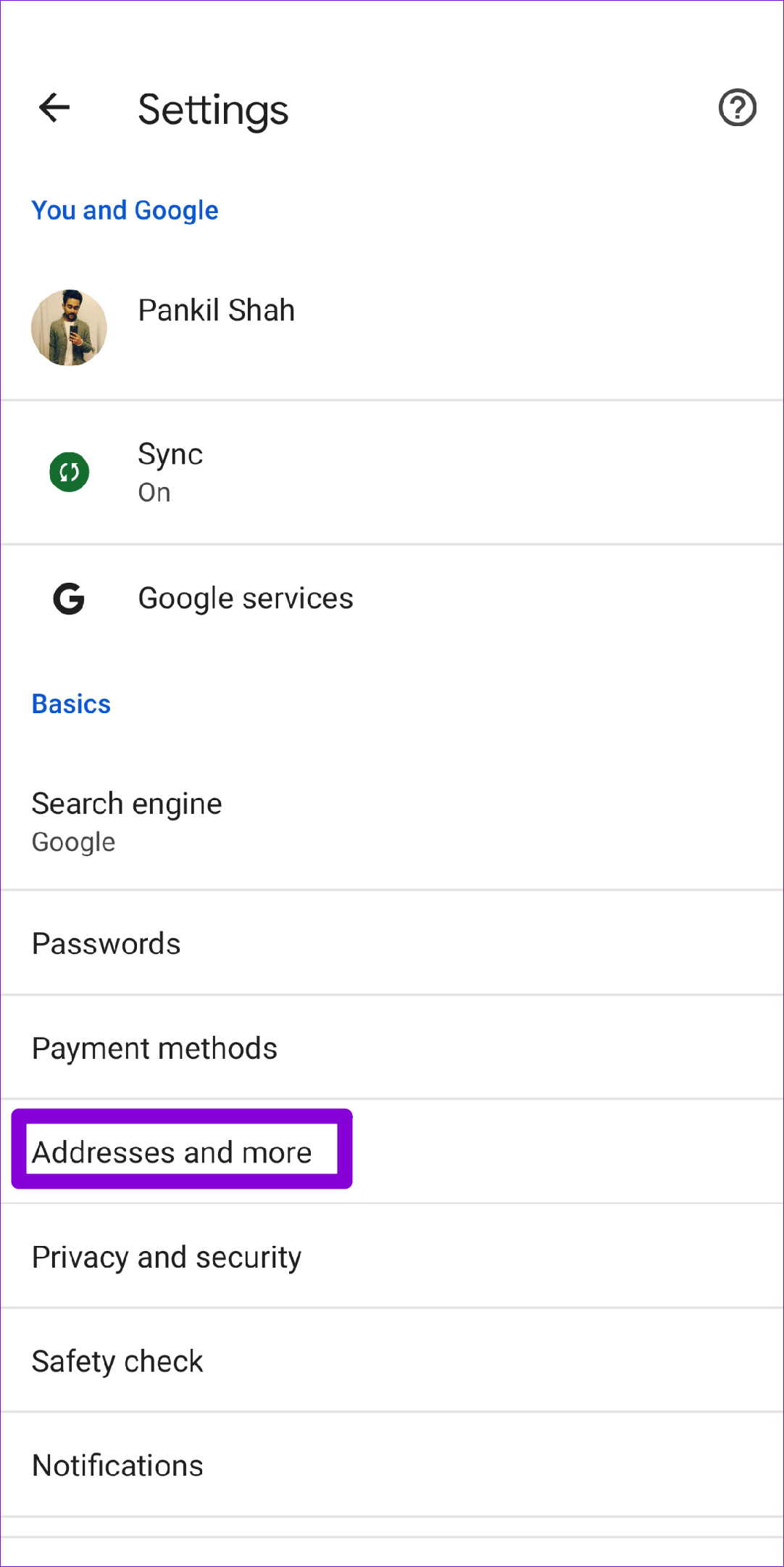
Step 3: On your right, you’ll see three options: Passwords, Payment methods, and Addresses and more. Select the autofill item you’d like to enable or disable.

Enable or Disable Autofill for Passwords

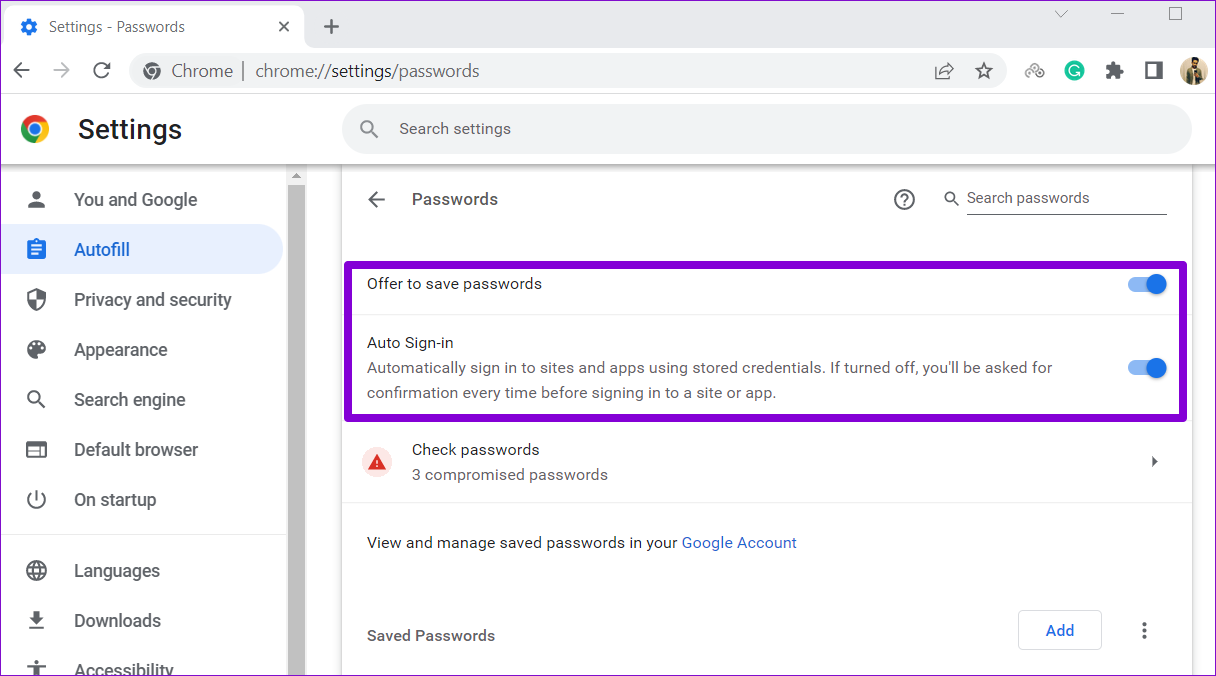
Let us first explore Passwords. To enable autofill for Passwords, toggle on the switch next to ‘Offer to save passwords.’ Optionally, you can also enable the Auto sign-in feature and allow Chrome to sign you in automatically using stored passwords.

Once you enable it, Chrome will offer an option to save passwords whenever you log in to a site.

If you wish to disable autofill for passwords at any point, toggle off the switch next to ‘Offer to save passwords’ and ‘Auto Sign-in.’

Enable or Disable Autofill for Payment Methods

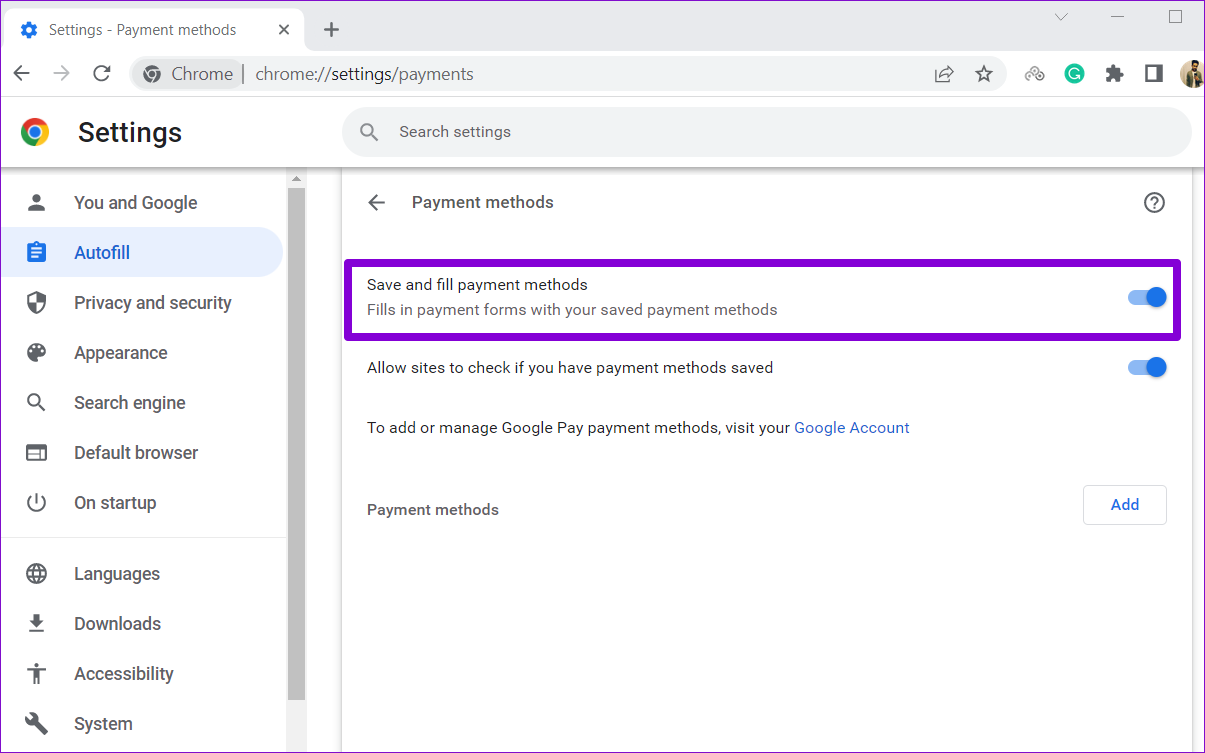
To enable or disable autofill for payment methods in Chrome, use the toggle next to ‘Save and fill payment methods.’ You can use the Add button to save your debit card or credit card details manually.

Enable or Disable Autofill for Addresses and More

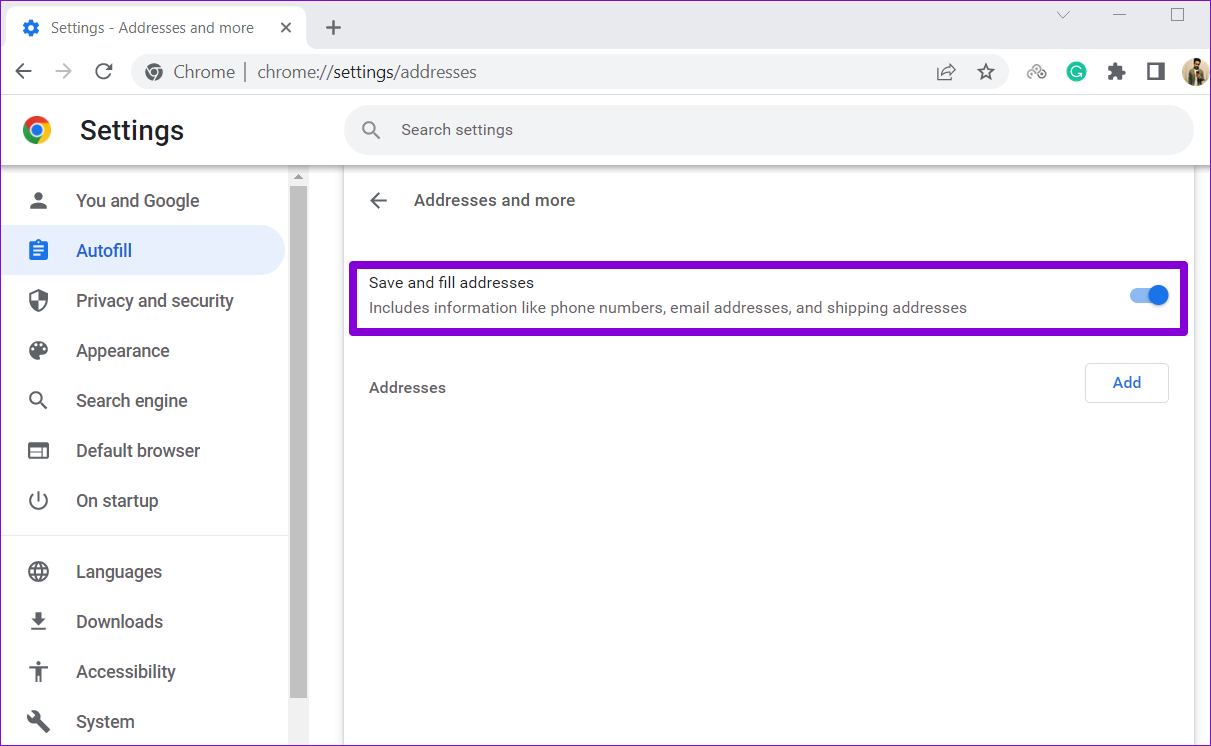
Lastly, to enable or disable autofill for addresses in Chrome, use the toggle switch next to ‘Save and fill addresses’. This allows Chrome to save and autofill your details such as your address, region, phone number, email address, and more.

How to Enable or Disable Autofill in Google Chrome (On Mobile)

Chrome’s autofill feature is also available on its mobile app and works the same way it does on the desktop. Plus, if you use the same Google account on both PC and mobile, Chrome will automatically sync all your autofill data. However, you can always change that by modifying the sync settings in Chrome.

We’ve used an Android phone to demonstrate the process of enabling and disabling autofill in Chrome, but you can use the following steps in Chrome for iOS as well.

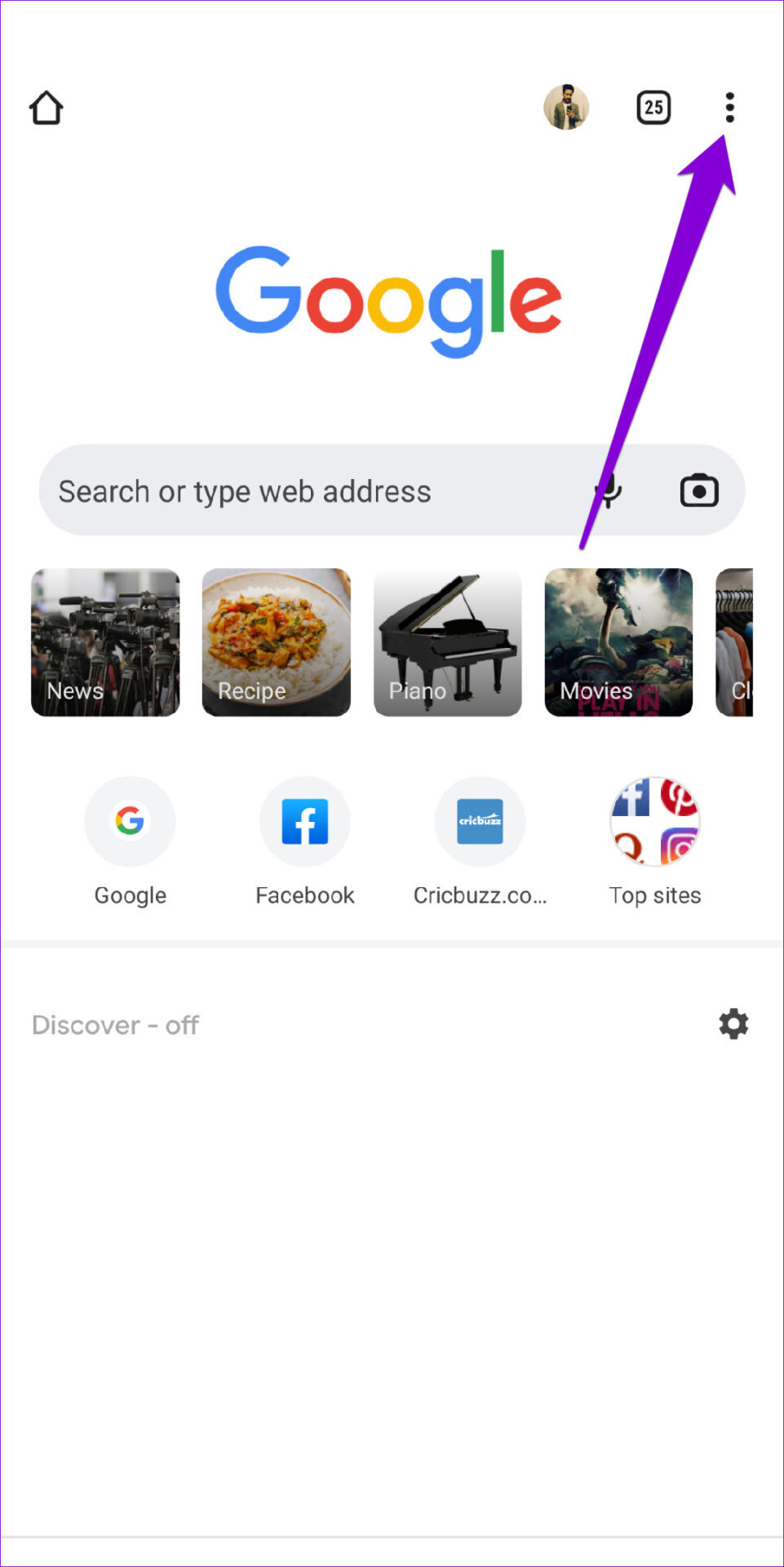
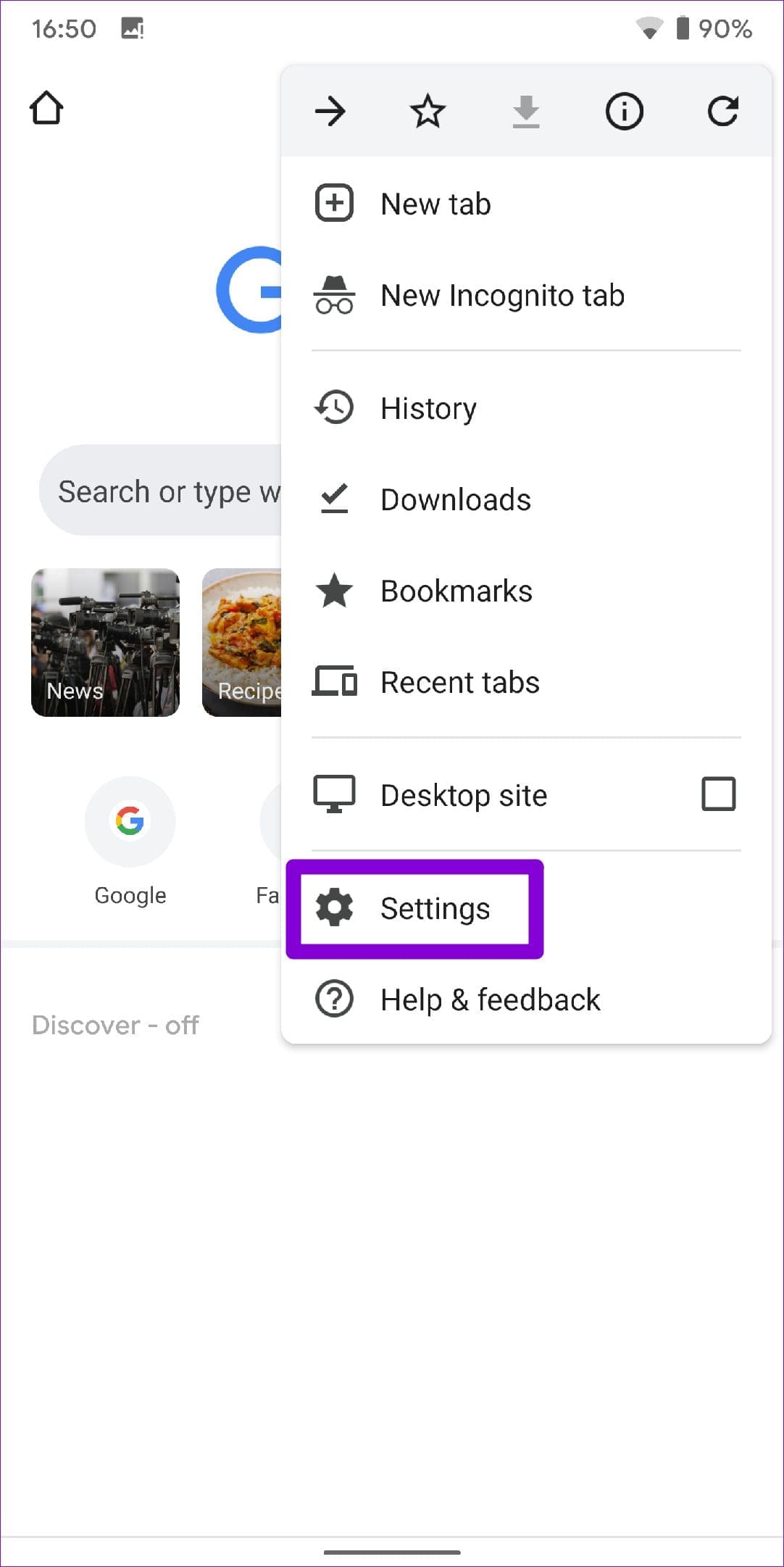
Step 1: Open Google Chrome on your phone. Tap the three-dot menu icon in the top right corner and select Settings from the list.

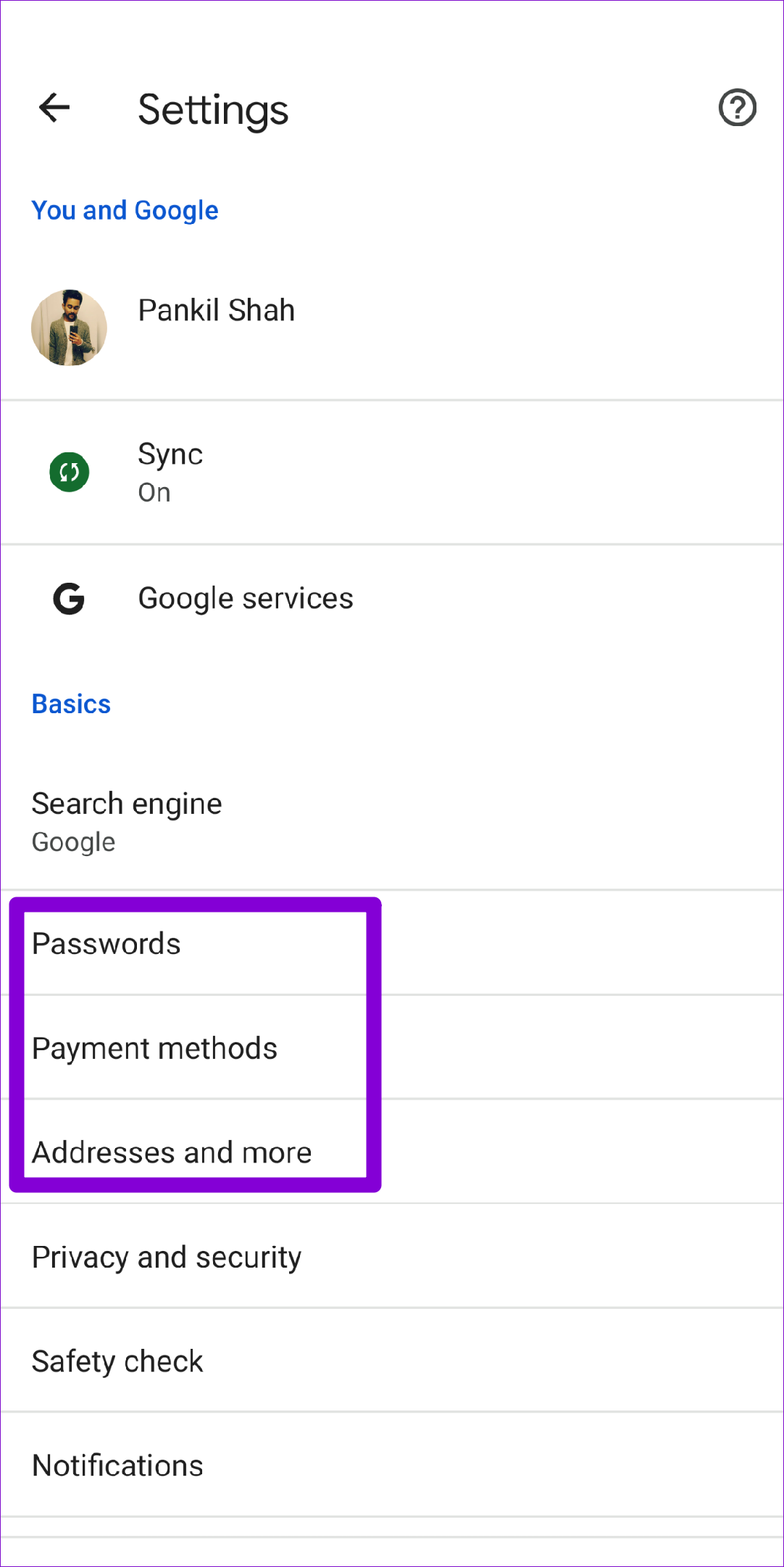
Step 2: Under Basics, you’ll see three autofill options: Passwords, Payment methods, and Addresses and more. Let’s see how you can configure them.

Enable or Disable Autofill for Passwords

To configure autofill for passwords, go to Passwords and use the Save passwords toggle from the following menu. All your saved passwords will appear under the Passwords section.

Enable or Disable Autofill for Payment Methods

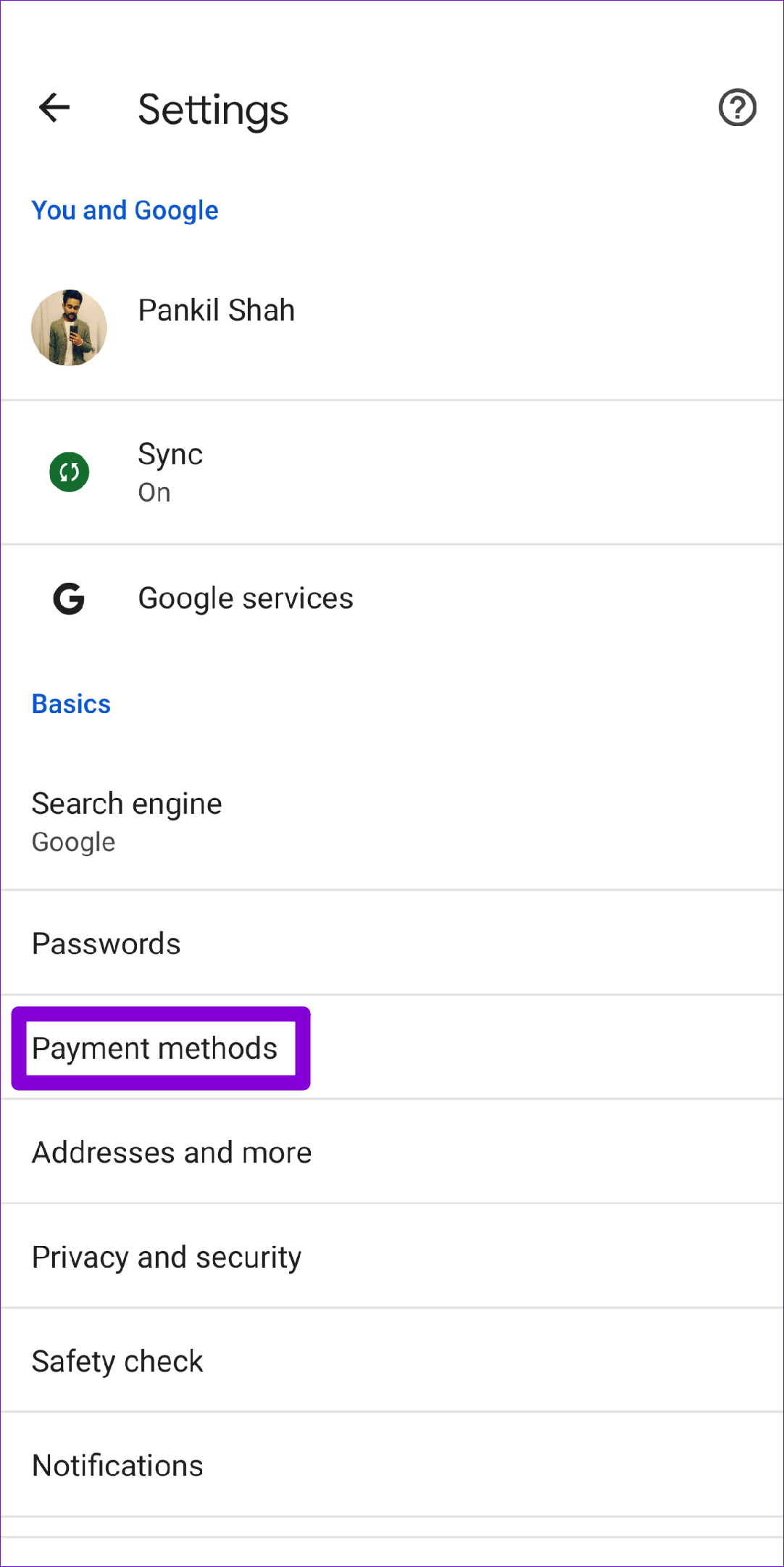
To enable or disable autofill for Payment methods, tap on the Payment methods on the Settings page. Then, use the toggle next to ‘Save and fill payment methods’ to enable or disable autofill for debit card or credit card information.

Enable or Disable Autofill for Addresses and More

Finally, to enable or disable autofill for addresses, you can use the toggle next to ‘Save and fill addresses’. All your saved addresses, phone numbers, and email addresses will appear on this page.

Filling the Blanks

Using Chrome’s autofill feature can bring a lot of convenience to the table. It not only speeds up form filling, but it also remembers passwords for all of your favorite websites. Plus, enabling or disabling autofill is quite simple, whether using Google Chrome on your PC or phone. However, if you don’t intend to use autofill in Chrome, you can consider deleting all the saved autofill items at once by clearing browsing data in Google Chrome.

So what are your thoughts about Chrome’s autofill feature? Do you find it useful? Let us know in the comments below.

Was this helpful?


Thanks for your feedback!

3 Fixes for “There Was a Problem Parsing the Package” Error on Android

Fix 1: Enable Installing Apps From Third-Party Sources

An Android phone disables the permission to install third-party apps. This is to prevent unauthorized apps from installing and ensure that other apps on your phone don’t install malware without your notice. Here’s how to enable it.

Step 1: Open the Settings app on your Android phone > navigate to the Apps section > tap on the three-dot menu at the top-right.

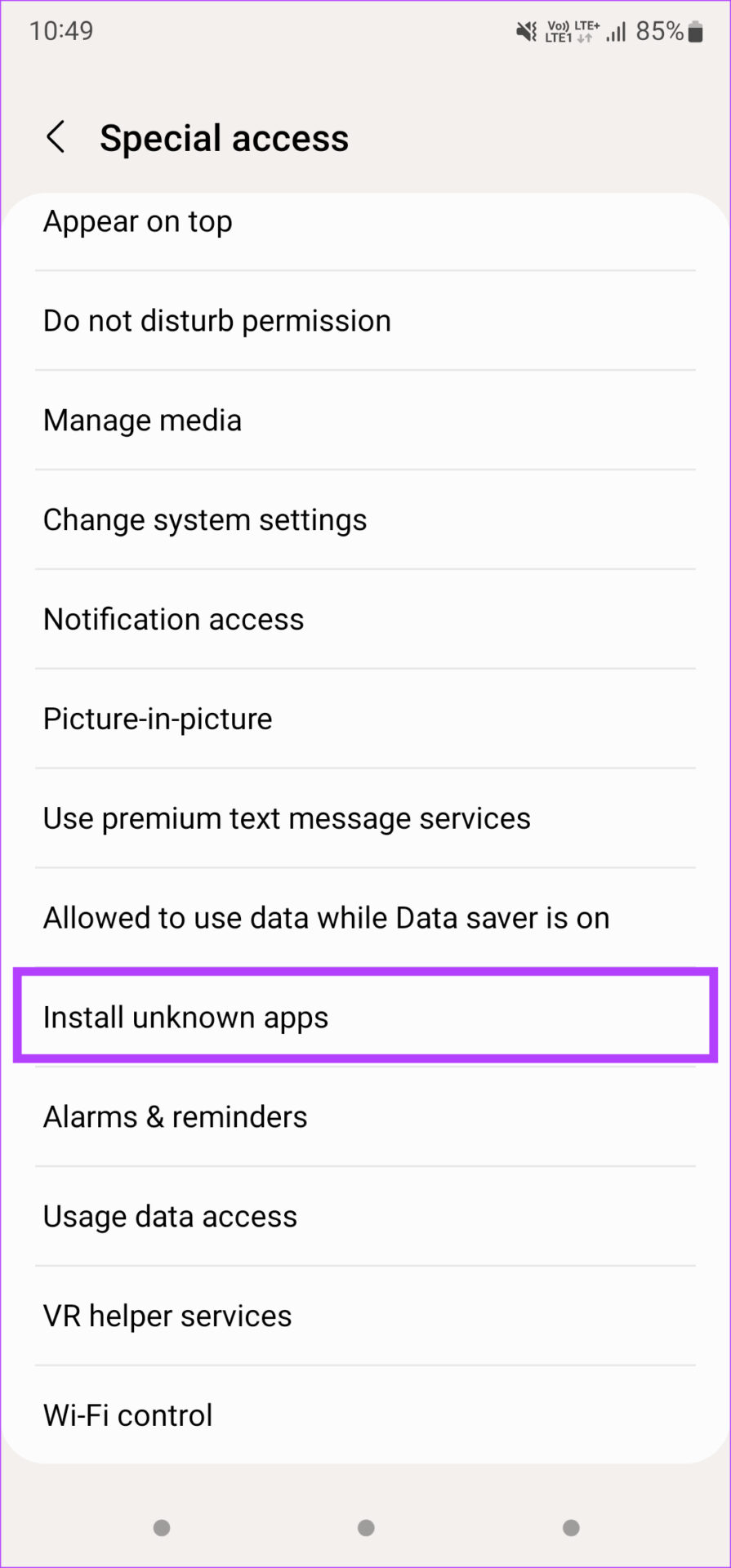
Step 2: Now, select Special access > scroll down and select Install unknown apps.

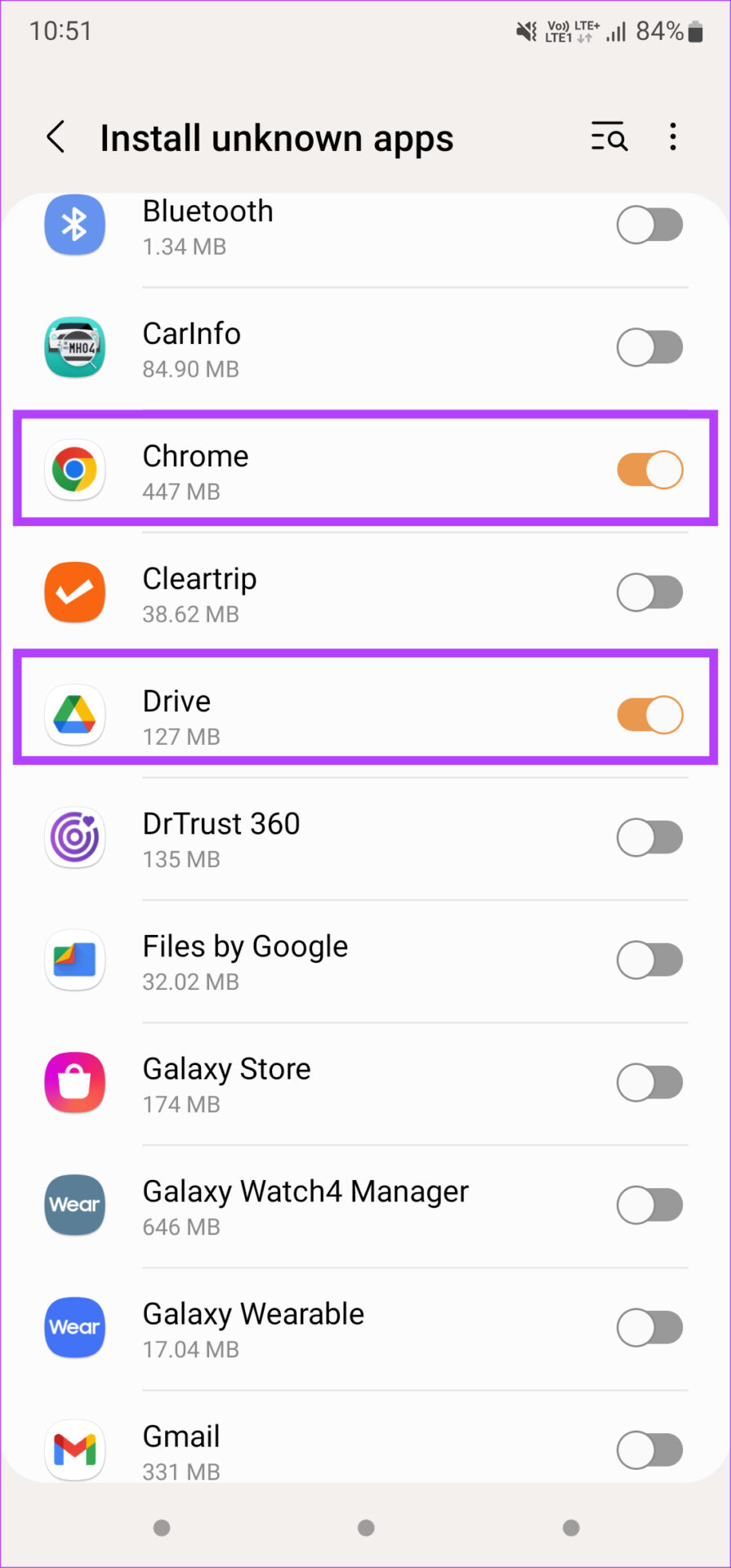
Step 3: Enable the toggle for the app you use to install the APK file. For example, select Chrome if you downloaded the APK using the browser.

Step 4: Install the APK file.

Tip: If you downloaded an XAPK file, here’s how to install XAPKs on your phone.

Fix 2: Download the APK From a Different Source

If you downloaded a natively corrupted APK file, your phone will throw a parsing error. This can happen if the source you’re downloading the APK file from is not reputed or an incomplete version of the APK has been uploaded. Try looking for the APK file from an alternate source and install that version.

APKMirror is a reliable source to download any APK of your choice.

Also Read: How to install APKs on Wear OS smartwatches

Fix 3: Find an Alternative to the App on Play Store

This solution might not make sense, but if none of the above solutions work, this might be a viable option. Similar apps from the Google Play Store are easier to install. If you face any issues while installing apps using this route, look at the best ways to fix apps not installing on Android.

Was this helpful?

Thanks for your feedback!