Method 1: Using the Menus Search Feature
You can add an emoji to your Google Docs file with a simple keyboard shortcut. This is a simple tip for using the service. Here’s how to do so:
Step 1: Open your Google Docs.
Step 2: Open the specific file and place your cursor where you want to insert the emoji.
Step 3: On your keyboard, hold down the Alt + / keys simultaneously to launch a menu.

Step 4: Within the search bar of the menu, type emoji.
Step 5: Select Insert emoji from the menu shown. This will launch the emoji tray on your Google Doc writing canvas.
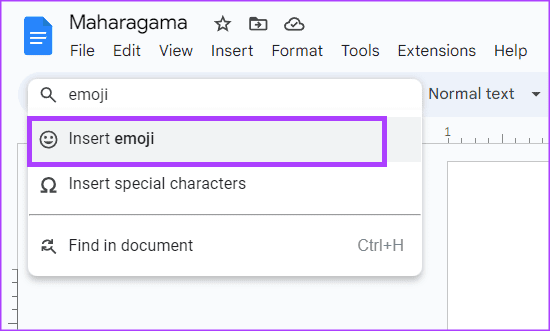
Step 6: Select your preferred emoji from the tray.

Method 2: Using the Emoji Tag (@emoji)
The @ symbol is another way to insert emojis in Google Docs. Here’s how to do so:
Step 1: Open your Google Docs.
Step 2: Open the specific file and place your cursor where you want to insert the emoji.
Step 3: Type @emoji to launch a menu.
Step 4: Select the Emoji option from the menu. This will launch the emoji tray on your Google Doc writing canvas.

Step 5: Select your preferred emoji from the tray.
Method 3: Using the Insert Menu
The Insert menu offers many options, including one for emojis. Here is how to use it.
Step 1: Open your Google Docs.
Step 2: Open the specific file and place your cursor where you want to insert the emoji.
Step 3: On the Google Docs Ribbon, click the Insert tab.

Step 4: From the Insert tab, click the Emoji option. This will launch the emoji tray on your Google Doc writing canvas.
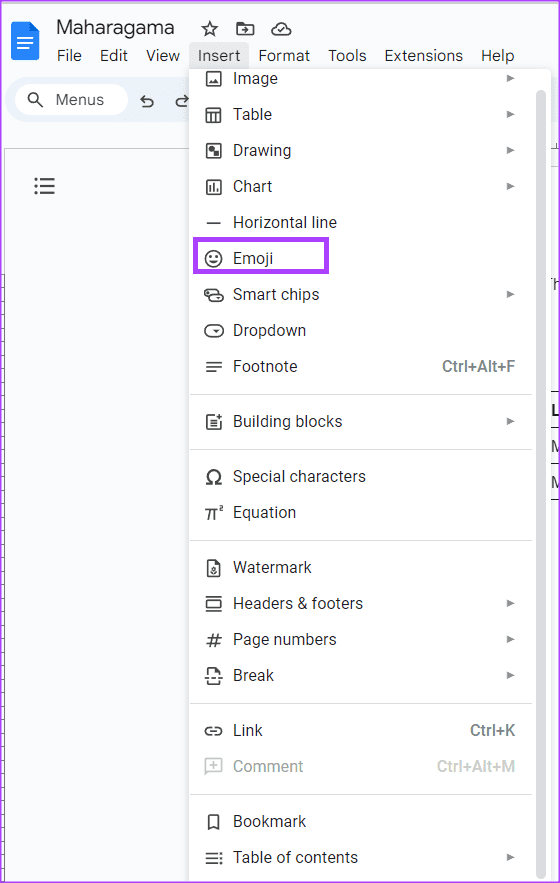
Step 5: Select your preferred emoji from the tray.
Method 4: Using Special Characters
Using the Insert tab, you can also add emojis to your document using the special characters option. Here’s how to do so:
Step 1: Open your Google Docs.
Step 2: Open the specific file and place your cursor where you want to insert the emoji.
Step 3: On the Google Docs Ribbon, click the Insert tab.
Step 4: From the Insert tab, click the Special Characters option. This will launch the special characters tray on your Google Doc writing canvas.

Step 5: Click the first drop-down menu on the Insert special characters tray and select Emoji.
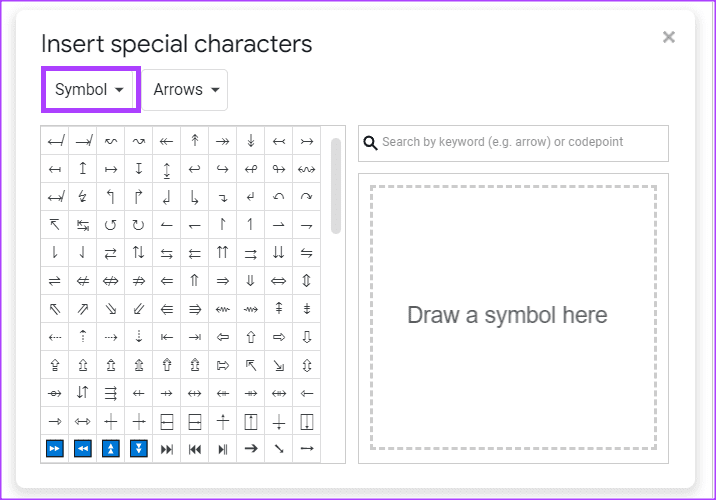
Step 6: Select your preferred emoji from the tray.
Method 5: From the Context Menu as a Reaction
The context menu is a pop-up menu that provides shortcuts for features or actions within Google Docs. This case contains a shortcut for inserting emoji reactions in a Google Docs file. Here’s how to access it:
Step 1: Open your Google Docs.
Step 2: Open the file you want to work on and select the text you want to react to.
Step 3: Right-click on the canvas to launch the context menu.
Step 4: Select Insert emoji reaction from the options shown. This will launch the emoji tray on your Google Doc writing canvas.

Step 5: Select your preferred emoji reaction from the tray.

Method 6: From the Side Panel as a Reaction
On the right page margin of the Google Docs file is a side menu where you can select an option to insert emoji reactions to highlighted text. Here’s how to access it:
Step 1: Open your Google Docs.
Step 2: Open the file you want to work on and select the text you want to react to. This will reveal a side menu.

Step 3: Click the emoji icon. This will launch the emoji tray on your Google Doc writing canvas.
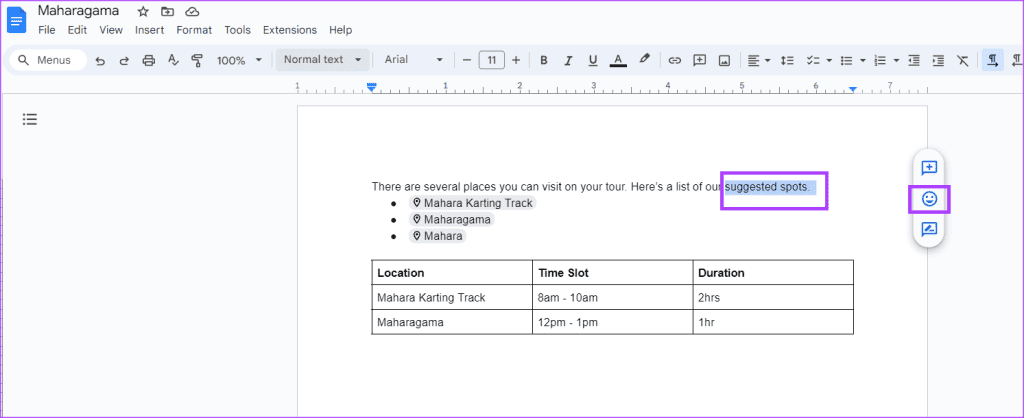
Step 4: Select your preferred emoji reaction from the tray.

Method 7: Add an Emoji as a Comment
Step 1: Open Google Docs in your preferred browser and sign in with your details.
Step 2: Open your desired file.
Step 3: Hover your cursor on the comment you would like to react to until you see the emoji symbol beside it.

Step 4: Click the emoji symbol to launch the emoji tray.

Step 5: Select your preferred emoji from the tray.
Method 8: Using Emoji Picker on Mac and Windows
This method is not unique to Google Docs, but it will help you add emojis to any file you use. Follow the steps below.
Step 1: Open Google Docs in your preferred browser.
Step 2: Open your desired file.
Step 3: On a Windows computer, press Windows + . (Period) or on a Mac, press Control + Command + Space > select your preferred emoji.
Was this helpful?
Last updated on 27 August, 2024
Read Next
 How to Insert Emojis in a Microsoft Outlook Email
Have you ever typed a work email and wished there was a way to add a touch of personality or convey emotions through your words?
How to Insert Emojis in a Microsoft Outlook Email
Have you ever typed a work email and wished there was a way to add a touch of personality or convey emotions through your words?
 How to Insert a Date Picker in Google Sheets and Google Docs
Google Sheets and Google Docs provide a free, online alternative to Microsoft Office, along with unique features.
How to Insert a Date Picker in Google Sheets and Google Docs
Google Sheets and Google Docs provide a free, online alternative to Microsoft Office, along with unique features.
 3 Easy Ways to Insert a Text Box In Google Docs
Because of its simple yet powerful interface, Google Docs has become the preferred option for many.
3 Easy Ways to Insert a Text Box In Google Docs
Because of its simple yet powerful interface, Google Docs has become the preferred option for many.
 6 Ways to Insert Arrows in Google Docs
Whether you want to annotate an image with an arrow, draw a flowchart, or add an arrow to a math equation, Google offers multiple ways to insert arrows in Google
6 Ways to Insert Arrows in Google Docs
Whether you want to annotate an image with an arrow, draw a flowchart, or add an arrow to a math equation, Google offers multiple ways to insert arrows in Google
 4 Ways to Insert Images in Google Docs
Method 1: Add Photos From Camera Roll to Google Docs You can add photos in Google Docs from the Camera Roll of your iPhone or Android phone.
4 Ways to Insert Images in Google Docs
Method 1: Add Photos From Camera Roll to Google Docs You can add photos in Google Docs from the Camera Roll of your iPhone or Android phone.
 5 Tips to Insert Special Characters in Google Docs
Tip 1: Open Special Characters Library Faster To access the Insert Special Characters box in Google Docs, you usually need to follow two steps: selecting the Insert menu and clicking
5 Tips to Insert Special Characters in Google Docs
Tip 1: Open Special Characters Library Faster To access the Insert Special Characters box in Google Docs, you usually need to follow two steps: selecting the Insert menu and clicking
 How to Insert a Scanned Document in Google Docs
Types of Attachments Supported by Google Docs Besides charts, tables, and drawings, you can add images in all formats, such as JPG, PNG, GIFs, etc., to Docs.
How to Insert a Scanned Document in Google Docs
Types of Attachments Supported by Google Docs Besides charts, tables, and drawings, you can add images in all formats, such as JPG, PNG, GIFs, etc., to Docs.
 How to Insert Endnotes and Footnotes in Google Docs
How to Insert a Footnote in Google Docs On Web Step 1: Go to Google Docs and open the file where you want to add the endnotes or footnotes.
How to Insert Endnotes and Footnotes in Google Docs
How to Insert a Footnote in Google Docs On Web Step 1: Go to Google Docs and open the file where you want to add the endnotes or footnotes.
The article above may contain affiliate links which help support Guiding Tech. The content remains unbiased and authentic and will never affect our editorial integrity.