Method 1: Hide Discord Mutual Servers Using Hidden Folders
Categorizing mutual servers into folders on Discord is one of the easiest ways to hide them from mutual friends. This method is similar to organizing files into folders with simpler names and opening them when needed. Here’s how to do it:
On Desktop
Step 1: Launch the Discord app on your device.
Step 2: Click the + icon in the left pane.

Step 3: Select Create my own server from the list.

Step 4: Choose For a club or community or For me and my friends. You may skip this question.

Step 5: Rename the server name and click on Create.

Step 6: Drag each mutual server you want to hide to the newly created server.

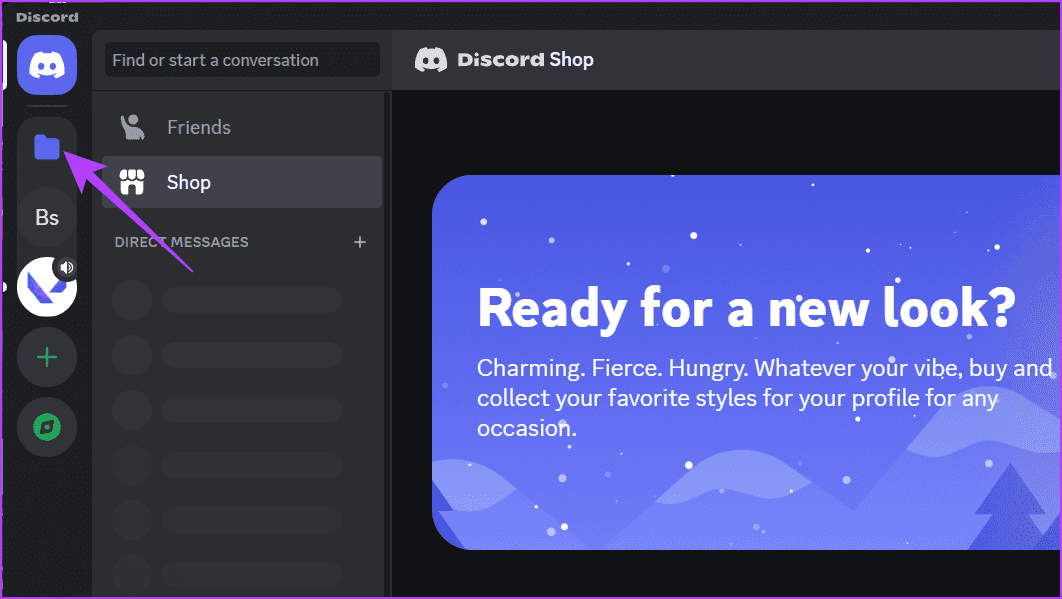
Step 7: Right-click on the new folder > select Folder Settings.

Step 8: Change the folder color to blend with your Discord background color.
Tip: If the color you want isn’t in the default options, use the color picker icon to find and add it.

Step 9: Hide the servers by clicking the folder icon.
On iPhone or Android Device
Step 1: Launch the Discord app.
Step 2: Ensure you are on the Servers tab, tap the + icon, and select Create My Own.


Step 3: Choose For a club or community or For me and my friends. Rename the server and tap Create Server.


Step 4: Tap Skip to avoid sharing the new server link with people. Hold the server you want to hide and drag it to the new server created.


Step 5: Press and hold the folder icon and select Folder Settings from the menu. Tap the hex code under Folder Color.


Step 6: Choose a folder color that matches your Discord background and tap Save. Finally, tap Save again and press the folder icon to collapse the servers.


Following these procedures will remove the mutual servers from your server list. However, remember that you will continue to get notifications and messages from these servers. To view them, click on the servers to expand them.
Note: You can make a folder for all your servers without creating a new server. However, we don’t recommend doing so, as it will reveal all your servers as soon as you open the folder.
Method 2: Mute a Server on Discord to Hide It From Friends
One effective alternative to hiding a mutual server on Discord is to silence its notifications and make it less conspicuous to friends. Muting a server doesn’t remove it from the user’s server list, but it ensures that incoming messages and updates from that server remain discreet. Here’s how to do it:
On Desktop
Step 1: Open the Discord app.
Step 2: On the left side of the pane, hover over the server you wish to mute and right-click on it.
Step 3: Select Mute Server and choose the desired time.

On Mobile
Step 1: Open the Discord app and tap Servers at the bottom bar. Then, press and hold the servers you want to mute and tap Notifications.


Step 2: Tap Mute [server name] and select your preferred option.
Furthermore, if you don’t want a particular friend to see the mutual server, you can block them on Discord.
Was this helpful?
Last updated on 23 July, 2024
Read Next
 How to See Mutual Friends on Snapchat
Note: To maintain user privacy, Snapchat doesn't allow you to see the names of mutual friends on Snapchat.
How to See Mutual Friends on Snapchat
Note: To maintain user privacy, Snapchat doesn't allow you to see the names of mutual friends on Snapchat.
 5 Ways to Fix Unable to Connect to EA Servers on Windows
Fix 1: Rule Out Issues With Your Account To start, you need to check if your EA Play membership has expired by signing into your EA account online.
5 Ways to Fix Unable to Connect to EA Servers on Windows
Fix 1: Rule Out Issues With Your Account To start, you need to check if your EA Play membership has expired by signing into your EA account online.
 5 Best DNS Servers for Gaming for Low Ping in 2024
In the heat of battle, especially in competitive online gaming, every millisecond counts.
5 Best DNS Servers for Gaming for Low Ping in 2024
In the heat of battle, especially in competitive online gaming, every millisecond counts.
 How to Hide Last Seen and Online Status in WhatsApp
Hide Last Seen and Online Status For Everyone in WhatsApp Used by over two billion users worldwide, WhatsApp eventually added privacy features to hide your status, profile picture, and About
How to Hide Last Seen and Online Status in WhatsApp
Hide Last Seen and Online Status For Everyone in WhatsApp Used by over two billion users worldwide, WhatsApp eventually added privacy features to hide your status, profile picture, and About
 How to Hide Reels on Facebook on Desktop or Mobile
How to Remove Reels on Facebook Note: For demonstration, we will go with a desktop.
How to Hide Reels on Facebook on Desktop or Mobile
How to Remove Reels on Facebook Note: For demonstration, we will go with a desktop.
 2 Best Ways to Create a Poll on Discord for Desktop and Mobile
Want a quick and easy way to gain input from friends, family, or a community on Discord?
2 Best Ways to Create a Poll on Discord for Desktop and Mobile
Want a quick and easy way to gain input from friends, family, or a community on Discord?
 How to Log Out of Discord on Desktop and Mobile
How to Log out of a Discord Account After using Discord for a while, you might want to log out.
How to Log Out of Discord on Desktop and Mobile
How to Log out of a Discord Account After using Discord for a while, you might want to log out.
 How to React to Messages on Discord (Mobile and Desktop)
How to React to Discord Messages on Desktop You can also react with custom emojis on Discord if you have Manage Emoji permission, are server owners, or have Discord Nitro.
How to React to Messages on Discord (Mobile and Desktop)
How to React to Discord Messages on Desktop You can also react with custom emojis on Discord if you have Manage Emoji permission, are server owners, or have Discord Nitro.
The article above may contain affiliate links which help support Guiding Tech. The content remains unbiased and authentic and will never affect our editorial integrity.