Why Don’t I Have Enough Disk Space While Running Steam?
Some prominent reasons leading to Steam’s not enough disk space error on Windows 11 include:
- Insufficient storage in your hard drive.
- Issues with the Steam cache.
- Broken game files.
- Incomplete game downloads.
- Lack of administrator permissions.
- A corrupt Steam Library folder.
Basic Fixes
- Reboot PC: Press the Windows + X key to open the Power User Menu > select Shut down or sign out > click Restart.
- Launch Steam as an administrator: Press the Windows key, search Steam, and click Run as administrator.
- Delete and reinstall the game in Steam: Open Steam > select the Library tab at the top > right-click your desired game > select Manage > Uninstall to remove it. Search the game title in the Steam app to reinstall it.
- Update or reinstall Steam: Open Steam > select the Steam menu at the top left > click Check for Steam Client Updates to update it. Alternatively, uninstall the app from Windows Settings and reinstall it from the Steam website.
Fix 1: Clear the Steam Download Cache
A corrupt app cache is a common reason for Steam showing the “Not Enough Disk Space” error on Windows 11. Open the Steam app settings to clear it manually.
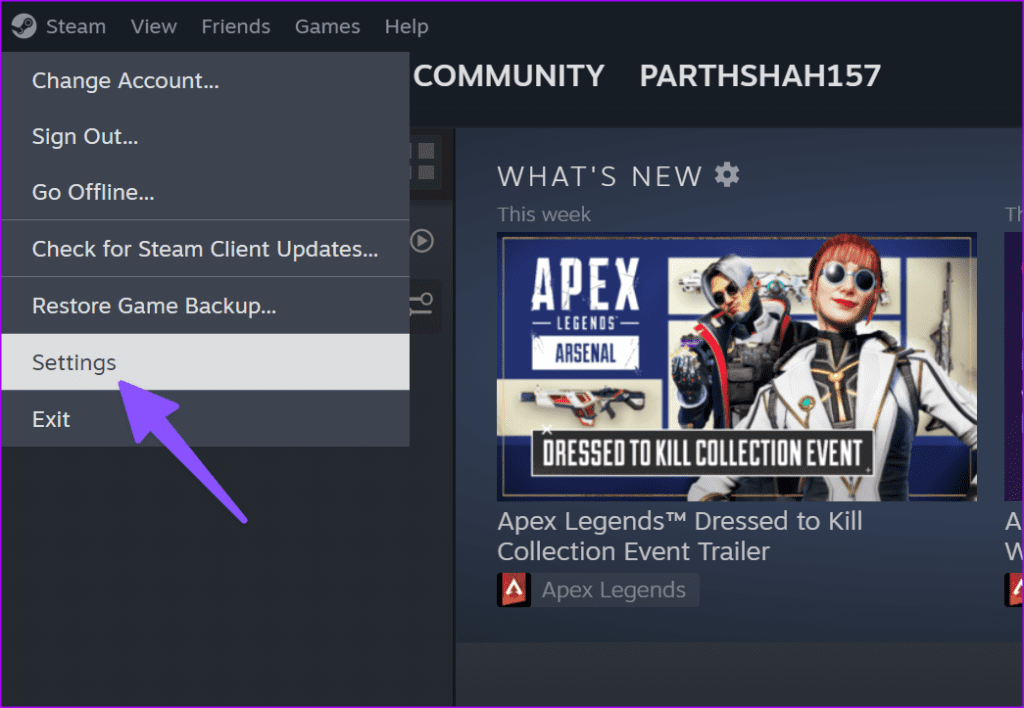
Step 1: Launch Steam > open the Steam menu from the top left > click Settings.
Step 2: Select Downloads from the left sidebar > click Clear Cache next to the Clear Download Cache.

Fix 2: Delete Temporary Steam Files
When downloading or updating a game, Steam stores temporary files in Windows 11 whose corruption may cause the “Not Enough Disk Space” error. Closing the Steam app and deleting these files manually should fix it.
Note: Deleting temporary Steam files removes incomplete game downloads.
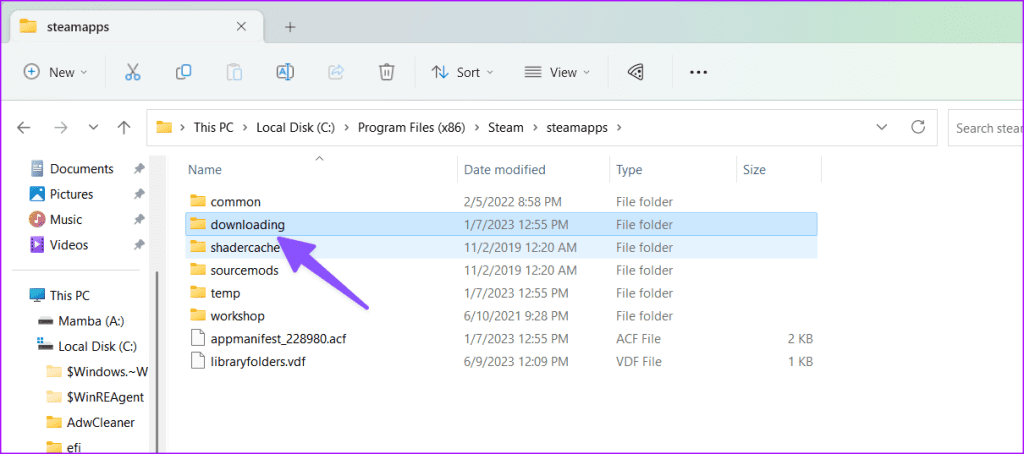
Step 1: Open the File Explorer app (press the Windows + E shortcut), copy-paste the following path in the address bar, and press Enter.
C:\Program Files (x86)\Steam\steamapps

Step 2: Open the downloading folder, right-click your relevant game folder, and select Delete. Re-launch the Steam app.
Fix 3: Use Disk Cleanup to Free Hard Drive Space
Insufficient hard drive space is a common culprit behind Steam showing the “Not Enough Disk Space” error on Windows 11. Run the Disk Cleanup utility to regain free disk space.
Step 1: Press the Windows key > search Disk Cleanup > click Run as administrator.

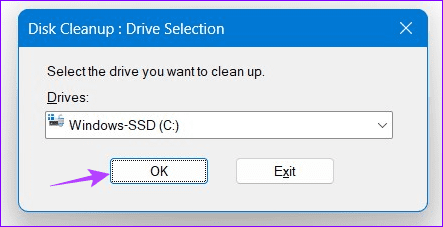
Step 2: Select your desired drive and click OK.
Step 3: Check all available Files to delete and click OK to remove them.

Fix 4: Repair the Steam Library Folder
Issues with the Steam Library folder often result in disk space errors. You can repair it manually using the in-app settings.
Step 1: Open the Steam menu from the top left > select Settings.

Step 2: Expand Storage from the left sidebar and click the three-dot menu.

Step 3: Select Repair Folder to repair the corrupt Steam Library folder.

Fix 5: Repair Corrupt Game Files
If a specific file in your downloaded game is corrupt, you may encounter the “Not Enough Disk Space” error while launching the game. Open the installed game properties to verify the integrity of the game files.
Step 1: Open the Steam Library, right-click the installed game, and select Properties.

Step 2: Click Verify Integrity of game files to check and repair the corrupt game files.

Fix 6: Run CHKDSK to Repair Disk Issues
Lastly, hard disk issues (e.g., disk corruption, bad sectors) on Windows 11 can trigger the “Not Enough Disk Space” error in Steam. Run the CHKDSK utility to repair and fix it.
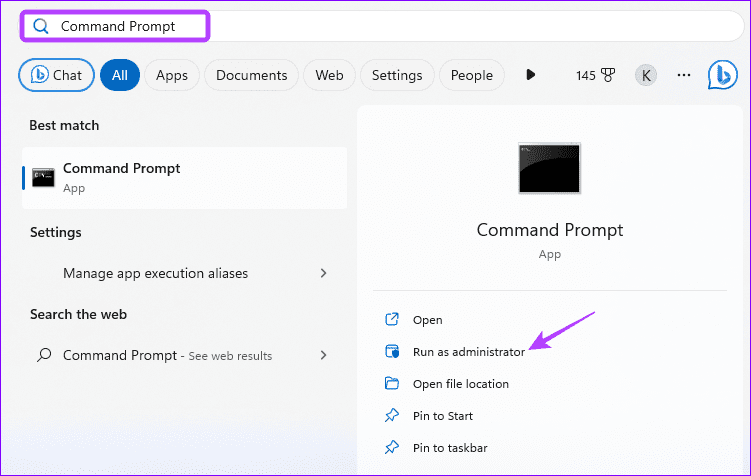
Step 1: Press the Windows key > search Command Prompt > click Run as administrator.
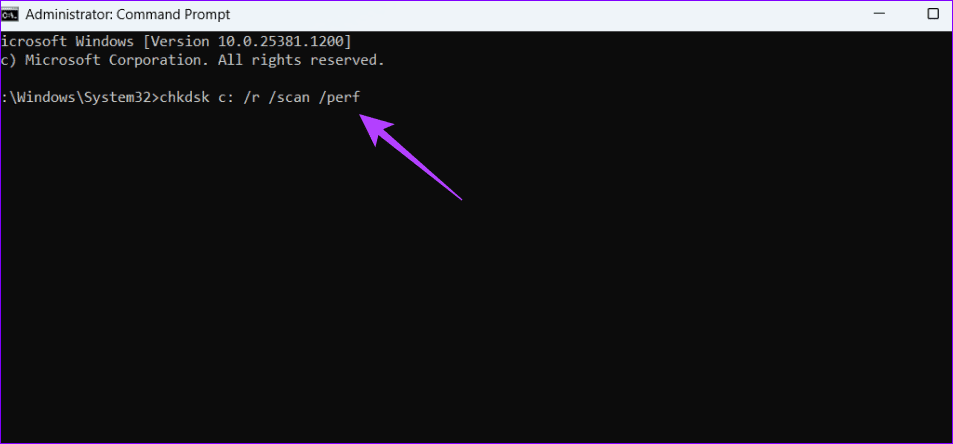
Step 2: Copy-paste the below command, press Enter, and restart your PC once the scan completes.
chkdsk c: /r /scan /perf
Was this helpful?
Last updated on 22 May, 2024
Read Next
 Top 5 Ways to Fix Disk Structure Is Corrupted and Unreadable Error on Windows 10
Windows 10 gives you alerts whenever the external storage disk goes corrupt.
Top 5 Ways to Fix Disk Structure Is Corrupted and Unreadable Error on Windows 10
Windows 10 gives you alerts whenever the external storage disk goes corrupt.
 9 Ways to Solve 100% Disk Usage Error in Windows 10
You know why you are here, right?
9 Ways to Solve 100% Disk Usage Error in Windows 10
You know why you are here, right?
 6 Ways to Fix the “Missing File Privileges” Error in Steam for Windows
Fix 1: End the igfxEM Module Process The igfxEM process is a component of the Intel Graphic Executable Main Module.
6 Ways to Fix the “Missing File Privileges” Error in Steam for Windows
Fix 1: End the igfxEM Module Process The igfxEM process is a component of the Intel Graphic Executable Main Module.
 4 Ways to Fix the Login Error Code E84 in Steam for Windows
Switch to a different network connection: A slow or intermittent internet connection can also cause login errors in Steam.
4 Ways to Fix the Login Error Code E84 in Steam for Windows
Switch to a different network connection: A slow or intermittent internet connection can also cause login errors in Steam.
 3 Ways to Fix Content File Locked Error in Steam for Windows
Try Basic Fixes Run Steam as an administrator: If your Steam library folder lacks the necessary write permissions, you may encounter the 'content file locked' error.
3 Ways to Fix Content File Locked Error in Steam for Windows
Try Basic Fixes Run Steam as an administrator: If your Steam library folder lacks the necessary write permissions, you may encounter the 'content file locked' error.
 Top 5 Ways to Fix ‘Steam Stuck on Verifying Installation’ Error in Windows
Basic Fixes Check Your Internet Connection: As a starting point, it's important to ensure that your internet connection is working.
Top 5 Ways to Fix ‘Steam Stuck on Verifying Installation’ Error in Windows
Basic Fixes Check Your Internet Connection: As a starting point, it's important to ensure that your internet connection is working.
 4 Ways to Fix Access Denied Error in Steam for Windows
Try Basic Fixes Check if Steam is down: Just like any other service, Steam is vulnerable to occasional server-side glitches.
4 Ways to Fix Access Denied Error in Steam for Windows
Try Basic Fixes Check if Steam is down: Just like any other service, Steam is vulnerable to occasional server-side glitches.
 6 Ways to Fix Failed to Load Web Page Error in Steam for Windows
Fix 1: Terminate Steam Processes and Reopen the App The "Failed to load web page" error in Steam can occur if one of the app processes is experiencing issues.
6 Ways to Fix Failed to Load Web Page Error in Steam for Windows
Fix 1: Terminate Steam Processes and Reopen the App The "Failed to load web page" error in Steam can occur if one of the app processes is experiencing issues.
The article above may contain affiliate links which help support Guiding Tech. The content remains unbiased and authentic and will never affect our editorial integrity.