Many people use Microsoft Teams to meet colleagues remotely or catch up with friends and family. It’s also a popular tool for remote classes and lectures for students. So, when things go wrong, it can be very disruptive. One error that can cause problems is a sign-in issue, which can cause the Teams error CAA5009D to appear.
The CAA5009D Teams error code tells you that Teams couldn’t authenticate your sign-in details. Usually, a quick restart will fix this, but you can also try connecting your work- or school-specific Microsoft account. Here’s how.
Fix Teams Error CAA5009D by Restarting Teams
Step 1. If the Teams app is open, press the X in the top-right corner to close it.

Step 2. To ensure that the app is fully disabled, head to the system tray. Use the upward-pointing arrow in the bottom-right of your Windows home screen to access this.
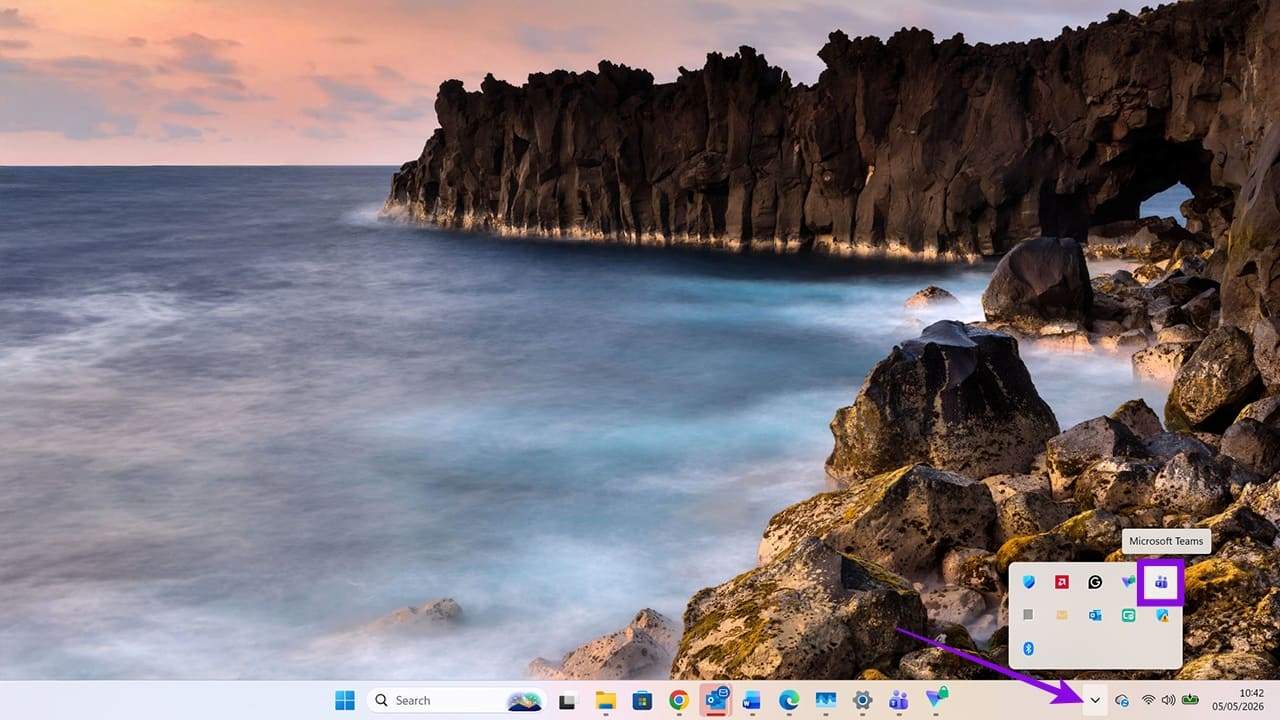
Step 3. Right-click on the Teams icon and choose the option for “Quit Teams.” This ensures that the app isn’t running in the background.

Step 4. Use the Search function to find the Teams app.

Step 5. Open the app and check that it’s working as it should. If not, try the next fix option.

Fix CAA5009D Teams Error Code Via Microsoft Account Settings
Sometimes, you may be trying to log onto a work or school/college meeting with your personal Microsoft account. This won’t always work. Instead, you need to check that you have the right credentials added to your Windows PC/laptop.
Step 1. Start by opening Settings using either the Search function or the keys Windows + I.
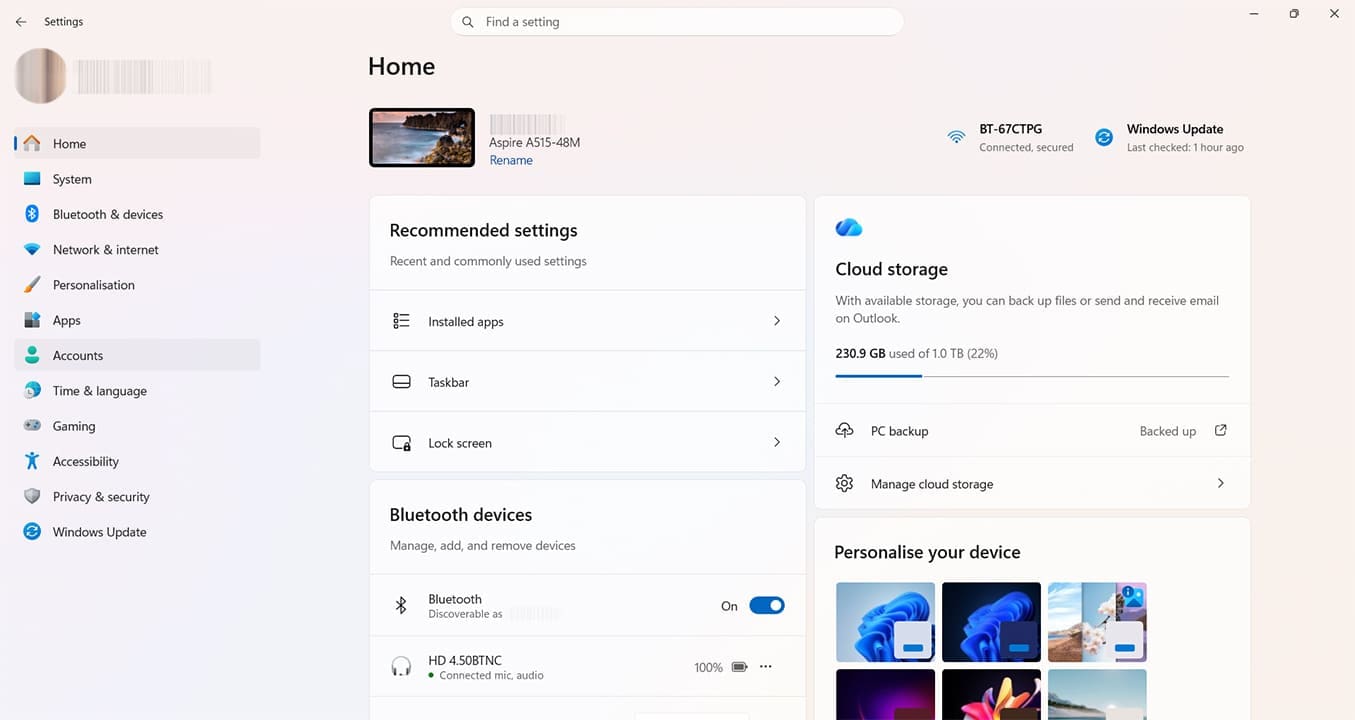
Step 2. Click “Accounts” on the left-hand side.
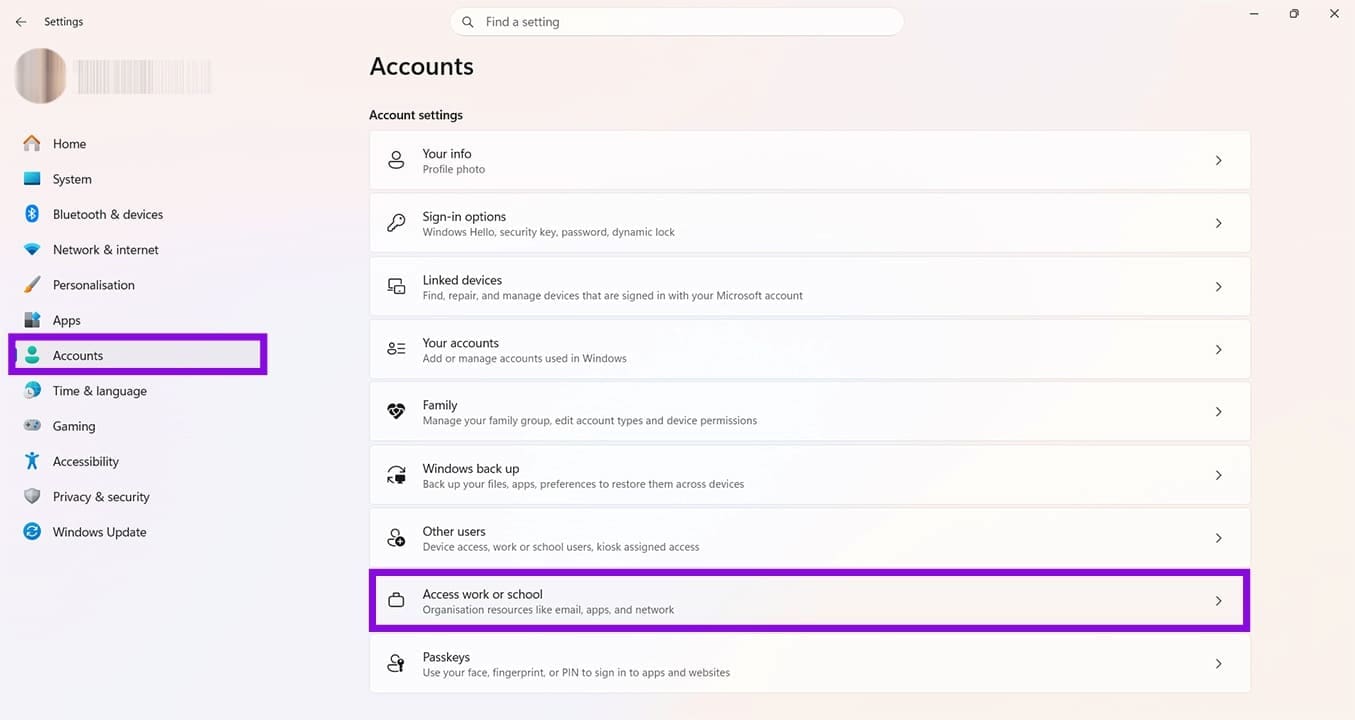
Step 3. Click “Access work or school,” then click the blue “Connect” button. Make sure you know your username and password for this Microsoft account.
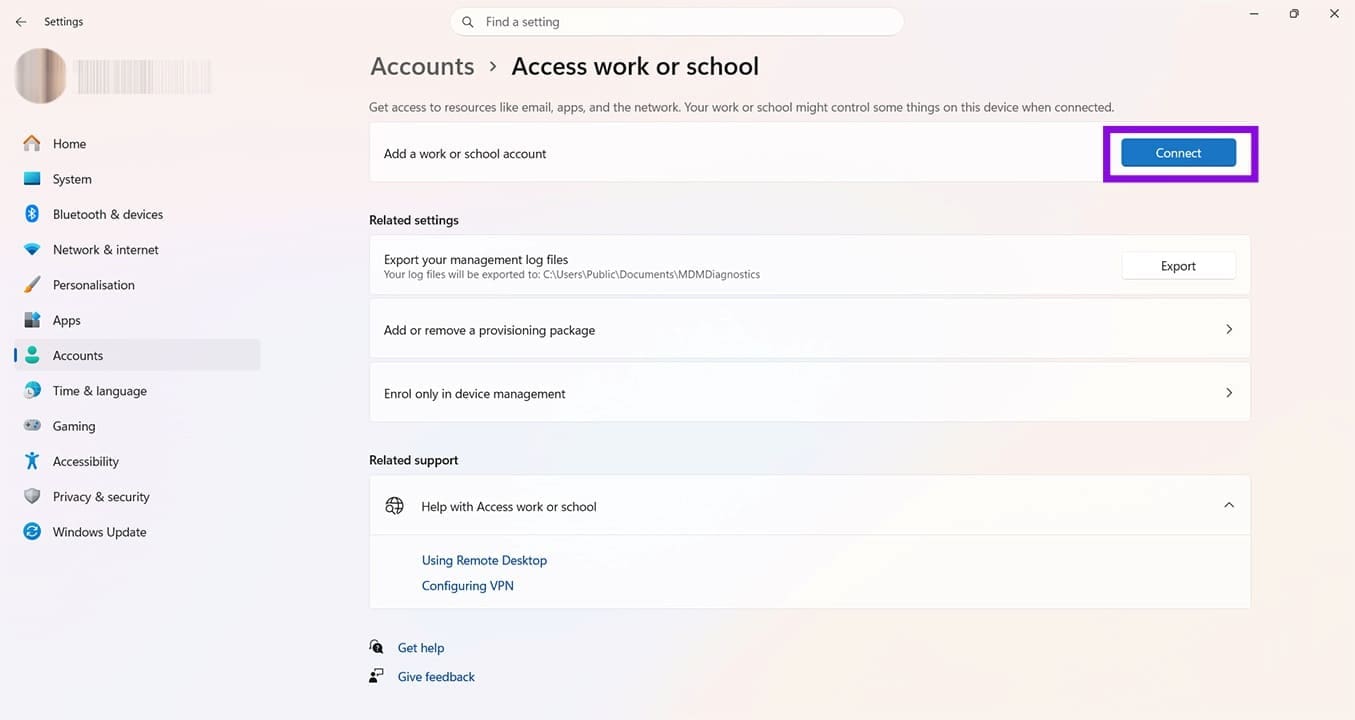
Step 4. Enter your account details when prompted. Follow the remaining on-screen prompts until you receive confirmation that this account has been added.
The next time you open Teams, you should be given the option to choose which account you want to use.

Final Fix for Team Error CAA5009D: Delete and Reinstall Microsoft Teams
Step 1. Head back to Settings and this time choose “Apps.”
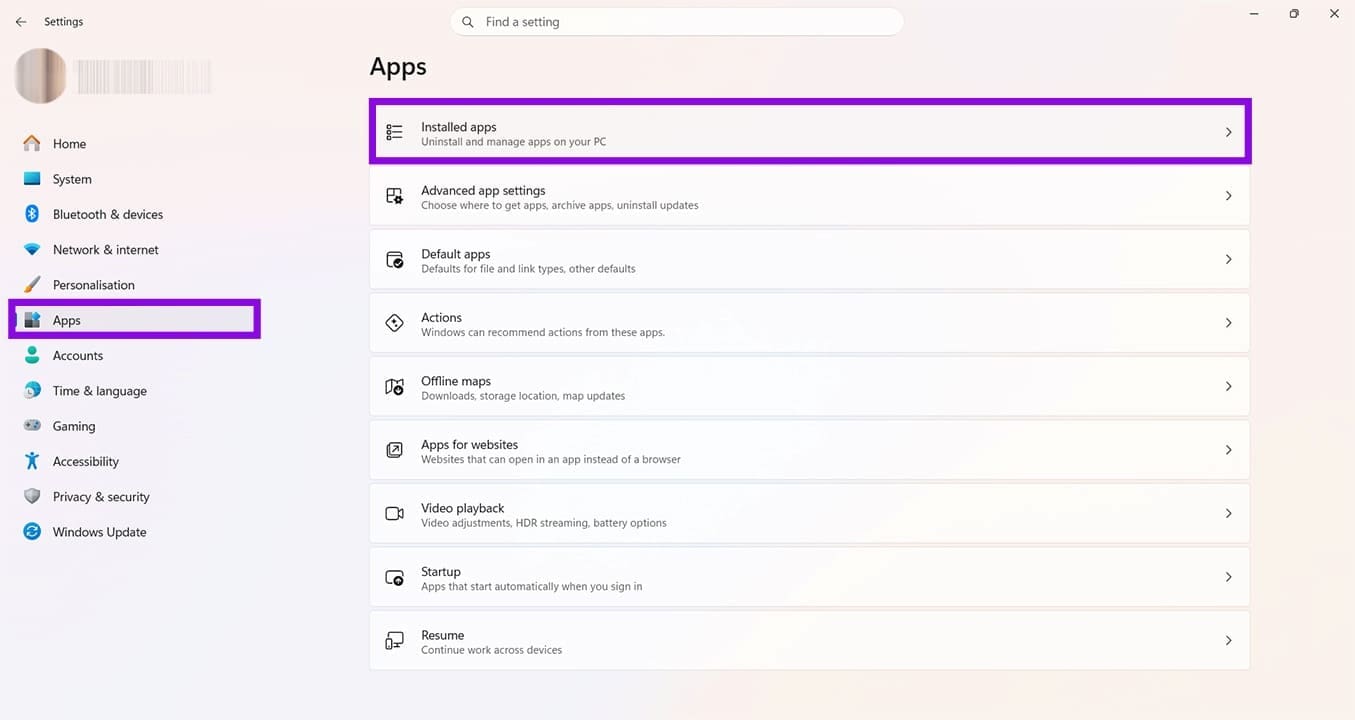
Step 2. Click on “Installed apps.”
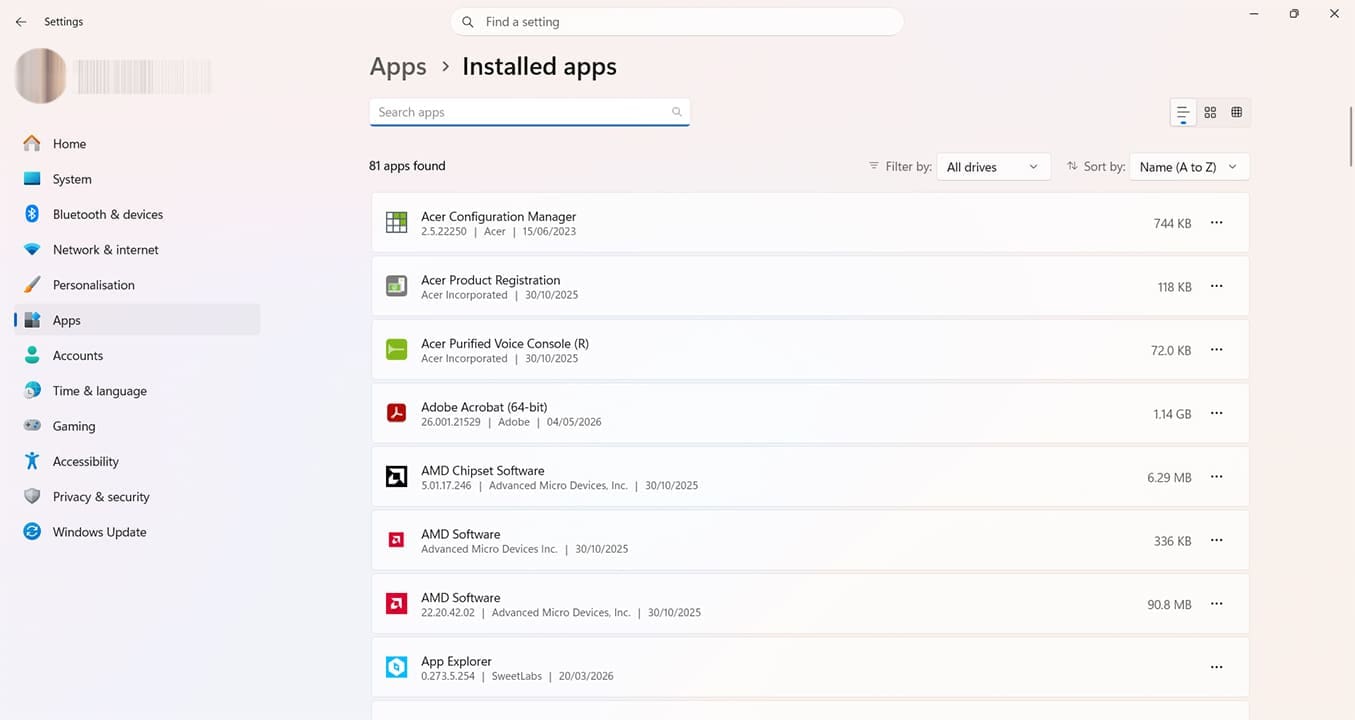
Step 3. Search for Microsoft Teams. Top tip: The apps should be in alphabetical order unless you’ve manually changed this.
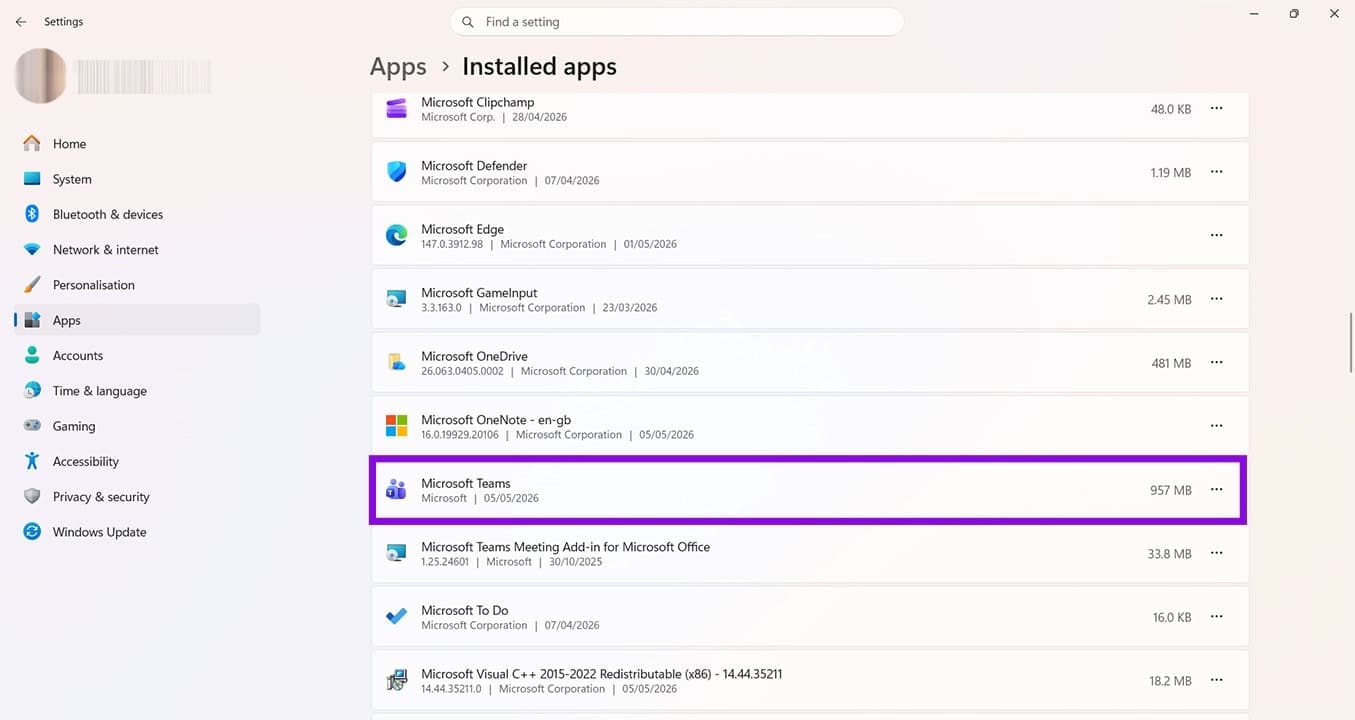
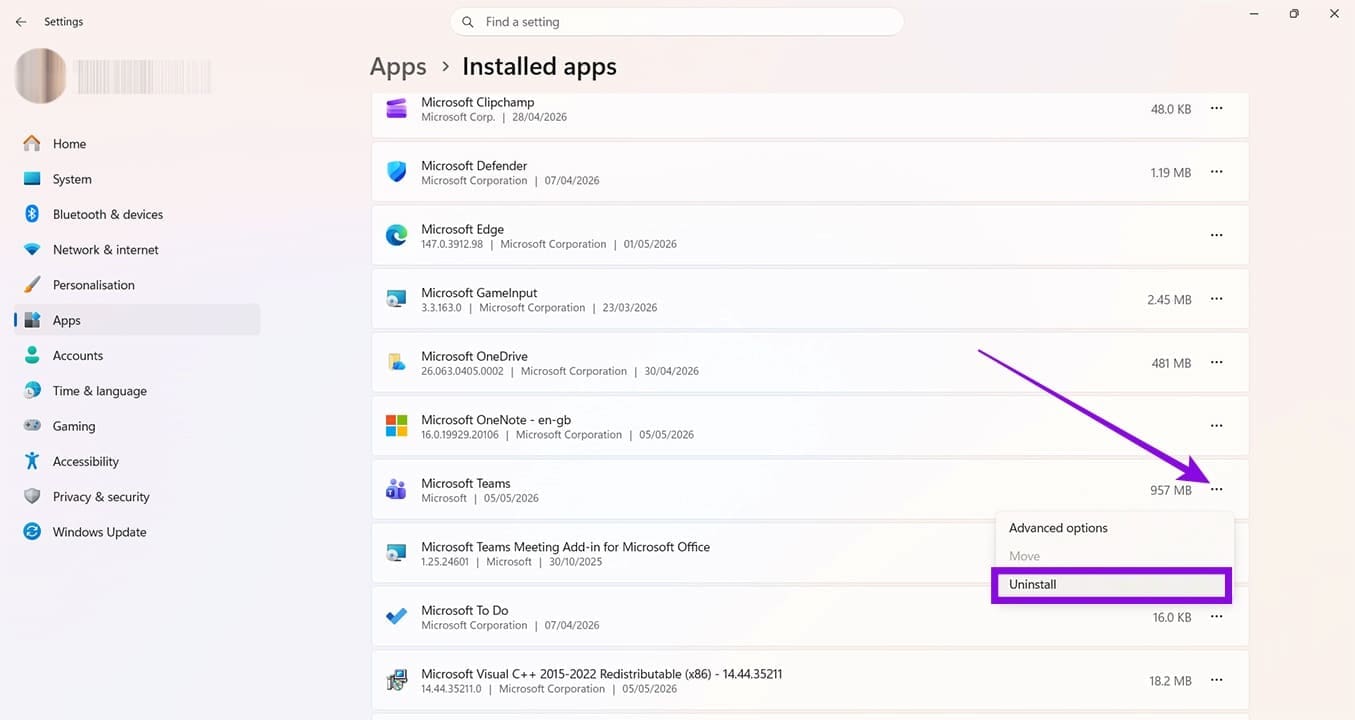
Step 4. Click the three dots next to Microsoft Teams and choose “Uninstall.” Follow all the onscreen prompts to complete the uninstall process.
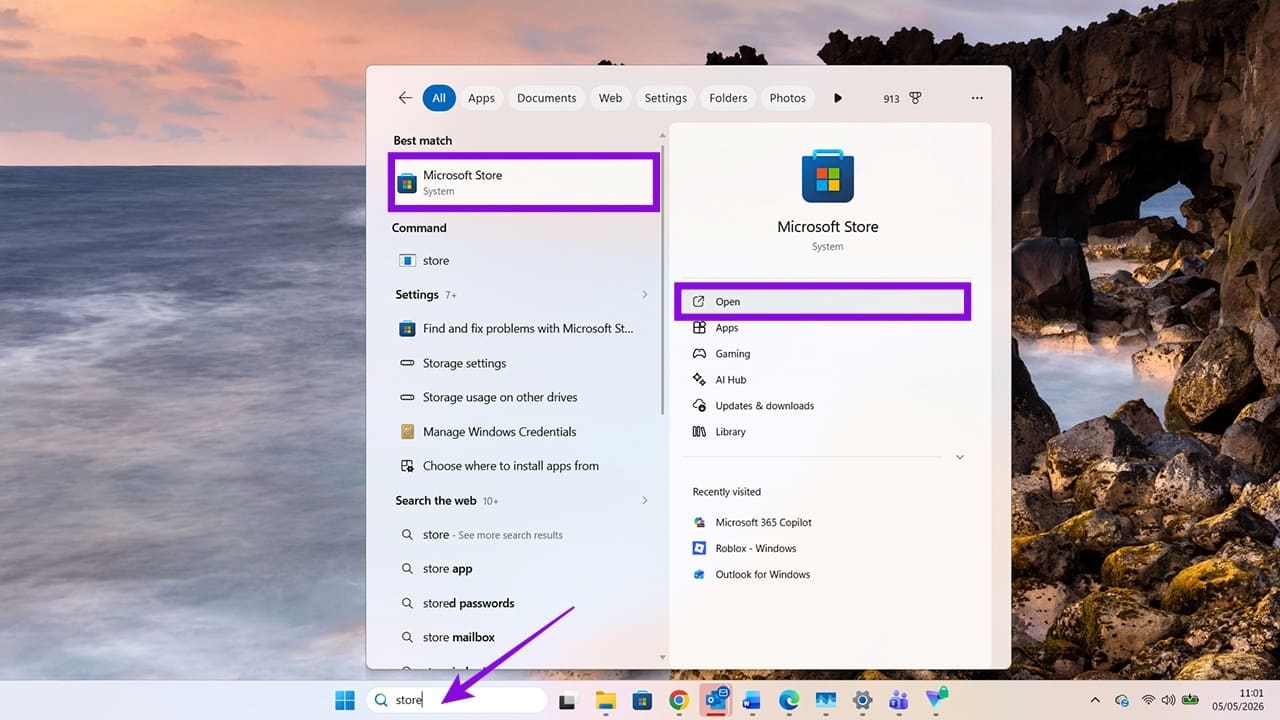
Step 5. Open the Microsoft Store. You can use the Search function to find this.
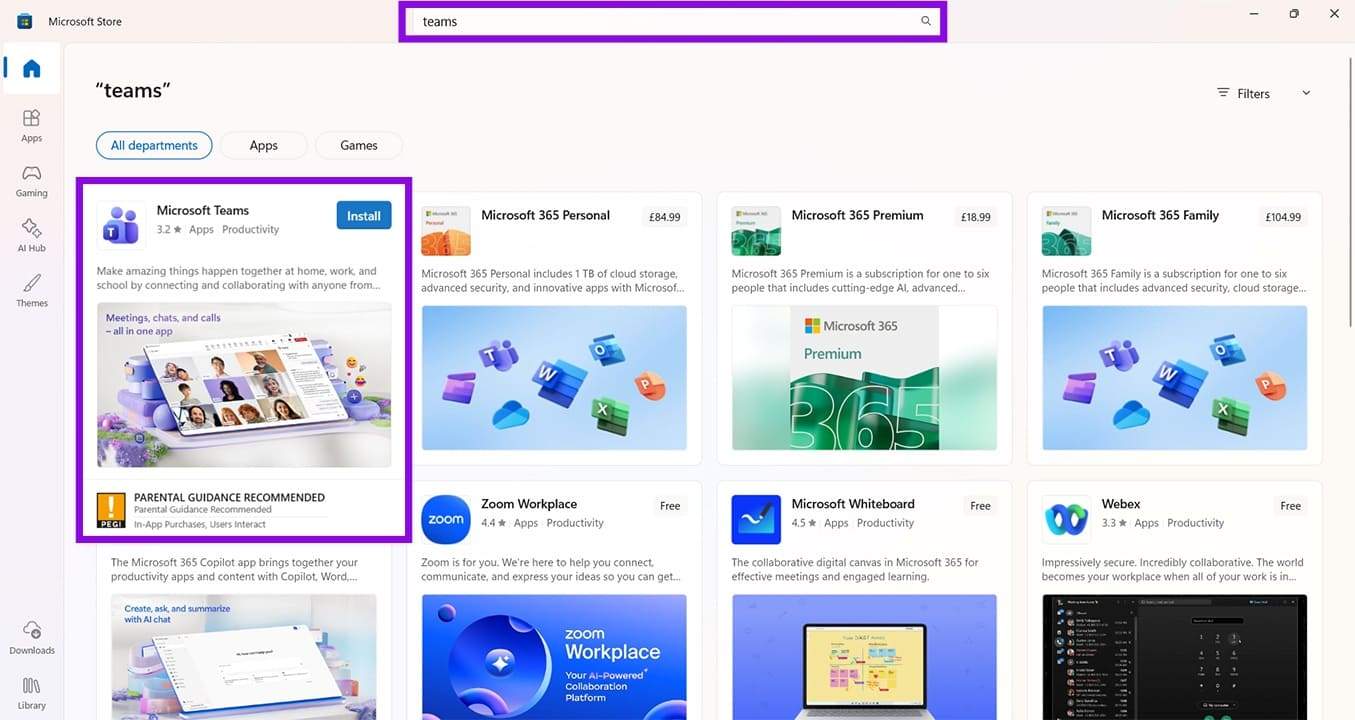
Step 6. Use the search bar at the top of the screen to find Microsoft Teams. Use the blue install button to reinstall the app. This can take a few minutes. Once complete, you should find that you no longer experience issues with Teams error CAA5009D.
Was this helpful?
Last updated on 07 May, 2026
Read Next
 4 Ways to Fix Microsoft Teams Sign-in Error
Preliminary Fixes Check Microsoft Teams servers: Microsoft Teams is infamous for server outrage.
4 Ways to Fix Microsoft Teams Sign-in Error
Preliminary Fixes Check Microsoft Teams servers: Microsoft Teams is infamous for server outrage.
 5 Ways to Fix “Something Went Wrong” Error in Microsoft Teams for Windows
Try Basic Fixes Check if Teams is down: It's not uncommon for Microsoft Teams servers to go down at times.
5 Ways to Fix “Something Went Wrong” Error in Microsoft Teams for Windows
Try Basic Fixes Check if Teams is down: It's not uncommon for Microsoft Teams servers to go down at times.
 What Causes Microsoft Teams Error Code 42b and How to Fix It?
Microsoft Teams is a fantastic video conferencing tool, used for both corporate and personal purposes.
What Causes Microsoft Teams Error Code 42b and How to Fix It?
Microsoft Teams is a fantastic video conferencing tool, used for both corporate and personal purposes.
 Top 7 Fixes for We’ve Run Into an Issue Error in Microsoft Teams on Windows
Microsoft Teams is a popular business collaboration app among Windows users, and for good reason.
Top 7 Fixes for We’ve Run Into an Issue Error in Microsoft Teams on Windows
Microsoft Teams is a popular business collaboration app among Windows users, and for good reason.
 3 Ways to Fix Microsoft Teams Not Loading or Opening
Basic Fixes Check for downtime: Servers can be down, as many people worldwide rely on Teams.
3 Ways to Fix Microsoft Teams Not Loading or Opening
Basic Fixes Check for downtime: Servers can be down, as many people worldwide rely on Teams.
 7 Best Ways to Fix Microsoft Teams Won’t Share Screen
Microsoft Teams has come a long way since its inception, and they keep adding new features to their product all the time.
7 Best Ways to Fix Microsoft Teams Won’t Share Screen
Microsoft Teams has come a long way since its inception, and they keep adding new features to their product all the time.
 5 Ways to Fix Microsoft Teams Web Not Working
Basic Fixes Sign out and sign back in: Authentication issues with your Microsoft account can sometimes cause Teams to stop working.
5 Ways to Fix Microsoft Teams Web Not Working
Basic Fixes Sign out and sign back in: Authentication issues with your Microsoft account can sometimes cause Teams to stop working.
 8 Ways to Fix Microsoft Teams Black Screen Issues
Work productivity applications are indispensable in the post-COVID era.
8 Ways to Fix Microsoft Teams Black Screen Issues
Work productivity applications are indispensable in the post-COVID era.
The article above may contain affiliate links which help support Guiding Tech. The content remains unbiased and authentic and will never affect our editorial integrity.