

Microsoft Teams is a fantastic video conferencing tool, used for both corporate and personal purposes. However, it’s not without its glitches. One common error code that occurs when the app fails to sign you in is 42b.
This error means that Microsoft’s servers couldn’t verify your sign-in details. Thankfully, it’s usually easy to fix Teams error code 42b with a few simple steps. Learn how below.
Fix Teams Error Code 42b by Restarting Teams
Step 1. Click the upward-pointing arrow to the left of your system tray. This is the section of your lower taskbar that shows currently running apps and systems.
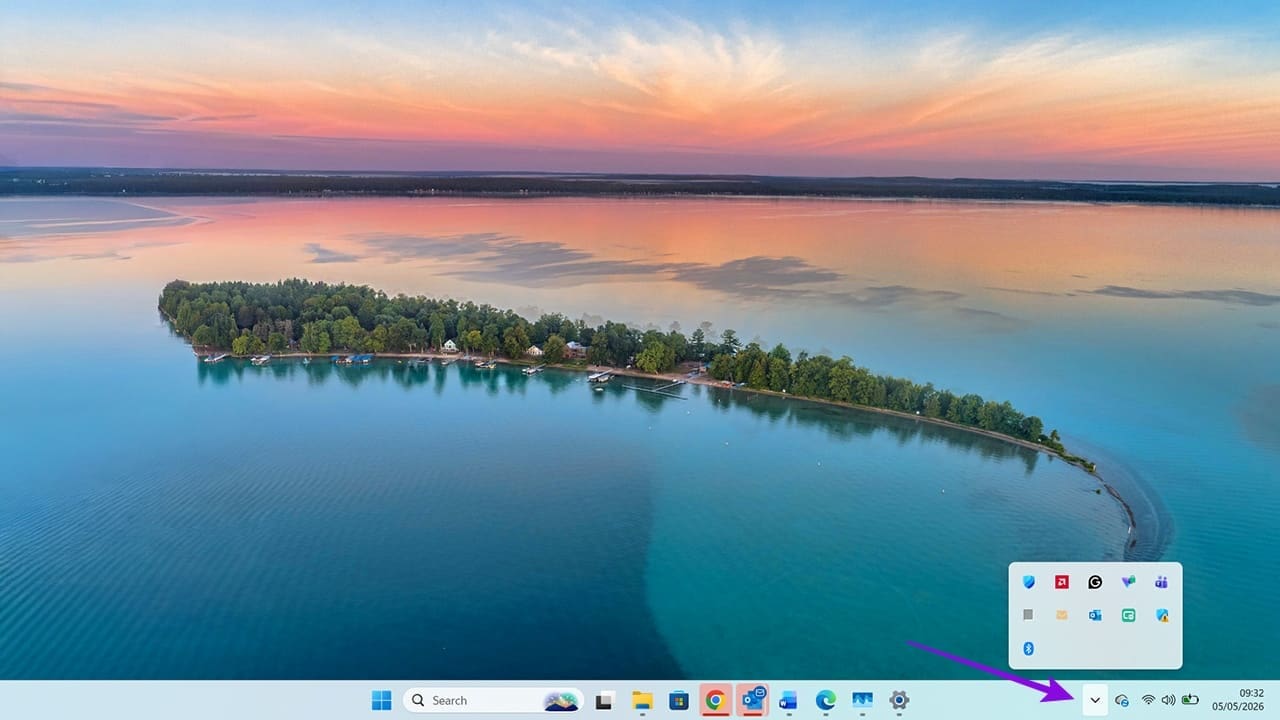
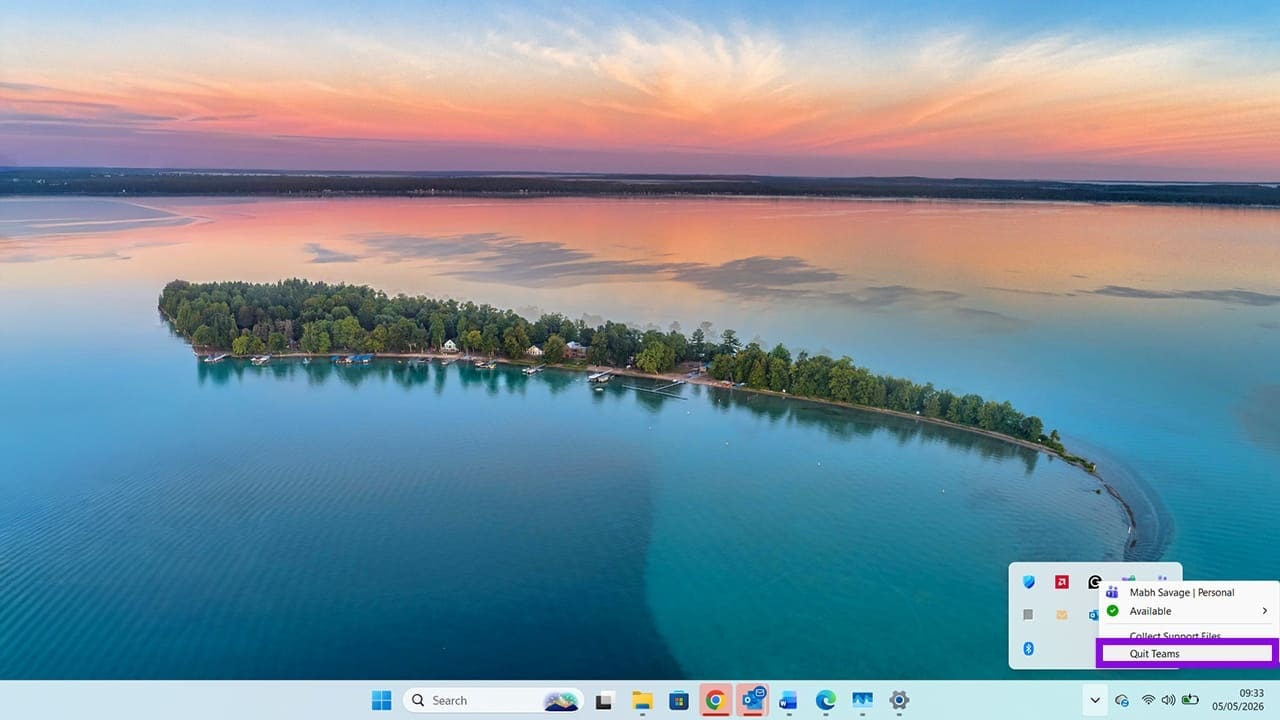
Step 2. Right-click on the Microsoft Teams logo. It looks like a dark blue letter “T.” Click on the option for “Quit Teams.”
Step 3. Next, search for “Teams” from your search bar and click “Open.”

Step 4. Teams should now open correctly without any errors. If it doesn’t, try the next fix.

Fix Teams Code 42b by Disabling VPNs
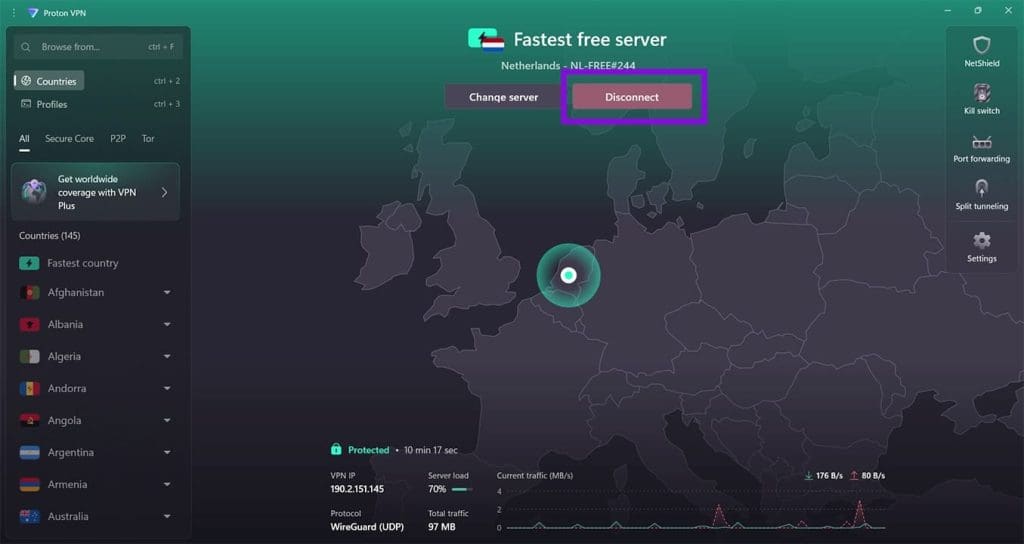
Step 1. Using a VPN is a common way to protect your identity online. However, it can interfere with Microsoft services. Start by opening your VPN app. If it’s installed, it should be in your system tray.

Step 2. Click the Disconnect button. On some VPN apps, you may need to right-click the icon in the system tray and click ‘Disconnect.” You can also close the VPN app to ensure it’s not running any background processes.
Step 3. Restart Teams and check if the app is working correctly.
Fix Teams Error Code 42b by Reinstalling Teams
Step 1. Search for “Settings” in your search bar or press Windows + I.

Step 2. Click “Apps” in the left-hand menu.
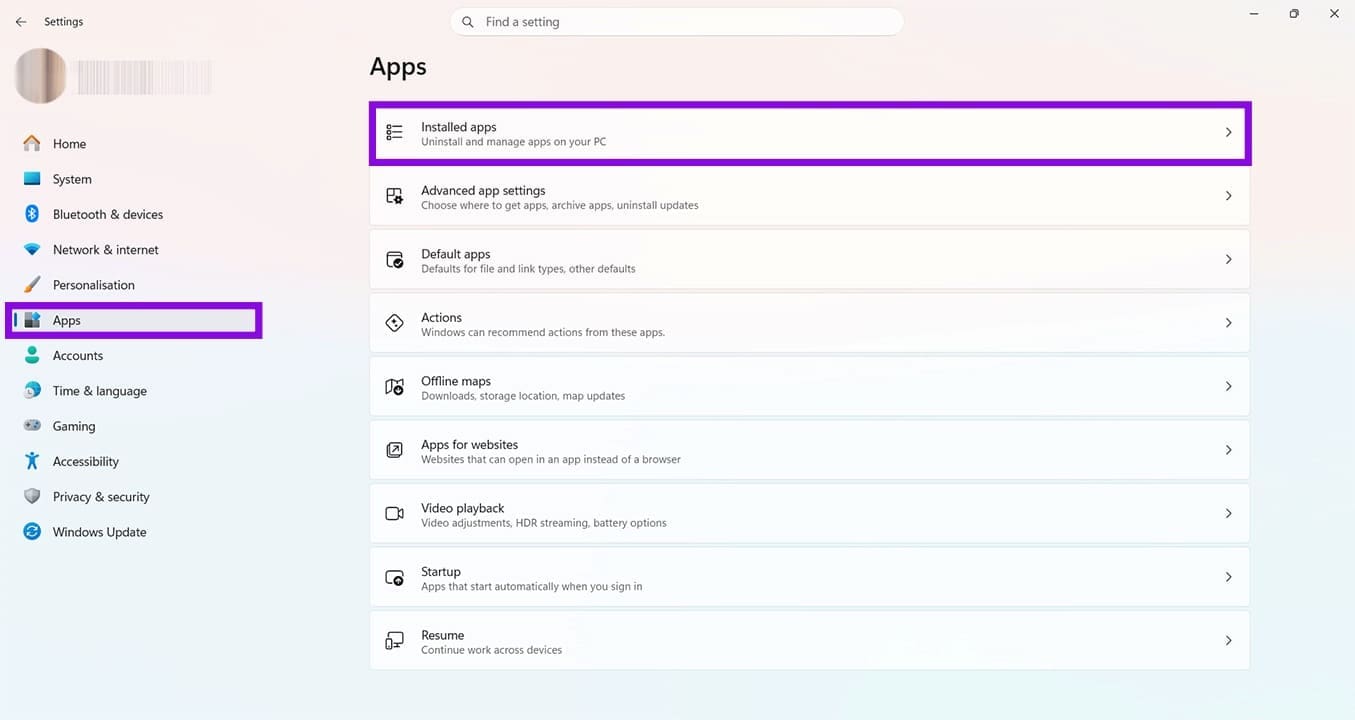
Step 3. Click on “Installed apps.”
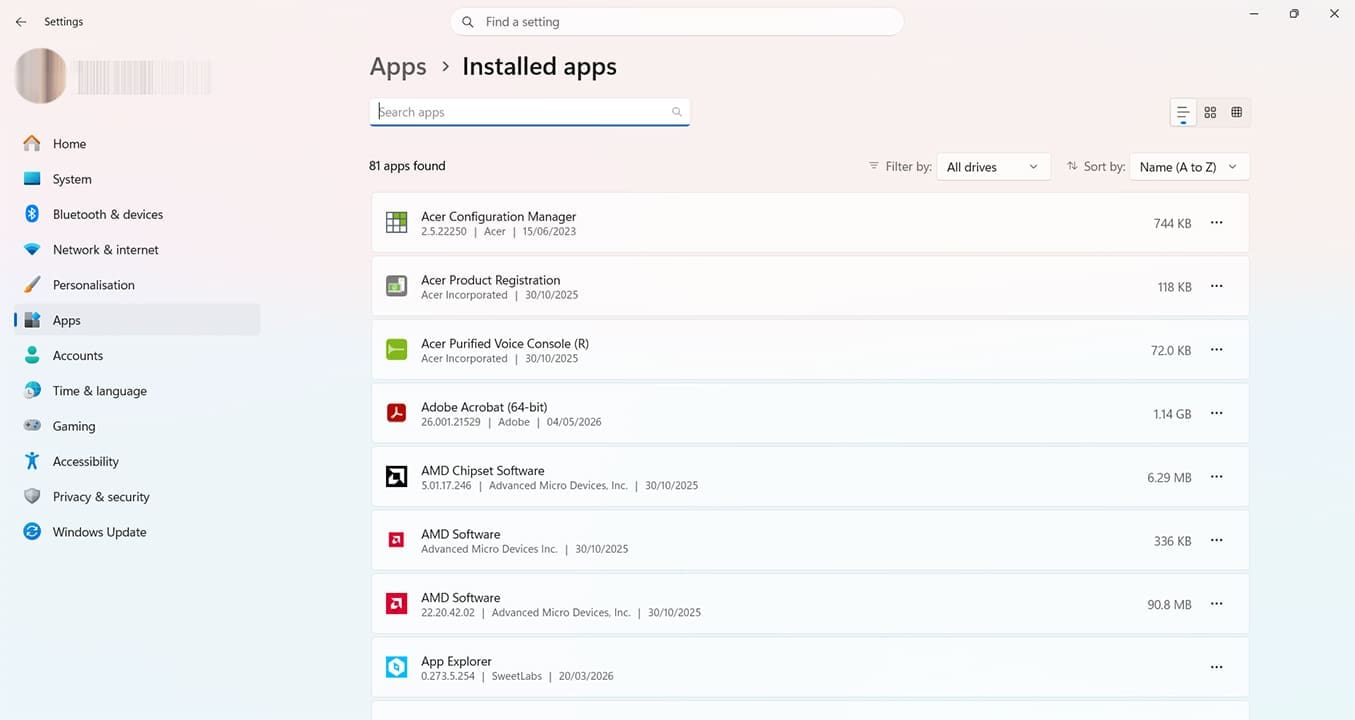
Step 4. Search for Microsoft Teams. Apps are in alphabetical order by default, but there is also a search function at the top of the page.

Step 5. Click the three dots next to Microsoft Teams and click “Uninstall.” Follow all the on-screen prompts until you receive confirmation that the app was uninstalled successfully.

Step 6. Head to the Microsoft Store. You can use the search bar at the bottom of your home screen to find this.
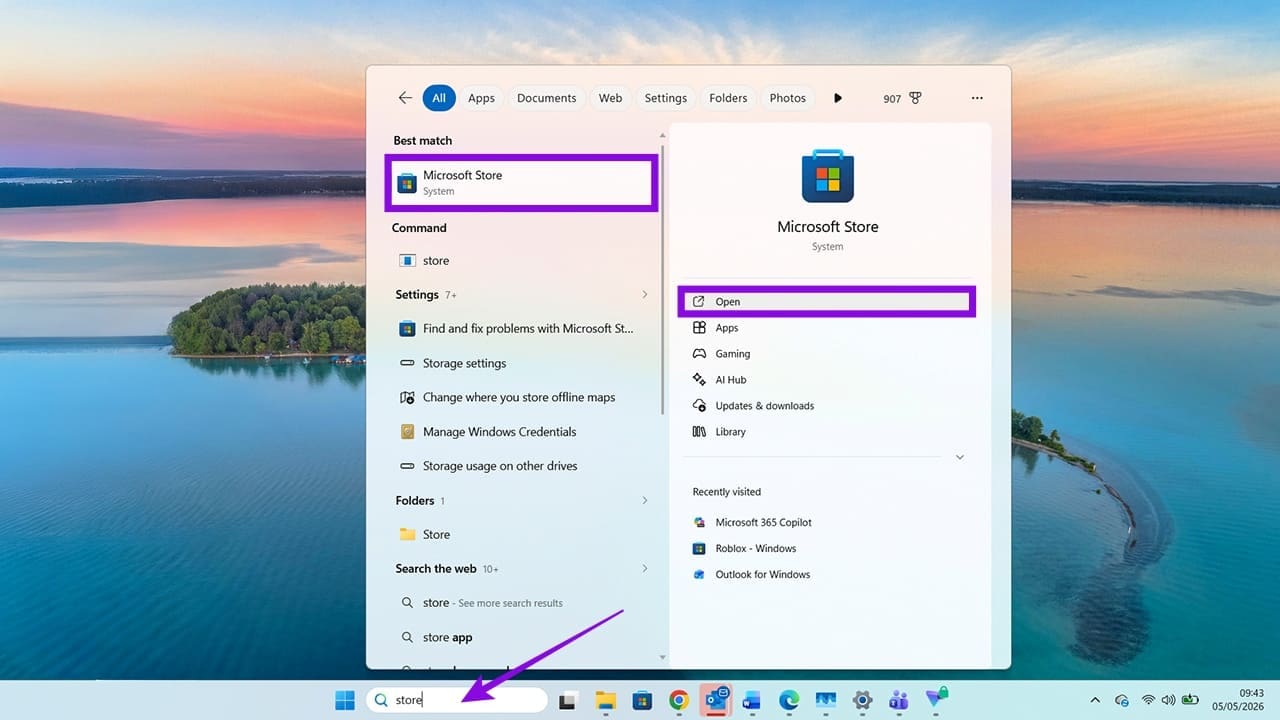
Step 7. Use the Microsoft Store’s search function to find the Teams app, and click “Install.” Again, follow all the onscreen prompts until the installation is complete.

A full reinstall should fix any lingering issues with Teams error code 42b. You can also fix Teams error codes by:
- Changing your Microsoft password.
- Trying a different device to determine if the problem is device or account-specific.
- Clearing cache data.
It’s also worth checking that Microsoft services are working. The Microsoft Service Health Status page will highlight any current issues, so you can confirm whether the problem is on your end or Microsoft’s. The page will normally offer updates and workarounds. For example, in the pictured instance, the recommendation is to use the mobile version of the app.

Was this helpful?
Last updated on 07 May, 2026
Read Next
 4 Ways to Fix Microsoft Teams Sign-in Error
Preliminary Fixes Check Microsoft Teams servers: Microsoft Teams is infamous for server outrage.
4 Ways to Fix Microsoft Teams Sign-in Error
Preliminary Fixes Check Microsoft Teams servers: Microsoft Teams is infamous for server outrage.
 5 Ways to Fix “Something Went Wrong” Error in Microsoft Teams for Windows
Try Basic Fixes Check if Teams is down: It's not uncommon for Microsoft Teams servers to go down at times.
5 Ways to Fix “Something Went Wrong” Error in Microsoft Teams for Windows
Try Basic Fixes Check if Teams is down: It's not uncommon for Microsoft Teams servers to go down at times.
 Top 7 Fixes for We’ve Run Into an Issue Error in Microsoft Teams on Windows
Microsoft Teams is a popular business collaboration app among Windows users, and for good reason.
Top 7 Fixes for We’ve Run Into an Issue Error in Microsoft Teams on Windows
Microsoft Teams is a popular business collaboration app among Windows users, and for good reason.
 What to Do When You Encounter Error Code AADSTS50034 in Microsoft 365
If you’re trying to sign into your Microsoft 365 account or access a connected application, and suddenly see an error message, you might be perplexed.
What to Do When You Encounter Error Code AADSTS50034 in Microsoft 365
If you’re trying to sign into your Microsoft 365 account or access a connected application, and suddenly see an error message, you might be perplexed.
 4 Ways to Fix the Login Error Code E84 in Steam for Windows
Switch to a different network connection: A slow or intermittent internet connection can also cause login errors in Steam.
4 Ways to Fix the Login Error Code E84 in Steam for Windows
Switch to a different network connection: A slow or intermittent internet connection can also cause login errors in Steam.
 Windows 11: How to Fix Error Code 0xc0000001
What Is 0xc0000001 Error Code in Windows 11?
Windows 11: How to Fix Error Code 0xc0000001
What Is 0xc0000001 Error Code in Windows 11?
 4 Ways to Fix Error Code 0xc000000f in Windows 11
Basic Fixes: Disconnect all external devices: Error code 0xc00000f can indicate issues with the boot configuration data (BCD), but sometimes, it may arise due to conflicts with external devices like
4 Ways to Fix Error Code 0xc000000f in Windows 11
Basic Fixes: Disconnect all external devices: Error code 0xc00000f can indicate issues with the boot configuration data (BCD), but sometimes, it may arise due to conflicts with external devices like
 How to Fix Error Code 0x80070643
Updates are painful.
How to Fix Error Code 0x80070643
Updates are painful.
The article above may contain affiliate links which help support Guiding Tech. The content remains unbiased and authentic and will never affect our editorial integrity.

