How to Add Content to My List on Netflix App
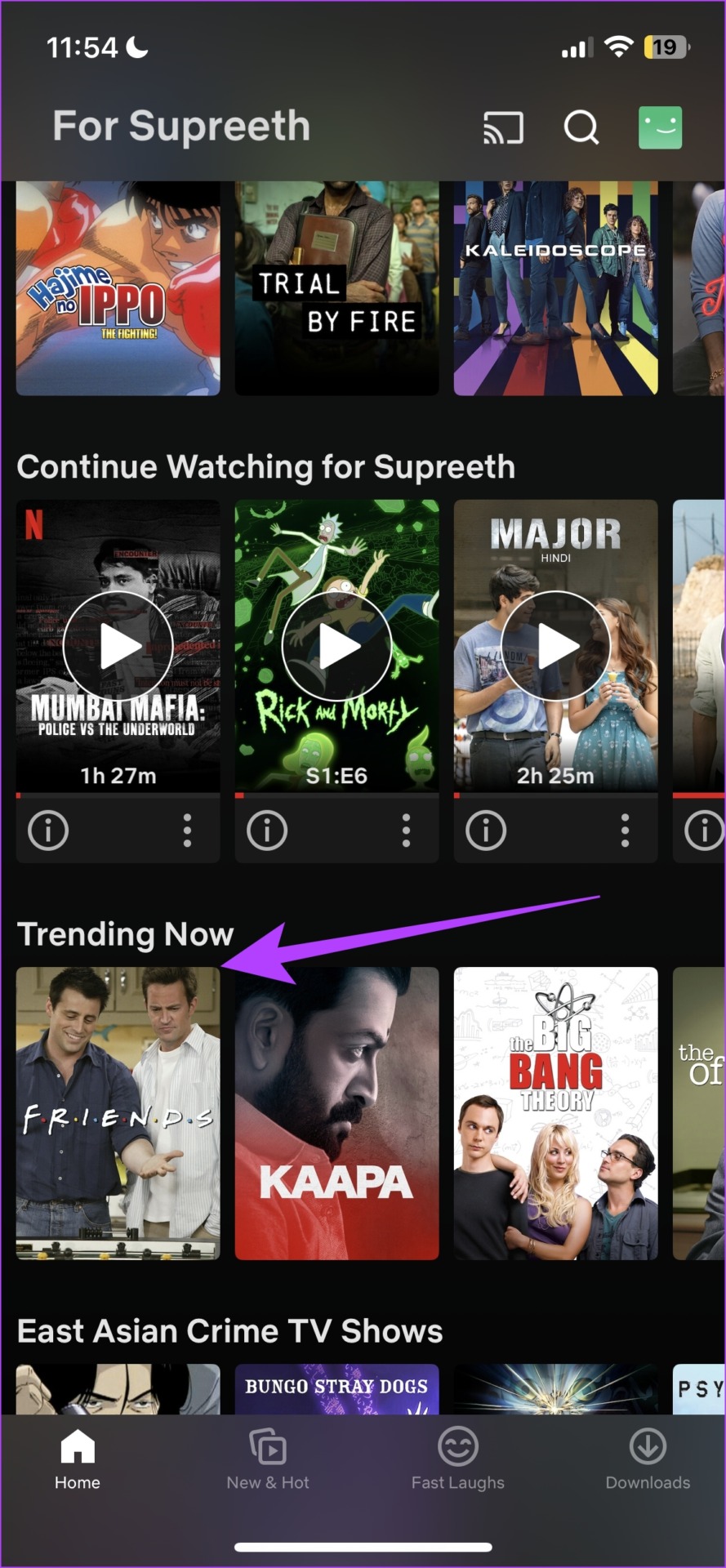
Step 1: Open the Netflix app and tap on the title you want to add to the watchlist.
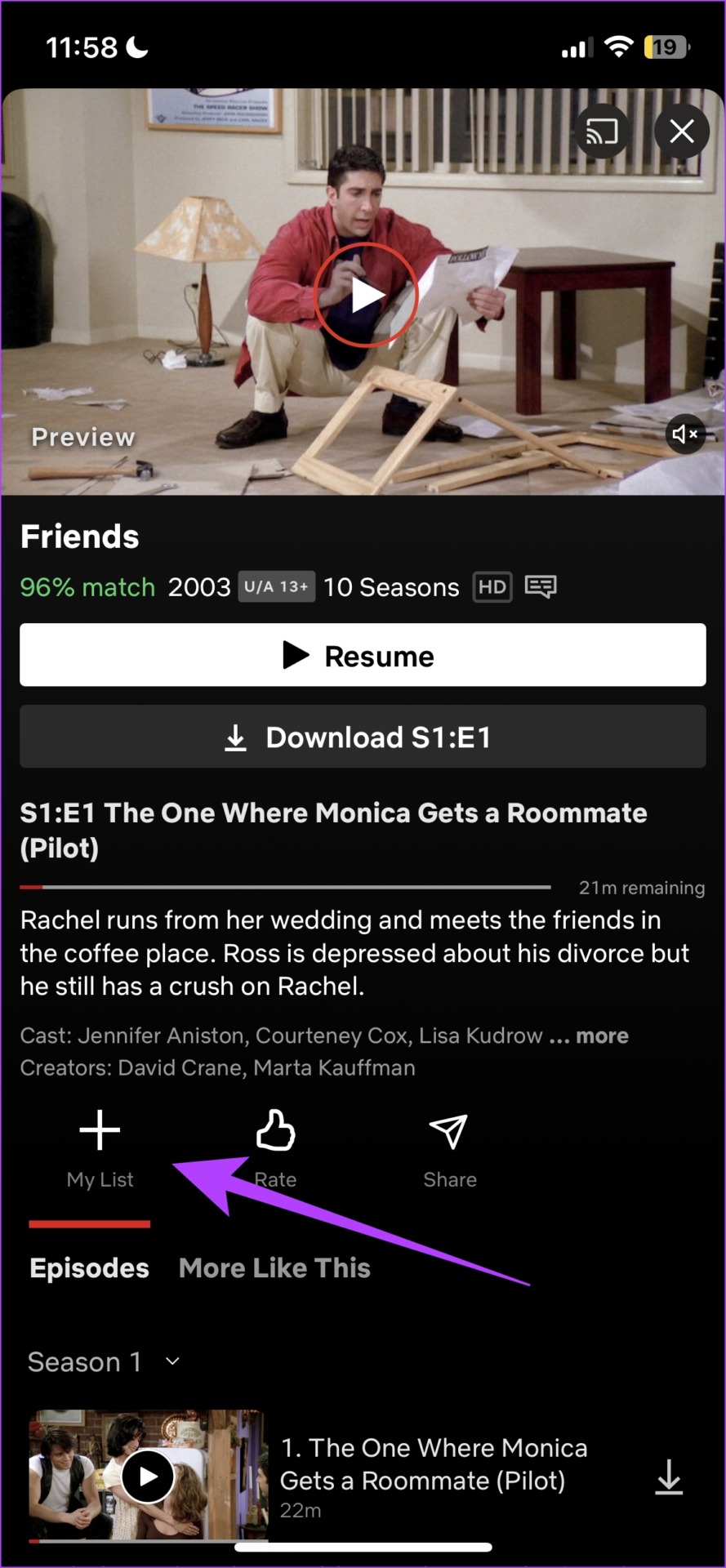
Step 2: Tap on the + icon below the excerpt to add it to My List.
Add Content to My List on Netflix Website or Windows App
Step 1: Open the Netflix app or Netflix website on your preferred browser.
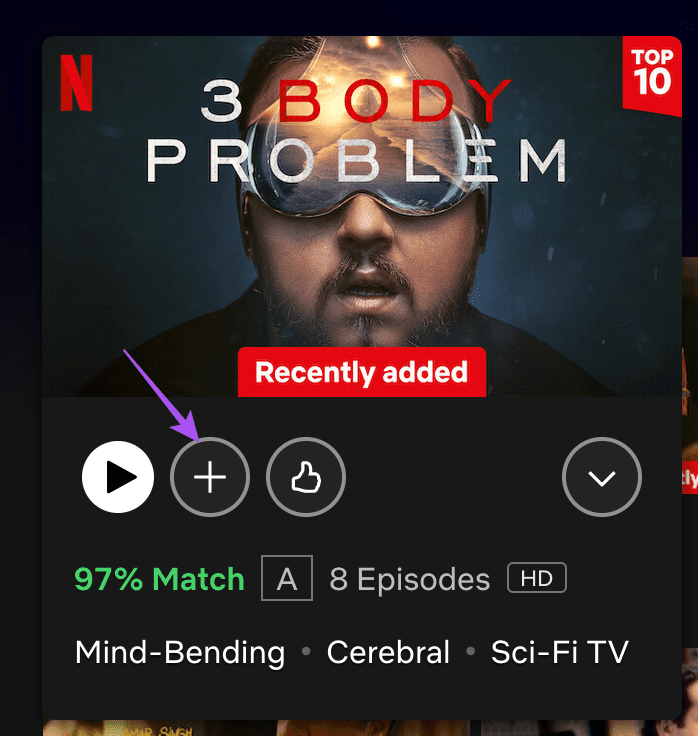
Step 2: Launch the title you want to add to the watchlist. Then, click the + icon to add it to My List.
How to Add Content to Your Netflix Watchlist On TV or Windows App
Step 1: Open the Netflix app on your TV and go to the title that you want to add to My List.
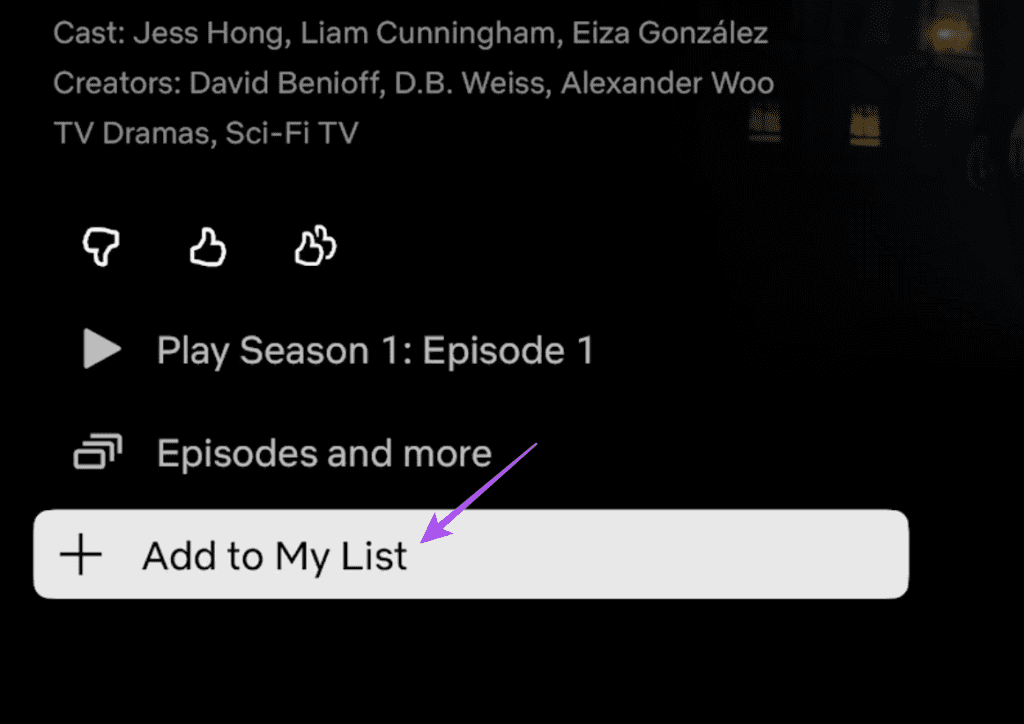
Step 2: Select Add to My List.
Next, let us take a look at how to add content to My List on the iPhone and the Android app.
How to Find My List on Netflix
Method 1: On Mobile App
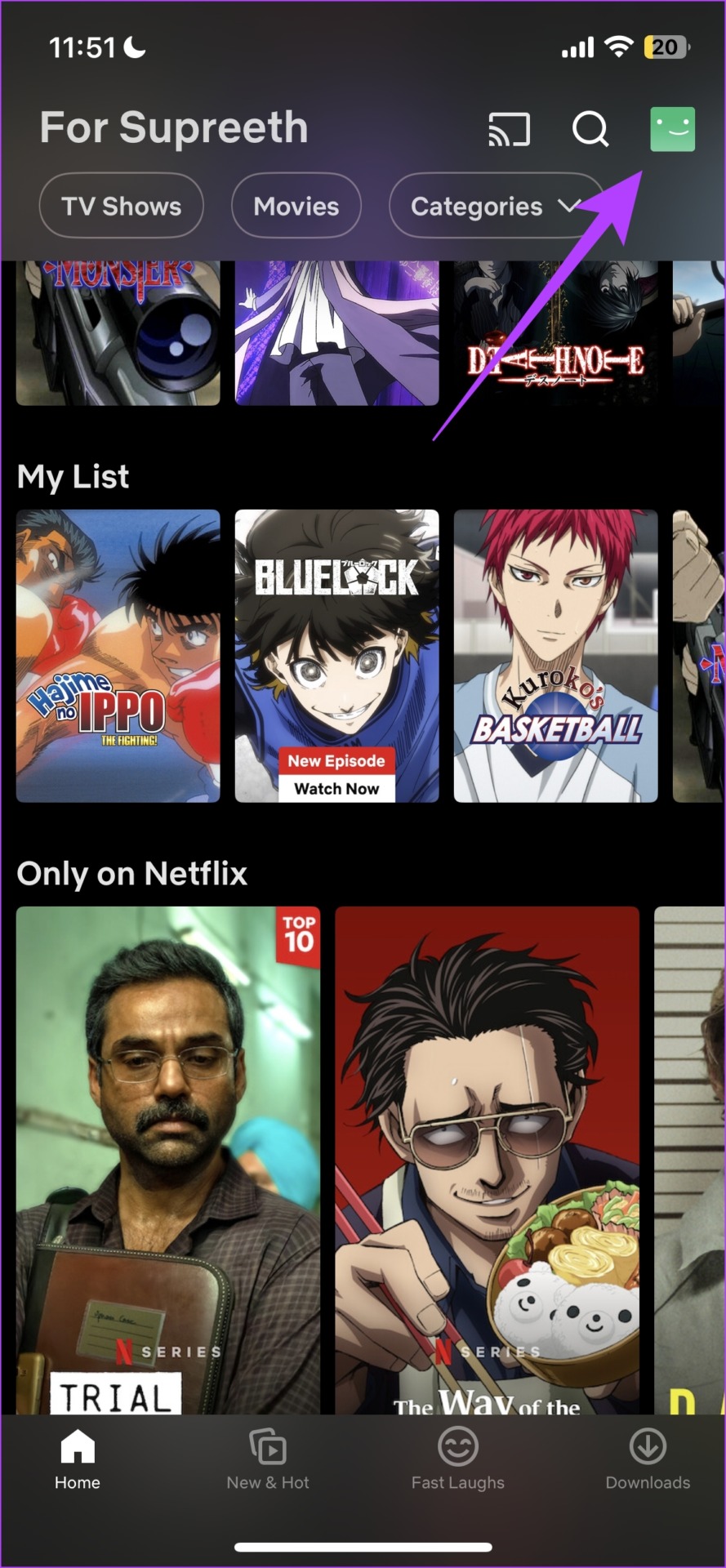
Step 1: On the home screen, tap on your profile icon in the top right corner.
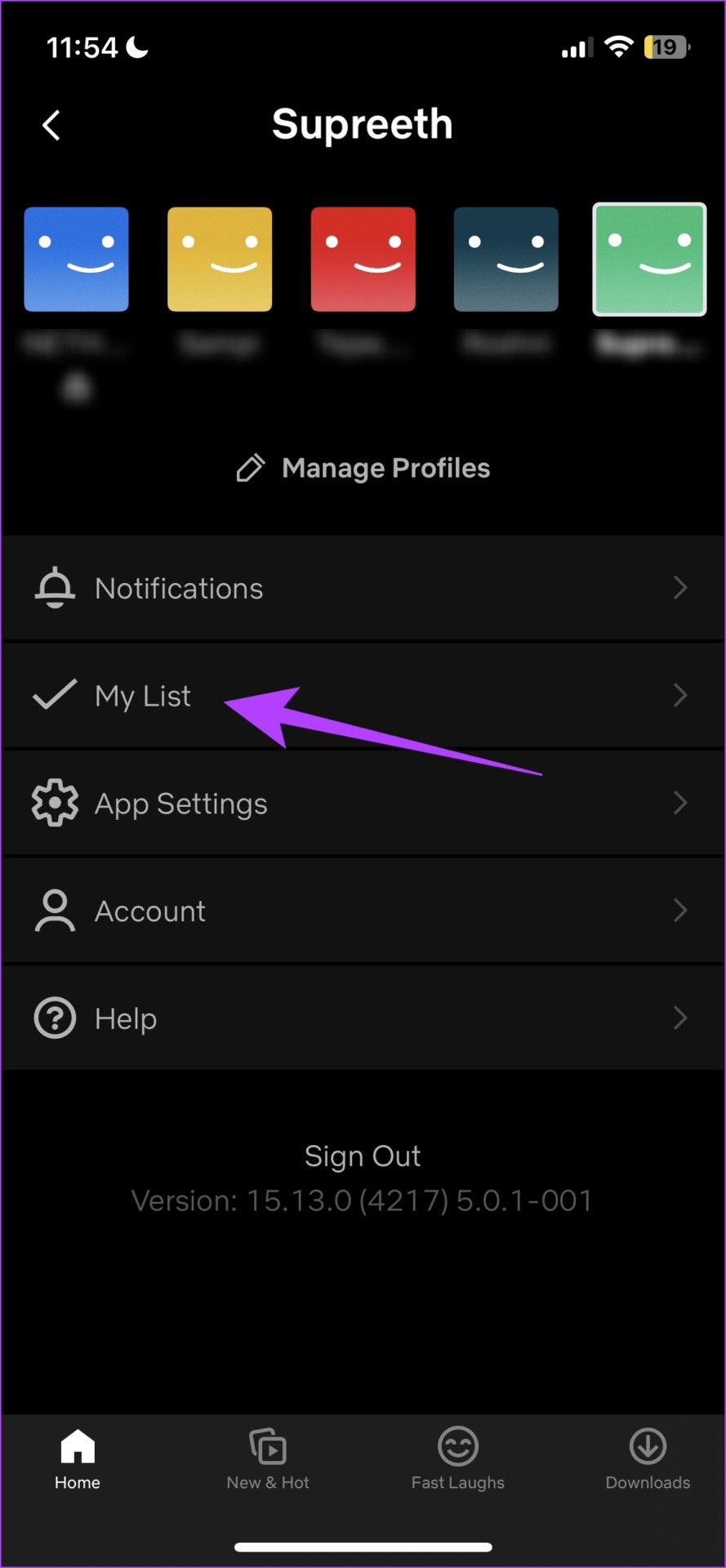
Step 2: Tap on My List.
Method 2: On Netflix Website
You can simply go to the My List section on the Netflix website to check your added titles.
Method 3: On TV
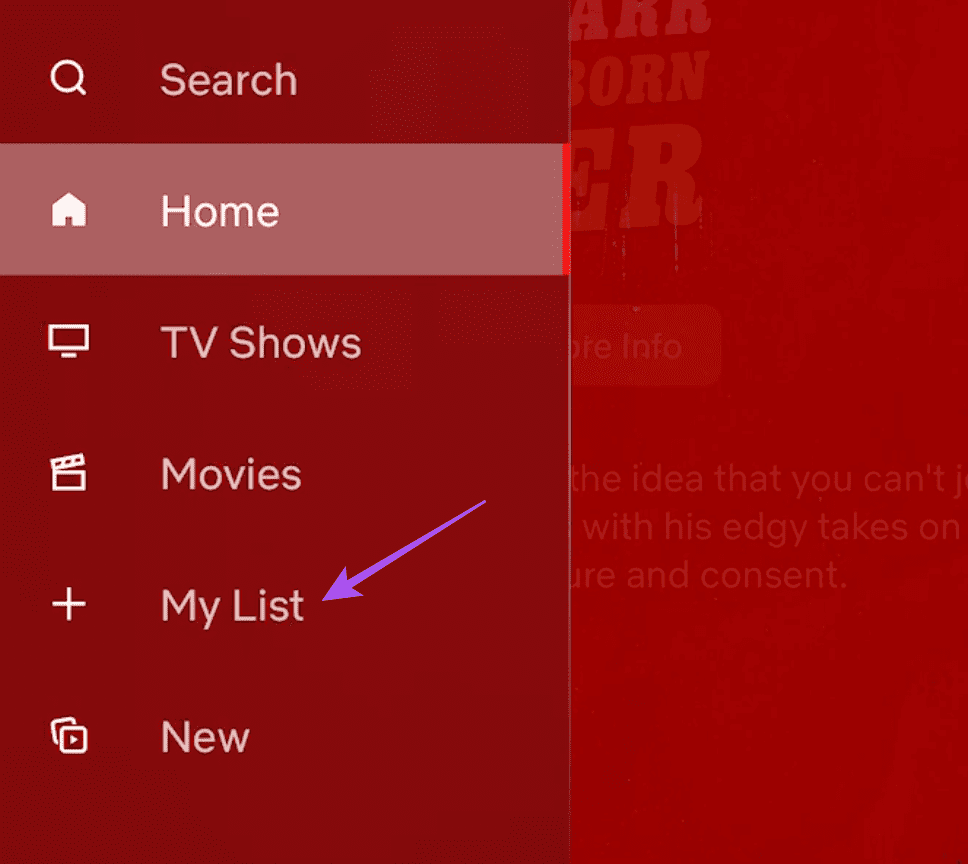
Step 1: Open the Netflix app and go to the left menu.
Step 2: Scroll down and select My List.
Method 4: On Windows App
Open the Netflix app on your Windows PC and then scroll down to find My List.

How to Delete Content From My List on Netflix
Method 1: On Mobile App
Step 1: On the home screen, tap on your profile icon at the top right corner. Then, tap on My List.
Step 2: Select a title to remove from My List. Then tap on the My List button below the title’s synopsis to remove it.
Method 2: On Netflix Website
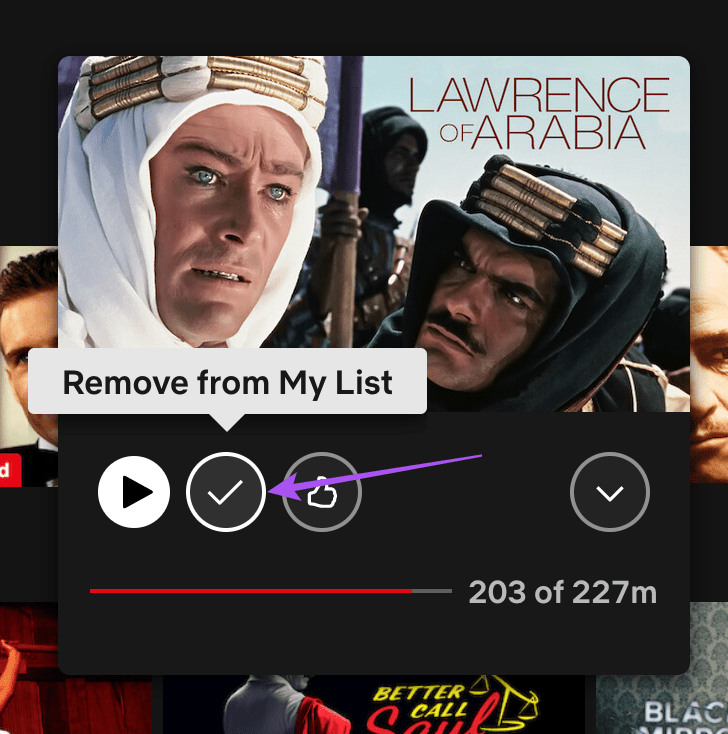
Go to My List on Netflix, select a title you want to remove, and click the Tick icon to remove it.
Method 3: On TV
Step 1: Open the app on your TV and go to My List.
Step 2: Select the title you want to remove > select Remove from My List.
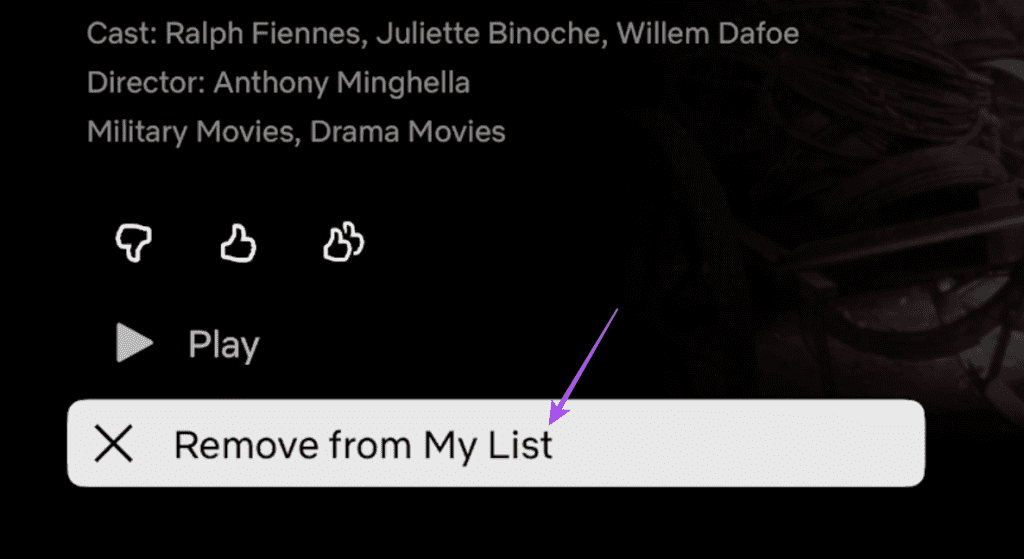
Method 4: On Windows App
Step 1: On the Netflix website’s home page, the first row of tiles is called My List. Tap on the title you want to remove from this list.
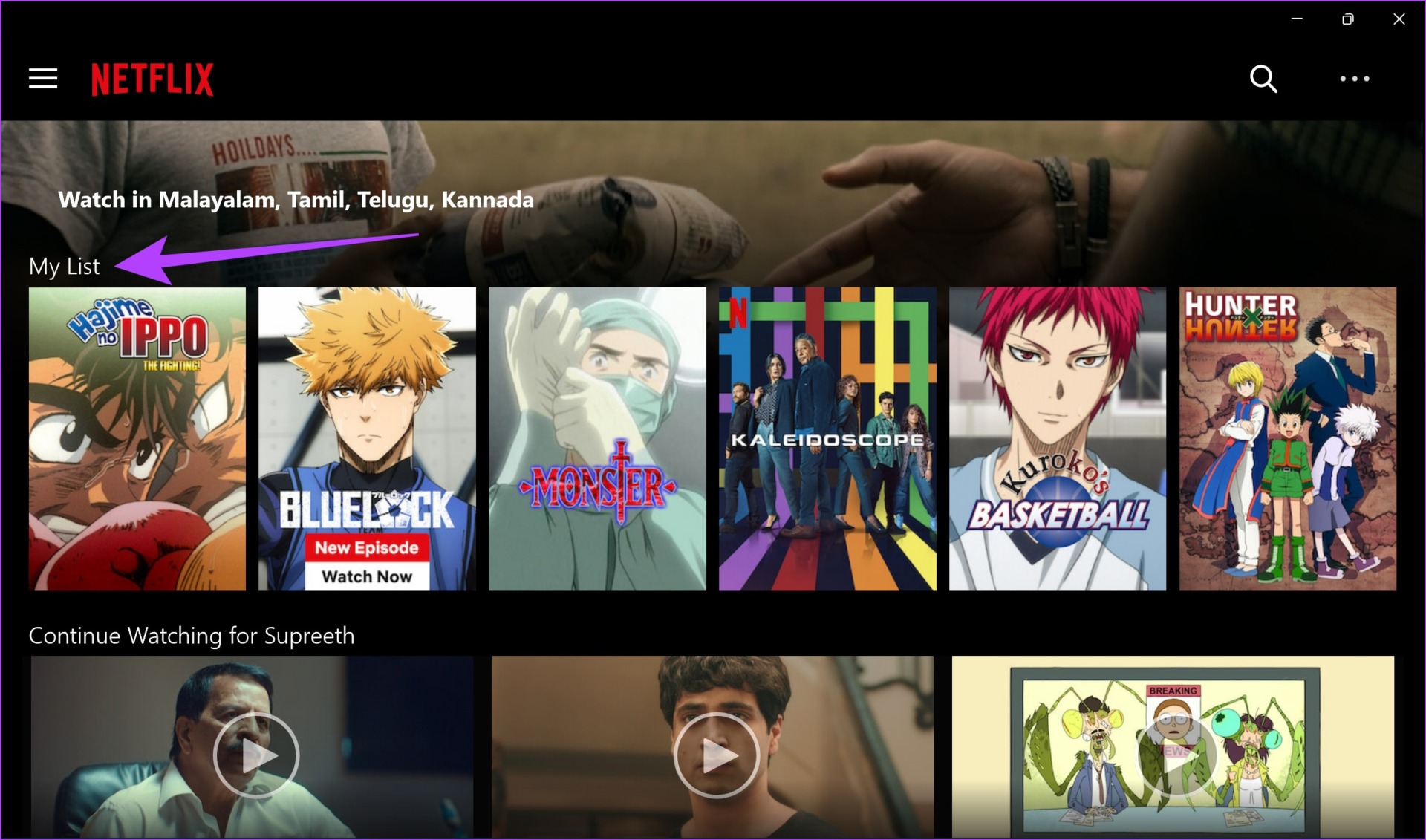
Step 2: Click on the My List button under the synopsis of the title to remove it from the list.

Was this helpful?
Last updated on 30 April, 2024
Read Next
 Netflix Standard vs. Premium: Which Netflix Plan Is Best for You
Netflix Subscription Plans At a Glance While Netflix provides three plans in total, the Standard and Premium plans take the cake.
Netflix Standard vs. Premium: Which Netflix Plan Is Best for You
Netflix Subscription Plans At a Glance While Netflix provides three plans in total, the Standard and Premium plans take the cake.
 How to Remove an Email Address From Gmail Autofill List
Method 1: Remove Saved Email Address From Gmail on Desktop You can’t view or modify saved Gmail contacts from the Gmail web.
How to Remove an Email Address From Gmail Autofill List
Method 1: Remove Saved Email Address From Gmail on Desktop You can’t view or modify saved Gmail contacts from the Gmail web.
 How to Clear or Disable Recently Used Documents List in Microsoft Word
Remove Specific or All Entries From Recent Documents List in Microsoft Word If you only want to remove a few documents from the Recent list, go to the Home tab
How to Clear or Disable Recently Used Documents List in Microsoft Word
Remove Specific or All Entries From Recent Documents List in Microsoft Word If you only want to remove a few documents from the Recent list, go to the Home tab
 WhatsApp Contacts Not Updating? Here’s How to Refresh Your List
Fix 1: Ensure Contacts Permission Is Enabled for WhatsApp If you accidentally deny WhatsApp contacts permission, the app can't access your phone's contacts.
WhatsApp Contacts Not Updating? Here’s How to Refresh Your List
Fix 1: Ensure Contacts Permission Is Enabled for WhatsApp If you accidentally deny WhatsApp contacts permission, the app can't access your phone's contacts.
 How to Get Someone off Your Best Friends’ List on Snapchat
Have you ever found yourself wanting to adjust your Best Friends list on Snapchat to redefine your closest circle on Snapchat?
How to Get Someone off Your Best Friends’ List on Snapchat
Have you ever found yourself wanting to adjust your Best Friends list on Snapchat to redefine your closest circle on Snapchat?
 Snapchat Best Friends List: How Is It Ordered
Sending Snaps, sharing Stories, or just chatting with your friends might have more implications on Snapchat than you can imagine.
Snapchat Best Friends List: How Is It Ordered
Sending Snaps, sharing Stories, or just chatting with your friends might have more implications on Snapchat than you can imagine.
 The Complete List of Microsoft Paint Keyboard Shortcuts
File Management Shortcuts ShortcutFunctionCtrl + NCreate a new imageCtrl + OOpen a fileCtrl + WResize and Skew an imageCtrl + PPrintAlt + F4CloseF12Save as - It prompts for a new
The Complete List of Microsoft Paint Keyboard Shortcuts
File Management Shortcuts ShortcutFunctionCtrl + NCreate a new imageCtrl + OOpen a fileCtrl + WResize and Skew an imageCtrl + PPrintAlt + F4CloseF12Save as - It prompts for a new
 The List of All Excel Function Key (F1 to F12) Shortcuts
F1 Shortcuts Shortcut KeyActionF1Opens the Excel Help task pane.Ctrl+F1Hide/Unhide the taskbar.Alt+F1Create a chart from data in the current range.Ctrl+Shift+F1Hide/Unhide ribbon and taskbar.Alt+Shift+F1Create a new worksheet.
The List of All Excel Function Key (F1 to F12) Shortcuts
F1 Shortcuts Shortcut KeyActionF1Opens the Excel Help task pane.Ctrl+F1Hide/Unhide the taskbar.Alt+F1Create a chart from data in the current range.Ctrl+Shift+F1Hide/Unhide ribbon and taskbar.Alt+Shift+F1Create a new worksheet.
The article above may contain affiliate links which help support Guiding Tech. The content remains unbiased and authentic and will never affect our editorial integrity.