


Common Fixes
- Restart the Android TV: Long-press the power button on your Android TV remote and select Restart in the pop-up menu.
- Check Internet Connection: Ensure you’re connected to stable internet for streaming videos. Check your internet speed online.
- Check the app subscription status: Ensure your streaming app subscription (e.g., Netflix, Prime Video) is active.
- Clear the app cache: Removing the app cache resolves issues when playing videos on Android TV.
- Ensure your TV supports the video file format: Check your Android TV manual or visit the product’s brand page to check all playable video file formats.
- Reboot the router: Press the physical Power button to restart your router. Alternatively, plug off its power, wait a few seconds, and plug it back in.
- Update apps and Android TV OS: Open Google Play Store, search the app, and select Update. To update the Android TV OS, open Settings > Device Preferences > About > System update.
Fix 1: Force Stop and Reopen the App
Force closing and reopening the app refreshes it, fixing glitches leading to the videos not playing error on Android TV.
Step 1: Open Android TV settings (gear icon at the top right) and select Apps.

Step 2: Expand See all apps and select the app with video playback issues.
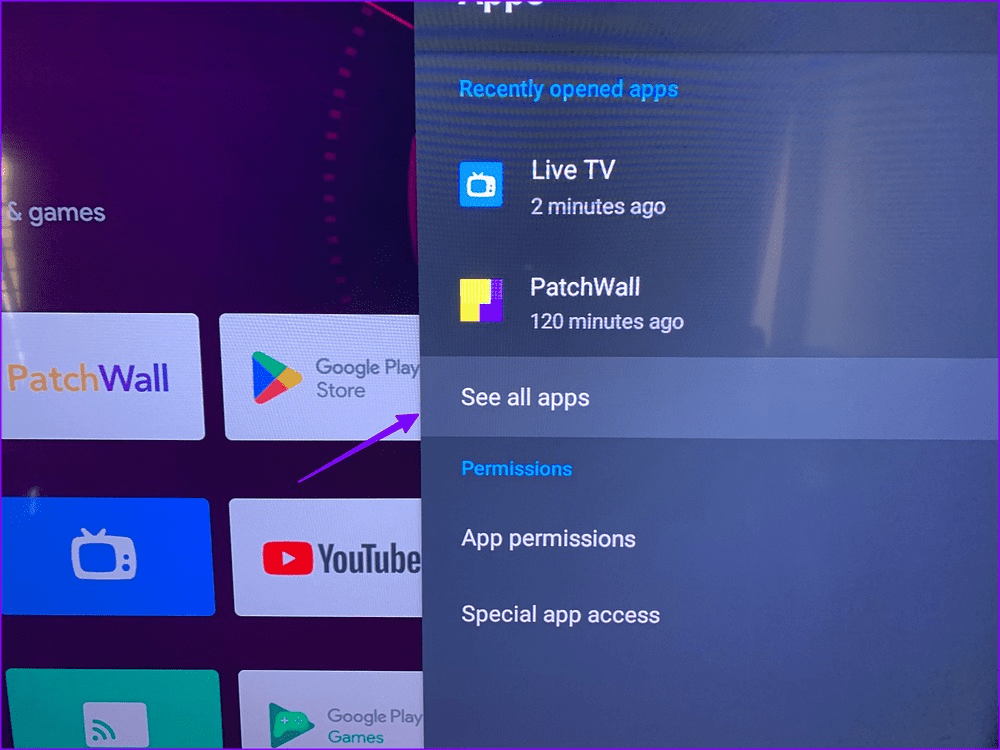
Step 3: Tap Force stop, wait a few seconds, and reopen the app.

Fix 2: Clear the Cache on Your Android TV
Corrupt and obsolete app caches often cause issues when using basic app services, such as playing a video on Android TV. Manually clearing all cached data should resolve the problem.
Step 1: Open Android TV Settings and navigate to Device Preferences > Storage.

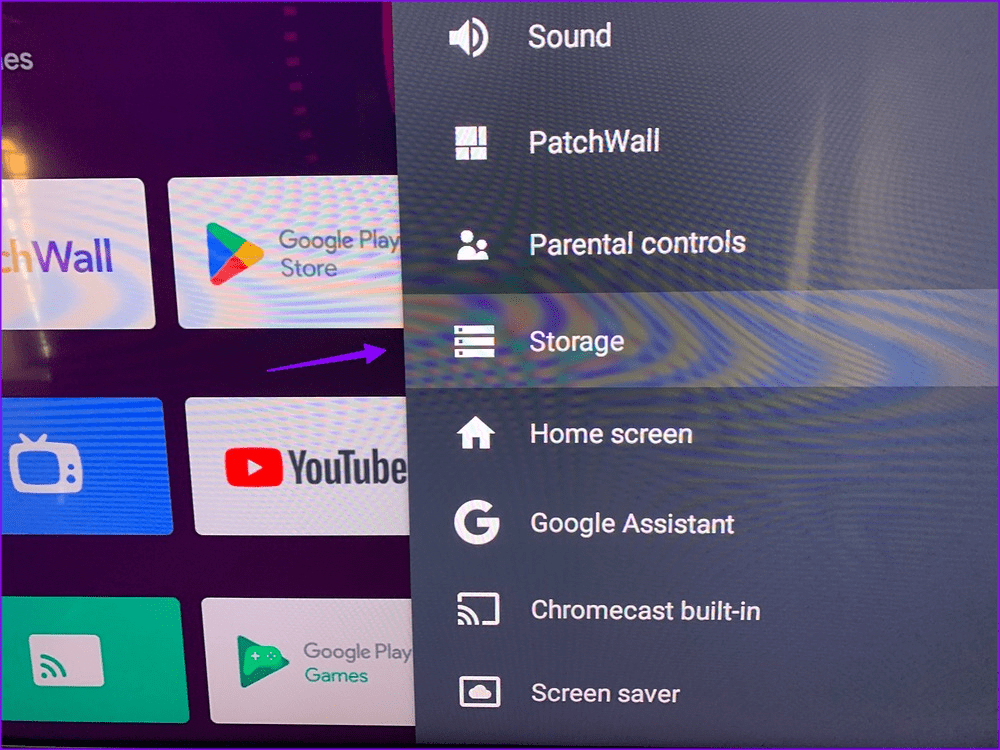
Step 2: Select Internal shared storage > tap Cached data.


Step 3: Tap OK to remove all the Android TV cached data.

Fix 3: Check and Clear Android TV Storage
Issues in playing videos and abrupt app crashes are common when your Android TV is running low on storage. Reviewing internal storage to delete unnecessary apps should fix it.
Step 1: Access Android TV Settings and select Device Preferences.

Step 2: Tap Storage > select Internal shared storage. Check Available Space and delete all unnecessary apps.


Fix 4: Sign out and Sign Back into the App
To fix video playback issues in a subscription-based streaming app such as Netflix or Prime Video, sign out and log back into your account. This should fix account issues preventing you from watching the video.
To sign out of Netflix on your Android TV, expand the left sidebar and select Get Help. Scroll to the bottom and tap Sign out.

Fix 5: Reset the Android TV
If nothing works, reset your Android TV to fix the video not playing error and restore normalcy.
Step 1: Open Android TV Settings, select Device Preferences, and scroll down to tap Reset.
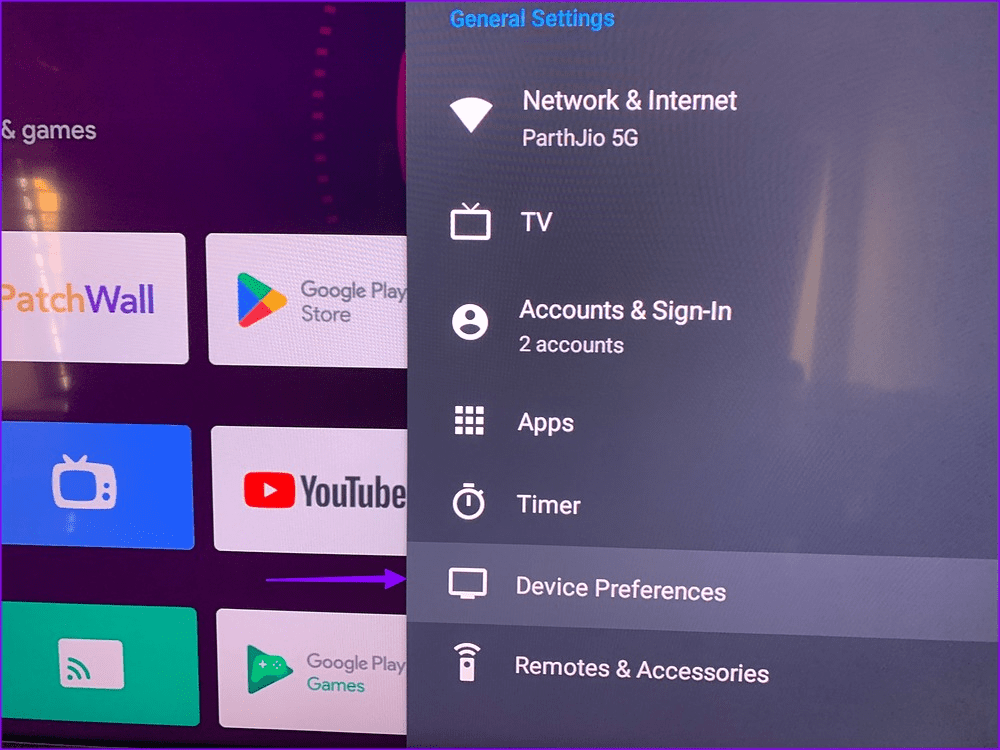

Step 2: Tap Reset to confirm your action.

Was this helpful?
Last updated on 21 May, 2024
Read Next
 4 Ways to Fix Telegram Videos Not Playing on Android
https://youtu.be/vJeVqA9FFzA Method 1: Make Sure to Download the Full Video Step 1: Open Telegram on Android and go to the Telegram group or channel.
4 Ways to Fix Telegram Videos Not Playing on Android
https://youtu.be/vJeVqA9FFzA Method 1: Make Sure to Download the Full Video Step 1: Open Telegram on Android and go to the Telegram group or channel.
 3 Ways to Fix Snapchat Not Playing Videos on Android and iPhone
Try Basic Fixes Check if Snapchat is down: At times, server congestion or other related issues can impact Snapchat’s performance and trigger various errors.
3 Ways to Fix Snapchat Not Playing Videos on Android and iPhone
Try Basic Fixes Check if Snapchat is down: At times, server congestion or other related issues can impact Snapchat’s performance and trigger various errors.
 How to Fix WhatsApp Videos Not Playing on iPhone or Android
Basic Fixes Check your network connection: Ensure your phone has a robust internet connection.
How to Fix WhatsApp Videos Not Playing on iPhone or Android
Basic Fixes Check your network connection: Ensure your phone has a robust internet connection.
 5 Ways to Fix Videos Not Playing in Microsoft Edge
Fix 1: Disable Extensions Third-party extensions can occasionally disrupt browser processes, leading to such issues.
5 Ways to Fix Videos Not Playing in Microsoft Edge
Fix 1: Disable Extensions Third-party extensions can occasionally disrupt browser processes, leading to such issues.
 5 Ways to Fix Safari Not Playing Videos on iPhone
Fix 1: Disable Extensions Using third-party extensions in Safari can occasionally interfere with its video playback functionality.
5 Ways to Fix Safari Not Playing Videos on iPhone
Fix 1: Disable Extensions Using third-party extensions in Safari can occasionally interfere with its video playback functionality.
 4 Ways to Fix iPad Not Playing or Streaming Videos
Fix 1: Resolve App-Specific Problems Check app server status: Issues with the backend can affect app functions.
4 Ways to Fix iPad Not Playing or Streaming Videos
Fix 1: Resolve App-Specific Problems Check app server status: Issues with the backend can affect app functions.
 3 Ways to Fix Safari Not Playing Videos on Mac
Preliminary Fixes Check the Streaming Service status: Can't play videos from Netflix, Prime Video, Disney+, or YouTube on Safari?
3 Ways to Fix Safari Not Playing Videos on Mac
Preliminary Fixes Check the Streaming Service status: Can't play videos from Netflix, Prime Video, Disney+, or YouTube on Safari?
 4 Ways to Fix YouTube Not Playing Videos on PC
Basic Fixes Check your network connection: Ensure your device has a good internet connection.
4 Ways to Fix YouTube Not Playing Videos on PC
Basic Fixes Check your network connection: Ensure your device has a good internet connection.
The article above may contain affiliate links which help support Guiding Tech. The content remains unbiased and authentic and will never affect our editorial integrity.

