Basic Fixes
- Force quit and relaunch WhatsApp: This will reload the app and give it a fresh start on your iPhone or Android phone.
- Switch to Wi-Fi: If possible, switch from mobile data to Wi-Fi for better internet speeds and to attend video calls.
- Check Bluetooth device battery status: Low battery status of your connected Bluetooth devices can prevent you from receiving WhatsApp calls.
- Update or reinstall WhatsApp: This will remove any bugs or glitches causing the issue.
Fix 1: Check Microphone Permissions
The biggest reason you can’t hear the other person during a WhatsApp video call is that the app doesn’t use the microphone. So, it would help if you started checking and allowing the microphone on your iPhone or Android phone.
On iPhone
Step 1: Open the Settings app and tap on WhatsApp.
Step 2: Tap the toggle next to Microphone to enable its access.
Now, you must check if Microphone access has been enabled in the Screen Time settings.
Step 3: Go back and tap on Screen Time.
Step 4: Tap on Content and Privacy Restrictions > select Microphone.

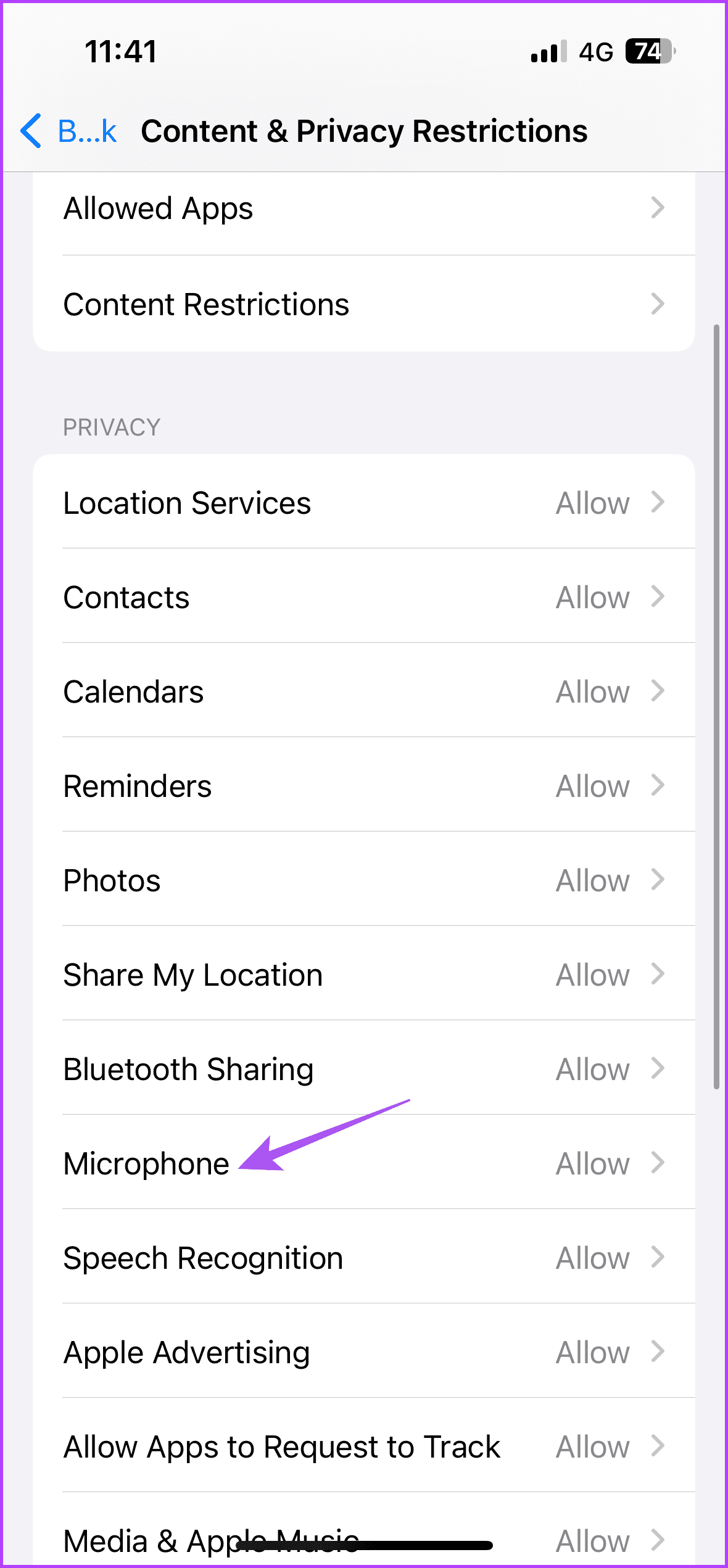
Step 5: Ensure that WhatsApp has been allowed Microphone access.
On Android
Step 1: Long-press the WhatsApp app icon > select App Info.
Step 2: Tap on Permissions > Microphone.


Step 3: Ensure that Microphone access is enabled.
You can also refer to our post if WhatsApp Microphone still fails to work on your iPhone or Android.
Fix 2: Allow ‘Nearby Device’ Permission for WhatsApp
This is helpful, especially when using Bluetooth earphones to take WhatsApp video calls on your iPhone or Android phone.
On iPhone
Open Settings > WhatsApp > enable Local Network.
On Android
Step 1: Long-press the WhatsApp app icon and select App Info.
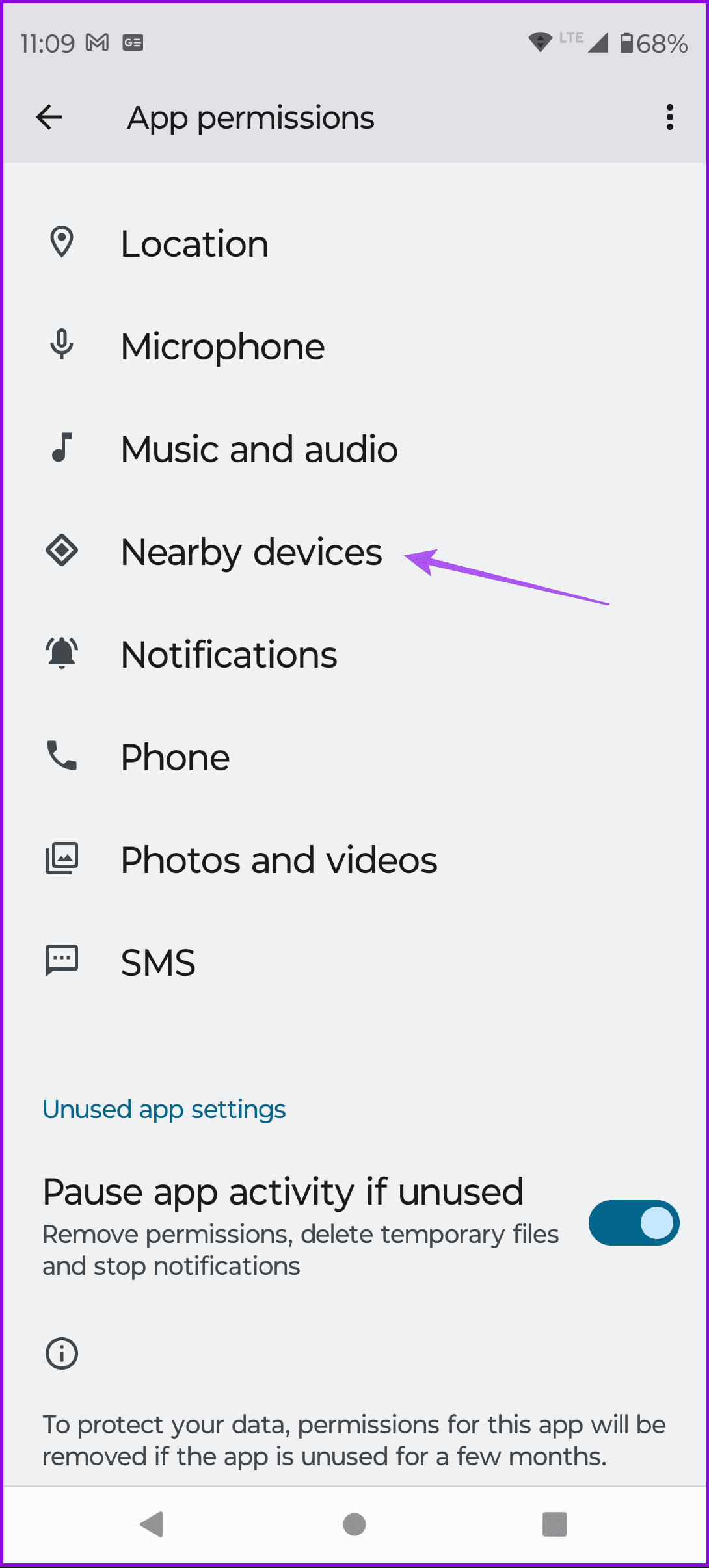
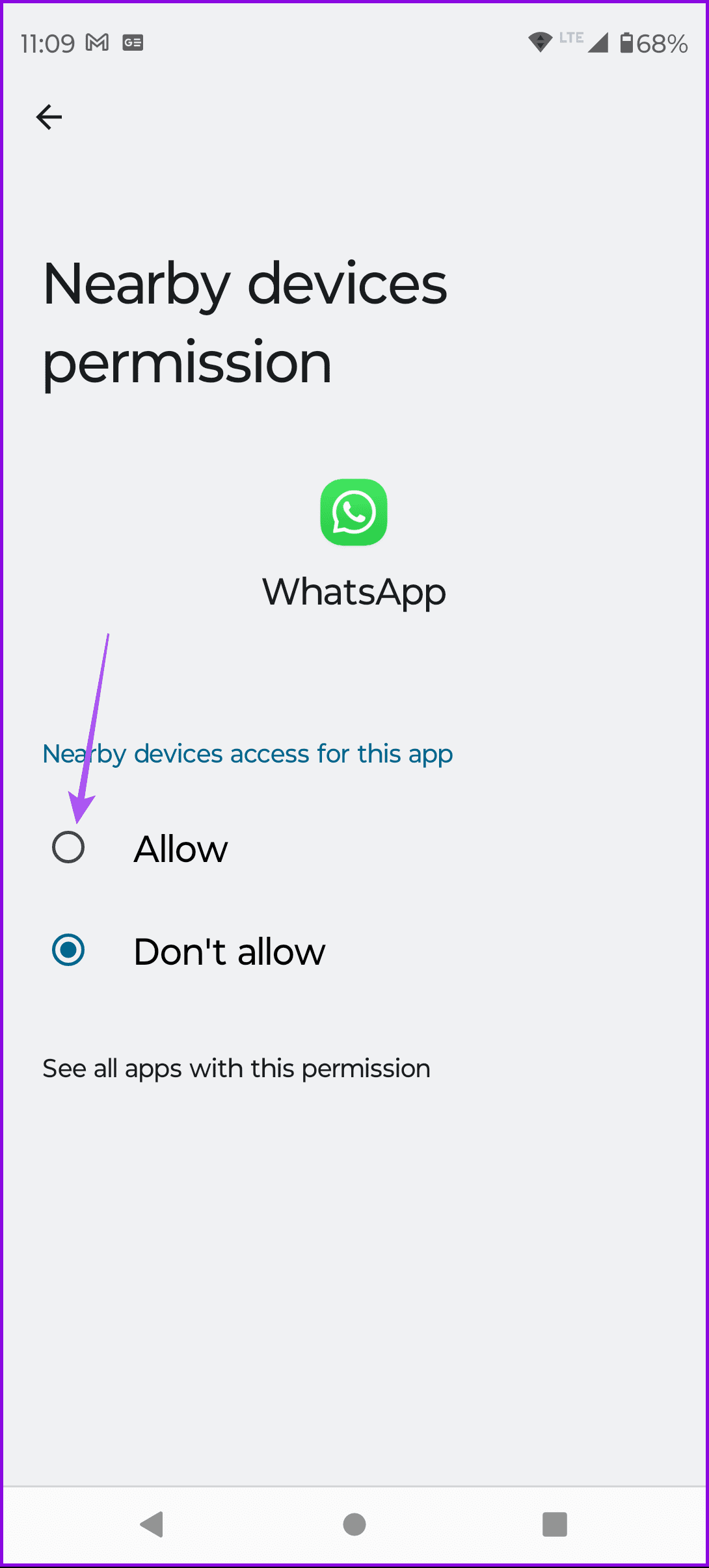
Step 2: Tap on Permissions > select Nearby devices. Then, ensure that you Allow WhatsApp access to nearby devices.
Fix 3: Disable Less Data for WhatsApp Calls
WhatsApp video calls require much more bandwidth than audio calls. Disabling the data saver in the app should help.
Step 1: Open WhatsApp on your iPhone or Android phone.
Step 2: On iPhone, tap the Settings icon at the bottom-right corner. On Android, tap the three vertical dots at the top-right corner > select Settings.
Step 3: Tap on Storage and Data and then disable the toggle for Use Less Data for Calls.
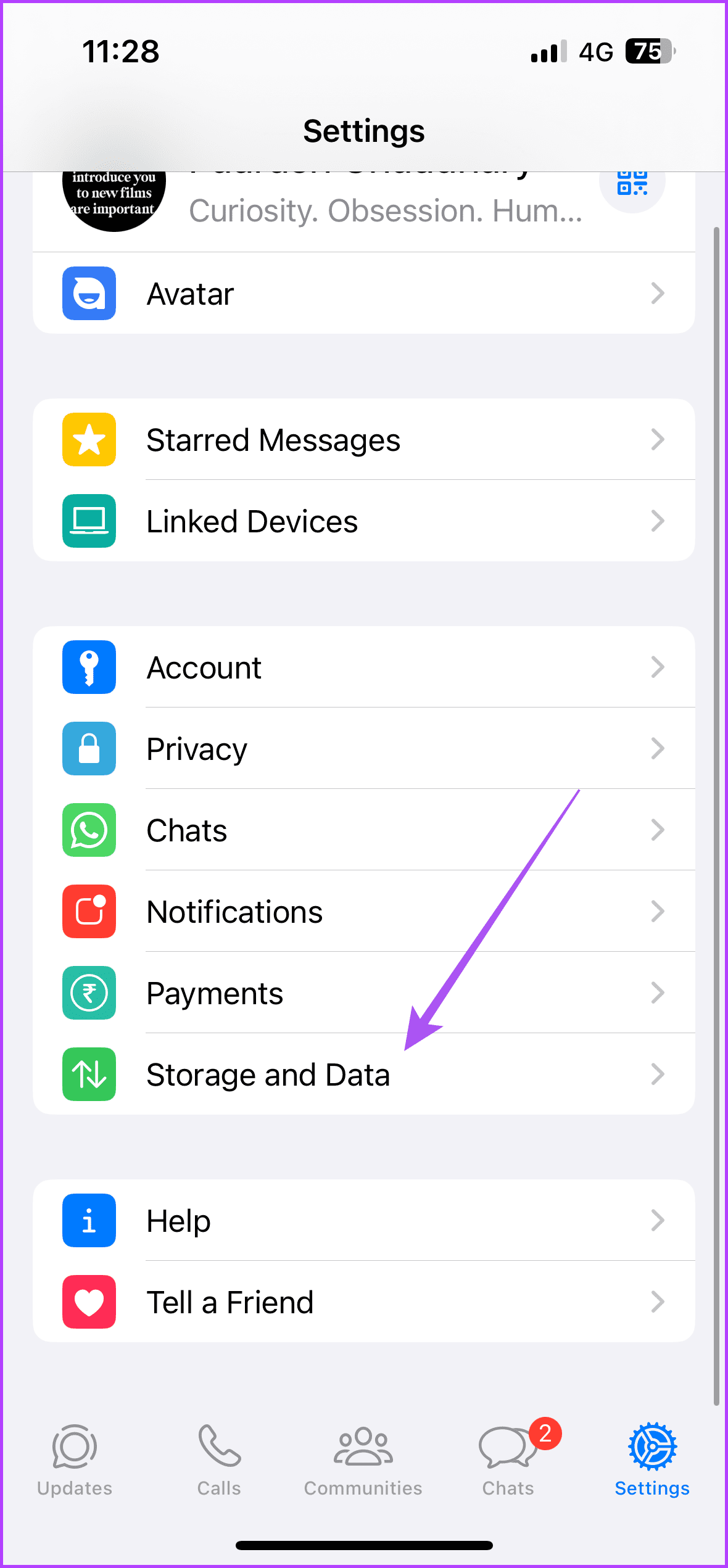

After that, test the changes through a WhatsApp Video Call.
Fix 4: Enable Unrestricted Data Usage (Android)
To continue using Data Saver on your Android phone, we suggest enabling the option of Unrestricted Data Usage for WhatsApp.
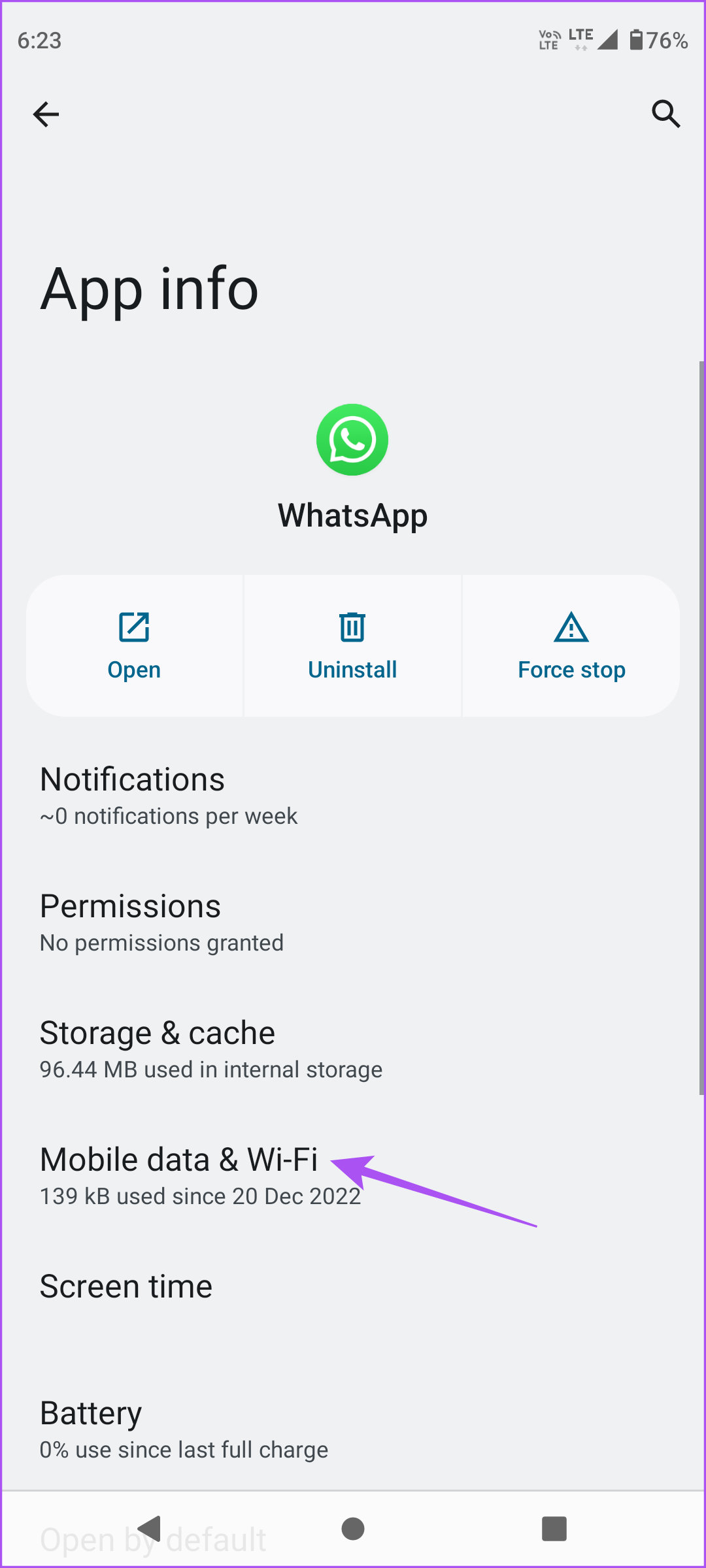
Step 1: Long-press the WhatsApp app icon and select App Info.
Step 2: Tap on Mobile Data and Wi-Fi and enable the toggle for Unrestricted Data Usage.

Fix 5: Reset App Preferences (Android)
Your Android phone gives you the option of Resetting App Preferences. As the name suggests, this will restore all app preferences to default, such as background data restrictions, app notifications, clearing default apps, etc., and will not lead to data loss on your Android phone.
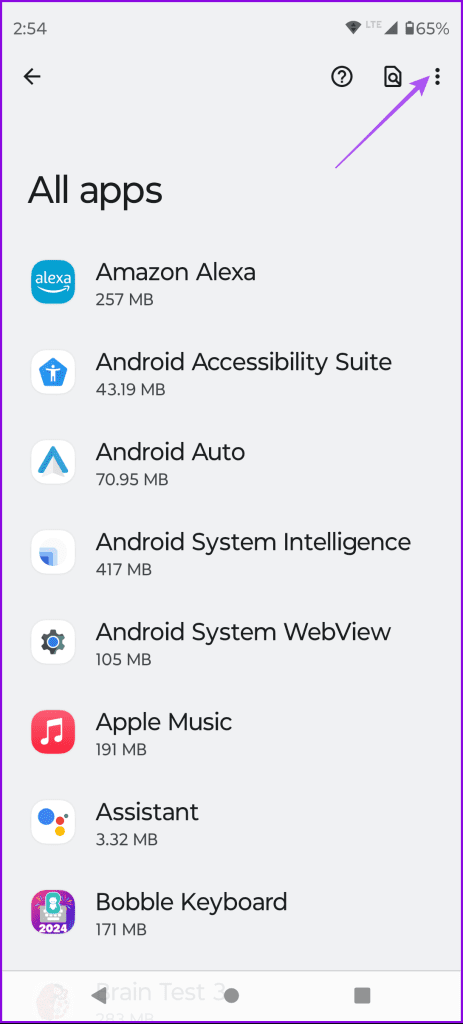
Step 1: Open Settings on Android and tap on Apps.
Step 2: Select All Apps and tap the three vertical dots at the top-right corner.
Step 3: Tap on Reset App Preferences and then select Reset again to confirm.
Step 4: Now, close Settings and open WhatsApp to see if the issue is fixed.


Was this helpful?
Last updated on 21 May, 2024
Read Next
 3 Fixes for No Sound in Facebook Messenger Video Calls
Basic Fixes Check volume levels: Check whether you have optimum volume levels on your iPhone or Android phone.
3 Fixes for No Sound in Facebook Messenger Video Calls
Basic Fixes Check volume levels: Check whether you have optimum volume levels on your iPhone or Android phone.
 How to Blur Background in WhatsApp Video Calls on iPhone and Android
https://youtu.be/QC0vCCGNfsA How to Blur WhatsApp Video Call Background on iPhone You can blur the background of your WhatsApp video call right from the Control Center on your iPhone.
How to Blur Background in WhatsApp Video Calls on iPhone and Android
https://youtu.be/QC0vCCGNfsA How to Blur WhatsApp Video Call Background on iPhone You can blur the background of your WhatsApp video call right from the Control Center on your iPhone.
 3 Fixes for WhatsApp Video Call Not Working on iPhone and Android
Basic Fixes: Check your internet connection: WhatsApp requires an active internet connection to make video calls.
3 Fixes for WhatsApp Video Call Not Working on iPhone and Android
Basic Fixes: Check your internet connection: WhatsApp requires an active internet connection to make video calls.
 4 Fixes for Telegram Calls Not Connecting on Android and iPhone
Basic Fixes Blocked by recipient: You might have been blocked by the contact on Telegram.
4 Fixes for Telegram Calls Not Connecting on Android and iPhone
Basic Fixes Blocked by recipient: You might have been blocked by the contact on Telegram.
 3 Fixes for Black Screen With Sound in Amazon Prime Video on Mac
Basic Fixes Use Safari to play HDR content: The Safari browser on Mac supports 4K Ultra HD playback in Dolby Vision HDR for streaming platforms.
3 Fixes for Black Screen With Sound in Amazon Prime Video on Mac
Basic Fixes Use Safari to play HDR content: The Safari browser on Mac supports 4K Ultra HD playback in Dolby Vision HDR for streaming platforms.
 2 Fixes for No Sound in WhatsApp Status on iPhone
Basic Fixes Disable silent mode: Starting with the basic solution, you should disable Silent Mode on your iPhone to hear the WhatsApp Status video sound.
2 Fixes for No Sound in WhatsApp Status on iPhone
Basic Fixes Disable silent mode: Starting with the basic solution, you should disable Silent Mode on your iPhone to hear the WhatsApp Status video sound.
 How to Fix Messenger Video Calls Not Working on Windows 11
Basic Fixes Login again to your Messenger account: The very first thing you should do is to log out and then back into your Messenger account.
How to Fix Messenger Video Calls Not Working on Windows 11
Basic Fixes Login again to your Messenger account: The very first thing you should do is to log out and then back into your Messenger account.
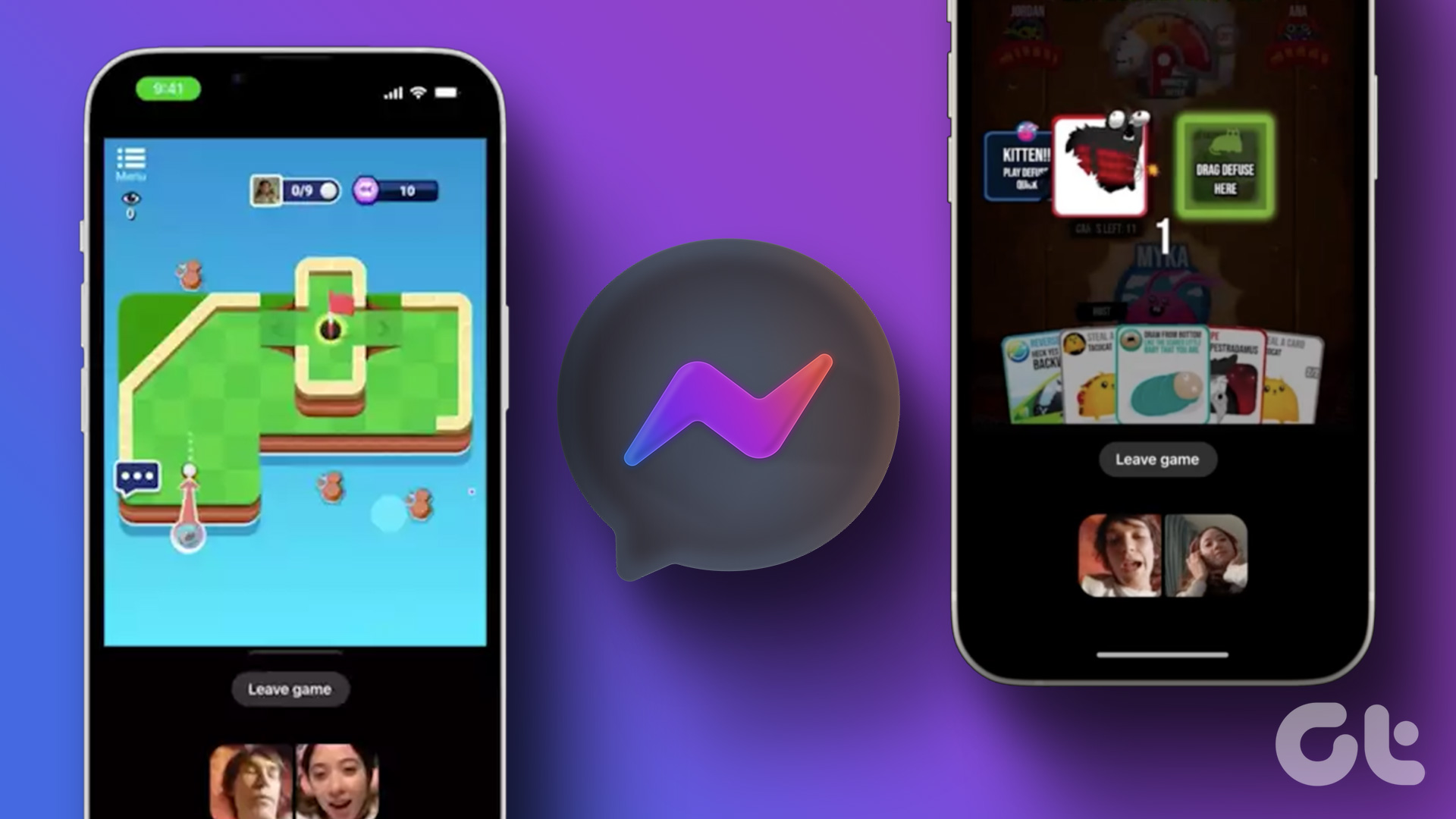 How to Play Games During Messenger Video Calls
 on Android or iPhone All the games available in Messenger are free to play and do not require installation on your Android
How to Play Games During Messenger Video Calls
How to Play Games During Messenger Video Calls on Android or iPhone All the games available in Messenger are free to play and do not require installation on your Android
The article above may contain affiliate links which help support Guiding Tech. The content remains unbiased and authentic and will never affect our editorial integrity.