Basic Fixes
- Shorten the file/directory name: VLC may fail to play an MKV file if its name or the directory name (where it’s located) is unusually long. Rename the MKV file or directory and retry playing it.
- Install the MKV codec for VLC: If the VLC media player is missing the required MKV codecs, it may not play the Matroska video file. Download and install the Mega K-Lite Codec Pack to fix all missing video codecs in VLC.
- Update or reinstall the VLC Media Player: Open the Microsoft Store, search VLC, and click Update (if available). Alternatively, uninstall it from Windows Settings > Apps > Installed apps, and install it afresh.
Fix 1: Repair the MKV File Using VLC
The VLC media player has an in-built feature to repair damaged AVI files. By renaming a non-playable MKV extension file to AVI, you can use VLC to repair and play it without errors.
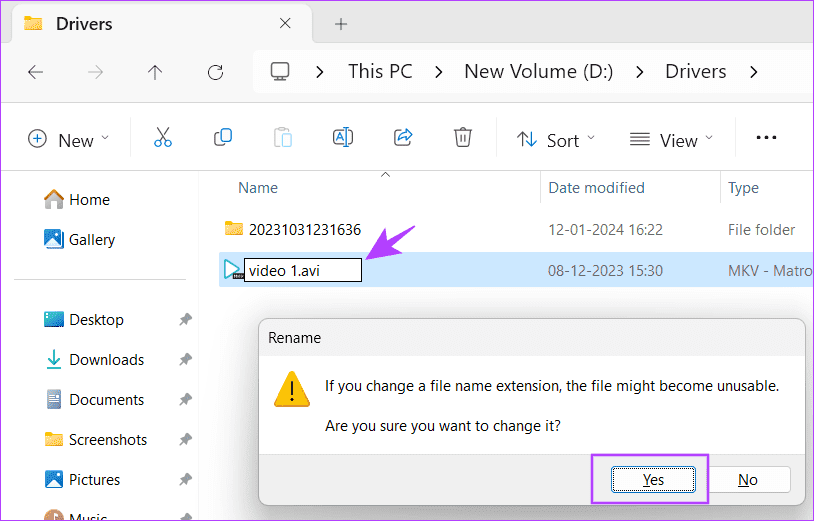
Step 1: Press the Windows + E shortcut to open the File Explorer app, navigate to the folder containing the MKV file, and press F2 to rename it.
Step 2: Replace the .mkv extension with .avi, and press Enter. Click Yes when prompted to change the file extension.
Step 3: Open VLC, click Tools, and select Preferences.

Step 4: Select the Input/Codecs tab, set the Damaged or incomplete AVI file to Always fix, and click Save. Double-click the video file to play it.

Fix 2: Increase the File Caching Value
If VLC isn’t playing MKV files, throwing an ‘unidentified codec: VLC could not identify the audio or video codec’ error, adjusting the file caching value should fix it.
Step 1: Open the VLC Media Player, click Tools, and select Preferences.

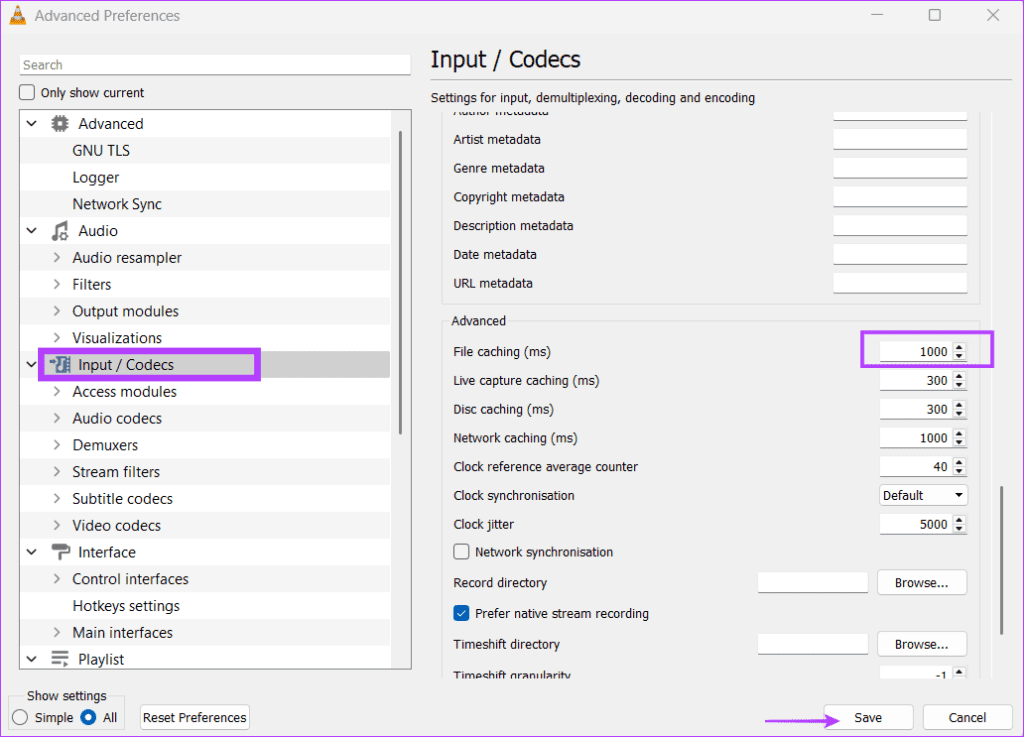
Step 2: Select the Input/Codecs tab and set Show settings to All.

Step 3: Click Input / Codecs in the left sidebar, type 1000 in the File caching (ms) option under ‘Advanced’, and select Save. Retry playing the MKV video file.
Fix 3: Disable Hardware-Accelerated Decoding
Hardware-accelerated decoding in VLC leverages your GPU to handle video decoding. However, this feature is known to create video playback issues. Disable it from the VLC app settings and retry playing the MKV file.
Step 1: Open the VLC media player Preferences (check the above steps).
Step 2: Click the Input / Codecs tab, set Hardware-accelerated decoding to Disable, and hit Save.

Fix 4: Reset All Preferences
Lastly, if nothing works, reset all VLC preferences to fix MKV files not playing on Windows 11.
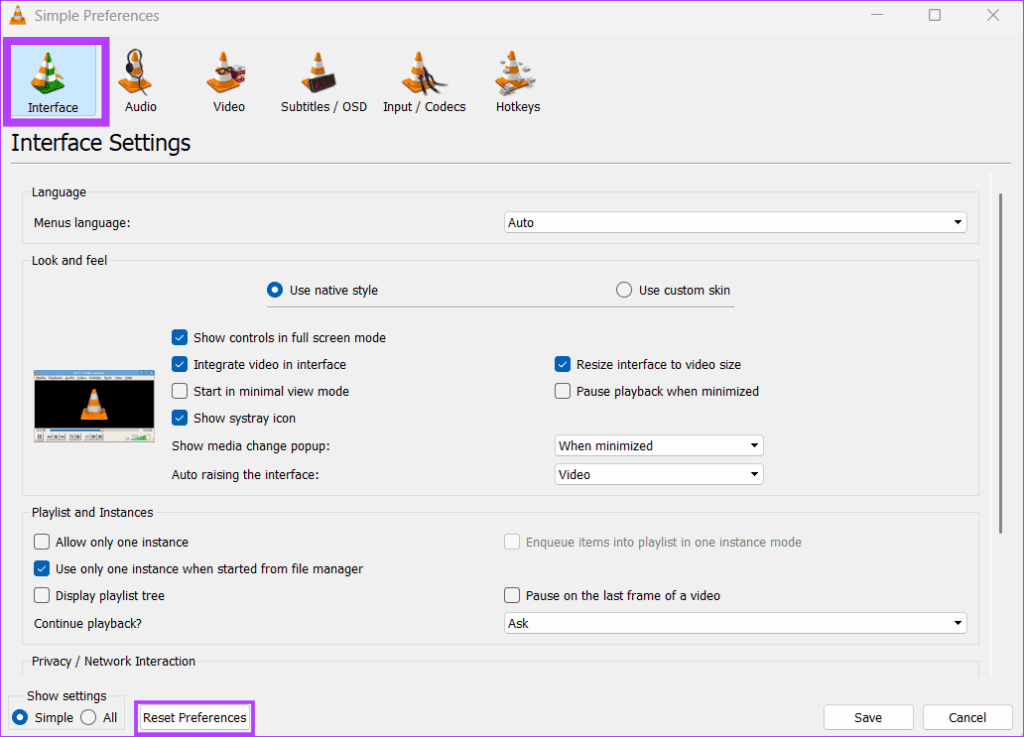
Step 1: Access the VLC media player Preferences.

Step 2: Select the Interface tab and click Reset Preferences. Select OK when prompted to confirm it.
Was this helpful?
Last updated on 07 August, 2024
Read Next
 5 Ways to Fix VLC Audio Not Working on Windows 11
Basic Fixes Disable Audio Enhancements on Windows: It conflicts with the VLC audio output.
5 Ways to Fix VLC Audio Not Working on Windows 11
Basic Fixes Disable Audio Enhancements on Windows: It conflicts with the VLC audio output.
 2 Ways to Fix VLC Media Player Not Working on Mac
Basic Fixes: Restart Mac: Rebooting your Mac can fix frequent issues with the installed apps.
2 Ways to Fix VLC Media Player Not Working on Mac
Basic Fixes: Restart Mac: Rebooting your Mac can fix frequent issues with the installed apps.
 3 Ways to Fix VLC Subtitle Delay on Desktop and Mobile
How to Adjust Subtitle Timing in VLC on Windows PC and Mac While your video is running, you can use the keyboard shortcuts to speed up (or down) the subtitles.
3 Ways to Fix VLC Subtitle Delay on Desktop and Mobile
How to Adjust Subtitle Timing in VLC on Windows PC and Mac While your video is running, you can use the keyboard shortcuts to speed up (or down) the subtitles.
 3 Ways to Fix Telegram Videos Not Playing on Windows 11
Fix 1: Download Telegram Videos Without Glitches First, here's how to download Telegram videos without problems on your PC.
3 Ways to Fix Telegram Videos Not Playing on Windows 11
Fix 1: Download Telegram Videos Without Glitches First, here's how to download Telegram videos without problems on your PC.
 3 Ways to Fix Videos Not Playing on Windows 11
Fix 1: Run Video Playback Troubleshooter If you also face playback issues on other media players, turn to Windows troubleshooters for help.
3 Ways to Fix Videos Not Playing on Windows 11
Fix 1: Run Video Playback Troubleshooter If you also face playback issues on other media players, turn to Windows troubleshooters for help.
 4 Ways to Fix YouTube Not Playing Videos on PC
Basic Fixes Check your network connection: Ensure your device has a good internet connection.
4 Ways to Fix YouTube Not Playing Videos on PC
Basic Fixes Check your network connection: Ensure your device has a good internet connection.
 How to Quickly Transfer Videos or Music to iPhone Using VLC, Without iTunes
When it comes to transferring videos and music files to an iPhone, one can't help but say that the options are pretty limited.
How to Quickly Transfer Videos or Music to iPhone Using VLC, Without iTunes
When it comes to transferring videos and music files to an iPhone, one can't help but say that the options are pretty limited.
 How to Use VLC Media Player on Android TV
Here's how you can use and customize VLC Media Player on your Android TV.
How to Use VLC Media Player on Android TV
Here's how you can use and customize VLC Media Player on your Android TV.
The article above may contain affiliate links which help support Guiding Tech. The content remains unbiased and authentic and will never affect our editorial integrity.