


Common Fixes
- Check your network connection: Unstable internet can create errors when downloading apps and games from the Microsoft Store. Check your network speed to ensure you’re connected to a stable connection.
- Force close the Microsoft Store and reopen: Press the Ctrl + Shift + Esc shortcut to open the Task Manager, right-click Microsoft Store, select End task, and reopen the app.
- Update the Microsoft Store: Open the Microsoft Store, select Library from the sidebar, and click Get Updates to download the newest Microsoft Store build.
Fix 1: Sign Out and Sign in to the Microsoft Store
Account authentication issues commonly cause errors in the Microsoft Store app. To restore its normal functioning, sign out and sign back in.
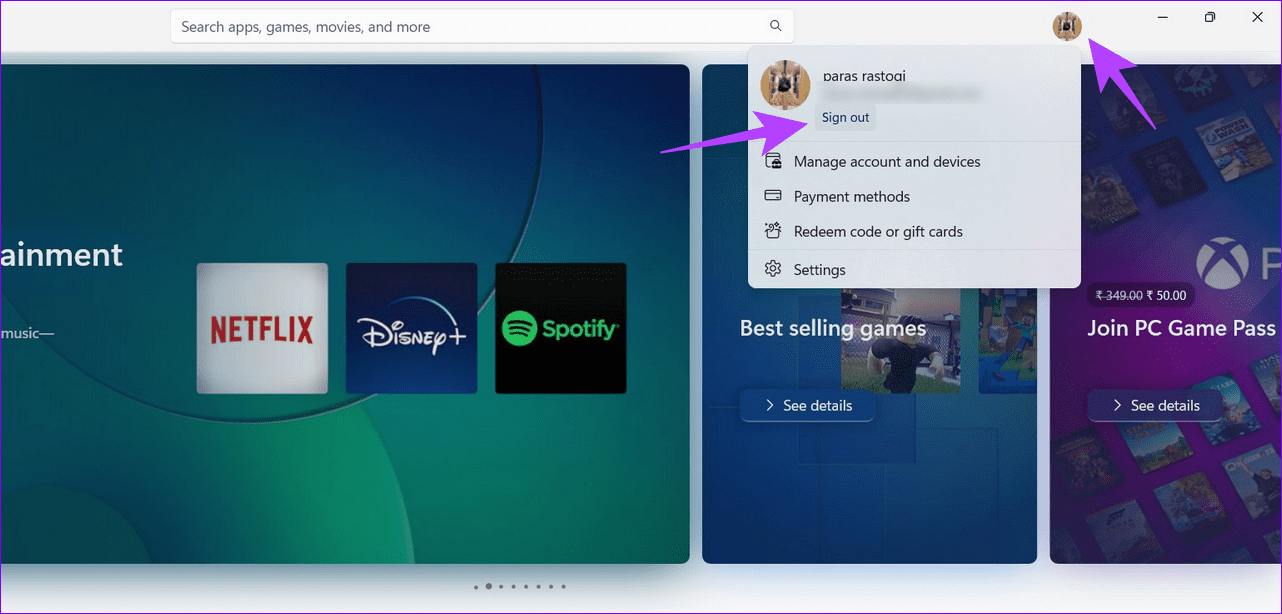
Launch the Microsoft Store app, click your profile icon at the top-right, and select Sign out. Once logged out, repeat the step to sign in using your Microsoft account.
Fix 2: Clear the Microsoft Store Cache
A corrupt app cache can often cause “There has been an error” in the Microsoft Store on Windows 11. Clear it manually using the Run dialog and retry downloading your desired app or game.
Press the Windows + R shortcut to open the Run dialog, type wsreset.exe, and hit Enter to clear the Microsoft Store cache.

Fix 3: Repair or Reset the Microsoft Store
If Microsoft Store app components aren’t working accurately, you might encounter errors when downloading new apps and games. Go to the app settings to repair or reset the Microsoft Store.
Step 1: Press the Windows key, search Microsoft Store, and right-click it to open its App settings.

Step 2: Scroll down and click Repair. If the issue persists, select Reset to reset the app to its default values.

Fix 4: Reinstall the Microsoft Store
If nothing works, you can reinstall the Microsoft Store using Windows PowerShell to configure it afresh.
Step 1: Press the Windows key, search Windows PowerShell, and click Run as Administrator.

Step 2: Paste the following command in the console and press Enter to uninstall the Microsoft Store.
Get-AppxPackage -alluser *WindowsStore* | Remove-Appxpackage

Step 3: Restart your PC and execute the following command in the PowerShell (with admin privileges) to reinstall the Microsoft Store.
Get-AppxPackage -AllUsers Microsoft.WindowsStore* | Foreach {Add-AppxPackage -DisableDevelopmentMode -Register "$($_.InstallLocation)\AppXManifest.xml"}

Was this helpful?
Last updated on 12 July, 2024
1 Comment
Leave a Reply
Read Next
 4 Ways to Fix “Account Not in This Store” Error in App Store for iPhone
Try Basic Fixes Disable VPN: The 'Account Not In This Store' error may be appearing due to a VPN connection.
4 Ways to Fix “Account Not in This Store” Error in App Store for iPhone
Try Basic Fixes Disable VPN: The 'Account Not In This Store' error may be appearing due to a VPN connection.
 4 Ways to Fix “Something Happened on Our End” Error on Microsoft Store
Try Basic Fixes Reset Microsoft Store cache: Outdated or corrupted Microsoft Store cache data could trigger such errors.
4 Ways to Fix “Something Happened on Our End” Error on Microsoft Store
Try Basic Fixes Reset Microsoft Store cache: Outdated or corrupted Microsoft Store cache data could trigger such errors.
 3 Ways to Fix the “Microsoft Store Is Blocked” Error on Windows 11
Basic Fixes: Use Run to reset the Microsoft Store app: The wsreset.exe Run command will help you clear the Microsoft Store’s cache and reset other data that interfere with regular
3 Ways to Fix the “Microsoft Store Is Blocked” Error on Windows 11
Basic Fixes: Use Run to reset the Microsoft Store app: The wsreset.exe Run command will help you clear the Microsoft Store’s cache and reset other data that interfere with regular
 Fix Microsoft Store “This App Will Not Work on Your Device” Error
Try These Fixes First Restart your computer: Restart your computer to eliminate temporary bugs or glitches that might be causing the problem.
Fix Microsoft Store “This App Will Not Work on Your Device” Error
Try These Fixes First Restart your computer: Restart your computer to eliminate temporary bugs or glitches that might be causing the problem.
 Top 4 Ways to Fix Microsoft Store Missing in Windows 10
The Microsoft Store (previously known as Windows Store) is an integral part of any Windows-powered computer.
Top 4 Ways to Fix Microsoft Store Missing in Windows 10
The Microsoft Store (previously known as Windows Store) is an integral part of any Windows-powered computer.
 7 Ways to Fix Microsoft Store Not Downloading Apps or Games
Fix 1: Restart Microsoft Store Shutting down the app can kill any bugs, and it is unlikely to appear once you open the Microsoft Store again.
7 Ways to Fix Microsoft Store Not Downloading Apps or Games
Fix 1: Restart Microsoft Store Shutting down the app can kill any bugs, and it is unlikely to appear once you open the Microsoft Store again.
 Top 9 Ways to Fix Microsoft Store Not Opening on Windows 10
Microsoft plans to revamp its Store on Windows from scratch sometime in the future.
Top 9 Ways to Fix Microsoft Store Not Opening on Windows 10
Microsoft plans to revamp its Store on Windows from scratch sometime in the future.
 5 Ways to Fix Microsoft Store Apps Not Updating Automatically
Fix 1: Verify Auto Update Settings in the Microsoft Store The first thing you should do is verify the auto-update settings in the Microsoft Store app.
5 Ways to Fix Microsoft Store Apps Not Updating Automatically
Fix 1: Verify Auto Update Settings in the Microsoft Store The first thing you should do is verify the auto-update settings in the Microsoft Store app.
The article above may contain affiliate links which help support Guiding Tech. The content remains unbiased and authentic and will never affect our editorial integrity.

not working at all:(