Try Basic Fixes
- Disable VPN: The ‘Account Not In This Store’ error may be appearing due to a VPN connection. To check for this possibility, consider disabling your VPN temporarily.
- Install iOS updates: Newer iOS releases usually bring a host of bug fixes and improvements to your iPhone. Hence, it’s always a good idea to install these updates as soon as they are available if you want to steer clear of such issues and errors.
Fix 1: Select the Right Country or Region in the App Store
The App Store may display the “Account Not In This Store” error message if the country or region that you have set is incorrect. Here’s how to change the set country or region in the App Store.
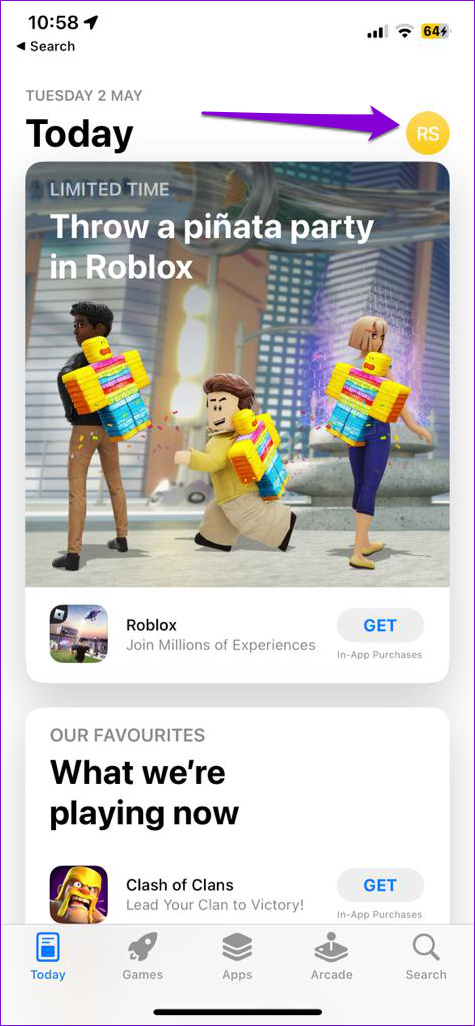
Step 1: Open the App Store, tap your profile icon in the top-right corner, and then tap on your name at the top.
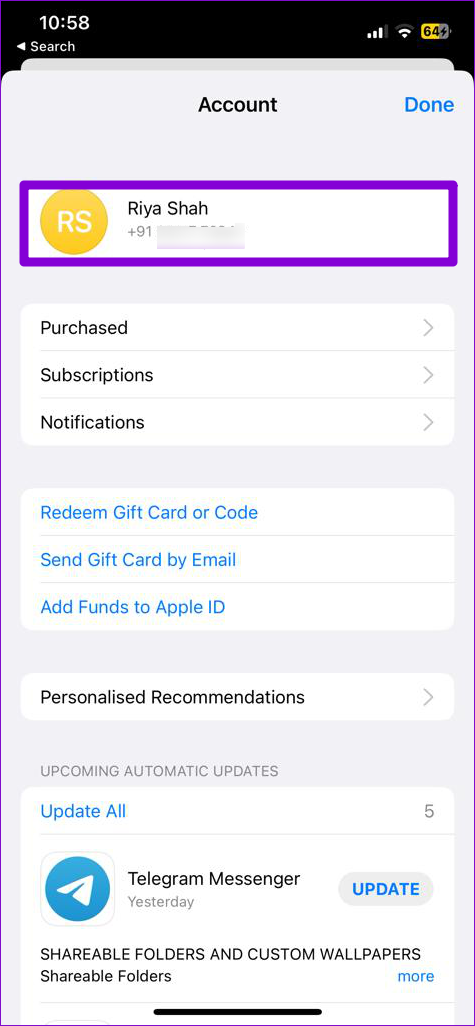
Step 2: Tap Country/Region.
Step 3: Tap the Change Country or Region option and select your country from the following screen.
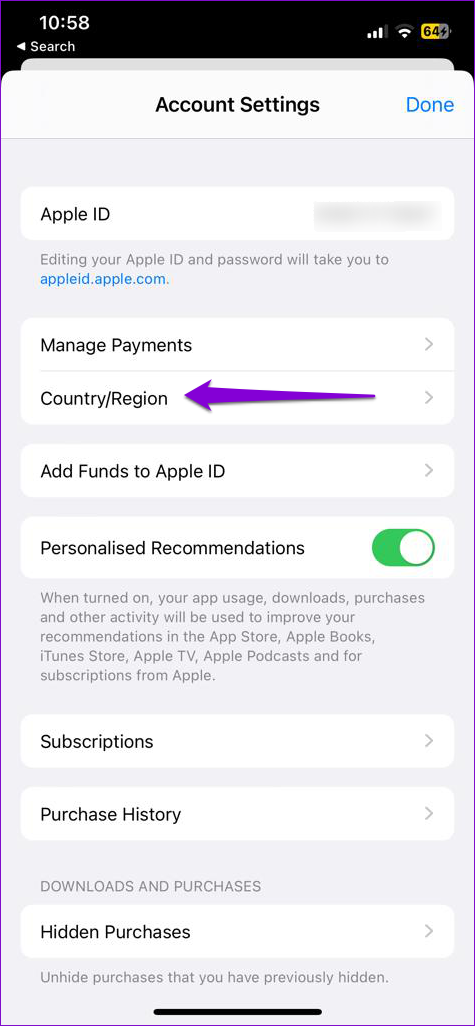

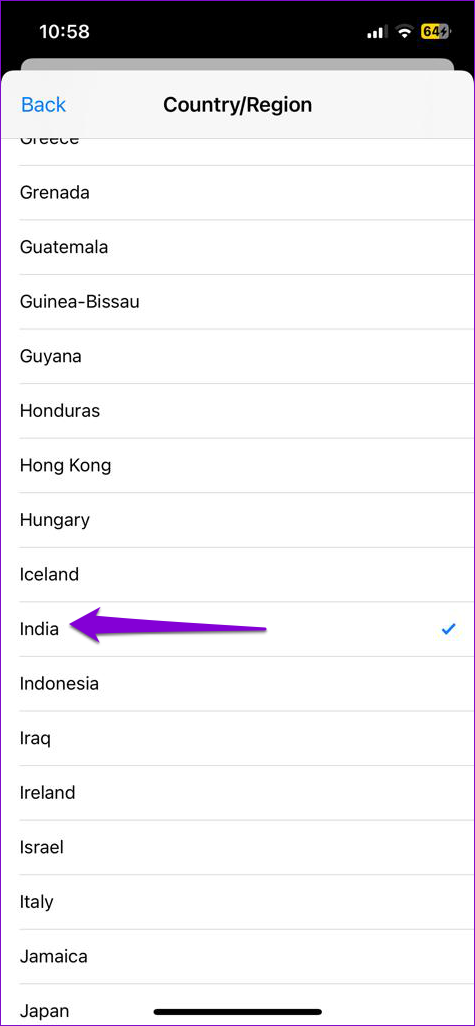
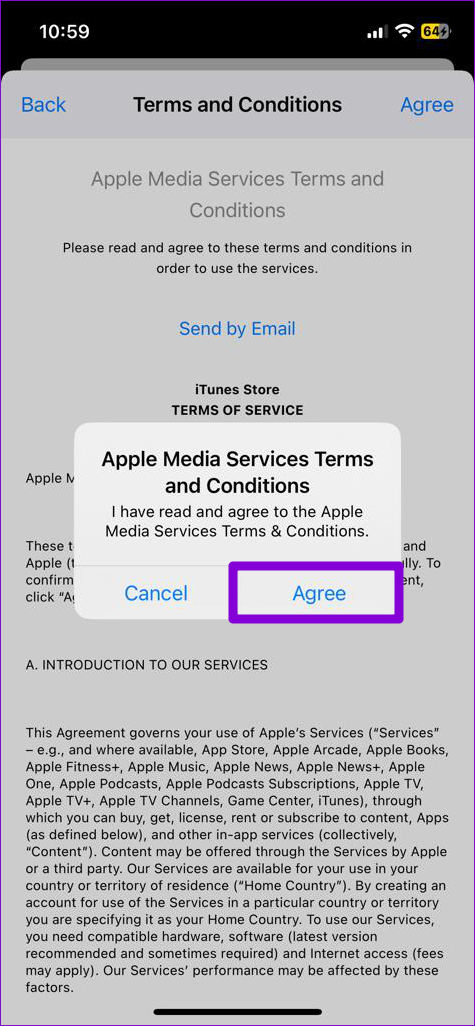
Step 4: Tap Agree in the top-right corner and select Agree again to confirm.

Fix 2: Sign Out and Back Into the App Store
Signing out and back into the App Store refreshes the app’s connection with the servers. This can help resolve any authentication issues that may have caused the “Account Not In This Store” error on iPhone.
Open the App Store and tap your profile icon in the top-right corner. Then, scroll all the way down to the end of the page to select Sign Out.

Reopen the App Store on your iPhone and sign back into your account. Following that, you won’t get any errors.
Fix 3: Enable Automatic Date and Time
Another reason why your iPhone may display the “Account Not In This Store” error is due to an incorrect date or time. To avoid any discrepancies, you can configure your iPhone to use the network-provided date and time. Here’s how to do it.
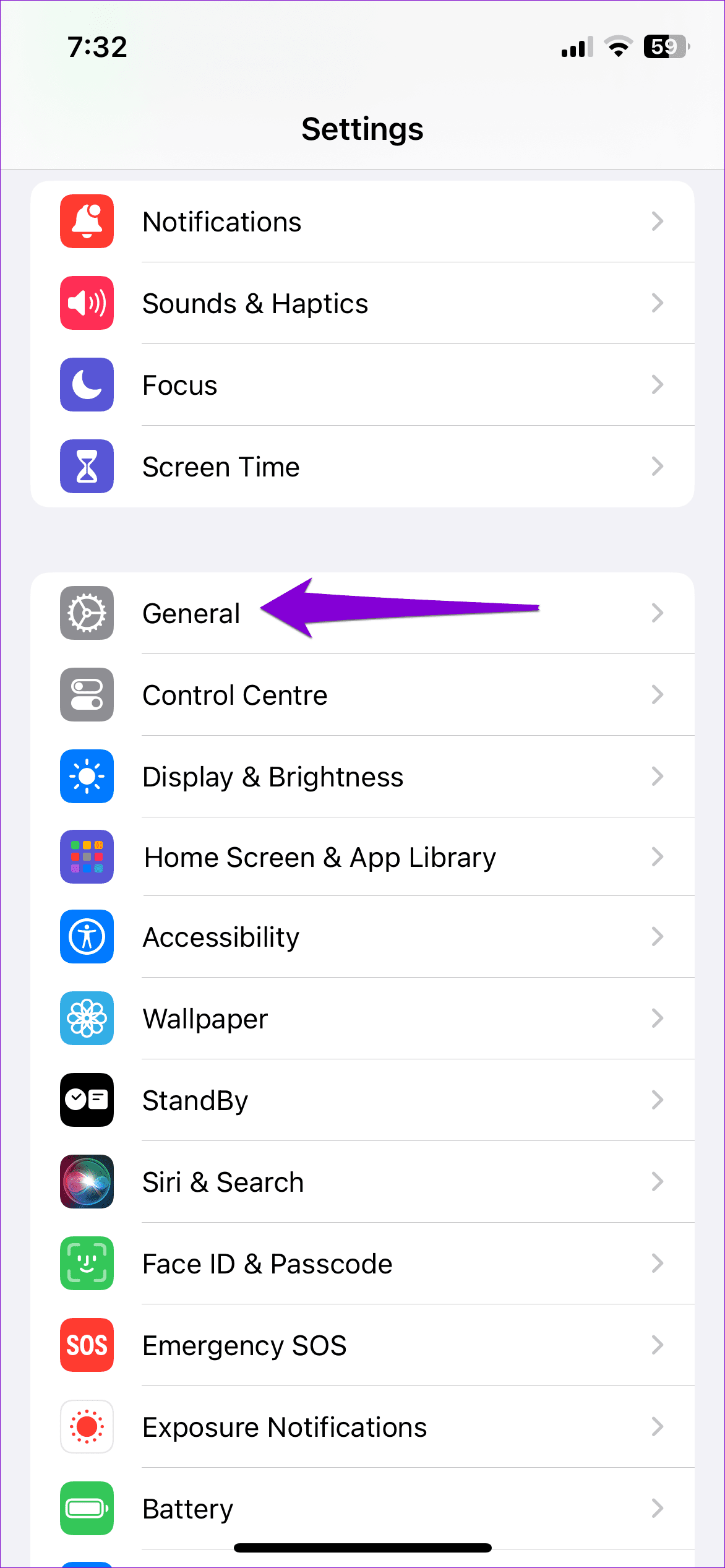
Step 1: Open the Settings app and go to General > Date & Time.
Step 2: Toggle on the switch next to Set Automatically.


Fix 4: Disable Content & Privacy Restrictions
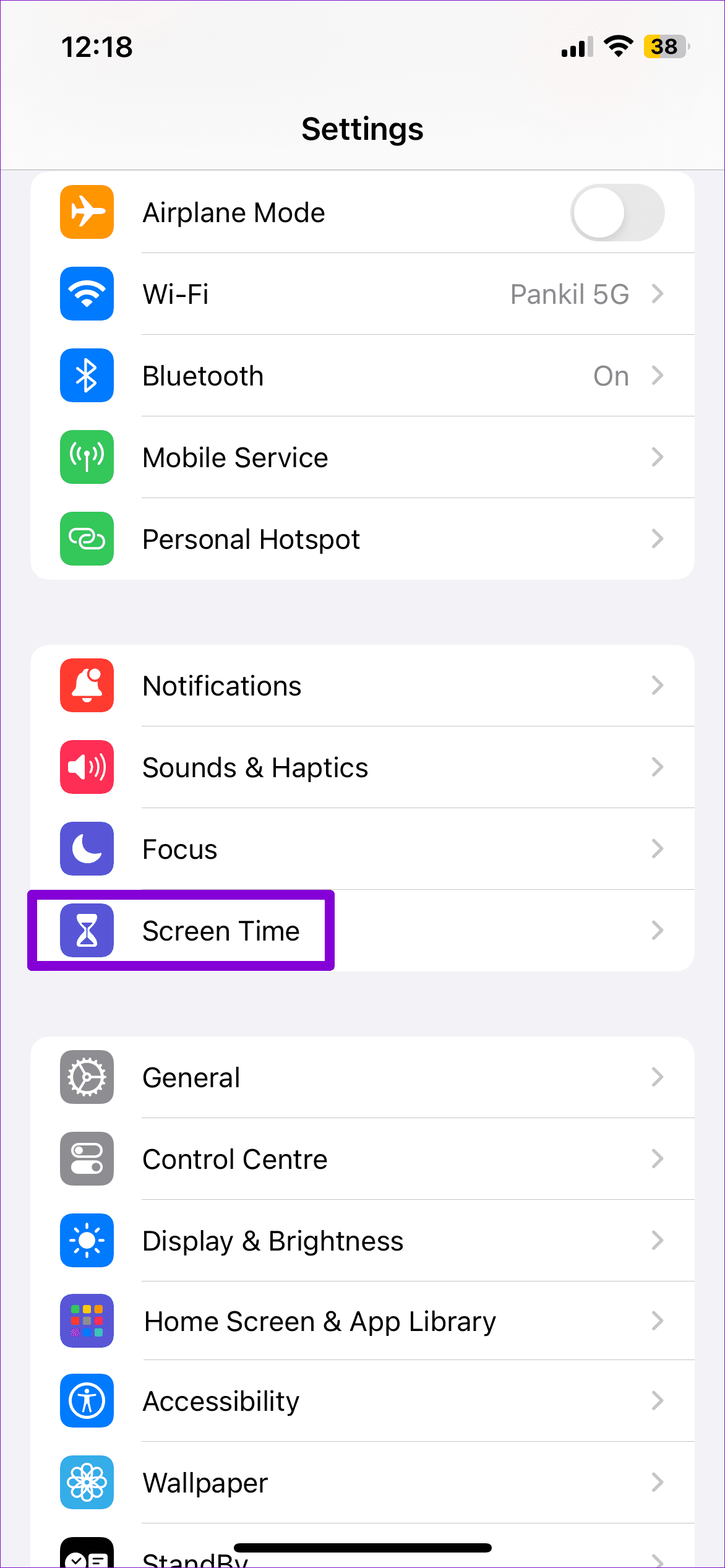
The Screen Time feature on your iPhone lets you impose various content and privacy restrictions on apps. However, this feature can sometimes prevent you from accessing certain apps and games on the App Store and trigger unusual errors. You can try turning off content and privacy restrictions on your iPhone to see if that helps.
Step 1: Open the Settings app and tap on Screen Time.
Step 2: Tap on Content & Privacy Restrictions and disable the toggle at the top of the following screen.


Was this helpful?
Last updated on 01 July, 2024
Read Next
 4 Ways to Fix App Store Search Not Working on iPhone
Try Basic Fixes Check the App Store server status: Sometimes, the App Store can suffer from service outages.
4 Ways to Fix App Store Search Not Working on iPhone
Try Basic Fixes Check the App Store server status: Sometimes, the App Store can suffer from service outages.
 Fix Microsoft Store “This App Will Not Work on Your Device” Error
Try These Fixes First Restart your computer: Restart your computer to eliminate temporary bugs or glitches that might be causing the problem.
Fix Microsoft Store “This App Will Not Work on Your Device” Error
Try These Fixes First Restart your computer: Restart your computer to eliminate temporary bugs or glitches that might be causing the problem.
 3 Ways to Fix Apple iPad Can’t Connect to App Store
Basic Fixes: Restart iPad: A simple reboot may fix glitches like the iPad can’t connect to the App Store.
3 Ways to Fix Apple iPad Can’t Connect to App Store
Basic Fixes: Restart iPad: A simple reboot may fix glitches like the iPad can’t connect to the App Store.
 4 Ways to Fix “Verification Required” on App Store
Basic Fixes Check internet connection: Using the App Store to explore the library and download the apps without any problem requires a stable network connection Sign out and sign into
4 Ways to Fix “Verification Required” on App Store
Basic Fixes Check internet connection: Using the App Store to explore the library and download the apps without any problem requires a stable network connection Sign out and sign into
 6 Ways to Fix Google Play Store Has Stopped Error on Android
Common Fixes Restart the device: Long-press the physical Power button and select Restart in the power menu.
6 Ways to Fix Google Play Store Has Stopped Error on Android
Common Fixes Restart the device: Long-press the physical Power button and select Restart in the power menu.
 4 Ways to Fix “There Has Been an Error” in Microsoft Store
Common Fixes Check your network connection: Unstable internet can create errors when downloading apps and games from the Microsoft Store.
4 Ways to Fix “There Has Been an Error” in Microsoft Store
Common Fixes Check your network connection: Unstable internet can create errors when downloading apps and games from the Microsoft Store.
 6 Ways to Fix ‘Something Went Wrong’ Error in Play Store
Basic Fixes Restart Play Store: Long tap on the Play Store app, select App Info, and tap on Force Stop.
6 Ways to Fix ‘Something Went Wrong’ Error in Play Store
Basic Fixes Restart Play Store: Long tap on the Play Store app, select App Info, and tap on Force Stop.
 5 Ways to Fix Google Play Store ‘No Connection’ Error
Basic Ways: Restart your phone: Restarting your Android phone will help restart all device services, eliminating any temporary glitches that might be erroring out the Google Play Store app.
5 Ways to Fix Google Play Store ‘No Connection’ Error
Basic Ways: Restart your phone: Restarting your Android phone will help restart all device services, eliminating any temporary glitches that might be erroring out the Google Play Store app.
The article above may contain affiliate links which help support Guiding Tech. The content remains unbiased and authentic and will never affect our editorial integrity.