Let’s look at the detailed solutions to fix Telegram not working on Wi-Fi on iPhone and Android.
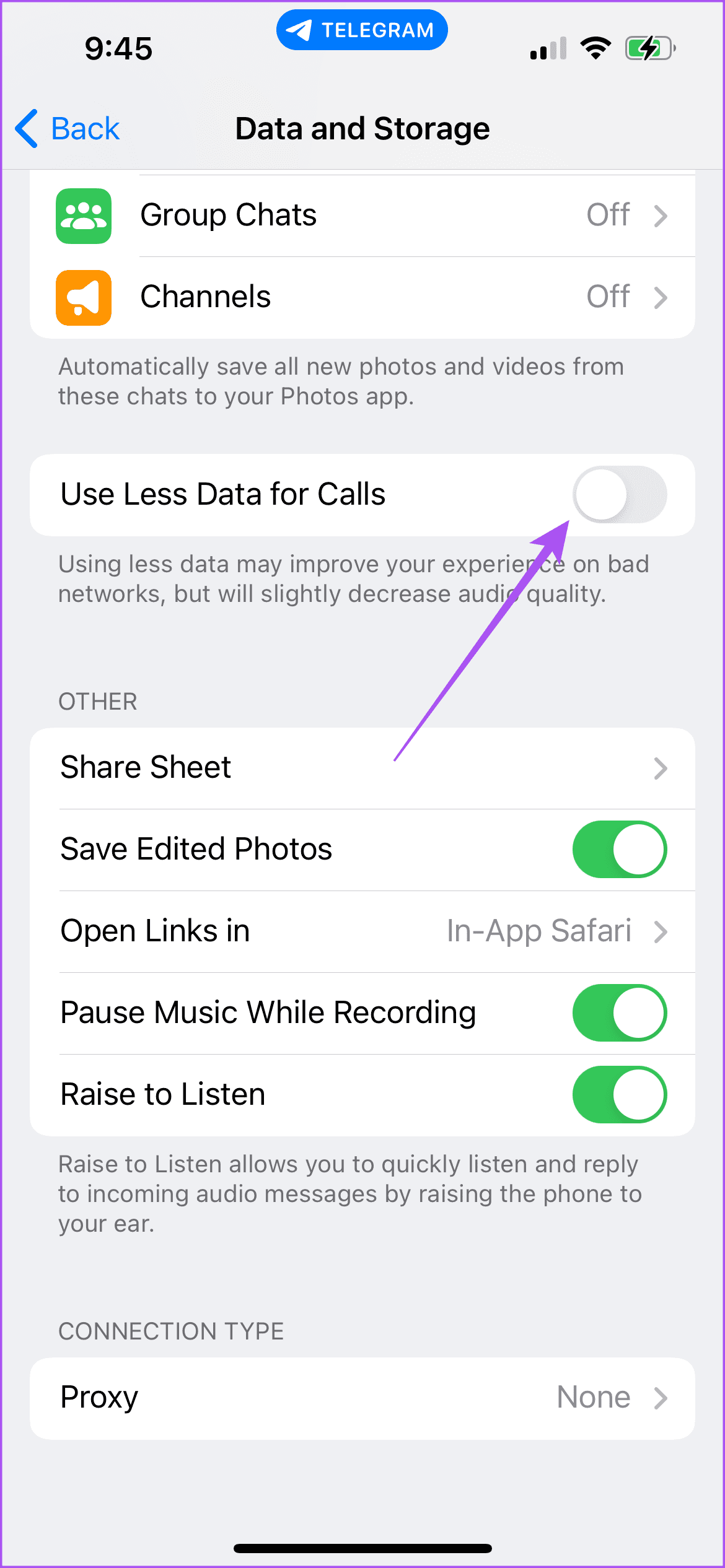
Fix 1: Check the Data Settings on the Telegram App
The Telegram app gives you different options to limit data usage. Here’s how to check the same.
Step 1: Open Telegram and tap on the Settings icon at the bottom-right corner (iPhone).
For Android, tap the hamburger menu icon at the top-left corner and select Settings.
Step 2: Select Data and Storage. Then check all the data settings and ensure none has been disabled. You should also disable Use Less Data for Calls on Telegram.

Fix 2: Switch to a 5GHz Wi-Fi Network
Switching to a 5GHz frequency band will instantly improve your internet speed and you can conduct a speed test to confirm that your Internet Service Provider is not facing any downtime.
Fix 3: Disable Low Data Mode and Low Power Mode
For iPhone
Step 1: Open the Settings app on your iPhone and then tap on Wi-Fi.
Step 2: Tap on the ‘i’ icon next to your connected Wi-Fi network. Then turn off the toggle next to Low Data Mode.


Step 3: Go back and tap on Battery in the Settings app. Then turn off the toggle next to Low Power Mode.
For Android
Step 1: Open the Settings app on your Android phone and then tap on Network and Internet.
Step 2: Select Internet. Then tap the Settings icon next to your connected Wi-Fi network.


Step 3: Tap Network Usage and check if it has been set to Detect Automatically.


Step 4: Go back and tap on Battery, select Battery Saver, and ensure the feature has been disabled.
Fix 4: Disable Unrestricted Data Usage (Android)
If you have an Android phone and have enabled Data Saver, you should check if unrestricted data usage has been enabled for Telegram. Here’s how.
Step 1: Long-press the Telegram app icon and tap on App Info. Then tap on Mobile Data and Wi-Fi. Tap the toggle next to Unrestricted Data Usage to enable this feature.


Step 2: Close App Info and open Telegram to check if the problem is solved.
Fix 5: Enable Background App Refresh (iPhone)
To resume your Telegram downloads while the app runs in the background, you should check if you have enabled this feature for the app.
Step 1: Open the Settings app on your iPhone and then tap on Telegram. Tap the toggle next to Background App Refresh to enable the feature.

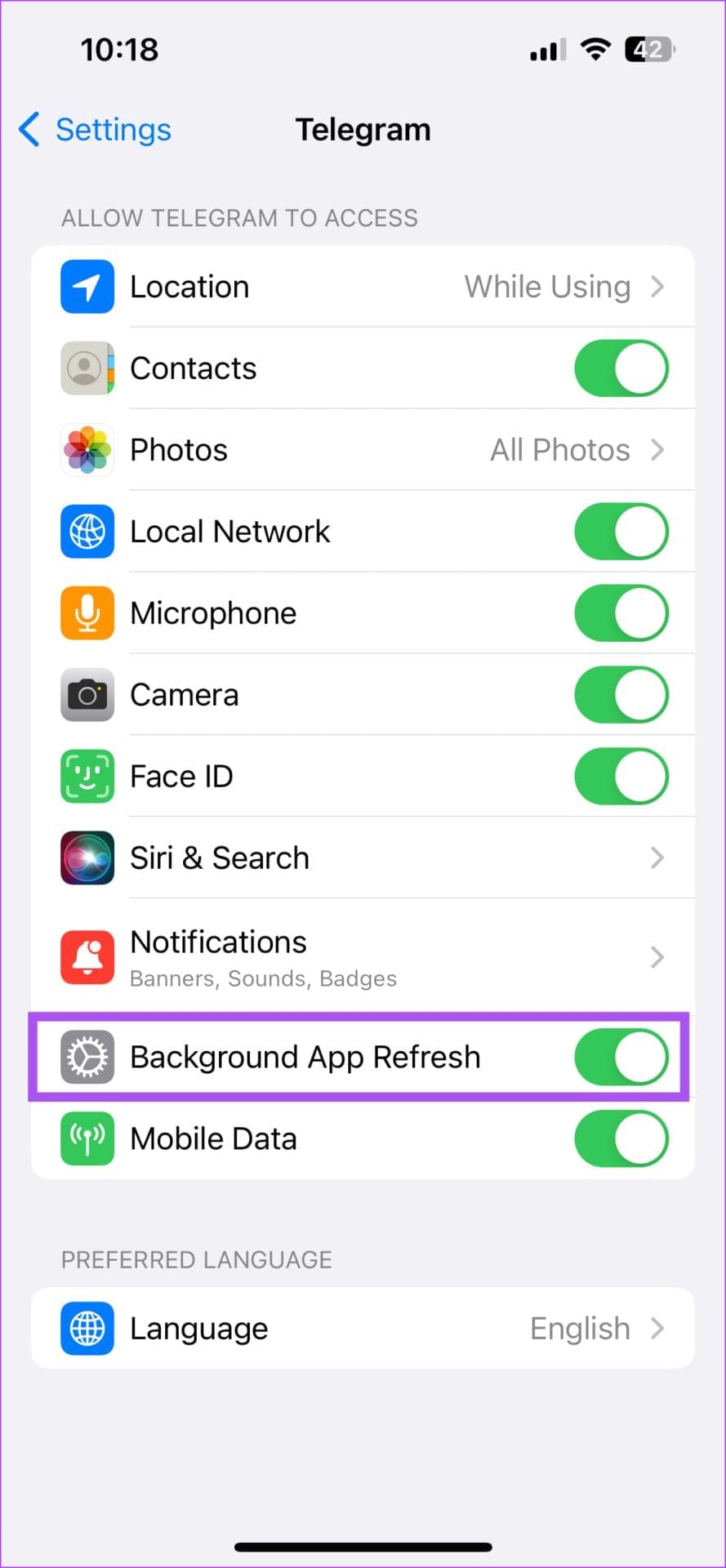
Step 2: Close Settings and open Telegram to check if the problem is solved.
Fix 6: Switch to Public DNS Service
Sometimes, you might experience connection errors on the default DNS server provided by your Internet Service Provider. In such a case, we suggest switching to a Public DNS service like Google DNS or Open DNS.
Read our post on how to change the DNS server on Android and iPhone to facilitate this.
Fix 7: Clear Telegram Cache
Every app collects cache data over a period to store information that improves app performance and reduces loading times. However, the app cache can get corrupted, leading to issues like this one.
Step 1: Open Telegram and tap on the Settings icon at the bottom-right corner (iPhone).
For Android, tap the hamburger menu icon at the top-left corner and select Settings.
Step 2: Tap on Data and Storage and then select Storage Usage.

Step 3: Tap on Clear Entire Cache.
The last resort is to update the version of Telegram on your iPhone or Android to eliminate bugs or glitches that may be causing this issue.
Was this helpful?
Last updated on 03 April, 2024
Read Next
 4 Fixes for Telegram Notification Sound Not Working on Android and iPhone
Try Basic Fixes Close Telegram on your computer: If you have the Telegram app open on your computer, Telegram notifications may not appear or make a sound on your phone.
4 Fixes for Telegram Notification Sound Not Working on Android and iPhone
Try Basic Fixes Close Telegram on your computer: If you have the Telegram app open on your computer, Telegram notifications may not appear or make a sound on your phone.
 5 Fixes for Telegram Voice Messages Not Working on Android and iPhone
Try Basic Fixes Check if Telegram is down: If Telegram servers are experiencing problems, you may have trouble sending or receiving voice messages.
5 Fixes for Telegram Voice Messages Not Working on Android and iPhone
Try Basic Fixes Check if Telegram is down: If Telegram servers are experiencing problems, you may have trouble sending or receiving voice messages.
 3 Fixes for Face ID Not Working in Telegram on iPhone
Basic Fixes Clean the true depth camera area: The Face ID feature works due to the TrueDepth Camera system.
3 Fixes for Face ID Not Working in Telegram on iPhone
Basic Fixes Clean the true depth camera area: The Face ID feature works due to the TrueDepth Camera system.
 4 Fixes for Telegram Calls Not Connecting on Android and iPhone
Basic Fixes Blocked by recipient: You might have been blocked by the contact on Telegram.
4 Fixes for Telegram Calls Not Connecting on Android and iPhone
Basic Fixes Blocked by recipient: You might have been blocked by the contact on Telegram.
 3 Fixes for Telegram Not Syncing Contacts
Basic Fixes Switch to Wi-Fi: Contact syncing on Telegram requires faster internet speeds.
3 Fixes for Telegram Not Syncing Contacts
Basic Fixes Switch to Wi-Fi: Contact syncing on Telegram requires faster internet speeds.
 3 Fixes for Picture-in-Picture Not Working in Telegram
Basic Fixes Force quit and relaunch Telegram: This will give the app a fresh start on your iPhone or Android phone.
3 Fixes for Picture-in-Picture Not Working in Telegram
Basic Fixes Force quit and relaunch Telegram: This will give the app a fresh start on your iPhone or Android phone.
 3 Fixes for Telegram Not Working on Mobile Data
Basic Fixes Contact your mobile network operator: Due to ongoing maintenance work, there may be mobile data issues specifically for your area.
3 Fixes for Telegram Not Working on Mobile Data
Basic Fixes Contact your mobile network operator: Due to ongoing maintenance work, there may be mobile data issues specifically for your area.
 4 Fixes for GIFs Not Working in Telegram
Basic Fixes Check if the GIF file is corrupted: It is a common issue and you can't trust every website to let you download high-quality GIFs.
4 Fixes for GIFs Not Working in Telegram
Basic Fixes Check if the GIF file is corrupted: It is a common issue and you can't trust every website to let you download high-quality GIFs.
The article above may contain affiliate links which help support Guiding Tech. The content remains unbiased and authentic and will never affect our editorial integrity.