Basic Fixes
- Contact your mobile network operator: Due to ongoing maintenance work, there may be mobile data issues specifically for your area.
- Use a VPN: If you can’t connect using Wi-Fi, you can try connecting to a VPN network.
- Force quit and relaunch Telegram: This will give the app a fresh start.
- Update or reinstall Telegram: This will install the latest version of the app, fixing any bugs causing this issue.
Fix 1: Enable Mobile Data Access for Telegram
If Telegram fails to connect to mobile data, check if mobile data access is enabled on your iPhone or Android phone.
On iPhone
Open Settings > Telegram > Mobile Data > enable access.


On Android
Step 1: Long-press the Telegram app icon and then select App Info.
Step 2: Select Mobile Data and Wi-Fi and then tap the toggle to enable Background data.


2. Disable Data Saver Mode
If you must download large-sized files on Telegram using Mobile Data, disable Data Saver Mode on your iPhone or Android phone. This can be why Telegram is not working on mobile data.
On iPhone
Step 1: Open Settings on your iPhone and then tap on Mobile Service.
Step 2: Select Mobile Data and then tap on Data Mode.
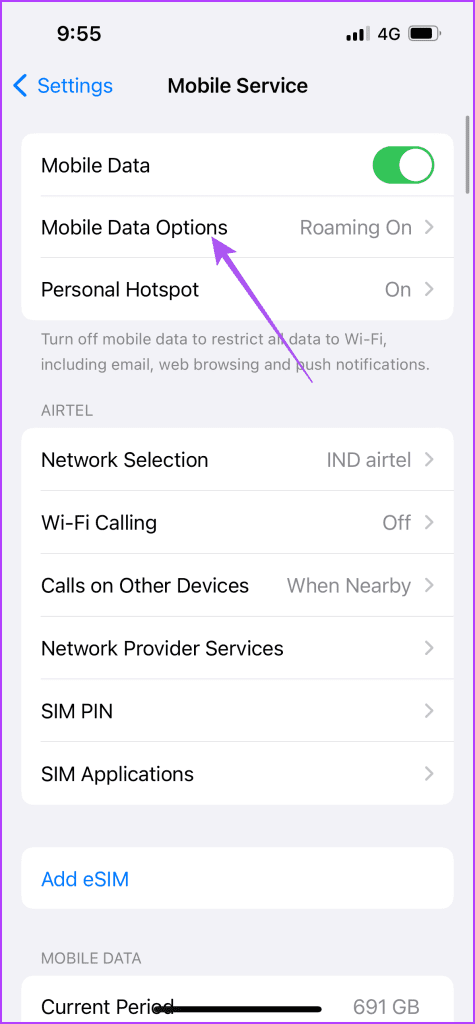

Step 3: Ensure that Low Data Mode has been disabled for mobile data.
On Android
Step 1: Open Settings on your Android phone and then select Network and Internet.
Step 2: Tap on Data Saver and then ensure it has been disabled on your Android phone.
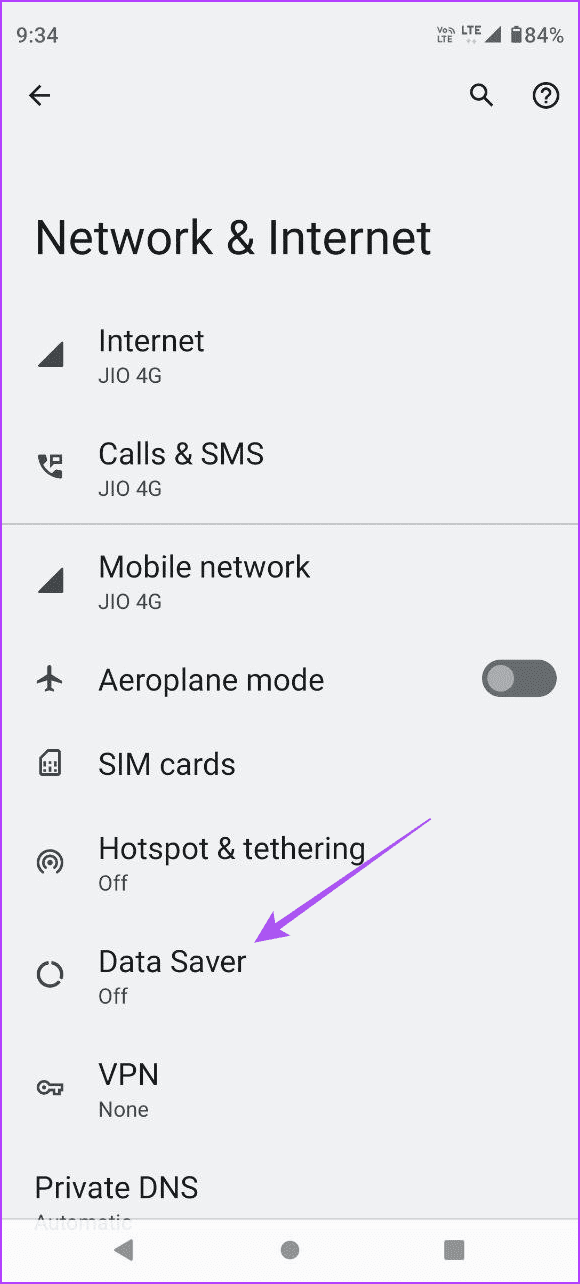

Step 3: Close Settings and then open Telegram to check if the problem is solved.
Fix 3: Disable Battery Saver
If Telegram is still not connecting when using Mobile Data, try disabling Battery Saver on your device if it is enabled. Battery Saver can prevent the complete discharge of your iPhone or Android phone. But you can disable it for using Telegram on Mobile Data.
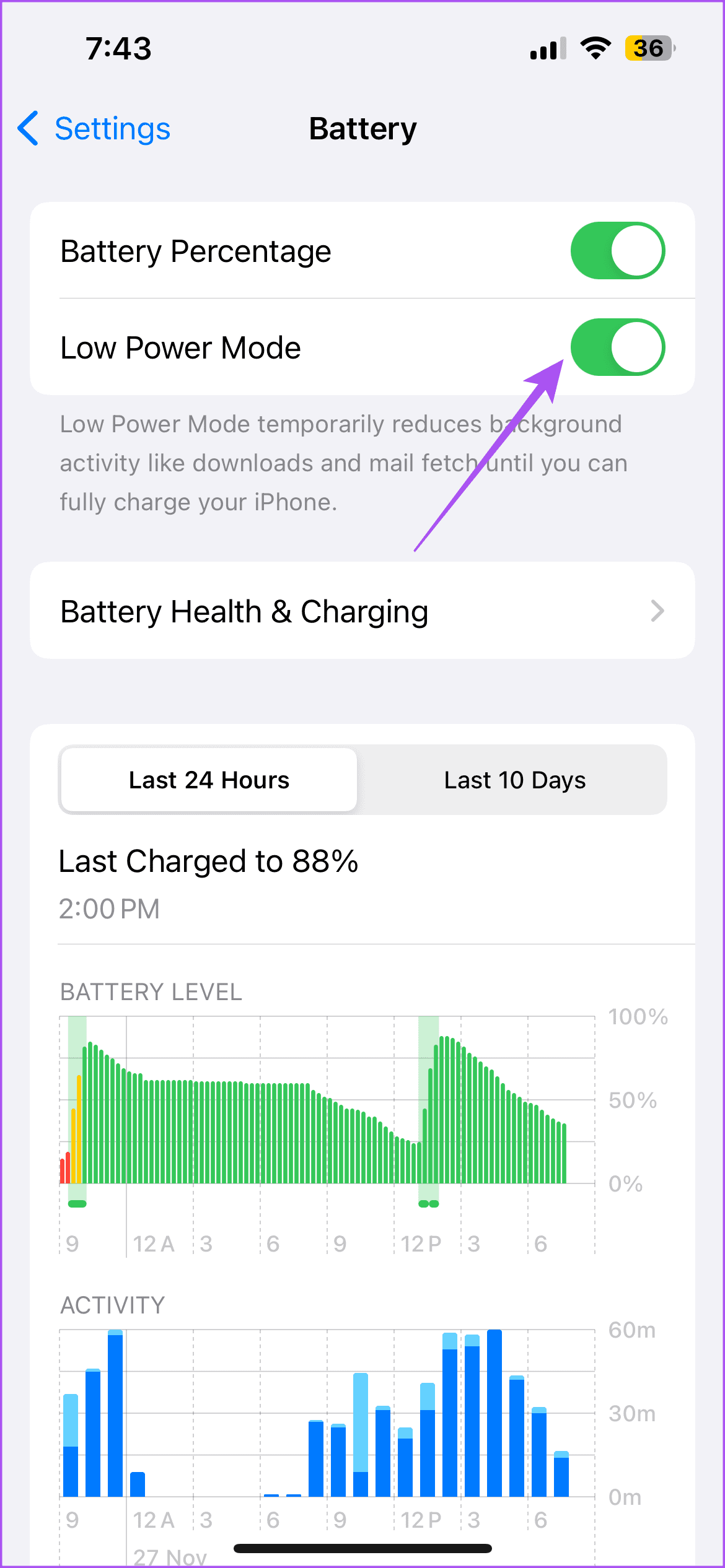
On iPhone
Open Settings > Battery > disable Low Power Mode

On Android
Step 1: Open Settings on your Android phone and then tap on Battery.
Step 2: Tap on Battery Saver and then ensure the feature is turned off.

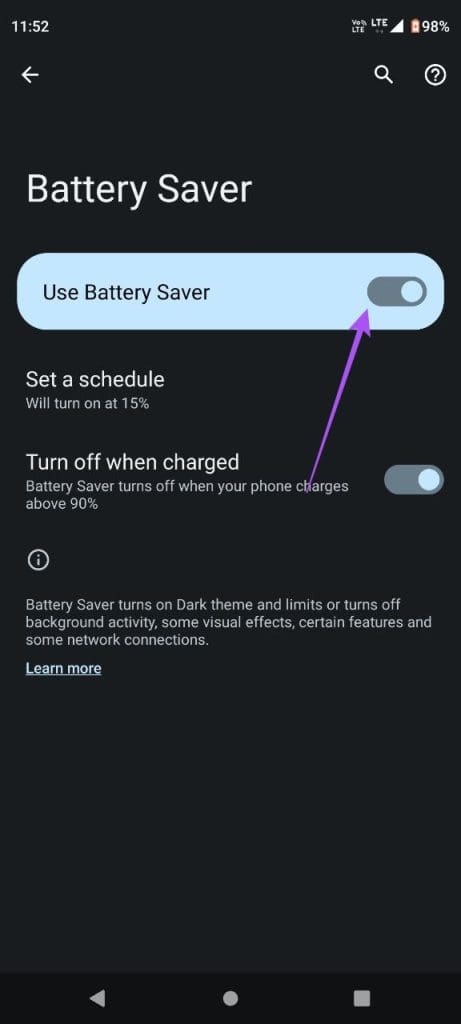
Step 3: Close Settings and open Telegram to check if the problem is solved.
Tip: You can also read our post to learn how to lock Telegram using a passcode.
Was this helpful?
Last updated on 02 July, 2024
Read Next
 4 Fixes for GIFs Not Working in Telegram
Basic Fixes Check if the GIF file is corrupted: It is a common issue and you can't trust every website to let you download high-quality GIFs.
4 Fixes for GIFs Not Working in Telegram
Basic Fixes Check if the GIF file is corrupted: It is a common issue and you can't trust every website to let you download high-quality GIFs.
 3 Fixes for Telegram Keeps Logging Me Out on Mobile and Desktop
Basic Fixes Force quit and relaunch the Telegram app: This will give the app a fresh start on your device.
3 Fixes for Telegram Keeps Logging Me Out on Mobile and Desktop
Basic Fixes Force quit and relaunch the Telegram app: This will give the app a fresh start on your device.
 4 Ways to Fix WhatsApp Not Working on Mobile Data
Before you begin, ensure you have no problems with using the internet via mobile data on your smartphone.
4 Ways to Fix WhatsApp Not Working on Mobile Data
Before you begin, ensure you have no problems with using the internet via mobile data on your smartphone.
 5 Ways to Fix Instagram Not Working on Mobile Data
Basic Fixes Check if Instagram is down: Check if Instagram is facing downtime.
5 Ways to Fix Instagram Not Working on Mobile Data
Basic Fixes Check if Instagram is down: Check if Instagram is facing downtime.
 9 Ways to Fix Facebook Not Working on Mobile Data
Basic Troubleshooting Check Facebook's status: Maybe Facebook servers are down, visit Downdetector and search for Facebook.
9 Ways to Fix Facebook Not Working on Mobile Data
Basic Troubleshooting Check Facebook's status: Maybe Facebook servers are down, visit Downdetector and search for Facebook.
 3 Fixes for Face ID Not Working in Telegram on iPhone
Basic Fixes Clean the true depth camera area: The Face ID feature works due to the TrueDepth Camera system.
3 Fixes for Face ID Not Working in Telegram on iPhone
Basic Fixes Clean the true depth camera area: The Face ID feature works due to the TrueDepth Camera system.
 7 Fixes for Telegram Not Working on Wi-Fi on iPhone and Android
Let's look at the detailed solutions to fix Telegram not working on Wi-Fi on iPhone and Android.
7 Fixes for Telegram Not Working on Wi-Fi on iPhone and Android
Let's look at the detailed solutions to fix Telegram not working on Wi-Fi on iPhone and Android.
 3 Fixes for Picture-in-Picture Not Working in Telegram
Basic Fixes Force quit and relaunch Telegram: This will give the app a fresh start on your iPhone or Android phone.
3 Fixes for Picture-in-Picture Not Working in Telegram
Basic Fixes Force quit and relaunch Telegram: This will give the app a fresh start on your iPhone or Android phone.
The article above may contain affiliate links which help support Guiding Tech. The content remains unbiased and authentic and will never affect our editorial integrity.