

Basic Fixes:
- Use Run to reset the Microsoft Store app: The wsreset.exe Run command will help you clear the Microsoft Store’s cache and reset other data that interfere with regular app functions.
- Briefly turn off Windows Defender: There have been instances where non-malicious files have been accidentally flagged and blocked. To fix this, you can turn off or disable Windows Defender. Then, check again.
- Check for Windows updates: Updating your Windows device to the latest version can help fix incompatibility issues or software bugs that might block the Microsoft Store on your Windows 11 device.
Fix 1: Using Windows Store Apps Troubleshooter
If any Windows app encounters a problem, you can use the Windows troubleshooter to help identify and fix it. This should also work if any internal app issue prevents the Microsoft Store from opening on Windows. Here’s how.
Step 1: Use the Windows + I key to open Settings and go to System.
Step 2: Scroll down and click on Troubleshoot.

Step 3: Then, click on Other troubleshooters.
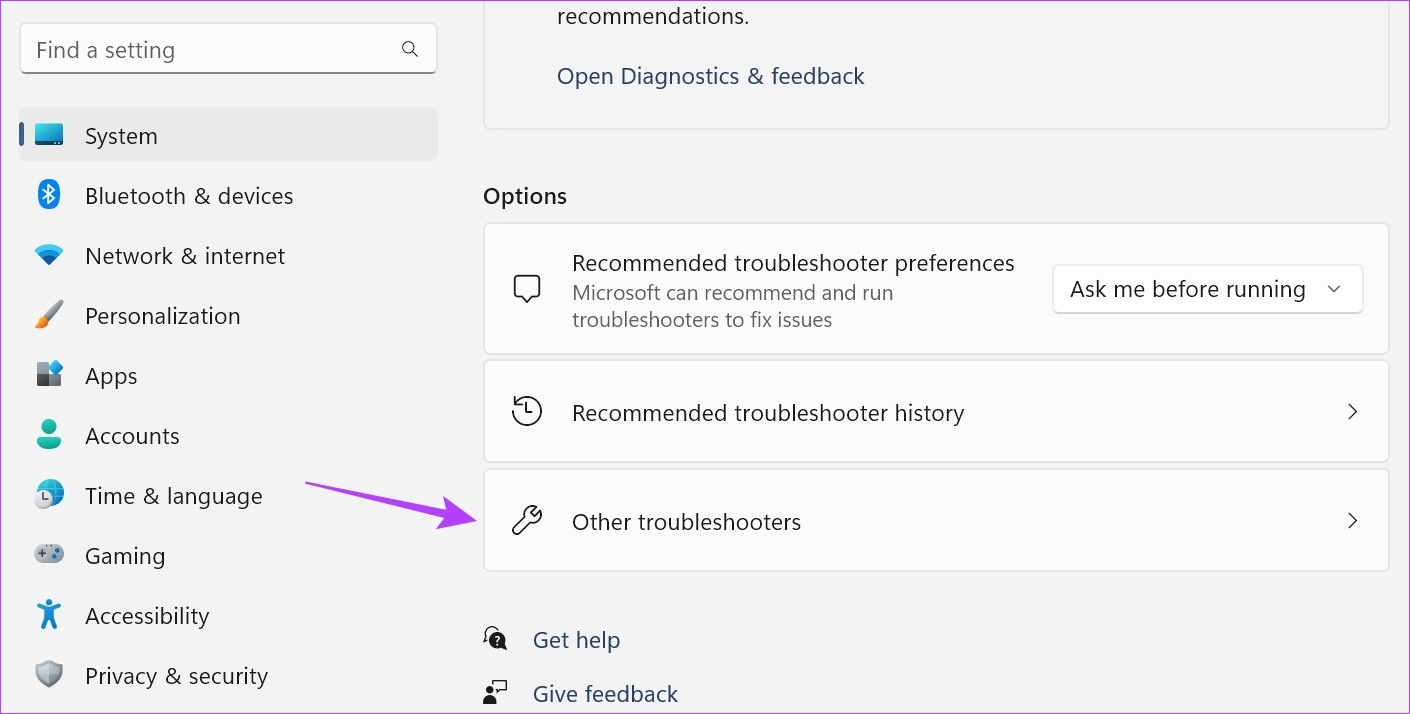
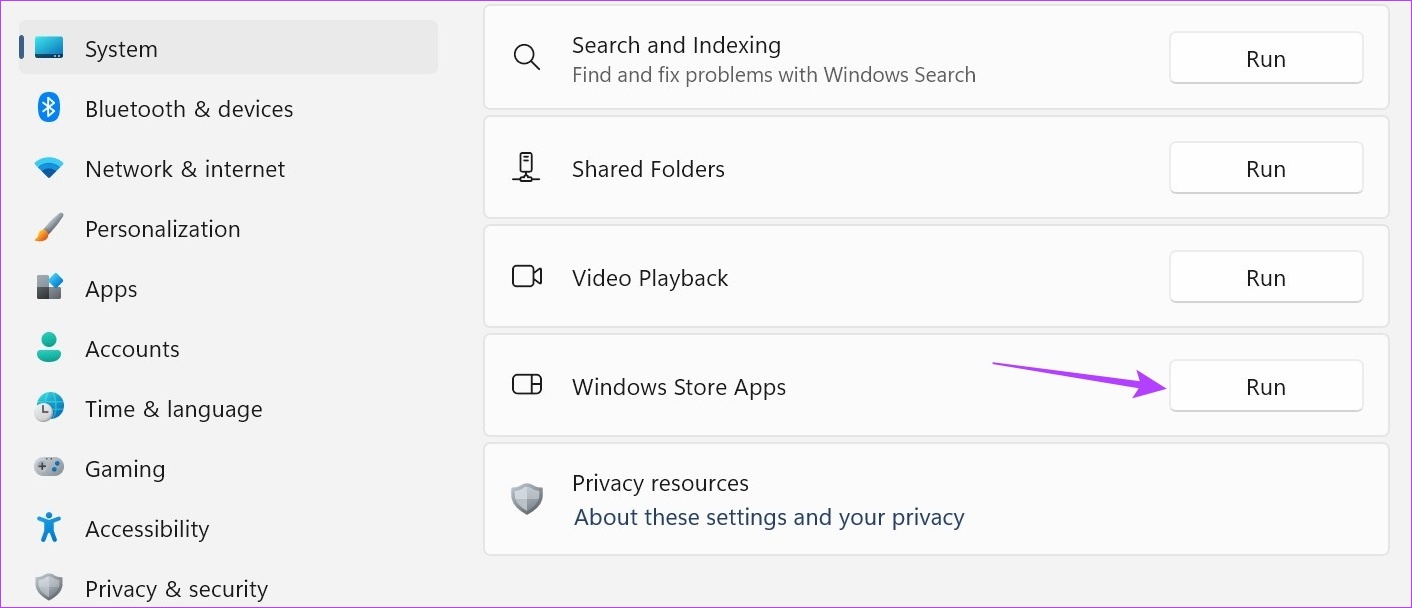
Step 4: Go to Windows Store Apps and click on Run. Follow the on-screen instructions to fix the issue.
Fix 2: Using the Repair Option
If you still get the error code 0x800704EC for the Microsoft Store, try running a Windows repair. This can help repair app issues, like the Microsoft Store app not opening. Follow the below steps to do it.
Step 1: Open Settings using the Windows + I key. Go to Apps and click on Installed apps.

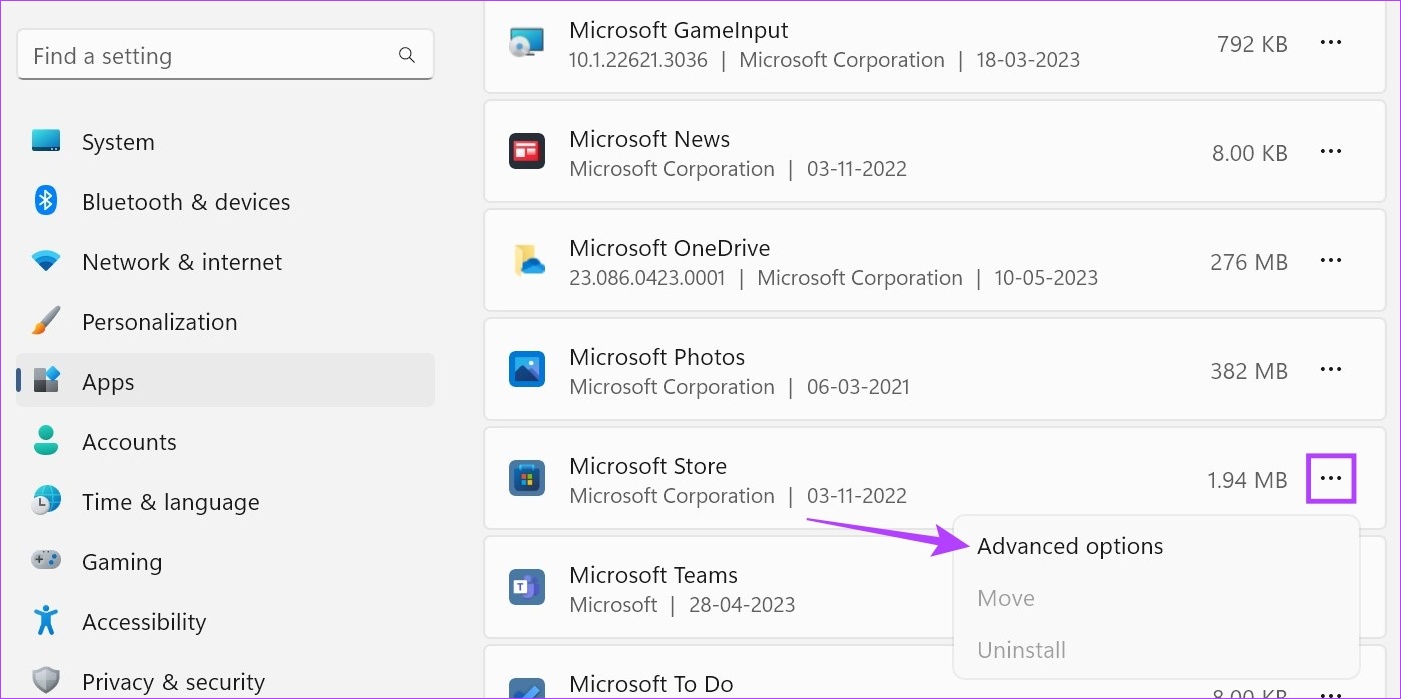
Step 2: Scroll down to Microsoft Store and click on the three-dot icon. Click on Advanced options.
Step 3: Go to Reset and click on Repair. Once the repair is finished, try opening the app again.
Step 4: If it still doesn’t work, click on Reset and confirm your choice. Then, check again.

Note: If available, you can also open Registry Editor and navigate to the following page: HKEY_LOCAL_MACHINE\SOFTWARE\Policies\Microsoft\WindowsStore. Here, delete the RemoveWindowsStore value and check again.
Fix 3: Using the Group Policy Editor
The Group Policy Editor helps you change certain important Windows policies. So, if the Microsoft Store has been disabled through the Group Policy Editor, you might get the Microsoft Store is blocked error. To fix this, open Group Policy Editor and enable the Microsoft Store app. Here’s how.
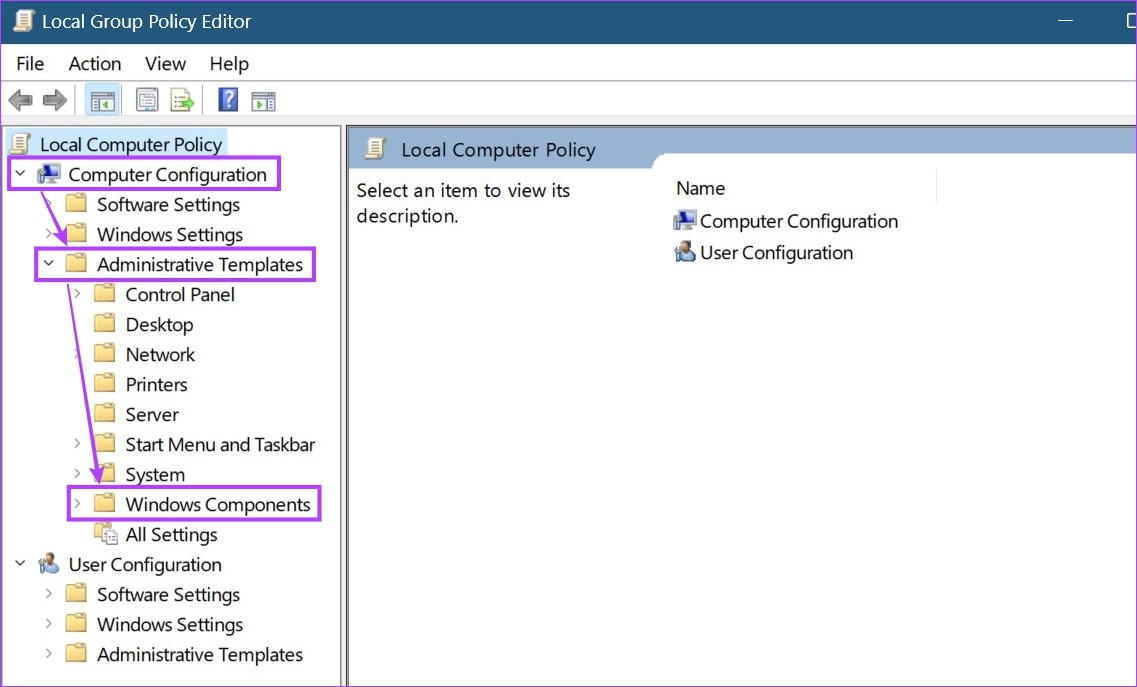
Step 1: Open the Local Group Policy Editor and click on Computer Configuration.
Step 2: Once the menu options expand, click on Administrative Templates. Then, click on Windows Components.
Step 3: Here, click on Store. From the Setting options, click on Turn off the Store application.
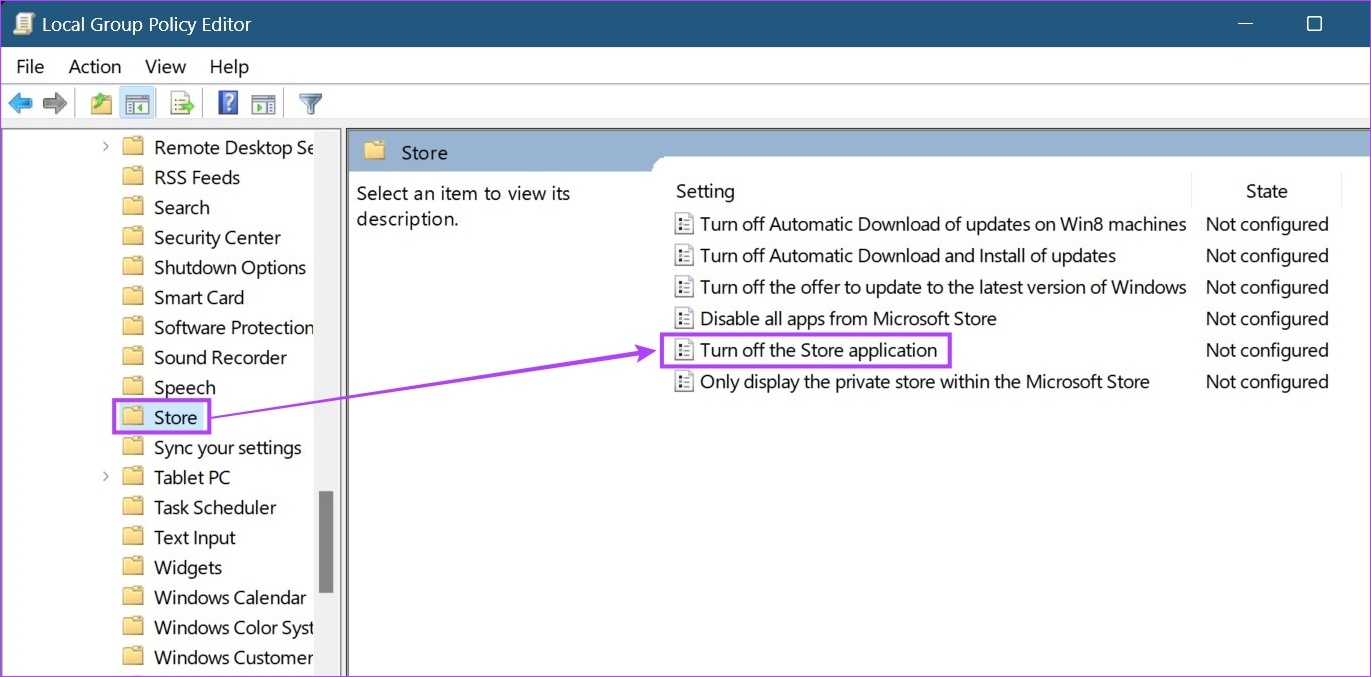
Step 4: Select Not Configured and click on OK.
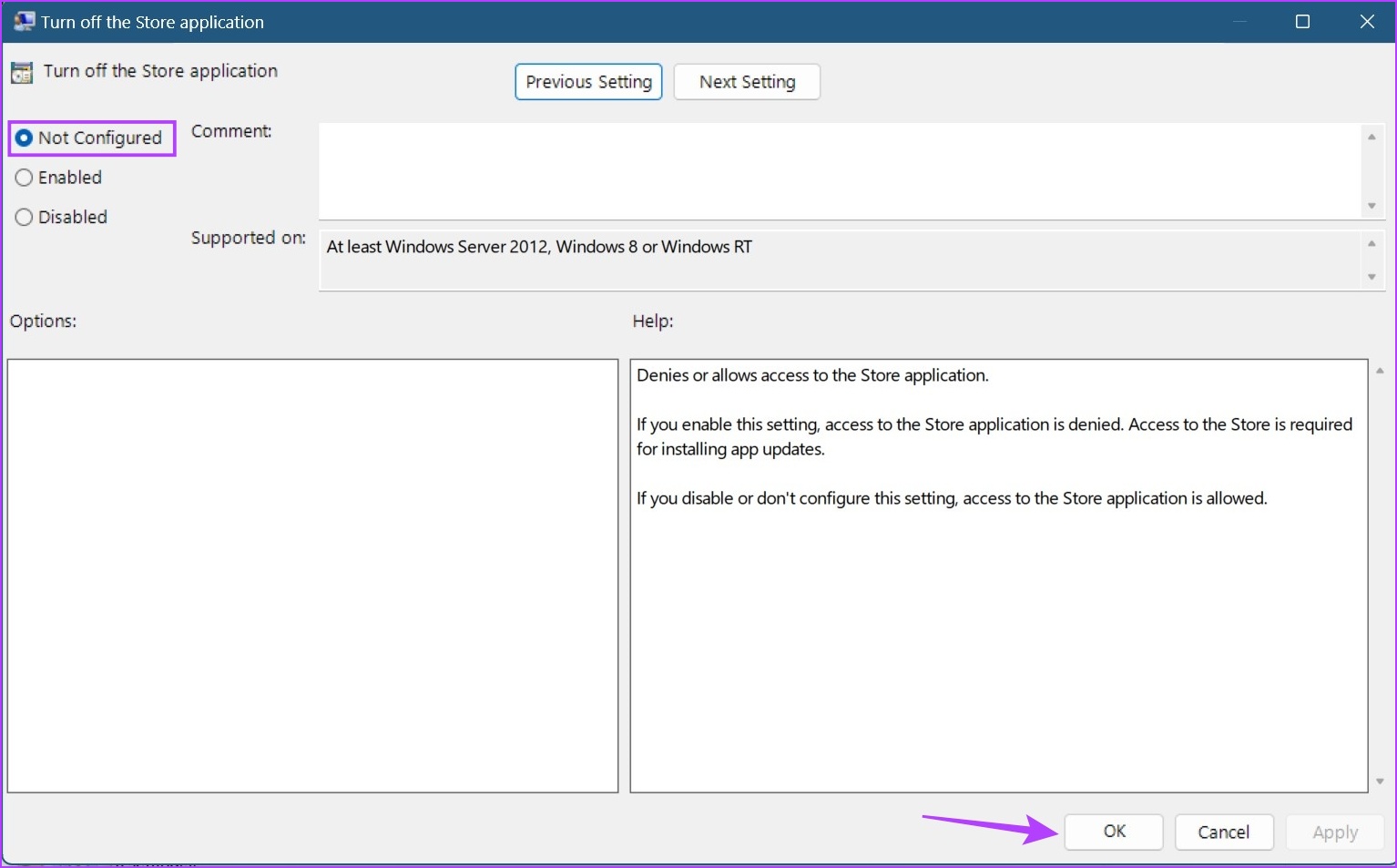
Once done, restart your Windows device. Then, see if the Microsoft Store blocked error message has been fixed.
Was this helpful?
Last updated on 27 June, 2024
1 Comment
Leave a Reply
Read Next
 5 Fixes for Microsoft Has Blocked Macros Error in Excel for Windows
Fix 1: Unblock the File Microsoft Excel may block macros for a spreadsheet if you have obtained it from another computer or the internet.
5 Fixes for Microsoft Has Blocked Macros Error in Excel for Windows
Fix 1: Unblock the File Microsoft Excel may block macros for a spreadsheet if you have obtained it from another computer or the internet.
 4 Ways to Fix “Account Not in This Store” Error in App Store for iPhone
Try Basic Fixes Disable VPN: The 'Account Not In This Store' error may be appearing due to a VPN connection.
4 Ways to Fix “Account Not in This Store” Error in App Store for iPhone
Try Basic Fixes Disable VPN: The 'Account Not In This Store' error may be appearing due to a VPN connection.
 4 Ways to Fix “Something Happened on Our End” Error on Microsoft Store
Try Basic Fixes Reset Microsoft Store cache: Outdated or corrupted Microsoft Store cache data could trigger such errors.
4 Ways to Fix “Something Happened on Our End” Error on Microsoft Store
Try Basic Fixes Reset Microsoft Store cache: Outdated or corrupted Microsoft Store cache data could trigger such errors.
 4 Ways to Fix “There Has Been an Error” in Microsoft Store
Common Fixes Check your network connection: Unstable internet can create errors when downloading apps and games from the Microsoft Store.
4 Ways to Fix “There Has Been an Error” in Microsoft Store
Common Fixes Check your network connection: Unstable internet can create errors when downloading apps and games from the Microsoft Store.
 Fix Microsoft Store “This App Will Not Work on Your Device” Error
Try These Fixes First Restart your computer: Restart your computer to eliminate temporary bugs or glitches that might be causing the problem.
Fix Microsoft Store “This App Will Not Work on Your Device” Error
Try These Fixes First Restart your computer: Restart your computer to eliminate temporary bugs or glitches that might be causing the problem.
 How to Fix “This App Has Been Blocked for Your Protection” on Windows 11
Basic Fixes Run the app as an administrator: Right-click the app and select 'Run as administrator' from the context menu to launch the app with administrative permissions.
How to Fix “This App Has Been Blocked for Your Protection” on Windows 11
Basic Fixes Run the app as an administrator: Right-click the app and select 'Run as administrator' from the context menu to launch the app with administrative permissions.
 Top 4 Ways to Fix Microsoft Store Missing in Windows 10
The Microsoft Store (previously known as Windows Store) is an integral part of any Windows-powered computer.
Top 4 Ways to Fix Microsoft Store Missing in Windows 10
The Microsoft Store (previously known as Windows Store) is an integral part of any Windows-powered computer.
 Top 9 Ways to Fix Microsoft Store Not Opening on Windows 10
Microsoft plans to revamp its Store on Windows from scratch sometime in the future.
Top 9 Ways to Fix Microsoft Store Not Opening on Windows 10
Microsoft plans to revamp its Store on Windows from scratch sometime in the future.
The article above may contain affiliate links which help support Guiding Tech. The content remains unbiased and authentic and will never affect our editorial integrity.


I want to download App but it can ,don’t know why