Basic Fixes
- Check model number: To use this feature, you must have the Apple TV 4K (2nd generation or later) connected to your TV.
- Force quit and relaunch FaceTime: Press the TV icon on your Apple TV remote twice to reveal background app windows > use left navigation to look for FaceTime > swipe up to force quit the app.
- Update tvOS and iOS: Installing the latest software version on your iPhone and Apple TV 4K should solve the issue.
Fix 1: Check if Continuity Camera Is Enabled
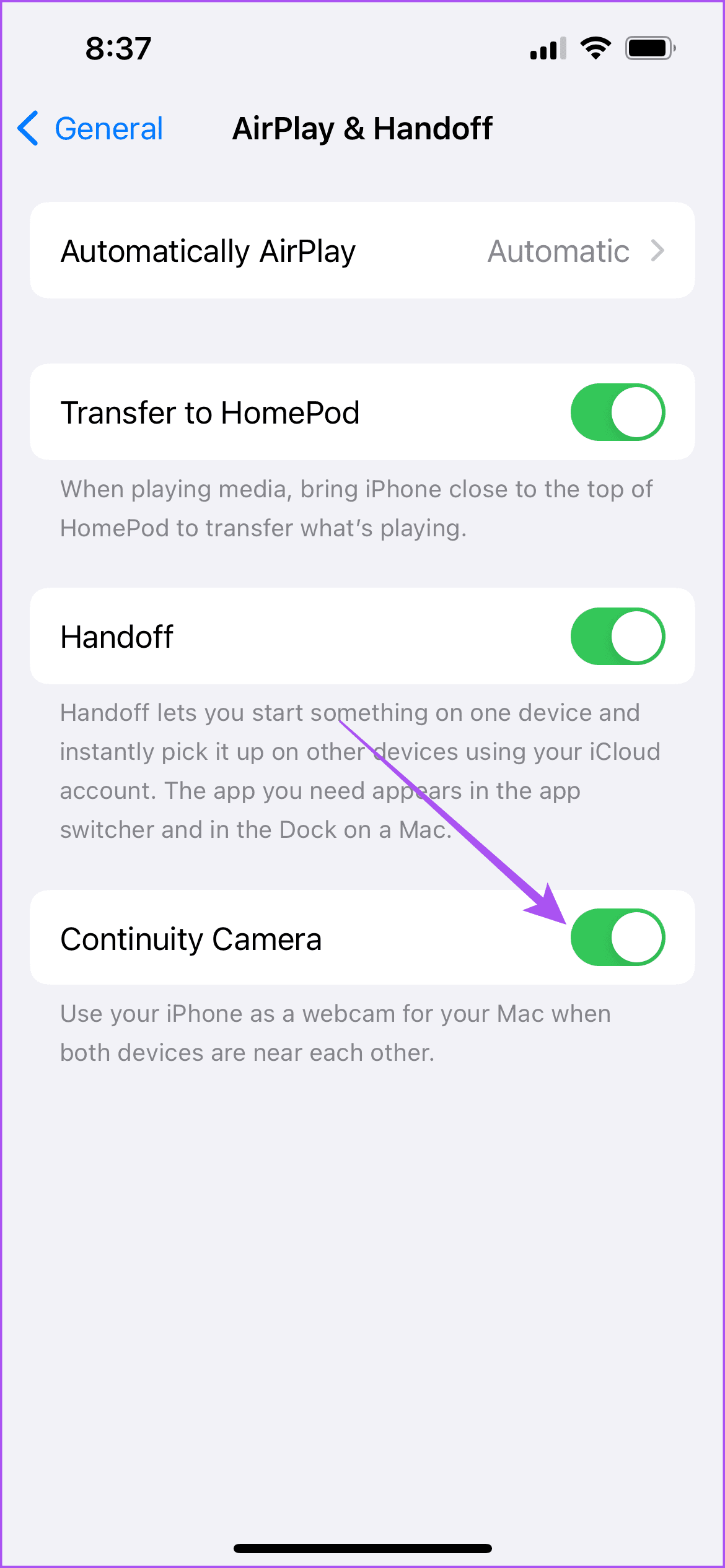
After figuring out your Apple TV model, check if the Continuity Camera feature is enabled on your iPhone. This feature lets you use your iPhone as a Webcam on your Mac and is the basis of FaceTime calls on Apple TV 4K. Here’s how to check if Continuity Camera is enabled.
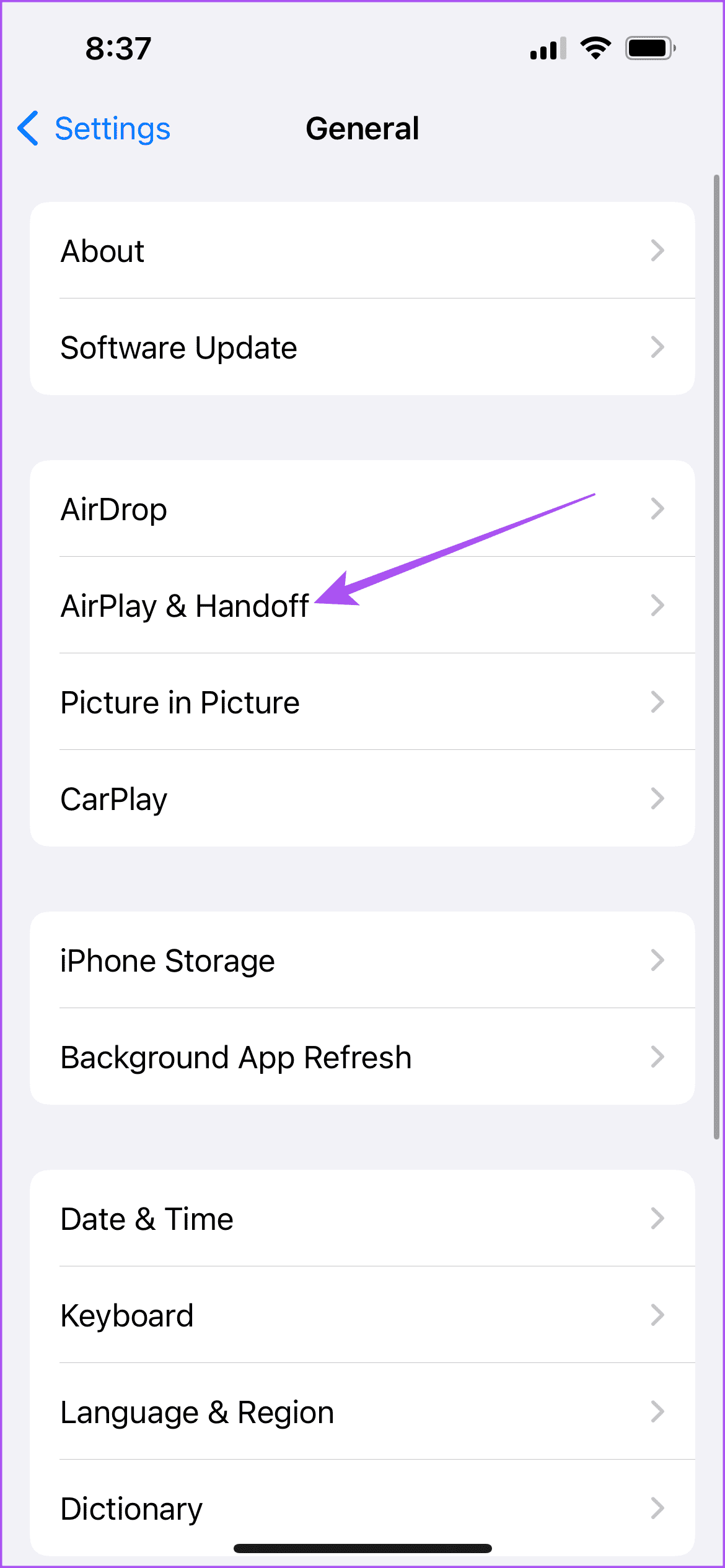
Open Settings > General > AirPlay and HandOff > enable Continuity Camera.
Fix 2: Use the Same Apple Account and Wi-Fi Network
Another important aspect is ensuring that the same Apple account is being used on your iPhone and Apple TV 4K. You might have to check while using an Apple TV 4K at your friends’ or workplace. You must use the same Apple ID on iPhone and Apple TV 4K to use FaceTime. The same goes for the Wi-Fi network on both your devices.
Was this helpful?
Last updated on 31 July, 2024
Read Next
 Top 11 Fixes for FaceTime Audio Not Working on iPhone and iPad
FaceTime is a fantastic video-calling service that Apple users cherish.
Top 11 Fixes for FaceTime Audio Not Working on iPhone and iPad
FaceTime is a fantastic video-calling service that Apple users cherish.
 Top 6 Fixes for Facetime Picture-in-Picture Not Working on iPhone & iPad
With the Picture-in-Picture (PiP) mode, multitasking is easy on iPhone and iPad.
Top 6 Fixes for Facetime Picture-in-Picture Not Working on iPhone & iPad
With the Picture-in-Picture (PiP) mode, multitasking is easy on iPhone and iPad.
 3 Fixes for FaceTime Screen Sharing Not Working on iPhone
Basic Fixes Switch to 5G or Wi-Fi: The ability to share the screen of your iPhone during a FaceTime call depends a lot on your internet speed.
3 Fixes for FaceTime Screen Sharing Not Working on iPhone
Basic Fixes Switch to 5G or Wi-Fi: The ability to share the screen of your iPhone during a FaceTime call depends a lot on your internet speed.
 4 Ways to Fix FaceTime Not Working on iPhone
https://youtu.be/I4u79xaUaeI Fix 1: Check if Data Usage Is Enabled and Force Restart Your iPhone Reboot your router if you're connected to a Wi-Fi network.
4 Ways to Fix FaceTime Not Working on iPhone
https://youtu.be/I4u79xaUaeI Fix 1: Check if Data Usage Is Enabled and Force Restart Your iPhone Reboot your router if you're connected to a Wi-Fi network.
 4 Ways to Fix FaceTime Screen Sharing Not Working on Mac
Basic Fixes Check device support: Android and Windows users can join a FaceTime call via the web only.
4 Ways to Fix FaceTime Screen Sharing Not Working on Mac
Basic Fixes Check device support: Android and Windows users can join a FaceTime call via the web only.
 4 Ways to Fix FaceTime Reactions (Gestures) Not Working
Basic Fixes Update iOS: Ensure your device is running on iOS 17 and above.
4 Ways to Fix FaceTime Reactions (Gestures) Not Working
Basic Fixes Update iOS: Ensure your device is running on iOS 17 and above.
 3 Fixes for Dolby Atmos Not Working in Apple TV 4K
Basic Fixes Check if your TV and streaming title supports Atmos: Both should provide the support of playing content mixed in this audio format.
3 Fixes for Dolby Atmos Not Working in Apple TV 4K
Basic Fixes Check if your TV and streaming title supports Atmos: Both should provide the support of playing content mixed in this audio format.
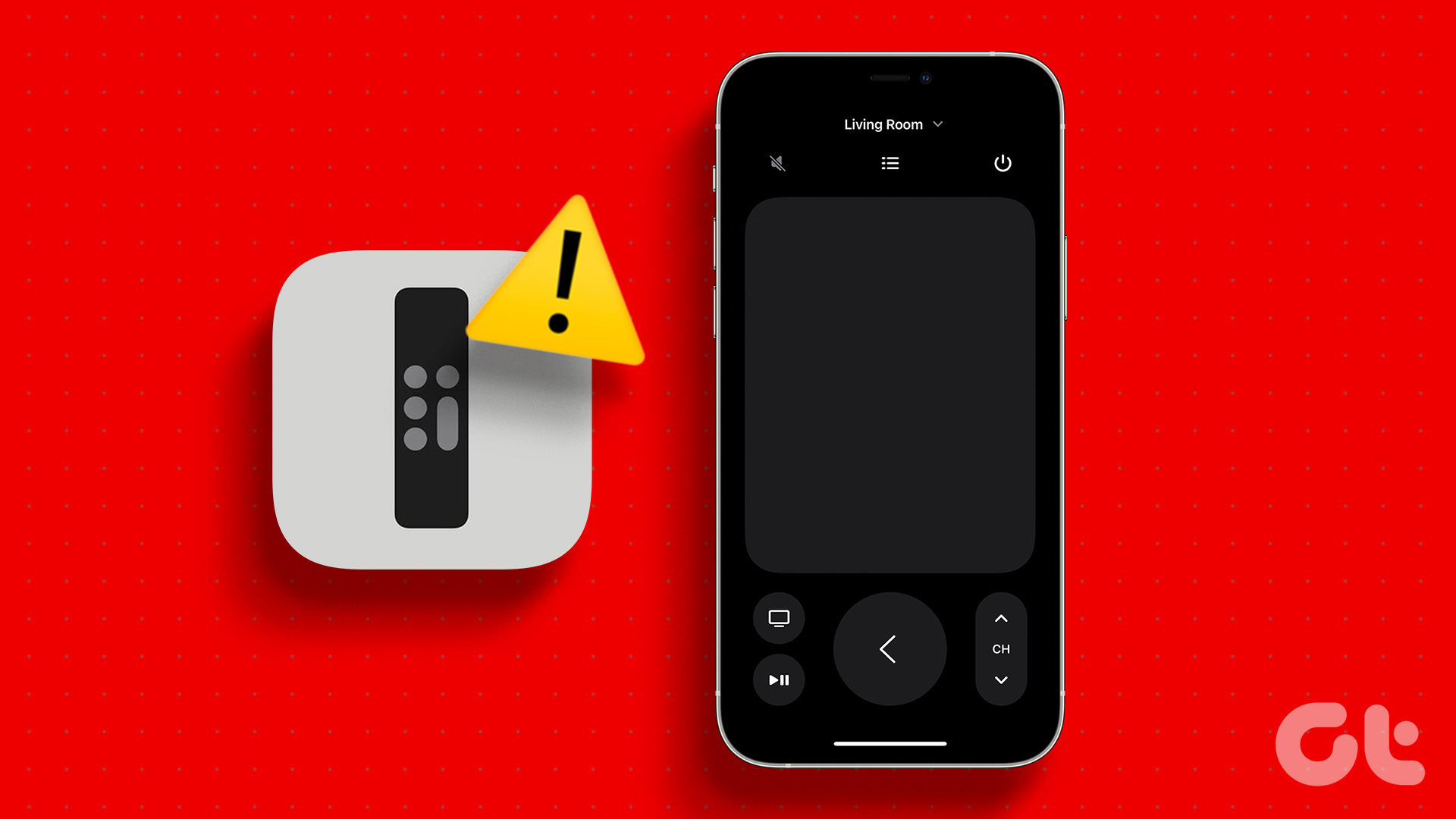 2 Fixes for Apple TV Remote App Not Working on iPhone
Basic Fixes Restart your router: A simple restarting of your internet router can fix the issue once you reconnect to your network.
2 Fixes for Apple TV Remote App Not Working on iPhone
Basic Fixes Restart your router: A simple restarting of your internet router can fix the issue once you reconnect to your network.
The article above may contain affiliate links which help support Guiding Tech. The content remains unbiased and authentic and will never affect our editorial integrity.