Basic Fixes:
- Check camera lens for damage: If your device’s camera lens is damaged or has scratches, it can cause photos to appear blurry on your Android phone. So, check and ensure this is not the case.
- Remove screen protector: Screen protectors can block your device’s front camera, causing photos to appear blurry. In this case, you can clean or remove the screen protector and check again.
- Zoom out and maintain some distance from the subject: If you focus too much on an object or zoom in too much, it can blur the object. Zoom out and maintain some distance between you and the object. You can also use manual focus.
- Restart your phone: Restarting your Android device forces all device functions to restart. This can help fix any issues or errors caused during the last device boot.
- Update your camera app: Most camera apps on your Android device are also available on Google Play Store. So, check for app updates for your device’s camera app and install it accordingly on your Android phone.
Fix 1: Clean the Camera Lens
Dirt or debris on your device’s camera lens can make photos blurry or out of focus. Smudges or accidental fingerprints on the lens can also cause this. If so, take a soft or microfiber cloth and gently clean the camera lens. You can also use water or a cleaning solution.
Fix 2: Turn off HDR/Camera Modes and Flash
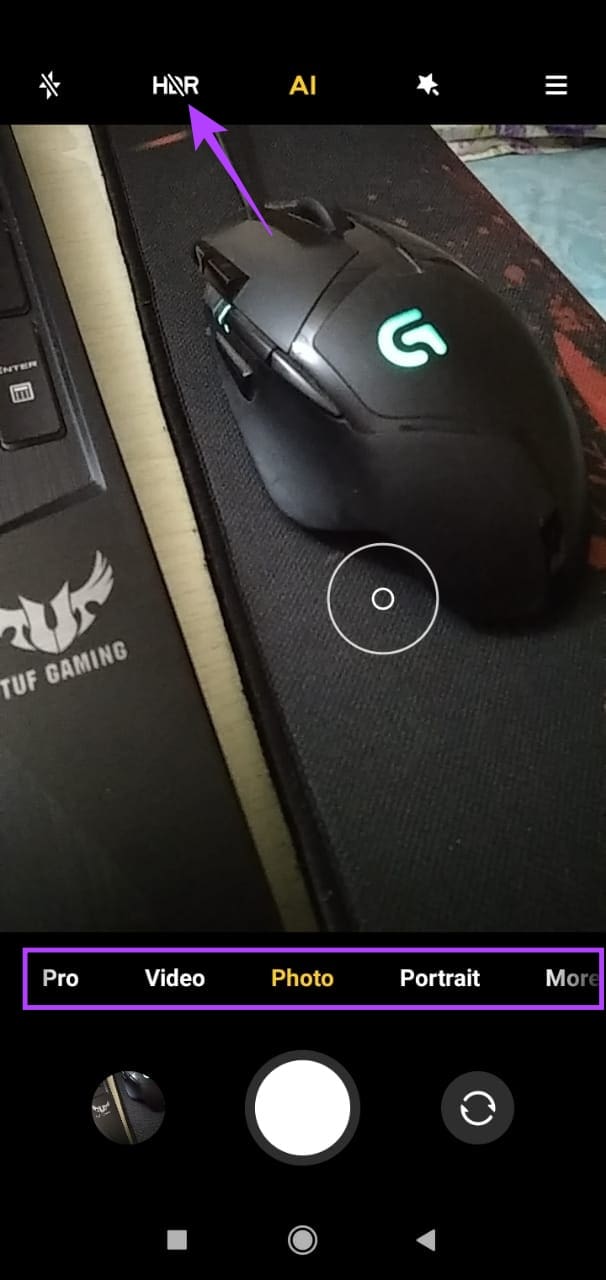
HDR might help bring out the colors or hues of your pictures, but if there is insufficient lighting or if the object is not stationary, it might blur the photo. Similarly, flash can also cause camera focus issues. So, you can turn off the flash or any other Camera Mode, like HDR, on your phone. Here’s how.
Step 1: Open the Camera app and tap on the HDR icon to turn it off. Select the regular Photo mode.
Step 2: Once done, tap on the flash icon to turn off the flash.

Also Read: How to fix “Security policy prevents camera use” on Android
Fix 3: Use Third-Party Apps
Most third-party apps, like Snapchat, Instagram, Facebook, etc., can access the camera from within the app itself. You can also use other third-party camera apps for similar purposes. So, use the app controls to take pictures and check if the issue is resolved on your Android phone.
Was this helpful?
Last updated on 27 June, 2024
Read Next
 How to Fix Blurry Webcam or Laptop Camera on Windows 11
Basic Fixes Inspect your webcam: Adjust the webcam focus ring or remove its protective layer causing the blur.
How to Fix Blurry Webcam or Laptop Camera on Windows 11
Basic Fixes Inspect your webcam: Adjust the webcam focus ring or remove its protective layer causing the blur.
 Why Do Photos Get Blurry on WhatsApp Status: 3 Ways to Fix This
https://youtu.be/k2MGRKNamFQ Basic Fixes Switch to the stable version of WhatsApp: While beta versions give you early access to new features and cool tricks, they may also introduce several bugs and
Why Do Photos Get Blurry on WhatsApp Status: 3 Ways to Fix This
https://youtu.be/k2MGRKNamFQ Basic Fixes Switch to the stable version of WhatsApp: While beta versions give you early access to new features and cool tricks, they may also introduce several bugs and
 3 Ways to Fix Blurry Text in Google Chrome
Fix 1: Disable Hardware Acceleration When you disable hardware acceleration, you offload graphics processing tasks from the computer's graphics card to the central processing unit, which is helpful if the
3 Ways to Fix Blurry Text in Google Chrome
Fix 1: Disable Hardware Acceleration When you disable hardware acceleration, you offload graphics processing tasks from the computer's graphics card to the central processing unit, which is helpful if the
 5 Ways to Fix Blurry iMessage Photos and Videos
Before you begin, ensure there's no problem with network connectivity on your iPhone, and restart your iPhone to fix temporary bugs.
5 Ways to Fix Blurry iMessage Photos and Videos
Before you begin, ensure there's no problem with network connectivity on your iPhone, and restart your iPhone to fix temporary bugs.
 5 Ways to Fix Blurry Screen Issue on Windows 11
Fix 1: Change Display Resolution and Scale One of the most common causes of a blurry Windows 11 screen is the incorrect display resolution or scale.
5 Ways to Fix Blurry Screen Issue on Windows 11
Fix 1: Change Display Resolution and Scale One of the most common causes of a blurry Windows 11 screen is the incorrect display resolution or scale.
 4 Ways to Fix Blurry Stories on Instagram
Stories on Instagram are a great way to share the moments that you cherish, with your friends and followers.
4 Ways to Fix Blurry Stories on Instagram
Stories on Instagram are a great way to share the moments that you cherish, with your friends and followers.
 5 Ways to Fix Blurry Home or Lock Screen Wallpaper on iPhone
Fix 1: Check if the Wallpaper Resolution Fits Your iPhone's Screen If you have downloaded a wallpaper, check its resolution and ensure that it matches the screen resolution of your
5 Ways to Fix Blurry Home or Lock Screen Wallpaper on iPhone
Fix 1: Check if the Wallpaper Resolution Fits Your iPhone's Screen If you have downloaded a wallpaper, check its resolution and ensure that it matches the screen resolution of your
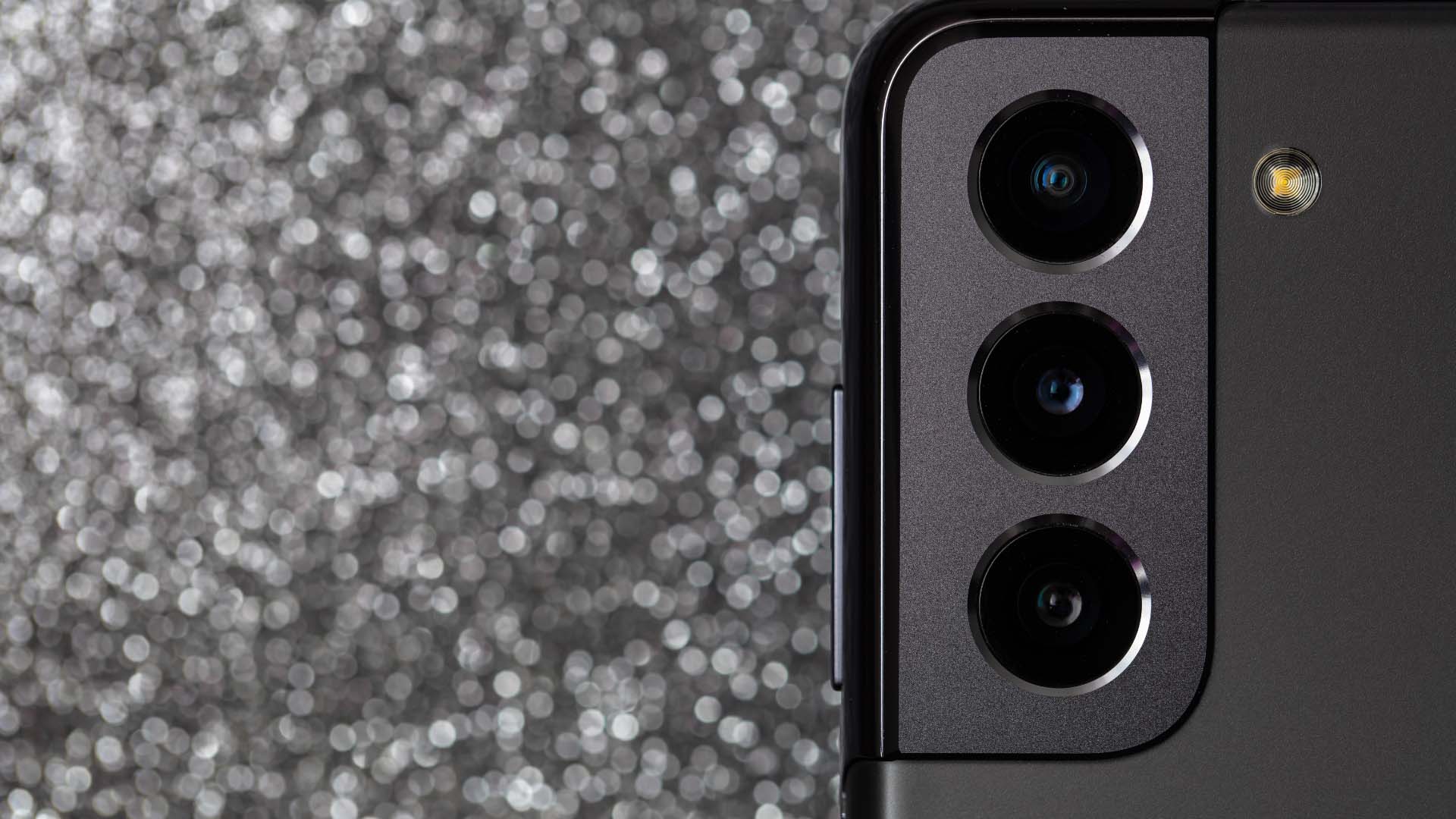 7 Ways to Fix Camera Failed Error on Samsung Galaxy Phones
Fix 1: Check Internal Storage and Phone Temperature You must have sufficient internal storage on your Samsung Galaxy phone for the Camera app to store new photos and videos.
7 Ways to Fix Camera Failed Error on Samsung Galaxy Phones
Fix 1: Check Internal Storage and Phone Temperature You must have sufficient internal storage on your Samsung Galaxy phone for the Camera app to store new photos and videos.
The article above may contain affiliate links which help support Guiding Tech. The content remains unbiased and authentic and will never affect our editorial integrity.