Change Prime Video Account on Fire TV Stick
Unfortunately, changing the Prime Video account on Firestick isn’t as easy as logging out from one account and signing in with another. Since Prime Video is an Amazon product as is the Firestick, it’s automatically tied to your Amazon account added to the Firestick.
That means you must change the Amazon account on your Firestick to change the account on the Prime Video app. You cannot use one Amazon account for the Prime Video app and then a separate one for your Fire TV Stick. They have to be the same.
So, if you are okay with using a different Amazon account on your Firestick, you must deregister the Firestick from your current account and add the second account. Please note that doing so will delete the data linked with the original Amazon account on Firestick and show the data from the new Amazon account. Some apps will also be deleted when you change Amazon accounts on Firestick.
Steps to Deregister Amazon Account on Fire TV
Step 1: Open the Prime Video app > Settings.

Step 2: Select Account > Change account on Fire TV.

Step 3: Select the Amazon account that shows up and then choose Deregister.
Step 4: Once deregistered, sign in with the Amazon account you want to use with the Prime Video app and Fire TV Stick. Please remember that changing your Prime Video account on the Fire TV Stick will also change it for the Fire TV itself.
You can get to this screen from Fire TV Stick Settings, followed by Account & profile settings > Amazon Account > Deregister as well.
Tip: You can learn how to use your Fire TV Stick if your remote gets lost.
Change Prime Video Account on Samsung or Other TVs
Unlike Fire TV Stick, switching to a different Prime Video account on Samsung or other TVs is as simple as logging out from the account.
Follow these steps to log out from the Prime Video app on TV:
Step 1: Open the Prime Video app > Left menu > Settings.

Step 2: Scroll down in the menu and then select Sign out.

Step 3: Once logged out, relaunch the Prime Video app (i.e., exit and open the app again). The Sign in screen will show up. Select the Sign in button and then log in with the credentials of the Amazon account that you want to switch to.
Tip: Refer to our post in case you have ever come across a black screen on your Samsung TV.
How to Change Prime Video Account on Android or iPhone
On Prime Video mobile apps, you only need to log out and log in with a different account to change the account. Use these steps:
Open Prime Video > Profile icon > Settings > My Account > Sign out.

FAQs
The Prime Video app doesn’t support the addition of multiple Amazon accounts. However, you can create multiple profiles in the Prime Video app to allow other users to access it. Or, if you want to share the benefits of your Amazon Prime service, create a household account.
No. You cannot add various accounts on Firestick.
Tip: After switching accounts on the Prime Video app, learn how to change Prime Video streaming quality. Also, know how to disable subtitles on Prime Video.
Was this helpful?
Last updated on 23 August, 2024
Read Next
 3 Ways to Fix Prime Video App Not Working on Fire TV Stick
Common Fixes Restart the Fire TV Stick: Select the gear icon at the top right of the Fire OS home screen to expand Settings.
3 Ways to Fix Prime Video App Not Working on Fire TV Stick
Common Fixes Restart the Fire TV Stick: Select the gear icon at the top right of the Fire OS home screen to expand Settings.
 How to Change Wi-Fi on Fire TV Stick Without Remote
Method 1: Using the Fire TV Remote App If your remote isn’t handy or you have lost it, you can control your Fire TV with its Android and iOS apps.
How to Change Wi-Fi on Fire TV Stick Without Remote
Method 1: Using the Fire TV Remote App If your remote isn’t handy or you have lost it, you can control your Fire TV with its Android and iOS apps.
 5 Ways to Fix Video Unavailable in Amazon Prime Video
Basic Fixes Check network connection: Playing Prime without any problems requires an optimum internet speed.
5 Ways to Fix Video Unavailable in Amazon Prime Video
Basic Fixes Check network connection: Playing Prime without any problems requires an optimum internet speed.
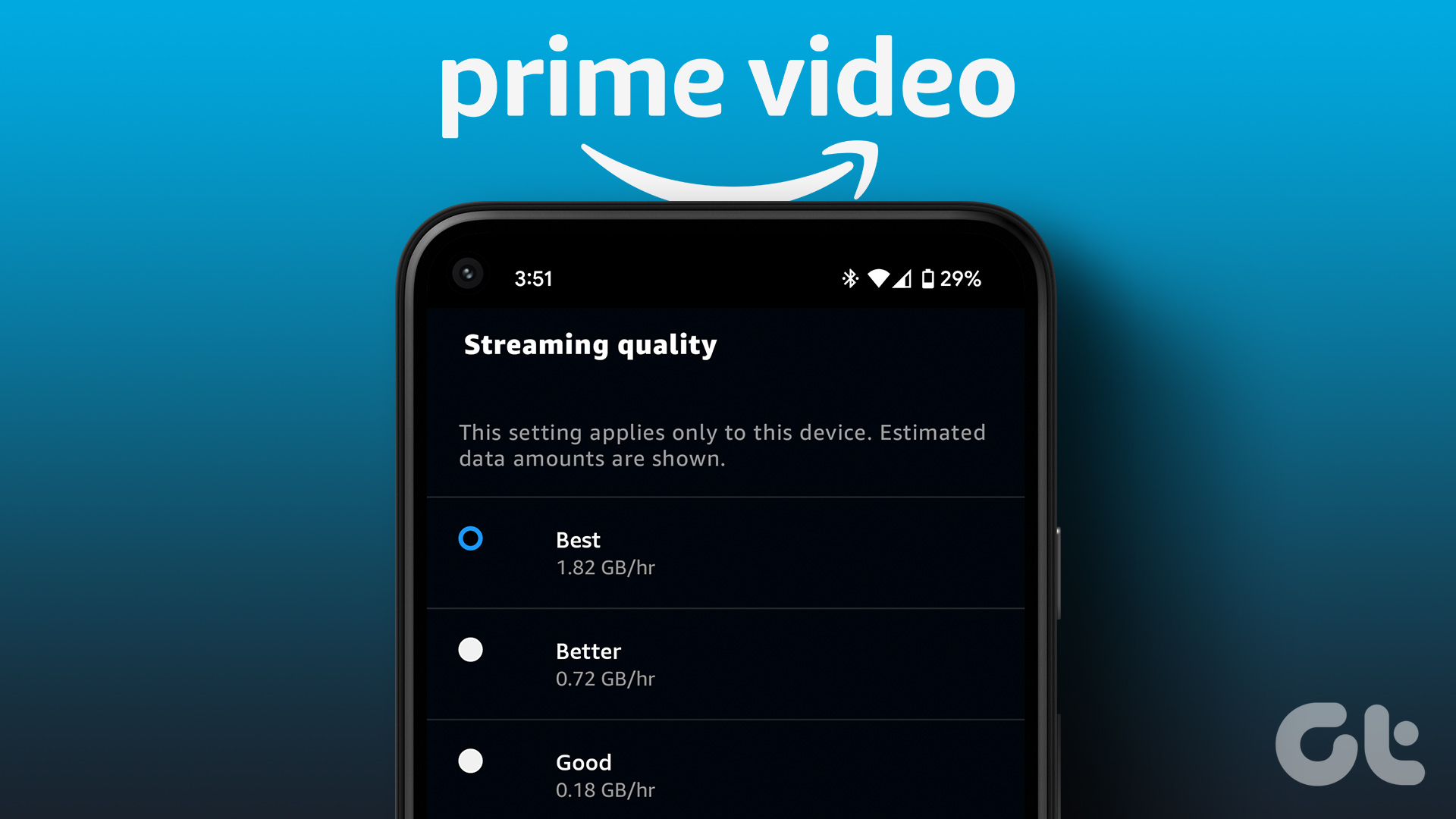 How to Change Amazon Prime Video Streaming Quality on Any Device
Most streaming services these days offer the best quality possible.
How to Change Amazon Prime Video Streaming Quality on Any Device
Most streaming services these days offer the best quality possible.
 4 Ways to Fix Fire TV Stick Not Loading Apps
Basic Fixes: Check internet connection: If you try opening apps on a Fire TV Stick on a slow network connection, they may not open on the first try.
4 Ways to Fix Fire TV Stick Not Loading Apps
Basic Fixes: Check internet connection: If you try opening apps on a Fire TV Stick on a slow network connection, they may not open on the first try.
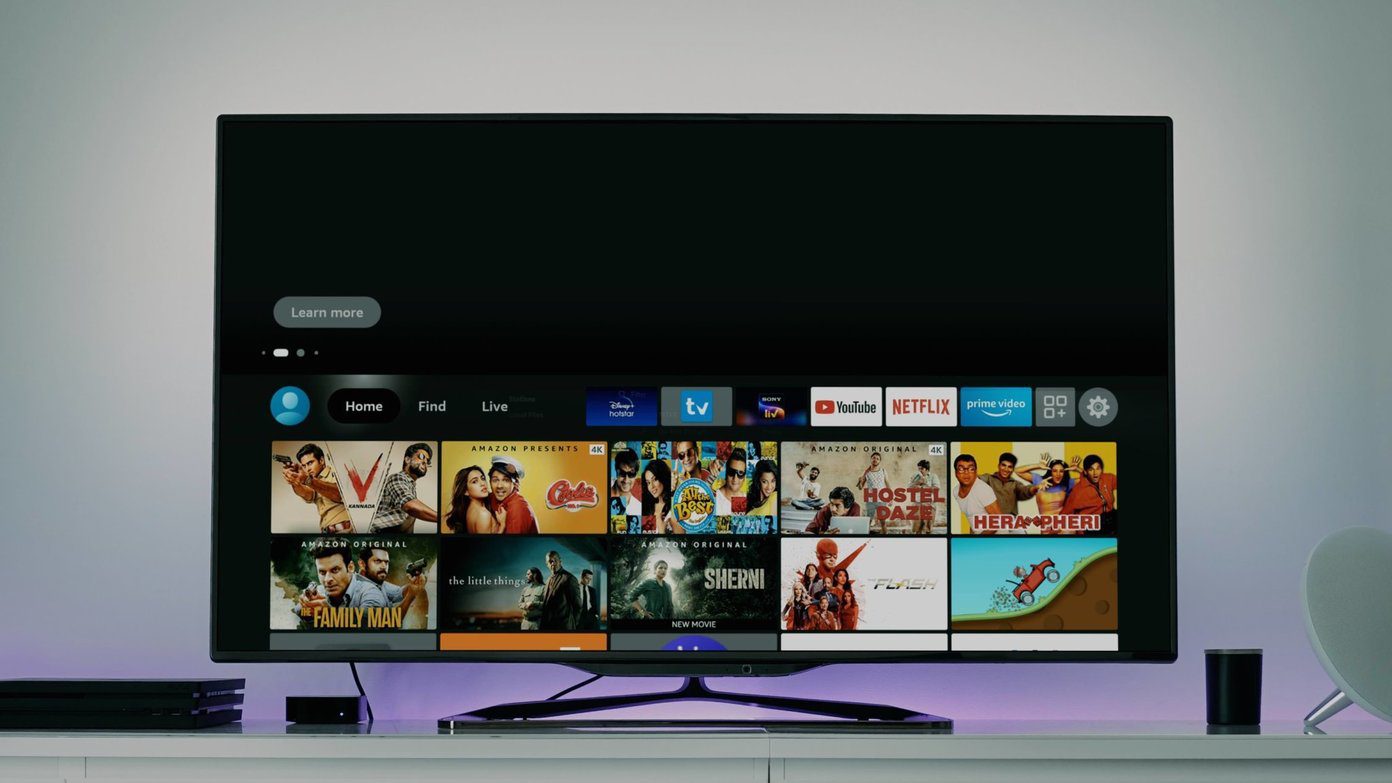 7 Best Ways to Fix Lag on Amazon Fire TV Stick
Amazon Fire TV Stick is a wonderful streaming device.
7 Best Ways to Fix Lag on Amazon Fire TV Stick
Amazon Fire TV Stick is a wonderful streaming device.
 How to Find Which Fire TV Stick Model You Have
Method 1: Using the Fire TV Stick Settings Menu Like any other device, you can use the Settings menu of your Fire TV Stick to check device details.
How to Find Which Fire TV Stick Model You Have
Method 1: Using the Fire TV Stick Settings Menu Like any other device, you can use the Settings menu of your Fire TV Stick to check device details.
 3 Ways to Fix Fire TV Stick Stuck on Updating Issue
Basic Fixes: Wait for the update to finish: If you're updating to a newer OS version or haven't updated your device in a while, your device might need time to
3 Ways to Fix Fire TV Stick Stuck on Updating Issue
Basic Fixes: Wait for the update to finish: If you're updating to a newer OS version or haven't updated your device in a while, your device might need time to
The article above may contain affiliate links which help support Guiding Tech. The content remains unbiased and authentic and will never affect our editorial integrity.