Everyone likes a PC that runs faster. Fast Startup is a feature from Windows that makes a tedious boot a breeze. However, there are times when it can fail, and you get a crash and a code instead. In this article, we’re going to be showing you what to do when Windows failed fast startup with error status 0xc00000d4.
What Causes This Error?
The direct cause of error 0xc00000d4 is a failure when Windows cannot proceed with fast startup, then produces an unexpected shutdown, usually with the above code and Event ID 6008. That said, what leads to this stage could be one of several factors, including:
- The Fast Startup itself
- Conflicts with updated or outdated software
- Driver issues
- External SSDs connected to your machine
Windows Failed Fast Startup With Error Status 0xc00000d4 – Fixes to Try
Causes are all well and good, but what about the fixes? Well, let’s get troubleshooting:
Disconnect External Devices
External storage devices can sometimes interfere with the boot process or Fast Startup, especially if Windows tries to access them during startup. To be sure this isn’t the case, switch off your PC and remove all external devices, particularly SSDs, before starting back up again.
Turn Off Fast Startup
Fast Startup, as a feature, was designed to start things running faster, mostly for HDDs. Unlike its slower magnetic counterpart, SSDs are way faster by default and boot in a matter of seconds, with or without Fast Startup. In fact, Fast Startup may actually be hindering things. If your operating system drive is an SSD, it’s better to disable the feature. Here’s how to do it:
Step 1. Open the Control Panel by typing it into the Search Bar.
Step 2. Change your “View” to “Large icons” and then click “Power Options.”

Step 3. Click “Choose what the power buttons do” in the sidebar.
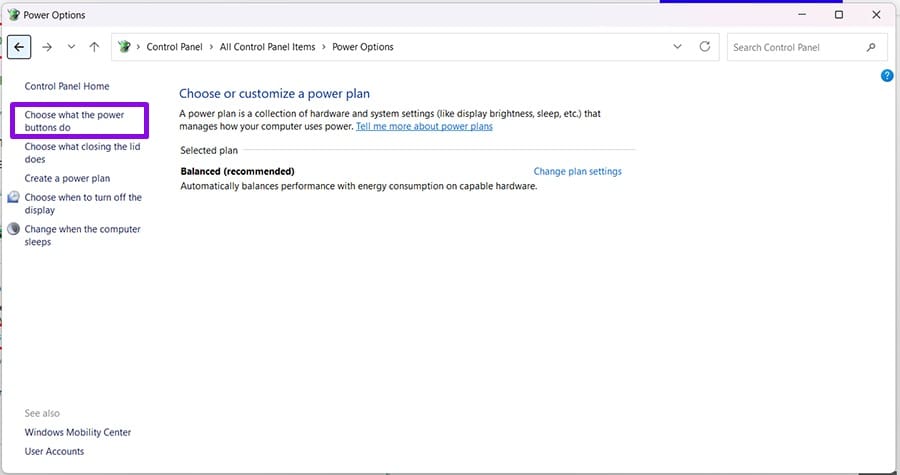
Step 4. Choose “Change settings that are currently unavailable” and confirm the User Account Control (UAC) pop-up. You must have Admin privileges.

Step 5. Uncheck “Turn on fast startup” and then click “Save changes” to finalize.
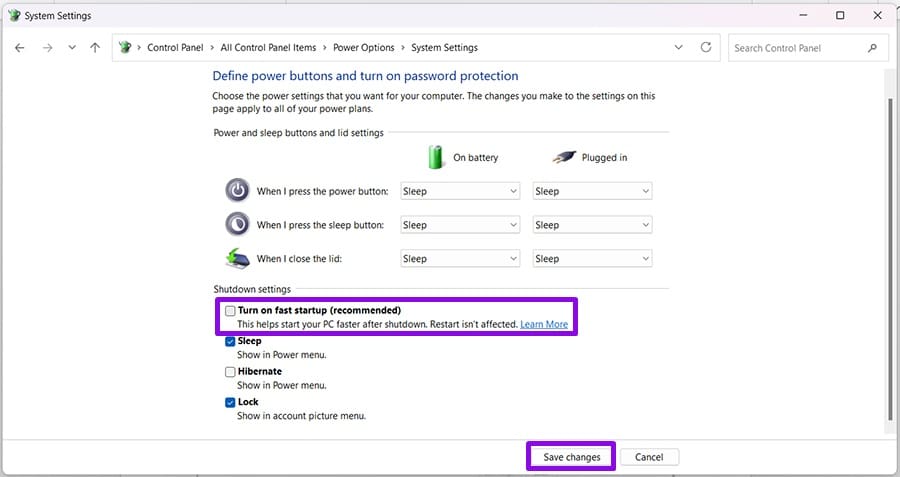
Step 6. Reboot your machine to test it.
Disable via Command Prompt
You can also disable Fast Startup (and hibernation) by disabling hibernation via Command Prompt. Here’s how:
Step 1. Open the Run Dialog (Win + R) and type “cmd” before hitting (Ctrl + Shift + Enter) to run as Admin.
Step 2. Once in Command Prompt, type “powercfg /h off” and hit “Enter.”

Run SFC and DISM
To ensure file corruption isn’t behind the crash, you can also run a System File Checker and repair the Windows image:
Step 1. Open the Run Dialog (Win + R) and type “cmd” before hitting (Ctrl + Shift + Enter) to run as Admin.
Step 2. In Command Prompt, type “sfc /scannow” and hit “Enter.”
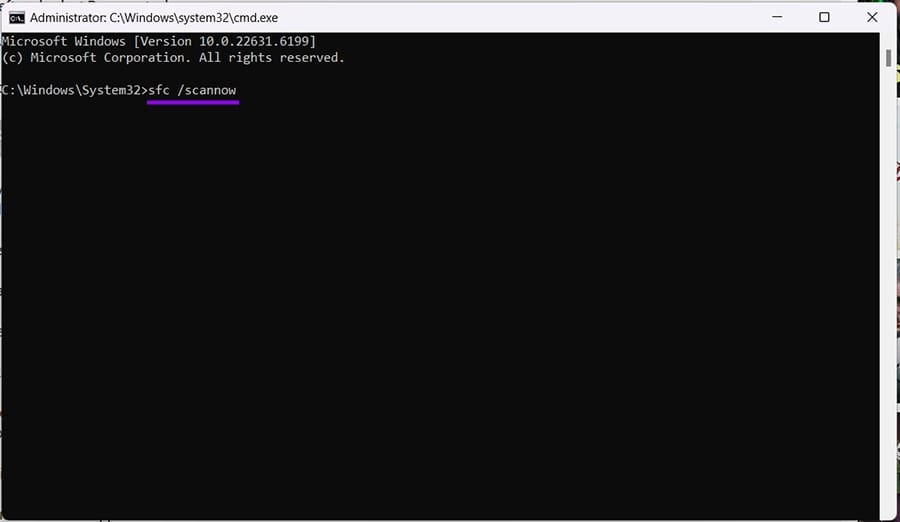
Step 3. Once finished, type “DISM.exe /Online /Cleanup-image /RestoreHealth” and hit “Enter.” Let the process run.
Step 4. Restart your PC once both are finished and see if you don’t get the crash.
Was this helpful?
Last updated on 31 July, 2026
Read Next
 4 Ways to Disable Fast Startup on Windows 11
Method 1: Disable Fast Startup Using Control Panel Using the Control Panel is an old-school way of making changes to your Windows computer.
4 Ways to Disable Fast Startup on Windows 11
Method 1: Disable Fast Startup Using Control Panel Using the Control Panel is an old-school way of making changes to your Windows computer.
 Common Fast Startup Issues and When (and How) to Disable It
Ideally, Fast Startup allows you to continue where you left off when you restart your PC, even after a while.
Common Fast Startup Issues and When (and How) to Disable It
Ideally, Fast Startup allows you to continue where you left off when you restart your PC, even after a while.
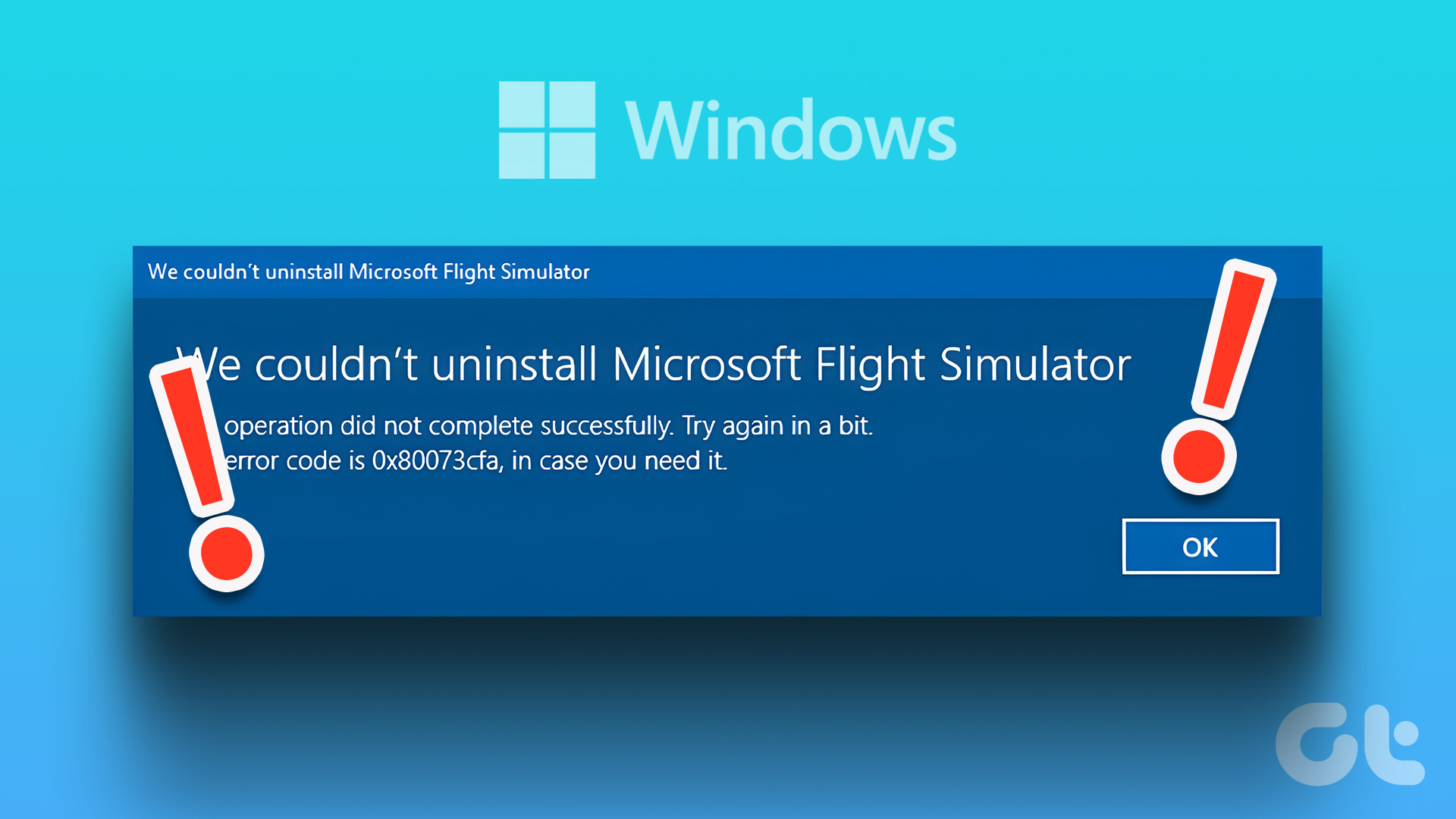 4 Ways to Fix “App Removal Failed” Error 0x80073CFA in Windows 11
Fix 1: Reset the Problematic App If the 0x80073CFA error only occurs while uninstalling a specific app, try resetting it first.
4 Ways to Fix “App Removal Failed” Error 0x80073CFA in Windows 11
Fix 1: Reset the Problematic App If the 0x80073CFA error only occurs while uninstalling a specific app, try resetting it first.
 Top 5 Ways to Fix the nvlddmkm.sys Failed Error in Windows
Preliminary Fixes Plug the GPU Into Another PCIe Slot: The nvlddmkm.sys failed error is often related to GPU issues.
Top 5 Ways to Fix the nvlddmkm.sys Failed Error in Windows
Preliminary Fixes Plug the GPU Into Another PCIe Slot: The nvlddmkm.sys failed error is often related to GPU issues.
 5 Fixes for “User Profile Service Failed the Sign-In” Error in Windows 11
Fix 1: Configure the User Profile Service If the User Profile Service on your PC is not set to run automatically, you could encounter the "User Profile Service failed the
5 Fixes for “User Profile Service Failed the Sign-In” Error in Windows 11
Fix 1: Configure the User Profile Service If the User Profile Service on your PC is not set to run automatically, you could encounter the "User Profile Service failed the
 6 Ways to Fix Failed to Load Web Page Error in Steam for Windows
Fix 1: Terminate Steam Processes and Reopen the App The "Failed to load web page" error in Steam can occur if one of the app processes is experiencing issues.
6 Ways to Fix Failed to Load Web Page Error in Steam for Windows
Fix 1: Terminate Steam Processes and Reopen the App The "Failed to load web page" error in Steam can occur if one of the app processes is experiencing issues.
 6 Fixes for “The Operation Failed” Error in Microsoft Outlook for Windows
Fix 1: Open Outlook in Safe Mode Running Office apps like Outlook in safe mode can help you determine if one of the add-ins is responsible for the issue.
6 Fixes for “The Operation Failed” Error in Microsoft Outlook for Windows
Fix 1: Open Outlook in Safe Mode Running Office apps like Outlook in safe mode can help you determine if one of the add-ins is responsible for the issue.
 Top 10 Ways to Fix ‘Display Driver Failed to Start’ Error in Windows 10 and 11
Display drivers facilitate communication between the Windows operating system (or any OS) with your GPU.
Top 10 Ways to Fix ‘Display Driver Failed to Start’ Error in Windows 10 and 11
Display drivers facilitate communication between the Windows operating system (or any OS) with your GPU.
The article above may contain affiliate links which help support Guiding Tech. The content remains unbiased and authentic and will never affect our editorial integrity.