


What Is Screen Time on iPhone?
Apple officially announced Screen Time for iPhone with the iOS 12. Screen Time informs you about the time spent on apps or types of apps. You can also see how much time your kids spend on apps, websites, and more if you manage their devices. Based on that data, you can set a time limit on the usage, set communication limits to a specific contact, exclude some apps and contacts from the limitations, and more. You should use Screen Time Passcode to secure Screen Time settings.
Here are the different functions that come under Screen Time.
Downtime
Downtime lets you set a schedule for time away from the screen. During downtime, only apps that you choose to allow and phone calls will be available.

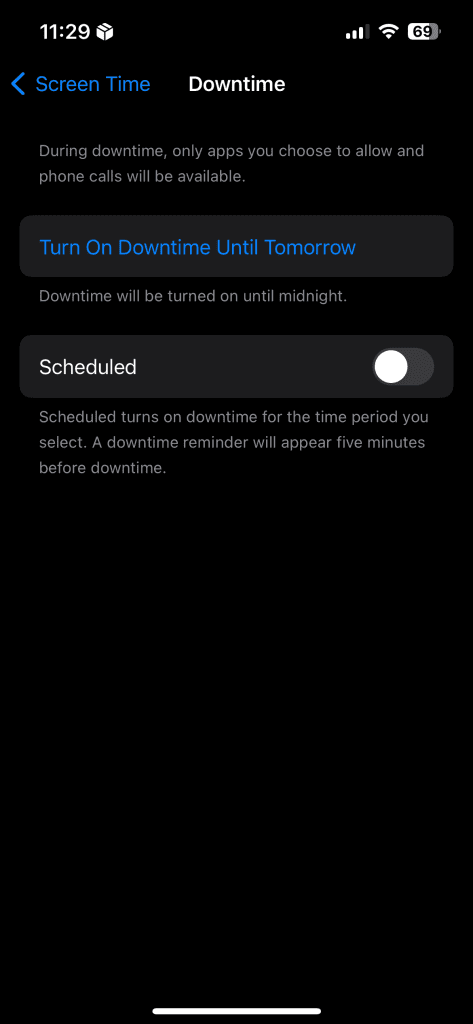
You can customize days and add downtime duration. I mostly keep it at 1:00 AM to 6:00 AM and only allow essential apps such as Phone, Messages, FaceTime, and WhatsApp.
App Limits
You can set time limits for a category or specific app. Apple categorizes the apps into Social Networking, Games, Entertainment, Creativity, Education, Productivity, Health, and Reading. You can also set a limit for specific websites.
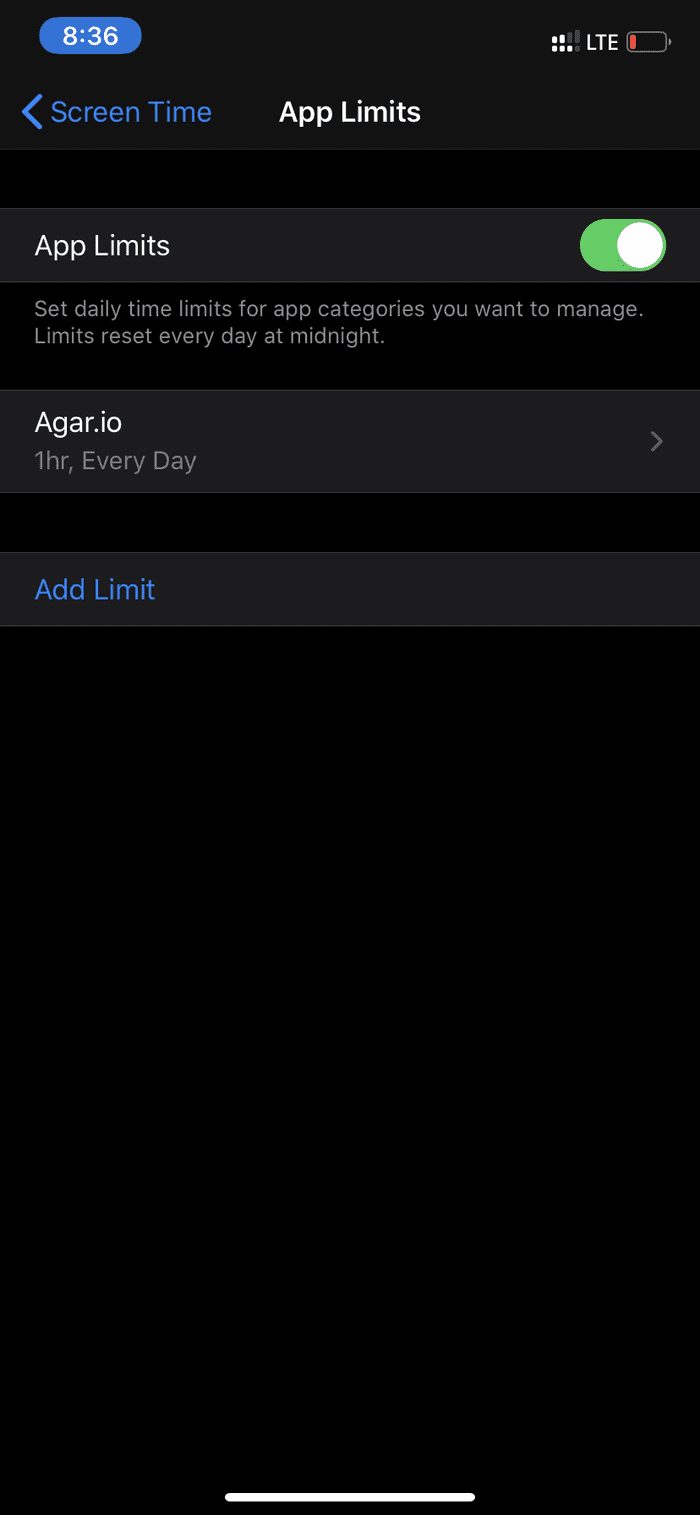

I have limited my game usage to one hour for a day using the Screen Time function.
Communication Limits
You can also set a communication limit for contacts. Apple lets you set Communication limits during downtime, too. Unfortunately, it won’t work with third-party apps. The limit only applies to phone, FaceTime, and Messages.


How to Set Screen Time Passcode on iPhone
Now that you have set everything in the Screen Time menu, you would want to secure it with a passcode so that a stranger or your child doesn’t mess with it. And here is where the Screen Time Passcode comes in.
Step 1: Open the Settings app on the iPhone.
Step 2: Navigate to Screen Time and select Set up Screen Time Passcode.
Step 3: Add a four-digit passcode and confirm it again.


Step 4: Verify yourself with Apple ID credentials. This step lets you reset the Apple ID passcode if you forget it.
Where Can You Use Screen Time Passcode
You can’t use Screen Time Passcode to unlock the iPhone. It is strictly for making any changes in the Screen Time menu.
In the scenarios below, the iOS system will ask for the Screen Time Passcode for verification.
- When you try to change Downtime timings or entirely disable the option
- When you try to modify App limit timing from the Screen Time option
- When you want to disable the Share Screen devices option
- When a user wants to modify Communication limits

These scenarios relate to changing/modifying the Screen Time options from the Settings app. When you attempt to extend the time limit of a specific app or game, the system will ask for the Screen Time Passcode.
Use Screen Time Passcode With Family Sharing
Family Sharing makes it easy for up to six family members to share App Store purchases and Apple subscriptions, including an iCloud storage plan and more—all without sharing an Apple ID. It includes the ability to set up an Apple ID for kids, set permissions remotely with Screen Time, and approve spending and downloads from a parent’s device.
To set up Screen Time for Family, open Settings > Screen Time > Set Up Screen Time for Family > enter your child’s Apple account on the device.


Remove Screen Time Passcode
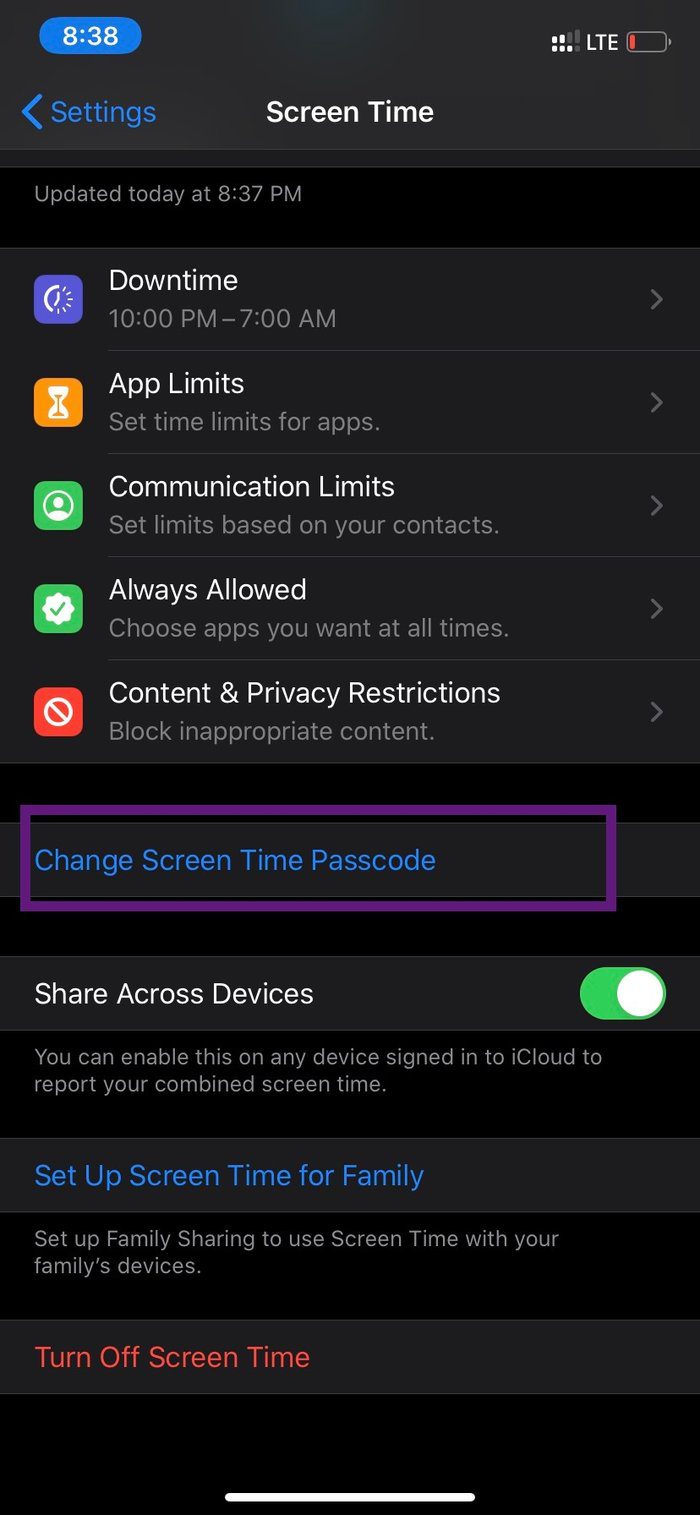
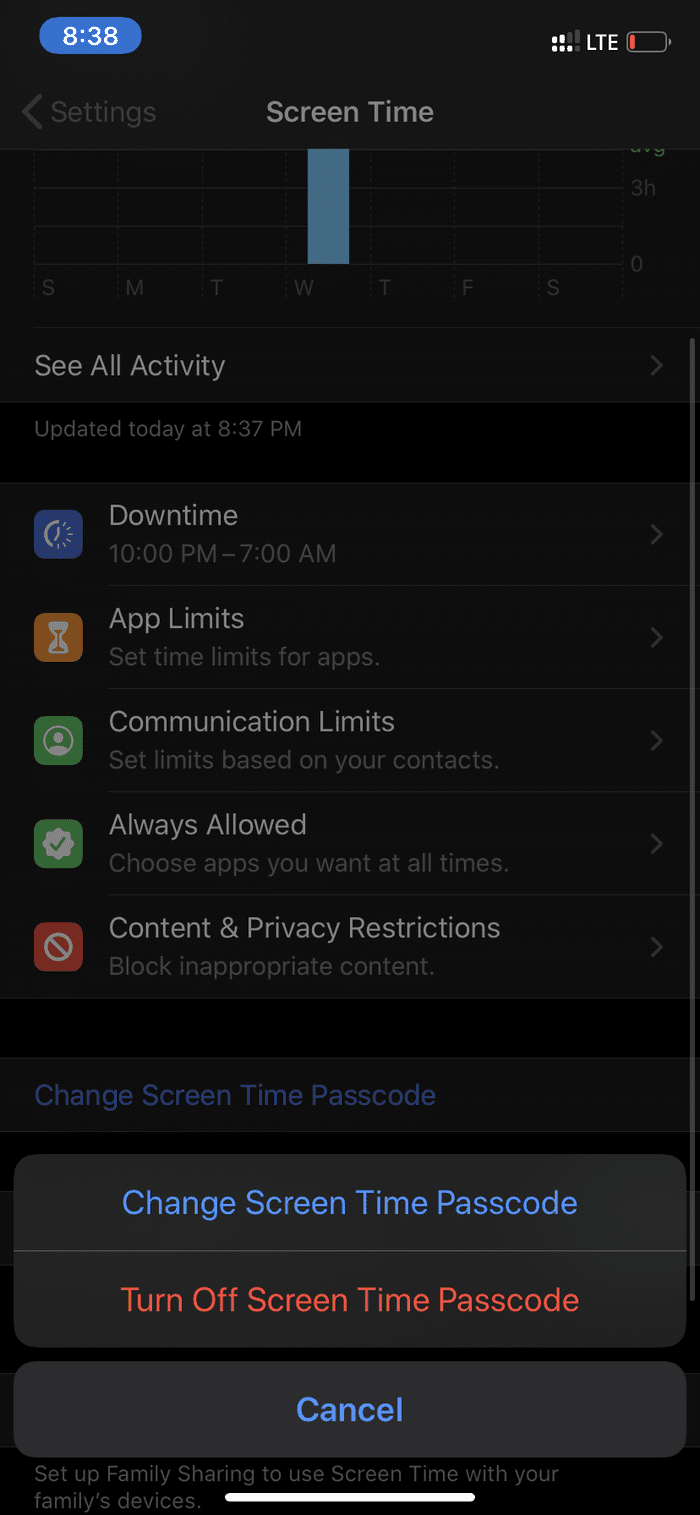
You can remove Screen Time Passcode after a certain time. People usually remove it after selling the device. To remove the Screen Time Passcode, go to Settings > Screen Time > change Screen Time Passcode > turn Off Screen Time Passcode > authenticate yourself to remove the password.
Was this helpful?
Last updated on 08 August, 2024
Read Next
 How to Remove or Reset a Forgotten Screen Time Passcode on iPhone and Mac
Screen Time settings are a useful addition to the iPhone, iPad, and Mac.
How to Remove or Reset a Forgotten Screen Time Passcode on iPhone and Mac
Screen Time settings are a useful addition to the iPhone, iPad, and Mac.
 2 Awesome Tools to Recover Screen Time Passcode on iPhone Easily
Screen Time is a refreshing addition to iOS.
2 Awesome Tools to Recover Screen Time Passcode on iPhone Easily
Screen Time is a refreshing addition to iOS.
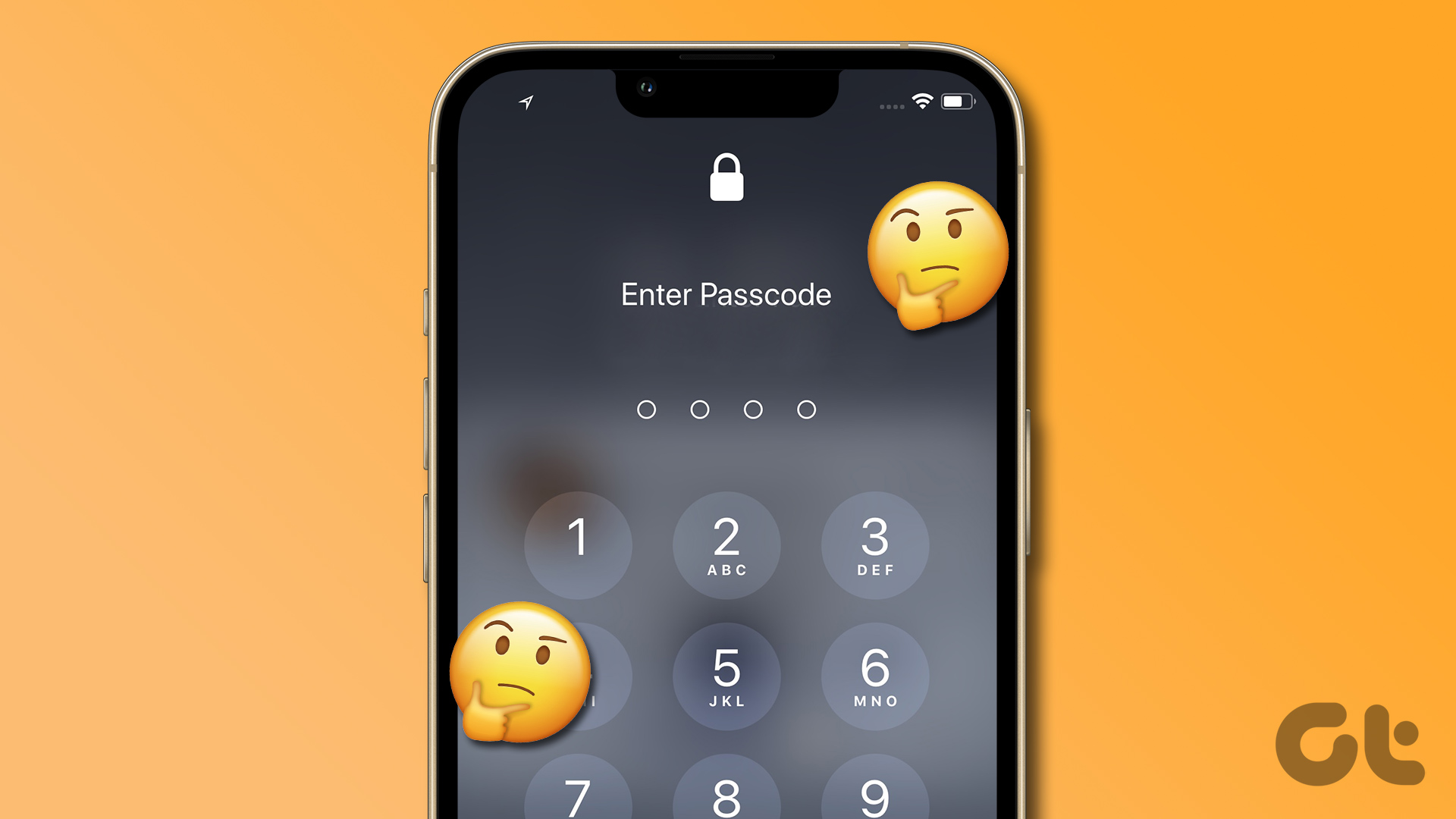 Forgot iPhone Passcode: How to Reset iPhone Without Losing Data
Don't we all dread the sight of our phones not unlocking when we enter the password?
Forgot iPhone Passcode: How to Reset iPhone Without Losing Data
Don't we all dread the sight of our phones not unlocking when we enter the password?
 Unable to Set a Passcode on Apple Watch? Here’s the Fix
Basic Fixes: Restart your Apple Watch: Restarting your Apple Watch can help eliminate any temporary bugs or glitches that cause the passcode option to disappear or gray out.
Unable to Set a Passcode on Apple Watch? Here’s the Fix
Basic Fixes: Restart your Apple Watch: Restarting your Apple Watch can help eliminate any temporary bugs or glitches that cause the passcode option to disappear or gray out.
 How to Lock Telegram Using Passcode on Desktop and Mobile
Lock Telegram Using Passcode on Desktop You can choose to lock Telegram's desktop app using a passcode as well.
How to Lock Telegram Using Passcode on Desktop and Mobile
Lock Telegram Using Passcode on Desktop You can choose to lock Telegram's desktop app using a passcode as well.
 5 Fixes for the Connection for This Site Is Not Secure on Edge on Windows
Basic Fixes Use the InPrivate window: Click on the three-dots icon at the top right, and open an InPrivate window.
5 Fixes for the Connection for This Site Is Not Secure on Edge on Windows
Basic Fixes Use the InPrivate window: Click on the three-dots icon at the top right, and open an InPrivate window.
 How to Add or Remove Apps From Secure Folder on Samsung Phones
https://youtu.be/OSxj0tYGEqE How to Add Apps to Secure Folder Step 1: Open Secure Folder on your phone.
How to Add or Remove Apps From Secure Folder on Samsung Phones
https://youtu.be/OSxj0tYGEqE How to Add Apps to Secure Folder Step 1: Open Secure Folder on your phone.
 5 Ways to Unlock Secure Folder in Samsung Without Password
Did you forget your Secure Folder password and are unable to use it?
5 Ways to Unlock Secure Folder in Samsung Without Password
Did you forget your Secure Folder password and are unable to use it?
The article above may contain affiliate links which help support Guiding Tech. The content remains unbiased and authentic and will never affect our editorial integrity.

