What Is Analytics Data on iPhone?
Analytics data contains information and statistics regarding the performance, user interactions, and various system processes. Your iPhone shares this data with Apple to help improve the functionality, performance, and user experience of the iPhone.
It also shares this data with app developers to help them identify various metrics regarding their application and its usage on your iPhone. This helps them identify bugs and issues, thereby helping them assemble an update to fix them.
Here are the different types of analytics and usage statistics recorded on your iPhone:
- iPhone Analytics: This includes all the parameters and every single piece of information about the interaction between all the hardware and software components on your iPhone.
- iCloud Analytics: This includes analytics and usage data from your iCloud account. However, it does not contain any personal information from your iCloud data.
- Improve Safety: Apple also collects various data to improve safety and privacy on your iPhone specifically.
- Improve Siri & Dictation: This allows Apple to store and review your audio and dictation while you interact with Siri.
Does the Analytics Data on iPhone Cause a Privacy Concern?
Apple anonymizes the data it collects in the analytics log file. Therefore, it doesn’t have any personally identifiable information. The data cannot be traced back to identify your iPhone. Moreover, the analytics log data your iPhone collects is aggregated and analyzed in bulk. It is essentially used as statistics and patterns rather than individual user actions.
It is understandable if you don’t trust any of these claims – even if a privacy-focused company like Apple is making it.
Also Read: A complete guide to using Photos privacy options on iPhone.
How to Disable Analytics Data on iPhone
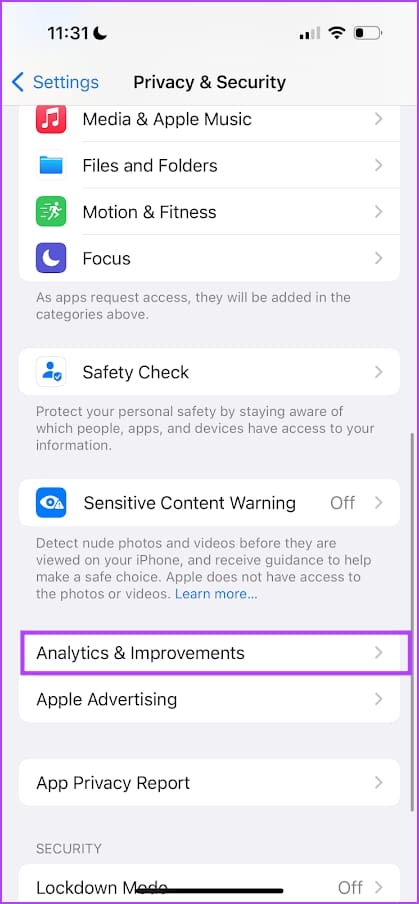
Step 1: Open the Settings app. Tap on Privacy.
Step 2: Tap on Analytics & Improvements. Turn off the toggle for Share iPhone & Watch Analytics.
Turn off Share iCloud Analytics and Improve Safety as well. In case you’ve enabled Improve Siri & Dictation, you can also disable it to prevent Apple from storing the audio data you’ve used along with Siri.

Also Read: Best privacy-focused browsers for iPhone and iPad.
How to Disable iPhone Location Analytics
If you wish to enable the analytics but want to prevent the collection of your location information, here’s how to disable it.
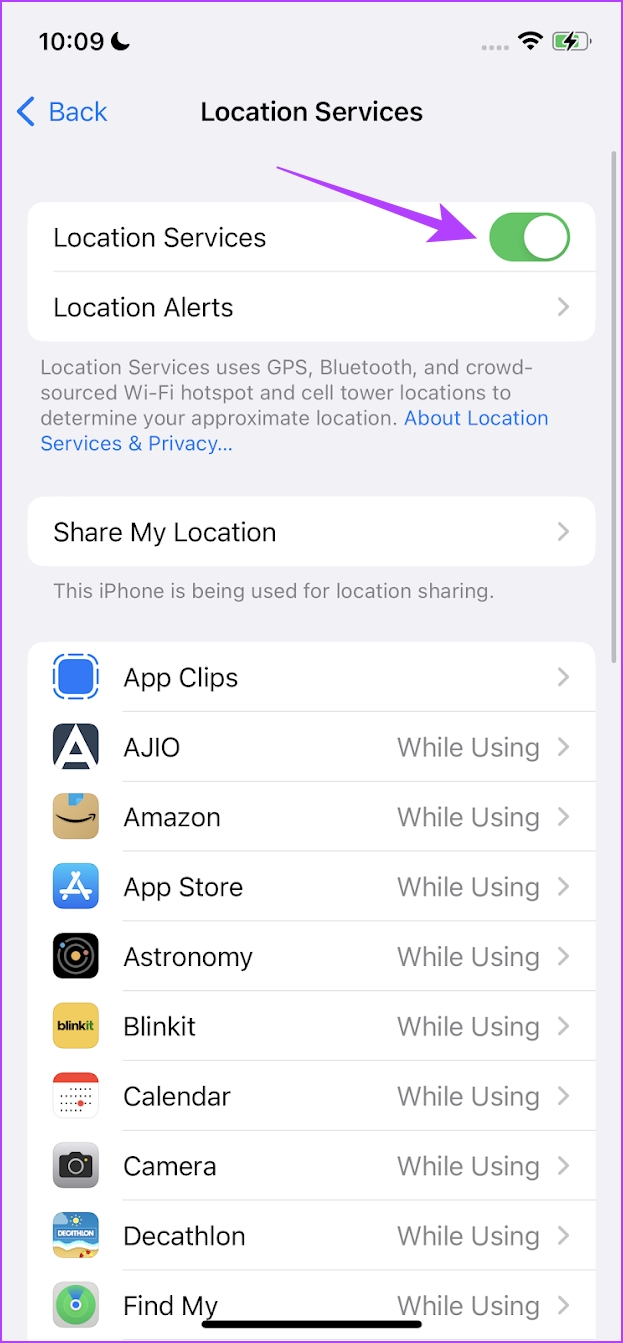
Step 1: Open the Settings app and select Privacy.
Step 2: Tap on Location Services. Scroll down till you reach the end of the page. Tap on System Services.
Step 5: Turn off the toggle for iPhone Analytics. This will prevent the analytics file from recording your location information.
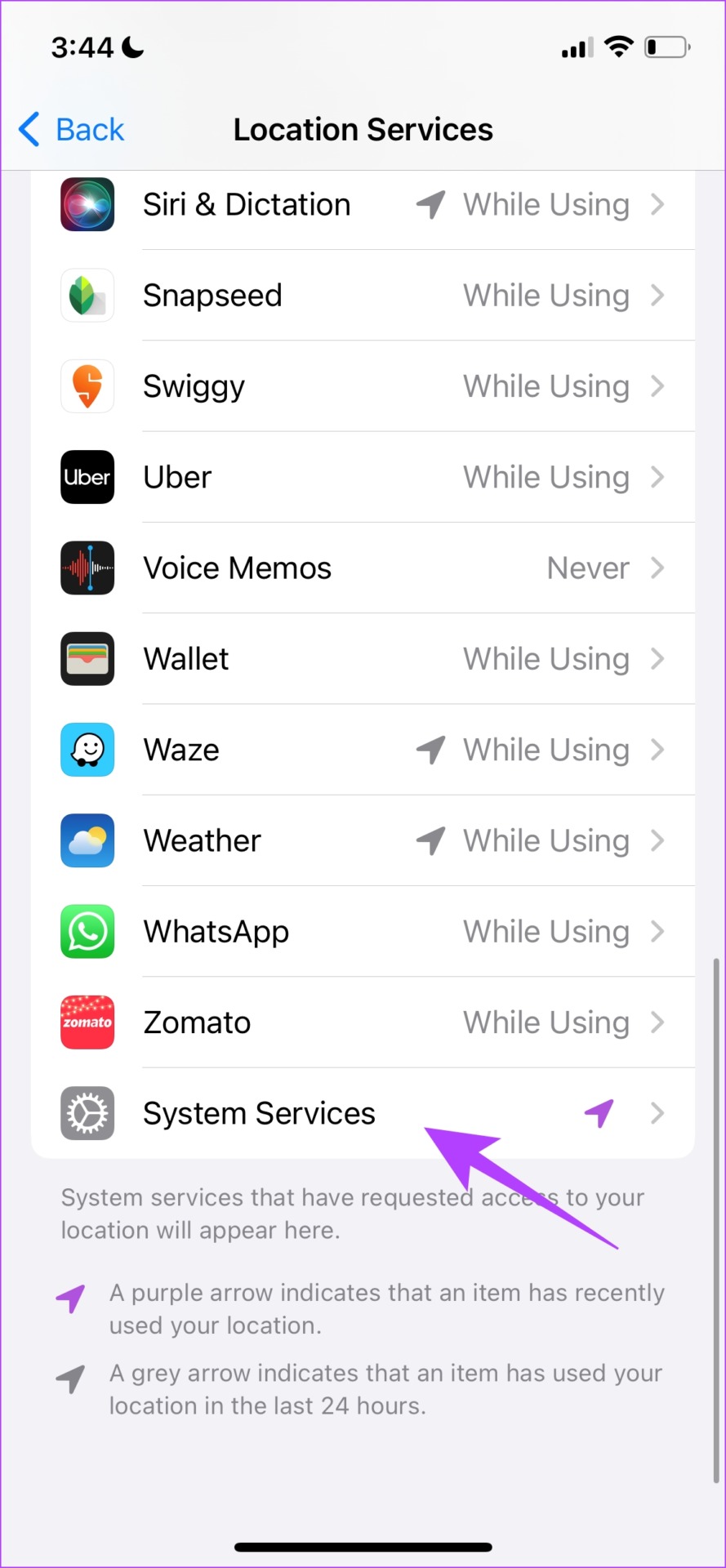

If you want to disable the location services completely, check our article on disabling location on iPhone.
Was this helpful?
Last updated on 14 May, 2024
Read Next
 How to Enable, Disable, or Block Your Caller ID on an iPhone
In the era where contact posters boldly show who’s calling, some people like to hide their phone numbers for privacy reasons.
How to Enable, Disable, or Block Your Caller ID on an iPhone
In the era where contact posters boldly show who’s calling, some people like to hide their phone numbers for privacy reasons.
 How to Enable or Disable Picture-in-Picture Mode on iPhone and iPad
Enable Automatic Picture-in-Picture Mode on iPhone and iPad If your iPhone or iPad doesn't automatically open videos in Picture-in-Picture mode when quitting to the Home screen, it's likely that your
How to Enable or Disable Picture-in-Picture Mode on iPhone and iPad
Enable Automatic Picture-in-Picture Mode on iPhone and iPad If your iPhone or iPad doesn't automatically open videos in Picture-in-Picture mode when quitting to the Home screen, it's likely that your
 How to Enable or Disable Inline Predictive Text on iPhone, iPad, and Mac
The Autocorrect feature has been there on Apple devices for a long time.
How to Enable or Disable Inline Predictive Text on iPhone, iPad, and Mac
The Autocorrect feature has been there on Apple devices for a long time.
 How to Disable or Enable Autoplay in Apple Music
By default, the Autoplay functionality in Apple Music kicks in after the final song in an album or playlist.
How to Disable or Enable Autoplay in Apple Music
By default, the Autoplay functionality in Apple Music kicks in after the final song in an album or playlist.
 How to Enable or Disable Wrist Detection on Apple Watch
Using an Apple Watch with your iPhone can help you take full advantage of its varied features.
How to Enable or Disable Wrist Detection on Apple Watch
Using an Apple Watch with your iPhone can help you take full advantage of its varied features.
 Forgot iPhone Passcode: How to Reset iPhone Without Losing Data
Don't we all dread the sight of our phones not unlocking when we enter the password?
Forgot iPhone Passcode: How to Reset iPhone Without Losing Data
Don't we all dread the sight of our phones not unlocking when we enter the password?
 4 Ways to Enable or Disable Dark Mode on Chromebook
Method 1: From Quick Settings Step 1: Click on the bottom right corner (on the time) of your Chromebook to open the Quick Settings panel.
4 Ways to Enable or Disable Dark Mode on Chromebook
Method 1: From Quick Settings Step 1: Click on the bottom right corner (on the time) of your Chromebook to open the Quick Settings panel.
 How to Enable and Disable Autofill on Android
Note: The steps might differ for different Android devices and Android versions.
How to Enable and Disable Autofill on Android
Note: The steps might differ for different Android devices and Android versions.
The article above may contain affiliate links which help support Guiding Tech. The content remains unbiased and authentic and will never affect our editorial integrity.