


Fix 1: Download Telegram Videos Without Glitches
First, here’s how to download Telegram videos without problems on your PC.
- Check the video file size. If it’s too big, choose a 5GHz Wi-Fi connection instead of a 2.4GHz one.
- Additionally, pause other download processes or streaming in the background if the video is downloading slowly.
- Don’t completely close the Telegram app. You can minimize the app and continue working on other tasks.
- If you pause the download process or cancel it before the completion, you will be left with a broken Telegram video file that won’t open on your PC.
Fix 2: Use Films & TV App
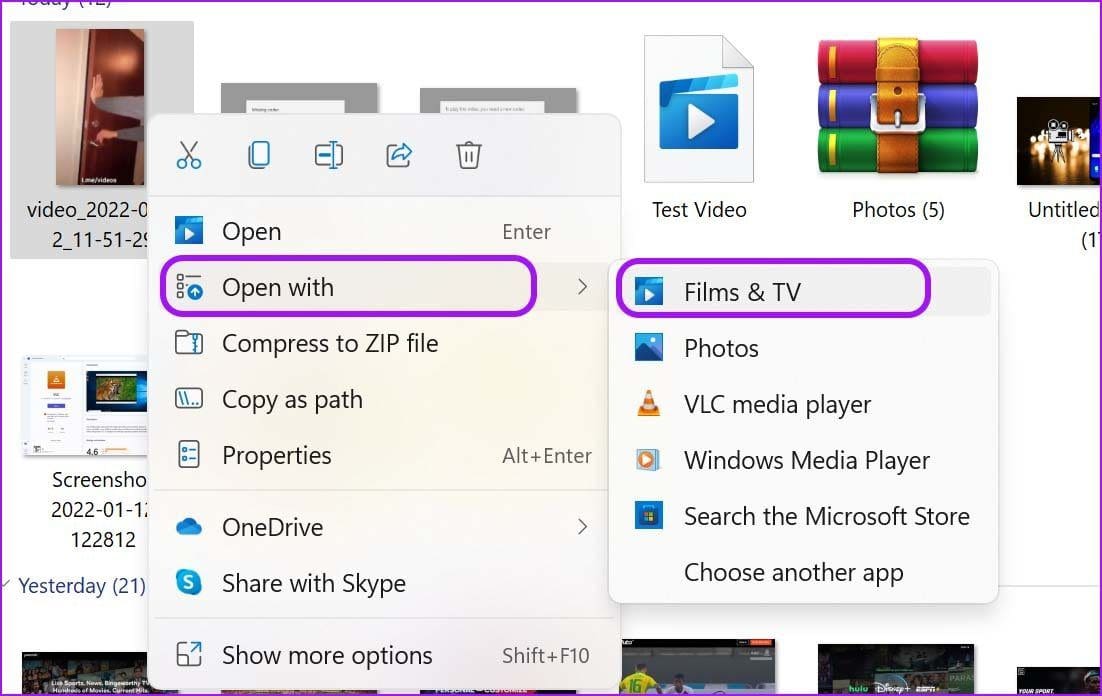
If the download file doesn’t open up as a video, you can manually open it using the default Films & TV app.
Open the File Explorer app on the PC. Select the video file you want to play. Right-click on it and select Open with > Films & TV app.
Also Read: How to fix Media Player not working in Windows
Fix 3: Use VLC Video Player
The VLC media player is officially available from the Microsoft Store on Windows.
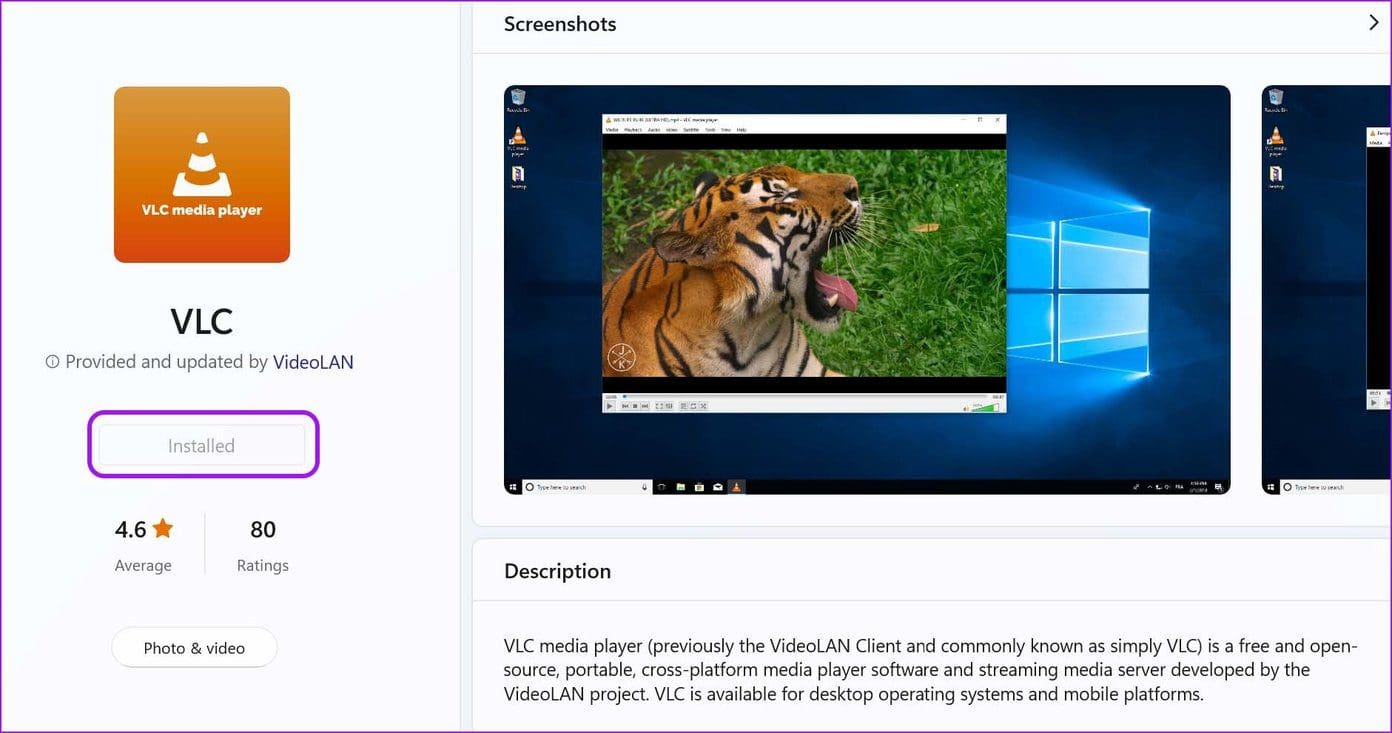
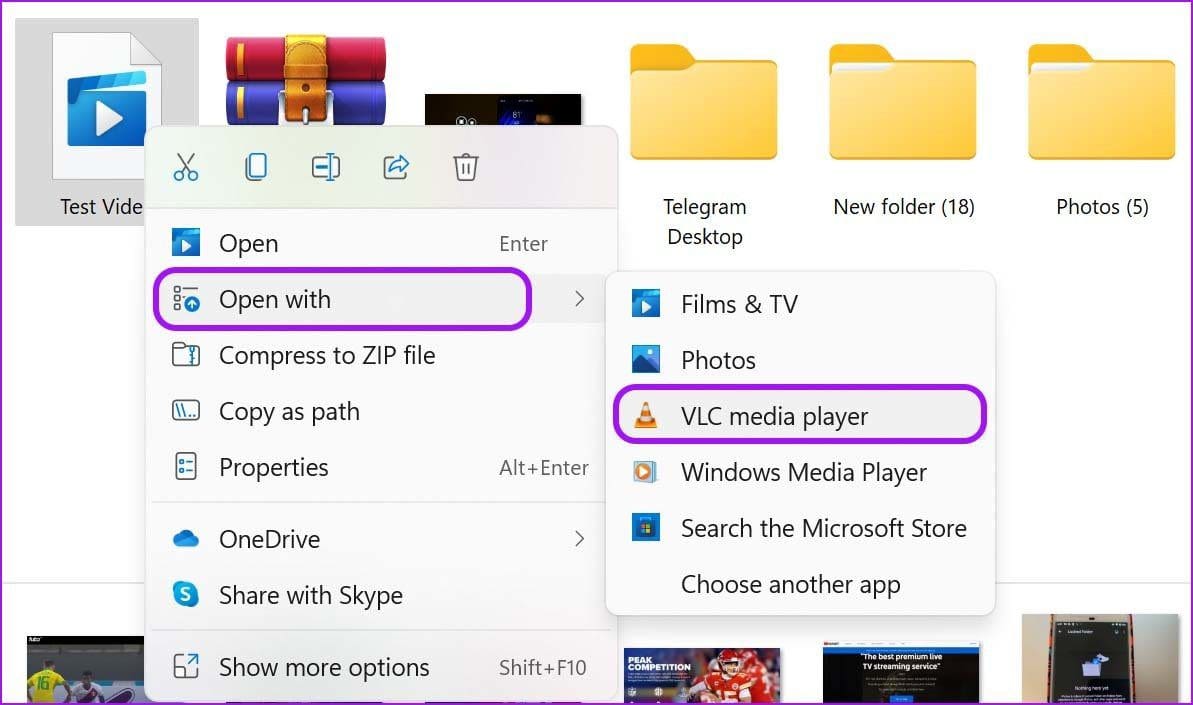
After installing the app, go to File Explorer and find the Telegram video. Right-click on it and select Open with > VLC media player, and the app will start playing video as usual.
Also Read: How to fix VLC not playing MKV files in Windows
Was this helpful?
Last updated on 26 April, 2024
Read Next
 4 Ways to Fix Telegram Videos Not Playing on Android
https://youtu.be/vJeVqA9FFzA Method 1: Make Sure to Download the Full Video Step 1: Open Telegram on Android and go to the Telegram group or channel.
4 Ways to Fix Telegram Videos Not Playing on Android
https://youtu.be/vJeVqA9FFzA Method 1: Make Sure to Download the Full Video Step 1: Open Telegram on Android and go to the Telegram group or channel.
 3 Ways to Fix Videos Not Playing on Windows 11
Fix 1: Run Video Playback Troubleshooter If you also face playback issues on other media players, turn to Windows troubleshooters for help.
3 Ways to Fix Videos Not Playing on Windows 11
Fix 1: Run Video Playback Troubleshooter If you also face playback issues on other media players, turn to Windows troubleshooters for help.
 4 Ways to Fix YouTube Not Playing Videos on PC
Basic Fixes Check your network connection: Ensure your device has a good internet connection.
4 Ways to Fix YouTube Not Playing Videos on PC
Basic Fixes Check your network connection: Ensure your device has a good internet connection.
 3 Ways to Fix Videos Not Playing in iPhone Photos App
Basic Fixes: Cool down your phone: Your iPhone might get warm during graphics-intensive gaming, video streaming, or video recording.
3 Ways to Fix Videos Not Playing in iPhone Photos App
Basic Fixes: Cool down your phone: Your iPhone might get warm during graphics-intensive gaming, video streaming, or video recording.
 3 Ways to Fix Videos Not Playing on Instagram
https://youtu.be/27MXAW2cROQ Try Basic Fixes Update the Instagram app: Running an older version of Instagram can lead to such problems.
3 Ways to Fix Videos Not Playing on Instagram
https://youtu.be/27MXAW2cROQ Try Basic Fixes Update the Instagram app: Running an older version of Instagram can lead to such problems.
 3 Ways to Fix Snapchat Not Playing Videos on Android and iPhone
Try Basic Fixes Check if Snapchat is down: At times, server congestion or other related issues can impact Snapchat’s performance and trigger various errors.
3 Ways to Fix Snapchat Not Playing Videos on Android and iPhone
Try Basic Fixes Check if Snapchat is down: At times, server congestion or other related issues can impact Snapchat’s performance and trigger various errors.
 How to Fix WhatsApp Videos Not Playing on iPhone or Android
Basic Fixes Check your network connection: Ensure your phone has a robust internet connection.
How to Fix WhatsApp Videos Not Playing on iPhone or Android
Basic Fixes Check your network connection: Ensure your phone has a robust internet connection.
 Top 5 Ways to Fix Google Photos Not Playing Videos
Basic Fixes Check Network Connection: If you're trying to stream content backed up to the cloud, then you’ll need to use high-speed internet to sync and stream it.
Top 5 Ways to Fix Google Photos Not Playing Videos
Basic Fixes Check Network Connection: If you're trying to stream content backed up to the cloud, then you’ll need to use high-speed internet to sync and stream it.
The article above may contain affiliate links which help support Guiding Tech. The content remains unbiased and authentic and will never affect our editorial integrity.

