


Basic Fixes
- Force quit and relaunch the app: Click on the Apple logo > Force Quit > Mail > Force Quit.
- Update macOS to update the Mail app: Open Settings > General > Software Update.
Fix 1: Re-enable Notifications
Let’s start with basics and by basics, we don’t mean rebooting the Mac (you have probably done that). Make sure you have enabled notifications for the Mail app on Mac. Otherwise, no trick will do the job for you. Here’s how to confirm that and re-enable notifications.
Open Settings > Notifications > Mail > Enable Notifications.

Fix 2: Disable and Enable Email Account
Are you facing notification issues with a specific Inbox in the Mail app? You have an option to disable a specific email account for some time and enable it again.
Step 1: Open the Mail app > Settings.
Step 2: Click on Accounts > Choose your email account > Enable this account.

After a minute or two, enable it again.
Fix 3: Add Email Account Again
Did you recently change your Gmail or Outlook email password? The Mail app will ask you to authenticate your account again. You can also go ahead and manually remove the email account from the Mail app and add it again.
Step 1: Open the Mail app > Settings > Accounts > Select your account name and then click the Minus icon to remove the icon.
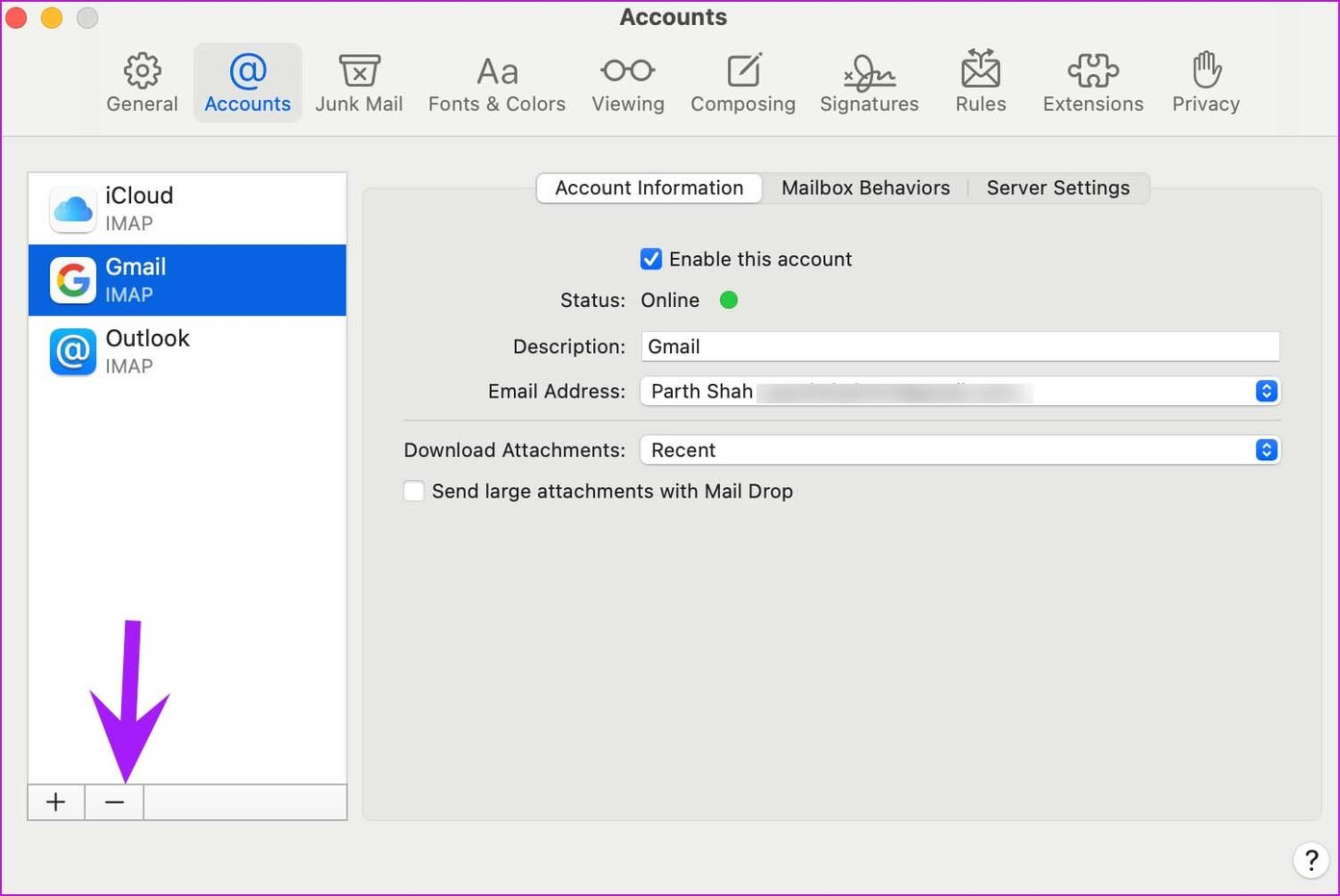
Step 2: Click the Plus icon and then add your account again.

Fix 4: Disable Share Across Devices on iPhone or iPad
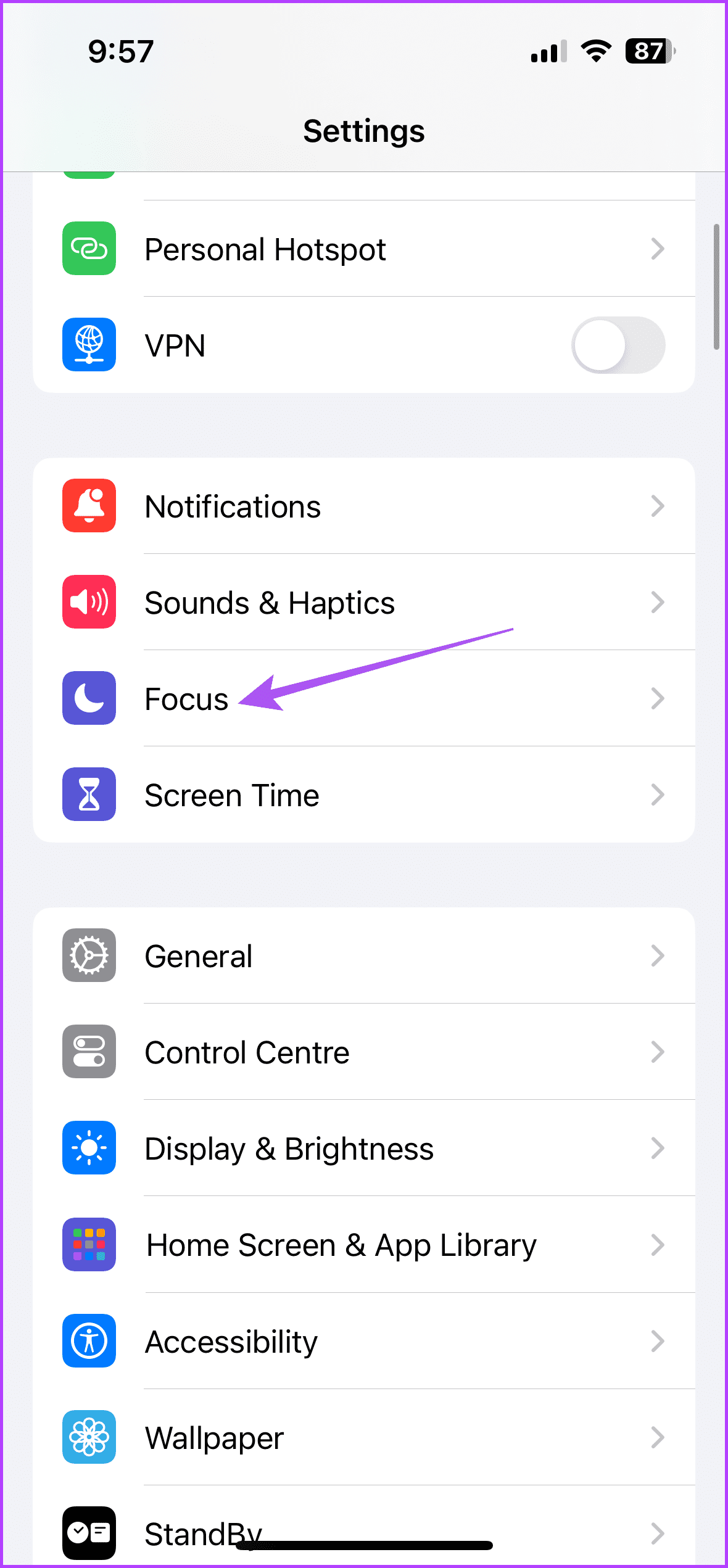
You might have enabled Focus on iPhone or iPad, and the iCloud is sharing the same Focus status on Mac as well. You can disable share across devices option to enable Focus on a specific device only.
Open Settings > Focus > Disable Share Across Devices.

Tip: Learn how to use the Gaming Focus Mode on iPhone.
Fix 5: Disable Focus on Mac
Like Focus on iPhone, Apple integrates Focus on Mac with macOS Monterey update. If you have enabled Focus on Mac or automated a specific Focus profile, you need to disable it to get Mail notifications.
Open Settings > Focus > Choose your Focus Mode > Silenced Apps > Ensure that Mail app is not added.

Fix 6: Disable Protect Mail Activity
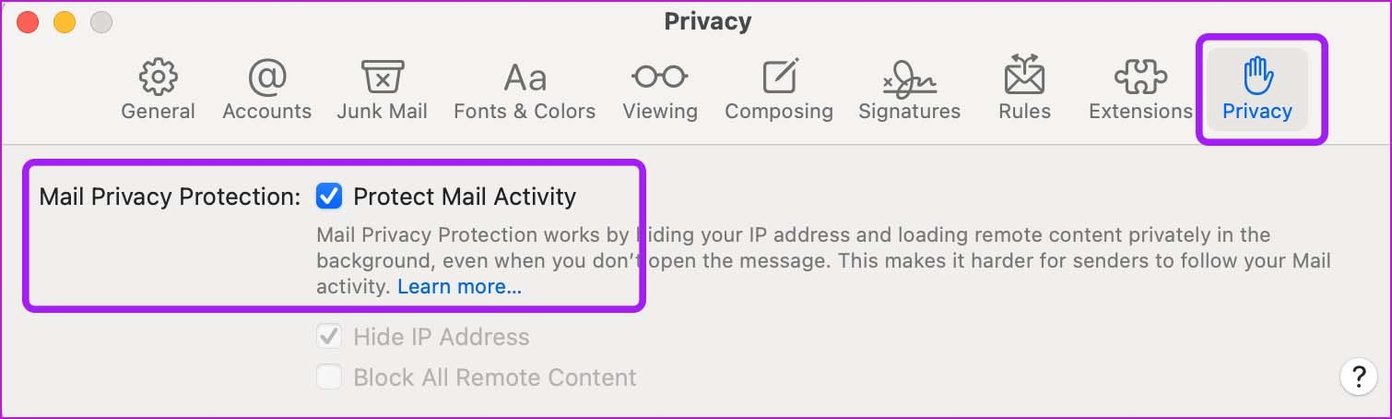
As a part of the iCloud+ subscription, Apple offers a Mail Privacy Protection add-on to hide your IP address and load remote content privately in the background. While the function is there to protect your privacy, it can lead to Mail misbehaves on Mac.
Open the Mail app > Settings > Privacy > Disable Protect Mail Activity.
Was this helpful?
Last updated on 31 July, 2024
1 Comment
Leave a Reply
Read Next
 3 Ways to Fix Apple Mail Stuck on Checking for Mail on iPhone
Basic Fixes: Check the network connection: First, check the network connection quality on your iPhone. If you face network issues, you can enable Airplane mode on your iPhone and disable it
3 Ways to Fix Apple Mail Stuck on Checking for Mail on iPhone
Basic Fixes: Check the network connection: First, check the network connection quality on your iPhone. If you face network issues, you can enable Airplane mode on your iPhone and disable it
 3 Fixes for Mail App Notifications Not Working on iPhone
Basic Fixes Enable Mail app notifications: Open Settings > Mail > Notifications > Customize Notifications > enable alerts.
3 Fixes for Mail App Notifications Not Working on iPhone
Basic Fixes Enable Mail app notifications: Open Settings > Mail > Notifications > Customize Notifications > enable alerts.
 Outlook App vs Apple Mail: Which Is a Better iOS Mail App
Frankly, there are so many mail apps for the iOS platform that it can be difficult to zero in on one.
Outlook App vs Apple Mail: Which Is a Better iOS Mail App
Frankly, there are so many mail apps for the iOS platform that it can be difficult to zero in on one.
 Top 4 Ways to Fix Microsoft Teams Notifications Not Working on Mac
Basic Fixes Check Microsoft Teams Status: If Microsoft suffers from an outage, you might want to confirm the issue via Downdetector.
Top 4 Ways to Fix Microsoft Teams Notifications Not Working on Mac
Basic Fixes Check Microsoft Teams Status: If Microsoft suffers from an outage, you might want to confirm the issue via Downdetector.
 4 Ways to Fix Outlook Notifications Not Working on Mac
Preliminary Fixes Disable Focus: When enabled, this feature pauses all notifications and calls to create a distract-free working environment.
4 Ways to Fix Outlook Notifications Not Working on Mac
Preliminary Fixes Disable Focus: When enabled, this feature pauses all notifications and calls to create a distract-free working environment.
 How to Enable Microsoft Outlook Mail Notifications on Windows 11
Method 1: Enable Email Notifications in Outlook If you notice that taskbar notifications from your Outlook app are not popping up, check your Outlook Settings first.
How to Enable Microsoft Outlook Mail Notifications on Windows 11
Method 1: Enable Email Notifications in Outlook If you notice that taskbar notifications from your Outlook app are not popping up, check your Outlook Settings first.
 5 Ways to Fix Mail App Not Receiving Emails on Mac
Basic Fixes Check junk mail: Sometimes, Gmail, iCloud, or Outlook algorithms can be aggressive and send emails directly to the Junk box.
5 Ways to Fix Mail App Not Receiving Emails on Mac
Basic Fixes Check junk mail: Sometimes, Gmail, iCloud, or Outlook algorithms can be aggressive and send emails directly to the Junk box.
 Fix: Mac Mail Showing Blank Message Body for Exchange Emails
Basic Fixes Check your Outlook account details: Open Mail > Mail at the top-left corner > Accounts > Exchange account > Check your account details.
Fix: Mac Mail Showing Blank Message Body for Exchange Emails
Basic Fixes Check your Outlook account details: Open Mail > Mail at the top-left corner > Accounts > Exchange account > Check your account details.
The article above may contain affiliate links which help support Guiding Tech. The content remains unbiased and authentic and will never affect our editorial integrity.

Are we able to choose what email accounts can receive or not receive notifications when we have multiple Apple email accounts?