The Microsoft error 657rx usually shows up when you’re trying to log into an Office app after you’ve changed your network, added a new account to the PC, or even changed your computer’s hardware (like swapping the SSD used for Windows). The error can also throw a code “2148073494” or suggest that your “credential is invalid.” The source of the problem is that the cached data that corresponds to your account no longer matches the system. Here’s how to fix Microsoft error 657rx.
Fix 1 – How to Fix Microsoft Error 657rx by Clearing the Office Login Cache
The error is related to sign-in authentication and may be caused by cached credentials or a problem with device registration. You can try clearing the relevant cache, which should not affect your personal files, although you may need to sign in to your apps again.
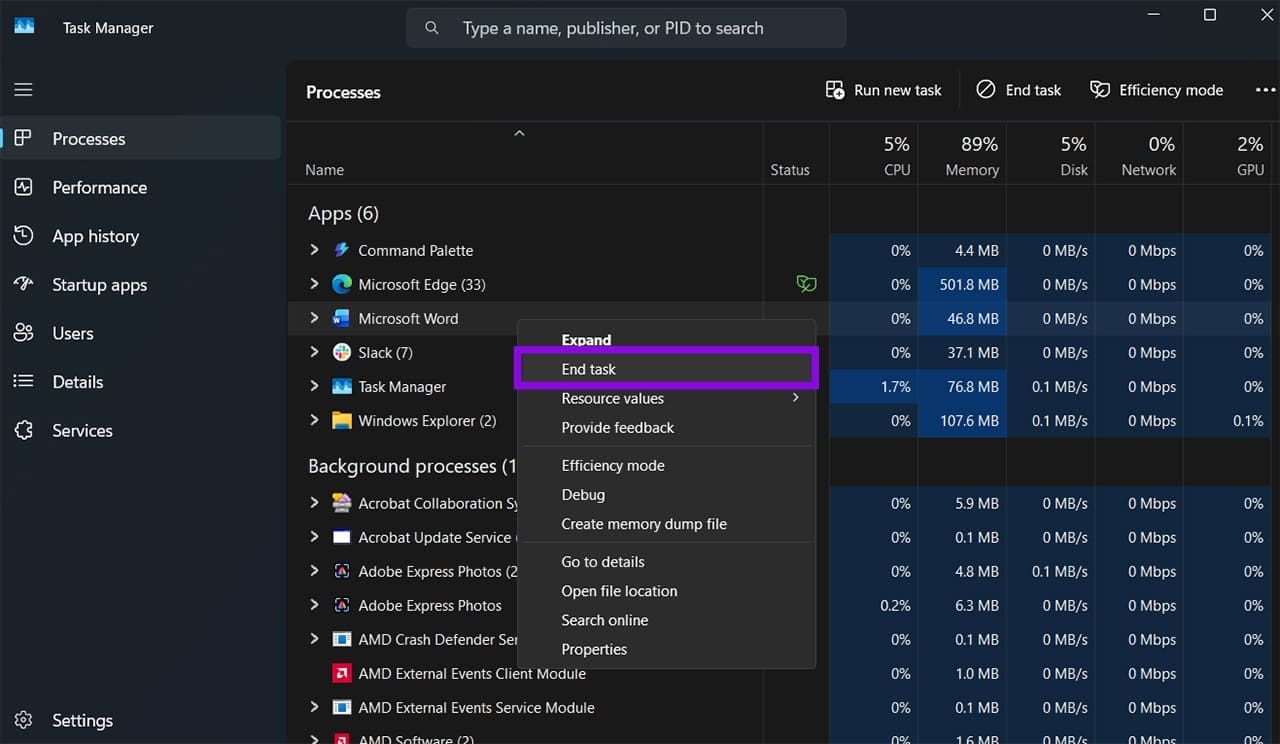
Step 1. Log out or quit all Office apps, including Outlook, OneNote, and Teams (which frequently minimize themselves or continue in the background).
You can do this by going to the Task Manager and using “End task” on all of these apps or checking that they are no longer in the expanded toolbar icons.
Step 2. Open File Explorer and overwrite the address in the top bar with the following:
%localappdata%\Packages\Microsoft.AAD.BrokerPlugin_cw5n1h2txyewy
This opens the folder with Microsoft’s caches.
Step 3. Delete everything inside the folder.

This forces Microsoft to recheck all login forms, and you’ll be prompted to connect the account again if you enter a work or school account address.
Fix 2 – Reconnect a Work or School Account to Fix Microsoft Error 657rx
Most commonly, the issue is due to a managed account not having the same credentials as what’s saved in the cache, which can also happen if someone reset your password externally. You can remove the account, which resets its data on the PC, then add it back.
Step 1. Press Win + I to open “Settings,” then select “Accounts” in the left pane.
Step 2. Select “Access work or school.”
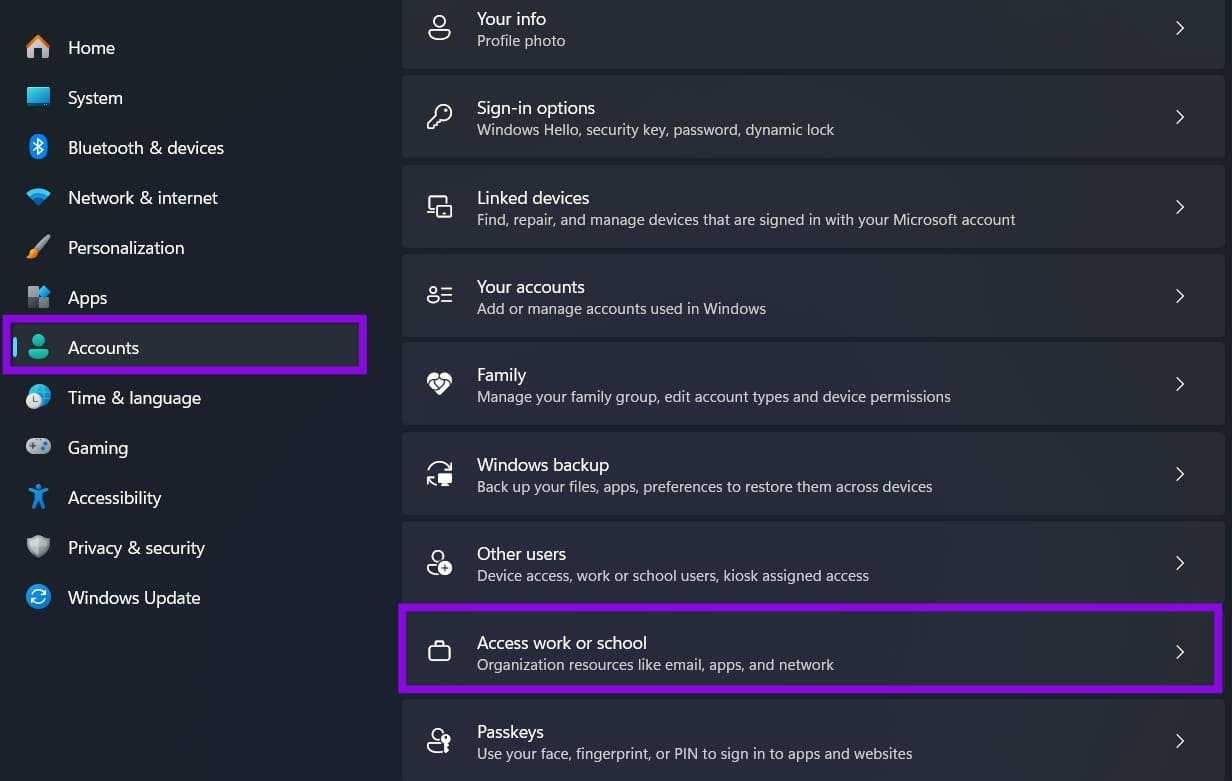
Step 3. If the affected work or school account appears in the list, select it and choose “Disconnect,” then confirm. Restart the PC.
Step 4. Return to Settings > Accounts > Add a work or school account and select “Connect” to add the account again. Follow the prompts to sign in.

In some cases, a managed laptop device might have the “Disconnect” button disabled. This was done by the administration or IT of your organization. You’ll need to contact them to get the issue sorted.
Fix 3 – Remove Saved Credentials to Fix Microsoft Error 657rx
If the issue also occurs with your personal account, the problem may involve cached credentials or the device’s authentication configuration. Hardware or device-registration changes can sometimes contribute to sign-in problems. You can try removing the relevant saved credentials and clearing the associated sign-in caches.
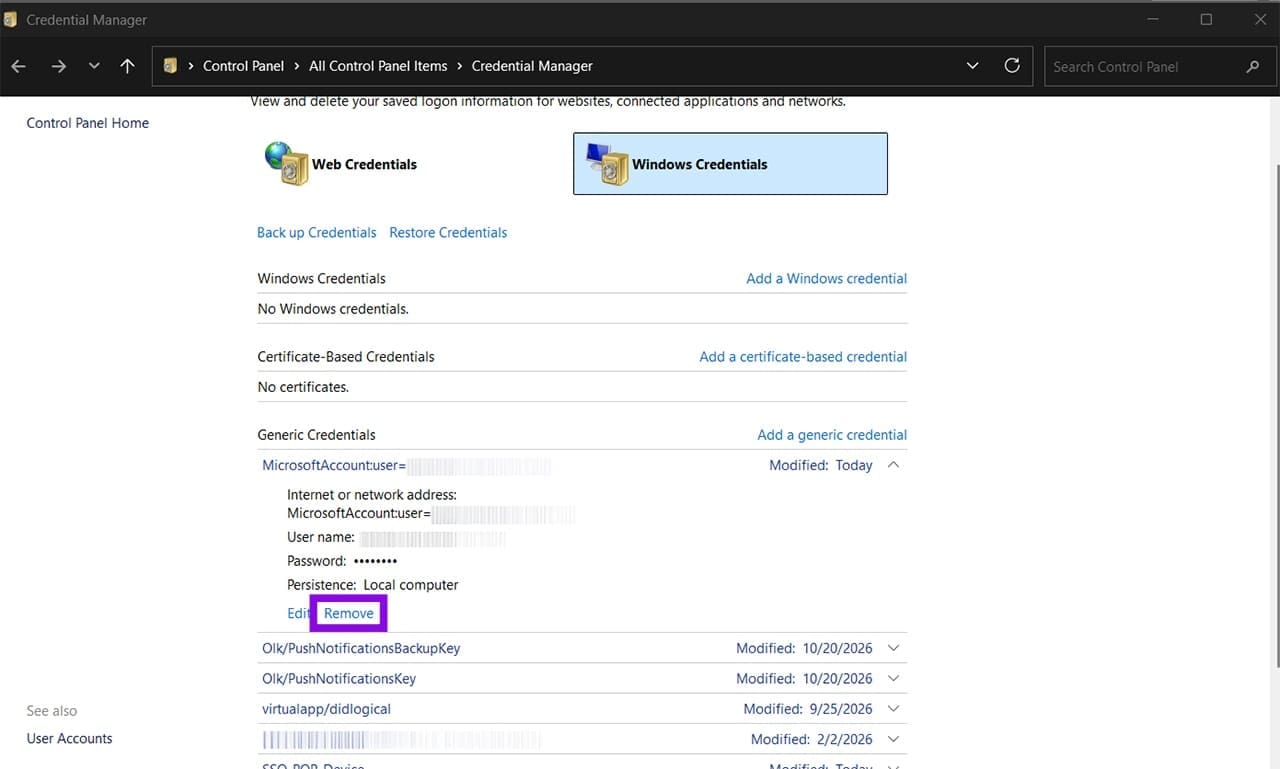
Step 1. Search for “Credential Manager” and open it.
Step 2. Select “Windows Credentials.”
Step 3. Under “Windows Credentials,” look for entries related to Microsoft Office or Microsoft 365, such as MicrosoftOffice16_Data:OATH, MicrosoftOffice16_Data:orgid, or entries containing your email address followed by _Data. Then, click on “Remove” for the credential and continue down the list.
Step 4. Open File Explorer and empty the contents of the following folders:
%localappdata%\Microsoft\OneAuth
%localappdata%\Microsoft\IdentityCache
Delete the contents of each folder.
Step 5. Restart the PC.
Final Option – Use the Office Troubleshooter
If none of these steps work, try the Microsoft Office troubleshooter in the Get Help app. If the problem is specifically related to Microsoft 365 activation, use the separate activation troubleshooter.

Once downloaded, follow its instructions to detect, remove, and reconnect a Microsoft account for Microsoft 365 apps.
Was this helpful?
Last updated on 28 October, 2026
Read Next
 Troubleshooting Tips for an Outlook TLS Error
When trying to access your mail via Outlook, you may get an error message in the likes of “Your server does not support the connection encryption type you have specified.
Troubleshooting Tips for an Outlook TLS Error
When trying to access your mail via Outlook, you may get an error message in the likes of “Your server does not support the connection encryption type you have specified.
 Add Safe Mode to Windows 11 Boot Menu for Easier Troubleshooting
When something goes wrong in Windows, Safe Mode is an excellent way to troubleshoot by isolation.
Add Safe Mode to Windows 11 Boot Menu for Easier Troubleshooting
When something goes wrong in Windows, Safe Mode is an excellent way to troubleshoot by isolation.
 Windows 11 Screen Keeps Flickering – Troubleshooting Guide
You might not be sure why it’s happening, but it’s happening: your Windows 11 screen keeps flickering and you want some answers, or better yet, some solutions.
Windows 11 Screen Keeps Flickering – Troubleshooting Guide
You might not be sure why it’s happening, but it’s happening: your Windows 11 screen keeps flickering and you want some answers, or better yet, some solutions.
 Troubleshooting AMD Noise Suppression Not Working
AMD Noise Suppression is a handy AI-powered tool that reduces background audio noise to improve clarity for calls, recordings, and other applications.
Troubleshooting AMD Noise Suppression Not Working
AMD Noise Suppression is a handy AI-powered tool that reduces background audio noise to improve clarity for calls, recordings, and other applications.
 Troubleshooting “It’s Not You, It’s Me” in Copilot
If you’re getting a Copilot app “it’s not you, it’s me” error, there are a few different reasons why that might be.
Troubleshooting “It’s Not You, It’s Me” in Copilot
If you’re getting a Copilot app “it’s not you, it’s me” error, there are a few different reasons why that might be.
 5 Fixes for “Word Experienced an Error Trying to Open the File” Error in Windows
Fix 1: Unblock Your Word File Microsoft Word may fail to open a document if it has been altered by third-party software.
5 Fixes for “Word Experienced an Error Trying to Open the File” Error in Windows
Fix 1: Unblock Your Word File Microsoft Word may fail to open a document if it has been altered by third-party software.
 5 Ways to Fix “This Page Is Having a Problem” Error in Microsoft Edge
Fix 1: Disable Extensions An extension might be interfering with the browser processes and preventing Edge from loading websites.
5 Ways to Fix “This Page Is Having a Problem” Error in Microsoft Edge
Fix 1: Disable Extensions An extension might be interfering with the browser processes and preventing Edge from loading websites.
 Top 7 Fixes for We’ve Run Into an Issue Error in Microsoft Teams on Windows
Microsoft Teams is a popular business collaboration app among Windows users, and for good reason.
Top 7 Fixes for We’ve Run Into an Issue Error in Microsoft Teams on Windows
Microsoft Teams is a popular business collaboration app among Windows users, and for good reason.
The article above may contain affiliate links which help support Guiding Tech. The content remains unbiased and authentic and will never affect our editorial integrity.