AMD Noise Suppression is a handy AI-powered tool that reduces background audio noise to improve clarity for calls, recordings, and other applications. However, there are times when you’ll receive a notice of an AMD noise suppression system error and suddenly not have things working.
This article is here to help you fix that.
Can You Support the Feature?
If you haven’t been able to enable the Noise Suppression feature before, or just never used it, it’s important to check that your hardware is actually capable of using it in the first place. As of writing, the AMD Ryzen 6000 processors and Radeon RX 6000 (and up) are capable of supporting the feature, which requires AMD Software: Adrenalin Edition 22.7.1 or newer.
AMD Noise Suppression System Error – Fixes to Try
If you meet the minimum requirements and still have AMD Noise Suppression not working, it’s time to try the troubleshooters below.
Check the Toggle
The first check should be the feature toggle:
Step 1. Open Adrenalin and head to “Audio & Video” or “Audio.”
Step 2. Set AMD Audio Noise Suppression to “Enabled.”
Step 3. If the option is missing, check for the latest AMD Software update. If the problem persists, consider reinstalling AMD Software.
Note that AMD has released fixes for issues affecting Noise Suppression, so make sure you are running the most recent version of AMD Software: Adrenalin Edition before trying advanced troubleshooting.
Ensure Your Apps Use AMD
You might also find that the toggle is on, but background noise is still getting through in some apps. It could be that they aren’t using the AMD Streaming Audio Device. Here’s how to check and change:
Step 1. Open the problematic app and head to its Audio Settings.
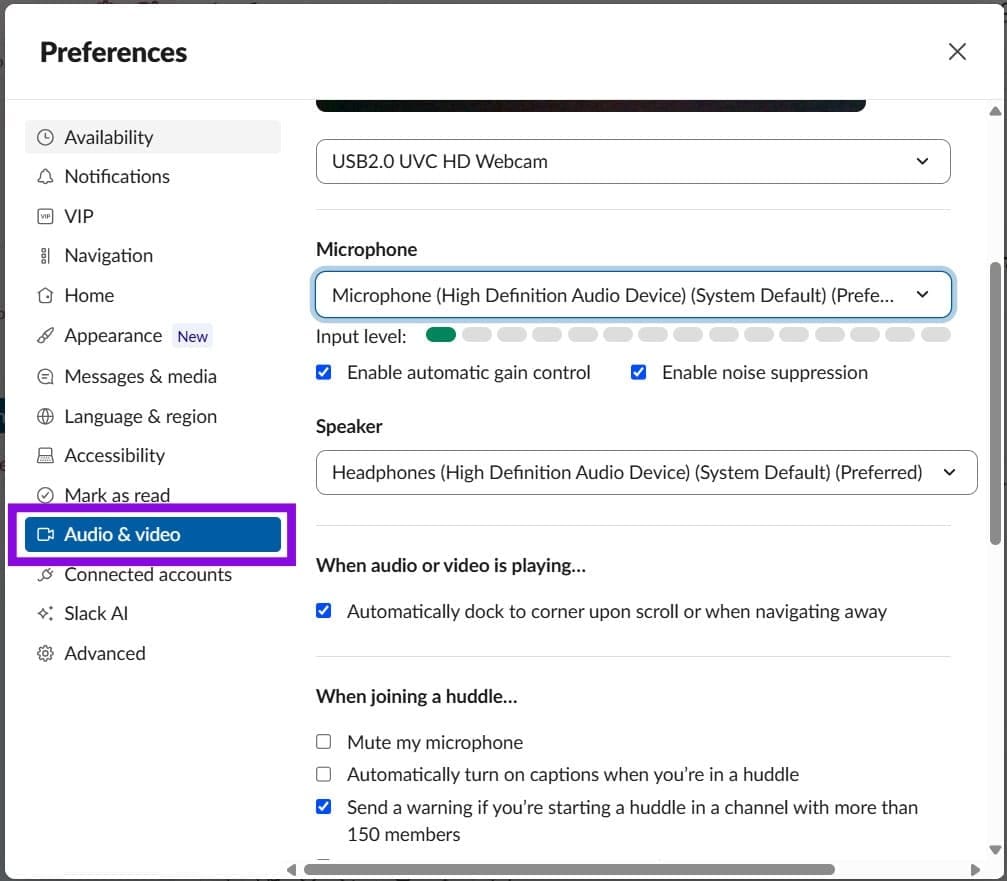
Step 2. Ensure that your input and output devices are set to “AMD Streaming Audio Device” rather than system defaults like “High Definition Audio Device.” If they are, change them.
Step 3. Do this for all apps acting up.
Turn Off Other Suppressors
Sometimes third-party features don’t play well with each other. If you’re using Noise Suppression on another overlay or app, it might be interfering with AMD and lead to both not working. Rather, stick with AMD for all.
Update Your Audio Drivers
In addition to updating AMD Software, make sure your audio drivers are up to date:
Step 1. Open the Run dialog (Win + R) and type “devmgmt.msc” into the box, and hit “OK.”
Step 2. Expand “Audio inputs and outputs,” then right-click the relevant audio device.
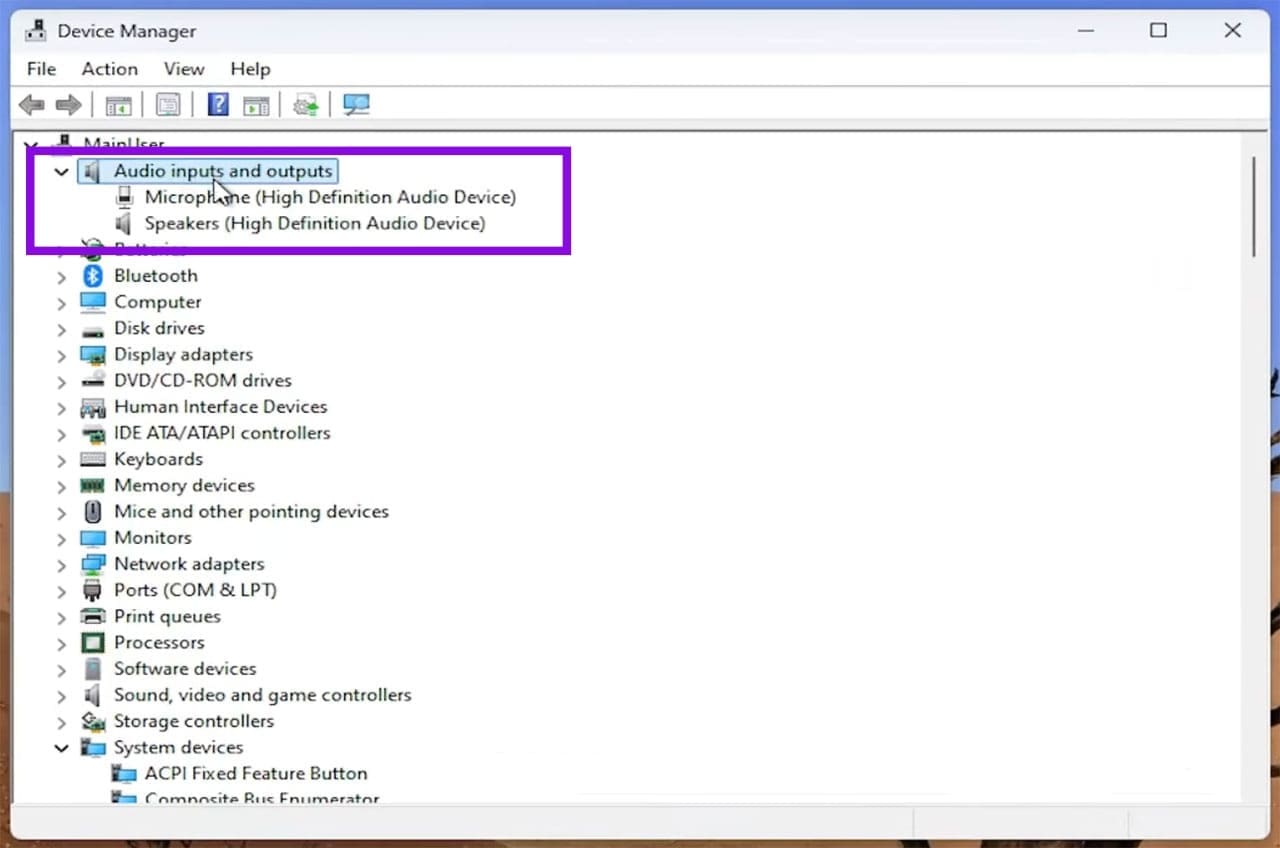
Step 3. Select “Update driver” from the context menu.
Step 4. In the next window, select “Search automatically for drivers” and follow the instructions. If Windows finds a newer driver, install it and restart your PC if asked.
Reset the Software to Defaults
Over time, bad updates and creeping corruption can affect your AMD software. Resetting the software can solve a lot of problems. Here’s what to do:
Step 1. Open Adrenalin and open “Settings.”
Step 2. In AMD Software, search for “Snap” and select “Snap Settings – System Settings.”
Step 3. Click “Export” next to “Snap Settings.”
Step 4. Choose where to save the exported settings file.
Step 5. Next to “Factory Reset,” click “Perform Reset.”
Step 6. After the reset, test AMD Noise Suppression before importing your saved settings. If you do import the snapshot, review the warning carefully before proceeding.
Was this helpful?
Last updated on 01 October, 2026
Read Next
 Add Safe Mode to Windows 11 Boot Menu for Easier Troubleshooting
When something goes wrong in Windows, Safe Mode is an excellent way to troubleshoot by isolation.
Add Safe Mode to Windows 11 Boot Menu for Easier Troubleshooting
When something goes wrong in Windows, Safe Mode is an excellent way to troubleshoot by isolation.
 Windows 11 Screen Keeps Flickering – Troubleshooting Guide
You might not be sure why it’s happening, but it’s happening: your Windows 11 screen keeps flickering and you want some answers, or better yet, some solutions.
Windows 11 Screen Keeps Flickering – Troubleshooting Guide
You might not be sure why it’s happening, but it’s happening: your Windows 11 screen keeps flickering and you want some answers, or better yet, some solutions.
 Troubleshooting Tips for an Outlook TLS Error
When trying to access your mail via Outlook, you may get an error message in the likes of “Your server does not support the connection encryption type you have specified.
Troubleshooting Tips for an Outlook TLS Error
When trying to access your mail via Outlook, you may get an error message in the likes of “Your server does not support the connection encryption type you have specified.
 7 Fixes for AMD Adrenalin Software Not Working or Opening
Fix 1: Run AMD Radeon Software With Admin Privileges If your AMD Adrenalin software is not working or opening, one of the initial fixes to perform is to run it
7 Fixes for AMD Adrenalin Software Not Working or Opening
Fix 1: Run AMD Radeon Software With Admin Privileges If your AMD Adrenalin software is not working or opening, one of the initial fixes to perform is to run it
 How to Overclock a Monitor: NVIDIA, AMD, and Intel GPUs
When gaming, having a high-performance monitor can make a significant difference in your overall experience.
How to Overclock a Monitor: NVIDIA, AMD, and Intel GPUs
When gaming, having a high-performance monitor can make a significant difference in your overall experience.
 How to Fix Windows Update Replaced Your AMD Graphics Driver
If you have an AMD graphics card installed in your PC, then you may have run into an error where Windows informs you that it has replaced your graphics driver,
How to Fix Windows Update Replaced Your AMD Graphics Driver
If you have an AMD graphics card installed in your PC, then you may have run into an error where Windows informs you that it has replaced your graphics driver,
 AMD Folder Getting Increasingly Large – What to Do
Over time, you might notice that your C drive is starting to run out of space, which can force you to stop updating apps or even Windows entirely.
AMD Folder Getting Increasingly Large – What to Do
Over time, you might notice that your C drive is starting to run out of space, which can force you to stop updating apps or even Windows entirely.
 Installing AMD Graphics Driver From Scratch Step by Step
If you’re having issues with a flickering screen, or if a new update of Windows has your system doing strange things, you’re probably looking for an answer.
Installing AMD Graphics Driver From Scratch Step by Step
If you’re having issues with a flickering screen, or if a new update of Windows has your system doing strange things, you’re probably looking for an answer.
The article above may contain affiliate links which help support Guiding Tech. The content remains unbiased and authentic and will never affect our editorial integrity.