If you’re getting a Copilot app “it’s not you, it’s me” error, there are a few different reasons why that might be. Because the message doesn’t identify the underlying problem, it can be difficult to tell whether the issue is with your connection, the Copilot app, your account, or Microsoft’s service. Here are some ways to try to fix this annoying Copilot AI error.

Common Fixes for Copilot App “It’s Not You, It’s Me” Error
In most cases, the main cause of the error is due to an unstable internet connection with the Copilot server. With that in mind, you can try the following:
- Check that your computer is connected to the internet and that the connection is stable.
- Restart the PC.
- Check Microsoft’s service status. There’s no single website where this can be done, so you can refer to the Cloud Status page, DownDetector for the Copilot App, or another server status checker.
If none of these yield any results, proceed to the other fixes.
Fix 1 – Disable or Change VPN Settings
A VPN can sometimes interfere with network connections or trigger access issues. If you’re using a VPN, temporarily disconnect it and try Copilot again.
Step 1. Go to “Settings” and click on the “Network and internet” tab.
Step 2. Click on “VPN,” then disable any VPN connections you might be running.
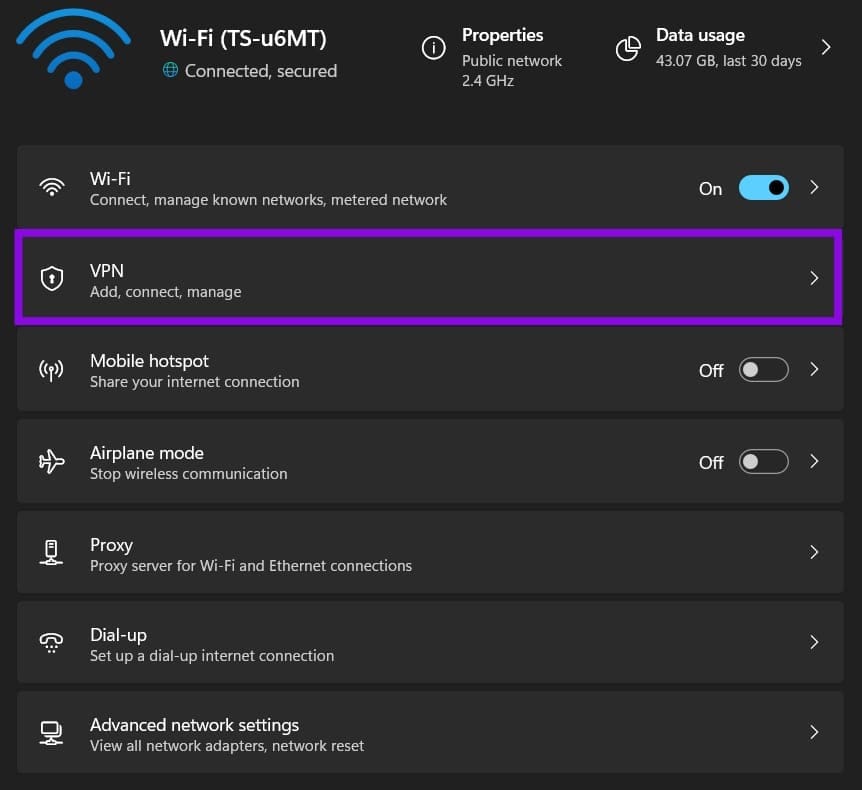
Step 3. Turn off, then restart the Copilot app and check if it connects.
Step 4. If Copilot works with the VPN disabled, the VPN or its network configuration may be contributing to the problem.
Fix 2 – Restart Copilot
Copilot is a standalone system service and application in Windows. You can try to hard reset it by closing the Microsoft Edge browser, which has Copilot built in.
Step 1. Open the Task Manager (available via right-clicking the toolbar or with “Ctrl + Alt + Del”).
Step 2. Find the “Microsoft Edge” process, right-click on it, and select “End task.”
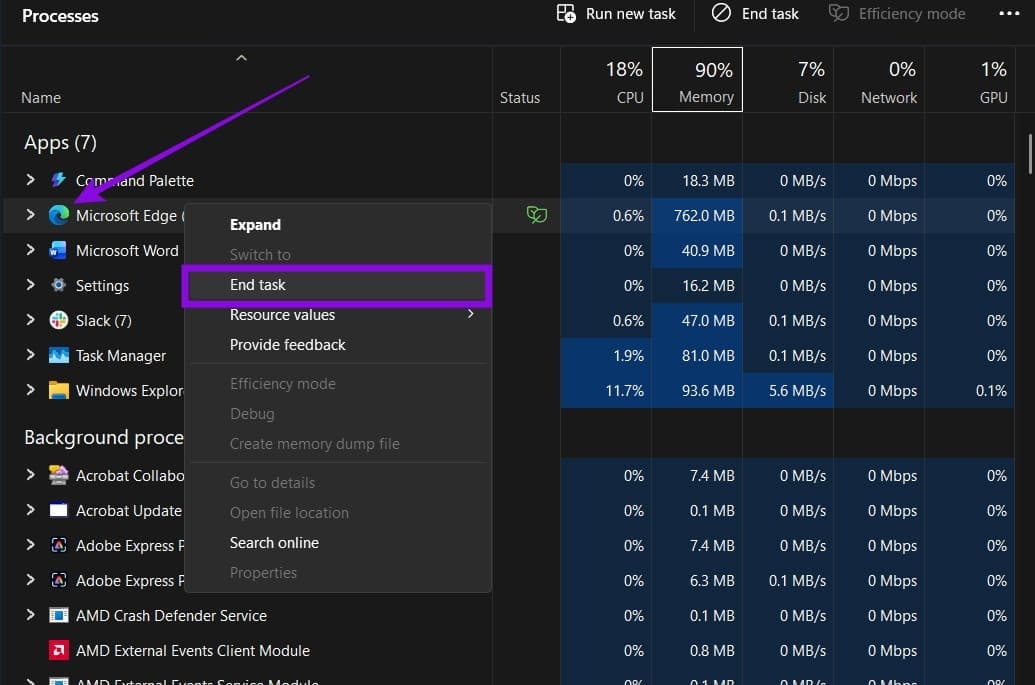
Step 3. Scroll down and find any other “Microsoft Edge” services that might be running in the background, then end them, too.

Fix 3 – Clear Your Browser Cache and Edge Profiles
In rare cases, the cache might be preventing Copilot from connecting. The steps to delete the cache will vary depending on the browser, but are similar and can be found in their respective apps.
Step 1. Open the browser and go to “Settings.”
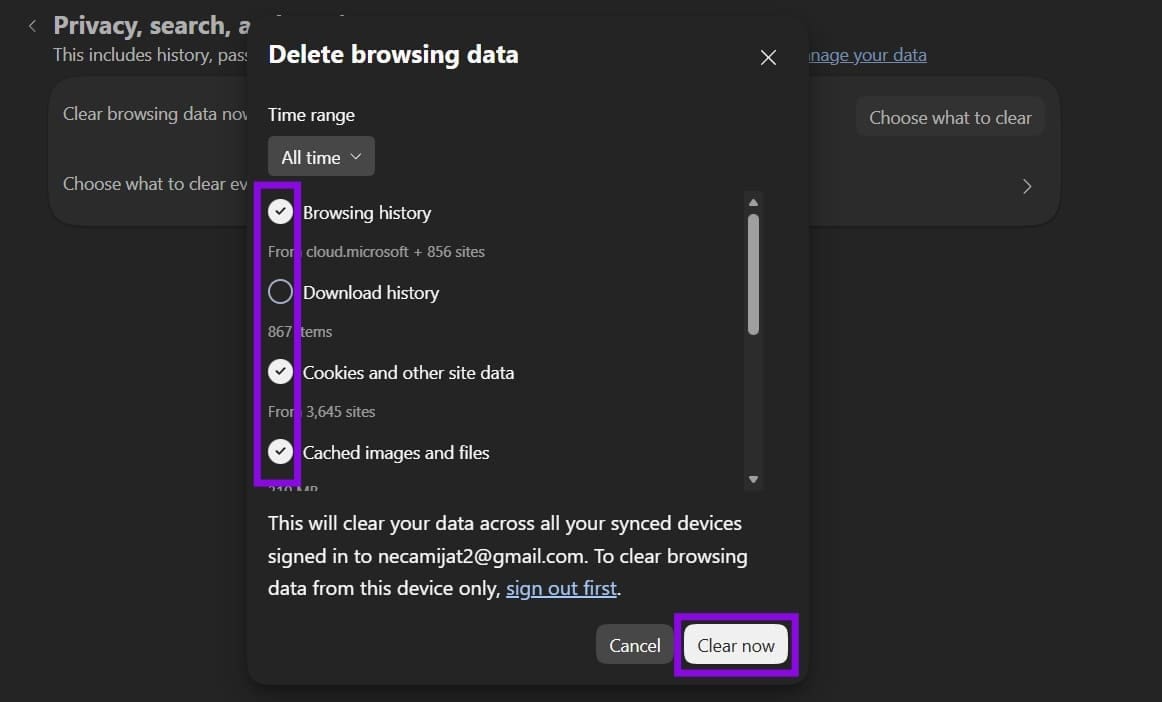
Step 2. Click on “Privacy, search, and services” or “Browsing data.”
Step 3. Select “Clear browsing data.”
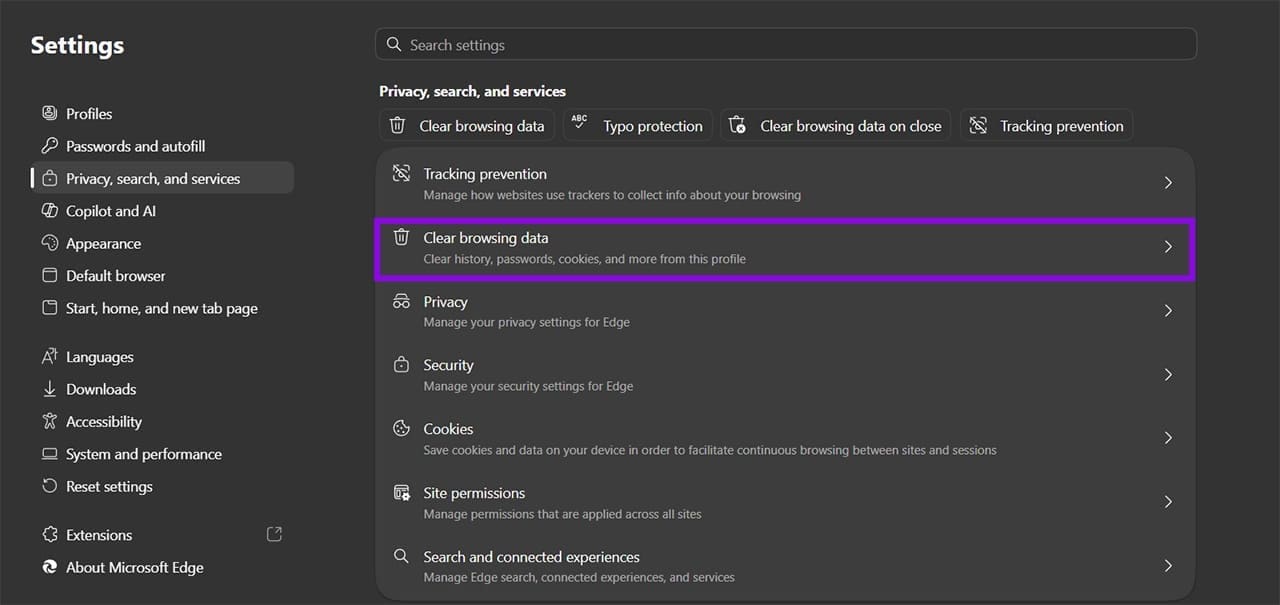
Step 4. Click on “Choose what to clear,” then select at least the “Cookies” option and click “Clear now.”
Step 5. In Edge, go to “Settings” and open the “Profiles” tab.
Step 6. Click on “Sign out” or the “Delete” icon for all profiles. Make sure you save their passwords somewhere.
Step 7. Restart Edge and log in with your account.
Was this helpful?
Last updated on 12 October, 2026
Read Next
 Add Safe Mode to Windows 11 Boot Menu for Easier Troubleshooting
When something goes wrong in Windows, Safe Mode is an excellent way to troubleshoot by isolation.
Add Safe Mode to Windows 11 Boot Menu for Easier Troubleshooting
When something goes wrong in Windows, Safe Mode is an excellent way to troubleshoot by isolation.
 Windows 11 Screen Keeps Flickering – Troubleshooting Guide
You might not be sure why it’s happening, but it’s happening: your Windows 11 screen keeps flickering and you want some answers, or better yet, some solutions.
Windows 11 Screen Keeps Flickering – Troubleshooting Guide
You might not be sure why it’s happening, but it’s happening: your Windows 11 screen keeps flickering and you want some answers, or better yet, some solutions.
 Troubleshooting Tips for an Outlook TLS Error
When trying to access your mail via Outlook, you may get an error message in the likes of “Your server does not support the connection encryption type you have specified.
Troubleshooting Tips for an Outlook TLS Error
When trying to access your mail via Outlook, you may get an error message in the likes of “Your server does not support the connection encryption type you have specified.
 Troubleshooting AMD Noise Suppression Not Working
AMD Noise Suppression is a handy AI-powered tool that reduces background audio noise to improve clarity for calls, recordings, and other applications.
Troubleshooting AMD Noise Suppression Not Working
AMD Noise Suppression is a handy AI-powered tool that reduces background audio noise to improve clarity for calls, recordings, and other applications.
 How to Use Copilot to Transcribe Meetings
Microsoft’s Copilot is showing up in all of its major apps, including Teams.
How to Use Copilot to Transcribe Meetings
Microsoft’s Copilot is showing up in all of its major apps, including Teams.
 How to Use Copilot to Set Reminders and Calendar Events
Whether you're planning meetings or keeping track of personal to-dos, Copilot simplifies scheduling with natural language commands.
How to Use Copilot to Set Reminders and Calendar Events
Whether you're planning meetings or keeping track of personal to-dos, Copilot simplifies scheduling with natural language commands.
 Insights From Copilot Have Stopped Working
Microsoft’s Copilot can be highly effective when it comes to analyzing data and delivering insights, but it doesn’t always work as intended.
Insights From Copilot Have Stopped Working
Microsoft’s Copilot can be highly effective when it comes to analyzing data and delivering insights, but it doesn’t always work as intended.
 Copilot Account Suspended? Here’s How to Get It Back
Have you suddenly found yourself locked out of your Copilot account and don’t even know why?
Copilot Account Suspended? Here’s How to Get It Back
Have you suddenly found yourself locked out of your Copilot account and don’t even know why?
The article above may contain affiliate links which help support Guiding Tech. The content remains unbiased and authentic and will never affect our editorial integrity.