


Basic Fixes
- Reload WhatsApp QR code – If not scanned for long, the QR code expires. Thankfully, you get an option to reload the QR code. Click on the reload button and generate a new code to scan.
- Check WhatsApp status – If the WhatsApp servers are facing downtime, the app can’t generate a new QR code or send messages on the desktop. Head to Downdetector and search for WhatsApp. If you spot some problem, wait for WhatsApp to fix it.
- Zoom in to enlarge the QR Code – Presuming that your phone is having trouble reading the QR, zoom in on your desktop screen to make the code larger and easier to scan.
- Increase desktop brightness – Ensure your desktop screen brightness is high enough so the QR code is clearly visible. This can help improve scanning accuracy.
- Clean your phone’s camera – Make sure the camera lens is clean and free of smudges to ensure the QR code can be scanned effectively.
- Use Google DNS – If you feel a connection-related issue is stopping WhatsApp QR from loading, try using Google DNS. This should resolve the issue and in turn the problem.
- Force quit and restart WhatsApp mobile app – Close the WhatsApp app completely on your mobile device and then reopen it to resolve any temporary issues with the app.
If Using WhatsApp Web
Fix 1. Close and Reopen the Browser Tab
Similar to restarting the app, this app should resolve any underlying issue. So, close the tab where WhatsApp Web is open and open a new one to refresh the page and resolve the WhatsApp QR not loading issue.
Fix 2. Clear Browser Cache
A corrupted cache or settings error can stop WhatsApp from showing the QR. Clearing out the cache and browser data can help resolve the issue. Wipe off the cache and try using WhatsApp Web again.
Notably, the method to clear the browser cache will depend on the browser and device you’re using.
Fix 3. Try WhatsApp App
If issues persist, switch to the WhatsApp Desktop App for a potentially more stable experience. Thankfully, the app is available for both Windows and Mac.
If Using the WhatsApp Desktop App
Fix 4. Restart WhatsApp App
If you can’t generate a new QR code, scan the existing one or the WhatsApp app isn’t working properly, you need to force quit the WhatsApp app on the desktop and try again.
Windows
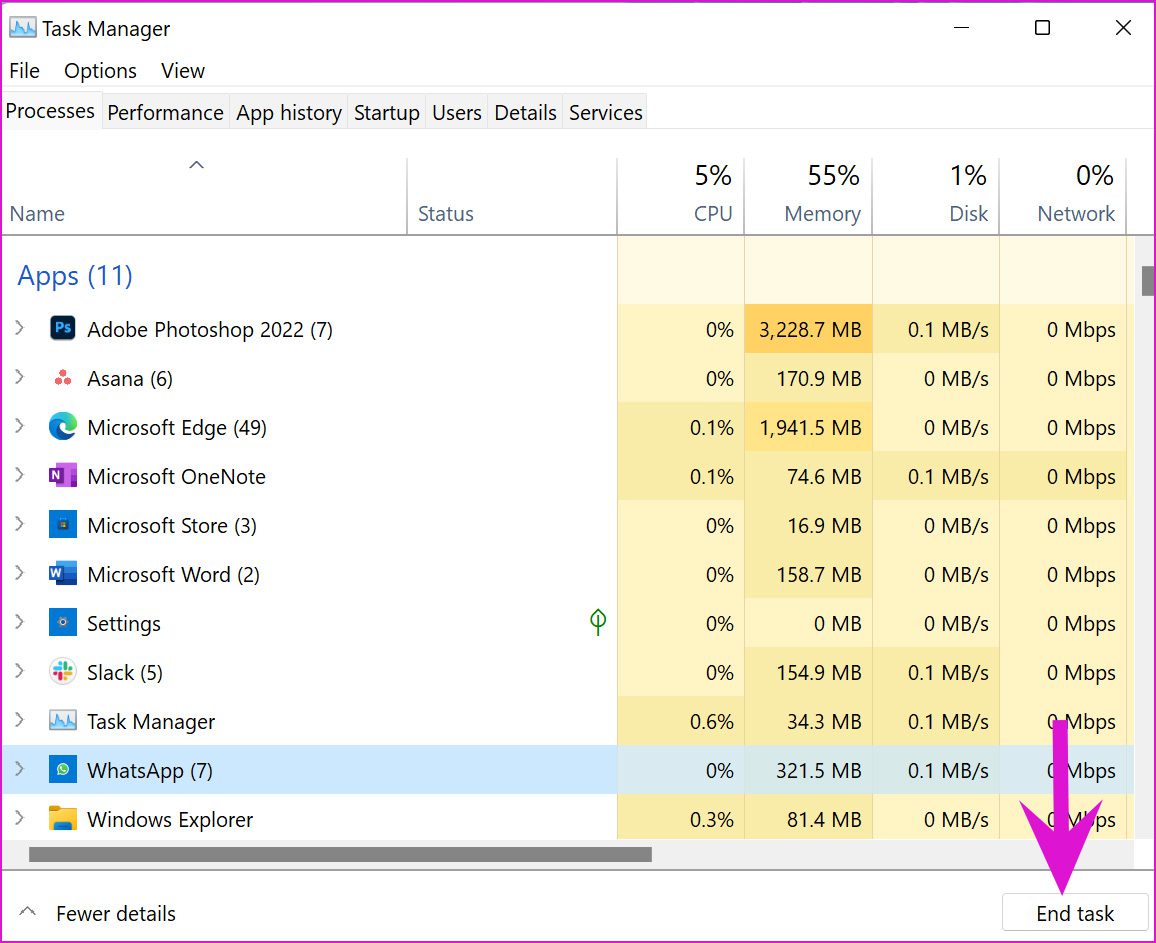
Right-click on the Windows key and select Task Manager. Find WhatsApp on the list and click it. Select the End Task button.
Mac
Mac users need to use the Activity Monitor to restart WhatsApp. Open the Spotlight Search menu (Command + Space keys) and search for Activity Monitor. Select WhatsApp from the list of apps and select x mark at the top.

Once done, launch the WhatsApp app again and see if the QR code is appearing or not.
Fix 5. Reinstall the WhatsApp Desktop App
The idea is simple, uninstall the WhatsApp desktop app to get rid of any settings or connection-related issues. Once done, re-download the app from official sources and install it as new.
Hopefully, this time around the QR will show up properly and you can scan it without any hiccups.
Fix 6. Use WhatsApp Web
Are you still facing issues with the WhatsApp desktop app? You can ditch it and opt for WhatsApp on the web. Visit WhatsApp Web and try scanning the QR code. You can enable notifications for your browser to continue receiving new messages.
Was this helpful?
Last updated on 06 August, 2024
1 Comment
Leave a Reply
Read Next
 4 Fixes for Phone Not Scanning Telegram Web QR Code
Basic Fixes Clean your phone camera lens: A dirty or foggy camera lens cannot read the QR code from Telegram Web properly.
4 Fixes for Phone Not Scanning Telegram Web QR Code
Basic Fixes Clean your phone camera lens: A dirty or foggy camera lens cannot read the QR code from Telegram Web properly.
 3 Fixes for Notes App Not Scanning Documents on iPhone
Basic Fixes Check camera permission: Go to Settings > Notes > enable the app to use iPhone Camera.
3 Fixes for Notes App Not Scanning Documents on iPhone
Basic Fixes Check camera permission: Go to Settings > Notes > enable the app to use iPhone Camera.
 How to Add New Contacts via WhatsApp Web
Use InTouch App to Add New Contacts Using WhatsApp Web InTouchApp is a contacts manager app that lets you add contacts directly via WhatsApp Web.
How to Add New Contacts via WhatsApp Web
Use InTouch App to Add New Contacts Using WhatsApp Web InTouchApp is a contacts manager app that lets you add contacts directly via WhatsApp Web.
 5 Ways to Fix WhatsApp Status Not Loading on Android and iPhone
Try Basic Fixes Check if WhatsApp is down: Services like WhatsApp can experience server outages at times.
5 Ways to Fix WhatsApp Status Not Loading on Android and iPhone
Try Basic Fixes Check if WhatsApp is down: Services like WhatsApp can experience server outages at times.
 WhatsApp Web vs WhatsApp Desktop App: Which Should You Use
Currently ranked as the world's most popular instant messaging app, WhatsApp needs no introduction.
WhatsApp Web vs WhatsApp Desktop App: Which Should You Use
Currently ranked as the world's most popular instant messaging app, WhatsApp needs no introduction.
 4 Ways to Fix Whatsapp Web Not Syncing
https://www.youtube.com/watch?v=CRFmSi-xAEw Fix 1: Remove the Linked Device and Add It Again Step 1: Open WhatsApp on your smartphone and go to the Settings page.
4 Ways to Fix Whatsapp Web Not Syncing
https://www.youtube.com/watch?v=CRFmSi-xAEw Fix 1: Remove the Linked Device and Add It Again Step 1: Open WhatsApp on your smartphone and go to the Settings page.
 5 Ways to Fix No Audio on WhatsApp Web
Preliminary Checks Check the video or try playing another/older video: Is the video a GIF?
5 Ways to Fix No Audio on WhatsApp Web
Preliminary Checks Check the video or try playing another/older video: Is the video a GIF?
 2 Ways to Fix if You Cannot Send Files on WhatsApp Web
Basic Fixes Check internet speeds: We suggest connecting to a 5GHz Wi-Fi network.
2 Ways to Fix if You Cannot Send Files on WhatsApp Web
Basic Fixes Check internet speeds: We suggest connecting to a 5GHz Wi-Fi network.
The article above may contain affiliate links which help support Guiding Tech. The content remains unbiased and authentic and will never affect our editorial integrity.


I have tried various options and I still cannot get the OCT code to show on Windows 11 desktop so I just continue to use web version. It may be vpn but I cannot access the site without vpn here in China