Try Basic Fixes
- Update the Instagram app: Running an older version of Instagram can lead to such problems. Hence, it’s a good idea to update the Instagram app from the Play Store or App Store.
- Check if Instagram is down: It’s worth checking Instagram’s server status before proceeding to the more advanced solutions on the list. Check Instagram’s server status on Downdetector to see if others face similar issues.
Fix 1: Turn off Battery Saver Mode
The battery saver on your phone can restrict an app’s ability to work at full capacity. As a result, you may encounter issues while playing videos or loading other content on Instagram.
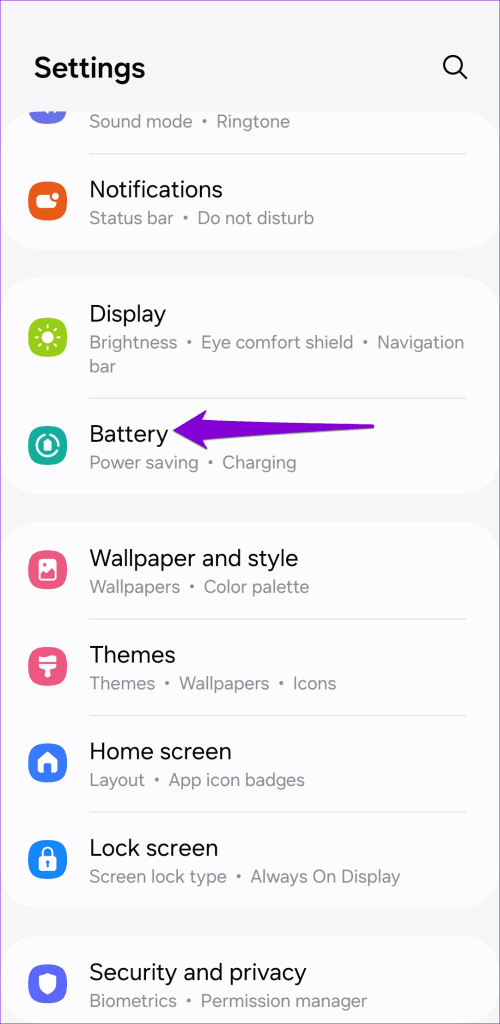
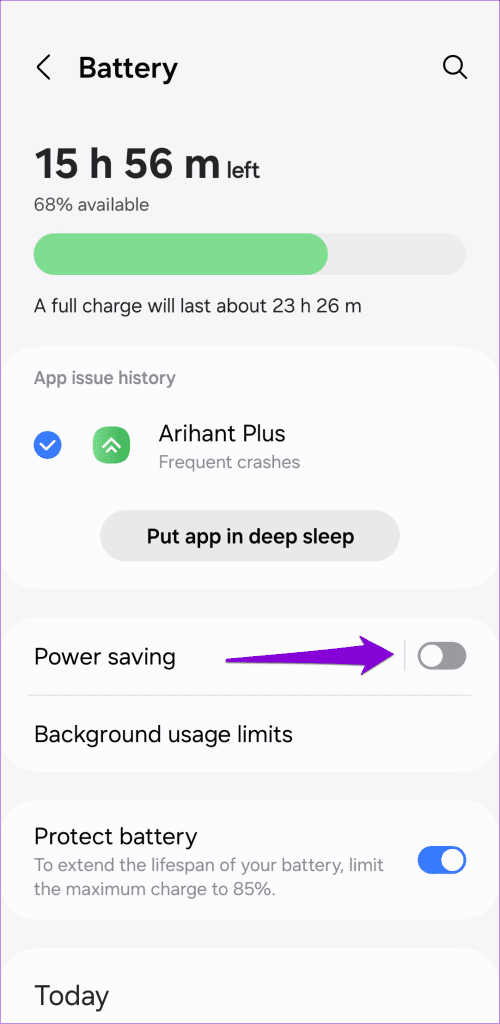
To turn off the battery saver on Android, head to the Settings app and tap on Battery. Then, turn off the Power saving option.
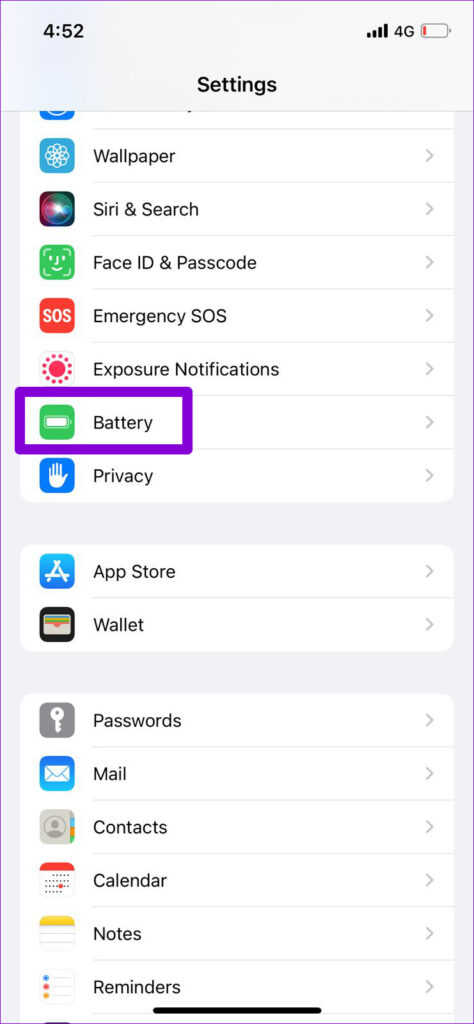
If you have an iPhone, head to Settings > Battery and toggle off Low Power Mode.

Fix 2: Turn off Data Saver
Another reason Instagram may appear slow to load content or fail to do so entirely is if you’ve enabled the data saver option in the app. Here’s how to disable it.
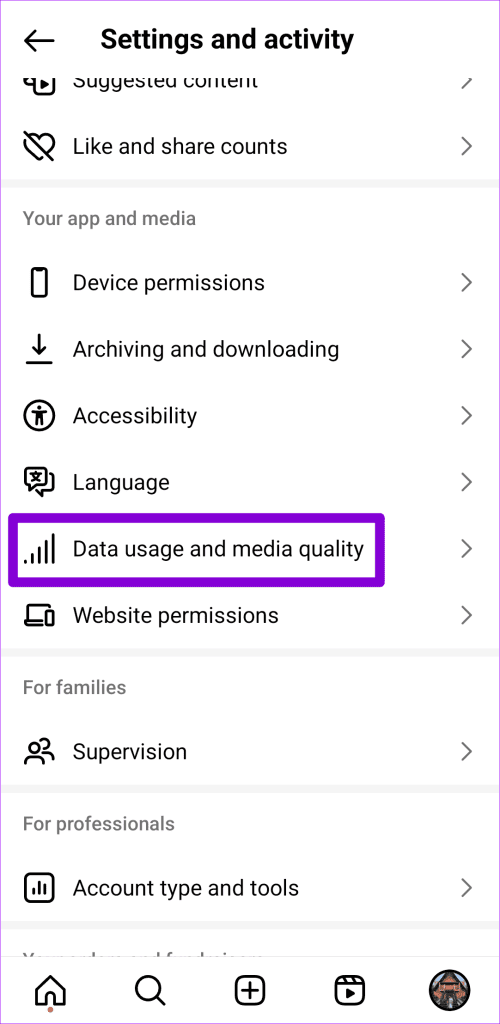
Step 1: Open Instagram and switch to the profile tab. Tap the menu icon (three horizontal lines) at the top right corner to access the Settings and activity page.
Step 2: Go to Data usage and media quality and turn off the Data Saver toggle.


Additionally, you must ensure you haven’t enabled data saver on your phone. For that, use these steps:
On Android
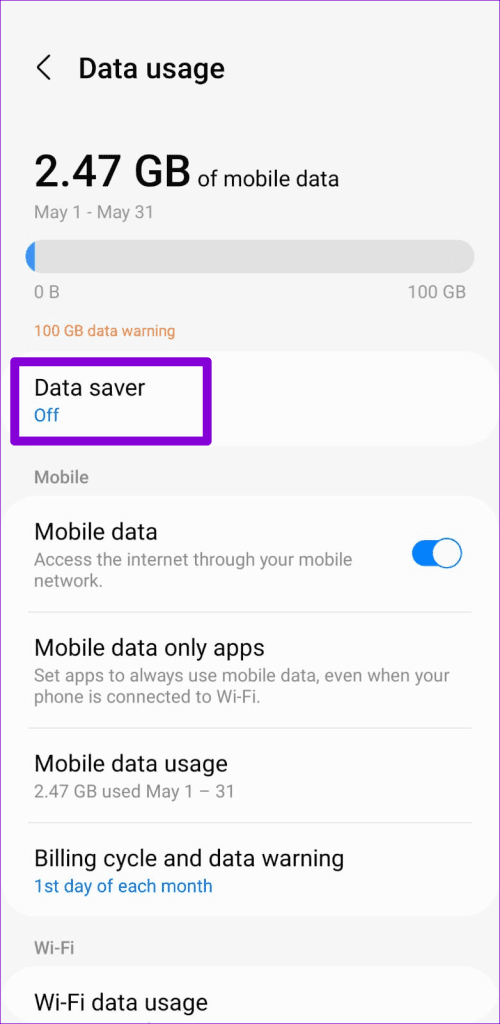
Step 1: Open the Settings app and go to Connections > Data usage.
Step 2: Turn off the Data Saver mode.


On iPhone
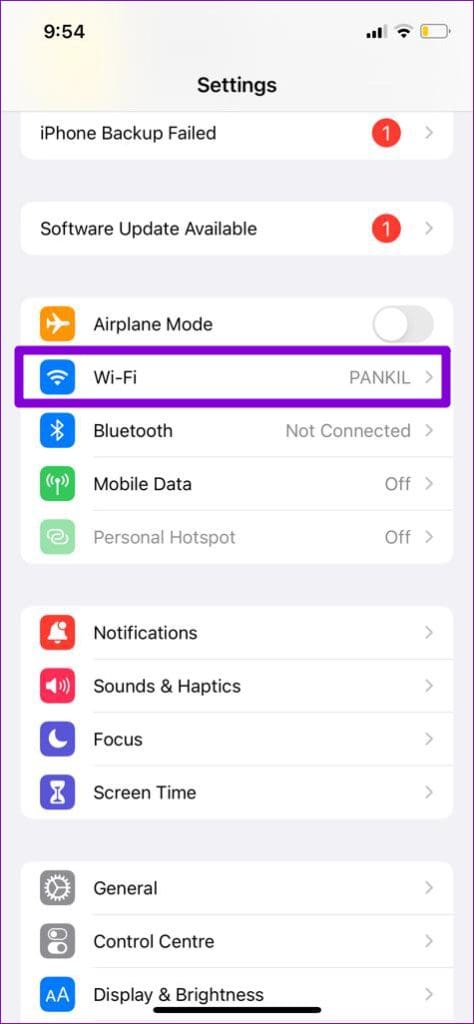
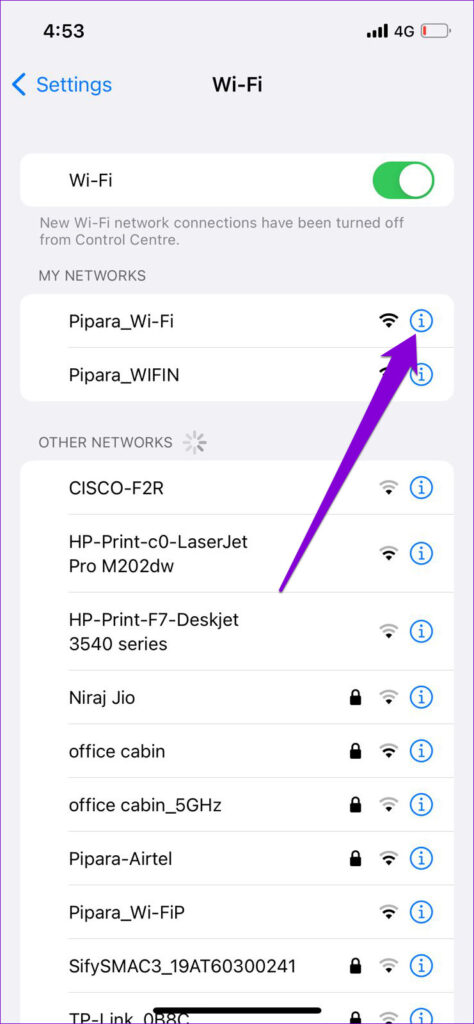
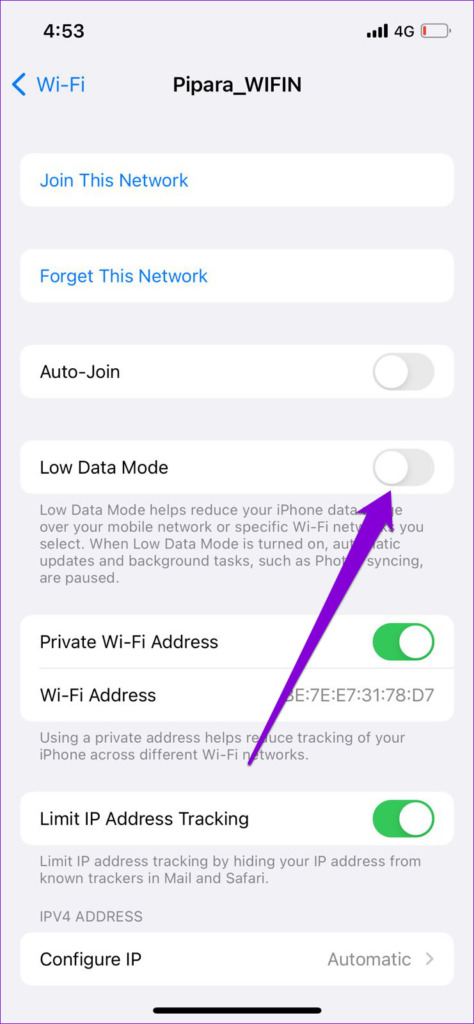
To disable Low Data Mode on Wi-Fi, launch the Settings app > select Wi-Fi > tap the info icon next to your Wi-Fi network > turn off the Low Data Mode toggle.
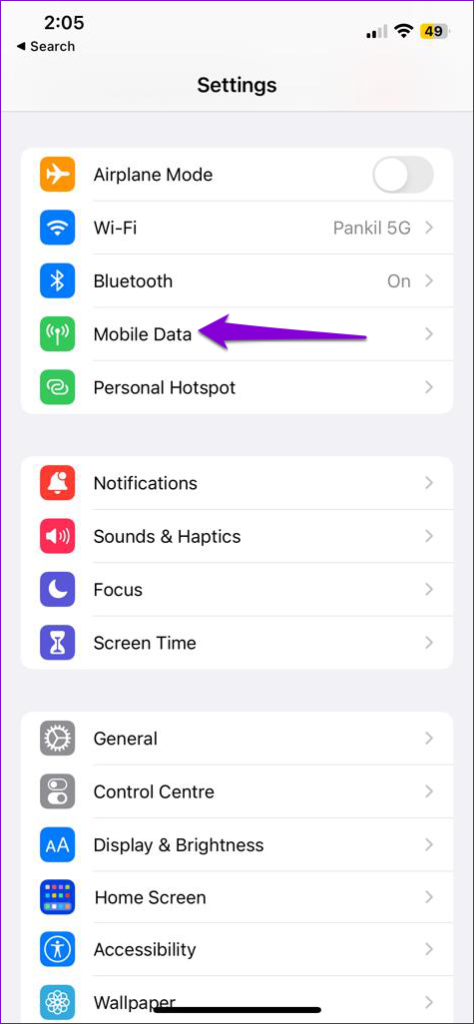
If you use Instagram on cellular data, go to Mobile Data > Mobile Data Options and disable the Low Data Mode toggle.


Fix 3: Clear App Cache (Android)
Overwhelming cache data can also cause Instagram to misbehave and stop playing videos. So, clearing the Instagram app cache should help.
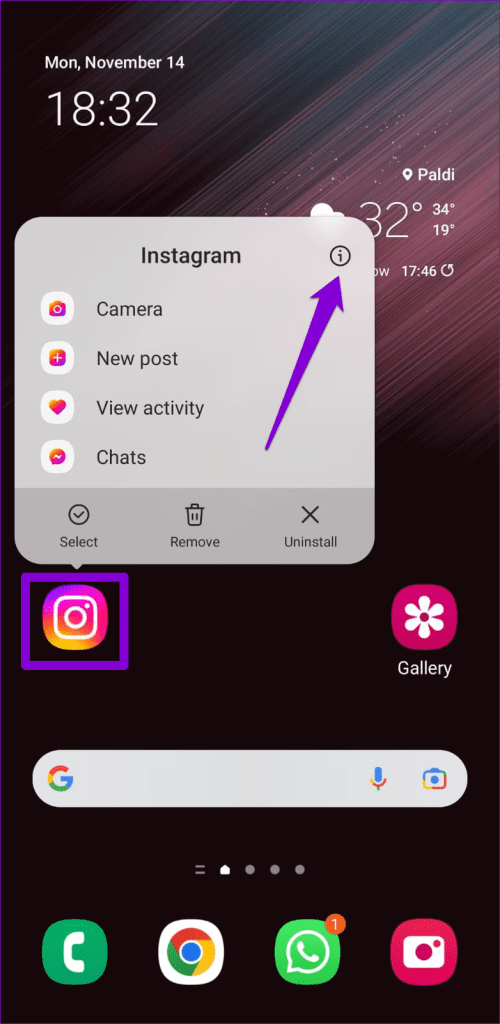
Step 1: Long-press on the Instagram app icon and tap the info icon from the menu.
Step 2: Go to Storage and tap the Clear cache option.


Was this helpful?
Last updated on 03 July, 2024
Read Next
 3 Fixes for HDR Videos Not Playing on Instagram
Basic Fixes Check internet connection: Ensure that you have a stable internet connection on your device.
3 Fixes for HDR Videos Not Playing on Instagram
Basic Fixes Check internet connection: Ensure that you have a stable internet connection on your device.
 5 Ways to Fix Videos Not Playing in Microsoft Edge
Fix 1: Disable Extensions Third-party extensions can occasionally disrupt browser processes, leading to such issues.
5 Ways to Fix Videos Not Playing in Microsoft Edge
Fix 1: Disable Extensions Third-party extensions can occasionally disrupt browser processes, leading to such issues.
 4 Ways to Fix Facebook Not Playing Videos
Basic Fixes Check internet speed: Make sure you use either 5G or a strong Wi-Fi network to watch videos on the Facebook app.
4 Ways to Fix Facebook Not Playing Videos
Basic Fixes Check internet speed: Make sure you use either 5G or a strong Wi-Fi network to watch videos on the Facebook app.
 3 Ways to Fix Snapchat Not Playing Videos on Android and iPhone
Try Basic Fixes Check if Snapchat is down: At times, server congestion or other related issues can impact Snapchat’s performance and trigger various errors.
3 Ways to Fix Snapchat Not Playing Videos on Android and iPhone
Try Basic Fixes Check if Snapchat is down: At times, server congestion or other related issues can impact Snapchat’s performance and trigger various errors.
 How to Fix WhatsApp Videos Not Playing on iPhone or Android
Basic Fixes Check your network connection: Ensure your phone has a robust internet connection.
How to Fix WhatsApp Videos Not Playing on iPhone or Android
Basic Fixes Check your network connection: Ensure your phone has a robust internet connection.
 5 Ways to Fix Safari Not Playing Videos on iPhone
Fix 1: Disable Extensions Using third-party extensions in Safari can occasionally interfere with its video playback functionality.
5 Ways to Fix Safari Not Playing Videos on iPhone
Fix 1: Disable Extensions Using third-party extensions in Safari can occasionally interfere with its video playback functionality.
 3 Ways to Fix Videos Not Playing on Windows 11
Fix 1: Run Video Playback Troubleshooter If you also face playback issues on other media players, turn to Windows troubleshooters for help.
3 Ways to Fix Videos Not Playing on Windows 11
Fix 1: Run Video Playback Troubleshooter If you also face playback issues on other media players, turn to Windows troubleshooters for help.
 5 Ways to Fix Videos Not Playing on Android TV
Common Fixes Restart the Android TV: Long-press the power button on your Android TV remote and select Restart in the pop-up menu.
5 Ways to Fix Videos Not Playing on Android TV
Common Fixes Restart the Android TV: Long-press the power button on your Android TV remote and select Restart in the pop-up menu.
The article above may contain affiliate links which help support Guiding Tech. The content remains unbiased and authentic and will never affect our editorial integrity.