


Preliminary Fixes
- Disable Game Mode: Gaming keyboards often have special modes that disable keyboard shortcuts. You must access the keyboard’s software and look for any options that might have disabled the shortcuts.
- Update keyboard drivers: If the installed keyboard drivers are causing an issue, the shortcuts may not function as expected. You can try updating the keyboard drivers.
Fix 1: Check Sticky Keys and Filter Keys
Step 1: Press the Windows key + I to open the Settings app.
Step 2: Use the left pane to switch to the Accessibility tab. On your right, scroll to the Interaction section and select Keyboard.
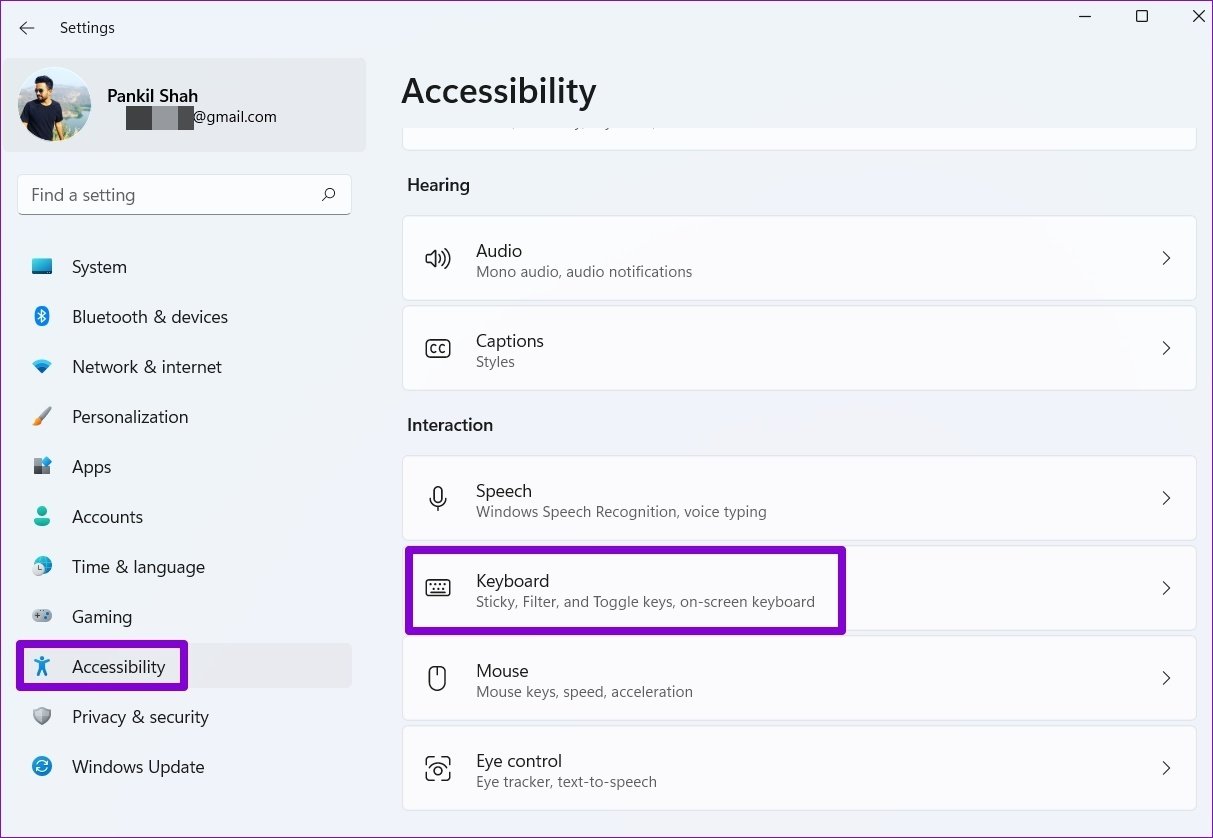
Step 3: Turn off the toggle for Sticky Keys.
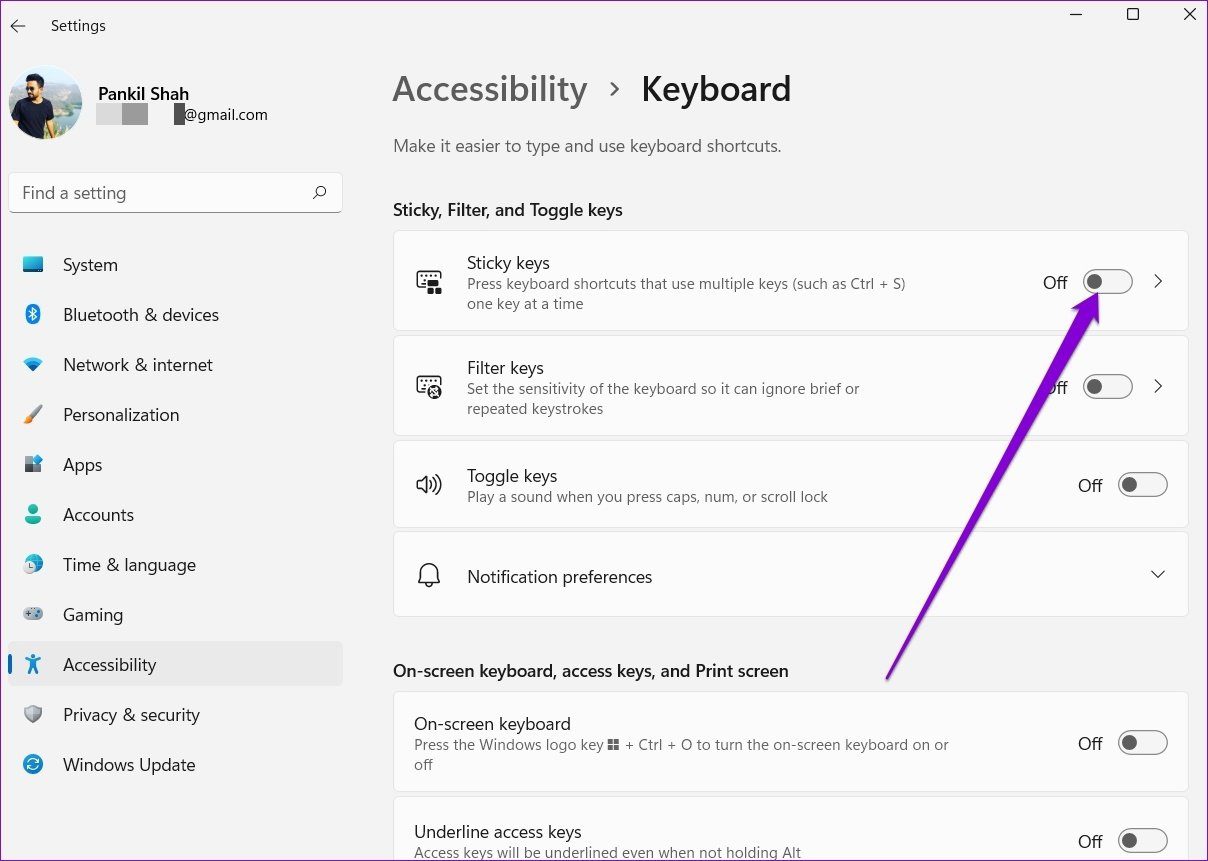
If the problem persists, disable the Filter keys from the same menu and try again. When enabled, Filter keys can sometimes falsely ignore keystrokes.
Also Read: How to fix keyboard typing wrong characters in Windows 11
Fix 2: Run the Troubleshooter
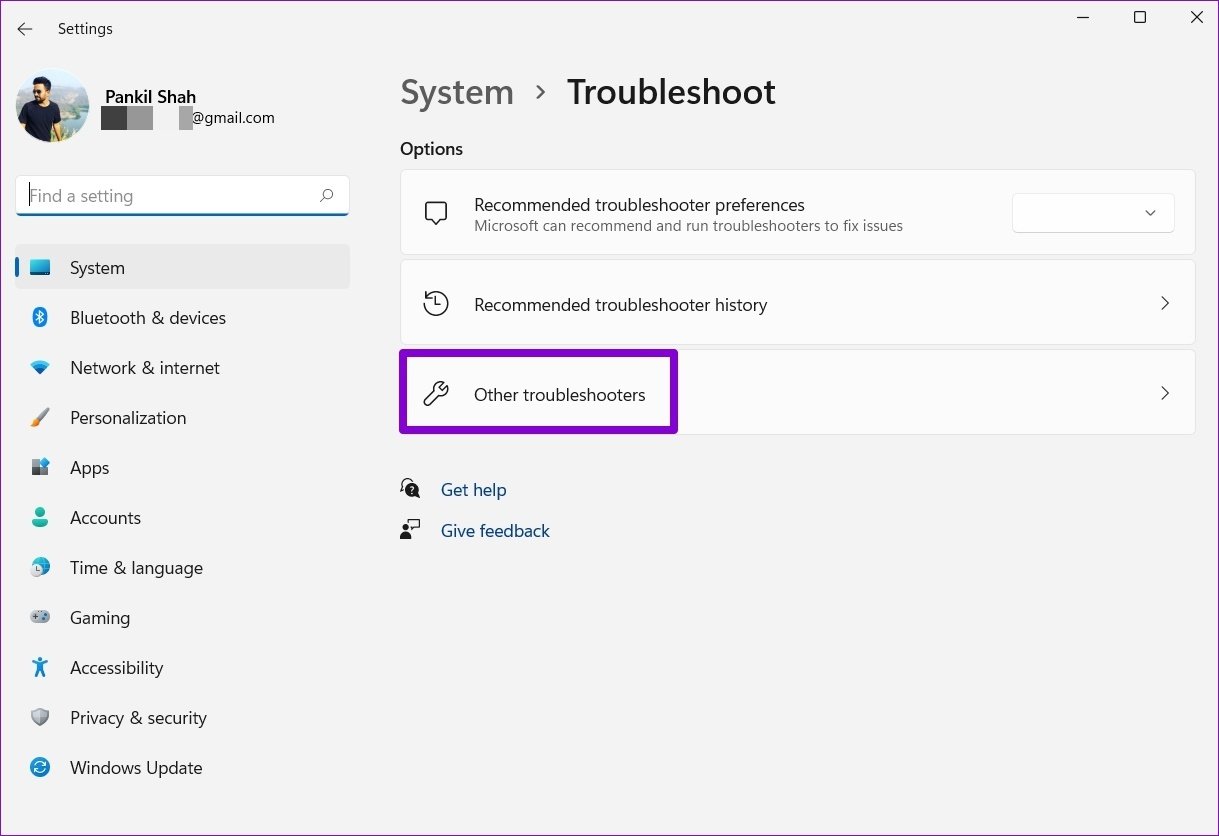
Step 1: Press the Windows key + I to open Settings. In the System tab, scroll down and select Troubleshoot.
Step 2: Next, click on Other troubleshooters.
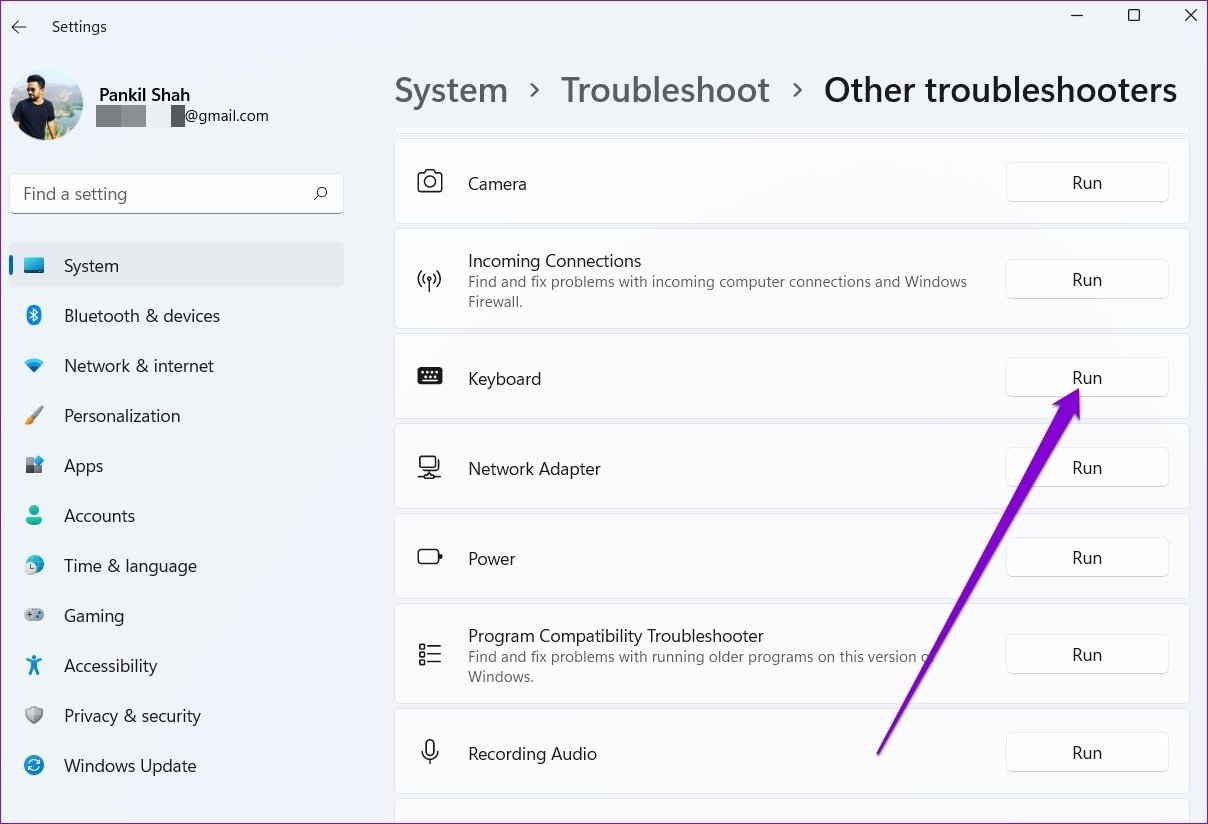
Step 3: Locate the Keyboard troubleshooter and hit Run to begin the troubleshooting process.
Fix 3: Restart the Human Interface Device Service
The Human Interface Device Service is responsible for Windows keyboard shortcuts. If the service is not running in the background, the shortcuts will not work.
Step 1: Open the Start menu, type services, and press Enter.
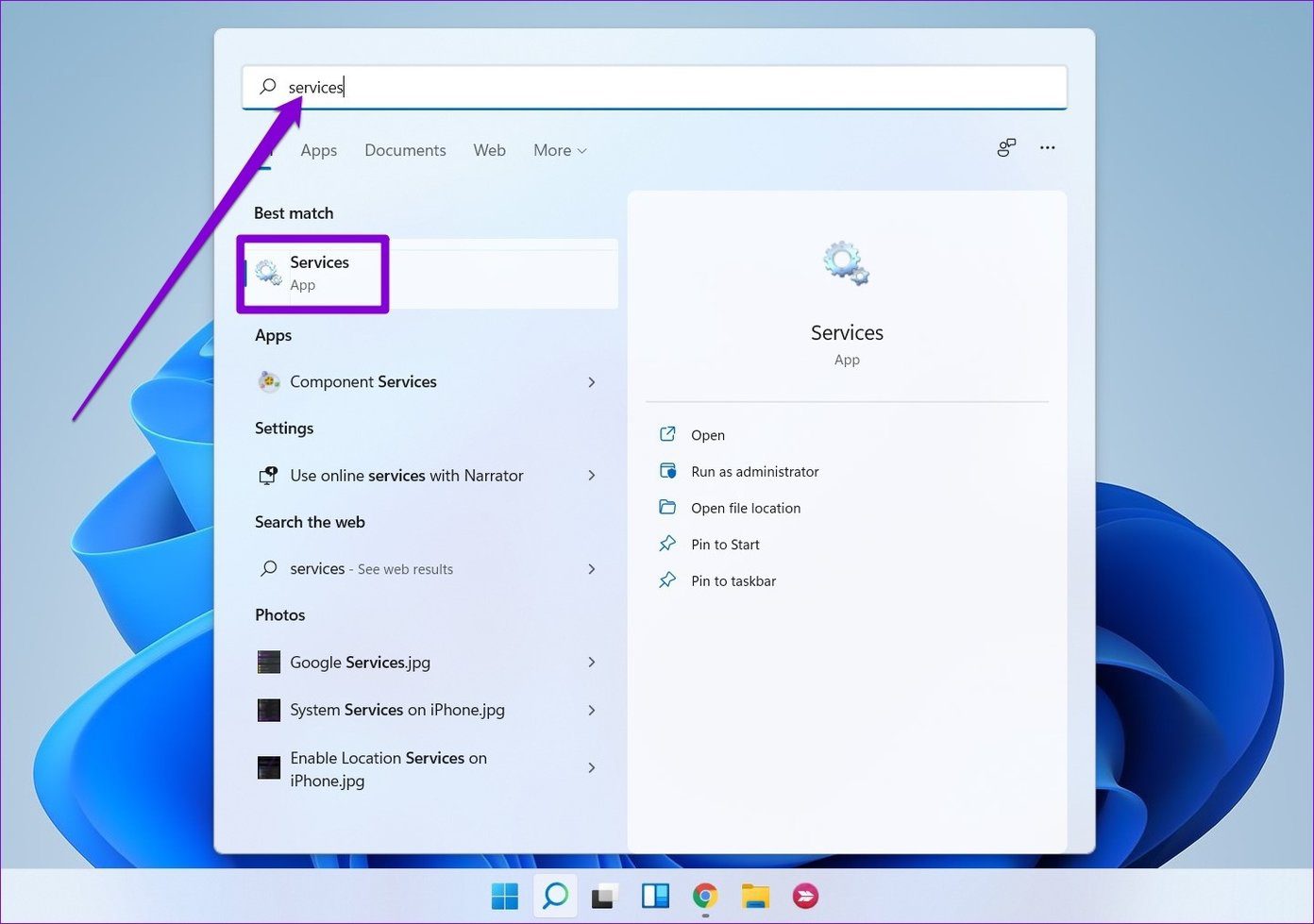
Step 2: In the Services window, scroll all the way down to locate the Human Interface Device Service. Right-click on it and select Start from the list.
If the service is already running, select Restart.

Fix 4: Enable Windows Key Hotkeys From Group Policy
If you’re a Windows 11 Pro or Enterprise user, you can also access the Group Policy and ensure that keyboard shortcuts are not disabled from there.
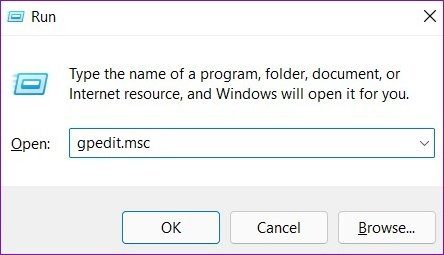
Step 1: Press the Windows key + R to launch the Run command, type gpedit.msc, and press Enter.
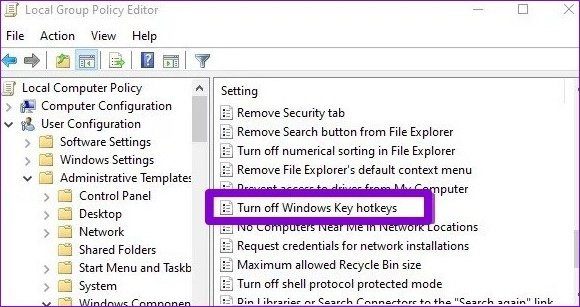
Step 2: In the Group Policy Editor window, use the left pane to navigate to the following folder.
User Configuration > Administrative Templates > Windows Components > File Explorer
Step 3: Double-click on Turn off Windows Key hotkeys.
Step 4: Select Disabled from the following window and hit Apply, followed by OK.
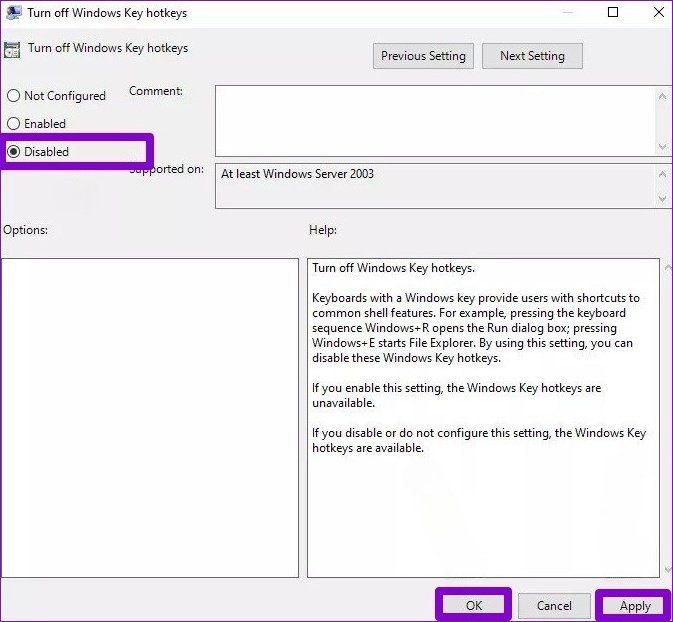
Exit the Group Policy Editor and restart your PC before checking the keyboard shortcuts.
FAQs
Yes, Windows updates can sometimes introduce compatibility issues with keyboard drivers or settings. You can try rolling back recent updates or installing the latest updates to see if they resolve the problem.
To check for Windows updates, go to Settings > Update & Security > Windows Update. Click on Check for updates and install any pending updates. If prompted, restart your computer.
Besides the above solutions, it’s also important to clean your keyboard from time to time. Dust or debris can easily slip in between the keys and clog them. If nothing works out, try clean installing Windows 11.
Was this helpful?
Last updated on 22 April, 2024
4 Comments
Leave a Reply
Read Next
 A Guide to Fixing Keyboard Shortcuts Not Working on Windows 10
When you get used to keyboard shortcuts, there's no going back.
A Guide to Fixing Keyboard Shortcuts Not Working on Windows 10
When you get used to keyboard shortcuts, there's no going back.
 5 Fixes for Keyboard Shortcuts Not Working in Microsoft Excel for Windows
Fix 1: Use the On-Screen Keyboard First, you must perform a few keyboard shortcuts using the On-Screen Keyboard (OSK) on Windows.
5 Fixes for Keyboard Shortcuts Not Working in Microsoft Excel for Windows
Fix 1: Use the On-Screen Keyboard First, you must perform a few keyboard shortcuts using the On-Screen Keyboard (OSK) on Windows.
 6 Ways to Fix Keyboard Shortcuts Not Working in Gmail
Fix 1.
6 Ways to Fix Keyboard Shortcuts Not Working in Gmail
Fix 1.
 9 Best Sticky Notes Keyboard Shortcuts on Windows 10
Our beloved Sticky Notes on Windows has grown in a beautiful app over the years.
9 Best Sticky Notes Keyboard Shortcuts on Windows 10
Our beloved Sticky Notes on Windows has grown in a beautiful app over the years.
 10 Awesome Sets of KMPlayer Keyboard Shortcuts
1.
10 Awesome Sets of KMPlayer Keyboard Shortcuts
1.
 28 Microsoft Paint 3D Keyboard Shortcuts That You Should Use
Basic Editing Shortcuts ShortcutFunctionCtrl + CUse it to copy both 2D and 3D elements on your imageCtrl + XDelete or move an element using this shortcutCtrl + VPaste the copied
28 Microsoft Paint 3D Keyboard Shortcuts That You Should Use
Basic Editing Shortcuts ShortcutFunctionCtrl + CUse it to copy both 2D and 3D elements on your imageCtrl + XDelete or move an element using this shortcutCtrl + VPaste the copied
 Top 11 Microsoft Teams Keyboard Shortcuts to Use It Like a Pro
Work from home is the new norm these days.
Top 11 Microsoft Teams Keyboard Shortcuts to Use It Like a Pro
Work from home is the new norm these days.
 21 OneNote Keyboard Shortcuts to Improve Your Productivity
1.
21 OneNote Keyboard Shortcuts to Improve Your Productivity
1.
The article above may contain affiliate links which help support Guiding Tech. The content remains unbiased and authentic and will never affect our editorial integrity.


“crtl R” was not working anymore on any program in MS-Windows 11 (never had this problem on previous versions).
Number 7 above finally solved the issue for me even though I havn’t figured out yet which program was causing the trouble.
Great help, really good to follow!
Thanks a million !!
Thank you so much for the help, last step worked for me just after I started losing hope
Thank you 🙂
Thanks! It fixed my issue! So it was the gaming keyboard for me!