

Method 1: Disable Login After Sleep From Settings
The easiest way to skip the login screen after sleep mode is by modifying the sign-in options in the Settings app. So, let’s start with that.
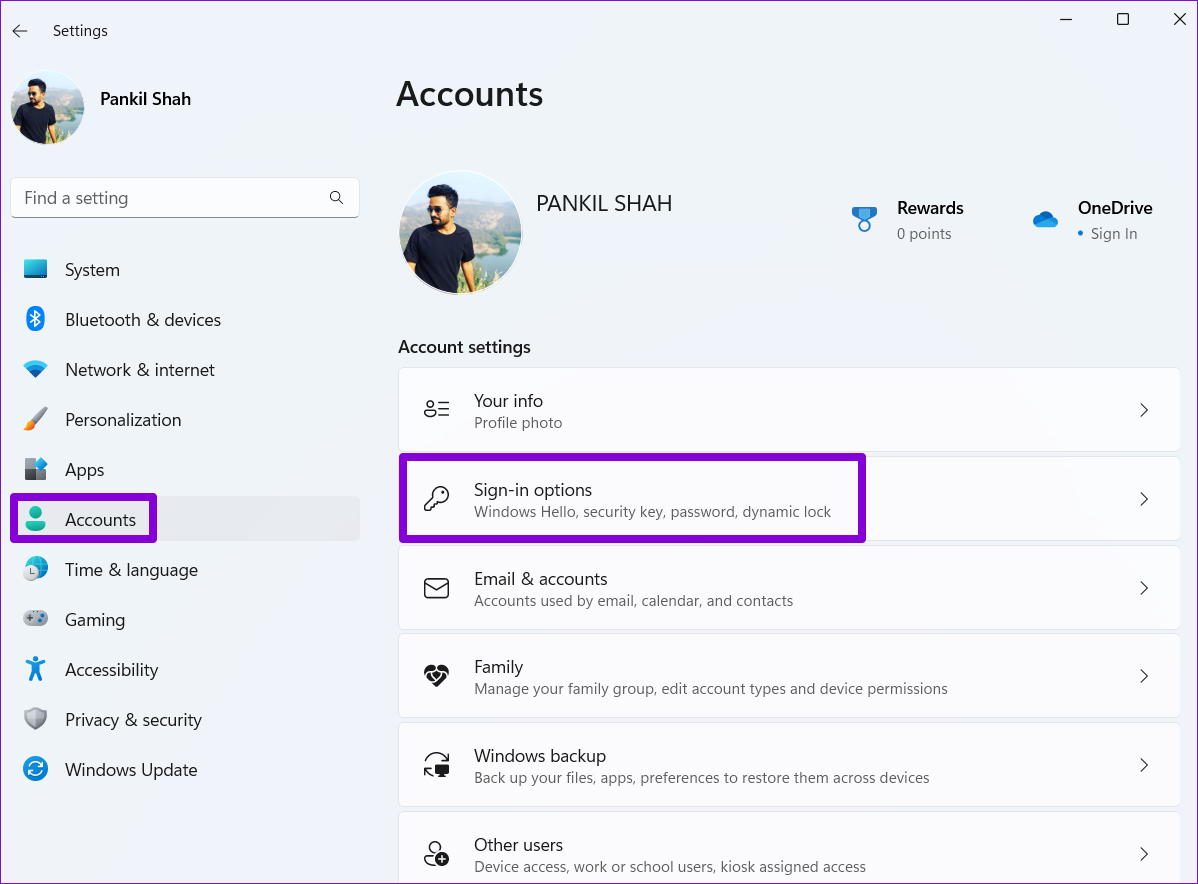
Step 1: Press the Windows key + I to launch the Settings app. Then, go to Accounts > Sign-in options.
Step 2: Under Additional settings, use the drop-down menu next to If you’ve been away, when should Windows require you to sign in again? and select Never.
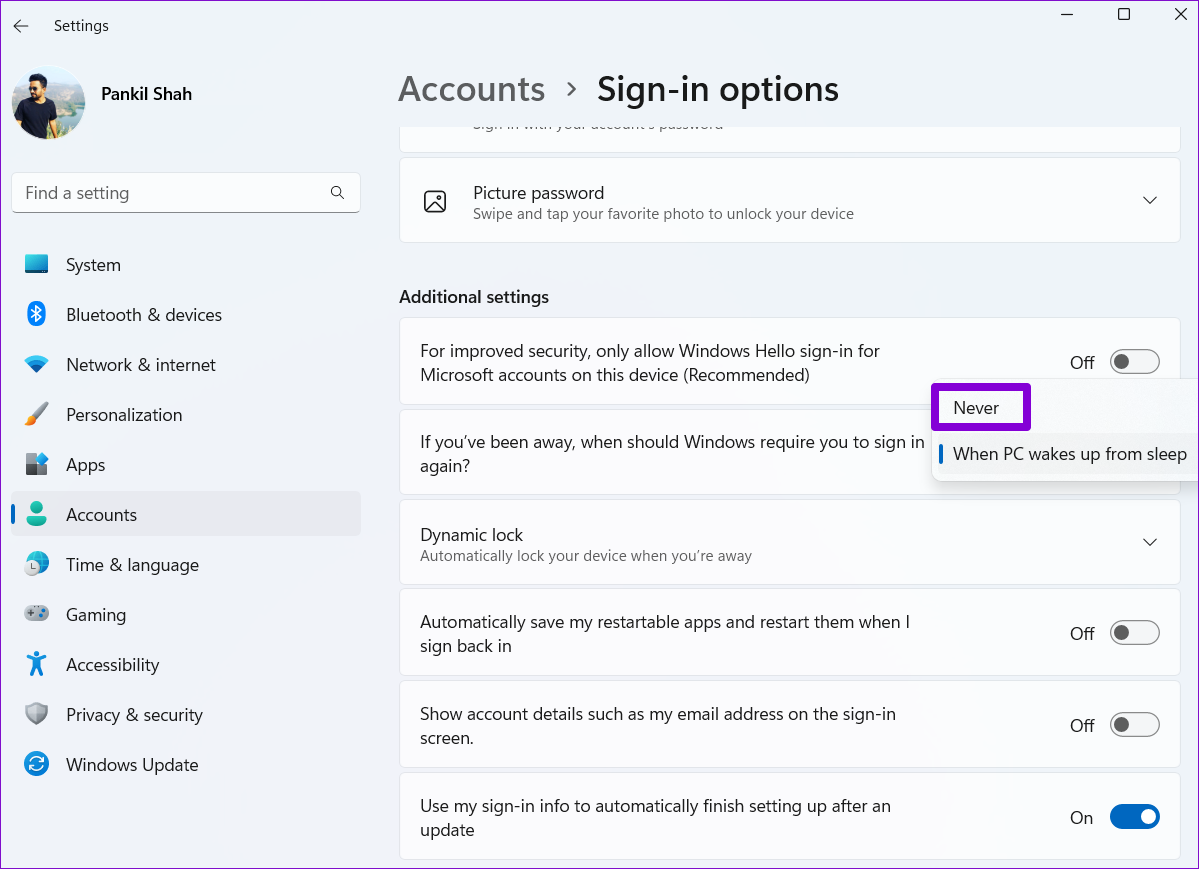
That should do it. Windows will now sign you in automatically when you wake your PC from sleep.
Method 2: Disable Login After Sleep via Command Prompt
Although the above method lets you turn off the login screen after sleep easily, it does not allow you to change this behavior based on whether your device is running on battery or plugged in. For that, use the command prompt on your PC.
Step 1: Right-click on the Start menu and select Terminal (Admin) from the list.

Step 2: Select Yes when the User Account Control (UAC) prompt appears.

Step 3: Run the following command to disable the login screen while your laptop is running on battery.
powercfg /SETDCVALUEINDEX SCHEME_CURRENT SUB_NONE CONSOLELOCK 0

Step 4: Run the following command to disable the login screen while your laptop is plugged in.
powercfg /SETACVALUEINDEX SCHEME_CURRENT SUB_NONE CONSOLELOCK 0

Method 3: Disable Login After Sleep From Registry Editor
Another way to disable the login screen after putting your computer to sleep is by using a Registry Editor. For that, use these steps:
Step 1: Press the Windows key + R to launch the Run dialog. Type regedit in the box and press Enter.
Step 2: In the Registry Editor window, copy and paste the following path in the address bar and hit Enter.
Computer\HKEY_CURRENT_USER\Control Panel\Desktop

Step 3: Right-click on the Desktop registry key, go to New, and select DWORD (32-bit Value) from the sub-menu. Name it DelayLockInterval.

Step 4: Double-click on the newly created DelayLockInterval DWORD and change its value data to 0 (zero).

Step 5: Exit the Registry Editor window and reboot your PC to apply the change.
Method 4: Disable Login After Sleep via Group Policy Editor
You can also use the Group Policy Editor to skip the password prompt after sleep mode on your Windows 11 computer. However, Group Policy Editor is only available for Windows Pro, Enterprise, and Education editions. So, if you’re using Windows Home edition, use one of the methods mentioned above.
Step 1: Press the Windows key + R to launch the Run dialog box. Type gpedit.msc in the Open field and press Enter.
Step 2: In the Local Group Policy Editor window, use the left pane to navigate to the Sleep Settings folder. Here’s the address path:
Computer Configuration\Administrative Templates\System\Power Management\Sleep Settings
Step 3: In the right pane, double-click the Require a password when a computer wakes (plugged in) policy.

Step 4: Select Disabled and click on Apply.

Step 5: Double-click the Require a password when a computer wakes (on battery) policy.

Step 6: Select Disabled and hit Apply.

Was this helpful?
Last updated on 07 May, 2024
3 Comments
Leave a Reply
Read Next
 How to Disable the Login Password Screen in Windows 10
Entering a password every time you log in to your Windows 10 computer can get tiring after a while.
How to Disable the Login Password Screen in Windows 10
Entering a password every time you log in to your Windows 10 computer can get tiring after a while.
 6 Ways to Fix Login Screen Not Showing in Windows 11
Common Fixes Press Ctrl + Alt + Delete - This shortcut refreshes the login interface to bring up the login screen.
6 Ways to Fix Login Screen Not Showing in Windows 11
Common Fixes Press Ctrl + Alt + Delete - This shortcut refreshes the login interface to bring up the login screen.
 4 Ways to Disable Sleep Mode in Windows 11
Method 1: Using the Settings App Whether it's something as simple as changing your desktop background or more advanced tasks like turning off sleep mode, you can accomplish it all
4 Ways to Disable Sleep Mode in Windows 11
Method 1: Using the Settings App Whether it's something as simple as changing your desktop background or more advanced tasks like turning off sleep mode, you can accomplish it all
 How to Fix “Switch User” Missing From Windows Login Screen
Fix 1: Enable Inactive Accounts If the other user accounts on your system are disabled, they won’t appear on the login screen.
How to Fix “Switch User” Missing From Windows Login Screen
Fix 1: Enable Inactive Accounts If the other user accounts on your system are disabled, they won’t appear on the login screen.
 4 Ways to Remove Login Password From Windows 11
Method 1.
4 Ways to Remove Login Password From Windows 11
Method 1.
 4 Ways to Fix the Login Error Code E84 in Steam for Windows
Switch to a different network connection: A slow or intermittent internet connection can also cause login errors in Steam.
4 Ways to Fix the Login Error Code E84 in Steam for Windows
Switch to a different network connection: A slow or intermittent internet connection can also cause login errors in Steam.
 How to Remove Email or Accounts From Facebook Login Screen
Remove Remembered Info in Facebook Login on Desktop You can remove the login info from the Facebook webpage or by removing the autofill password for your Facebook account using browser
How to Remove Email or Accounts From Facebook Login Screen
Remove Remembered Info in Facebook Login on Desktop You can remove the login info from the Facebook webpage or by removing the autofill password for your Facebook account using browser
 How to Remove PIN at Login in Windows 11
How to Remove PIN Login on Windows 11 Using a PIN to log into Windows is a quick and easy way to get a basic level of security for your
How to Remove PIN at Login in Windows 11
How to Remove PIN Login on Windows 11 Using a PIN to log into Windows is a quick and easy way to get a basic level of security for your
The article above may contain affiliate links which help support Guiding Tech. The content remains unbiased and authentic and will never affect our editorial integrity.
Regarding Disabling Login after Sleep in Win 11. I tired all the steps and still I have to login. This is in my home – …. But, i have Hello set to use Finger Print. So, i take it all the options you gave doesn’t work with finger print scanners? I have 2 computers and bounce between them, or my 3d printer, etc. and even though i have the computer set to not sleep for 2 hours, the screen goes off after 5 min. When i come back after just over 5 min i still have to swipe the finger print scanner to get in. I have a laptop on one desk and desktop monitor and wireless keyboard connected to the laptop on my main desk. I have to get up and walk over to scan to get in. Frustrating. I will now set my screen saver to 2 hours, but, if any way to disable finger print scanner after screen goes off, would appreciate it
Unfortunatly these steps did not work. Windows 11 on SP 8. Lock screen still appears after using power button to toggle device on/off.
If you are on window 11 pro use the last option. Gpedit is best.
And a quick reminder this has nothing to do with the logon screen that appears when turning the pc on/off or when you go afk for 5 minutes this is when you put it into sleep and re-awake it.