How to Test Microphone and Speakers in Teams Before Meeting
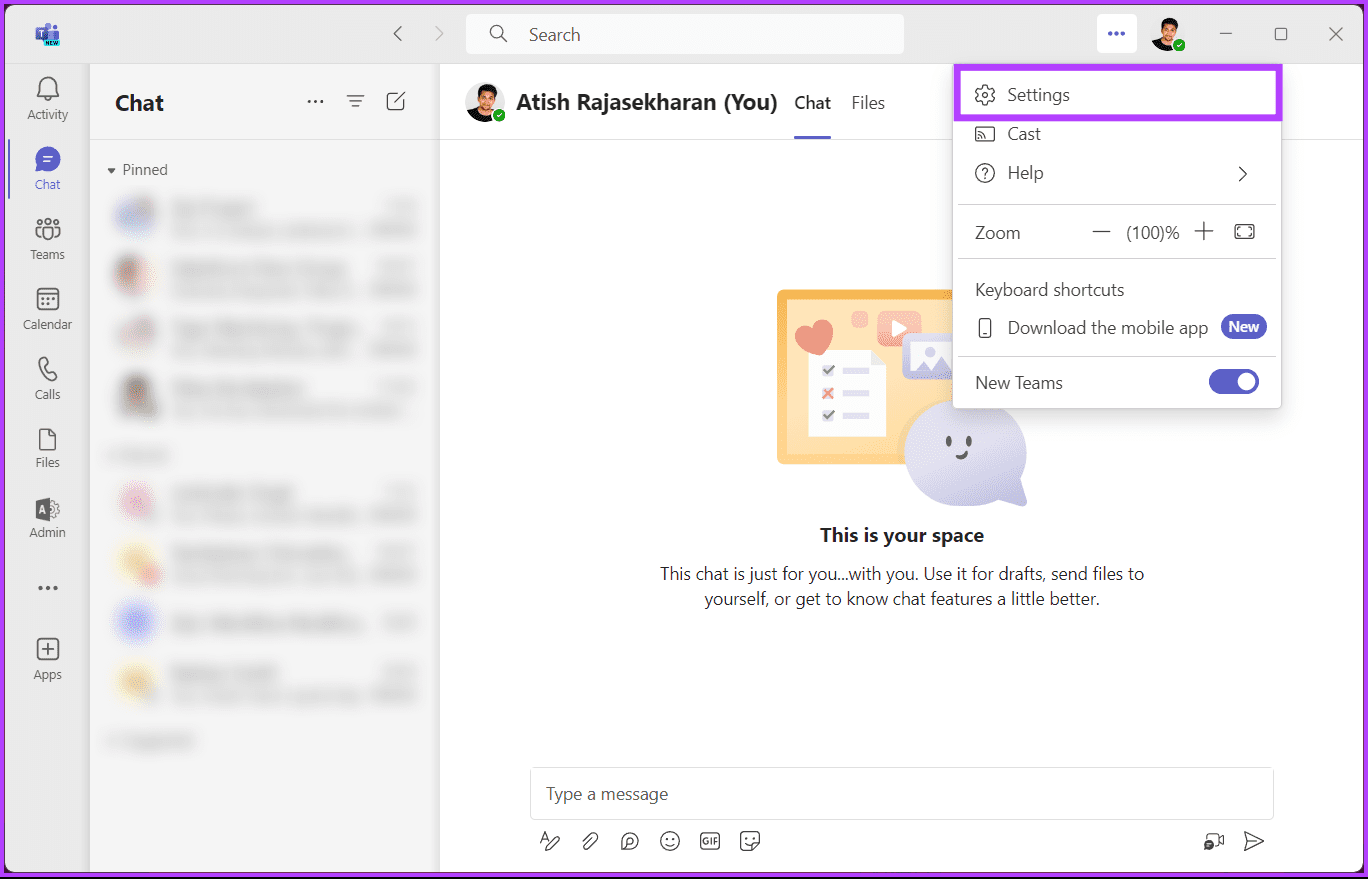
Step 1: Launch Microsoft Teams and click the three-dots icon at the top-right corner.
Step 2: Select Settings.
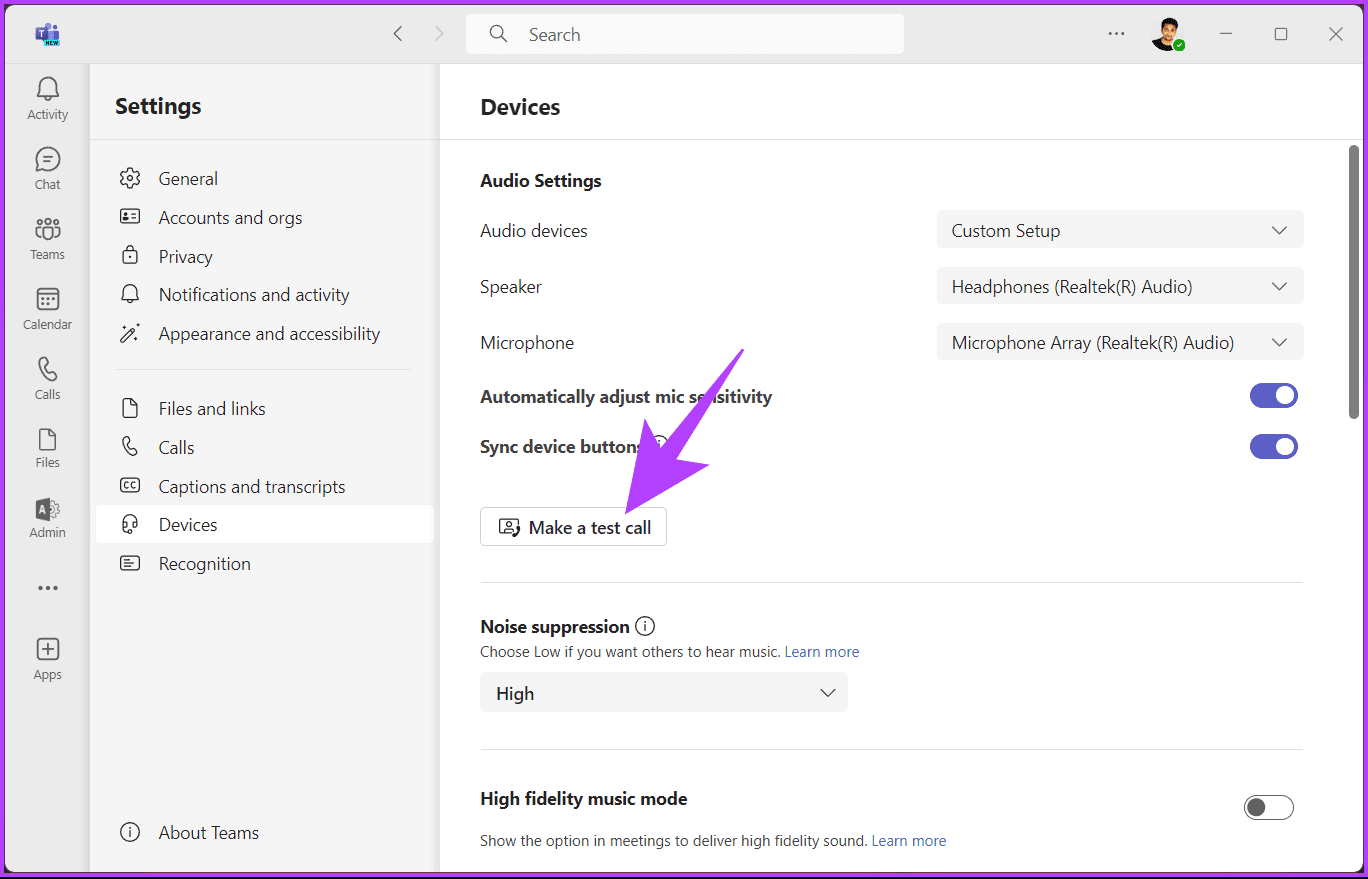
Step 3: Under Settings, go to Devices from the side pane.
Step 4: On the right pane, click the Make a test call button under Audio Settings.
Note: Ensure your preferred microphone and speakers are selected before making a test call.
That’s it. Follow the on-screen instructions and monitor the output. Once the test call is complete, you will see a checkmark or crossmark next to your microphone, speaker, camera, and connected network, indicating whether the test succeeded or failed.
It is important to note that you cannot test calls in the Microsoft Teams mobile app while writing this article.
Test Sound in Microsoft Teams During Meeting
Note: For demonstration, we consider that you are already in a Teams meeting or call.
Step 1: From the top call controls icons, click on the More (three-dot icon) option.
Step 2: Select Settings and choose Device settings.

Step 3: Click the chevron icon under Microphone in the Device settings side pane.
Step 4: Now, select the microphone you want to check or change. Once selected, you will see a visual indication confirming whether your voice is being picked up correctly.

You can switch between audio devices depending on what is available and suits your current needs. If you want to make a test call in Microsoft Teams without joining a meeting, continue reading.
Make a Test Call in Microsoft Teams Without Joining a Meeting
Step 1: Launch Microsoft Teams and click on the Chat icon on the left.
Step 2: Click on the New chat icon at the top of the chat list.
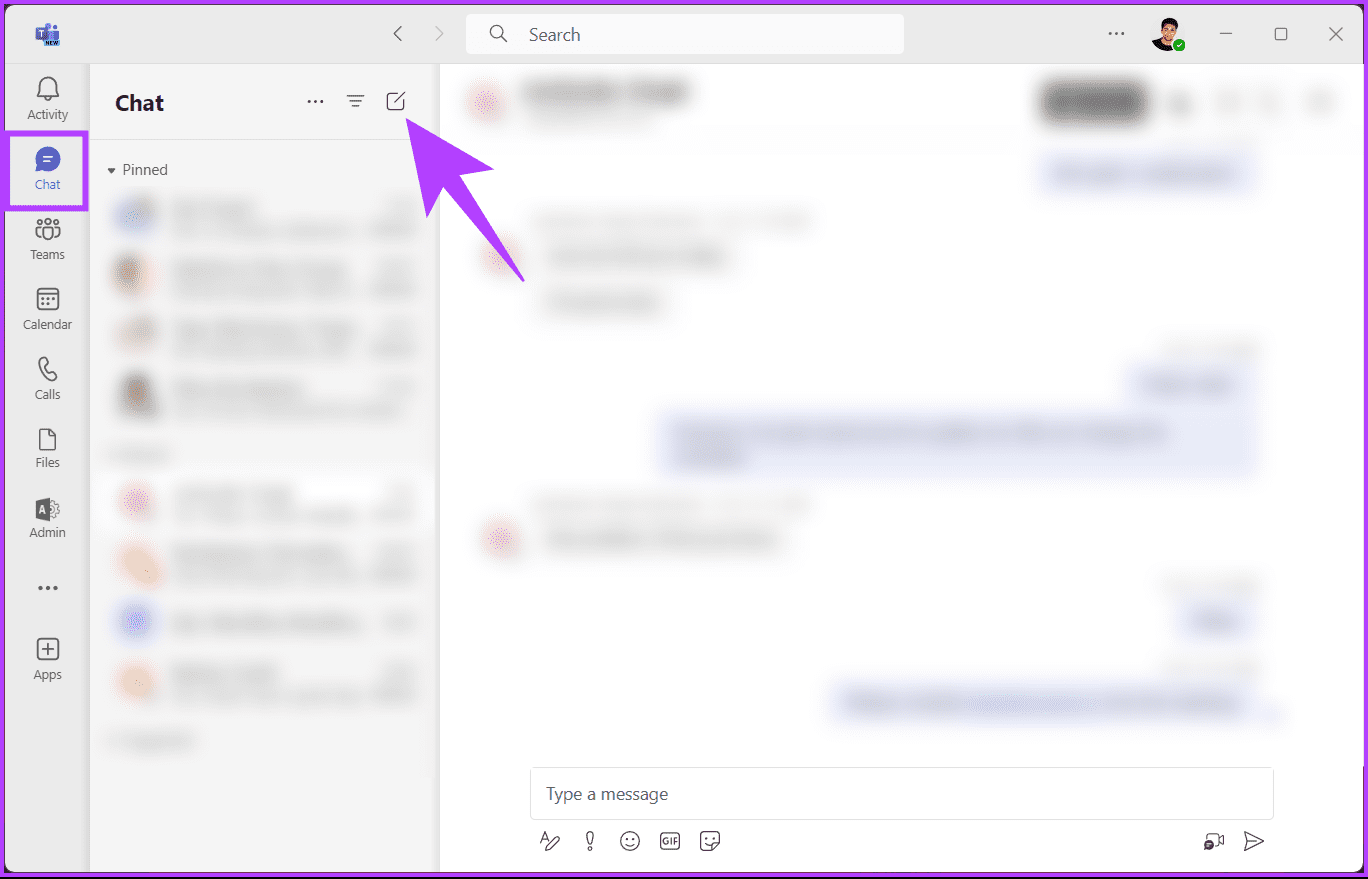
Step 3: Now, type your name or email address in the To field and hit Enter.
Step 4: Press the Record icon at the bottom right of your self-chat window.
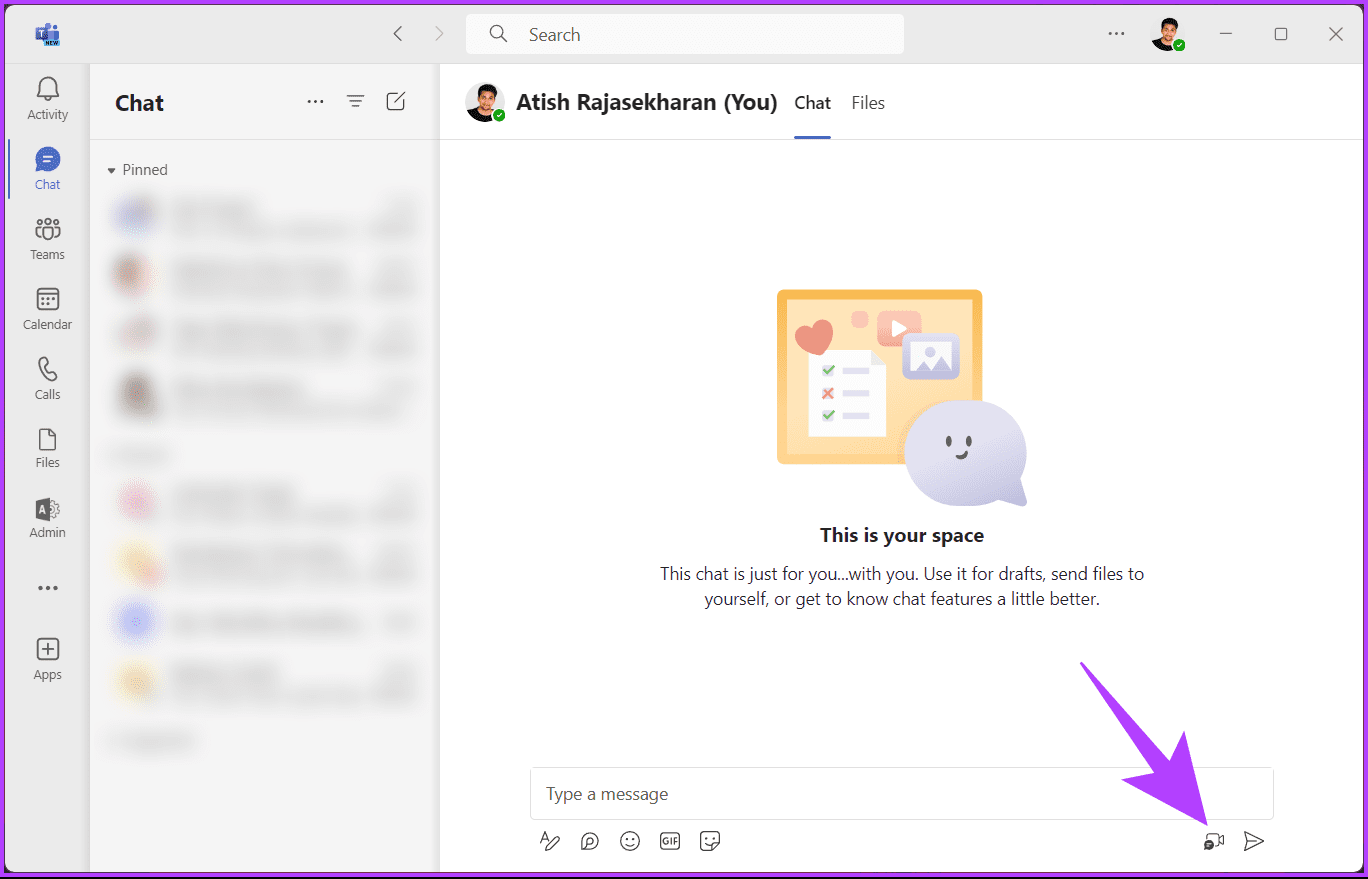
You will see and hear yourself. Now, make the necessary adjustments. Once done, close the self-meeting and join the Teams call.
Also Read: How to keep Microsoft Teams status green all the time
Test Audio Before a Teams Meeting in Windows 11
Step 1: Press the Windows key, type Settings, and click Open.
Step 2: Navigate to the System and choose Sound.
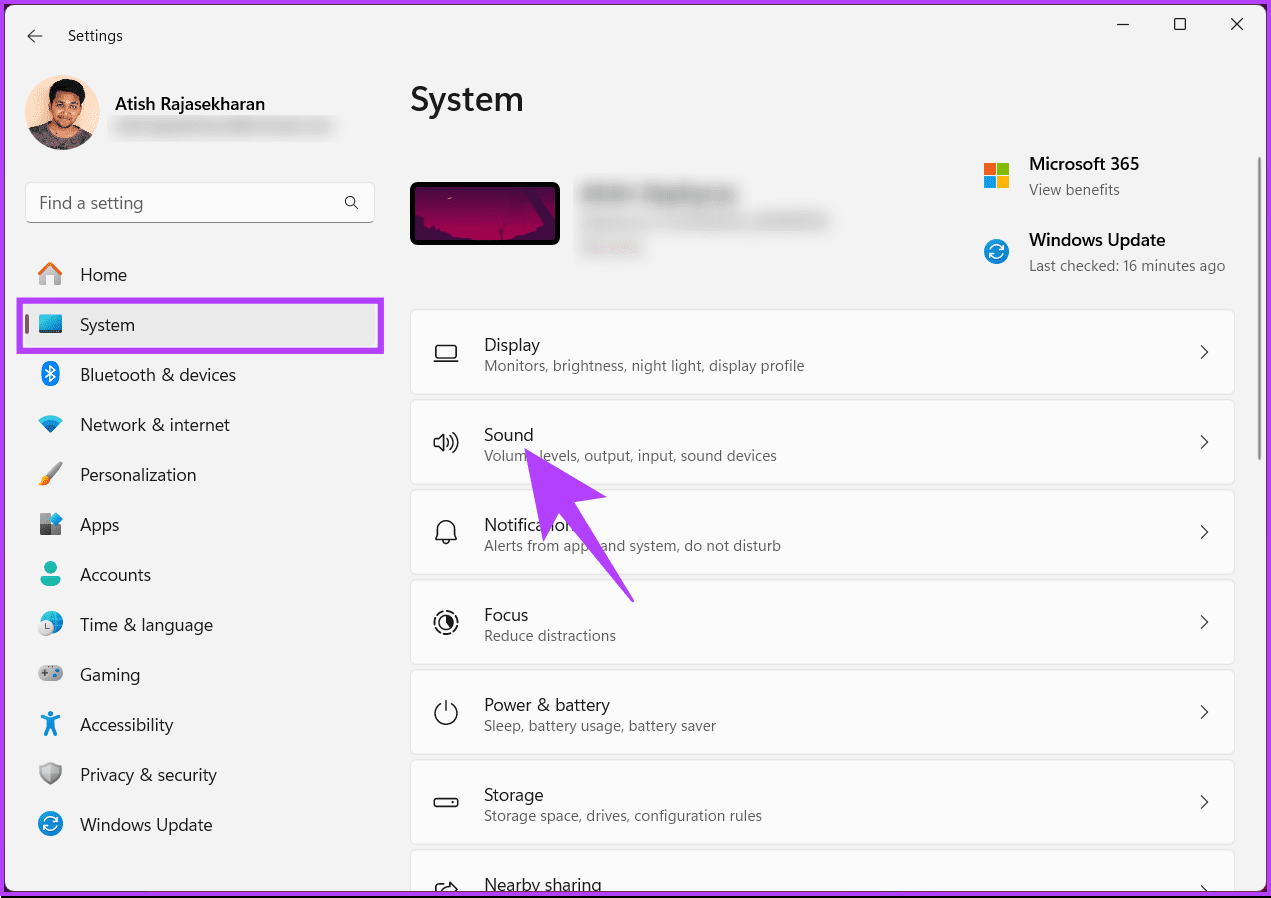
Step 3: Under the Output section, you will see speakers or headphones currently selected as the default output device. You can change them by clicking the radio button in front of the microphone or speaker of your choice.
Additionally, choose the output volume by dragging the slider.
Step 4: To test the speakers or headphones, select the speaker of your choice.
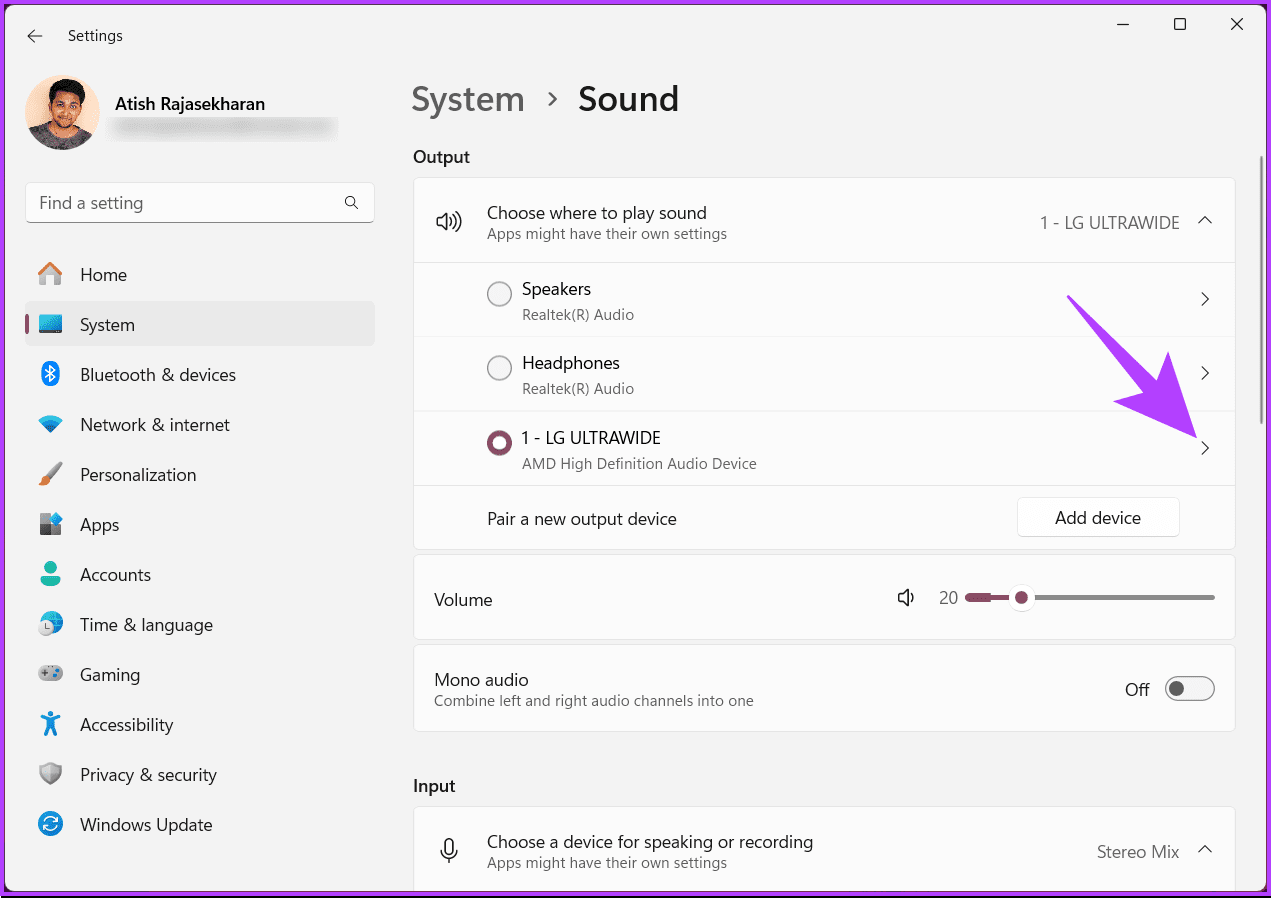
Step 5: Under the Output settings section, click Test beside Format.
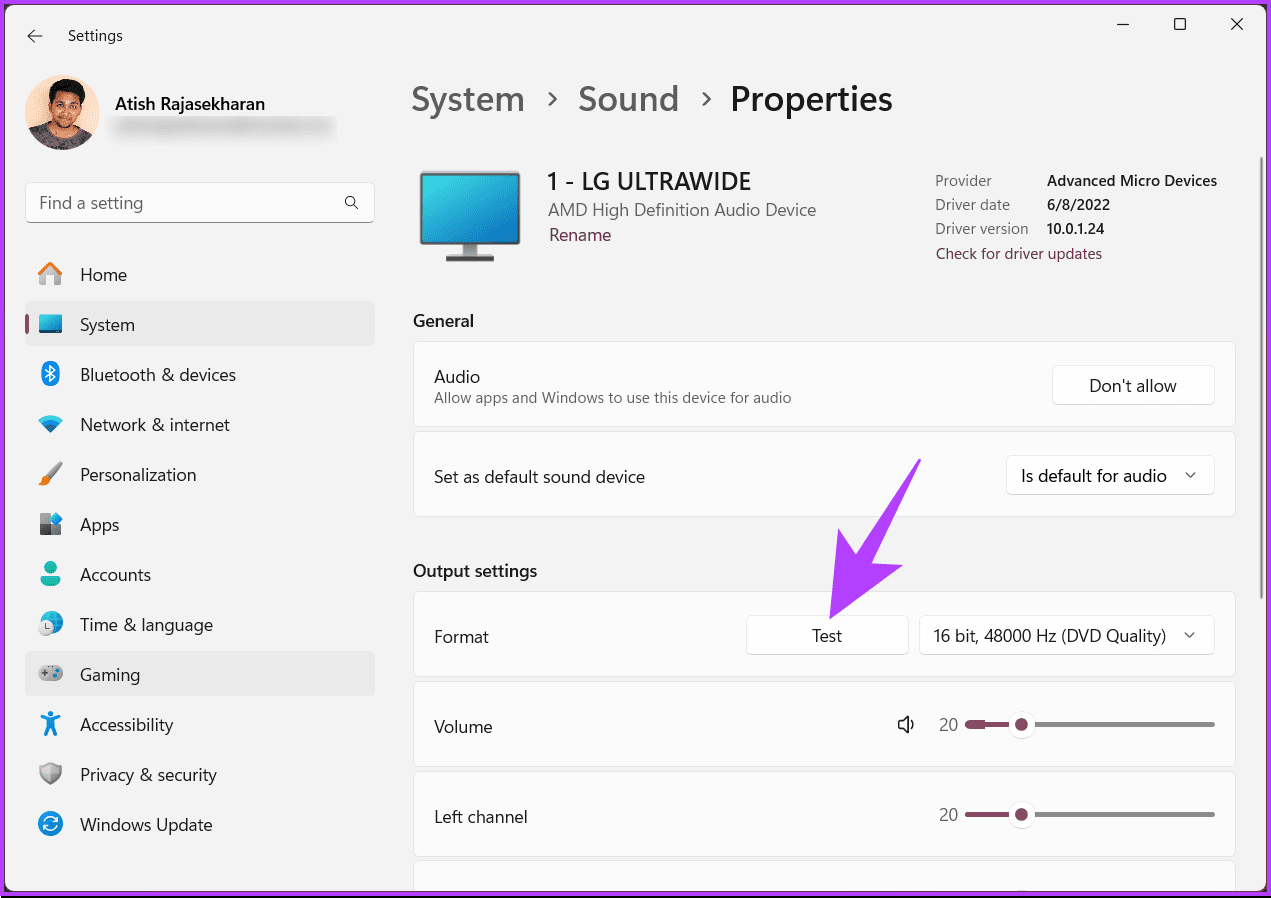
You will hear a sound playing. You can quickly fix it on Windows 11 or 10 if you don’t hear any sound. Moving on, if you face issues using a microphone, continue reading.
Step 6: Now, under the Input section, you will see the microphone currently selected as the default input device. Much like in the Output section, you can change the input device by clicking the microphone of your choice and changing the input volume.
Step 7: Now, click on the selected microphone to test the microphone.

Step 8: Under Properties, scroll down and click the Start test button under Input settings.
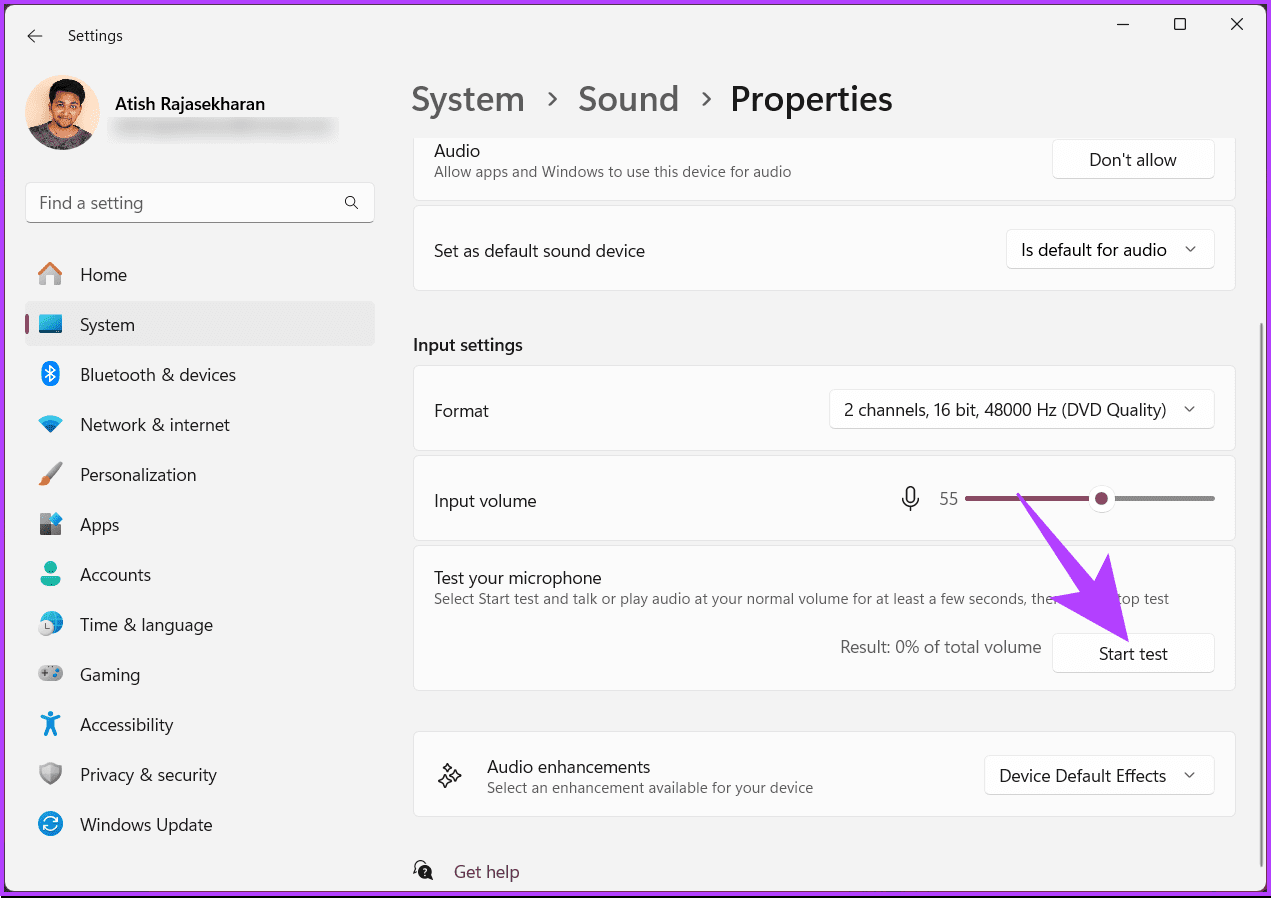
You will see a blue bar moving as you speak into your microphone. If your microphone isn’t working or your PC doesn’t detect the microphone on the headset, you can quickly fix it.
FAQs
It’s advisable to test your audio periodically, especially if you encounter issues or if your computer or audio setup changes.
While there isn’t a specific feature for group audio testing, you can initiate a Teams meeting with colleagues to ensure that everyone’s audio is working collectively.
Was this helpful?
Last updated on 20 August, 2024
Read Next
 4 Fixes for Audio Not Working in Microsoft Teams on Windows 11
Common Fixes Reboot Windows - Open the Start Menu, click Power in the bottom right, and select Restart.
4 Fixes for Audio Not Working in Microsoft Teams on Windows 11
Common Fixes Reboot Windows - Open the Start Menu, click Power in the bottom right, and select Restart.
 Speedtest vs Fast: In-Depth Comparison of Two Internet Speed Test Providers
The present decade has seen data rates going down, with increased penetration of the internet.
Speedtest vs Fast: In-Depth Comparison of Two Internet Speed Test Providers
The present decade has seen data rates going down, with increased penetration of the internet.
 6 Sites to Test Typing Speed and Improve Accuracy
1.
6 Sites to Test Typing Speed and Improve Accuracy
1.
 How to Change Background in Microsoft Teams
Are you tired of the same old background in your Microsoft Teams meetings?
How to Change Background in Microsoft Teams
Are you tired of the same old background in your Microsoft Teams meetings?
 How to Remove Profile Picture From Microsoft Teams on Mobile and PC
Microsoft uses your name’s initials as your profile picture in Microsoft Teams.
How to Remove Profile Picture From Microsoft Teams on Mobile and PC
Microsoft uses your name’s initials as your profile picture in Microsoft Teams.
 How to Set Out of Office Message in Microsoft Teams
How to Set Out of Office in Microsoft Teams Note: The steps are the same for both Windows and Mac.
How to Set Out of Office Message in Microsoft Teams
How to Set Out of Office in Microsoft Teams Note: The steps are the same for both Windows and Mac.
 5 Ways to Fix Microsoft Teams Web Not Working
Basic Fixes Sign out and sign back in: Authentication issues with your Microsoft account can sometimes cause Teams to stop working.
5 Ways to Fix Microsoft Teams Web Not Working
Basic Fixes Sign out and sign back in: Authentication issues with your Microsoft account can sometimes cause Teams to stop working.
 Can Microsoft Teams Be Used to Spy on You
Can Microsoft Teams Be Monitored The straight answer is yes.
Can Microsoft Teams Be Used to Spy on You
Can Microsoft Teams Be Monitored The straight answer is yes.
The article above may contain affiliate links which help support Guiding Tech. The content remains unbiased and authentic and will never affect our editorial integrity.