1. Schedule Messages
This feature is useful for sending birthday wishes and important event reminders.
Step 1: Open Messages and tap the Compose icon.
Step 2: Choose a contact or enter the recipient’s number.
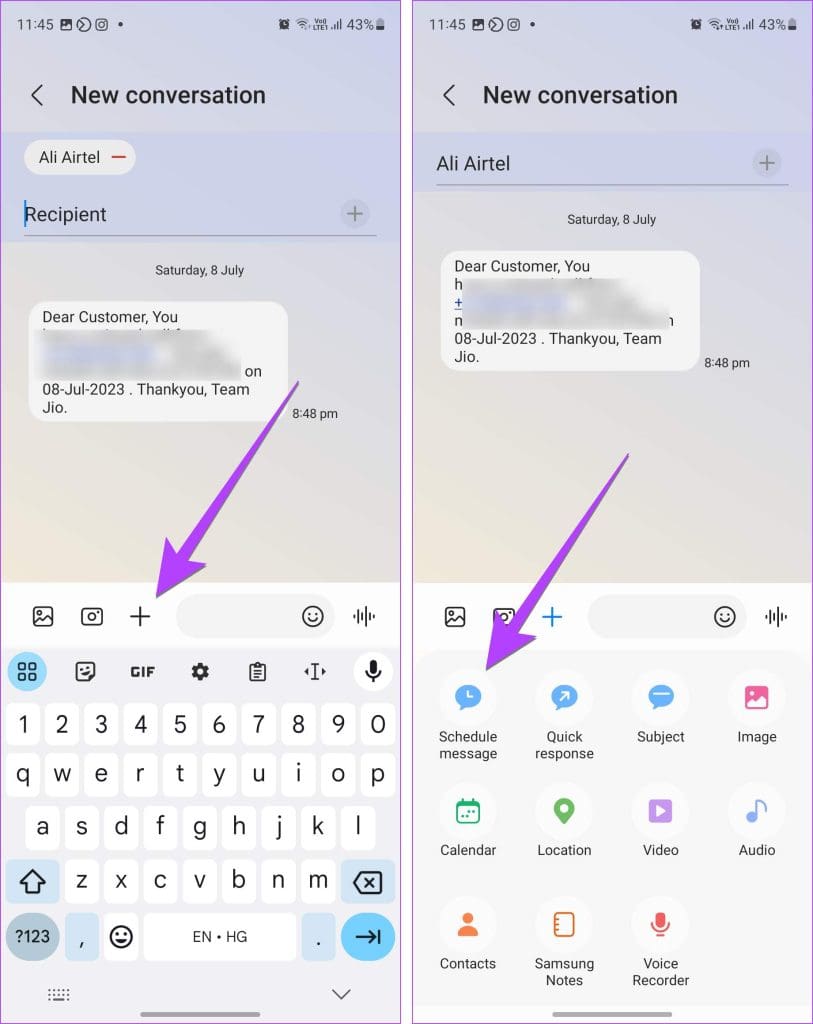
Step 3: Type your message and tap +.
Step 4: Tap on the Schedule message.
Step 5: Set a date and time for your message to go out.
Step 6: Tap on Done > Send.
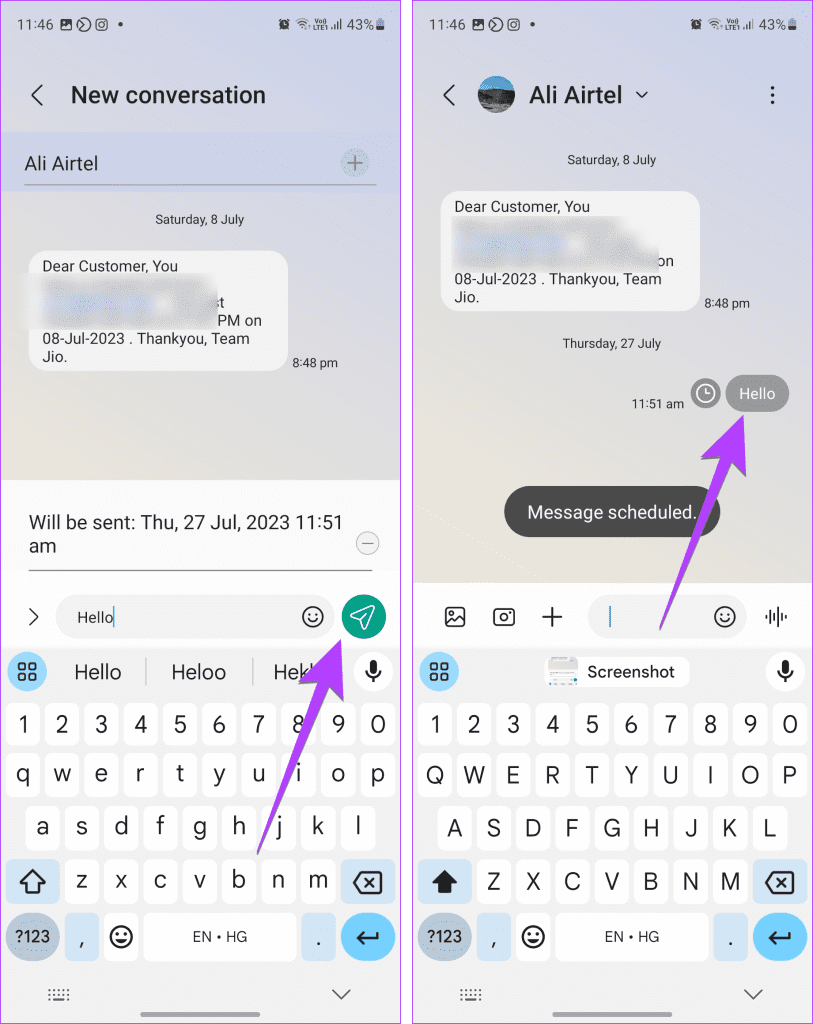
Note: To see all scheduled messages, tap the three dots on the Messages app home screen and select Scheduled messages.
2. Star Messages
Mark important messages with a star to easily find them later. Here’s how:
Step 1: Open the Messages app and select a conversation.
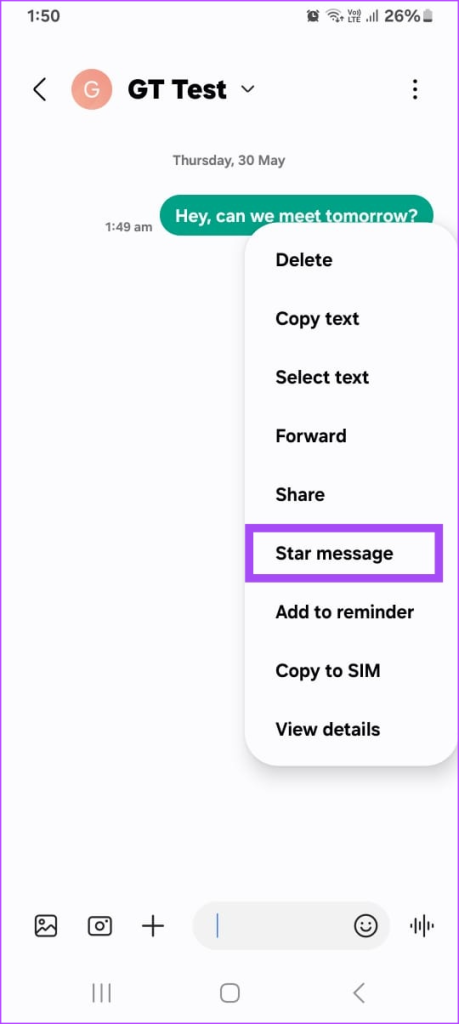

Step 2: Long-press on the message and select Star message. The message will now have a star icon next to it.

To see your starred messages, go to the home screen of the Messages app and tap the three dots icon. Then, select Starred messages.
3. Add a Message as a Reminder
Forgot to reply to a message? Use this feature to remind yourself:
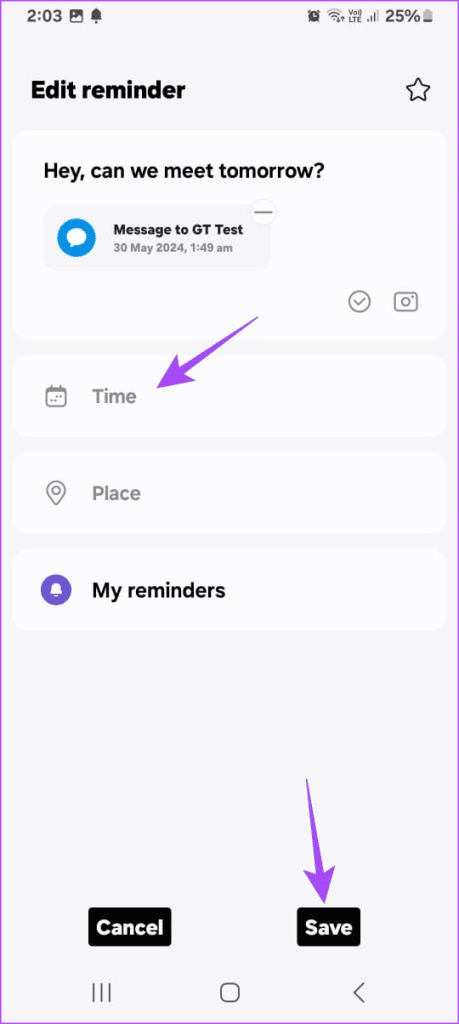
Step 1: Long-press on the message and tap Add to reminder.
Step 2: Choose a date and time and tap Save.

4. Pin Messages
You can now pin important messages to the top of your inbox. Let’s see how:
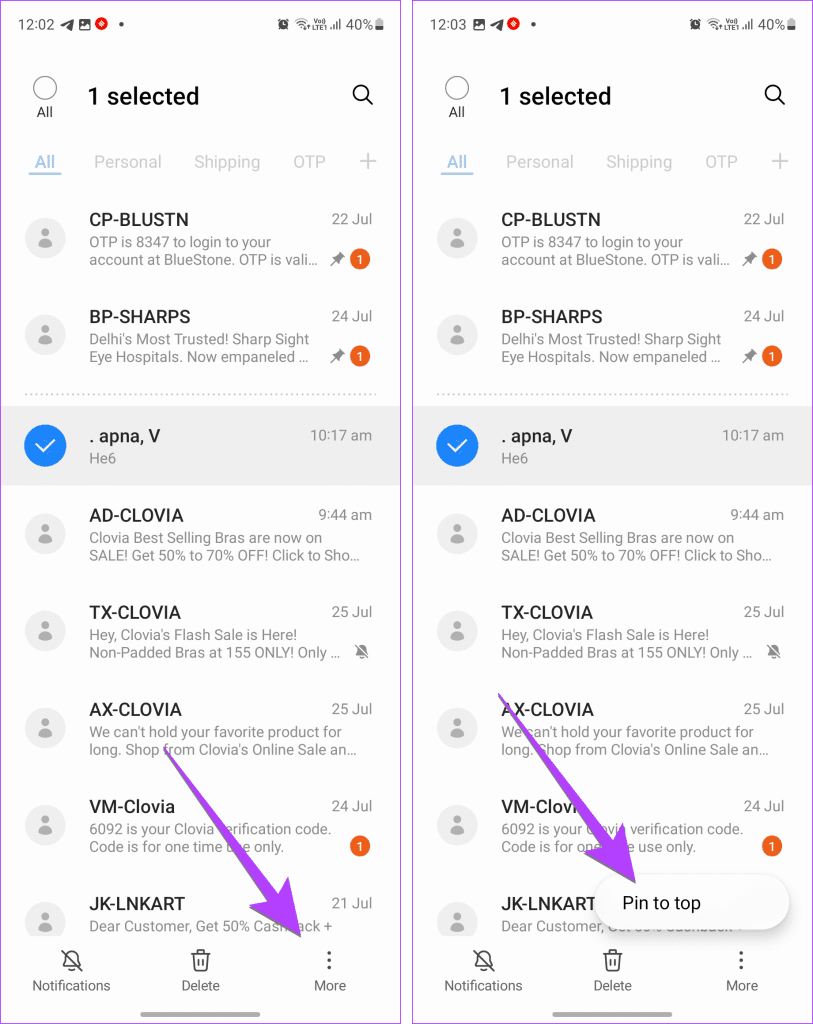
Step 1: Long-press on the message and tap More (three dots).
Step 2: Tap on Pin to top. The message will move to the top of your conversation list.
To unpin a message, follow the same steps and select Unpin from top.
Note: If you’ve pinned multiple messages, you can rearrange them. For this, open the menu options and select Reorder pinned. Now, drag and drop the messages in your preferred order.
5. Mute Conversations
Tired of getting notifications about a conversation? You can mute it.
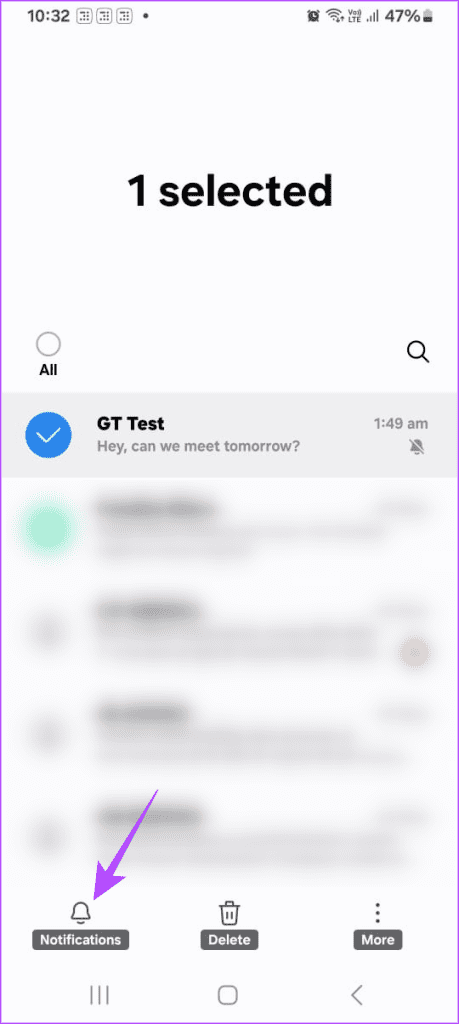
Step 1: Press and hold the conversation.
Step 2: Tap on Notifications at the bottom. A small mute icon will appear next to the conversation.

You will still receive notifications for this conversation, but your phone won’t notify you.
Tip: To unmute, follow the same steps and select Notifications.
6. Set Custom Text Message Notification Sound for Contacts
You can set custom text message notification sounds for specific contacts to identify their messages quickly.
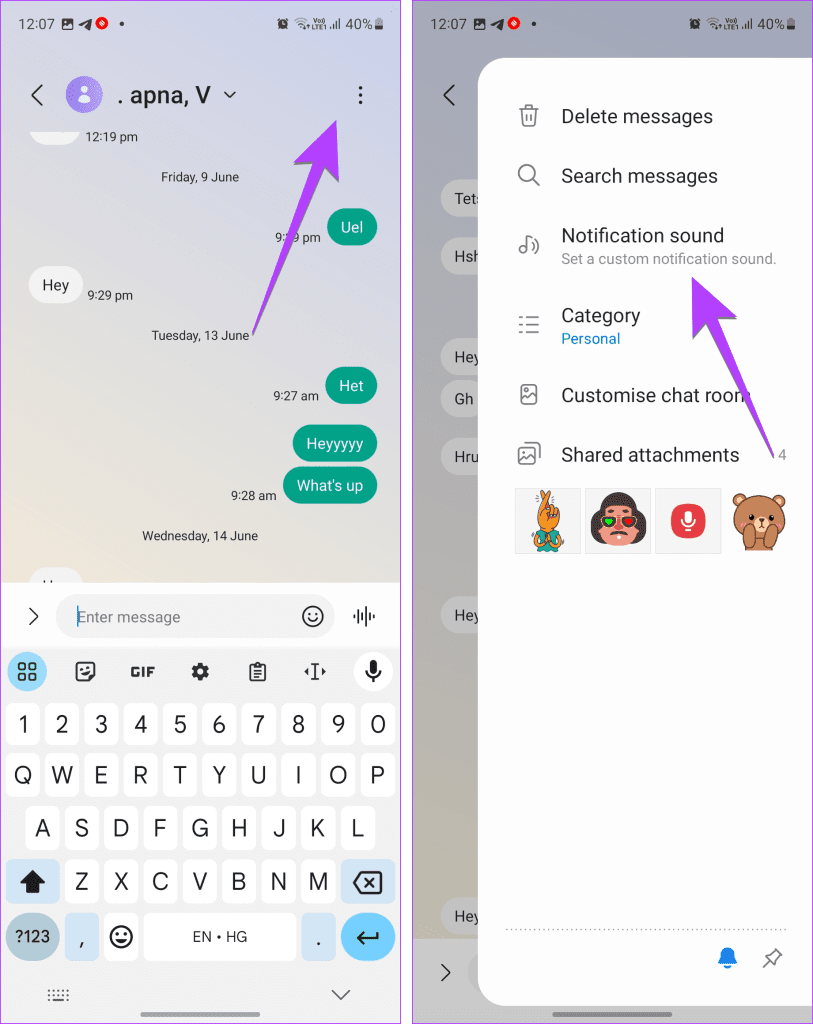
Step 1: In the Samsung Messages app, open the chat thread whose tone you want to change.
Step 2: Tap three dots and select Notification Sound from the menu. Choose the preferred sound from the list.
7. Change Message Background
Change the background of your messages to make them more fun. Here’s how:
Step 1: Open the chat thread whose colors you want to change.
Step 2: Tap the three-dot icon and select Customize chat room
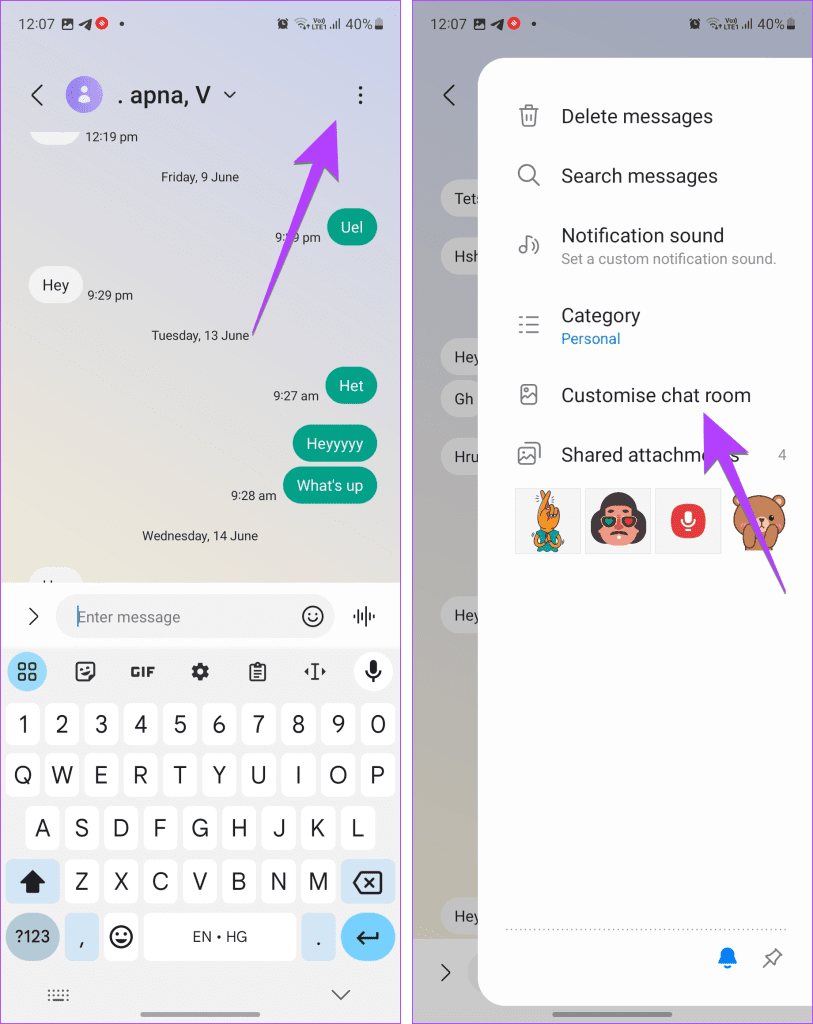
Step 3: Choose a color > tap Apply to all chat rooms.
8. Increase Font Size
Struggling to read small text in your messages? You can increase the font size in Samsung Messages.
To change the font size in the Messages app, open the thread and perform pinch in and out zoom gestures on the screen.
9. Enable Recycle Bin
Samsung Messages lets you recover deleted messages from the recycle bin within 30 days. Here’s how to enable it:
Step 1: Tap three dots at the top right corner of the Message app.
Step 2: Select Settings > toggle on Recycle bin.


10. View Unread Messages Only
You might want to filter your Messages inbox to see only unread messages. Samsung Messages has a feature for that.
Step 1: Open the Samsung Messages app on your phone.
Step 2: Swipe down and tap View at the top. You will see all the unread messages.

11. Delete Old Messages Automatically
Samsung Messages lets you automatically delete old messages to keep your inbox clutter-free
Step 1: Tap three dots in the Messages app > navigate to Settings.
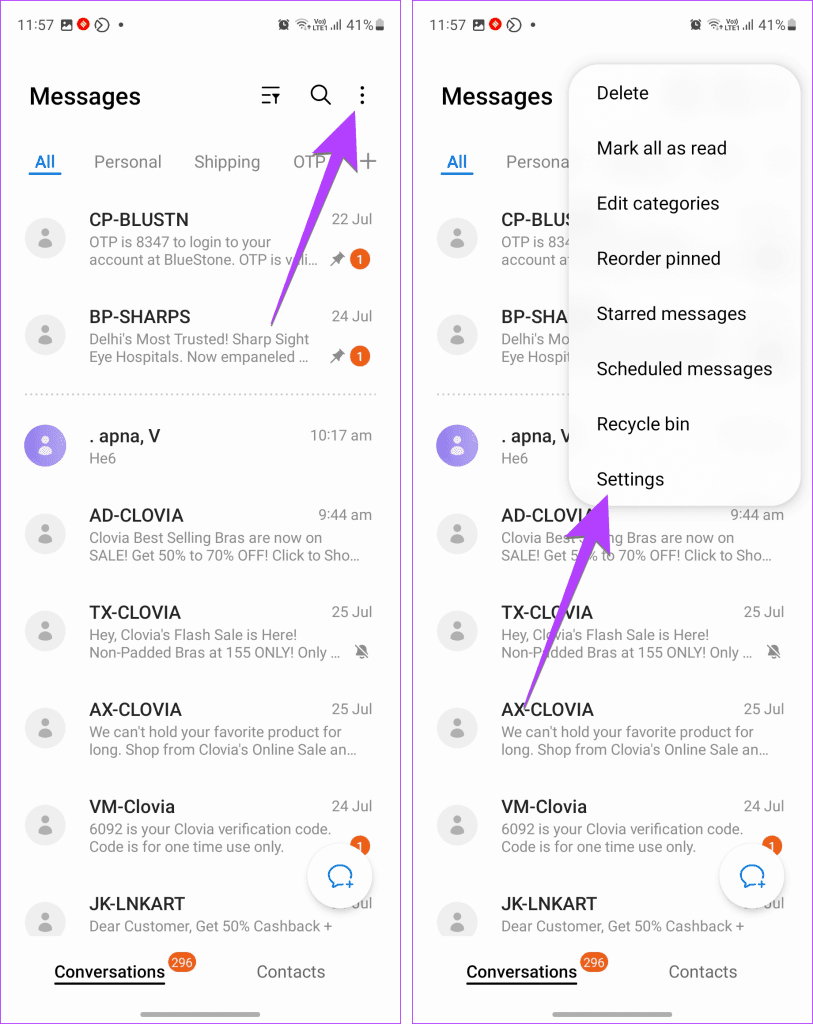
Step 2: Go to More settings > toggle on Delete old messages.

12. Search Individual Chat Threads
If you’re looking for a specific message in a long conversation, you can use the search feature.
Step 1: Open the message thread that you want to search.
Step 2: Tap three dots and select Search messages. Type the term you want to search.

13. Add a Message Thread to the Home Screen
If you frequently chat with a person, you can add their message thread on the home screen from where you can message them quickly.
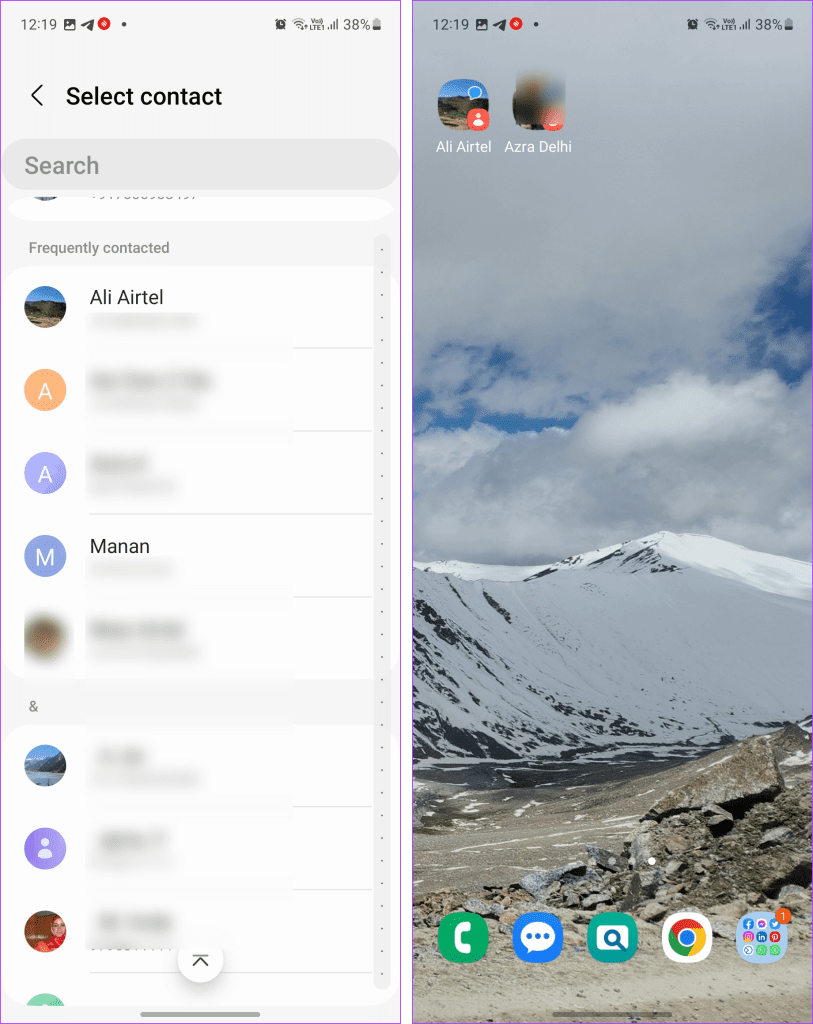
Step 1: Long-press on an empty area of your phone’s home screen.
Step 2: Tap on Widgets > Contacts > Direct Message > Add.

Step 3: Choose the contact you want on the home screen.
Step 4: Once the chat shortcut appears on the home screen, tap it to access the thread.
14. Add New Quick Responses
Quick responses are pre-written messages you can send with a tap. Here’s how to add new ones:
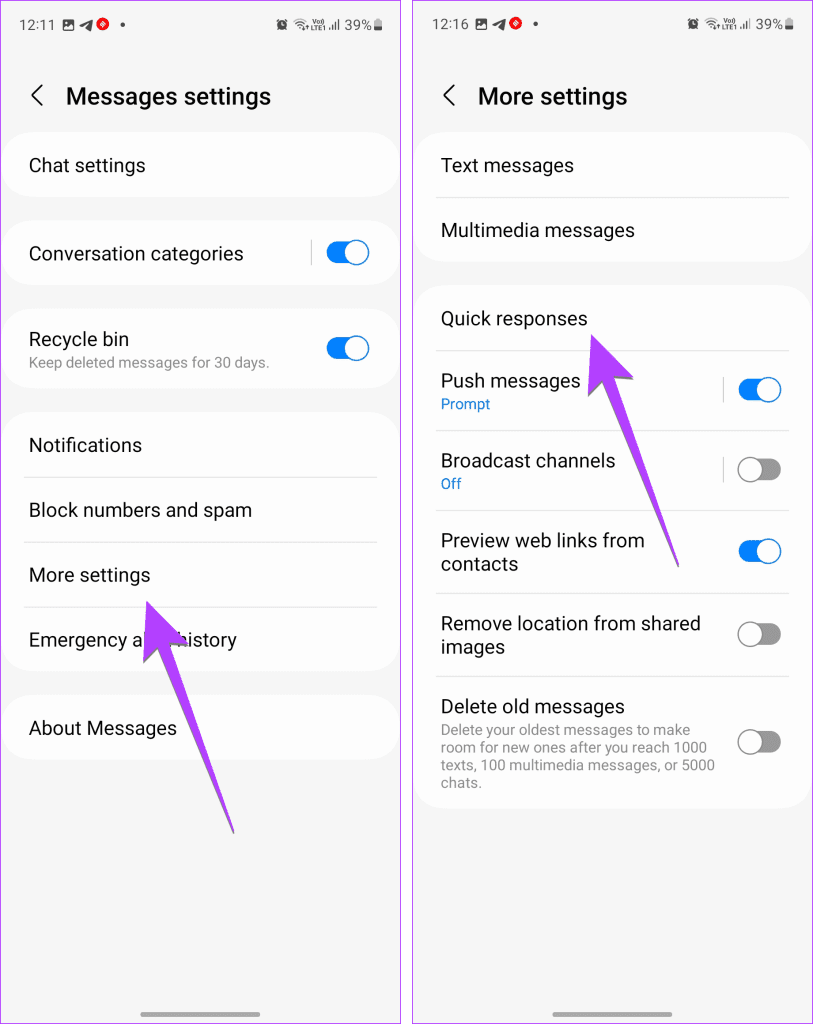
Step 1: Open the Messages app and tap three dots.
Step 2: Go to Settings > More settings > Quick responses.
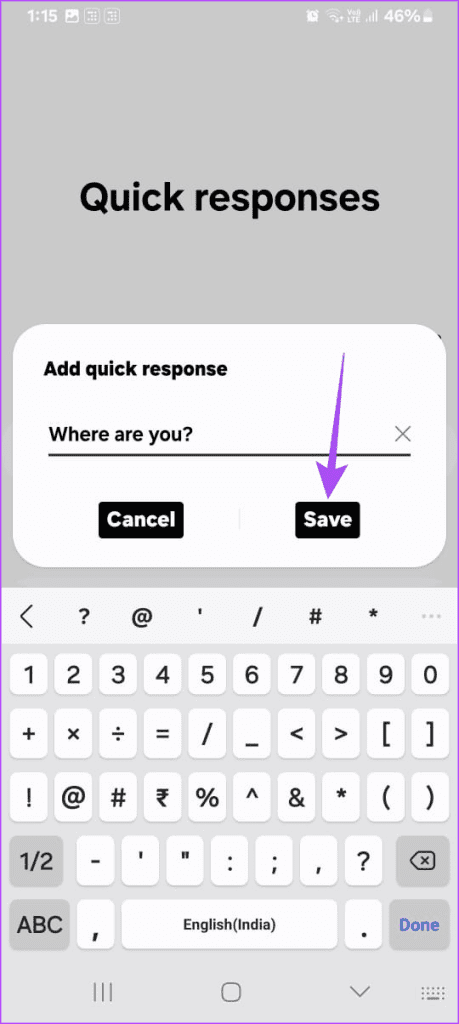
Step 3: Tap the + icon to add a new quick response and Save it for future use.

15. Disable Web Preview
Web Preview shows you a preview of links in your messages. If you want to turn it off, here’s how:
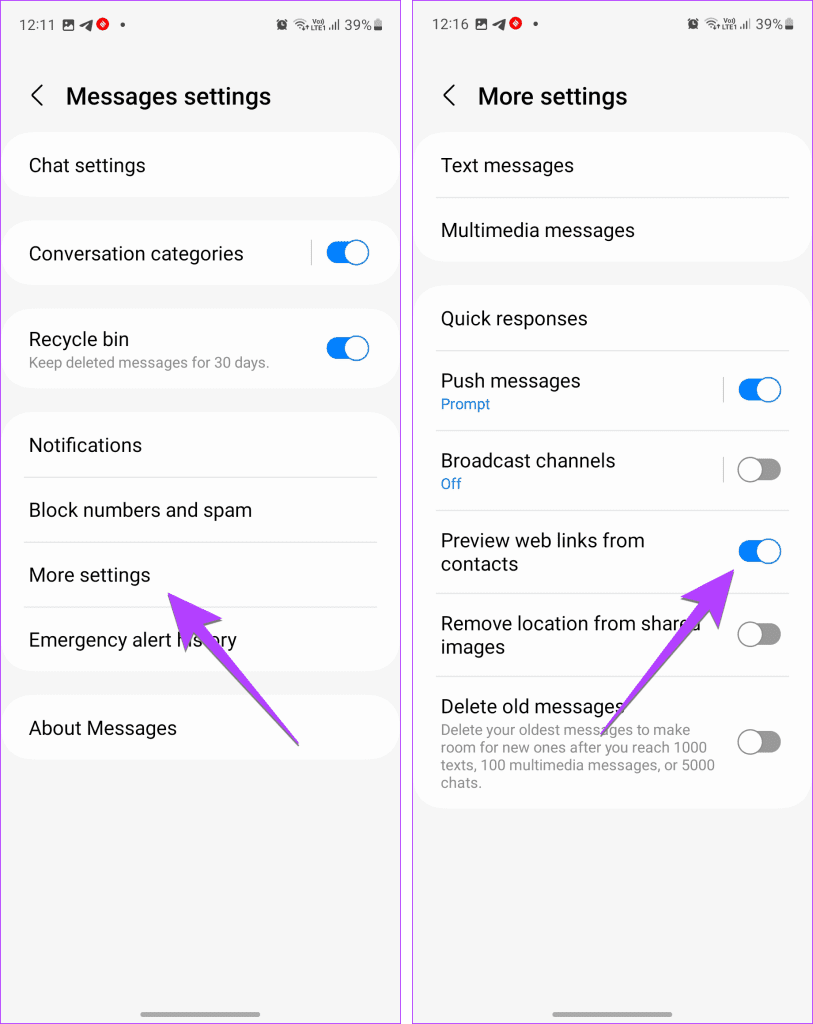
Step 1: In the Samsung Messages, tap the three-dot icon.
Step 2: Then, go to Settings > More settings.
Step 3: Toggle off Preview web links from contacts.
Was this helpful?
Last updated on 18 July, 2024
Read Next
 4 Ways to Reset Message Settings on Samsung Galaxy Phones
Fix 1.
4 Ways to Reset Message Settings on Samsung Galaxy Phones
Fix 1.
 How to Tell if a Text Message Was Delivered on Android
1.
How to Tell if a Text Message Was Delivered on Android
1.
 How to Send Pictures in Text Message or Email on Android or iPhone
How to Send Pictures in a Text Message You can send pictures using the Messages app on your Android or iPhone.
How to Send Pictures in Text Message or Email on Android or iPhone
How to Send Pictures in a Text Message You can send pictures using the Messages app on your Android or iPhone.
 How to Force Send Text Message Instead of iMessage to a Contact
Let's see how to force send a text message instead of iMessage to a contact on your iPhone and iPad.
How to Force Send Text Message Instead of iMessage to a Contact
Let's see how to force send a text message instead of iMessage to a contact on your iPhone and iPad.
 How to Fix iMessage “Sent as Text Message” Issue on iPhone
Basic Fixes Trigger Airplane Mode: If your mobile data has trouble, it is best to trigger airplane mode.
How to Fix iMessage “Sent as Text Message” Issue on iPhone
Basic Fixes Trigger Airplane Mode: If your mobile data has trouble, it is best to trigger airplane mode.
 3 Ways to Fix Text Message Forwarding Not Showing Up on iPhone
Basic Fixes Check network connection: Make sure that you have an active internet connection on your iPhone, and that there's no problem with it.
3 Ways to Fix Text Message Forwarding Not Showing Up on iPhone
Basic Fixes Check network connection: Make sure that you have an active internet connection on your iPhone, and that there's no problem with it.
 iMessage vs. Text Message: What’s the Difference
Understanding the Difference Between iMessage vs.
iMessage vs. Text Message: What’s the Difference
Understanding the Difference Between iMessage vs.
 Top 3 Ways to Create a Group Text on Samsung Phones
Texting individual contacts is quite easy on any phone.
Top 3 Ways to Create a Group Text on Samsung Phones
Texting individual contacts is quite easy on any phone.
The article above may contain affiliate links which help support Guiding Tech. The content remains unbiased and authentic and will never affect our editorial integrity.