How to Rearrange Instagram Photos While Publishing
1. Carousel Story
You must note that you cannot rearrange a story carousel once published. However, you can change the order before you publish. Moreover, this flexibility only works for photos and videos you added from the gallery, not those taken with Instagram’s camera. Let’s begin with the steps.
Step 1: Launch the Instagram app and tap the Your Story button to create a story.
Step 2: Now, select the photos in the order you want to post them and tap Next.
Step 3: On the next screen, select how you want to post the Story.


The images will be numbered as per your selection. If you accidentally selected the wrong image flow, unselect it and select it again. Once selected, move to the next step.
Step 4: Rearrange the stories on this screen by dragging and dropping the images from the bottom left of your Android screen. Then, tap Next.
Note: This feature is not available to iPhone users at the time of writing.

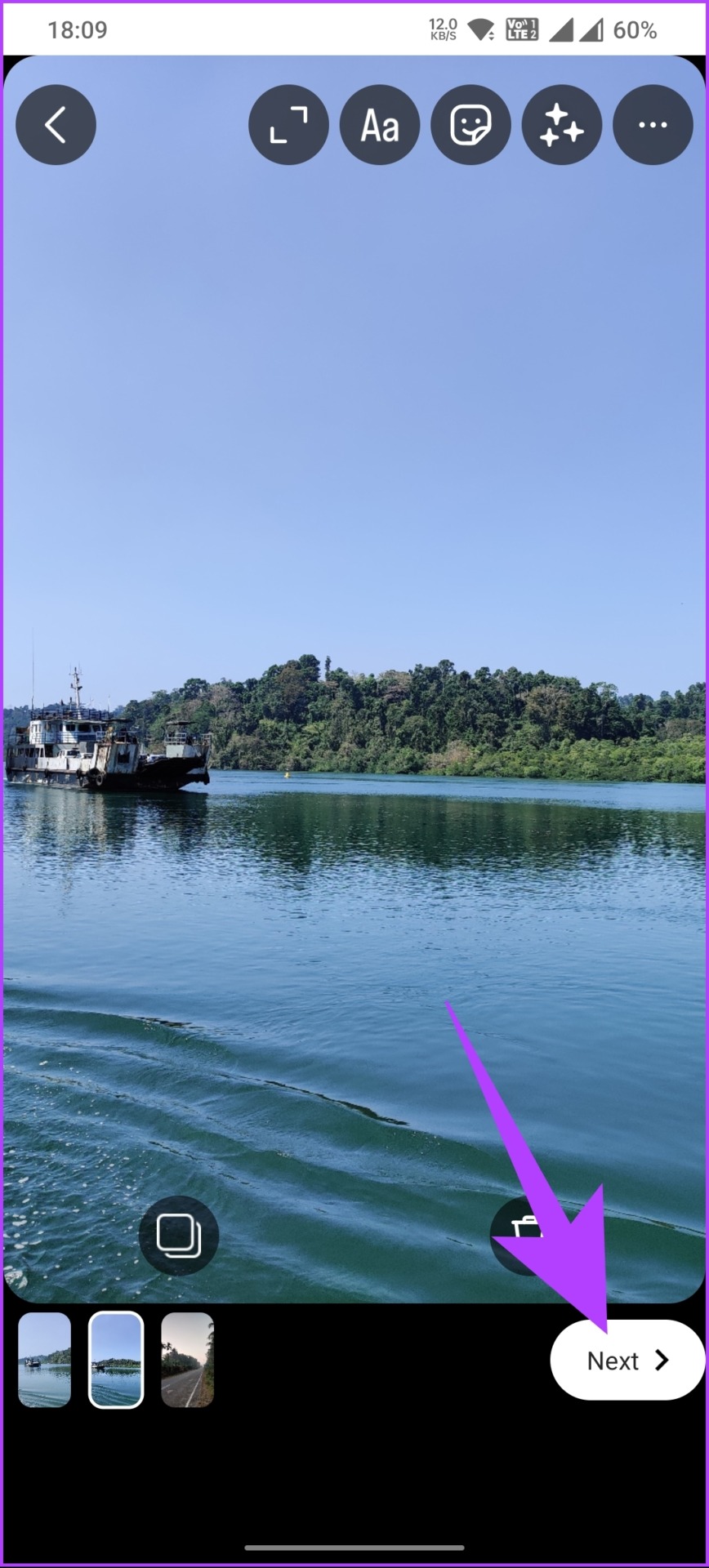
Step 5: Finally, from the bottom sheet, tap the Share button.

That’s it. You have successfully posted a Carousel story on Instagram with ease. If you want to publish a carousel post on Instagram, continue reading.
Also read: 3 ways to save Instagram stories with music
2. Carousel Post
Step 1: Launch the Instagram app and tap the Add (+) icon at the bottom navigation.
Note: Instagram constantly experiments with its UI/UX, so you may also find the option in the top navigation bar.
Step 2: Tap the Select Multiple button and start tapping the photos or videos in the order you want them to appear in the carousel post.
Note: Like in Stories, if you have selected a photo in the wrong flow, tap on it to deselect it and select it in the correct order.


Step 3: Tap the Next (arrow) to edit the pictures or videos using the Instagram filters. Once you select the filter, tap on Next.


Step 4: Finally, Add captions, add location, and so on before posting by tapping the check mark.

There you go. You have published a carousel post on Instagram hassle-free. This was the case when you hadn’t published the post. If you have already, there’s still a way to rearrange photos in a carousel post; keep reading.
How to Rearrange Photos on Instagram Posts After Publishing
There’s no direct way to change the order of a carousel post after it’s published. However, there’s a workaround to delete a photo from the posted carousel and restore the deleted photos in the order you want them to appear.
Note: Your carousel post must have at least 3 photos, as Instagram doesn’t consider two photos as a carousel. Additionally, you can’t add a new photo to an existing post.
Step 1: Launch Instagram and navigate to your profile to open the carousel post you want to edit.
Step 2: Once the carousel post is open, tap the three-dot icon and select the Edit option.


Now, swipe the carousel post to see the Trash icon in the upper left corner of each photo.
Step 3: Delete all the photos you want to rearrange by tapping the Trash icon, and in the confirmation box, tap on Delete.


Step 4: Once you have deleted the photos you want to rearrange, tap the tick button to save the changes.

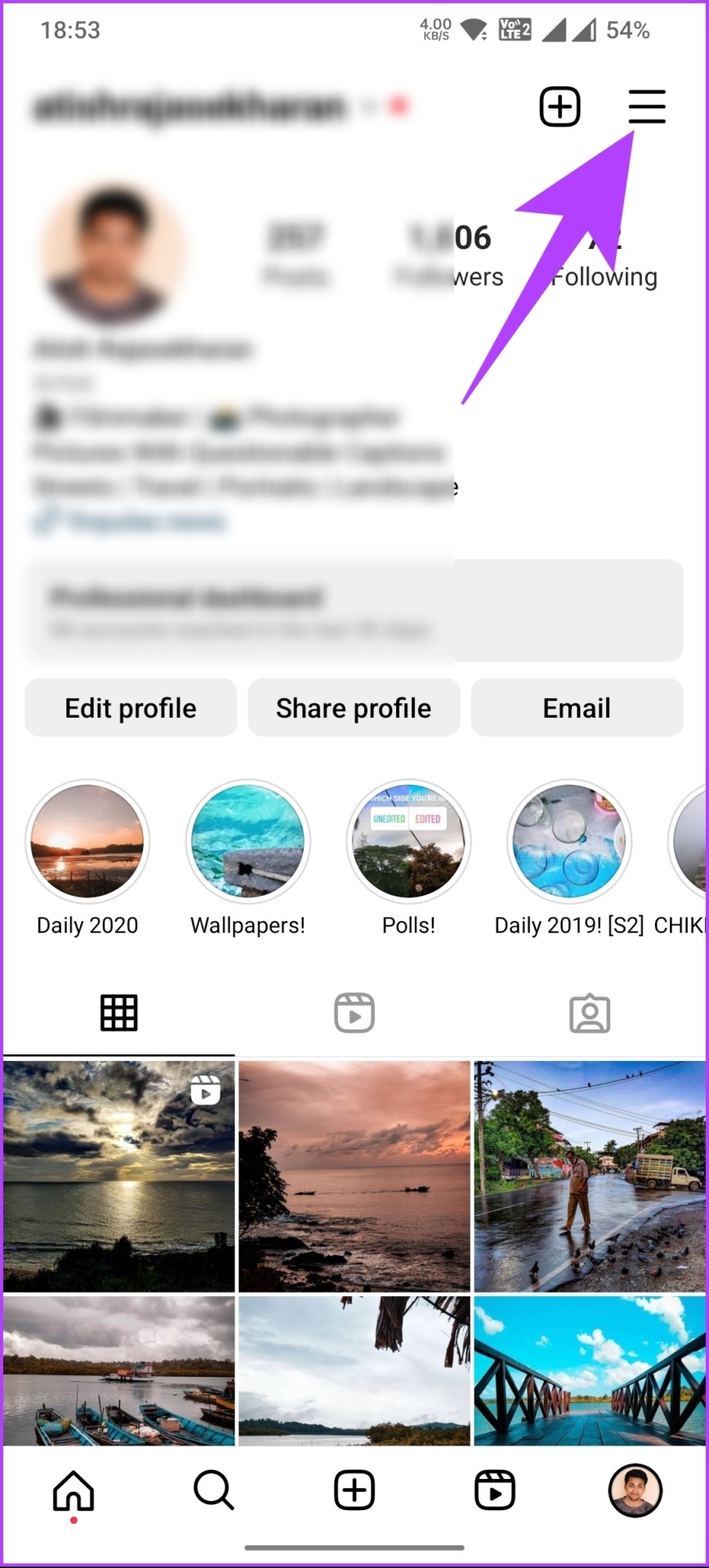
Step 5: Now, go to your Instagram profile and tap on the hamburger icon at the top right.


Step 6: Select Your activity. On the next screen, scroll down and tap the Recently deleted option.


Step 7: Tap on the first photo you want to restore. Repeat this for other photos you wish to restore and in that order.

Step 8: On the post, tap the three-dot icon and select Restore from the bottom sheet.


There you have it. You can use the above methods to restore any sort of photo or video in the post. Additionally, you can also rearrange Instagram posts after publishing. Continue reading to know more.
How to Rearrange Existing Posts in Profile
Instagram doesn’t let you directly change or reorder the published posts for public view. You can, however, sort posts from oldest to newest or a specific date using the Your activity feature to either view or bulk delete the posts.
You can archive a post if you are concerned too much about your Instagram post grid and want photos that complement your profile. Let’s get into the methods in-depth.
Method 1: Sort Posts
Step 1: Launch the Instagram app and tap on your profile picture at the bottom navigation bar.
Step 2: Tap the hamburger icon at the top right and select Your activity from the bottom sheet.
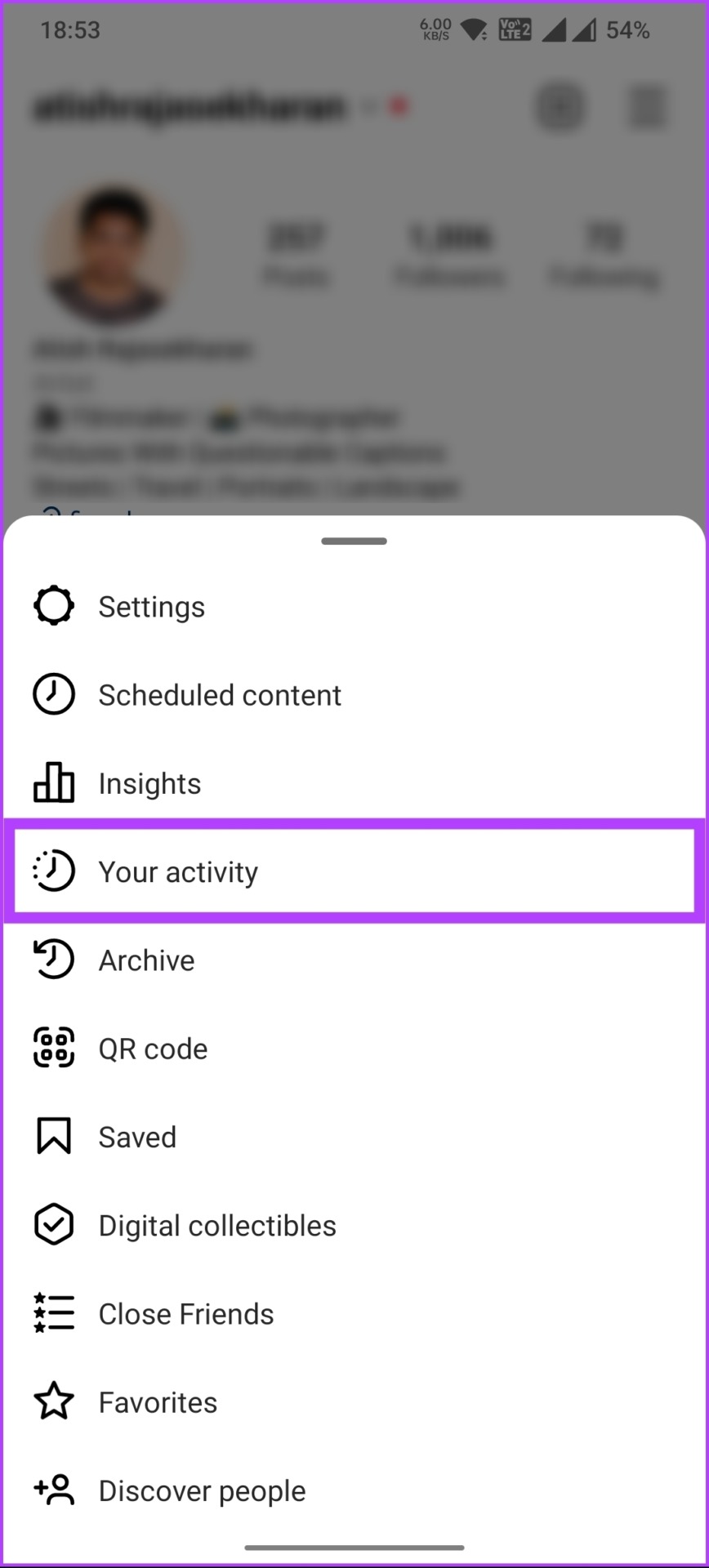
Step 3: Go to Photos and videos, and on the next screen, choose Posts.
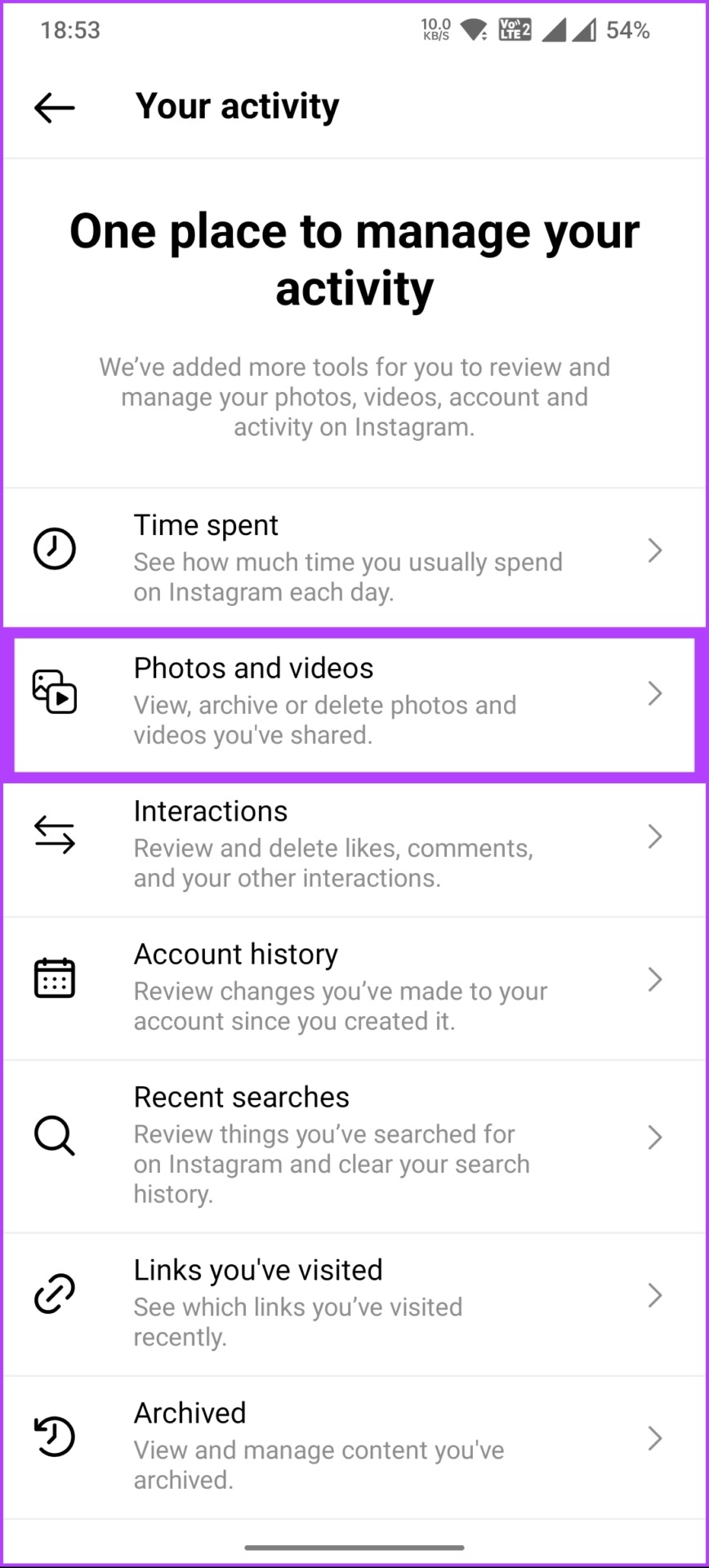

Step 4: Under Posts, tap either Oldest to newest or Newest to oldest.
Additionally, you can tap the Start or End date option and bring up the post from a desired date.

There you go. You can view your posts in the order you want. However, it is essential to note that you are the only one who can view it in a sorted fashion. Move to the following method to make changes without deleting any posts.
Also read: How to change or reset Instagram Explore page
Method 2: Archive Posts
Archiving on Instagram is a feature that allows you to hide a post from your profile without deleting it entirely. When you archive a post, it is saved in a private section on your profile that only you can see.
This feature is specifically used to declutter your profile by removing posts that don’t fit your aesthetic or brand. The archived post can be restored to your profile anytime, and any likes and comments will be restored. Follow the steps below.
Step 1: Launch the Instagram app and tap on your profile picture at the bottom navigation bar.
Step 2: Select the post you want to archive. Once selected, tap on the three-dot icon on the post.


Step 3: From the bottom sheet, select Archive.

That’s it. Your post will be archived and moved from public to private view. If you are looking to reverse the archive, check out our detailed article on how to undo archive on Instagram. That said, check out the FAQ section below if you have any queries we missed addressing.
FAQs on Rearranging Instagram Posts
No, you cannot rearrange the Instagram grid. Instagram automatically arranges your posts in a grid format based on the order in which they were posted. Once a post has been added to your grid, its position cannot be changed.
However, you can delete posts or archive them to remove them from your grid, and you can plan out the order of your posts before you upload them to create a specific visual aesthetic.
No, you cannot change the order of your Instagram feed. Instagram’s algorithm displays posts based on a variety of factors, including the recency of the post, how much engagement it has received, and how relevant it is to the user. You may also want to read these top ways to manage recommended posts on Instagram.
This way you can keep your profile looking fresh and engaging. So, next time you want to switch things, remember these steps to rearrange your Instagram posts.
Was this helpful?
Last updated on 24 August, 2024
Read Next
 4 Ways to Free Up Space on Android Without Deleting Apps
Basic Fixes: Find and remove large files: You can use Google's Files app to auto-detect and remove large files from your phone.
4 Ways to Free Up Space on Android Without Deleting Apps
Basic Fixes: Find and remove large files: You can use Google's Files app to auto-detect and remove large files from your phone.
 6 Ways to Free Up Space on Windows 11 Without Deleting Apps
Method 1.
6 Ways to Free Up Space on Windows 11 Without Deleting Apps
Method 1.
 How to View Instagram Posts and Stories Without an Account
How to See Instagram Stories Without an Account Unlike posts on Instagram (mentioned below), users can see who opened/viewed their Instagram Stories.
How to View Instagram Posts and Stories Without an Account
How to See Instagram Stories Without an Account Unlike posts on Instagram (mentioned below), users can see who opened/viewed their Instagram Stories.
 How to Move or Rearrange Apps on iPhone
Move App Icons and Folders Tap and hold an app icon or a folder, and select Edit Home Screen.
How to Move or Rearrange Apps on iPhone
Move App Icons and Folders Tap and hold an app icon or a folder, and select Edit Home Screen.
 4 Ways to Fix Chrome Bookmarks Not Deleting Issue
Basic Fixes: Check for software updates: Software glitches can cause Chrome bookmarks to show up even after being deleted.
4 Ways to Fix Chrome Bookmarks Not Deleting Issue
Basic Fixes: Check for software updates: Software glitches can cause Chrome bookmarks to show up even after being deleted.
 How Does Deleting Messages on WhatsApp Work
What Happens When You Use Delete for Me WhatsApp offers four ways to delete messages and chats: Delete for me, Delete for everyone, Delete chat, and Clear chat.
How Does Deleting Messages on WhatsApp Work
What Happens When You Use Delete for Me WhatsApp offers four ways to delete messages and chats: Delete for me, Delete for everyone, Delete chat, and Clear chat.
 5 Fixes for iPhone Photos Taking Up Space Even After Deleting Them
Fix 1: Delete the Recently Deleted Folder Step 1: Open the Photos app, and go to the Recently Deleted folder.
5 Fixes for iPhone Photos Taking Up Space Even After Deleting Them
Fix 1: Delete the Recently Deleted Folder Step 1: Open the Photos app, and go to the Recently Deleted folder.
 3 Ways to Stop OneDrive From Deleting Files Automatically on Windows 11
Basic Fixes: Check for Windows updates: An out-of-date Windows version can also cause issues, such as OneDrive moving files to the recycle bin by itself. So, install the latest software updates
3 Ways to Stop OneDrive From Deleting Files Automatically on Windows 11
Basic Fixes: Check for Windows updates: An out-of-date Windows version can also cause issues, such as OneDrive moving files to the recycle bin by itself. So, install the latest software updates
The article above may contain affiliate links which help support Guiding Tech. The content remains unbiased and authentic and will never affect our editorial integrity.