Tip 1: Open Special Characters Library Faster
To access the Insert Special Characters box in Google Docs, you usually need to follow two steps: selecting the Insert menu and clicking Special Characters from the options.
Instead, use the Alt + I + C key combo to access the Insert Special Characters box quickly. If you use Google Docs on a Mac, the key combo is slightly longer: Ctrl + Option + I + C.
Then, it’s business as usual—use the filter menus or the search box to find the special character you want.
Tip 2: Draw Special Character
If you cannot locate a certain character with the filter menus or search box? Why not search for it by drawing it instead?
Step 1: Open up the Special Characters dialog using the method in Tip 1.
Step 2: In the box to the right, draw a shape similar to the one you are searching for, and click on your desired character on the left.

Note: Your rough sketch does not have to be perfect. Google Docs will automatically filter the characters that closely match what you’ve drawn.
Tip 3: Insert Unicode Value
If you don’t want to go through the hassle of having to repeatedly search for or draw a special character, use its Unicode value instead.
Step 1: Open the PSecial Character dialog (Alt + I + C – Windows or Ctrl + Option + I + C – Mac).
Step 2: In the search box on the right, type the character’s Unicode value, then click on your character on the left.

You may browse an extensive library for Unicode values. Once you have used this method once, next time, insert the letters and numbers to the end of the Unicode value (omit ‘U +’) into the search box for faster filtering.
Tip 4: Use Automatic Substitution
An even faster way to insert any special character is to use the Automatic Substitution functionality in Google Docs. It requires a bit of work to set up, but inserting frequently-used special characters should be a breeze once you have it in place.
Step 1: Insert a special character into a document as you would typically do.
Step 2: Select and copy the special character to your clipboard.
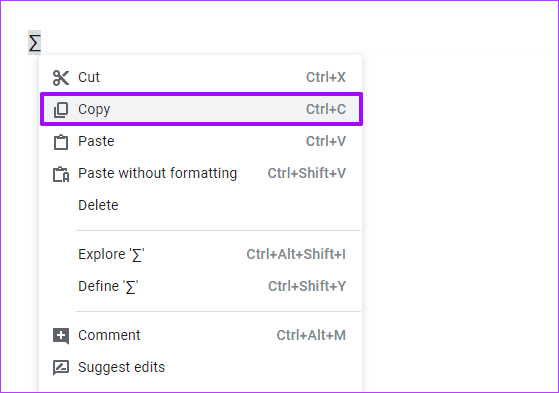
Step 3: Open the Tools menu, and then click Preferences.

Step 4: Insert any character on your keyboard (preferably a combo of characters) into the Replace box. This character or set of characters will be substituted by the special character whenever you type them into a document.
Step 5: Paste the special character into the With box and hit OK.

Step 5: Type the character or the set of characters, hit Space, and the special character should pop up in place instead.
You can add as many substitutions as you want. Avoid using common key combos for your substitutions since they could interfere with your normal workflow.
Tip 5: Use Alt or Option Shortcuts
An alternative method to insert special characters is to use Alt code shortcuts. These codes let you insert most special characters by holding down the Alt key while punching a code into the number pad. For example, the Alt + 0169 code shortcut allows you to insert the Copyright symbol easily.
Note: On keyboards without dedicated number pads, use the FN and Alt keys when typing in numerical characters via the number row.
On Macs, things work a little differently. You must use the Option or the Option + Shift keys in conjunction with various alphanumeric keys to insert special characters. For example, inserting the Copyright symbol is a simple matter of pressing Option + G.
For a list of Alt or Option shortcuts, refer to the appropriate lists by clicking the buttons below:
The best thing about Alt or Option shortcuts is that you can insert special characters like the Em dash in any word processor. They aren’t limited to Google Docs.
Was this helpful?
Last updated on 15 August, 2024
Read Next
 How to Insert a Date Picker in Google Sheets and Google Docs
Google Sheets and Google Docs provide a free, online alternative to Microsoft Office, along with unique features.
How to Insert a Date Picker in Google Sheets and Google Docs
Google Sheets and Google Docs provide a free, online alternative to Microsoft Office, along with unique features.
 How to Insert and Edit Pictures in Google Docs on Mobile and PC
How to Insert a Picture in Google Docs on PC Drag and drop: Open the Google Docs document and place your cursor where you want to insert the image.
How to Insert and Edit Pictures in Google Docs on Mobile and PC
How to Insert a Picture in Google Docs on PC Drag and drop: Open the Google Docs document and place your cursor where you want to insert the image.
 How to Insert a Scanned Document in Google Docs
Types of Attachments Supported by Google Docs Besides charts, tables, and drawings, you can add images in all formats, such as JPG, PNG, GIFs, etc., to Docs.
How to Insert a Scanned Document in Google Docs
Types of Attachments Supported by Google Docs Besides charts, tables, and drawings, you can add images in all formats, such as JPG, PNG, GIFs, etc., to Docs.
 How to Insert Endnotes and Footnotes in Google Docs
How to Insert a Footnote in Google Docs On Web Step 1: Go to Google Docs and open the file where you want to add the endnotes or footnotes.
How to Insert Endnotes and Footnotes in Google Docs
How to Insert a Footnote in Google Docs On Web Step 1: Go to Google Docs and open the file where you want to add the endnotes or footnotes.
 3 Easy Ways to Insert a Text Box In Google Docs
Because of its simple yet powerful interface, Google Docs has become the preferred option for many.
3 Easy Ways to Insert a Text Box In Google Docs
Because of its simple yet powerful interface, Google Docs has become the preferred option for many.
 6 Ways to Insert Arrows in Google Docs
Whether you want to annotate an image with an arrow, draw a flowchart, or add an arrow to a math equation, Google offers multiple ways to insert arrows in Google
6 Ways to Insert Arrows in Google Docs
Whether you want to annotate an image with an arrow, draw a flowchart, or add an arrow to a math equation, Google offers multiple ways to insert arrows in Google
 8 Ways to Insert Emojis in Google Docs
Method 1: Using the Menus Search Feature You can add an emoji to your Google Docs file with a simple keyboard shortcut.
8 Ways to Insert Emojis in Google Docs
Method 1: Using the Menus Search Feature You can add an emoji to your Google Docs file with a simple keyboard shortcut.
 4 Ways to Insert Images in Google Docs
Method 1: Add Photos From Camera Roll to Google Docs You can add photos in Google Docs from the Camera Roll of your iPhone or Android phone.
4 Ways to Insert Images in Google Docs
Method 1: Add Photos From Camera Roll to Google Docs You can add photos in Google Docs from the Camera Roll of your iPhone or Android phone.
The article above may contain affiliate links which help support Guiding Tech. The content remains unbiased and authentic and will never affect our editorial integrity.