Common Fixes
- Reboot PC: Press the Windows + X shortcut to open the Power User Menu, select Shut down or sign out, and click Restart.
- Perform a clean boot: Clean boot your Windows 11 PC and open the Windows Security app. If it works fine, review installed apps and uninstall unnecessary third-party apps that are creating conflicts.
- Update Windows 11: Press the Windows + I shortcut to open the Settings app, select Windows Update from the left sidebar, and install new system updates.
Fix 1: Manually Restart the Windows Security Center
The Windows Security Center service controls the functioning of the Windows Security app. Restarting the service manually should resolve the latter’s white screen error.
Step 1: Press the Windows + R shortcut to open the Run dialog, type services.msc, and press Enter.
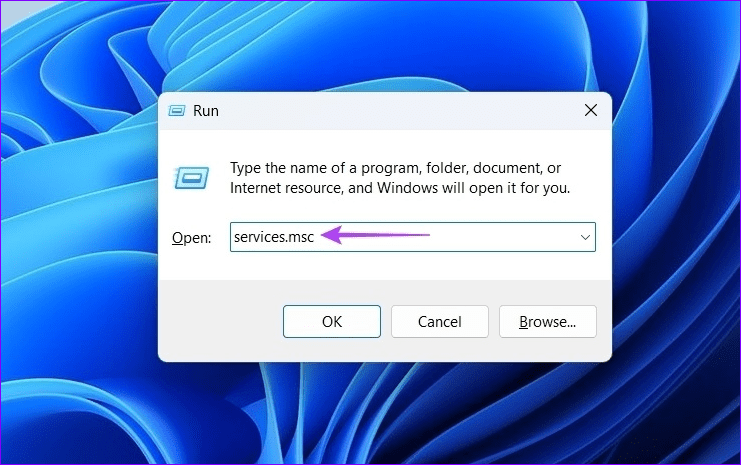
Step 2: Locate the Security Center service in the list and right-click to Restart it. Reopen the Windows Security app.

Fix 2: Repair and Reset the Windows Security App
Incorrect configurations and corrupt app files are common reasons for the Windows Security app showing a white screen error. Repair or reset the app to fix it.
Note: Resetting the Windows Security app deletes all its app data.
Step 1: Open Windows Settings (press the Windows + I shortcut) > select Apps from the left sidebar > click Installed apps.
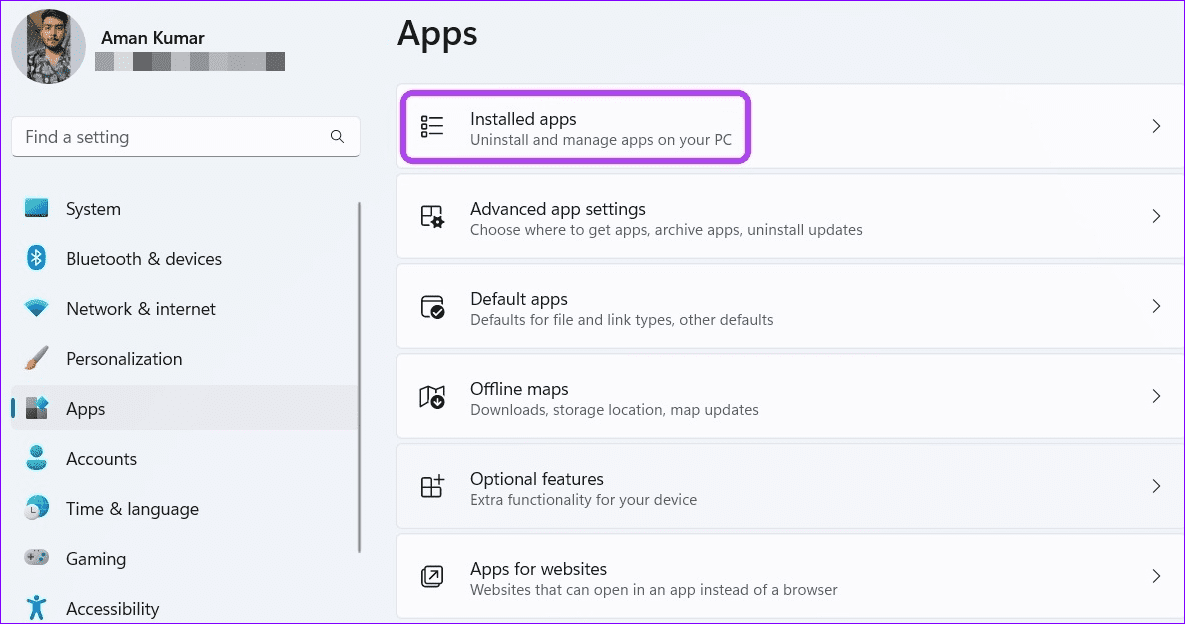
Step 2: Locate Windows Security > click its three-dot menu > select Advanced options.

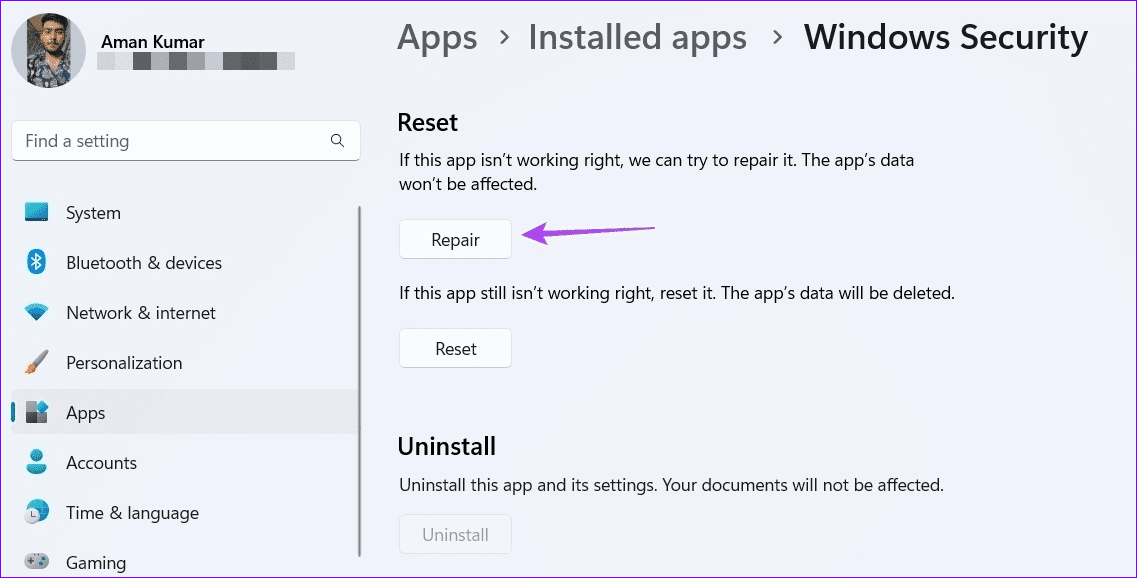
Step 3: Scroll down and click Repair. If it doesn’t solve the problem, select Reset to restore the app to its default configuration.
Fix 3: Edit the Windows Registry
If the Windows Security app is disabled under system settings, it’ll fail to launch on Windows 11, showing the white screen error. Tweak its settings using the Registry Editor app to restore normalcy.
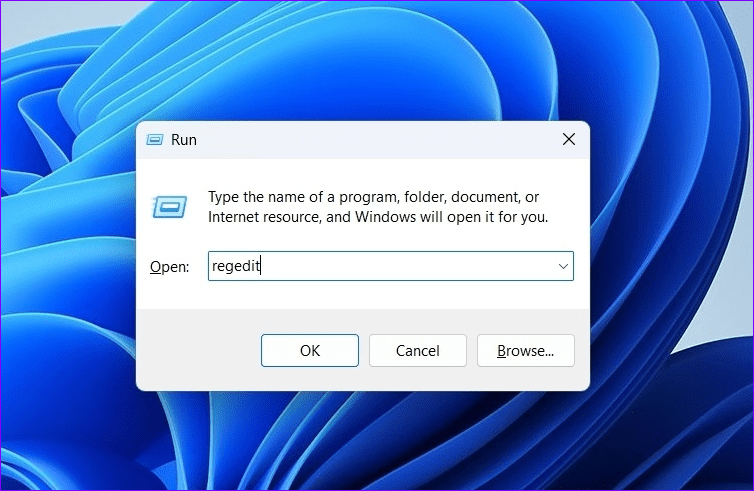
Step 1: Open the Run dialog (press the Windows + R shortcut) > type regedit > press Enter.
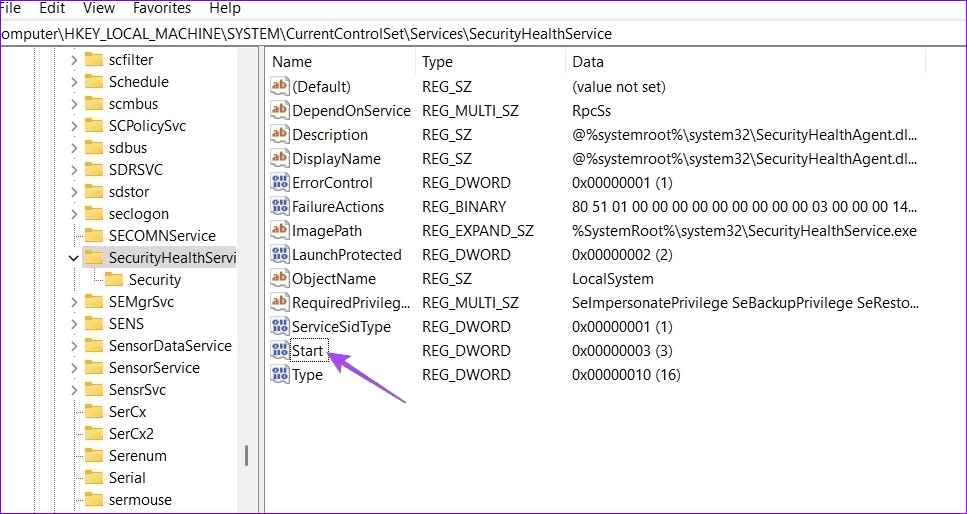
Step 2: Copy-paste the below path into the address bar and double-click the Start key.
Computer\HKEY_LOCAL_MACHINE\SYSTEM\CurrentControlSet\Services\SecurityHealthService
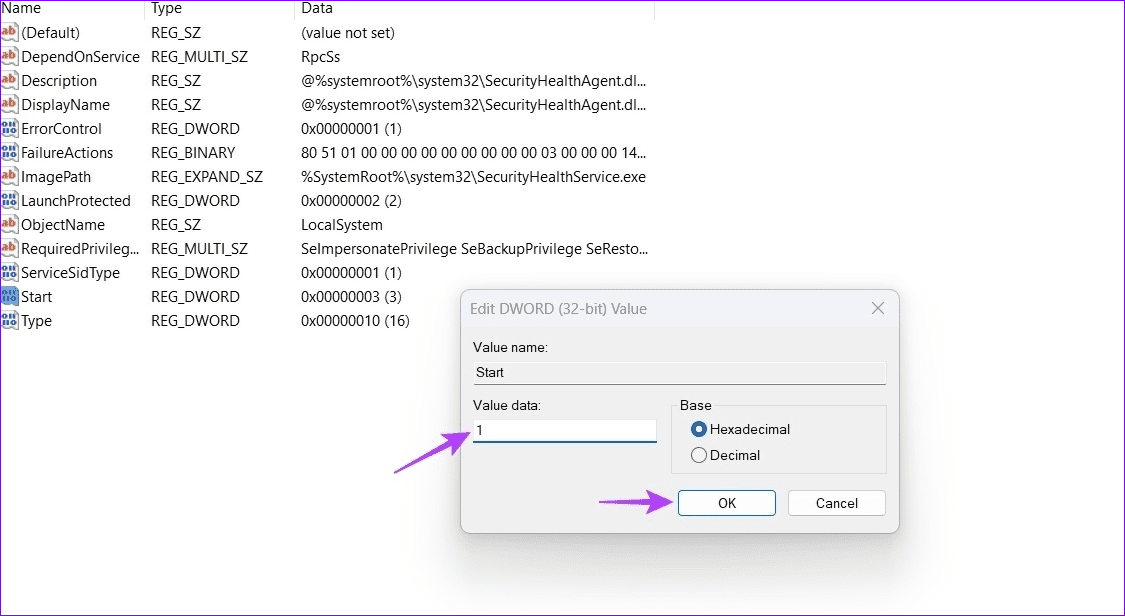
Step 3: Set its Value data to 1 and click OK to save changes.
Fix 4: Repair Corrupt System Files With SFC and DISM Scans
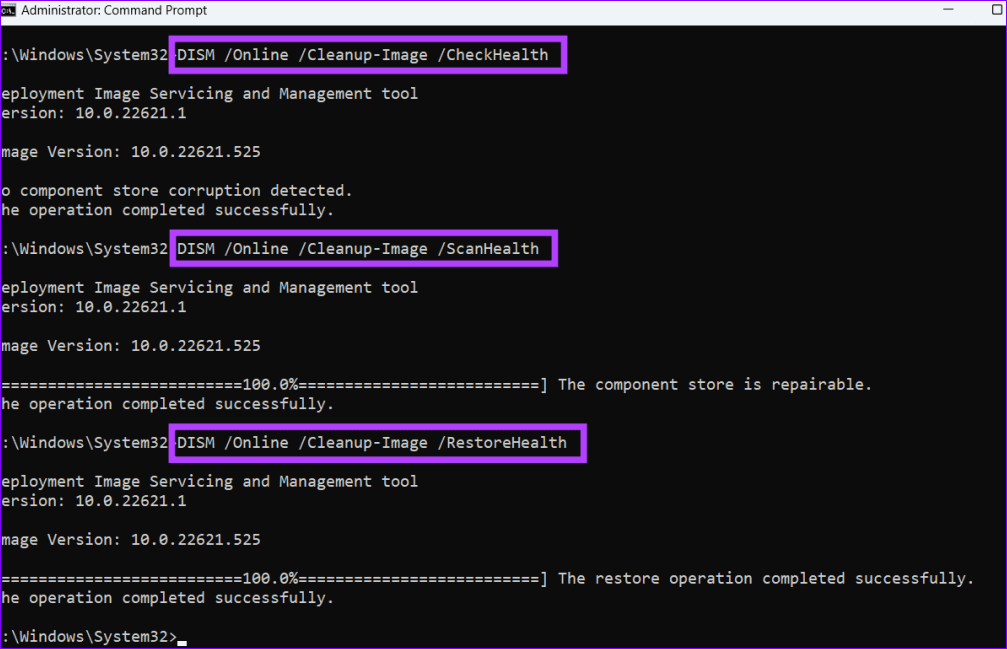
If certain system files or Windows components linked to Windows Security are missing or corrupt, the app may show a white screen upon launch. Run the SFC and DISM scans to repair the system image.
Step 1: Press the Windows key > search Command Prompt > click Run as administrator.

Step 2: Copy-paste the following command and press Enter.
SFC /scannow
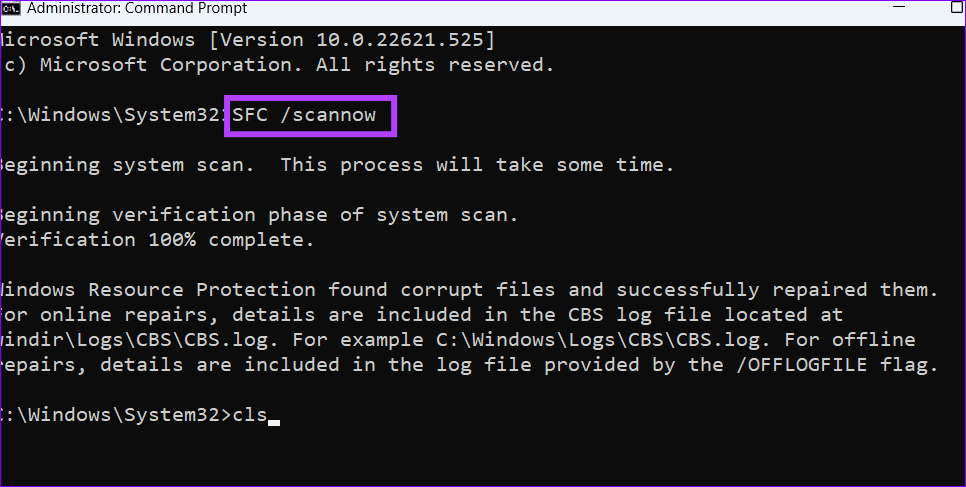
Step 3: Next, execute the below DISM commands sequentially and restart your Windows 11 PC.
DISM /Online /Cleanup-Image /CheckHealth
DISM /Online /Cleanup-Image /ScanHealth
DISM /Online /Cleanup-Image /RestoreHealth
Fix 5: Reinstall the Windows Security App
If nothing works, reinstall the Windows Security app using Terminal on Windows 11.
Step 1: Press the Windows key > search Windows PowerShell > click Run as Administrator.

Step 2: Copy-paste the following command, press Enter, and reboot your PC.
Get-AppxPackage Microsoft.SecHealthUI -AllUsers | Reset-AppxPackage

Was this helpful?
Last updated on 22 May, 2024
Read Next
 8 Fixes for “Your Device Is Missing Important Security and Quality Fixes” on Windows
Is there anything more frustrating than seeing the "Your Device Is Missing Important Security and Quality Fixes" message when waiting for your Windows updates to complete?
8 Fixes for “Your Device Is Missing Important Security and Quality Fixes” on Windows
Is there anything more frustrating than seeing the "Your Device Is Missing Important Security and Quality Fixes" message when waiting for your Windows updates to complete?
 5 Fixes for Phone Link App Not Showing Notifications on Windows 11
Basic Fixes: Check Wi-Fi and Bluetooth settings: The Phone Link app uses both Bluetooth and Wi-Fi to help sync your phones with your Windows device. So, ensure your Wi-Fi connection is
5 Fixes for Phone Link App Not Showing Notifications on Windows 11
Basic Fixes: Check Wi-Fi and Bluetooth settings: The Phone Link app uses both Bluetooth and Wi-Fi to help sync your phones with your Windows device. So, ensure your Wi-Fi connection is
 5 Fixes When Xbox App Is Not Showing Installed Games on Windows
Fix 1: Flush DNS and Reset TCP/IP Several users on the Microsoft forums reported fixing this specific issue by flushing the DNS cache and resetting the TCP/IP (Transmission Control Protocol/Internet
5 Fixes When Xbox App Is Not Showing Installed Games on Windows
Fix 1: Flush DNS and Reset TCP/IP Several users on the Microsoft forums reported fixing this specific issue by flushing the DNS cache and resetting the TCP/IP (Transmission Control Protocol/Internet
 6 Ways to Fix Windows Security Not Opening or Working on Windows 11
Try Basic Fixes Uninstall any third-party antivirus program: Third-party antivirus programs can sometimes interfere with the Windows Security app and prevent it from opening on your Windows 11 PC.
6 Ways to Fix Windows Security Not Opening or Working on Windows 11
Try Basic Fixes Uninstall any third-party antivirus program: Third-party antivirus programs can sometimes interfere with the Windows Security app and prevent it from opening on your Windows 11 PC.
 Top 7 Fixes for Incoming Call Screen Not Showing Up on iPhone
The typical functionality of a phone is to show you the incoming caller’s name or number when the phone rings, along with the answer and decline buttons.
Top 7 Fixes for Incoming Call Screen Not Showing Up on iPhone
The typical functionality of a phone is to show you the incoming caller’s name or number when the phone rings, along with the answer and decline buttons.
 2 Fixes for iPhone Lock Screen Widgets Not Showing Up
Basic Fixes Restart iPhone: Restart your iPhone to fix any temporary bugs and glitches.
2 Fixes for iPhone Lock Screen Widgets Not Showing Up
Basic Fixes Restart iPhone: Restart your iPhone to fix any temporary bugs and glitches.
 6 Ways to Fix Login Screen Not Showing in Windows 11
Common Fixes Press Ctrl + Alt + Delete - This shortcut refreshes the login interface to bring up the login screen.
6 Ways to Fix Login Screen Not Showing in Windows 11
Common Fixes Press Ctrl + Alt + Delete - This shortcut refreshes the login interface to bring up the login screen.
 4 Ways to Fix Camera Showing a Black Screen on Windows 11
Basic Fixes: Ensure the camera lens is unobstructed: Certain laptops come with built-in privacy shutters for the device camera.
4 Ways to Fix Camera Showing a Black Screen on Windows 11
Basic Fixes: Ensure the camera lens is unobstructed: Certain laptops come with built-in privacy shutters for the device camera.
The article above may contain affiliate links which help support Guiding Tech. The content remains unbiased and authentic and will never affect our editorial integrity.