How to Add, Change, and Delete the Author Name in a New Word Document
If you are creating a new document, you can change the author’s name before working on the document. However, this change would also affect the related settings on other Office apps such as PowerPoint and Excel.
Step 1: Click on the Start menu, type Word, and hit Enter to launch Microsoft Word.
Step 2: Once launched, click on the File tab.

Step 3: Click on the Info menu, and you should see the author’s name under Related People.

Step 4: To add a new author other than yourself to the list of authors, place your mouse cursor on the Add an author field and input details of the new author.

Step 5: To change or delete the author’s name, click on the More menu and select Options.

Step 6: Under Personalize your copy of Microsoft Office section and type in the name in the boxes next to Username and Initials.
Step 7: If you would like to use the new name for the foreseeable future, check the box beside Always use these values regardless of sign-in to Office and click OK.

Step 8: To confirm if the changes are in place, click on the File tab and select Info.
How to Add, Change, and Delete the Author Name in an Existing Word Document
If you want to change the author’s name for existing documents, take the steps below:
Step 1: Click on the Start button, type Word, and hit Enter to launch Word.
Step 2: To view the existing author name on the Word document, click on the File tab.
Step 3: Click on the Info menu, and you should see the author’s name under Related People.
Step 4: Right-click on the Author name, then click on Edit Property.

Step 5: Go to the dialog box labeled Edit person and provide the new author name.

Step 6: To remove the author, right-click on the Author name and select Remove person.

How to Change and Delete the Author Name of a Comment in Word
We regularly insert comments in Word, especially when collaborating with colleagues and clients. If you would like to change or delete the author’s name to hide personally identifiable information, follow the steps below.
Step 1: Launch the Microsoft Word file with the comments.
Step 2: Click on the File tab.
Step 3: Click on the Info menu and select Check for Issues under Inspect Document.

Step 4: Click on Inspect Document from the drop-down menu.

Step 5: Ensure the check box beside Document Properties and Personal Information is checked.
Step 6: Click on Inspect.

Step 7: Once the inspection check is done, click on Remove All beside Document Properties and Personal Information, and this should change the name showing on comments to Author.
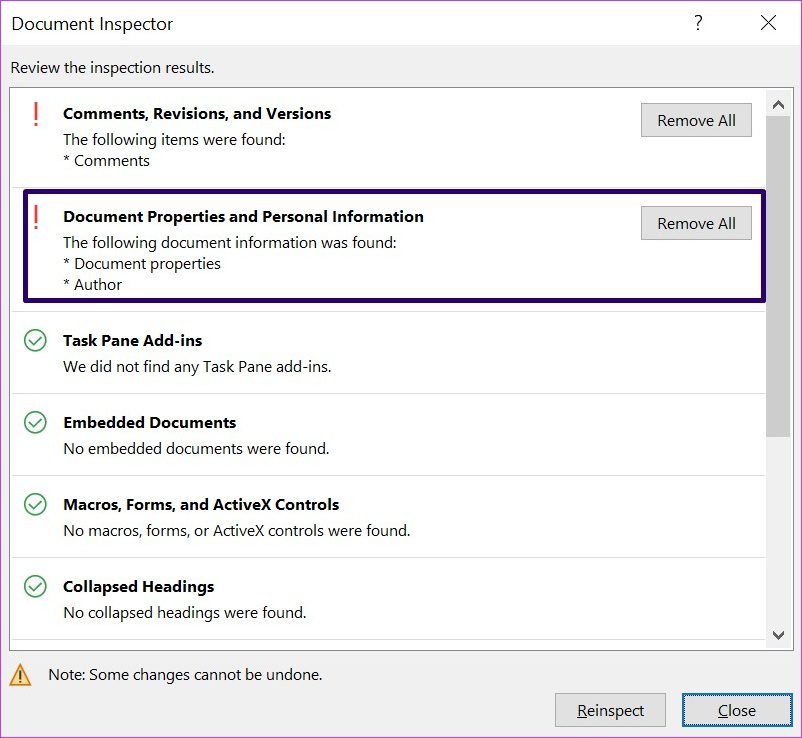
Step 8: Click the Close button.
Leaving comments on a Word document is a great way to inform another party of your thoughts and track changes. If it’s a shared document, it makes a lot of sense to ensure the author’s name that comes with the comment shows your identity.
Was this helpful?
Last updated on 01 August, 2024
Read Next
 How to Change the Author Name for Comments in Adobe Acrobat
Method 1.
How to Change the Author Name for Comments in Adobe Acrobat
Method 1.
 Apple Pages vs Microsoft Word: Which Word Processing Software Is Better
Every major tech company out there is offering their version of the productivity suite.
Apple Pages vs Microsoft Word: Which Word Processing Software Is Better
Every major tech company out there is offering their version of the productivity suite.
 How to Add or Edit Document Properties in Microsoft Word
How to Add Custom Properties to a Word Document You can assign numeric, text, or time values to custom properties.
How to Add or Edit Document Properties in Microsoft Word
How to Add Custom Properties to a Word Document You can assign numeric, text, or time values to custom properties.
 How to Draw, Add and Edit Shapes in Microsoft Word
How to Add a Shape in Microsoft Word To insert a shape in Word, you can choose between two options.
How to Draw, Add and Edit Shapes in Microsoft Word
How to Add a Shape in Microsoft Word To insert a shape in Word, you can choose between two options.
 How to Insert and Edit a Page Border in Microsoft Word
How to Insert a Page Border in Microsoft Word There are different border settings and styles in Microsoft Word.
How to Insert and Edit a Page Border in Microsoft Word
How to Insert a Page Border in Microsoft Word There are different border settings and styles in Microsoft Word.
 Google Docs vs. Microsoft Word Online: Which Word Processor Is Better
Google Docs vs.
Google Docs vs. Microsoft Word Online: Which Word Processor Is Better
Google Docs vs.
 How to Lock an Image in Microsoft Word
https://youtu.be/n0rtmAPvjOQ Lock an Image Using the Restrict Editing Feature The restrict editing feature allows users to protect an image using a password.
How to Lock an Image in Microsoft Word
https://youtu.be/n0rtmAPvjOQ Lock an Image Using the Restrict Editing Feature The restrict editing feature allows users to protect an image using a password.
 How to Lock Parts of a Microsoft Word Document
Method 1: Using Restrict Editing Feature As the name suggests, this feature lets you set up editing restrictions for your Word document.
How to Lock Parts of a Microsoft Word Document
Method 1: Using Restrict Editing Feature As the name suggests, this feature lets you set up editing restrictions for your Word document.
The article above may contain affiliate links which help support Guiding Tech. The content remains unbiased and authentic and will never affect our editorial integrity.