Basic Fixes
- Check your network connection: Ensure your device has a good internet connection. I recommend at least 5 Mbps internet speed to stream content on YouTube.
- Inspect the YouTube server status: Visit Downdetector to check an active YouTube server outage.
- Adjust the video quality: Open YouTube and play your desired video. Click the Gear icon at the bottom right, and select Quality. Change the current video quality to resume playback.
- Enable VPN: YouTube may be unavailable in your region or your ISP may have blocked its access. Enable your VPN connection and reload YouTube in the browser.
- Correct device’s date and time: Your web browser might struggle to access YouTube if your PC has an incorrect date and time. Head to Windows Settings > Time & language > Date & time, and enable ‘Set time automatically’.
- Close other tabs in your browser: It will reduce your PC’s RAM consumption, allowing YouTube to play videos swiftly.
- Update or reinstall the browser: Open browser settings on your PC to update it. Alternatively, uninstall it from Windows Settings > Apps > Installed apps, and install it afresh from the Microsoft Store or its dedicated website.
Fix 1: Disable Ad Blockers and Browser Extensions
YouTube may block your access on PC if you’re actively using an ad-blocker or similar browser extension. Disable or remove it from your browser and reload YouTube. Let’s take Google Chrome for instance.
Step 1: Click the three-dot menu at the top right of Google Chrome, select Extensions, and open Manage Extensions.
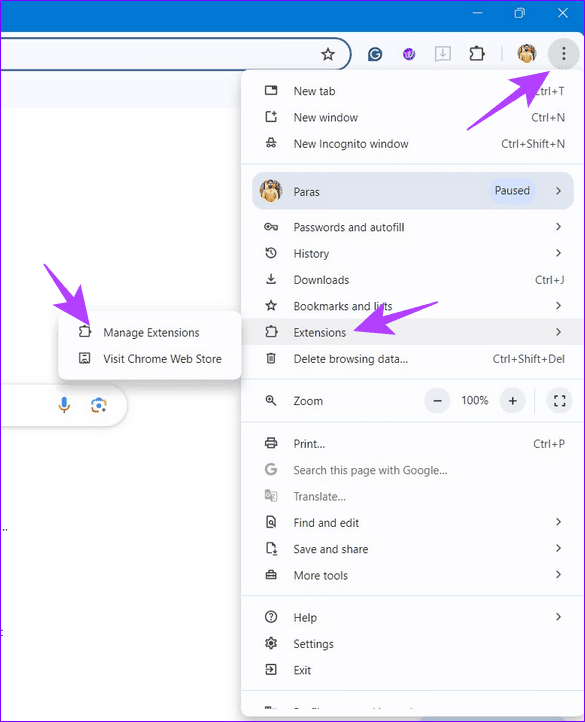
Step 2: Toggle off the Ad blocker or related browser extension to turn it off. Alternatively, click Remove under an extension to delete it.

Fix 2: Clear Browser Cookies and Cache Files
Corrupt cache files and obsolete browser cookies are common reasons behind YouTube not playing videos on PC. Clear them manually from your browser settings to restore normalcy.
Step 1: Open Google Chrome, click the three-dot menu at the top-right, and select Settings.
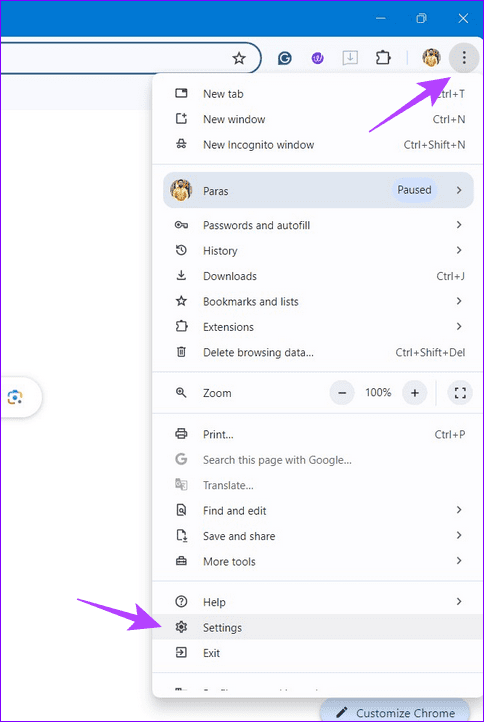
Step 2: Select Privacy and security from the left sidebar, and click Delete browsing data.

Step 3: Mark ‘Cookies and other site data‘, ‘Cached images and files‘, and click Delete data. Reload YouTube in a new tab on your browser.

Fix 3: Disable Graphics Acceleration
Graphics acceleration boosts your browser’s performance. An issue with it, however, can halt the video playback on YouTube resulting in an error. Turn off the feature in your browser’s settings (e.g. Google Chrome), and reload YouTube.
Open Google Chrome Settings (check the above steps), select System from the sidebar, and toggle off ‘Use graphics acceleration when available‘.

Fix 4: Update the Display Adapter
Lastly, if nothing works, update the display adapter drivers on your PC using the Device Manager app and reboot the system to fix the YouTube video playback error.
Step 1: Press the Windows key, search Device Manager, and click to open it.

Step 2: Expand Display adapters, right-click your graphics adapter, and select Update driver.

Step 3: Click Search automatically for drivers to install the latest compatible display adapter drivers for your PC online.

Was this helpful?
Last updated on 05 August, 2024
Read Next
 3 Fixes for YouTube Not Playing 4K Videos on Apple TV 4K
Basic Fixes Check your internet connection: YouTube lets you watch 4K content in Dolby Vision and HDR.
3 Fixes for YouTube Not Playing 4K Videos on Apple TV 4K
Basic Fixes Check your internet connection: YouTube lets you watch 4K content in Dolby Vision and HDR.
 3 Ways to Fix Telegram Videos Not Playing on Windows 11
Fix 1: Download Telegram Videos Without Glitches First, here's how to download Telegram videos without problems on your PC.
3 Ways to Fix Telegram Videos Not Playing on Windows 11
Fix 1: Download Telegram Videos Without Glitches First, here's how to download Telegram videos without problems on your PC.
 3 Ways to Fix Videos Not Playing on Windows 11
Fix 1: Run Video Playback Troubleshooter If you also face playback issues on other media players, turn to Windows troubleshooters for help.
3 Ways to Fix Videos Not Playing on Windows 11
Fix 1: Run Video Playback Troubleshooter If you also face playback issues on other media players, turn to Windows troubleshooters for help.
 4 Ways to Fix Telegram Videos Not Playing on Android
https://youtu.be/vJeVqA9FFzA Method 1: Make Sure to Download the Full Video Step 1: Open Telegram on Android and go to the Telegram group or channel.
4 Ways to Fix Telegram Videos Not Playing on Android
https://youtu.be/vJeVqA9FFzA Method 1: Make Sure to Download the Full Video Step 1: Open Telegram on Android and go to the Telegram group or channel.
 3 Ways to Fix Videos Not Playing in iPhone Photos App
Basic Fixes: Cool down your phone: Your iPhone might get warm during graphics-intensive gaming, video streaming, or video recording.
3 Ways to Fix Videos Not Playing in iPhone Photos App
Basic Fixes: Cool down your phone: Your iPhone might get warm during graphics-intensive gaming, video streaming, or video recording.
 3 Ways to Fix Videos Not Playing on Instagram
https://youtu.be/27MXAW2cROQ Try Basic Fixes Update the Instagram app: Running an older version of Instagram can lead to such problems.
3 Ways to Fix Videos Not Playing on Instagram
https://youtu.be/27MXAW2cROQ Try Basic Fixes Update the Instagram app: Running an older version of Instagram can lead to such problems.
 5 Ways to Fix Videos Not Playing on Android TV
Common Fixes Restart the Android TV: Long-press the power button on your Android TV remote and select Restart in the pop-up menu.
5 Ways to Fix Videos Not Playing on Android TV
Common Fixes Restart the Android TV: Long-press the power button on your Android TV remote and select Restart in the pop-up menu.
 3 Ways to Fix Snapchat Not Playing Videos on Android and iPhone
Try Basic Fixes Check if Snapchat is down: At times, server congestion or other related issues can impact Snapchat’s performance and trigger various errors.
3 Ways to Fix Snapchat Not Playing Videos on Android and iPhone
Try Basic Fixes Check if Snapchat is down: At times, server congestion or other related issues can impact Snapchat’s performance and trigger various errors.
The article above may contain affiliate links which help support Guiding Tech. The content remains unbiased and authentic and will never affect our editorial integrity.