Try Basic Fixes
- Disable third-party antivirus programs: Third-party antivirus programs on your PC can sometimes interfere with the Windows Firewall and prevent it from working correctly. Temporarily disable your antivirus program and turn on the Windows Firewall again.
- Scan for malware: Your PC may be infected with malware. To overrule this possibility, scan your PC for malware with Windows Defender to check if that is the case.
Fix 1: Download and Run the Windows Firewall Troubleshooter
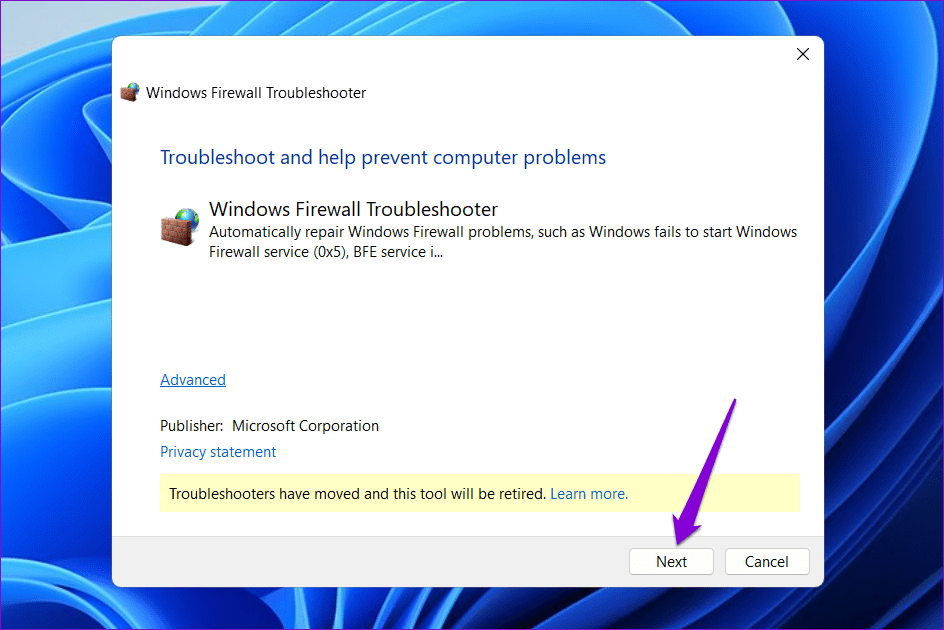
Microsoft offers a dedicated troubleshooter for identifying and fixing issues related to the Windows Firewall. Since it does not come baked into Windows, you must download the Windows Firewall Troubleshooter first.
Double-click the downloaded file and click Next to run the troubleshooter. Wait for the troubleshooter to run, then check if you can enable the firewall.
Fix 2: Run the SFC and DISM Scans
Sometimes, problems with your PC’s system files can disrupt Windows processes and prevent you from turning on the firewall. Running the SFC (System File Checker) and DISM (Deployment Image Servicing and Management) scans can help you replace problematic system files with their cached versions.
Step 1: Press the Windows + S keyboard shortcut to open the search menu. Type terminal in the search box, right-click on the first result, and select Run as administrator.

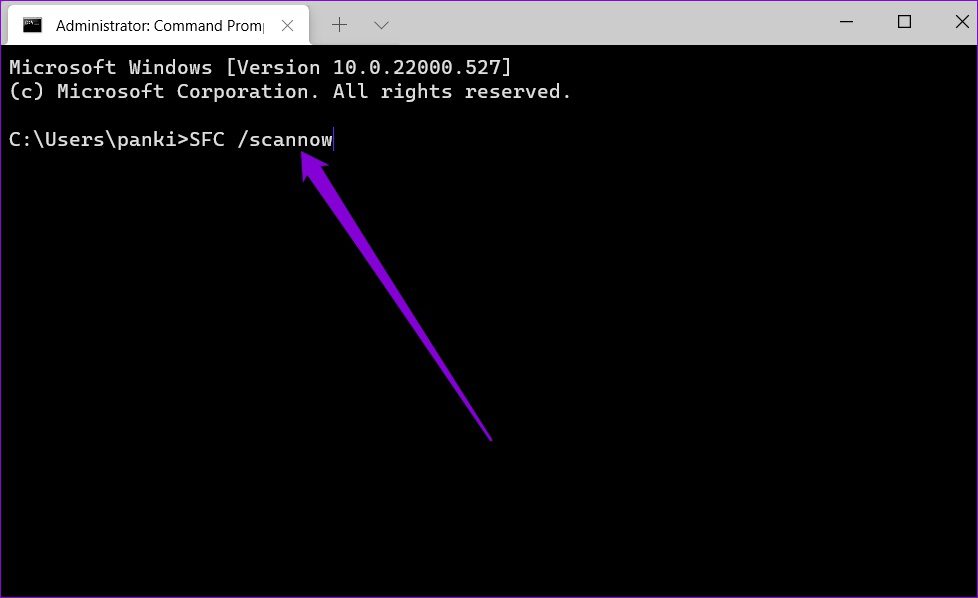
Step 2: Type the following command in the console and press Enter to run the SFC scan:
SFC /scannow
Step 3: Type the following commands one by one and press Enter after each command to run the DISM scan:
DISM /Online /Cleanup-Image /CheckHealth
DISM /Online /Cleanup-Image /ScanHealth
DISM /Online /Cleanup-Image /RestoreHealth

This might take a while. After the scan is complete, restart your PC and check if the issue persists.
Fix 3: Reset Windows Firewall Settings
It’s possible that you can’t turn on the Windows Firewall due to misconfigured or corrupted settings. If that’s the case, resetting firewall settings should restore normalcy. Here’s how to do so.
Step 1: Click the search icon on the taskbar, type Windows Defender Firewall in the text box, and press Enter.

Step 2: Select Restore defaults from the left pane.
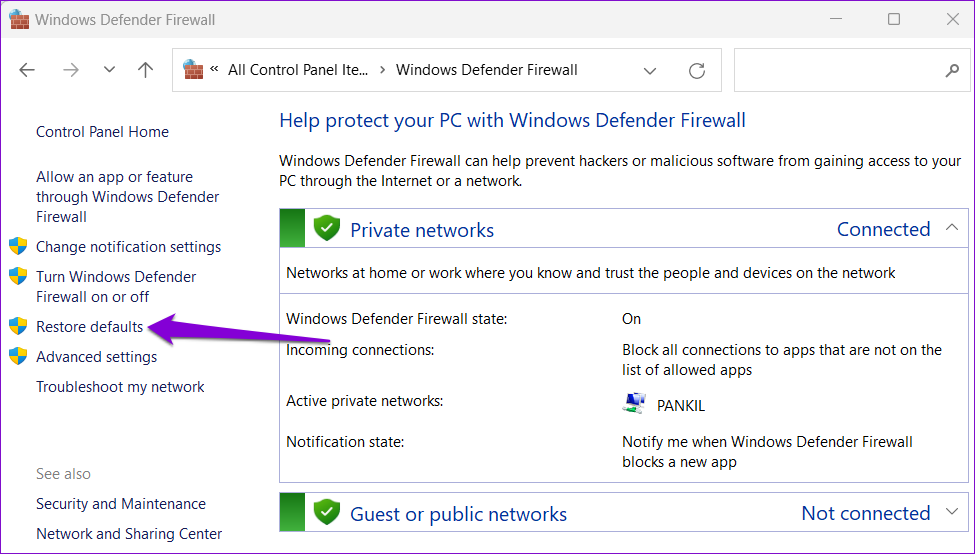
Step 3: Click on Restore defaults.

Step 4: Select Yes when the confirmation pop-up appears.
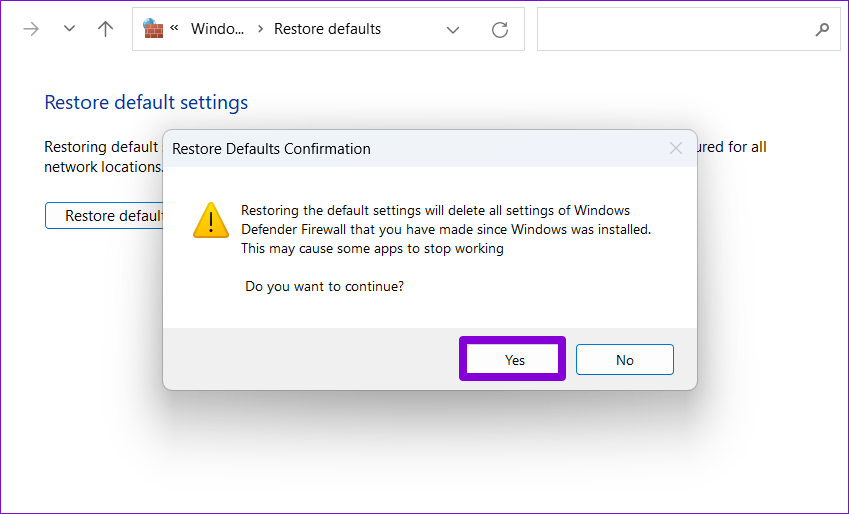
Fix 4: Edit Registry Files
Recent system-level changes may have messed up the registry settings on your PC. To rule out this possibility, check the registry entries related to the firewall and ensure that they are configured properly.
Step 1: Press the Windows + R keyboard shortcut to open the Run dialog box. Type regedit in the box and press Enter.
Step 2: Paste the following path in the address bar at the top and press Enter.
Computer\HKEY_LOCAL_MACHINE\SOFTWARE\Policies\Microsoft\Windows Defender
Step 3: If you see the DisableAntiSpyware DWORD in the right pane, right-click on it and select Delete. If there’s no such entry, you don’t need to worry.
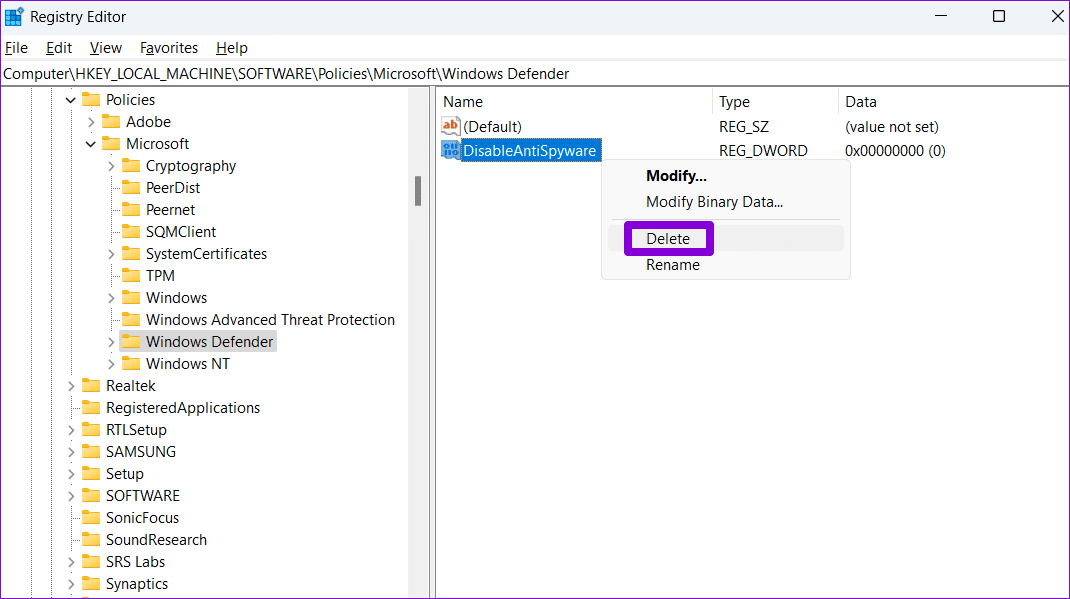
Step 4: Paste the following path in the address bar and press Enter. Right-click on the BFE key and select Permissions.
Computer\HKEY_LOCAL_MACHINE\SYSTEM\CurrentControlSet\Services\BFE

Step 5: Click on Add.

Step 6: Type Everyone in the Enter the object names to select text field and click OK.
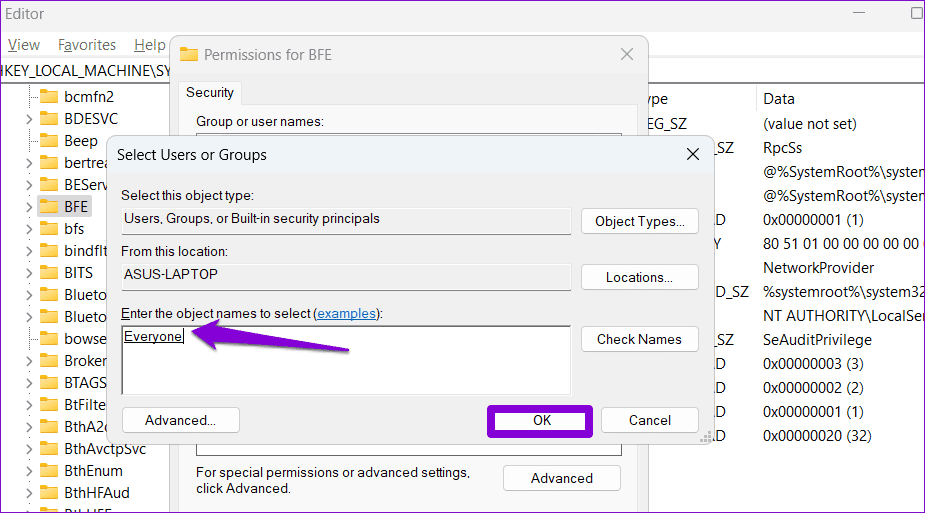
Step 7: Select Everyone under Group or user names and tick the Allow checkbox next to Full Control. Then, hit Apply, followed by OK.

Restart your PC to apply the changes. Then, enable the firewall one more time.
Was this helpful?
Last updated on 03 July, 2024
Read Next
 5 Ways to Fix “A Firewall May Be Blocking Spotify” Error on Windows
Fix 1: Allow Spotify Through Windows Defender Firewall Your first step is to check the Windows Defender Firewall settings and ensure it isn’t blocking Spotify on your PC.
5 Ways to Fix “A Firewall May Be Blocking Spotify” Error on Windows
Fix 1: Allow Spotify Through Windows Defender Firewall Your first step is to check the Windows Defender Firewall settings and ensure it isn’t blocking Spotify on your PC.
 5 Ways to Reset Firewall Settings on Windows 11
Method 1: Reset Firewall Settings Using Windows Security Windows Security is the built-in antivirus program protecting your system from malware, viruses, and threats.
5 Ways to Reset Firewall Settings on Windows 11
Method 1: Reset Firewall Settings Using Windows Security Windows Security is the built-in antivirus program protecting your system from malware, viruses, and threats.
 6 Ways to Disable Firewall on Windows
Method 1.
6 Ways to Disable Firewall on Windows
Method 1.
 How to Turn off Windows Hello PIN and Setup Prompt Notification
To simplify the login process on Windows 10 computers, Microsoft came up with the Windows Hello sign-in.
How to Turn off Windows Hello PIN and Setup Prompt Notification
To simplify the login process on Windows 10 computers, Microsoft came up with the Windows Hello sign-in.
 How to Turn off Media Hotkeys in Any Browser on Windows 11
Often, while playing videos in Windows 11, playback controls pop up on the volume bar when increasing or decreasing the volume using keyboard shortcuts.
How to Turn off Media Hotkeys in Any Browser on Windows 11
Often, while playing videos in Windows 11, playback controls pop up on the volume bar when increasing or decreasing the volume using keyboard shortcuts.
 3 Ways to Turn off Copilot on Windows 11
https://youtu.be/WmmLAoyJSpo Method 1: Via Taskbar Settings Step 1: Right-click on the Taskbar and choose Taskbar settings from the menu.
3 Ways to Turn off Copilot on Windows 11
https://youtu.be/WmmLAoyJSpo Method 1: Via Taskbar Settings Step 1: Right-click on the Taskbar and choose Taskbar settings from the menu.
 3 Ways to Turn off Windows Hello for Google Chrome Passwords
“Google Chrome Is Trying to Fill Your Password” Explained The "Google Chrome is trying to fill your password" pop-up appears when Google Chrome uses Windows Hello to auto-fill saved passwords.
3 Ways to Turn off Windows Hello for Google Chrome Passwords
“Google Chrome Is Trying to Fill Your Password” Explained The "Google Chrome is trying to fill your password" pop-up appears when Google Chrome uses Windows Hello to auto-fill saved passwords.
 4 Ways to Turn off Microsoft-Verified Apps in Windows 11
Things to Know Before Disabling Microsoft Verified Apps on Windows 11 The Microsoft-verified feature is designed to protect Windows users.
4 Ways to Turn off Microsoft-Verified Apps in Windows 11
Things to Know Before Disabling Microsoft Verified Apps on Windows 11 The Microsoft-verified feature is designed to protect Windows users.
The article above may contain affiliate links which help support Guiding Tech. The content remains unbiased and authentic and will never affect our editorial integrity.