Fix 1: Check if Your PC Supports the 5GHz Frequency Band
The 5GHz frequency band of Wi-Fi networks may not show up on your Windows 11 PC if it doesn’t support them. You can run a quick command to check if your PC supports the 5GHz frequency band.
Step 1: Right-click on the Start icon and select Terminal from the list.

Step 2: Paste the following command in the console and press Enter.
netsh wlan show drivers
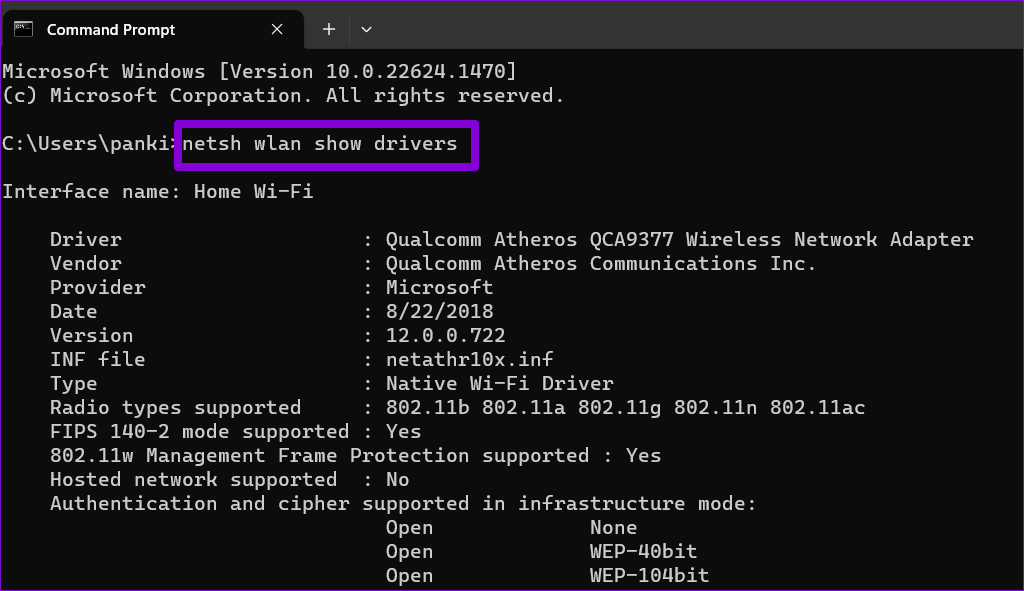
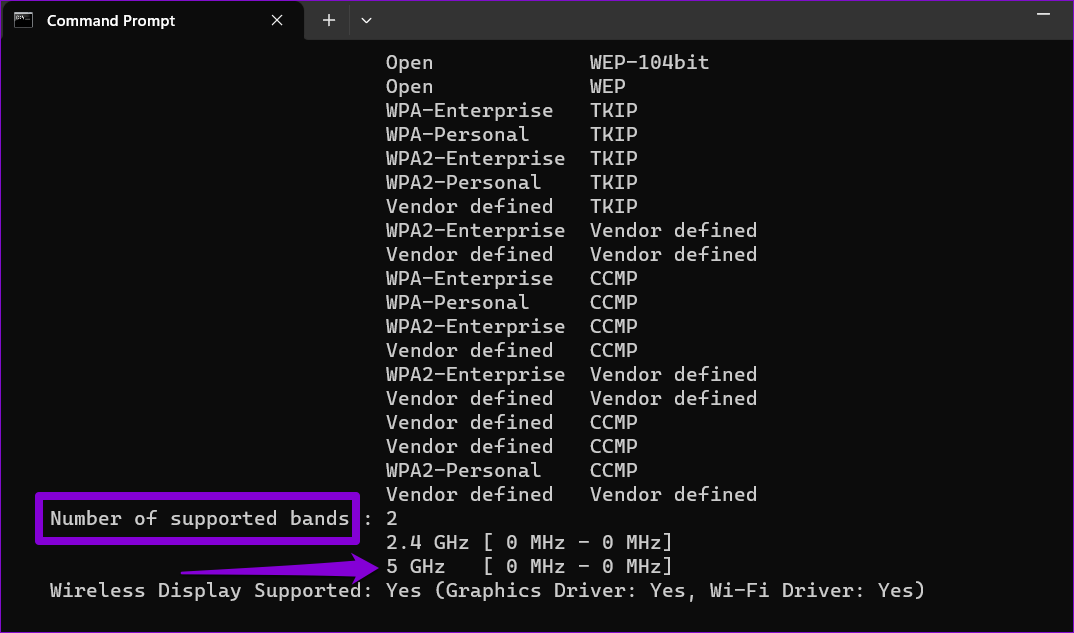
If you see 5GHz in the Number of supported bands section, it means your PC supports 5GHz Wi-Fi connections.
Fix 2: Enable IPv6 on Your Computer
Another reason you might encounter issues while connecting to a Wi-Fi network on Windows is if “Internet Protocol Version 6 (IPv6)” is disabled. Here’s how to enable it.
Step 1: Press the Windows + R keyboard shortcut to open the Run dialog box. Type ncpa.cpl in the text box and hit Enter.
Step 2: In the Network Connections window, right-click on your Wi-Fi adapter and select Properties.
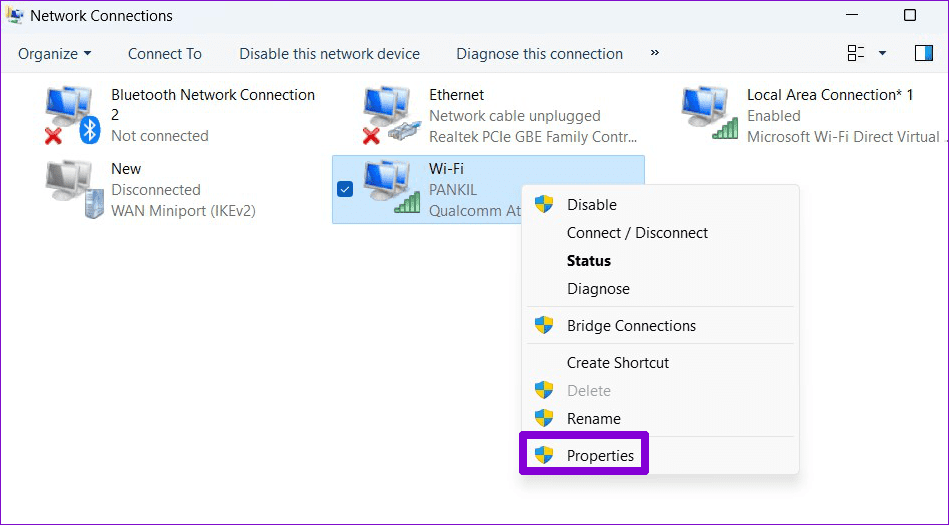
Step 3: Tick the Internet Protocol Version 6 (TCP/IPv6) checkbox and hit OK.

Fix 3: Modify Network Adapter Preferences
Does your Windows 11 PC keep switching to a 2.4GHz frequency band? To avoid this, you can force Windows 11 to always connect to the 5GHz frequency band on any network that supports 5GHz and 2.4GHz frequencies. Here’s how.
Step 1: Right-click on the Start icon and select Device Manager from the list.

Step 2: Double-click on Network adapters to expand it.
Step 3: Right-click on your network device and select Properties.

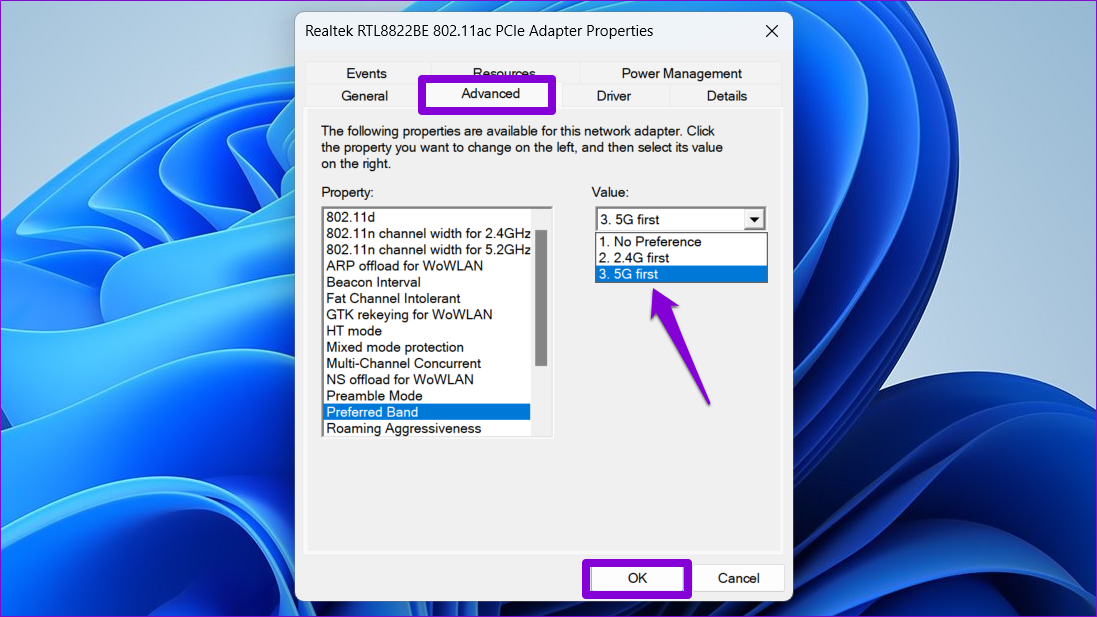
Step 4: Switch to the Advanced tab. Select Preferred Band, set the value to 5G first, and click OK.
Fix 4: Disable and Re-Enable Network Adapter
At times, temporary issues with the network adapter can also result in such anomalies. You can try disabling and re-enabling the network adapter on your PC to see if that solves the problem.
Step 1: Press the Windows + I keyboard shortcut to launch the Settings app and go to Network & internet > Advanced network settings.
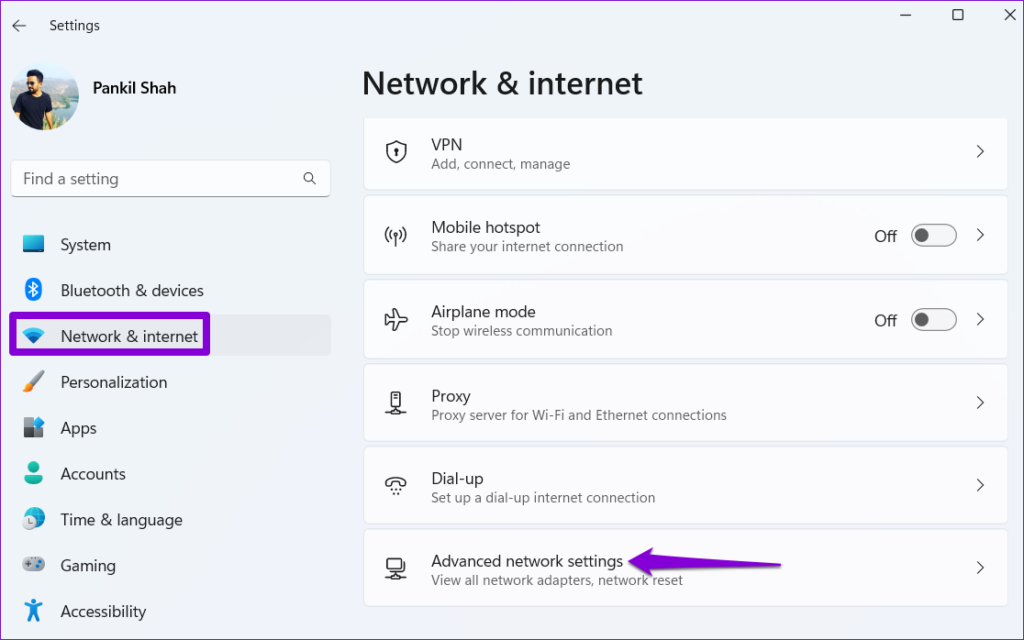
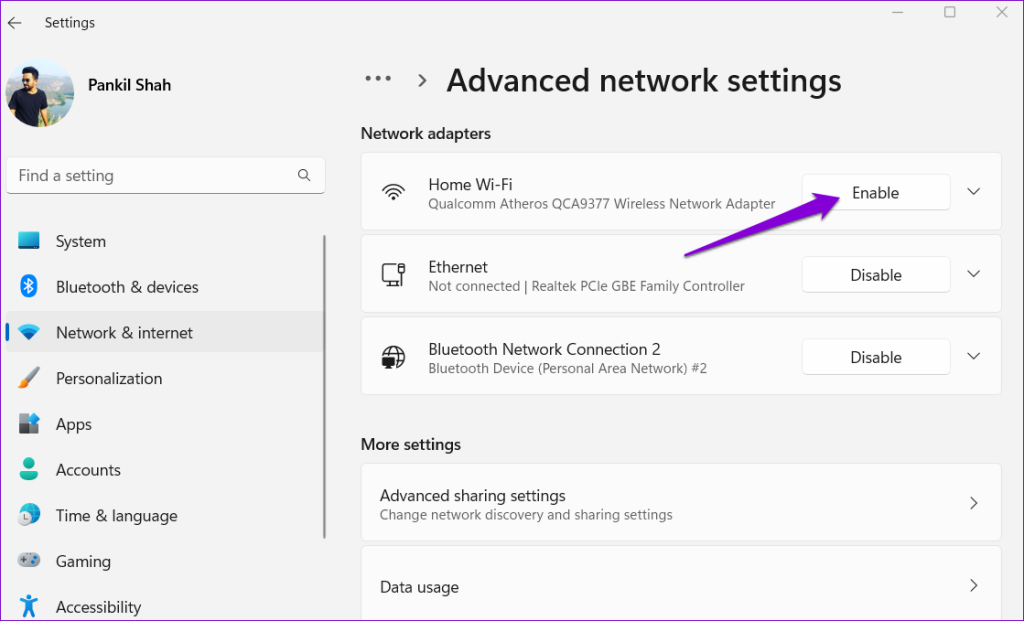
Step 2: Click the Disable button next to your Wi-Fi adapter.

Step 3: Wait a few seconds and click Enable to re-enable the network adapter. After that, check if the issue persists.
Fix 5: Run Network Adapter Troubleshooter
If re-enabling the network adapter proves ineffective, run the dedicated network adapter troubleshooter. It will scan your system for all network-related issues and attempt to resolve them.
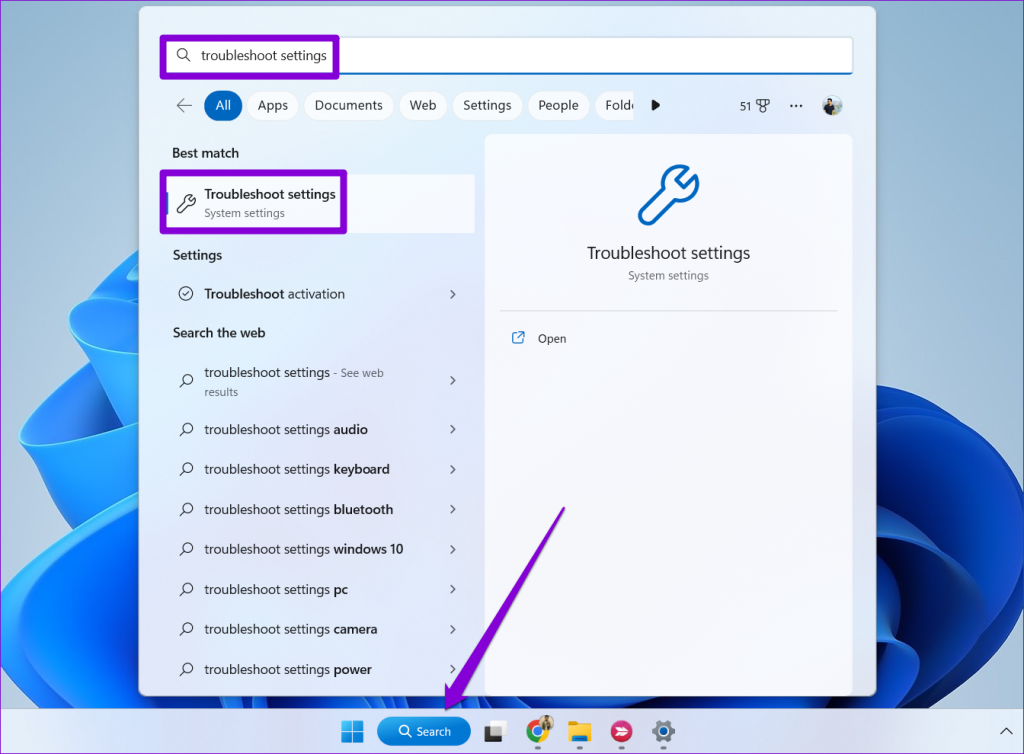
Step 1: Click the search icon on the taskbar, type troubleshoot settings, and press Enter.
Step 2: Click on Other troubleshooters.

Step 3: Scroll down to locate the Network Adapter troubleshooter and click on Run.
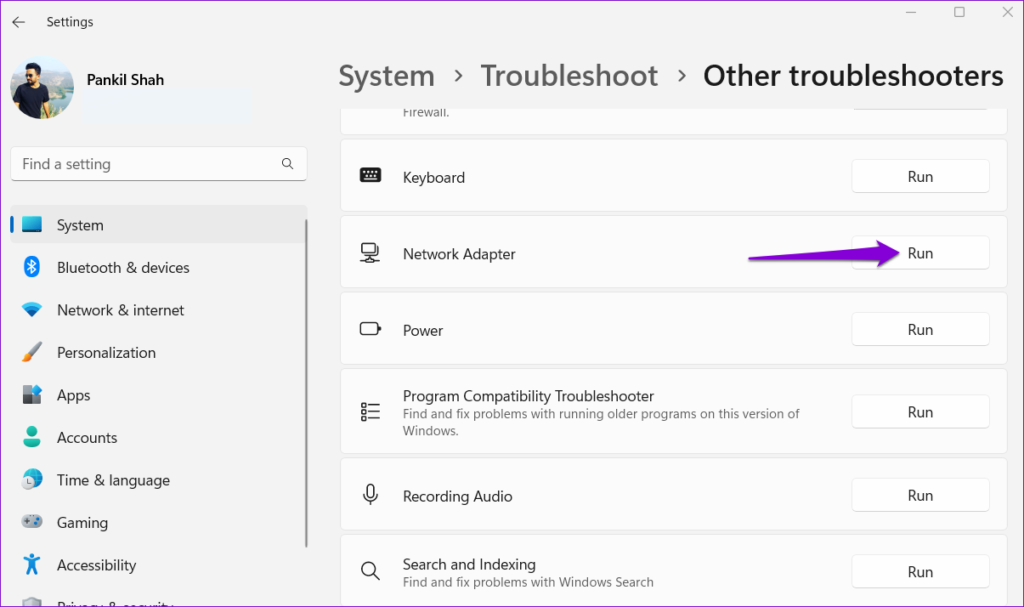
Follow the on-screen instructions to finish the troubleshooting process. After that, check if Windows can connect to the 5GHz frequency band of your Wi-Fi network.
Fix 6: Update the Network Adapter Driver
Outdated network adapter drivers can lead to all kinds of Wi-Fi problems on Windows, including this one. Hence, ensure that your PC is running the latest network adapter driver.
Step 1: Press the Windows + S keyboard shortcut to open the search menu, type device manager, and press Enter.

Step 2: Expand Network adapters, right-click on the relevant wireless network adapter from the list, and select Update driver.
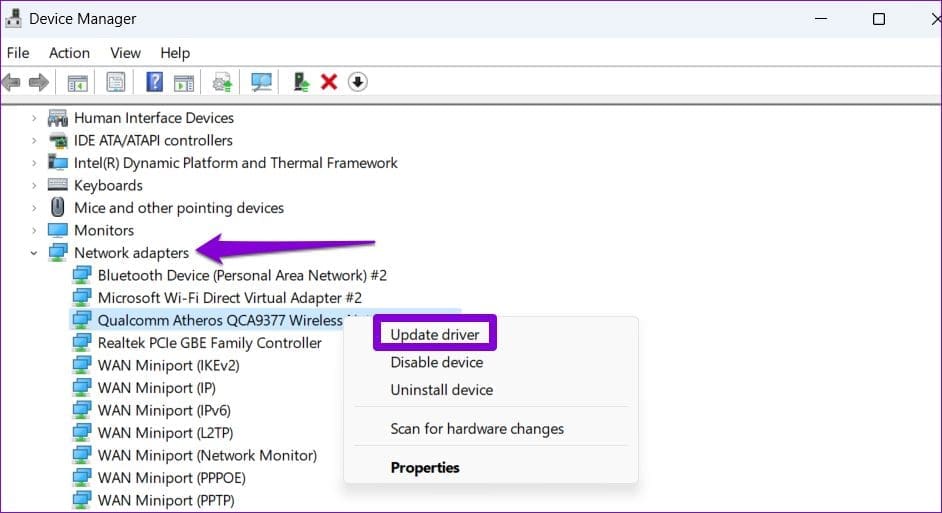
From there, follow the on-screen instructions to update the wireless network driver.
Fix 7: Reset TCP/IP
The Transmission Control Protocol and Internet Protocol (or TCP/IP) help your Windows PC establish internet connectivity. If there is an issue with the TCP/IP stack, Windows may have trouble connecting to 5GHz Wi-Fi networks. You can try resetting the TCP/IP stack to see if that restores normalcy.
Step 1: Right-click on the Start icon and select Terminal (Admin) from the list.
Step 2: Run the following commands in the console and press Enter after each one:
netsh winsock reset
netsh int ip reset

Restart your PC after running the above commands. Following that, your Windows 11 PC should connect to the 5GHz frequency band of the Wi-Fi network.
Was this helpful?
Last updated on 03 September, 2024
Read Next
 What Is Dual-Frequency GPS and Why Is Apple Using It
What is Dual Frequency Band GPS The turn-by-turn directions on your navigation app are a result of a GPS signal received from a satellite.
What Is Dual-Frequency GPS and Why Is Apple Using It
What is Dual Frequency Band GPS The turn-by-turn directions on your navigation app are a result of a GPS signal received from a satellite.
 Top 11 Ways to Fix Cannot Pair Mi Band Problem
It’s necessary to connect your Mi Band with the Mi Fit app for the first time to use it.
Top 11 Ways to Fix Cannot Pair Mi Band Problem
It’s necessary to connect your Mi Band with the Mi Fit app for the first time to use it.
 4 Ways to Fix Xiaomi Mi Band Not Charging
Fix 1: Connect the Charger Properly The main reason Mi Bands don't charge is their incorrect positioning inside the charging cable.
4 Ways to Fix Xiaomi Mi Band Not Charging
Fix 1: Connect the Charger Properly The main reason Mi Bands don't charge is their incorrect positioning inside the charging cable.
 8 Ways to Fix Wi-Fi Doesn’t Connect After Sleep in Windows 10
Typically, when you restart your computer or wake it up from sleep or hibernate, the Wi-Fi connects automatically.
8 Ways to Fix Wi-Fi Doesn’t Connect After Sleep in Windows 10
Typically, when you restart your computer or wake it up from sleep or hibernate, the Wi-Fi connects automatically.
 4 Ways to Fix “We Couldn’t Connect to the Update Service” Issue on Windows
Basic Fixes Restart PC: Restart your PC to fix temporary bugs and glitches.
4 Ways to Fix “We Couldn’t Connect to the Update Service” Issue on Windows
Basic Fixes Restart PC: Restart your PC to fix temporary bugs and glitches.
 6 Best Ways to Fix Windows 11 Apps Won’t Connect to the Internet
Computers have a myriad of apps that enhance the performance of certain features.
6 Best Ways to Fix Windows 11 Apps Won’t Connect to the Internet
Computers have a myriad of apps that enhance the performance of certain features.
 5 Ways to Fix Unable to Connect to EA Servers on Windows
Fix 1: Rule Out Issues With Your Account To start, you need to check if your EA Play membership has expired by signing into your EA account online.
5 Ways to Fix Unable to Connect to EA Servers on Windows
Fix 1: Rule Out Issues With Your Account To start, you need to check if your EA Play membership has expired by signing into your EA account online.
 5 Ways to Fix Windows Stuck on “Let’s Connect You to a Network”
Fix 1: Restart the Router and Check the Internet Connectivity Restart your Wi-Fi router, as it essentially refreshes the network connection.
5 Ways to Fix Windows Stuck on “Let’s Connect You to a Network”
Fix 1: Restart the Router and Check the Internet Connectivity Restart your Wi-Fi router, as it essentially refreshes the network connection.
The article above may contain affiliate links which help support Guiding Tech. The content remains unbiased and authentic and will never affect our editorial integrity.