

Basic Fixes:
- Check the Apple system status page: Before starting, it is worth checking Apple’s System Status. If the server status for the Weather app is red, the service is currently down. Wait a while and check again.
- Restart your phone: Restarting stops all the device functions and starts a fresh session. So, if any minor software issues are preventing the Weather from working as expected, restarting your device might help fix them.
- Check your internet connection: Since the Weather app uses your device’s internet connection, check your internet speed. If the results are less than ideal, consider switching from mobile data to Wi-Fi. You can also turn on 5G on your iPhone for better speeds.
- Ensure your device is up-to-date: An outdated iOS version can cause issues with some of your device’s functions and can be why the Apple Weather app is not working. To resolve this, check and install any pending updates on your iPhone.
- Uninstall and reinstall the Weather app: Any function or setting on the Weather app could prevent it from working as usual. So, uninstall and reinstall the Weather app. This will delete and replace all the old settings and functions with the factory version.
Fix 1: Enable Weather App Location Access
Limited or restricted access to your location data might cause issues, as the Weather app cannot sync information related to local weather trends in real-time. So, follow the below steps and ensure all location permissions have been granted for the Apple Weather app on your iPhone.
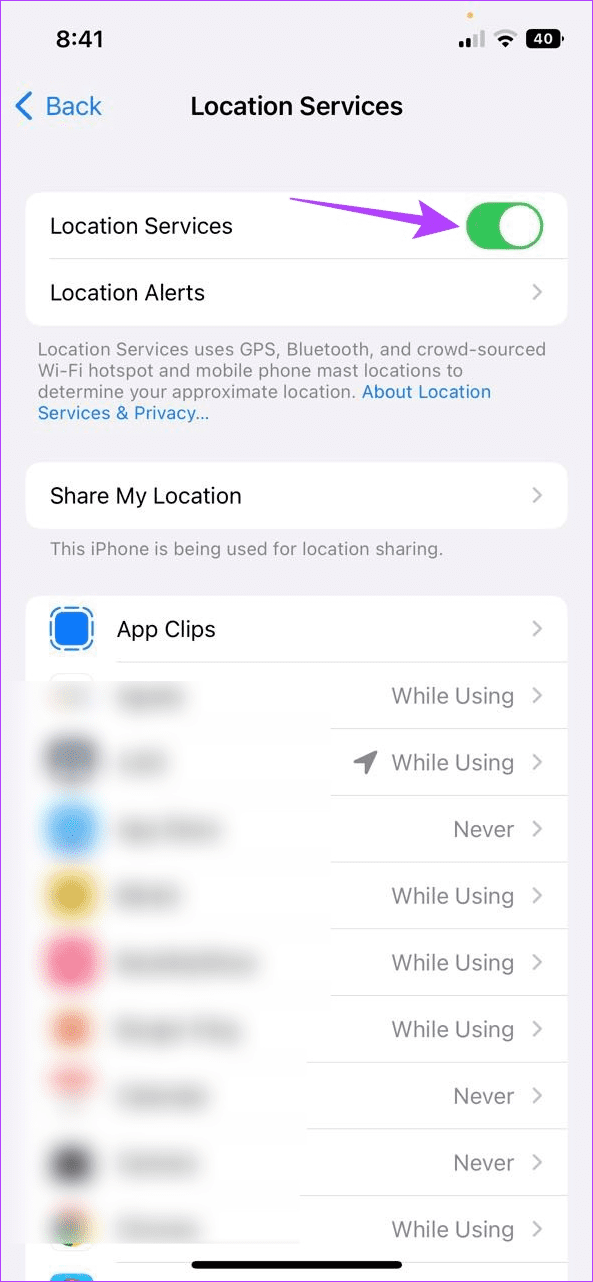
Step 1: Open Settings and tap on Privacy & Security. Then, tap on Location Services.

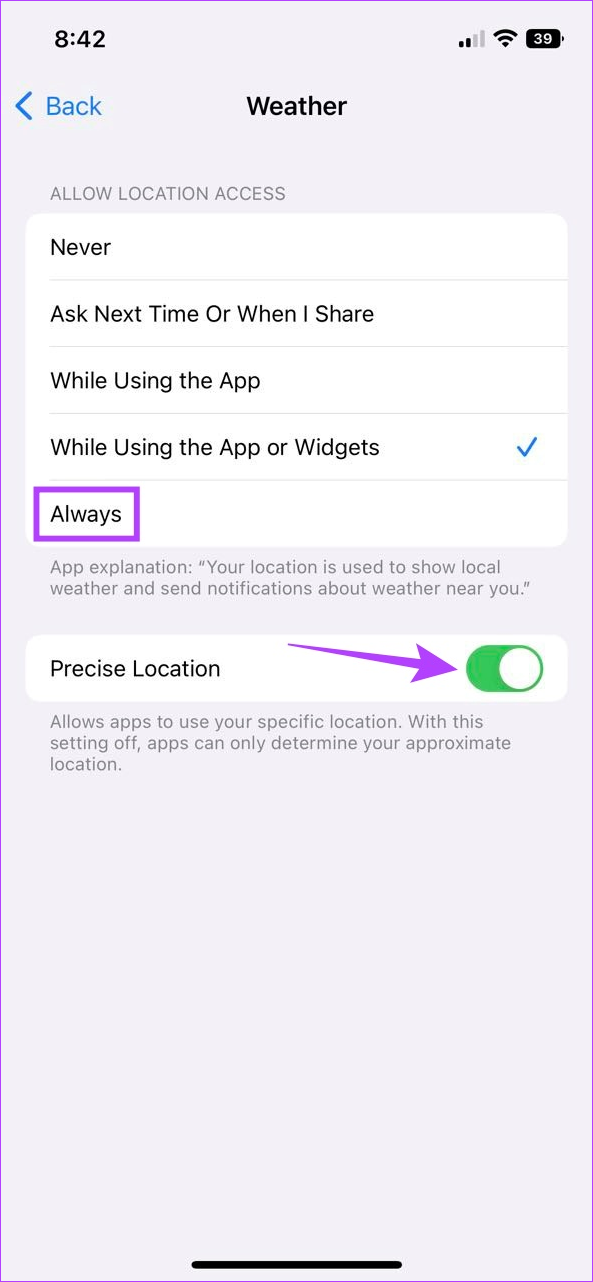
Step 2: First, ensure the Location Services toggle is turned on. Then, scroll down and tap on Weather.
Step 3: From the Allow Location Access menu, select Always. Then, turn on the toggle for Precise Location.

Fix 2: Turn on Background App Refresh
Background App Refresh allows apps on your iPhone to sync information and update in the background. If it is turned off, the Weather app might stop working. To ensure this does not happen, turn on Background App Refresh on your iPhone. Here’s how.
Tip: Check our guide to know more about Background App Refresh on iPhone
Step 1: Open Settings > tap on General. Then, tap on Background App Refresh.

Step 2: Again, tap on Background App Refresh. Once the options appear, select Wi-Fi & Mobile Data.

Fix 3: Reset Location & Privacy Settings
If you experience issues with the Weather app, reset the Location & Privacy settings on your iPhone. This will fix any location errors and get the Weather app running again. Doing this will erase any custom Location and Privacy settings and not affect your device data. Here’s how to do it.
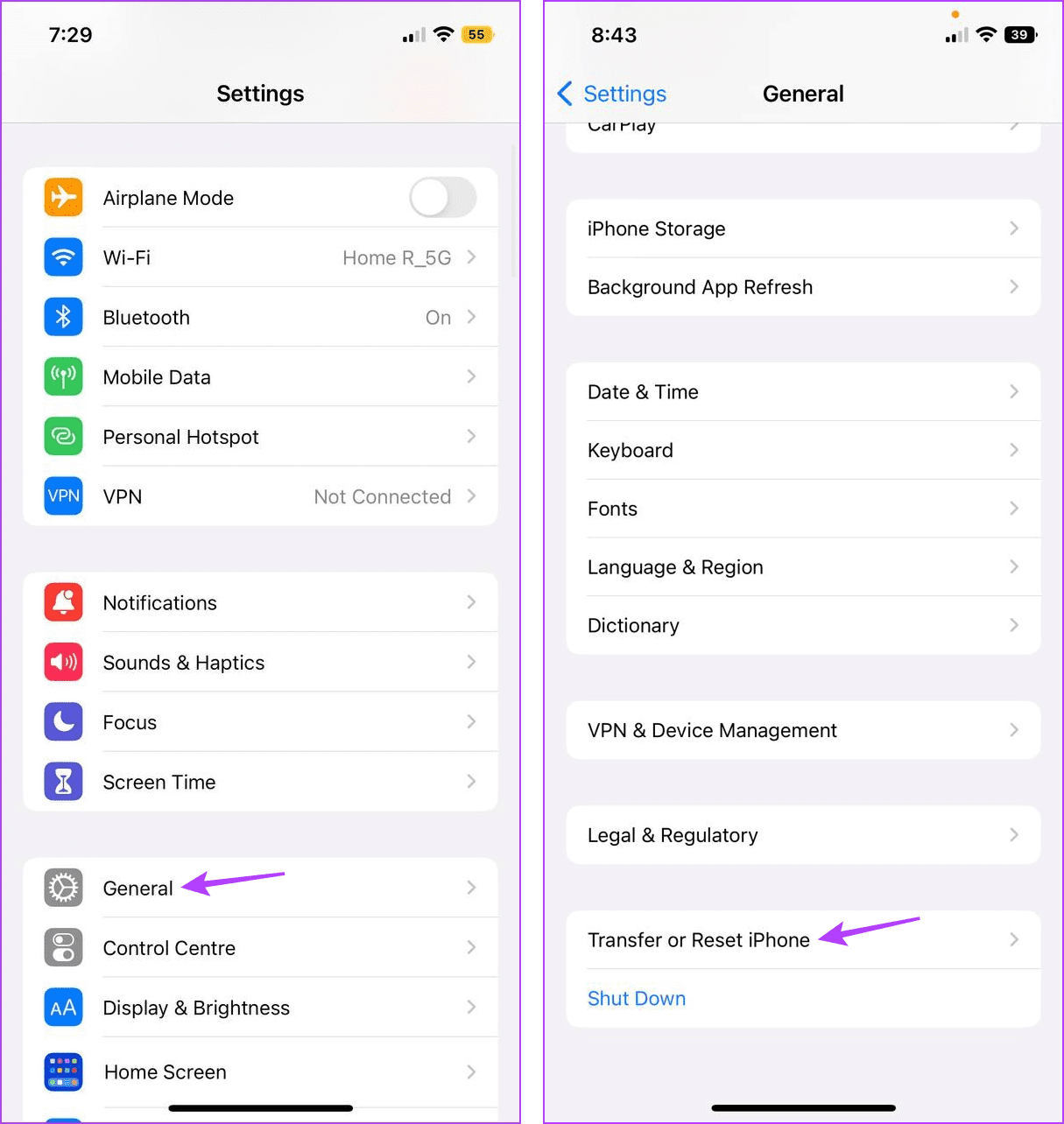
Step 1: Open Settings and tap on General. Scroll down and tap on Transfer or Reset iPhone.
Step 2: Here, tap on Reset. From the options, tap on Reset Location & Privacy.
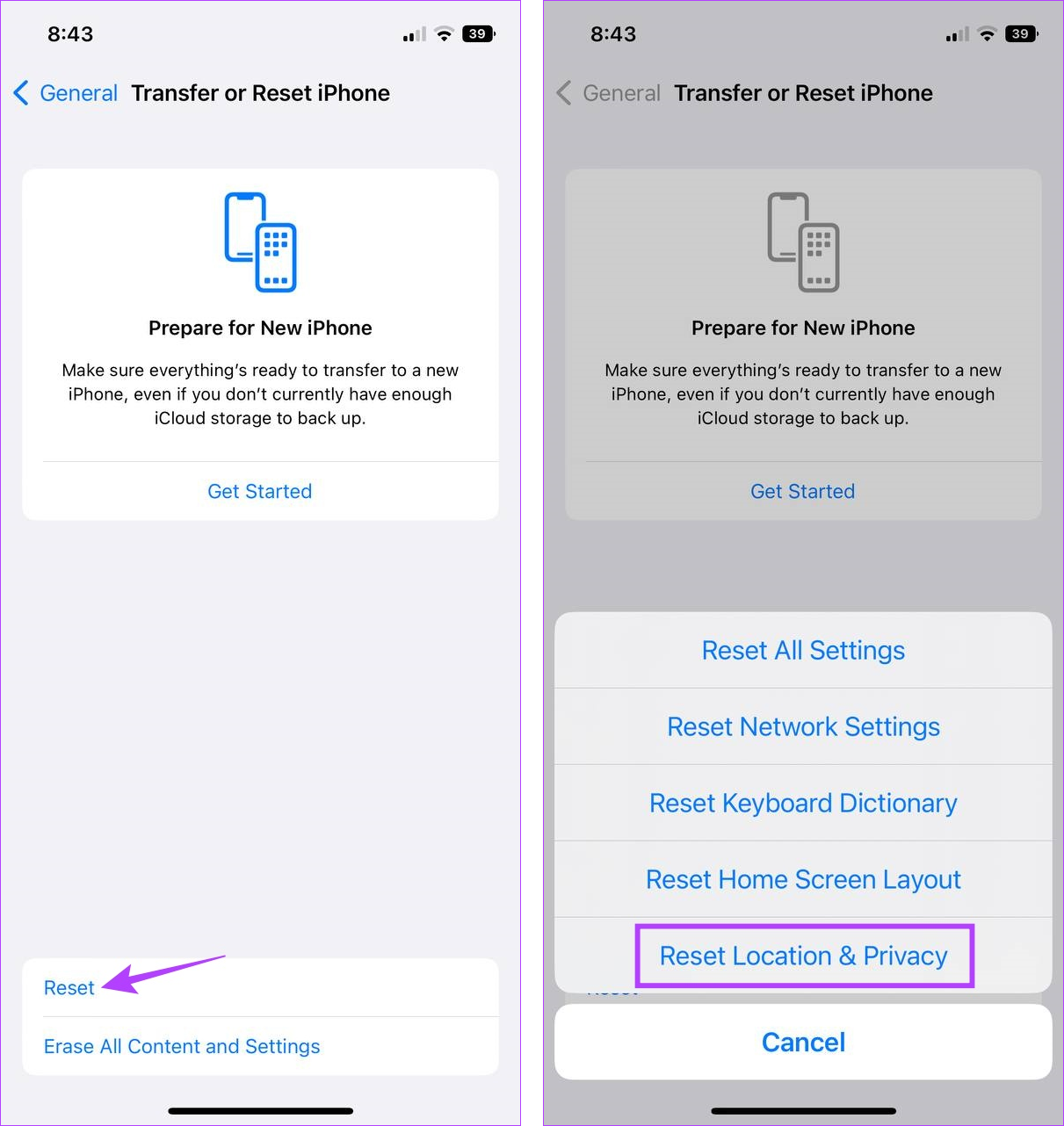
Now, enter your iPhone’s passcode when prompted and follow the on-screen instructions to finish the process. Once done, use the abovementioned steps to enable the location permissions for the Weather app. Then, open the Weather app and check again.
Was this helpful?
Last updated on 16 May, 2024
1 Comment
Leave a Reply
Read Next
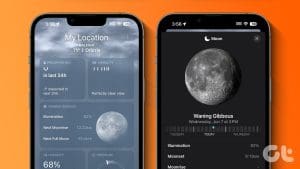 How to Use Apple Weather App on iPhone
How to Navigate and Read Apple Weather App Apple offers a pre-installed Weather app on iPhone.
How to Use Apple Weather App on iPhone
How to Navigate and Read Apple Weather App Apple offers a pre-installed Weather app on iPhone.
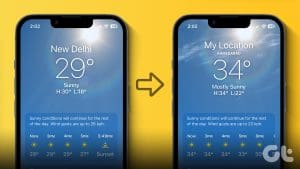 How to Change Weather Location on iPhone, iPad, or Apple Watch
If you own an iPhone or an Apple Watch, you probably know how convenient it is to check the weather forecast on these devices.
How to Change Weather Location on iPhone, iPad, or Apple Watch
If you own an iPhone or an Apple Watch, you probably know how convenient it is to check the weather forecast on these devices.
 iPhone Weather App Not Accurate? Here’s What to Do
Basic Fixes Disable VPN: An active VPN connection may change your location to show incorrect weather app data.
iPhone Weather App Not Accurate? Here’s What to Do
Basic Fixes Disable VPN: An active VPN connection may change your location to show incorrect weather app data.
 4 Fixes for Apple Watch Weather Not Showing or Updating
Basic Fixes Check Apple Watch connectivity: Ensure your Apple Watch is connected to Wi-Fi and your iPhone via Bluetooth.
4 Fixes for Apple Watch Weather Not Showing or Updating
Basic Fixes Check Apple Watch connectivity: Ensure your Apple Watch is connected to Wi-Fi and your iPhone via Bluetooth.
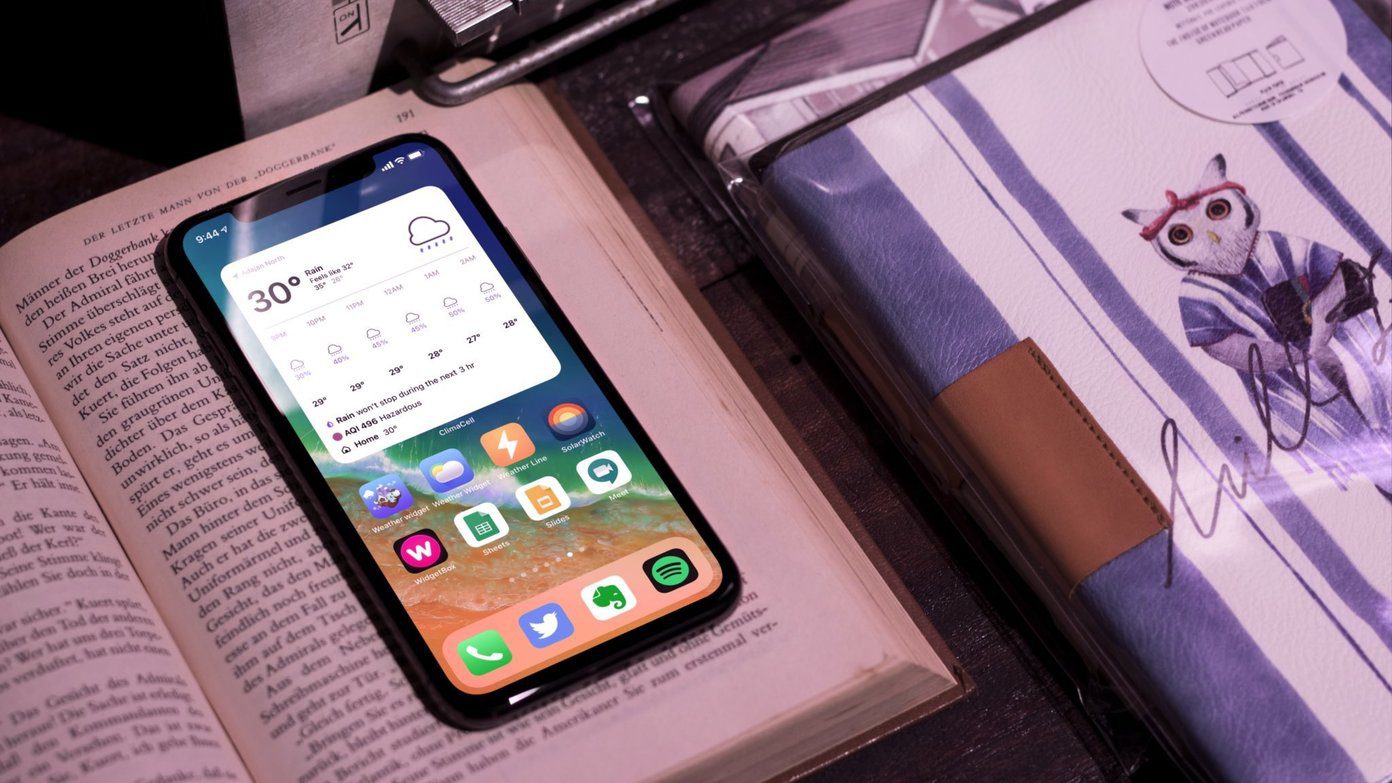 6 Best Weather Widget Apps for iPhone
iOS 14 update brings much-needed customization options for iPhone users.
6 Best Weather Widget Apps for iPhone
iOS 14 update brings much-needed customization options for iPhone users.
 4 Fixes for Location Not Updating in Weather App on Samsung Galaxy Phones
Basic Fixes Switch to 5G: To get the most accurate weather data, we suggest switching to 5G network on your Samsung phone.
4 Fixes for Location Not Updating in Weather App on Samsung Galaxy Phones
Basic Fixes Switch to 5G: To get the most accurate weather data, we suggest switching to 5G network on your Samsung phone.
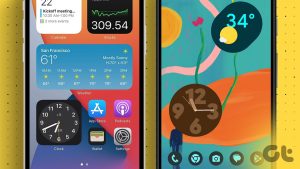 How to Add Date, Time and Weather to Your Phone’s Home Screen
How to Show Date, Time, and Weather on iPhone Home Screen You can do so, in the following two ways.
How to Add Date, Time and Weather to Your Phone’s Home Screen
How to Show Date, Time, and Weather on iPhone Home Screen You can do so, in the following two ways.
 5 Ways to Fix Apple TV App Not Working on iPhone or iPad
Basic Fixes Check your network connection: Ensure your device is connected to a good internet connection.
5 Ways to Fix Apple TV App Not Working on iPhone or iPad
Basic Fixes Check your network connection: Ensure your device is connected to a good internet connection.
The article above may contain affiliate links which help support Guiding Tech. The content remains unbiased and authentic and will never affect our editorial integrity.

Want precipitation FIRST back on my phone with the temperature. Already left a detailed message.